Creating Asp.net Web API and
consuming it through HTML Clients
– Part I
Howdy Readers,
ASP.NET Web API is very powerful and in demand technology.
Today, we would be dealing with creating ASP.NET Web API and consume it through HTML client.
Due to length and depth of this article I have divided it into two parts. In part I, our focus will be to
create ASP.NET Web API project and configure all necessary stuff. Whereas in part II, we will be
looking at how to consume this API.
ASP.NET Web API is a framework that makes it easy to build HTTP services that reach a broad
range of clients, including browsers and mobile devices. ASP.NET Web API is an ideal platform for
building RESTful applications on the .NET Framework.
Adding an ASP.NET Web API controller to your application is almost exactly like adding an
ASP.NET MVC controller. You can either add a Web API in the existing MVC project or can create a
separate Web API project.
Let’s start creating a new Web API project.
Start Visual Studio (I have used VS 2012 in this example) and follow the steps below:
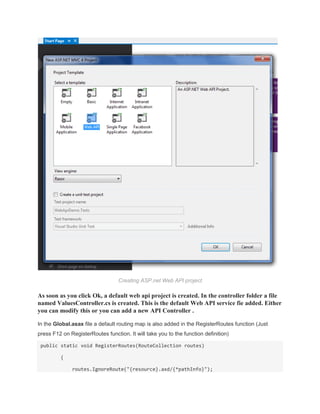
1. Select New Project and choose ASP.NET MVC 4 Web Application from the list of project
templates. Name the Project “WebApiDemo”.
2. In the Project Template dialog, select Web API and click Ok
Creating ASP.net Web API project
As soon as you click Ok, a default web api project is created. In the controller folder a file
named ValuesController.cs is created. This is the default Web API service fie added. Either
you can modify this or you can add a new API Controller .
In the Global.asax file a default routing map is also added in the RegisterRoutes function (Just
press F12 on RegisterRoutes function. It will take you to the function definition)
public static void RegisterRoutes(RouteCollection routes)
{
routes.IgnoreRoute("{resource}.axd/{*pathInfo}");
routes.MapRoute(
name: "Default",
url: "{controller}/{action}/{id}",
defaults: new { controller = "Home", action = "Index", id = UrlParame
ter.Optional }
);
}
You can modify this file to reflect any configuration changes you want to make for the application.
The default contains a single route as an example to get you started.
Let us create our own Product API Controller instead of modifying the
existing ValuesController.cs
Before creating the Product Api controller we will be creating the Product model and Product
Manager classes. These classes will be used in the Product API controller to perform CRUD
(Create, Read, Update, and Delete) operations.
Product Model
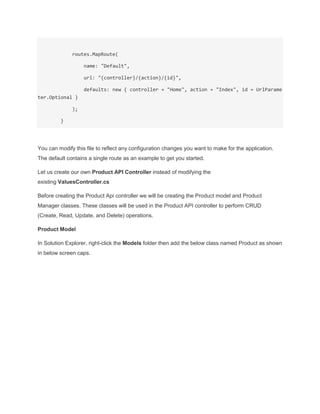
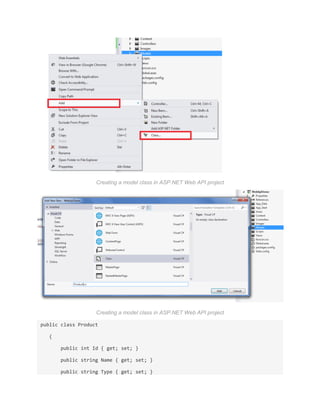
In Solution Explorer, right-click the Models folder then add the below class named Product as shown
in below screen caps.
Creating a model class in ASP.NET Web API project
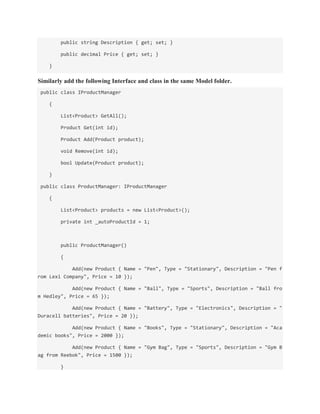
public class Product
{
public int Id { get; set; }
public string Name { get; set; }
public string Type { get; set; }
public string Description { get; set; }
public decimal Price { get; set; }
}
Similarly add the following Interface and class in the same Model folder.
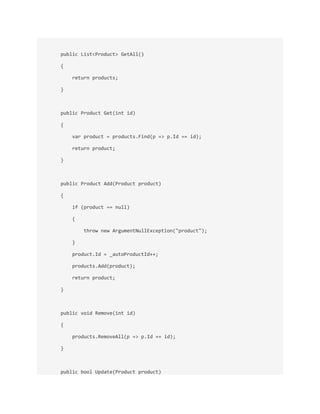
public class IProductManager
{
List<Product> GetAll();
Product Get(int id);
Product Add(Product product);
void Remove(int id);
bool Update(Product product);
}
public class ProductManager: IProductManager
{
List<Product> products = new List<Product>();
private int _autoProductId = 1;
public ProductManager()
{
Add(new Product { Name = "Pen", Type = "Stationary", Description = "Pen f
rom Lexi Company", Price = 10 });
Add(new Product { Name = "Ball", Type = "Sports", Description = "Ball fro
m Hedley", Price = 65 });
Add(new Product { Name = "Battery", Type = "Electronics", Description = "
Duracell batteries", Price = 20 });
Add(new Product { Name = "Books", Type = "Stationary", Description = "Aca
demic books", Price = 2000 });
Add(new Product { Name = "Gym Bag", Type = "Sports", Description = "Gym B
ag from Reebok", Price = 1500 });
}
public List<Product> GetAll()
{
return products;
}
public Product Get(int id)
{
var product = products.Find(p => p.Id == id);
return product;
}
public Product Add(Product product)
{
if (product == null)
{
throw new ArgumentNullException("product");
}
product.Id = _autoProductId++;
products.Add(product);
return product;
}
public void Remove(int id)
{
products.RemoveAll(p => p.Id == id);
}
public bool Update(Product product)
{
if (product == null)
{
throw new ArgumentNullException("product");
}
int index = products.FindIndex(p => p.Id == product.Id);
if (index == -1)
{
return false;
}
products.RemoveAt(index);
products.Add(product);
return true;
}
}
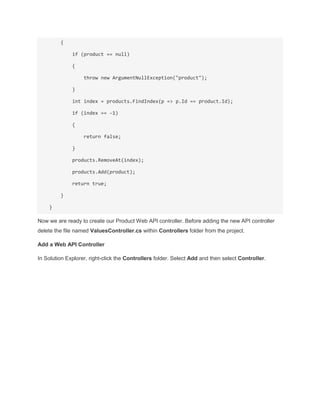
Now we are ready to create our Product Web API controller. Before adding the new API controller
delete the file named ValuesController.cs within Controllers folder from the project.
Add a Web API Controller
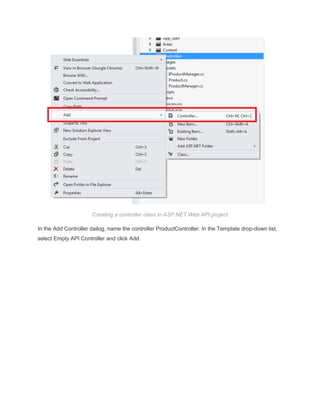
In Solution Explorer, right-click the Controllers folder. Select Add and then select Controller.
Creating a controller class in ASP.NET Web API project
In the Add Controller dailog, name the controller ProductController. In the Template drop-down list,
select Empty API Controller and click Add.
Adding a model class in ASP.NET Web API project
Add the following code in the ProductController.cs class
public class ProductController : ApiController
{
static readonly IProductManager prodManager = new ProductManager();
//Get All Products
[HttpGet]
public List<Product> GetAllProducts()
{
return prodManager.GetAll();
}
//Get Product by id
[HttpGet]
public Product GetProductById(int id)
{
var product = prodManager.Get(id);
if (product == null)
{
throw new HttpResponseException(HttpStatusCode.OK);
}
return product;
}
//Add Product
[HttpPost]
public Product AddProduct(Product product)
{
product = prodManager.Add(product);
return product;
}
//Update Product
[HttpPut]
public void UpdateProduct(Product product)
{
if (!prodManager.Update(product))
{
throw new HttpResponseException(HttpStatusCode.NotFound);
}
}
//Delete Product
[HttpDelete]
public void DeleteProduct(int id)
{
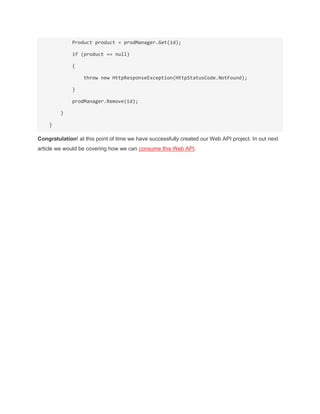
Product product = prodManager.Get(id);
if (product == null)
{
throw new HttpResponseException(HttpStatusCode.NotFound);
}
prodManager.Remove(id);
}
}
Congratulation! at this point of time we have successfully created our Web API project. In out next
article we would be covering how we can consume this Web API.

Creating web api and consuming- part 1

  • 1.
    Creating Asp.net WebAPI and consuming it through HTML Clients – Part I Howdy Readers, ASP.NET Web API is very powerful and in demand technology. Today, we would be dealing with creating ASP.NET Web API and consume it through HTML client. Due to length and depth of this article I have divided it into two parts. In part I, our focus will be to create ASP.NET Web API project and configure all necessary stuff. Whereas in part II, we will be looking at how to consume this API. ASP.NET Web API is a framework that makes it easy to build HTTP services that reach a broad range of clients, including browsers and mobile devices. ASP.NET Web API is an ideal platform for building RESTful applications on the .NET Framework. Adding an ASP.NET Web API controller to your application is almost exactly like adding an ASP.NET MVC controller. You can either add a Web API in the existing MVC project or can create a separate Web API project. Let’s start creating a new Web API project. Start Visual Studio (I have used VS 2012 in this example) and follow the steps below: 1. Select New Project and choose ASP.NET MVC 4 Web Application from the list of project templates. Name the Project “WebApiDemo”. 2. In the Project Template dialog, select Web API and click Ok
  • 2.
    Creating ASP.net WebAPI project As soon as you click Ok, a default web api project is created. In the controller folder a file named ValuesController.cs is created. This is the default Web API service fie added. Either you can modify this or you can add a new API Controller . In the Global.asax file a default routing map is also added in the RegisterRoutes function (Just press F12 on RegisterRoutes function. It will take you to the function definition) public static void RegisterRoutes(RouteCollection routes) { routes.IgnoreRoute("{resource}.axd/{*pathInfo}");
  • 3.
    routes.MapRoute( name: "Default", url: "{controller}/{action}/{id}", defaults:new { controller = "Home", action = "Index", id = UrlParame ter.Optional } ); } You can modify this file to reflect any configuration changes you want to make for the application. The default contains a single route as an example to get you started. Let us create our own Product API Controller instead of modifying the existing ValuesController.cs Before creating the Product Api controller we will be creating the Product model and Product Manager classes. These classes will be used in the Product API controller to perform CRUD (Create, Read, Update, and Delete) operations. Product Model In Solution Explorer, right-click the Models folder then add the below class named Product as shown in below screen caps.
  • 4.
    Creating a modelclass in ASP.NET Web API project Creating a model class in ASP.NET Web API project public class Product { public int Id { get; set; } public string Name { get; set; } public string Type { get; set; }
  • 5.
    public string Description{ get; set; } public decimal Price { get; set; } } Similarly add the following Interface and class in the same Model folder. public class IProductManager { List<Product> GetAll(); Product Get(int id); Product Add(Product product); void Remove(int id); bool Update(Product product); } public class ProductManager: IProductManager { List<Product> products = new List<Product>(); private int _autoProductId = 1; public ProductManager() { Add(new Product { Name = "Pen", Type = "Stationary", Description = "Pen f rom Lexi Company", Price = 10 }); Add(new Product { Name = "Ball", Type = "Sports", Description = "Ball fro m Hedley", Price = 65 }); Add(new Product { Name = "Battery", Type = "Electronics", Description = " Duracell batteries", Price = 20 }); Add(new Product { Name = "Books", Type = "Stationary", Description = "Aca demic books", Price = 2000 }); Add(new Product { Name = "Gym Bag", Type = "Sports", Description = "Gym B ag from Reebok", Price = 1500 }); }
  • 6.
    public List<Product> GetAll() { returnproducts; } public Product Get(int id) { var product = products.Find(p => p.Id == id); return product; } public Product Add(Product product) { if (product == null) { throw new ArgumentNullException("product"); } product.Id = _autoProductId++; products.Add(product); return product; } public void Remove(int id) { products.RemoveAll(p => p.Id == id); } public bool Update(Product product)
  • 7.
    { if (product ==null) { throw new ArgumentNullException("product"); } int index = products.FindIndex(p => p.Id == product.Id); if (index == -1) { return false; } products.RemoveAt(index); products.Add(product); return true; } } Now we are ready to create our Product Web API controller. Before adding the new API controller delete the file named ValuesController.cs within Controllers folder from the project. Add a Web API Controller In Solution Explorer, right-click the Controllers folder. Select Add and then select Controller.
  • 8.
    Creating a controllerclass in ASP.NET Web API project In the Add Controller dailog, name the controller ProductController. In the Template drop-down list, select Empty API Controller and click Add.
  • 9.
    Adding a modelclass in ASP.NET Web API project Add the following code in the ProductController.cs class public class ProductController : ApiController { static readonly IProductManager prodManager = new ProductManager(); //Get All Products [HttpGet] public List<Product> GetAllProducts() { return prodManager.GetAll(); } //Get Product by id [HttpGet]
  • 10.
    public Product GetProductById(intid) { var product = prodManager.Get(id); if (product == null) { throw new HttpResponseException(HttpStatusCode.OK); } return product; } //Add Product [HttpPost] public Product AddProduct(Product product) { product = prodManager.Add(product); return product; } //Update Product [HttpPut] public void UpdateProduct(Product product) { if (!prodManager.Update(product)) { throw new HttpResponseException(HttpStatusCode.NotFound); } } //Delete Product [HttpDelete] public void DeleteProduct(int id) {
  • 11.
    Product product =prodManager.Get(id); if (product == null) { throw new HttpResponseException(HttpStatusCode.NotFound); } prodManager.Remove(id); } } Congratulation! at this point of time we have successfully created our Web API project. In out next article we would be covering how we can consume this Web API.