Principles of Web Design, 6th Edition
Data Tables
IT 4001
Objectives
When you complete this class, you will be able to:
• Use table elements
• Use table headers and footers
• Group columns
• Style table borders
• Apply padding, margins, and floats to tables
• Style table background colors
• Apply table styles
2
Using Table Elements
3
Using Table Elements
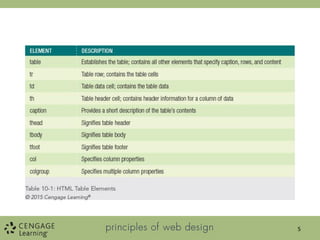
• The HTML table elements allow the arrangement of
data into rows of cells and columns
• The table element <table> contains the table
information, which consists of:
– Header element <th>
– Row element <tr>
– Data cell alignment <td>
4
5
6
Collapsing Table Borders
• Tables are more legible with the table borders
collapsed
• Use the border-collapsed property
table {border-collapse: collapse;}
7
8
Spanning Columns
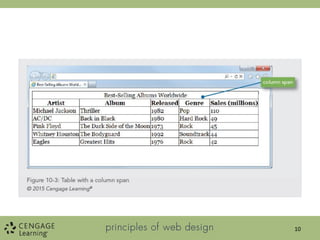
• The colspan attribute lets you create cells that span
multiple columns
<td class="title" colspan=“5">
Best-Selling Albums Worldwide</td>
9
10
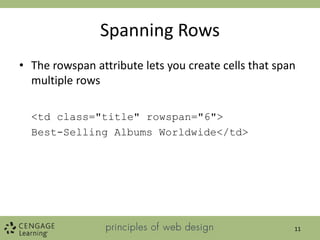
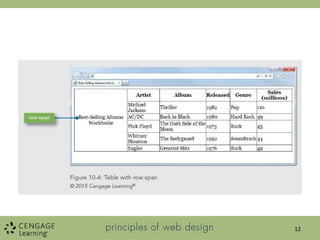
Spanning Rows
• The rowspan attribute lets you create cells that span
multiple rows
<td class="title" rowspan="6">
Best-Selling Albums Worldwide</td>
11
12
Using Table Headers and Footers
13
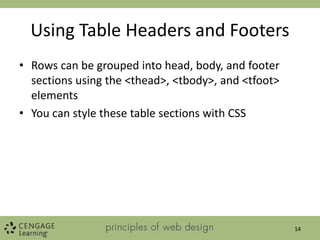
Using Table Headers and Footers
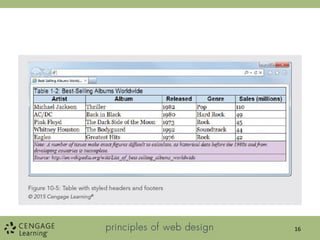
• Rows can be grouped into head, body, and footer
sections using the <thead>, <tbody>, and <tfoot>
elements
• You can style these table sections with CSS
14
Using Table Headers and Footers
thead {
font-family: arial;
background-color: #ccddee;
}
tfoot {
background-color: #ddccee;
font-family: times, serif;
font-size: .9em;
font-style: italic;
}
Principles of Web Design 5th Ed. 15
16
Grouping Columns
17
Grouping Columns
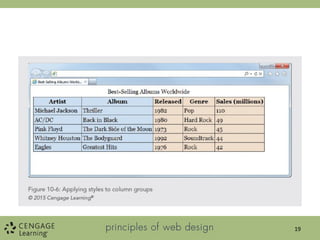
• The <colgroup> and <col> elements allow you to
apply style characteristics to groups of columns or
individual columns
• The <colgroup> element has a span attribute that
lets you set the number of columns specified in the
group
• The <col> element lets you specify style
characteristics for individual columns
18
19
20
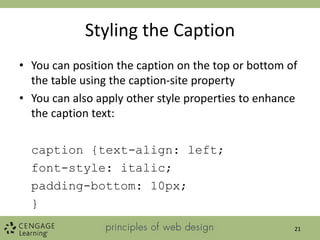
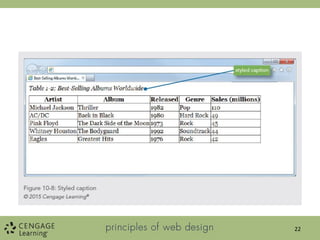
Styling the Caption
• You can position the caption on the top or bottom of
the table using the caption-site property
• You can also apply other style properties to enhance
the caption text:
caption {text-align: left;
font-style: italic;
padding-bottom: 10px;
}
21
22
Styling Table Borders
23
Styling Table Borders
• By default, table borders are turned off
• You can add borders using CSS
• Borders can be applied to the whole table, to
individual rows, and to individual cells
24
Styling Table Borders
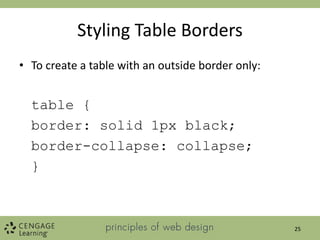
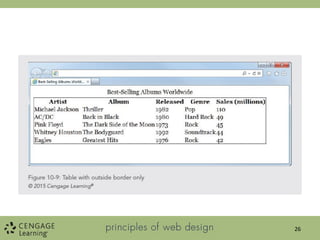
• To create a table with an outside border only:
table {
border: solid 1px black;
border-collapse: collapse;
}
25
26
Styling Table Borders
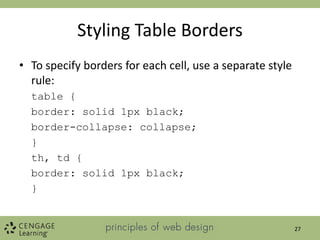
• To specify borders for each cell, use a separate style
rule:
table {
border: solid 1px black;
border-collapse: collapse;
}
th, td {
border: solid 1px black;
}
27
28
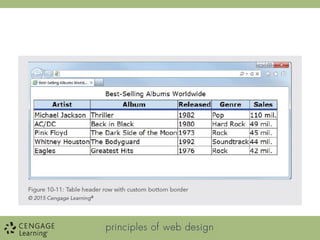
Styling Table Borders
• You can also style individual rows or cells and apply
cell borders
th {
border-bottom: solid thick blue;
background-color: #ccddee;
}
29
Applying Padding, Margins, and Floats
to Tables
31
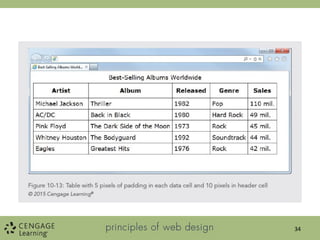
Using Padding
• You can enhance the legibility of your table data with
padding
• This style rule adds five pixels of padding to both
types of table data elements
th, td {padding: 5px;}
32
33
34
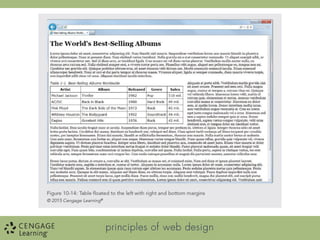
Using Margins and Floats
• Tables can be floated
• Use margins to add white space around floating
tables
table.best {
font-family: verdana;
border: solid 1px black;
border-collapse: collapse;
float: left;
margin-right: 20px;
margin-bottom: 10px;
}
35
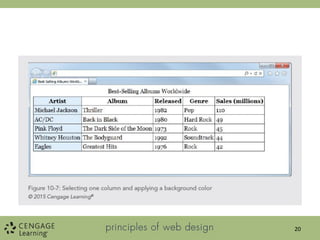
Styling Table Background Colors
37
Styling Table Background Colors
• You can apply background colors to:
– Entire table
– Single rows or cells
– Column groups of individual columns
• You can alternate colors for different rows
• Add hover interactions
38
39
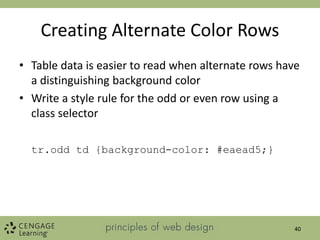
Creating Alternate Color Rows
• Table data is easier to read when alternate rows have
a distinguishing background color
• Write a style rule for the odd or even row using a
class selector
tr.odd td {background-color: #eaead5;}
40
41
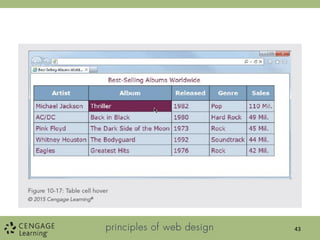
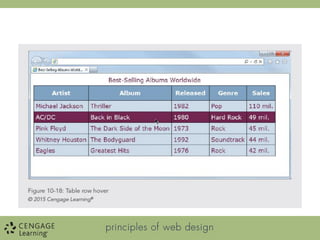
Creating Background Hover Effects
• You can add interactivity to your table with hover
effects
• When the user hovers the pointer over a cell or row,
the formatting can change
td:hover {
color: white;
background-color: #722750;
}
42
43
Summary
• Use tables for presentation of data, not for page
layout
• Use the grouping elements to apply styles to groups
of rows or columns or to the header, body, and
footer of a table
• Apply borders to both the <table> and cell (<th> and
<td>) elements to display a table border on the
entire table
• Use the border-collapse property to make table data
more legible
45
Summary
• Always use CSS to add presentation style to tables
• Use padding to add space within your cells to make
your data more legible
• You can float tables and add margins with the box
model properties
• Specify background colors or hovers to aid in the
legibility of your data
46

creating tables in website design and interface

  • 1.
    Principles of WebDesign, 6th Edition Data Tables IT 4001
  • 2.
    Objectives When you completethis class, you will be able to: • Use table elements • Use table headers and footers • Group columns • Style table borders • Apply padding, margins, and floats to tables • Style table background colors • Apply table styles 2
  • 3.
  • 4.
    Using Table Elements •The HTML table elements allow the arrangement of data into rows of cells and columns • The table element <table> contains the table information, which consists of: – Header element <th> – Row element <tr> – Data cell alignment <td> 4
  • 5.
  • 6.
  • 7.
    Collapsing Table Borders •Tables are more legible with the table borders collapsed • Use the border-collapsed property table {border-collapse: collapse;} 7
  • 8.
  • 9.
    Spanning Columns • Thecolspan attribute lets you create cells that span multiple columns <td class="title" colspan=“5"> Best-Selling Albums Worldwide</td> 9
  • 10.
  • 11.
    Spanning Rows • Therowspan attribute lets you create cells that span multiple rows <td class="title" rowspan="6"> Best-Selling Albums Worldwide</td> 11
  • 12.
  • 13.
    Using Table Headersand Footers 13
  • 14.
    Using Table Headersand Footers • Rows can be grouped into head, body, and footer sections using the <thead>, <tbody>, and <tfoot> elements • You can style these table sections with CSS 14
  • 15.
    Using Table Headersand Footers thead { font-family: arial; background-color: #ccddee; } tfoot { background-color: #ddccee; font-family: times, serif; font-size: .9em; font-style: italic; } Principles of Web Design 5th Ed. 15
  • 16.
  • 17.
  • 18.
    Grouping Columns • The<colgroup> and <col> elements allow you to apply style characteristics to groups of columns or individual columns • The <colgroup> element has a span attribute that lets you set the number of columns specified in the group • The <col> element lets you specify style characteristics for individual columns 18
  • 19.
  • 20.
  • 21.
    Styling the Caption •You can position the caption on the top or bottom of the table using the caption-site property • You can also apply other style properties to enhance the caption text: caption {text-align: left; font-style: italic; padding-bottom: 10px; } 21
  • 22.
  • 23.
  • 24.
    Styling Table Borders •By default, table borders are turned off • You can add borders using CSS • Borders can be applied to the whole table, to individual rows, and to individual cells 24
  • 25.
    Styling Table Borders •To create a table with an outside border only: table { border: solid 1px black; border-collapse: collapse; } 25
  • 26.
  • 27.
    Styling Table Borders •To specify borders for each cell, use a separate style rule: table { border: solid 1px black; border-collapse: collapse; } th, td { border: solid 1px black; } 27
  • 28.
  • 29.
    Styling Table Borders •You can also style individual rows or cells and apply cell borders th { border-bottom: solid thick blue; background-color: #ccddee; } 29
  • 31.
    Applying Padding, Margins,and Floats to Tables 31
  • 32.
    Using Padding • Youcan enhance the legibility of your table data with padding • This style rule adds five pixels of padding to both types of table data elements th, td {padding: 5px;} 32
  • 33.
  • 34.
  • 35.
    Using Margins andFloats • Tables can be floated • Use margins to add white space around floating tables table.best { font-family: verdana; border: solid 1px black; border-collapse: collapse; float: left; margin-right: 20px; margin-bottom: 10px; } 35
  • 37.
  • 38.
    Styling Table BackgroundColors • You can apply background colors to: – Entire table – Single rows or cells – Column groups of individual columns • You can alternate colors for different rows • Add hover interactions 38
  • 39.
  • 40.
    Creating Alternate ColorRows • Table data is easier to read when alternate rows have a distinguishing background color • Write a style rule for the odd or even row using a class selector tr.odd td {background-color: #eaead5;} 40
  • 41.
  • 42.
    Creating Background HoverEffects • You can add interactivity to your table with hover effects • When the user hovers the pointer over a cell or row, the formatting can change td:hover { color: white; background-color: #722750; } 42
  • 43.
  • 45.
    Summary • Use tablesfor presentation of data, not for page layout • Use the grouping elements to apply styles to groups of rows or columns or to the header, body, and footer of a table • Apply borders to both the <table> and cell (<th> and <td>) elements to display a table border on the entire table • Use the border-collapse property to make table data more legible 45
  • 46.
    Summary • Always useCSS to add presentation style to tables • Use padding to add space within your cells to make your data more legible • You can float tables and add margins with the box model properties • Specify background colors or hovers to aid in the legibility of your data 46