the world’s open source
learning platform
Creating Moodle Mobile
remote themes
Daniel Palou
@moodlemobileapp #mootus16
Copyright 2016 © Moodle Pty Ltd - CC SA - support@moodle.comthe world’s open source learning platform
What is a remote theme?
● CSS file stored in the cloud.
● Moodle site can have 1 remote CSS.
● Downloaded and applied by the app when the site is
accessed.
Copyright 2016 © Moodle Pty Ltd - CC SA - support@moodle.comthe world’s open source learning platform
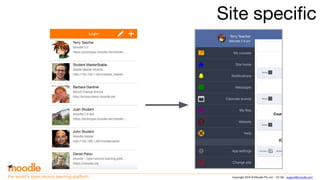
Site specific
Copyright 2016 © Moodle Pty Ltd - CC SA - support@moodle.comthe world’s open source learning platform
What will we do?
1. Learn how to run Moodle Mobile in a browser.
2. Create a Mobile theme progressively.
3. Upload and configure this new theme in Moodle.
4. Learn some tricks to improve how the theme is
downloaded.
Copyright 2016 © Moodle Pty Ltd - CC SA - support@moodle.comthe world’s open source learning platform
Moodle Mobile in the browser
Several ways to do that:
1. Advanced:
https://docs.moodle.org/dev/Setting_up_your_development_environme
nt_for_Moodle_Mobile_2
2. Simple:
Download the latest build, and open it in your browser:
https://github.com/moodlehq/moodlemobile-phonegapbuild
Copyright 2016 © Moodle Pty Ltd - CC SA - support@moodle.comthe world’s open source learning platform
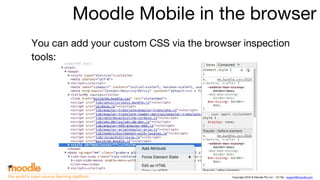
Moodle Mobile in the browser
You can add your custom CSS via the browser inspection
tools:
Copyright 2016 © Moodle Pty Ltd - CC SA - support@moodle.comthe world’s open source learning platform
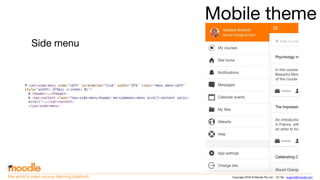
Mobile theme
Side menu
Copyright 2016 © Moodle Pty Ltd - CC SA - support@moodle.comthe world’s open source learning platform
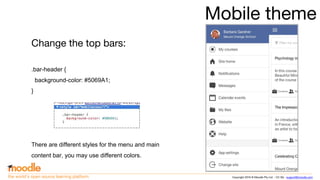
Mobile theme
Change the top bars:
.bar-header {
background-color: #5069A1;
}
There are different styles for the menu and main
content bar, you may use different colors.
Copyright 2016 © Moodle Pty Ltd - CC SA - support@moodle.comthe world’s open source learning platform
Mobile theme
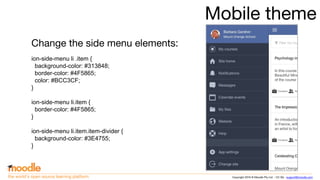
Change the side menu elements:
ion-side-menu li .item {
background-color: #313848;
border-color: #4F5865;
color: #BCC3CF;
}
ion-side-menu li.item {
border-color: #4F5865;
}
ion-side-menu li.item.item-divider {
background-color: #3E4755;
}
Copyright 2016 © Moodle Pty Ltd - CC SA - support@moodle.comthe world’s open source learning platform
Mobile theme
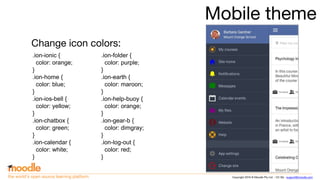
Change icon colors:
.ion-ionic {
color: orange;
}
.ion-home {
color: blue;
}
.ion-ios-bell {
color: yellow;
}
.ion-chatbox {
color: green;
}
.ion-calendar {
color: white;
}
.ion-folder {
color: purple;
}
.ion-earth {
color: maroon;
}
.ion-help-buoy {
color: orange;
}
.ion-gear-b {
color: dimgray;
}
.ion-log-out {
color: red;
}
Copyright 2016 © Moodle Pty Ltd - CC SA - support@moodle.comthe world’s open source learning platform
Mobile theme
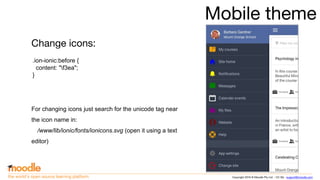
Change icons:
For changing icons just search for the unicode tag near
the icon name in:
/www/lib/ionic/fonts/ionicons.svg (open it using a text
editor)
.ion-ionic:before {
content: "f3ea";
}
Copyright 2016 © Moodle Pty Ltd - CC SA - support@moodle.comthe world’s open source learning platform
Mobile theme
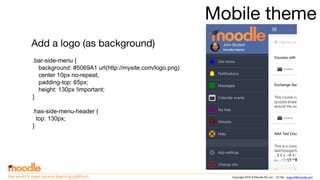
Add a logo (as background)
.bar-side-menu {
background: #5069A1 url(http://mysite.com/logo.png)
center 10px no-repeat;
padding-top: 65px;
height: 130px !important;
}
.has-side-menu-header {
top: 130px;
}
Copyright 2016 © Moodle Pty Ltd - CC SA - support@moodle.comthe world’s open source learning platform
Mobile theme
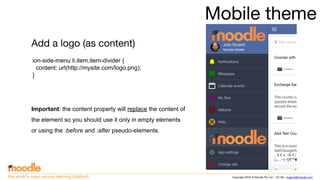
Add a logo (as content)
ion-side-menu li.item.item-divider {
content: url(http://mysite.com/logo.png);
}
Important: the content property will replace the content of
the element so you should use it only in empty elements
or using the :before and :after pseudo-elements.
Copyright 2016 © Moodle Pty Ltd - CC SA - support@moodle.comthe world’s open source learning platform
Mobile theme
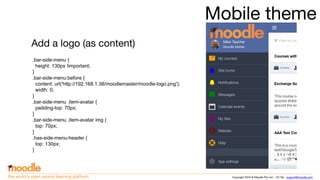
Add a logo (as content)
.bar-side-menu {
height: 130px !important;
}
.bar-side-menu:before {
content: url('http://192.168.1.38/moodlemaster/moodle-logo.png');
width: 0;
}
.bar-side-menu .item-avatar {
padding-top: 70px;
}
.bar-side-menu .item-avatar img {
top: 70px;
}
.has-side-menu-header {
top: 130px;
}
Copyright 2016 © Moodle Pty Ltd - CC SA - support@moodle.comthe world’s open source learning platform
Images in CSS
● From Moodle Mobile 3.1, all the images and fonts in the
remote CSS are downloaded for offline usage.
● Images are updated if their URL changes or the user
synchronizes the site data in App Settings.
● You can add a prefix to the file URL for better version
control. Example: mysite.com/image#1
Copyright 2016 © Moodle Pty Ltd - CC SA - support@moodle.comthe world’s open source learning platform
Mobile theme
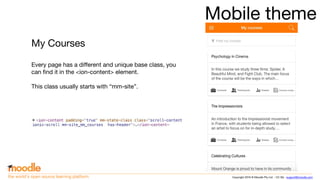
My Courses
Every page has a different and unique base class, you
can find it in the <ion-content> element.
This class usually starts with “mm-site”.
Copyright 2016 © Moodle Pty Ltd - CC SA - support@moodle.comthe world’s open source learning platform
Mobile theme
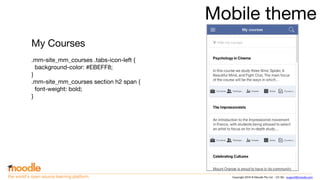
My Courses
.mm-site_mm_courses .tabs-icon-left {
background-color: #EBEFF8;
}
.mm-site_mm_courses section h2 span {
font-weight: bold;
}
Copyright 2016 © Moodle Pty Ltd - CC SA - support@moodle.comthe world’s open source learning platform
Mobile theme
User profile
Copyright 2016 © Moodle Pty Ltd - CC SA - support@moodle.comthe world’s open source learning platform
Mobile theme
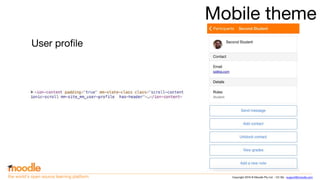
User profile
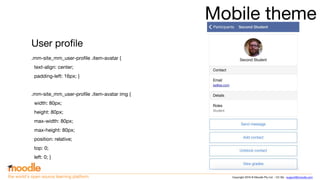
.mm-site_mm_user-profile .item-avatar {
text-align: center;
padding-left: 16px; }
.mm-site_mm_user-profile .item-avatar img {
width: 80px;
height: 80px;
max-width: 80px;
max-height: 80px;
position: relative;
top: 0;
left: 0; }
Copyright 2016 © Moodle Pty Ltd - CC SA - support@moodle.comthe world’s open source learning platform
Mobile theme
User profile
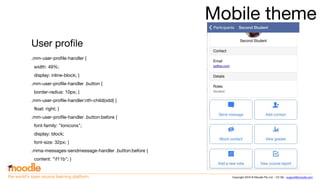
.mm-user-profile-handler {
width: 49%;
display: inline-block; }
.mm-user-profile-handler .button {
border-radius: 10px; }
.mm-user-profile-handler:nth-child(odd) {
float: right; }
.mm-user-profile-handler .button:before {
font-family: "Ionicons";
display: block;
font-size: 32px; }
.mma-messages-sendmessage-handler .button:before {
content: "f11b"; }
Copyright 2016 © Moodle Pty Ltd - CC SA - support@moodle.comthe world’s open source learning platform
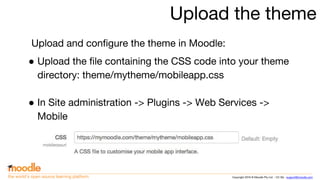
Upload the theme
Upload and configure the theme in Moodle:
● Upload the file containing the CSS code into your theme
directory: theme/mytheme/mobileapp.css
● In Site administration -> Plugins -> Web Services ->
Mobile
Copyright 2016 © Moodle Pty Ltd - CC SA - support@moodle.comthe world’s open source learning platform
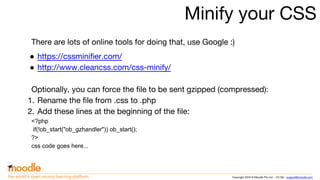
Minify your CSS
There are lots of online tools for doing that, use Google :)
● https://cssminifier.com/
● http://www.cleancss.com/css-minify/
Optionally, you can force the file to be sent gzipped (compressed):
1. Rename the file from .css to .php
2. Add these lines at the beginning of the file:
<?php
if(!ob_start("ob_gzhandler")) ob_start();
?>
css code goes here...
Copyright 2016 © Moodle Pty Ltd - CC SA - support@moodle.comthe world’s open source learning platform
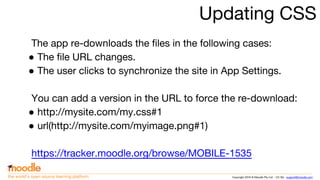
Updating CSS
The app re-downloads the files in the following cases:
● The file URL changes.
● The user clicks to synchronize the site in App Settings.
You can add a version in the URL to force the re-download:
● http://mysite.com/my.css#1
● url(http://mysite.com/myimage.png#1)
https://tracker.moodle.org/browse/MOBILE-1535
Copyright 2016 © Moodle Pty Ltd - CC SA - support@moodle.comthe world’s open source learning platform
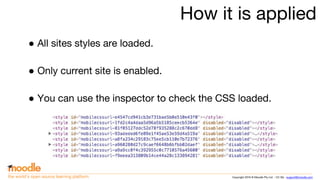
How it is applied
● All sites styles are loaded.
● Only current site is enabled.
● You can use the inspector to check the CSS loaded.
Copyright 2016 © Moodle Pty Ltd - CC SA - support@moodle.comthe world’s open source learning platform
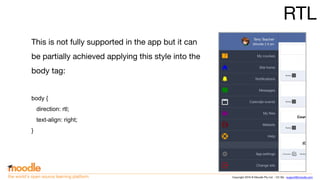
RTL
This is not fully supported in the app but it can
be partially achieved applying this style into the
body tag:
body {
direction: rtl;
text-align: right;
}
Copyright 2016 © Moodle Pty Ltd - CC SA - support@moodle.comthe world’s open source learning platform
FAQ
● Can I change the styles of the login screen?
○ No, you can’t. Styles are only applied to the specific site.
● Can I change the app icon or the splashscreen?
○ No, you need a custom app to do so.
● Can I have specific styles depending on the user’s role?
○ No, the stylesheet is unique for all users and the app
doesn’t know the user’s role.
Thank you
Community: moodle.org
Commercial: moodle.com
@moodle
the world’s open source learning platform

Creating Moodle Mobile remote themes (Moodle Moot US 2016)

  • 1.
    the world’s opensource learning platform Creating Moodle Mobile remote themes Daniel Palou @moodlemobileapp #mootus16
  • 2.
    Copyright 2016 ©Moodle Pty Ltd - CC SA - support@moodle.comthe world’s open source learning platform What is a remote theme? ● CSS file stored in the cloud. ● Moodle site can have 1 remote CSS. ● Downloaded and applied by the app when the site is accessed.
  • 3.
    Copyright 2016 ©Moodle Pty Ltd - CC SA - support@moodle.comthe world’s open source learning platform Site specific
  • 4.
    Copyright 2016 ©Moodle Pty Ltd - CC SA - support@moodle.comthe world’s open source learning platform What will we do? 1. Learn how to run Moodle Mobile in a browser. 2. Create a Mobile theme progressively. 3. Upload and configure this new theme in Moodle. 4. Learn some tricks to improve how the theme is downloaded.
  • 5.
    Copyright 2016 ©Moodle Pty Ltd - CC SA - support@moodle.comthe world’s open source learning platform Moodle Mobile in the browser Several ways to do that: 1. Advanced: https://docs.moodle.org/dev/Setting_up_your_development_environme nt_for_Moodle_Mobile_2 2. Simple: Download the latest build, and open it in your browser: https://github.com/moodlehq/moodlemobile-phonegapbuild
  • 6.
    Copyright 2016 ©Moodle Pty Ltd - CC SA - support@moodle.comthe world’s open source learning platform Moodle Mobile in the browser You can add your custom CSS via the browser inspection tools:
  • 7.
    Copyright 2016 ©Moodle Pty Ltd - CC SA - support@moodle.comthe world’s open source learning platform Mobile theme Side menu
  • 8.
    Copyright 2016 ©Moodle Pty Ltd - CC SA - support@moodle.comthe world’s open source learning platform Mobile theme Change the top bars: .bar-header { background-color: #5069A1; } There are different styles for the menu and main content bar, you may use different colors.
  • 9.
    Copyright 2016 ©Moodle Pty Ltd - CC SA - support@moodle.comthe world’s open source learning platform Mobile theme Change the side menu elements: ion-side-menu li .item { background-color: #313848; border-color: #4F5865; color: #BCC3CF; } ion-side-menu li.item { border-color: #4F5865; } ion-side-menu li.item.item-divider { background-color: #3E4755; }
  • 10.
    Copyright 2016 ©Moodle Pty Ltd - CC SA - support@moodle.comthe world’s open source learning platform Mobile theme Change icon colors: .ion-ionic { color: orange; } .ion-home { color: blue; } .ion-ios-bell { color: yellow; } .ion-chatbox { color: green; } .ion-calendar { color: white; } .ion-folder { color: purple; } .ion-earth { color: maroon; } .ion-help-buoy { color: orange; } .ion-gear-b { color: dimgray; } .ion-log-out { color: red; }
  • 11.
    Copyright 2016 ©Moodle Pty Ltd - CC SA - support@moodle.comthe world’s open source learning platform Mobile theme Change icons: For changing icons just search for the unicode tag near the icon name in: /www/lib/ionic/fonts/ionicons.svg (open it using a text editor) .ion-ionic:before { content: "f3ea"; }
  • 12.
    Copyright 2016 ©Moodle Pty Ltd - CC SA - support@moodle.comthe world’s open source learning platform Mobile theme Add a logo (as background) .bar-side-menu { background: #5069A1 url(http://mysite.com/logo.png) center 10px no-repeat; padding-top: 65px; height: 130px !important; } .has-side-menu-header { top: 130px; }
  • 13.
    Copyright 2016 ©Moodle Pty Ltd - CC SA - support@moodle.comthe world’s open source learning platform Mobile theme Add a logo (as content) ion-side-menu li.item.item-divider { content: url(http://mysite.com/logo.png); } Important: the content property will replace the content of the element so you should use it only in empty elements or using the :before and :after pseudo-elements.
  • 14.
    Copyright 2016 ©Moodle Pty Ltd - CC SA - support@moodle.comthe world’s open source learning platform Mobile theme Add a logo (as content) .bar-side-menu { height: 130px !important; } .bar-side-menu:before { content: url('http://192.168.1.38/moodlemaster/moodle-logo.png'); width: 0; } .bar-side-menu .item-avatar { padding-top: 70px; } .bar-side-menu .item-avatar img { top: 70px; } .has-side-menu-header { top: 130px; }
  • 15.
    Copyright 2016 ©Moodle Pty Ltd - CC SA - support@moodle.comthe world’s open source learning platform Images in CSS ● From Moodle Mobile 3.1, all the images and fonts in the remote CSS are downloaded for offline usage. ● Images are updated if their URL changes or the user synchronizes the site data in App Settings. ● You can add a prefix to the file URL for better version control. Example: mysite.com/image#1
  • 16.
    Copyright 2016 ©Moodle Pty Ltd - CC SA - support@moodle.comthe world’s open source learning platform Mobile theme My Courses Every page has a different and unique base class, you can find it in the <ion-content> element. This class usually starts with “mm-site”.
  • 17.
    Copyright 2016 ©Moodle Pty Ltd - CC SA - support@moodle.comthe world’s open source learning platform Mobile theme My Courses .mm-site_mm_courses .tabs-icon-left { background-color: #EBEFF8; } .mm-site_mm_courses section h2 span { font-weight: bold; }
  • 18.
    Copyright 2016 ©Moodle Pty Ltd - CC SA - support@moodle.comthe world’s open source learning platform Mobile theme User profile
  • 19.
    Copyright 2016 ©Moodle Pty Ltd - CC SA - support@moodle.comthe world’s open source learning platform Mobile theme User profile .mm-site_mm_user-profile .item-avatar { text-align: center; padding-left: 16px; } .mm-site_mm_user-profile .item-avatar img { width: 80px; height: 80px; max-width: 80px; max-height: 80px; position: relative; top: 0; left: 0; }
  • 20.
    Copyright 2016 ©Moodle Pty Ltd - CC SA - support@moodle.comthe world’s open source learning platform Mobile theme User profile .mm-user-profile-handler { width: 49%; display: inline-block; } .mm-user-profile-handler .button { border-radius: 10px; } .mm-user-profile-handler:nth-child(odd) { float: right; } .mm-user-profile-handler .button:before { font-family: "Ionicons"; display: block; font-size: 32px; } .mma-messages-sendmessage-handler .button:before { content: "f11b"; }
  • 21.
    Copyright 2016 ©Moodle Pty Ltd - CC SA - support@moodle.comthe world’s open source learning platform Upload the theme Upload and configure the theme in Moodle: ● Upload the file containing the CSS code into your theme directory: theme/mytheme/mobileapp.css ● In Site administration -> Plugins -> Web Services -> Mobile
  • 22.
    Copyright 2016 ©Moodle Pty Ltd - CC SA - support@moodle.comthe world’s open source learning platform Minify your CSS There are lots of online tools for doing that, use Google :) ● https://cssminifier.com/ ● http://www.cleancss.com/css-minify/ Optionally, you can force the file to be sent gzipped (compressed): 1. Rename the file from .css to .php 2. Add these lines at the beginning of the file: <?php if(!ob_start("ob_gzhandler")) ob_start(); ?> css code goes here...
  • 23.
    Copyright 2016 ©Moodle Pty Ltd - CC SA - support@moodle.comthe world’s open source learning platform Updating CSS The app re-downloads the files in the following cases: ● The file URL changes. ● The user clicks to synchronize the site in App Settings. You can add a version in the URL to force the re-download: ● http://mysite.com/my.css#1 ● url(http://mysite.com/myimage.png#1) https://tracker.moodle.org/browse/MOBILE-1535
  • 24.
    Copyright 2016 ©Moodle Pty Ltd - CC SA - support@moodle.comthe world’s open source learning platform How it is applied ● All sites styles are loaded. ● Only current site is enabled. ● You can use the inspector to check the CSS loaded.
  • 25.
    Copyright 2016 ©Moodle Pty Ltd - CC SA - support@moodle.comthe world’s open source learning platform RTL This is not fully supported in the app but it can be partially achieved applying this style into the body tag: body { direction: rtl; text-align: right; }
  • 26.
    Copyright 2016 ©Moodle Pty Ltd - CC SA - support@moodle.comthe world’s open source learning platform FAQ ● Can I change the styles of the login screen? ○ No, you can’t. Styles are only applied to the specific site. ● Can I change the app icon or the splashscreen? ○ No, you need a custom app to do so. ● Can I have specific styles depending on the user’s role? ○ No, the stylesheet is unique for all users and the app doesn’t know the user’s role.
  • 27.
    Thank you Community: moodle.org Commercial:moodle.com @moodle the world’s open source learning platform