A process for
creating
ebooks
Create your
own ebook
This guide was put together by Five Simple
Steps, an independent publisher of web design
books that closed in 2014, as a way of giving back
to the web community.
The process described in this documentation
reflects the way the team at Five Simple Steps
worked, so it's best suited to people working on
Macs, and references tools they used.
Bear in mind that you'll need access to a variety
of devices (at least an iPad and Kindle) to test
and view your ebook.
You’ll find all the project files you need to get
started within the .ZIP file. All the information
that you need to change in the template files
appears in uppercase.
Before you get started
There are a few things you'll need before you get stuck into creating
your ebook.
Manuscript
You will need an edited and finalised manuscript, complete with
URLs for all your references. Having a finalised manuscript ensures
you have fewer errors throughout the process.
Images
All images (including the cover) will need to be created and
optimised for the web. Images should be no wider than 800px and
need to be saved for web as a .jpg file. It's important to reduce the file
size of the images as much as possible whilst retaining quality.
A good naming convention to follow for images is to set them
in chapter and numerical order, as shown below.
‘img - chapter number - image number .jpg’	 ‘img-1-1.jpg’
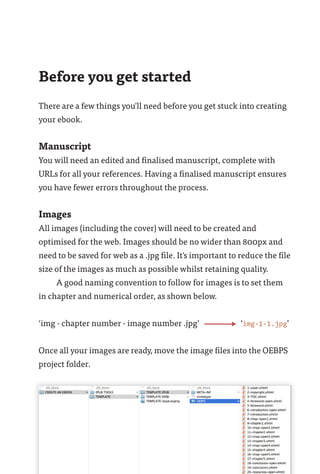
Once all your images are ready, move the image files into the OEBPS
project folder.
4
Espresso
	 This guide explains the process of working in Espresso and
refers to it throughout, but you can use any text editor.
ePub Zip 1.0.3
	 To create the final .epub file, ePub Zip is a handy script that
will save you time.
Calibre
	 You can use Calibre to convert your ePub file to a mobi
version for Kindles and other devices.
Devices
It's essential you view and test your ebook on a range of devices.
Ideally an iPad, a Kindle or an Android tablet are best to test on in
order to ensure compatability for the ePub and mobi formats.
Got all of those? Then let's get started
1.	Double click the TEMPLATE-Epub.esproj file in the main
TEMPLATE folder to open the project in Espresso.
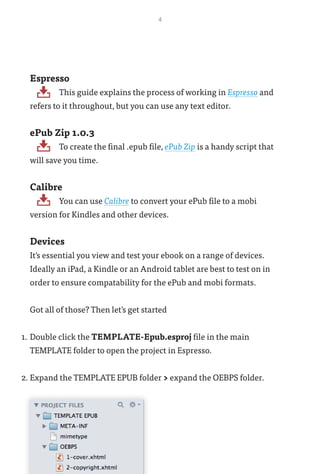
2.	Expand the TEMPLATE EPUB folder > expand the OEBPS folder.
5
Key book information
1. Change the book title on each page
Work through each file within the project in order, and change the
title of the book to one of your choice.
2. Enter details in copyright.xhtml
Edit all information as needed and ensure all referential links are
added to the href.
3. Enter metadata details at top of content.opf
Edit all information as needed. Don't forget to change the opf:file-
as="SURNAME, FIRST NAME".
4. Add ISBN to toc.ncx
Add the ISBN number within the <head> area of the toc.ncx file -
content="urn:isbn:ISBN NUMBER (no hyphens)"/>.
For more information on ISBN numbers, take a look here at Nielsen
Book.
6
Book structure
1. Add or delete pages in the project (if needed)
Within the project files in the left hand side of Espresso, add or
delete files to add or remove pages from the book. Be sure to 	
re-number the files as you go.
2. Reflect changes in...
You will need to reflect the file structure changes within the
following files:
toc.xhtml
Each of the chapter link locations must match the project file names.
content.opf
All manifest item link locations must match the project file names,
and the id number will need to be updated in numerical order. You
will also need to update the spine itemref to match the number of
manifest items.
toc.ncx
Each navPoint will need the id, playOrder and src amending to
match the project file names/numerical order.
7
Initial content
1. Add chapter titles to chapter-open#.xhtml pages
Within each chapter-open file, add the relevant chapter titles.
2. Add chapter titles to toc.xhtml and toc.ncx files
You will need to reflect the chapter title changes within the
following files:
toc.xhtml
Each of the chapter titles will need to be changed.
toc.ncx
Each text item within each navPoint will need the chapter title
changed.
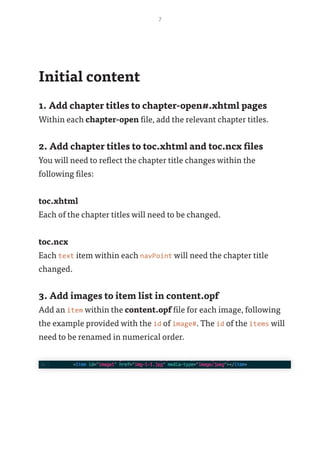
3. Add images to item list in content.opf
Add an item within the content.opf file for each image, following
the example provided with the id of image#. The id of the items will
need to be renamed in numerical order.
8
Page content
1. Add page content
Copy and paste content from the manuscript and wrap in the
appropriate HTML tags. Ensure the code structure (as provided in
the template) is followed.
2. Link up images
All images within the content need to be linked to the correct
project image files within the OEBPS folder.
Actions
1. Convert all page content to named entities
Certain characters will need to be converted to named entities in
order to display correctly and be semantically valid. In Espresso,
select all of the page content, go to Actions in the menu, then HTML,
and select Convert to named entities.
A reference of named entities can be found here: http://www.
freeformatter.com/html-entities.html
2. Check content for anomalies
Check for any remaining double spaces, tabs, straight single and
double quote marks, hyphens, ampersands, any code examples with
< or >, and convert as needed.
9
Compress, validate and finalise 	
the ePub
•	 In Finder, drag the BOOKNAME EPUB folder onto EPUB Zip 1.0.3.
This will compress the EPUB folder into an .epub file in the main
TEMPLATE folder.
•	 Open your browser and go to http://validator.idpf.org.
•	 Choose the BOOKNAME EPUB.epub file that you have just created
and click Validate.
•	 Fix any errors that are listed and repeat the steps above. If you don't
have any errors, move to the next step.
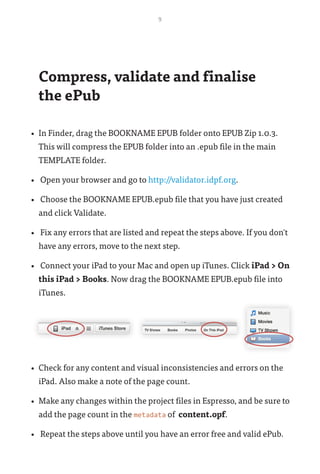
•	 Connect your iPad to your Mac and open up iTunes. Click iPad > On
this iPad > Books. Now drag the BOOKNAME EPUB.epub file into
iTunes.
•	 Check for any content and visual inconsistencies and errors on the
iPad. Also make a note of the page count.
•	 Make any changes within the project files in Espresso, and be sure to
add the page count in the metadata of content.opf.
•	 Repeat the steps above until you have an error free and valid ePub.
10
Create the mobi version
•	 Duplicate the META-INF, mimetype and OEBPS files into the
BOOKNAME MOBI folder.
•	 Replace the styles.css file in the OEBPS with the styles.css file
from the ePub tools folder.
•	 In Finder, drag the BOOKNAME MOBI folder onto EPUB Zip 1.0.3 in
the ePub tools folder.
•	 Open Calibre and drag the BOOKNAME MOBI.epub file into the
main window.
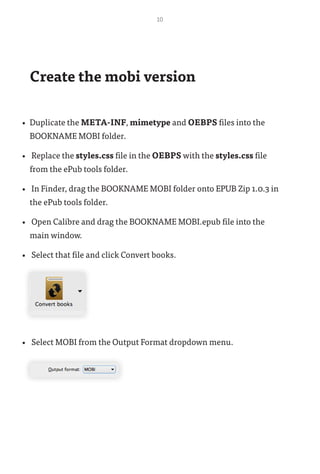
•	 Select that file and click Convert books.
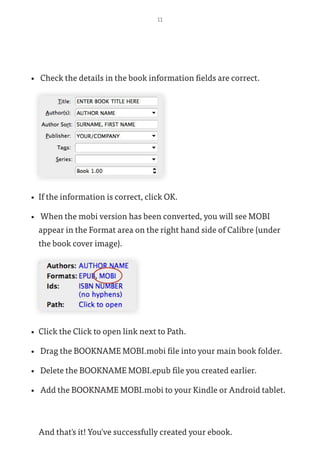
•	 Select MOBI from the Output Format dropdown menu.
11
•	 Check the details in the book information fields are correct.
•	 If the information is correct, click OK.
•	 When the mobi version has been converted, you will see MOBI
appear in the Format area on the right hand side of Calibre (under
the book cover image).
•	 Click the Click to open link next to Path.
•	 Drag the BOOKNAME MOBI.mobi file into your main book folder.
•	 Delete the BOOKNAME MOBI.epub file you created earlier.
•	 Add the BOOKNAME MOBI.mobi to your Kindle or Android tablet.
And that's it! You've successfully created your ebook.

Creating ebooks

  • 1.
  • 2.
    Create your own ebook Thisguide was put together by Five Simple Steps, an independent publisher of web design books that closed in 2014, as a way of giving back to the web community. The process described in this documentation reflects the way the team at Five Simple Steps worked, so it's best suited to people working on Macs, and references tools they used. Bear in mind that you'll need access to a variety of devices (at least an iPad and Kindle) to test and view your ebook. You’ll find all the project files you need to get started within the .ZIP file. All the information that you need to change in the template files appears in uppercase.
  • 3.
    Before you getstarted There are a few things you'll need before you get stuck into creating your ebook. Manuscript You will need an edited and finalised manuscript, complete with URLs for all your references. Having a finalised manuscript ensures you have fewer errors throughout the process. Images All images (including the cover) will need to be created and optimised for the web. Images should be no wider than 800px and need to be saved for web as a .jpg file. It's important to reduce the file size of the images as much as possible whilst retaining quality. A good naming convention to follow for images is to set them in chapter and numerical order, as shown below. ‘img - chapter number - image number .jpg’ ‘img-1-1.jpg’ Once all your images are ready, move the image files into the OEBPS project folder.
  • 4.
    4 Espresso This guideexplains the process of working in Espresso and refers to it throughout, but you can use any text editor. ePub Zip 1.0.3 To create the final .epub file, ePub Zip is a handy script that will save you time. Calibre You can use Calibre to convert your ePub file to a mobi version for Kindles and other devices. Devices It's essential you view and test your ebook on a range of devices. Ideally an iPad, a Kindle or an Android tablet are best to test on in order to ensure compatability for the ePub and mobi formats. Got all of those? Then let's get started 1. Double click the TEMPLATE-Epub.esproj file in the main TEMPLATE folder to open the project in Espresso. 2. Expand the TEMPLATE EPUB folder > expand the OEBPS folder.
  • 5.
    5 Key book information 1.Change the book title on each page Work through each file within the project in order, and change the title of the book to one of your choice. 2. Enter details in copyright.xhtml Edit all information as needed and ensure all referential links are added to the href. 3. Enter metadata details at top of content.opf Edit all information as needed. Don't forget to change the opf:file- as="SURNAME, FIRST NAME". 4. Add ISBN to toc.ncx Add the ISBN number within the <head> area of the toc.ncx file - content="urn:isbn:ISBN NUMBER (no hyphens)"/>. For more information on ISBN numbers, take a look here at Nielsen Book.
  • 6.
    6 Book structure 1. Addor delete pages in the project (if needed) Within the project files in the left hand side of Espresso, add or delete files to add or remove pages from the book. Be sure to re-number the files as you go. 2. Reflect changes in... You will need to reflect the file structure changes within the following files: toc.xhtml Each of the chapter link locations must match the project file names. content.opf All manifest item link locations must match the project file names, and the id number will need to be updated in numerical order. You will also need to update the spine itemref to match the number of manifest items. toc.ncx Each navPoint will need the id, playOrder and src amending to match the project file names/numerical order.
  • 7.
    7 Initial content 1. Addchapter titles to chapter-open#.xhtml pages Within each chapter-open file, add the relevant chapter titles. 2. Add chapter titles to toc.xhtml and toc.ncx files You will need to reflect the chapter title changes within the following files: toc.xhtml Each of the chapter titles will need to be changed. toc.ncx Each text item within each navPoint will need the chapter title changed. 3. Add images to item list in content.opf Add an item within the content.opf file for each image, following the example provided with the id of image#. The id of the items will need to be renamed in numerical order.
  • 8.
    8 Page content 1. Addpage content Copy and paste content from the manuscript and wrap in the appropriate HTML tags. Ensure the code structure (as provided in the template) is followed. 2. Link up images All images within the content need to be linked to the correct project image files within the OEBPS folder. Actions 1. Convert all page content to named entities Certain characters will need to be converted to named entities in order to display correctly and be semantically valid. In Espresso, select all of the page content, go to Actions in the menu, then HTML, and select Convert to named entities. A reference of named entities can be found here: http://www. freeformatter.com/html-entities.html 2. Check content for anomalies Check for any remaining double spaces, tabs, straight single and double quote marks, hyphens, ampersands, any code examples with < or >, and convert as needed.
  • 9.
    9 Compress, validate andfinalise the ePub • In Finder, drag the BOOKNAME EPUB folder onto EPUB Zip 1.0.3. This will compress the EPUB folder into an .epub file in the main TEMPLATE folder. • Open your browser and go to http://validator.idpf.org. • Choose the BOOKNAME EPUB.epub file that you have just created and click Validate. • Fix any errors that are listed and repeat the steps above. If you don't have any errors, move to the next step. • Connect your iPad to your Mac and open up iTunes. Click iPad > On this iPad > Books. Now drag the BOOKNAME EPUB.epub file into iTunes. • Check for any content and visual inconsistencies and errors on the iPad. Also make a note of the page count. • Make any changes within the project files in Espresso, and be sure to add the page count in the metadata of content.opf. • Repeat the steps above until you have an error free and valid ePub.
  • 10.
    10 Create the mobiversion • Duplicate the META-INF, mimetype and OEBPS files into the BOOKNAME MOBI folder. • Replace the styles.css file in the OEBPS with the styles.css file from the ePub tools folder. • In Finder, drag the BOOKNAME MOBI folder onto EPUB Zip 1.0.3 in the ePub tools folder. • Open Calibre and drag the BOOKNAME MOBI.epub file into the main window. • Select that file and click Convert books. • Select MOBI from the Output Format dropdown menu.
  • 11.
    11 • Check thedetails in the book information fields are correct. • If the information is correct, click OK. • When the mobi version has been converted, you will see MOBI appear in the Format area on the right hand side of Calibre (under the book cover image). • Click the Click to open link next to Path. • Drag the BOOKNAME MOBI.mobi file into your main book folder. • Delete the BOOKNAME MOBI.epub file you created earlier. • Add the BOOKNAME MOBI.mobi to your Kindle or Android tablet. And that's it! You've successfully created your ebook.