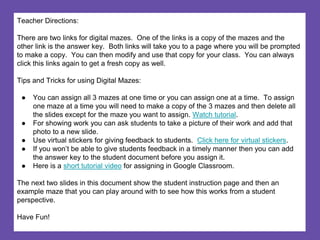
Teacher Directions:
There are two links for digital mazes. One of the links is a copy of the mazes and the
other link is the answer key. Both links will take you to a page where you will be prompted
to make a copy. You can then modify and use that copy for your class. You can always
click this links again to get a fresh copy as well.
Tips and Tricks for using Digital Mazes:
● You can assign all 3 mazes at one time or you can assign one at a time. To assign
one maze at a time you will need to make a copy of the 3 mazes and then delete all
the slides except for the maze you want to assign. Watch tutorial.
● For showing work you can ask students to take a picture of their work and add that
photo to a new slide.
● Use virtual stickers for giving feedback to students. Click here for virtual stickers.
● If you won’t be able to give students feedback in a timely manner then you can add
the answer key to the student document before you assign it.
● Here is a short tutorial video for assigning in Google Classroom.
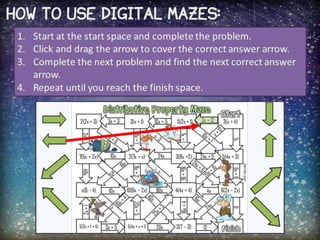
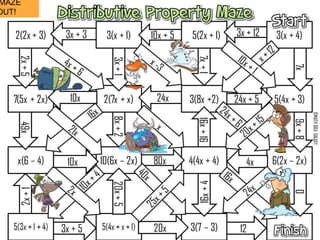
The next two slides in this document show the student instruction page and then an
example maze that you can play around with to see how this works from a student
perspective.
Have Fun!
MAZE
OUT!
Gallery of My Math Work
INSERT PHOTOS OF YOUR WORK ON PAPER
Gallery of My Math Work
INSERT PHOTOS OF YOUR WORK ON PAPER
Cópia de Digital Maze Teacher Instructions.pptx

Cópia de Digital Maze Teacher Instructions.pptx

  • 2.
    Teacher Directions: There aretwo links for digital mazes. One of the links is a copy of the mazes and the other link is the answer key. Both links will take you to a page where you will be prompted to make a copy. You can then modify and use that copy for your class. You can always click this links again to get a fresh copy as well. Tips and Tricks for using Digital Mazes: ● You can assign all 3 mazes at one time or you can assign one at a time. To assign one maze at a time you will need to make a copy of the 3 mazes and then delete all the slides except for the maze you want to assign. Watch tutorial. ● For showing work you can ask students to take a picture of their work and add that photo to a new slide. ● Use virtual stickers for giving feedback to students. Click here for virtual stickers. ● If you won’t be able to give students feedback in a timely manner then you can add the answer key to the student document before you assign it. ● Here is a short tutorial video for assigning in Google Classroom. The next two slides in this document show the student instruction page and then an example maze that you can play around with to see how this works from a student perspective. Have Fun!
  • 4.
  • 5.
    Gallery of MyMath Work INSERT PHOTOS OF YOUR WORK ON PAPER
  • 6.
    Gallery of MyMath Work INSERT PHOTOS OF YOUR WORK ON PAPER