GSM 150: Converting Your
Slidecasts to YouTube Videos
Lee Aase, Director,
Mayo Clinic Center for Social Media
• Slideshare will eliminate slidecasts (audio
narration of slide decks) on 4/30/14. All
will be converted to static slides.
• This module demonstrates retrieving
content, using iMovie to convert to a
YouTube video in MacOS, with example
of one of our Mayo Clinic slidecasts
• Similar process applies for Windows
Background
• This must be done before April 30, 2014
• If you don’t still have the original slides,
you also will need to download those
from Slideshare
• The next slide shows you how...
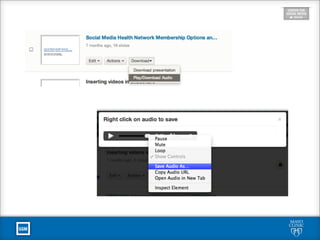
Step 1: Download Audio
File from Slideshare
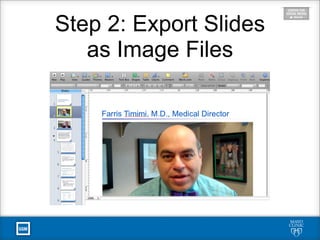
Step 2: Export Slides
as Image Files
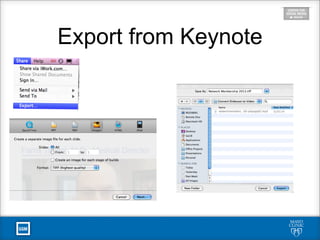
Export from Keynote
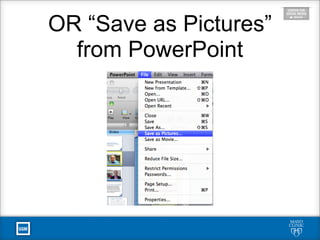
OR “Save as Pictures”
from PowerPoint
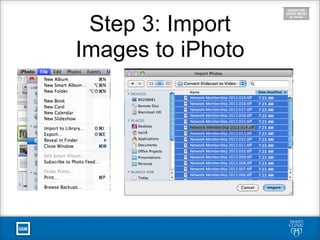
Step 3: Import
Images to iPhoto
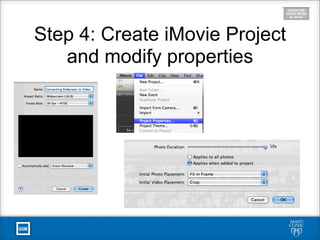
Step 4: Create iMovie Project
and modify properties
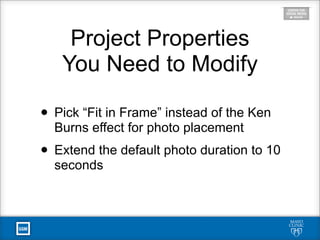
Project Properties
You Need to Modify
• Pick “Fit in Frame” instead of the Ken
Burns effect for photo placement
• Extend the default photo duration to 10
seconds
Step 5: Add images and
audio track to iMovie project
• While Slideshare got rid of slidecasts, it
kept the ability to insert YouTube videos
• Next we’ll import the images into our
iMovie project and add the audio track
• The following YouTube video will show
you how to do it
Reviewing What
You Just Saw
• Select all image files and drag to project
• Pick “Clip Adustments” on one clip and
check the “Applies to all stills” box, and
extend duration to 30 seconds
• Drag the audio file you had downloaded
from Slideshare into the project
• Adjust the length of each clip to sync
with the narration
Steps 6-9
• Step 6: Export the project
• Step 7: Upload to YouTube
• Step 8: Add Annotations with links
(replacing the hyperlinks in the slides
• Step 9: Embed the YouTube video
where the slidecast had been
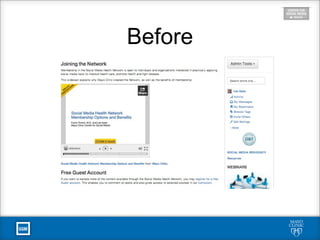
Before
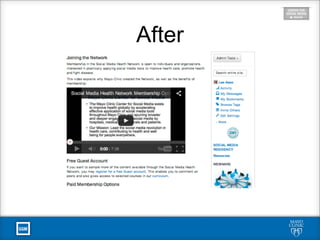
After
Making Lemonade
• Would have preferred keeping Slidecasts
• Since that wasn’t an option, converting to a
YouTube video is a good alternative
• Conversion took about an hour, and with
process defined others will go more quickly
• Hopefully example speeds process for you
References and Links
• Slideshare blog post announcing change
• Our original slidecast (converts to static on
April 30, 2014)
• Our page with embedded video instead of
slidecast
• Social Media Health Network post for your
comments: GSM 150
Contact
• Lee Aase (@LeeAase)
• Mayo Clinic Center for Social Media
• socialmediacenter@mayo.edu
• 507-538-1091

Converting Your Slidecasts to YouTube Videos

  • 1.
    GSM 150: ConvertingYour Slidecasts to YouTube Videos Lee Aase, Director, Mayo Clinic Center for Social Media
  • 2.
    • Slideshare willeliminate slidecasts (audio narration of slide decks) on 4/30/14. All will be converted to static slides. • This module demonstrates retrieving content, using iMovie to convert to a YouTube video in MacOS, with example of one of our Mayo Clinic slidecasts • Similar process applies for Windows Background
  • 3.
    • This mustbe done before April 30, 2014 • If you don’t still have the original slides, you also will need to download those from Slideshare • The next slide shows you how... Step 1: Download Audio File from Slideshare
  • 5.
    Step 2: ExportSlides as Image Files
  • 6.
  • 7.
    OR “Save asPictures” from PowerPoint
  • 8.
  • 9.
    Step 4: CreateiMovie Project and modify properties
  • 10.
    Project Properties You Needto Modify • Pick “Fit in Frame” instead of the Ken Burns effect for photo placement • Extend the default photo duration to 10 seconds
  • 11.
    Step 5: Addimages and audio track to iMovie project • While Slideshare got rid of slidecasts, it kept the ability to insert YouTube videos • Next we’ll import the images into our iMovie project and add the audio track • The following YouTube video will show you how to do it
  • 12.
    Reviewing What You JustSaw • Select all image files and drag to project • Pick “Clip Adustments” on one clip and check the “Applies to all stills” box, and extend duration to 30 seconds • Drag the audio file you had downloaded from Slideshare into the project • Adjust the length of each clip to sync with the narration
  • 13.
    Steps 6-9 • Step6: Export the project • Step 7: Upload to YouTube • Step 8: Add Annotations with links (replacing the hyperlinks in the slides • Step 9: Embed the YouTube video where the slidecast had been
  • 14.
  • 15.
  • 16.
    Making Lemonade • Wouldhave preferred keeping Slidecasts • Since that wasn’t an option, converting to a YouTube video is a good alternative • Conversion took about an hour, and with process defined others will go more quickly • Hopefully example speeds process for you
  • 17.
    References and Links •Slideshare blog post announcing change • Our original slidecast (converts to static on April 30, 2014) • Our page with embedded video instead of slidecast • Social Media Health Network post for your comments: GSM 150
  • 18.
    Contact • Lee Aase(@LeeAase) • Mayo Clinic Center for Social Media • socialmediacenter@mayo.edu • 507-538-1091