12 Steps to Claiming and
Completing Your Doximity Profile
Farris Timimi, M.D.
Mayo Clinic Center for Social Media
About Your Doximity Profile
• Doximity is a professional networking site for
physicians. Most U.S. Physicians already have
a profile created from public records.
• Doximity has a public-facing directory which
U.S. News uses in its online physician locator.
• Claiming and completing your Doximity profile
is the first step to managing your online
reputation, whether you participate actively in
the site or not.
Additional Doximity Benefits
• Adding sub-specialty expertise and interests
raises your profile for patients searching on
the public-facing site and on U.S. News.
• By participating actively in the site, you can
connect with peers with common interests.
• U.S. News uses Doximity to survey physicians
for its rankings of hospitals and residency
programs, so claiming your profile gives you a
chance to vote.
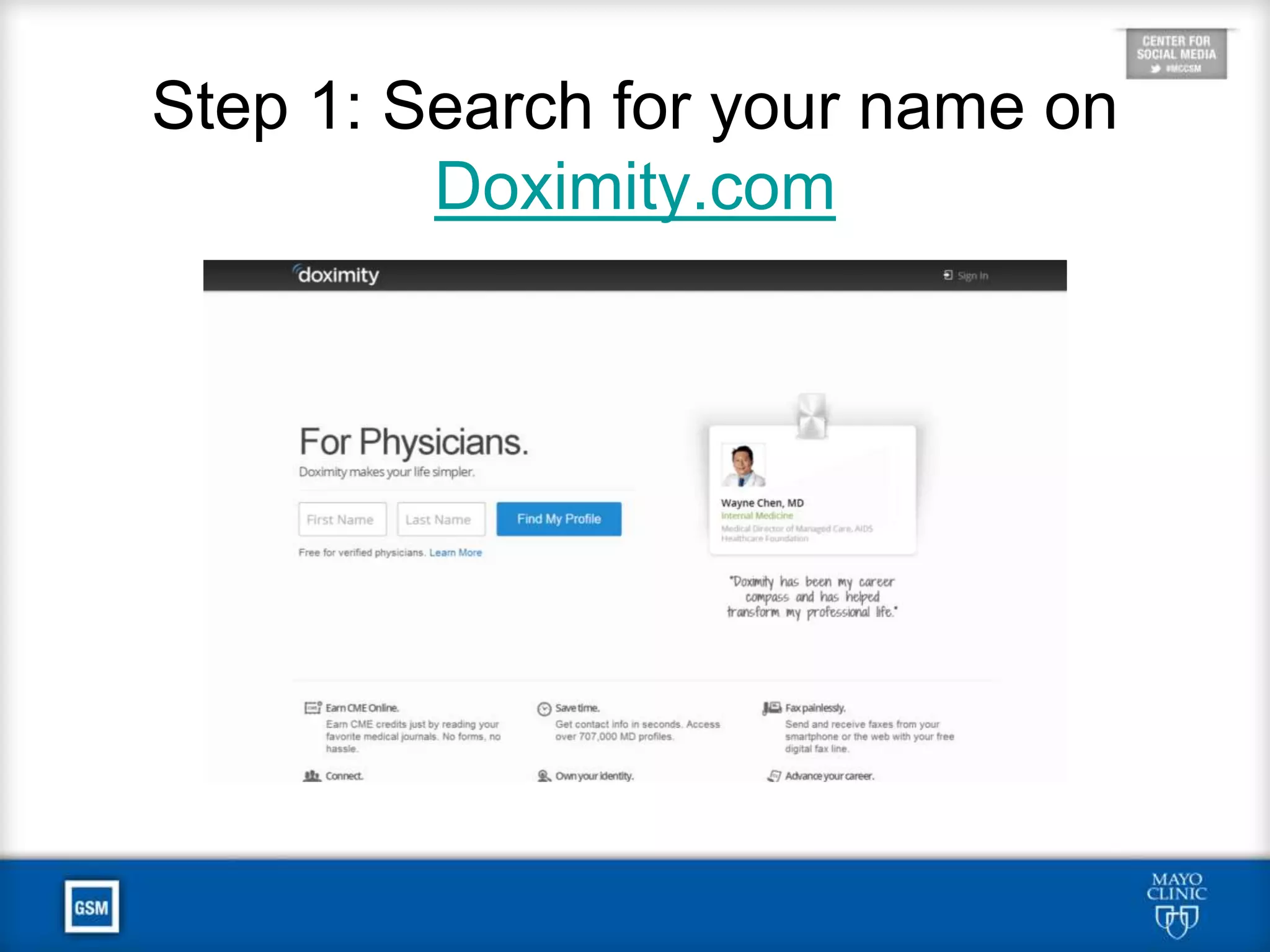
Step 1: Search for your name on
Doximity.com
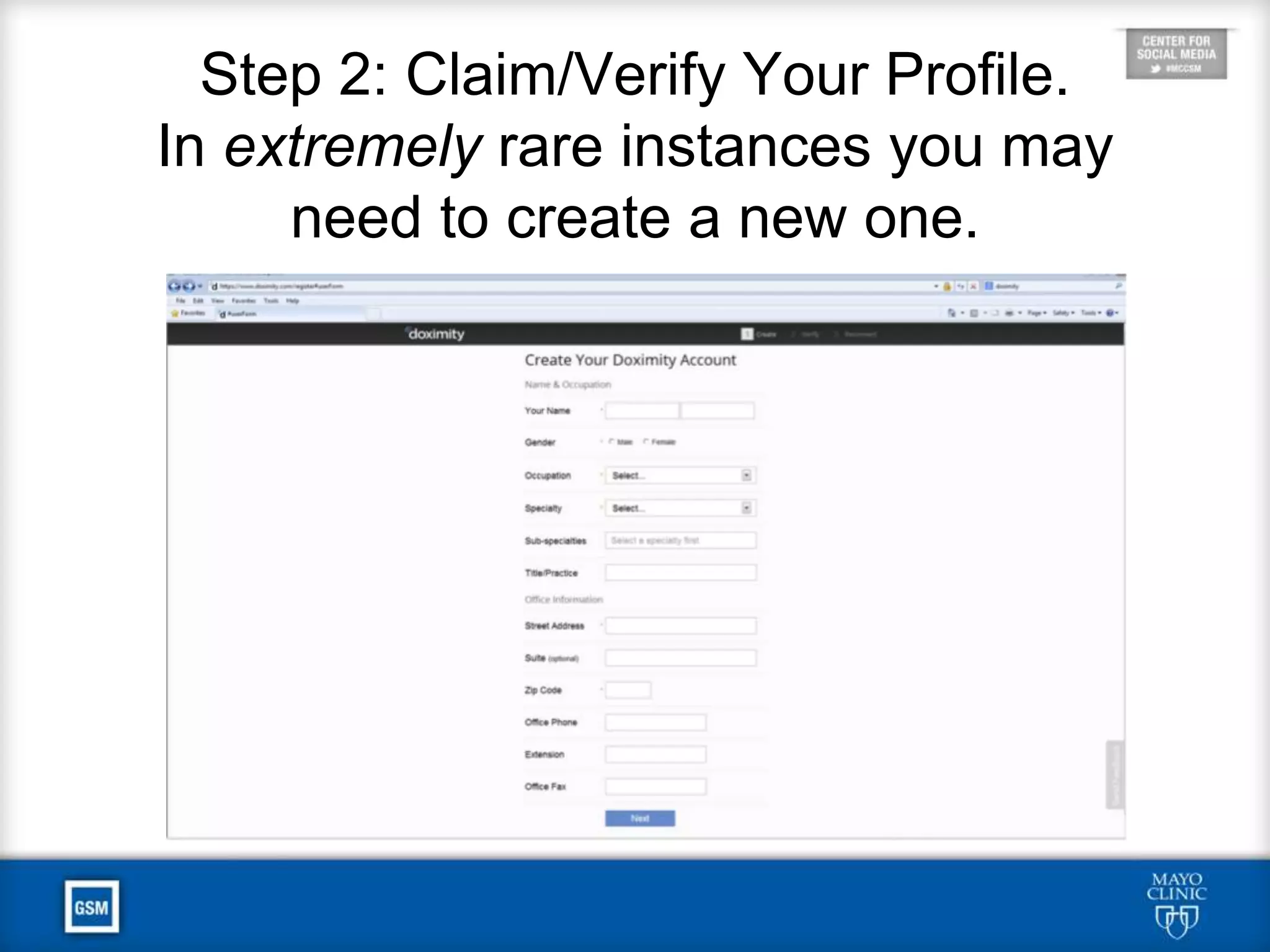
Step 2: Claim/Verify Your Profile.
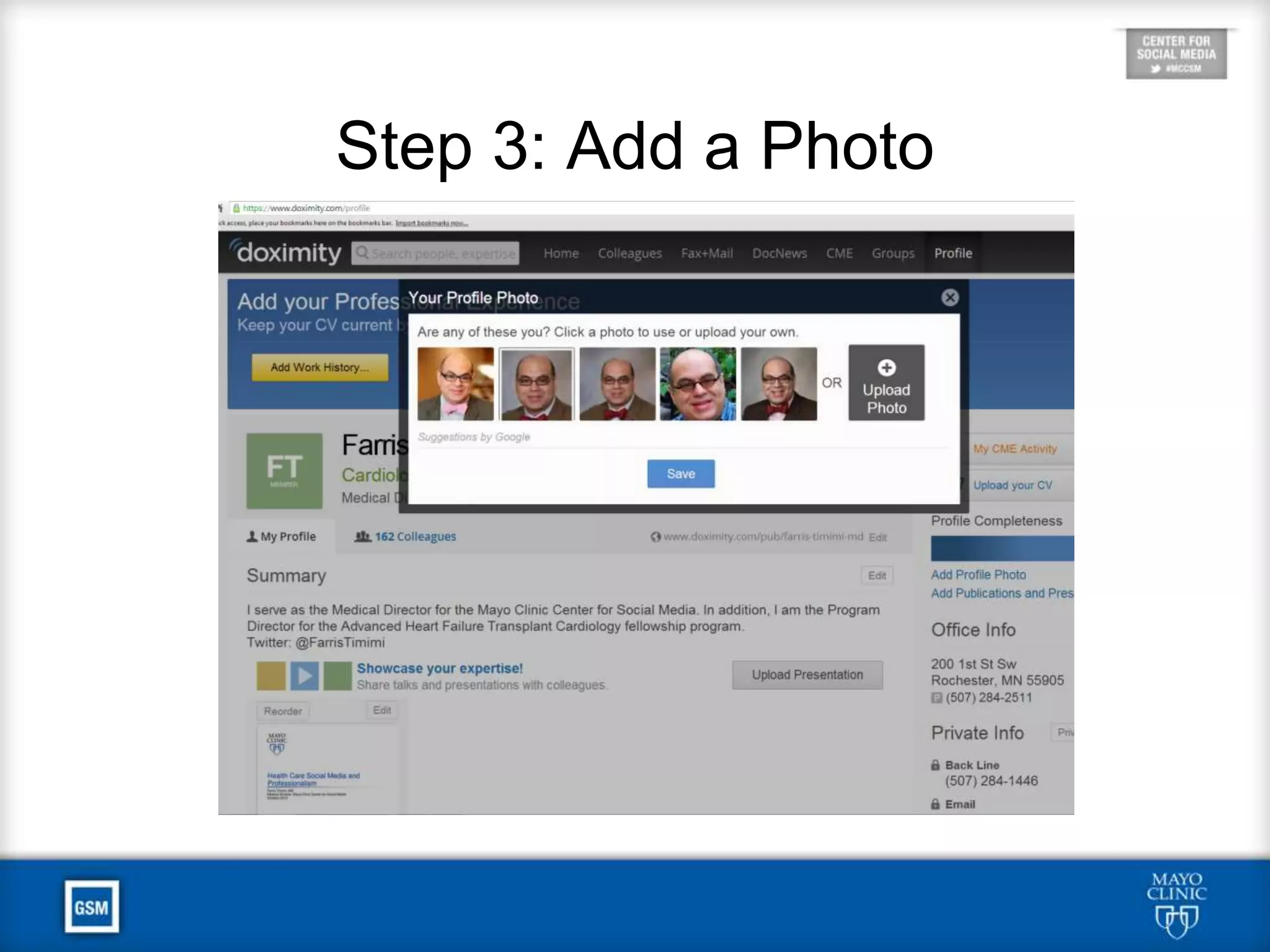
Step 3: Add a Photo
Save Time:
Upload or Email Your CV
• Mayo Physicians: Go to RE-AIMS and
download your CV (see next 2 slides)
• Other Physicians: Get your CV as a
Word document
Mayo Staff CV Download
http://mayoweb.mayo.edu/reaims/
Mayo Staff CV Download
Save Time:
Upload or Email Your CV
• Options to Get Your CV to Doximity
• Upload it to Doximity (see illustration on next
slide), or
• send it via email to cvupload@doximity.com
• Either way, Doximity will complete your
profile
• This lets you skip to Step 12
Uploading Your CV
If You Don’t Upload Your CV
• From the Doximity landing page, select
profile in the upper right hand corner to
edit and populate your profile.
• In general, your profile will be skeletal,
consisting of pulled PubMed citations
but limited other relevant data.
• Steps 4-11 are for manually updating
your profile.
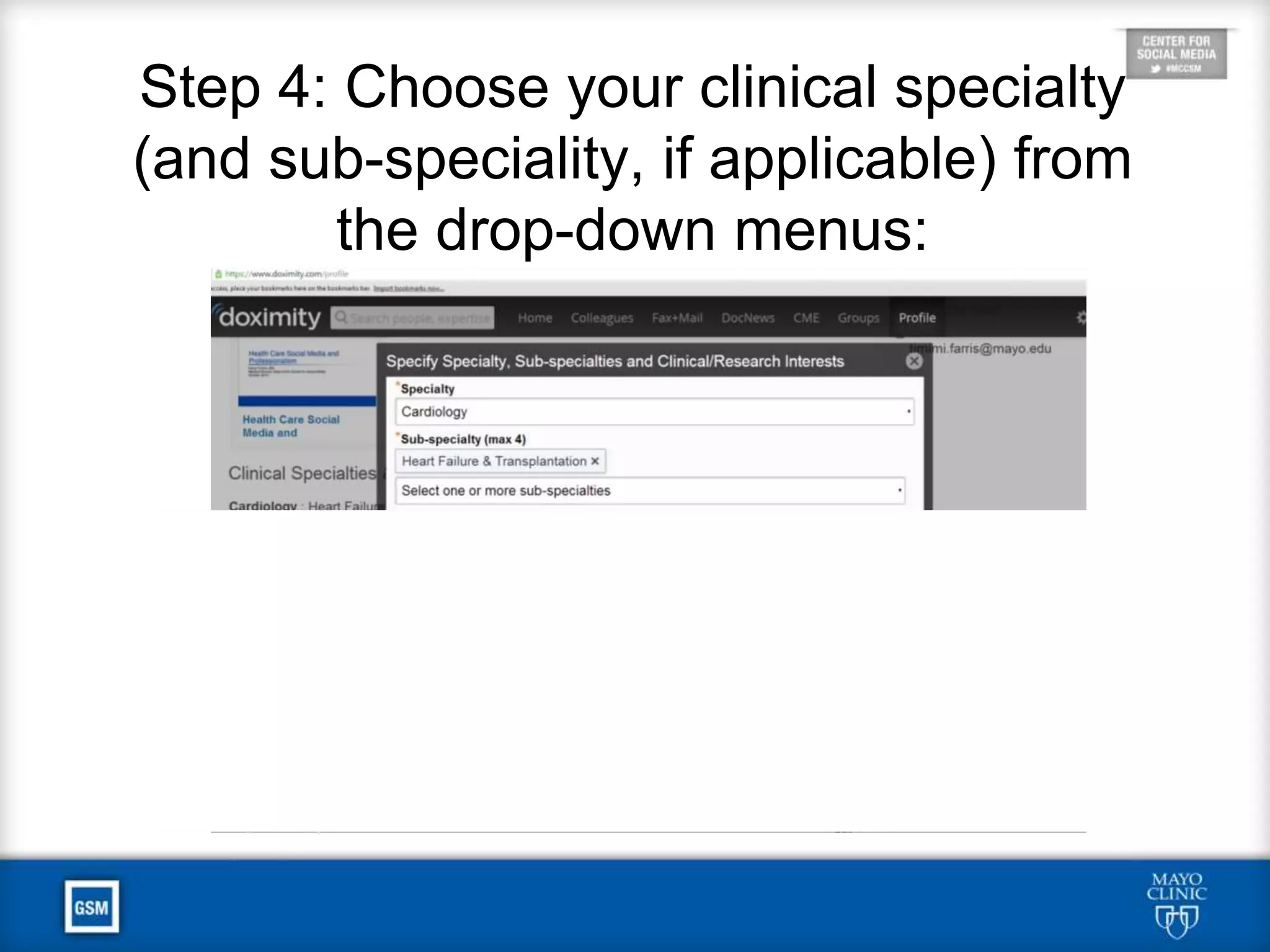
Step 4: Choose your clinical specialty
(and sub-specialty, if applicable) from
the drop-down menus:
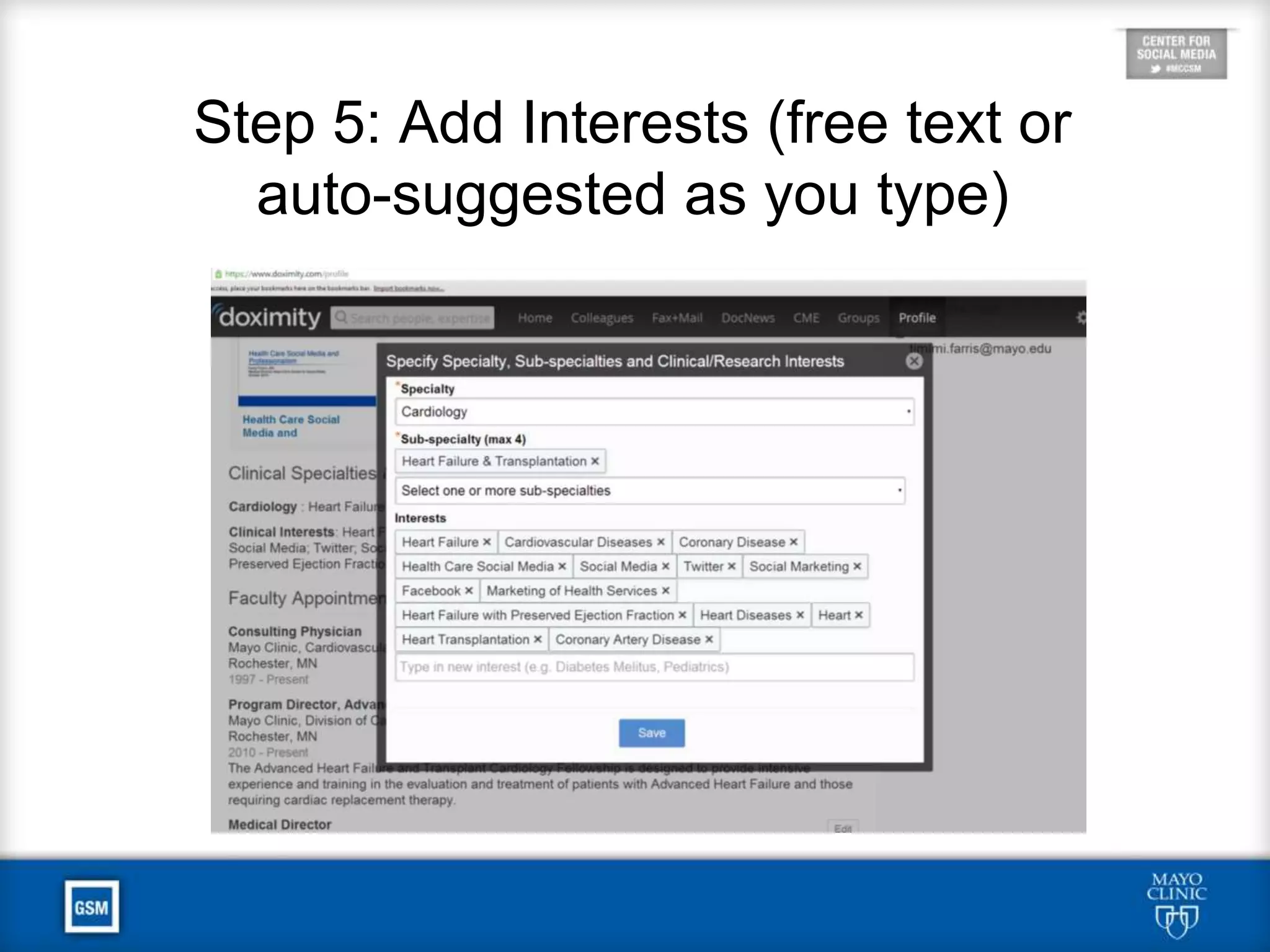
Step 5: Add Interests (free text or
auto-suggested as you type)
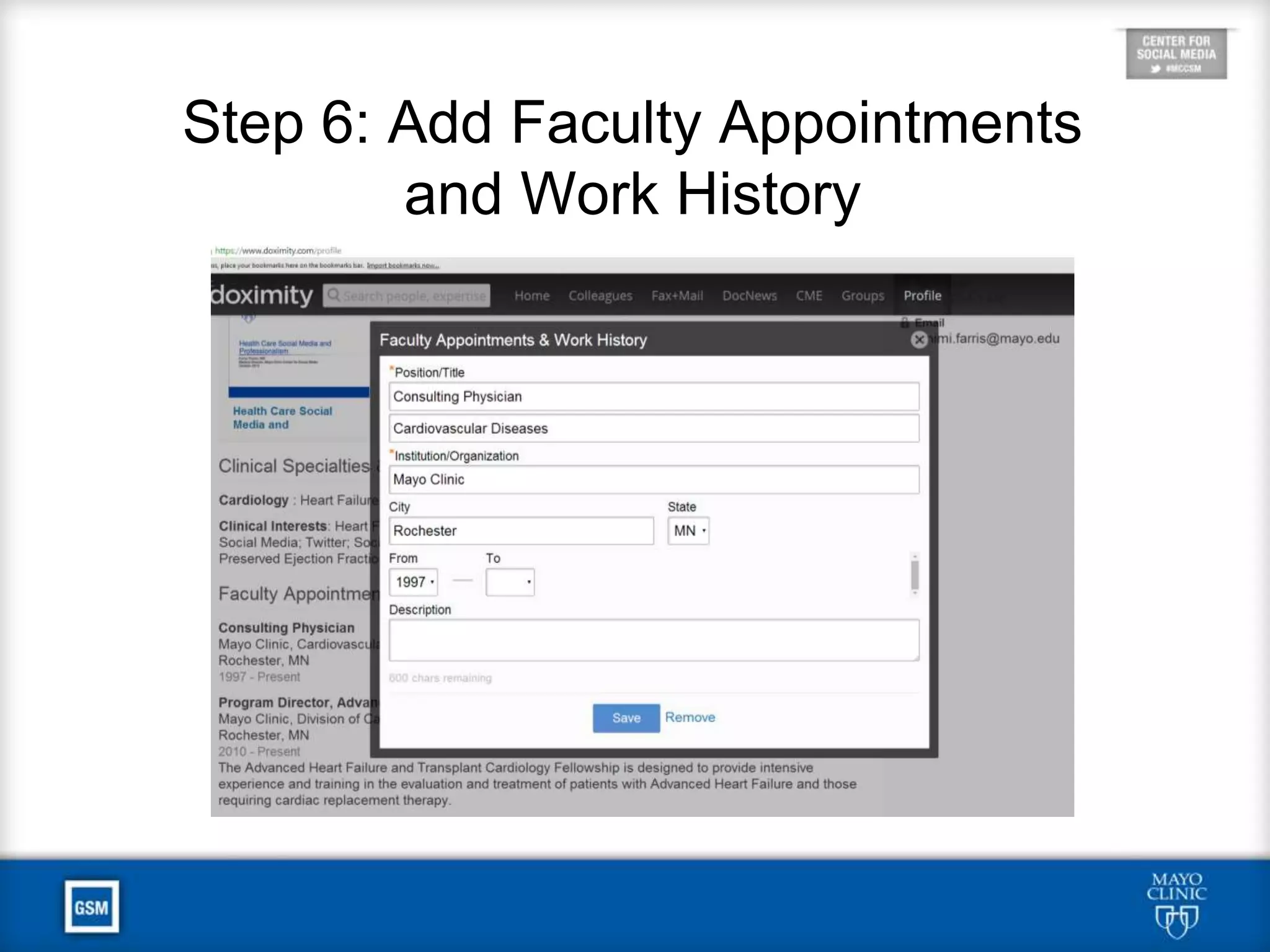
Step 6: Add Faculty Appointments and
Work History
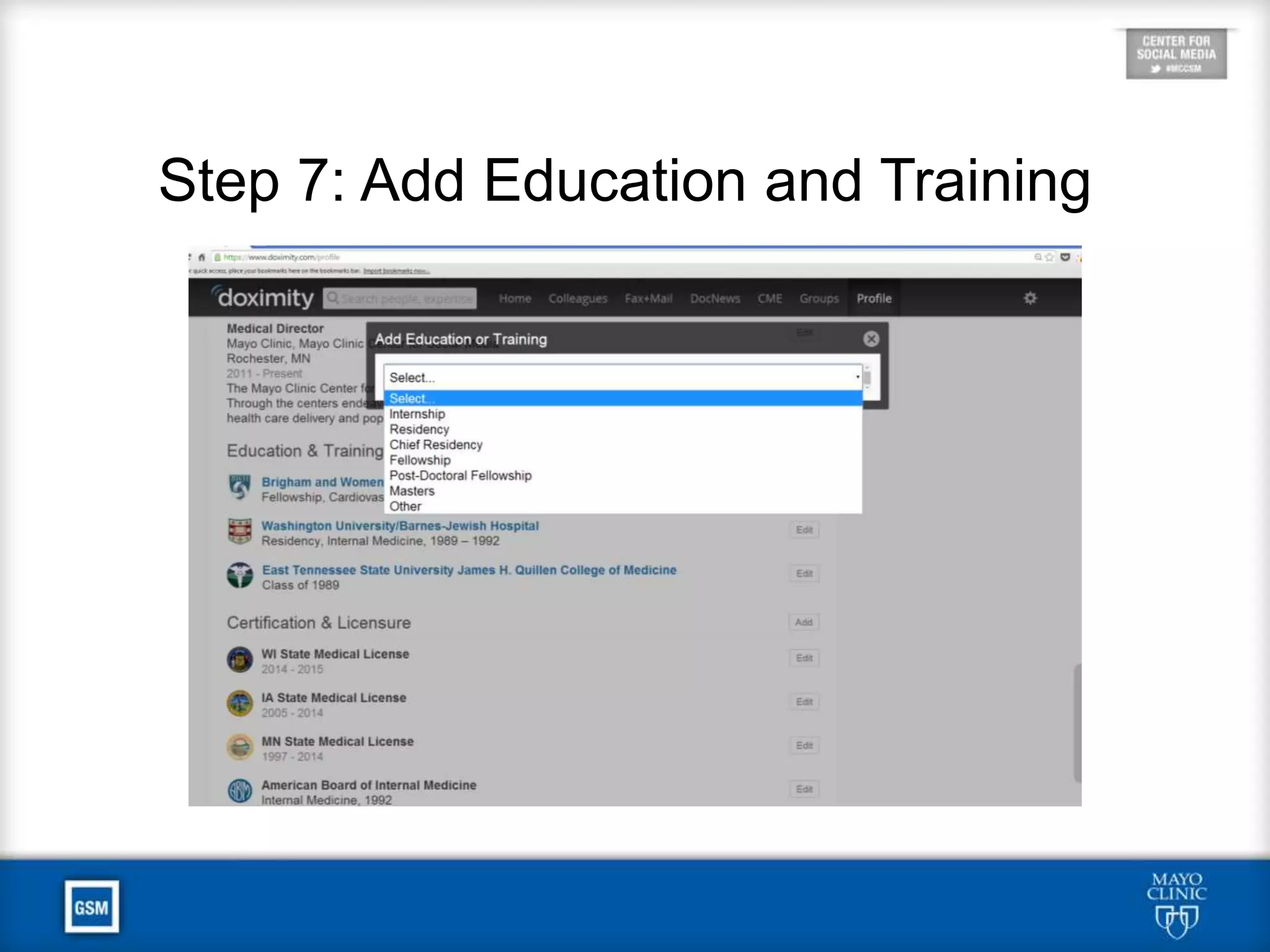
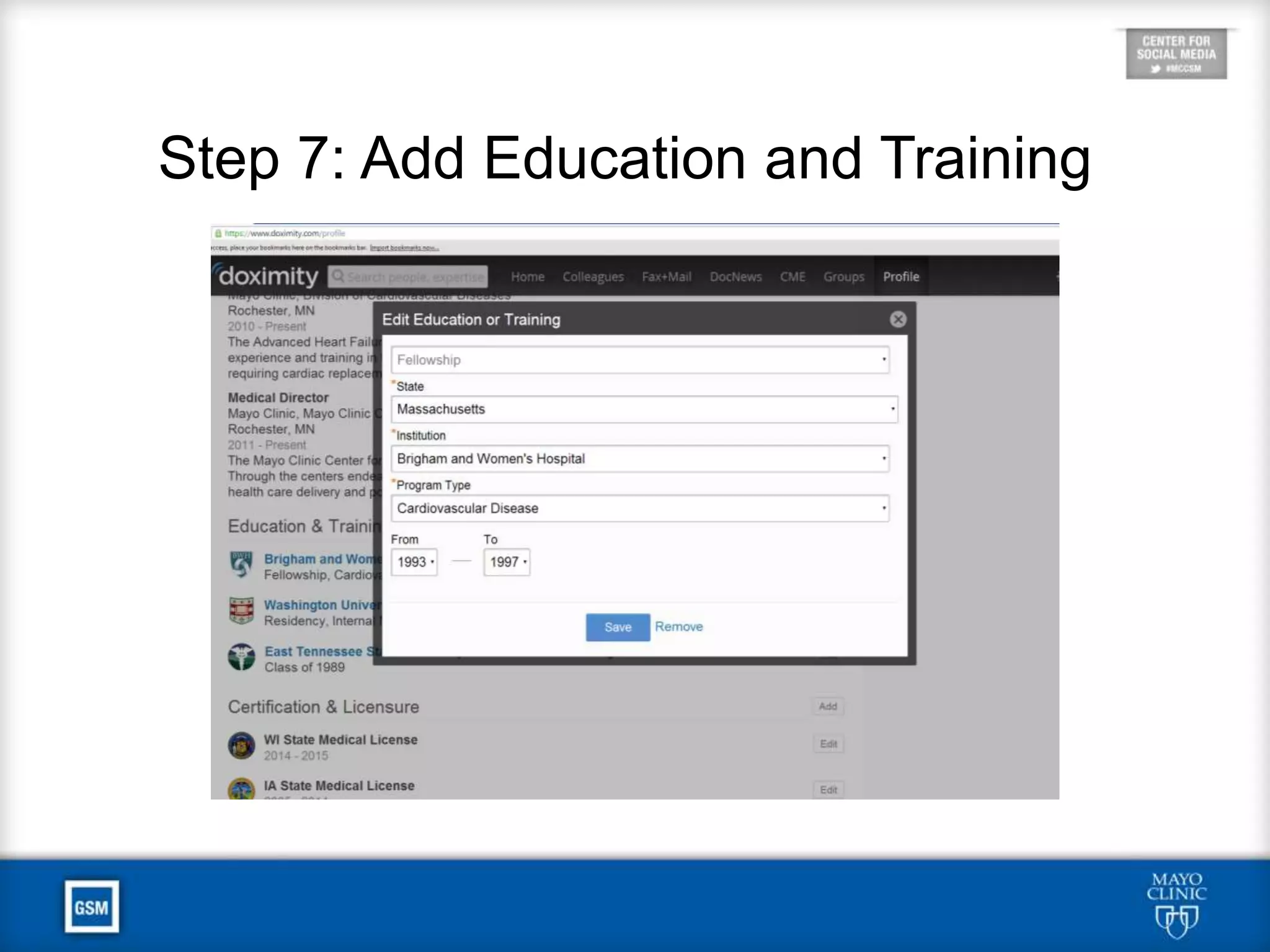
Step 7: Add Education and Training
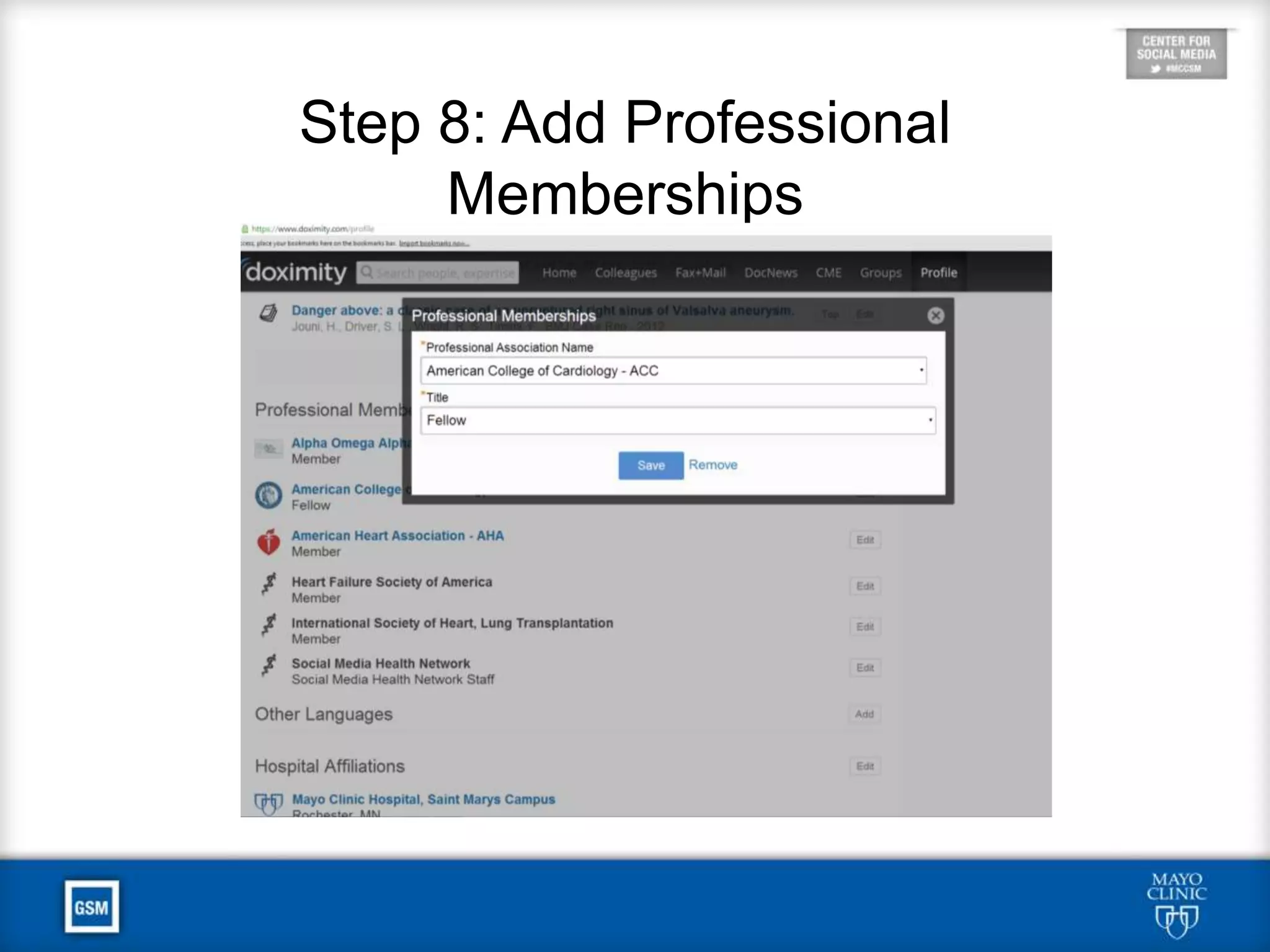
Step 8: Add Professional
Memberships
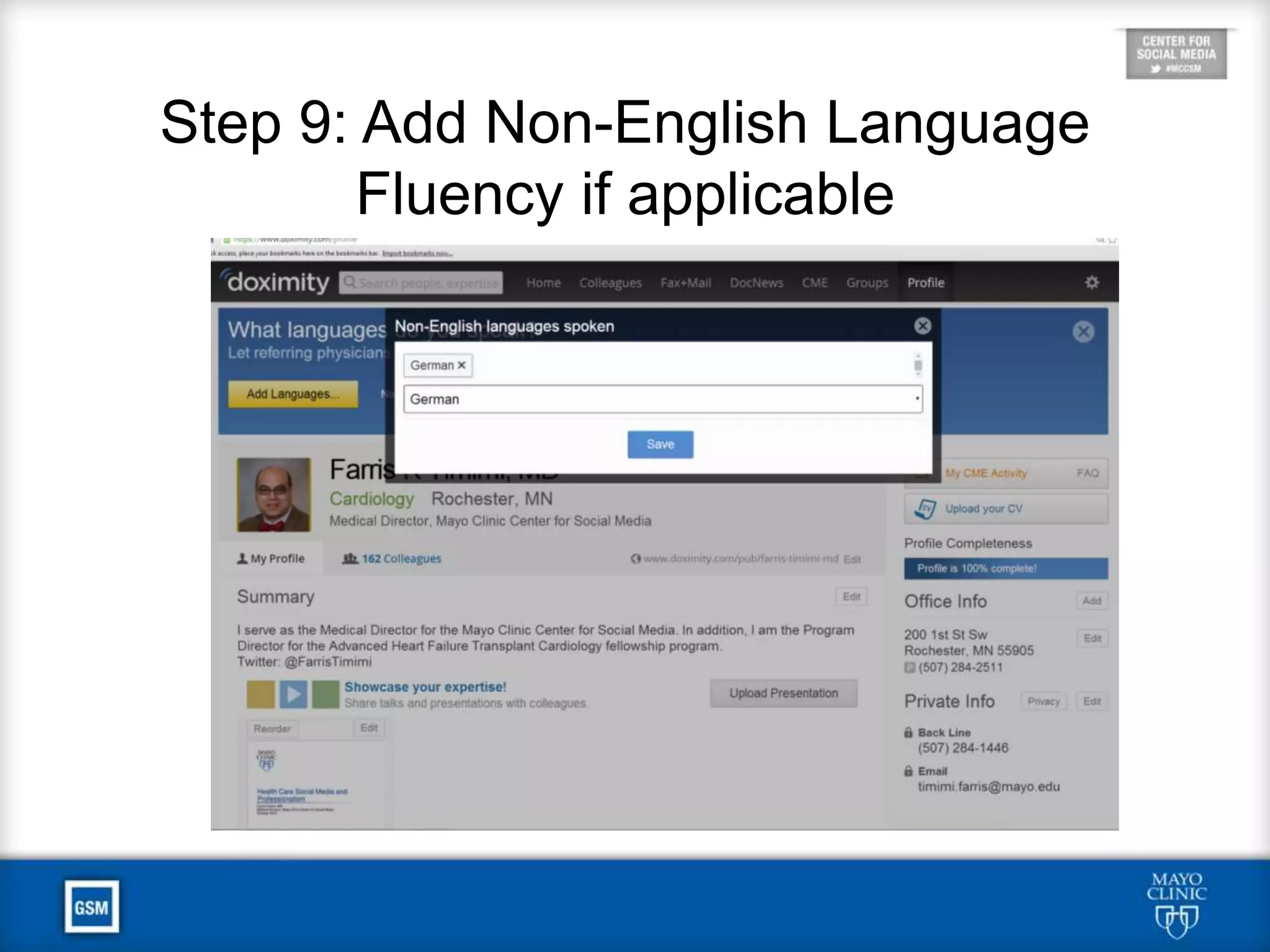
Step 9: Add Non-English Language
Fluency if applicable
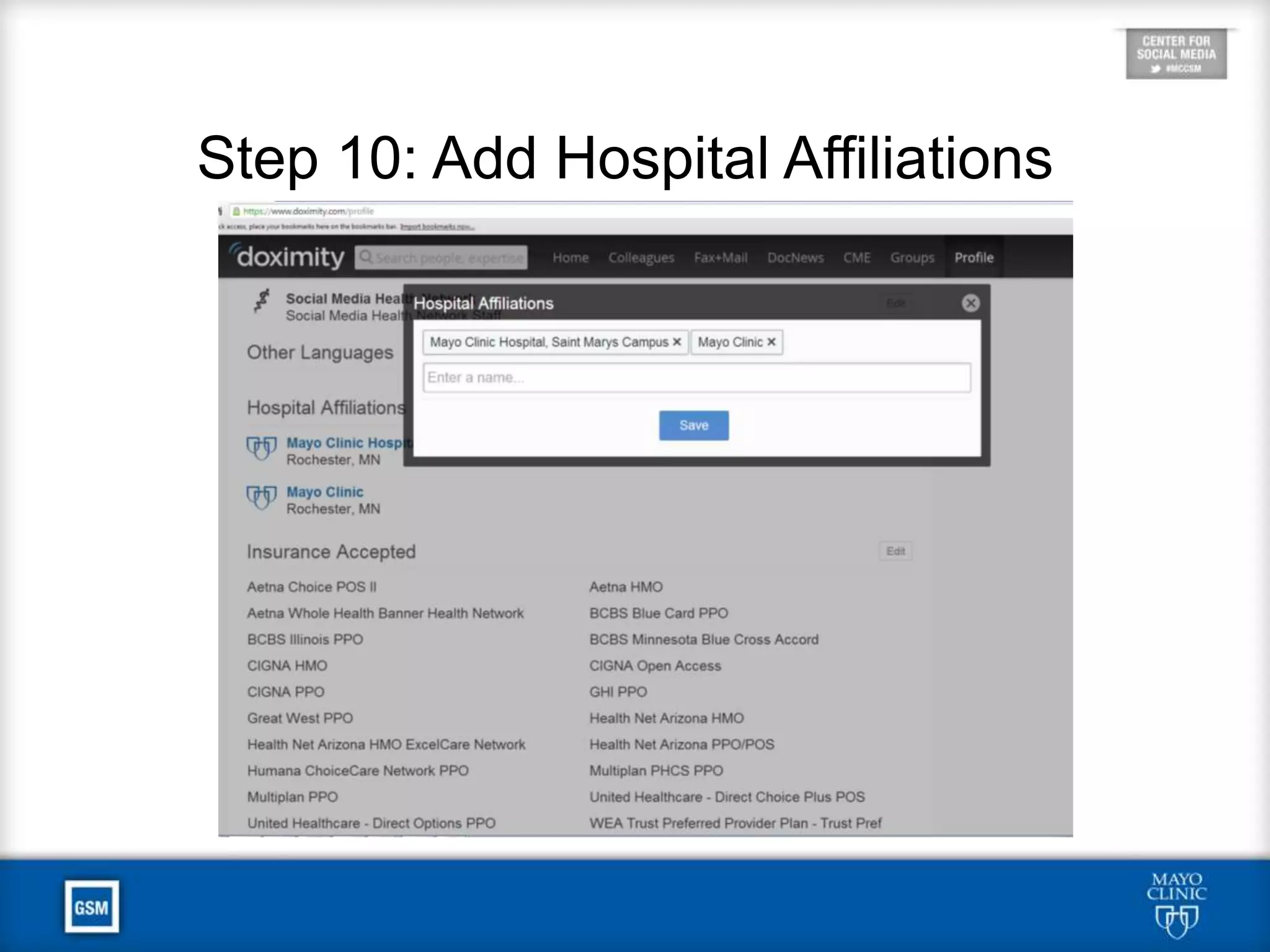
Step 10: Add Hospital Affiliations
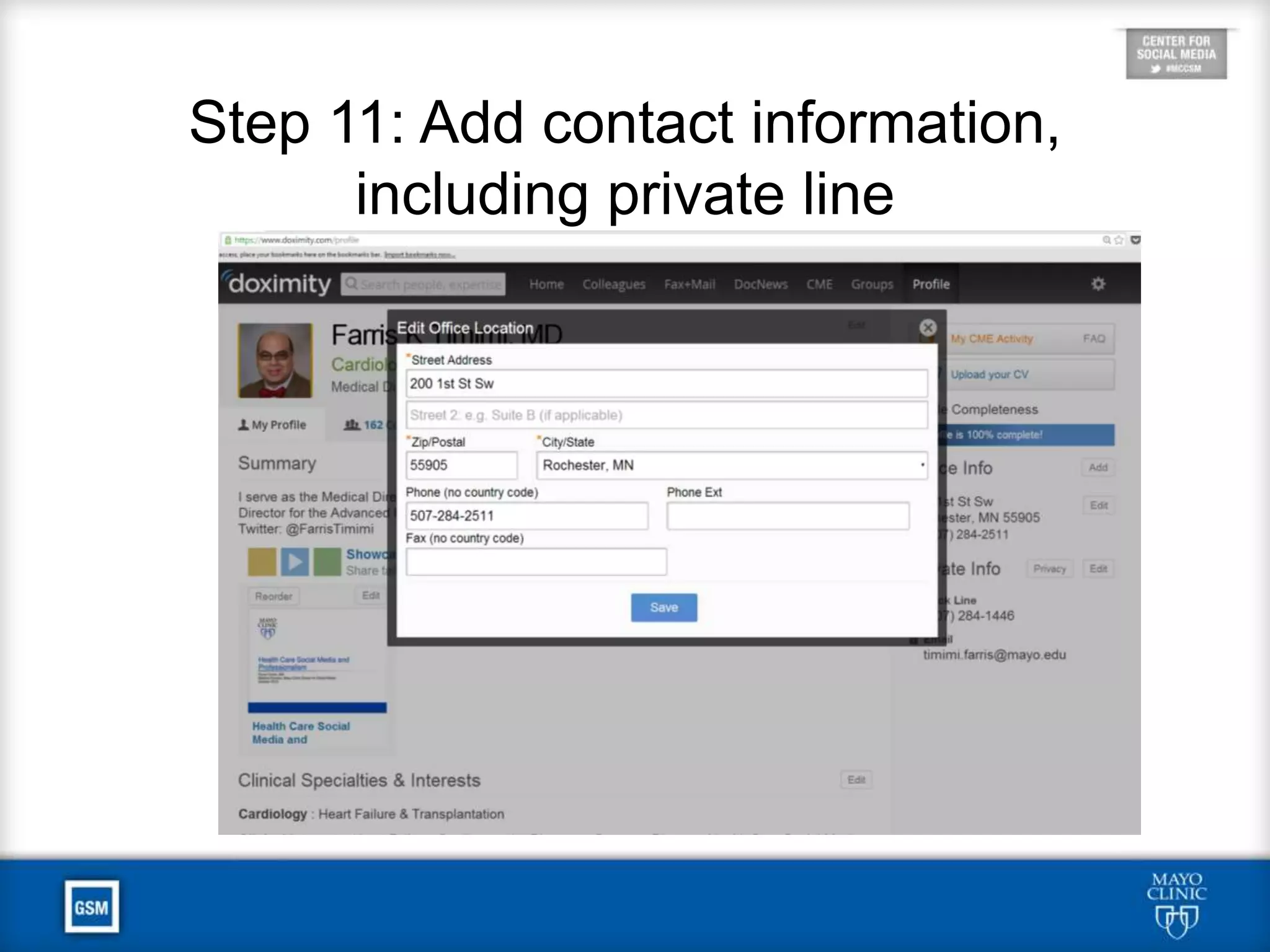
Step 11: Add contact information,
including private line
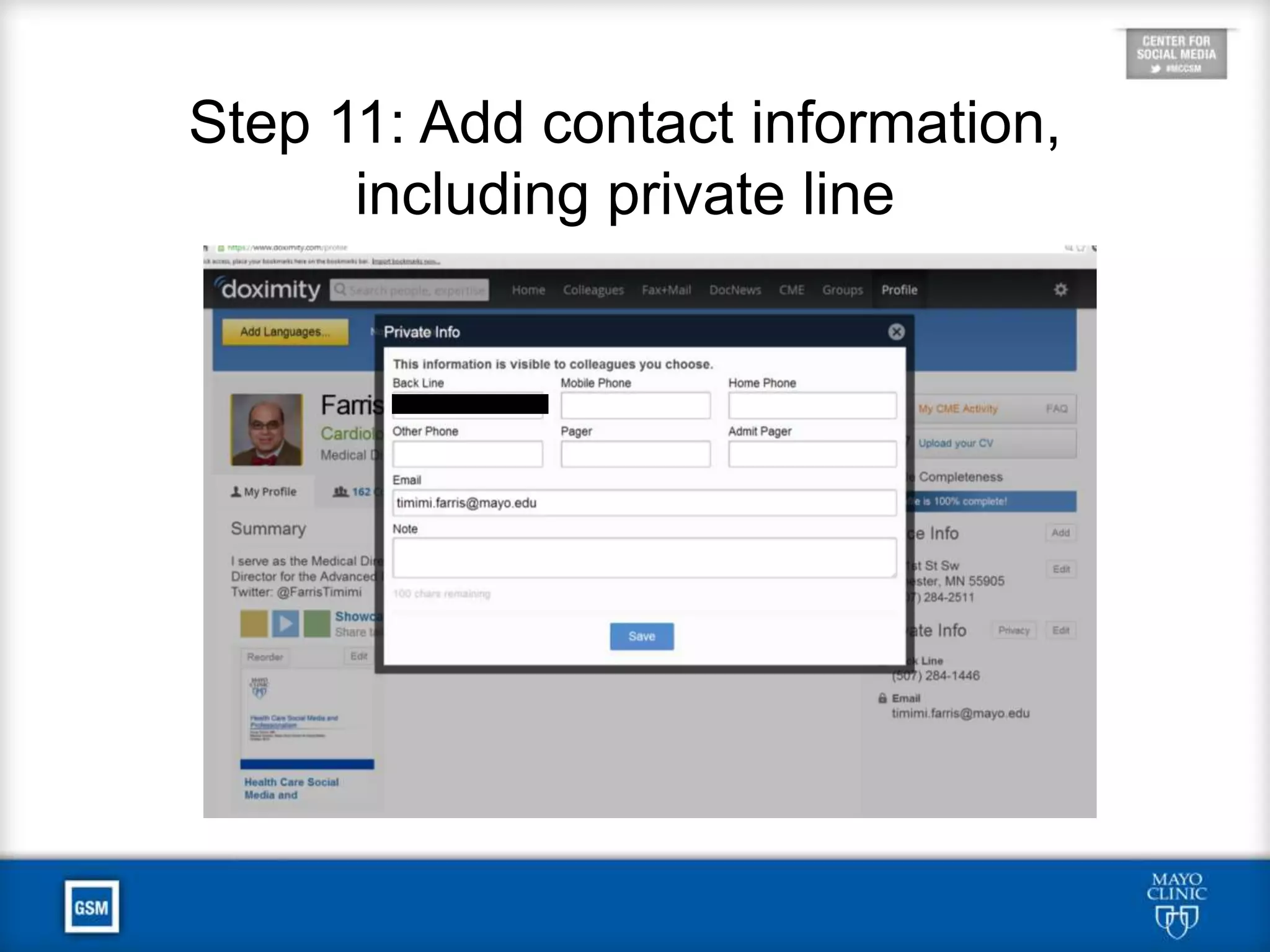
Step 11: Add contact information,
including private line
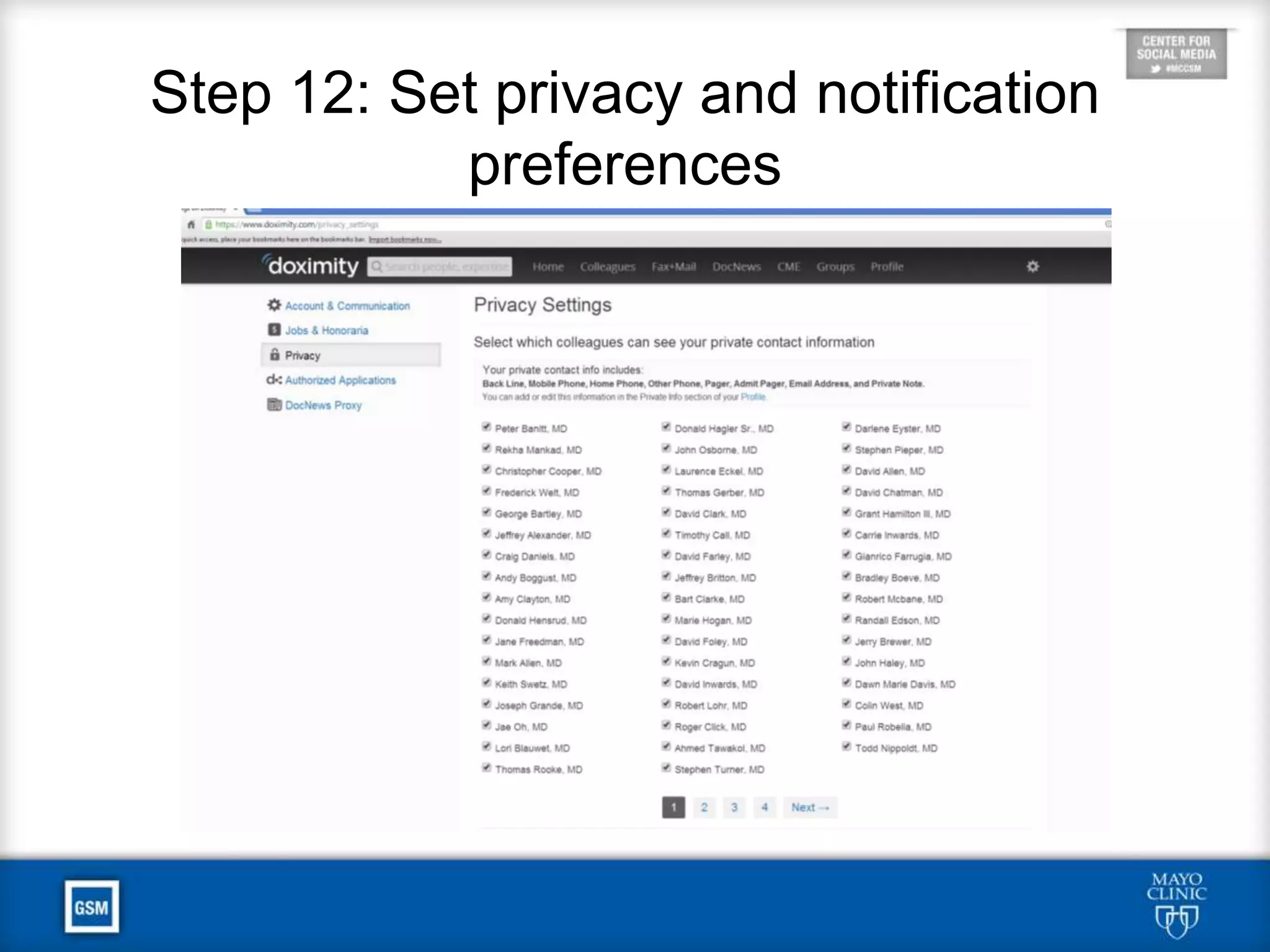
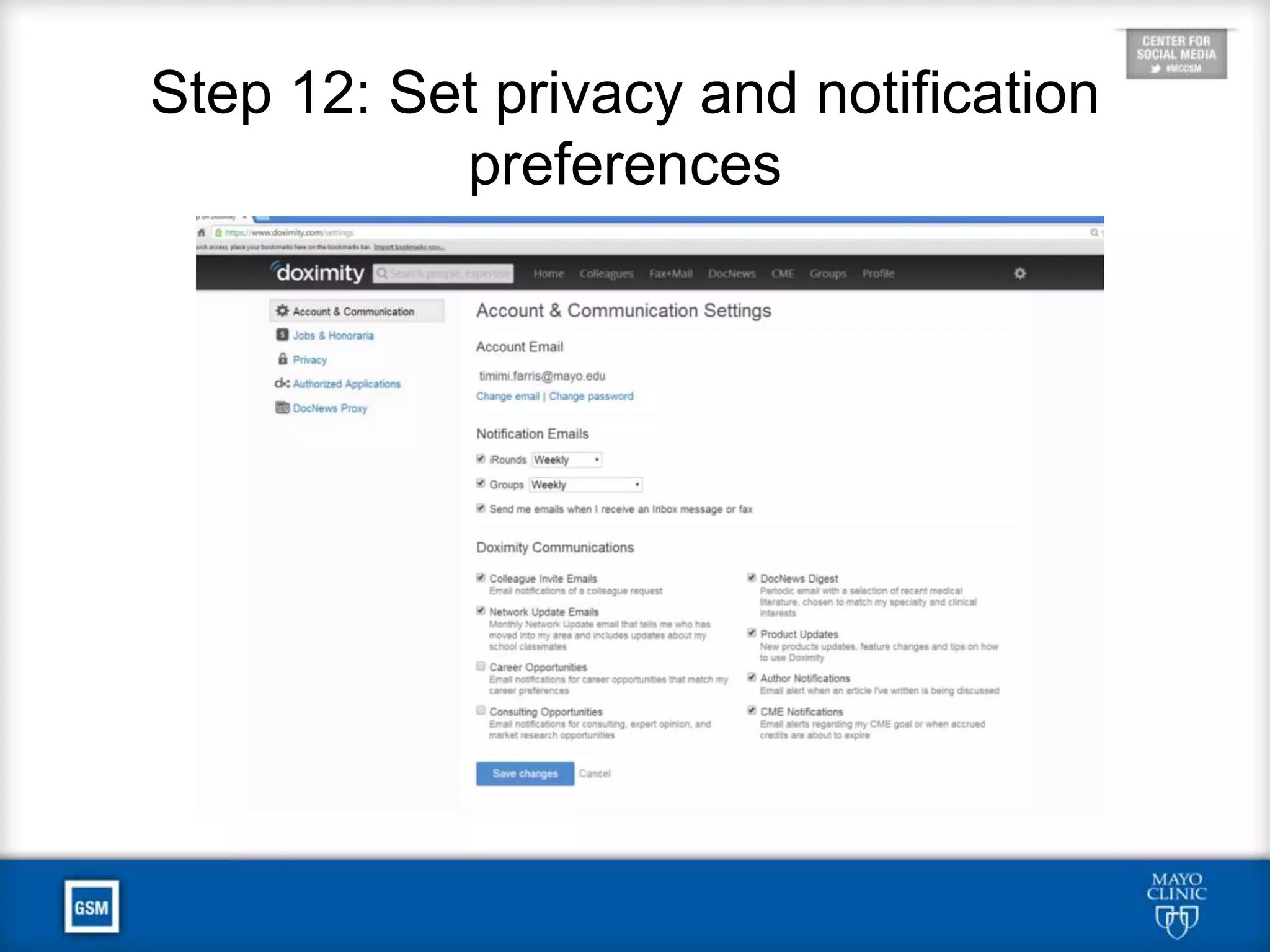
Step 12: Set privacy and notification
preferences
Step 12: Set privacy and notification
preferences
To Learn More
• Visit the Mayo Clinic Social Media Health Network
and get your free Basic membership
• Send questions to socialmediacenter@mayo.edu

12 Steps to Claiming and Completing Your Doximity Profile

  • 1.
    12 Steps toClaiming and Completing Your Doximity Profile Farris Timimi, M.D. Mayo Clinic Center for Social Media
  • 2.
    About Your DoximityProfile • Doximity is a professional networking site for physicians. Most U.S. Physicians already have a profile created from public records. • Doximity has a public-facing directory which U.S. News uses in its online physician locator. • Claiming and completing your Doximity profile is the first step to managing your online reputation, whether you participate actively in the site or not.
  • 3.
    Additional Doximity Benefits •Adding sub-specialty expertise and interests raises your profile for patients searching on the public-facing site and on U.S. News. • By participating actively in the site, you can connect with peers with common interests. • U.S. News uses Doximity to survey physicians for its rankings of hospitals and residency programs, so claiming your profile gives you a chance to vote.
  • 4.
    Step 1: Searchfor your name on Doximity.com
  • 5.
    Step 2: Claim/VerifyYour Profile.
  • 6.
    Step 3: Adda Photo
  • 7.
    Save Time: Upload orEmail Your CV • Mayo Physicians: Go to RE-AIMS and download your CV (see next 2 slides) • Other Physicians: Get your CV as a Word document
  • 8.
    Mayo Staff CVDownload http://mayoweb.mayo.edu/reaims/
  • 9.
    Mayo Staff CVDownload
  • 10.
    Save Time: Upload orEmail Your CV • Options to Get Your CV to Doximity • Upload it to Doximity (see illustration on next slide), or • send it via email to cvupload@doximity.com • Either way, Doximity will complete your profile • This lets you skip to Step 12
  • 11.
  • 12.
    If You Don’tUpload Your CV • From the Doximity landing page, select profile in the upper right hand corner to edit and populate your profile. • In general, your profile will be skeletal, consisting of pulled PubMed citations but limited other relevant data. • Steps 4-11 are for manually updating your profile.
  • 13.
    Step 4: Chooseyour clinical specialty (and sub-specialty, if applicable) from the drop-down menus:
  • 14.
    Step 5: AddInterests (free text or auto-suggested as you type)
  • 15.
    Step 6: AddFaculty Appointments and Work History
  • 16.
    Step 7: AddEducation and Training
  • 17.
    Step 7: AddEducation and Training
  • 18.
    Step 8: AddProfessional Memberships
  • 19.
    Step 9: AddNon-English Language Fluency if applicable
  • 20.
    Step 10: AddHospital Affiliations
  • 21.
    Step 11: Addcontact information, including private line
  • 22.
    Step 11: Addcontact information, including private line
  • 23.
    Step 12: Setprivacy and notification preferences
  • 24.
    Step 12: Setprivacy and notification preferences
  • 25.
    To Learn More •Visit the Mayo Clinic Social Media Health Network and get your free Basic membership • Send questions to socialmediacenter@mayo.edu

Editor's Notes

  • #6 On the landing page, you will need to verify and claim your profile by registering. To do so, simply enter your first name, last name, and then click “Find My Profile”. For the majority of providers, you will be taken to a second screen, where you will be asked to verify your identity as linked to the basic profile that exists within Doximity, typically from a list of similar names, and then guide you through the process of linking your e-mail account and setting your password. In the unlikely event your profile is not listed, you will be provided an opportunity to create a Doximity account-as highlighted in the following page (please note, this should be uncommon, as the majority of providers should be able to select their identity from the pre-populated list). If you have already claimed your profile, you will be provided the opportunity to recover your password.
  • #15 Interests can be selected from the pre-populated list that auto-fills as you type, or you may choose to add interests as free text, as seen below, where I have added Heart Failure with Preserved Ejection Fraction.
  • #16 The same process can be chosen for Faculty Appointments and Work History; select add to populate. These fields (particularly the descriptions) can be populated with free text (limited to less than 300 characters)
  • #17 Education and Training is populated from drop down menus, first selecting training level (i.e., intern, resident, fellow, etc.)
  • #18 then selecting state, institution, program type and dates
  • #19 For those organizations that are not listed, you can select other and fill in a description with free text (up to 600 characters). Select save to exit.
  • #22 Optional fields include Office Information and Private Information (which would only be shared only with those colleagues you chose to share it with), selected by selecting add on the right column. In essence, with each new connection you chose to make, you can decide whether to share private contact information or not. I would suggest limiting this to your office address, administrative assistants’ contact and your work e-mail address:
  • #23 Optional fields include Office Information and Private Information (which would only be shared only with those colleagues you chose to share it with), selected by selecting add on the right column. In essence, with each new connection you chose to make, you can decide whether to share private contact information or not. I would suggest limiting this to your office address, administrative assistants’ contact and your work e-mail address:
  • #24 You can designate which of your connections are granted access to your private contact information such as back line, mobile phone or email address.
  • #25 Finally, as in all social media networks, you will want to govern your degree and frequency of e-mail. Select Account & Communication Settings, then choose how frequently you desire e-mail notification and communication: