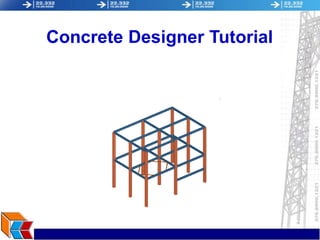
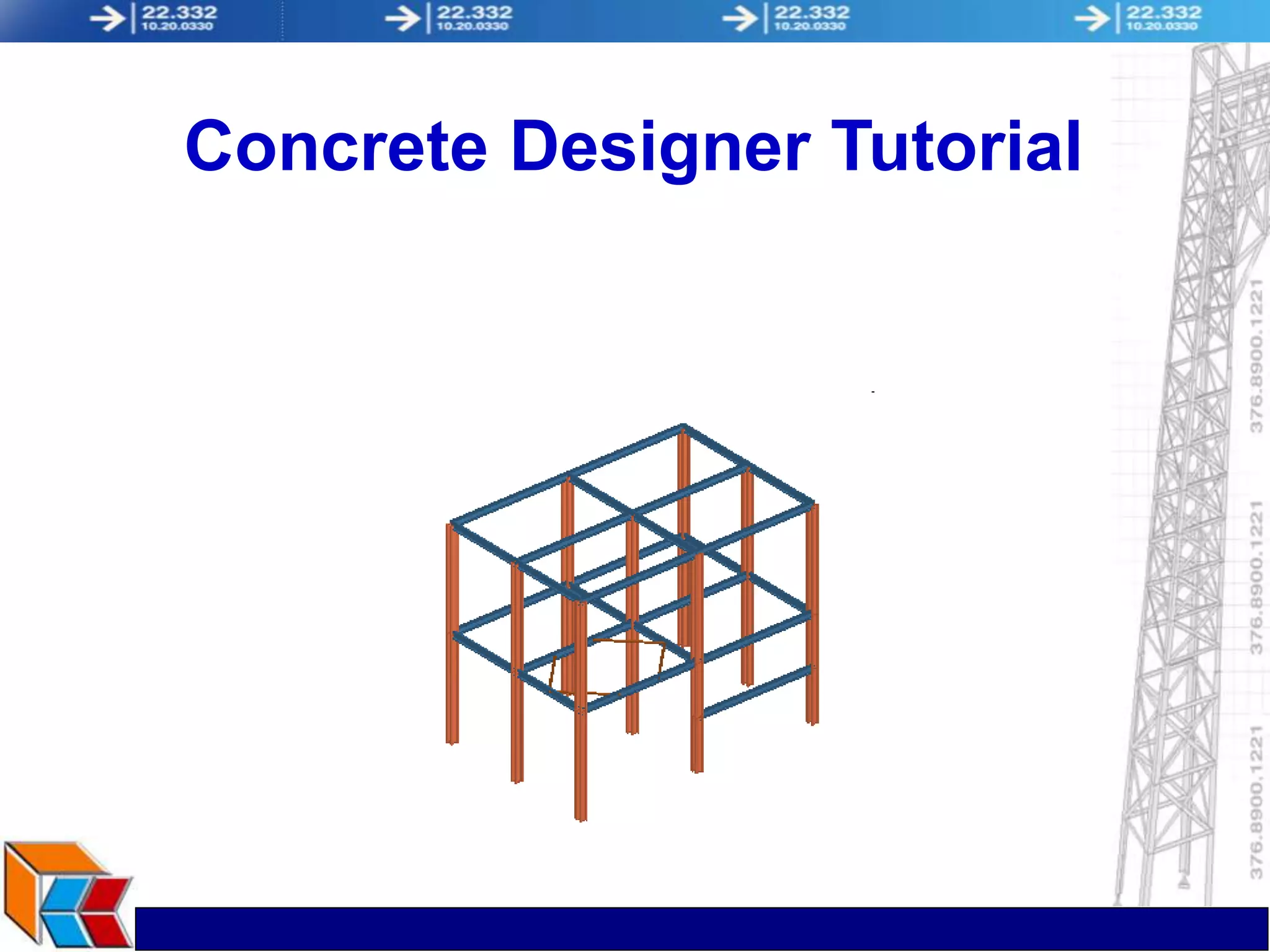
Concrete Designer Tutorial
Understanding with a Worked Example
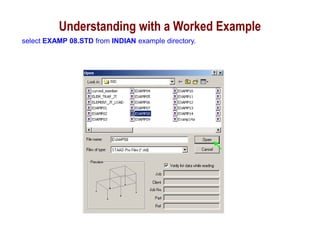
select EXAMP 08.STD from INDIAN example directory.
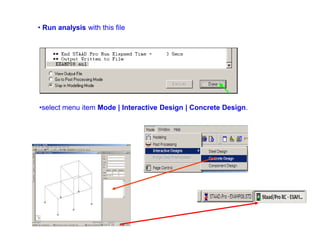
• Run analysis with this file
•select menu item Mode | Interactive Design | Concrete Design.
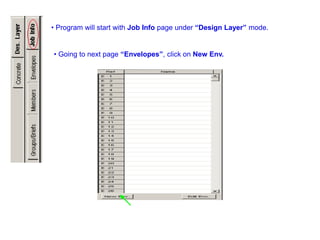
• Program will start with Job Info page under “Design Layer” mode.
• Going to next page “Envelopes”, click on New Env.
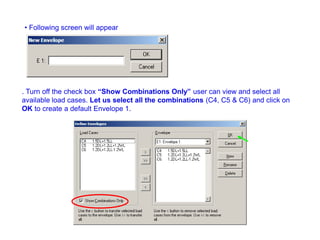
• Following screen will appear
. Turn off the check box “Show Combinations Only” user can view and select all
available load cases. Let us select all the combinations (C4, C5 & C6) and click on
OK to create a default Envelope 1.
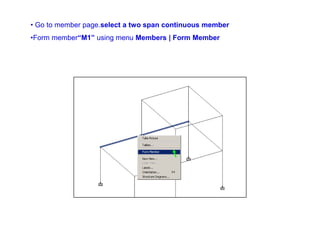
• Go to member page.select a two span continuous member
•Form member“M1” using menu Members | Form Member
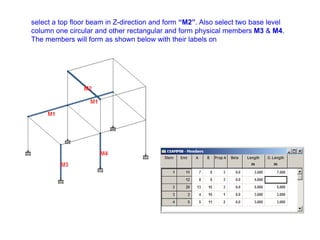
select a top floor beam in Z-direction and form “M2”. Also select two base level
column one circular and other rectangular and form physical members M3 & M4.
The members will form as shown below with their labels on
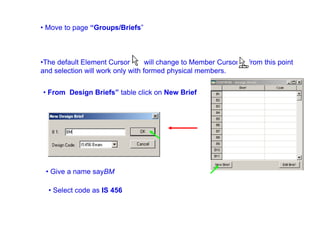
• Move to page “Groups/Briefs”
•The default Element Cursor will change to Member Cursor from this point
and selection will work only with formed physical members.
• From Design Briefs” table click on New Brief
• Give a name sayBM
• Select code as IS 456
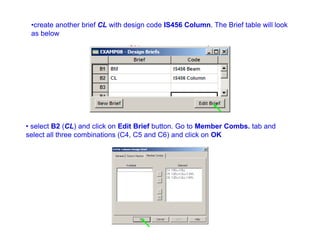
•create another brief CL with design code IS456 Column. The Brief table will look
as below
• select B2 (CL) and click on Edit Brief button. Go to Member Combs. tab and
select all three combinations (C4, C5 and C6) and click on OK
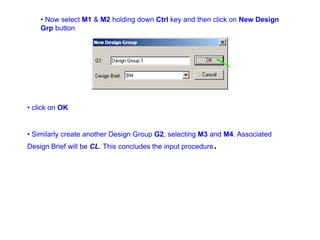
• Now select M1 & M2 holding down Ctrl key and then click on New Design
Grp button
• click on OK
• Similarly create another Design Group G2, selecting M3 and M4. Associated
Design Brief will be CL. This concludes the input procedure.
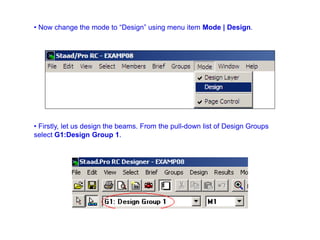
• Now change the mode to “Design” using menu item Mode | Design.
• Firstly, let us design the beams. From the pull-down list of Design Groups
select G1:Design Group 1.
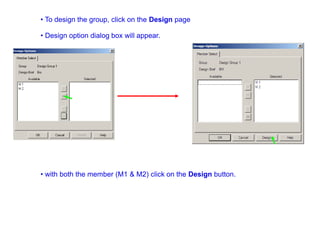
• To design the group, click on the Design page
• Design option dialog box will appear.
• with both the member (M1 & M2) click on the Design button.
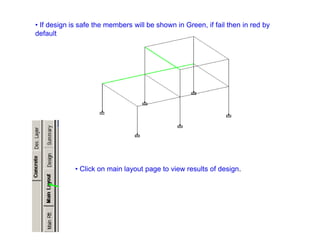
• If design is safe the members will be shown in Green, if fail then in red by
default
• Click on main layout page to view results of design.
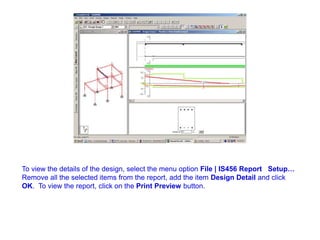
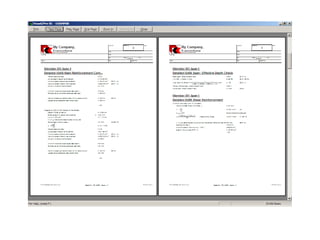
To view the details of the design, select the menu option File | IS456 Report Setup…
Remove all the selected items from the report, add the item Design Detail and click
OK. To view the report, click on the Print Preview button.
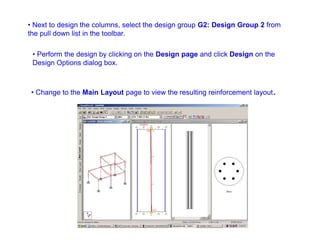
• Next to design the columns, select the design group G2: Design Group 2 from
the pull down list in the toolbar.
• Perform the design by clicking on the Design page and click Design on the
Design Options dialog box.
• Change to the Main Layout page to view the resulting reinforcement layout.
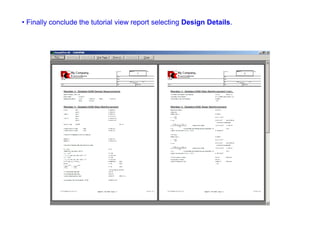
• Finally conclude the tutorial view report selecting Design Details.

concrete_designer.ppt

  • 1.
  • 2.
    Understanding with aWorked Example select EXAMP 08.STD from INDIAN example directory.
  • 3.
    • Run analysiswith this file •select menu item Mode | Interactive Design | Concrete Design.
  • 4.
    • Program willstart with Job Info page under “Design Layer” mode. • Going to next page “Envelopes”, click on New Env.
  • 5.
    • Following screenwill appear . Turn off the check box “Show Combinations Only” user can view and select all available load cases. Let us select all the combinations (C4, C5 & C6) and click on OK to create a default Envelope 1.
  • 6.
    • Go tomember page.select a two span continuous member •Form member“M1” using menu Members | Form Member
  • 7.
    select a topfloor beam in Z-direction and form “M2”. Also select two base level column one circular and other rectangular and form physical members M3 & M4. The members will form as shown below with their labels on
  • 8.
    • Move topage “Groups/Briefs” •The default Element Cursor will change to Member Cursor from this point and selection will work only with formed physical members. • From Design Briefs” table click on New Brief • Give a name sayBM • Select code as IS 456
  • 9.
    •create another briefCL with design code IS456 Column. The Brief table will look as below • select B2 (CL) and click on Edit Brief button. Go to Member Combs. tab and select all three combinations (C4, C5 and C6) and click on OK
  • 10.
    • Now selectM1 & M2 holding down Ctrl key and then click on New Design Grp button • click on OK • Similarly create another Design Group G2, selecting M3 and M4. Associated Design Brief will be CL. This concludes the input procedure.
  • 11.
    • Now changethe mode to “Design” using menu item Mode | Design. • Firstly, let us design the beams. From the pull-down list of Design Groups select G1:Design Group 1.
  • 12.
    • To designthe group, click on the Design page • Design option dialog box will appear. • with both the member (M1 & M2) click on the Design button.
  • 13.
    • If designis safe the members will be shown in Green, if fail then in red by default • Click on main layout page to view results of design.
  • 14.
    To view thedetails of the design, select the menu option File | IS456 Report Setup… Remove all the selected items from the report, add the item Design Detail and click OK. To view the report, click on the Print Preview button.
  • 16.
    • Next todesign the columns, select the design group G2: Design Group 2 from the pull down list in the toolbar. • Perform the design by clicking on the Design page and click Design on the Design Options dialog box. • Change to the Main Layout page to view the resulting reinforcement layout.
  • 17.
    • Finally concludethe tutorial view report selecting Design Details.