About the Presentations
• The presentations cover the objectives found in the
opening of each chapter.
• All chapter objectives are listed in the beginning of
each presentation.
• You may customize the presentations to fit your
class needs.
• Some figures from the chapters are included. A
complete set of images from the book can be found
on the Instructor Companion Site.
© 2016 Cengage Learning®. May not be scanned, copied or duplicated, or posted to
a publicly accessible website, in whole or in part.
Network+ Guide to Networks
7th Edition
Chapter 1
An Introduction to Networking
© 2016 Cengage Learning®. May not be scanned, copied or duplicated, or posted to a
publicly accessible website, in whole or in part.
© Cengage Learning 2016
Objectives
• Identify types of applications and protocols used on
a network
• Distinguish between the client-server and peer-to-
peer models used to control access to a network
• Describe various networking hardware devices and
the most common physical topologies
3
Network+ Guide to Networks, 7th Edition
© Cengage Learning 2016
4
Objectives
• Describe the seven layers of the OSI model
• Explore best practices for safety when working with
networks and computers
• Describe the seven-step troubleshooting model for
solving a networking problem
Network+ Guide to Networks, 7th Edition
© Cengage Learning 2016
How Networks Are Used
• Network services - the resources a network makes
available to its users
– Includes applications and the data provided by these
applications
• Types of applications found on most networks:
– Client-Server
– File and Print Services
– Communications Services
Network+ Guide to Networks, 7th Edition 5
© Cengage Learning 2016
Client-Server Applications
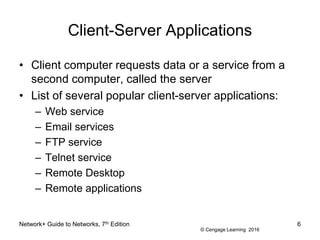
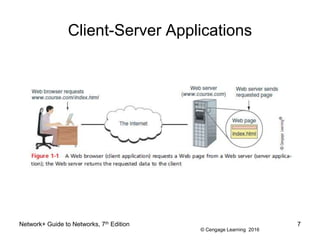
• Client computer requests data or a service from a
second computer, called the server
• List of several popular client-server applications:
– Web service
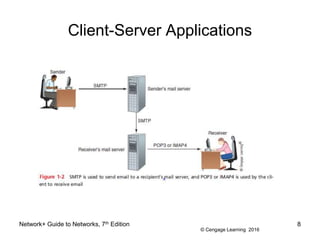
– Email services
– FTP service
– Telnet service
– Remote Desktop
– Remote applications
Network+ Guide to Networks, 7th Edition 6
© Cengage Learning 2016
Client-Server Applications
Network+ Guide to Networks, 7th Edition 7
© Cengage Learning 2016
Client-Server Applications
Network+ Guide to Networks, 7th Edition 8
© Cengage Learning 2016
File and Print Services
• File services - a server’s ability to share data files
and disk storage space
• File server - a computer that provides file services
• Print services - ability to share printers across a
network
– With one printer, less time is spent on maintenance
and management
Network+ Guide to Networks, 7th Edition 9
© Cengage Learning 2016
Communication Services
• Convergence - using the same network to deliver
multiple types of communications services
• Unified communication (UC) - refers to the
centralized management of multiple network-based
communications
• Three types of communication services:
– Conversational voice - VoIP (Voice over IP)
– Streaming live audio and video
– Streaming stored audio and video
Network+ Guide to Networks, 7th Edition 10
© Cengage Learning 2016
Communication Services
• Voice and video transmissions are delay-sensitive
– You don’t want to hear or see breaks in transmission
• Voice and video transmission are considered loss-
tolerant
• Network administrators must pay attention to the
quality of service (QoS) a network provides for voice
and video
• Bandwidth - the amount of traffic, or data
transmission activity, on the network
Network+ Guide to Networks, 7th Edition 11
© Cengage Learning 2016
Controlling Network Access
• Topology - how parts of a whole work together
• Physical topology - mostly applies to hardware and
describes how computers, other devices, and cables
fir together to form the physical network
• Logical topology - has to do with software and
describes how access to the network is controlled
– How users and programs initially gain access to the
network
• Network operating system - controls access to the
entire network
– Required by client-server models
Network+ Guide to Networks, 7th Edition 12
© Cengage Learning 2016
Network+ Guide to Networks, 7th Edition 13
Peer-to-Peer Model
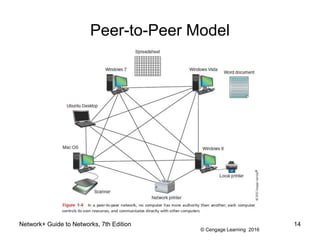
• Peer-to-peer (P2P) network model - the OS of each
computer on the network is responsible for
controlling access to its resources
– No centralized control
• Computers, called nodes or hosts, form a logical
group of computers and users
– May share resources
– May prevent access to resources
• Each computer user has a Windows local account
– Works only on that one computer
© Cengage Learning 2016
Network+ Guide to Networks, 7th Edition 14
Peer-to-Peer Model
© Cengage Learning 2016
Network+ Guide to Networks, 7th Edition 15
Peer-to-Peer Model
• Advantages
– Simple configuration
– Less expensive
• Compared to other network models
• Disadvantages
– Not scalable
– Not necessarily secure
– Not practical for large installations
© Cengage Learning 2016
Network+ Guide to Networks, 7th Edition 16
Client-Server Network Model
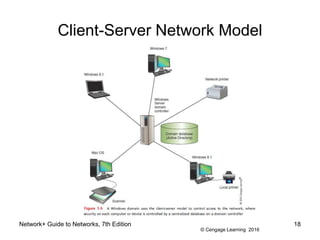
• Resources are managed by the network operating
system (NOS) via a centralized directory database
• Windows domain - a logical group of computers that
a Windows Server can control
• Active Directory (AD) - the centralized directory
database that contains user account information and
security for the entire group of computers
• Global account (a.k.a. global username or network
ID) - a domain-level account assigned by the
network administrator and is kept in AD
© Cengage Learning 2016
Network+ Guide to Networks, 7th Edition 17
Client-Server Network Model
• A user can sign on to the network from any
computer on the network and gain access to the
resources that AD allows
– This process is managed by Active Directory Domain
Services (AD DS)
• Clients don’t share their resources directly with each
other
– Access is controlled by entries in the centralized
domain database
© Cengage Learning 2016
Network+ Guide to Networks, 7th Edition 18
Client-Server Network Model
© Cengage Learning 2016
Network+ Guide to Networks, 7th Edition 19
Client-Server Network Model
• The NOS is responsible for:
– Manages client data, resources
– Ensures authorized user access
– Controls user file access
– Restricts user network access
– Dictates computer communication rules
– Supplies application to clients
• Server examples
– Windows Server 2012 R2, Ubuntu Server, or Red Hat
Linux
© Cengage Learning 2016
Network+ Guide to Networks, 7th Edition 20
Client-Server Network Model
• Servers that have a NOS installed require:
– More memory, processing, storage capacity
– Equipped with special hardware
• Provides network management functions
• Advantages relative to peer-to-peer networks
– User credential assigned from one place
– Multiple shared resource access centrally controlled
– Central problem monitoring, diagnostics, correction
capabilities
– More scalable
© Cengage Learning 2016
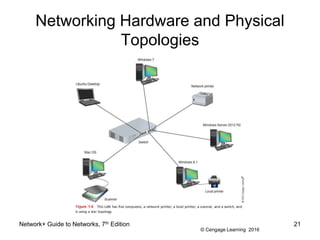
Networking Hardware and Physical
Topologies
Network+ Guide to Networks, 7th Edition 21
© Cengage Learning 2016
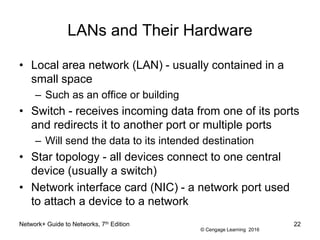
LANs and Their Hardware
• Local area network (LAN) - usually contained in a
small space
– Such as an office or building
• Switch - receives incoming data from one of its ports
and redirects it to another port or multiple ports
– Will send the data to its intended destination
• Star topology - all devices connect to one central
device (usually a switch)
• Network interface card (NIC) - a network port used
to attach a device to a network
Network+ Guide to Networks, 7th Edition 22
© Cengage Learning 2016
LANs and Their Hardware
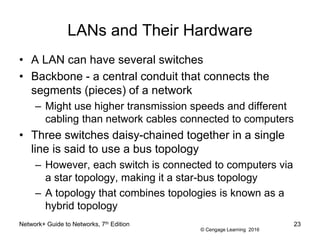
• A LAN can have several switches
• Backbone - a central conduit that connects the
segments (pieces) of a network
– Might use higher transmission speeds and different
cabling than network cables connected to computers
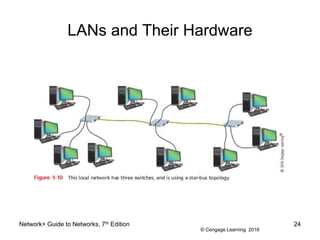
• Three switches daisy-chained together in a single
line is said to use a bus topology
– However, each switch is connected to computers via
a star topology, making it a star-bus topology
– A topology that combines topologies is known as a
hybrid topology
Network+ Guide to Networks, 7th Edition 23
© Cengage Learning 2016
LANs and Their Hardware
Network+ Guide to Networks, 7th Edition 24
© Cengage Learning 2016
LANs and Their Hardware
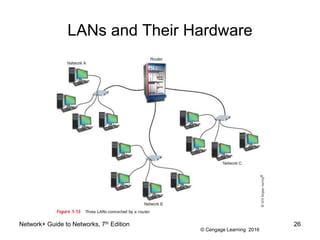
• Router - a device that manages traffic between two
or more networks
– Can help find the best path for traffic to get from one
network to another
• Routers can be used in small home networks to
connect the home LAN to the Internet
• Industrial-grade routers can have several network
ports, one for each network it connects to
• Difference between router and switch:
– Router is like a gateway between networks
Network+ Guide to Networks, 7th Edition 25
© Cengage Learning 2016
LANs and Their Hardware
Network+ Guide to Networks, 7th Edition 26
© Cengage Learning 2016
MANs and WANs
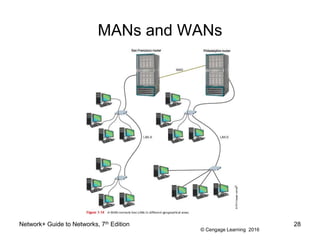
• Metropolitan area network (MAN) - a group of
connected LANs in the same geographical area
– Also known as a campus area network (CAN)
• WAN (wide area network) - a group of LANs that
spread over a wide geographical area
– Internet is the largest and most varied WAN
• MANs and WANs often use different transmission
methods and media than LANs
• PAN (personal area network) - smallest network
– A network of personal devices
Network+ Guide to Networks, 7th Edition 27
© Cengage Learning 2016
MANs and WANs
Network+ Guide to Networks, 7th Edition 28
© Cengage Learning 2016
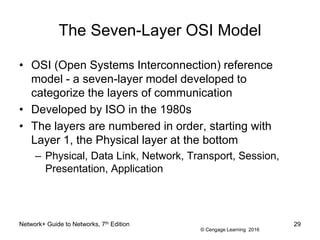
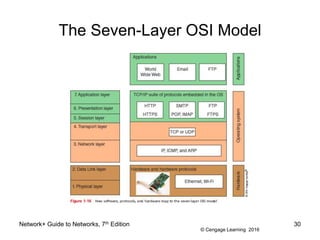
The Seven-Layer OSI Model
• OSI (Open Systems Interconnection) reference
model - a seven-layer model developed to
categorize the layers of communication
• Developed by ISO in the 1980s
• The layers are numbered in order, starting with
Layer 1, the Physical layer at the bottom
– Physical, Data Link, Network, Transport, Session,
Presentation, Application
Network+ Guide to Networks, 7th Edition 29
© Cengage Learning 2016
The Seven-Layer OSI Model
Network+ Guide to Networks, 7th Edition 30
© Cengage Learning 2016
Layer 7: Application Layer
• Application layer - describes the interface between
two applications, on separate computers
• Application layer protocols are used by programs
that fall into two categories:
– Provide services to a user, such as a browser and
Web server
– Utility programs that provide services to the system,
such as SNMP that monitor and gather information
about network traffic
• Payload - data that is passed between applications
or utility programs and the OS
Network+ Guide to Networks, 7th Edition 31
© Cengage Learning 2016
Layer 6: Presentation Layer
• Presentation layer - responsible for reformatting,
compressing, and/or encrypting data in a way that
the receiving application can read
• Example:
– An email message can be encrypted at the
Presentation layer by the email client or by the OS
Network+ Guide to Networks, 7th Edition 32
© Cengage Learning 2016
Layer 5: Session Layer
• Session layer - describes how data between
applications is synched and recovered if messages
don’t arrive intact at the receiving application
• The Application, Presentation, and Session layers
are intertwined
– Often difficult to distinguish between them
• Most tasks are performed by the OS when an
application makes an API call to the OS
– Application programming interface (API) call is the
method an application uses when it makes a request
of the OS
Network+ Guide to Networks, 7th Edition 33
© Cengage Learning 2016
Layer 4: Transport Layer
• Transport layer - responsible for transporting
Application layer payloads from one application to
another
• Two main Transport layer protocols are:
– TCP (Transmission Control Protocol) - makes a
connection with the end host, checks whether data
was received; called a connection-oriented protocol
– UDP (User Datagram Protocol) - does not guarantee
delivery by first connecting and checking whether
data is received; called a connectionless protocol
Network+ Guide to Networks, 7th Edition 34
© Cengage Learning 2016
Layer 4: Transport Layer
• Protocols add their own control information in an
area at the beginning of the payload (called a
header)
• Encapsulation - process of adding a header to the
data inherited from the layer above
• The Transport layer header addresses the receiving
application by a number called a port number
• If message is too large, TCP divides it into smaller
messages called segments
– In UDP, the message is called a datagram
Network+ Guide to Networks, 7th Edition 35
© Cengage Learning 2016
Layer 3: Network Layer
• Network layer - responsible for moving messages
from one node to another until reaches destination
• IP adds its own Network layer header to the
segment or datagram
– The entire Network layer message is called a packet
• IP address - assigned to each node on a network
– Network layer uses it to uniquely identify each host
• IP relies on several routing protocols to find the best
route for a packet to take to reach destination
– ICMP and ARP are examples
Network+ Guide to Networks, 7th Edition 36
© Cengage Learning 2016
Layer 2: Data Link Layer
• Layers 2 and 1 are responsible for interfacing with
physical hardware on the local network
– Protocols at these layers are programmed into
firmware of a computer’s NIC and other hardware
• Type of networking hardware or technology used on
a network determine the Link Layer protocol used
– Ethernet and Wi-Fi are examples
• The Link layer puts control information in a Link
layer header and at the end of the packet in a trailer
– Entire Link layer is called a frame
Network+ Guide to Networks, 7th Edition 37
© Cengage Learning 2016
Layer 2: Data Link Layer
• MAC (Media Access Control) address - hardware
address of the source and destination NICs
– Also called a physical address, hardware address, or
Data Link layer address
– Embedded on every network adapter and are
considered short-range addresses that can only find
nodes on the local network
Network+ Guide to Networks, 7th Edition 38
© Cengage Learning 2016
Layer 1: Physical Layer
• Physical layer - simplest layer and is responsible for
sending bits via a wired or wireless transmission
• Can be transmitted as:
– Wavelengths in the air
– Voltage on a copper wire
– Light (via fiber-optic cabling)
Network+ Guide to Networks, 7th Edition 39
© Cengage Learning 2016
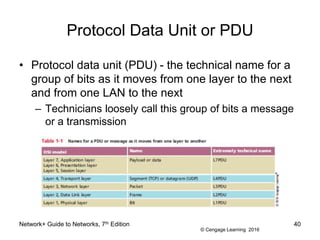
Protocol Data Unit or PDU
• Protocol data unit (PDU) - the technical name for a
group of bits as it moves from one layer to the next
and from one LAN to the next
– Technicians loosely call this group of bits a message
or a transmission
Network+ Guide to Networks, 7th Edition 40
© Cengage Learning 2016
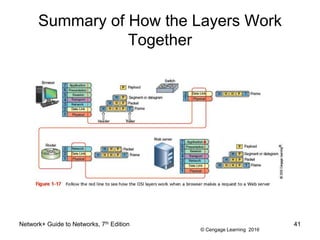
Summary of How the Layers Work
Together
Network+ Guide to Networks, 7th Edition 41
© Cengage Learning 2016
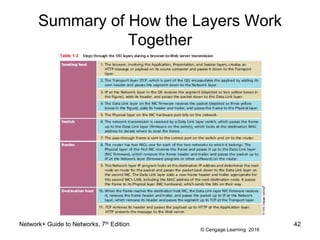
Summary of How the Layers Work
Together
Network+ Guide to Networks, 7th Edition 42
© Cengage Learning 2016
Staying Safe When Working with
Networks and Computers
• Network and computer technicians need to know
how to protect themselves
– As wells as protect sensitive electronic components
• This section takes a look at some best practices for
safety
Network+ Guide to Networks, 7th Edition 43
© Cengage Learning 2016
Emergency Procedures
• Know the best escape route or emergency exit
• Fire Suppression Systems - have a fire suppression
system in the data center that includes:
– Emergency alert system
– Portable fire extinguishers
– Emergency power-off switch
– Suppression agent
• Fail Open or Fail Close - does the security system
allow access during a failure (fail open) or deny
access during the failure (fail close)
Network+ Guide to Networks, 7th Edition 44
© Cengage Learning 2016
Emergency Procedures
• Material Safety Data Sheet (MSDS) - explains how
to properly handle substances such as chemical
solvents and how to dispose of them
– Includes information such as physical data, toxicity,
health effects, first aid, storage, shipping, disposal,
and spill procedures
Network+ Guide to Networks, 7th Edition 45
© Cengage Learning 2016
HVAC Systems
• Heating, ventilation, and air conditioning (HVAC)
system - controls the environment in a data center
– Including the temperature, humidity, airflow, and air
filtering
• HVAC system must provide acceptable temperature
and humidity ranges for devices that might overheat
or fail due to high humidity
• HVAC systems and network cabling often occupy
the space above the ceiling or below the floor in a
data center
– Called the plenum
Network+ Guide to Networks, 7th Edition 46
© Cengage Learning 2016
Protecting Against Static Electricity
• Computer components are grounded inside a
computer case
• Sensitive electronic components can be damaged
by electrostatic discharge (ESD)
• Static electricity can cause two types of damage:
– Catastrophic failure - destroyed beyond use
– Upset failure - shorten the life of a component
Network+ Guide to Networks, 7th Edition 47
© Cengage Learning 2016
Protecting Against Static Electricity
• Before touching a component, ground yourself by:
– Wearing an ESD strap around your wrist that clips
onto the chassis or computer case
– Touching the case before touching any component
inside the case
– Storing a component inside an antistatic bag
• In addition to protecting against ESD, always shut
down and unplug a computer before working inside
it
Network+ Guide to Networks, 7th Edition 48
© Cengage Learning 2016
Installation Safety
• Lifting Heavy Objects - follow these guidelines:
– Decide which side of object to face so load is most
balanced
– Stand close to the object with your feet apart
– Keep your back straight, bend knees and grip load
– Lift with your legs, arms, and shoulders (not your
back or stomach)
– Keep the load close to your body and avoid twisting
your body while you’re holding it
– To put the object down, keep your back as straight as
possible and lower object by bending your knees
Network+ Guide to Networks, 7th Edition 49
© Cengage Learning 2016
Installation Safety
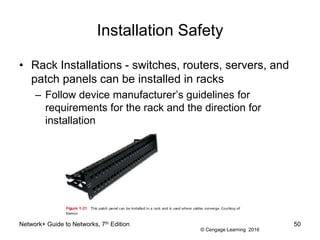
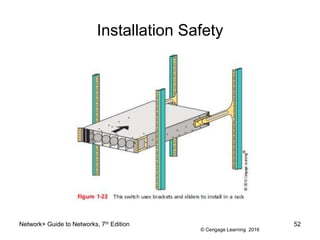
• Rack Installations - switches, routers, servers, and
patch panels can be installed in racks
– Follow device manufacturer’s guidelines for
requirements for the rack and the direction for
installation
Network+ Guide to Networks, 7th Edition 50
© Cengage Learning 2016
Installation Safety
• General directions for safely installing rack-
mountable devices:
– Engage brakes on rack wheels, if applicable
– Wear an ESD strap
– Place the device in the rack for good airflow
– Device must be well grounded
– Pay attention to tools as you work so they don’t
accidentally fall into a rack of expensive equipment
– Install fan trays so that air flows in the same direction
as the fans inside the device
Network+ Guide to Networks, 7th Edition 51
© Cengage Learning 2016
Installation Safety
Network+ Guide to Networks, 7th Edition 52
© Cengage Learning 2016
Electrical and Tool Safety in Data
Centers
• Electrical and tool safety is generally regulated by
OSHA (Occupational Safety and Health
Administration)
• OSHA guidelines when using power tools:
– Wear personal protective equipment (PPE)
– Keep all tools in good condition and properly store
tools not in use
– Use the right tool for the job and operate the tool
according to the manufacturer’s instructions
– Watch out for trip hazards, so you and others don’t
stumble on a tool or cord
Network+ Guide to Networks, 7th Edition 53
© Cengage Learning 2016
Troubleshooting Network Problems
• Troubleshooting steps used by most expert
networking troubleshooters:
– Identify problem
• Gather information
• Identify symptoms
• Question users
• Determine if anything has changed
– Establish theory of probable cause
• Question the obvious
Network+ Guide to Networks, 7th Edition 54
© Cengage Learning 2016
Troubleshooting Network Problems
• Troubleshooting steps (cont’d)
– Test theory to determine cause
• If theory confirmed, determine next steps
• If theory not confirmed, establish new theory or
escalate
– Establish action plan
– Implement solution or escalate the problem
– Verify full functionality
• Implement preventative measures if applicable
– Document findings, actions, outcomes
Network+ Guide to Networks, 7th Edition 55
© Cengage Learning 2016
Network+ Guide to Networks, 7th Edition 56
Summary
• Networks provide a wide range of services, including
client-server applications, file and print services, and
communications services
• File and print services enable multiple users to
share data, storage areas, and printers
• Traditional peer-to-peer networks are usually simple
and inexpensive to set up
• The client-server model for access control relies on
a centrally administered server using a NOS that
manages shared resources for multiple clients
– More complex and expensive to install
© Cengage Learning 2016
Network+ Guide to Networks, 7th Edition 57
Summary
• A LAN is a network of computers and other devices
that can directly address all other nodes
• In a star topology, all computers and network
devices connect to one central device
• A backbone is a central conduit that connects parts
of a network and might use the bus topology
• A router manages traffic between two or more LANS
• LANS can be interconnected to form WANS, which
traverse longer distances in two or more
geographical areas
© Cengage Learning 2016
Network+ Guide to Networks, 7th Edition 58
Summary
• The seven layers of the OSI model are Application,
Presentation, Session, Transport, Network, Data
Link, and Physical
• At Layers 7,6, and 5, data and its control information
is known as the payload
• A message at the Transport layer is called a
segment in TCP and a datagram in UDP
• An IP transmission is called a packet
• A message at the Data Link layer is called a frame
• Some switches operate at the Data Link layer and
routers operate at the Network layer
© Cengage Learning 2016
Network+ Guide to Networks, 7th Edition 59
Summary
• A fire suppression system can include an
emergency alert system, portable fire extinguishers,
an emergency power-off switch, and suppression
agents
• HVAC systems are responsible for controlling
humidity and temperature in a data center
• When working with sensitive components, protect
against ESD by using an ESD strap
• Troubleshooting problems and their solutions are
documented in a call tracking system

Comptia Security + Chapter 1 601

  • 1.
    About the Presentations •The presentations cover the objectives found in the opening of each chapter. • All chapter objectives are listed in the beginning of each presentation. • You may customize the presentations to fit your class needs. • Some figures from the chapters are included. A complete set of images from the book can be found on the Instructor Companion Site. © 2016 Cengage Learning®. May not be scanned, copied or duplicated, or posted to a publicly accessible website, in whole or in part.
  • 2.
    Network+ Guide toNetworks 7th Edition Chapter 1 An Introduction to Networking © 2016 Cengage Learning®. May not be scanned, copied or duplicated, or posted to a publicly accessible website, in whole or in part.
  • 3.
    © Cengage Learning2016 Objectives • Identify types of applications and protocols used on a network • Distinguish between the client-server and peer-to- peer models used to control access to a network • Describe various networking hardware devices and the most common physical topologies 3 Network+ Guide to Networks, 7th Edition
  • 4.
    © Cengage Learning2016 4 Objectives • Describe the seven layers of the OSI model • Explore best practices for safety when working with networks and computers • Describe the seven-step troubleshooting model for solving a networking problem Network+ Guide to Networks, 7th Edition
  • 5.
    © Cengage Learning2016 How Networks Are Used • Network services - the resources a network makes available to its users – Includes applications and the data provided by these applications • Types of applications found on most networks: – Client-Server – File and Print Services – Communications Services Network+ Guide to Networks, 7th Edition 5
  • 6.
    © Cengage Learning2016 Client-Server Applications • Client computer requests data or a service from a second computer, called the server • List of several popular client-server applications: – Web service – Email services – FTP service – Telnet service – Remote Desktop – Remote applications Network+ Guide to Networks, 7th Edition 6
  • 7.
    © Cengage Learning2016 Client-Server Applications Network+ Guide to Networks, 7th Edition 7
  • 8.
    © Cengage Learning2016 Client-Server Applications Network+ Guide to Networks, 7th Edition 8
  • 9.
    © Cengage Learning2016 File and Print Services • File services - a server’s ability to share data files and disk storage space • File server - a computer that provides file services • Print services - ability to share printers across a network – With one printer, less time is spent on maintenance and management Network+ Guide to Networks, 7th Edition 9
  • 10.
    © Cengage Learning2016 Communication Services • Convergence - using the same network to deliver multiple types of communications services • Unified communication (UC) - refers to the centralized management of multiple network-based communications • Three types of communication services: – Conversational voice - VoIP (Voice over IP) – Streaming live audio and video – Streaming stored audio and video Network+ Guide to Networks, 7th Edition 10
  • 11.
    © Cengage Learning2016 Communication Services • Voice and video transmissions are delay-sensitive – You don’t want to hear or see breaks in transmission • Voice and video transmission are considered loss- tolerant • Network administrators must pay attention to the quality of service (QoS) a network provides for voice and video • Bandwidth - the amount of traffic, or data transmission activity, on the network Network+ Guide to Networks, 7th Edition 11
  • 12.
    © Cengage Learning2016 Controlling Network Access • Topology - how parts of a whole work together • Physical topology - mostly applies to hardware and describes how computers, other devices, and cables fir together to form the physical network • Logical topology - has to do with software and describes how access to the network is controlled – How users and programs initially gain access to the network • Network operating system - controls access to the entire network – Required by client-server models Network+ Guide to Networks, 7th Edition 12
  • 13.
    © Cengage Learning2016 Network+ Guide to Networks, 7th Edition 13 Peer-to-Peer Model • Peer-to-peer (P2P) network model - the OS of each computer on the network is responsible for controlling access to its resources – No centralized control • Computers, called nodes or hosts, form a logical group of computers and users – May share resources – May prevent access to resources • Each computer user has a Windows local account – Works only on that one computer
  • 14.
    © Cengage Learning2016 Network+ Guide to Networks, 7th Edition 14 Peer-to-Peer Model
  • 15.
    © Cengage Learning2016 Network+ Guide to Networks, 7th Edition 15 Peer-to-Peer Model • Advantages – Simple configuration – Less expensive • Compared to other network models • Disadvantages – Not scalable – Not necessarily secure – Not practical for large installations
  • 16.
    © Cengage Learning2016 Network+ Guide to Networks, 7th Edition 16 Client-Server Network Model • Resources are managed by the network operating system (NOS) via a centralized directory database • Windows domain - a logical group of computers that a Windows Server can control • Active Directory (AD) - the centralized directory database that contains user account information and security for the entire group of computers • Global account (a.k.a. global username or network ID) - a domain-level account assigned by the network administrator and is kept in AD
  • 17.
    © Cengage Learning2016 Network+ Guide to Networks, 7th Edition 17 Client-Server Network Model • A user can sign on to the network from any computer on the network and gain access to the resources that AD allows – This process is managed by Active Directory Domain Services (AD DS) • Clients don’t share their resources directly with each other – Access is controlled by entries in the centralized domain database
  • 18.
    © Cengage Learning2016 Network+ Guide to Networks, 7th Edition 18 Client-Server Network Model
  • 19.
    © Cengage Learning2016 Network+ Guide to Networks, 7th Edition 19 Client-Server Network Model • The NOS is responsible for: – Manages client data, resources – Ensures authorized user access – Controls user file access – Restricts user network access – Dictates computer communication rules – Supplies application to clients • Server examples – Windows Server 2012 R2, Ubuntu Server, or Red Hat Linux
  • 20.
    © Cengage Learning2016 Network+ Guide to Networks, 7th Edition 20 Client-Server Network Model • Servers that have a NOS installed require: – More memory, processing, storage capacity – Equipped with special hardware • Provides network management functions • Advantages relative to peer-to-peer networks – User credential assigned from one place – Multiple shared resource access centrally controlled – Central problem monitoring, diagnostics, correction capabilities – More scalable
  • 21.
    © Cengage Learning2016 Networking Hardware and Physical Topologies Network+ Guide to Networks, 7th Edition 21
  • 22.
    © Cengage Learning2016 LANs and Their Hardware • Local area network (LAN) - usually contained in a small space – Such as an office or building • Switch - receives incoming data from one of its ports and redirects it to another port or multiple ports – Will send the data to its intended destination • Star topology - all devices connect to one central device (usually a switch) • Network interface card (NIC) - a network port used to attach a device to a network Network+ Guide to Networks, 7th Edition 22
  • 23.
    © Cengage Learning2016 LANs and Their Hardware • A LAN can have several switches • Backbone - a central conduit that connects the segments (pieces) of a network – Might use higher transmission speeds and different cabling than network cables connected to computers • Three switches daisy-chained together in a single line is said to use a bus topology – However, each switch is connected to computers via a star topology, making it a star-bus topology – A topology that combines topologies is known as a hybrid topology Network+ Guide to Networks, 7th Edition 23
  • 24.
    © Cengage Learning2016 LANs and Their Hardware Network+ Guide to Networks, 7th Edition 24
  • 25.
    © Cengage Learning2016 LANs and Their Hardware • Router - a device that manages traffic between two or more networks – Can help find the best path for traffic to get from one network to another • Routers can be used in small home networks to connect the home LAN to the Internet • Industrial-grade routers can have several network ports, one for each network it connects to • Difference between router and switch: – Router is like a gateway between networks Network+ Guide to Networks, 7th Edition 25
  • 26.
    © Cengage Learning2016 LANs and Their Hardware Network+ Guide to Networks, 7th Edition 26
  • 27.
    © Cengage Learning2016 MANs and WANs • Metropolitan area network (MAN) - a group of connected LANs in the same geographical area – Also known as a campus area network (CAN) • WAN (wide area network) - a group of LANs that spread over a wide geographical area – Internet is the largest and most varied WAN • MANs and WANs often use different transmission methods and media than LANs • PAN (personal area network) - smallest network – A network of personal devices Network+ Guide to Networks, 7th Edition 27
  • 28.
    © Cengage Learning2016 MANs and WANs Network+ Guide to Networks, 7th Edition 28
  • 29.
    © Cengage Learning2016 The Seven-Layer OSI Model • OSI (Open Systems Interconnection) reference model - a seven-layer model developed to categorize the layers of communication • Developed by ISO in the 1980s • The layers are numbered in order, starting with Layer 1, the Physical layer at the bottom – Physical, Data Link, Network, Transport, Session, Presentation, Application Network+ Guide to Networks, 7th Edition 29
  • 30.
    © Cengage Learning2016 The Seven-Layer OSI Model Network+ Guide to Networks, 7th Edition 30
  • 31.
    © Cengage Learning2016 Layer 7: Application Layer • Application layer - describes the interface between two applications, on separate computers • Application layer protocols are used by programs that fall into two categories: – Provide services to a user, such as a browser and Web server – Utility programs that provide services to the system, such as SNMP that monitor and gather information about network traffic • Payload - data that is passed between applications or utility programs and the OS Network+ Guide to Networks, 7th Edition 31
  • 32.
    © Cengage Learning2016 Layer 6: Presentation Layer • Presentation layer - responsible for reformatting, compressing, and/or encrypting data in a way that the receiving application can read • Example: – An email message can be encrypted at the Presentation layer by the email client or by the OS Network+ Guide to Networks, 7th Edition 32
  • 33.
    © Cengage Learning2016 Layer 5: Session Layer • Session layer - describes how data between applications is synched and recovered if messages don’t arrive intact at the receiving application • The Application, Presentation, and Session layers are intertwined – Often difficult to distinguish between them • Most tasks are performed by the OS when an application makes an API call to the OS – Application programming interface (API) call is the method an application uses when it makes a request of the OS Network+ Guide to Networks, 7th Edition 33
  • 34.
    © Cengage Learning2016 Layer 4: Transport Layer • Transport layer - responsible for transporting Application layer payloads from one application to another • Two main Transport layer protocols are: – TCP (Transmission Control Protocol) - makes a connection with the end host, checks whether data was received; called a connection-oriented protocol – UDP (User Datagram Protocol) - does not guarantee delivery by first connecting and checking whether data is received; called a connectionless protocol Network+ Guide to Networks, 7th Edition 34
  • 35.
    © Cengage Learning2016 Layer 4: Transport Layer • Protocols add their own control information in an area at the beginning of the payload (called a header) • Encapsulation - process of adding a header to the data inherited from the layer above • The Transport layer header addresses the receiving application by a number called a port number • If message is too large, TCP divides it into smaller messages called segments – In UDP, the message is called a datagram Network+ Guide to Networks, 7th Edition 35
  • 36.
    © Cengage Learning2016 Layer 3: Network Layer • Network layer - responsible for moving messages from one node to another until reaches destination • IP adds its own Network layer header to the segment or datagram – The entire Network layer message is called a packet • IP address - assigned to each node on a network – Network layer uses it to uniquely identify each host • IP relies on several routing protocols to find the best route for a packet to take to reach destination – ICMP and ARP are examples Network+ Guide to Networks, 7th Edition 36
  • 37.
    © Cengage Learning2016 Layer 2: Data Link Layer • Layers 2 and 1 are responsible for interfacing with physical hardware on the local network – Protocols at these layers are programmed into firmware of a computer’s NIC and other hardware • Type of networking hardware or technology used on a network determine the Link Layer protocol used – Ethernet and Wi-Fi are examples • The Link layer puts control information in a Link layer header and at the end of the packet in a trailer – Entire Link layer is called a frame Network+ Guide to Networks, 7th Edition 37
  • 38.
    © Cengage Learning2016 Layer 2: Data Link Layer • MAC (Media Access Control) address - hardware address of the source and destination NICs – Also called a physical address, hardware address, or Data Link layer address – Embedded on every network adapter and are considered short-range addresses that can only find nodes on the local network Network+ Guide to Networks, 7th Edition 38
  • 39.
    © Cengage Learning2016 Layer 1: Physical Layer • Physical layer - simplest layer and is responsible for sending bits via a wired or wireless transmission • Can be transmitted as: – Wavelengths in the air – Voltage on a copper wire – Light (via fiber-optic cabling) Network+ Guide to Networks, 7th Edition 39
  • 40.
    © Cengage Learning2016 Protocol Data Unit or PDU • Protocol data unit (PDU) - the technical name for a group of bits as it moves from one layer to the next and from one LAN to the next – Technicians loosely call this group of bits a message or a transmission Network+ Guide to Networks, 7th Edition 40
  • 41.
    © Cengage Learning2016 Summary of How the Layers Work Together Network+ Guide to Networks, 7th Edition 41
  • 42.
    © Cengage Learning2016 Summary of How the Layers Work Together Network+ Guide to Networks, 7th Edition 42
  • 43.
    © Cengage Learning2016 Staying Safe When Working with Networks and Computers • Network and computer technicians need to know how to protect themselves – As wells as protect sensitive electronic components • This section takes a look at some best practices for safety Network+ Guide to Networks, 7th Edition 43
  • 44.
    © Cengage Learning2016 Emergency Procedures • Know the best escape route or emergency exit • Fire Suppression Systems - have a fire suppression system in the data center that includes: – Emergency alert system – Portable fire extinguishers – Emergency power-off switch – Suppression agent • Fail Open or Fail Close - does the security system allow access during a failure (fail open) or deny access during the failure (fail close) Network+ Guide to Networks, 7th Edition 44
  • 45.
    © Cengage Learning2016 Emergency Procedures • Material Safety Data Sheet (MSDS) - explains how to properly handle substances such as chemical solvents and how to dispose of them – Includes information such as physical data, toxicity, health effects, first aid, storage, shipping, disposal, and spill procedures Network+ Guide to Networks, 7th Edition 45
  • 46.
    © Cengage Learning2016 HVAC Systems • Heating, ventilation, and air conditioning (HVAC) system - controls the environment in a data center – Including the temperature, humidity, airflow, and air filtering • HVAC system must provide acceptable temperature and humidity ranges for devices that might overheat or fail due to high humidity • HVAC systems and network cabling often occupy the space above the ceiling or below the floor in a data center – Called the plenum Network+ Guide to Networks, 7th Edition 46
  • 47.
    © Cengage Learning2016 Protecting Against Static Electricity • Computer components are grounded inside a computer case • Sensitive electronic components can be damaged by electrostatic discharge (ESD) • Static electricity can cause two types of damage: – Catastrophic failure - destroyed beyond use – Upset failure - shorten the life of a component Network+ Guide to Networks, 7th Edition 47
  • 48.
    © Cengage Learning2016 Protecting Against Static Electricity • Before touching a component, ground yourself by: – Wearing an ESD strap around your wrist that clips onto the chassis or computer case – Touching the case before touching any component inside the case – Storing a component inside an antistatic bag • In addition to protecting against ESD, always shut down and unplug a computer before working inside it Network+ Guide to Networks, 7th Edition 48
  • 49.
    © Cengage Learning2016 Installation Safety • Lifting Heavy Objects - follow these guidelines: – Decide which side of object to face so load is most balanced – Stand close to the object with your feet apart – Keep your back straight, bend knees and grip load – Lift with your legs, arms, and shoulders (not your back or stomach) – Keep the load close to your body and avoid twisting your body while you’re holding it – To put the object down, keep your back as straight as possible and lower object by bending your knees Network+ Guide to Networks, 7th Edition 49
  • 50.
    © Cengage Learning2016 Installation Safety • Rack Installations - switches, routers, servers, and patch panels can be installed in racks – Follow device manufacturer’s guidelines for requirements for the rack and the direction for installation Network+ Guide to Networks, 7th Edition 50
  • 51.
    © Cengage Learning2016 Installation Safety • General directions for safely installing rack- mountable devices: – Engage brakes on rack wheels, if applicable – Wear an ESD strap – Place the device in the rack for good airflow – Device must be well grounded – Pay attention to tools as you work so they don’t accidentally fall into a rack of expensive equipment – Install fan trays so that air flows in the same direction as the fans inside the device Network+ Guide to Networks, 7th Edition 51
  • 52.
    © Cengage Learning2016 Installation Safety Network+ Guide to Networks, 7th Edition 52
  • 53.
    © Cengage Learning2016 Electrical and Tool Safety in Data Centers • Electrical and tool safety is generally regulated by OSHA (Occupational Safety and Health Administration) • OSHA guidelines when using power tools: – Wear personal protective equipment (PPE) – Keep all tools in good condition and properly store tools not in use – Use the right tool for the job and operate the tool according to the manufacturer’s instructions – Watch out for trip hazards, so you and others don’t stumble on a tool or cord Network+ Guide to Networks, 7th Edition 53
  • 54.
    © Cengage Learning2016 Troubleshooting Network Problems • Troubleshooting steps used by most expert networking troubleshooters: – Identify problem • Gather information • Identify symptoms • Question users • Determine if anything has changed – Establish theory of probable cause • Question the obvious Network+ Guide to Networks, 7th Edition 54
  • 55.
    © Cengage Learning2016 Troubleshooting Network Problems • Troubleshooting steps (cont’d) – Test theory to determine cause • If theory confirmed, determine next steps • If theory not confirmed, establish new theory or escalate – Establish action plan – Implement solution or escalate the problem – Verify full functionality • Implement preventative measures if applicable – Document findings, actions, outcomes Network+ Guide to Networks, 7th Edition 55
  • 56.
    © Cengage Learning2016 Network+ Guide to Networks, 7th Edition 56 Summary • Networks provide a wide range of services, including client-server applications, file and print services, and communications services • File and print services enable multiple users to share data, storage areas, and printers • Traditional peer-to-peer networks are usually simple and inexpensive to set up • The client-server model for access control relies on a centrally administered server using a NOS that manages shared resources for multiple clients – More complex and expensive to install
  • 57.
    © Cengage Learning2016 Network+ Guide to Networks, 7th Edition 57 Summary • A LAN is a network of computers and other devices that can directly address all other nodes • In a star topology, all computers and network devices connect to one central device • A backbone is a central conduit that connects parts of a network and might use the bus topology • A router manages traffic between two or more LANS • LANS can be interconnected to form WANS, which traverse longer distances in two or more geographical areas
  • 58.
    © Cengage Learning2016 Network+ Guide to Networks, 7th Edition 58 Summary • The seven layers of the OSI model are Application, Presentation, Session, Transport, Network, Data Link, and Physical • At Layers 7,6, and 5, data and its control information is known as the payload • A message at the Transport layer is called a segment in TCP and a datagram in UDP • An IP transmission is called a packet • A message at the Data Link layer is called a frame • Some switches operate at the Data Link layer and routers operate at the Network layer
  • 59.
    © Cengage Learning2016 Network+ Guide to Networks, 7th Edition 59 Summary • A fire suppression system can include an emergency alert system, portable fire extinguishers, an emergency power-off switch, and suppression agents • HVAC systems are responsible for controlling humidity and temperature in a data center • When working with sensitive components, protect against ESD by using an ESD strap • Troubleshooting problems and their solutions are documented in a call tracking system