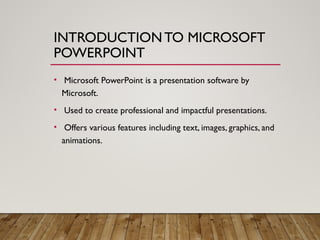
INTRODUCTIONTO MICROSOFT
POWERPOINT
• MicrosoftPowerPoint is a presentation software by
Microsoft.
• Used to create professional and impactful presentations.
• Offers various features including text, images, graphics, and
animations.
3.
NAVIGATING THE HOMESCREEN
• Subheading: Familiarizing with the Interface
• Title bar, Ribbon, Slide Pane, Notes section.
• Quick AccessToolbar for commonly used actions.
• Thumbnail view of slides on the left.
SLIDE NAVIGATION TECHNIQUES
•- Use mouse clicks or arrow keys to move between slides.
• - Press ESC to exit slideshow mode.
6.
USING THE RIBBONAND ICONS
• Ribbon contains tabs like Home, Insert, Design,Transitions,
etc.
• Icons represent specific commands.
• Tabs group related commands together for easy access.
7.
QUICK ACCESS TOOLBAR
•- Customizable toolbar for frequently used commands.
• - Located at the top-left corner.
• - Can add/remove buttons based on preference.
8.
CREATING A NEWPRESENTATION
• - Open PowerPoint > Click on Blank Presentation or select
a template.
• - Save the file with a meaningful name.
9.
STORAGE LOCATIONS FOR
SAVINGPRESENTATIONS
• - Local Drive (This PC)
• - OneDrive (Cloud Storage)
• - External Storage Devices (USB, External Hard Drives)
10.
INSERTING AND DUPLICATING
SLIDES
•- Home tab > New Slide
• - Right-click slide thumbnail > Duplicate Slide
• - Use layouts to choose appropriate content format
11.
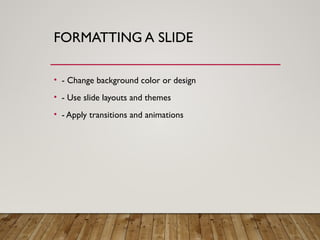
FORMATTING A SLIDE
•- Change background color or design
• - Use slide layouts and themes
• - Apply transitions and animations
12.
ADDING AND FORMATTINGTEXT
• - Click on placeholder or Insert > Text Box
• - Use Home tab to format text: font, size, bold, italic,
underline
• - Use placeholder to highlight and style text
13.
PRESENTATION TIPS AND
GUIDELINES
•- Use consistent colors (e.g., blue, black, brown for trust)
• - Limit fonts to three types
• - Title: 44pt, Subtitles: 32pt, Body text: 28pt
• - Use images over long texts
• - Avoid red-green combinations
14.
USING BULLETS ANDNUMBERED
LISTS
• - Insert bullets using Home tab > Paragraph group
• - Bullet lists can have up to 5 levels
• - Use different bullet styles as needed
15.
WORKING WITH GRAPHICS
•- Insert > Pictures, Online Pictures, Icons, 3D Models
• - Use background removal tool under Picture Format tab
• - Apply filters like Creative Commons for image search
16.
SHAPES AND SMARTOBJECTS
• - Insert > Shapes (rectangles, arrows, circles, action
buttons)
• - Use handles to adjust shape size and proportions
• - Use SmartArt for diagrams and flowcharts
17.
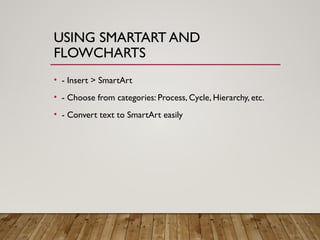
USING SMARTART AND
FLOWCHARTS
•- Insert > SmartArt
• - Choose from categories: Process, Cycle, Hierarchy, etc.
• - Convert text to SmartArt easily
18.
WORKING WITH OBJECTSON A
SLIDE
• - Objects include text, pictures, icons, shapes
• - Select multiple objects with CTRL or drawing a net
• - Arrange and group for better layout control
19.
EDITING AND FORMATTING
OBJECTS
•- Resize, recolor, and apply styles to objects
• - Use Format tab for object properties
• - Group/Ungroup options available under Arrange
20.
FORMATTING PICTURES IN
POWERPOINT
•- Crop, resize, add borders or effects
• - Combine two pictures creatively
• - Use relevant and consistent images
21.
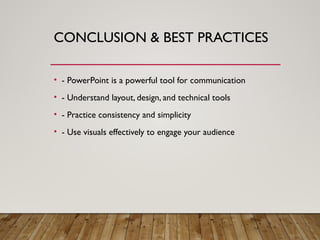
CONCLUSION & BESTPRACTICES
• - PowerPoint is a powerful tool for communication
• - Understand layout, design, and technical tools
• - Practice consistency and simplicity
• - Use visuals effectively to engage your audience