Code Syntax Highlighting
Ghost is a really nice blog engine, however it's still in development and lacks
many features. In particular, one feature, as a developer I need is Syntax
Highlighting, without this any entries will have to rely on images of the code.
Luckily there is a simple solution, Code Prettify is a git hub project that works by
selecting the contents of <code/>blocks decorated with a prettyprint class. It then
applies spans with a varieties of classes to around language expressions, this
then allows css to colorize the content.
Adding Code Prettify
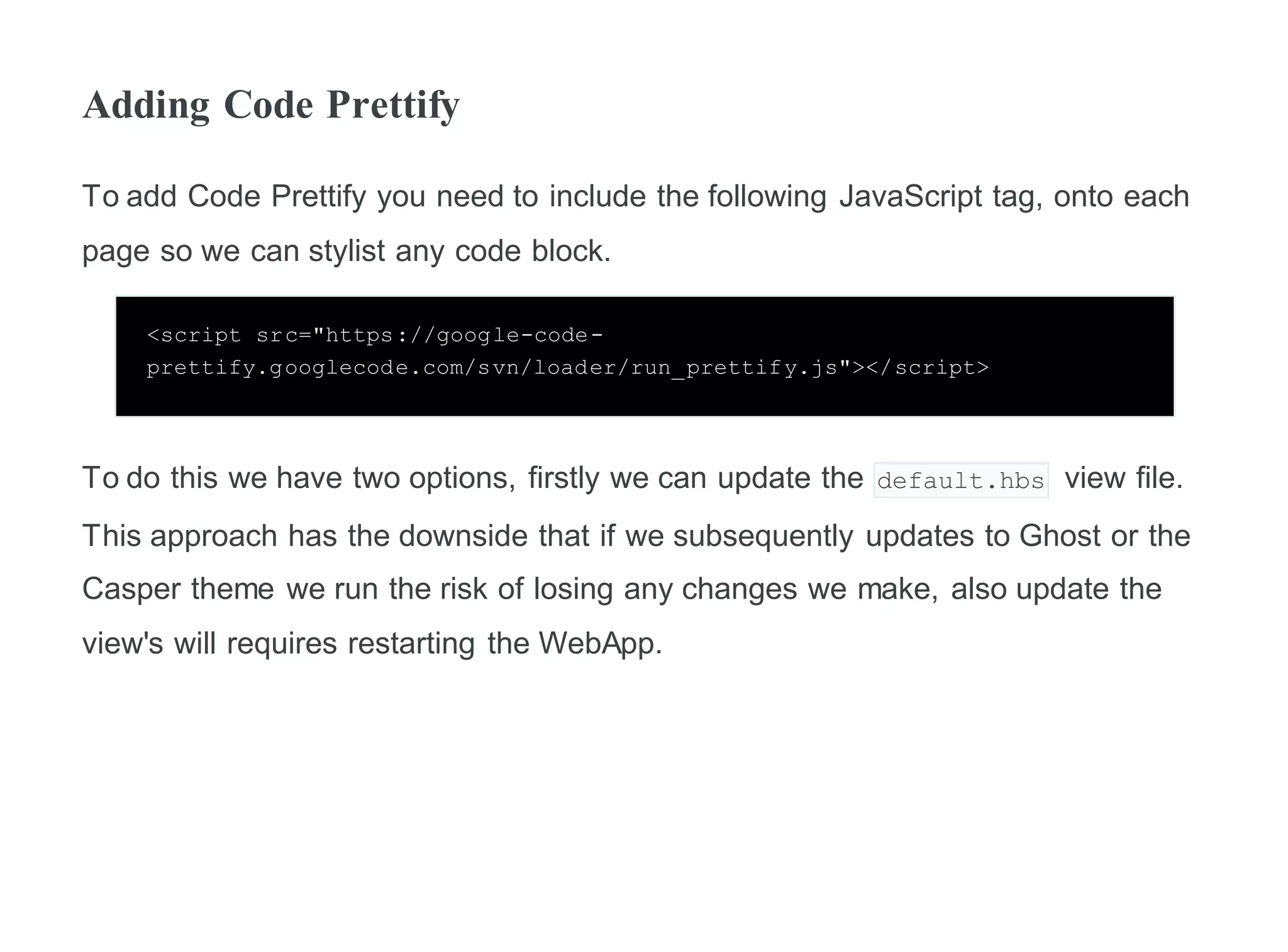
To add Code Prettify you need to include the following JavaScript tag, onto each
page so we can stylist any code block.
<script src="https://google-code-
prettify.googlecode.com/svn/loader/run_prettify.js"></script>
To do this we have two options, firstly we can update the default.hbs view file.
This approach has the downside that if we subsequently updates to Ghost or the
Casper theme we run the risk of losing any changes we make, also update the
view's will requires restarting the WebApp.
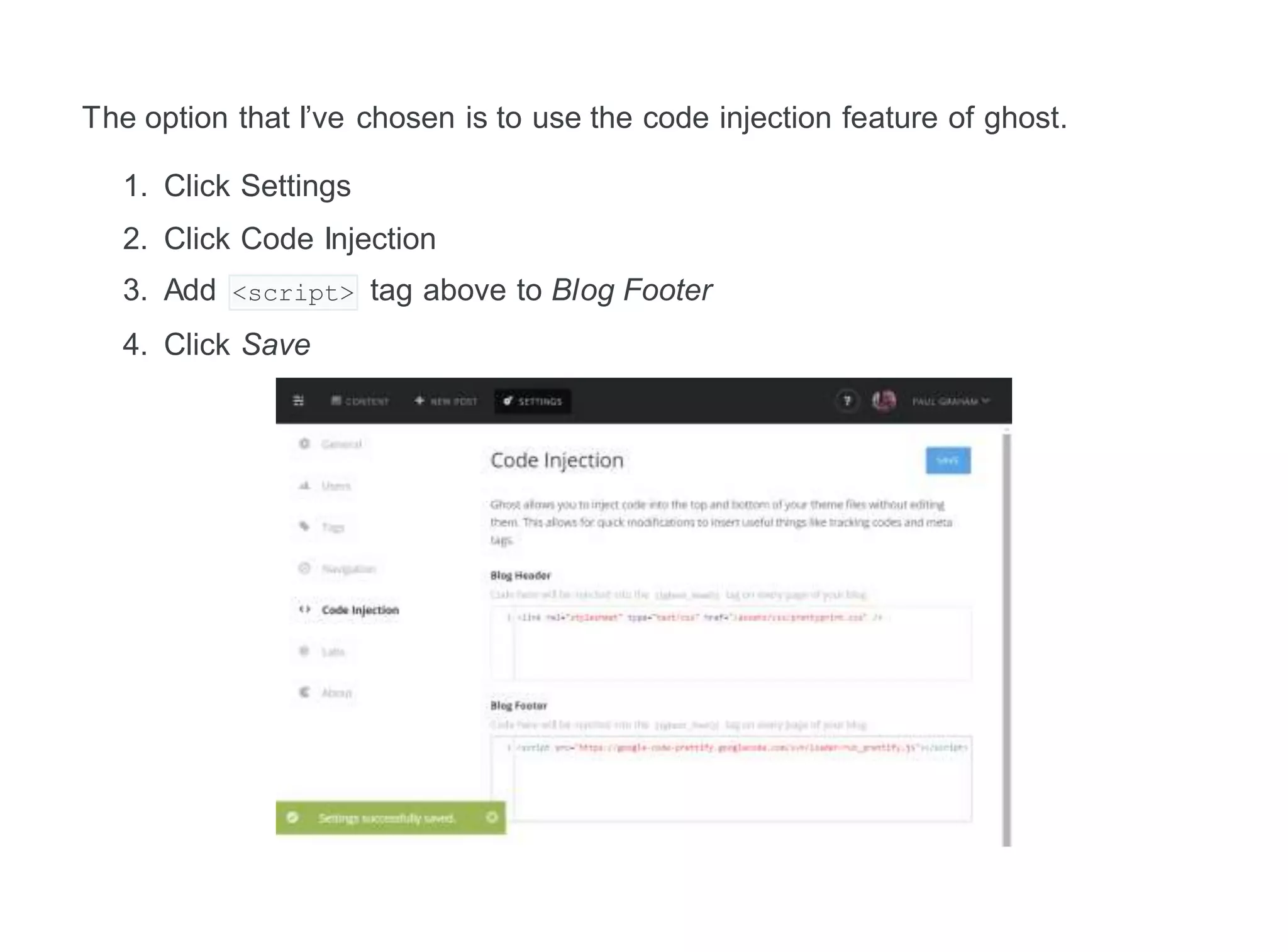
The option that I’ve chosen is to use the code injection feature of ghost.
1. Click Settings
2. Click Code Injection
3. Add <script> tag above to Blog Footer
4. Click Save
Changing the theme
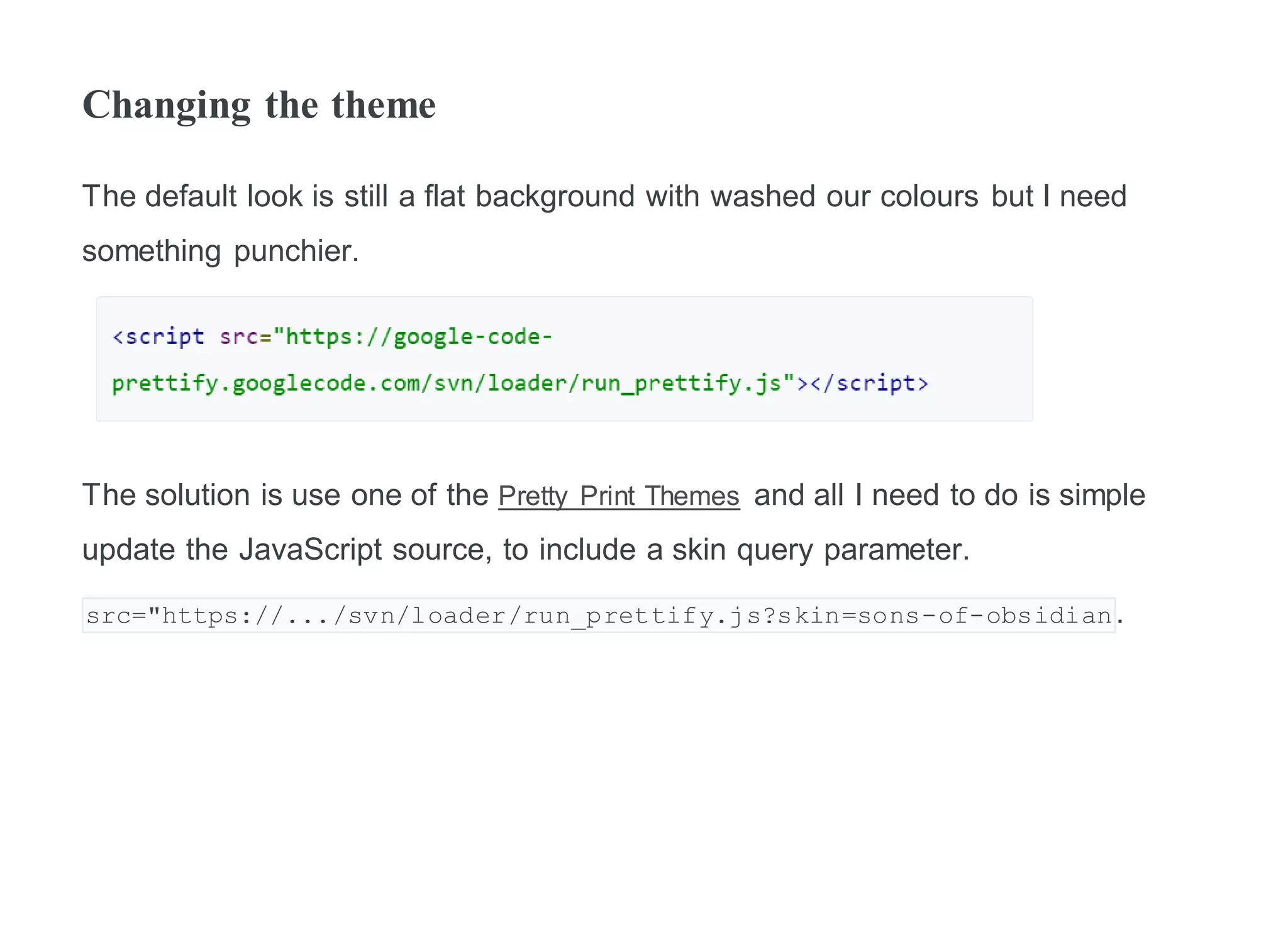
The default look is still a flat background with washed our colours but I need
something punchier.
The solution is use one of the Pretty Print Themes and all I need to do is simple
update the JavaScript source, to include a skin query parameter.
src="https://.../svn/loader/run_prettify.js?skin=sons-of-obsidian.
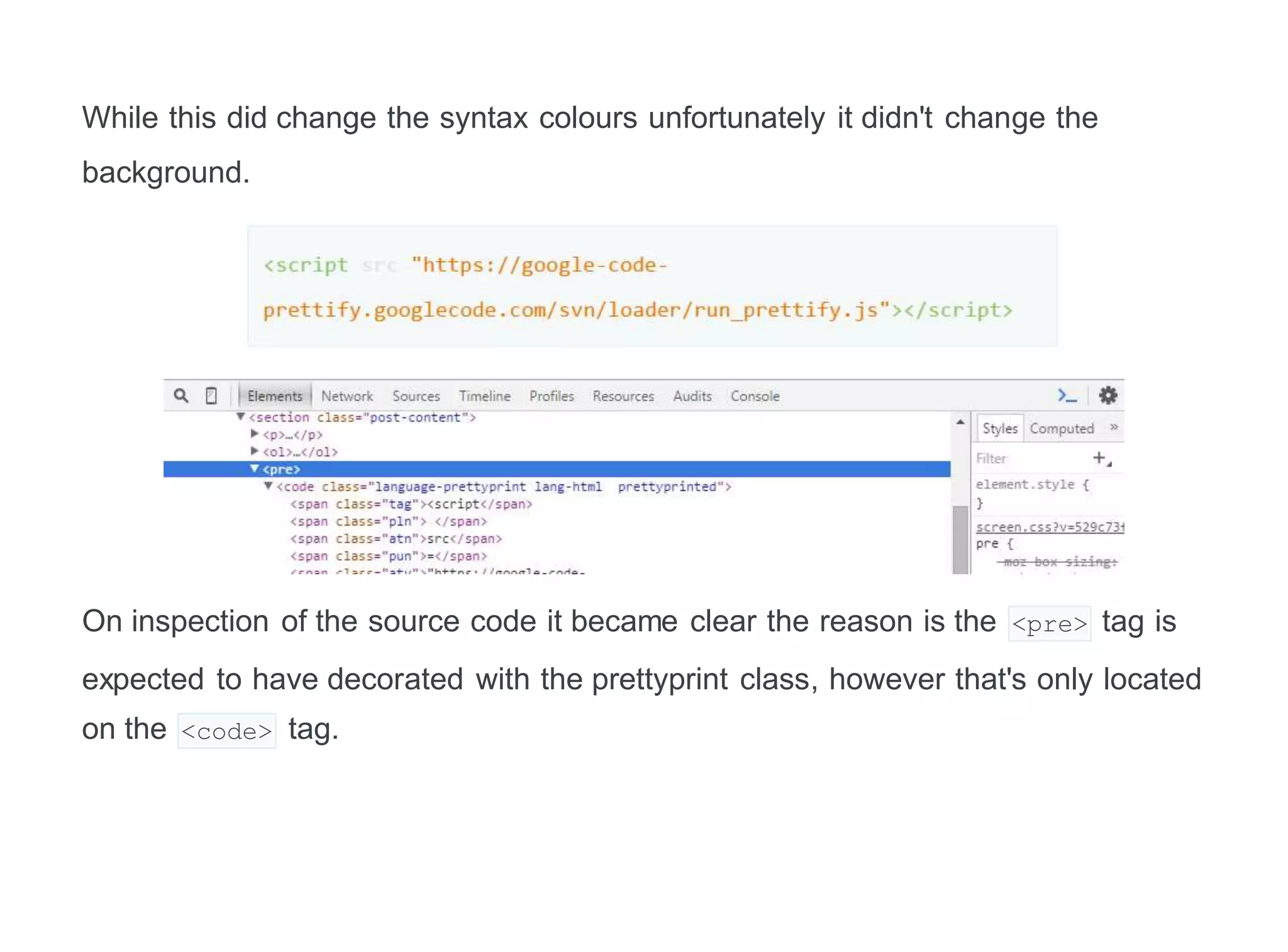
While this did change the syntax colours unfortunately it didn't change the
background.
On inspection of the source code it became clear the reason is the <pre> tag is
expected to have decorated with the prettyprint class, however that's only located
on the <code> tag.
Fixing the theme
The solution is to add additional styling, it's possible to add some additional css
styling. Similar to how we added the JavaScript we can edit the 'screen.css' file
or create a new file.
As before the first option runs the risk that when you update Ghost you will lose
this styling. However, the second option requires browsers to load two file and is
slightly less performant, however this for me is still the best option.
In Ghost css files live in the following folder /content/themes/[your
theme]/assets/css/ folder which is then mapped /assets/css/ for browsers to
access. In this folder I create a prettyprint.css text file and add this following
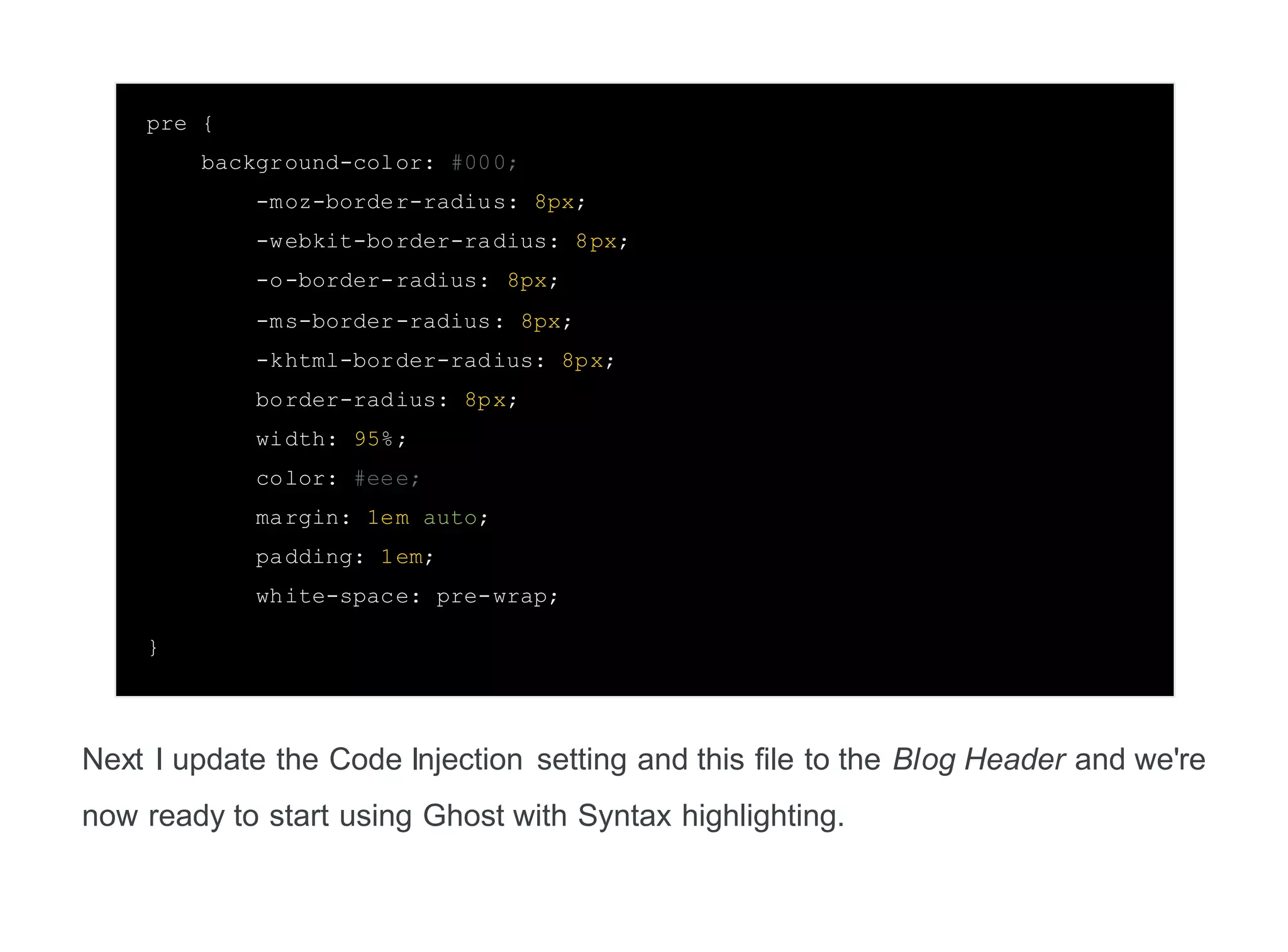
css.
pre {
background-color: #000;
-moz-border-radius: 8px;
-webkit-border-radius: 8px;
-o-border-radius: 8px;
-ms-border-radius: 8px;
-khtml-border-radius: 8px;
border-radius: 8px;
width: 95%;
color: #eee;
margin: 1em auto;
padding: 1em;
white-space: pre-wrap;
}
Next I update the Code Injection setting and this file to the Blog Header and we're
now ready to start using Ghost with Syntax highlighting.
Using Code Prettify.
Ghost uses Markdown, as a language for generating html within the editor. To
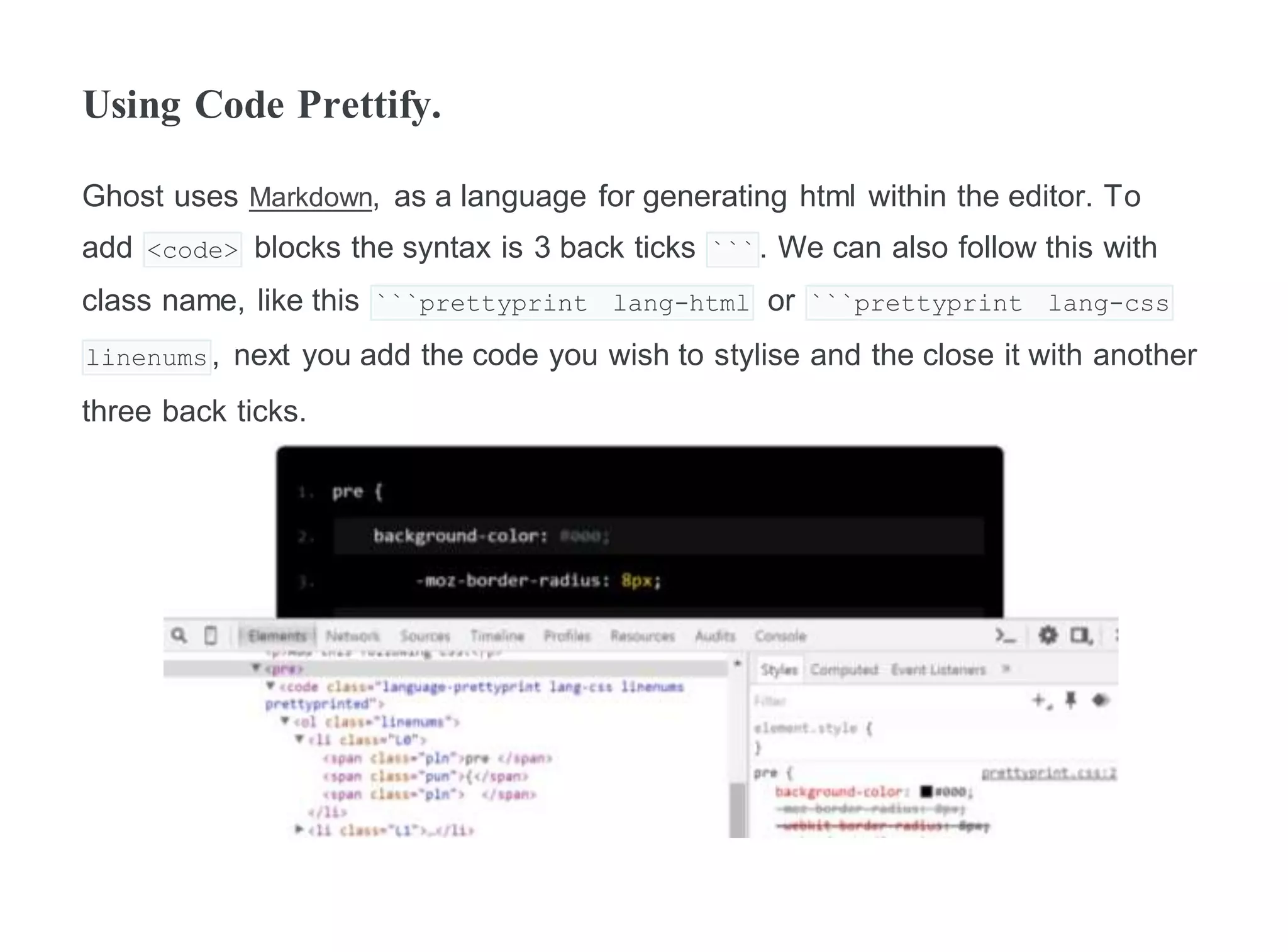
add <code> blocks the syntax is 3 back ticks ```. We can also follow this with
class name, like this ```prettyprint lang-html or ```prettyprint lang-css
linenums, next you add the code you wish to stylise and the close it with another
three back ticks.

Code syntax highlighting in ghost

  • 1.
    Code Syntax Highlighting Ghostis a really nice blog engine, however it's still in development and lacks many features. In particular, one feature, as a developer I need is Syntax Highlighting, without this any entries will have to rely on images of the code. Luckily there is a simple solution, Code Prettify is a git hub project that works by selecting the contents of <code/>blocks decorated with a prettyprint class. It then applies spans with a varieties of classes to around language expressions, this then allows css to colorize the content.
  • 2.
    Adding Code Prettify Toadd Code Prettify you need to include the following JavaScript tag, onto each page so we can stylist any code block. <script src="https://google-code- prettify.googlecode.com/svn/loader/run_prettify.js"></script> To do this we have two options, firstly we can update the default.hbs view file. This approach has the downside that if we subsequently updates to Ghost or the Casper theme we run the risk of losing any changes we make, also update the view's will requires restarting the WebApp.
  • 3.
    The option thatI’ve chosen is to use the code injection feature of ghost. 1. Click Settings 2. Click Code Injection 3. Add <script> tag above to Blog Footer 4. Click Save
  • 4.
    Changing the theme Thedefault look is still a flat background with washed our colours but I need something punchier. The solution is use one of the Pretty Print Themes and all I need to do is simple update the JavaScript source, to include a skin query parameter. src="https://.../svn/loader/run_prettify.js?skin=sons-of-obsidian.
  • 5.
    While this didchange the syntax colours unfortunately it didn't change the background. On inspection of the source code it became clear the reason is the <pre> tag is expected to have decorated with the prettyprint class, however that's only located on the <code> tag.
  • 6.
    Fixing the theme Thesolution is to add additional styling, it's possible to add some additional css styling. Similar to how we added the JavaScript we can edit the 'screen.css' file or create a new file. As before the first option runs the risk that when you update Ghost you will lose this styling. However, the second option requires browsers to load two file and is slightly less performant, however this for me is still the best option. In Ghost css files live in the following folder /content/themes/[your theme]/assets/css/ folder which is then mapped /assets/css/ for browsers to access. In this folder I create a prettyprint.css text file and add this following css.
  • 7.
    pre { background-color: #000; -moz-border-radius:8px; -webkit-border-radius: 8px; -o-border-radius: 8px; -ms-border-radius: 8px; -khtml-border-radius: 8px; border-radius: 8px; width: 95%; color: #eee; margin: 1em auto; padding: 1em; white-space: pre-wrap; } Next I update the Code Injection setting and this file to the Blog Header and we're now ready to start using Ghost with Syntax highlighting.
  • 8.
    Using Code Prettify. Ghostuses Markdown, as a language for generating html within the editor. To add <code> blocks the syntax is 3 back ticks ```. We can also follow this with class name, like this ```prettyprint lang-html or ```prettyprint lang-css linenums, next you add the code you wish to stylise and the close it with another three back ticks.