CloudShare
TeamLabs Trial
Walkthrough
Thank you for taking the time to try out CloudShare TeamLabs. This short
presentation will walk you through the six basic steps you should complete during
your TeamLabs Trial. If you have any questions or want a live demonstration of
TeamLabs contact info@CloudShare.com.
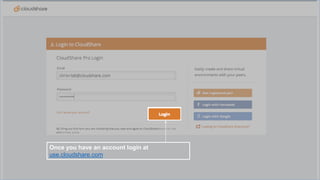
Once you have an account login at
use.cloudshare.com
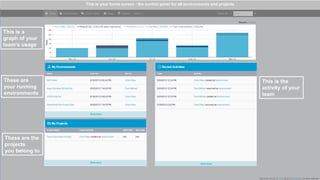
This is your home screen - the control panel for all environments and projects

This is a
graph of your
team’s usage

These are
your running
environments

These are the
projects
you belong to

This is the
activity of your
team
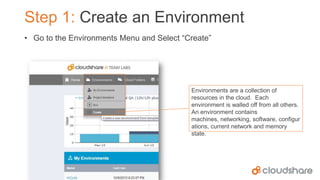
Step 1: Create an Environment
• Go to the Environments Menu and Select “Create”

Environments are a collection of
resources in the cloud. Each
environment is walled off from all others.
An environment contains
machines, networking, software, configur
ations, current network and memory
state.
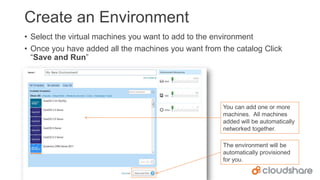
Create an Environment
• Select the virtual machines you want to add to the environment
• Once you have added all the machines you want from the catalog Click
“Save and Run”

You can add one or more
machines. All machines
added will be automatically
networked together.
The environment will be
automatically provisioned
for you.
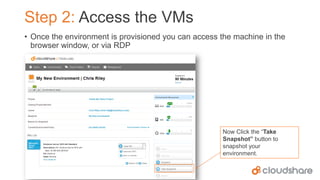
Step 2: Access the VMs
• Once the environment is provisioned you can access the machine in the
browser window, or via RDP

Now Click the “Take
Snapshot” button to
snapshot your
environment.
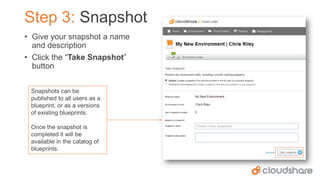
Step 3: Snapshot
• Give your snapshot a name
and description
• Click the “Take Snapshot”
button
Snapshots can be
published to all users as a
blueprint, or as a versions
of existing blueprints.
Once the snapshot is
completed it will be
available in the catalog of
blueprints.
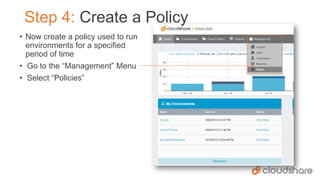
Step 4: Create a Policy
• Now create a policy used to run
environments for a specified
period of time
• Go to the “Management” Menu
• Select “Policies”
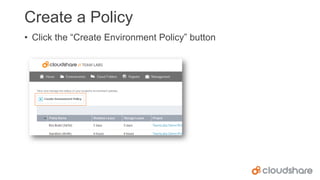
Create a Policy
• Click the “Create Environment Policy” button
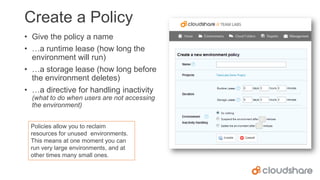
Create a Policy
• Give the policy a name
• …a runtime lease (how long the
environment will run)
• …a storage lease (how long before
the environment deletes)
• …a directive for handling inactivity
(what to do when users are not accessing
the environment)
Policies allow you to reclaim
resources for unused environments.
This means at one moment you can
run very large environments, and at
other times many small ones.
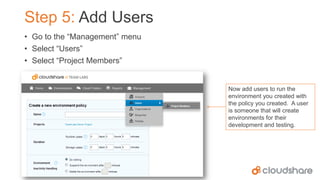
Step 5: Add Users
• Go to the “Management” menu
• Select “Users”
• Select “Project Members”

Now add users to run the
environment you created with
the policy you created. A user
is someone that will create
environments for their
development and testing.
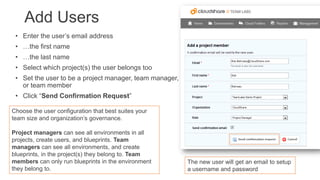
Add Users
• Enter the user’s email address
• …the first name
• …the last name
• Select which project(s) the user belongs too
• Set the user to be a project manager, team manager, or
or team member

• Click “Send Confirmation Request”
Choose the user configuration that best suites your
team size and organization’s governance.
Project managers can see all environments in all
projects, create users, and blueprints. Team
managers can see all environments, and create
blueprints, in the project(s) they belong to. Team
members can only run blueprints in the environment
they belong to.

The new user will get an email to setup
a username and password
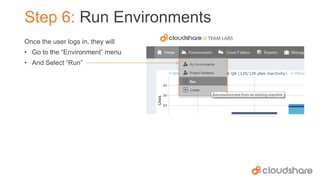
Step 6: Run Environments
Once the user logs in, they will
• Go to the “Environment” menu
• And Select “Run”
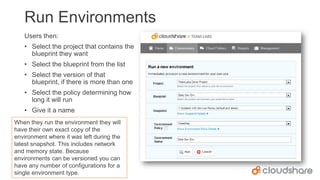
Run Environments
Users then:
• Select the project that contains the
blueprint they want
• Select the blueprint from the list
• Select the version of that
blueprint, if there is more than one

• Select the policy determining how
long it will run
• Give it a name
When they run the environment they will
have their own exact copy of the
environment where it was left during the
latest snapshot. This includes network
and memory state. Because
environments can be versioned you can
have any number of configurations for a
single environment type.
Now you know the basics of using TeamLabs.
Look around, and learn how to:
•
•
•
•
•
•
•
•

Manage users and projects
Upload VMs
Copy VMs
Edit Environment Hardware
Version Blueprints
Run Usage Reports
Install Visual Studio and TFS Plugins
Add more automation with the REST API

We hope you enjoy your TeamLabs trial. If you ever get stuck, contact
support@cloudshare.com

CloudShare TeamLabs Walkthrough

  • 1.
    CloudShare TeamLabs Trial Walkthrough Thank youfor taking the time to try out CloudShare TeamLabs. This short presentation will walk you through the six basic steps you should complete during your TeamLabs Trial. If you have any questions or want a live demonstration of TeamLabs contact info@CloudShare.com.
  • 2.
    Once you havean account login at use.cloudshare.com
  • 3.
    This is yourhome screen - the control panel for all environments and projects This is a graph of your team’s usage These are your running environments These are the projects you belong to This is the activity of your team
  • 4.
    Step 1: Createan Environment • Go to the Environments Menu and Select “Create” Environments are a collection of resources in the cloud. Each environment is walled off from all others. An environment contains machines, networking, software, configur ations, current network and memory state.
  • 5.
    Create an Environment •Select the virtual machines you want to add to the environment • Once you have added all the machines you want from the catalog Click “Save and Run” You can add one or more machines. All machines added will be automatically networked together. The environment will be automatically provisioned for you.
  • 6.
    Step 2: Accessthe VMs • Once the environment is provisioned you can access the machine in the browser window, or via RDP Now Click the “Take Snapshot” button to snapshot your environment.
  • 7.
    Step 3: Snapshot •Give your snapshot a name and description • Click the “Take Snapshot” button Snapshots can be published to all users as a blueprint, or as a versions of existing blueprints. Once the snapshot is completed it will be available in the catalog of blueprints.
  • 8.
    Step 4: Createa Policy • Now create a policy used to run environments for a specified period of time • Go to the “Management” Menu • Select “Policies”
  • 9.
    Create a Policy •Click the “Create Environment Policy” button
  • 10.
    Create a Policy •Give the policy a name • …a runtime lease (how long the environment will run) • …a storage lease (how long before the environment deletes) • …a directive for handling inactivity (what to do when users are not accessing the environment) Policies allow you to reclaim resources for unused environments. This means at one moment you can run very large environments, and at other times many small ones.
  • 11.
    Step 5: AddUsers • Go to the “Management” menu • Select “Users” • Select “Project Members” Now add users to run the environment you created with the policy you created. A user is someone that will create environments for their development and testing.
  • 12.
    Add Users • Enterthe user’s email address • …the first name • …the last name • Select which project(s) the user belongs too • Set the user to be a project manager, team manager, or or team member • Click “Send Confirmation Request” Choose the user configuration that best suites your team size and organization’s governance. Project managers can see all environments in all projects, create users, and blueprints. Team managers can see all environments, and create blueprints, in the project(s) they belong to. Team members can only run blueprints in the environment they belong to. The new user will get an email to setup a username and password
  • 13.
    Step 6: RunEnvironments Once the user logs in, they will • Go to the “Environment” menu • And Select “Run”
  • 14.
    Run Environments Users then: •Select the project that contains the blueprint they want • Select the blueprint from the list • Select the version of that blueprint, if there is more than one • Select the policy determining how long it will run • Give it a name When they run the environment they will have their own exact copy of the environment where it was left during the latest snapshot. This includes network and memory state. Because environments can be versioned you can have any number of configurations for a single environment type.
  • 15.
    Now you knowthe basics of using TeamLabs. Look around, and learn how to: • • • • • • • • Manage users and projects Upload VMs Copy VMs Edit Environment Hardware Version Blueprints Run Usage Reports Install Visual Studio and TFS Plugins Add more automation with the REST API We hope you enjoy your TeamLabs trial. If you ever get stuck, contact support@cloudshare.com