CIS407AWk2iLab/Default.aspx
Greetings and Salutations. I will master ASP.NET in this
course.
CIS407AWk2iLab/Default.aspx.cs
using System;
using System.Collections.Generic;
using System.Linq;
using System.Web;
using System.Web.UI;
using System.Web.UI.WebControls;
public partial class _Default : System.Web.UI.Page
{
protected void Page_Load(object sender, EventArgs e)
{
}
}
CIS407AWk2iLab/frmMain.aspx
Academy of Computing and Information Technology
Annual Salary Calculator
Personnel
CIS407AWk2iLab/frmMain.aspx.cs
using System;
using System.Collections.Generic;
using System.Linq;
using System.Web;
using System.Web.UI;
using System.Web.UI.WebControls;
public partial class frmMain : System.Web.UI.Page
{
protected void Page_Load(object sender, EventArgs e)
{
}
}
CIS407AWk2iLab/frmPersonnel.aspx
Academy of Computing and Information Technology
CIS407AWk2iLab/frmPersonnel.aspx.cs
using System;
using System.Collections.Generic;
using System.Linq;
using System.Web;
using System.Web.UI;
using System.Web.UI.WebControls;
public partial class frmPersonnel : System.Web.UI.Page
{
protected void Page_Load(object sender, EventArgs e)
{
}
protected void TextBox2_TextChanged(object sender,
EventArgs e)
{
}
protected void Button1_Click(object sender, EventArgs e)
{
}
}
CIS407AWk2iLab/frmPersonnelVerified.aspx
Academy of Computing and Information Technology
CIS407AWk2iLab/frmPersonnelVerified.aspx.cs
using System;
using System.Collections.Generic;
using System.Linq;
using System.Web;
using System.Web.UI;
using System.Web.UI.WebControls;
public partial class frmPersonnelVerified : System.Web.UI.Page
{
protected void Page_Load(object sender, EventArgs e)
{
txtVerifiedInfo.Text = Request["txtFirstName"] +
"n" + Request["txtLastName"] +
"n" + Request["txtPayRate"] +
"n" + Request["txtStartDate"] +
"n" + Request["txtEndDate"];
}
}
CIS407AWk2iLab/frmSalaryCalculator.aspx
Academy of Computing and Information Technology
CIS407AWk2iLab/frmSalaryCalculator.aspx.cs
using System;
using System.Collections.Generic;
using System.Linq;
using System.Web;
using System.Web.UI;
using System.Web.UI.WebControls;
public partial class frmSalaryCalculator : System.Web.UI.Page
{
protected void Page_Load(object sender, EventArgs e)
{
}
protected void btnCalculateSalary_Click(object sender,
EventArgs e)
{
double AnnualHours =
Double.Parse(txtAnnualHours.Text);
double PayRate = Double.Parse(txtPayRate.Text);
double AnnualSalary = AnnualHours * PayRate;
lblAnnualSalary.Text = "Annual Salary is $" +
AnnualSalary.ToString("N");
}
}
CIS407AWk2iLab/Images/calculator.jpg
CIS407AWk2iLab/Images/CIS407A_iLab_ACITLogo.jpg
CIS407AWk2iLab/Images/computer monkey.jpg
CIS407AWk2iLab/Images/editemployees.jpg
CIS407AWk2iLab/Images/employees.jpg
CIS407AWk2iLab/Images/manageusers.jpg
CIS407AWk2iLab/Images/newemployee.jpg
CIS407AWk2iLab/Images/personnel.png
CIS407AWk2iLab/Images/search.jpg
CIS407AWk2iLab/Images/userActivity.jpg
CIS407AWk2iLab/Web.config
CIS407AWk2iLab/Web.Debug.config
iLabwk3.docx
STEP 1: Step Title
1. Open Microsoft Visual Studio.NET.
2. Open the PayrollSystem website by clicking on it in the
Recent Projects list, or by pulling down the File menu, selecting
Open Website, navigating to the folder where you previously
saved the PayrollSystem, and clicking Open.
3. Download the PayrollSystem_DB.accdb file from Doc
Sharing and save it on your local computer. (Note: your
operating system may lock or block the file. Once you have
copied it locally, right click on the file and select Properties and
then Unblock if available). Then add it to the PayrollSystem
website as follows: In Visual Studio, in the
Solution
Explorer click Website, Add Existing Item, then navigate to the
PayrollSystem_DB.accdb file you downloaded, and click the
Add button.
Make sure you select file types, which include *.accdb, *.accdb,
etc. Otherwise, you will not be able to see the database file to
select.
4. Now we need to create a new connection to the
PayrollSystem_DB.accdb. To begin, click View Server
Explorer.
5. When the Server Explorer toolbox appears, click the Connect
to Database button.
6. When the Add Connection dialog appears, click the Change
button. In the Change Data Source dialog, select MS Access
Database File; Uncheck Always use this Selection; then click
OK.
Press Continue to get the following screen.
7. Click the Browse button to navigate to the
PayrollSystem_DB.accdb file in your website folder, then click
Open. (NOTE: Be sure you select the PayrollSystem_DB.accdb
file in your PayrollSystem website folder, not the one you
originally downloaded from Doc Sharing!) Click Test
Connection. You should receive a message that the test
connection succeeded. Click OK to acknowledge the message,
then click OK again to close the Add Connection dialog.
8. The PayrollSystemDB.accdb should be added to the Server
Explorer. Expand the database, then expand the Tables entry
under the database until you see tblUserActivity. Leave the
Server Explorer window open for now as you will be returning
to it in a moment.
9. Create a new dataset by selecting Website-> Add New Item.
Under Templates, select the Dataset item. Enter
dsUserActivity.xsd for the name. Click Add.
10. If the following message appears, select Yes. You want to
make this dataset available to your entire website.
11. If the TableAdapter Configuration Wizard dialog appears,
click Cancel. (We will be configuring a Data Adapter for this
dataset later in C# code, so we do not need to run this wizard.)
12. Drag-and-drop the tblUserActivity table from the Server
Explorer window into the dsUserActivity dataset in the editor
window.
NOTE: If you see a message that says your connection uses a
local data file that is not in the current project, that indicates
you did not select the correct PayrollSystem_DB.accdb file
when you created your data connection. To fix this problem,
click No, then right-click on PayrollSystemDB.accdb in the
Server Explorer window and choose Modify Connection. Click
the Browse button, navigate to the PayrollSystemDB.accdb file
that is in your PayrollSystem website folder, and click Open.
Test the connection, then click OK.
Click the Save icon on the toolbar to save the
dsUserActivity.xsd dataset.
(You can now close the Server Explorer window if you wish.)
13. Create a new class to contain the C# code that will access
this dataset. To do so, click Website, Add New Item. In the Add
New Item dialog, select the Class template, and enter
clsDataLayer for the name. Make sure the Language is set to
Visual C#. Click Add.
14. If the following message appears, select Yes. You want to
make this class available to everything in your solution.
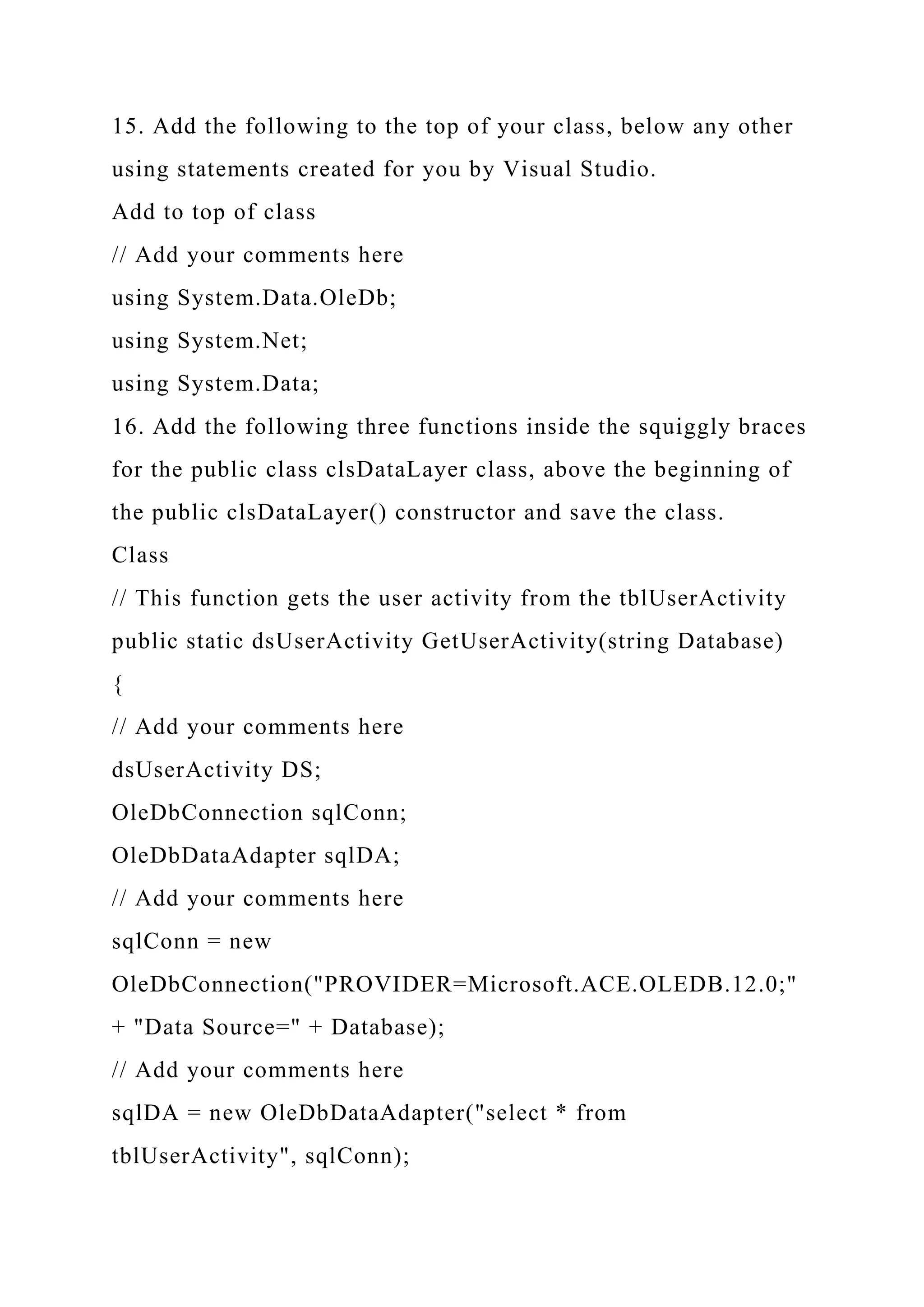
15. Add the following to the top of your class, below any other
using statements created for you by Visual Studio.
Add to top of class
// Add your comments here
using System.Data.OleDb;
using System.Net;
using System.Data;
16. Add the following three functions inside the squiggly braces
for the public class clsDataLayer class, above the beginning of
the public clsDataLayer() constructor and save the class.
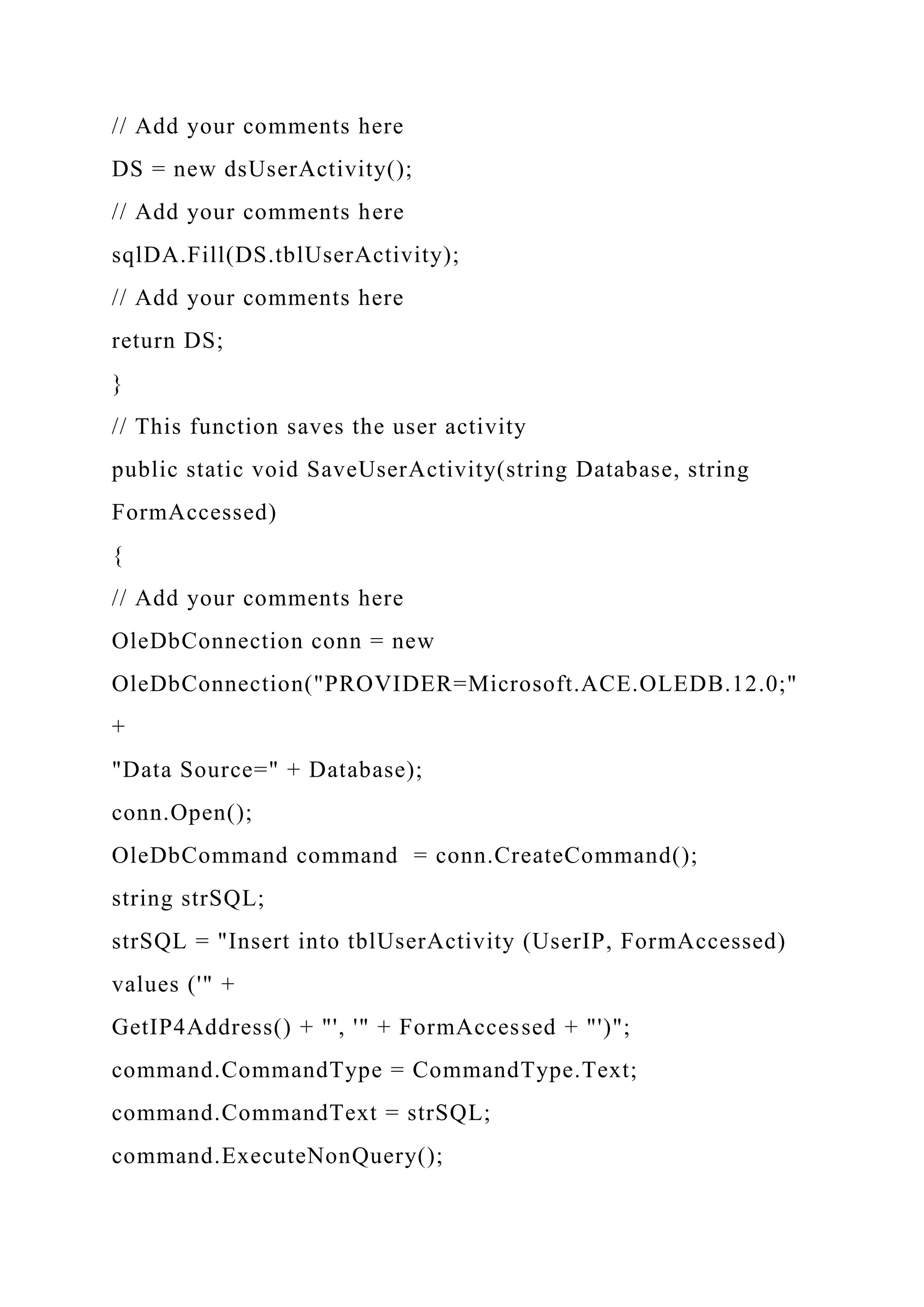
Class
// This function gets the user activity from the tblUserActivity
public static dsUserActivity GetUserActivity(string Database)
{
// Add your comments here
dsUserActivity DS;
OleDbConnection sqlConn;
OleDbDataAdapter sqlDA;
// Add your comments here
sqlConn = new
OleDbConnection("PROVIDER=Microsoft.ACE.OLEDB.12.0;"
+ "Data Source=" + Database);
// Add your comments here
sqlDA = new OleDbDataAdapter("select * from
tblUserActivity", sqlConn);
// Add your comments here
DS = new dsUserActivity();
// Add your comments here
sqlDA.Fill(DS.tblUserActivity);
// Add your comments here
return DS;
}
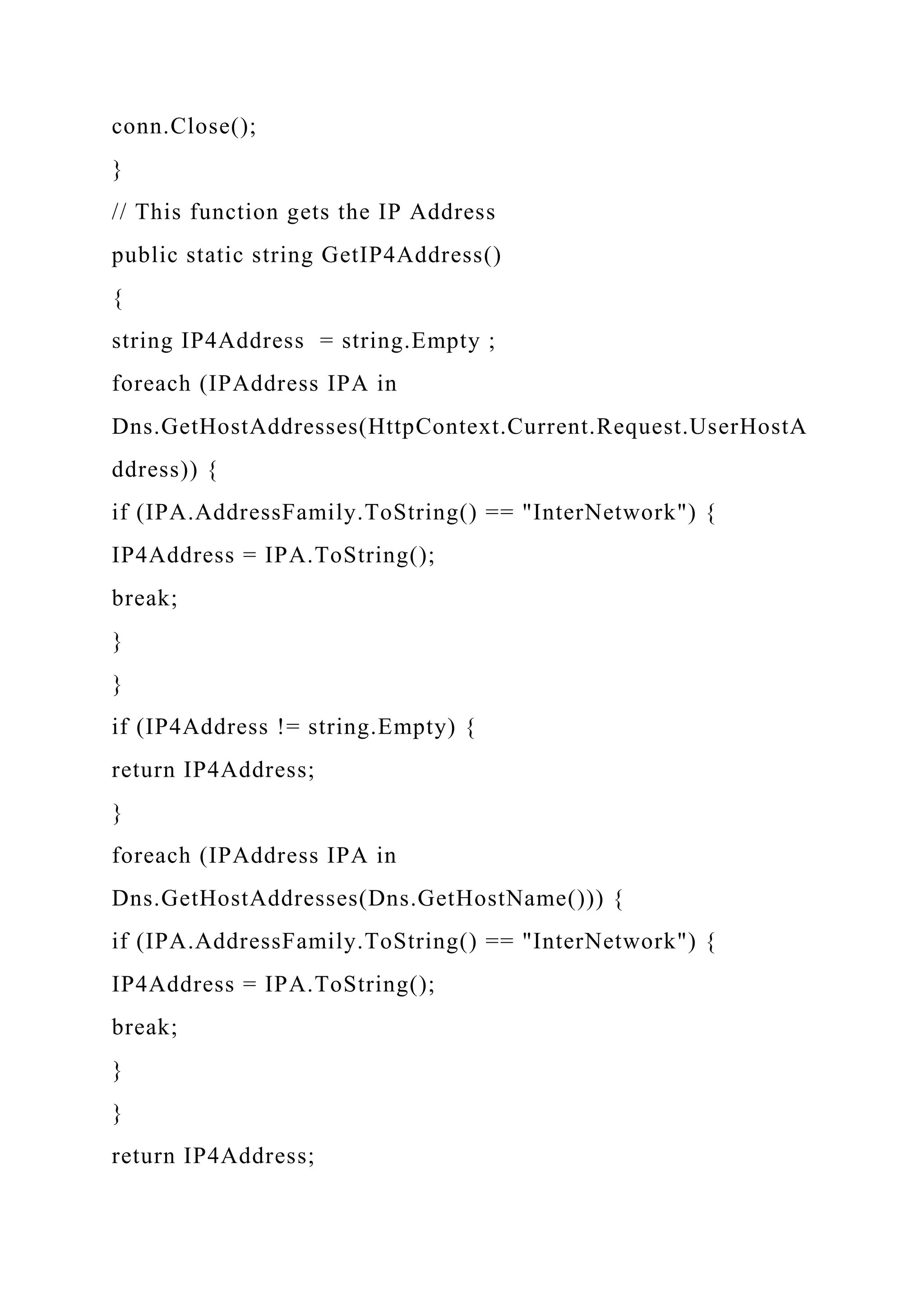
// This function saves the user activity
public static void SaveUserActivity(string Database, string
FormAccessed)
{
// Add your comments here
OleDbConnection conn = new
OleDbConnection("PROVIDER=Microsoft.ACE.OLEDB.12.0;"
+
"Data Source=" + Database);
conn.Open();
OleDbCommand command = conn.CreateCommand();
string strSQL;
strSQL = "Insert into tblUserActivity (UserIP, FormAccessed)
values ('" +
GetIP4Address() + "', '" + FormAccessed + "')";
command.CommandType = CommandType.Text;
command.CommandText = strSQL;
command.ExecuteNonQuery();
conn.Close();
}
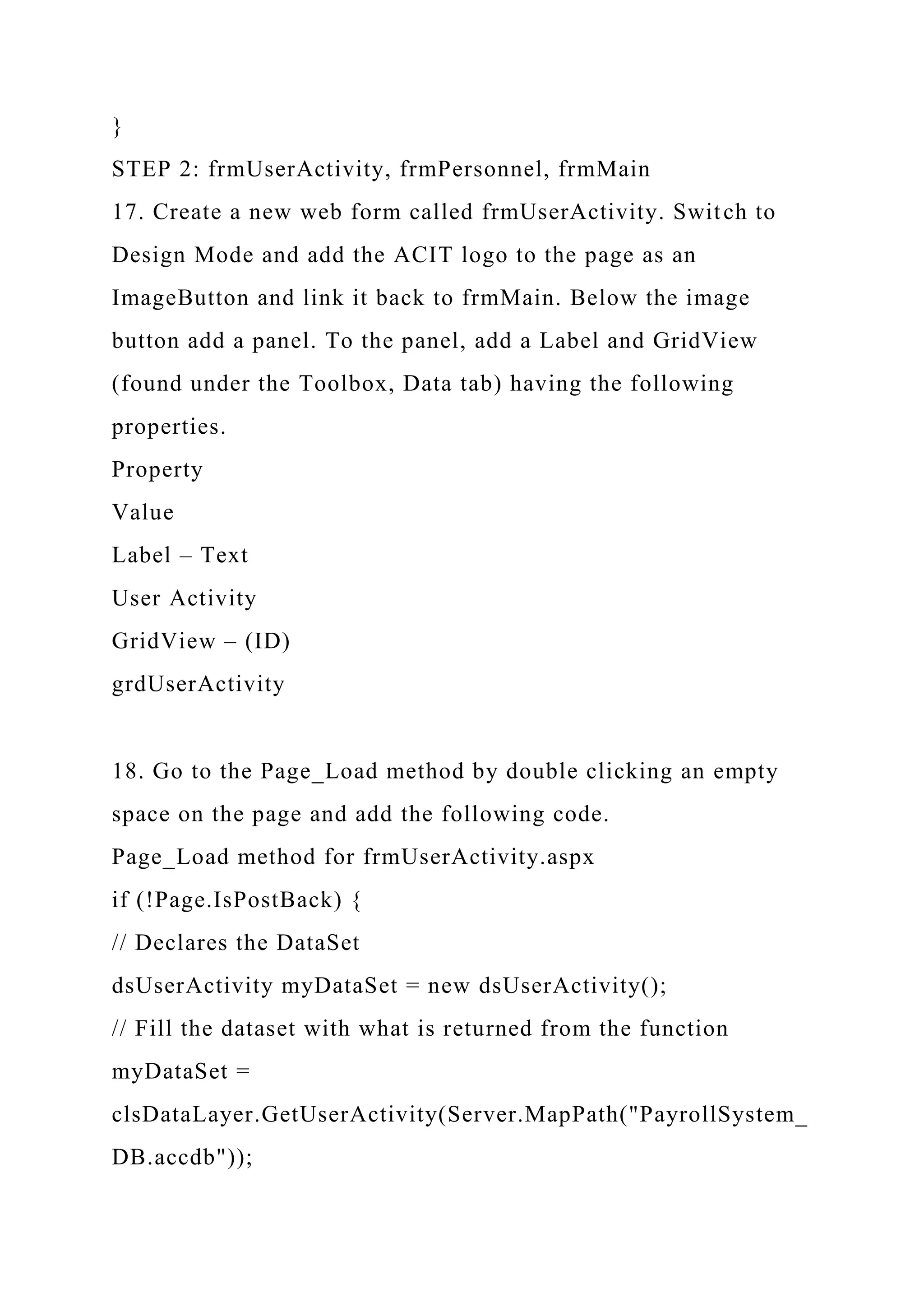
// This function gets the IP Address
public static string GetIP4Address()
{
string IP4Address = string.Empty ;
foreach (IPAddress IPA in
Dns.GetHostAddresses(HttpContext.Current.Request.UserHostA
ddress)) {
if (IPA.AddressFamily.ToString() == "InterNetwork") {
IP4Address = IPA.ToString();
break;
}
}
if (IP4Address != string.Empty) {
return IP4Address;
}
foreach (IPAddress IPA in
Dns.GetHostAddresses(Dns.GetHostName())) {
if (IPA.AddressFamily.ToString() == "InterNetwork") {
IP4Address = IPA.ToString();
break;
}
}
return IP4Address;
}
STEP 2: frmUserActivity, frmPersonnel, frmMain
17. Create a new web form called frmUserActivity. Switch to
Design Mode and add the ACIT logo to the page as an
ImageButton and link it back to frmMain. Below the image
button add a panel. To the panel, add a Label and GridView
(found under the Toolbox, Data tab) having the following
properties.
Property
Value
Label – Text
User Activity
GridView – (ID)
grdUserActivity
18. Go to the Page_Load method by double clicking an empty
space on the page and add the following code.
Page_Load method for frmUserActivity.aspx
if (!Page.IsPostBack) {
// Declares the DataSet
dsUserActivity myDataSet = new dsUserActivity();
// Fill the dataset with what is returned from the function
myDataSet =
clsDataLayer.GetUserActivity(Server.MapPath("PayrollSystem_
DB.accdb"));
// Sets the DataGrid to the DataSource based on the table
grdUserActivity.DataSource =
myDataSet.Tables["tblUserActivity"];
// Binds the DataGrid
grdUserActivity.DataBind();
}
19. Open the frmMain form, add a new link button and image
button to point to the new frmUserActivity. Find an image to
use for the image button and add the new option as View User
Activity.
20. Go to the frmMain Page_Load and add the following code.
frmMain.aspx Page_Load code
// Add your comments here
clsDataLayer.SaveUserActivity(Server.MapPath("PayrollSystem
_DB.accdb"), "frmPersonnel");
21. In the

CIS407AWk2iLabDefault.aspx Greetings and Salutations.docx

  • 1.
    CIS407AWk2iLab/Default.aspx Greetings and Salutations.I will master ASP.NET in this course. CIS407AWk2iLab/Default.aspx.cs using System; using System.Collections.Generic; using System.Linq; using System.Web; using System.Web.UI; using System.Web.UI.WebControls; public partial class _Default : System.Web.UI.Page { protected void Page_Load(object sender, EventArgs e) { } }
  • 2.
    CIS407AWk2iLab/frmMain.aspx Academy of Computingand Information Technology Annual Salary Calculator Personnel CIS407AWk2iLab/frmMain.aspx.cs using System; using System.Collections.Generic; using System.Linq; using System.Web;
  • 3.
    using System.Web.UI; using System.Web.UI.WebControls; publicpartial class frmMain : System.Web.UI.Page { protected void Page_Load(object sender, EventArgs e) { } } CIS407AWk2iLab/frmPersonnel.aspx Academy of Computing and Information Technology
  • 4.
  • 5.
    using System.Web.UI.WebControls; public partialclass frmPersonnel : System.Web.UI.Page { protected void Page_Load(object sender, EventArgs e) { } protected void TextBox2_TextChanged(object sender, EventArgs e) { } protected void Button1_Click(object sender, EventArgs e) { } } CIS407AWk2iLab/frmPersonnelVerified.aspx
  • 6.
    Academy of Computingand Information Technology CIS407AWk2iLab/frmPersonnelVerified.aspx.cs using System; using System.Collections.Generic; using System.Linq; using System.Web; using System.Web.UI; using System.Web.UI.WebControls; public partial class frmPersonnelVerified : System.Web.UI.Page {
  • 7.
    protected void Page_Load(objectsender, EventArgs e) { txtVerifiedInfo.Text = Request["txtFirstName"] + "n" + Request["txtLastName"] + "n" + Request["txtPayRate"] + "n" + Request["txtStartDate"] + "n" + Request["txtEndDate"]; } } CIS407AWk2iLab/frmSalaryCalculator.aspx Academy of Computing and Information Technology
  • 8.
    CIS407AWk2iLab/frmSalaryCalculator.aspx.cs using System; using System.Collections.Generic; usingSystem.Linq; using System.Web; using System.Web.UI; using System.Web.UI.WebControls; public partial class frmSalaryCalculator : System.Web.UI.Page { protected void Page_Load(object sender, EventArgs e)
  • 9.
    { } protected void btnCalculateSalary_Click(objectsender, EventArgs e) { double AnnualHours = Double.Parse(txtAnnualHours.Text); double PayRate = Double.Parse(txtPayRate.Text); double AnnualSalary = AnnualHours * PayRate; lblAnnualSalary.Text = "Annual Salary is $" + AnnualSalary.ToString("N"); } } CIS407AWk2iLab/Images/calculator.jpg CIS407AWk2iLab/Images/CIS407A_iLab_ACITLogo.jpg CIS407AWk2iLab/Images/computer monkey.jpg CIS407AWk2iLab/Images/editemployees.jpg CIS407AWk2iLab/Images/employees.jpg
  • 10.
    CIS407AWk2iLab/Images/manageusers.jpg CIS407AWk2iLab/Images/newemployee.jpg CIS407AWk2iLab/Images/personnel.png CIS407AWk2iLab/Images/search.jpg CIS407AWk2iLab/Images/userActivity.jpg CIS407AWk2iLab/Web.config CIS407AWk2iLab/Web.Debug.config iLabwk3.docx STEP 1: StepTitle 1. Open Microsoft Visual Studio.NET. 2. Open the PayrollSystem website by clicking on it in the Recent Projects list, or by pulling down the File menu, selecting Open Website, navigating to the folder where you previously saved the PayrollSystem, and clicking Open. 3. Download the PayrollSystem_DB.accdb file from Doc Sharing and save it on your local computer. (Note: your operating system may lock or block the file. Once you have copied it locally, right click on the file and select Properties and then Unblock if available). Then add it to the PayrollSystem website as follows: In Visual Studio, in the Solution
  • 11.
    Explorer click Website,Add Existing Item, then navigate to the PayrollSystem_DB.accdb file you downloaded, and click the Add button. Make sure you select file types, which include *.accdb, *.accdb, etc. Otherwise, you will not be able to see the database file to select. 4. Now we need to create a new connection to the PayrollSystem_DB.accdb. To begin, click View Server Explorer. 5. When the Server Explorer toolbox appears, click the Connect to Database button. 6. When the Add Connection dialog appears, click the Change button. In the Change Data Source dialog, select MS Access Database File; Uncheck Always use this Selection; then click OK. Press Continue to get the following screen.
  • 12.
    7. Click theBrowse button to navigate to the PayrollSystem_DB.accdb file in your website folder, then click Open. (NOTE: Be sure you select the PayrollSystem_DB.accdb file in your PayrollSystem website folder, not the one you originally downloaded from Doc Sharing!) Click Test Connection. You should receive a message that the test connection succeeded. Click OK to acknowledge the message, then click OK again to close the Add Connection dialog. 8. The PayrollSystemDB.accdb should be added to the Server Explorer. Expand the database, then expand the Tables entry under the database until you see tblUserActivity. Leave the Server Explorer window open for now as you will be returning to it in a moment. 9. Create a new dataset by selecting Website-> Add New Item. Under Templates, select the Dataset item. Enter dsUserActivity.xsd for the name. Click Add. 10. If the following message appears, select Yes. You want to make this dataset available to your entire website. 11. If the TableAdapter Configuration Wizard dialog appears, click Cancel. (We will be configuring a Data Adapter for this dataset later in C# code, so we do not need to run this wizard.)
  • 13.
    12. Drag-and-drop thetblUserActivity table from the Server Explorer window into the dsUserActivity dataset in the editor window. NOTE: If you see a message that says your connection uses a local data file that is not in the current project, that indicates you did not select the correct PayrollSystem_DB.accdb file when you created your data connection. To fix this problem, click No, then right-click on PayrollSystemDB.accdb in the Server Explorer window and choose Modify Connection. Click the Browse button, navigate to the PayrollSystemDB.accdb file that is in your PayrollSystem website folder, and click Open. Test the connection, then click OK. Click the Save icon on the toolbar to save the dsUserActivity.xsd dataset. (You can now close the Server Explorer window if you wish.) 13. Create a new class to contain the C# code that will access this dataset. To do so, click Website, Add New Item. In the Add New Item dialog, select the Class template, and enter clsDataLayer for the name. Make sure the Language is set to Visual C#. Click Add. 14. If the following message appears, select Yes. You want to make this class available to everything in your solution.
  • 14.
    15. Add thefollowing to the top of your class, below any other using statements created for you by Visual Studio. Add to top of class // Add your comments here using System.Data.OleDb; using System.Net; using System.Data; 16. Add the following three functions inside the squiggly braces for the public class clsDataLayer class, above the beginning of the public clsDataLayer() constructor and save the class. Class // This function gets the user activity from the tblUserActivity public static dsUserActivity GetUserActivity(string Database) { // Add your comments here dsUserActivity DS; OleDbConnection sqlConn; OleDbDataAdapter sqlDA; // Add your comments here sqlConn = new OleDbConnection("PROVIDER=Microsoft.ACE.OLEDB.12.0;" + "Data Source=" + Database); // Add your comments here sqlDA = new OleDbDataAdapter("select * from tblUserActivity", sqlConn);
  • 15.
    // Add yourcomments here DS = new dsUserActivity(); // Add your comments here sqlDA.Fill(DS.tblUserActivity); // Add your comments here return DS; } // This function saves the user activity public static void SaveUserActivity(string Database, string FormAccessed) { // Add your comments here OleDbConnection conn = new OleDbConnection("PROVIDER=Microsoft.ACE.OLEDB.12.0;" + "Data Source=" + Database); conn.Open(); OleDbCommand command = conn.CreateCommand(); string strSQL; strSQL = "Insert into tblUserActivity (UserIP, FormAccessed) values ('" + GetIP4Address() + "', '" + FormAccessed + "')"; command.CommandType = CommandType.Text; command.CommandText = strSQL; command.ExecuteNonQuery();
  • 16.
    conn.Close(); } // This functiongets the IP Address public static string GetIP4Address() { string IP4Address = string.Empty ; foreach (IPAddress IPA in Dns.GetHostAddresses(HttpContext.Current.Request.UserHostA ddress)) { if (IPA.AddressFamily.ToString() == "InterNetwork") { IP4Address = IPA.ToString(); break; } } if (IP4Address != string.Empty) { return IP4Address; } foreach (IPAddress IPA in Dns.GetHostAddresses(Dns.GetHostName())) { if (IPA.AddressFamily.ToString() == "InterNetwork") { IP4Address = IPA.ToString(); break; } } return IP4Address;
  • 17.
    } STEP 2: frmUserActivity,frmPersonnel, frmMain 17. Create a new web form called frmUserActivity. Switch to Design Mode and add the ACIT logo to the page as an ImageButton and link it back to frmMain. Below the image button add a panel. To the panel, add a Label and GridView (found under the Toolbox, Data tab) having the following properties. Property Value Label – Text User Activity GridView – (ID) grdUserActivity 18. Go to the Page_Load method by double clicking an empty space on the page and add the following code. Page_Load method for frmUserActivity.aspx if (!Page.IsPostBack) { // Declares the DataSet dsUserActivity myDataSet = new dsUserActivity(); // Fill the dataset with what is returned from the function myDataSet = clsDataLayer.GetUserActivity(Server.MapPath("PayrollSystem_ DB.accdb"));
  • 18.
    // Sets theDataGrid to the DataSource based on the table grdUserActivity.DataSource = myDataSet.Tables["tblUserActivity"]; // Binds the DataGrid grdUserActivity.DataBind(); } 19. Open the frmMain form, add a new link button and image button to point to the new frmUserActivity. Find an image to use for the image button and add the new option as View User Activity. 20. Go to the frmMain Page_Load and add the following code. frmMain.aspx Page_Load code // Add your comments here clsDataLayer.SaveUserActivity(Server.MapPath("PayrollSystem _DB.accdb"), "frmPersonnel"); 21. In the