



Using Azure DevOps Boards to
manage development or support
work
CHRIS O’BRIEN (MVP)
Products and Services Director, Content and Cloud, UK
About me
Products and Services Director,
Content and Cloud
www.sharepointnutsandbolts.com
@ChrisO_Brien
http://cob-sp.com/COBLinkedIn
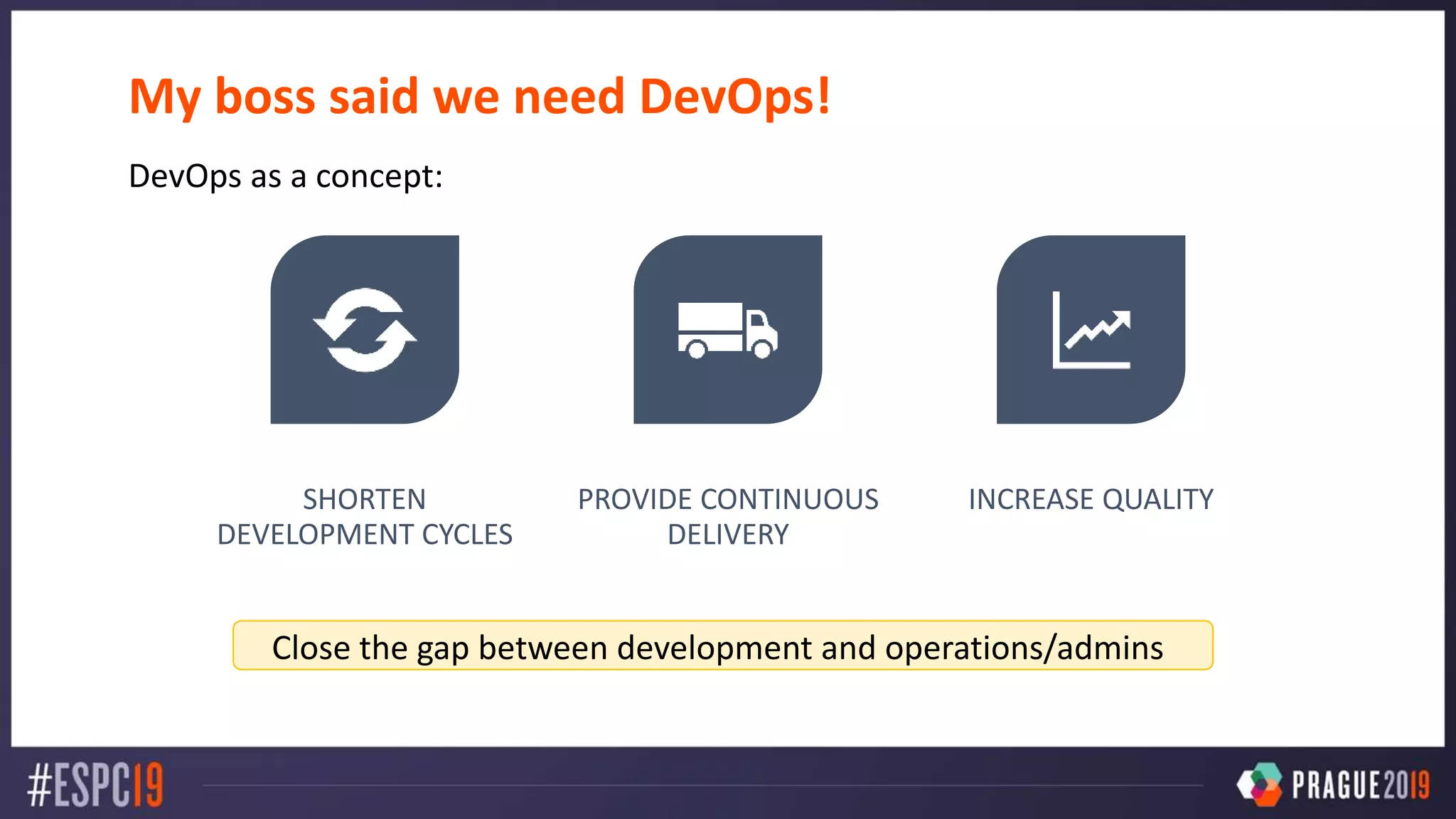
My boss said we need DevOps!
DevOps as a concept:
SHORTEN
DEVELOPMENT CYCLES
PROVIDE CONTINUOUS
DELIVERY
INCREASE QUALITY
Close the gap between development and operations/admins
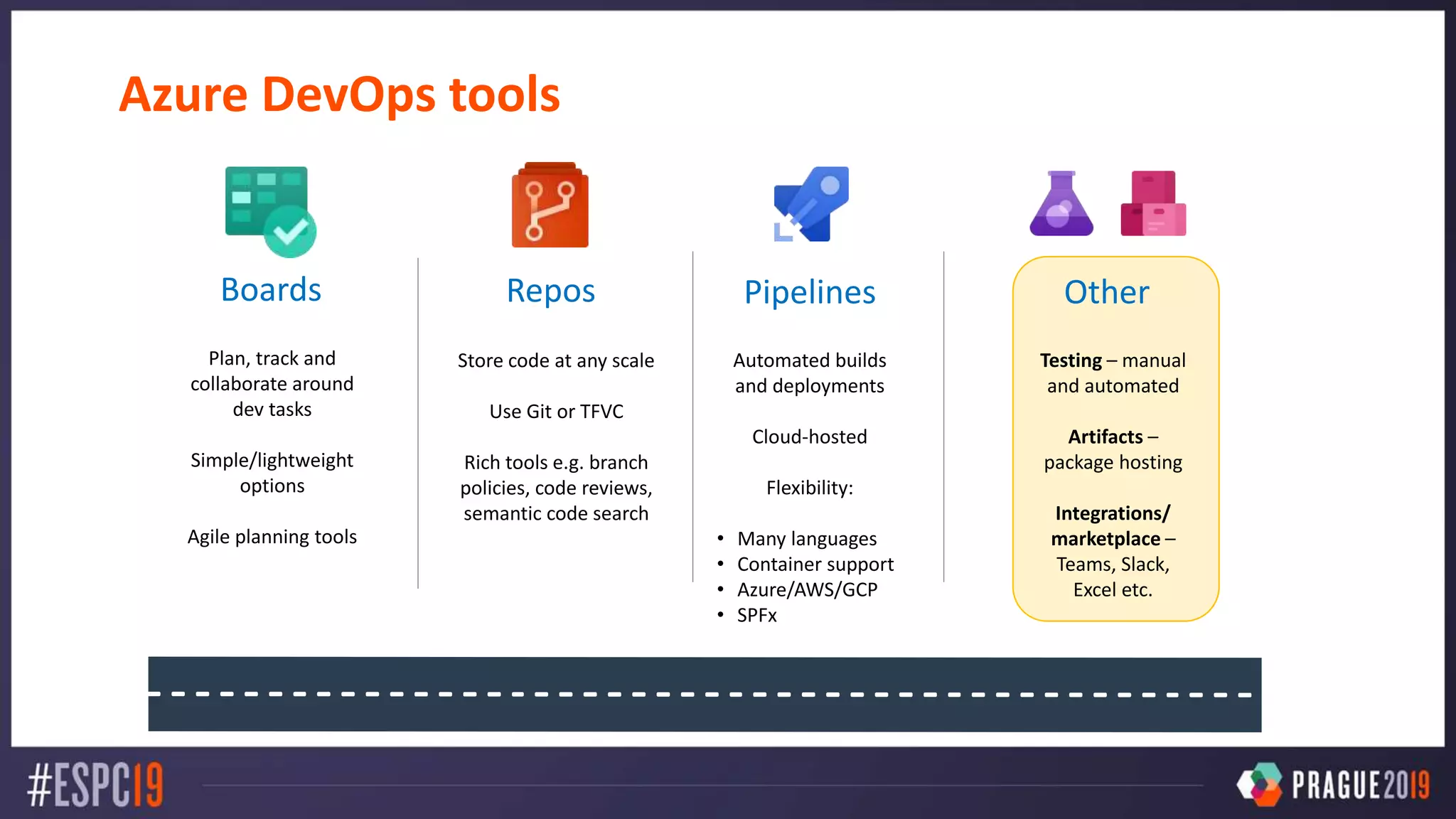
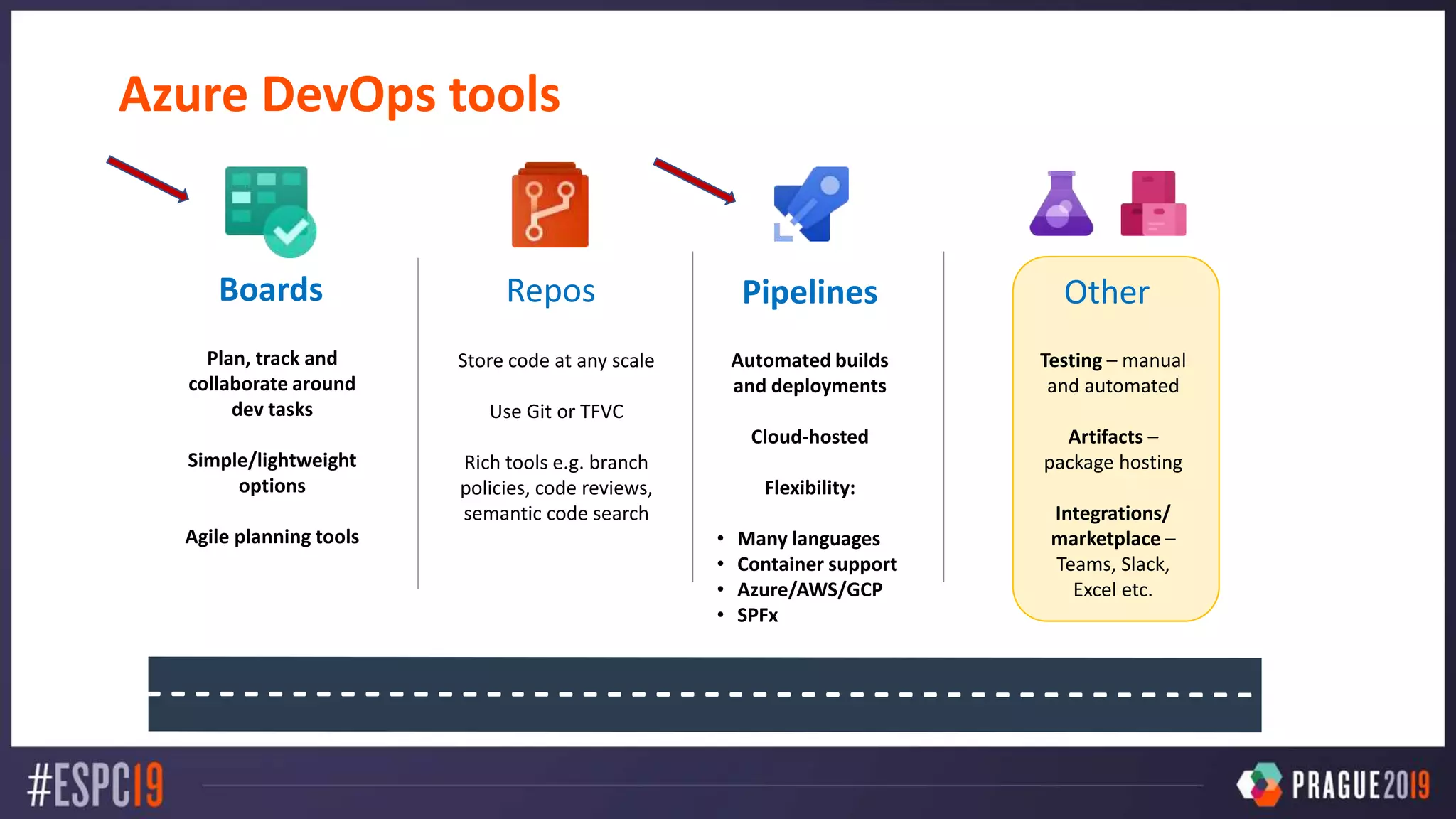
Azure DevOps tools
Boards
Plan, track and
collaborate around
dev tasks
Simple/lightweight
options
Agile planning tools
Repos
Store code at any scale
Use Git or TFVC
Rich tools e.g. branch
policies, code reviews,
semantic code search
Pipelines
Automated builds
and deployments
Cloud-hosted
Flexibility:
• Many languages
• Container support
• Azure/AWS/GCP
• SPFx
Other
Testing – manual
and automated
Artifacts –
package hosting
Integrations/
marketplace –
Teams, Slack,
Excel etc.
Azure DevOps tools
Boards
Plan, track and
collaborate around
dev tasks
Simple/lightweight
options
Agile planning tools
Repos
Store code at any scale
Use Git or TFVC
Rich tools e.g. branch
policies, code reviews,
semantic code search
Pipelines
Automated builds
and deployments
Cloud-hosted
Flexibility:
• Many languages
• Container support
• Azure/AWS/GCP
• SPFx
Other
Testing – manual
and automated
Artifacts –
package hosting
Integrations/
marketplace –
Teams, Slack,
Excel etc.
OPTIONS FOR TRACKING WORK
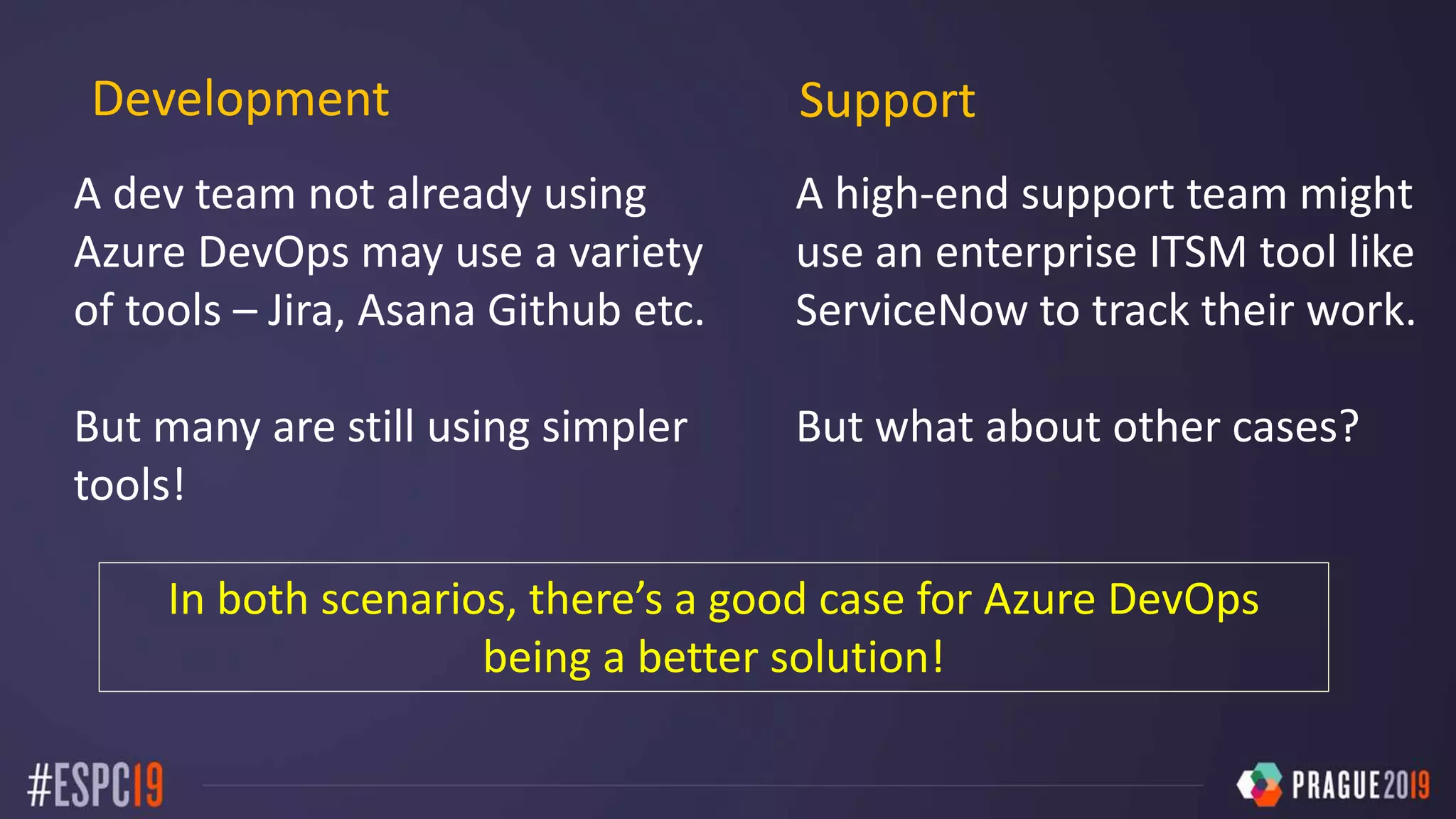
A high-end support team might
use an enterprise ITSM tool like
ServiceNow to track their work.
But what about other cases?
Development Support
A dev team not already using
Azure DevOps may use a variety
of tools – Jira, Asana Github etc.
But many are still using simpler
tools!
In both scenarios, there’s a good case for Azure DevOps
being a better solution!
Before looking at Azure DevOps, let’s consider
simpler tools and their pros/cons
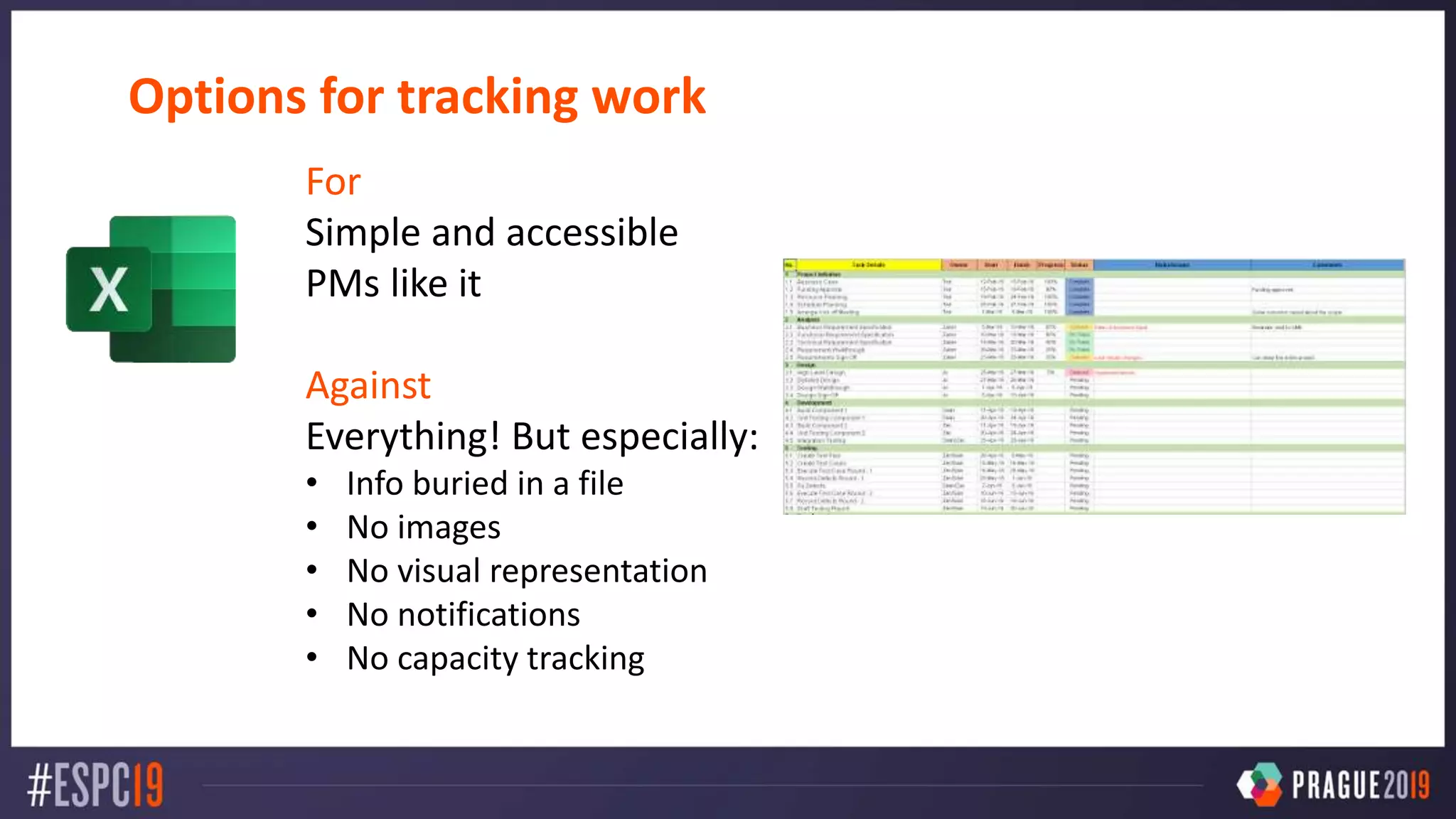
Options for tracking work
For
Simple and accessible
PMs like it
Against
Everything! But especially:
• Info buried in a file
• No images
• No visual representation
• No notifications
• No capacity tracking
Options for tracking work
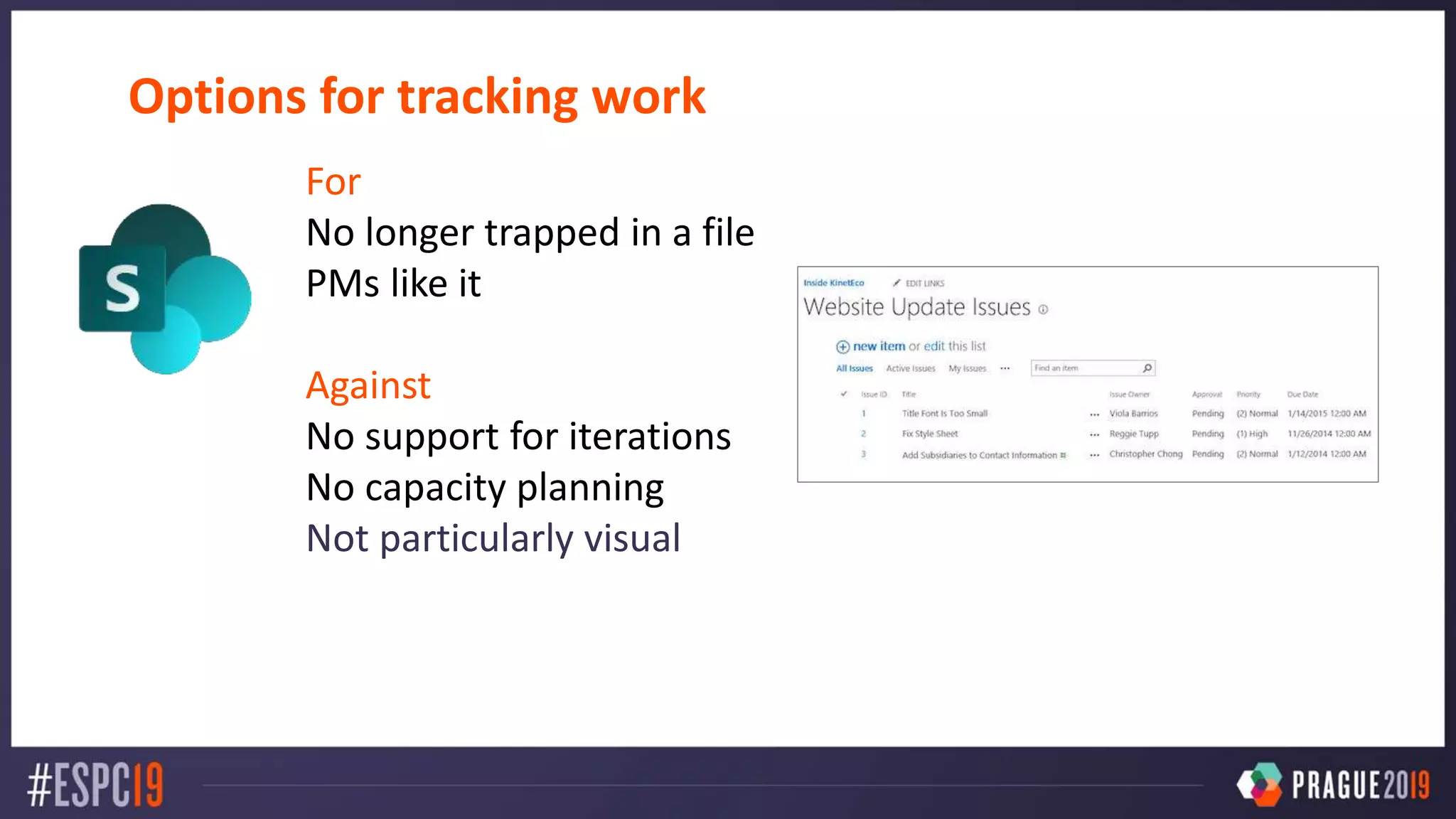
For
No longer trapped in a file
PMs like it
Against
No support for iterations
No capacity planning
Not particularly visual
Options for tracking work
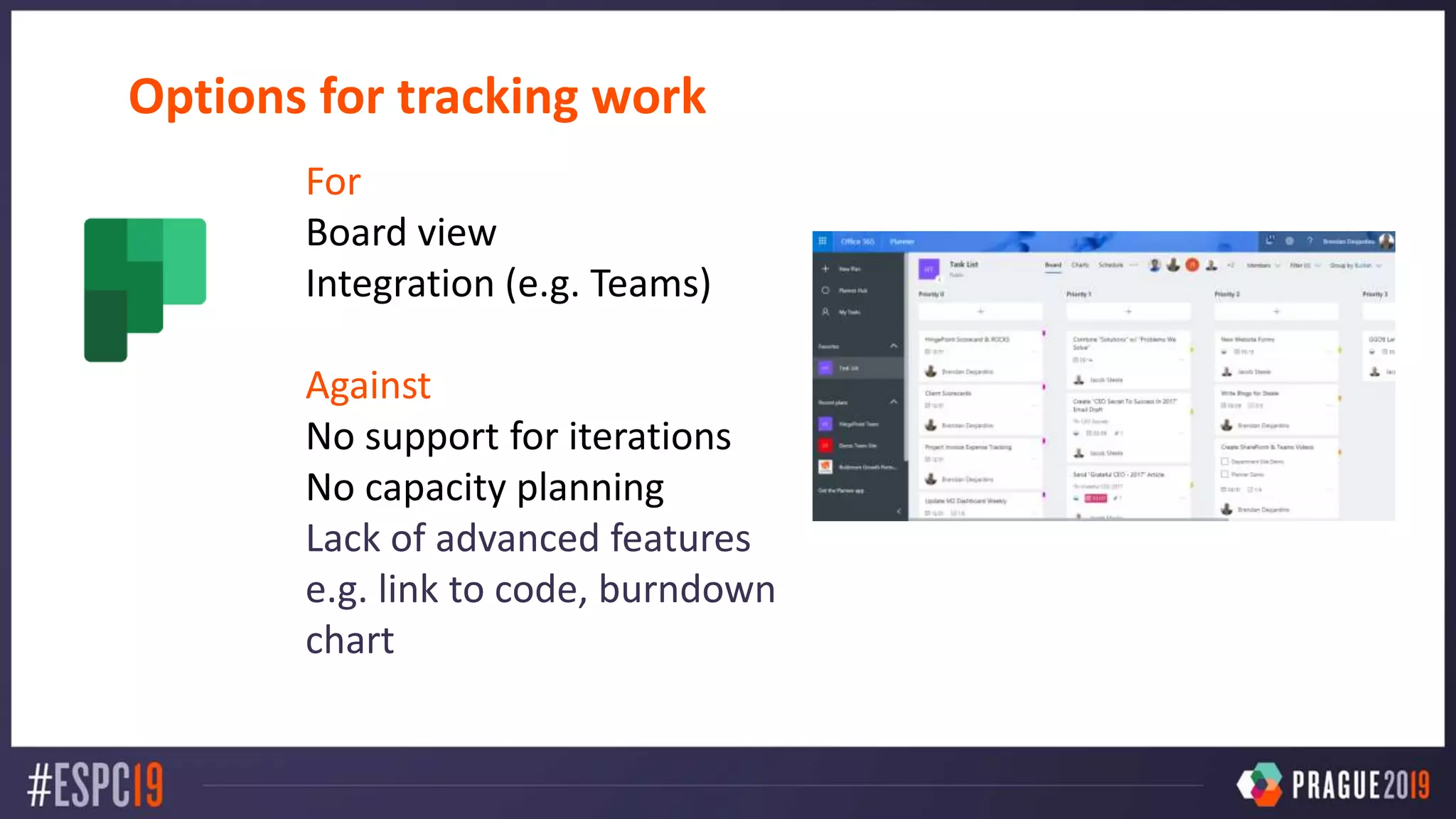
For
Board view
Integration (e.g. Teams)
Against
No support for iterations
No capacity planning
Lack of advanced features
e.g. link to code, burndown
chart
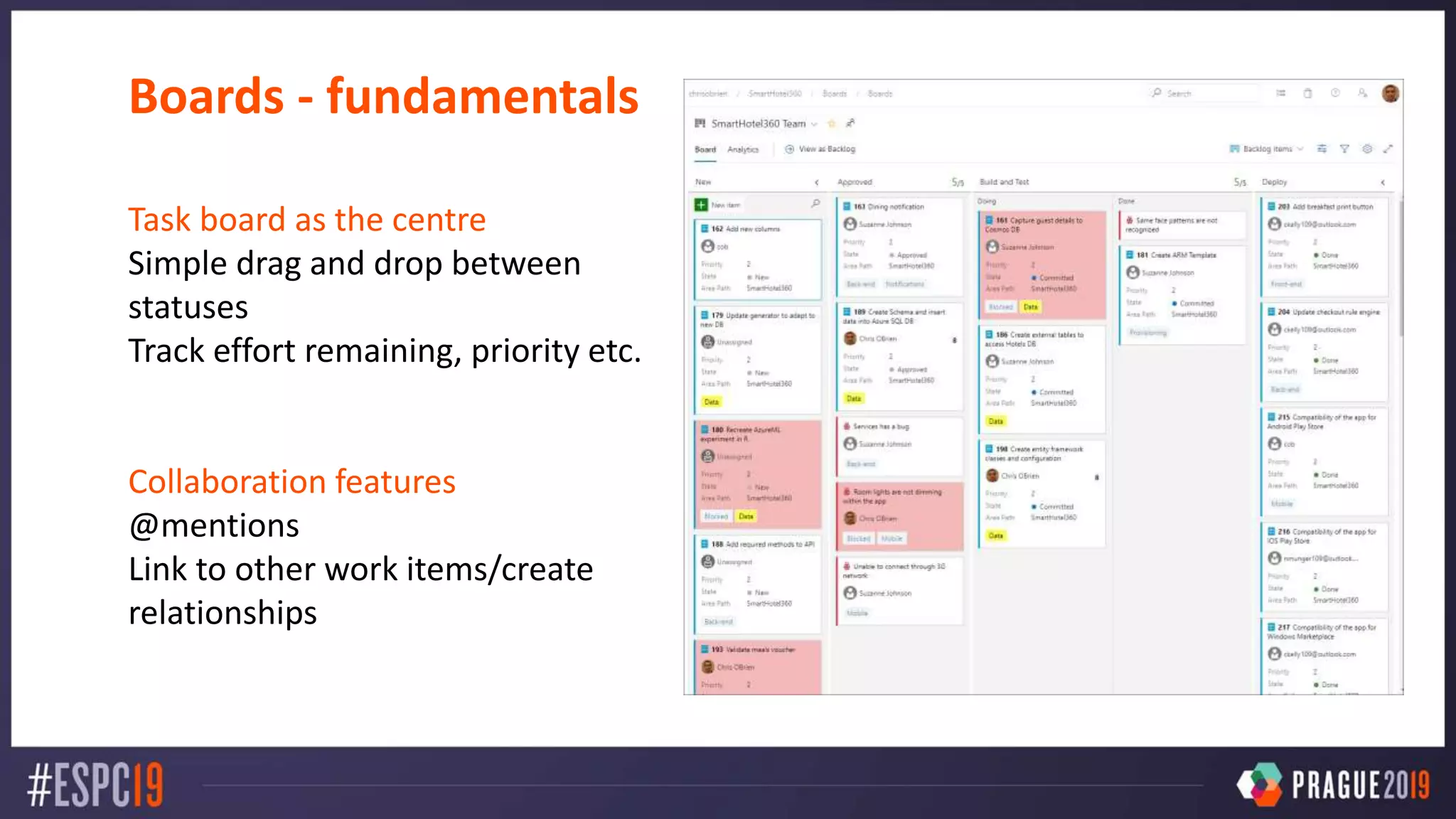
Boards - fundamentals
Task board as the centre
Simple drag and drop between
statuses
Track effort remaining, priority etc.
Collaboration features
@mentions
Link to other work items/create
relationships
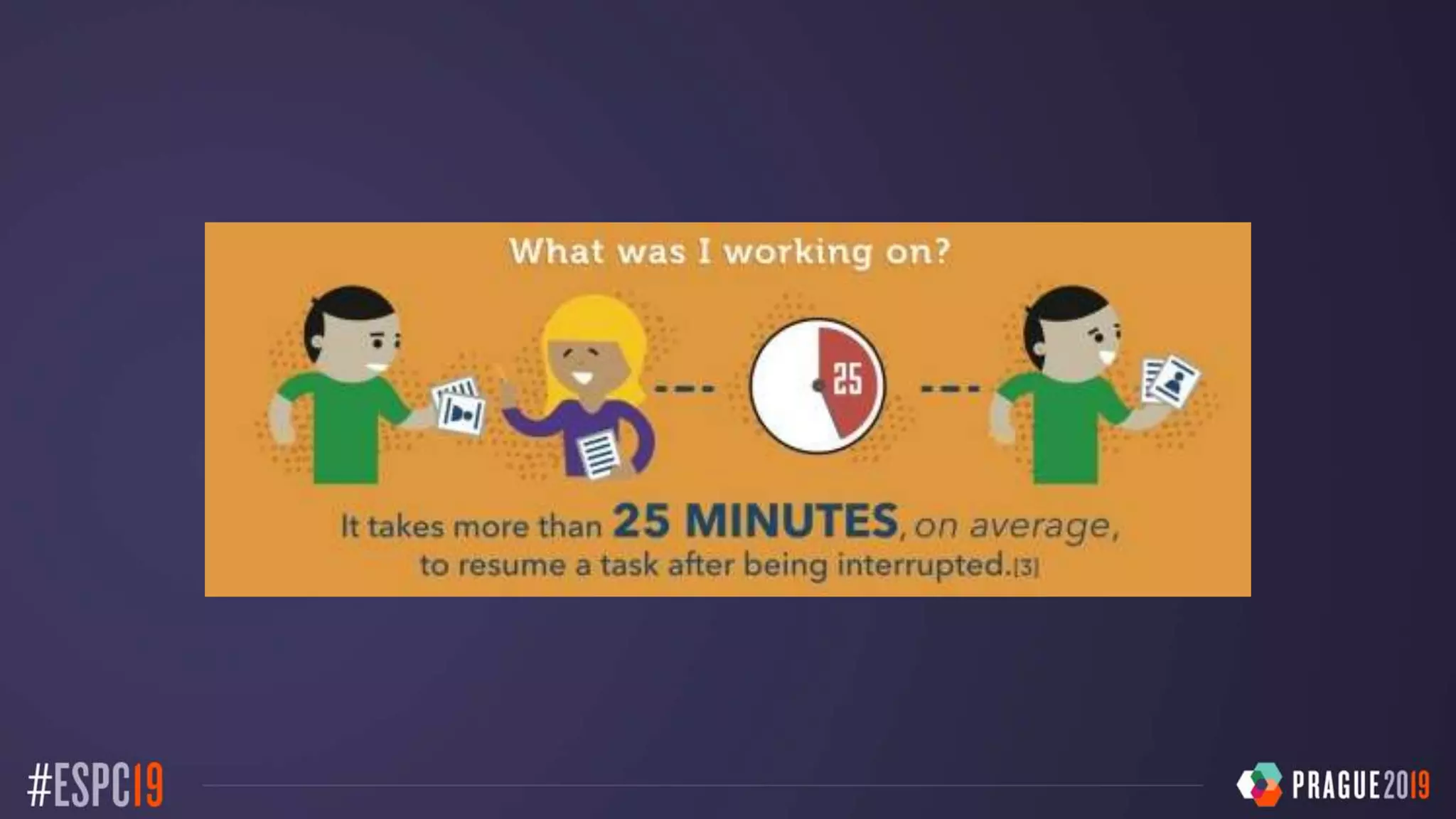
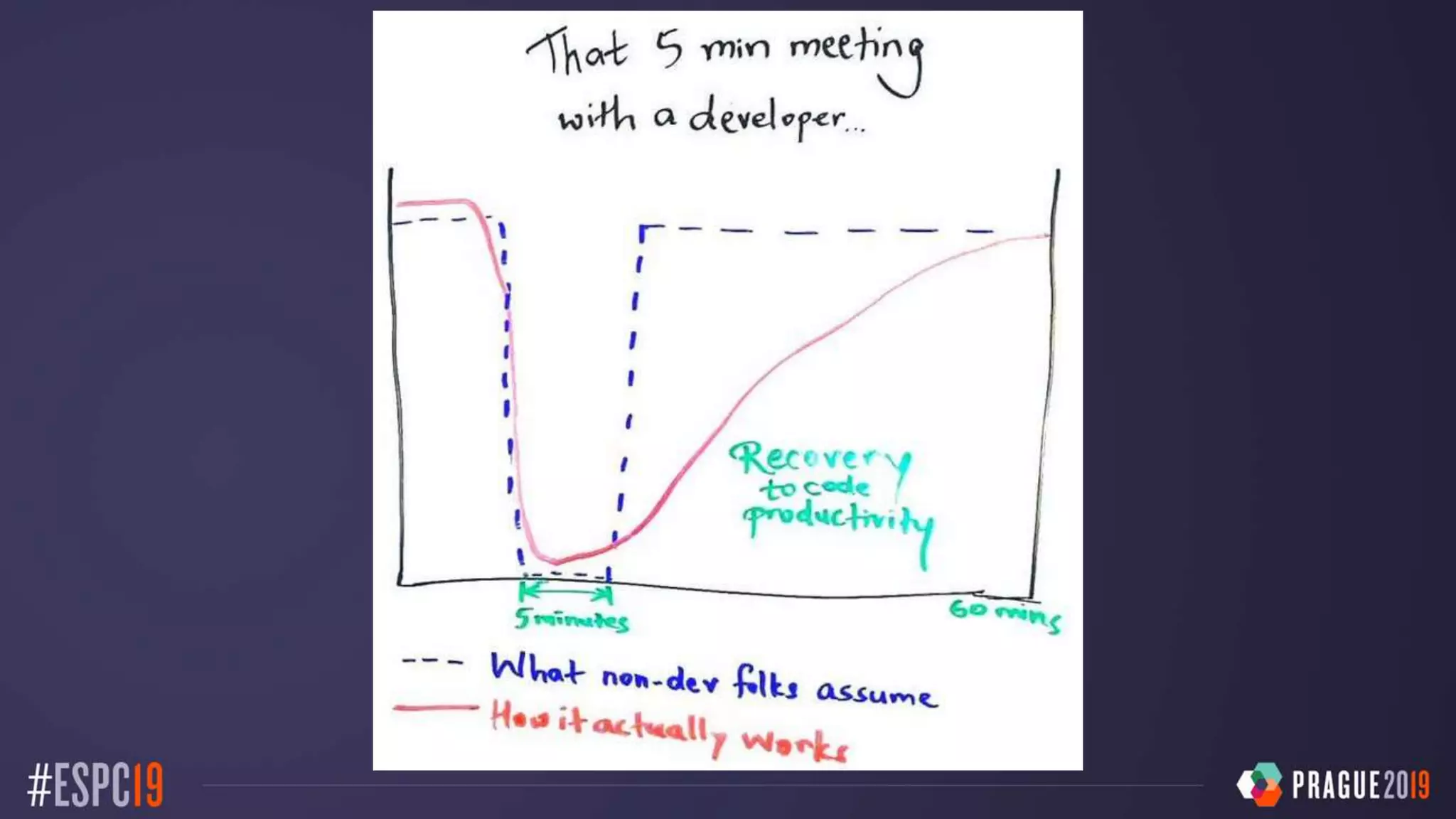
Developers
interruptions!
DEMO – tracking work SIMPLY with
Boards
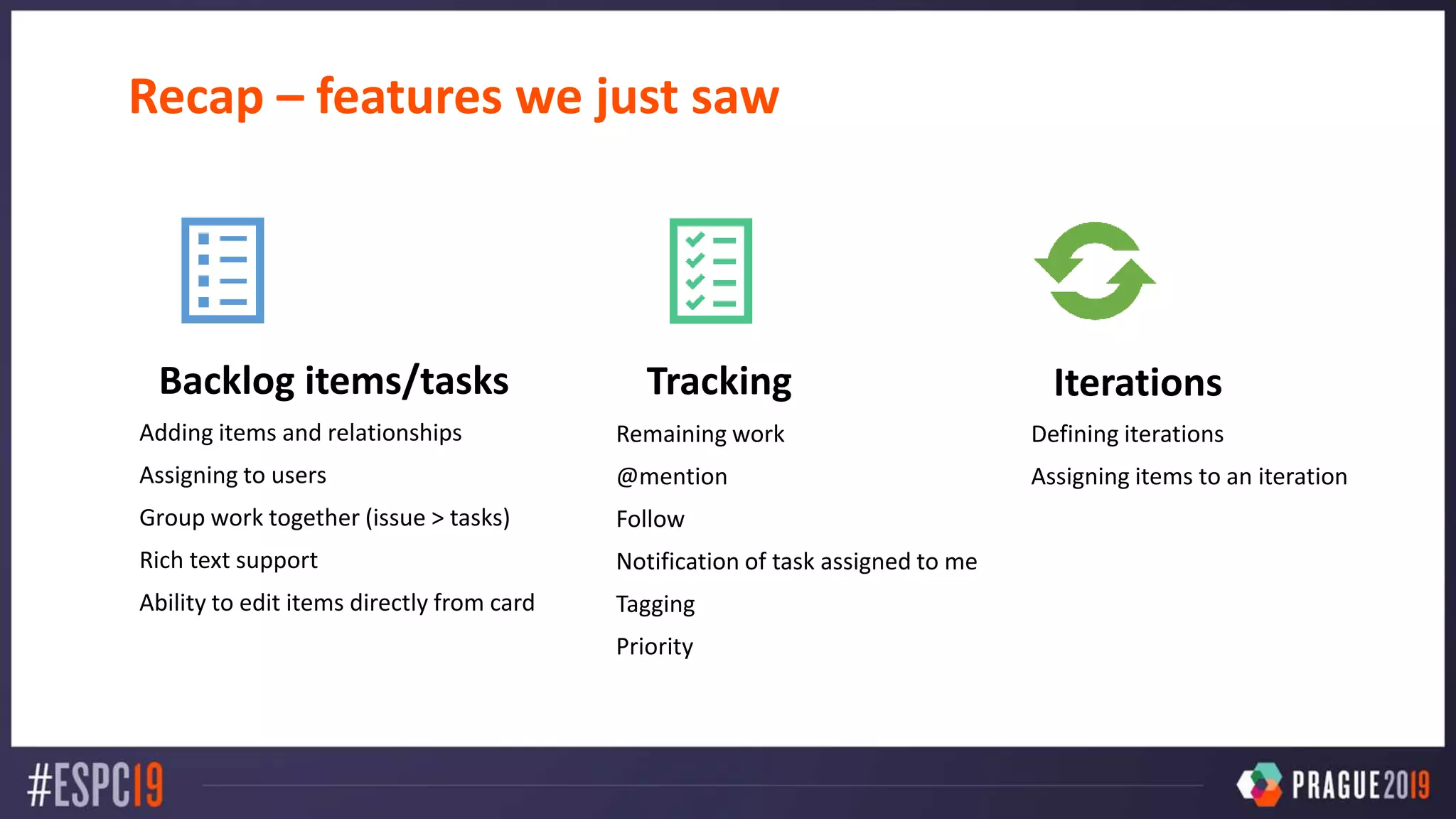
Recap – features we just saw
Backlog items/tasks
Adding items and relationships
Assigning to users
Group work together (issue > tasks)
Rich text support
Ability to edit items directly from card
Tracking
Remaining work
@mention
Follow
Notification of task assigned to me
Tagging
Priority
Iterations
Defining iterations
Assigning items to an iteration
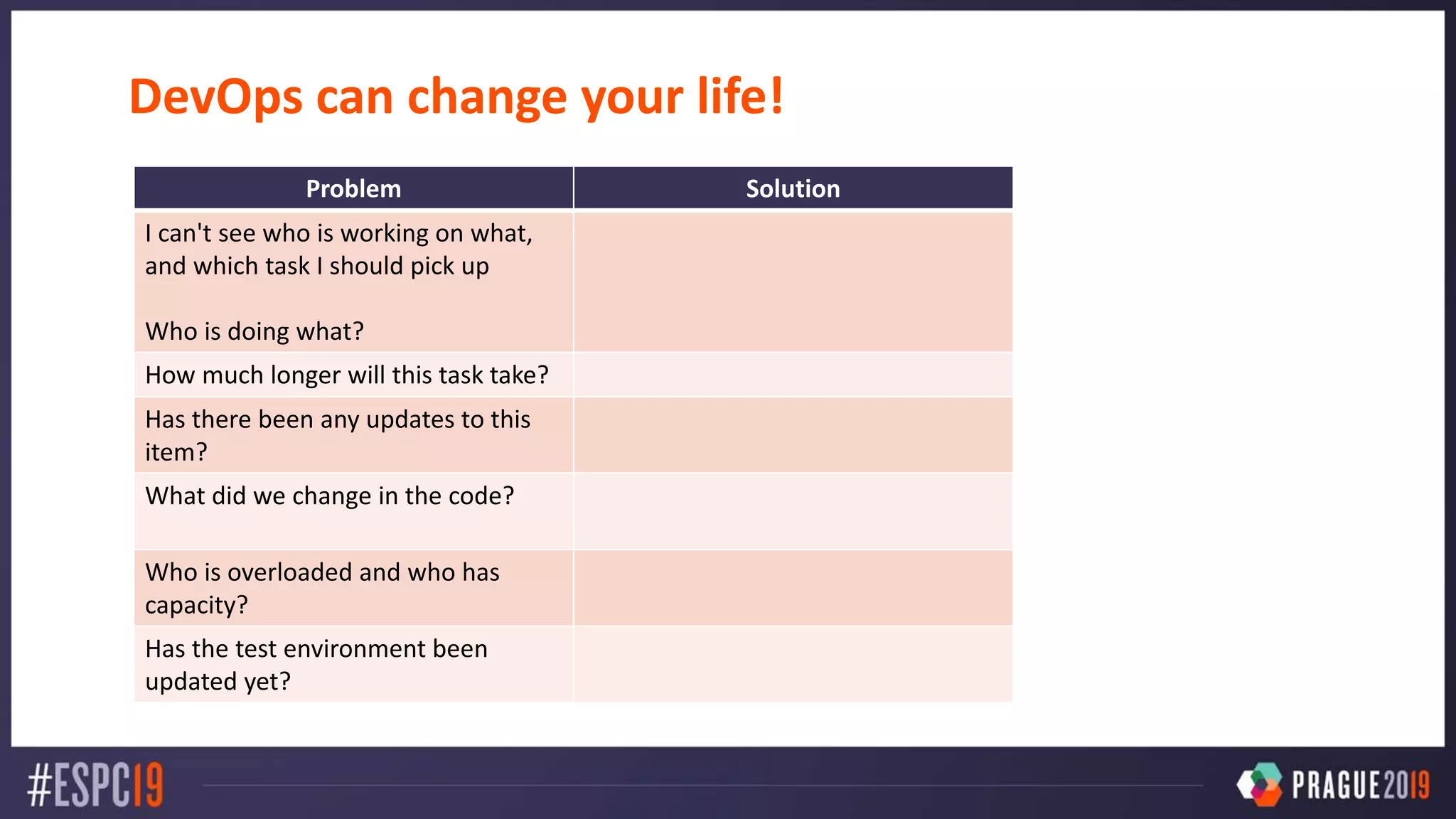
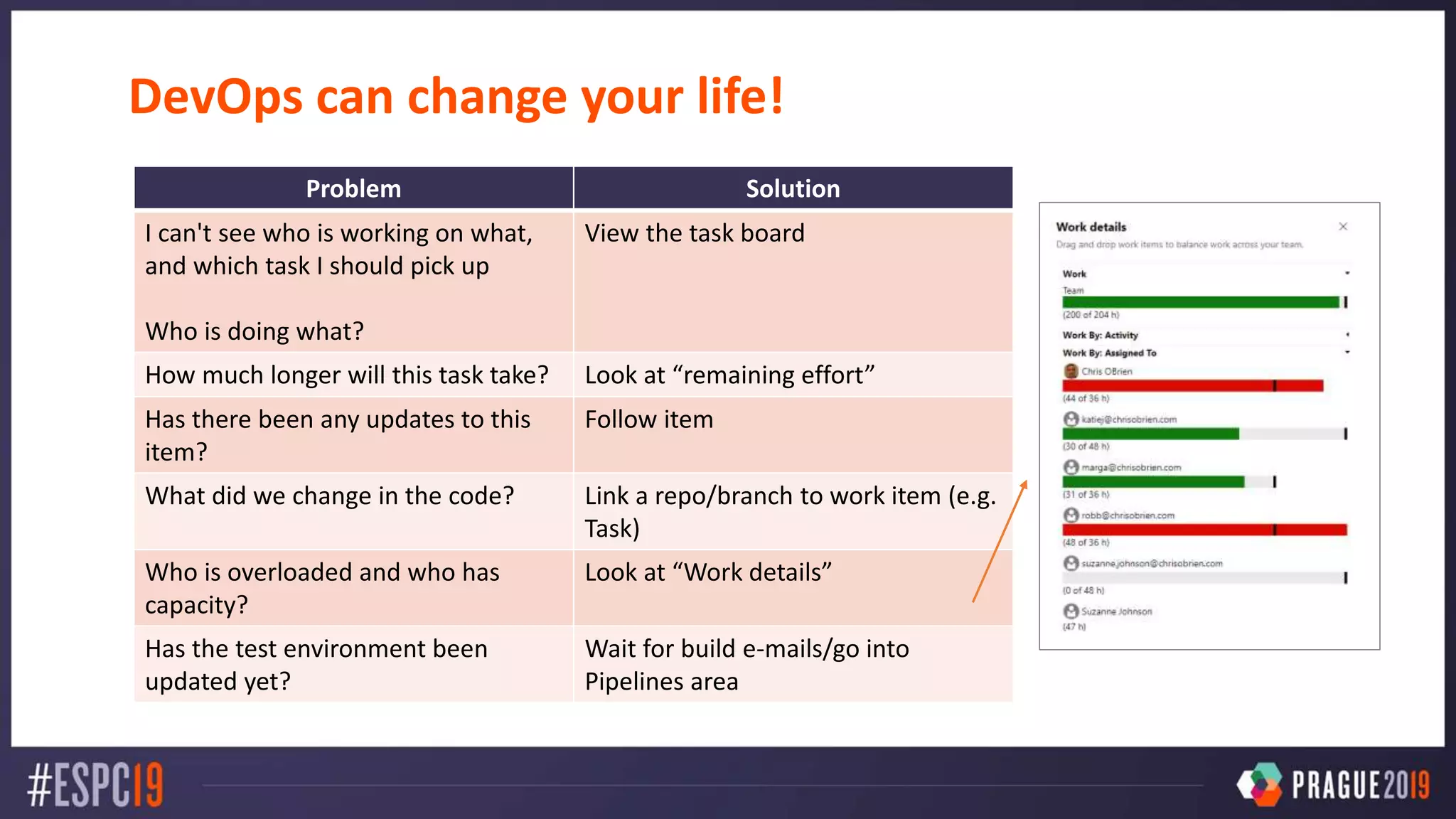
DevOps can change your life!
Problem Solution
I can't see who is working on what,
and which task I should pick up
Who is doing what?
How much longer will this task take?
Has there been any updates to this
item?
What did we change in the code?
Who is overloaded and who has
capacity?
Has the test environment been
updated yet?
DevOps can change your life!
Problem Solution
I can't see who is working on what,
and which task I should pick up
Who is doing what?
View the task board
How much longer will this task take? Look at “remaining effort”
Has there been any updates to this
item?
Follow item
What did we change in the code? Link a repo/branch to work item (e.g.
Task)
Who is overloaded and who has
capacity?
Look at “Work details”
Has the test environment been
updated yet?
Wait for build e-mails/go into
Pipelines area
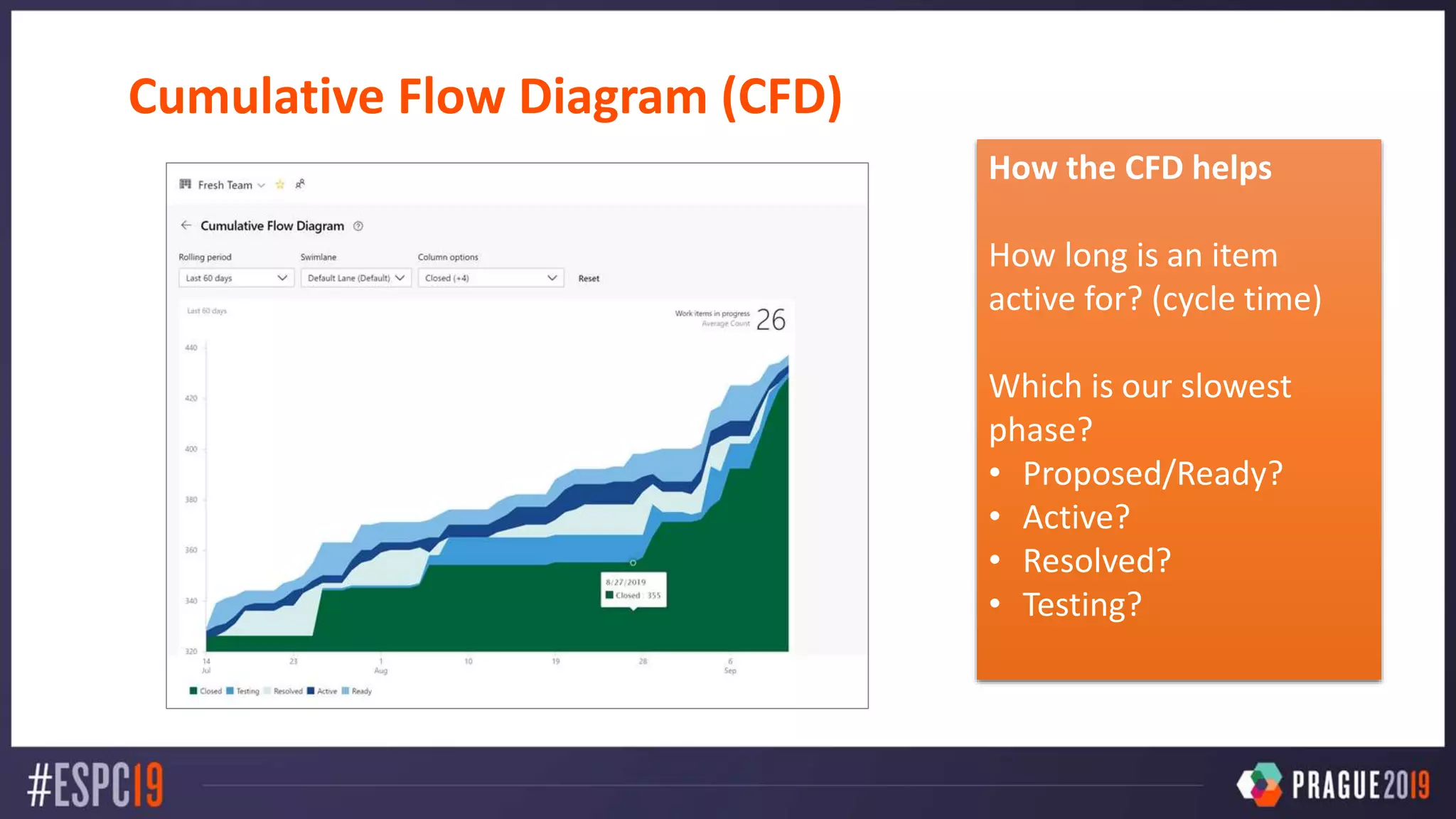
Cumulative Flow Diagram (CFD)
How the CFD helps
How long is an item
active for? (cycle time)
Which is our slowest
phase?
• Proposed/Ready?
• Active?
• Resolved?
• Testing?
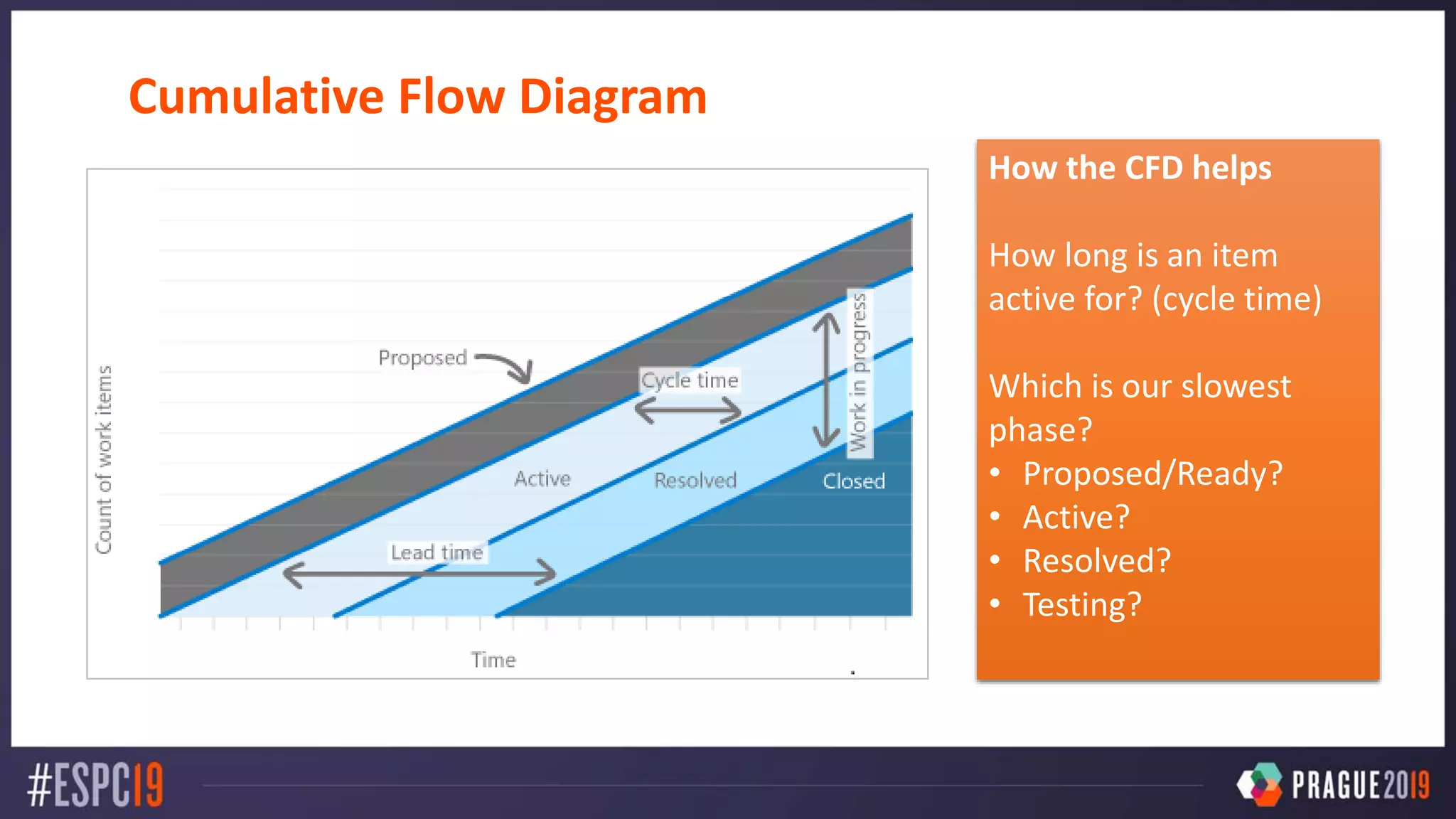
Cumulative Flow Diagram
How the CFD helps
How long is an item
active for? (cycle time)
Which is our slowest
phase?
• Proposed/Ready?
• Active?
• Resolved?
• Testing?
RUNNING AGILE PROJECTS ON
DEVOPS
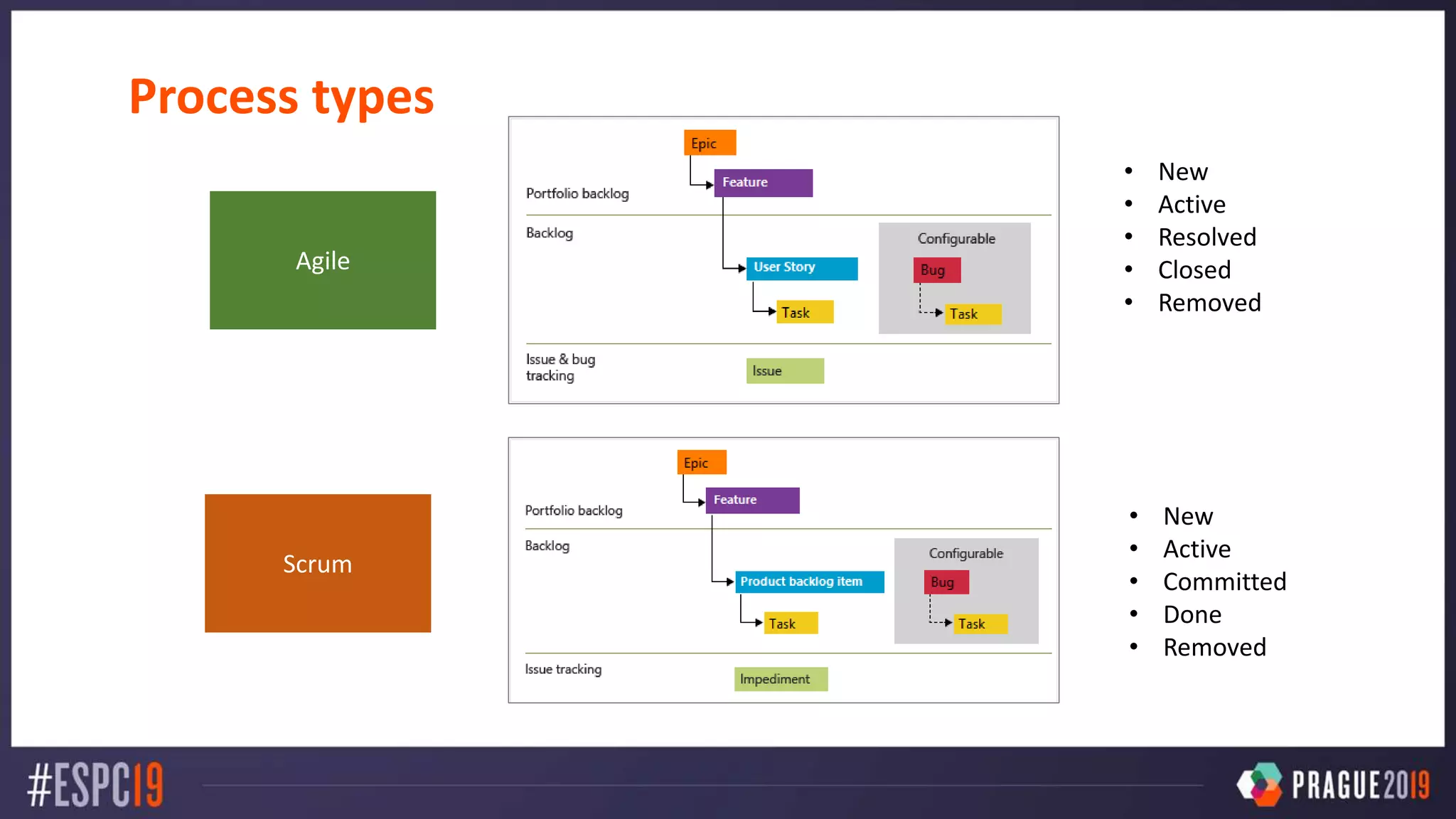
Process types
Scrum
Agile
Scrum
Agile
• New
• Active
• Resolved
• Closed
• Removed
• New
• Active
• Committed
• Done
• Removed
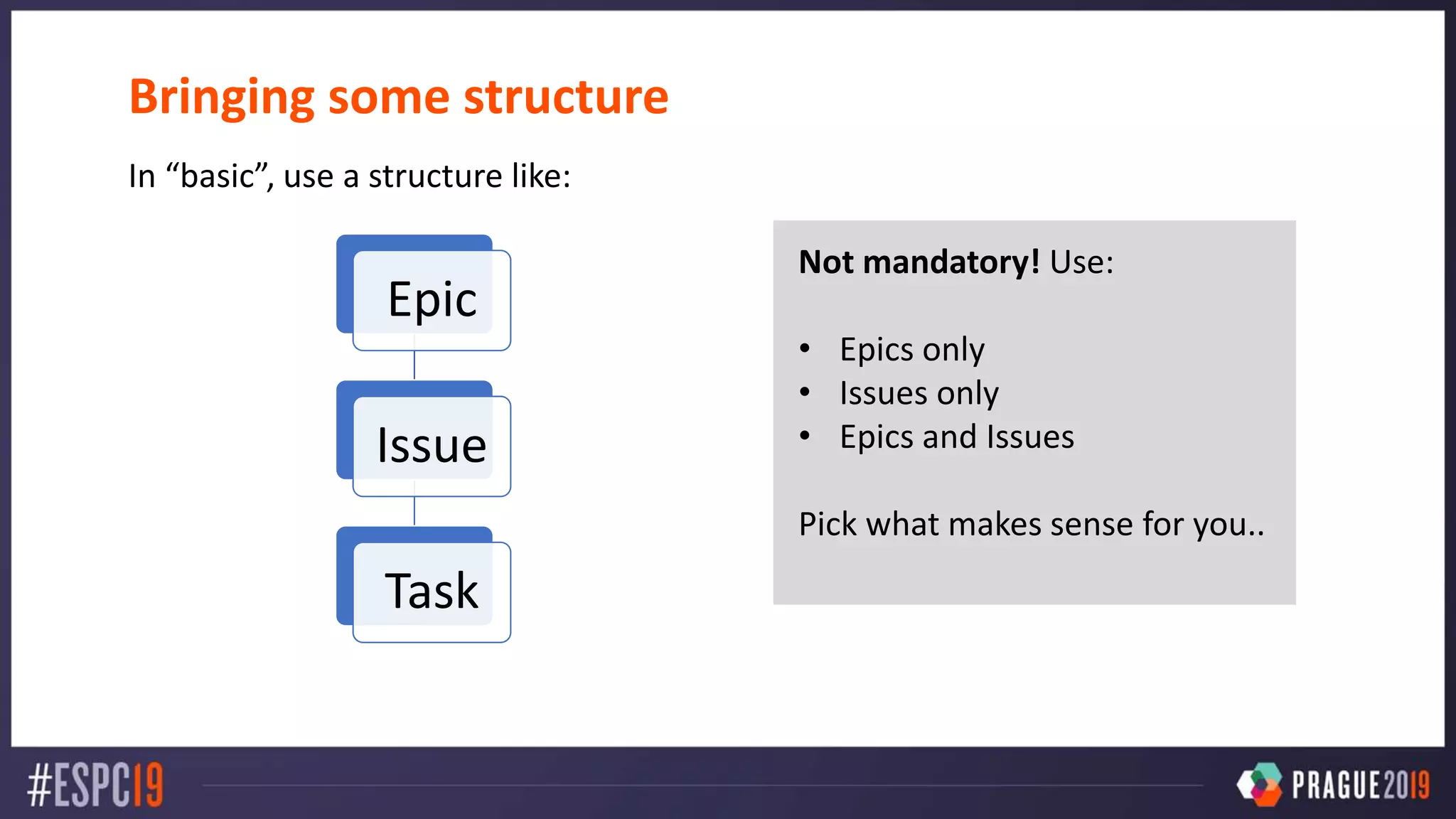
Bringing some structure
In “basic”, use a structure like:
Epic
Issue
Task
Not mandatory! Use:
• Epics only
• Issues only
• Epics and Issues
Pick what makes sense for you..
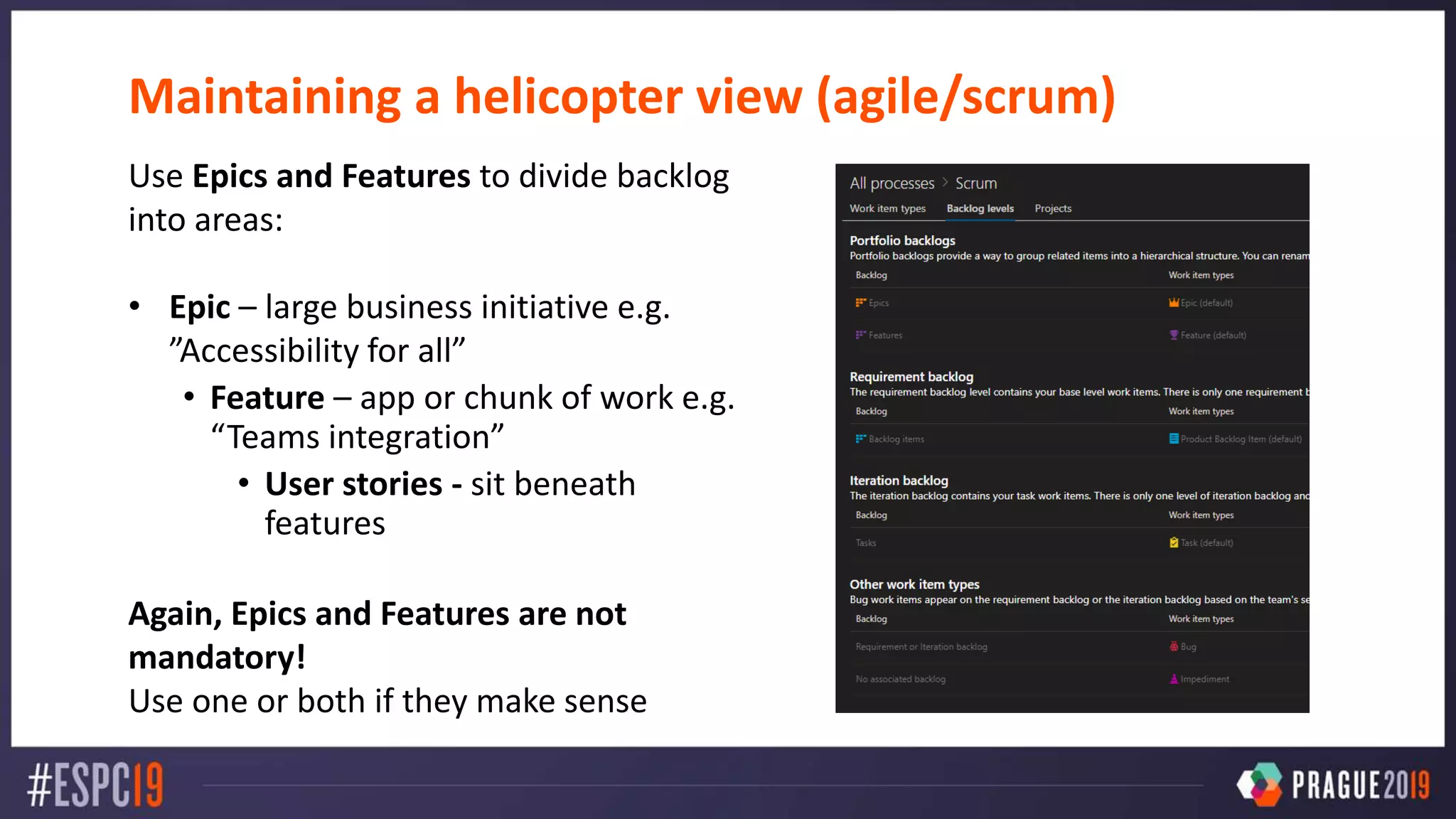
Maintaining a helicopter view (agile/scrum)
Use Epics and Features to divide backlog
into areas:
• Epic – large business initiative e.g.
”Accessibility for all”
• Feature – app or chunk of work e.g.
“Teams integration”
• User stories - sit beneath
features
Again, Epics and Features are not
mandatory!
Use one or both if they make sense
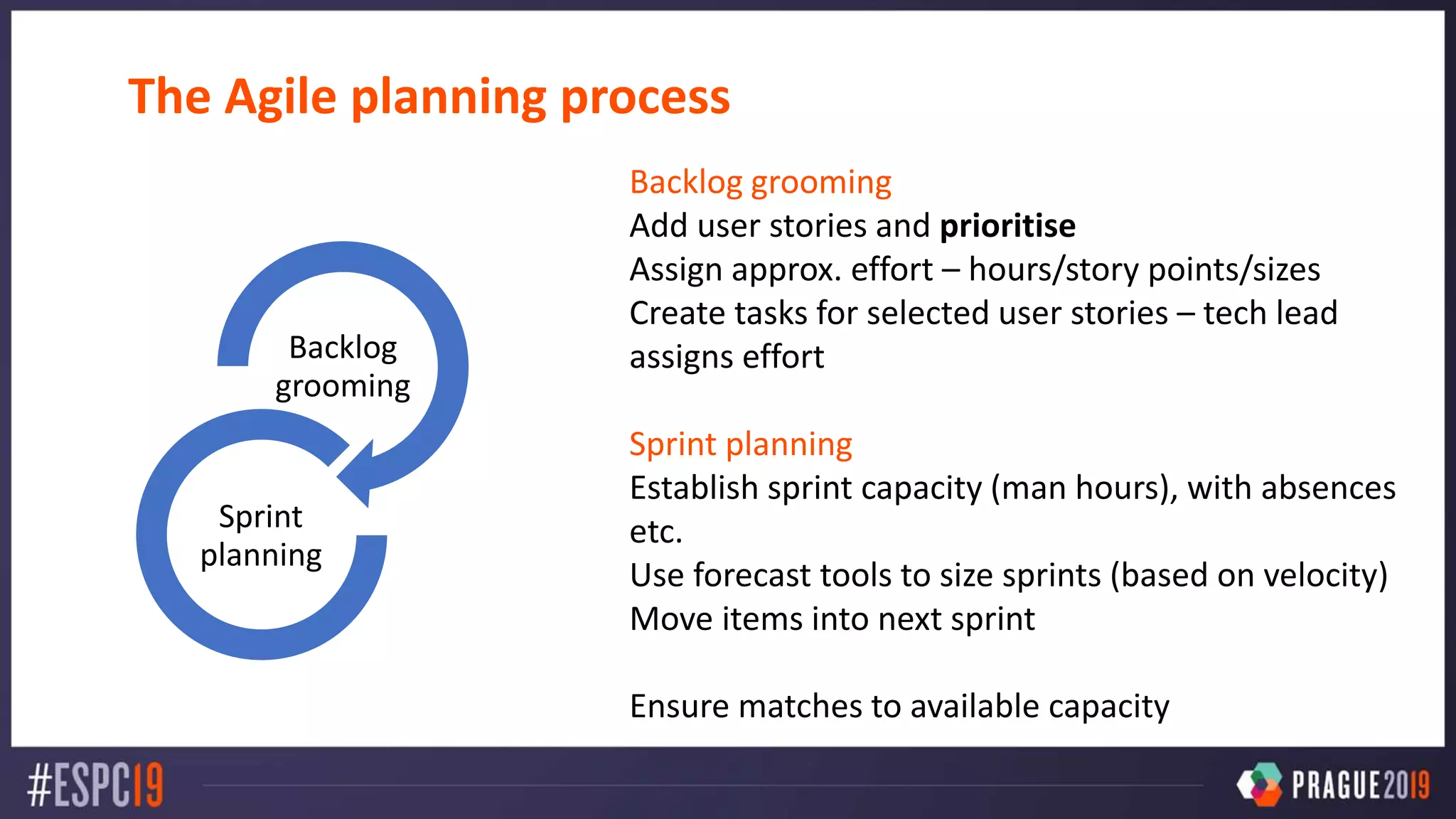
The Agile planning process
Backlog grooming
Add user stories and prioritise
Assign approx. effort – hours/story points/sizes
Create tasks for selected user stories – tech lead
assigns effort
Sprint planning
Establish sprint capacity (man hours), with absences
etc.
Use forecast tools to size sprints (based on velocity)
Move items into next sprint
Ensure matches to available capacity
Backlog
grooming
Sprint
planning
DEMO – running agile sprints
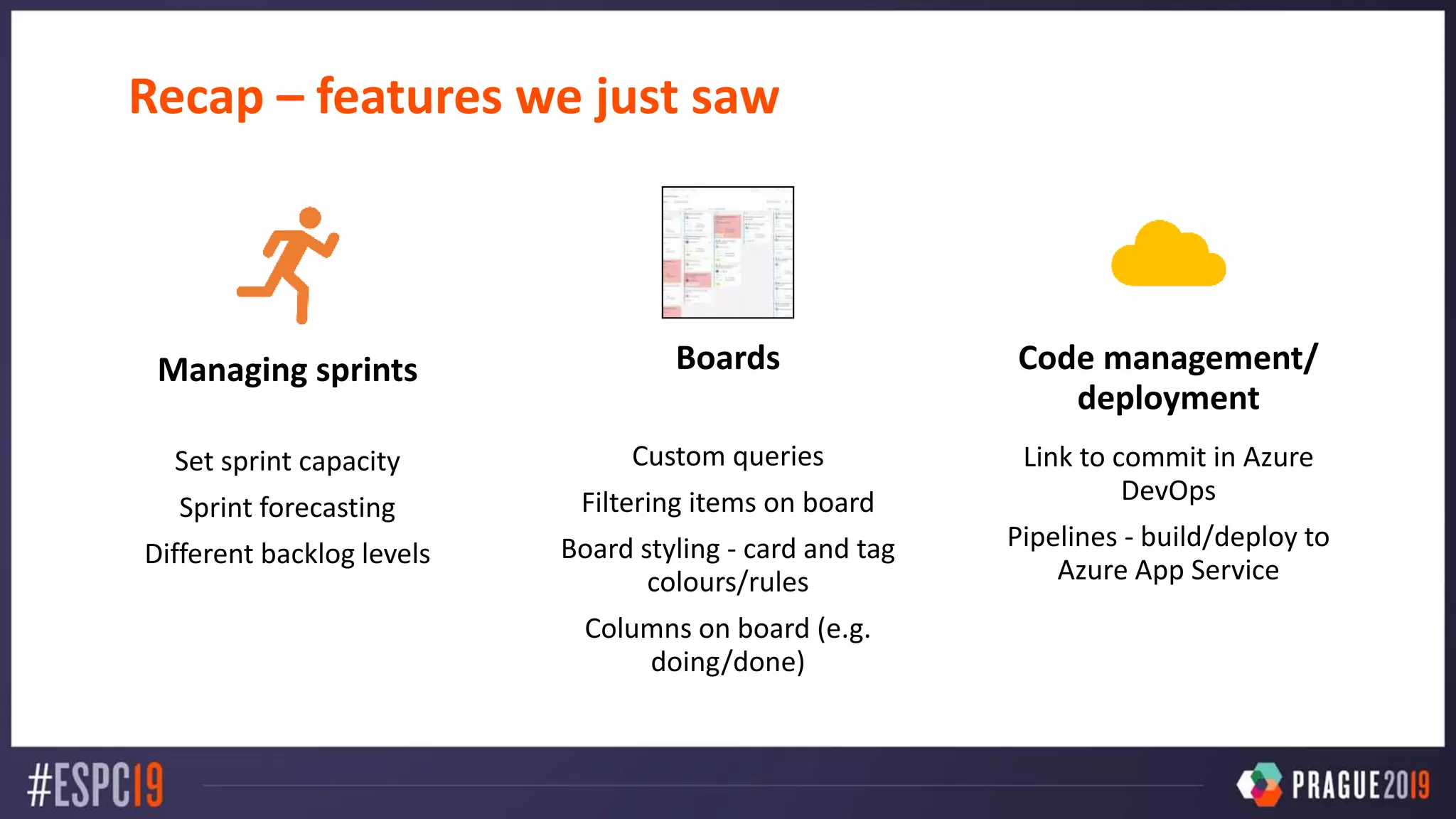
Recap – features we just saw
Managing sprints
Set sprint capacity
Sprint forecasting
Different backlog levels
Boards
Custom queries
Filtering items on board
Board styling - card and tag
colours/rules
Columns on board (e.g.
doing/done)
Code management/
deployment
Link to commit in Azure
DevOps
Pipelines - build/deploy to
Azure App Service
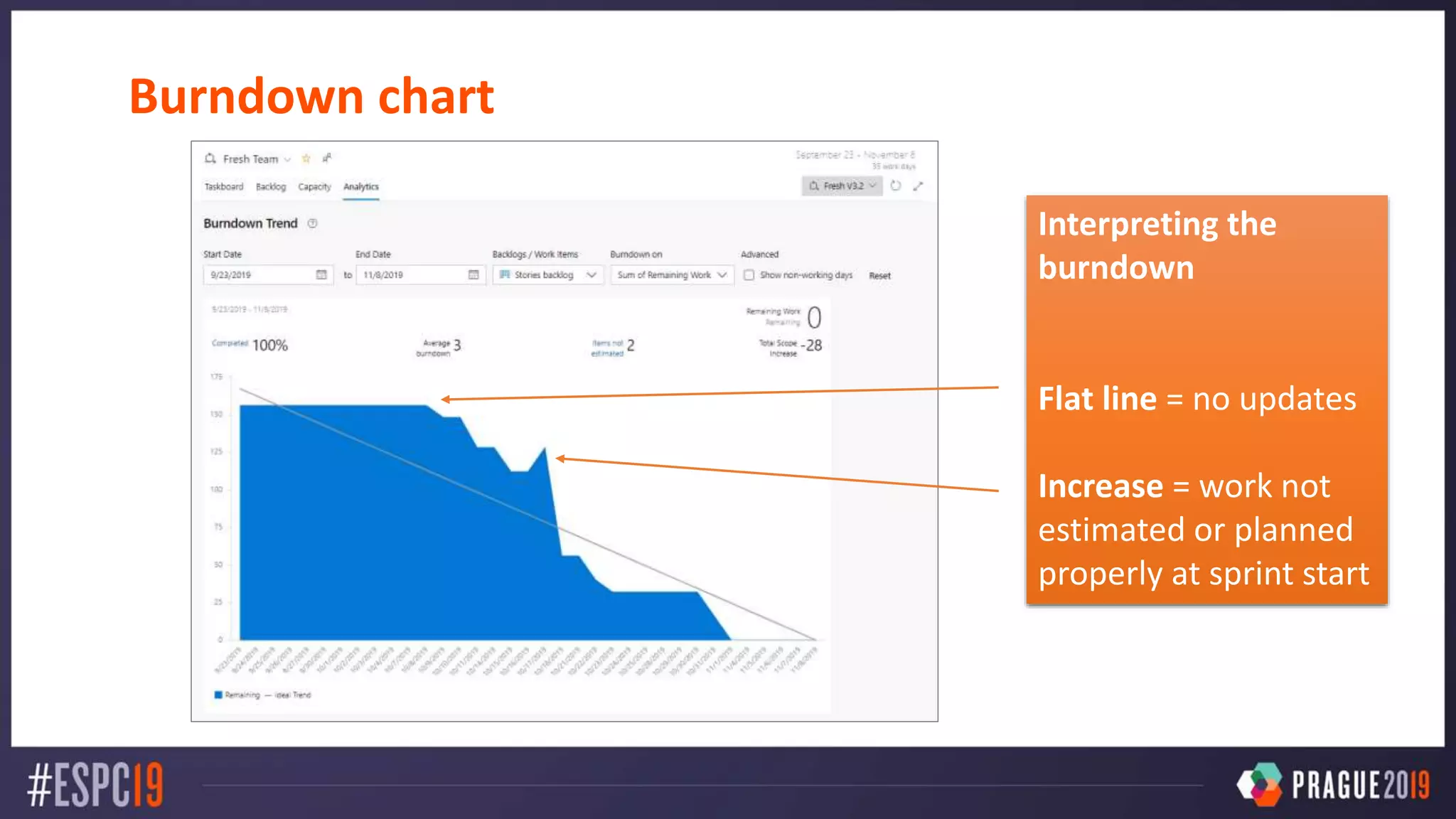
Burndown chart
Interpreting the
burndown
Flat line = no updates
Increase = work not
estimated or planned
properly at sprint start
Client quote – down the line
“We’ve started using Azure DevOps but it’s SO confusing!
We can’t seem to update the status of items properly –
WTF?!”
This is a licensing gotcha!
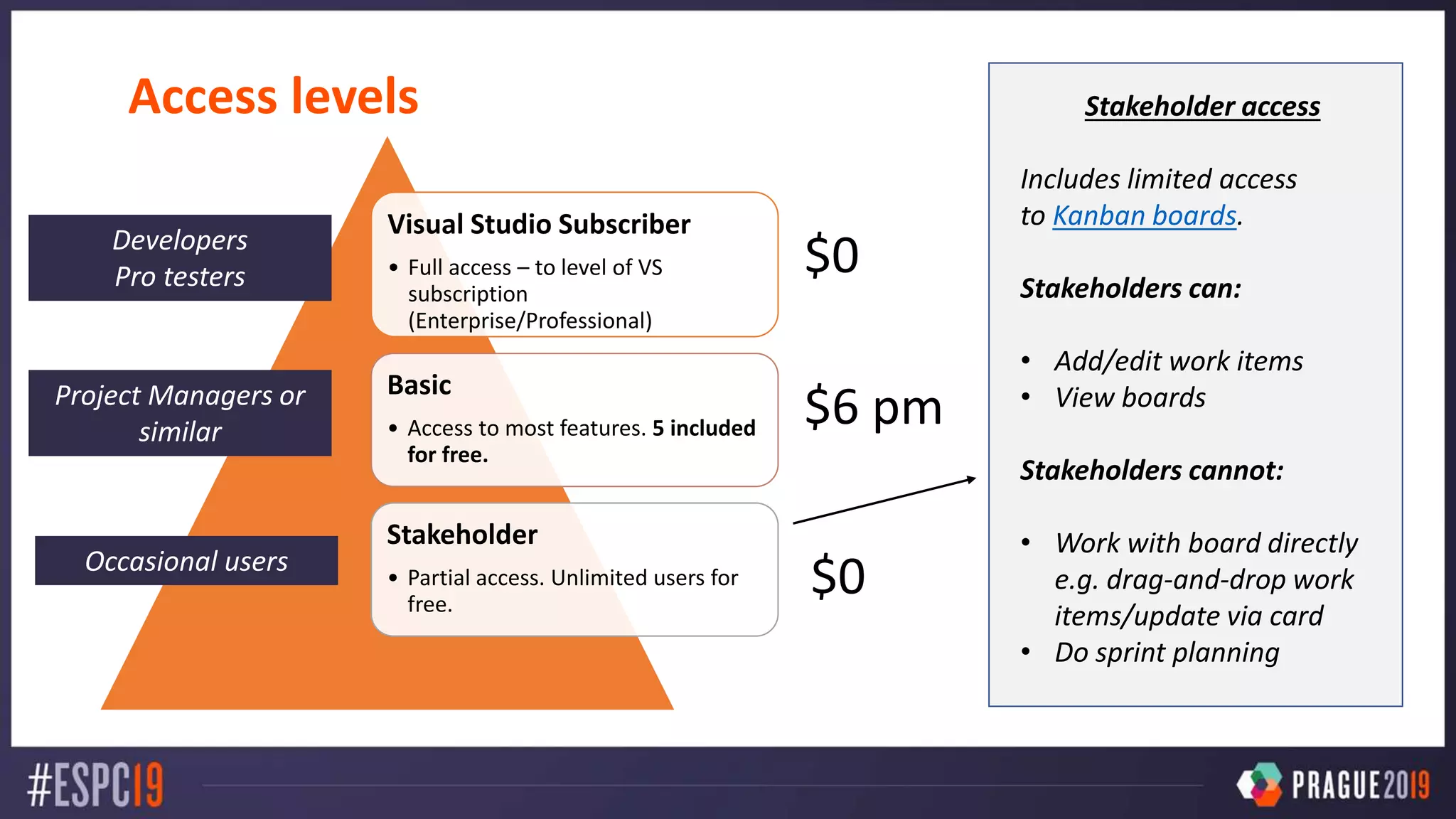
Access levels
Visual Studio Subscriber
• Full access – to level of VS
subscription
(Enterprise/Professional)
Basic
• Access to most features. 5 included
for free.
Stakeholder
• Partial access. Unlimited users for
free.
Stakeholder access
Includes limited access
to Kanban boards.
Stakeholders can:
• Add/edit work items
• View boards
Stakeholders cannot:
• Work with board directly
e.g. drag-and-drop work
items/update via card
• Do sprint planning
Developers
Pro testers
Project Managers or
similar
Occasional users
$0
$0
$6 pm
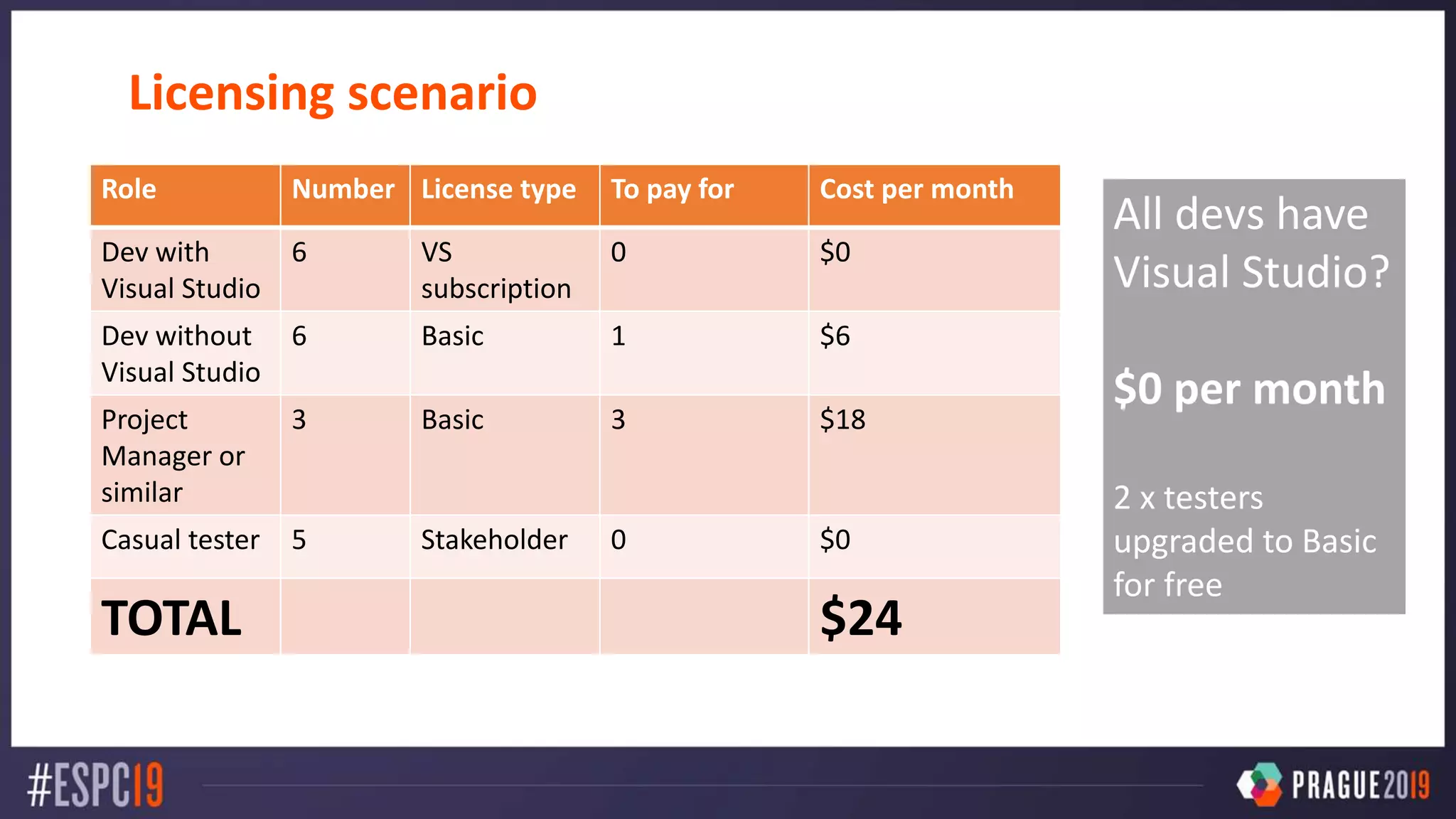
Licensing scenario
Role Number License type To pay for Cost per month
Dev with
Visual Studio
6 VS
subscription
0 $0
Dev without
Visual Studio
6 Basic 1 $6
Project
Manager or
similar
3 Basic 3 $18
Casual tester 5 Stakeholder 0 $0
TOTAL $24
All devs have
Visual Studio?
$0 per month
2 x testers
upgraded to Basic
for free
Automated builds and deployments
(CI/CD)
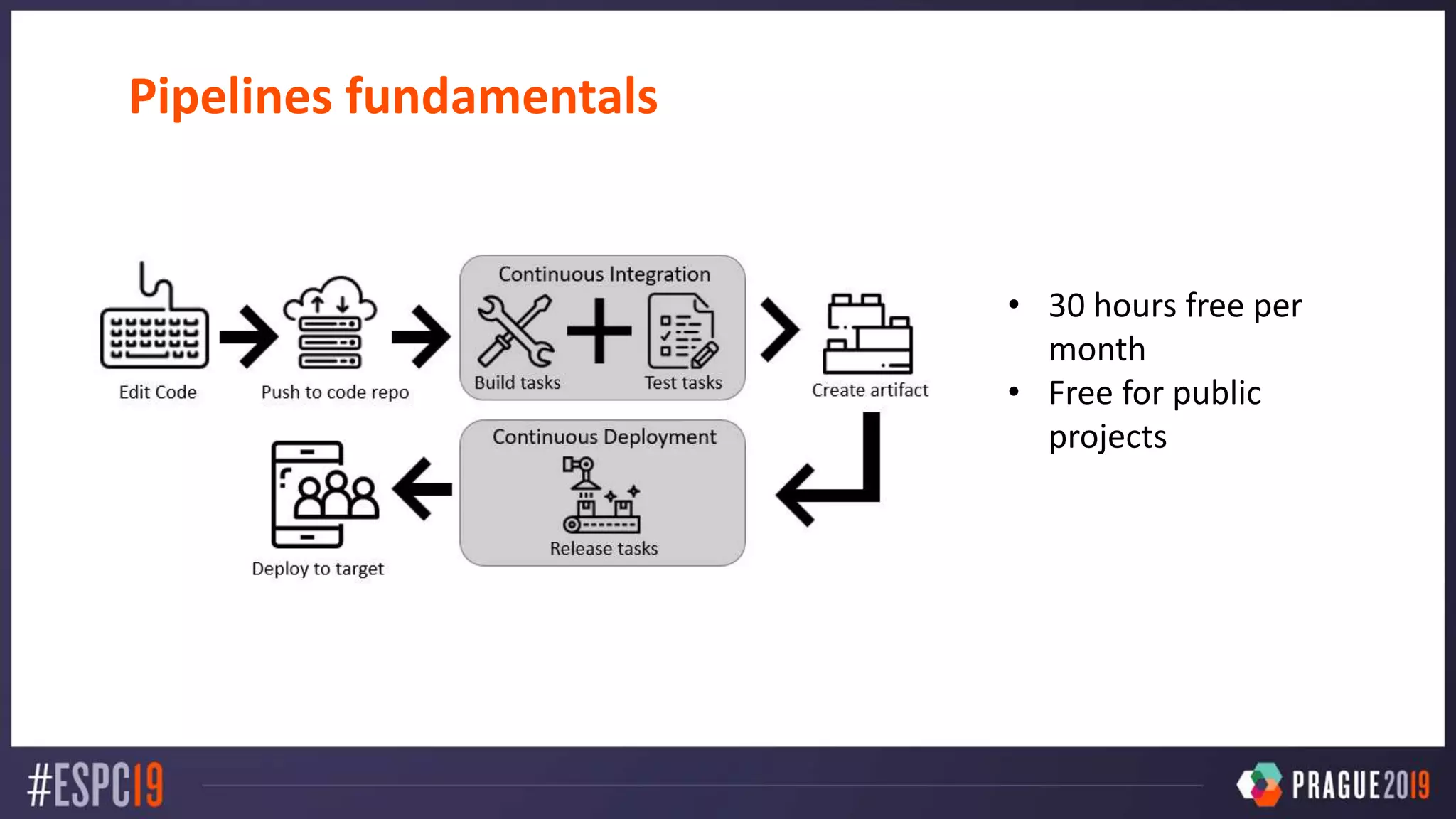
Pipelines fundamentals
• 30 hours free per
month
• Free for public
projects
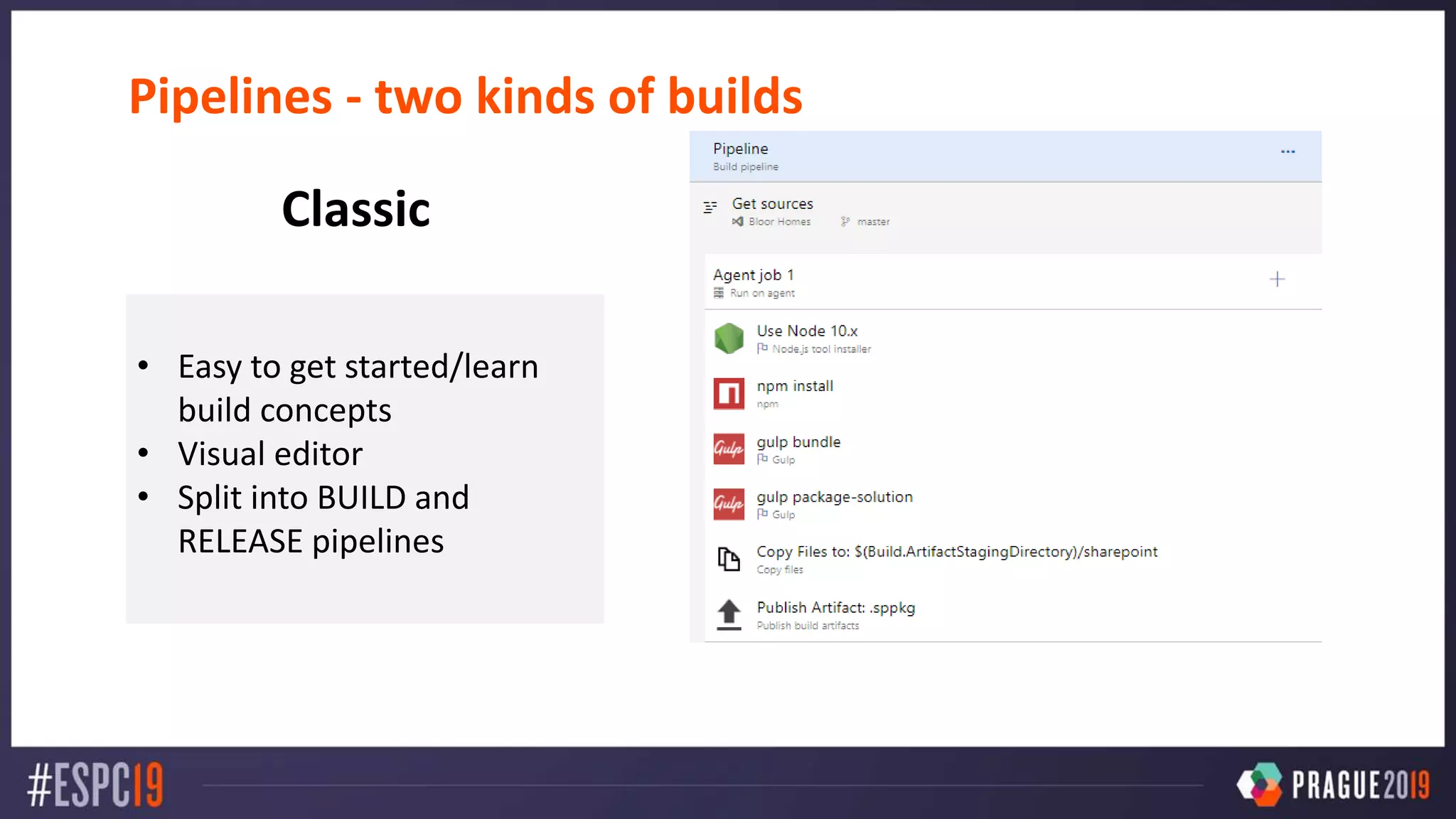
Pipelines - two kinds of builds
• Easy to get started/learn
build concepts
• Visual editor
• Split into BUILD and
RELEASE pipelines
Classic
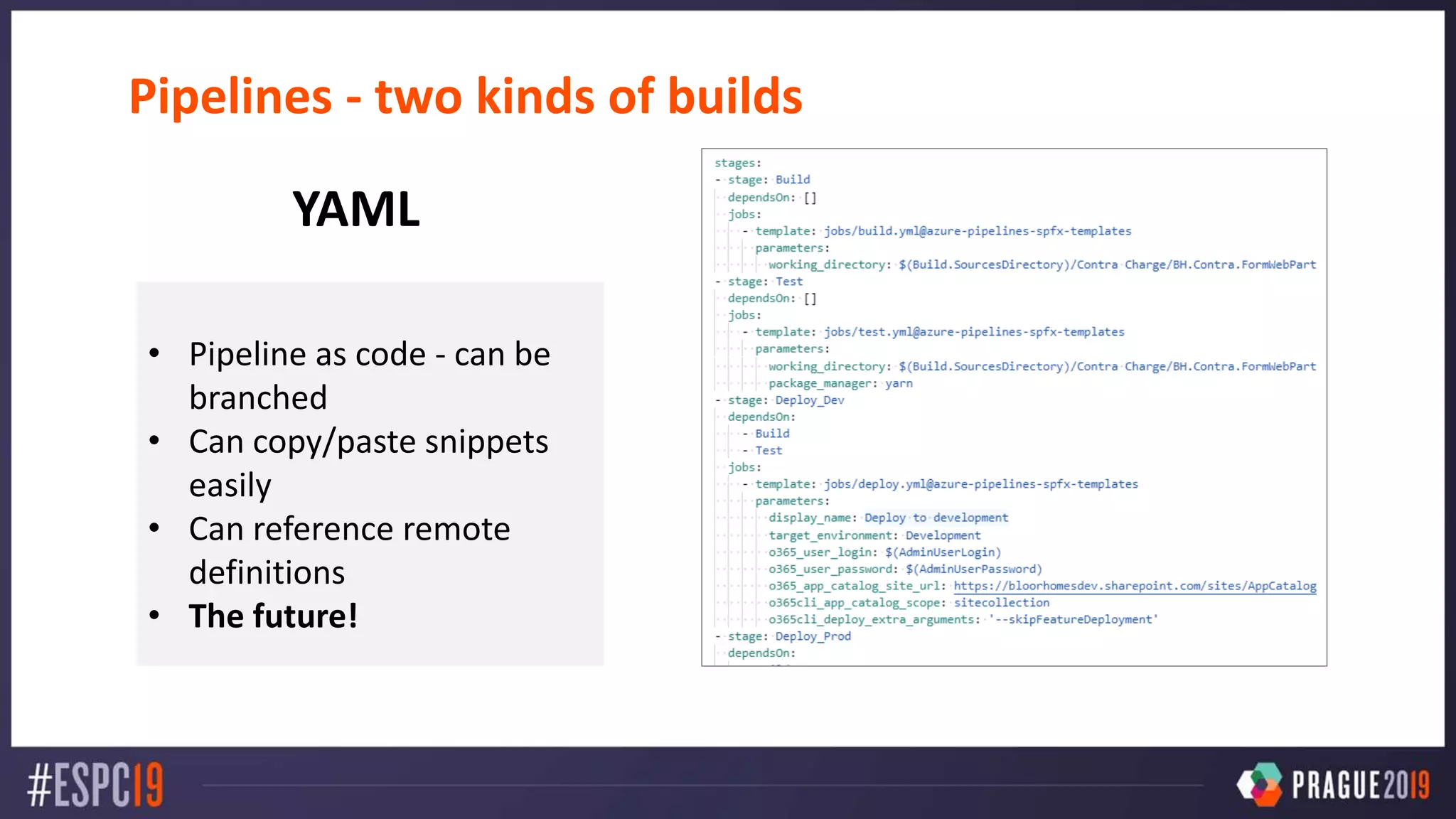
Pipelines - two kinds of builds
• Pipeline as code - can be
branched
• Can copy/paste snippets
easily
• Can reference remote
definitions
• The future!
YAML
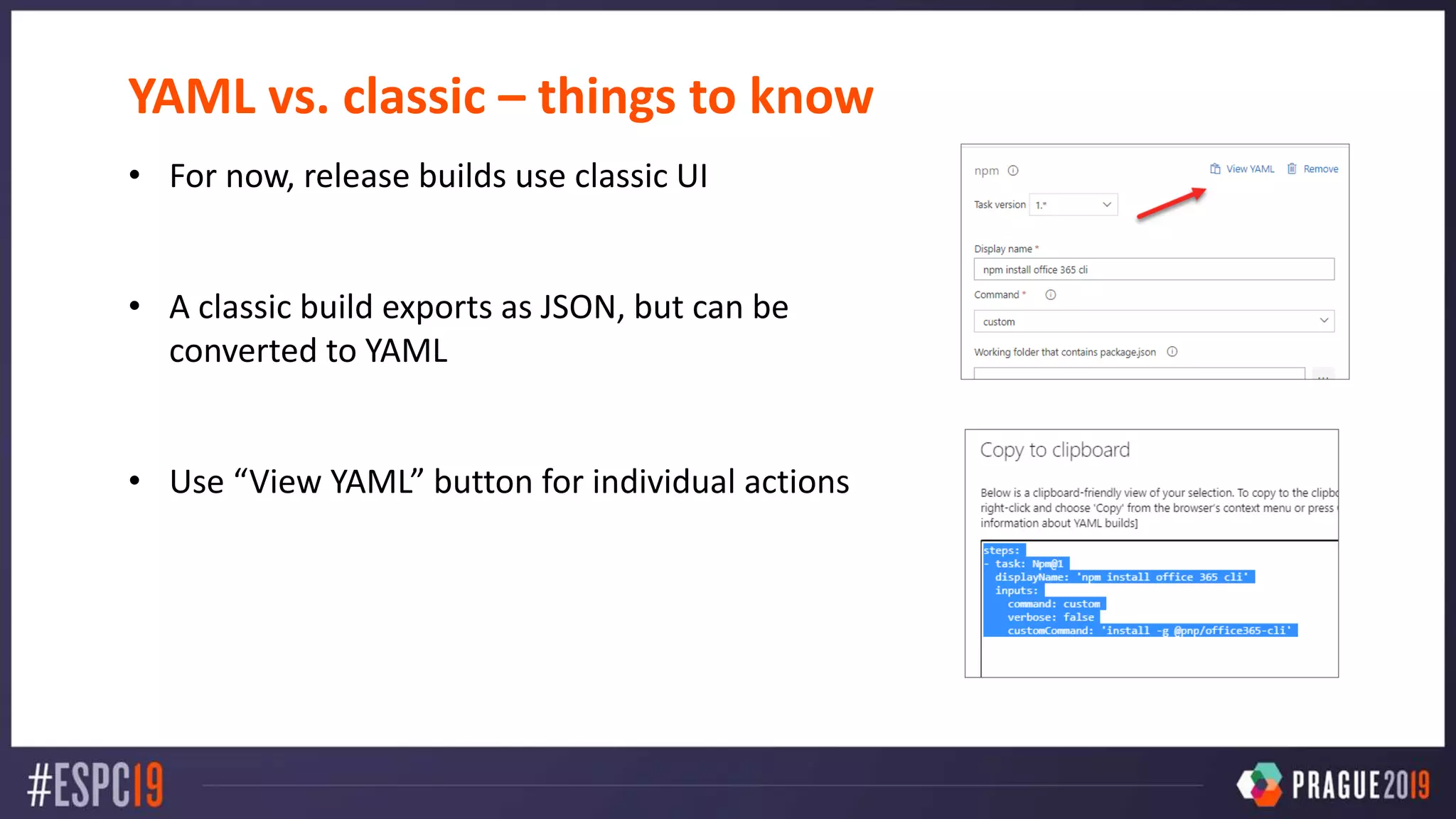
YAML vs. classic – things to know
• For now, release builds use classic UI
• A classic build exports as JSON, but can be
converted to YAML
• Use “View YAML” button for individual actions
DEMO – automated builds
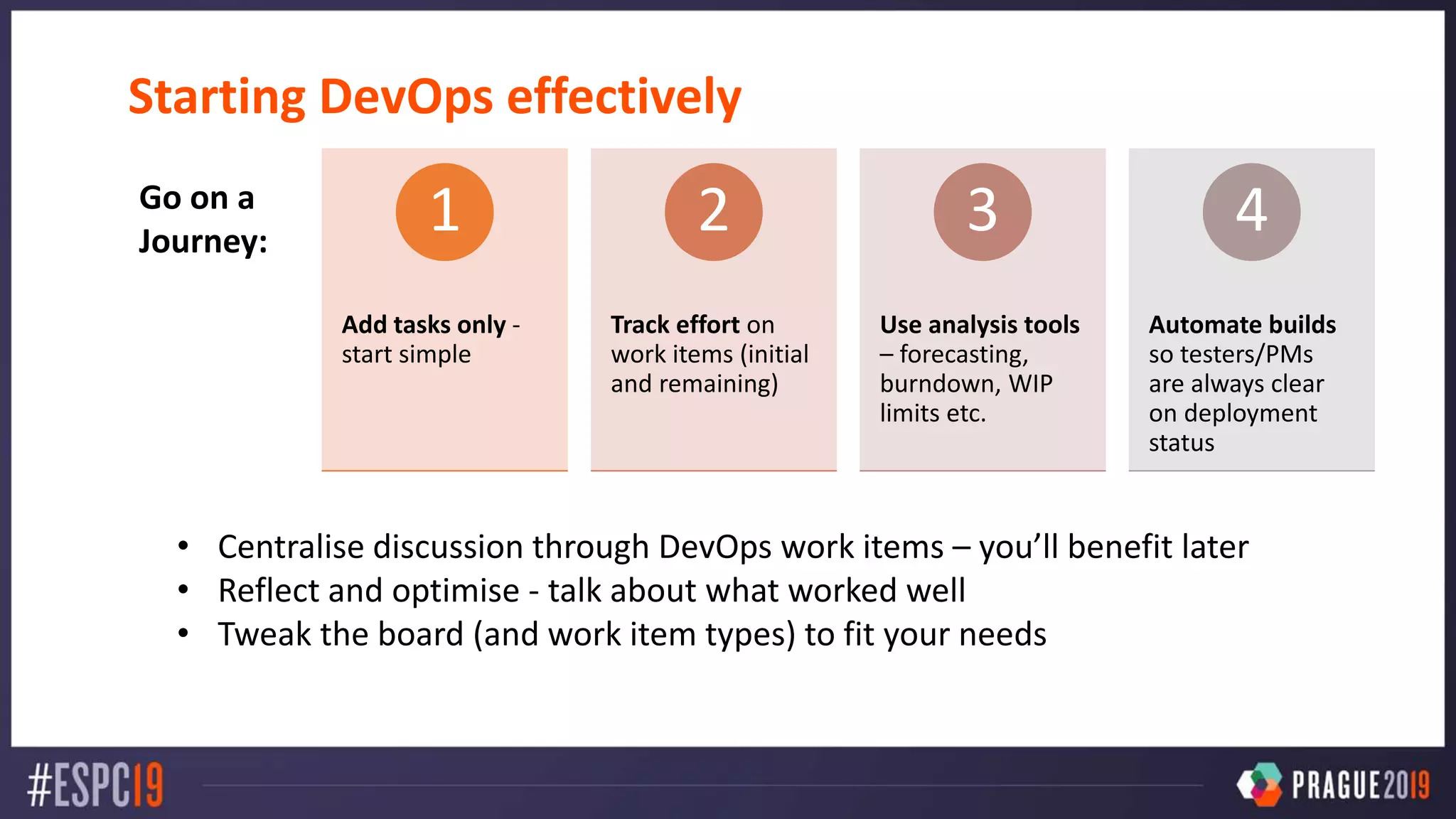
Starting DevOps effectively
• Centralise discussion through DevOps work items – you’ll benefit later
• Reflect and optimise - talk about what worked well
• Tweak the board (and work item types) to fit your needs
Add tasks only -
start simple
1
Track effort on
work items (initial
and remaining)
2
Use analysis tools
– forecasting,
burndown, WIP
limits etc.
3
Automate builds
so testers/PMs
are always clear
on deployment
status
4Go on a
Journey:
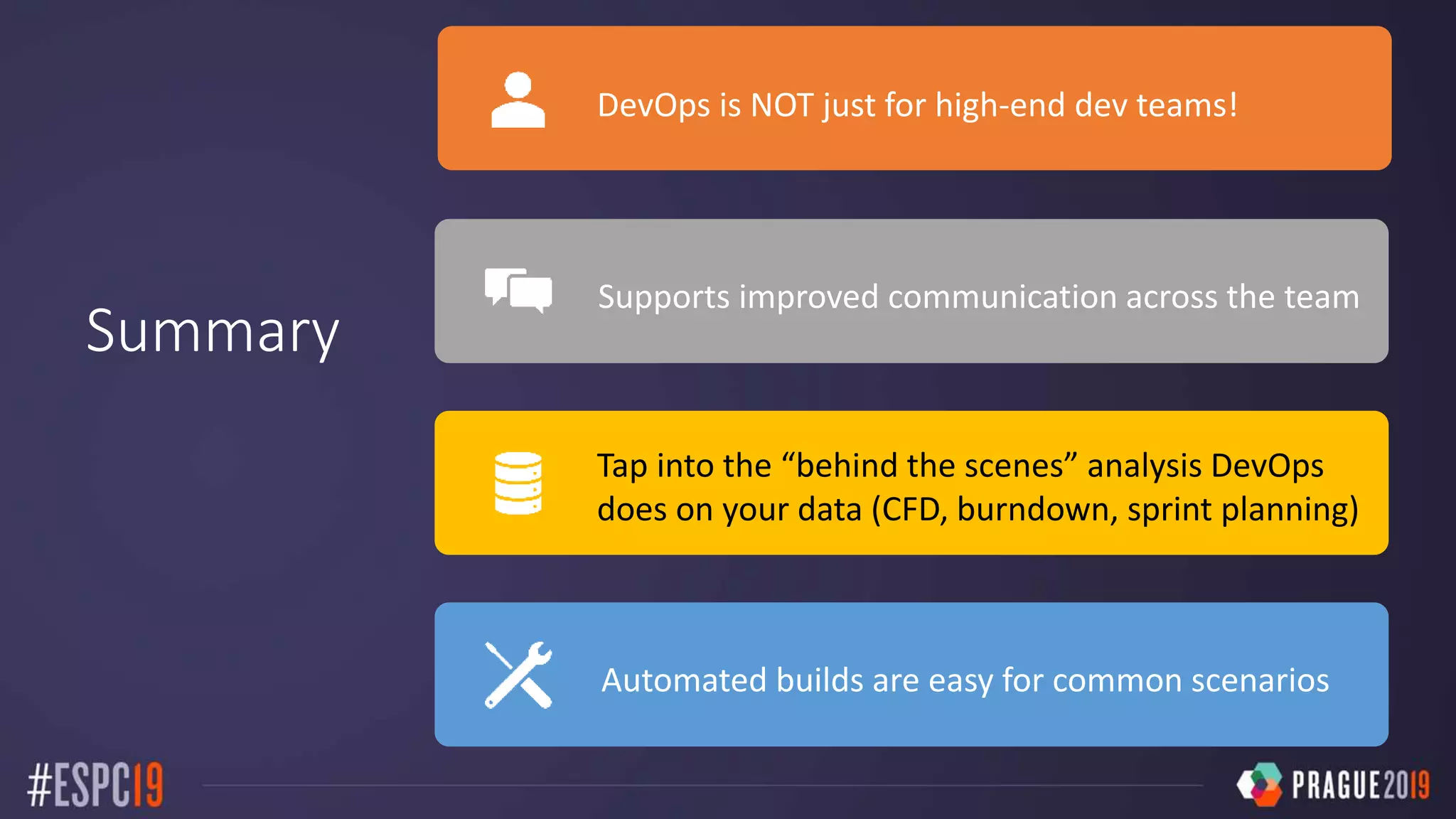
Summary
DevOps is NOT just for high-end dev teams!
Supports improved communication across the team
Tap into the “behind the scenes” analysis DevOps
does on your data (CFD, burndown, sprint planning)
Automated builds are easy for common scenarios
Resources
https://sharepointnutsandbolts.com
https://cob-sp.com/2DHk7gK
https://cob-sp.com/DevOpsVideos
Thank you!! 
Any questions?
@ChrisO_Brien
(Content and Code)

Chris OBrien - Azure DevOps for managing work

  • 1.
    Using Azure DevOpsBoards to manage development or support work CHRIS O’BRIEN (MVP) Products and Services Director, Content and Cloud, UK
  • 2.
    About me Products andServices Director, Content and Cloud www.sharepointnutsandbolts.com @ChrisO_Brien http://cob-sp.com/COBLinkedIn
  • 3.
    My boss saidwe need DevOps! DevOps as a concept: SHORTEN DEVELOPMENT CYCLES PROVIDE CONTINUOUS DELIVERY INCREASE QUALITY Close the gap between development and operations/admins
  • 4.
    Azure DevOps tools Boards Plan,track and collaborate around dev tasks Simple/lightweight options Agile planning tools Repos Store code at any scale Use Git or TFVC Rich tools e.g. branch policies, code reviews, semantic code search Pipelines Automated builds and deployments Cloud-hosted Flexibility: • Many languages • Container support • Azure/AWS/GCP • SPFx Other Testing – manual and automated Artifacts – package hosting Integrations/ marketplace – Teams, Slack, Excel etc.
  • 5.
    Azure DevOps tools Boards Plan,track and collaborate around dev tasks Simple/lightweight options Agile planning tools Repos Store code at any scale Use Git or TFVC Rich tools e.g. branch policies, code reviews, semantic code search Pipelines Automated builds and deployments Cloud-hosted Flexibility: • Many languages • Container support • Azure/AWS/GCP • SPFx Other Testing – manual and automated Artifacts – package hosting Integrations/ marketplace – Teams, Slack, Excel etc.
  • 6.
  • 7.
    A high-end supportteam might use an enterprise ITSM tool like ServiceNow to track their work. But what about other cases? Development Support A dev team not already using Azure DevOps may use a variety of tools – Jira, Asana Github etc. But many are still using simpler tools! In both scenarios, there’s a good case for Azure DevOps being a better solution!
  • 8.
    Before looking atAzure DevOps, let’s consider simpler tools and their pros/cons
  • 9.
    Options for trackingwork For Simple and accessible PMs like it Against Everything! But especially: • Info buried in a file • No images • No visual representation • No notifications • No capacity tracking
  • 10.
    Options for trackingwork For No longer trapped in a file PMs like it Against No support for iterations No capacity planning Not particularly visual
  • 11.
    Options for trackingwork For Board view Integration (e.g. Teams) Against No support for iterations No capacity planning Lack of advanced features e.g. link to code, burndown chart
  • 12.
    Boards - fundamentals Taskboard as the centre Simple drag and drop between statuses Track effort remaining, priority etc. Collaboration features @mentions Link to other work items/create relationships
  • 13.
  • 16.
    DEMO – trackingwork SIMPLY with Boards
  • 17.
    Recap – featureswe just saw Backlog items/tasks Adding items and relationships Assigning to users Group work together (issue > tasks) Rich text support Ability to edit items directly from card Tracking Remaining work @mention Follow Notification of task assigned to me Tagging Priority Iterations Defining iterations Assigning items to an iteration
  • 18.
    DevOps can changeyour life! Problem Solution I can't see who is working on what, and which task I should pick up Who is doing what? How much longer will this task take? Has there been any updates to this item? What did we change in the code? Who is overloaded and who has capacity? Has the test environment been updated yet?
  • 19.
    DevOps can changeyour life! Problem Solution I can't see who is working on what, and which task I should pick up Who is doing what? View the task board How much longer will this task take? Look at “remaining effort” Has there been any updates to this item? Follow item What did we change in the code? Link a repo/branch to work item (e.g. Task) Who is overloaded and who has capacity? Look at “Work details” Has the test environment been updated yet? Wait for build e-mails/go into Pipelines area
  • 20.
    Cumulative Flow Diagram(CFD) How the CFD helps How long is an item active for? (cycle time) Which is our slowest phase? • Proposed/Ready? • Active? • Resolved? • Testing?
  • 21.
    Cumulative Flow Diagram Howthe CFD helps How long is an item active for? (cycle time) Which is our slowest phase? • Proposed/Ready? • Active? • Resolved? • Testing?
  • 22.
  • 23.
    Process types Scrum Agile Scrum Agile • New •Active • Resolved • Closed • Removed • New • Active • Committed • Done • Removed
  • 24.
    Bringing some structure In“basic”, use a structure like: Epic Issue Task Not mandatory! Use: • Epics only • Issues only • Epics and Issues Pick what makes sense for you..
  • 25.
    Maintaining a helicopterview (agile/scrum) Use Epics and Features to divide backlog into areas: • Epic – large business initiative e.g. ”Accessibility for all” • Feature – app or chunk of work e.g. “Teams integration” • User stories - sit beneath features Again, Epics and Features are not mandatory! Use one or both if they make sense
  • 26.
    The Agile planningprocess Backlog grooming Add user stories and prioritise Assign approx. effort – hours/story points/sizes Create tasks for selected user stories – tech lead assigns effort Sprint planning Establish sprint capacity (man hours), with absences etc. Use forecast tools to size sprints (based on velocity) Move items into next sprint Ensure matches to available capacity Backlog grooming Sprint planning
  • 27.
    DEMO – runningagile sprints
  • 28.
    Recap – featureswe just saw Managing sprints Set sprint capacity Sprint forecasting Different backlog levels Boards Custom queries Filtering items on board Board styling - card and tag colours/rules Columns on board (e.g. doing/done) Code management/ deployment Link to commit in Azure DevOps Pipelines - build/deploy to Azure App Service
  • 29.
    Burndown chart Interpreting the burndown Flatline = no updates Increase = work not estimated or planned properly at sprint start
  • 30.
    Client quote –down the line “We’ve started using Azure DevOps but it’s SO confusing! We can’t seem to update the status of items properly – WTF?!” This is a licensing gotcha!
  • 31.
    Access levels Visual StudioSubscriber • Full access – to level of VS subscription (Enterprise/Professional) Basic • Access to most features. 5 included for free. Stakeholder • Partial access. Unlimited users for free. Stakeholder access Includes limited access to Kanban boards. Stakeholders can: • Add/edit work items • View boards Stakeholders cannot: • Work with board directly e.g. drag-and-drop work items/update via card • Do sprint planning Developers Pro testers Project Managers or similar Occasional users $0 $0 $6 pm
  • 32.
    Licensing scenario Role NumberLicense type To pay for Cost per month Dev with Visual Studio 6 VS subscription 0 $0 Dev without Visual Studio 6 Basic 1 $6 Project Manager or similar 3 Basic 3 $18 Casual tester 5 Stakeholder 0 $0 TOTAL $24 All devs have Visual Studio? $0 per month 2 x testers upgraded to Basic for free
  • 33.
    Automated builds anddeployments (CI/CD)
  • 34.
    Pipelines fundamentals • 30hours free per month • Free for public projects
  • 35.
    Pipelines - twokinds of builds • Easy to get started/learn build concepts • Visual editor • Split into BUILD and RELEASE pipelines Classic
  • 36.
    Pipelines - twokinds of builds • Pipeline as code - can be branched • Can copy/paste snippets easily • Can reference remote definitions • The future! YAML
  • 37.
    YAML vs. classic– things to know • For now, release builds use classic UI • A classic build exports as JSON, but can be converted to YAML • Use “View YAML” button for individual actions
  • 38.
  • 39.
    Starting DevOps effectively •Centralise discussion through DevOps work items – you’ll benefit later • Reflect and optimise - talk about what worked well • Tweak the board (and work item types) to fit your needs Add tasks only - start simple 1 Track effort on work items (initial and remaining) 2 Use analysis tools – forecasting, burndown, WIP limits etc. 3 Automate builds so testers/PMs are always clear on deployment status 4Go on a Journey:
  • 40.
    Summary DevOps is NOTjust for high-end dev teams! Supports improved communication across the team Tap into the “behind the scenes” analysis DevOps does on your data (CFD, burndown, sprint planning) Automated builds are easy for common scenarios
  • 41.

Editor's Notes

  • #2 To add your image, first delete the place holder image as shown in the white box. Then insert your picture and scale it to be bigger than the size of the white box shown. Finally, right click on your image and select ‘Send to back’ – your image should now be framed correctly.
  • #7 To add your image, first delete the place holder image as shown in the white box. Then insert your picture and scale it to be bigger than the size of the white box shown. Finally, right click on your image and select ‘Send to back’ – your image should now be framed correctly.
  • #23 To add your image, first delete the place holder image as shown in the white box. Then insert your picture and scale it to be bigger than the size of the white box shown. Finally, right click on your image and select ‘Send to back’ – your image should now be framed correctly.
  • #31 To add your image, first delete the place holder image as shown in the white box. Then insert your picture and scale it to be bigger than the size of the white box shown. Finally, right click on your image and select ‘Send to back’ – your image should now be framed correctly.