Download free for 30 days
Sign in
Upload
Language (EN)
Support
Business
Mobile
Social Media
Marketing
Technology
Art & Photos
Career
Design
Education
Presentations & Public Speaking
Government & Nonprofit
Healthcare
Internet
Law
Leadership & Management
Automotive
Engineering
Software
Recruiting & HR
Retail
Sales
Services
Science
Small Business & Entrepreneurship
Food
Environment
Economy & Finance
Data & Analytics
Investor Relations
Sports
Spiritual
News & Politics
Travel
Self Improvement
Real Estate
Entertainment & Humor
Health & Medicine
Devices & Hardware
Lifestyle
Change Language
Language
English
Español
Português
Français
Deutsche
Cancel
Save
EN
AA
Uploaded by
Atelier Akihabara
1,240 views
アトリエ秋葉原 Choregraphe WS#2
アトリエ秋葉原で実施している開発体験ワークショップの資料となります。 (WS#2) 本資料の無断転載を禁じます。すべての著作権はソフトバンクロボティクス株式会社に帰属します。
Engineering
◦
Read more
1
Save
Share
Embed
Embed presentation
Download
Downloaded 16 times
1
/ 30
2
/ 30
3
/ 30
4
/ 30
5
/ 30
6
/ 30
7
/ 30
8
/ 30
9
/ 30
10
/ 30
11
/ 30
12
/ 30
13
/ 30
14
/ 30
15
/ 30
16
/ 30
17
/ 30
18
/ 30
19
/ 30
20
/ 30
21
/ 30
22
/ 30
23
/ 30
24
/ 30
25
/ 30
26
/ 30
27
/ 30
28
/ 30
29
/ 30
30
/ 30
More Related Content
PDF
アトリエ秋葉原 Choregraphe WS#1
by
Atelier Akihabara
PDF
20140921 アトリエ秋葉原 開発ワークショップ_v10
by
Atelier Akihabara
PDF
アトリエ秋葉原 Choregraphe WS#3
by
Atelier Akihabara
PDF
アトリエ秋葉原 Choregraphe WS#4
by
Atelier Akihabara
PPTX
Pepper tech festival_2014_技術セッション基本
by
Atelier Akihabara
PDF
AITCオープンラボ 第4回 IoT勉強会 〜 Pepper x IoT x Web 〜
by
Hirokazu Egashira
PPTX
Pepper tech festival_2014_技術セッション応用
by
Atelier Akihabara
PPTX
Lt 101218
by
Tomoyuki Obi
アトリエ秋葉原 Choregraphe WS#1
by
Atelier Akihabara
20140921 アトリエ秋葉原 開発ワークショップ_v10
by
Atelier Akihabara
アトリエ秋葉原 Choregraphe WS#3
by
Atelier Akihabara
アトリエ秋葉原 Choregraphe WS#4
by
Atelier Akihabara
Pepper tech festival_2014_技術セッション基本
by
Atelier Akihabara
AITCオープンラボ 第4回 IoT勉強会 〜 Pepper x IoT x Web 〜
by
Hirokazu Egashira
Pepper tech festival_2014_技術セッション応用
by
Atelier Akihabara
Lt 101218
by
Tomoyuki Obi
What's hot
PDF
Pepperのアプリ開発について - ABC2015 Summer -
by
Hirokazu Egashira
PPTX
多言語学習アプリを作成してみよう
by
korune ☆
PDF
フロントエンドから見たWebアプリの高速化 #gotandapm
by
Ryo Iinuma
PDF
2015年4月ペパボテックカンファレンス資料
by
buty4649
PDF
Web Speech API で2時間で作れる?ブラウザロボット
by
Hirokazu Egashira
PDF
スマホの動画をテレビで再生!動画共有アプリがChromecastと歩む物語|DevLOVE現場甲子園2014 東日本大会
by
Hikari Fukasawa
PDF
リモートワークで買ってよかったもの
by
TomomitsuKusaba
PPTX
リモートワークで楽々ごはん
by
Tetsuo Honda
PPTX
ニンニンPepperアプリ概要と技術説明
by
chong song
PDF
20151002 Android app for Pepper
by
Kenichi Ohwada
PDF
Unity開発で週イチ呑み会を支える技術
by
kazuya noshiro
Pepperのアプリ開発について - ABC2015 Summer -
by
Hirokazu Egashira
多言語学習アプリを作成してみよう
by
korune ☆
フロントエンドから見たWebアプリの高速化 #gotandapm
by
Ryo Iinuma
2015年4月ペパボテックカンファレンス資料
by
buty4649
Web Speech API で2時間で作れる?ブラウザロボット
by
Hirokazu Egashira
スマホの動画をテレビで再生!動画共有アプリがChromecastと歩む物語|DevLOVE現場甲子園2014 東日本大会
by
Hikari Fukasawa
リモートワークで買ってよかったもの
by
TomomitsuKusaba
リモートワークで楽々ごはん
by
Tetsuo Honda
ニンニンPepperアプリ概要と技術説明
by
chong song
20151002 Android app for Pepper
by
Kenichi Ohwada
Unity開発で週イチ呑み会を支える技術
by
kazuya noshiro
Viewers also liked
PPTX
Pepper アプリデベロッパーのための NAO アプリ開発講座1
by
Takuji Kawata
PDF
Mobius from Maplesoft
by
Eduserv
PDF
ロボット介護機器設計支援ツール、中坊嘉宏(産総研)
by
robotcare
PDF
フィジカルコンピューティング入門 USB-MIDIベースのPepper-Monakaを使う
by
Yoshitaka Kuwata
ODP
Hacking Robotics
by
Kensei Demura
PDF
Pepper DAYS ☆ -Pepperのいる世界-
by
tomomi_pepper
PDF
Pepperって実際何モノ?
by
tomomi_pepper
PDF
Wo!42号|海外のチャットボットツール事例集
by
thinkjam.Inc.
PPTX
Pepper用課金ボックス「ロボコイン」
by
Nishida Kansuke
PDF
Wo! vol.38 ロボットの「iPhone」になるか?Pepperの概要
by
thinkjam.Inc.
PDF
IBM Blluemix を Pepper とつないでみよう
by
Takuji Kawata
PDF
ロボットのいる生活@enPiT
by
tomomi_pepper
PPTX
Ict
by
sujithababu
PDF
Reflection
by
sujithababu
PPT
1578760 634871973423912500
by
Akhila Vi VI
PPTX
Presentation1
by
nikhilaraj
PDF
Reflection
by
sujithababu
PDF
Innovative lesson lpan
by
sujithababu
Pepper アプリデベロッパーのための NAO アプリ開発講座1
by
Takuji Kawata
Mobius from Maplesoft
by
Eduserv
ロボット介護機器設計支援ツール、中坊嘉宏(産総研)
by
robotcare
フィジカルコンピューティング入門 USB-MIDIベースのPepper-Monakaを使う
by
Yoshitaka Kuwata
Hacking Robotics
by
Kensei Demura
Pepper DAYS ☆ -Pepperのいる世界-
by
tomomi_pepper
Pepperって実際何モノ?
by
tomomi_pepper
Wo!42号|海外のチャットボットツール事例集
by
thinkjam.Inc.
Pepper用課金ボックス「ロボコイン」
by
Nishida Kansuke
Wo! vol.38 ロボットの「iPhone」になるか?Pepperの概要
by
thinkjam.Inc.
IBM Blluemix を Pepper とつないでみよう
by
Takuji Kawata
ロボットのいる生活@enPiT
by
tomomi_pepper
Ict
by
sujithababu
Reflection
by
sujithababu
1578760 634871973423912500
by
Akhila Vi VI
Presentation1
by
nikhilaraj
Reflection
by
sujithababu
Innovative lesson lpan
by
sujithababu
アトリエ秋葉原 Choregraphe WS#2
1.
Softbank Robotics Corp.
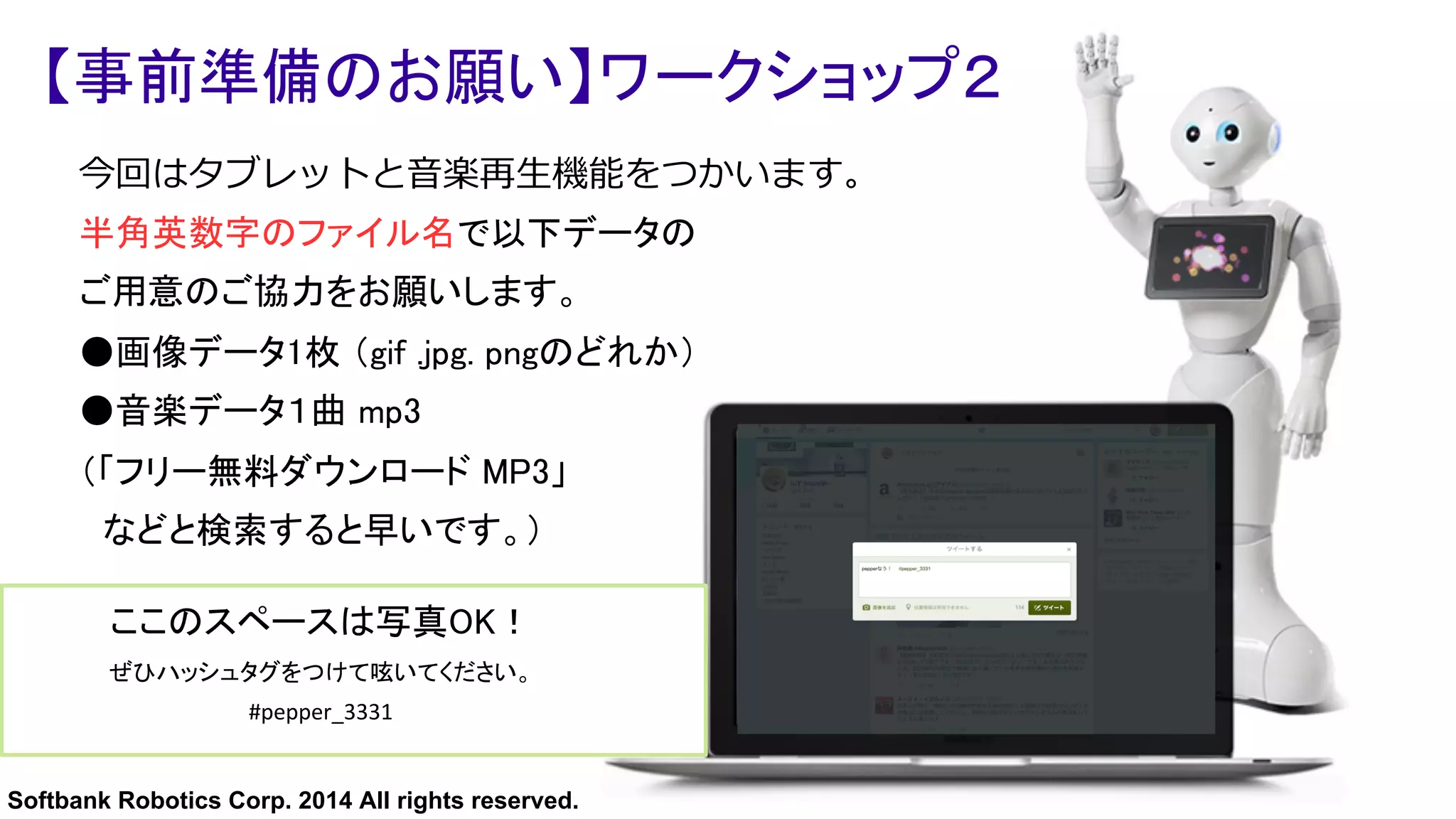
2014 All rights reserved. ここのスペースは写真OK! ぜひハッシュタグをつけて呟いてください。 #pepper_3331 【事前準備のお願い】ワークショップ2 今回はタブレットと⾳音楽再⽣生機能をつかいます。 半角英数字のファイル名で以下データの ご用意のご協力をお願いします。 ● 画像データ1枚 (gif .jpg. pngのどれか) ● 音楽データ1曲 mp3 (「フリー無料ダウンロード MP3」 などと検索すると早いです。)
2.
Softbank Robotics Corp.
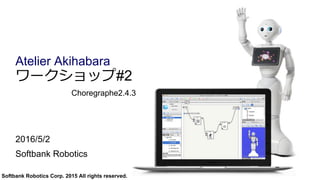
2015 All rights reserved. ワークショップ#2 Choregraphe2.4.3 2016/5/2 Softbank Robotics Atelier Akihabara
3.
Softbank Robotics Corp.
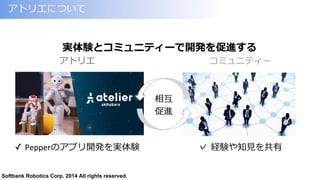
2014 All rights reserved. アトリエについて ✓ Pepperのアプリ開発を実体験 実体験とコミュニティーで開発を促進する アトリエ コミュニティー ✓ 経験や知⾒見見を共有 相互 促進
4.
Softbank Robotics Corp.
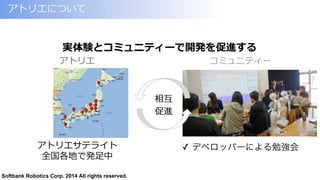
2014 All rights reserved. アトリエについて アトリエサテライト 全国各地で発⾜足中 実体験とコミュニティーで開発を促進する アトリエ コミュニティー ✓ デベロッパーによる勉強会 相互 促進
5.
Softbank Robotics Corp.
2014 All rights reserved. はじめに ・1⼈人1分 ・お名前 ・所属 ・本⽇日の意気込み 例例: 本⽇日の案内を勤めさせていただきます、 ( )と申します。
6.
Softbank Robotics Corp.
2014 All rights reserved. 本⽇日の内容 1.⾳音楽を再⽣生する 2.タブレットに画像を表⽰示 3.移動させる 4.⾝身振りをつけて話す
7.
Softbank Robotics Corp.
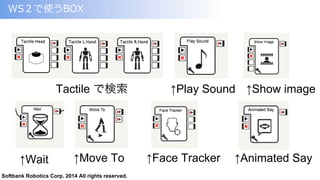
2014 All rights reserved. ↑Play Sound ↑Show image ↑Move To↑Wait ↑Animated Say WS2で使うBOX ↑Face Tracker Tactile で検索
8.
Softbank Robotics Corp.
2014 All rights reserved. ⾳音楽を再⽣生する
9.
Softbank Robotics Corp.
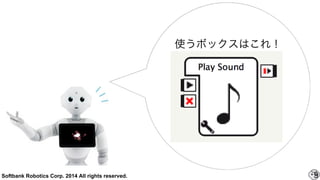
2014 All rights reserved. 9 使うボックスはこれ!
10.
Softbank Robotics Corp.
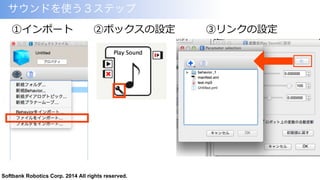
2014 All rights reserved. サウンドを使う3ステップ ①インポート ②ボックスの設定 ③リンクの設定
11.
Softbank Robotics Corp.
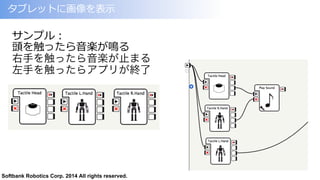
2014 All rights reserved. サンプル: 頭を触ったら⾳音楽が鳴る 右手を触ったら音楽が止まる 左手を触ったらアプリが終了 タブレットに画像を表⽰示
12.
Softbank Robotics Corp.
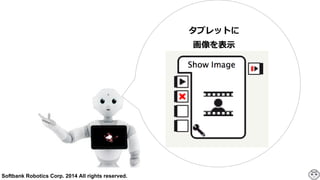
2014 All rights reserved. タブレットに 画像を表⽰示
13.
Softbank Robotics Corp.
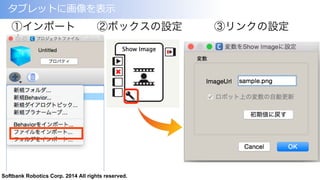
2014 All rights reserved. タブレットに画像を表⽰示 ①インポート ②ボックスの設定 ③リンクの設定
14.
Softbank Robotics Corp.
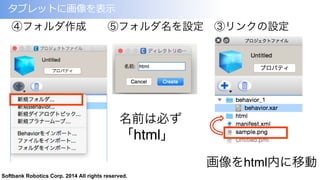
2014 All rights reserved. タブレットに画像を表⽰示 名前は必ず 「html」 ④フォルダ作成 ⑤フォルダ名を設定 ③リンクの設定 画像をhtml内に移動
15.
Softbank Robotics Corp.
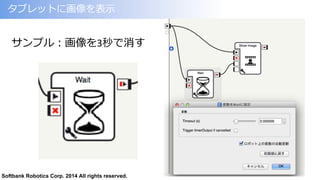
2014 All rights reserved. サンプル:画像を3秒で消す タブレットに画像を表⽰示
16.
Softbank Robotics Corp.
2014 All rights reserved. 移動させてみよう
17.
Softbank Robotics Corp.
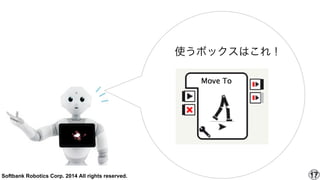
2014 All rights reserved. 17 使うボックスはこれ!
18.
Softbank Robotics Corp.
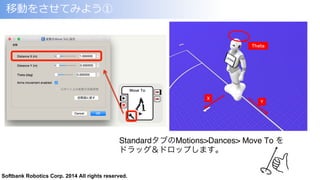
2014 All rights reserved. StandardタブのMotions>Dances> Move To を ドラッグ&ドロップします。 移動をさせてみよう①
19.
Softbank Robotics Corp.
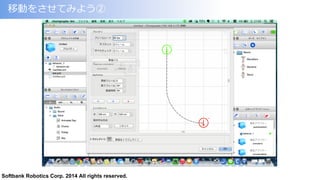
2014 All rights reserved. 移動をさせてみよう② [+]ボタン をクリック し[新規プラナムーブ] を クリックします。 適当な名前を設定して、[追加]ボタンをクリック すると、平面動作エディタが開きます。
20.
Softbank Robotics Corp.
2014 All rights reserved. 移動をさせてみよう②
21.
Softbank Robotics Corp.
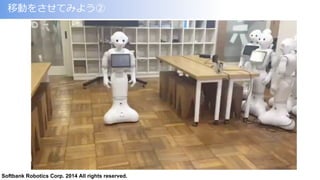
2014 All rights reserved. 移動をさせてみよう②
22.
Softbank Robotics Corp.
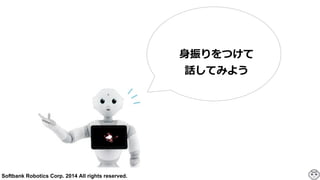
2014 All rights reserved. ⾝身振りをつけて 話してみよう
23.
Softbank Robotics Corp.
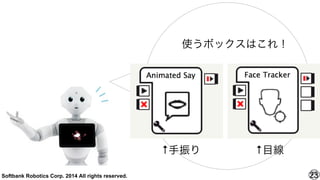
2014 All rights reserved. 23 使うボックスはこれ! ↑手振り ↑目線
24.
Softbank Robotics Corp.
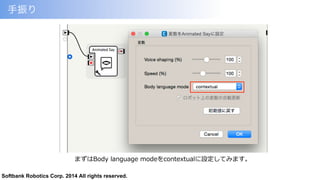
2014 All rights reserved. 手振り まずはBody language modeをcontextualに設定してみます。
25.
Softbank Robotics Corp.
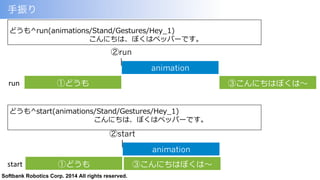
2014 All rights reserved. どうも^start(animations/Stand/Gestures/Hey_̲1) こんにちは、ぼくはペッパーです。 どうも^run(animations/Stand/Gestures/Hey_̲1) こんにちは、ぼくはペッパーです。 run animation ①どうも ③こんにちはぼくは〜~ ②run | start animation ①どうも ③こんにちはぼくは〜~ ②start | 手振り
26.
Softbank Robotics Corp.
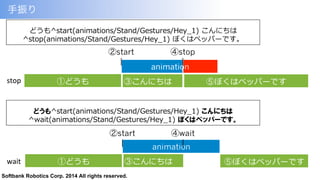
2014 All rights reserved. どうも^start(animations/Stand/Gestures/Hey_̲1) こんにちは ^wait(animations/Stand/Gestures/Hey_̲1) ぼくはペッパーです。 どうも^start(animations/Stand/Gestures/Hey_̲1) こんにちは ^stop(animations/Stand/Gestures/Hey_̲1) ぼくはペッパーです。 animation stop ①どうも ③こんにちは animation ②start | ④stop | ⑤ぼくはペッパーです wait animation ②start | ④wait | ①どうも ⑤ぼくはペッパーです③こんにちは 手振り
27.
Softbank Robotics Corp.
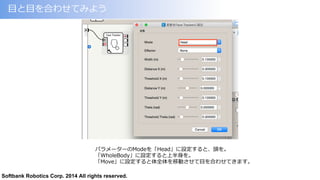
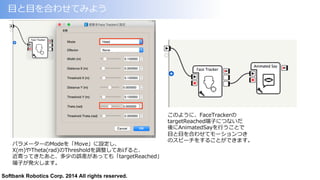
2014 All rights reserved. ⽬目と⽬目を合わせてみよう パラメーターのModeを「Head」に設定すると、頭を。 「WholeBody」に設定すると上半⾝身を。 「Move」に設定すると体全体を移動させて⽬目を合わせてきます。
28.
Softbank Robotics Corp.
2014 All rights reserved. ⽬目と⽬目を合わせてみよう このように、FaceTrackerの targetReached端⼦子につないだ 後にAnimatedSayを⾏行行うことで ⽬目と⽬目を合わせてモーションつき のスピーチをすることができます。 パラメーターのModeを「Move」に設定し、 X(m)やTheta(rad)のThresholdを調整してあげると、 近寄ってきたあと、多少の誤差があっても「targetReached」 端⼦子が発⽕火します。
29.
Softbank Robotics Corp.
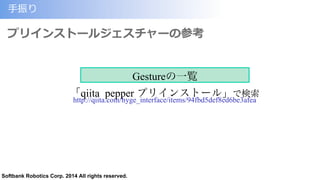
2014 All rights reserved. ⼿手振り プリインストールジェスチャーの参考 「qiita pepper プリインストール」で検索 http://qiita.com/hyge_interface/items/94fbd5def8ed6be3afea Gestureの一覧
30.
Softbank Robotics Corp.
2014 All rights reserved. おつかれさまでした! これにてWS2は終わりになります。 WS3.4もぜひ受講してみてください
Download

![Softbank Robotics Corp. 2014 All rights reserved.
移動をさせてみよう②
[+]ボタン をクリック
し[新規プラナムーブ] を
クリックします。
適当な名前を設定して、[追加]ボタンをクリック
すると、平面動作エディタが開きます。](https://image.slidesharecdn.com/ws22-160926091023/85/Choregraphe-WS-2-19-320.jpg)