SYSTEM UNIT
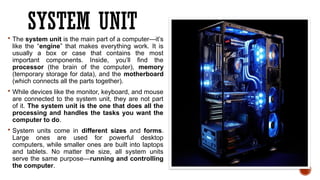
Thesystem unit is the main part of a computer—it’s
like the “engine” that makes everything work. It is
usually a box or case that contains the most
important components. Inside, you’ll find the
processor (the brain of the computer), memory
(temporary storage for data), and the motherboard
(which connects all the parts together).
While devices like the monitor, keyboard, and mouse
are connected to the system unit, they are not part
of it. The system unit is the one that does all the
processing and handles the tasks you want the
computer to do.
System units come in different sizes and forms.
Large ones are used for powerful desktop
computers, while smaller ones are built into laptops
and tablets. No matter the size, all system units
serve the same purpose—running and controlling
the computer.
3.
DESKTOP SYSTEM UNITS
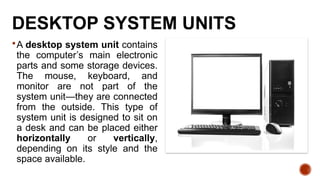
Adesktop system unit contains
the computer’s main electronic
parts and some storage devices.
The mouse, keyboard, and
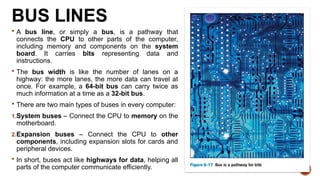
monitor are not part of the
system unit—they are connected
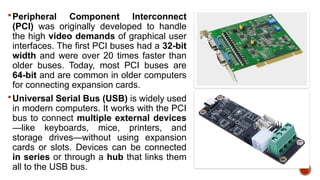
from the outside. This type of
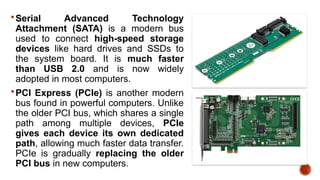
system unit is designed to sit on
a desk and can be placed either
horizontally or vertically,
depending on its style and the
space available.
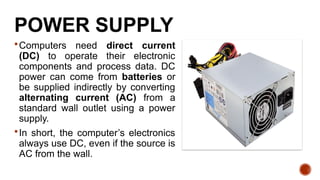
4.
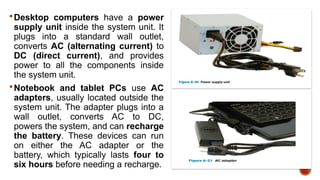
MEDIA CENTER SYSTEMUNITS
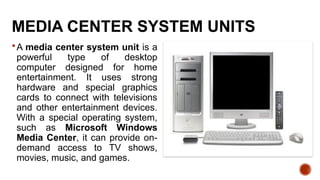
A media center system unit is a
powerful type of desktop
computer designed for home
entertainment. It uses strong
hardware and special graphics
cards to connect with televisions
and other entertainment devices.
With a special operating system,
such as Microsoft Windows
Media Center, it can provide on-
demand access to TV shows,
movies, music, and games.
5.
NOTEBOOK
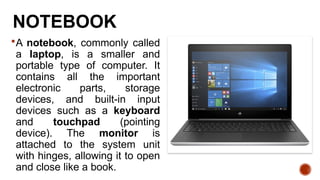
A notebook, commonlycalled
a laptop, is a smaller and
portable type of computer. It
contains all the important
electronic parts, storage
devices, and built-in input
devices such as a keyboard
and touchpad (pointing
device). The monitor is
attached to the system unit
with hinges, allowing it to open
and close like a book.
6.
NETBOOK
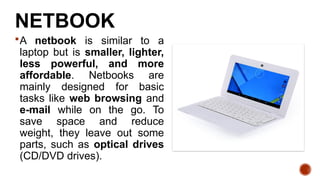
A netbook issimilar to a
laptop but is smaller, lighter,
less powerful, and more
affordable. Netbooks are
mainly designed for basic
tasks like web browsing and
e-mail while on the go. To
save space and reduce
weight, they leave out some
parts, such as optical drives
(CD/DVD drives).
7.
TABLET PC
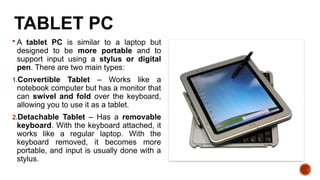
Atablet PC is similar to a laptop but
designed to be more portable and to
support input using a stylus or digital
pen. There are two main types:
1.Convertible Tablet – Works like a
notebook computer but has a monitor that
can swivel and fold over the keyboard,
allowing you to use it as a tablet.
2.Detachable Tablet – Has a removable
keyboard. With the keyboard attached, it
works like a regular laptop. With the
keyboard removed, it becomes more
portable, and input is usually done with a
stylus.
8.
HANDHELD COMPUTER
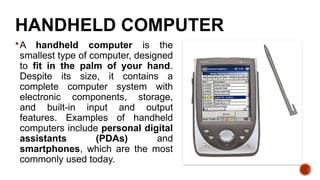
A handheldcomputer is the
smallest type of computer, designed
to fit in the palm of your hand.
Despite its size, it contains a
complete computer system with
electronic components, storage,
and built-in input and output
features. Examples of handheld
computers include personal digital
assistants (PDAs) and
smartphones, which are the most
commonly used today.
9.
COMPONENTS
While theactual size may vary, each type of
system unit has the same basic system
components including system board,
microprocessor, and memory.
10.
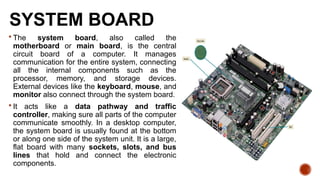
SYSTEM BOARD
Thesystem board, also called the
motherboard or main board, is the central
circuit board of a computer. It manages
communication for the entire system, connecting
all the internal components such as the
processor, memory, and storage devices.
External devices like the keyboard, mouse, and
monitor also connect through the system board.
It acts like a data pathway and traffic
controller, making sure all parts of the computer
communicate smoothly. In a desktop computer,
the system board is usually found at the bottom
or along one side of the system unit. It is a large,
flat board with many sockets, slots, and bus
lines that hold and connect the electronic
components.
11.
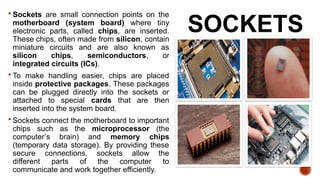
SOCKETS
Sockets aresmall connection points on the
motherboard (system board) where tiny
electronic parts, called chips, are inserted.
These chips, often made from silicon, contain
miniature circuits and are also known as
silicon chips, semiconductors, or
integrated circuits (ICs).
To make handling easier, chips are placed
inside protective packages. These packages
can be plugged directly into the sockets or
attached to special cards that are then
inserted into the system board.
Sockets connect the motherboard to important
chips such as the microprocessor (the
computer’s brain) and memory chips
(temporary data storage). By providing these
secure connections, sockets allow the
different parts of the computer to
communicate and work together efficiently.
12.
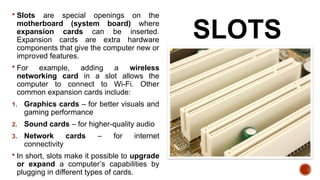
SLOTS
Slots arespecial openings on the
motherboard (system board) where
expansion cards can be inserted.
Expansion cards are extra hardware
components that give the computer new or
improved features.
For example, adding a wireless
networking card in a slot allows the
computer to connect to Wi-Fi. Other
common expansion cards include:
1. Graphics cards – for better visuals and
gaming performance
2. Sound cards – for higher-quality audio
3. Network cards – for internet
connectivity
In short, slots make it possible to upgrade
or expand a computer’s capabilities by
plugging in different types of cards.
13.
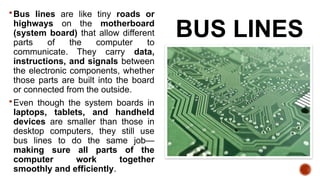
BUS LINES
Bus linesare like tiny roads or
highways on the motherboard
(system board) that allow different
parts of the computer to
communicate. They carry data,
instructions, and signals between
the electronic components, whether
those parts are built into the board
or connected from the outside.
Even though the system boards in
laptops, tablets, and handheld
devices are smaller than those in
desktop computers, they still use
bus lines to do the same job—
making sure all parts of the
computer work together
smoothly and efficiently.
14.
MICROPROCESSOR
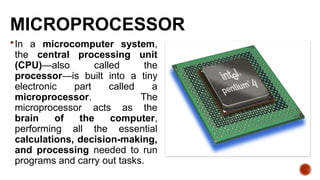
In a microcomputersystem,
the central processing unit
(CPU)—also called the
processor—is built into a tiny
electronic part called a
microprocessor. The
microprocessor acts as the
brain of the computer,
performing all the essential
calculations, decision-making,
and processing needed to run
programs and carry out tasks.
15.
CONTROL UNIT
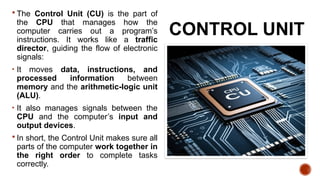
TheControl Unit (CU) is the part of
the CPU that manages how the
computer carries out a program’s
instructions. It works like a traffic
director, guiding the flow of electronic
signals:
• It moves data, instructions, and
processed information between
memory and the arithmetic-logic unit
(ALU).
• It also manages signals between the
CPU and the computer’s input and
output devices.
In short, the Control Unit makes sure all
parts of the computer work together in
the right order to complete tasks
correctly.
16.
ARITHMETIC –
LOGIC UNIT
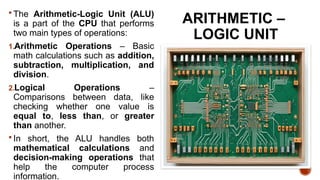
The Arithmetic-Logic Unit (ALU)
is a part of the CPU that performs
two main types of operations:
1.Arithmetic Operations – Basic
math calculations such as addition,
subtraction, multiplication, and
division.
2.Logical Operations –
Comparisons between data, like
checking whether one value is
equal to, less than, or greater
than another.
In short, the ALU handles both
mathematical calculations and
decision-making operations that
help the computer process
information.
17.
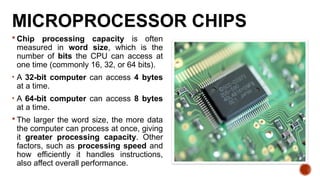
MICROPROCESSOR CHIPS
Chipprocessing capacity is often
measured in word size, which is the
number of bits the CPU can access at
one time (commonly 16, 32, or 64 bits).
• A 32-bit computer can access 4 bytes
at a time.
• A 64-bit computer can access 8 bytes
at a time.
The larger the word size, the more data
the computer can process at once, giving
it greater processing capacity. Other
factors, such as processing speed and
how efficiently it handles instructions,
also affect overall performance.
18.
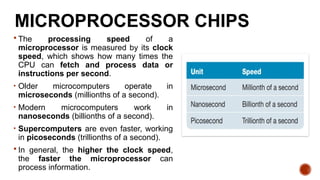
MICROPROCESSOR CHIPS
Theprocessing speed of a
microprocessor is measured by its clock
speed, which shows how many times the
CPU can fetch and process data or
instructions per second.
• Older microcomputers operate in
microseconds (millionths of a second).
• Modern microcomputers work in
nanoseconds (billionths of a second).
• Supercomputers are even faster, working
in picoseconds (trillionths of a second).
In general, the higher the clock speed,
the faster the microprocessor can
process information.
19.
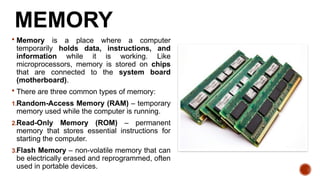
MEMORY
Memory isa place where a computer
temporarily holds data, instructions, and
information while it is working. Like
microprocessors, memory is stored on chips
that are connected to the system board
(motherboard).
There are three common types of memory:
1.Random-Access Memory (RAM) – temporary
memory used while the computer is running.
2.Read-Only Memory (ROM) – permanent
memory that stores essential instructions for
starting the computer.
3.Flash Memory – non-volatile memory that can
be electrically erased and reprogrammed, often
used in portable devices.
20.
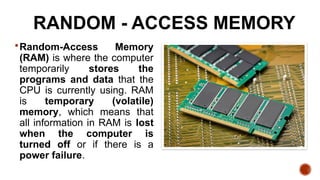
RANDOM - ACCESSMEMORY
Random-Access Memory
(RAM) is where the computer
temporarily stores the
programs and data that the
CPU is currently using. RAM
is temporary (volatile)
memory, which means that
all information in RAM is lost
when the computer is
turned off or if there is a
power failure.
21.
READ – ONLYMEMORY
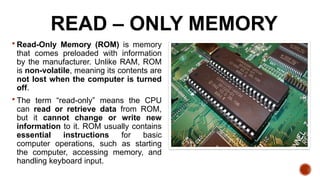
Read-Only Memory (ROM) is memory
that comes preloaded with information
by the manufacturer. Unlike RAM, ROM
is non-volatile, meaning its contents are
not lost when the computer is turned
off.
The term “read-only” means the CPU
can read or retrieve data from ROM,
but it cannot change or write new
information to it. ROM usually contains
essential instructions for basic
computer operations, such as starting
the computer, accessing memory, and
handling keyboard input.
22.
FLASH MEMORY
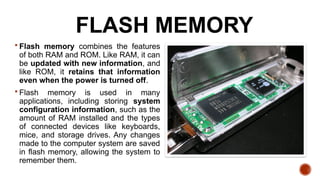
Flashmemory combines the features
of both RAM and ROM. Like RAM, it can
be updated with new information, and
like ROM, it retains that information
even when the power is turned off.
Flash memory is used in many
applications, including storing system
configuration information, such as the
amount of RAM installed and the types
of connected devices like keyboards,
mice, and storage drives. Any changes
made to the computer system are saved
in flash memory, allowing the system to
remember them.
23.
EXPANSION SLOTS &CARDS
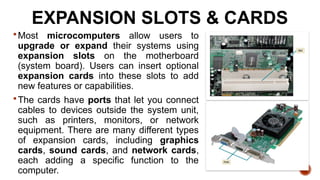
Most microcomputers allow users to
upgrade or expand their systems using
expansion slots on the motherboard
(system board). Users can insert optional
expansion cards into these slots to add
new features or capabilities.
The cards have ports that let you connect
cables to devices outside the system unit,
such as printers, monitors, or network
equipment. There are many different types
of expansion cards, including graphics
cards, sound cards, and network cards,
each adding a specific function to the
computer.
24.
1. Graphics Cards– Provide high-quality
3D graphics and animations, mainly used
for games, simulations, and video editing.
2. Sound Cards – Convert audio from
devices like a microphone into a form the
computer can process, and also convert
digital signals into sound that can be played
through speakers or home theater
systems.
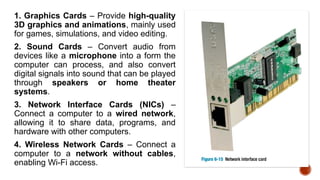
3. Network Interface Cards (NICs) –
Connect a computer to a wired network,
allowing it to share data, programs, and
hardware with other computers.
4. Wireless Network Cards – Connect a
computer to a network without cables,
enabling Wi-Fi access.
25.
BUS LINES
Abus line, or simply a bus, is a pathway that
connects the CPU to other parts of the computer,
including memory and components on the system
board. It carries bits representing data and
instructions.
The bus width is like the number of lanes on a
highway: the more lanes, the more data can travel at
once. For example, a 64-bit bus can carry twice as
much information at a time as a 32-bit bus.
There are two main types of buses in every computer:
1.System buses – Connect the CPU to memory on the
motherboard.
2.Expansion buses – Connect the CPU to other
components, including expansion slots for cards and
peripheral devices.
In short, buses act like highways for data, helping all
parts of the computer communicate efficiently.
26.
EXPANSION BUSES
Computer systemstypically have a
combination of different types of
expansion buses. The principal types are
PCI, USB, Firewire, SATA, and PCIe.
27.
Peripheral Component Interconnect
(PCI)was originally developed to handle
the high video demands of graphical user
interfaces. The first PCI buses had a 32-bit
width and were over 20 times faster than
older buses. Today, most PCI buses are
64-bit and are common in older computers
for connecting expansion cards.
Universal Serial Bus (USB) is widely used
in modern computers. It works with the PCI
bus to connect multiple external devices
—like keyboards, mice, printers, and
storage drives—without using expansion
cards or slots. Devices can be connected
in series or through a hub that links them
all to the USB bus.
28.
Serial Advanced Technology
Attachment(SATA) is a modern bus
used to connect high-speed storage
devices like hard drives and SSDs to
the system board. It is much faster
than USB 2.0 and is now widely
adopted in most computers.
PCI Express (PCIe) is another modern
bus found in powerful computers. Unlike
the older PCI bus, which shares a single
path among multiple devices, PCIe
gives each device its own dedicated
path, allowing much faster data transfer.
PCIe is gradually replacing the older
PCI bus in new computers.
29.
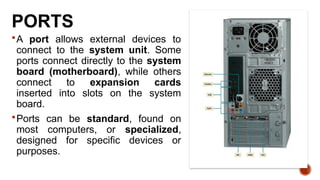
PORTS
A port allowsexternal devices to
connect to the system unit. Some
ports connect directly to the system
board (motherboard), while others
connect to expansion cards
inserted into slots on the system
board.
Ports can be standard, found on
most computers, or specialized,
designed for specific devices or
purposes.
30.
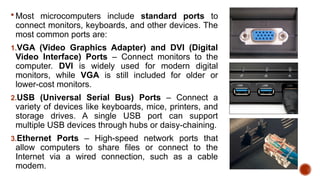
Most microcomputersinclude standard ports to
connect monitors, keyboards, and other devices. The
most common ports are:
1.VGA (Video Graphics Adapter) and DVI (Digital
Video Interface) Ports – Connect monitors to the
computer. DVI is widely used for modern digital
monitors, while VGA is still included for older or
lower-cost monitors.
2.USB (Universal Serial Bus) Ports – Connect a
variety of devices like keyboards, mice, printers, and
storage drives. A single USB port can support
multiple USB devices through hubs or daisy-chaining.
3.Ethernet Ports – High-speed network ports that
allow computers to share files or connect to the
Internet via a wired connection, such as a cable
modem.
31.
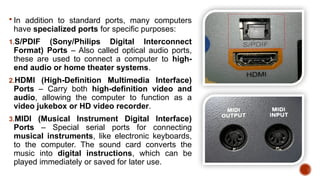
In additionto standard ports, many computers
have specialized ports for specific purposes:
1.S/PDIF (Sony/Philips Digital Interconnect
Format) Ports – Also called optical audio ports,
these are used to connect a computer to high-
end audio or home theater systems.
2.HDMI (High-Definition Multimedia Interface)
Ports – Carry both high-definition video and
audio, allowing the computer to function as a
video jukebox or HD video recorder.
3.MIDI (Musical Instrument Digital Interface)
Ports – Special serial ports for connecting
musical instruments, like electronic keyboards,
to the computer. The sound card converts the
music into digital instructions, which can be
played immediately or saved for later use.
32.
CABLES
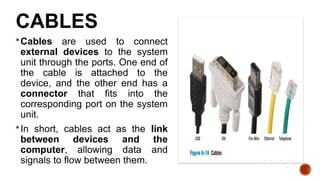
Cables are usedto connect
external devices to the system
unit through the ports. One end of
the cable is attached to the
device, and the other end has a
connector that fits into the
corresponding port on the system
unit.
In short, cables act as the link
between devices and the
computer, allowing data and
signals to flow between them.
33.
Computers need directcurrent
(DC) to operate their electronic
components and process data. DC
power can come from batteries or
be supplied indirectly by converting
alternating current (AC) from a
standard wall outlet using a power
supply.
In short, the computer’s electronics
always use DC, even if the source is
AC from the wall.
POWER SUPPLY
34.
Desktop computershave a power
supply unit inside the system unit. It
plugs into a standard wall outlet,
converts AC (alternating current) to
DC (direct current), and provides
power to all the components inside
the system unit.
Notebook and tablet PCs use AC
adapters, usually located outside the
system unit. The adapter plugs into a
wall outlet, converts AC to DC,
powers the system, and can recharge
the battery. These devices can run
on either the AC adapter or the
battery, which typically lasts four to
six hours before needing a recharge.