ARDUINO PROGRAM
DEVELOPMENT
ARDUINO – INSTALLATION
After learning about the main parts of the Arduino UNO
board, we are ready to learn how to set up the Arduino IDE.
Once we learn this, we will be ready to upload our program
on the Arduino board.
In this section, we will learn in easy steps, how to setup
the Arduino IDE on our computer and prepare the board to
receive the program via USB cable.
Step 1: First you must have your Arduino board and a
USB cable. In case you use Arduino UNO, Arduino Nano,
Arduino Mega 2560, you will need a standard USB cable (A
plug to B plug), the kind you would connect to a USB printer
as shown in the following image.
Step 2: Download Arduino IDE Software.
You can get different versions of Arduino IDE
from the Download page on the Arduino Official
website. You must select your software, which is
compatible with your operating system (Windows,
IOS, or Linux). After your file download is complete,
unzip the file.
Step 3: Power up your board. The Arduino Uno,
Mega, and Arduino Nano automatically draw power from
either, the USB connection to the computer or an external
power supply.
The power source is selected with a jumper, a small
piece of plastic that fits onto two of the three pins
between the USB and power jacks. Connect the Arduino
board to your computer using the USB cable. The green
power LED (labeled PWR) should glow.
 Step 4: Launch Arduino IDE.
After your Arduino IDE software is downloaded,
you need to unzip the folder. Inside the folder, you
can find the application icon with an infinity label
(application.exe). Double-click the icon to start the
IDE.
 Step 5: Open your first project. Once the software starts,
you have two options: Create a new project. Open an
existing project example.
CONNECT YOUR ARDUINO UNO
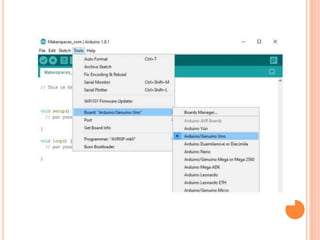
 Step 6: Select your Arduino board.
At this point you are ready to connect your Arduino
to your computer. Plug one end of the USB cable to the
Arduino Uno and then the other end of the USB to your
computer’s USB port.
To avoid any error while uploading your program to
the board, you must select the correct Arduino board
name, which matches with the board connected to your
computer. Once the board is connected, you will need to
go to Tools then Board then finally select Arduino Uno
CONFIGURING THE ARDUINO COMPILER
Next, you have to tell the Arduino which port you are
using on your computer. To select the port, go to Tools
then Port then select the port that says Arduino
Defaults to COM1, will probably need to change the COM
port setting. Appears in Device Manager (Win7) under
Ports as a COM port.
TO GET STARTED YOU NEED THE
FOLLOWING:
PC (Windows, Mac, Linux)
Arduino UNO
Software (free)
Electrical components (wires, resistors,
etc.)
 1.Menu Bar: Gives you access to the tools needed for
creating and saving Arduino sketches.
 2. Verify Button: Compiles your code and checks for
errors in spelling or syntax.
 3. Upload Button: Sends the code to the board that’s
connected such as Arduino Uno in this case. Lights on
the board will blink rapidly when uploading.
 4. New Sketch: Opens up a new window containing a
blank sketch.
 5. Sketch Name: When the sketch is saved, the name of
the sketch is displayed here.
 6. Open Existing Sketch: Allows you to open a saved
sketch or one from the stored examples.
7. Save Sketch: This saves the sketch you currently have
open.
8. Serial Monitor: When the board is connected, this will
display the serial information of your Arduino
9. Code Area: This area is where you compose the code of
the sketch that tells the board what to do.
10.Message Area: This area tells you the status on saving,
code compiling, errors and more.
11.Text Console: Shows the details of an error messages,
size of the program that was compiled and additional info.
12.Board and Serial Port: Tells you what board is being used
and what serial port it’s connected to.
WHAT TO GET – MY RECOMMENDATION
 Required:
 Arduino (such as Uno)
 USB A-B (printer) cable
 Breadboard
 Hookup wire
 LED's
 Resistors
 Sensors
 Switches
 Good Idea:
 Capacitors
 Transistors
 DC motor/servo
 Relay
 Advanced:
 Soldering iron & solder
 Heat shrink tubing
 9V battery adapter
 Bench power supply
ARDUINO PROGRAM
 Based on C++ without 80% of the instructions.
 A handful of new commands.
 Programs are called 'sketches'.
 Sketches need two functions:
 void setup( )
 void loop( )
 setup( ) runs first and once.
 loop( ) runs over and over, until power is lost or a new
sketch is loaded.
COMPILER FEATURES
 Numerous sample
sketches are included in
the compiler
 Located under File,
Examples
 Once a sketch is written, it
is uploaded by clicking on
File, Upload, or by
pressing <Ctrl> U
ARDUINO CODE BASICS
Arduino programs run on two basic sections:
void setup() {
//setup motors, sensors etc
}
void loop() {
// get information from sensors
// send commands to motors
}
BASIC CODING STRUCTURE
 setup() function
• Called when a sketch starts.
• To initialize variables, pin modes, start
using libraries, etc.
• Will only run once, after each power-up
or reset of the Arduino board.
 loop() function
• Loops consecutively.
• Code in the loop() section of the sketch
is used to actively control the Arduino
board.
 Commenting
• Any line that starts with two slashes (//)
will not be read by the compiler, so you
can write anything you want after it.
26
 pinMode()
 Instruction used to set the mode
(INPUT or OUTPUT) in which we
are going to use a pin.
 Eg: pinMode (13, OUTPUT);
 ie. setting pin13 as output.
 digitalWrite()
• Write a HIGH or a LOW value to
a digital pin.
• Eg: digitalWrite (11, HIGH);
• ie. setting pin 11 to high.
27
 digitalRead()
• Reads the value from a specified digital
pin, either HIGH or LOW
• Eg: int inPin=7;
val = digitalRead(inPin);
• ie. reads the value from inPin and assigns it
to val.
 delay()
• Pauses the program for the amount of time
(in milliseconds) specified as parameter.
• Eg: delay(1000);
• ie. waits for a second (1000 ms = 1 s) 28
SETUP
 The setup section is used for assigning input and
outputs (Examples: motors, LED’s, sensors etc) to
ports on the Arduino
 It also specifies whether the device is OUTPUT or
INPUT
 To do this we use the command “pinMode”
29
29
VARIABLES
 A variable is like “bucket”
 It holds numbers or other values temporarily
 The variables are defined as the place to store the data
and values. It consists of a name, value, and type.
 The variables can belong to any data type such as int,
float, char, etc.
30
30
DECLARING A VARIABLE
31
int pin = 8;
Type
variable name
assignment
“becomes”
value
 Here, the int data type is used to create a variable
named pin that stores the value 8. It also means that
value 8 is initialized to the variable pin.
 We can modify the name of the variable according to our
choice. For example,
 The above example can also be written as:
 int LEDpin = 8;
 Here, the variable name is LEDpin.
 We can refer the declared variable further in our program
or code.
 For example,
 pinMode(LEDpin, OUTPUT);
 Advantages of Variables
 The advantages of the variables are listed below:
 We can use a variable many times in a program.
 The variables can represent integers, float, strings,
characters, etc.
 It increases the flexibility of the program.
 We can easily modify the variables. For example, if we
want to change the value of variable LEDpin from 8 to 13,
we need to change the only point in the code.
 We can specify any name for a variable. For example,
greenpin, bluePIN, REDpin, etc.
The value of a variable can be changed using the
assignment operator ( equal = sign). But we need
to declare a variable before assigning the value. If
we directly specify the value as:
pin = 7; // We will get an error that pin has not
declared.
We can easily change the variables by copying its
value to another variable.
For example,
int LEDpin = 7;
int pin1 = LEDpin;
LEDpin = 13;
The LEDpin now contains the value 13 instead of
7. But, value of pin1 is still 7.
 Variables Scope
It means that in how many ways the variables can be
declared.
The variables can be declared in two ways in Arduino,
which are listed below:
 Local variables
 Global variables
 Local Variables
The local variables are declared within the function.
The variables have scope only within the function. These
variables can be used only by the statements that lie within
that function.
For example,
void setup()
{
Serial.begin(9600);
}
void loop()
{
int x = 3;
int b = 4;
int sum = 0;
sum = x + b;
Serial.println(sum);
}
Global Variables
The global variables can be accessed anywhere in the
program. The global variable is declared outside the
setup() and loop() function.
For example, Consider the below code.
int LEDpin = 8;
void setup()
{
pinMode(LEDpin, OUTPUT);
}
void loop()
{
digitalWrite(LEDpin, HIGH);
}
We can notice that the LEDpin is used both in the loop() and
setup() functions.
The value is used in both functions, so, changing the value in
one function will reflect in the other. For example,
int LEDpin = 8;
void setup()
{
LEDpin = 13;
pinMode(LEDpin, OUTPUT);
}
void loop()
{
digitalWrite(LEDpin, HIGH);
}
Here, the value 13 will be passed to the digitalWrite() function.
VARIABLES
USING VARIABLES
40
int delayTime = 2000;
int greenLED = 9;
void setup()
{
pinMode(greenLED, OUTPUT);
}
void loop()
{
digitalWrite(greenLED,
HIGH);
delay(delayTime);
digitalWrite(greenLED,
LOW);
Declare delayTime
Variable
Use delayTime
Variable
 LED_BUILTIN Constant
The Arduino boards have built-in LED connected in
series with the resistor. The particular pin number is
defined with the constant name called LED_BUILTIN.
Most Arduino boards have the LED_BUILTIN connected
to Pin number 13.
 Constant Keyword
The name const represents the constant keyword. It
modifies the behavior of the variables in our program. It
makes the variable as 'read-only'.
The variable will remain the same as other variables,
but its value cannot be changed. It means we cannot
modify the constant. For example,
const int a =2;
a = 7; // illegal-we cannot write to or modify a constant
 The const keyword stands for constant. It is a variable
qualifier that modifies the behavior of the variable,
making a variable "read-only". This means that the
variable can be used just as any other variable of its type,
but its value cannot be changed.
 const float pi = 3.14;
 float x;
 // .... x = pi * 2; // it's fine to use consts in math
 pi = 7; // illegal - you can't write to (modify) a constant
#define
The #define in Arduino is used to give a name to the
constant value. It does not take any memory space on the
chip.
At the compile time, the compiler will replace the
predefined value in the program to the constants with the
defined value.
The syntax is:
#define nameOFconstant value
Where, nameOFconstant: It is the name of the macro or
constant to define.
value: It includes the value assigned to the constant.
For example,
#define LEDpin 12
// It is the correct representation of #define
#define does not require any semicolon.
 In general, the const keyword is preferred for defining
constants and should be used instead of #define.
 Syntax
 #define constantName value
 #define ledPin 3 // The compiler will replace any mention
of ledPin with the value 3 at compile time.
#define is a useful C++ component that allows the
programmer to give a name to a constant value before
the program is compiled.
Defined constants in arduino don’t take up any
program memory space on the chip. The compiler will
replace references to these constants with the defined
value at compile time.
A LITTLE BIT ABOUT PROGRAMMING
• Code is case sensitive
• Statements are
commands and must
end with a semi-colon
• Comments follow a // or
begin with /* and end
with */
• loop and setup
BLINK SKETCH
void setup( )
{
pinMode(13, OUTPUT);
}
void loop( )
{
digitalWrite(13, HIGH);
delay(1000);
digitalWrite(13, LOW);
delay(1000);
}
Connected to
one end of the
circuit
Connected to
other end of the
circuit
Procedure
The procedure to join the components of the
project is shown below: Attach an LED on the
breadboard. We need to plug-in the two terminals of an
LED into the holes of the breadboard. We can plug-in
the LED anywhere on the breadboard. Connect the
resistor in series with the LED, as shown below:
Here, the orange wire is connected to the PIN 8, and the
blue wire is connected to the GND. The shorter terminal
indicates the negative. So, we will connect the shorter
terminal to the Ground (GND).
Connect the USB cable.
Select the board and serial port in the Arduino IDE.
Upload the sketch or code on the board.
The LED will dim and light for the specified duration.
while the other terminal is connected to the digital pin.
The digital pin has only two values 0 or 1
Important points
The important points to be considered in this
project are listed below:
The resistor must be connected in series with the
LED.
The resistor prevents the excess current from
reaching the LED. The excess current in the
connection can burn the LED. Hence, a resistor in
series with the LED is used in the connection.
We can use any pin as the OUTPUT pin. For
example, 8, 13, 7, 4, and 3. The other pins are
PWM and analog pins.
One terminal of the LED is connected to the
Ground
Blinking Two LED
We have already discussed a project of blinking
an LED. Here, we will discuss a project of blinking two
LED's.
The concept of blinking two LED's is similar to
the blinking of a single LED. As we know, we can use
the resistance of any value, so let's take the resistors
of 470 Ohms. The resistors reduce the amount of
current reaching the LED, which saves the LED from
being burnt.
We can also use other resistors depending on
the circuit limit and requirements. Let's start with the
project.
Structure of two LED's
The structure of red and green LED is shown below:
The long terminal is called Anode (positive charged), and
the short terminal is called Cathode (negative charged).
Components
The components used in the project are listed
below:
1 x Arduino UNO board.
We can also use other types of Arduino boards,
such as Arduino Mega, Arduino Micro, etc.
1 x Breadboard
4 x Jump wires
1 x Red LED
1 x Green LED
We need to take 2 LEDs of any color. Here, we will
use the red and green color LED.
2 x Resistor of 470 Ohm.
Structure of the project
Here, we will use the digital output pin number 13
and 7. The positive terminal of the red LED is connected to
the PIN 13, and the negative terminal is connected to the
ground.
Similarly, the positive terminal of the green LED is
connected to PIN 7 and the negative terminal is connected
to the ground.
As mentioned, two resistors each of 470 Ohms, will
be connected in series to the two LEDs in the project.
The structure will represent the pinout diagram of the
project. It is shown below:
Sketch
Open the Arduino IDE (Integrated Development Environment) and start
with the coding, which is given below:
void setup ()
{
pinMode ( 13, OUTPUT); // to set the OUTPUT mode of pin number 13.
pinMode ( 7, OUTPUT); // to set the OUTPUT mode of pin number 7.
}
void loop ()
{
digitalWrite (13, HIGH);
digitalWrite (7, LOW);
delay(1500); // 1.5 second = 1.5 x 1000 milliseconds
digitalWrite (13, LOW);
digitalWrite (7, HIGH);
delay(1000); // 1 second = 1 x 1000 milliseconds
}
We can modify the delay duration according to our choice or
as per the requirements.
The sketch will be uploaded to the board after the correct
compiling, as shown below: Click on the Verify button present
on the toolbar to compile the code.
The RX and TX LED on the board will light up after the
successful uploading of the code.
Procedure
The procedure to join the components of the project is
shown below:
•Plug-in the two LED adjacent to each other on the
breadboard.
•Now, plug-in the resistors of 470 Ohm in series with
the two LED, as shown below:
Connect the left leg of the resistor (connected in series
with red LED) to the digital output pin of the UNO board,
i.e., PIN 13.
Connect the left leg of the resistor (connected in series
with green LED) to the digital output pin of the UNO board,
i.e., PIN 7.
Connect the negative/shorter terminal (Cathode) of the red
and green LED to the GND pin of the UNO board using the
wire, as shown below:
Here, the red wire is connected to the PIN 13, and the blue
wire is connected to the GND.
Similarly, the green wire is connected to the PIN 7, and the
orange wire is connected to the GND.
Connect the USB cable.
Select the board and serial port
in the Arduino IDE.
Upload the sketch or code on
the board.
The LED will dim and light for
the specified duration. Here, the
green and red LED will light
alternatively.
It means when the red LED will
be ON, the green LED will be
OFF and vice versa.
ARDUINO SIMULATOR
The Arduino simulator is a virtual portrayal of the
circuits of Arduino in the real world. We can create
many projects using a simulator without the need for
any hardware.
The Simulator helps beginner and professional
designers to learn, program, and create their projects
without wasting time on collecting hardware
equipments.
Advantages of using Simulator
•There are various advantages of using simulator, which are listed
below:
•It saves money, because there is no need to buy hardware
equipments to make a project.
•The task to create and learn Arduino is easy for beginners.
•We need not to worry about the damage of board and related
equipments.
•No messy wire structure required.
•It helps students to eliminate their mistakes and errors using
simulator.
•It supports line to line debugging, and helps to find out the errors
easily.
•We can learn the code and build projects anywhere with our
computer and internet connection.
•We can also share our design with others.
Types of Simulator
There are various simulators available. Some are
available for free, while some require a license to
access the simulators.
Some types of simulators are listed below:
•Autodesk Tinkercad
•Emulator Arduino Simulator
•Autodesk Eagle
•Proteus Simulator
•Virtronics Arduino Simulator
•ArduinoSim
Autodesk Eagle is an advanced simulator, which is
used to design 2D and 3D models of PCB, modular
designs, multi-sheet schematics, real-time
synchronization, etc.
How to access simulator?
Here, we are using the Autodesk Tinkercad
Simulator.
The steps to access the TINKERCAD are listed
below:
1. Open the official website of tinkercad. URL:
https://www.tinkercad.com/
A window will appear, as shown below:
INTERFACING PUSH BUTTON SWITCH INTERFACING
We are going to blink an LED using Arduino Board after
pushing push button switch. I will be using an Arduino Uno
board, LED, resistor (10k), push button switch, Jumper wires
and Breadboard to demonstrate the
whole process.
Push Button Switch :-
A Push Button is a type of switch which shorts or
completes the circuit when it is pressed. It is used in many
circuits to trigger the systems. A spring is placed inside it to take
it back in initial or off position as soon as the button is released.
It is usually made up of hard material like plastic or metal.
A Push Button is a type of switch work on a simple
mechanism called “Push-to make”. Initially, it
remains in off state or normally open state but
when it is
pressed, it allows the current to pass through it or
we can say it makes the circuit when pressed.
Normally their body is made up of plastic or metal
in some types.
Push Button structure has four legs, two on one
side and other two on another side. So, we can
operate two lines of the circuit by single Push
Button. Two legs on both the sides are internally
connected as shown in the figure above.
The steps for such an example are listed below:
•Attach the red LED on the breadboard board.
•Connect a resistor in series with the LED and connect
it to breadboard.
•Connect the negative terminal of the LED to the GND
pin.
•Attach the pushbutton on the breadboard.
•Connect pushbutton and connect it to the GND pin.
•Connect lower left corner of the pushbutton to 5V.
Code Example
Here, we will light an LED by pressing the
pushbutton. When we press the push button, it
turns ON the LED connected to the PIN 13 on
the Arduino UNO board.
SCHEMATIC DIAGRAM
CODE
void setup()
{
pinMode(2, INPUT);
pinMode(13, OUTPUT);
}
void loop()
{
if(digitalRead(2))
digitalWrite(13,HIGH);
else
digitalWrite(13,LOW);
delay(10);
}

Ch_2_8,9,10.pptx

  • 1.
  • 2.
    ARDUINO – INSTALLATION Afterlearning about the main parts of the Arduino UNO board, we are ready to learn how to set up the Arduino IDE. Once we learn this, we will be ready to upload our program on the Arduino board. In this section, we will learn in easy steps, how to setup the Arduino IDE on our computer and prepare the board to receive the program via USB cable. Step 1: First you must have your Arduino board and a USB cable. In case you use Arduino UNO, Arduino Nano, Arduino Mega 2560, you will need a standard USB cable (A plug to B plug), the kind you would connect to a USB printer as shown in the following image.
  • 3.
    Step 2: DownloadArduino IDE Software. You can get different versions of Arduino IDE from the Download page on the Arduino Official website. You must select your software, which is compatible with your operating system (Windows, IOS, or Linux). After your file download is complete, unzip the file.
  • 5.
    Step 3: Powerup your board. The Arduino Uno, Mega, and Arduino Nano automatically draw power from either, the USB connection to the computer or an external power supply. The power source is selected with a jumper, a small piece of plastic that fits onto two of the three pins between the USB and power jacks. Connect the Arduino board to your computer using the USB cable. The green power LED (labeled PWR) should glow.
  • 6.
     Step 4:Launch Arduino IDE. After your Arduino IDE software is downloaded, you need to unzip the folder. Inside the folder, you can find the application icon with an infinity label (application.exe). Double-click the icon to start the IDE.
  • 7.
     Step 5:Open your first project. Once the software starts, you have two options: Create a new project. Open an existing project example.
  • 9.
    CONNECT YOUR ARDUINOUNO  Step 6: Select your Arduino board. At this point you are ready to connect your Arduino to your computer. Plug one end of the USB cable to the Arduino Uno and then the other end of the USB to your computer’s USB port. To avoid any error while uploading your program to the board, you must select the correct Arduino board name, which matches with the board connected to your computer. Once the board is connected, you will need to go to Tools then Board then finally select Arduino Uno
  • 11.
    CONFIGURING THE ARDUINOCOMPILER Next, you have to tell the Arduino which port you are using on your computer. To select the port, go to Tools then Port then select the port that says Arduino Defaults to COM1, will probably need to change the COM port setting. Appears in Device Manager (Win7) under Ports as a COM port.
  • 13.
    TO GET STARTEDYOU NEED THE FOLLOWING: PC (Windows, Mac, Linux) Arduino UNO Software (free) Electrical components (wires, resistors, etc.)
  • 19.
     1.Menu Bar:Gives you access to the tools needed for creating and saving Arduino sketches.  2. Verify Button: Compiles your code and checks for errors in spelling or syntax.  3. Upload Button: Sends the code to the board that’s connected such as Arduino Uno in this case. Lights on the board will blink rapidly when uploading.  4. New Sketch: Opens up a new window containing a blank sketch.  5. Sketch Name: When the sketch is saved, the name of the sketch is displayed here.  6. Open Existing Sketch: Allows you to open a saved sketch or one from the stored examples.
  • 20.
    7. Save Sketch:This saves the sketch you currently have open. 8. Serial Monitor: When the board is connected, this will display the serial information of your Arduino 9. Code Area: This area is where you compose the code of the sketch that tells the board what to do. 10.Message Area: This area tells you the status on saving, code compiling, errors and more. 11.Text Console: Shows the details of an error messages, size of the program that was compiled and additional info. 12.Board and Serial Port: Tells you what board is being used and what serial port it’s connected to.
  • 21.
    WHAT TO GET– MY RECOMMENDATION  Required:  Arduino (such as Uno)  USB A-B (printer) cable  Breadboard  Hookup wire  LED's  Resistors  Sensors  Switches  Good Idea:  Capacitors  Transistors  DC motor/servo  Relay  Advanced:  Soldering iron & solder  Heat shrink tubing  9V battery adapter  Bench power supply
  • 23.
    ARDUINO PROGRAM  Basedon C++ without 80% of the instructions.  A handful of new commands.  Programs are called 'sketches'.  Sketches need two functions:  void setup( )  void loop( )  setup( ) runs first and once.  loop( ) runs over and over, until power is lost or a new sketch is loaded.
  • 24.
    COMPILER FEATURES  Numeroussample sketches are included in the compiler  Located under File, Examples  Once a sketch is written, it is uploaded by clicking on File, Upload, or by pressing <Ctrl> U
  • 25.
    ARDUINO CODE BASICS Arduinoprograms run on two basic sections: void setup() { //setup motors, sensors etc } void loop() { // get information from sensors // send commands to motors }
  • 26.
    BASIC CODING STRUCTURE setup() function • Called when a sketch starts. • To initialize variables, pin modes, start using libraries, etc. • Will only run once, after each power-up or reset of the Arduino board.  loop() function • Loops consecutively. • Code in the loop() section of the sketch is used to actively control the Arduino board.  Commenting • Any line that starts with two slashes (//) will not be read by the compiler, so you can write anything you want after it. 26
  • 27.
     pinMode()  Instructionused to set the mode (INPUT or OUTPUT) in which we are going to use a pin.  Eg: pinMode (13, OUTPUT);  ie. setting pin13 as output.  digitalWrite() • Write a HIGH or a LOW value to a digital pin. • Eg: digitalWrite (11, HIGH); • ie. setting pin 11 to high. 27
  • 28.
     digitalRead() • Readsthe value from a specified digital pin, either HIGH or LOW • Eg: int inPin=7; val = digitalRead(inPin); • ie. reads the value from inPin and assigns it to val.  delay() • Pauses the program for the amount of time (in milliseconds) specified as parameter. • Eg: delay(1000); • ie. waits for a second (1000 ms = 1 s) 28
  • 29.
    SETUP  The setupsection is used for assigning input and outputs (Examples: motors, LED’s, sensors etc) to ports on the Arduino  It also specifies whether the device is OUTPUT or INPUT  To do this we use the command “pinMode” 29 29
  • 30.
    VARIABLES  A variableis like “bucket”  It holds numbers or other values temporarily  The variables are defined as the place to store the data and values. It consists of a name, value, and type.  The variables can belong to any data type such as int, float, char, etc. 30 30
  • 31.
    DECLARING A VARIABLE 31 intpin = 8; Type variable name assignment “becomes” value
  • 32.
     Here, theint data type is used to create a variable named pin that stores the value 8. It also means that value 8 is initialized to the variable pin.  We can modify the name of the variable according to our choice. For example,  The above example can also be written as:  int LEDpin = 8;  Here, the variable name is LEDpin.  We can refer the declared variable further in our program or code.  For example,  pinMode(LEDpin, OUTPUT);
  • 33.
     Advantages ofVariables  The advantages of the variables are listed below:  We can use a variable many times in a program.  The variables can represent integers, float, strings, characters, etc.  It increases the flexibility of the program.  We can easily modify the variables. For example, if we want to change the value of variable LEDpin from 8 to 13, we need to change the only point in the code.  We can specify any name for a variable. For example, greenpin, bluePIN, REDpin, etc.
  • 34.
    The value ofa variable can be changed using the assignment operator ( equal = sign). But we need to declare a variable before assigning the value. If we directly specify the value as: pin = 7; // We will get an error that pin has not declared. We can easily change the variables by copying its value to another variable. For example, int LEDpin = 7; int pin1 = LEDpin; LEDpin = 13; The LEDpin now contains the value 13 instead of 7. But, value of pin1 is still 7.
  • 35.
     Variables Scope Itmeans that in how many ways the variables can be declared. The variables can be declared in two ways in Arduino, which are listed below:  Local variables  Global variables  Local Variables The local variables are declared within the function. The variables have scope only within the function. These variables can be used only by the statements that lie within that function.
  • 36.
    For example, void setup() { Serial.begin(9600); } voidloop() { int x = 3; int b = 4; int sum = 0; sum = x + b; Serial.println(sum); }
  • 37.
    Global Variables The globalvariables can be accessed anywhere in the program. The global variable is declared outside the setup() and loop() function. For example, Consider the below code. int LEDpin = 8; void setup() { pinMode(LEDpin, OUTPUT); } void loop() { digitalWrite(LEDpin, HIGH); }
  • 38.
    We can noticethat the LEDpin is used both in the loop() and setup() functions. The value is used in both functions, so, changing the value in one function will reflect in the other. For example, int LEDpin = 8; void setup() { LEDpin = 13; pinMode(LEDpin, OUTPUT); } void loop() { digitalWrite(LEDpin, HIGH); } Here, the value 13 will be passed to the digitalWrite() function.
  • 39.
  • 40.
    USING VARIABLES 40 int delayTime= 2000; int greenLED = 9; void setup() { pinMode(greenLED, OUTPUT); } void loop() { digitalWrite(greenLED, HIGH); delay(delayTime); digitalWrite(greenLED, LOW); Declare delayTime Variable Use delayTime Variable
  • 41.
     LED_BUILTIN Constant TheArduino boards have built-in LED connected in series with the resistor. The particular pin number is defined with the constant name called LED_BUILTIN. Most Arduino boards have the LED_BUILTIN connected to Pin number 13.  Constant Keyword The name const represents the constant keyword. It modifies the behavior of the variables in our program. It makes the variable as 'read-only'. The variable will remain the same as other variables, but its value cannot be changed. It means we cannot modify the constant. For example, const int a =2; a = 7; // illegal-we cannot write to or modify a constant
  • 42.
     The constkeyword stands for constant. It is a variable qualifier that modifies the behavior of the variable, making a variable "read-only". This means that the variable can be used just as any other variable of its type, but its value cannot be changed.  const float pi = 3.14;  float x;  // .... x = pi * 2; // it's fine to use consts in math  pi = 7; // illegal - you can't write to (modify) a constant
  • 43.
    #define The #define inArduino is used to give a name to the constant value. It does not take any memory space on the chip. At the compile time, the compiler will replace the predefined value in the program to the constants with the defined value. The syntax is: #define nameOFconstant value Where, nameOFconstant: It is the name of the macro or constant to define. value: It includes the value assigned to the constant. For example, #define LEDpin 12 // It is the correct representation of #define #define does not require any semicolon.
  • 44.
     In general,the const keyword is preferred for defining constants and should be used instead of #define.  Syntax  #define constantName value  #define ledPin 3 // The compiler will replace any mention of ledPin with the value 3 at compile time.
  • 45.
    #define is auseful C++ component that allows the programmer to give a name to a constant value before the program is compiled. Defined constants in arduino don’t take up any program memory space on the chip. The compiler will replace references to these constants with the defined value at compile time.
  • 46.
    A LITTLE BITABOUT PROGRAMMING • Code is case sensitive • Statements are commands and must end with a semi-colon • Comments follow a // or begin with /* and end with */ • loop and setup
  • 47.
    BLINK SKETCH void setup() { pinMode(13, OUTPUT); } void loop( ) { digitalWrite(13, HIGH); delay(1000); digitalWrite(13, LOW); delay(1000); } Connected to one end of the circuit Connected to other end of the circuit
  • 50.
    Procedure The procedure tojoin the components of the project is shown below: Attach an LED on the breadboard. We need to plug-in the two terminals of an LED into the holes of the breadboard. We can plug-in the LED anywhere on the breadboard. Connect the resistor in series with the LED, as shown below:
  • 51.
    Here, the orangewire is connected to the PIN 8, and the blue wire is connected to the GND. The shorter terminal indicates the negative. So, we will connect the shorter terminal to the Ground (GND). Connect the USB cable. Select the board and serial port in the Arduino IDE. Upload the sketch or code on the board. The LED will dim and light for the specified duration. while the other terminal is connected to the digital pin. The digital pin has only two values 0 or 1
  • 52.
    Important points The importantpoints to be considered in this project are listed below: The resistor must be connected in series with the LED. The resistor prevents the excess current from reaching the LED. The excess current in the connection can burn the LED. Hence, a resistor in series with the LED is used in the connection. We can use any pin as the OUTPUT pin. For example, 8, 13, 7, 4, and 3. The other pins are PWM and analog pins. One terminal of the LED is connected to the Ground
  • 53.
    Blinking Two LED Wehave already discussed a project of blinking an LED. Here, we will discuss a project of blinking two LED's. The concept of blinking two LED's is similar to the blinking of a single LED. As we know, we can use the resistance of any value, so let's take the resistors of 470 Ohms. The resistors reduce the amount of current reaching the LED, which saves the LED from being burnt. We can also use other resistors depending on the circuit limit and requirements. Let's start with the project.
  • 54.
    Structure of twoLED's The structure of red and green LED is shown below: The long terminal is called Anode (positive charged), and the short terminal is called Cathode (negative charged).
  • 55.
    Components The components usedin the project are listed below: 1 x Arduino UNO board. We can also use other types of Arduino boards, such as Arduino Mega, Arduino Micro, etc. 1 x Breadboard 4 x Jump wires 1 x Red LED 1 x Green LED We need to take 2 LEDs of any color. Here, we will use the red and green color LED. 2 x Resistor of 470 Ohm.
  • 56.
    Structure of theproject Here, we will use the digital output pin number 13 and 7. The positive terminal of the red LED is connected to the PIN 13, and the negative terminal is connected to the ground. Similarly, the positive terminal of the green LED is connected to PIN 7 and the negative terminal is connected to the ground. As mentioned, two resistors each of 470 Ohms, will be connected in series to the two LEDs in the project. The structure will represent the pinout diagram of the project. It is shown below:
  • 58.
    Sketch Open the ArduinoIDE (Integrated Development Environment) and start with the coding, which is given below: void setup () { pinMode ( 13, OUTPUT); // to set the OUTPUT mode of pin number 13. pinMode ( 7, OUTPUT); // to set the OUTPUT mode of pin number 7. } void loop () { digitalWrite (13, HIGH); digitalWrite (7, LOW); delay(1500); // 1.5 second = 1.5 x 1000 milliseconds digitalWrite (13, LOW); digitalWrite (7, HIGH); delay(1000); // 1 second = 1 x 1000 milliseconds }
  • 59.
    We can modifythe delay duration according to our choice or as per the requirements. The sketch will be uploaded to the board after the correct compiling, as shown below: Click on the Verify button present on the toolbar to compile the code. The RX and TX LED on the board will light up after the successful uploading of the code.
  • 60.
    Procedure The procedure tojoin the components of the project is shown below: •Plug-in the two LED adjacent to each other on the breadboard. •Now, plug-in the resistors of 470 Ohm in series with the two LED, as shown below:
  • 61.
    Connect the leftleg of the resistor (connected in series with red LED) to the digital output pin of the UNO board, i.e., PIN 13. Connect the left leg of the resistor (connected in series with green LED) to the digital output pin of the UNO board, i.e., PIN 7. Connect the negative/shorter terminal (Cathode) of the red and green LED to the GND pin of the UNO board using the wire, as shown below: Here, the red wire is connected to the PIN 13, and the blue wire is connected to the GND. Similarly, the green wire is connected to the PIN 7, and the orange wire is connected to the GND.
  • 62.
    Connect the USBcable. Select the board and serial port in the Arduino IDE. Upload the sketch or code on the board. The LED will dim and light for the specified duration. Here, the green and red LED will light alternatively. It means when the red LED will be ON, the green LED will be OFF and vice versa.
  • 63.
    ARDUINO SIMULATOR The Arduinosimulator is a virtual portrayal of the circuits of Arduino in the real world. We can create many projects using a simulator without the need for any hardware. The Simulator helps beginner and professional designers to learn, program, and create their projects without wasting time on collecting hardware equipments.
  • 64.
    Advantages of usingSimulator •There are various advantages of using simulator, which are listed below: •It saves money, because there is no need to buy hardware equipments to make a project. •The task to create and learn Arduino is easy for beginners. •We need not to worry about the damage of board and related equipments. •No messy wire structure required. •It helps students to eliminate their mistakes and errors using simulator. •It supports line to line debugging, and helps to find out the errors easily. •We can learn the code and build projects anywhere with our computer and internet connection. •We can also share our design with others.
  • 65.
    Types of Simulator Thereare various simulators available. Some are available for free, while some require a license to access the simulators. Some types of simulators are listed below: •Autodesk Tinkercad •Emulator Arduino Simulator •Autodesk Eagle •Proteus Simulator •Virtronics Arduino Simulator •ArduinoSim Autodesk Eagle is an advanced simulator, which is used to design 2D and 3D models of PCB, modular designs, multi-sheet schematics, real-time synchronization, etc.
  • 66.
    How to accesssimulator? Here, we are using the Autodesk Tinkercad Simulator. The steps to access the TINKERCAD are listed below: 1. Open the official website of tinkercad. URL: https://www.tinkercad.com/ A window will appear, as shown below:
  • 67.
    INTERFACING PUSH BUTTONSWITCH INTERFACING We are going to blink an LED using Arduino Board after pushing push button switch. I will be using an Arduino Uno board, LED, resistor (10k), push button switch, Jumper wires and Breadboard to demonstrate the whole process. Push Button Switch :- A Push Button is a type of switch which shorts or completes the circuit when it is pressed. It is used in many circuits to trigger the systems. A spring is placed inside it to take it back in initial or off position as soon as the button is released. It is usually made up of hard material like plastic or metal.
  • 68.
    A Push Buttonis a type of switch work on a simple mechanism called “Push-to make”. Initially, it remains in off state or normally open state but when it is pressed, it allows the current to pass through it or we can say it makes the circuit when pressed. Normally their body is made up of plastic or metal in some types. Push Button structure has four legs, two on one side and other two on another side. So, we can operate two lines of the circuit by single Push Button. Two legs on both the sides are internally connected as shown in the figure above.
  • 69.
    The steps forsuch an example are listed below: •Attach the red LED on the breadboard board. •Connect a resistor in series with the LED and connect it to breadboard. •Connect the negative terminal of the LED to the GND pin. •Attach the pushbutton on the breadboard. •Connect pushbutton and connect it to the GND pin. •Connect lower left corner of the pushbutton to 5V.
  • 70.
    Code Example Here, wewill light an LED by pressing the pushbutton. When we press the push button, it turns ON the LED connected to the PIN 13 on the Arduino UNO board.
  • 71.
  • 72.
    CODE void setup() { pinMode(2, INPUT); pinMode(13,OUTPUT); } void loop() { if(digitalRead(2)) digitalWrite(13,HIGH); else digitalWrite(13,LOW); delay(10); }

Editor's Notes

  • #48 GND to ground and 13 to power 330 ohm ground and LED LED to 330 ohm and power