Image Title Slide #3A (24pt) 
Sub-Headline (18pt)
Image Title Slide #3B (24pt) 
Sub-Headline (18pt)
Image Title Slide #3C (24pt) 
Sub-Headline (18pt)
Image Title Slide #3D (24pt) 
Sub-Headline (18pt)
Image Title Slide #3E (24pt) 
Sub-Headline (18pt)
Image Title Slide #3F (24pt) 
Sub-Headline (18pt)
Additional Title Slide Option (24pt) 
Sub-Headline (18pt)
Simple Title Slide (Arial 24pt) 
Sub-Headline (16pt)
Copy Title 
Slide (64pt) 
Sub Headline 
Arial Regular Body Copy (20pt) 
Lorem ipsum dolor sit amet, consectetur adipiscing elit. Nunc mattis felis ut 
quam congue, vitae scelerisque ipsum faucibus. Phasellus at risus lorem. 
Fusce sed fringilla sem. 
Copy Title Slide (24pt) 
Sub-Headline (16pt)
“Quote page to 
call out a quote, 
interesting fact 
or statistic.” (64pt) 
– Attribute
Divider 
Page 
Section 
Title
A Longer 
Divider Page 
Arial Bold (80pt) 
Section Title 
Arial Bold (80pt)
Enter Presentation Name via Insert Tab > Header & Footer Page 13 
Arial Bold Headline (24pt) 
• Arial Regular Body Copy (20pt) 
• Lorem ipsum dolor sit amet, consectetur adipiscing elit. Nunc 
mattis felis ut quam congue, vitae scelerisque ipsum faucibus. 
Phasellus at risus lorem. Fusce sed fringilla sem. In in aliquet erat 
quam 
• Arial Regular Bullet Text 1st Level (20pt) 
– Arial Regular Bullet Text 2nd Level (16pt) 
• Arial Regular Bullet Text 3rd Level (14pt) 
– Arial Regular Bullet Text 4th Level (12pt)
• Arial Regular Body Copy 
(20pt) 
• Arial Regular Bullet Text 1st 
Level (20pt) 
– Arial Regular Bullet Text 
2nd Level (16pt) 
• Arial Regular Bullet Text 
3rd Level (14pt) 
– Arial Regular Bullet Text 
4th Level (12pt) 
• Arial Regular Body Copy 
(20pt) 
• Arial Regular Bullet Text 1st 
Level (20pt) 
– Arial Regular Bullet Text 
2nd Level (16pt) 
• Arial Regular Bullet Text 
3rd Level (14pt) 
– Arial Regular Bullet Text 
4th Level (12pt) 
Enter Presentation Name via Insert Tab > Header & Footer Page 14 
Arial Bold Headline (24pt)
Enter Presentation Name via Insert Tab > Header & Footer Page 15 
Arial Bold Headline (24pt) 
• Arial Regular Body Copy (20pt) 
• Lorem ipsum dolor sit amet, consectetur adipiscing elit. Nunc 
mattis felis ut quam congue, vitae scelerisque ipsum faucibus. 
Phasellus at risus lorem. Fusce sed fringilla sem. In in aliquet erat 
quam 
• Arial Regular Bullet Text 1st Level (20pt) 
– Arial Regular Bullet Text 2nd Level (16pt) 
• Arial Regular Bullet Text 3rd Level (14pt) 
– Arial Regular Bullet Text 4th Level (12pt)
Enter Presentation Name via Insert Tab > Header & Footer Page 16 
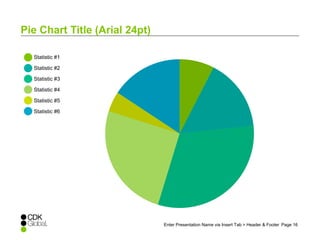
Pie Chart Title (Arial 24pt) 
Statistic #1 
Statistic #2 
Statistic #3 
Statistic #4 
Statistic #5 
Statistic #6
80 
70 
60 
50 
40 
30 
20 
10 
0 
Label 1 Label 2 Label 3 Label 4 Label 5 Label 6 Label 7 Label 8 Label 9 Label 10 
Enter Presentation Name via Insert Tab > Header & Footer Page 17 
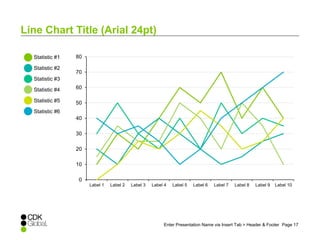
Line Chart Title (Arial 24pt) 
Statistic #1 
Statistic #2 
Statistic #3 
Statistic #4 
Statistic #5 
Statistic #6
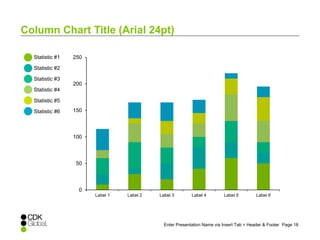
Column Chart Title (Arial 24pt) 
Enter Presentation Name via Insert Tab > Header & Footer Page 18 
Statistic #1 
Statistic #2 
Statistic #3 
Statistic #4 
Statistic #5 
Statistic #6 
250 
200 
150 
100 
50 
0 
Label 1 Label 2 Label 3 Label 4 Label 5 Label 6
Enter Presentation Name via Insert Tab > Header & Footer Page 19 
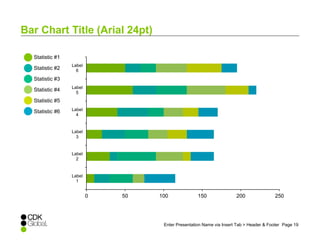
Bar Chart Title (Arial 24pt) 
Statistic #1 
Statistic #2 
Statistic #3 
Statistic #4 
Statistic #5 
Statistic #6 
0 50 100 150 200 250 
Label 
6 
Label 
5 
Label 
4 
Label 
3 
Label 
2 
Label 
1
300 
250 
200 
150 
100 
50 
300 
250 
200 
150 
100 
50 
Enter Presentation Name via Insert Tab > Header & Footer Page 20 
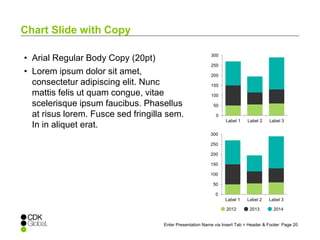
Chart Slide with Copy 
• Arial Regular Body Copy (20pt) 
• Lorem ipsum dolor sit amet, 
consectetur adipiscing elit. Nunc 
mattis felis ut quam congue, vitae 
scelerisque ipsum faucibus. Phasellus 
at risus lorem. Fusce sed fringilla sem. 
In in aliquet erat. 
0 
Label 1 Label 2 Label 3 
0 
Label 1 Label 2 Label 3 
2012 2013 2014
Enter Presentation Name via Insert Tab > Header & Footer | 12/2/2014 | Page 21 
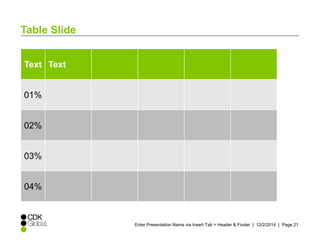
Table Slide 
Text Text 
01% 
02% 
03% 
04%
Enter Presentation Name via Insert Tab > Header & Footer | 12/2/2014 | Page 22 
Information Graphics 
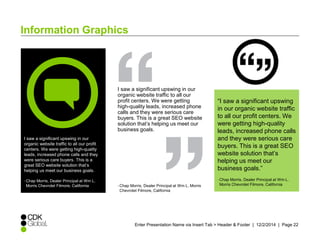
I saw a significant upswing in our 
organic website traffic to all our profit 
centers. We were getting high-quality 
leads, increased phone calls and they 
were serious care buyers. This is a 
great SEO website solution that’s 
helping us meet our business goals. 
–Chap Morris, Dealer Principal at Wm L. 
Morris Chevrolet Filmore, California 
I saw a significant upswing in our 
organic website traffic to all our 
profit centers. We were getting 
high-quality leads, increased phone 
calls and they were serious care 
buyers. This is a great SEO website 
solution that’s helping us meet our 
business goals. 
–Chap Morris, Dealer Principal at Wm L. Morris 
Chevrolet Filmore, California 
“I saw a significant upswing 
in our organic website traffic 
to all our profit centers. We 
were getting high-quality 
leads, increased phone calls 
and they were serious care 
buyers. This is a great SEO 
website solution that’s 
helping us meet our 
business goals.” 
–Chap Morris, Dealer Principal at Wm L. 
Morris Chevrolet Filmore, California
Enter Presentation Name via Insert Tab > Header & Footer | 12/2/2014 | Page 23 
Information Graphics 
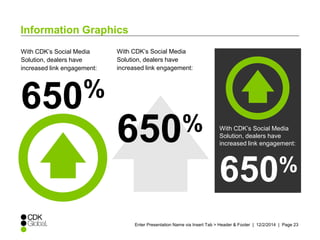
With CDK’s Social Media 
Solution, dealers have 
increased link engagement: 
650% 
With CDK’s Social Media 
Solution, dealers have 
increased link engagement: 
650% 
With CDK’s Social Media 
Solution, dealers have 
increased link engagement: 
650%
Enter Presentation Name via Insert Tab > Header & Footer | 12/2/2014 | Page 24 
Information Graphics 
44% 
Of consumers are willing to 
pay a premium price for a 
product or service if they 
know they will have a 
unique brand experience. 
44% 
Of consumers 
are willing to pay a 
premium price for a 
product or service if 
they know they will 
have a unique brand 
experience. 
Source: Jack Morton 
Global Brand Study 
44% 
of consumers are willing to pay a 
premium price for a product or 
service if they know they will 
have a unique brand 
experience. 
Source: Jack Morton 
Global Brand Study
Icons - Copy/paste, hold down the Shift key to resize 
Q A 
Q A 
Enter Presentation Name via Insert Tab > Header & Footer | 12/2/2014 | Page 25
Theme Colors 
Dark 1 
Dark 2 
Light 2 
ACCENT PALETTE (FOR CHARTS/GRAPHS/SHAPES) 
Accent 5 
Accent 6 
Enter Presentation Name via Insert Tab > Header & Footer | 12/2/2014 | Page 26 
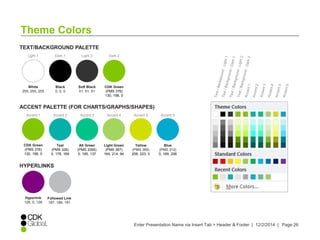
TEXT/BACKGROUND PALETTE 
Light 1 
White 
255, 255, 255 
Accent 1 
HYPERLINKS 
Hyperlink 
128, 0, 128 
Black 
0, 0, 0 
CDK Green 
(PMS 376) 
130, 198, 0 
Soft Black 
51, 51, 51 
CDK Green 
(PMS 376) 
130, 198, 0 
Accent 2 
Teal 
(PMS 326) 
0, 178, 169 
Accent 3 
Alt Green 
(PMS 3395) 
0, 195, 137 
Accent 4 
Light Green 
(PMS 367) 
164, 214, 94 
Followed Link 
187, 189, 191 
Yellow 
(PMS 389) 
208, 223, 0 
Blue 
(PMS 312) 
0, 169, 206
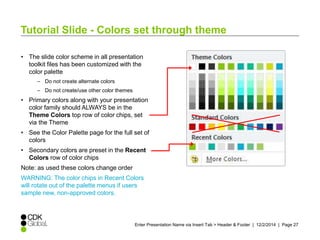
Tutorial Slide - Colors set through theme 
• The slide color scheme in all presentation 
toolkit files has been customized with the 
color palette 
Enter Presentation Name via Insert Tab > Header & Footer | 12/2/2014 | Page 27 
– Do not create alternate colors 
– Do not create/use other color themes 
• Primary colors along with your presentation 
color family should ALWAYS be in the 
Theme Colors top row of color chips, set 
via the Theme 
• See the Color Palette page for the full set of 
colors 
• Secondary colors are preset in the Recent 
Colors row of color chips 
Note: as used these colors change order 
WARNING: The color chips in Recent Colors 
will rotate out of the palette menus if users 
sample new, non-approved colors.
Tutorial Slide - Resetting Slide Numbers with Insert 
Header/Footer 
• Turn slide numbers on and off 
under [Insert > Header & Footer] 
menu 
– Do not update this information locally or 
Enter Presentation Name via Insert Tab > Header & Footer | 12/2/2014 | Page 28 
on the master layout pages 
• If slide numbers are missing from 
some pages, uncheck the Slide 
Number box, click the Apply to All 
button, and close the window 
• Open the Header and Footer 
window again, check the Slide 
number box, and click Apply to All. 
This should reset all slide numbers
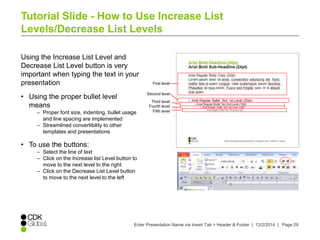
Tutorial Slide - How to Use Increase List 
Levels/Decrease List Levels 
Using the Increase List Level and 
Decrease List Level button is very 
important when typing the text in your 
presentation 
First level 
Enter Presentation Name via Insert Tab > Header & Footer | 12/2/2014 | Page 29 
• Using the proper bullet level 
means 
– Proper font size, indenting, bullet usage 
and line spacing are implemented 
– Streamlined convertibility to other 
templates and presentations 
• To use the buttons: 
– Select the line of text 
– Click on the Increase list Level button to 
move to the next level to the right 
– Click on the Decrease List Level button 
to move to the next level to the left 
Second level 
Third level 
Fourth level 
Fifth level
Tutorial Slide - How to Use Change Picture 
You may replace an existing 
picture on a slide, in order to 
maintain the general placement 
and sizing of the original 
• Right-click on the image, 
choose [Change Picture] and 
browse for the new image 
• Or [Picture Tools > Format > 
Adjust > Change Picture] 
Enter Presentation Name via Insert Tab > Header & Footer | 12/2/2014 | Page 30
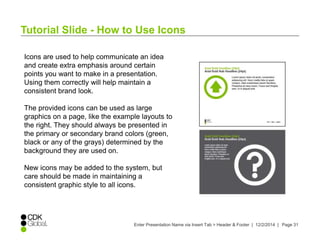
Tutorial Slide - How to Use Icons 
Icons are used to help communicate an idea 
and create extra emphasis around certain 
points you want to make in a presentation. 
Using them correctly will help maintain a 
consistent brand look. 
The provided icons can be used as large 
graphics on a page, like the example layouts to 
the right. They should always be presented in 
the primary or secondary brand colors (green, 
black or any of the grays) determined by the 
background they are used on. 
New icons may be added to the system, but 
care should be made in maintaining a 
consistent graphic style to all icons. 
Enter Presentation Name via Insert Tab > Header & Footer | 12/2/2014 | Page 31
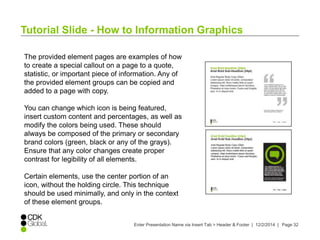
Tutorial Slide - How to Information Graphics 
The provided element pages are examples of how 
to create a special callout on a page to a quote, 
statistic, or important piece of information. Any of 
the provided element groups can be copied and 
added to a page with copy. 
You can change which icon is being featured, 
insert custom content and percentages, as well as 
modify the colors being used. These should 
always be composed of the primary or secondary 
brand colors (green, black or any of the grays). 
Ensure that any color changes create proper 
contrast for legibility of all elements. 
Certain elements, use the center portion of an 
icon, without the holding circle. This technique 
should be used minimally, and only in the context 
of these element groups. 
Enter Presentation Name via Insert Tab > Header & Footer | 12/2/2014 | Page 32
Additional Imagery 
and Taglines
Heavy Truck Tagline 
Image Title Slide #3D (24pt) 
Sub-Headline (18pt)
Image Title Slide #3G (24pt) 
Sub-Headline (18pt)
Image Title Slide #3H (24pt) 
Sub-Headline (18pt)
Image Title Slide #3K (24pt) 
Sub-Headline (18pt)
Image Title Slide #3I (24pt) 
Sub-Headline (18pt)
Image Title Slide #3J (24pt) 
Sub-Headline (18pt)
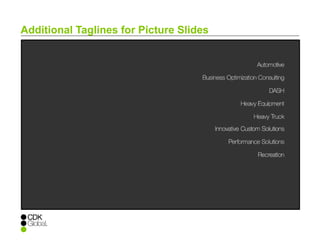
Additional Taglines for Picture Slides

Cdk ppt template (4x3 full screen) 111314

  • 1.
    Image Title Slide#3A (24pt) Sub-Headline (18pt)
  • 2.
    Image Title Slide#3B (24pt) Sub-Headline (18pt)
  • 3.
    Image Title Slide#3C (24pt) Sub-Headline (18pt)
  • 4.
    Image Title Slide#3D (24pt) Sub-Headline (18pt)
  • 5.
    Image Title Slide#3E (24pt) Sub-Headline (18pt)
  • 6.
    Image Title Slide#3F (24pt) Sub-Headline (18pt)
  • 7.
    Additional Title SlideOption (24pt) Sub-Headline (18pt)
  • 8.
    Simple Title Slide(Arial 24pt) Sub-Headline (16pt)
  • 9.
    Copy Title Slide(64pt) Sub Headline Arial Regular Body Copy (20pt) Lorem ipsum dolor sit amet, consectetur adipiscing elit. Nunc mattis felis ut quam congue, vitae scelerisque ipsum faucibus. Phasellus at risus lorem. Fusce sed fringilla sem. Copy Title Slide (24pt) Sub-Headline (16pt)
  • 10.
    “Quote page to call out a quote, interesting fact or statistic.” (64pt) – Attribute
  • 11.
  • 12.
    A Longer DividerPage Arial Bold (80pt) Section Title Arial Bold (80pt)
  • 13.
    Enter Presentation Namevia Insert Tab > Header & Footer Page 13 Arial Bold Headline (24pt) • Arial Regular Body Copy (20pt) • Lorem ipsum dolor sit amet, consectetur adipiscing elit. Nunc mattis felis ut quam congue, vitae scelerisque ipsum faucibus. Phasellus at risus lorem. Fusce sed fringilla sem. In in aliquet erat quam • Arial Regular Bullet Text 1st Level (20pt) – Arial Regular Bullet Text 2nd Level (16pt) • Arial Regular Bullet Text 3rd Level (14pt) – Arial Regular Bullet Text 4th Level (12pt)
  • 14.
    • Arial RegularBody Copy (20pt) • Arial Regular Bullet Text 1st Level (20pt) – Arial Regular Bullet Text 2nd Level (16pt) • Arial Regular Bullet Text 3rd Level (14pt) – Arial Regular Bullet Text 4th Level (12pt) • Arial Regular Body Copy (20pt) • Arial Regular Bullet Text 1st Level (20pt) – Arial Regular Bullet Text 2nd Level (16pt) • Arial Regular Bullet Text 3rd Level (14pt) – Arial Regular Bullet Text 4th Level (12pt) Enter Presentation Name via Insert Tab > Header & Footer Page 14 Arial Bold Headline (24pt)
  • 15.
    Enter Presentation Namevia Insert Tab > Header & Footer Page 15 Arial Bold Headline (24pt) • Arial Regular Body Copy (20pt) • Lorem ipsum dolor sit amet, consectetur adipiscing elit. Nunc mattis felis ut quam congue, vitae scelerisque ipsum faucibus. Phasellus at risus lorem. Fusce sed fringilla sem. In in aliquet erat quam • Arial Regular Bullet Text 1st Level (20pt) – Arial Regular Bullet Text 2nd Level (16pt) • Arial Regular Bullet Text 3rd Level (14pt) – Arial Regular Bullet Text 4th Level (12pt)
  • 16.
    Enter Presentation Namevia Insert Tab > Header & Footer Page 16 Pie Chart Title (Arial 24pt) Statistic #1 Statistic #2 Statistic #3 Statistic #4 Statistic #5 Statistic #6
  • 17.
    80 70 60 50 40 30 20 10 0 Label 1 Label 2 Label 3 Label 4 Label 5 Label 6 Label 7 Label 8 Label 9 Label 10 Enter Presentation Name via Insert Tab > Header & Footer Page 17 Line Chart Title (Arial 24pt) Statistic #1 Statistic #2 Statistic #3 Statistic #4 Statistic #5 Statistic #6
  • 18.
    Column Chart Title(Arial 24pt) Enter Presentation Name via Insert Tab > Header & Footer Page 18 Statistic #1 Statistic #2 Statistic #3 Statistic #4 Statistic #5 Statistic #6 250 200 150 100 50 0 Label 1 Label 2 Label 3 Label 4 Label 5 Label 6
  • 19.
    Enter Presentation Namevia Insert Tab > Header & Footer Page 19 Bar Chart Title (Arial 24pt) Statistic #1 Statistic #2 Statistic #3 Statistic #4 Statistic #5 Statistic #6 0 50 100 150 200 250 Label 6 Label 5 Label 4 Label 3 Label 2 Label 1
  • 20.
    300 250 200 150 100 50 300 250 200 150 100 50 Enter Presentation Name via Insert Tab > Header & Footer Page 20 Chart Slide with Copy • Arial Regular Body Copy (20pt) • Lorem ipsum dolor sit amet, consectetur adipiscing elit. Nunc mattis felis ut quam congue, vitae scelerisque ipsum faucibus. Phasellus at risus lorem. Fusce sed fringilla sem. In in aliquet erat. 0 Label 1 Label 2 Label 3 0 Label 1 Label 2 Label 3 2012 2013 2014
  • 21.
    Enter Presentation Namevia Insert Tab > Header & Footer | 12/2/2014 | Page 21 Table Slide Text Text 01% 02% 03% 04%
  • 22.
    Enter Presentation Namevia Insert Tab > Header & Footer | 12/2/2014 | Page 22 Information Graphics I saw a significant upswing in our organic website traffic to all our profit centers. We were getting high-quality leads, increased phone calls and they were serious care buyers. This is a great SEO website solution that’s helping us meet our business goals. –Chap Morris, Dealer Principal at Wm L. Morris Chevrolet Filmore, California I saw a significant upswing in our organic website traffic to all our profit centers. We were getting high-quality leads, increased phone calls and they were serious care buyers. This is a great SEO website solution that’s helping us meet our business goals. –Chap Morris, Dealer Principal at Wm L. Morris Chevrolet Filmore, California “I saw a significant upswing in our organic website traffic to all our profit centers. We were getting high-quality leads, increased phone calls and they were serious care buyers. This is a great SEO website solution that’s helping us meet our business goals.” –Chap Morris, Dealer Principal at Wm L. Morris Chevrolet Filmore, California
  • 23.
    Enter Presentation Namevia Insert Tab > Header & Footer | 12/2/2014 | Page 23 Information Graphics With CDK’s Social Media Solution, dealers have increased link engagement: 650% With CDK’s Social Media Solution, dealers have increased link engagement: 650% With CDK’s Social Media Solution, dealers have increased link engagement: 650%
  • 24.
    Enter Presentation Namevia Insert Tab > Header & Footer | 12/2/2014 | Page 24 Information Graphics 44% Of consumers are willing to pay a premium price for a product or service if they know they will have a unique brand experience. 44% Of consumers are willing to pay a premium price for a product or service if they know they will have a unique brand experience. Source: Jack Morton Global Brand Study 44% of consumers are willing to pay a premium price for a product or service if they know they will have a unique brand experience. Source: Jack Morton Global Brand Study
  • 25.
    Icons - Copy/paste,hold down the Shift key to resize Q A Q A Enter Presentation Name via Insert Tab > Header & Footer | 12/2/2014 | Page 25
  • 26.
    Theme Colors Dark1 Dark 2 Light 2 ACCENT PALETTE (FOR CHARTS/GRAPHS/SHAPES) Accent 5 Accent 6 Enter Presentation Name via Insert Tab > Header & Footer | 12/2/2014 | Page 26 TEXT/BACKGROUND PALETTE Light 1 White 255, 255, 255 Accent 1 HYPERLINKS Hyperlink 128, 0, 128 Black 0, 0, 0 CDK Green (PMS 376) 130, 198, 0 Soft Black 51, 51, 51 CDK Green (PMS 376) 130, 198, 0 Accent 2 Teal (PMS 326) 0, 178, 169 Accent 3 Alt Green (PMS 3395) 0, 195, 137 Accent 4 Light Green (PMS 367) 164, 214, 94 Followed Link 187, 189, 191 Yellow (PMS 389) 208, 223, 0 Blue (PMS 312) 0, 169, 206
  • 27.
    Tutorial Slide -Colors set through theme • The slide color scheme in all presentation toolkit files has been customized with the color palette Enter Presentation Name via Insert Tab > Header & Footer | 12/2/2014 | Page 27 – Do not create alternate colors – Do not create/use other color themes • Primary colors along with your presentation color family should ALWAYS be in the Theme Colors top row of color chips, set via the Theme • See the Color Palette page for the full set of colors • Secondary colors are preset in the Recent Colors row of color chips Note: as used these colors change order WARNING: The color chips in Recent Colors will rotate out of the palette menus if users sample new, non-approved colors.
  • 28.
    Tutorial Slide -Resetting Slide Numbers with Insert Header/Footer • Turn slide numbers on and off under [Insert > Header & Footer] menu – Do not update this information locally or Enter Presentation Name via Insert Tab > Header & Footer | 12/2/2014 | Page 28 on the master layout pages • If slide numbers are missing from some pages, uncheck the Slide Number box, click the Apply to All button, and close the window • Open the Header and Footer window again, check the Slide number box, and click Apply to All. This should reset all slide numbers
  • 29.
    Tutorial Slide -How to Use Increase List Levels/Decrease List Levels Using the Increase List Level and Decrease List Level button is very important when typing the text in your presentation First level Enter Presentation Name via Insert Tab > Header & Footer | 12/2/2014 | Page 29 • Using the proper bullet level means – Proper font size, indenting, bullet usage and line spacing are implemented – Streamlined convertibility to other templates and presentations • To use the buttons: – Select the line of text – Click on the Increase list Level button to move to the next level to the right – Click on the Decrease List Level button to move to the next level to the left Second level Third level Fourth level Fifth level
  • 30.
    Tutorial Slide -How to Use Change Picture You may replace an existing picture on a slide, in order to maintain the general placement and sizing of the original • Right-click on the image, choose [Change Picture] and browse for the new image • Or [Picture Tools > Format > Adjust > Change Picture] Enter Presentation Name via Insert Tab > Header & Footer | 12/2/2014 | Page 30
  • 31.
    Tutorial Slide -How to Use Icons Icons are used to help communicate an idea and create extra emphasis around certain points you want to make in a presentation. Using them correctly will help maintain a consistent brand look. The provided icons can be used as large graphics on a page, like the example layouts to the right. They should always be presented in the primary or secondary brand colors (green, black or any of the grays) determined by the background they are used on. New icons may be added to the system, but care should be made in maintaining a consistent graphic style to all icons. Enter Presentation Name via Insert Tab > Header & Footer | 12/2/2014 | Page 31
  • 32.
    Tutorial Slide -How to Information Graphics The provided element pages are examples of how to create a special callout on a page to a quote, statistic, or important piece of information. Any of the provided element groups can be copied and added to a page with copy. You can change which icon is being featured, insert custom content and percentages, as well as modify the colors being used. These should always be composed of the primary or secondary brand colors (green, black or any of the grays). Ensure that any color changes create proper contrast for legibility of all elements. Certain elements, use the center portion of an icon, without the holding circle. This technique should be used minimally, and only in the context of these element groups. Enter Presentation Name via Insert Tab > Header & Footer | 12/2/2014 | Page 32
  • 33.
  • 34.
    Heavy Truck Tagline Image Title Slide #3D (24pt) Sub-Headline (18pt)
  • 35.
    Image Title Slide#3G (24pt) Sub-Headline (18pt)
  • 36.
    Image Title Slide#3H (24pt) Sub-Headline (18pt)
  • 37.
    Image Title Slide#3K (24pt) Sub-Headline (18pt)
  • 38.
    Image Title Slide#3I (24pt) Sub-Headline (18pt)
  • 39.
    Image Title Slide#3J (24pt) Sub-Headline (18pt)
  • 40.