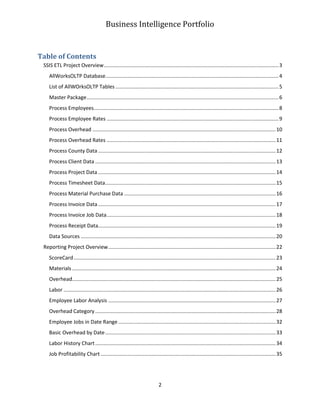
AllWorks, IncBusiness Intelligence PorfolioUsing the Microsoft Business Intelligence SuiteContact InformationDeveloper: Karl Umaguing   Phone: (626) 824-5062   Email: karl@aspminc.com<br />Table of Contents TOC \o \"
1-3\"
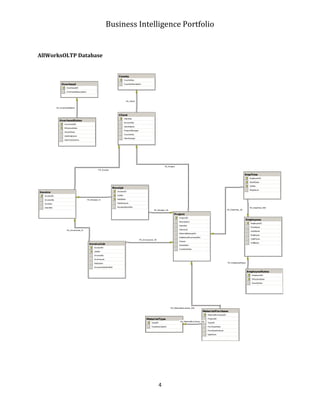
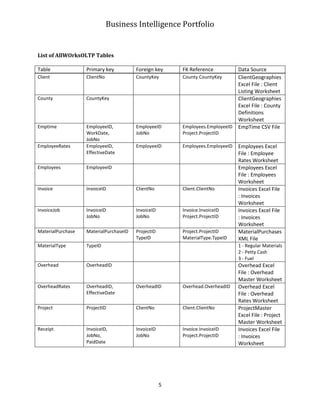
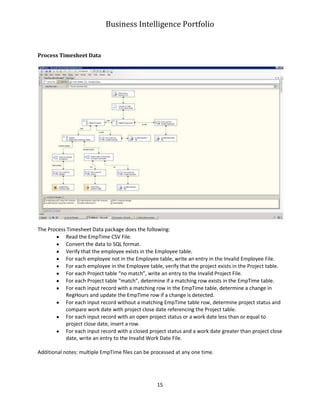
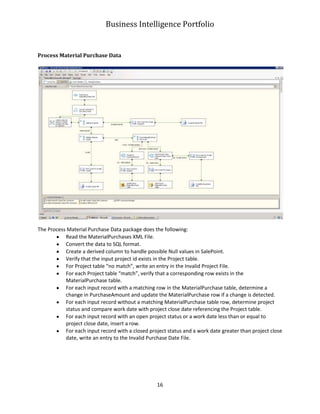
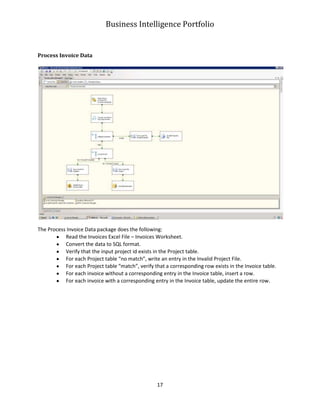
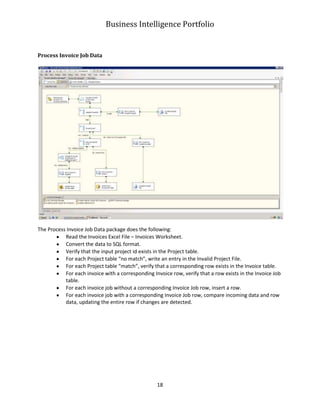
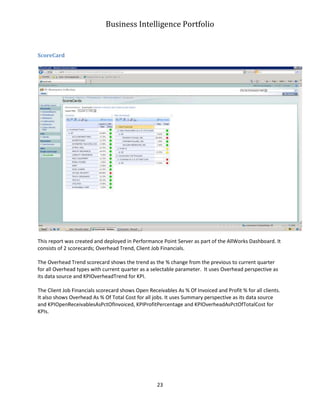
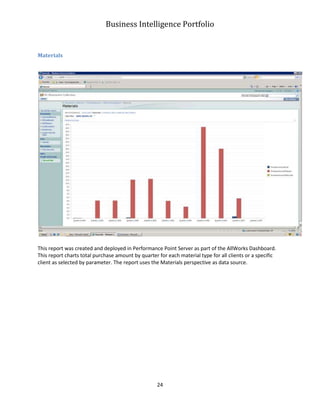
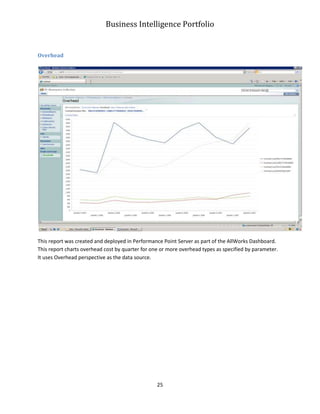
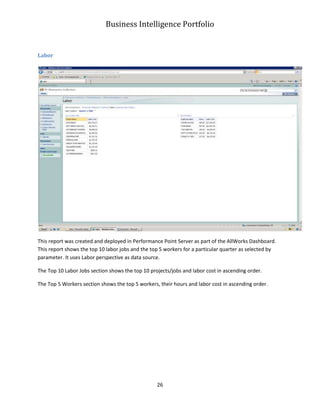
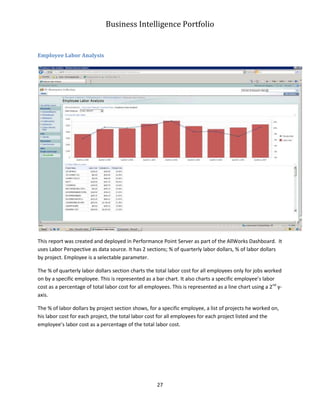
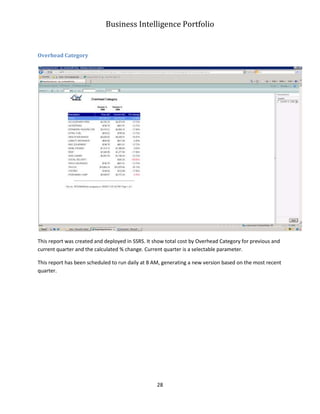
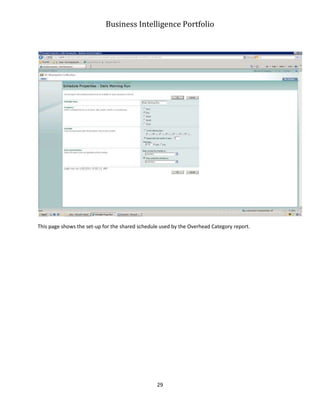
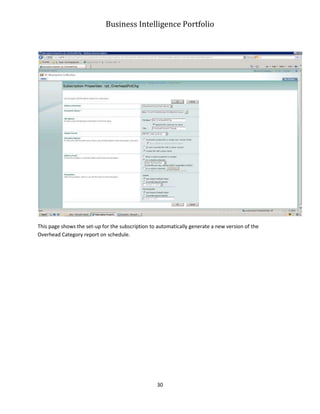
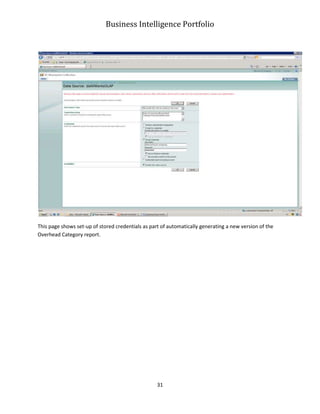
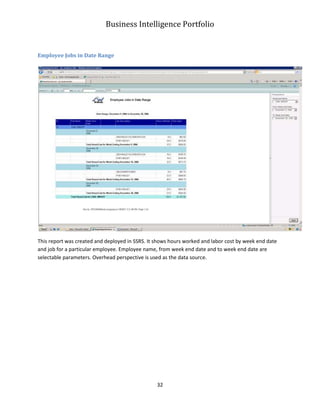
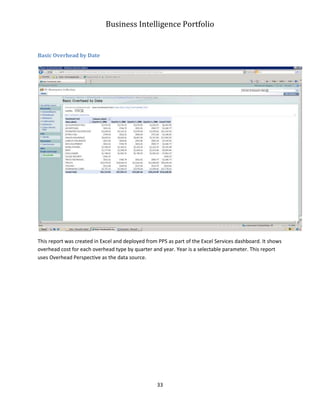
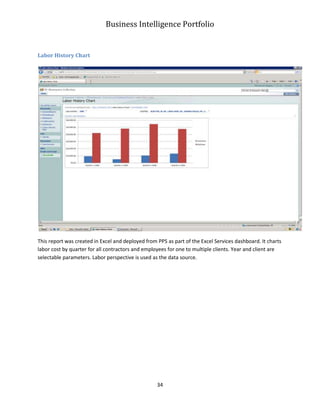
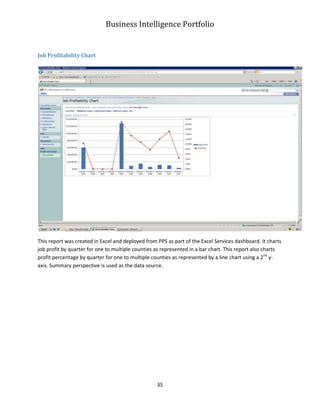
 \h \z \u SSIS ETL Project Overview PAGEREF _Toc283312235 \h 3AllWorksOLTP Database PAGEREF _Toc283312236 \h 4List of AllWOrksOLTP Tables PAGEREF _Toc283312237 \h 5Master Package PAGEREF _Toc283312238 \h 6Process Employees PAGEREF _Toc283312239 \h 8Process Employee Rates PAGEREF _Toc283312240 \h 9Process Overhead PAGEREF _Toc283312241 \h 10Process Overhead Rates PAGEREF _Toc283312242 \h 11Process County Data PAGEREF _Toc283312243 \h 12Process Client Data PAGEREF _Toc283312244 \h 13Process Project Data PAGEREF _Toc283312245 \h 14Process Timesheet Data PAGEREF _Toc283312246 \h 15Process Material Purchase Data PAGEREF _Toc283312247 \h 16Process Invoice Data PAGEREF _Toc283312248 \h 17Process Invoice Job Data PAGEREF _Toc283312249 \h 18Process Receipt Data PAGEREF _Toc283312250 \h 19Data Sources PAGEREF _Toc283312251 \h 20Reporting Project Overview PAGEREF _Toc283312252 \h 22ScoreCard PAGEREF _Toc283312253 \h 23Materials PAGEREF _Toc283312254 \h 24Overhead PAGEREF _Toc283312255 \h 25Labor PAGEREF _Toc283312256 \h 26Employee Labor Analysis PAGEREF _Toc283312257 \h 27Overhead Category PAGEREF _Toc283312258 \h 28Employee Jobs in Date Range PAGEREF _Toc283312259 \h 32Basic Overhead by Date PAGEREF _Toc283312260 \h 33Labor History Chart PAGEREF _Toc283312261 \h 34Job Profitability Chart PAGEREF _Toc283312262 \h 35<br />SSIS ETL Project Overview<br />Scenario<br />AllWorks, Inc (a fictitious construction company) is experiencing significant growth. Project accounting information is currently maintained in various files; Excel Spreadsheets, an XML file and CSV files. A new approach is needed to better handle the increased influx in business and information. <br />Assignment<br />Create a central repository to store all related information.<br />Develop an ETL package in SSIS to load the data, scheduling it to run weekly.<br />AllWorksOLTP Database<br />List of AllWOrksOLTP Tables<br />TablePrimary keyForeign keyFK ReferenceData SourceClientClientNoCountyKeyCounty.CountyKeyClientGeographies Excel File : Client Listing WorksheetCountyCountyKeyClientGeographies Excel File : County Definitions WorksheetEmptimeEmployeeID,WorkDate,JobNoEmployeeIDJobNoEmployees.EmployeeIDProject.ProjectIDEmpTime CSV FileEmployeeRatesEmployeeID,EffectiveDateEmployeeIDEmployees.EmployeeIDEmployees Excel File : Employee Rates WorksheetEmployeesEmployeeIDEmployees Excel File : Employees WorksheetInvoiceInvoiceIDClientNoClient.ClientNoInvoices Excel File : Invoices WorksheetInvoiceJobInvoiceIDJobNoInvoiceIDJobNoInvoice.InvoiceIDProject.ProjectIDInvoices Excel File : Invoices WorksheetMaterialPurchaseMaterialPurchaseIDProjectIDTypeIDProject.ProjectIDMaterialType.TypeIDMaterialPurchases XML FileMaterialTypeTypeID1 - Regular Materials2 - Petty Cash3 - FuelOverheadOverheadIDOverhead Excel File : Overhead Master WorksheetOverheadRatesOverheadID,EffectiveDateOverheadIDOverhead.OverheadIDOverhead Excel File : Overhead Rates WorksheetProjectProjectIDClientNoClient.ClientNoProjectMaster Excel File : Project Master WorksheetReceiptInvoiceID,JobNo,PaidDateInvoiceID JobNoInvoice.InvoiceIDProject.ProjectIDInvoices Excel File : Invoices Worksheet<br /> <br />Master Package<br />The Master package holds the ETL execution sequence and a series of data administration tasks. Each container within the execution sequence represents the processing for each data source; Employees, Overhead, ClientGeographies, ProjectMaster, EmpTime, MaterialPurchases and Invoices. Each process consists of an ETL to the associated table followed by disposition of the data source. Upon the successful completion of the entire ETL execution sequence, database administration tasks are performed. These tasks are shrinking of the database, rebuilding of indices, updating of database statistics and a backup of the database. An email reporting the successful completion of both the ETL execution process and the database administration tasks is sent to the appropriate groups. An email will also be sent should any of the database tasks fail. Note that emails are also sent within each ETL process indicating success or failure.<br />Process Employees<br />The Process Employees package does the following:<br />Read the Employees Excel File – Employees Worksheet.<br />Convert the data to SQL format.<br />Create a Full Name column.<br />Verify a match between the input employee id and the Employees table.<br />For each Employees table “match”, compare input data with table data and update the entire row if any change is detected.<br />For each Employees table “no match”, insert a row. <br />Process Employee Rates<br />The Process Employee Rates package does the following:<br />Read the Employees Excel File – Employee Rates Worksheet.<br />Convert the data to SQL format.<br />Find a match between the input employee id and the Employees table.<br />For each Employees table “no match”, write an entry in the Invalid Employee Rates File.<br />For each Employees table match, verify a match with the Employee Rates table based on Employee Id and Effective Date.<br />For each Employee Rates table “no match”, insert a row.<br />For each Employee Rates table “match”, compare the incoming hourly rate with the current hourly rate and update the entire row in the Employee Rates table if any difference is detected.<br />Process Overhead<br /> <br />The Process Overhead package does the following:<br />Read the Overhead Excel File – Overhead Master Worksheet.<br />Convert the data to SQL format.<br />Find a match between the input overhead and the Overhead table.<br />For each input overhead without a match in the Overhead table, insert a row.<br />For each input overhead with a match in the Overhead table, comparing the input description with the current description and update the row when a change is determined.<br />Process Overhead Rates<br />The Process Overhead Rates package does the following:<br />Read the Overhead Excel File – Overhead Rates Worksheet.<br />Convert the data to SQL format.<br />Find a match between the input overhead id and the Overhead table.<br />For each input overhead id without a match in the Overhead table, write an entry in the Invalid Overhead Rates File.<br />For each input overhead id with a match in the Overhead table, verify a match with the Overhead Rates table based on Overhead Id and Effective Date.<br />For each input overhead rate without a match in the Overhead Rates table, insert a row.<br />For each input overhead rate with a match in the Overhead Rates table, compare the incoming data with the current data and update the entire row in the Overhead Rates table if any changes are detected.<br />Process County Data<br />The Process County Data package does the following:<br />Read the ClientGeographies Excel File – County Definitions Worksheet.<br />Convert the data to SQL format.<br />Add an additional column based on Description change.<br />Verify that input County is in the County table.<br />For each County table “no match”, insert a row.<br />For each County table “match”, compare the input description with the current description and update the row when a change is detected.<br />Process Client Data<br />The Process Client Data Rates package does the following:<br />Read the ClientGeographies Excel File – Client Listing Worksheet.<br />Convert the data to SQL format.<br />Verify that the associated County is in the County table.<br />For each county not in the County table, write an entry in the Invalid Client Data File.<br />For each county found in the County table, verify that a corresponding row based on County Id and Client Number exists in the Client table.<br />For each Client table “no match”, insert a row.<br />For each Client table “match”, compare the incoming data with the current data and update the entire row in the Client table if any changes are detected.<br />Process Project Data<br />The Process Project Data package does the following:<br />Read the ProjectMaster Excel File – Project Master Worksheet.<br />Convert the data to SQL format.<br />Create a derived column to handle possible Null values in Client Number.<br />Verify that the associated Client is in the Client table.<br />For each client not in the Client table, write an entry in the Invalid Project Data File.<br />For each client in the Client table, verify that the project exists in the Project table.<br />For each Project table “no match”, insert a row.<br />For each Project table match, compare the incoming data with the current data and update the entire row in the Project table if any changes are detected.<br />Process Timesheet Data<br />The Process Timesheet Data package does the following:<br />Read the EmpTime CSV File. <br />Convert the data to SQL format.<br />Verify that the employee exists in the Employee table.<br />For each employee not in the Employee table, write an entry in the Invalid Employee File.<br />For each employee in the Employee table, verify that the project exists in the Project table.<br />For each Project table “no match”, write an entry to the Invalid Project File.<br />For each Project table “match”, determine if a matching row exists in the EmpTime table.<br />For each input record with a matching row in the EmpTime table, determine a change in RegHours and update the EmpTime row if a change is detected.<br />For each input record without a matching EmpTime table row, determine project status and compare work date with project close date referencing the Project table.<br />For each input record with an open project status or a work date less than or equal to project close date, insert a row.<br />For each input record with a closed project status and a work date greater than project close date, write an entry to the Invalid Work Date File.<br />Additional notes: multiple EmpTime files can be processed at any one time.<br />Process Material Purchase Data<br />The Process Material Purchase Data package does the following:<br />Read the MaterialPurchases XML File. <br />Convert the data to SQL format.<br />Create a derived column to handle possible Null values in SalePoint.<br />Verify that the input project id exists in the Project table.<br />For Project table “no match”, write an entry in the Invalid Project File.<br />For each Project table “match”, verify that a corresponding row exists in the MaterialPurchase table.<br />For each input record with a matching row in the MaterialPurchase table, determine a change in PurchaseAmount and update the MaterialPurchase row if a change is detected.<br />For each input record without a matching MaterialPurchase table row, determine project status and compare work date with project close date referencing the Project table.<br />For each input record with an open project status or a work date less than or equal to project close date, insert a row.<br />For each input record with a closed project status and a work date greater than project close date, write an entry to the Invalid Purchase Date File.<br />Process Invoice Data<br />The Process Invoice Data package does the following:<br />Read the Invoices Excel File – Invoices Worksheet.<br />Convert the data to SQL format.<br />Verify that the input project id exists in the Project table.<br />For each Project table “no match”, write an entry in the Invalid Project File.<br />For each Project table “match”, verify that a corresponding row exists in the Invoice table.<br />For each invoice without a corresponding entry in the Invoice table, insert a row.<br />For each invoice with a corresponding entry in the Invoice table, update the entire row.<br />Process Invoice Job Data<br />The Process Invoice Job Data package does the following:<br />Read the Invoices Excel File – Invoices Worksheet.<br />Convert the data to SQL format.<br />Verify that the input project id exists in the Project table.<br />For each Project table “no match”, write an entry in the Invalid Project File.<br />For each Project table “match”, verify that a corresponding row exists in the Invoice table.<br />For each invoice with a corresponding Invoice row, verify that a row exists in the Invoice Job table.<br />For each invoice job without a corresponding Invoice Job row, insert a row.<br />For each invoice job with a corresponding Invoice Job row, compare incoming data and row data, updating the entire row if changes are detected.<br />Process Receipt Data<br /> <br />The Process Receipt Data package does the following:<br />Read the Invoices Excel File – Invoices Worksheet.<br />Convert the data to SQL format.<br />Verify that the associated invoice job exists in the Invoice Job table.<br />For each invoice job not in the Invoice Job table, write an entry in the Invalid Invoice Job File.<br />For each invoice job found in the Invoice Job table, verify that a corresponding row exists in the Receipt table.<br />For each receipt with a corresponding Receipt row, compare the input paid amount with the current paid amount and update the row if a change is detected.<br />For each receipt job without a corresponding Receipt row, insert a row.<br />Data Sources<br />Excel Spreadsheets:<br />Employees.xlsx<br />First sheet (employees) contains roster of Employees and a flag to indicate whether the employee is a contractor or a regular employee (some overhead rates only apply to employees).<br />Second sheet (employee rates) contains Employee Hourly Rates for each employee, along with an effective date.<br />ClientGeographies.xlsx<br />First sheet (Client Listing) contains each client for AllWorks, along with a County Key to associate the client with a county.<br />Second sheet (County Definitions) contains the list of counties.<br />OverHead.xlsx<br />First sheet (Overhead master) lists each labor overhead category.<br />Second sheet (Overhead rates) lists the hourly rates for each overhead category, the rate effective date, and whether the rate applies to employees and/or contractors.  * IMPORTANT NOTE *<br />This relates to the employee flag in the employee table. Remember that <br />a rate may change from applying to only employees, to applying to both employees and contractors (or vice-versa).<br />ProjectMaster.xlsx<br />First sheet (Project Master) contains one row for each Job work order. It contains a reference to the client, material markup %, labor overhead markup %, whether the job is closed and the creation date. The markup % is optional and is used as follows: if $1,000 of material is purchased, and the Job markup % is 10 (10%...they are stored as whole numbers), then the total material cost is $1,100. The same concept applies to labor markup, based on the # of hours of labor for the job. <br />Invoices.xlsx<br />An Excel spreadsheet that contains client invoice data. Each row consists of job number, invoice amount, invoice number, paid amount and any additional labor amount.<br />* IMPORTANT NOTE *<br />Currently, the invoice spreadsheet only allows for one work order job per invoice. AllWorks wants to expand the functionality so that a single invoice can cover multiple jobs. Additionally, when AllWorks receives payment, they want to track how much was received for each job on each invoice. A onemany link/reference table will be needed, both for the invoice and the jobs associated with it. Another onemany table will also be needed for each invoice receipt and amount paid for each job on the invoice.<br />XML File:<br />MaterialPurchases.xml<br />This file contains the material purchase transactions for each job. Each record has a job number, type code, purchase amount and purchase date. AllWorks currently does not have a separate table for the Type Code. The codes are hardwired; 1 stands for Material, 2 stands for Petty Cash, and 3 stands for Fuel.<br />CSV Files:<br />EmptimeXXXX.csv <br />These files contain all the labor data transactions. Each record consists of employee id, work date, number of work hours, and job number.<br />Reporting Project Overview<br />Scenario<br />AllWorks, Inc (a fictitious construction company) is experiencing significant growth. A centralized database was created to contain all related project accounting information. Subsequently, an analytic database (OLAP) was created to provide for better analysis of data.<br />Assignment<br />Create a varied group of reports using different reporting tools (Performance Point Server - PPS, SQL Server Reporting Services - SSRS and Excel Services) and making all reports accessible in Microsoft Office Sharepoint Server (MOSS) collection site. This will give business analysts a sampling of what’s available with reporting and presentation. <br />ScoreCard<br />This report was created and deployed in Performance Point Server as part of the AllWorks Dashboard. It consists of 2 scorecards; Overhead Trend, Client Job Financials.<br />The Overhead Trend scorecard shows the trend as the % change from the previous to current quarter for all Overhead types with current quarter as a selectable parameter.  It uses Overhead perspective as its data source and KPIOverheadTrend for KPI.<br />The Client Job Financials scorecard shows Open Receivables As % Of Invoiced and Profit % for all clients. It also shows Overhead As % Of Total Cost for all jobs. It uses Summary perspective as its data source and KPIOpenReceivablesAsPctOfInvoiced, KPIProfitPercentage and KPIOverheadAsPctOfTotalCost for KPIs.<br />Materials<br />This report was created and deployed in Performance Point Server as part of the AllWorks Dashboard. This report charts total purchase amount by quarter for each material type for all clients or a specific client as selected by parameter. The report uses the Materials perspective as data source.<br />Overhead<br />This report was created and deployed in Performance Point Server as part of the AllWorks Dashboard. This report charts overhead cost by quarter for one or more overhead types as specified by parameter. It uses Overhead perspective as the data source.<br />Labor<br />This report was created and deployed in Performance Point Server as part of the AllWorks Dashboard.  This report shows the top 10 labor jobs and the top 5 workers for a particular quarter as selected by parameter. It uses Labor perspective as data source.<br />The Top 10 Labor Jobs section shows the top 10 projects/jobs and labor cost in ascending order.<br />The Top 5 Workers section shows the top 5 workers, their hours and labor cost in ascending order.<br />Employee Labor Analysis<br />This report was created and deployed in Performance Point Server as part of the AllWorks Dashboard.  It uses Labor Perspective as data source. It has 2 sections; % of quarterly labor dollars, % of labor dollars by project. Employee is a selectable parameter.<br />The % of quarterly labor dollars section charts the total labor cost for all employees only for jobs worked on by a specific employee. This is represented as a bar chart. It also charts a specific employee’s labor cost as a percentage of total labor cost for all employees. This is represented as a line chart using a 2nd y-axis.<br />The % of labor dollars by project section shows, for a specific employee, a list of projects he worked on, his labor cost for each project, the total labor cost for all employees for each project listed and the employee’s labor cost as a percentage of the total labor cost.<br />Overhead Category<br />This report was created and deployed in SSRS. It show total cost by Overhead Category for previous and current quarter and the calculated % change. Current quarter is a selectable parameter.<br />This report has been scheduled to run daily at 8 AM, generating a new version based on the most recent quarter. <br />This page shows the set-up for the shared schedule used by the Overhead Category report.<br />This page shows the set-up for the subscription to automatically generate a new version of the Overhead Category report on schedule.<br />This page shows set-up of stored credentials as part of automatically generating a new version of the Overhead Category report.<br />Employee Jobs in Date Range<br />This report was created and deployed in SSRS. It shows hours worked and labor cost by week end date and job for a particular employee. Employee name, from week end date and to week end date are selectable parameters. Overhead perspective is used as the data source. <br />Basic Overhead by Date<br />This report was created in Excel and deployed from PPS as part of the Excel Services dashboard. It shows overhead cost for each overhead type by quarter and year. Year is a selectable parameter. This report uses Overhead Perspective as the data source.<br />Labor History Chart<br />This report was created in Excel and deployed from PPS as part of the Excel Services dashboard. It charts labor cost by quarter for all contractors and employees for one to multiple clients. Year and client are selectable parameters. Labor perspective is used as the data source.<br />Job Profitability Chart<br />This report was created in Excel and deployed from PPS as part of the Excel Services dashboard. It charts job profit by quarter for one to multiple counties as represented in a bar chart. This report also charts profit percentage by quarter for one to multiple counties as represented by a line chart using a 2nd y-axis. Summary perspective is used as the data source.<br />
Business Intelligence Portfolio

Business Intelligence Portfolio

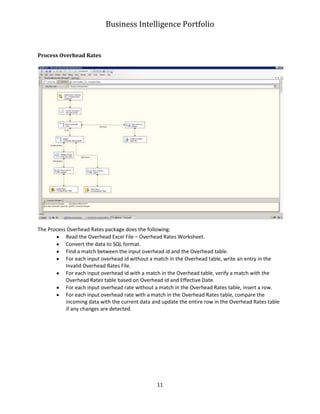
  • 1.
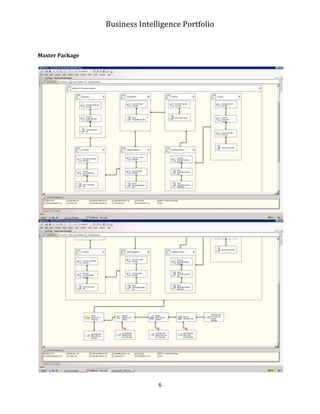
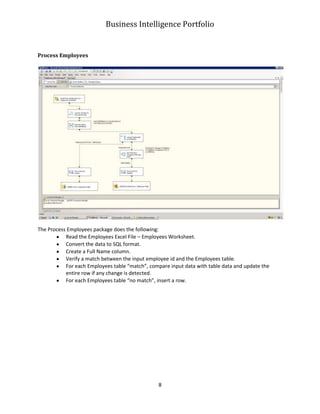
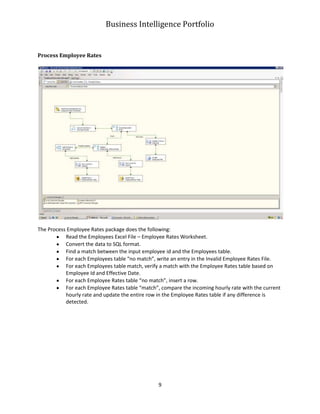
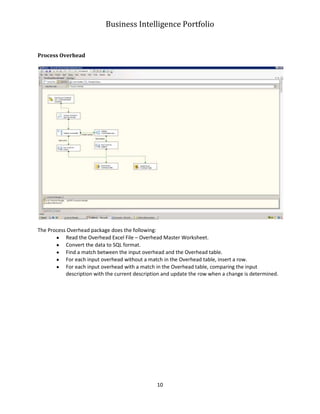
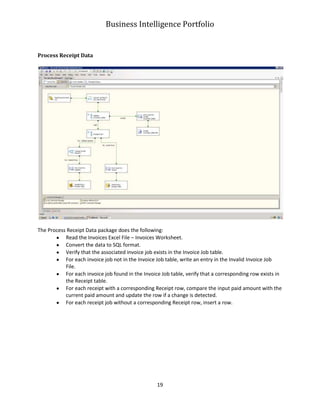
    AllWorks, IncBusiness IntelligencePorfolioUsing the Microsoft Business Intelligence SuiteContact InformationDeveloper: Karl Umaguing Phone: (626) 824-5062 Email: karl@aspminc.com<br />Table of Contents TOC \o \" 1-3\" \h \z \u SSIS ETL Project Overview PAGEREF _Toc283312235 \h 3AllWorksOLTP Database PAGEREF _Toc283312236 \h 4List of AllWOrksOLTP Tables PAGEREF _Toc283312237 \h 5Master Package PAGEREF _Toc283312238 \h 6Process Employees PAGEREF _Toc283312239 \h 8Process Employee Rates PAGEREF _Toc283312240 \h 9Process Overhead PAGEREF _Toc283312241 \h 10Process Overhead Rates PAGEREF _Toc283312242 \h 11Process County Data PAGEREF _Toc283312243 \h 12Process Client Data PAGEREF _Toc283312244 \h 13Process Project Data PAGEREF _Toc283312245 \h 14Process Timesheet Data PAGEREF _Toc283312246 \h 15Process Material Purchase Data PAGEREF _Toc283312247 \h 16Process Invoice Data PAGEREF _Toc283312248 \h 17Process Invoice Job Data PAGEREF _Toc283312249 \h 18Process Receipt Data PAGEREF _Toc283312250 \h 19Data Sources PAGEREF _Toc283312251 \h 20Reporting Project Overview PAGEREF _Toc283312252 \h 22ScoreCard PAGEREF _Toc283312253 \h 23Materials PAGEREF _Toc283312254 \h 24Overhead PAGEREF _Toc283312255 \h 25Labor PAGEREF _Toc283312256 \h 26Employee Labor Analysis PAGEREF _Toc283312257 \h 27Overhead Category PAGEREF _Toc283312258 \h 28Employee Jobs in Date Range PAGEREF _Toc283312259 \h 32Basic Overhead by Date PAGEREF _Toc283312260 \h 33Labor History Chart PAGEREF _Toc283312261 \h 34Job Profitability Chart PAGEREF _Toc283312262 \h 35<br />SSIS ETL Project Overview<br />Scenario<br />AllWorks, Inc (a fictitious construction company) is experiencing significant growth. Project accounting information is currently maintained in various files; Excel Spreadsheets, an XML file and CSV files. A new approach is needed to better handle the increased influx in business and information. <br />Assignment<br />Create a central repository to store all related information.<br />Develop an ETL package in SSIS to load the data, scheduling it to run weekly.<br />AllWorksOLTP Database<br />List of AllWOrksOLTP Tables<br />TablePrimary keyForeign keyFK ReferenceData SourceClientClientNoCountyKeyCounty.CountyKeyClientGeographies Excel File : Client Listing WorksheetCountyCountyKeyClientGeographies Excel File : County Definitions WorksheetEmptimeEmployeeID,WorkDate,JobNoEmployeeIDJobNoEmployees.EmployeeIDProject.ProjectIDEmpTime CSV FileEmployeeRatesEmployeeID,EffectiveDateEmployeeIDEmployees.EmployeeIDEmployees Excel File : Employee Rates WorksheetEmployeesEmployeeIDEmployees Excel File : Employees WorksheetInvoiceInvoiceIDClientNoClient.ClientNoInvoices Excel File : Invoices WorksheetInvoiceJobInvoiceIDJobNoInvoiceIDJobNoInvoice.InvoiceIDProject.ProjectIDInvoices Excel File : Invoices WorksheetMaterialPurchaseMaterialPurchaseIDProjectIDTypeIDProject.ProjectIDMaterialType.TypeIDMaterialPurchases XML FileMaterialTypeTypeID1 - Regular Materials2 - Petty Cash3 - FuelOverheadOverheadIDOverhead Excel File : Overhead Master WorksheetOverheadRatesOverheadID,EffectiveDateOverheadIDOverhead.OverheadIDOverhead Excel File : Overhead Rates WorksheetProjectProjectIDClientNoClient.ClientNoProjectMaster Excel File : Project Master WorksheetReceiptInvoiceID,JobNo,PaidDateInvoiceID JobNoInvoice.InvoiceIDProject.ProjectIDInvoices Excel File : Invoices Worksheet<br /> <br />Master Package<br />The Master package holds the ETL execution sequence and a series of data administration tasks. Each container within the execution sequence represents the processing for each data source; Employees, Overhead, ClientGeographies, ProjectMaster, EmpTime, MaterialPurchases and Invoices. Each process consists of an ETL to the associated table followed by disposition of the data source. Upon the successful completion of the entire ETL execution sequence, database administration tasks are performed. These tasks are shrinking of the database, rebuilding of indices, updating of database statistics and a backup of the database. An email reporting the successful completion of both the ETL execution process and the database administration tasks is sent to the appropriate groups. An email will also be sent should any of the database tasks fail. Note that emails are also sent within each ETL process indicating success or failure.<br />Process Employees<br />The Process Employees package does the following:<br />Read the Employees Excel File – Employees Worksheet.<br />Convert the data to SQL format.<br />Create a Full Name column.<br />Verify a match between the input employee id and the Employees table.<br />For each Employees table “match”, compare input data with table data and update the entire row if any change is detected.<br />For each Employees table “no match”, insert a row. <br />Process Employee Rates<br />The Process Employee Rates package does the following:<br />Read the Employees Excel File – Employee Rates Worksheet.<br />Convert the data to SQL format.<br />Find a match between the input employee id and the Employees table.<br />For each Employees table “no match”, write an entry in the Invalid Employee Rates File.<br />For each Employees table match, verify a match with the Employee Rates table based on Employee Id and Effective Date.<br />For each Employee Rates table “no match”, insert a row.<br />For each Employee Rates table “match”, compare the incoming hourly rate with the current hourly rate and update the entire row in the Employee Rates table if any difference is detected.<br />Process Overhead<br /> <br />The Process Overhead package does the following:<br />Read the Overhead Excel File – Overhead Master Worksheet.<br />Convert the data to SQL format.<br />Find a match between the input overhead and the Overhead table.<br />For each input overhead without a match in the Overhead table, insert a row.<br />For each input overhead with a match in the Overhead table, comparing the input description with the current description and update the row when a change is determined.<br />Process Overhead Rates<br />The Process Overhead Rates package does the following:<br />Read the Overhead Excel File – Overhead Rates Worksheet.<br />Convert the data to SQL format.<br />Find a match between the input overhead id and the Overhead table.<br />For each input overhead id without a match in the Overhead table, write an entry in the Invalid Overhead Rates File.<br />For each input overhead id with a match in the Overhead table, verify a match with the Overhead Rates table based on Overhead Id and Effective Date.<br />For each input overhead rate without a match in the Overhead Rates table, insert a row.<br />For each input overhead rate with a match in the Overhead Rates table, compare the incoming data with the current data and update the entire row in the Overhead Rates table if any changes are detected.<br />Process County Data<br />The Process County Data package does the following:<br />Read the ClientGeographies Excel File – County Definitions Worksheet.<br />Convert the data to SQL format.<br />Add an additional column based on Description change.<br />Verify that input County is in the County table.<br />For each County table “no match”, insert a row.<br />For each County table “match”, compare the input description with the current description and update the row when a change is detected.<br />Process Client Data<br />The Process Client Data Rates package does the following:<br />Read the ClientGeographies Excel File – Client Listing Worksheet.<br />Convert the data to SQL format.<br />Verify that the associated County is in the County table.<br />For each county not in the County table, write an entry in the Invalid Client Data File.<br />For each county found in the County table, verify that a corresponding row based on County Id and Client Number exists in the Client table.<br />For each Client table “no match”, insert a row.<br />For each Client table “match”, compare the incoming data with the current data and update the entire row in the Client table if any changes are detected.<br />Process Project Data<br />The Process Project Data package does the following:<br />Read the ProjectMaster Excel File – Project Master Worksheet.<br />Convert the data to SQL format.<br />Create a derived column to handle possible Null values in Client Number.<br />Verify that the associated Client is in the Client table.<br />For each client not in the Client table, write an entry in the Invalid Project Data File.<br />For each client in the Client table, verify that the project exists in the Project table.<br />For each Project table “no match”, insert a row.<br />For each Project table match, compare the incoming data with the current data and update the entire row in the Project table if any changes are detected.<br />Process Timesheet Data<br />The Process Timesheet Data package does the following:<br />Read the EmpTime CSV File. <br />Convert the data to SQL format.<br />Verify that the employee exists in the Employee table.<br />For each employee not in the Employee table, write an entry in the Invalid Employee File.<br />For each employee in the Employee table, verify that the project exists in the Project table.<br />For each Project table “no match”, write an entry to the Invalid Project File.<br />For each Project table “match”, determine if a matching row exists in the EmpTime table.<br />For each input record with a matching row in the EmpTime table, determine a change in RegHours and update the EmpTime row if a change is detected.<br />For each input record without a matching EmpTime table row, determine project status and compare work date with project close date referencing the Project table.<br />For each input record with an open project status or a work date less than or equal to project close date, insert a row.<br />For each input record with a closed project status and a work date greater than project close date, write an entry to the Invalid Work Date File.<br />Additional notes: multiple EmpTime files can be processed at any one time.<br />Process Material Purchase Data<br />The Process Material Purchase Data package does the following:<br />Read the MaterialPurchases XML File. <br />Convert the data to SQL format.<br />Create a derived column to handle possible Null values in SalePoint.<br />Verify that the input project id exists in the Project table.<br />For Project table “no match”, write an entry in the Invalid Project File.<br />For each Project table “match”, verify that a corresponding row exists in the MaterialPurchase table.<br />For each input record with a matching row in the MaterialPurchase table, determine a change in PurchaseAmount and update the MaterialPurchase row if a change is detected.<br />For each input record without a matching MaterialPurchase table row, determine project status and compare work date with project close date referencing the Project table.<br />For each input record with an open project status or a work date less than or equal to project close date, insert a row.<br />For each input record with a closed project status and a work date greater than project close date, write an entry to the Invalid Purchase Date File.<br />Process Invoice Data<br />The Process Invoice Data package does the following:<br />Read the Invoices Excel File – Invoices Worksheet.<br />Convert the data to SQL format.<br />Verify that the input project id exists in the Project table.<br />For each Project table “no match”, write an entry in the Invalid Project File.<br />For each Project table “match”, verify that a corresponding row exists in the Invoice table.<br />For each invoice without a corresponding entry in the Invoice table, insert a row.<br />For each invoice with a corresponding entry in the Invoice table, update the entire row.<br />Process Invoice Job Data<br />The Process Invoice Job Data package does the following:<br />Read the Invoices Excel File – Invoices Worksheet.<br />Convert the data to SQL format.<br />Verify that the input project id exists in the Project table.<br />For each Project table “no match”, write an entry in the Invalid Project File.<br />For each Project table “match”, verify that a corresponding row exists in the Invoice table.<br />For each invoice with a corresponding Invoice row, verify that a row exists in the Invoice Job table.<br />For each invoice job without a corresponding Invoice Job row, insert a row.<br />For each invoice job with a corresponding Invoice Job row, compare incoming data and row data, updating the entire row if changes are detected.<br />Process Receipt Data<br /> <br />The Process Receipt Data package does the following:<br />Read the Invoices Excel File – Invoices Worksheet.<br />Convert the data to SQL format.<br />Verify that the associated invoice job exists in the Invoice Job table.<br />For each invoice job not in the Invoice Job table, write an entry in the Invalid Invoice Job File.<br />For each invoice job found in the Invoice Job table, verify that a corresponding row exists in the Receipt table.<br />For each receipt with a corresponding Receipt row, compare the input paid amount with the current paid amount and update the row if a change is detected.<br />For each receipt job without a corresponding Receipt row, insert a row.<br />Data Sources<br />Excel Spreadsheets:<br />Employees.xlsx<br />First sheet (employees) contains roster of Employees and a flag to indicate whether the employee is a contractor or a regular employee (some overhead rates only apply to employees).<br />Second sheet (employee rates) contains Employee Hourly Rates for each employee, along with an effective date.<br />ClientGeographies.xlsx<br />First sheet (Client Listing) contains each client for AllWorks, along with a County Key to associate the client with a county.<br />Second sheet (County Definitions) contains the list of counties.<br />OverHead.xlsx<br />First sheet (Overhead master) lists each labor overhead category.<br />Second sheet (Overhead rates) lists the hourly rates for each overhead category, the rate effective date, and whether the rate applies to employees and/or contractors. * IMPORTANT NOTE *<br />This relates to the employee flag in the employee table. Remember that <br />a rate may change from applying to only employees, to applying to both employees and contractors (or vice-versa).<br />ProjectMaster.xlsx<br />First sheet (Project Master) contains one row for each Job work order. It contains a reference to the client, material markup %, labor overhead markup %, whether the job is closed and the creation date. The markup % is optional and is used as follows: if $1,000 of material is purchased, and the Job markup % is 10 (10%...they are stored as whole numbers), then the total material cost is $1,100. The same concept applies to labor markup, based on the # of hours of labor for the job. <br />Invoices.xlsx<br />An Excel spreadsheet that contains client invoice data. Each row consists of job number, invoice amount, invoice number, paid amount and any additional labor amount.<br />* IMPORTANT NOTE *<br />Currently, the invoice spreadsheet only allows for one work order job per invoice. AllWorks wants to expand the functionality so that a single invoice can cover multiple jobs. Additionally, when AllWorks receives payment, they want to track how much was received for each job on each invoice. A onemany link/reference table will be needed, both for the invoice and the jobs associated with it. Another onemany table will also be needed for each invoice receipt and amount paid for each job on the invoice.<br />XML File:<br />MaterialPurchases.xml<br />This file contains the material purchase transactions for each job. Each record has a job number, type code, purchase amount and purchase date. AllWorks currently does not have a separate table for the Type Code. The codes are hardwired; 1 stands for Material, 2 stands for Petty Cash, and 3 stands for Fuel.<br />CSV Files:<br />EmptimeXXXX.csv <br />These files contain all the labor data transactions. Each record consists of employee id, work date, number of work hours, and job number.<br />Reporting Project Overview<br />Scenario<br />AllWorks, Inc (a fictitious construction company) is experiencing significant growth. A centralized database was created to contain all related project accounting information. Subsequently, an analytic database (OLAP) was created to provide for better analysis of data.<br />Assignment<br />Create a varied group of reports using different reporting tools (Performance Point Server - PPS, SQL Server Reporting Services - SSRS and Excel Services) and making all reports accessible in Microsoft Office Sharepoint Server (MOSS) collection site. This will give business analysts a sampling of what’s available with reporting and presentation. <br />ScoreCard<br />This report was created and deployed in Performance Point Server as part of the AllWorks Dashboard. It consists of 2 scorecards; Overhead Trend, Client Job Financials.<br />The Overhead Trend scorecard shows the trend as the % change from the previous to current quarter for all Overhead types with current quarter as a selectable parameter. It uses Overhead perspective as its data source and KPIOverheadTrend for KPI.<br />The Client Job Financials scorecard shows Open Receivables As % Of Invoiced and Profit % for all clients. It also shows Overhead As % Of Total Cost for all jobs. It uses Summary perspective as its data source and KPIOpenReceivablesAsPctOfInvoiced, KPIProfitPercentage and KPIOverheadAsPctOfTotalCost for KPIs.<br />Materials<br />This report was created and deployed in Performance Point Server as part of the AllWorks Dashboard. This report charts total purchase amount by quarter for each material type for all clients or a specific client as selected by parameter. The report uses the Materials perspective as data source.<br />Overhead<br />This report was created and deployed in Performance Point Server as part of the AllWorks Dashboard. This report charts overhead cost by quarter for one or more overhead types as specified by parameter. It uses Overhead perspective as the data source.<br />Labor<br />This report was created and deployed in Performance Point Server as part of the AllWorks Dashboard. This report shows the top 10 labor jobs and the top 5 workers for a particular quarter as selected by parameter. It uses Labor perspective as data source.<br />The Top 10 Labor Jobs section shows the top 10 projects/jobs and labor cost in ascending order.<br />The Top 5 Workers section shows the top 5 workers, their hours and labor cost in ascending order.<br />Employee Labor Analysis<br />This report was created and deployed in Performance Point Server as part of the AllWorks Dashboard. It uses Labor Perspective as data source. It has 2 sections; % of quarterly labor dollars, % of labor dollars by project. Employee is a selectable parameter.<br />The % of quarterly labor dollars section charts the total labor cost for all employees only for jobs worked on by a specific employee. This is represented as a bar chart. It also charts a specific employee’s labor cost as a percentage of total labor cost for all employees. This is represented as a line chart using a 2nd y-axis.<br />The % of labor dollars by project section shows, for a specific employee, a list of projects he worked on, his labor cost for each project, the total labor cost for all employees for each project listed and the employee’s labor cost as a percentage of the total labor cost.<br />Overhead Category<br />This report was created and deployed in SSRS. It show total cost by Overhead Category for previous and current quarter and the calculated % change. Current quarter is a selectable parameter.<br />This report has been scheduled to run daily at 8 AM, generating a new version based on the most recent quarter. <br />This page shows the set-up for the shared schedule used by the Overhead Category report.<br />This page shows the set-up for the subscription to automatically generate a new version of the Overhead Category report on schedule.<br />This page shows set-up of stored credentials as part of automatically generating a new version of the Overhead Category report.<br />Employee Jobs in Date Range<br />This report was created and deployed in SSRS. It shows hours worked and labor cost by week end date and job for a particular employee. Employee name, from week end date and to week end date are selectable parameters. Overhead perspective is used as the data source. <br />Basic Overhead by Date<br />This report was created in Excel and deployed from PPS as part of the Excel Services dashboard. It shows overhead cost for each overhead type by quarter and year. Year is a selectable parameter. This report uses Overhead Perspective as the data source.<br />Labor History Chart<br />This report was created in Excel and deployed from PPS as part of the Excel Services dashboard. It charts labor cost by quarter for all contractors and employees for one to multiple clients. Year and client are selectable parameters. Labor perspective is used as the data source.<br />Job Profitability Chart<br />This report was created in Excel and deployed from PPS as part of the Excel Services dashboard. It charts job profit by quarter for one to multiple counties as represented in a bar chart. This report also charts profit percentage by quarter for one to multiple counties as represented by a line chart using a 2nd y-axis. Summary perspective is used as the data source.<br />