Gigaset SL400/400 A / GBR / A31008-M2103-L101-4-7619 / Cover_front.fm / 30.07.2014
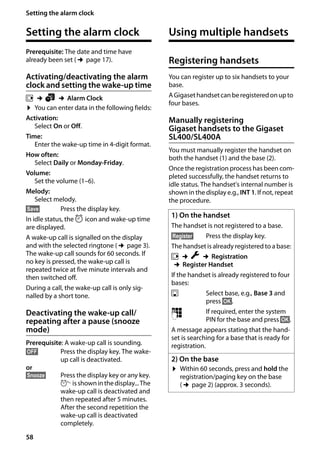
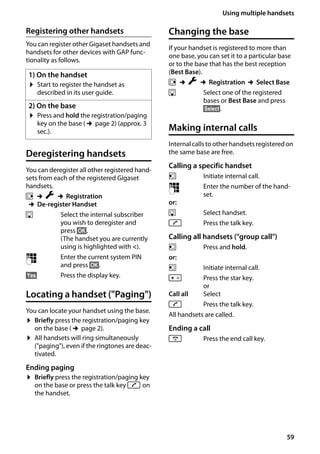
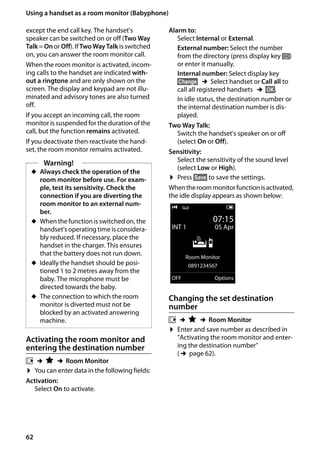
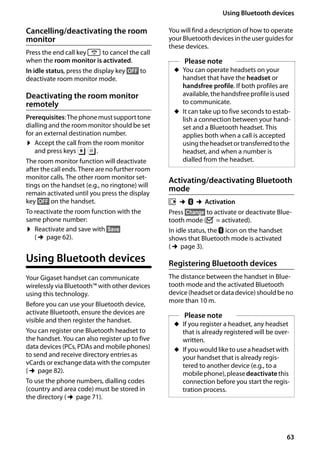
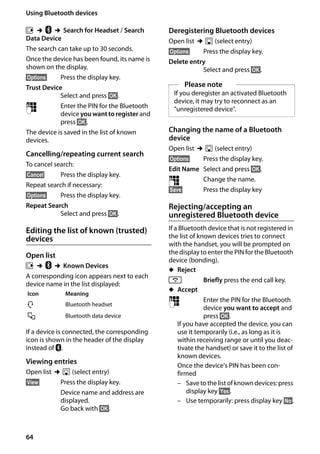
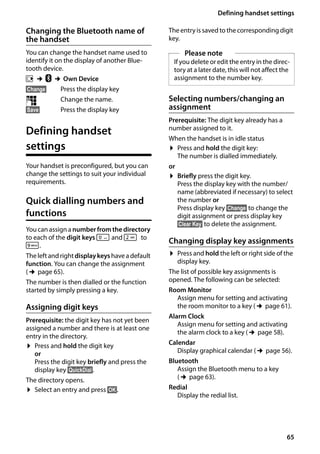
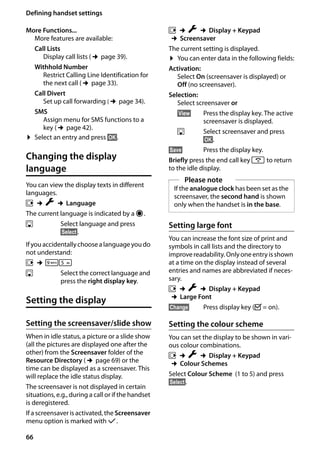
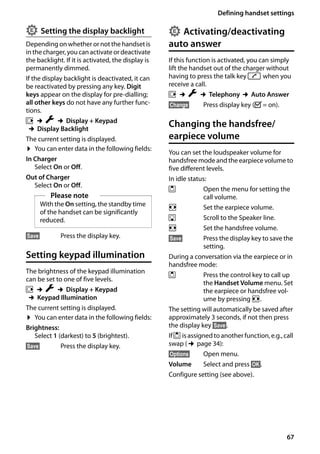
Congratulations
By purchasing a Gigaset, you have chosen a brand that is fully committed
to sustainability. This product’s packaging is eco-friendly!
To learn more, visit www.gigaset.com.
Gigaset SL400/400 A / GBR / A31008-M2103-L101-4-7619 / Cover_front.fm / 30.07.2014
1
Gigaset SL400/SL400A – your high-quality accessory
Gigaset SL400/400 A / GBR / A31008-M2103-L101-4-7619 / introduction.fm / 30.07.2014Version4,16.09.2005
Gigaset SL400/SL400A – your high-quality accessory
Congratulations, you are holding the slimmest and smallest Gigaset there has ever been.
This phone sets new standards with its high-quality genuine metal frame, 1.8" TFT colour dis-
play and incorporated functions. Your Gigaset can do a lot more than just make calls:
Further information on your phone can be found at www.gigaset.com/gigasetSL400.
After purchasing your Gigaset phone, please register it at www.gigaset.com/customercare –
this will ensure any questions you may have or warranty services you request are dealt with
even faster!
Have fun using your new phone!
Bluetooth® and mini USB
Connect your handset to a PC or headset using a mini USB (¢page 19) or Bluetooth®
(¢page 63).
Directory for up to 500 vCards – calendar and appointments
Save phone numbers and other data to the directory (¢page 35). Enter appointments and
birthdays in the calendar and set reminders (¢page 56).
Large font
Increase readability of call lists and the directory (¢page 66).
Customise
Assign personal caller display pictures (¢page 35), view your personal pictures as a screen-
saver slide show (¢page 66) or change the colour scheme of the display (¢page 66).
Choose from a selection of ringtones specially composed for your SL400 or load your own
(¢page 68).
If you don't (always) want it to ring
Make the most of the silent alert (¢page 69), the time control for calls (¢page 68) or
ensure that all calls with a withheld number are not signalled (¢page 69).
Other practical information
Synchronise the directory of an existing Gigaset handset (¢page 37), use the quick dial
function (¢page 37), adapt your Gigaset to suit your handsfree requirements (¢page 68)
and adjust the brightness of your keypad to suit you (¢page 67). Skip back five seconds
when listening to answering machine messages to repeat the last section (¢page 50).
Environment
Gigaset Green Home – Be environmentally aware when using your phone. Details about our
ECO DECT products can be found at www.gigaset.com/customercare.
2
Brief overview
Gigaset SL400/400 A / GBR / A31008-M2103-L101-4-7619 / overview.fm / 30.07.2014Version4,16.09.2005
Brief overview
Base
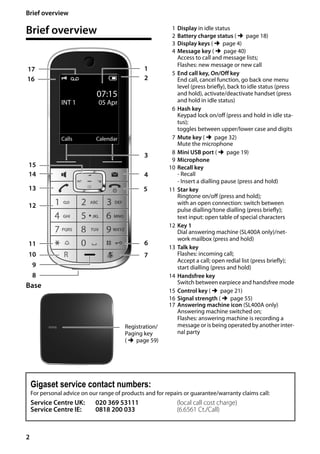
1 Display in idle status
2 Battery charge status (¢page 18)
3 Display keys (¢page 4)
4 Message key (¢page 40)
Access to call and message lists;
Flashes: new message or new call
5 End call key, On/Off key
End call, cancel function, go back one menu
level (press briefly), back to idle status (press
and hold), activate/deactivate handset (press
and hold in idle status)
6 Hash key
Keypad lock on/off (press and hold in idle sta-
tus);
toggles between upper/lower case and digits
7 Mute key (¢page 32)
Mute the microphone
8 Mini USB port (¢page 19)
9 Microphone
10 Recall key
- Recall
- Insert a dialling pause (press and hold)
11 Star key
Ringtone on/off (press and hold);
with an open connection: switch between
pulse dialling/tone dialling (press briefly);
text input: open table of special characters
12 Key 1
Dial answering machine (SL400A only)/net-
work mailbox (press and hold)
13 Talk key
Flashes: incoming call;
Accept a call; open redial list (press briefly);
start dialling (press and hold)
14 Handsfree key
Switch between earpiece and handsfree mode
15 Control key (¢page 21)
16 Signal strength (¢page 55)
17 Answering machine icon (SL400A only)
Answering machine switched on;
Flashes: answering machine is recording a
message or is being operated by another inter-
nal party
i à V
07:15
INT 1 05 Apr
Calls Calendar
2
3
5
4
6
7
15
13
9
1
14
16
11
12
10
8
Registration/
Paging key
(¢page 59)
17
Gigaset service contact numbers:
For personal advice on our range of products and for repairs or guarantee/warranty claims call:
Service Centre UK: 020 369 53111 (local call cost charge)
Service Centre IE: 0818 200 033 (6.6561 Ct./Call)
3
Display symbols
Gigaset SL400/400 A / GBR / A31008-M2103-L101-4-7619 / overview.fm / 30.07.2014Version4,16.09.2005
Display symbols
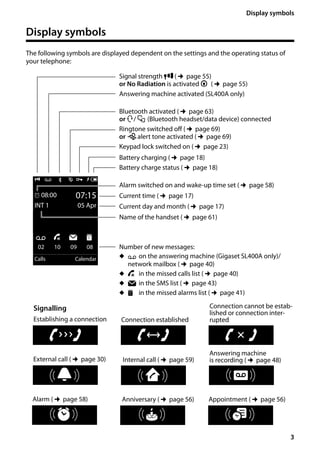
The following symbols are displayed dependent on the settings and the operating status of
your telephone:
Signalling
Establishing a connection
W
Connection established
Connection cannot be estab-
lished or connection inter-
rupted
i à » ó ˝
¼ 08:00 07:15
INT 1 05 Apr
à ™ ¾ 
02 10 09 08
Calls Calendar
ØåÚ
Internal call (¢page 59)
Ø«Ú
External call (¢page 30)
Signal strength i(¢page 55)
or No Radiation is activated ¼ (¢page 55)
Answering machine activated (SL400A only)
Bluetooth activated (¢page 63)
or ô/ õ (Bluetooth headset/data device) connected
Ringtone switched off (¢page 69)
or ñalert tone activated (¢page 69)
Keypad lock switched on (¢page 23)
ØþÚ
Answering machine
is recording (¢page 48)
Battery charging (¢page 18)
Battery charge status (¢page 18)
Alarm switched on and wake-up time set (¢page 58)
Current time (¢page 17)
Current day and month (¢page 17)
Name of the handset (¢page 61)
Number of new messages:
u à on the answering machine (Gigaset SL400A only)/
network mailbox (¢page 40)
u ™ in the missed calls list (¢page 40)
u ¾ in the SMS list (¢page 43)
u 
 in the missed alarms list (¢page 41)
V
ØðÚ
Anniversary (¢page 56)
ØìÚ
Alarm (¢page 58)
ØáÚ
Appointment (¢page 56)
z X
4
Display keys
Gigaset SL400/400 A / GBR / A31008-M2103-L101-4-7619 / overview.fm / 30.07.2014Version4,16.09.2005
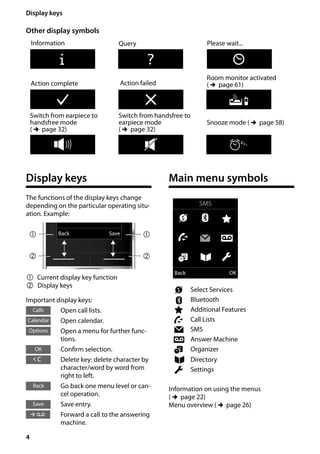
Other display symbols
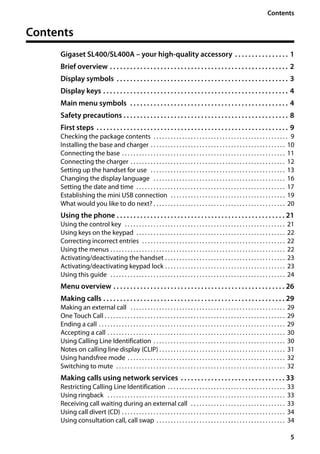
Display keys
The functions of the display keys change
depending on the particular operating situ-
ation. Example:
Important display keys:
Open call lists.
Open calendar.
Open a menu for further func-
tions.
Confirm selection.
Delete key: delete character by
character/word by word from
right to left.
Go back one menu level or can-
cel operation.
Save entry.
Forward a call to the answering
machine.
Main menu symbols
Information on using the menus
(¢page 22)
Menu overview (¢page 26)
Information
¶ Û
Query Please wait...
À
Action failed
‰
Action complete
Á
Room monitor activated
(¢page 61)
Ð
‹ Œ °
Snooze mode (¢page 58)
Switch from earpiece to
handsfree mode
(¢page 32)
Switch from handsfree to
earpiece mode
(¢page 32)
Back Save
1 Current display key function
2 Display keys
1
2
1
2
Calls
Calendar
Options
OK
Û
Back
Save
à
Ç Select Services
ò Bluetooth
É Additional Features
Ê Call Lists
Ë SMS
Ì Answer Machine
á Organizer
 Directory
Ï Settings
SMS
Ç ò É
Ê Ë Ì
á Â Ï
Back OK
5
Contents
Gigaset SL400/400 A / GBR / A31008-M2103-L101-4-7619 / SL400AIVZ.fm / 30.07.2014Version4,16.09.2005
Contents
Gigaset SL400/SL400A – your high-quality accessory . . . . . . . . . . . . . . . . 1
Brief overview . . . . . . . . . . . . . . . . . . . . . . . . . . . . . . . . . . . . . . . . . . . . . . . . . . . . . 2
Display symbols . . . . . . . . . . . . . . . . . . . . . . . . . . . . . . . . . . . . . . . . . . . . . . . . . . . 3
Display keys . . . . . . . . . . . . . . . . . . . . . . . . . . . . . . . . . . . . . . . . . . . . . . . . . . . . . . . 4
Main menu symbols . . . . . . . . . . . . . . . . . . . . . . . . . . . . . . . . . . . . . . . . . . . . . . . 4
Safety precautions . . . . . . . . . . . . . . . . . . . . . . . . . . . . . . . . . . . . . . . . . . . . . . . . . 8
First steps . . . . . . . . . . . . . . . . . . . . . . . . . . . . . . . . . . . . . . . . . . . . . . . . . . . . . . . . . 9
Checking the package contents . . . . . . . . . . . . . . . . . . . . . . . . . . . . . . . . . . . . . . . . . . . . . . . 9
Installing the base and charger . . . . . . . . . . . . . . . . . . . . . . . . . . . . . . . . . . . . . . . . . . . . . . . 10
Connecting the base . . . . . . . . . . . . . . . . . . . . . . . . . . . . . . . . . . . . . . . . . . . . . . . . . . . . . . . . . 11
Connecting the charger . . . . . . . . . . . . . . . . . . . . . . . . . . . . . . . . . . . . . . . . . . . . . . . . . . . . . . 12
Setting up the handset for use . . . . . . . . . . . . . . . . . . . . . . . . . . . . . . . . . . . . . . . . . . . . . . . 13
Changing the display language . . . . . . . . . . . . . . . . . . . . . . . . . . . . . . . . . . . . . . . . . . . . . . 16
Setting the date and time . . . . . . . . . . . . . . . . . . . . . . . . . . . . . . . . . . . . . . . . . . . . . . . . . . . . 17
Establishing the mini USB connection . . . . . . . . . . . . . . . . . . . . . . . . . . . . . . . . . . . . . . . . 19
What would you like to do next? . . . . . . . . . . . . . . . . . . . . . . . . . . . . . . . . . . . . . . . . . . . . . . 20
Using the phone . . . . . . . . . . . . . . . . . . . . . . . . . . . . . . . . . . . . . . . . . . . . . . . . . . 21
Using the control key . . . . . . . . . . . . . . . . . . . . . . . . . . . . . . . . . . . . . . . . . . . . . . . . . . . . . . . . 21
Using keys on the keypad . . . . . . . . . . . . . . . . . . . . . . . . . . . . . . . . . . . . . . . . . . . . . . . . . . . . 22
Correcting incorrect entries . . . . . . . . . . . . . . . . . . . . . . . . . . . . . . . . . . . . . . . . . . . . . . . . . . 22
Using the menus . . . . . . . . . . . . . . . . . . . . . . . . . . . . . . . . . . . . . . . . . . . . . . . . . . . . . . . . . . . . . 22
Activating/deactivating the handset . . . . . . . . . . . . . . . . . . . . . . . . . . . . . . . . . . . . . . . . . . 23
Activating/deactivating keypad lock . . . . . . . . . . . . . . . . . . . . . . . . . . . . . . . . . . . . . . . . . . 23
Using this guide . . . . . . . . . . . . . . . . . . . . . . . . . . . . . . . . . . . . . . . . . . . . . . . . . . . . . . . . . . . . . 24
Menu overview . . . . . . . . . . . . . . . . . . . . . . . . . . . . . . . . . . . . . . . . . . . . . . . . . . . 26
Making calls . . . . . . . . . . . . . . . . . . . . . . . . . . . . . . . . . . . . . . . . . . . . . . . . . . . . . . 29
Making an external call . . . . . . . . . . . . . . . . . . . . . . . . . . . . . . . . . . . . . . . . . . . . . . . . . . . . . . 29
One Touch Call . . . . . . . . . . . . . . . . . . . . . . . . . . . . . . . . . . . . . . . . . . . . . . . . . . . . . . . . . . . . . . . 29
Ending a call . . . . . . . . . . . . . . . . . . . . . . . . . . . . . . . . . . . . . . . . . . . . . . . . . . . . . . . . . . . . . . . . . 29
Accepting a call . . . . . . . . . . . . . . . . . . . . . . . . . . . . . . . . . . . . . . . . . . . . . . . . . . . . . . . . . . . . . . 30
Using Calling Line Identification . . . . . . . . . . . . . . . . . . . . . . . . . . . . . . . . . . . . . . . . . . . . . . 30
Notes on calling line display (CLIP) . . . . . . . . . . . . . . . . . . . . . . . . . . . . . . . . . . . . . . . . . . . . 31
Using handsfree mode . . . . . . . . . . . . . . . . . . . . . . . . . . . . . . . . . . . . . . . . . . . . . . . . . . . . . . . 32
Switching to mute . . . . . . . . . . . . . . . . . . . . . . . . . . . . . . . . . . . . . . . . . . . . . . . . . . . . . . . . . . . 32
Making calls using network services . . . . . . . . . . . . . . . . . . . . . . . . . . . . . . . 33
Restricting Calling Line Identification . . . . . . . . . . . . . . . . . . . . . . . . . . . . . . . . . . . . . . . . . 33
Using ringback . . . . . . . . . . . . . . . . . . . . . . . . . . . . . . . . . . . . . . . . . . . . . . . . . . . . . . . . . . . . . . 33
Receiving call waiting during an external call . . . . . . . . . . . . . . . . . . . . . . . . . . . . . . . . . 33
Using call divert (CD) . . . . . . . . . . . . . . . . . . . . . . . . . . . . . . . . . . . . . . . . . . . . . . . . . . . . . . . . . 34
Using consultation call, call swap . . . . . . . . . . . . . . . . . . . . . . . . . . . . . . . . . . . . . . . . . . . . . 34
6
Contents
Gigaset SL400/400 A / GBR / A31008-M2103-L101-4-7619 / SL400AIVZ.fm / 30.07.2014Version4,16.09.2005
Using the directory and lists . . . . . . . . . . . . . . . . . . . . . . . . . . . . . . . . . . . . . . . 35
Directory . . . . . . . . . . . . . . . . . . . . . . . . . . . . . . . . . . . . . . . . . . . . . . . . . . . . . . . . . . . . . . . . . . . . 35
Redial list . . . . . . . . . . . . . . . . . . . . . . . . . . . . . . . . . . . . . . . . . . . . . . . . . . . . . . . . . . . . . . . . . . . . 39
Incoming SMS message list . . . . . . . . . . . . . . . . . . . . . . . . . . . . . . . . . . . . . . . . . . . . . . . . . . 39
Answering machine list (Gigaset SL400A only) . . . . . . . . . . . . . . . . . . . . . . . . . . . . . . . . 39
Call lists . . . . . . . . . . . . . . . . . . . . . . . . . . . . . . . . . . . . . . . . . . . . . . . . . . . . . . . . . . . . . . . . . . . . . 39
Message key function . . . . . . . . . . . . . . . . . . . . . . . . . . . . . . . . . . . . . . . . . . . . . . . . . . . . . . . . 40
Missed alarms list . . . . . . . . . . . . . . . . . . . . . . . . . . . . . . . . . . . . . . . . . . . . . . . . . . . . . . . . . . . . 41
Sending SMS (text messages) . . . . . . . . . . . . . . . . . . . . . . . . . . . . . . . . . . . . . 42
Writing/sending SMS . . . . . . . . . . . . . . . . . . . . . . . . . . . . . . . . . . . . . . . . . . . . . . . . . . . . . . . . 42
Receiving an SMS . . . . . . . . . . . . . . . . . . . . . . . . . . . . . . . . . . . . . . . . . . . . . . . . . . . . . . . . . . . . 43
SMS with vCard . . . . . . . . . . . . . . . . . . . . . . . . . . . . . . . . . . . . . . . . . . . . . . . . . . . . . . . . . . . . . . 44
Receiving notifications via SMS . . . . . . . . . . . . . . . . . . . . . . . . . . . . . . . . . . . . . . . . . . . . . . . 45
Setting SMS centres . . . . . . . . . . . . . . . . . . . . . . . . . . . . . . . . . . . . . . . . . . . . . . . . . . . . . . . . . . 45
Entering/changing SMS centres . . . . . . . . . . . . . . . . . . . . . . . . . . . . . . . . . . . . . . . . . . . . . . 45
Receiving SMS on a PABX . . . . . . . . . . . . . . . . . . . . . . . . . . . . . . . . . . . . . . . . . . . . . . . . . . . . 46
Activating/deactivating SMS function . . . . . . . . . . . . . . . . . . . . . . . . . . . . . . . . . . . . . . . . 46
SMS troubleshooting . . . . . . . . . . . . . . . . . . . . . . . . . . . . . . . . . . . . . . . . . . . . . . . . . . . . . . . . 46
Operating the Gigaset SL400A base answering machine . . . . . . . . . . . . 48
Operating via the handset . . . . . . . . . . . . . . . . . . . . . . . . . . . . . . . . . . . . . . . . . . . . . . . . . . . . 48
Activating/deactivating call screening . . . . . . . . . . . . . . . . . . . . . . . . . . . . . . . . . . . . . . . . 51
Setting the recording parameters . . . . . . . . . . . . . . . . . . . . . . . . . . . . . . . . . . . . . . . . . . . . 52
Resetting fast access for the answering machine using key 1 . . . . . . . . . . . . . . . . . . 52
Operating when on the move (remote operation) . . . . . . . . . . . . . . . . . . . . . . . . . . . . . 53
Using the network mailbox . . . . . . . . . . . . . . . . . . . . . . . . . . . . . . . . . . . . . . . 54
Configuring fast access for the network mailbox . . . . . . . . . . . . . . . . . . . . . . . . . . . . . . 54
Viewing the network mailbox message . . . . . . . . . . . . . . . . . . . . . . . . . . . . . . . . . . . . . . . 54
ECO DECT . . . . . . . . . . . . . . . . . . . . . . . . . . . . . . . . . . . . . . . . . . . . . . . . . . . . . . . . 55
Setting an appointment (calendar) . . . . . . . . . . . . . . . . . . . . . . . . . . . . . . . . 56
Displaying missed appointments, anniversaries . . . . . . . . . . . . . . . . . . . . . . . . . . . . . . . 57
Setting the alarm clock . . . . . . . . . . . . . . . . . . . . . . . . . . . . . . . . . . . . . . . . . . . 58
Using multiple handsets . . . . . . . . . . . . . . . . . . . . . . . . . . . . . . . . . . . . . . . . . . 58
Registering handsets . . . . . . . . . . . . . . . . . . . . . . . . . . . . . . . . . . . . . . . . . . . . . . . . . . . . . . . . . 58
Deregistering handsets . . . . . . . . . . . . . . . . . . . . . . . . . . . . . . . . . . . . . . . . . . . . . . . . . . . . . . 59
Locating a handset ("Paging") . . . . . . . . . . . . . . . . . . . . . . . . . . . . . . . . . . . . . . . . . . . . . . . . 59
Changing the base . . . . . . . . . . . . . . . . . . . . . . . . . . . . . . . . . . . . . . . . . . . . . . . . . . . . . . . . . . . 59
Making internal calls . . . . . . . . . . . . . . . . . . . . . . . . . . . . . . . . . . . . . . . . . . . . . . . . . . . . . . . . . 59
Listening in to an external call . . . . . . . . . . . . . . . . . . . . . . . . . . . . . . . . . . . . . . . . . . . . . . . . 61
Changing the name of a handset . . . . . . . . . . . . . . . . . . . . . . . . . . . . . . . . . . . . . . . . . . . . . 61
Changing a handset's internal number . . . . . . . . . . . . . . . . . . . . . . . . . . . . . . . . . . . . . . . 61
Using a handset as a room monitor (Babyphone) . . . . . . . . . . . . . . . . . . . 61
Using Bluetooth devices . . . . . . . . . . . . . . . . . . . . . . . . . . . . . . . . . . . . . . . . . . 63
7
Contents
Gigaset SL400/400 A / GBR / A31008-M2103-L101-4-7619 / SL400AIVZ.fm / 30.07.2014Version4,16.09.2005
Defining handset settings . . . . . . . . . . . . . . . . . . . . . . . . . . . . . . . . . . . . . . . . . 65
Quick dialling numbers and functions . . . . . . . . . . . . . . . . . . . . . . . . . . . . . . . . . . . . . . . . 65
Changing the display language . . . . . . . . . . . . . . . . . . . . . . . . . . . . . . . . . . . . . . . . . . . . . . 66
Setting the display . . . . . . . . . . . . . . . . . . . . . . . . . . . . . . . . . . . . . . . . . . . . . . . . . . . . . . . . . . . 66
Setting keypad illumination . . . . . . . . . . . . . . . . . . . . . . . . . . . . . . . . . . . . . . . . . . . . . . . . . . 67
Activating/deactivating auto answer . . . . . . . . . . . . . . . . . . . . . . . . . . . . . . . . . . . . . . . . . 67
Changing the handsfree/earpiece volume . . . . . . . . . . . . . . . . . . . . . . . . . . . . . . . . . . . . 67
Setting a handsfree profile . . . . . . . . . . . . . . . . . . . . . . . . . . . . . . . . . . . . . . . . . . . . . . . . . . . 68
Changing ringtones . . . . . . . . . . . . . . . . . . . . . . . . . . . . . . . . . . . . . . . . . . . . . . . . . . . . . . . . . . 68
Using the Resource Directory . . . . . . . . . . . . . . . . . . . . . . . . . . . . . . . . . . . . . . . . . . . . . . . . . 69
Activating/deactivating advisory tones . . . . . . . . . . . . . . . . . . . . . . . . . . . . . . . . . . . . . . . 70
Setting your own area code . . . . . . . . . . . . . . . . . . . . . . . . . . . . . . . . . . . . . . . . . . . . . . . . . . 71
Restoring the handset default settings . . . . . . . . . . . . . . . . . . . . . . . . . . . . . . . . . . . . . . . . 71
Setting the base . . . . . . . . . . . . . . . . . . . . . . . . . . . . . . . . . . . . . . . . . . . . . . . . . . 71
Activating/deactivating music on hold . . . . . . . . . . . . . . . . . . . . . . . . . . . . . . . . . . . . . . . 71
Operating a repeater . . . . . . . . . . . . . . . . . . . . . . . . . . . . . . . . . . . . . . . . . . . . . . . . . . . . . . . . . 71
Protecting against unauthorised access . . . . . . . . . . . . . . . . . . . . . . . . . . . . . . . . . . . . . . . 72
Resetting the base to the default settings . . . . . . . . . . . . . . . . . . . . . . . . . . . . . . . . . . . . . 72
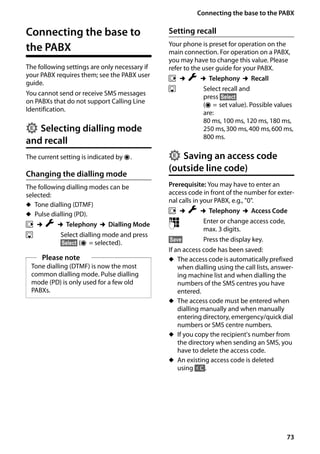
Connecting the base to the PABX . . . . . . . . . . . . . . . . . . . . . . . . . . . . . . . . . . 73
Selecting dialling mode and recall . . . . . . . . . . . . . . . . . . . . . . . . . . . . . . . . . . . . . . . . . . . . 73
Saving an access code (outside line code) . . . . . . . . . . . . . . . . . . . . . . . . . . . . . . . . . . . . . 73
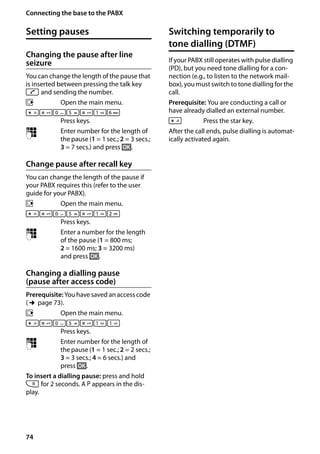
Setting pauses . . . . . . . . . . . . . . . . . . . . . . . . . . . . . . . . . . . . . . . . . . . . . . . . . . . . . . . . . . . . . . . 74
Switching temporarily to tone dialling (DTMF) . . . . . . . . . . . . . . . . . . . . . . . . . . . . . . . . 74
Service (Customer Care) . . . . . . . . . . . . . . . . . . . . . . . . . . . . . . . . . . . . . . . . . . . 75
Questions and answers . . . . . . . . . . . . . . . . . . . . . . . . . . . . . . . . . . . . . . . . . . . . . . . . . . . . . . 76
Authorisation . . . . . . . . . . . . . . . . . . . . . . . . . . . . . . . . . . . . . . . . . . . . . . . . . . . . . . . . . . . . . . . . 77
Guarantee Certificate
United Kingdom . . . . . . . . . . . . . . . . . . . . . . . . . . . . . . . . . . . . . . . . . . . . . . . . . . . . . . . . . . . . . 77
Guarantee Certificate
Ireland . . . . . . . . . . . . . . . . . . . . . . . . . . . . . . . . . . . . . . . . . . . . . . . . . . . . . . . . . . . . . . . . . . . . . . 78
Protecting our environment . . . . . . . . . . . . . . . . . . . . . . . . . . . . . . . . . . . . . . . 79
Appendix . . . . . . . . . . . . . . . . . . . . . . . . . . . . . . . . . . . . . . . . . . . . . . . . . . . . . . . . 80
Caring for your telephone . . . . . . . . . . . . . . . . . . . . . . . . . . . . . . . . . . . . . . . . . . . . . . . . . . . . 80
Contact with liquid . . . . . . . . . . . . . . . . . . . . . . . . . . . . . . . . . . . . . . . . . . . . . . . . . . . . . . . . . . 80
Specifications . . . . . . . . . . . . . . . . . . . . . . . . . . . . . . . . . . . . . . . . . . . . . . . . . . . . . . . . . . . . . . . . 81
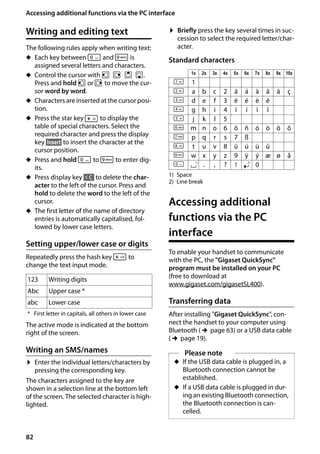
Writing and editing text . . . . . . . . . . . . . . . . . . . . . . . . . . . . . . . . . . . . . . . . . . . . . . . . . . . . . . 82
Accessing additional functions via the PC interface . . . . . . . . . . . . . . . . . 82
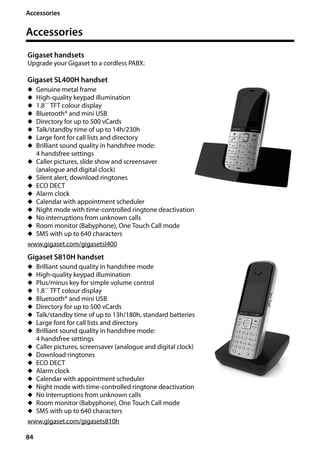
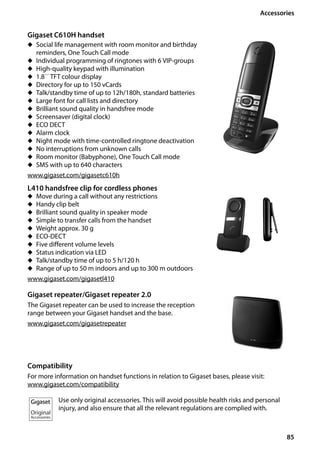
Accessories . . . . . . . . . . . . . . . . . . . . . . . . . . . . . . . . . . . . . . . . . . . . . . . . . . . . . . . 84
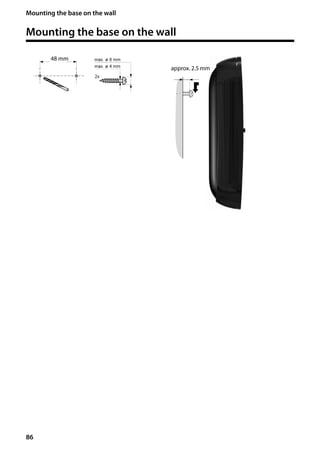
Mounting the base on the wall . . . . . . . . . . . . . . . . . . . . . . . . . . . . . . . . . . . . 86
Index . . . . . . . . . . . . . . . . . . . . . . . . . . . . . . . . . . . . . . . . . . . . . . . . . . . . . . . . . . . . 87
8
Safety precautions
Gigaset SL400/400 A / GBR / A31008-M2103-L101-4-7619 / security.fm / 30.07.2014Version4,16.09.2005
Safety precautions
a - Read the safety precautions and the user guide before use.
- Explain their content and the potential hazards associated with using the device to your child-
ren.
- The device cannot be used in the event of a power failure. In case of a power failure it is also not
possible to make emergency calls.
- Emergency numbers cannot be dialled if the keypad/display lock is activated!
Do not use the devices in environments with a potential explosion hazard (e.g. paint shops).
The devices are not splashproof. For this reason do not install them in a damp environment such as
bathrooms or shower rooms.
Use only the power adapter indicated on the device.
Use only rechargeable batteries that correspond to the specification (see "Specifications"). Never
use a conventional (non-rechargeable) battery or other battery types as this could result in
significant health risks and personal injury. Rechargeable batteries, which are noticeably damaged,
must be replaced.
If you give your Gigaset to a third party, make sure you also give them the user guide.
Remove faulty devices from use or have them repaired by our Service team, as these could interfere
with other wireless services.
Do not use the device if the display is cracked or broken. Broken glass or plastic can cause injury to
hands and face. Send the device to our Service department to be repaired.
Do not hold the rear of the handset to your ear when it is ringing or when speaker mode is activated.
Otherwise you risk serious and permanent damage to your hearing.
Your Gigaset is compatible with the majority of digital hearing aids on the market. However, perfect
function with all hearing aids cannot be guaranteed.
The phone may cause interference in analogue hearing aids (humming or whistling) or cause them
to overload. If you require assistance, please contact the hearing aid supplier.
Using your telephone may affect nearby medical equipment. Be aware of the technical conditions
in your particular environment, e.g. doctor's surgery. If you use a medical device (e.g. a pacemaker),
please contact the device manufacturer. They will be able to advise you regarding the susceptibility
of the device to external sources of high frequency energy (for the specifications of your Gigaset
product see "Specifications").
To prevent loss of hearing, avoid listening at high volume over long periods of time.
9
First steps
Gigaset SL400/400 A / GBR / A31008-M2103-L101-4-7619 / starting.fm / 30.07.2014Version4,16.09.2005
First steps
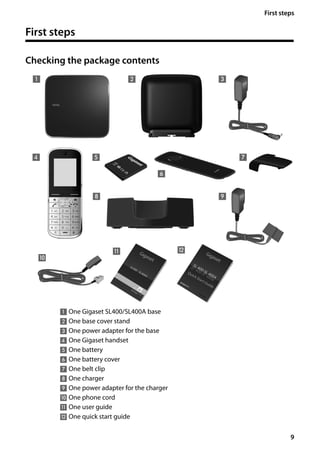
Checking the package contents
1 One Gigaset SL400/SL400A base
2 One base cover stand
3 One power adapter for the base
4 One Gigaset handset
5 One battery
6 One battery cover
7 One belt clip
8 One charger
9 One power adapter for the charger
J One phone cord
K One user guide
L One quick start guide
31
4 5
6
8
2
7
9
K
J
L
10
First steps
Gigaset SL400/400 A / GBR / A31008-M2103-L101-4-7619 / starting.fm / 30.07.2014Version4,16.09.2005
Installing the base and charger
The base and charger are designed for use in dry rooms in a temperature range of
+5°C to +45°C.
¤ Install the base on a level, non-slip surface at a central point in the building or
mount the base on the wall (¢page 86).
The phone's feet do not usually leave any marks on surfaces. However, due to the
multitude of different varnishes and polishes used on today's furnishings, the
occurrence of marks on the surfaces cannot be completely ruled out.
Please note:
u Never expose the telephone to the influence of heat sources, direct sunlight or
other electrical devices.
u Protect your Gigaset from moisture, dust, corrosive liquids and fumes.
Please note
Pay attention to the range of the base.
This is up to 300 m in unobstructed outdoor areas and up to 50 m inside build-
ings. The range is reduced when Maximum Range is deactivated (¢page 55).
11
First steps
Gigaset SL400/400 A / GBR / A31008-M2103-L101-4-7619 / starting.fm / 30.07.2014Version4,16.09.2005
Connecting the base
Please note:
u The power adapter must always be connected, as the phone will not operate
without a mains connection.
u Use only the power adapter and phone cord supplied. Pin connections on tele-
phone cables can vary (pin connections ¢page 81).
13
21
14
¤ Connect power adapter 1 and
phone jack 2 to the base and
place the cables in the cable
recesses.
¤ Place the cover in the notches on the
back of the base and click into place
(not if mounting on the wall).
¤ First connect the power
adapter 3.
¤ Then connect the phone
jack 4.
12
First steps
Gigaset SL400/400 A / GBR / A31008-M2103-L101-4-7619 / starting.fm / 30.07.2014Version4,16.09.2005
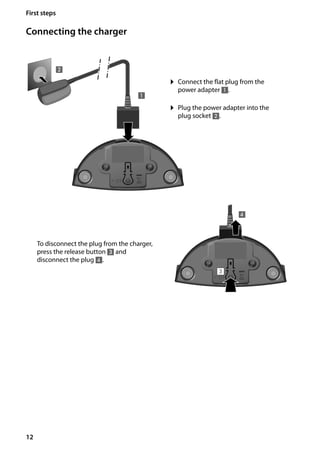
Connecting the charger
¤ Plug the power adapter into the
plug socket 2.
¤ Connect the flat plug from the
power adapter 1.
To disconnect the plug from the charger,
press the release button 3 and
disconnect the plug 4.
1
2
3
4
13
First steps
Gigaset SL400/400 A / GBR / A31008-M2103-L101-4-7619 / starting.fm / 30.07.2014Version4,16.09.2005
Setting up the handset for use
The display is protected by a plastic film.
Please remove the protective film!
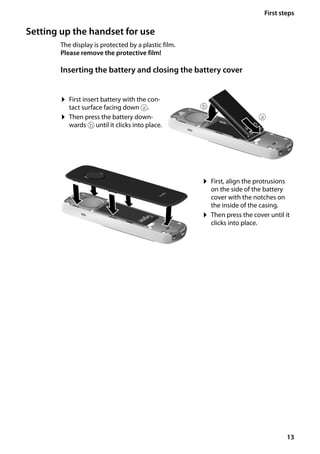
Inserting the battery and closing the battery cover
¤ First insert battery with the con-
tact surface facing down a.
¤ Then press the battery down-
wards b until it clicks into place.
¤ First, align the protrusions
on the side of the battery
cover with the notches on
the inside of the casing.
¤ Then press the cover until it
clicks into place.
a
b
14
First steps
Gigaset SL400/400 A / GBR / A31008-M2103-L101-4-7619 / starting.fm / 30.07.2014Version4,16.09.2005
To reopen the battery cover to replace the battery:
¤ Remove the belt clip
(if attached).
¤ Insert your fingernail into the
notch at the bottom of the
casing and pull the battery
cover upwards.
To change the battery, insert
your fingernail into the notch in
the casing and pull the battery
upwards.
Attaching the belt clip
The handset has notches on each side to attach the belt clip.
¤ To attach – press the belt clip onto the
back of the handset so that the protru-
sions on the belt clip engage with the
notches.
¤ To remove – press the centre of the
belt clip firmly with your right thumb,
push the fingernail of your left index
finger up between the clip and the
housing and pull the clip in an upward
direction.
15
First steps
Gigaset SL400/400 A / GBR / A31008-M2103-L101-4-7619 / starting.fm / 30.07.2014Version4,16.09.2005
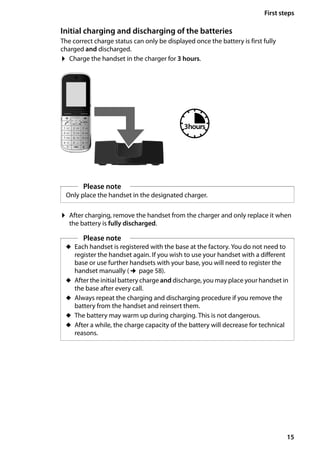
Initial charging and discharging of the batteries
The correct charge status can only be displayed once the battery is first fully
charged and discharged.
¤ Charge the handset in the charger for 3 hours.
¤ After charging, remove the handset from the charger and only replace it when
the battery is fully discharged.
Please note
Only place the handset in the designated charger.
3hours
Please note
u Each handset is registered with the base at the factory. You do not need to
register the handset again. If you wish to use your handset with a different
base or use further handsets with your base, you will need to register the
handset manually (¢page 58).
u After the initial battery charge and discharge, you may place your handset in
the base after every call.
u Always repeat the charging and discharging procedure if you remove the
battery from the handset and reinsert them.
u The battery may warm up during charging. This is not dangerous.
u After a while, the charge capacity of the battery will decrease for technical
reasons.
16
First steps
Gigaset SL400/400 A / GBR / A31008-M2103-L101-4-7619 / starting.fm / 30.07.2014Version4,16.09.2005
Changing the display language
Change the display language if you do not understand the language currently set.
¤ Press and hold the end call key a to return to idle status.
O 5
¤ Press right on the control key.
¤ Slowly press keys O and 5 one
after the other.
The display for setting languages appears.
The current language (e.g. English) is
selected.
¤ Press down on the control key s ...
... until the language you wish to use is
marked, e.g., French.
¤ Press the right key directly below the
display to select this language.
The selection is marked with Ø.
Deutsch ±
English Ø
Francais ±
It li ±
Deutsch ±
English Ø
Francais ±
Italiano ±
Espanol ±
x
Back Select
Deutsch ±
English ±
Francais Ø
It li ±
17
First steps
Gigaset SL400/400 A / GBR / A31008-M2103-L101-4-7619 / starting.fm / 30.07.2014Version4,16.09.2005
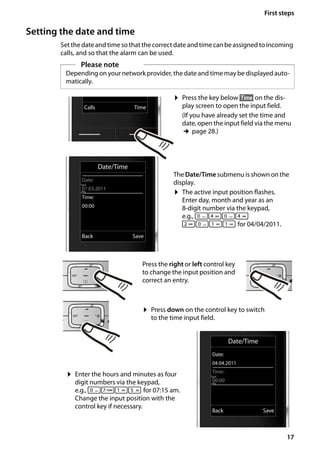
Setting the date and time
Set the date and time so that thecorrectdate andtime can be assigned toincoming
calls, and so that the alarm can be used.
Please note
Depending on your network provider, the date and time may be displayed auto-
matically.
Date/Time
Date:
04.04.2011
Time:
00:00
Back Save
¤ Press the key below §Time§ on the dis-
play screen to open the input field.
(If you have already set the time and
date, open the input field via the menu
¢page 28.)
The Date/Time submenu is shown on the
display.
¤ The active input position flashes.
Enter day, month and year as an
8-digit number via the keypad,
e.g., Q4Q4
2Q

 for 04/04/2011.
Date/Time
Date:
01.03.2011
Time:
00:00
Back Save
Calls Time
Press the right or left control key
to change the input position and
correct an entry.
¤ Enter the hours and minutes as four
digit numbers via the keypad,
e.g., QM
5 for 07:15 am.
Change the input position with the
control key if necessary.
¤ Press down on the control key to switch
to the time input field.
18
First steps
Gigaset SL400/400 A / GBR / A31008-M2103-L101-4-7619 / starting.fm / 30.07.2014Version4,16.09.2005
Display in idle status
Once the phone is registered and the time set, the idle status is shown as in this
example. If the answering machine is activated, the answering machine icon à is
displayed in the header.
Displays
u Reception between the base and the handset
(¢page 55):
– Good to poor: Ð i Ñ Ò
– No reception: |
u Battery charge status:
– { white: charged over 66%
– { white: charged between 33% and 66%
– y white: charged between 10% and 33%
– y red: charged below 10%
– y flashes red: battery almost empty (less than 10-minutes talktime)
– xy xy x{ x{ white: battery charging
u INT 1
Internal name of the handset (¢page 61)
If No Radiation (¢page 55) is activated, the ¼ icon is displayed in the top left cor-
ner of the display.
Your answering machine is set with a pre-recorded announcement.
Your phone is now ready for use!
¤ Press the key below §Save§ on the dis-
play screen to confirm your entry.
The display shows Saved. You will hear a
confirmation tone and the handset will
automatically return to idle status.
Back Save
Date/Time
‰
Saved
i à V
07:15
INT 1 04 Apr
Calls Calendar
19
First steps
Gigaset SL400/400 A / GBR / A31008-M2103-L101-4-7619 / starting.fm / 30.07.2014Version4,16.09.2005
Establishing the mini USB connection
The mini USB connection is on the
underside of your Gigaset handset.
Connecting the headset with jack connectors
You can connect the headset with a 2.5 mm jack connector using the USB-to-jack
adapter.
See the relevant product page at www.gigaset.com for information on recom-
mended headsets.
The headset volume corresponds to the settings for the earpiece volume.
Connecting the USB data cable
You can connect a standard USB data cable with a USB mini-B connector to syn-
chronise your handset with a PC. To use this function, the Gigaset QuickSync soft-
ware must be installed (¢page 82).
20
First steps
Gigaset SL400/400 A / GBR / A31008-M2103-L101-4-7619 / starting.fm / 30.07.2014Version4,16.09.2005
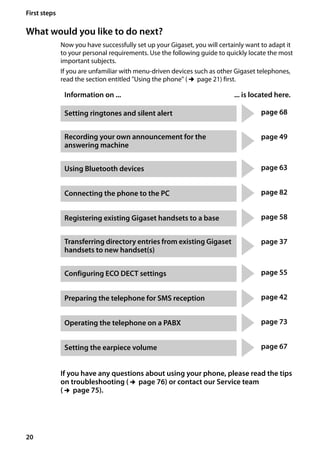
What would you like to do next?
Now you have successfully set up your Gigaset, you will certainly want to adapt it
to your personal requirements. Use the following guide to quickly locate the most
important subjects.
If you are unfamiliar with menu-driven devices such as other Gigaset telephones,
read the section entitled "Using the phone" (¢page 21) first.
If you have any questions about using your phone, please read the tips
on troubleshooting (¢page 76) or contact our Service team
(¢page 75).
Information on ... ... is located here.
Setting ringtones and silent alert page 68
Recording your own announcement for the
answering machine
page 49
Using Bluetooth devices page 63
Connecting the phone to the PC page 82
Registering existing Gigaset handsets to a base page 58
Transferring directory entries from existing Gigaset
handsets to new handset(s)
page 37
Configuring ECO DECT settings page 55
Preparing the telephone for SMS reception page 42
Operating the telephone on a PABX page 73
Setting the earpiece volume page 67
g
g
g
g
g
g
g
g
g
g
21
Using the phone
Gigaset SL400/400 A / GBR / A31008-M2103-L101-4-7619 / starting.fm / 30.07.2014Version4,16.09.2005
Using the phone
Using the control key
Below, the side of the control key that you must press in the
respective operating situation is marked in black (top, bottom,
right, left, centre), e.g., v for "press right on the control key"
or w for "press the centre of the control key".
The control key has a number of different functions:
When the handset is in idle status
s Open the directory.
v Open the main menu.
u Open the list of handsets.
t Call up the menu for setting the handset's call volume (¢page 67).
In the main menu
t, s, v or u
Navigate to the required function.
In submenus and lists
t / s Scroll up/down line by line.
In input fields
Use the control key to move the cursor up t, down s, right v or left u.
Press and hold v or u to move the cursor word by word.
During an external call
s Open the directory.
u Initiate an internal consultation call.
t Adjust the loudspeaker volume for earpiece and handsfree mode.
Functions when pressing the middle of the control key
Depending on the operating situation, the key has different functions.
u In idle status the key opens the main menu.
u In submenus, selection and input fields, the key takes on the function of the
display keys §OK§, §Yes§, §Save§, §Select§ or §Change§.
Please note
These instructions demonstrate the main menu being opened by pressing the
right of the control key and functions being actuated by pressing the appropri-
ate display key. However, if you prefer, you can use the control key as described
above.
22
Using the phone
Gigaset SL400/400 A / GBR / A31008-M2103-L101-4-7619 / starting.fm / 30.07.2014Version4,16.09.2005
Using keys on the keypad
c / Q / * etc.
Press the matching key on the handset.
~ Enter digits or letters.
Correcting incorrect entries
You can correct incorrect characters in the input fields by navigating to the incor-
rect entry using the control key. You can then:
u Delete the character to the left of the cursor with the display key Ñ (press and
hold to delete the word)
u Insert characters at the cursor position
u Overwrite the highlighted (flashing) character, e.g., when entering time and
date.
Using the menus
Your telephone's functions are accessed using a menu that has a number of levels.
The menu view can be expanded (expert mode •) or simplified. Expert mode is
the active default setting.
Settings or functions that are only available in expert mode are marked in these
instructions by the • icon.
Changing the menu view and menu overview (¢page 26).
Main menu (first menu level)
¤ When the handset is in idle status, press the right control key v to open the
main menu.
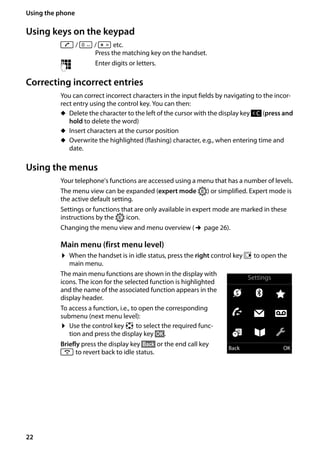
The main menu functions are shown in the display with
icons. The icon for the selected function is highlighted
and the name of the associated function appears in the
display header.
To access a function, i.e., to open the corresponding
submenu (next menu level):
¤ Use the control key p to select the required func-
tion and press the display key §OK§.
Briefly press the display key §Back§ or the end call key
a to revert back to idle status.
Settings
Ç ò É
Ê Ë Ì
á Â Ï
Back OK
23
Using the phone
Gigaset SL400/400 A / GBR / A31008-M2103-L101-4-7619 / starting.fm / 30.07.2014Version4,16.09.2005
Submenus
The functions in the submenus are displayed as lists
(example on the right).
To access a function:
¤ Scroll to the function with the control key q and
press §OK§.
Briefly press the display key §Back§ or the end call key
a to return to the previous menu level/cancel the
operation.
Reverting to idle status
You can revert to idle status from anywhere in the menu as follows:
¤ Press and hold the end call key a.
or:
¤ Do not press any key: after 2 minutes the display will automatically revert to idle
status.
Settings that have not been saved by selecting the display keys §OK§, §Yes§ or §Save§ are
lost.
An example of the display in idle status is shown on page 18.
Activating/deactivating the handset
a With the phone in idle status, press and hold the end call key (confir-
mation tone) to switch off the handset.
Press and hold the end call key again to switch the handset on.
Activating/deactivating keypad lock
Keypad lock prevents any inadvertent use of the phone.
# Press and hold the hash key in idle status to activate or deactivate key-
pad lock. You will hear the confirmation tone.
If keypad lock is activated, you will see a message when you press a key.
Keypad lock deactivates automatically when you receive a call. It is reactivated
when the call is finished.
Settings
Date/Time
Audio Settings
Display + Keypad
Language
Registration
Back OK
Please note
When the handset is switched on or placed in the charger, an animation show-
ing the Gigaset logo is displayed for several seconds.
Please note
When keypad lock is active, you cannot even call emergency numbers.
24
Using the phone
Gigaset SL400/400 A / GBR / A31008-M2103-L101-4-7619 / starting.fm / 30.07.2014Version4,16.09.2005
Using this guide
The operating steps are shown in abbreviated form.
Example:
The illustration:
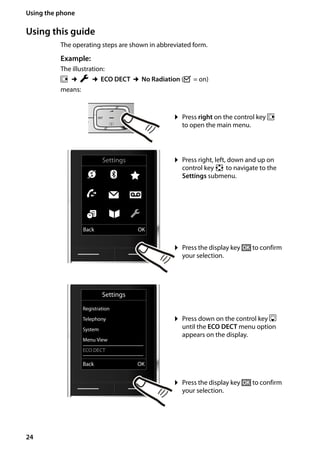
v ¢Ï ¢ECO DECT ¢No Radiation (³ = on)
means:
¤ Press right on the control key v
to open the main menu.
¤ Press right, left, down and up on
control key p to navigate to the
Settings submenu.
¤ Press the display key §OK§ to confirm
your selection.
¤ Press down on the control key s
until the ECO DECT menu option
appears on the display.
¤ Press the display key §OK§ to confirm
your selection.
Settings
Registration
Telephony
System
Menu View
ECO DECT
Back OK
Settings
Ç ò É
Ê Ë Ì
á Â Ï
Back OK
25
Using the phone
Gigaset SL400/400 A / GBR / A31008-M2103-L101-4-7619 / starting.fm / 30.07.2014Version4,16.09.2005
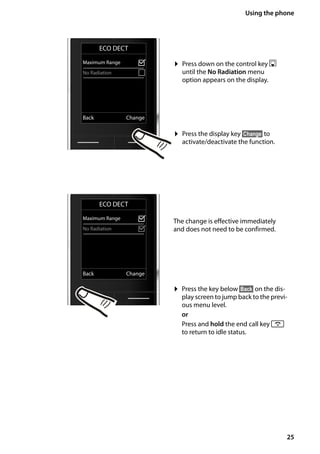
The change is effective immediately
and does not need to be confirmed.
¤ Press down on the control key s
until the No Radiation menu
option appears on the display.
¤ Press the display key §Change§ to
activate/deactivate the function.
ECO DECT
Maximum Range ³
No Radiation ³
Back Change
ECO DECT
Maximum Range ³
No Radiation ´
Back Change
¤ Press the key below §Back§ on the dis-
play screen to jump back to the previ-
ous menu level.
or
Press and hold the end call key a
to return to idle status.
26
Menu overview
Gigaset SL400/400 A / GBR / A31008-M2103-L101-4-7619 / menuetree.fm / 30.07.2014Version4,16.09.2005
Menu overview
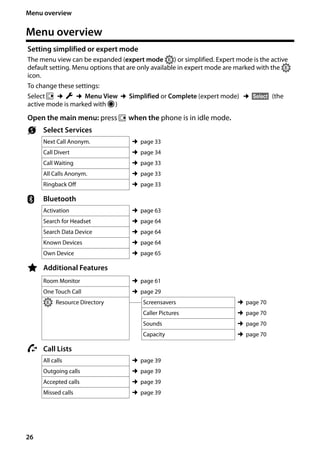
Setting simplified or expert mode
The menu view can be expanded (expert mode •) or simplified. Expert mode is the active
default setting. Menu options that are only available in expert mode are marked with the •
icon.
To change these settings:
Select v ¢Ï ¢Menu View ¢Simplified or Complete (expert mode) ¢§Select§ (the
active mode is marked with Ø)
Open the main menu: press v when the phone is in idle mode.
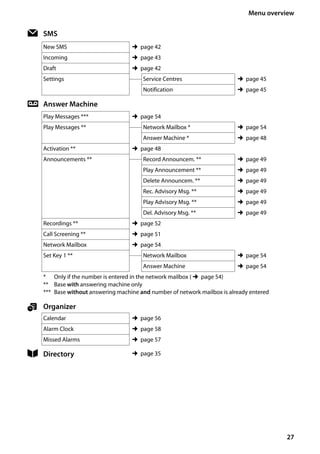
Ç Select Services
Next Call Anonym. ¢page 33
Call Divert ¢page 34
Call Waiting ¢page 33
All Calls Anonym. ¢page 33
Ringback Off ¢page 33
ò Bluetooth
Activation ¢page 63
Search for Headset ¢page 64
Search Data Device ¢page 64
Known Devices ¢page 64
Own Device ¢page 65
É Additional Features
Room Monitor ¢page 61
One Touch Call ¢page 29
• Resource Directory Screensavers ¢page 70
Caller Pictures ¢page 70
Sounds ¢page 70
Capacity ¢page 70
Ê Call Lists
All calls ¢page 39
Outgoing calls ¢page 39
Accepted calls ¢page 39
Missed calls ¢page 39
27
Menu overview
Gigaset SL400/400 A / GBR / A31008-M2103-L101-4-7619 / menuetree.fm / 30.07.2014Version4,16.09.2005
Ë SMS
New SMS ¢page 42
Incoming ¢page 43
Draft ¢page 42
Settings Service Centres ¢page 45
Notification ¢page 45
Ì Answer Machine
Play Messages *** ¢page 54
Play Messages ** Network Mailbox * ¢page 54
Answer Machine * ¢page 48
Activation ** ¢page 48
Announcements ** Record Announcem. ** ¢page 49
Play Announcement ** ¢page 49
Delete Announcem. ** ¢page 49
Rec. Advisory Msg. ** ¢page 49
Play Advisory Msg. ** ¢page 49
Del. Advisory Msg. ** ¢page 49
Recordings ** ¢page 52
Call Screening ** ¢page 51
Network Mailbox ¢page 54
Set Key 1 ** Network Mailbox ¢page 54
Answer Machine ¢page 54
* Only if the number is entered in the network mailbox (¢page 54)
** Base with answering machine only
*** Base without answering machine and number of network mailbox is already entered
á Organizer
Calendar ¢page 56
Alarm Clock ¢page 58
Missed Alarms ¢page 57
 Directory ¢page 35
28
Menu overview
Gigaset SL400/400 A / GBR / A31008-M2103-L101-4-7619 / menuetree.fm / 30.07.2014Version4,16.09.2005
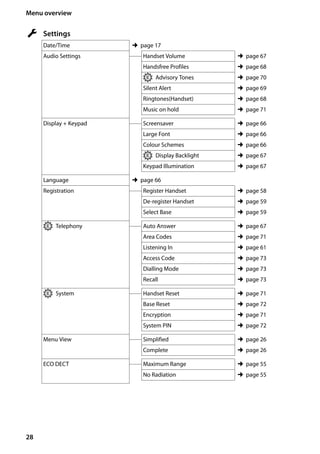
Ï Settings
Date/Time ¢page 17
Audio Settings Handset Volume ¢page 67
Handsfree Profiles ¢page 68
• Advisory Tones ¢page 70
Silent Alert ¢page 69
Ringtones(Handset) ¢page 68
Music on hold ¢page 71
Display + Keypad Screensaver ¢page 66
Large Font ¢page 66
Colour Schemes ¢page 66
• Display Backlight ¢page 67
Keypad Illumination ¢page 67
Language ¢page 66
Registration Register Handset ¢page 58
De-register Handset ¢page 59
Select Base ¢page 59
• Telephony Auto Answer ¢page 67
Area Codes ¢page 71
Listening In ¢page 61
Access Code ¢page 73
Dialling Mode ¢page 73
Recall ¢page 73
• System Handset Reset ¢page 71
Base Reset ¢page 72
Encryption ¢page 71
System PIN ¢page 72
Menu View Simplified ¢page 26
Complete ¢page 26
ECO DECT Maximum Range ¢page 55
No Radiation ¢page 55
29
Making calls
Gigaset SL400/400 A / GBR / A31008-M2103-L101-4-7619 / telefony.fm / 30.07.2014Version4,16.09.2005
Making calls
If the display backlight is deactivated
(¢page 67), it can be reactivated by press-
ing any key. Digit keys appear on the display
for pre-dialling; all other keys do not have
any further functions.
Making an external call
External calls are calls using the public tele-
phone network.
~ c Enter the number and press the
talk key.
or:
c ~ Press and hold the talk key c
and then enter the number.
You can cancel the dialling operation with
the end call key a.
You are shown the duration of the call while
the call is in progress.
Continuing a call on a Bluetooth
headset
Prerequisite: Bluetooth is activated; a con-
nection has been established between the
Bluetooth headset and the handset
(¢page 63).
Press the talk key on the headset; it may take
up to 5 seconds to establish a connection to
the handset.
The menu to set the earpiece and micro-
phone volume can be called up during a call
by pressing up on the control key t.
For further details about your headset, see
the accompanying user guide.
One Touch Call
You can setup your phone in sucha way that
pressing any key dials a previously stored
number. This allows children, for example,
who cannot enter a number, to call a certain
number.
v ¢É ¢One Touch Call
¤ Change multiple line input:
Activation:
Select On to activate.
Alarm to:
Enter or change number.
¤ Press §Save§ to save the settings.
When the function is activated, the idle dis-
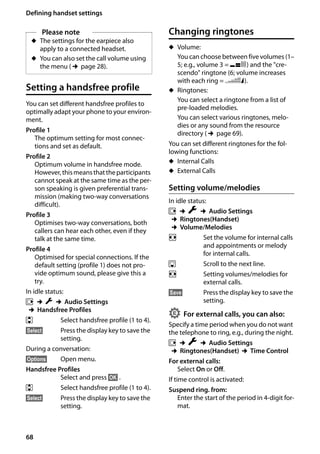
play appears as shown below:
By pressing any key the saved number is
dialled. Press the end call key a, to cancel
the dialling operation or to end the call.
Deactivating the One Touch Call
¤ In idle status, press the display key §OFF§.
¤ Press and hold the hash key #, to
deactivate the One Touch Call.
Ending a call
a Press the end call key.
Please note
Dialling with the directory (¢page 35),
call list (¢page 39), redial list
(¢page 39) and automatic redial
(¢page 39) saves you from repeatedly
keying in phone numbers.
i à V
07:15
INT 1 22 Oct
”
OneTouchCall active
0891234567
OFF
30
Making calls
Gigaset SL400/400 A / GBR / A31008-M2103-L101-4-7619 / telefony.fm / 30.07.2014Version4,16.09.2005
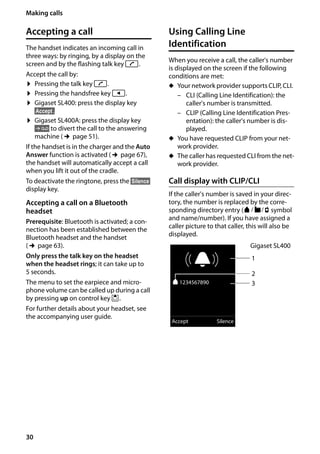
Accepting a call
The handset indicates an incoming call in
three ways: by ringing, by a display on the
screen and by the flashing talk key c.
Accept the call by:
¤ Pressing the talk key c.
¤ Pressing the handsfree key d.
¤ Gigaset SL400: press the display key
§Accept§.
¤ Gigaset SL400A: press the display key
Ô to divert the call to the answering
machine (¢page 51).
If the handset is in the charger and the Auto
Answer function is activated (¢page 67),
the handset will automatically accept a call
when you lift it out of the cradle.
To deactivate the ringtone, press the §Silence§
display key.
Accepting a call on a Bluetooth
headset
Prerequisite: Bluetooth is activated; a con-
nection has been established between the
Bluetooth headset and the handset
(¢page 63).
Only press the talk key on the headset
when the headset rings; it can take up to
5 seconds.
The menu to set the earpiece and micro-
phone volume can be called up during a call
by pressing up on control key t.
For further details about your headset, see
the accompanying user guide.
Using Calling Line
Identification
When you receive a call, the caller's number
is displayed on the screen if the following
conditions are met:
u Your network provider supports CLIP, CLI.
– CLI (Calling Line Identification): the
caller's number is transmitted.
– CLIP (Calling Line Identification Pres-
entation): the caller's number is dis-
played.
u You have requested CLIP from your net-
work provider.
u The caller has requested CLI from the net-
work provider.
Call display with CLIP/CLI
If the caller's number is saved in your direc-
tory, the number is replaced by the corre-
sponding directory entry (ä/ k/ l symbol
and name/number). If you have assigned a
caller picture to that caller, this will also be
displayed.
Ø«Ú
ä1234567890
Accept Silence
1
3
Gigaset SL400
2
31
Making calls
Gigaset SL400/400 A / GBR / A31008-M2103-L101-4-7619 / telefony.fm / 30.07.2014Version4,16.09.2005
or
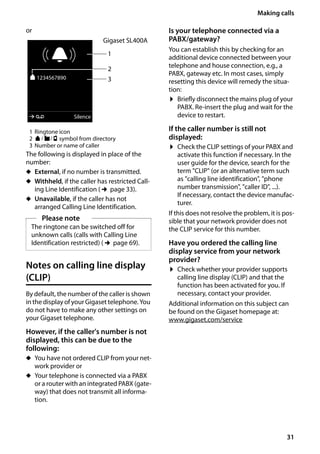
1 Ringtone icon
2 ä/ k/ l symbol from directory
3 Number or name of caller
The following is displayed in place of the
number:
u External, if no number is transmitted.
u Withheld, if the caller has restricted Call-
ing Line Identification (¢page 33).
u Unavailable, if the caller has not
arranged Calling Line Identification.
Notes on calling line display
(CLIP)
By default, the number of the caller is shown
in the display of your Gigaset telephone. You
do not have to make any other settings on
your Gigaset telephone.
However, if the caller's number is not
displayed, this can be due to the
following:
u You have not ordered CLIP from your net-
work provider or
u Your telephone is connected via a PABX
or a router with an integrated PABX (gate-
way) that does not transmit all informa-
tion.
Is your telephone connected via a
PABX/gateway?
You can establish this by checking for an
additional device connected between your
telephone and house connection, e.g., a
PABX, gateway etc. In most cases, simply
resetting this device will remedy the situa-
tion:
¤ Briefly disconnect the mains plug of your
PABX. Re-insert the plug and wait for the
device to restart.
If the caller number is still not
displayed:
¤ Check the CLIP settings of your PABX and
activate this function if necessary. In the
user guide for the device, search for the
term "CLIP" (or an alternative term such
as "calling line identification", "phone
number transmission", "caller ID", ...).
If necessary, contact the device manufac-
turer.
If this does not resolve the problem, it is pos-
sible that your network provider does not
the CLIP service for this number.
Have you ordered the calling line
display service from your network
provider?
¤ Check whether your provider supports
calling line display (CLIP) and that the
function has been activated for you. If
necessary, contact your provider.
Additional information on this subject can
be found on the Gigaset homepage at:
www.gigaset.com/service
Please note
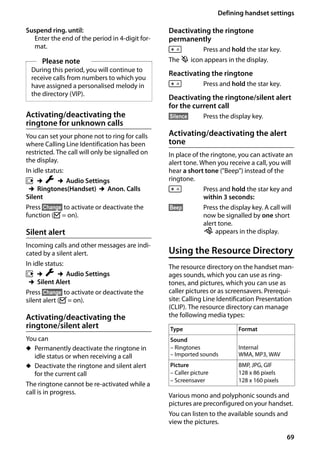
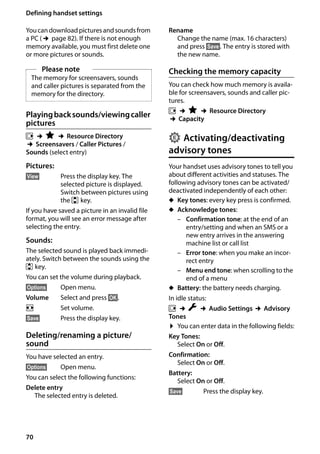
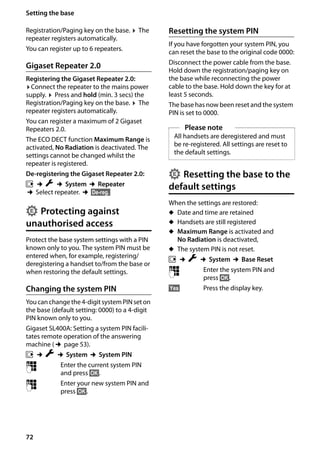
The ringtone can be switched off for
unknown calls (calls with Calling Line
Identification restricted) (¢page 69).
1
3
Gigaset SL400A
Ø«Ú
ä1234567890
à Silence
2
32
Making calls
Gigaset SL400/400 A / GBR / A31008-M2103-L101-4-7619 / telefony.fm / 30.07.2014Version4,16.09.2005
Using handsfree mode
In handsfree mode, instead of holding the
handset to your ear you can put it down, for
example on the table in front of you. This
allows others to participate in the call.
You can set various handsfree profiles to
optimally adapt your phone to your environ-
ment.
Activating/deactivating handsfree
mode
Activating while dialling
~ d Enter the number and press the
handsfree key.
¤ Inform your caller before you use the
handsfree function so that the caller
knows a third party may be listening.
Switching between earpiece and
handsfree mode
d Press the handsfree key.
During a call and when listening to the
answering machine (Gigaset SL400A only),
activate or deactivate handsfree mode.
If you wish to place the handset in the
charger during a call:
¤ Press and hold handsfree key d while
placing the handset in the base/charger
and for a further 2 seconds.
For instructions on adjusting the handsfree
volume (¢page 67).
Switching to mute
You can deactivate your handset's micro-
phone during a call.
h Press key to mute the handset.
The display shows Microphone
is off.
Press the key again to reactivate
the microphone.
Please note
If you have a headset connected, you can
switch between the headset and hands-
free mode.
Please note
u If the telephone is muted, all keys
except the mute key h and the
end-call key a will not work.
u A connected headset will also be
muted.
33
Making calls using network services
Gigaset SL400/400 A / GBR / A31008-M2103-L101-4-7619 / TNet_Features_SAG.fm / 30.07.2014Version4,16.09.2005
Making calls using
network services
Network services are functions that your
network provider makes available to you.
You have to request these services from your
network provider.
¤ It is not possible to reprogram the net-
work services.
¤ If you require assistance, please contact
your network provider.
Restricting Calling Line
Identification
Withholding a phone number (CLIR -
Calling Line Identification Restriction)
If you do not want to have your phone num-
ber displayed to the other caller, you can
withhold the number (CLIR). Calling Line
Identification is withheld until you deacti-
vate the function again.
Activating/deactivating withheld number:
v ¢Ç ¢All Calls Anonym.
¢Change (³ = activated)
Cancelling Calling Line Identification for the
next call only:
v ¢Ç ¢Next Call Anonym. ¢Dial
the number ¢Dial
Using ringback
Initiating ringback
If the number you have called is engaged,
you can initiate ringback. As soon as the line
belonging to the person you called is free,
your handset will ring.
You hear the busy tone.
§Options§ ¢Ringback
a Press the end call key.
Cancelling ringback
You can cancel a ringback that has already
been initiated.
v ¢Ç ¢Ringback Off
Receiving call waiting during
an external call
If the function is activated, during an exter-
nal call you will hear a call waiting tone to
signal thatanotherexternalcalleris tryingto
get through. If you have CLIP (¢page 30),
the number of the waiting caller or the cor-
responding directory entry is shown in the
display.
Activating/deactivating call
waiting
v ¢Ç ¢Call Waiting
Status Activate/deactivate.
§Send§ Press the display key.
Accepting a waiting call
You are making an external call and hear the
call waiting tone.
You have the following options:
If CLIP (¢page 30) is activated
§Accept§ Press the display key.
If CLIP is not activated
§Options§ ¢Accept waiting call
Once you have accepted the waiting call,
you can switch between the two callers
("Call swap" ¢page 34).
34
Making calls using network services
Gigaset SL400/400 A / GBR / A31008-M2103-L101-4-7619 / TNet_Features_SAG.fm / 30.07.2014Version4,16.09.2005
Using call divert (CD)
When divertingacall,the call isforwardedto
another connection.
The following options are available:
u All Calls: Calls are diverted immediately.
No more calls are signalled on your
phone.
u No Answer: Calls are diverted if no one
accepts the call within several rings.
u When Busy: Calls are forwarded when
your line is busy. Call is divertedwithout a
call waiting tone.
v ¢Ç ¢Call Divert
¤ You can enter data in the following fields:
Status:
Activate/deactivate call divert.
To Phone Number:
Enter the number to which the call is to
be diverted.
When:
Select All Calls / When Busy / No Answer.
§Send§ Press the display key.
a You will hear a confirmation
announcement. After the
announcement, press the end
call key.
Using consultation call,
call swap
These functions enable you to:
u Calla secondexternalcaller (consultation
call)
u Switch between two calls (call swap)
Consultation call
You can call a second external caller. The first
call is placed on hold.
During an external call:
§Ext. Call§ Press the display key.
The previous call is placed on
hold. The other participant
hears an announcement.
~ Enter the second participant's
telephone number.
The phone number is dialled. You are con-
nected to the second participant.
If the caller does not answer, select the dis-
play key §End§ to return to the first participant.
Ending a consultation call
§Options§ ¢End active call
You are reconnected to the first caller.
You can also end the consultation call by
pressing the end call key. The connection is
briefly interrupted and you will receive a call
back. Once you have pressed the talk key,
you are reconnected to the first caller.
Call swap
You can speak to both callers one at a time
(call swap).
Prerequisite: You are conducting an exter-
nal call and have called a second participant
(consultation call) or have accepted a wait-
ing call.
¤ Use qtoswapbetweenthe participants.
The caller you are currently speaking to is
marked with the æ icon.
Ending the active call.
§Options§ ¢End active call
You are re-connected to the waiting caller.
Please note
You can also select the second partici-
pant's phone number from the directory
or the call list (¢page 38).
35
Using the directory and lists
Gigaset SL400/400 A / GBR / A31008-M2103-L101-4-7619 / direct_charges.fm / 30.07.2014Version4,16.09.2005
Using the directory and
lists
The options are:
u Directory
u Redial list
u Incoming SMS message list
u Call lists
u Missed alarms list
u Answering machine list
(Gigaset SL400A only)
You can create a personalised directory for
your own handset. You can also send lists/
entries to other handsets (¢page 37).
Directory
You can save up to 500 entries in the direc-
tory.
Directory
In the directory, you can save:
u Up to three numbers and associated first
names and surnames
u E-mail addresses
u Anniversaries with reminder
u VIP ringtone with VIP icon
u Caller pictures
Open the directory in idle status using the
s key.
Length of the entries
3 numbers:
each max. 32 digits
First name and surname:
each max. 16 characters
E-mail address:
max. 64 characters
Saving a number in the directory
s ¢<New Entry>
¤ You can enter data in the following fields:
First Name:/Surname:
Enter first names and/or surnames.
If you do not enter a name in either of the
fields, the phone number is saved and
displayed in place of a surname.
(For instructions on entering text and
special characters, please see
¢page 82.)
Phone (Home):/Phone (Office):/Phone
(Mobile):
Enter a number in at least one of the
fields.
When scrollingthrough the directory, the
entries are highlighted by a prefixed sym-
bol: ä/ k/ l.
eMail:
Enter the e-mail address.
Anniversary:
Select On or Off.
With setting On:
Enter Annivers. (Date) and Anniversary
(time) and select reminder type: Anniver-
sary (tone) (¢page 38).
Caller Melody (VIP):
Mark a directory entry as a VIP (Very
Important Person) by assigning a specific
ringtone to it. VIP calls are recognised by
the ringtone.
When scrolling through the directory, VIP
entries are highlighted by the Æ icon.
Prerequisite: Calling Line Identification
Presentation (CLIP).
Caller Picture:
If required, select a picture to be dis-
played when this person calls (see "Using
the Resource Directory", page 69).
Prerequisite: Calling Line Identification
Presentation (CLIP).
§Save§ Press the display key.
Please note
To quickly access a number from the
directory, (quick dial), you can assign the
number to a key (¢page 65).
36
Using the directory and lists
Gigaset SL400/400 A / GBR / A31008-M2103-L101-4-7619 / direct_charges.fm / 30.07.2014Version4,16.09.2005
Order of directory entries
Directory entries are generally sorted alpha-
betically by surname. Spaces and digits take
first priority. If only the first name was
entered in the directory, this is incorporated
into the sort order instead of the surname.
The sort order is as follows:
1. Space
2. Digits (0–9)
3. Letters (alphabetical)
4. Other characters
To get round the alphabetical order of the
entries, inserta space or a digit in front of the
first letter of the surname. These entries will
then move to the beginning of the directory.
Selecting a directory entry
s Open the directory.
You have the following options:
u Use s to scroll through the entries until
the required name is selected.
u Enter the first letters of the name (max. 8),
if necessary scroll to the entry with the s
key.
The directory searches for the surname. If
a surname has not been entered, the
directory searches for the first name.
Selecting from the directory
s ¢s (Select entry)
c Press the talk key.
(If several numbers are entered,
select the required number by
pressing r and press the talk
key c again).
The number is dialled.
Managing directory entries
Viewing entries
s ¢s (Select entry)
§View§ Press the display key. The entry
is displayed.
§Options§ Press the display key.
The following functions can be selected
with q:
Display Number
To edit or add to a saved number, or to
save it as a new entry, press Ó after
the number is displayed.
Delete entry
Delete selected entry.
Copy Entry
to Internal: Send a single entry to a hand-
set (¢page 37).
vCard via SMS: Send a single entry in
vCard format via SMS.
vCard via Bluetooth: Send a single entry
in vCard format via Bluetooth.
Editing entries
s ¢s (Select entry)
§View§ §Edit§
Press the display keys one after
the other.
¤ Perform changes and save.
Using other functions
s ¢s (Select entry)
¢§Options§ (Open menu)
Thefollowingfunctionscanbeselectedwith
q:
Display Number
Edit or add to a saved number and then
dial with c or save as a new entry; to
do so, press Ó after the number is dis-
played.
Edit Entry
Edit selected entry.
Delete entry
Delete selected entry.
Copy Entry
to Internal: Send a single entry to a hand-
set (¢page 37).
vCard via SMS: Send a single entry in
vCard format via SMS.
vCard via Bluetooth: Send a single entry
in vCard format via Bluetooth.
Delete All
Delete all entries in the directory.
37
Using the directory and lists
Gigaset SL400/400 A / GBR / A31008-M2103-L101-4-7619 / direct_charges.fm / 30.07.2014Version4,16.09.2005
Copy All
to Internal: Send the complete list to a
handset (¢page 37).
vCard via Bluetooth: Send the complete
list in vCard format via Bluetooth.
Available Memory
Displaythenumberofentriesthatarestill
available in the directory (¢page 35).
Using quick dial keys
¤ Press andholdtherequiredquick dialkey
(¢page 65).
Transferring the directory to
another handset
Prerequisites:
u Thesendingandreceivinghandsetsmust
both be registered to the same base.
u The other handset and the base can send
and receive directory entries.
s ¢s (Select entry)
¢§Options§ (Open menu)
¢Copy Entry / Copy All ¢to Internal
s Select the internal number of
the receiving handset and press
§OK§.
You can transfer several individual entries
one after the other by responding to the
Entry copied - Copy next entry? prompt
with §Yes§.
A successful transfer is confirmed by a mes-
sage and confirmation tone on the receiving
handset.
Please note:
u Entries with identical numbers are not
overwritten on the receiving handset.
u The transfer is cancelled if the phone
rings or if the memory of the receiving
handset is full.
u Pictures and sounds assigned to entries
are not transferred.
Transferring the directory as a
vCard with Bluetooth
In Bluetooth mode (¢page 63), you can
transfer directory entries in vCard format,
e.g., to exchange entries with your mobile
phone.
s ¢s (select entry)
¢§Options§ (open menu)
¢Copy Entry / Copy All
¢vCard via Bluetooth
The list of "Known Devices" (¢page 64) is
displayed.
s Select device and press §OK§.
Receiving a vCard with Bluetooth
If a device from the "Known Devices" list
(¢page 64) sends a vCard to your handset,
this occurs automatically. You are informed
about it via the display.
If the sending device does not appear in the
list, you will be asked on the display to enter
the device PIN for the sending device:
~ Enter the PIN for the sending
Bluetooth device and press §OK§.
The transferred vCard is available as a direc-
tory entry.
Copying the displayed number to
the directory
You can copy numbers displayed in a list,
e.g., the call list or the redial list, or in an SMS,
to the directory.
A number is displayed:
§Options§ ¢Copy to Directory
¤ Complete the entry (¢page 35).
Gigaset SL400A: Message playback is inter-
rupted during the number transfer from the
answering machine list.
38
Using the directory and lists
Gigaset SL400/400 A / GBR / A31008-M2103-L101-4-7619 / direct_charges.fm / 30.07.2014Version4,16.09.2005
Copying a number or e-mail
address from the directory
In some operating situations, you can open
the directory to copy a number or e-mail
address, for example. Your handset need not
be in idle status.
¤ Depending on the operating situation,
open the directory with s or Ó.
q Select entry (¢page 36).
Storing an anniversary in the
directory
You can save an anniversary for every num-
ber in the directory and specify a time when
you will receive a reminder call on the anni-
versary.
(Default setting: Anniversary: Off).
s ¢s (Select entry)
§View§ §Edit§ Press the display keys one after
the other.
s Scroll to the Anniversary line.
v Select On.
¤ You can enter data in the following fields:
Annivers. (Date)
Enter day/month/year in 8-digit format.
Anniversary (time)
Enter the hour/minute for the reminder
call in 4-digit format.
Anniversary (tone)
Select the reminder type.
§Save§ Press the display key.
Deactivating anniversaries
s ¢s (Select entry)
§View§ §Edit§ Press the display keys one after
the other.
s Scroll to the Anniversary line.
v Select Off.
§Save§ Press the display key.
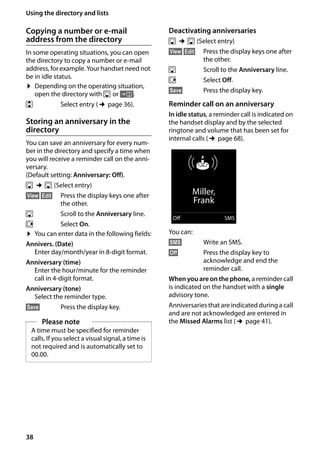
Reminder call on an anniversary
In idle status, a reminder call is indicated on
the handset display and by the selected
ringtone and volume that has been set for
internal calls (¢page 68).
You can:
§SMS§ Write an SMS.
§Off§ Press the display key to
acknowledge and end the
reminder call.
When you are on the phone, a reminder call
is indicated on the handset with a single
advisory tone.
Anniversaries that are indicated during a call
and are not acknowledged are entered in
the Missed Alarms list (¢page 41).Please note
A time must be specified for reminder
calls. If you select a visual signal, a time is
not required and is automatically set to
00.00.
ØðÚ
Miller,
Frank
Off SMS
39
Using the directory and lists
Gigaset SL400/400 A / GBR / A31008-M2103-L101-4-7619 / direct_charges.fm / 30.07.2014Version4,16.09.2005
Redial list
The redial list contains the twenty numbers
last dialled with the handset (max. 32 digits).
If one of the numbers is in the directory, the
corresponding name is displayed.
Manual redial
c Press the key briefly.
s Select entry.
c Press the talk key again. The
number is dialled.
When a name is displayed, you can display
the corresponding phone number by press-
ing the display key §View§.
Managing entries in the redial list
c Press the key briefly.
s Select entry.
§Options§ Open menu.
Thefollowingfunctionscanbeselectedwith
q:
Copy to Directory
Copy an entry to the directory (page 35).
Automatic Redial
The selected number is automatically
dialled at fixed intervals (at least every 20
seconds). The talk keyc flashes; "open
listening" is activated.
– Party answers:
Press the talk key c. The function
is terminated.
– Party does not answer:
The call is terminated after approx.
30 seconds.
Thefunctionisterminatedafterpressingany
key or after ten unsuccessful attempts.
Display Number (as in the directory,
page 36)
Delete entry (as in the directory, page 36)
Delete All (as in the directory, page 36)
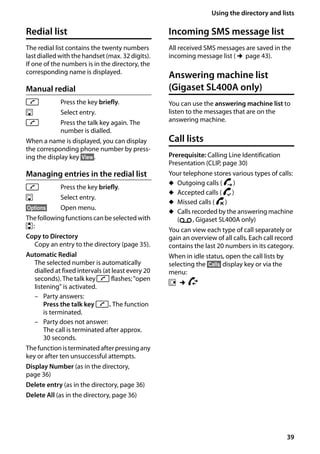
Incoming SMS message list
All received SMS messages are saved in the
incoming message list (¢page 43).
Answering machine list
(Gigaset SL400A only)
You can use the answering machine list to
listen to the messages that are on the
answering machine.
Call lists
Prerequisite: Calling Line Identification
Presentation (CLIP, page 30)
Your telephone stores various types of calls:
u Outgoing calls ( š)
u Accepted calls ( ›)
u Missed calls ( ™)
u Calls recorded by the answering machine
(Ã, Gigaset SL400A only)
You can view each type of call separately or
gain an overview of all calls. Each call record
contains the last 20 numbers in its category.
When in idle status, open the call lists by
selecting the §Calls§ display key or via the
menu:
v ¢Ê
40
Using the directory and lists
Gigaset SL400/400 A / GBR / A31008-M2103-L101-4-7619 / direct_charges.fm / 30.07.2014Version4,16.09.2005
List entry
New messages are displayed at the top.
Example of list entries:
u List type (in header)
u Status of entry
Bold: New entry
u Number or name of caller
u Date and time of call (if set, page 17)
u Type of entry
Press the talk key c to call the selected
caller back.
Select the §View§ display key to access addi-
tional information, including for example
the number linked to the name
Select the §Options§ display key to select the
following options:
Copy to Directory
Copy the number to the directory.
Delete entry
Delete selected entry.
Delete All
Delete all entries.
When you quit the call lists, all entries are set
to the status "old", i.e., the next time you call
up the list, they will no longer be shown in
bold.
Message key function
Opening lists
Use the message key f to open the fol-
lowing list selection:
u Answering machine list (Gigaset SL400A
only) or network mailbox, if your network
provider supports this function and fast
access is set for the network mailbox
(¢page 54).
u Incoming SMS message list (¢page 43)
u Missed calls list
u Missed alarms list (¢page 41)
An advisory tone sounds as soon as a new
message arrives in a list.
In idle status, the display shows an icon for
the new message:
The number of new entries is displayed
under the corresponding icon.
After pressing the message key f, you
can see all lists containing messages and the
network mailbox list.
All calls
™ l Frank
14.05.11, 15:40
š 089563795
14.05.11, 15:32
™ ...0123727859362922
14.05.11, 15:07
View Options
Icon New message...
à ... in the answering machine list
(Gigaset SL400A only) or on the net-
work mailbox
™ ... in the Missed calls list:
Ë ... in the SMS list

 ... in the Missed Alarms list:
Please note
If calls are saved in the network mailbox,
you will receive a message if the appro-
priate settings have been made (see your
network provider user guide).
à œ ¾ 
02 10 09 08
41
Using the directory and lists
Gigaset SL400/400 A / GBR / A31008-M2103-L101-4-7619 / direct_charges.fm / 30.07.2014Version4,16.09.2005
Listscontainingnew messagesareatthetop
of the list and are marked in a bold font.
Select a list with q. To open, press §OK§.
Disable/enable flashing of the
message key
You can select whether the message key
f flashes (default setting) or does not
flash when new messages arrive. Please do
the following:
¤ Press the key sequence:
v ¢*#Q5#M
The following is displayed:
¤ Press one of the following keys to select
the message type:
Your selection is displayed (e.g. 5 for
missed calls); the current setting flashes:
¤ Press key Q or 
, to set the behav-
ior for new messages:
Your selection is displayed (e.g. 1):
¤ Press the display key §OK§.
Missed alarms list
Missed (unacknowledged) appointments
from the calendar (¢page 56) and anniver-
saries (¢page 38) are saved in the Missed
Alarms list under the following circum-
stances:
u You do not accept an appointment/anni-
versary.
u The appointment/anniversary was sig-
nalled during a phone call.
u The handset is deactivated at the time of
the appointment/anniversary.
u Automatic redial was activated at the
time of an appointment/anniversary
(¢page 39).
u Open the list by pressing the message
key f (¢page 40).
Each entry is displayed with:
u Number or name
u Date and time
The most recent entry is at the head of the
list.
Press the display key §Delete§, to delete the
selected entry.
If 10 entries are already stored in the list, the
next appointment reminder will delete the
oldest entry.
4 for messages on the net-
work mailbox
or 5 for missed calls
or L for new SMS
or M for messages on the answer-
ing machine (Gigaset
SL400A only)
Messages & Calls
Calls: (3)
Missed Alarms: (1)
SMS: (2)
Back OK
System
97
System
975 SET:
[ 0 ]
Q message key flashes (it stops
when the key is pressed)
or 
 message key does not flash
System
975 SET:
[ 1 ]
42
Sending SMS (text messages)
Gigaset SL400/400 A / GBR / A31008-M2103-L101-4-7619 / sms_BRD_neutral.fm / 30.07.2014Version4,16.09.2005
Sending SMS
(text messages)
Your phone is delivered ready to send SMS
messages immediately.
Prerequisites:
u Calling Line Identification is enabled for
your phone line.
u Your network provider supports SMS on
the fixed line network (information on
this can be obtained from your network
provider).
u To receive SMS messages, you must be
registeredwithyourserviceprovider.This
occursautomaticallywhenyousendyour
first SMS.
Writing/sending SMS
Writing an SMS
v ¢Ë
New SMS Select and press §OK§.
~ Write an SMS.
Sending an SMS
c Press the talk key
or:
§Options§ Press the display key.
Send Select and press §OK§.
~ / s Select number with access code
(even if you are in that area)
from the directory or enter
directly.
§Send§ Press the display key. The SMS is
sent.
Draft SMS list
YoucansaveanSMSinthedraftSMSlist,and
edit and send it later.
Saving an SMS in the draft SMS list
¤ You are writing an SMS (¢page 42).
§Options§ Press the display key.
Save Entry Select and press §OK§.
Opening the draft message list
v ¢Ë ¢Draft
The first list entry is displayed, e.g.,
If the entry has been saved with the phone
number, i.e., when the SMS was saved from
the incoming message list, the number is
displayed in the first line.
Please note
If your phone is connected to a PABX,
please read (¢page 46).
Please note
u For instructions on entering text and
special characters, please see
page 82.
u An SMS may contain up to 612 char-
acters. If there are more than 160
characters, the SMS is sent as a linked
SMS (up to 4 SMS messages with 153
characters each). The top right of the
display shows how many characters
are still available and which part of a
linked SMS is currently being written.
Please note
u If you are interrupted by an external
call while writing an SMS, the text is
automatically saved in the draft SMS
list.
u If the memory is full, or if the SMS
function on the base is being used by
another handset, the operation is can-
celled. An appropriate message
appears in the display. Delete SMS
messages you no longer require or
send the SMS later.
Saved
14.05.11, 15:07
43
Sending SMS (text messages)
Gigaset SL400/400 A / GBR / A31008-M2103-L101-4-7619 / sms_BRD_neutral.fm / 30.07.2014Version4,16.09.2005
Reading or deleting SMS messages
¤ Open the draft message list and then:
q Select SMS.
§Read§ Press the display key. The text is
displayed. Scroll line by line
using q.
or delete the SMS with
§Options§ ¢Delete entry ¢§OK§.
Writing/editing an SMS
¤ You are reading an SMS in the draft SMS
list.
§Options§ Open menu.
You have the following options:
Send
Send stored SMS.
Edit
Edit the text of the saved SMS and then
send it (¢page 42).
Character Set
Display text in the selected character set.
Deleting draft SMS list
¤ Open the draft message list and then:
§Options§ Open menu.
Delete All Select, press §OK§ and confirm
with §Yes§. The list is deleted.
Receiving an SMS
All received SMS messages are saved in the
incoming SMS list. Linked SMS messages are
displayed as one message. If this is too long
orisnottransferredcompletely,itissplitinto
individual messages. Since an SMS remains
in the list even after it has been read, regu-
larly delete SMS messages from the list.
The display tells you if the SMS memory is
full.
Activating/deactivating first
ringtone muting
Each incoming SMS is signalled by a single
ring (ringtone as for external calls). If you
accept such a "call", the SMS is lost. To pre-
vent this ring, suppress the first ringtone for
all external calls.
v Open the main menu.
*#Q5# 
 O
Press keys.
Q §OK§ Make the first ringtone audible.
or:

 §OK§ Mute the first ringtone.
Incoming SMS list
The incoming message list contains:
u All received SMS messages, starting with
the most recent.
u SMS messages that could not be sent due
to an error.
New SMS messages are signalled on all
Gigaset handsets by the Ë icon on the dis-
play, the flashing message key f and an
advisory tone.
Opening the incoming message list
with the f key
f Press.
The incoming message list is indicated by
the the number of entries (example):
Bold: new entries
Normal font: old entries
OK Press.
The number and date of receipt are dis-
played in the entry list.
Openingtheincomingmessagelistvia
the SMS menu
v ¢Ë ¢Incoming
SMS: (2)
0123727859362922
14.05.11, 09:07
44
Sending SMS (text messages)
Gigaset SL400/400 A / GBR / A31008-M2103-L101-4-7619 / sms_BRD_neutral.fm / 30.07.2014Version4,16.09.2005
Deleting the incoming message list
All new and old SMS messages in the list are
deleted.
¤ Open the incoming message list.
§Options§ Open menu.
Delete All
Select, press §OK§ and confirm
with §Yes§. The list is deleted.
Reading or deleting SMS messages
¤ Open the incoming message list, then:
q Select SMS.
§Read§ Press the display key. The text is
displayed. Scroll line by line
using q.
or delete the SMS with
§Options§ ¢Delete entry ¢§OK§.
Afteryou have reada new SMS,itis given the
status "Old" (is no longer shown in bold).
Changing the character set
¤ Read SMS
§Options§ Press the display key.
Character Set
Text is shown in the selected character
set.
Replying to or forwarding SMS
messages
¤ Read SMS
§Options§ Press the display key.
You have the following options:
Reply
Write and send a new SMS in reply to the
sender (¢page 42).
Edit
Edit the text in the SMS and return it to
the sender (¢page 42).
Forward
Forward the SMS to another number
(¢page 42).
Character Set
Text is shown in the selected character
set.
Copying the number to the
directory
Copying the sender's number
¤ Open the incoming message list and
select the SMS (¢page 43).
§Options§ ¢Copy to Directory
¤ Complete the entry (¢page 37).
Copying/dialling numbers from an
SMS
¤ Read the SMS and scroll to the telephone
number.
The digits are highlighted.
Ó Press the display key.
Complete the entry (¢page 37).
or:
c Press the talk key to dial the
number.
If you wish to use the number to send an
SMS:
¤ Save the number with the local area code
(access code) in the directory.
SMS with vCard
The vCard is an electronic business card. It is
displayed by the Å icon in the body of the
SMS.
A vCard can include:
u Name
u Private number
u Business number
u Mobile phone number
u Birthday
Entries in a vCard can be saved to the direc-
tory individually.
45
Sending SMS (text messages)
Gigaset SL400/400 A / GBR / A31008-M2103-L101-4-7619 / sms_BRD_neutral.fm / 30.07.2014Version4,16.09.2005
Opening the vCard
¤ Read the SMS containing the vCard.
§View§ Press the display key.
To return to the body of the
SMS, press §Back§.
q Select number.
§Save§ Press the display key.
When you save a number, the directory is
opened automatically. The number and
name are copied. If a birthday is entered on
the vCard, the date is copied to the directory
as an anniversary.
¤ If necessary, edit the entry in the direc-
tory and save it. You will return to the
vCard automatically.
Receiving notifications via
SMS
You can be notified about missed calls or
new answering machine messages (Gigaset
SL400A only) via SMS.
Prerequisite: For missed calls, the caller's
number (CLI) must have been transmitted.
Notification is sent to your mobile phone or
another phone with SMS functionality.
You only need to save the telephone num-
ber to which you wish the notification to be
sent.
v ¢Ë ¢Settings ¢Notification
¤ You can enter data in the following fields:
To :
Enter the number to which the SMS
should be sent.
On missed call
Select On if you require SMS notification.
On message on answer machine
(Gigaset SL400A only)
Select On if you require SMS notification.
§Save§ Press the display key.
Setting SMS centres
SMS messages are exchanged between SMS
centres operated by service providers. You
must enter the SMS centre through which
you wish to send and receive SMS messages
into your phone. You can receive SMS mes-
sages from every SMS centre that is entered,
provided you have registered with your ser-
vice provider.
Your SMS messages are sent via the SMS cen-
tre that is entered as the active send service
centre (¢page 45). Only one SMS centre
can be the active send service centre at any
one time.
If no SMS service centre is entered, the SMS
menu only contains the entry Settings.
Enter an SMS service centre (¢page 45).
Entering/changing SMS
centres
¤ Find out about the services and special
functions offered by your service pro-
vider before you make a new applica-
tion and/or before you delete pre-config-
ured call numbers.
v ¢Ë ¢Settings ¢Service Centres
s Select SMS centre (e.g., Service
Centre 1) and press §Edit§.
¤ You can enter data in the following fields:
Active Send:
Select §Yes§ if SMS messages are to be sent
via the SMS centre.
SMS Service Centre Number:
Enter the number of the SMS service.
§Save§ Press the display key.
Warning
Donot enteryourownfixedlinenetwork
number for the notification of missed
calls. This can lead to chargeable endless
looping.
46
Sending SMS (text messages)
Gigaset SL400/400 A / GBR / A31008-M2103-L101-4-7619 / sms_BRD_neutral.fm / 30.07.2014Version4,16.09.2005
Sending an SMS via another SMS
centre
¤ Activate the SMS centre (2 to 4) as the
active send service centre.
¤ Send the SMS.
Receiving SMS on a PABX
u You can only receive an SMS when Call-
ing Line Identification is forwarded to
the extension of the PABX (CLIP). The
CLIP evaluation of the SMS centre num-
ber is completed in your Gigaset.
u Depending on your PABX, you may have
to add the access code (external line pre-
fix) before the number of the SMS centre.
If in doubt, test your PABX, e.g., by send-
ing an SMS to your own number: once
with and once without the access code.
u When you send SMS messages, your
sender number may besentwithoutyour
extension number. In this case the recipi-
ent cannot reply to you directly.
Sending and receiving SMS messages on
ISDN PABXs is only possible via the MSN
number assigned to your base.
Activating/deactivating SMS
function
If you deactivate the SMS function, you can-
not send or receive any SMS messages with
your phone.
The settings you have made for sending and
receiving SMS messages (e.g., the numbers
of the SMS centres) and the entries in the
incoming and draft message lists are saved
even after deactivation.
v Open the main menu.
*#Q5# 2 L
Enter the digits.
Q §OK§ Deactivate the SMS function.
or:

 §OK§ Activate the SMS function
(default setting).
SMS troubleshooting
Error codes when sending
Self-help with errors
The following table lists problem situations
and possible causes and provides advice on
troubleshooting.
E0 Calling Line Identification permanently
restricted (CLIR) or Calling Line Identification
not activated.
FE Error occurred during SMS transfer.
FD Connection to SMS centre failed; see self-
help.
You cannot send messages.
1. You have not requested the CLIP service (Call-
ing Line Identification Presentation).
¥ Ask your service provider to enable this
service.
2. SMS transmission has been interrupted (e.g.,
by a call).
¥ Re-send the SMS.
3. The network provider does not support this
feature.
4. No number or an invalid number is entered for
the SMS centre set as the active send service
centre.
¥ Enter the number (¢page 45).
You receive an incomplete SMS.
1. Your phone's memory is full.
¥ Delete old SMS messages (¢page 43).
2. The service provider has not yet sent the rest
of the SMS.
You have stopped receiving SMS messages.
Call divert (redirecting) is set to When: Imme-
diately or Immediately is activated for the
network mailbox.
¥ Change the call divert settings
(¢page 34).
47
Sending SMS (text messages)
Gigaset SL400/400 A / GBR / A31008-M2103-L101-4-7619 / sms_BRD_neutral.fm / 30.07.2014Version4,16.09.2005
The SMS is played back.
1. The "display call number" feature is not acti-
vated.
¥ Ask your service provider to activate this
function (chargeable).
2. No agreement is in place between your
mobile phone operator and your fixed line
network SMS service provider.
¥ Obtain information from your fixed line
network SMS service provider.
3. Your terminal has been recorded by your SMS
provider as having no fixed line network SMS
functionality, i.e., you are not registered with
the provider.
¥ Send any SMS to automatically register
your telephone to receive SMS.
Messages are only received during the day.
The terminal is recorded in your SMS pro-
vider's database as having no fixed line net-
work SMS functionality, i.e., you are not regis-
tered with the provider.
¥ Obtain information from your fixed line
network SMS service provider.
¥ Send any SMS to automatically register
your telephone to receive SMS.
48
Operating the Gigaset SL400A base answering machine
Gigaset SL400/400 A / GBR / A31008-M2103-L101-4-7619 / answering_m.fm / 30.07.2014Version4,16.09.2005
Operating the
Gigaset SL400A base
answering machine
You can access the answering machine via
the handset or by remote operation (from
another telephone/mobile phone). You can
recordyour own announcement message or
advisory message via the handset.
Answering machine mode
You can use the answering machine in two
different modes.
u In Answer & record mode, the caller
hears the announcement and can then
leave a message.
u In Answer only mode, the caller hears
your announcement but cannot leave a
message.
Operating via the handset
The handset loudspeaker activates auto-
matically if you receive an acoustic prompt
or message while operating. You can switch
it off with handsfree key d.
Activating/deactivating and
setting answering machine mode
You can choose between Answer & record,
Answer only and Alternating. By using the
Alternating setting, you can activate answer
and record mode for a set period of time,
outside this period the caller will only hear
the announcement.
v ¢Ì ¢Activation (μ= on)
§Edit§ Press the display key.
¤ You can enter data in the following fields:
Activation:
Select On or Off to activate/deactivate
the answering machine.
Mode:
Select Answer & record, Answer only or
Alternating.
If Alternating mode is selected:
Record from:
Enter hours/minutes for the start of
the period in 4-digit format.
(The time must be set on the phone
beforehand.)
Record until:
Enter hours/minutes for the end of the
period in 4-digit format.
If answer & record is not set, answer only
mode applies.
§Save§ Press the display key.
If the messages memory is full and
Activation: On has been selected, saving is
interrupted and you will receive an instruc-
tion to delete old messages.
When you switch the answering machine
on, the remaining memory time is
announced. If the time has not yet been set,
an appropriate announcement is made (set
time ¢page 17). The à icon appears in
the display.
The phone is supplied with pre-recorded
announcements for answer and record
mode and for answer only mode. If a per-
sonal announcement has not been
recorded, the relevant pre-recorded
announcement is used.
49
Operating the Gigaset SL400A base answering machine
Gigaset SL400/400 A / GBR / A31008-M2103-L101-4-7619 / answering_m.fm / 30.07.2014Version4,16.09.2005
Recording announcements/
advisory messages
v ¢Ì ¢Announcements ¢Record
Announcem. / Rec. Advisory Msg.
§OK§ Press the display key to start the
recording.
You hear the ready tone (short tone).
¤ Now speak your announcement (at least
3 secs.).
Just as if making a call via the receiver,
place the telephone against your ear and
speak into the microphone at a normal
volume.
§End§ Press the display key to end the
recording.
Cancel recording with a or §Back§. Restart
the recording with §OK§.
After recording, the announcement is
played back for you to check. You can re-
record the announcement with §New§.
Please note:
u Recording ends automatically if the max-
imum recording time of 100 seconds is
exceeded or there is a break in speech for
more than 2 seconds.
u If you cancel the recording, the pre-
recorded announcement is used again.
u If the answering machine's memory is
full, it will switch to Answer only mode.
¤ Delete old messages and the answer-
ing machine will automatically switch
back to Answer & record mode.
Repeat recording if required.
Playing back announcements/
advisory messages
v ¢Ì ¢Announcements
¢Play Announcement / Play Advisory
Msg.
If you have not recorded a personal
announcement, the relevant pre-recorded
announcement is played.
Record a new announcement while playing
back the announcement:
§New§ Press the display key.
If the answering machine's memory is full, it
will switch to Answer only mode.
¤ Delete old messages and the answering
machine will automatically switch back
to Answer & record mode. Repeat
recording if required.
Deletingannouncements/advisory
messages
v ¢Ì ¢Announcements
¢Delete Announcem. / Del. Advisory
Msg.
§Yes§ Press the display key to confirm
the prompt.
Onceyouhavedeletedyourannouncement,
the relevant pre-recorded announcement
will be used again.
Playing back messages
Thedateandtimeofeachmessageislogged
(provided thishas been set, ¢page 17) and
displayedduringtheplayback.IfCallingLine
Identification is activated, the caller's num-
ber is displayed. If the caller's number is
saved in the directory, their name is dis-
played.
Please note
Deleting announcements can take some
time.
50
Operating the Gigaset SL400A base answering machine
Gigaset SL400/400 A / GBR / A31008-M2103-L101-4-7619 / answering_m.fm / 30.07.2014Version4,16.09.2005
Playing back new messages
New messages that have not yet been
played back are indicated on the display
with an icon and number:
The f key on the handset flashes.
f Press the message key.
Answer. Mach.:
Select and press §OK§.
If there are new messages, playback then
begins with the first new message. After the
last new message, you will hear the end tone
and an announcement stating how much
recording time remains.
If the message has been saved with the date
and time, you will hear an appropriate
announcement before playback begins.
After the entry time and date have been
played back (after approx. 3 seconds), a new
message assumes the status "old".
Playing back old messages
You can listen to old messages if there are no
more new messages. Begin playback as
described under "Playing back new mes-
sages".
Stopping and controlling playback
During message playback:
2 Pause playback. Press 2
again to resume.
or
§Options§ Open menu.
Select Pause and press §OK§.
To continue select Continue
and press §OK§.
t or 

Go to the start of the current
message.
Press twice to go back to the
previous message.
s or 3
Go to the next message.
Press twice to skip ahead two
messages.
4 Skip back 5 seconds in the cur-
rent message.
(Skip back function
prerequisite: more than five sec-
onds of the current message
have been played back).
If playback is interrupted for over a minute,
the answering machine returns to idle sta-
tus.
Marking a message as "new"
A previously played back "old" message is
displayed as a "new" message again.
During message playback:
* Press the star key.
or:
§Options§ Open menu.
Mark as new
Select and press §OK§.
An announcement informs you of the mes-
sage's new status.
Playback of the current message is can-
celled. Playback of next message starts, if
applicable.
The f key on the handset flashes.
Copying a phone number from a
message to the directory
During playback or pause:
§Options§ ¢Copy to Directory
¤ Complete the entry (¢page 37).
Ã
02
Please note
Message playback can also be started via
the menu:
v ¢Ì ¢Play Messages
51
Operating the Gigaset SL400A base answering machine
Gigaset SL400/400 A / GBR / A31008-M2103-L101-4-7619 / answering_m.fm / 30.07.2014Version4,16.09.2005
Deleting messages
You can either delete all old messages
together or individually.
Deleting all old messages
During playback or pause:
§Options§ ¢Delete old list
§OK§ Press the display key to confirm
the prompt.
§Yes§ Press the display key to confirm
the prompt.
Deleting individual old messages
During playback or pause:
§Delete§ Press the display key.
Picking up a call from the
answering machine
You can pick up a call while the answering
machine is recording or is being operated
remotely:
c / §Accept§
Press the talk or display key.
Recording stops and you can speak to the
caller.
If two seconds of the call have already been
recorded when you pick it up, the call is dis-
played as a new message. The f key on
the handset flashes.
You can answer the call, even if it is not sig-
nalled on the handset.
Diverting an external call to the
answering machine
Prerequisite: sufficient memory space is
available on the answering machine.
An external call is signalled on the handset:
Ô Select display key.
The answering machine starts immediately
in answer & record mode and records the
call. The set time for ring delay (¢page 52)
is ignored.
Activating/deactivating two-way
record
You can record an external call with the
answering machine.
¤ Inform the caller that the call is being
recorded.
§Options§ Open menu.
Two-way Record
Select and press §OK§.
Two-way record is indicated on the display
by an advisory text and is added to the
answering machine list as a new message.
§End§ Press the display key to stop
two-way record.
The maximum recording time depends on
the memory available on the answering
machine. If the memory is full, you will hear
an end tone, the recording is aborted, and
the call recorded up to that point is listed in
the answering machine list as a new mes-
sage.
Activating/deactivating call
screening
During recording of a message, you can
screen a call via the loudspeaker of regis-
tered handsets.
Permanently activating/deactivating
call screening
v ¢Ì ¢Call Screening (³= on)
§Change§ Select display key to activate/
deactivate the function.
Deactivating call screening for the
current recording
You can deactivate the function for your
own handset during the recording.
§Silence§ Press the display key.
52
Operating the Gigaset SL400A base answering machine
Gigaset SL400/400 A / GBR / A31008-M2103-L101-4-7619 / answering_m.fm / 30.07.2014Version4,16.09.2005
Setting the recording
parameters
The answering machine has already been
preset at the factory. Individual settings can
be adjusted using the handset.
v ¢Ì ¢Recordings
¤ You can enter data in the following fields:
Length:
Maximum recording time, select 1 min.,
2 min., 3 min. or Maximum.
Quality:
Select Long Play or Excellent recording
quality. If the quality is higher, the maxi-
mum recording time is reduced.
Ring Delay:
Select when the answering machine
should accept a call:
Immediately, after 10 sec., 18 sec.,
30 sec. or Automatic.
§Save§ Press the display key.
Information about ring delay
In Automatic mode, the following applies
for ring delay:
u If there are no new messages, the answer-
ing machine answers a call after 18 sec-
onds.
u If there are new messages, the answering
machine answers a call after 10 seconds.
When operating remotely (¢page 53), you
can tell after approx. 15 seconds that there
are no new messages (otherwise the
answering machine would have already
accepted your call). There are no call charges
if you hang up now.
Please note:
You can configure your telephone so that
the first ring is suppressed on all calls
(¢page 43). This means that the time
selected for the ring delay predetermines
how long the caller must wait before the
answering machine accepts the call.
Resetting fast access for the
answering machine using
key 1
By default, key 
 has been assigned for
fast access to the integrated answering
machine. However, if you have set the net-
work mailbox for fast access (¢page 54),
you can reset this setting.
v ¢Ì ¢Set Key 1
Answer Machine
Select and press §OK§.
Once you have selected the answering
machine, press and hold key 
. You are
connected directly.
The setting for fast access applies to all regis-
tered handsets.
53
Operating the Gigaset SL400A base answering machine
Gigaset SL400/400 A / GBR / A31008-M2103-L101-4-7619 / answering_m.fm / 30.07.2014Version4,16.09.2005
Operating when on the move
(remote operation)
You can check and activate your answering
machine from any other telephone (hotel,
pay phone etc.), or initiate ringback from the
answering machine with an SMS.
Prerequisites:
u You have set a system PIN other than
0000 (¢page 72).
u The phone you are using for remote oper-
ation has tone dialling (DTMF), i.e., you
hear different tones when you press the
keys. Alternatively, you can use a code
transmitter (available from your mobile
phone retailer).
Callingtheansweringmachineand
playing back messages
~ Dial your own number.
9 ~ When you hear your announce-
ment, press 9 and enter the
system PIN.
You are informed whether any new mes-
sageshavebeenrecorded.Themessagesare
now played back. You can now operate the
answering machine with the keypad.
The following keys are used for operation:
A To return to the start of the cur-
rent message.
Press twice to go back to the
previous message.
B Stop playback. Press again to
resume.
3 Go to the next message.
D Skip back five seconds in the
current message.
(Skip back function
prerequisite: more than five sec-
onds of the current message
have been played back).
: A previously played back "old"
message is displayed as a "new"
message again.
0 Delete current message.
Activating the answering machine
¤ Phone home and let the phone ring until
you hear: "Please enter PIN".
~ Enter system PIN.
Your answering machine is activated. It tells
you how much memory time is left.
The messages are now played back.
The answering machine cannot be deacti-
vated remotely.
Initiating ringback from the
answering machine with SMS and
listening to messages
Prerequisite: You must have stored an SMS
notification number (¢page 45).
You can use the telephone (mobile phone or
any other device with SMS functionality) for
which you have stored the notification num-
ber in your phone to send an SMS to your
answeringmachinewhenyouareawayfrom
home.Itwill thencall youback.Themessage
playback begins when you accept the call
and press any digit key.
The SMS must contain the following:
*<System PIN>*<Ringback number>*
The ringback number is optional.
Examples:
*4711* or *4711*089123456*
If a ringback number is entered, it is dialled;
otherwise the SMS notification number is
dialled.
You can now operate the answering
machine via the keypad, as described in the
previous sections.
54
Using the network mailbox
Gigaset SL400/400 A / GBR / A31008-M2103-L101-4-7619 / T-NetBox_SAG.fm / 30.07.2014Version4,16.09.2005
Using the network
mailbox
The network mailbox is your network pro-
vider's answering machine within the net-
work. Ask your network provider about this.
You cannot use the network mailbox unless
you have requested it from your network
provider.
Configuring fast access for
the network mailbox
With fast access, you can dial the network
mailbox or the integrated answering
machine (Gigaset SL400A only) directly by
pressing and holding key 
.
Gigaset SL400: Fast access is preset for the
network mailbox. You only need to enter the
number of the network mailbox.
Gigaset SL400A: Fast access is preset for the
integrated answering machine. You can con-
figure the network mailbox instead.
Entering network mailbox number
v ¢Ì ¢Network Mailbox
~ Enter the number for the net-
work mailbox.
§Save§ Press the display key.
Select key 1 for the network mailbox
(Gigaset SL400A only)
v ¢Ì ¢Set Key 1
Network Mailbox
Select Network Mailbox and
press §Select§ (Ø = selected).
The fast access settings apply to all regis-
tered Gigaset handsets.
Calling the network mailbox

 Press and hold. You are con-
nected straight to the network
mailbox.
d Press handsfree key d if
required. You hear the network
mailbox announcement.
Viewing the network mailbox
message
When a message is recorded, you receive a
call from the network mailbox. If you have
requested Calling Line Identification, the
network mailbox number is displayed. If you
acceptthecall,thenewmessagesareplayed
back. If you do not accept the call, the net-
work mailbox number is saved in the missed
calls list and the message key flashes
(¢page 40).
Please note
You can also connect to the network
mailbox via the menu:
v ¢Ì ¢Play Messages
Please note
Enter the network mailbox phone num-
ber into your directory along with the
designation "Network mailbox"; the dis-
play and the call list will then show this
designation.
55
ECO DECT
Gigaset SL400/400 A / GBR / A31008-M2103-L101-4-7619 / registr_sett.fm / 30.07.2014Version4,16.09.2005
ECO DECT
ECO DECT uses less energy and reduces
transmission power.
Reducing transmission power
(radiation)
In normal operation (default setting):
The device range is set to maximum as
default. This guarantees optimum wireless
management. In idle status, the handset will
not function (as it is not transmitting). Only
the base will maintain contact with the
handset via a low wireless signal. During a
call, the transmission power automatically
adapts to the distance between the base
and handset. A closer distance to the base
means lower transmission power.
Youcanreducethetransmissionpowereven
further:
1) Reducing the range and thereby
lowering transmission power by up
to 80%
In many spaces such as apartments, busi-
ness rooms and offices, the maximum range
is not necessary. If you deactivate the Maxi-
mum Range setting, you can reduce the
transmission power during a call by up to
80%, using half of the range.
v ¢Ï ¢ECO DECT ¢Maximum
Range ¢§Change§ (³ = activated)
This setting cannot be used with a repeater
(¢page 71).
2) Deactivating DECT wireless module
in idle status (Eco Mode+)
With the No Radiation setting, you can
deactivate the transmission power of the
base completely during idle status.
v ¢Ï ¢ECO DECT ¢No Radiation
¢§Change§ (³ = activated)
When the wireless model is deactivated, the
icon ¼ is displayed in idle status instead of
the signal strength icon.
This setting cannot be used with a repeater
(¢page 71).
Status displays
Signal strength (No Radiation
off)
76% - 100%
51% - 75%
26% - 50%
1% - 25%
Red: no connection to the base
No Radiation activated:
white, if Maximum Range is on;
green, if Maximum Range is off
Please note
u To enjoy the benefits of the No Radia-
tion setting, all registered handsets
must support this feature.
u When the No Radiation setting is acti-
vated and a handset is registered to
the base that does not support this
feature, No Radiation will automati-
cally be deactivated. As soon as this
handset is de-registered, No Radia-
tion will automatically be re-acti-
vated.
u The wireless connection will only be
established for an incoming or outgo-
ing call and the connection will be
delayed by about 2 seconds.
u So that a handset can establish a wire-
less connection with the base more
quickly for an incoming call, it must
"listen" to the base more often, i.e.
scan the environment. This increases
powerusageandreducesthestandby
and talktime duration of the handset.
u WhenNoRadiationisactivated,there
will be no range display/range alarm
on the handset. Contactability can be
tested by assigning a line: Press and
hold the Answer call key c. You will
hear the ringing tone.
Ð
White, if Maxi-
mum Range is on;
Green, if Maxi-
mum Range is off}i
Ñ
Ò
¼
¼
56
Setting an appointment (calendar)
Gigaset SL400/400 A / GBR / A31008-M2103-L101-4-7619 / registr_sett.fm / 30.07.2014Version4,16.09.2005
Setting an appointment
(calendar)
You can use your handset to remind yourself
of up to 30 appointments. Anniversaries
(¢page 38) entered in the directory are
automatically recorded in the calendar.
Saving an appointment.
Prerequisite: The date and time have
already been set (¢page 17).
v ¢á ¢ Calendar
u The current day is selected (highlighted).
u Days on which appointments have
already been saved are highlighted.
r/q Select the required day in the
graphical calendar.
The selected day is highlighted. The current
day is highlighted in the same colour as the
digits.
w Press the centre of the control
key.
u If appointments have already been
entered, this will open the list of saved
appointments on that day.
Select <New Entry> ¢§OK§ to open the
data input window.
u If no appointments have been entered,
the data input window will open immedi-
ately to add the new appointment.
¤ You can enter data in the following fields:
Activation:
Select On or Off.
Date:
Enter day/month/year in 8-digit format.
Time:
Enter hours/minutes in 4-digit format.
Text:
Enter text (max. of 16 characters). The
text appears as the appointment name in
the list and is displayed on the screen
during the appointment reminder. If you
do not enter any text, only the date and
time of the appointment are displayed.
Signal:
Select the reminder type.
§Save§ Press the display key.
Signalling appointments and
anniversaries
An appointment reminder is signalled in idle
status for 60 seconds with the selected ring-
tone at the volume that has been set for
internal calls (¢page 68).
The name is displayed for anniversaries,
while the entered text is displayed for
appointments along with the time.
September 2011
Back OK
Mo Tu We Th Fr Sa Su
01 02 03 04
05 06 07 08 09 10 11
12 13 14 15 16 17 18
19 20 21 22 23 24 25
26 27 28 29 30
Please note
If you have already saved thirty appoint-
ments, you will have to first delete an
existing appointment before adding a
new one.
ØáÚ
Meeting
15:38
Off SMS
57
Setting an appointment (calendar)
Gigaset SL400/400 A / GBR / A31008-M2103-L101-4-7619 / registr_sett.fm / 30.07.2014Version4,16.09.2005
You can either deactivate or answer an
appointment reminder:
§§Off§§ Press the display key to deacti-
vate the appointment reminder.
or:
§SMS§ Press the display key to respond
to the appointment reminder
with an SMS.
Managing appointments
v ¢á ¢ Calendar
Editing individual appointments
r/ q Select a day in the graphical cal-
endaronwhichanappointment
has already been saved (digits
highlighted) and press control
key w.
q Select appointment for the day.
You have the following options:
§§View§§ Press the display key and edit or
confirm the entry.
or
§Options§ Open the menu for editing,
deleting and activating/deacti-
vating.
Deleting all appointments for one day
§Options§ ¢Delete all Appts. ¢§OK§
Confirm the security prompt with §Yes§.
All appointments are deleted.
Displaying missed
appointments, anniversaries
Missed appointments/anniversaries
(¢page 38) are displayed in the Missed
Alarms list if:
u You do not accept an appointment/anni-
versary.
u The appointment/anniversary was sig-
nalled during a phone call.
u The handset is deactivated at the time of
the appointment/anniversary.
u Automatic redial was activated at the
time of an appointment/anniversary
(¢page 39).
The icon 
 and the number of new entries
are shown in the display. The most recent
entry is at the head of the list.
Open the list by pressing the message key
f (¢page 40) or via the menu:
v ¢á ¢Missed Alarms
Select appointment/anniver-
sary.
A missed appointment is dis-
played with the appointment
name and a missed anniversary
is displayed with the last name
and first name. The date and
time will also be given.
§Delete§ Delete appointment.
§SMS§ Write an SMS.
If 10 entries are already stored in the list, the
next appointment reminder will delete the
oldest entry.
Please note
During a call, the appointment reminder
is signalled by a short tone.
58
Setting the alarm clock
Gigaset SL400/400 A / GBR / A31008-M2103-L101-4-7619 / registr_sett.fm / 30.07.2014Version4,16.09.2005
Setting the alarm clock
Prerequisite: The date and time have
already been set (¢page 17).
Activating/deactivating the alarm
clock and setting the wake-up time
v ¢á ¢Alarm Clock
¤ You can enter data in the following fields:
Activation:
Select On or Off.
Time:
Enter the wake-up time in 4-digit format.
How often:
Select Daily or Monday-Friday.
Volume:
Set the volume (1–6).
Melody:
Select melody.
§Save§ Press the display key.
In idle status, the ¼ icon and wake-up time
are displayed.
A wake-up call is signalled on the display
and with the selected ringtone (¢page 3).
The wake-up call sounds for 60 seconds. If
no key is pressed, the wake-up call is
repeated twice at five minute intervals and
then switched off.
During a call, the wake-up call is only sig-
nalled by a short tone.
Deactivating the wake-up call/
repeating after a pause (snooze
mode)
Prerequisite: A wake-up call is sounding.
§OFF§ Press the display key. The wake-
up call is deactivated.
or
§Snooze§ Press the display key or any key.
°isshowninthedisplay...The
wake-up call is deactivated and
then repeated after 5 minutes.
After the second repetition the
wake-up call is deactivated
completely.
Using multiple handsets
Registering handsets
You can register up to six handsets to your
base.
AGigasethandsetcanberegisteredonupto
four bases.
Manually registering
Gigaset handsets to the Gigaset
SL400/SL400A
You must manually register the handset on
both the handset (1) and the base (2).
Once the registration process has been com-
pleted successfully, the handset returns to
idle status. The handset's internal number is
shown in the display e.g., INT 1. If not, repeat
the procedure.
1) On the handset
The handset is not registered to a base.
§Register§ Press the display key.
The handset is already registered to a base:
v ¢Ï ¢Registration
¢Register Handset
If the handset is already registered to four
bases:
s Select base, e.g., Base 3 and
press §OK§.
~ If required, enter the system
PIN for the base and press §OK§.
A message appears stating that the hand-
set is searching for a base that is ready for
registration.
2) On the base
¤ Within 60 seconds, press and hold the
registration/paging key on the base
(¢page 2) (approx. 3 seconds).
59
Using multiple handsets
Gigaset SL400/400 A / GBR / A31008-M2103-L101-4-7619 / registr_sett.fm / 30.07.2014Version4,16.09.2005
Registering other handsets
You can register other Gigaset handsets and
handsets for other devices with GAP func-
tionality as follows.
Deregistering handsets
You can deregister all other registered hand-
sets from each of the registered Gigaset
handsets.
v ¢Ï ¢Registration
¢De-register Handset
s Select the internal subscriber
you wish to deregister and
press §OK§.
(The handset you are currently
using is highlighted with <).
~ Enter the current system PIN
and press §OK§.
§Yes§ Press the display key.
Locating a handset ("Paging")
You can locate your handset using the base.
¤ Briefly press the registration/paging key
on the base (¢page 2).
¤ All handsets will ring simultaneously
("paging"), even if the ringtones are deac-
tivated.
Ending paging
¤ Briefly press the registration/paging key
on the base or press the talk key c on
the handset.
Changing the base
If your handset is registered to more than
one base, you can set it to a particular base
or to the base that has the best reception
(Best Base).
v ¢Ï ¢Registration ¢Select Base
s Select one of the registered
bases or Best Base and press
§Select§.
Making internal calls
Internalcalls tootherhandsetsregisteredon
the same base are free.
Calling a specific handset
u Initiate internal call.
~ Enter the number of the hand-
set.
or:
s Select handset.
c Press the talk key.
Calling all handsets ("group call")
u Press and hold.
or:
u Initiate internal call.
* Press the star key.
or
Call all Select
c Press the talk key.
All handsets are called.
Ending a call
a Press the end call key.
1) On the handset
¤ Start to register the handset as
described in its user guide.
2) On the base
¤ Press and hold the registration/paging
key on the base (¢page 2) (approx. 3
sec.).
60
Using multiple handsets
Gigaset SL400/400 A / GBR / A31008-M2103-L101-4-7619 / registr_sett.fm / 30.07.2014Version4,16.09.2005
Transferring a call to another
handset
You can transfer an external call to another
handset (connect).
u Open the list of handsets.
The external participant hears
music on hold, if activated
(¢page 71).
s Select a handset or Call all and
press §OK§.
When the internal participant answers:
¤ If necessary, announce the external call.
a Press the end call key.
The external call is transferred to the other
handset.
If theinternalparticipantdoesnot answer or
the line is busy, press the display key §End§, to
return to the external call.
When transferring a call, you can also press
the end call key a before the internal par-
ticipant answers.
Then, if the internal participant does not
answer or the line is busy, the call will auto-
matically return to you.
Making internal consultation/
conference calls
When you are conducting an external call,
you can call an internal participant at the
same time for consultation or hold a confer-
ence call between all 3 participants.
You are conducting an external call:
u Open the list of handsets.
The external participant hears
music on hold, if activated
(¢page 71).
s Select handset and press §OK§.
The internal participant is
called.
If the participant picks up, you can either:
§End§ Press the display key.
You are reconnected with the
external participant.
or:
§Conference§ Press the display key.
All 3 participants are connected
with each other.
Ending a conference call
a Press the end call key.
If an internal participant presses the end call
key a, the other handset remains con-
nected to the external participant.
Accepting/rejecting call waiting
If you receive an external call during an
internal call, you will hear the call waiting
tone (short tone). With Calling Line Identifi-
cation, the caller's number will appear in the
display.
Ending an internal call, accepting an
external call
§Accept§ Press the display key.
The internal call isended. You are connected
to the external caller.
Rejecting the external call
§Reject§ Press the display key.
The call waiting tone is turned off. You
remain connected with the internal partici-
pant. The ringtone can still be heard on
other registered handsets.
Please note
u If only two handsets are registered,
the other handset is called immedi-
ately by pressing the u key.
u Pressing and holding the u key calls
all handsets immediately.
61
Using a handset as a room monitor (Babyphone)
Gigaset SL400/400 A / GBR / A31008-M2103-L101-4-7619 / registr_sett.fm / 30.07.2014Version4,16.09.2005
Listening in to an external call
Prerequisite:TheListeningInfunctionmust
be activated.
You are conducting an external call. An inter-
nal participant can listen in on this call and
take part in the conversation. All the partici-
pants are made aware of additional listeners
by a signal tone.
Activating/deactivating
listening in
v ¢Ï ¢Telephony ¢Listening In
Press §Change§ to activate/deactivate the func-
tion (³ = on).
Internal listening in
The line is engaged with an external call.
Your screen will display information to that
effect. To listen in to the external call.
c Press and hold the talk key.
You can listen in to the call. All participants
hear a signal tone. During this time, this
handset displays the Conference message
and it is not possible to dial another number
from this handset.
Ending listening in
a Press the end call key.
All participants hear a signal tone.
If the first internal participant presses the
end call key a, the handset that has "lis-
tened in" remains connected to the external
participant.
Changing the name of a
handset
The names "INT 1", "INT 2" etc. are assigned
automatically at registration. You can
change these names. The name must be no
more than 10 characters. The changedname
is displayed in every handset's list.
u Open the list of handsets. Your
own handset is indicated by f.
s Select handset.
§Options§ Open menu.
Rename
~ Enter name.
§Save§ Press the display key.
Changing a handset's
internal number
A handset is automatically assigned the
lowest free number when it is registered. If
all slots are occupied, number 6 is overwrit-
ten if this handset is in idle status. You can
change the internal number of all registered
handsets (1–6).
u Open the list of handsets. Your
own handset is indicated by f.
§Options§ Open menu.
Assign Handset No.
Select and press §OK§.
r Select number.
§Save§ Press the display key to save the
input. Only numbers that have
not yet been assigned can be
designated.
Using a handset as a
room monitor
(Babyphone)
If the room monitor is activated, a previously
saved destination number is called as soon
as a set noise level is reached. You can save
an internal or external number in your hand-
set as the destination number. All of the
handset keys are deactivated, with the
exception of the display keys.
The room monitor call to an external num-
ber is terminated after approximately 90 sec-
onds. The room monitor call to an internal
number (handset) stops after approx. 3 min-
utes (depending on the base). When the
roommonitorisactivated,allkeysarelocked
•
62
Using a handset as a room monitor (Babyphone)
Gigaset SL400/400 A / GBR / A31008-M2103-L101-4-7619 / registr_sett.fm / 30.07.2014Version4,16.09.2005
except the end call key. The handset's
speaker can be switched on or off (Two Way
Talk = Onor Off). IfTwoWay Talk is switched
on, you can answer the room monitor call.
When the room monitor is activated, incom-
ing calls to the handset are indicated with-
out a ringtone and are only shown on the
screen. The display and keypad are not illu-
minated and advisory tones are also turned
off.
If you accept an incoming call, the room
monitor is suspended for the duration of the
call, but the function remains activated.
If you deactivate then reactivate the hand-
set, the room monitor remains activated.
Activating the room monitor and
entering the destination number
v ¢É ¢Room Monitor
¤ You can enter data in the following fields:
Activation:
Select On to activate.
Alarm to:
Select Internal or External.
External number: Select the number
from the directory (press display key ö)
or enter it manually.
Internal number: Select display key
§Change§ ¢Select handset or Call all to
call all registered handsets ¢§OK§.
In idle status, the destination number or
the internal destination number is dis-
played.
Two Way Talk:
Switch the handset's speaker on or off
(select On or Off).
Sensitivity:
Select the sensitivity of the sound level
(select Low or High).
¤ Press §Save§ to save the settings.
Whentheroommonitorfunctionisactivated,
the idle display appears as shown below:
Changing the set destination
number
v ¢É ¢Room Monitor
¤ Enter and save number as described in
"Activating the room monitor and enter-
ing the destination number"
(¢page 62).
Warning!
u Always check the operation of the
room monitor before use. For exam-
ple, test its sensitivity. Check the
connection if you are diverting the
room monitor to an external num-
ber.
u When the function is switched on, the
handset's operating time is considera-
bly reduced. If necessary, place the
handset in the charger. This ensures
that the battery does not run down.
u Ideally the handset should be posi-
tioned 1 to 2 metres away from the
baby. The microphone must be
directed towards the baby.
u The connection to which the room
monitor is diverted must not be
blocked by an activated answering
machine.
i à V
07:15
INT 1 05 Apr
Á
Room Monitor
0891234567
OFF Options
63
Using Bluetooth devices
Gigaset SL400/400 A / GBR / A31008-M2103-L101-4-7619 / registr_sett.fm / 30.07.2014Version4,16.09.2005
Cancelling/deactivating the room
monitor
Press the end call key a to cancel the call
when the room monitor is activated.
In idle status, press the display key §OFF§ to
deactivate room monitor mode.
Deactivating the room monitor
remotely
Prerequisites:Thephonemustsupporttone
dialling and the room monitor should be set
for an external destination number.
¤ Accept the call from the room monitor
and press keys 9 ;.
The room monitor function will deactivate
after the call ends. There are no further room
monitor calls. The other room monitor set-
tings on the handset (e.g., no ringtone) will
remain activated until you press the display
key §OFF§ on the handset.
To reactivate the room function with the
same phone number:
¤ Reactivate and save with §Save§
(¢page 62).
Using Bluetooth devices
Your Gigaset handset can communicate
wirelessly via Bluetooth™ with other devices
using this technology.
Before you can use your Bluetooth device,
activate Bluetooth, ensure the devices are
visible and then register the handset.
You can register one Bluetooth headset to
the handset. You can also register up to five
data devices (PCs, PDAs and mobile phones)
to send and receive directory entries as
vCards or exchange data with the computer
(¢page 82).
To use the phone numbers, dialling codes
(country and area code) must be stored in
the directory (¢page 71).
You will find a description of how to operate
your Bluetooth devices in the user guides for
these devices.
Activating/deactivating Bluetooth
mode
v ¢ò ¢Activation
Press §Change§ to activate or deactivate Blue-
tooth mode (³ = activated).
In idle status, the ò icon on the handset
shows that Bluetooth mode is activated
(¢page 3).
Registering Bluetooth devices
The distance between the handset in Blue-
tooth mode and the activated Bluetooth
device (headsetordatadevice)shouldbeno
more than 10 m.
Please note
u You can operate headsets on your
handset that have the headset or
handsfree profile. If both profiles are
available, the handsfree profile is used
to communicate.
u It can take up to five seconds to estab-
lish a connection between your hand-
set and a Bluetooth headset. This
applies both when a call is accepted
usingtheheadsetortransferredtothe
headset, and when a number is
dialled from the headset.
Please note
u If you register a headset, any headset
that is already registered will be over-
written.
u If you would like to use a headset with
your handset that is already regis-
tered to another device (e.g., to a
mobilephone),pleasedeactivatethis
connection before you start the regis-
tration process.
64
Using Bluetooth devices
Gigaset SL400/400 A / GBR / A31008-M2103-L101-4-7619 / registr_sett.fm / 30.07.2014Version4,16.09.2005
v ¢ò ¢Search for Headset / Search
Data Device
The search can take up to 30 seconds.
Once the device has been found, its name is
shown on the display.
§Options§ Press the display key.
Trust Device
Select and press §OK§.
~ Enter the PIN for the Bluetooth
device you wanttoregister and
press §OK§.
The device is saved in the list of known
devices.
Cancelling/repeating current search
To cancel search:
§Cancel§ Press the display key.
Repeat search if necessary:
§Options§ Press the display key.
Repeat Search
Select and press §OK§.
Editing the list of known (trusted)
devices
Open list
v ¢ò ¢Known Devices
A corresponding icon appears next to each
device name in the list displayed:
If a device is connected, the corresponding
icon is shown in the header of the display
instead of ò.
Viewing entries
Open list ¢s (select entry)
§View§ Press the display key.
Device name and address are
displayed.
Go back with §OK§.
Deregistering Bluetooth devices
Open list ¢s (select entry)
§Options§ Press the display key.
Delete entry
Select and press §OK§.
Changing the name of a Bluetooth
device
Open list ¢s (select entry)
§Options§ Press the display key.
Edit Name Select and press §OK§.
~ Change the name.
§Save§ Press the display key
Rejecting/accepting an
unregistered Bluetooth device
If a Bluetooth device that is not registered in
the list of known devices tries to connect
with the handset, you will be prompted on
the display to enter the PIN for the Bluetooth
device (bonding).
u Reject
a Briefly press the end call key.
u Accept
~ Enter the PIN for the Bluetooth
device you want to accept and
press §OK§.
If you have accepted the device, you can
use it temporarily (i.e., as long as it is
within receiving range or until you deac-
tivate the handset) or save it to the list of
known devices.
Once the device's PIN has been con-
firmed
– Savetothelistofknowndevices:press
display key §Yes§.
– Use temporarily: press display key §No§.
Icon Meaning
ô Bluetooth headset
õ Bluetooth data device
Please note
If you deregister an activated Bluetooth
device, it may try to reconnect as an
"unregistered device".
65
Defining handset settings
Gigaset SL400/400 A / GBR / A31008-M2103-L101-4-7619 / registr_sett.fm / 30.07.2014Version4,16.09.2005
Changing the Bluetooth name of
the handset
You can change the handset name used to
identify it on the display of another Blue-
tooth device.
v ¢ò ¢Own Device
§Change§ Press the display key
~ Change the name.
§Save§ Press the display key
Defining handset
settings
Your handset is preconfigured, but you can
change the settings to suit your individual
requirements.
Quick dialling numbers and
functions
You can assign anumber from the directory
to each of the digit keys Q and 2 to
O.
Theleftandrightdisplaykeyshavea default
function. You can change the assignment
(¢page 65).
The number is then dialled or the function
started by simply pressing a key.
Assigning digit keys
Prerequisite: the digit key has not yet been
assigned a number and there is at least one
entry in the directory.
¤ Press and hold the digit key
or
Press the digit key briefly and press the
display key §QuickDial§.
The directory opens.
¤ Select an entry and press §OK§.
The entry is saved to the corresponding digit
key.
Selecting numbers/changing an
assignment
Prerequisite: The digit key already has a
number assigned to it.
When the handset is in idle status
¤ Press and hold the digit key:
The number is dialled immediately.
or
¤ Briefly press the digit key.
Press the display key with the number/
name (abbreviated if necessary) to select
the number or
Press display key §Change§ to change the
digit assignment or press display key
§Clear Key§ to delete the assignment.
Changing display key assignments
¤ Press and hold the left or right side of the
display key.
The list of possible key assignments is
opened. The following can be selected:
Room Monitor
Assign menu for setting and activating
the room monitor to a key (¢page 61).
Alarm Clock
Assign menu for setting and activating
the alarm clock to a key (¢page 58).
Calendar
Display graphical calendar (¢page 56).
Bluetooth
Assign the Bluetooth menu to a key
(¢page 63).
Redial
Display the redial list.
Please note
If you delete or edit the entry in the direc-
tory at a later date, this will not affect the
assignment to the number key.
66
Defining handset settings
Gigaset SL400/400 A / GBR / A31008-M2103-L101-4-7619 / registr_sett.fm / 30.07.2014Version4,16.09.2005
More Functions...
More features are available:
Call Lists
Display call lists (¢page 39).
Withhold Number
Restrict Calling Line Identification for
the next call (¢page 33).
Call Divert
Set up call forwarding (¢page 34).
SMS
Assign menu for SMS functions to a
key (¢page 42).
¤ Select an entry and press §OK§.
Changing the display
language
You can view the display texts in different
languages.
v ¢Ï ¢Language
The current language is indicated by a Ø.
s Select language and press
§Select§.
Ifyouaccidentallychoosealanguageyoudo
not understand:
v ¢O5
s Select the correct language and
press the right display key.
Setting the display
Setting the screensaver/slide show
When in idle status, a picture or a slide show
(all the pictures are displayed one after the
other) from the Screensaver folder of the
Resource Directory (¢page 69) or the
time can be displayed as a screensaver. This
will replace the idle status display.
The screensaver is not displayed in certain
situations, e.g., during a call or if the handset
is deregistered.
If a screensaver is activated, the Screensaver
menu option is marked with μ.
v ¢Ï ¢Display + Keypad
¢Screensaver
The current setting is displayed.
¤ You can enter data in the following fields:
Activation:
Select On (screensaver is displayed) or
Off (no screensaver).
Selection:
Select screensaver or
§View§ Press the display key. The active
screensaver is displayed.
s Select screensaver and press
§OK§.
§Save§ Press the display key.
Briefly press the end call key a to return
to the idle display.
Setting large font
You can increase the font size of print and
symbols in call lists and the directory to
improvereadability. Onlyoneentryisshown
at a time on the display instead of several
entries and names are abbreviated if neces-
sary.
v ¢Ï ¢Display + Keypad
¢Large Font
§Change§ Press display key (³= on).
Setting the colour scheme
You can set the display to be shown in vari-
ous colour combinations.
v ¢Ï ¢Display + Keypad
¢Colour Schemes
Select Colour Scheme (1 to 5) and press
§Select§.
Please note
If the analogue clock has been set as the
screensaver, the second hand is shown
only when the handset is in the base.
67
Defining handset settings
Gigaset SL400/400 A / GBR / A31008-M2103-L101-4-7619 / registr_sett.fm / 30.07.2014Version4,16.09.2005
Setting the display backlight
Depending on whether or not the handset is
in thecharger, youcanactivate or deactivate
the backlight. If it is activated, the display is
permanently dimmed.
If the display backlight is deactivated, it can
be reactivated by pressing any key. Digit
keys appear on the display for pre-dialling;
all other keys do not have any further func-
tions.
v ¢Ï ¢Display + Keypad
¢Display Backlight
The current setting is displayed.
¤ You can enter data in the following fields:
In Charger
Select On or Off.
Out of Charger
Select On or Off.
§Save§ Press the display key.
Setting keypad illumination
The brightness of the keypad illumination
can be set to one of five levels.
v ¢Ï ¢Display + Keypad
¢Keypad Illumination
The current setting is displayed.
¤ You can enter data in the following fields:
Brightness:
Select 1 (darkest) to 5 (brightest).
§Save§ Press the display key.
Activating/deactivating
auto answer
If this function is activated, you can simply
lift the handset out of the charger without
having to press the talk key c when you
receive a call.
v ¢Ï ¢Telephony ¢Auto Answer
§Change§ Press display key (³= on).
Changing the handsfree/
earpiece volume
You can set the loudspeaker volume for
handsfree mode and the earpiece volume to
five different levels.
In idle status:
t Open the menu for setting the
call volume.
r Set the earpiece volume.
s Scroll to the Speaker line.
r Set the handsfree volume.
§Save§ Press the display key to save the
setting.
During a conversation via the earpiece or in
handsfree mode:
t Press the control key to call up
the Handset Volume menu. Set
the earpiece or handsfree vol-
ume by pressing r.
The setting will automatically be saved after
approximately 3 seconds, if not then press
the display key §Save§.
Ift is assignedto another function, e.g., call
swap (¢page 34):
§Options§ Open menu.
Volume Select and press §OK§.
Configure setting (see above).
Please note
With the On setting, the standby time
of the handset can be significantly
reduced.
• •
68
Defining handset settings
Gigaset SL400/400 A / GBR / A31008-M2103-L101-4-7619 / registr_sett.fm / 30.07.2014Version4,16.09.2005
Setting a handsfree profile
You can set different handsfree profiles to
optimally adapt your phone to your environ-
ment.
Profile 1
The optimum setting for most connec-
tions and set as default.
Profile 2
Optimum volume in handsfree mode.
However,thismeansthattheparticipants
cannot speak at the same time as the per-
son speaking is given preferential trans-
mission (making two-way conversations
difficult).
Profile 3
Optimises two-way conversations, both
callers can hear each other, even if they
talk at the same time.
Profile 4
Optimised for special connections. If the
default setting (profile 1) does not pro-
vide optimum sound, please give this a
try.
In idle status:
v ¢Ï ¢Audio Settings
¢Handsfree Profiles
q Select handsfree profile (1 to 4).
§Select§ Press the display key to save the
setting.
During a conversation:
§Options§ Open menu.
Handsfree Profiles
Select and press §OK§ .
q Select handsfree profile (1 to 4).
§Select§ Press the display key to save the
setting.
Changing ringtones
u Volume:
You can choose between five volumes (1–
5; e.g., volume 3 = Š) and the "cre-
scendo" ringtone (6; volume increases
with each ring = ‡).
u Ringtones:
You can select a ringtone from a list of
pre-loaded melodies.
You can select various ringtones, melo-
dies or any sound from the resource
directory (¢page 69).
You can set different ringtones for the fol-
lowing functions:
u Internal Calls
u External Calls
Setting volume/melodies
In idle status:
v ¢Ï ¢Audio Settings
¢Ringtones(Handset)
¢Volume/Melodies
r Set the volume for internal calls
and appointments or melody
for internal calls.
s Scroll to the next line.
r Setting volumes/melodies for
external calls.
§Save§ Press the display key to save the
setting.
For external calls, you can also:
Specify a time period when you do not want
the telephone to ring, e.g., during the night.
v ¢Ï ¢Audio Settings
¢Ringtones(Handset) ¢Time Control
For external calls:
Select On or Off.
If time control is activated:
Suspend ring. from:
Enter the start of the period in 4-digit for-
mat.
Please note
u The settings for the earpiece also
apply to a connected headset.
u You can also set the call volume using
the menu (¢page 28).
•
69
Defining handset settings
Gigaset SL400/400 A / GBR / A31008-M2103-L101-4-7619 / registr_sett.fm / 30.07.2014Version4,16.09.2005
Suspend ring. until:
Enter the end of the period in 4-digit for-
mat.
Activating/deactivating the
ringtone for unknown calls
You can set your phone not to ring for calls
where Calling Line Identification has been
restricted. The call will only be signalled on
the display.
In idle status:
v ¢Ï ¢Audio Settings
¢Ringtones(Handset) ¢Anon. Calls
Silent
Press §Change§ to activate or deactivate the
function (³= on).
Silent alert
Incoming calls and other messages are indi-
cated by a silent alert.
In idle status:
v ¢Ï ¢Audio Settings
¢Silent Alert
Press §Change§ to activate or deactivate the
silent alert (³= on).
Activating/deactivating the
ringtone/silent alert
You can
u Permanently deactivate the ringtone in
idle status or when receiving a call
u Deactivate the ringtone and silent alert
for the current call
The ringtone cannot be re-activated while a
call is in progress.
Deactivating the ringtone
permanently
* Press and hold the star key.
The ó icon appears in the display.
Reactivating the ringtone
* Press and hold the star key.
Deactivating the ringtone/silent alert
for the current call
§Silence§ Press the display key.
Activating/deactivating the alert
tone
In place of the ringtone, you can activate an
alert tone. When you receive a call, you will
hear a short tone ("Beep") instead of the
ringtone.
* Press and hold the star key and
within 3 seconds:
§Beep§ Press the display key. A call will
now be signalled by one short
alert tone.
ñ appears in the display.
Using the Resource Directory
The resource directory on the handset man-
ages sounds, which you can use as ring-
tones, and pictures, which you can use as
caller pictures or as screensavers. Prerequi-
site: Calling Line Identification Presentation
(CLIP). The resource directory can manage
the following media types:
Various mono and polyphonic sounds and
pictures are preconfigured on your handset.
You can listen to the available sounds and
view the pictures.
Please note
During this period, you will continue to
receive calls from numbers to which you
have assigned a personalised melody in
the directory (VIP).
Type Format
Sound
– Ringtones
– Imported sounds
Internal
WMA, MP3, WAV
Picture
– Caller picture
– Screensaver
BMP, JPG, GIF
128 x 86 pixels
128 x 160 pixels
70
Defining handset settings
Gigaset SL400/400 A / GBR / A31008-M2103-L101-4-7619 / registr_sett.fm / 30.07.2014Version4,16.09.2005
Youcan download pictures andsounds from
a PC (¢page 82). If there is not enough
memory available, you must first delete one
or more pictures or sounds.
Playingbacksounds/viewingcaller
pictures
v ¢É ¢Resource Directory
¢Screensavers / Caller Pictures /
Sounds (select entry)
Pictures:
§View§ Press the display key. The
selected picture is displayed.
Switch between pictures using
the q key.
If you have saved a picture in an invalid file
format, you will see an error message after
selecting the entry.
Sounds:
The selected sound is played back immedi-
ately. Switch between the sounds using the
q key.
You can set the volume during playback.
§Options§ Open menu.
Volume Select and press §OK§.
r Set volume.
§Save§ Press the display key.
Deleting/renaming a picture/
sound
You have selected an entry.
§Options§ Open menu.
You can select the following functions:
Delete entry
The selected entry is deleted.
Rename
Change the name (max. 16 characters)
and press §Save§. The entry is stored with
the new name.
Checking the memory capacity
You can check how much memory is availa-
ble for screensavers, sounds and caller pic-
tures.
v ¢É ¢Resource Directory
¢Capacity
Activating/deactivating
advisory tones
Your handset uses advisory tones to tell you
about different activities and statuses. The
following advisory tones can be activated/
deactivated independently of each other:
u Key tones: every key press is confirmed.
u Acknowledge tones:
– Confirmation tone: at the end of an
entry/setting and when an SMS or a
new entry arrives in the answering
machine list or call list
– Error tone: when you make an incor-
rect entry
– Menu end tone: when scrolling to the
end of a menu
u Battery: the battery needs charging.
In idle status:
v ¢Ï ¢Audio Settings ¢Advisory
Tones
¤ You can enter data in the following fields:
Key Tones:
Select On or Off.
Confirmation:
Select On or Off.
Battery:
Select On or Off.
§Save§ Press the display key.
Please note
The memory for screensavers, sounds
and caller pictures is separated from the
memory for the directory.
•
71
Setting the base
Gigaset SL400/400 A / GBR / A31008-M2103-L101-4-7619 / registr_sett.fm / 30.07.2014Version4,16.09.2005
Setting your own area
code
To transfer phone numbers (e.g., in vCards),
it is essential that your area code (interna-
tional and local area code) is saved on the
phone.
Some of these numbers are already preset.
v ¢Ï ¢Telephony ¢Area Codes
Check that the (pre)set area code is correct.
¤ You can enter data in the following fields:
q Select/change input field.
r Navigate in the input field.
Ñ If necessary, delete number:
press the display key.
~ Enter number.
§Save§ Press the display key.
Example:
Restoring the handset
default settings
You can reset individual settings and
changes that you have made.
The following settings are not affected by a
reset:
u Registration of the handset to the base
u Date and time
u Entries in the calendar
u Entries in the directory, SMS lists and the
contents of the resource directory
v ¢Ï ¢System ¢Handset Reset
§Yes§ Press the display key.
Setting the base
The base settings are carried out using a reg-
istered Gigaset handset.
Activating/deactivating
music on hold
v ¢Ï ¢Audio Settings
¢Music on hold
Press §Change§ to activate or deactivate the
music on hold (³ = on).
Operating a repeater
Youcanuse theGigaset Repeaterto increase
the range of your Gigaset handset.
The function and setting of your repeater
depends on the repeater version used. The
repeater version can be identified by the
item number on the product label:
Gigaset Repeater (earlier than version 2.0)
S30853-S601-...
Gigaset Repeater 2.0
S30853-S602-...
For additional information, see the repeater
user guide and our website at
www.gigaset.com/gigasetrepeater
Gigaset Repeater (earlier than
version 2.0)
Prerequisites:
u ECO DECT function Maximum Range
must be activated.
u ECO DECT function No Radiation must
be deactivated.
u Encryption must be deactivated:
v ¢Ï ¢System ¢Encryption
¢§Change§ (´ = deactivated)
Modifying the ECO DECT functions
¢page 55.
Registering a repeater:
¤Connect the repeater to the mains power
supply. ¤ Press and hold (min. 3 secs) the
•
Area Codes
International code:
00 - 44
Local area code:
0 - [ ]
Û Save
•
72
Setting the base
Gigaset SL400/400 A / GBR / A31008-M2103-L101-4-7619 / registr_sett.fm / 30.07.2014Version4,16.09.2005
Registration/Paging key on the base. ¤ The
repeater registers automatically.
You can register up to 6 repeaters.
Gigaset Repeater 2.0
Registering the Gigaset Repeater 2.0:
¤Connect the repeater to the mains power
supply. ¤ Press and hold (min. 3 secs) the
Registration/Paging key on the base. ¤ The
repeater registers automatically.
You can register a maximum of 2 Gigaset
Repeaters 2.0.
The ECO DECT function Maximum Range is
activated, No Radiation is deactivated. The
settings cannot be changed whilst the
repeater is registered.
De-registering the Gigaset Repeater 2.0:
v ¢Ï ¢System ¢Repeater
¢Select repeater. ¢§De-reg.§
Protecting against
unauthorised access
Protect the base system settings with a PIN
known only to you. The system PIN must be
entered when, for example, registering/
deregistering a handset to/from the base or
when restoring the default settings.
Changing the system PIN
Youcanchange the4-digitsystemPINseton
the base (default setting: 0000) to a 4-digit
PIN known only to you.
Gigaset SL400A: Setting a system PIN facili-
tates remote operation of the answering
machine (¢page 53).
v ¢Ï ¢System ¢System PIN
~ Enter the current system PIN
and press §OK§.
~ Enter your new system PIN and
press §OK§.
Resetting the system PIN
If you have forgotten your system PIN, you
can reset the base to the original code 0000:
Disconnect the power cable from the base.
Hold down the registration/paging key on
the base while reconnecting the power
cable to the base. Hold down the key for at
least 5 seconds.
The base has now been reset and the system
PIN is set to 0000.
Resetting the base to the
default settings
When the settings are restored:
u Date and time are retained
u Handsets are still registered
u Maximum Range is activated and
No Radiation is deactivated,
u The system PIN is not reset.
v ¢Ï ¢System ¢Base Reset
~ Enter the system PIN and
press §OK§.
§Yes§ Press the display key.
•
Please note
All handsets are deregistered and must
be re-registered. All settings are reset to
the default settings.
•
73
Connecting the base to the PABX
Gigaset SL400/400 A / GBR / A31008-M2103-L101-4-7619 / pabx.fm / 30.07.2014Version4,16.09.2005
Connecting the base to
the PABX
The following settings are only necessary if
your PABX requires them; see the PABX user
guide.
You cannot send or receive SMS messages
on PABXs that do not support Calling Line
Identification.
Selecting dialling mode
and recall
The current setting is indicated by Ø.
Changing the dialling mode
The following dialling modes can be
selected:
u Tone dialling (DTMF)
u Pulse dialling (PD).
v ¢Ï ¢Telephony ¢Dialling Mode
s Select dialling mode and press
§Select§ (Ø = selected).
Setting recall
Your phone is preset for operation on the
main connection. For operation on a PABX,
you may have to change this value. Please
refer to the user guide for your PABX.
v ¢Ï ¢Telephony ¢Recall
s Select recall and
press §Select§
(Ø = set value). Possible values
are:
80 ms, 100 ms, 120 ms, 180 ms,
250 ms,300 ms,400 ms,600 ms,
800 ms.
Saving an access code
(outside line code)
Prerequisite: You may have to enter an
access code in front of the number for exter-
nal calls in your PABX, e.g., "0".
v ¢Ï ¢Telephony ¢Access Code
~ Enter or change access code,
max. 3 digits.
§Save§ Press the display key.
If an access code has been saved:
u The access code is automatically prefixed
when dialling using the call lists, answer-
ing machine list and when dialling the
numbers of the SMS centres you have
entered.
u The access code must be entered when
dialling manually and when manually
entering directory, emergency/quick dial
numbers or SMS centre numbers.
u If you copy the recipient's number from
the directory when sending an SMS, you
have to delete the access code.
u An existing access code is deleted
using Ñ.
Please note
Tone dialling (DTMF) is now the most
common dialling mode. Pulse dialling
mode (PD) is only used for a few old
PABXs.
•
•
74
Connecting the base to the PABX
Gigaset SL400/400 A / GBR / A31008-M2103-L101-4-7619 / pabx.fm / 30.07.2014Version4,16.09.2005
Setting pauses
Changing the pause after line
seizure
You can change the length of the pause that
is inserted between pressing the talk key
c and sending the number.
v Open the main menu.
*#Q5#
L
Press keys.
~ Enter number for the length of
the pause (1 = 1 sec.; 2 = 3 secs.;
3 = 7 secs.) and press §OK§.
Change pause after recall key
You can change the length of the pause if
your PABX requires this (refer to the user
guide for your PABX).
v Open the main menu.
*#Q5#
2
Press keys.
~ Enter a number for the length
of the pause (1 = 800 ms;
2 = 1600 ms; 3 = 3200 ms)
and press §OK§.
Changing a dialling pause
(pause after access code)
Prerequisite: You have saved an access code
(¢page 73).
v Open the main menu.
*#Q5#


Press keys.
~ Enter number for the length of
the pause (1 = 1 sec.; 2 = 2 secs.;
3 = 3 secs.; 4 = 6 secs.) and
press §OK§.
To insert a dialling pause: press and hold
S for 2 seconds. A P appears in the dis-
play.
Switching temporarily to
tone dialling (DTMF)
If your PABX still operates with pulse dialling
(PD), but you need tone dialling for a con-
nection (e.g., to listen to the network mail-
box), you must switch to tone dialling for the
call.
Prerequisite: You are conducting a call or
have already dialled an external number.
* Press the star key.
After the call ends, pulse dialling is automat-
ically activated again.
75
Service (Customer Care)
Gigaset SL400/400 A / GBR / A31008-M2103-L101-4-7619 / appendix.fm / 30.07.2014Version4,16.09.2005
Service (Customer Care)
Step by step towards your solution with Gigaset Customer Care
www.gigaset.com/service
Visit our Customer Care pages:
www.gigaset.com/service
Here you will find:
u Frequently asked questions
u Free software and user manual downloads
u Compatibility checks
Contact our Customer Care staff:
Couldn't find a solution in the FAQs section?
We are happy to help...
... by eMail: www.gigaset.com/contact
... by telephone:
United Kingdom
www.gigaset.com/uk/service
Service Hotline: 020 36953111 (local call cost charge)
Ireland
www.gigaset.com/ie/service
Service Hotline: 0818 200 033 (6.6561 Ct./Call)
Please have your proof of purchase ready when calling.
Please note that if the Gigaset product is not sold by authorised dealers in the national territory
the product may not be fully compatible with the national telephone network. It is clearly spe-
cified on the box near the CE mark for which country/countries the equipment has been deve-
loped. If the equipment is usedin a mannerinconsistentwith this advice or withthe instructions
of the manual and on the product itself, this may have implications on the conditions for war-
ranty or guarantee claims (repair or exchange of product).
In order to make use of the warranty, the product purchaser is asked to submit a receipt which
proves the date of purchase (date from which the warranty period starts) and the type of goods
that have been purchased.
76
Service (Customer Care)
Gigaset SL400/400 A / GBR / A31008-M2103-L101-4-7619 / appendix.fm / 30.07.2014Version4,16.09.2005
Questions and answers
If you have any questions about the use of
your phone, you can contact us 24/7 at
www.gigaset.com/customercare.
The table below contains a list of common
problems and possible solutions.
Registration or connection problems with a
Bluetooth headset.
¥ Reset the Bluetooth headset (see the user
guide for your headset).
¥ Delete registration data from the handset
when deregistering the device (¢page 64).
¥ Repeat the registration process (¢page 63).
The display is blank.
1. The handset is not switched on.
¥ Press and hold the end call key a.
2. The battery is empty.
¥ Charge the battery or replace it
(¢page 13).
Not all menu items are displayed.
The menu view is simplified.
¥ Activate complete menu view (expert
mode •) (¢page 26).
"No Base" flashes on the display.
1. The handset is outside the range of the base.
¥ Move the handset closer to the base.
2. The base’s range is reduced because Maxi-
mum Range is deactivated.
¥ Activate Maximum Range (¢page 55) or
reduce the distance between the handset
and the base..
3. The base is not switched on.
¥ Check the base power adapter
(¢page 11).
"Please register handset" flashes on the dis-
play.
Handset has not been registered with the base or
has been deregistered.
¥ Register the handset (¢page 58).
Handset does not ring.
1. The ringtone is deactivated.
¥ Activate the ringtone (¢page 69).
2. Call divert set for "All Calls".
¥ Deactivate call divert (¢page 34).
3. The phone only rings if the phone number has
been transferred.
¥ Activate the ringtone for unknown calls
(¢page 69).
You cannot hear a ringtone/dialling tone from
the fixed line network.
The phone cord supplied has not been used or
has been replaced by a new cord with the wrong
pin connections.
¥ Please always use the phone cord supplied or
ensure that the pin connections are correct
when purchasing from a retailer (¢page 81).
The connection always terminates after approx.
30 seconds.
Repeater activated/deactivated (¢page 71).
¥ Activate/deactivate the handset
(¢page 23).
Error tone sounds after system PIN prompt.
You have entered the wrong system PIN.
¥ Reset the system PIN to 0000 (¢page 72).
Forgotten the system PIN.
¥ Reset the system PIN to 0000 (¢page 72).
The other party cannot hear you.
You have pressed the mute button h. The
handset is "muted".
¥ Reactivate the microphone (¢page 32).
The number of the caller is not displayed
despite CLIP.
Calling Line Identification is not enabled.
¥ The caller should ask the network provider to
enable Calling Line Identification (CLI).
You hear an error tone when keying an input.
Action has failed/invalid input.
¥ Repeat the operation.
Watch the display and refer to the user guide if
necessary.
You cannot listen to messages on the network
mailbox.
Your PABX is set for pulse dialling.
¥ Set your PABX to tone dialling.
77
Service (Customer Care)
Gigaset SL400/400 A / GBR / A31008-M2103-L101-4-7619 / appendix.fm / 30.07.2014Version4,16.09.2005
Gigaset SL400A only:
Authorisation
This device is intended for analogue phone
lines in the UK and on the Irish network.
Country-specific requirements have been
taken into consideration.
We, Gigaset Communications GmbH,
declare that this device meets the essential
requirementsandotherrelevantregulations
laid down in Directive 1999/5/EC.
A copy of the 1999/5/EC Declaration of Con-
formity is available at this Internet address:
www.gigaset.com/docs
Guarantee Certificate
United Kingdom
Without prejudice to any claim the user (cus-
tomer) may have in relation to the dealer or
retailer, the customer shall be granted a
manufacturer's Guarantee under the condi-
tions set out below:
u In the case of new devices and their com-
ponentsexhibitingdefectsresultingfrom
manufacturing and/or material faults
within 24 months of purchase, Gigaset
Communications shall, at its own option
and free of charge, either replace the
device with another device reflecting the
current state of the art, or repair the said
device. In respect of parts subject to wear
and tear (including but not limited to,
batteries, keypads, casing), this warranty
shallbe validfor six months fromthedate
of purchase.
u This Guarantee shall be invalid if the
device defect is attributable to improper
treatment and/or failure to comply with
information contained in the user guides.
u This Guarantee shall not apply to or
extend to services performed by the
authorised dealer or the customer them-
selves (e. g. installation, configuration,
software downloads). User guides and
any software supplied on a separate data
medium shall be excluded from the Guar-
antee.
u The purchase receipt, together with the
date of purchase, shall be required as evi-
dence for invoking the Guarantee. Claims
under the Guarantee must be submitted
within two months of the Guarantee
default becoming evident.
u Ownership of devices or components
replaced by and returned to Gigaset
Communications shall vest in Gigaset
Communications.
No time is specified for a message in the call list.
Date and time have not been set.
¥ Set the date/time (¢page 17).
The answering machine announces "PIN is
incorrect" during remote operation.
1. You have entered the wrong system PIN.
¥ Enter the system PIN again.
2. The system PIN is still set to 0000.
¥ Set the system PIN to something other
than 0000 (¢page 72).
The answering machine is not recording any
messages/has switched over to answer only.
Its memory is full.
¥ Delete old messages.
¥ Play back new messages and delete.
Exclusion of liability
Some displays may contain pixels (pic-
ture elements), which remain activated
or deactivated. As a pixel is made up of
three sub-pixels (red, green, blue), it is
possible that pixel colours may vary.
This is completely normal and does not
indicate an error.
78
Service (Customer Care)
Gigaset SL400/400 A / GBR / A31008-M2103-L101-4-7619 / appendix.fm / 30.07.2014Version4,16.09.2005
u ThisGuaranteeshallapplytonewdevices
purchased in the European Union. For
Products sold in the United Kingdom the
Guarantee is issued by: Gigaset Commu-
nications UK Limited, 2 White Friars, Ches-
ter, CH1 1NZ.
u Any other claims resulting out of or in
connection with the device shall be
excluded from this Guarantee. Nothing in
this Guarantee shall attempt to limit or
exclude a Customers Statutory Rights,
nor the manufacturer's liability for death
or personal injury resulting from its negli-
gence.
u The duration of the Guarantee shall not
be extended by services rendered under
the terms of the Guarantee.
u Insofar as no Guarantee default exists,
Gigaset Communications reserves the
right to charge the customer for replace-
ment or repair.
u The above provisions does not imply a
change in the burden of proof to the det-
riment of the customer.
To invoke this Guarantee, please contact the
Gigaset Communications telephone service.
The relevant number is to be found in the ac-
companying user guide.
Guarantee Certificate
Ireland
Without prejudice to any claim the user (cus-
tomer) may have in relation to the dealer or
retailer, the customer shall be granted a
manufacturer’s Guarantee under the condi-
tions set out below:
u In the case of new devices and their com-
ponentsexhibitingdefectsresultingfrom
manufacturing and/or material faults
within 24 months of purchase, Gigaset
Communications shall, at its own option
and free of charge, either replace the
device with another device reflecting the
current state of the art, or repair the said
device. In respect of parts subject to wear
and tear (including but not limited to,
batteries, keypads, casing), this warranty
shallbe validfor six months fromthedate
of purchase.
u This Guarantee shall be invalid if the
device defect is attributable to improper
care or use and/or failure to comply with
information contained in the user manu-
als. In particular claims under the Guaran-
tee cannot be made if:
u The device is opened (this is classed as
third party intervention)
u Repairs or other work done by persons
not authorised by Gigaset Communica-
tions.
u Components on the printed circuit board
are manipulated
u The software is manipulated
u Defects or damage caused by dropping,
breaking, lightning or ingress of mois-
ture. This also applies if defects or dam-
age was caused by mechanical, chemical,
radiointerferenceor thermalfactors (e.g.:
microwave, sauna etc.)
u Devices fitted with accessories not
authorised by Gigaset Communications
u This Guarantee shall not apply to or
extend to services performed by the
authorised dealer or the customer them-
selves (e.g. installation, configuration,
software downloads). User manuals and
any software supplied on a separate data
medium shall be excluded from the Guar-
antee.
u The purchase receipt, together with the
date of purchase, shall be required as evi-
dence for invoking the Guarantee. Claims
under the Guarantee must be submitted
within two months of the Guarantee
default becoming evident.
u Ownership of devices or components
replaced by and returned to Gigaset
Communications shall vest in Gigaset
Communications.
79
Protecting our environment
Gigaset SL400/400 A / GBR / A31008-M2103-L101-4-7619 / appendix.fm / 30.07.2014Version4,16.09.2005
u ThisGuaranteeshallapplytonewdevices
purchased in the European Union. For
Products sold in the Republic of Ireland
the Guarantee is issued by Gigaset Com-
munications UK Limited, 2 White Friars,
Chester, CH1 1NZ.
u Any other claims resulting out of or in
connection with the device shall be
excluded from this Guarantee. Nothing in
this Guarantee shall attempt to limit or
exclude a Customers Statutory Rights,
nor the manufacturer’s liability for death
or personal injury resulting from its negli-
gence.
u The duration of the Guarantee shall not
be extended by services rendered under
the terms of the Guarantee.
u Insofar as no Guarantee default exists,
Gigaset Communications reserves the
right to charge the customer for replace-
ment or repair.
u The above provisions does not imply a
change in the burden of proof to the det-
riment of the customer.
To invoke this Guarantee, please contact the
Gigaset Communications helpdesk. This
number is also to be found in the accompa-
nying user guide.
Protecting our
environment
Our environmental mission
statement
We, Gigaset Communications GmbH, bear
social responsibility and are actively com-
mitted to a better world. Our ideas, technol-
ogies and actions serve people, society and
the environment. The aim of our global
activity is to secure sustainable life resources
for humanity. We are committed to a respon-
sibility for our products that comprises their
entire life cycle. The environmental impact
of products, including their manufacture,
procurement, distribution, use, service and
disposal, are already evaluated during prod-
uct and process design.
Further information on environmentally
friendly products and processes is available
on the Internet at www.gigaset.com.
Environmental management
system
Gigaset Communications
GmbH is certified pursuant
to the international stand-
ards EN 14001 and
ISO 9001.
ISO 14001 (Environment): certified since
September 2007 by TüV SÜD Management
Service GmbH.
ISO 9001 (Quality): certified since 17/02/
1994 by TüV SÜD Management Service
GmbH.
80
Appendix
Gigaset SL400/400 A / GBR / A31008-M2103-L101-4-7619 / appendix.fm / 30.07.2014Version4,16.09.2005
Disposal
Batteries should not be disposed of in gen-
eral household waste. Observe the local
waste disposal regulations, details of which
can be obtained from your local authority.
All electrical and electronic products should
be disposed of separately from the munici-
pal waste stream via designated collection
facilities appointed by the government or
the local authorities.
This crossed-out wheeled
bin symbol on the product
means the product is
covered by the European
Directive 2002/96/EC.
The correct disposal and
separate collectionofyouroldappliancewill
help prevent potential negative conse-
quences for the environment and human
health. It is a precondition for reuse and
recycling of used electrical and electronic
equipment.
For more detailed information about dis-
posal of your old appliance, please contact
your local council refuse centre or the origi-
nal supplier of the product.
Appendix
Caring for your telephone
Wipe the base, charger and handset with a
damp cloth (do not use solvent or a micro-
fiber cloth) or an antistatic cloth.
Never use a dry cloth as this can cause static.
Contact with liquid
Ifthehandsetshouldcomeintocontactwith
liquid:
1. Switch the handset off and remove the
battery immediately.
2. Allow the liquid to drain from the hand-
set.
3. Pat all parts dry, then place the handset
with the battery compartment open and
the keypad facing down in a dry, warm
place for at least 72 hours (not in a mi-
crowave, oven etc.).
4. Do not switch on the handset again un-
til it is completely dry.
When it has fully dried out, you will usually
be able to use it again.
!
81
Appendix
Gigaset SL400/400 A / GBR / A31008-M2103-L101-4-7619 / appendix.fm / 30.07.2014Version4,16.09.2005
Specifications
Batteries
Technology: Lithium ion (Li-Ion):
Voltage: 3.7 V
Capacity: 750 mAh
Type: V30145-K1310-X445
The handset is supplied with the recom-
mended battery. Only an original battery
may be used.
Due to the constant progression in battery
development, the list of recommended bat-
teries in the FAQ section of the Gigaset Cus-
tomer Care pages is regularly updated:
www.gigaset.com/customercare
Handset operating times/charging
times
The operating time of your Gigaset depends
on the capacity and age of the battery and
the way it is used. (All times are maximum
possible times).
Base power consumption
General specifications
DECT
Bluetooth
Pin connections on the telephone
jack
Standby time (hours) * 230/95
Talktime (hours) 14
Operating time for 1.5 hrs of calls per
day (hours) **
120
Charging time in charger (hours) 3
* without/with display backlight
** without display backlight
("Setting the display backlight"¢page 67)
SL400A
In standby mode approx. 0.3 W
During a call approx. 0.6 W
DECT standard Is supported
GAP standard Is supported
No. of channels 60 duplex channels
Radio frequency range 1880–1900 MHz
Duplex method Time multiplex,
10 ms frame length
Pulse repetition rate 100 Hz
Pulse transmission
length
370 μs
Channel grid 1728 kHz
Bit rate 1152 kbit/s
Modulation GFSK
Language code 32 kbit/s
Transmission power 10 mW, average power
per channel
250 mW pulse power
Range Up to 300 m outdoors,
up to 50 m indoors
Base power supply 230 V ~/50 Hz
Environmental condi-
tions in operation
+5°C to +45°C, 20% to
75% relative humidity
Dialling mode DTMF (tone dialling)/
PD (pulse dialling)
Radio frequency range 2402–2480 MHz
Transmission power 4 mW pulse power
1 unused
2 unused
3 a
4 b
5 unused
6 unused
3
2
1
4
5
6
82
Accessing additional functions via the PC interface
Gigaset SL400/400 A / GBR / A31008-M2103-L101-4-7619 / appendix.fm / 30.07.2014Version4,16.09.2005
Writing and editing text
The following rules apply when writing text:
u Each key between Q and O is
assigned several letters and characters.
u Control the cursor with u v t s.
Press and hold u or v to move the cur-
sor word by word.
u Characters are inserted at the cursor posi-
tion.
u Press the star key * to display the
table of special characters. Select the
required character and press the display
key §Insert§ to insert the character at the
cursor position.
u Press and hold Q to O to enter dig-
its.
u Press display key Ñ to delete the char-
acter to the left of the cursor. Press and
hold to delete the word to the left of the
cursor.
u The first letter of the name of directory
entries is automatically capitalised, fol-
lowed by lower case letters.
Setting upper/lower case or digits
Repeatedly press the hash key # to
change the text input mode.
The active mode is indicated at the bottom
right of the screen.
Writing an SMS/names
¤ Enter the individual letters/characters by
pressing the corresponding key.
The characters assigned to the key are
shown in a selection line at the bottom left
of the screen. The selected character is high-
lighted.
¤ Briefly press the key several times in suc-
cession to select the required letter/char-
acter.
Standard characters
1) Space
2) Line break
Accessing additional
functions via the PC
interface
To enable your handset to communicate
with the PC, the "Gigaset QuickSync"
program must be installed on your PC
(free to download at
www.gigaset.com/gigasetSL400).
Transferring data
After installing "Gigaset QuickSync", con-
nect the handset to your computer using
Bluetooth (¢page 63) or a USB data cable
(¢page 19).
123 Writing digits
Abc Upper case *
abc Lower case
* First letter in capitals, all others in lower case
1x 2x 3x 4x 5x 6x 7x 8x 9x 10x

 1
2 a b c 2 ä á à â ã ç
3 d e f 3 ë é è ê
4 g h i 4 ï í ì î
5 j k l 5
L m n o 6 ö ñ ó ò ô õ
M p q r s 7 ß
N t u v 8 ü ú ù û
O w x y z 9 ÿ ý æ ø å
Q . , ? ! 0
Please note
u If the USB data cable is plugged in, a
Bluetooth connection cannot be
established.
u If a USB data cable is plugged in dur-
ing an existing Bluetooth connection,
the Bluetooth connection is can-
celled.
1) 2)
83
Accessing additional functions via the PC interface
Gigaset SL400/400 A / GBR / A31008-M2103-L101-4-7619 / appendix.fm / 30.07.2014Version4,16.09.2005
Start the "Gigaset QuickSync" program. You
can now:
u Synchronise your handset directory with
Outlook
u Download caller pictures (.bmp) from the
computer to the handset
u Download pictures (.bmp) as a screen-
saver from the computer to the handset
u Download sounds (ringtones) from the
computer to the handset
During the transferofdata betweenhandset
and PC, you will see Data transfer in pro-
gress on the display. During this time the
keypad is disabled, and incoming calls will
be ignored.
Completing a firmware update
¤ Connect your phone to your PC using a
USB data cable (¢page 19).
¤ Start the "Gigaset QuickSync" program
on your PC.
¤ Establish a connection to your handset.
¤ Select [Settings] ¢[Device properties]
to open the [Device] tab.
¤ Click on [Firmware update].
This launches the firmware update.
The update process can take up to 10 min-
utes (not including the download time). Do
not interrupt the process or remove the
USB data cable.
The data is initially loaded from the update
server on the Internet. The amount of time
this takes is dependent on the speed of your
Internet connection.
The display on your phone is switched off
and the message key f and the talk key
c start flashing.
Once the update is complete, your phone
will automatically restart.
Procedure in the event of an error
If the update procedure fails or your phone
does not work properly following the
update, repeat the update procedure as fol-
lows:
¤ Close the "Gigaset QuickSync" program
on the PC.
¤ Remove the USB data cable from the tel-
ephone.
¤ Remove the battery (¢page 13).
¤ Replace the battery.
¤ Complete the firmware update as
described.
If the update procedure fails several times or
you can no longer connect to the PC, pro-
ceed as follows:
¤ Close the "Gigaset QuickSync" program
on the PC.
¤ Remove the USB data cable from the tel-
ephone.
¤ Remove the battery (¢page 13).
¤ Press and hold keys 4 and L with
the index and middle finger.
¤ Replace the battery.
¤ Release keys 4and L. The message
key f and the talk key c will flash
alternately.
¤ Complete the firmware update as
described.
84
Accessories
Gigaset SL400/400 A / GBR / A31008-M2103-L101-4-7619 / accessories_SAG.fm / 30.07.2014Version4,16.09.2005
Accessories
Gigaset handsets
Upgrade your Gigaset to a cordless PABX:
Gigaset SL400H handset
u Genuine metal frame
u High-quality keypad illumination
u 1.8´´ TFT colour display
u Bluetooth® and mini USB
u Directory for up to 500 vCards
u Talk/standby time of up to 14h/230h
u Large font for call lists and directory
u Brilliant sound quality in handsfree mode:
4 handsfree settings
u Caller pictures, slide show and screensaver
(analogue and digital clock)
u Silent alert, download ringtones
u ECO DECT
u Alarm clock
u Calendar with appointment scheduler
u Night mode with time-controlled ringtone deactivation
u No interruptions from unknown calls
u Room monitor (Babyphone), One Touch Call mode
u SMS with up to 640 characters
www.gigaset.com/gigasetsl400
Gigaset S810H handset
u Brilliant sound quality in handsfree mode
u High-quality keypad illumination
u Plus/minus key for simple volume control
u 1.8´´ TFT colour display
u Bluetooth® and mini USB
u Directory for up to 500 vCards
u Talk/standby time of up to 13h/180h, standard batteries
u Large font for call lists and directory
u Brilliant sound quality in handsfree mode:
4 handsfree settings
u Caller pictures, screensaver (analogue and digital clock)
u Download ringtones
u ECO DECT
u Alarm clock
u Calendar with appointment scheduler
u Night mode with time-controlled ringtone deactivation
u No interruptions from unknown calls
u Room monitor (Babyphone), One Touch Call mode
u SMS with up to 640 characters
www.gigaset.com/gigasets810h
85
Accessories
Gigaset SL400/400 A / GBR / A31008-M2103-L101-4-7619 / accessories_SAG.fm / 30.07.2014Version4,16.09.2005
Gigaset C610H handset
u Social life management with room monitor and birthday
reminders, One Touch Call mode
u Individual programming of ringtones with 6 VIP-groups
u High-quality keypad with illumination
u 1.8´´ TFT colour display
u Directory for up to 150 vCards
u Talk/standby time of up to 12h/180h, standard batteries
u Large font for call lists and directory
u Brilliant sound quality in handsfree mode
u Screensaver (digital clock)
u ECO DECT
u Alarm clock
u Night mode with time-controlled ringtone deactivation
u No interruptions from unknown calls
u Room monitor (Babyphone), One Touch Call mode
u SMS with up to 640 characters
www.gigaset.com/gigasetc610h
L410 handsfree clip for cordless phones
u Move during a call without any restrictions
u Handy clip belt
u Brilliant sound quality in speaker mode
u Simple to transfer calls from the handset
u Weight approx. 30 g
u ECO-DECT
u Five different volume levels
u Status indication via LED
u Talk/standby time of up to 5 h/120 h
u Range of up to 50 m indoors and up to 300 m outdoors
www.gigaset.com/gigasetl410
Gigaset repeater/Gigaset repeater 2.0
The Gigaset repeater can be used to increase the reception
range between your Gigaset handset and the base.
www.gigaset.com/gigasetrepeater
Compatibility
For more information on handset functions in relation to Gigaset bases, please visit:
www.gigaset.com/compatibility
Use only original accessories. This will avoid possible health risks and personal
injury, and also ensure that all the relevant regulations are complied with.
86
Mounting the base on the wall
Gigaset SL400/400 A / GBR / A31008-M2103-L101-4-7619 / accessories_SAG.fm / 30.07.2014Version4,16.09.2005
Mounting the base on the wall
approx. 2.5 mm
48 mm
87
Index
Gigaset SL400/400 A / GBR / A31008-M2103-L101-4-7619 / SL400ASIX.fm / 30.07.2014Version4,16.09.2005
Index
A
Access code . . . . . . . . . . . . . . . . . . . . . . . . . . 73
for a PABX . . . . . . . . . . . . . . . . . . . . . . . . . . 73
Access protection . . . . . . . . . . . . . . . . . . . . . 72
Accessories . . . . . . . . . . . . . . . . . . . . . . . . . . . 84
Acknowledge tones . . . . . . . . . . . . . . . . . . . 70
Activating
advisory tones . . . . . . . . . . . . . . . . . . . . . . 70
answering machine . . . . . . . . . . . . . . . . . 48
answering machine (remote
operation). . . . . . . . . . . . . . . . . . . . . . 53
appointment . . . . . . . . . . . . . . . . . . . . . . . 56
handset . . . . . . . . . . . . . . . . . . . . . . . . . . . . 23
keypad lock . . . . . . . . . . . . . . . . . . . . . . . . 23
listening in . . . . . . . . . . . . . . . . . . . . . . . . . 61
muting ringtone . . . . . . . . . . . . . . . . . . . . 43
room monitor . . . . . . . . . . . . . . . . . . . . . . 62
two-way record . . . . . . . . . . . . . . . . . . . . . 51
Advisory tones . . . . . . . . . . . . . . . . . . . . . . . . 70
Alarm clock . . . . . . . . . . . . . . . . . . . . . . . . . . . 58
Alert tone . . . . . . . . . . . . . . . . . . . . . . . . . . . . 69
Anniversary. . . . . . . . . . . . . . . . . . . . . . . . . . . 38
deactivating . . . . . . . . . . . . . . . . . . . . . . . . 38
missed . . . . . . . . . . . . . . . . . . . . . . . . . . 41, 57
saving in the directory. . . . . . . . . . . . . . . 38
Announcement (answering machine). . . 49
Announcement mode (answering
machine). . . . . . . . . . . . . . . . . . . . . . . . . 48
Anonymous calling. . . . . . . . . . . . . . . . . . . . 33
Answering machine . . . . . . . . . . . . . . . . . . . 48
activating/deactivating. . . . . . . . . . . . . . 48
deleting messages . . . . . . . . . . . . . . . . . . 51
playing back messages . . . . . . . . . . . . . . 49
recording an announcement/
advisory message. . . . . . . . . . . . . . . 49
remote operation . . . . . . . . . . . . . . . . . . . 53
scrolling back. . . . . . . . . . . . . . . . . . . . . . . 50
scrolling forward. . . . . . . . . . . . . . . . . . . . 50
skip-back function . . . . . . . . . . . . . . . 50, 53
Answering machine list . . . . . . . . . . . . . 39, 40
Answering machine, see also
Network mailbox
Appointment/anniversary
display missed . . . . . . . . . . . . . . . . . . . . . . 57
Appointments . . . . . . . . . . . . . . . . . . . . . . . . 56
activating/deactivating. . . . . . . . . . . . . . 57
deleting. . . . . . . . . . . . . . . . . . . . . . . . . . . . 57
managing . . . . . . . . . . . . . . . . . . . . . . . . . . 57
Area code
setting own area code. . . . . . . . . . . . . . . 71
Assigning a number key . . . . . . . . . . . . . . . 65
Authorisation . . . . . . . . . . . . . . . . . . . . . . . . . 77
Automatic
redial . . . . . . . . . . . . . . . . . . . . . . . . . . . . . . 39
ring delay . . . . . . . . . . . . . . . . . . . . . . . 30, 67
B
Babyphone . . . . . . . . . . . . . . . . . . . . . . . . . . . 61
Backlight
display . . . . . . . . . . . . . . . . . . . . . . . . . . . . . 67
keypad. . . . . . . . . . . . . . . . . . . . . . . . . . . . . 67
Base
changing. . . . . . . . . . . . . . . . . . . . . . . . . . . 59
connecting . . . . . . . . . . . . . . . . . . . . . . . . . 11
connecting to PABX . . . . . . . . . . . . . . . . . 73
restoring to default settings. . . . . . . . . . 72
setting up . . . . . . . . . . . . . . . . . . . . . . . . . . 10
settings . . . . . . . . . . . . . . . . . . . . . . . . . . . . 71
system PIN . . . . . . . . . . . . . . . . . . . . . . . . . 72
Battery
charging . . . . . . . . . . . . . . . . . . . . . . . . . . 2, 3
display . . . . . . . . . . . . . . . . . . . . . . . . . . . . 2, 3
icon. . . . . . . . . . . . . . . . . . . . . . . . . . . . . . . 2, 3
inserting . . . . . . . . . . . . . . . . . . . . . . . . . . . 13
tone . . . . . . . . . . . . . . . . . . . . . . . . . . . . . . . 70
Best base . . . . . . . . . . . . . . . . . . . . . . . . . . . . . 59
Birthday, see Anniversary
Bluetooth
accepting a call . . . . . . . . . . . . . . . . . . . . . 30
activate . . . . . . . . . . . . . . . . . . . . . . . . . . . . 63
changing device name . . . . . . . . . . . 64, 65
deregistering devices. . . . . . . . . . . . . . . . 64
list of known devices . . . . . . . . . . . . . . . . 64
registering devices . . . . . . . . . . . . . . . . . . 63
transferring directory (vCard) . . . . . . . . 37
Broken display . . . . . . . . . . . . . . . . . . . . . . . . . .8
C
Calendar . . . . . . . . . . . . . . . . . . . . . . . . . . . . . 56
Call
accepting . . . . . . . . . . . . . . . . . . . . . . . . . . 30
accepting (Bluetooth) . . . . . . . . . . . . . . . 30
88
Index
Gigaset SL400/400 A / GBR / A31008-M2103-L101-4-7619 / SL400ASIX.fm / 30.07.2014Version4,16.09.2005
calling anonymously . . . . . . . . . . . . . . . . 33
connect participant . . . . . . . . . . . . . . . . . 61
ending . . . . . . . . . . . . . . . . . . . . . . . . . . . . . 29
external . . . . . . . . . . . . . . . . . . . . . . . . . . . . 29
internal . . . . . . . . . . . . . . . . . . . . . . . . . . . . 59
picking up from answering machine. . 51
transferring (connecting) . . . . . . . . . 60, 61
two-way record . . . . . . . . . . . . . . . . . . . . . 51
Call divert . . . . . . . . . . . . . . . . . . . . . . . . . . . . 34
Call duration. . . . . . . . . . . . . . . . . . . . . . . . . . 29
Call lists . . . . . . . . . . . . . . . . . . . . . . . . . . . . . . 39
Call screening during recording . . . . . . . . 51
Call swap . . . . . . . . . . . . . . . . . . . . . . . . . . . . . 34
Call waiting
accepting/rejecting . . . . . . . . . . . . . . . . . 33
activating/deactivating. . . . . . . . . . . . . . 33
external call . . . . . . . . . . . . . . . . . . . . . . . . 33
internal call. . . . . . . . . . . . . . . . . . . . . . . . . 60
Caller picture . . . . . . . . . . . . . . . . . . . . . . 35, 69
Calling
anonymous. . . . . . . . . . . . . . . . . . . . . . . . . 33
external . . . . . . . . . . . . . . . . . . . . . . . . . . . . 29
internal . . . . . . . . . . . . . . . . . . . . . . . . . . . . 59
Calling line display, notes . . . . . . . . . . . . . . 31
Calling Line Identification . . . . . . . . . . . . . . 30
withholding . . . . . . . . . . . . . . . . . . . . . . . . 33
Caring for your telephone. . . . . . . . . . . . . . 80
CD see Call divert
Changing
destination number (room monitor) . . 62
dialling mode. . . . . . . . . . . . . . . . . . . . . . . 73
display language. . . . . . . . . . . . . . . . . 16, 66
earpiece volume . . . . . . . . . . . . . . . . . . . . 67
handsfree volume. . . . . . . . . . . . . . . . . . . 67
internal number of a handset . . . . . . . . 61
name of a handset . . . . . . . . . . . . . . . . . . 61
pauses . . . . . . . . . . . . . . . . . . . . . . . . . . . . . 74
ringtone. . . . . . . . . . . . . . . . . . . . . . . . . . . . 68
system PIN . . . . . . . . . . . . . . . . . . . . . . . . . 72
Changing device name (Bluetooth) . . 64, 65
Changing the system PIN . . . . . . . . . . . . . . 72
Character set . . . . . . . . . . . . . . . . . . .43, 44, 82
Charge status display. . . . . . . . . . . . . . . . . 2, 3
CLI, CLIP. . . . . . . . . . . . . . . . . . . . . . . . . . . . . . 30
CLIR. . . . . . . . . . . . . . . . . . . . . . . . . . . . . . . . . . 33
Colour scheme. . . . . . . . . . . . . . . . . . . . . . . . 66
Conference (internal) . . . . . . . . . . . . . . . . . . 60
Confirmation tone. . . . . . . . . . . . . . . . . . . . . 70
Connecting
base to PABX . . . . . . . . . . . . . . . . . . . . . . . 73
Connecting the headset . . . . . . . . . . . . . . . 19
Consultation call . . . . . . . . . . . . . . . . . . . . . . 34
Consultation call (internal) . . . . . . . . . . . . . 60
Control key . . . . . . . . . . . . . . . . . . . . . . . . . 2, 21
Correcting incorrect entries . . . . . . . . . . . . 22
Customer Care . . . . . . . . . . . . . . . . . . . . . . . . 75
D
Deactivating
advisory tones . . . . . . . . . . . . . . . . . . . . . . 70
answering machine . . . . . . . . . . . . . . . . . 48
appointment . . . . . . . . . . . . . . . . . . . . . . . 56
handset . . . . . . . . . . . . . . . . . . . . . . . . . . . . 23
keypad lock . . . . . . . . . . . . . . . . . . . . . . . . 23
listening in . . . . . . . . . . . . . . . . . . . . . . . . . 61
muting ringtone . . . . . . . . . . . . . . . . . . . . 43
room monitor . . . . . . . . . . . . . . . . . . . . . . 63
two-way record . . . . . . . . . . . . . . . . . . . . . 51
wireless module . . . . . . . . . . . . . . . . . . . . 55
Delete key . . . . . . . . . . . . . . . . . . . . . . . . . . . . . .4
Deleting
announcement for answering
machine . . . . . . . . . . . . . . . . . . . . . . . 49
characters . . . . . . . . . . . . . . . . . . . . . . . . . . 22
message . . . . . . . . . . . . . . . . . . . . . . . . . . . 51
Deregistering (handset). . . . . . . . . . . . . . . . 59
Deregistering devices (Bluetooth) . . . . . . 64
Destination number (room monitor) . . . . 62
Dialling
using quick dial . . . . . . . . . . . . . . . . . . 37, 65
using the directory. . . . . . . . . . . . . . . . . . 36
Dialling mode. . . . . . . . . . . . . . . . . . . . . . . . . 73
Dialling pause . . . . . . . . . . . . . . . . . . . . . . . . 74
Directory . . . . . . . . . . . . . . . . . . . . . . . . . . . . . 35
copying number from text . . . . . . . . . . . 37
managing entries . . . . . . . . . . . . . . . . . . . 36
opening. . . . . . . . . . . . . . . . . . . . . . . . . . . . 21
order of entries . . . . . . . . . . . . . . . . . . . . . 36
saving anniversary . . . . . . . . . . . . . . . . . . 38
saving entry . . . . . . . . . . . . . . . . . . . . . . . . 35
saving sender’s (SMS) number. . . . . . . . 44
sending entry/list to handset. . . . . . . . . 37
transferring a vCard (Bluetooth) . . . . . . 37
using to enter numbers. . . . . . . . . . . . . . 38
Display
backlight. . . . . . . . . . . . . . . . . . . . . . . . . . . 67
broken . . . . . . . . . . . . . . . . . . . . . . . . . . . . . . .8
changing display language . . . . . . . 16, 66
colour scheme . . . . . . . . . . . . . . . . . . . . . . 66
directory memory. . . . . . . . . . . . . . . . . . . 37
89
Index
Gigaset SL400/400 A / GBR / A31008-M2103-L101-4-7619 / SL400ASIX.fm / 30.07.2014Version4,16.09.2005
in idle status . . . . . . . . . . . . . . . . . . . . . 18, 23
memory (resource directory). . . . . . . . . 70
missed anniversaries . . . . . . . . . . . . . . . . 41
missed
appointments/anniversaries . . . . . 57
network mailbox message . . . . . . . . . . . 54
number (CLI/CLIP). . . . . . . . . . . . . . . . . . . 30
screensaver. . . . . . . . . . . . . . . . . . . . . . . . . 66
setting . . . . . . . . . . . . . . . . . . . . . . . . . . . . . 66
slide show. . . . . . . . . . . . . . . . . . . . . . . . . . 66
Display keys . . . . . . . . . . . . . . . . . . . . . . . . . 2, 4
assigning. . . . . . . . . . . . . . . . . . . . . . . . . . . 65
Disposal . . . . . . . . . . . . . . . . . . . . . . . . . . . . . . 80
Draft message list (SMS) . . . . . . . . . . . . . . . 42
E
Earpiece volume . . . . . . . . . . . . . . . . . . . . . . 67
ECO DECT . . . . . . . . . . . . . . . . . . . . . . . . . . . . 55
Eco mode + (deactivating wireless
module). . . . . . . . . . . . . . . . . . . . . . . . . . 55
E-mail address
copying from the directory . . . . . . . . . . 38
Emergency numbers
not possible . . . . . . . . . . . . . . . . . . . . . . . . . .8
End call key. . . . . . . . . . . . . . . . . . . . . . . . . 2, 29
Ending
call. . . . . . . . . . . . . . . . . . . . . . . . . . . . . . . . . 29
Entry
from directory Select . . . . . . . . . . . . . . . . 36
Environment. . . . . . . . . . . . . . . . . . . . . . . . . . 79
Error tone . . . . . . . . . . . . . . . . . . . . . . . . . . . . 70
Expert mode. . . . . . . . . . . . . . . . . . . . . . . . . . 26
External call
call waiting . . . . . . . . . . . . . . . . . . . . . . . . . 33
to ans. mach. Forward . . . . . . . . . . . . . . . 51
F
Fast access
answering machine . . . . . . . . . . . . . . . . . 52
network mailbox. . . . . . . . . . . . . . . . . . . . 54
Field strength. . . . . . . . . . . . . . . . . . . . . . . . . 55
Firmware update. . . . . . . . . . . . . . . . . . . . . . 83
Flashing of the message key
disable/enable. . . . . . . . . . . . . . . . . . . . 41
G
General troubleshooting. . . . . . . . . . . . . . . 76
Group call . . . . . . . . . . . . . . . . . . . . . . . . . . . . 59
Guarantee Certificate . . . . . . . . . . . . . . . . . . 77
H
Handset
activating/deactivating. . . . . . . . . . . . . . 23
advisory tones . . . . . . . . . . . . . . . . . . . . . . 70
changing internal number . . . . . . . . . . . 61
changing name . . . . . . . . . . . . . . . . . . . . . 61
changing the number . . . . . . . . . . . . . . . 61
changing to a different base . . . . . . . . . 59
changing to best reception . . . . . . . . . . 59
colour scheme . . . . . . . . . . . . . . . . . . . . . . 66
contact with liquid . . . . . . . . . . . . . . . . . . 80
deregistering . . . . . . . . . . . . . . . . . . . . 58, 59
display backlight. . . . . . . . . . . . . . . . . . . . 67
display language. . . . . . . . . . . . . . . . . 16, 66
earpiece volume . . . . . . . . . . . . . . . . . . . . 67
handsfree volume. . . . . . . . . . . . . . . . . . . 67
idle status . . . . . . . . . . . . . . . . . . . . . . . . . . 23
keypad backlight . . . . . . . . . . . . . . . . . . . 67
large font. . . . . . . . . . . . . . . . . . . . . . . . . . . 66
list . . . . . . . . . . . . . . . . . . . . . . . . . . . . . . . . . 21
locating . . . . . . . . . . . . . . . . . . . . . . . . . . . . 59
muting. . . . . . . . . . . . . . . . . . . . . . . . . . . . . 32
paging . . . . . . . . . . . . . . . . . . . . . . . . . . . . . 59
registering . . . . . . . . . . . . . . . . . . . . . . . . . 58
registering to a different base . . . . . . . . 59
restoring to default settings. . . . . . . . . . 71
screensaver. . . . . . . . . . . . . . . . . . . . . . . . . 66
set up for use . . . . . . . . . . . . . . . . . . . . . . . 13
setting . . . . . . . . . . . . . . . . . . . . . . . . . . . . . 65
transferring a call . . . . . . . . . . . . . . . . . . . 60
using multiple . . . . . . . . . . . . . . . . . . . . . . 58
using room monitor. . . . . . . . . . . . . . . . . 61
Handset mode . . . . . . . . . . . . . . . . . . . . . . . . 32
Handset operating time
in room monitor mode . . . . . . . . . . . . . . 62
Handsfree
key . . . . . . . . . . . . . . . . . . . . . . . . . . . . . . . . . .2
set profile . . . . . . . . . . . . . . . . . . . . . . . . . . 68
Handsfree mode . . . . . . . . . . . . . . . . . . . . . . 32
Handsfree profile. . . . . . . . . . . . . . . . . . . . . . 68
Hash key . . . . . . . . . . . . . . . . . . . . . . . . . . . 2, 23
Headset (Bluetooth) . . . . . . . . . . . . . . . . . . . 63
Hearing
prevent loss of . . . . . . . . . . . . . . . . . . . . . . . .8
Hearing aids . . . . . . . . . . . . . . . . . . . . . . . . . . . .8
Help . . . . . . . . . . . . . . . . . . . . . . . . . . . . . . . . . 76
90
Index
Gigaset SL400/400 A / GBR / A31008-M2103-L101-4-7619 / SL400ASIX.fm / 30.07.2014Version4,16.09.2005
I
Icon
alarm clock . . . . . . . . . . . . . . . . . . . . . . . . . 58
answering machine . . . . . . . . . . . . . . 48, 52
for new messages . . . . . . . . . . . . . . . . . . . 40
keypad lock . . . . . . . . . . . . . . . . . . . . . . . . 23
new message (answering machine). . . 50
new SMS . . . . . . . . . . . . . . . . . . . . . . . . . . . 43
ringtone. . . . . . . . . . . . . . . . . . . . . . . . . . . . 69
Idle status
returning to . . . . . . . . . . . . . . . . . . . . . . . . 23
Idle status (display). . . . . . . . . . . . . . . . . 18, 23
Incoming message list (SMS) . . . . . . . . . . . 43
Incorrect entries (correction) . . . . . . . . . . . 22
Internal
conference . . . . . . . . . . . . . . . . . . . . . . . . . 60
consultation . . . . . . . . . . . . . . . . . . . . . . . . 60
listening in . . . . . . . . . . . . . . . . . . . . . . . . . 61
making calls . . . . . . . . . . . . . . . . . . . . . . . . 59
Internal call . . . . . . . . . . . . . . . . . . . . . . . . . . . 59
call waiting . . . . . . . . . . . . . . . . . . . . . . . . . 60
K
Key
assigning to a function or number. . . . 65
Key 1 (fast access) . . . . . . . . . . . . . . . . . . . 2, 52
Keypad backlight . . . . . . . . . . . . . . . . . . . . . 67
Keypad lock . . . . . . . . . . . . . . . . . . . . . . . . . . 23
Keys
control key . . . . . . . . . . . . . . . . . . . . . . . 2, 21
delete key . . . . . . . . . . . . . . . . . . . . . . . . . . . .4
display keys . . . . . . . . . . . . . . . . . . . . . . . 2, 4
end call key. . . . . . . . . . . . . . . . . . . . . . . 2, 29
fast access. . . . . . . . . . . . . . . . . . . . . . . . 2, 52
handsfree key. . . . . . . . . . . . . . . . . . . . . . . . .2
hash key . . . . . . . . . . . . . . . . . . . . . . . . . 2, 23
message key. . . . . . . . . . . . . . . . . . . . . . . . . .2
mute key . . . . . . . . . . . . . . . . . . . . . . . . . . . . .2
On/Off key . . . . . . . . . . . . . . . . . . . . . . . . . . .2
quick dial. . . . . . . . . . . . . . . . . . . . . . . . . . . 37
recall key . . . . . . . . . . . . . . . . . . . . . . . . . . . . .2
star key . . . . . . . . . . . . . . . . . . . . . . . . . . . . . .2
talk key. . . . . . . . . . . . . . . . . . . . . . . . . . . 2, 29
L
Language
display . . . . . . . . . . . . . . . . . . . . . . . . . . . . . 66
Language, display. . . . . . . . . . . . . . . . . . . . . 16
Large font . . . . . . . . . . . . . . . . . . . . . . . . . . . . 66
Linking, see SMS
List
answering machine . . . . . . . . . . . . . . 39, 40
call lists . . . . . . . . . . . . . . . . . . . . . . . . . . . . 39
handsets . . . . . . . . . . . . . . . . . . . . . . . . . . . 21
known devices (Bluetooth) . . . . . . . . . . 64
missed calls . . . . . . . . . . . . . . . . . . . . . . . . 39
network mailbox. . . . . . . . . . . . . . . . . . . . 40
SMS draft message list. . . . . . . . . . . . . . . 42
SMS incoming message list . . . . . . . 40, 43
Listening in to a call . . . . . . . . . . . . . . . . . . . 61
Locating
handset . . . . . . . . . . . . . . . . . . . . . . . . . . . . 59
Lock
activating/deactivating keypad lock . . 23
Loss of hearing. . . . . . . . . . . . . . . . . . . . . . . . . .8
M
Making calls
accepting a call . . . . . . . . . . . . . . . . . . . . . 30
external . . . . . . . . . . . . . . . . . . . . . . . . . . . . 29
internal . . . . . . . . . . . . . . . . . . . . . . . . . . . . 59
Manual redial . . . . . . . . . . . . . . . . . . . . . . . . . 39
Maximum Range. . . . . . . . . . . . . . . . . . . . . . 55
Medical equipment . . . . . . . . . . . . . . . . . . . . .8
Memory
directory . . . . . . . . . . . . . . . . . . . . . . . . . . . 37
resource directory. . . . . . . . . . . . . . . . . . . 70
Menu
end tone . . . . . . . . . . . . . . . . . . . . . . . . . . . 70
opening. . . . . . . . . . . . . . . . . . . . . . . . . . . . 21
overview . . . . . . . . . . . . . . . . . . . . . . . . . . . 26
using . . . . . . . . . . . . . . . . . . . . . . . . . . . . . . 22
Menu view
complete (expert mode). . . . . . . . . . . . . 26
simplified . . . . . . . . . . . . . . . . . . . . . . . . . . 26
Message key
disable/enable flashing. . . . . . . . . . . . . . 41
open list. . . . . . . . . . . . . . . . . . . . . . . . . . . . 43
opening lists. . . . . . . . . . . . . . . . . . . . . . . . 40
Messages. . . . . . . . . . . . . . . . . . . . . . . . . . . . . 48
copy number to directory. . . . . . . . . . . . 50
deleting. . . . . . . . . . . . . . . . . . . . . . . . . . . . 51
key . . . . . . . . . . . . . . . . . . . . . . . . . . . . . . . . . .2
marking as "new" . . . . . . . . . . . . . . . . . . . 50
playing back. . . . . . . . . . . . . . . . . . . . . . . . 49
Microphone . . . . . . . . . . . . . . . . . . . . . . . . . . . .2
91
Index
Gigaset SL400/400 A / GBR / A31008-M2103-L101-4-7619 / SL400ASIX.fm / 30.07.2014Version4,16.09.2005
Missed
anniversary. . . . . . . . . . . . . . . . . . . . . . . . . 57
appointment . . . . . . . . . . . . . . . . . . . . . . . 57
Missed calls. . . . . . . . . . . . . . . . . . . . . . . . . . . 39
Music on hold. . . . . . . . . . . . . . . . . . . . . . . . . 71
Mute key . . . . . . . . . . . . . . . . . . . . . . . . . . . . . . .2
Muting
first ringtone . . . . . . . . . . . . . . . . . . . . . . . 43
Muting the handset . . . . . . . . . . . . . . . . . . . 32
N
Name
of a handset . . . . . . . . . . . . . . . . . . . . . . . . 61
Network mailbox. . . . . . . . . . . . . . . . . . . . . . 54
Network mailbox message
viewing . . . . . . . . . . . . . . . . . . . . . . . . . . . . 54
Network services. . . . . . . . . . . . . . . . . . . . . . 33
Night mode see Time Control
No Radiation. . . . . . . . . . . . . . . . . . . . . . . . . . 55
Notification via SMS . . . . . . . . . . . . . . . . . . . 45
Number
as destination for room monitor. . . . . . 62
copying from an SMS text. . . . . . . . . . . . 44
copying from directory . . . . . . . . . . . . . . 38
copying to the directory . . . . . . . . . . . . . 37
displaying caller's number (CLIP) . . . . . 30
entering with directory . . . . . . . . . . . . . . 38
saving in directory . . . . . . . . . . . . . . . . . . 35
O
On/Off key. . . . . . . . . . . . . . . . . . . . . . . . . . . . . .2
One Touch Call. . . . . . . . . . . . . . . . . . . . . . . . 29
Operating remotely . . . . . . . . . . . . . . . . . . . 53
Order in directory . . . . . . . . . . . . . . . . . . . . . 36
P
PABX
connecting base . . . . . . . . . . . . . . . . . . . . 73
pauses . . . . . . . . . . . . . . . . . . . . . . . . . . . . . 74
saving access code . . . . . . . . . . . . . . . . . . 73
setting dialling mode. . . . . . . . . . . . . . . . 73
setting recall. . . . . . . . . . . . . . . . . . . . . . . . 73
SMS. . . . . . . . . . . . . . . . . . . . . . . . . . . . . . . . 46
switching to tone dialling. . . . . . . . . . . . 74
Package contents . . . . . . . . . . . . . . . . . . . . . . .9
Paging . . . . . . . . . . . . . . . . . . . . . . . . . . . . . . . 59
Paging key. . . . . . . . . . . . . . . . . . . . . . . . . . . . . .2
Pause
after access code. . . . . . . . . . . . . . . . . . . . 74
after line seizure . . . . . . . . . . . . . . . . . . . . 74
after recall key . . . . . . . . . . . . . . . . . . . . . . 74
PC Interface . . . . . . . . . . . . . . . . . . . . . . . . . . 82
PD (pulse dialling). . . . . . . . . . . . . . . . . . . . . 73
Picture
caller. . . . . . . . . . . . . . . . . . . . . . . . . . . . 35, 69
deleting. . . . . . . . . . . . . . . . . . . . . . . . . . . . 70
renaming. . . . . . . . . . . . . . . . . . . . . . . . . . . 70
PIN change
system PIN . . . . . . . . . . . . . . . . . . . . . . . . . 72
Pin connections. . . . . . . . . . . . . . . . . . . . . . . 81
Playing back
announcement (answering
machine). . . . . . . . . . . . . . . . . . . . . . . 49
message (answering machine) . . . . . . . 49
Power adapter . . . . . . . . . . . . . . . . . . . . . . . . . .8
Power consumption. . . . . . . . . . . . . . . . . . . 81
Protecting the phone against access. . . . 72
Pulse dialling . . . . . . . . . . . . . . . . . . . . . . . . . 73
Q
Questions and answers . . . . . . . . . . . . . . . . 76
Quick dial . . . . . . . . . . . . . . . . . . . . . . . . . 35, 65
R
Range. . . . . . . . . . . . . . . . . . . . . . . . . . . . . . . . 10
reducing . . . . . . . . . . . . . . . . . . . . . . . . . . . 55
Recall . . . . . . . . . . . . . . . . . . . . . . . . . . . . . . . . 73
Recall key. . . . . . . . . . . . . . . . . . . . . . . . . . . 2, 74
Reception booster, see Repeater
Recording
two-way record . . . . . . . . . . . . . . . . . . . . . 51
Recording quality . . . . . . . . . . . . . . . . . . . . . 52
Recording time . . . . . . . . . . . . . . . . . . . . . . . 52
Redial . . . . . . . . . . . . . . . . . . . . . . . . . . . . . . . . 39
Redirect see Call divert
Reducing radiation . . . . . . . . . . . . . . . . . . . . 55
Reducing transmission power . . . . . . . . . . 55
Registering (handset). . . . . . . . . . . . . . . . . . 58
Registering devices (Bluetooth) . . . . . . . . 63
Registration key. . . . . . . . . . . . . . . . . . . . . . . . .2
Reminder call . . . . . . . . . . . . . . . . . . . . . . . . . 38
Repeater . . . . . . . . . . . . . . . . . . . . . . . . . . . . . 71
Resource directory . . . . . . . . . . . . . . . . . . . . 69
Ring delay . . . . . . . . . . . . . . . . . . . . . . . . . . . . 52
Ringback . . . . . . . . . . . . . . . . . . . . . . . . . . . . . 33
Ringtone
changing. . . . . . . . . . . . . . . . . . . . . . . . . . . 68
muting. . . . . . . . . . . . . . . . . . . . . . . . . . . . . 43
setting volume . . . . . . . . . . . . . . . . . . . . . 68
Room monitor . . . . . . . . . . . . . . . . . . . . . . . . 61
92
Index
Gigaset SL400/400 A / GBR / A31008-M2103-L101-4-7619 / SL400ASIX.fm / 30.07.2014Version4,16.09.2005
S
Safety precautions . . . . . . . . . . . . . . . . . . . . . .8
Saving (access code). . . . . . . . . . . . . . . . . . . 73
Screensaver. . . . . . . . . . . . . . . . . . . . . . . . . . . 66
Search directory . . . . . . . . . . . . . . . . . . . . . . 36
Sending
directory entry to handset . . . . . . . . . . . 37
Sensitivity (room monitor) . . . . . . . . . . . . . 62
Service . . . . . . . . . . . . . . . . . . . . . . . . . . . . . . . 75
Setting the date. . . . . . . . . . . . . . . . . . . . 17, 28
Setting the time. . . . . . . . . . . . . . . . . . . . 17, 28
Setting up
base . . . . . . . . . . . . . . . . . . . . . . . . . . . . . . . 10
handset . . . . . . . . . . . . . . . . . . . . . . . . . . . . 13
Signal tone, see Advisory tones
Silent alert. . . . . . . . . . . . . . . . . . . . . . . . . . . . 69
Skip-back function
(answering machine). . . . . . . . . . . 50, 53
Slide show. . . . . . . . . . . . . . . . . . . . . . . . . . . . 66
SMS. . . . . . . . . . . . . . . . . . . . . . . . . . . . . . . . . . 42
active send service centre. . . . . . . . . . . . 45
deleting. . . . . . . . . . . . . . . . . . . . . . . . . 43, 44
draft message list . . . . . . . . . . . . . . . . . . . 42
forwarding . . . . . . . . . . . . . . . . . . . . . . . . . 44
incoming message list. . . . . . . . . . . . 40, 43
linked . . . . . . . . . . . . . . . . . . . . . . . . . . . . . . 42
notification via SMS . . . . . . . . . . . . . . . . . 45
reading . . . . . . . . . . . . . . . . . . . . . . . . . 43, 44
receiving . . . . . . . . . . . . . . . . . . . . . . . . . . . 43
replying to or forwarding . . . . . . . . . . . . 44
saving number. . . . . . . . . . . . . . . . . . . . . . 44
self help with error messages . . . . . . . . 46
to PABXs . . . . . . . . . . . . . . . . . . . . . . . . . . . 46
troubleshooting . . . . . . . . . . . . . . . . . . . . 46
vCard . . . . . . . . . . . . . . . . . . . . . . . . . . . . . . 44
writing . . . . . . . . . . . . . . . . . . . . . . . . . . 42, 82
SMS centre
changing number. . . . . . . . . . . . . . . . . . . 45
setting . . . . . . . . . . . . . . . . . . . . . . . . . . . . . 45
Snooze mode . . . . . . . . . . . . . . . . . . . . . . . . . 58
Sound, see Ringtone
Special functions. . . . . . . . . . . . . . . . . . . . . . 73
Specifications. . . . . . . . . . . . . . . . . . . . . . . . . 81
Star key . . . . . . . . . . . . . . . . . . . . . . . . . . . . . . . .2
System settings . . . . . . . . . . . . . . . . . . . . . . . 72
T
Talk key . . . . . . . . . . . . . . . . . . . . . . . . . . . . 2, 29
Telephone jack
pin connections . . . . . . . . . . . . . . . . . . . . 81
Text message, see SMS
Time Control (Night mode). . . . . . . . . . . . . 68
Tone dialling. . . . . . . . . . . . . . . . . . . . . . . 73, 74
Troubleshooting (SMS) . . . . . . . . . . . . . . . . 46
Two Way Talk (room monitor) . . . . . . . . . . 62
U
Unknown. . . . . . . . . . . . . . . . . . . . . . . . . . . . . 31
Unknown call off . . . . . . . . . . . . . . . . . . . . . . 69
Unknown caller . . . . . . . . . . . . . . . . . . . . . . . 31
Update. . . . . . . . . . . . . . . . . . . . . . . . . . . . . . . 83
USB connection. . . . . . . . . . . . . . . . . . . . . . . 19
V
vCard (SMS). . . . . . . . . . . . . . . . . . . . . . . . . . . 44
Volume
earpiece. . . . . . . . . . . . . . . . . . . . . . . . . . . . 67
handset handsfree volume. . . . . . . . . . . 67
loudspeaker . . . . . . . . . . . . . . . . . . . . . . . . 67
ringtone . . . . . . . . . . . . . . . . . . . . . . . . . . . 68
W
Warning tone, see Advisory tones
Writing (SMS) . . . . . . . . . . . . . . . . . . . . . . . . . 42
Writing and editing text . . . . . . . . . . . . . . . 82
All rights reserved. Rights of modification reserved.
Gigaset SL400/400 A / GBR / A31008-M2103-L101-4-7619 / Cover_back.fm / 30.07.2014

Gigaset SL400A Digital Cordless Telephone User Guide

  • 1.
    Gigaset SL400/400 A/ GBR / A31008-M2103-L101-4-7619 / Cover_front.fm / 30.07.2014 Congratulations By purchasing a Gigaset, you have chosen a brand that is fully committed to sustainability. This product’s packaging is eco-friendly! To learn more, visit www.gigaset.com.
  • 2.
    Gigaset SL400/400 A/ GBR / A31008-M2103-L101-4-7619 / Cover_front.fm / 30.07.2014
  • 3.
    1 Gigaset SL400/SL400A –your high-quality accessory Gigaset SL400/400 A / GBR / A31008-M2103-L101-4-7619 / introduction.fm / 30.07.2014Version4,16.09.2005 Gigaset SL400/SL400A – your high-quality accessory Congratulations, you are holding the slimmest and smallest Gigaset there has ever been. This phone sets new standards with its high-quality genuine metal frame, 1.8" TFT colour dis- play and incorporated functions. Your Gigaset can do a lot more than just make calls: Further information on your phone can be found at www.gigaset.com/gigasetSL400. After purchasing your Gigaset phone, please register it at www.gigaset.com/customercare – this will ensure any questions you may have or warranty services you request are dealt with even faster! Have fun using your new phone! Bluetooth® and mini USB Connect your handset to a PC or headset using a mini USB (¢page 19) or Bluetooth® (¢page 63). Directory for up to 500 vCards – calendar and appointments Save phone numbers and other data to the directory (¢page 35). Enter appointments and birthdays in the calendar and set reminders (¢page 56). Large font Increase readability of call lists and the directory (¢page 66). Customise Assign personal caller display pictures (¢page 35), view your personal pictures as a screen- saver slide show (¢page 66) or change the colour scheme of the display (¢page 66). Choose from a selection of ringtones specially composed for your SL400 or load your own (¢page 68). If you don't (always) want it to ring Make the most of the silent alert (¢page 69), the time control for calls (¢page 68) or ensure that all calls with a withheld number are not signalled (¢page 69). Other practical information Synchronise the directory of an existing Gigaset handset (¢page 37), use the quick dial function (¢page 37), adapt your Gigaset to suit your handsfree requirements (¢page 68) and adjust the brightness of your keypad to suit you (¢page 67). Skip back five seconds when listening to answering machine messages to repeat the last section (¢page 50). Environment Gigaset Green Home – Be environmentally aware when using your phone. Details about our ECO DECT products can be found at www.gigaset.com/customercare.
  • 4.
    2 Brief overview Gigaset SL400/400A / GBR / A31008-M2103-L101-4-7619 / overview.fm / 30.07.2014Version4,16.09.2005 Brief overview Base 1 Display in idle status 2 Battery charge status (¢page 18) 3 Display keys (¢page 4) 4 Message key (¢page 40) Access to call and message lists; Flashes: new message or new call 5 End call key, On/Off key End call, cancel function, go back one menu level (press briefly), back to idle status (press and hold), activate/deactivate handset (press and hold in idle status) 6 Hash key Keypad lock on/off (press and hold in idle sta- tus); toggles between upper/lower case and digits 7 Mute key (¢page 32) Mute the microphone 8 Mini USB port (¢page 19) 9 Microphone 10 Recall key - Recall - Insert a dialling pause (press and hold) 11 Star key Ringtone on/off (press and hold); with an open connection: switch between pulse dialling/tone dialling (press briefly); text input: open table of special characters 12 Key 1 Dial answering machine (SL400A only)/net- work mailbox (press and hold) 13 Talk key Flashes: incoming call; Accept a call; open redial list (press briefly); start dialling (press and hold) 14 Handsfree key Switch between earpiece and handsfree mode 15 Control key (¢page 21) 16 Signal strength (¢page 55) 17 Answering machine icon (SL400A only) Answering machine switched on; Flashes: answering machine is recording a message or is being operated by another inter- nal party i à V 07:15 INT 1 05 Apr Calls Calendar 2 3 5 4 6 7 15 13 9 1 14 16 11 12 10 8 Registration/ Paging key (¢page 59) 17 Gigaset service contact numbers: For personal advice on our range of products and for repairs or guarantee/warranty claims call: Service Centre UK: 020 369 53111 (local call cost charge) Service Centre IE: 0818 200 033 (6.6561 Ct./Call)
  • 5.
    3 Display symbols Gigaset SL400/400A / GBR / A31008-M2103-L101-4-7619 / overview.fm / 30.07.2014Version4,16.09.2005 Display symbols The following symbols are displayed dependent on the settings and the operating status of your telephone: Signalling Establishing a connection W Connection established Connection cannot be estab- lished or connection inter- rupted i à » ó ˝ ¼ 08:00 07:15 INT 1 05 Apr à ™ ¾ 02 10 09 08 Calls Calendar ØåÚ Internal call (¢page 59) Ø«Ú External call (¢page 30) Signal strength i(¢page 55) or No Radiation is activated ¼ (¢page 55) Answering machine activated (SL400A only) Bluetooth activated (¢page 63) or ô/ õ (Bluetooth headset/data device) connected Ringtone switched off (¢page 69) or ñalert tone activated (¢page 69) Keypad lock switched on (¢page 23) ØþÚ Answering machine is recording (¢page 48) Battery charging (¢page 18) Battery charge status (¢page 18) Alarm switched on and wake-up time set (¢page 58) Current time (¢page 17) Current day and month (¢page 17) Name of the handset (¢page 61) Number of new messages: u à on the answering machine (Gigaset SL400A only)/ network mailbox (¢page 40) u ™ in the missed calls list (¢page 40) u ¾ in the SMS list (¢page 43) u in the missed alarms list (¢page 41) V ØðÚ Anniversary (¢page 56) ØìÚ Alarm (¢page 58) ØáÚ Appointment (¢page 56) z X
  • 6.
    4 Display keys Gigaset SL400/400A / GBR / A31008-M2103-L101-4-7619 / overview.fm / 30.07.2014Version4,16.09.2005 Other display symbols Display keys The functions of the display keys change depending on the particular operating situ- ation. Example: Important display keys: Open call lists. Open calendar. Open a menu for further func- tions. Confirm selection. Delete key: delete character by character/word by word from right to left. Go back one menu level or can- cel operation. Save entry. Forward a call to the answering machine. Main menu symbols Information on using the menus (¢page 22) Menu overview (¢page 26) Information ¶ Û Query Please wait... À Action failed ‰ Action complete Á Room monitor activated (¢page 61) Ð ‹ Œ ° Snooze mode (¢page 58) Switch from earpiece to handsfree mode (¢page 32) Switch from handsfree to earpiece mode (¢page 32) Back Save 1 Current display key function 2 Display keys 1 2 1 2 Calls Calendar Options OK Û Back Save à Ç Select Services ò Bluetooth É Additional Features Ê Call Lists Ë SMS Ì Answer Machine á Organizer  Directory Ï Settings SMS Ç ò É Ê Ë Ì á Â Ï Back OK
  • 7.
    5 Contents Gigaset SL400/400 A/ GBR / A31008-M2103-L101-4-7619 / SL400AIVZ.fm / 30.07.2014Version4,16.09.2005 Contents Gigaset SL400/SL400A – your high-quality accessory . . . . . . . . . . . . . . . . 1 Brief overview . . . . . . . . . . . . . . . . . . . . . . . . . . . . . . . . . . . . . . . . . . . . . . . . . . . . . 2 Display symbols . . . . . . . . . . . . . . . . . . . . . . . . . . . . . . . . . . . . . . . . . . . . . . . . . . . 3 Display keys . . . . . . . . . . . . . . . . . . . . . . . . . . . . . . . . . . . . . . . . . . . . . . . . . . . . . . . 4 Main menu symbols . . . . . . . . . . . . . . . . . . . . . . . . . . . . . . . . . . . . . . . . . . . . . . . 4 Safety precautions . . . . . . . . . . . . . . . . . . . . . . . . . . . . . . . . . . . . . . . . . . . . . . . . . 8 First steps . . . . . . . . . . . . . . . . . . . . . . . . . . . . . . . . . . . . . . . . . . . . . . . . . . . . . . . . . 9 Checking the package contents . . . . . . . . . . . . . . . . . . . . . . . . . . . . . . . . . . . . . . . . . . . . . . . 9 Installing the base and charger . . . . . . . . . . . . . . . . . . . . . . . . . . . . . . . . . . . . . . . . . . . . . . . 10 Connecting the base . . . . . . . . . . . . . . . . . . . . . . . . . . . . . . . . . . . . . . . . . . . . . . . . . . . . . . . . . 11 Connecting the charger . . . . . . . . . . . . . . . . . . . . . . . . . . . . . . . . . . . . . . . . . . . . . . . . . . . . . . 12 Setting up the handset for use . . . . . . . . . . . . . . . . . . . . . . . . . . . . . . . . . . . . . . . . . . . . . . . 13 Changing the display language . . . . . . . . . . . . . . . . . . . . . . . . . . . . . . . . . . . . . . . . . . . . . . 16 Setting the date and time . . . . . . . . . . . . . . . . . . . . . . . . . . . . . . . . . . . . . . . . . . . . . . . . . . . . 17 Establishing the mini USB connection . . . . . . . . . . . . . . . . . . . . . . . . . . . . . . . . . . . . . . . . 19 What would you like to do next? . . . . . . . . . . . . . . . . . . . . . . . . . . . . . . . . . . . . . . . . . . . . . . 20 Using the phone . . . . . . . . . . . . . . . . . . . . . . . . . . . . . . . . . . . . . . . . . . . . . . . . . . 21 Using the control key . . . . . . . . . . . . . . . . . . . . . . . . . . . . . . . . . . . . . . . . . . . . . . . . . . . . . . . . 21 Using keys on the keypad . . . . . . . . . . . . . . . . . . . . . . . . . . . . . . . . . . . . . . . . . . . . . . . . . . . . 22 Correcting incorrect entries . . . . . . . . . . . . . . . . . . . . . . . . . . . . . . . . . . . . . . . . . . . . . . . . . . 22 Using the menus . . . . . . . . . . . . . . . . . . . . . . . . . . . . . . . . . . . . . . . . . . . . . . . . . . . . . . . . . . . . . 22 Activating/deactivating the handset . . . . . . . . . . . . . . . . . . . . . . . . . . . . . . . . . . . . . . . . . . 23 Activating/deactivating keypad lock . . . . . . . . . . . . . . . . . . . . . . . . . . . . . . . . . . . . . . . . . . 23 Using this guide . . . . . . . . . . . . . . . . . . . . . . . . . . . . . . . . . . . . . . . . . . . . . . . . . . . . . . . . . . . . . 24 Menu overview . . . . . . . . . . . . . . . . . . . . . . . . . . . . . . . . . . . . . . . . . . . . . . . . . . . 26 Making calls . . . . . . . . . . . . . . . . . . . . . . . . . . . . . . . . . . . . . . . . . . . . . . . . . . . . . . 29 Making an external call . . . . . . . . . . . . . . . . . . . . . . . . . . . . . . . . . . . . . . . . . . . . . . . . . . . . . . 29 One Touch Call . . . . . . . . . . . . . . . . . . . . . . . . . . . . . . . . . . . . . . . . . . . . . . . . . . . . . . . . . . . . . . . 29 Ending a call . . . . . . . . . . . . . . . . . . . . . . . . . . . . . . . . . . . . . . . . . . . . . . . . . . . . . . . . . . . . . . . . . 29 Accepting a call . . . . . . . . . . . . . . . . . . . . . . . . . . . . . . . . . . . . . . . . . . . . . . . . . . . . . . . . . . . . . . 30 Using Calling Line Identification . . . . . . . . . . . . . . . . . . . . . . . . . . . . . . . . . . . . . . . . . . . . . . 30 Notes on calling line display (CLIP) . . . . . . . . . . . . . . . . . . . . . . . . . . . . . . . . . . . . . . . . . . . . 31 Using handsfree mode . . . . . . . . . . . . . . . . . . . . . . . . . . . . . . . . . . . . . . . . . . . . . . . . . . . . . . . 32 Switching to mute . . . . . . . . . . . . . . . . . . . . . . . . . . . . . . . . . . . . . . . . . . . . . . . . . . . . . . . . . . . 32 Making calls using network services . . . . . . . . . . . . . . . . . . . . . . . . . . . . . . . 33 Restricting Calling Line Identification . . . . . . . . . . . . . . . . . . . . . . . . . . . . . . . . . . . . . . . . . 33 Using ringback . . . . . . . . . . . . . . . . . . . . . . . . . . . . . . . . . . . . . . . . . . . . . . . . . . . . . . . . . . . . . . 33 Receiving call waiting during an external call . . . . . . . . . . . . . . . . . . . . . . . . . . . . . . . . . 33 Using call divert (CD) . . . . . . . . . . . . . . . . . . . . . . . . . . . . . . . . . . . . . . . . . . . . . . . . . . . . . . . . . 34 Using consultation call, call swap . . . . . . . . . . . . . . . . . . . . . . . . . . . . . . . . . . . . . . . . . . . . . 34
  • 8.
    6 Contents Gigaset SL400/400 A/ GBR / A31008-M2103-L101-4-7619 / SL400AIVZ.fm / 30.07.2014Version4,16.09.2005 Using the directory and lists . . . . . . . . . . . . . . . . . . . . . . . . . . . . . . . . . . . . . . . 35 Directory . . . . . . . . . . . . . . . . . . . . . . . . . . . . . . . . . . . . . . . . . . . . . . . . . . . . . . . . . . . . . . . . . . . . 35 Redial list . . . . . . . . . . . . . . . . . . . . . . . . . . . . . . . . . . . . . . . . . . . . . . . . . . . . . . . . . . . . . . . . . . . . 39 Incoming SMS message list . . . . . . . . . . . . . . . . . . . . . . . . . . . . . . . . . . . . . . . . . . . . . . . . . . 39 Answering machine list (Gigaset SL400A only) . . . . . . . . . . . . . . . . . . . . . . . . . . . . . . . . 39 Call lists . . . . . . . . . . . . . . . . . . . . . . . . . . . . . . . . . . . . . . . . . . . . . . . . . . . . . . . . . . . . . . . . . . . . . 39 Message key function . . . . . . . . . . . . . . . . . . . . . . . . . . . . . . . . . . . . . . . . . . . . . . . . . . . . . . . . 40 Missed alarms list . . . . . . . . . . . . . . . . . . . . . . . . . . . . . . . . . . . . . . . . . . . . . . . . . . . . . . . . . . . . 41 Sending SMS (text messages) . . . . . . . . . . . . . . . . . . . . . . . . . . . . . . . . . . . . . 42 Writing/sending SMS . . . . . . . . . . . . . . . . . . . . . . . . . . . . . . . . . . . . . . . . . . . . . . . . . . . . . . . . 42 Receiving an SMS . . . . . . . . . . . . . . . . . . . . . . . . . . . . . . . . . . . . . . . . . . . . . . . . . . . . . . . . . . . . 43 SMS with vCard . . . . . . . . . . . . . . . . . . . . . . . . . . . . . . . . . . . . . . . . . . . . . . . . . . . . . . . . . . . . . . 44 Receiving notifications via SMS . . . . . . . . . . . . . . . . . . . . . . . . . . . . . . . . . . . . . . . . . . . . . . . 45 Setting SMS centres . . . . . . . . . . . . . . . . . . . . . . . . . . . . . . . . . . . . . . . . . . . . . . . . . . . . . . . . . . 45 Entering/changing SMS centres . . . . . . . . . . . . . . . . . . . . . . . . . . . . . . . . . . . . . . . . . . . . . . 45 Receiving SMS on a PABX . . . . . . . . . . . . . . . . . . . . . . . . . . . . . . . . . . . . . . . . . . . . . . . . . . . . 46 Activating/deactivating SMS function . . . . . . . . . . . . . . . . . . . . . . . . . . . . . . . . . . . . . . . . 46 SMS troubleshooting . . . . . . . . . . . . . . . . . . . . . . . . . . . . . . . . . . . . . . . . . . . . . . . . . . . . . . . . 46 Operating the Gigaset SL400A base answering machine . . . . . . . . . . . . 48 Operating via the handset . . . . . . . . . . . . . . . . . . . . . . . . . . . . . . . . . . . . . . . . . . . . . . . . . . . . 48 Activating/deactivating call screening . . . . . . . . . . . . . . . . . . . . . . . . . . . . . . . . . . . . . . . . 51 Setting the recording parameters . . . . . . . . . . . . . . . . . . . . . . . . . . . . . . . . . . . . . . . . . . . . 52 Resetting fast access for the answering machine using key 1 . . . . . . . . . . . . . . . . . . 52 Operating when on the move (remote operation) . . . . . . . . . . . . . . . . . . . . . . . . . . . . . 53 Using the network mailbox . . . . . . . . . . . . . . . . . . . . . . . . . . . . . . . . . . . . . . . 54 Configuring fast access for the network mailbox . . . . . . . . . . . . . . . . . . . . . . . . . . . . . . 54 Viewing the network mailbox message . . . . . . . . . . . . . . . . . . . . . . . . . . . . . . . . . . . . . . . 54 ECO DECT . . . . . . . . . . . . . . . . . . . . . . . . . . . . . . . . . . . . . . . . . . . . . . . . . . . . . . . . 55 Setting an appointment (calendar) . . . . . . . . . . . . . . . . . . . . . . . . . . . . . . . . 56 Displaying missed appointments, anniversaries . . . . . . . . . . . . . . . . . . . . . . . . . . . . . . . 57 Setting the alarm clock . . . . . . . . . . . . . . . . . . . . . . . . . . . . . . . . . . . . . . . . . . . 58 Using multiple handsets . . . . . . . . . . . . . . . . . . . . . . . . . . . . . . . . . . . . . . . . . . 58 Registering handsets . . . . . . . . . . . . . . . . . . . . . . . . . . . . . . . . . . . . . . . . . . . . . . . . . . . . . . . . . 58 Deregistering handsets . . . . . . . . . . . . . . . . . . . . . . . . . . . . . . . . . . . . . . . . . . . . . . . . . . . . . . 59 Locating a handset ("Paging") . . . . . . . . . . . . . . . . . . . . . . . . . . . . . . . . . . . . . . . . . . . . . . . . 59 Changing the base . . . . . . . . . . . . . . . . . . . . . . . . . . . . . . . . . . . . . . . . . . . . . . . . . . . . . . . . . . . 59 Making internal calls . . . . . . . . . . . . . . . . . . . . . . . . . . . . . . . . . . . . . . . . . . . . . . . . . . . . . . . . . 59 Listening in to an external call . . . . . . . . . . . . . . . . . . . . . . . . . . . . . . . . . . . . . . . . . . . . . . . . 61 Changing the name of a handset . . . . . . . . . . . . . . . . . . . . . . . . . . . . . . . . . . . . . . . . . . . . . 61 Changing a handset's internal number . . . . . . . . . . . . . . . . . . . . . . . . . . . . . . . . . . . . . . . 61 Using a handset as a room monitor (Babyphone) . . . . . . . . . . . . . . . . . . . 61 Using Bluetooth devices . . . . . . . . . . . . . . . . . . . . . . . . . . . . . . . . . . . . . . . . . . 63
  • 9.
    7 Contents Gigaset SL400/400 A/ GBR / A31008-M2103-L101-4-7619 / SL400AIVZ.fm / 30.07.2014Version4,16.09.2005 Defining handset settings . . . . . . . . . . . . . . . . . . . . . . . . . . . . . . . . . . . . . . . . . 65 Quick dialling numbers and functions . . . . . . . . . . . . . . . . . . . . . . . . . . . . . . . . . . . . . . . . 65 Changing the display language . . . . . . . . . . . . . . . . . . . . . . . . . . . . . . . . . . . . . . . . . . . . . . 66 Setting the display . . . . . . . . . . . . . . . . . . . . . . . . . . . . . . . . . . . . . . . . . . . . . . . . . . . . . . . . . . . 66 Setting keypad illumination . . . . . . . . . . . . . . . . . . . . . . . . . . . . . . . . . . . . . . . . . . . . . . . . . . 67 Activating/deactivating auto answer . . . . . . . . . . . . . . . . . . . . . . . . . . . . . . . . . . . . . . . . . 67 Changing the handsfree/earpiece volume . . . . . . . . . . . . . . . . . . . . . . . . . . . . . . . . . . . . 67 Setting a handsfree profile . . . . . . . . . . . . . . . . . . . . . . . . . . . . . . . . . . . . . . . . . . . . . . . . . . . 68 Changing ringtones . . . . . . . . . . . . . . . . . . . . . . . . . . . . . . . . . . . . . . . . . . . . . . . . . . . . . . . . . . 68 Using the Resource Directory . . . . . . . . . . . . . . . . . . . . . . . . . . . . . . . . . . . . . . . . . . . . . . . . . 69 Activating/deactivating advisory tones . . . . . . . . . . . . . . . . . . . . . . . . . . . . . . . . . . . . . . . 70 Setting your own area code . . . . . . . . . . . . . . . . . . . . . . . . . . . . . . . . . . . . . . . . . . . . . . . . . . 71 Restoring the handset default settings . . . . . . . . . . . . . . . . . . . . . . . . . . . . . . . . . . . . . . . . 71 Setting the base . . . . . . . . . . . . . . . . . . . . . . . . . . . . . . . . . . . . . . . . . . . . . . . . . . 71 Activating/deactivating music on hold . . . . . . . . . . . . . . . . . . . . . . . . . . . . . . . . . . . . . . . 71 Operating a repeater . . . . . . . . . . . . . . . . . . . . . . . . . . . . . . . . . . . . . . . . . . . . . . . . . . . . . . . . . 71 Protecting against unauthorised access . . . . . . . . . . . . . . . . . . . . . . . . . . . . . . . . . . . . . . . 72 Resetting the base to the default settings . . . . . . . . . . . . . . . . . . . . . . . . . . . . . . . . . . . . . 72 Connecting the base to the PABX . . . . . . . . . . . . . . . . . . . . . . . . . . . . . . . . . . 73 Selecting dialling mode and recall . . . . . . . . . . . . . . . . . . . . . . . . . . . . . . . . . . . . . . . . . . . . 73 Saving an access code (outside line code) . . . . . . . . . . . . . . . . . . . . . . . . . . . . . . . . . . . . . 73 Setting pauses . . . . . . . . . . . . . . . . . . . . . . . . . . . . . . . . . . . . . . . . . . . . . . . . . . . . . . . . . . . . . . . 74 Switching temporarily to tone dialling (DTMF) . . . . . . . . . . . . . . . . . . . . . . . . . . . . . . . . 74 Service (Customer Care) . . . . . . . . . . . . . . . . . . . . . . . . . . . . . . . . . . . . . . . . . . . 75 Questions and answers . . . . . . . . . . . . . . . . . . . . . . . . . . . . . . . . . . . . . . . . . . . . . . . . . . . . . . 76 Authorisation . . . . . . . . . . . . . . . . . . . . . . . . . . . . . . . . . . . . . . . . . . . . . . . . . . . . . . . . . . . . . . . . 77 Guarantee Certificate United Kingdom . . . . . . . . . . . . . . . . . . . . . . . . . . . . . . . . . . . . . . . . . . . . . . . . . . . . . . . . . . . . . 77 Guarantee Certificate Ireland . . . . . . . . . . . . . . . . . . . . . . . . . . . . . . . . . . . . . . . . . . . . . . . . . . . . . . . . . . . . . . . . . . . . . . 78 Protecting our environment . . . . . . . . . . . . . . . . . . . . . . . . . . . . . . . . . . . . . . . 79 Appendix . . . . . . . . . . . . . . . . . . . . . . . . . . . . . . . . . . . . . . . . . . . . . . . . . . . . . . . . 80 Caring for your telephone . . . . . . . . . . . . . . . . . . . . . . . . . . . . . . . . . . . . . . . . . . . . . . . . . . . . 80 Contact with liquid . . . . . . . . . . . . . . . . . . . . . . . . . . . . . . . . . . . . . . . . . . . . . . . . . . . . . . . . . . 80 Specifications . . . . . . . . . . . . . . . . . . . . . . . . . . . . . . . . . . . . . . . . . . . . . . . . . . . . . . . . . . . . . . . . 81 Writing and editing text . . . . . . . . . . . . . . . . . . . . . . . . . . . . . . . . . . . . . . . . . . . . . . . . . . . . . . 82 Accessing additional functions via the PC interface . . . . . . . . . . . . . . . . . 82 Accessories . . . . . . . . . . . . . . . . . . . . . . . . . . . . . . . . . . . . . . . . . . . . . . . . . . . . . . . 84 Mounting the base on the wall . . . . . . . . . . . . . . . . . . . . . . . . . . . . . . . . . . . . 86 Index . . . . . . . . . . . . . . . . . . . . . . . . . . . . . . . . . . . . . . . . . . . . . . . . . . . . . . . . . . . . 87
  • 10.
    8 Safety precautions Gigaset SL400/400A / GBR / A31008-M2103-L101-4-7619 / security.fm / 30.07.2014Version4,16.09.2005 Safety precautions a - Read the safety precautions and the user guide before use. - Explain their content and the potential hazards associated with using the device to your child- ren. - The device cannot be used in the event of a power failure. In case of a power failure it is also not possible to make emergency calls. - Emergency numbers cannot be dialled if the keypad/display lock is activated! Do not use the devices in environments with a potential explosion hazard (e.g. paint shops). The devices are not splashproof. For this reason do not install them in a damp environment such as bathrooms or shower rooms. Use only the power adapter indicated on the device. Use only rechargeable batteries that correspond to the specification (see "Specifications"). Never use a conventional (non-rechargeable) battery or other battery types as this could result in significant health risks and personal injury. Rechargeable batteries, which are noticeably damaged, must be replaced. If you give your Gigaset to a third party, make sure you also give them the user guide. Remove faulty devices from use or have them repaired by our Service team, as these could interfere with other wireless services. Do not use the device if the display is cracked or broken. Broken glass or plastic can cause injury to hands and face. Send the device to our Service department to be repaired. Do not hold the rear of the handset to your ear when it is ringing or when speaker mode is activated. Otherwise you risk serious and permanent damage to your hearing. Your Gigaset is compatible with the majority of digital hearing aids on the market. However, perfect function with all hearing aids cannot be guaranteed. The phone may cause interference in analogue hearing aids (humming or whistling) or cause them to overload. If you require assistance, please contact the hearing aid supplier. Using your telephone may affect nearby medical equipment. Be aware of the technical conditions in your particular environment, e.g. doctor's surgery. If you use a medical device (e.g. a pacemaker), please contact the device manufacturer. They will be able to advise you regarding the susceptibility of the device to external sources of high frequency energy (for the specifications of your Gigaset product see "Specifications"). To prevent loss of hearing, avoid listening at high volume over long periods of time.
  • 11.
    9 First steps Gigaset SL400/400A / GBR / A31008-M2103-L101-4-7619 / starting.fm / 30.07.2014Version4,16.09.2005 First steps Checking the package contents 1 One Gigaset SL400/SL400A base 2 One base cover stand 3 One power adapter for the base 4 One Gigaset handset 5 One battery 6 One battery cover 7 One belt clip 8 One charger 9 One power adapter for the charger J One phone cord K One user guide L One quick start guide 31 4 5 6 8 2 7 9 K J L
  • 12.
    10 First steps Gigaset SL400/400A / GBR / A31008-M2103-L101-4-7619 / starting.fm / 30.07.2014Version4,16.09.2005 Installing the base and charger The base and charger are designed for use in dry rooms in a temperature range of +5°C to +45°C. ¤ Install the base on a level, non-slip surface at a central point in the building or mount the base on the wall (¢page 86). The phone's feet do not usually leave any marks on surfaces. However, due to the multitude of different varnishes and polishes used on today's furnishings, the occurrence of marks on the surfaces cannot be completely ruled out. Please note: u Never expose the telephone to the influence of heat sources, direct sunlight or other electrical devices. u Protect your Gigaset from moisture, dust, corrosive liquids and fumes. Please note Pay attention to the range of the base. This is up to 300 m in unobstructed outdoor areas and up to 50 m inside build- ings. The range is reduced when Maximum Range is deactivated (¢page 55).
  • 13.
    11 First steps Gigaset SL400/400A / GBR / A31008-M2103-L101-4-7619 / starting.fm / 30.07.2014Version4,16.09.2005 Connecting the base Please note: u The power adapter must always be connected, as the phone will not operate without a mains connection. u Use only the power adapter and phone cord supplied. Pin connections on tele- phone cables can vary (pin connections ¢page 81). 13 21 14 ¤ Connect power adapter 1 and phone jack 2 to the base and place the cables in the cable recesses. ¤ Place the cover in the notches on the back of the base and click into place (not if mounting on the wall). ¤ First connect the power adapter 3. ¤ Then connect the phone jack 4.
  • 14.
    12 First steps Gigaset SL400/400A / GBR / A31008-M2103-L101-4-7619 / starting.fm / 30.07.2014Version4,16.09.2005 Connecting the charger ¤ Plug the power adapter into the plug socket 2. ¤ Connect the flat plug from the power adapter 1. To disconnect the plug from the charger, press the release button 3 and disconnect the plug 4. 1 2 3 4
  • 15.
    13 First steps Gigaset SL400/400A / GBR / A31008-M2103-L101-4-7619 / starting.fm / 30.07.2014Version4,16.09.2005 Setting up the handset for use The display is protected by a plastic film. Please remove the protective film! Inserting the battery and closing the battery cover ¤ First insert battery with the con- tact surface facing down a. ¤ Then press the battery down- wards b until it clicks into place. ¤ First, align the protrusions on the side of the battery cover with the notches on the inside of the casing. ¤ Then press the cover until it clicks into place. a b
  • 16.
    14 First steps Gigaset SL400/400A / GBR / A31008-M2103-L101-4-7619 / starting.fm / 30.07.2014Version4,16.09.2005 To reopen the battery cover to replace the battery: ¤ Remove the belt clip (if attached). ¤ Insert your fingernail into the notch at the bottom of the casing and pull the battery cover upwards. To change the battery, insert your fingernail into the notch in the casing and pull the battery upwards. Attaching the belt clip The handset has notches on each side to attach the belt clip. ¤ To attach – press the belt clip onto the back of the handset so that the protru- sions on the belt clip engage with the notches. ¤ To remove – press the centre of the belt clip firmly with your right thumb, push the fingernail of your left index finger up between the clip and the housing and pull the clip in an upward direction.
  • 17.
    15 First steps Gigaset SL400/400A / GBR / A31008-M2103-L101-4-7619 / starting.fm / 30.07.2014Version4,16.09.2005 Initial charging and discharging of the batteries The correct charge status can only be displayed once the battery is first fully charged and discharged. ¤ Charge the handset in the charger for 3 hours. ¤ After charging, remove the handset from the charger and only replace it when the battery is fully discharged. Please note Only place the handset in the designated charger. 3hours Please note u Each handset is registered with the base at the factory. You do not need to register the handset again. If you wish to use your handset with a different base or use further handsets with your base, you will need to register the handset manually (¢page 58). u After the initial battery charge and discharge, you may place your handset in the base after every call. u Always repeat the charging and discharging procedure if you remove the battery from the handset and reinsert them. u The battery may warm up during charging. This is not dangerous. u After a while, the charge capacity of the battery will decrease for technical reasons.
  • 18.
    16 First steps Gigaset SL400/400A / GBR / A31008-M2103-L101-4-7619 / starting.fm / 30.07.2014Version4,16.09.2005 Changing the display language Change the display language if you do not understand the language currently set. ¤ Press and hold the end call key a to return to idle status. O 5 ¤ Press right on the control key. ¤ Slowly press keys O and 5 one after the other. The display for setting languages appears. The current language (e.g. English) is selected. ¤ Press down on the control key s ... ... until the language you wish to use is marked, e.g., French. ¤ Press the right key directly below the display to select this language. The selection is marked with Ø. Deutsch ± English Ø Francais ± It li ± Deutsch ± English Ø Francais ± Italiano ± Espanol ± x Back Select Deutsch ± English ± Francais Ø It li ±
  • 19.
    17 First steps Gigaset SL400/400A / GBR / A31008-M2103-L101-4-7619 / starting.fm / 30.07.2014Version4,16.09.2005 Setting the date and time Set the date and time so that thecorrectdate andtime can be assigned toincoming calls, and so that the alarm can be used. Please note Depending on your network provider, the date and time may be displayed auto- matically. Date/Time Date: 04.04.2011 Time: 00:00 Back Save ¤ Press the key below §Time§ on the dis- play screen to open the input field. (If you have already set the time and date, open the input field via the menu ¢page 28.) The Date/Time submenu is shown on the display. ¤ The active input position flashes. Enter day, month and year as an 8-digit number via the keypad, e.g., Q4Q4 2Q for 04/04/2011. Date/Time Date: 01.03.2011 Time: 00:00 Back Save Calls Time Press the right or left control key to change the input position and correct an entry. ¤ Enter the hours and minutes as four digit numbers via the keypad, e.g., QM 5 for 07:15 am. Change the input position with the control key if necessary. ¤ Press down on the control key to switch to the time input field.
  • 20.
    18 First steps Gigaset SL400/400A / GBR / A31008-M2103-L101-4-7619 / starting.fm / 30.07.2014Version4,16.09.2005 Display in idle status Once the phone is registered and the time set, the idle status is shown as in this example. If the answering machine is activated, the answering machine icon à is displayed in the header. Displays u Reception between the base and the handset (¢page 55): – Good to poor: Ð i Ñ Ò – No reception: | u Battery charge status: – { white: charged over 66% – { white: charged between 33% and 66% – y white: charged between 10% and 33% – y red: charged below 10% – y flashes red: battery almost empty (less than 10-minutes talktime) – xy xy x{ x{ white: battery charging u INT 1 Internal name of the handset (¢page 61) If No Radiation (¢page 55) is activated, the ¼ icon is displayed in the top left cor- ner of the display. Your answering machine is set with a pre-recorded announcement. Your phone is now ready for use! ¤ Press the key below §Save§ on the dis- play screen to confirm your entry. The display shows Saved. You will hear a confirmation tone and the handset will automatically return to idle status. Back Save Date/Time ‰ Saved i à V 07:15 INT 1 04 Apr Calls Calendar
  • 21.
    19 First steps Gigaset SL400/400A / GBR / A31008-M2103-L101-4-7619 / starting.fm / 30.07.2014Version4,16.09.2005 Establishing the mini USB connection The mini USB connection is on the underside of your Gigaset handset. Connecting the headset with jack connectors You can connect the headset with a 2.5 mm jack connector using the USB-to-jack adapter. See the relevant product page at www.gigaset.com for information on recom- mended headsets. The headset volume corresponds to the settings for the earpiece volume. Connecting the USB data cable You can connect a standard USB data cable with a USB mini-B connector to syn- chronise your handset with a PC. To use this function, the Gigaset QuickSync soft- ware must be installed (¢page 82).
  • 22.
    20 First steps Gigaset SL400/400A / GBR / A31008-M2103-L101-4-7619 / starting.fm / 30.07.2014Version4,16.09.2005 What would you like to do next? Now you have successfully set up your Gigaset, you will certainly want to adapt it to your personal requirements. Use the following guide to quickly locate the most important subjects. If you are unfamiliar with menu-driven devices such as other Gigaset telephones, read the section entitled "Using the phone" (¢page 21) first. If you have any questions about using your phone, please read the tips on troubleshooting (¢page 76) or contact our Service team (¢page 75). Information on ... ... is located here. Setting ringtones and silent alert page 68 Recording your own announcement for the answering machine page 49 Using Bluetooth devices page 63 Connecting the phone to the PC page 82 Registering existing Gigaset handsets to a base page 58 Transferring directory entries from existing Gigaset handsets to new handset(s) page 37 Configuring ECO DECT settings page 55 Preparing the telephone for SMS reception page 42 Operating the telephone on a PABX page 73 Setting the earpiece volume page 67 g g g g g g g g g g
  • 23.
    21 Using the phone GigasetSL400/400 A / GBR / A31008-M2103-L101-4-7619 / starting.fm / 30.07.2014Version4,16.09.2005 Using the phone Using the control key Below, the side of the control key that you must press in the respective operating situation is marked in black (top, bottom, right, left, centre), e.g., v for "press right on the control key" or w for "press the centre of the control key". The control key has a number of different functions: When the handset is in idle status s Open the directory. v Open the main menu. u Open the list of handsets. t Call up the menu for setting the handset's call volume (¢page 67). In the main menu t, s, v or u Navigate to the required function. In submenus and lists t / s Scroll up/down line by line. In input fields Use the control key to move the cursor up t, down s, right v or left u. Press and hold v or u to move the cursor word by word. During an external call s Open the directory. u Initiate an internal consultation call. t Adjust the loudspeaker volume for earpiece and handsfree mode. Functions when pressing the middle of the control key Depending on the operating situation, the key has different functions. u In idle status the key opens the main menu. u In submenus, selection and input fields, the key takes on the function of the display keys §OK§, §Yes§, §Save§, §Select§ or §Change§. Please note These instructions demonstrate the main menu being opened by pressing the right of the control key and functions being actuated by pressing the appropri- ate display key. However, if you prefer, you can use the control key as described above.
  • 24.
    22 Using the phone GigasetSL400/400 A / GBR / A31008-M2103-L101-4-7619 / starting.fm / 30.07.2014Version4,16.09.2005 Using keys on the keypad c / Q / * etc. Press the matching key on the handset. ~ Enter digits or letters. Correcting incorrect entries You can correct incorrect characters in the input fields by navigating to the incor- rect entry using the control key. You can then: u Delete the character to the left of the cursor with the display key Ñ (press and hold to delete the word) u Insert characters at the cursor position u Overwrite the highlighted (flashing) character, e.g., when entering time and date. Using the menus Your telephone's functions are accessed using a menu that has a number of levels. The menu view can be expanded (expert mode •) or simplified. Expert mode is the active default setting. Settings or functions that are only available in expert mode are marked in these instructions by the • icon. Changing the menu view and menu overview (¢page 26). Main menu (first menu level) ¤ When the handset is in idle status, press the right control key v to open the main menu. The main menu functions are shown in the display with icons. The icon for the selected function is highlighted and the name of the associated function appears in the display header. To access a function, i.e., to open the corresponding submenu (next menu level): ¤ Use the control key p to select the required func- tion and press the display key §OK§. Briefly press the display key §Back§ or the end call key a to revert back to idle status. Settings Ç ò É Ê Ë Ì á Â Ï Back OK
  • 25.
    23 Using the phone GigasetSL400/400 A / GBR / A31008-M2103-L101-4-7619 / starting.fm / 30.07.2014Version4,16.09.2005 Submenus The functions in the submenus are displayed as lists (example on the right). To access a function: ¤ Scroll to the function with the control key q and press §OK§. Briefly press the display key §Back§ or the end call key a to return to the previous menu level/cancel the operation. Reverting to idle status You can revert to idle status from anywhere in the menu as follows: ¤ Press and hold the end call key a. or: ¤ Do not press any key: after 2 minutes the display will automatically revert to idle status. Settings that have not been saved by selecting the display keys §OK§, §Yes§ or §Save§ are lost. An example of the display in idle status is shown on page 18. Activating/deactivating the handset a With the phone in idle status, press and hold the end call key (confir- mation tone) to switch off the handset. Press and hold the end call key again to switch the handset on. Activating/deactivating keypad lock Keypad lock prevents any inadvertent use of the phone. # Press and hold the hash key in idle status to activate or deactivate key- pad lock. You will hear the confirmation tone. If keypad lock is activated, you will see a message when you press a key. Keypad lock deactivates automatically when you receive a call. It is reactivated when the call is finished. Settings Date/Time Audio Settings Display + Keypad Language Registration Back OK Please note When the handset is switched on or placed in the charger, an animation show- ing the Gigaset logo is displayed for several seconds. Please note When keypad lock is active, you cannot even call emergency numbers.
  • 26.
    24 Using the phone GigasetSL400/400 A / GBR / A31008-M2103-L101-4-7619 / starting.fm / 30.07.2014Version4,16.09.2005 Using this guide The operating steps are shown in abbreviated form. Example: The illustration: v ¢Ï ¢ECO DECT ¢No Radiation (³ = on) means: ¤ Press right on the control key v to open the main menu. ¤ Press right, left, down and up on control key p to navigate to the Settings submenu. ¤ Press the display key §OK§ to confirm your selection. ¤ Press down on the control key s until the ECO DECT menu option appears on the display. ¤ Press the display key §OK§ to confirm your selection. Settings Registration Telephony System Menu View ECO DECT Back OK Settings Ç ò É Ê Ë Ì á Â Ï Back OK
  • 27.
    25 Using the phone GigasetSL400/400 A / GBR / A31008-M2103-L101-4-7619 / starting.fm / 30.07.2014Version4,16.09.2005 The change is effective immediately and does not need to be confirmed. ¤ Press down on the control key s until the No Radiation menu option appears on the display. ¤ Press the display key §Change§ to activate/deactivate the function. ECO DECT Maximum Range ³ No Radiation ³ Back Change ECO DECT Maximum Range ³ No Radiation ´ Back Change ¤ Press the key below §Back§ on the dis- play screen to jump back to the previ- ous menu level. or Press and hold the end call key a to return to idle status.
  • 28.
    26 Menu overview Gigaset SL400/400A / GBR / A31008-M2103-L101-4-7619 / menuetree.fm / 30.07.2014Version4,16.09.2005 Menu overview Setting simplified or expert mode The menu view can be expanded (expert mode •) or simplified. Expert mode is the active default setting. Menu options that are only available in expert mode are marked with the • icon. To change these settings: Select v ¢Ï ¢Menu View ¢Simplified or Complete (expert mode) ¢§Select§ (the active mode is marked with Ø) Open the main menu: press v when the phone is in idle mode. Ç Select Services Next Call Anonym. ¢page 33 Call Divert ¢page 34 Call Waiting ¢page 33 All Calls Anonym. ¢page 33 Ringback Off ¢page 33 ò Bluetooth Activation ¢page 63 Search for Headset ¢page 64 Search Data Device ¢page 64 Known Devices ¢page 64 Own Device ¢page 65 É Additional Features Room Monitor ¢page 61 One Touch Call ¢page 29 • Resource Directory Screensavers ¢page 70 Caller Pictures ¢page 70 Sounds ¢page 70 Capacity ¢page 70 Ê Call Lists All calls ¢page 39 Outgoing calls ¢page 39 Accepted calls ¢page 39 Missed calls ¢page 39
  • 29.
    27 Menu overview Gigaset SL400/400A / GBR / A31008-M2103-L101-4-7619 / menuetree.fm / 30.07.2014Version4,16.09.2005 Ë SMS New SMS ¢page 42 Incoming ¢page 43 Draft ¢page 42 Settings Service Centres ¢page 45 Notification ¢page 45 Ì Answer Machine Play Messages *** ¢page 54 Play Messages ** Network Mailbox * ¢page 54 Answer Machine * ¢page 48 Activation ** ¢page 48 Announcements ** Record Announcem. ** ¢page 49 Play Announcement ** ¢page 49 Delete Announcem. ** ¢page 49 Rec. Advisory Msg. ** ¢page 49 Play Advisory Msg. ** ¢page 49 Del. Advisory Msg. ** ¢page 49 Recordings ** ¢page 52 Call Screening ** ¢page 51 Network Mailbox ¢page 54 Set Key 1 ** Network Mailbox ¢page 54 Answer Machine ¢page 54 * Only if the number is entered in the network mailbox (¢page 54) ** Base with answering machine only *** Base without answering machine and number of network mailbox is already entered á Organizer Calendar ¢page 56 Alarm Clock ¢page 58 Missed Alarms ¢page 57 Â Directory ¢page 35
  • 30.
    28 Menu overview Gigaset SL400/400A / GBR / A31008-M2103-L101-4-7619 / menuetree.fm / 30.07.2014Version4,16.09.2005 Ï Settings Date/Time ¢page 17 Audio Settings Handset Volume ¢page 67 Handsfree Profiles ¢page 68 • Advisory Tones ¢page 70 Silent Alert ¢page 69 Ringtones(Handset) ¢page 68 Music on hold ¢page 71 Display + Keypad Screensaver ¢page 66 Large Font ¢page 66 Colour Schemes ¢page 66 • Display Backlight ¢page 67 Keypad Illumination ¢page 67 Language ¢page 66 Registration Register Handset ¢page 58 De-register Handset ¢page 59 Select Base ¢page 59 • Telephony Auto Answer ¢page 67 Area Codes ¢page 71 Listening In ¢page 61 Access Code ¢page 73 Dialling Mode ¢page 73 Recall ¢page 73 • System Handset Reset ¢page 71 Base Reset ¢page 72 Encryption ¢page 71 System PIN ¢page 72 Menu View Simplified ¢page 26 Complete ¢page 26 ECO DECT Maximum Range ¢page 55 No Radiation ¢page 55
  • 31.
    29 Making calls Gigaset SL400/400A / GBR / A31008-M2103-L101-4-7619 / telefony.fm / 30.07.2014Version4,16.09.2005 Making calls If the display backlight is deactivated (¢page 67), it can be reactivated by press- ing any key. Digit keys appear on the display for pre-dialling; all other keys do not have any further functions. Making an external call External calls are calls using the public tele- phone network. ~ c Enter the number and press the talk key. or: c ~ Press and hold the talk key c and then enter the number. You can cancel the dialling operation with the end call key a. You are shown the duration of the call while the call is in progress. Continuing a call on a Bluetooth headset Prerequisite: Bluetooth is activated; a con- nection has been established between the Bluetooth headset and the handset (¢page 63). Press the talk key on the headset; it may take up to 5 seconds to establish a connection to the handset. The menu to set the earpiece and micro- phone volume can be called up during a call by pressing up on the control key t. For further details about your headset, see the accompanying user guide. One Touch Call You can setup your phone in sucha way that pressing any key dials a previously stored number. This allows children, for example, who cannot enter a number, to call a certain number. v ¢É ¢One Touch Call ¤ Change multiple line input: Activation: Select On to activate. Alarm to: Enter or change number. ¤ Press §Save§ to save the settings. When the function is activated, the idle dis- play appears as shown below: By pressing any key the saved number is dialled. Press the end call key a, to cancel the dialling operation or to end the call. Deactivating the One Touch Call ¤ In idle status, press the display key §OFF§. ¤ Press and hold the hash key #, to deactivate the One Touch Call. Ending a call a Press the end call key. Please note Dialling with the directory (¢page 35), call list (¢page 39), redial list (¢page 39) and automatic redial (¢page 39) saves you from repeatedly keying in phone numbers. i à V 07:15 INT 1 22 Oct ” OneTouchCall active 0891234567 OFF
  • 32.
    30 Making calls Gigaset SL400/400A / GBR / A31008-M2103-L101-4-7619 / telefony.fm / 30.07.2014Version4,16.09.2005 Accepting a call The handset indicates an incoming call in three ways: by ringing, by a display on the screen and by the flashing talk key c. Accept the call by: ¤ Pressing the talk key c. ¤ Pressing the handsfree key d. ¤ Gigaset SL400: press the display key §Accept§. ¤ Gigaset SL400A: press the display key Ô to divert the call to the answering machine (¢page 51). If the handset is in the charger and the Auto Answer function is activated (¢page 67), the handset will automatically accept a call when you lift it out of the cradle. To deactivate the ringtone, press the §Silence§ display key. Accepting a call on a Bluetooth headset Prerequisite: Bluetooth is activated; a con- nection has been established between the Bluetooth headset and the handset (¢page 63). Only press the talk key on the headset when the headset rings; it can take up to 5 seconds. The menu to set the earpiece and micro- phone volume can be called up during a call by pressing up on control key t. For further details about your headset, see the accompanying user guide. Using Calling Line Identification When you receive a call, the caller's number is displayed on the screen if the following conditions are met: u Your network provider supports CLIP, CLI. – CLI (Calling Line Identification): the caller's number is transmitted. – CLIP (Calling Line Identification Pres- entation): the caller's number is dis- played. u You have requested CLIP from your net- work provider. u The caller has requested CLI from the net- work provider. Call display with CLIP/CLI If the caller's number is saved in your direc- tory, the number is replaced by the corre- sponding directory entry (ä/ k/ l symbol and name/number). If you have assigned a caller picture to that caller, this will also be displayed. Ø«Ú ä1234567890 Accept Silence 1 3 Gigaset SL400 2
  • 33.
    31 Making calls Gigaset SL400/400A / GBR / A31008-M2103-L101-4-7619 / telefony.fm / 30.07.2014Version4,16.09.2005 or 1 Ringtone icon 2 ä/ k/ l symbol from directory 3 Number or name of caller The following is displayed in place of the number: u External, if no number is transmitted. u Withheld, if the caller has restricted Call- ing Line Identification (¢page 33). u Unavailable, if the caller has not arranged Calling Line Identification. Notes on calling line display (CLIP) By default, the number of the caller is shown in the display of your Gigaset telephone. You do not have to make any other settings on your Gigaset telephone. However, if the caller's number is not displayed, this can be due to the following: u You have not ordered CLIP from your net- work provider or u Your telephone is connected via a PABX or a router with an integrated PABX (gate- way) that does not transmit all informa- tion. Is your telephone connected via a PABX/gateway? You can establish this by checking for an additional device connected between your telephone and house connection, e.g., a PABX, gateway etc. In most cases, simply resetting this device will remedy the situa- tion: ¤ Briefly disconnect the mains plug of your PABX. Re-insert the plug and wait for the device to restart. If the caller number is still not displayed: ¤ Check the CLIP settings of your PABX and activate this function if necessary. In the user guide for the device, search for the term "CLIP" (or an alternative term such as "calling line identification", "phone number transmission", "caller ID", ...). If necessary, contact the device manufac- turer. If this does not resolve the problem, it is pos- sible that your network provider does not the CLIP service for this number. Have you ordered the calling line display service from your network provider? ¤ Check whether your provider supports calling line display (CLIP) and that the function has been activated for you. If necessary, contact your provider. Additional information on this subject can be found on the Gigaset homepage at: www.gigaset.com/service Please note The ringtone can be switched off for unknown calls (calls with Calling Line Identification restricted) (¢page 69). 1 3 Gigaset SL400A Ø«Ú ä1234567890 à Silence 2
  • 34.
    32 Making calls Gigaset SL400/400A / GBR / A31008-M2103-L101-4-7619 / telefony.fm / 30.07.2014Version4,16.09.2005 Using handsfree mode In handsfree mode, instead of holding the handset to your ear you can put it down, for example on the table in front of you. This allows others to participate in the call. You can set various handsfree profiles to optimally adapt your phone to your environ- ment. Activating/deactivating handsfree mode Activating while dialling ~ d Enter the number and press the handsfree key. ¤ Inform your caller before you use the handsfree function so that the caller knows a third party may be listening. Switching between earpiece and handsfree mode d Press the handsfree key. During a call and when listening to the answering machine (Gigaset SL400A only), activate or deactivate handsfree mode. If you wish to place the handset in the charger during a call: ¤ Press and hold handsfree key d while placing the handset in the base/charger and for a further 2 seconds. For instructions on adjusting the handsfree volume (¢page 67). Switching to mute You can deactivate your handset's micro- phone during a call. h Press key to mute the handset. The display shows Microphone is off. Press the key again to reactivate the microphone. Please note If you have a headset connected, you can switch between the headset and hands- free mode. Please note u If the telephone is muted, all keys except the mute key h and the end-call key a will not work. u A connected headset will also be muted.
  • 35.
    33 Making calls usingnetwork services Gigaset SL400/400 A / GBR / A31008-M2103-L101-4-7619 / TNet_Features_SAG.fm / 30.07.2014Version4,16.09.2005 Making calls using network services Network services are functions that your network provider makes available to you. You have to request these services from your network provider. ¤ It is not possible to reprogram the net- work services. ¤ If you require assistance, please contact your network provider. Restricting Calling Line Identification Withholding a phone number (CLIR - Calling Line Identification Restriction) If you do not want to have your phone num- ber displayed to the other caller, you can withhold the number (CLIR). Calling Line Identification is withheld until you deacti- vate the function again. Activating/deactivating withheld number: v ¢Ç ¢All Calls Anonym. ¢Change (³ = activated) Cancelling Calling Line Identification for the next call only: v ¢Ç ¢Next Call Anonym. ¢Dial the number ¢Dial Using ringback Initiating ringback If the number you have called is engaged, you can initiate ringback. As soon as the line belonging to the person you called is free, your handset will ring. You hear the busy tone. §Options§ ¢Ringback a Press the end call key. Cancelling ringback You can cancel a ringback that has already been initiated. v ¢Ç ¢Ringback Off Receiving call waiting during an external call If the function is activated, during an exter- nal call you will hear a call waiting tone to signal thatanotherexternalcalleris tryingto get through. If you have CLIP (¢page 30), the number of the waiting caller or the cor- responding directory entry is shown in the display. Activating/deactivating call waiting v ¢Ç ¢Call Waiting Status Activate/deactivate. §Send§ Press the display key. Accepting a waiting call You are making an external call and hear the call waiting tone. You have the following options: If CLIP (¢page 30) is activated §Accept§ Press the display key. If CLIP is not activated §Options§ ¢Accept waiting call Once you have accepted the waiting call, you can switch between the two callers ("Call swap" ¢page 34).
  • 36.
    34 Making calls usingnetwork services Gigaset SL400/400 A / GBR / A31008-M2103-L101-4-7619 / TNet_Features_SAG.fm / 30.07.2014Version4,16.09.2005 Using call divert (CD) When divertingacall,the call isforwardedto another connection. The following options are available: u All Calls: Calls are diverted immediately. No more calls are signalled on your phone. u No Answer: Calls are diverted if no one accepts the call within several rings. u When Busy: Calls are forwarded when your line is busy. Call is divertedwithout a call waiting tone. v ¢Ç ¢Call Divert ¤ You can enter data in the following fields: Status: Activate/deactivate call divert. To Phone Number: Enter the number to which the call is to be diverted. When: Select All Calls / When Busy / No Answer. §Send§ Press the display key. a You will hear a confirmation announcement. After the announcement, press the end call key. Using consultation call, call swap These functions enable you to: u Calla secondexternalcaller (consultation call) u Switch between two calls (call swap) Consultation call You can call a second external caller. The first call is placed on hold. During an external call: §Ext. Call§ Press the display key. The previous call is placed on hold. The other participant hears an announcement. ~ Enter the second participant's telephone number. The phone number is dialled. You are con- nected to the second participant. If the caller does not answer, select the dis- play key §End§ to return to the first participant. Ending a consultation call §Options§ ¢End active call You are reconnected to the first caller. You can also end the consultation call by pressing the end call key. The connection is briefly interrupted and you will receive a call back. Once you have pressed the talk key, you are reconnected to the first caller. Call swap You can speak to both callers one at a time (call swap). Prerequisite: You are conducting an exter- nal call and have called a second participant (consultation call) or have accepted a wait- ing call. ¤ Use qtoswapbetweenthe participants. The caller you are currently speaking to is marked with the æ icon. Ending the active call. §Options§ ¢End active call You are re-connected to the waiting caller. Please note You can also select the second partici- pant's phone number from the directory or the call list (¢page 38).
  • 37.
    35 Using the directoryand lists Gigaset SL400/400 A / GBR / A31008-M2103-L101-4-7619 / direct_charges.fm / 30.07.2014Version4,16.09.2005 Using the directory and lists The options are: u Directory u Redial list u Incoming SMS message list u Call lists u Missed alarms list u Answering machine list (Gigaset SL400A only) You can create a personalised directory for your own handset. You can also send lists/ entries to other handsets (¢page 37). Directory You can save up to 500 entries in the direc- tory. Directory In the directory, you can save: u Up to three numbers and associated first names and surnames u E-mail addresses u Anniversaries with reminder u VIP ringtone with VIP icon u Caller pictures Open the directory in idle status using the s key. Length of the entries 3 numbers: each max. 32 digits First name and surname: each max. 16 characters E-mail address: max. 64 characters Saving a number in the directory s ¢<New Entry> ¤ You can enter data in the following fields: First Name:/Surname: Enter first names and/or surnames. If you do not enter a name in either of the fields, the phone number is saved and displayed in place of a surname. (For instructions on entering text and special characters, please see ¢page 82.) Phone (Home):/Phone (Office):/Phone (Mobile): Enter a number in at least one of the fields. When scrollingthrough the directory, the entries are highlighted by a prefixed sym- bol: ä/ k/ l. eMail: Enter the e-mail address. Anniversary: Select On or Off. With setting On: Enter Annivers. (Date) and Anniversary (time) and select reminder type: Anniver- sary (tone) (¢page 38). Caller Melody (VIP): Mark a directory entry as a VIP (Very Important Person) by assigning a specific ringtone to it. VIP calls are recognised by the ringtone. When scrolling through the directory, VIP entries are highlighted by the Æ icon. Prerequisite: Calling Line Identification Presentation (CLIP). Caller Picture: If required, select a picture to be dis- played when this person calls (see "Using the Resource Directory", page 69). Prerequisite: Calling Line Identification Presentation (CLIP). §Save§ Press the display key. Please note To quickly access a number from the directory, (quick dial), you can assign the number to a key (¢page 65).
  • 38.
    36 Using the directoryand lists Gigaset SL400/400 A / GBR / A31008-M2103-L101-4-7619 / direct_charges.fm / 30.07.2014Version4,16.09.2005 Order of directory entries Directory entries are generally sorted alpha- betically by surname. Spaces and digits take first priority. If only the first name was entered in the directory, this is incorporated into the sort order instead of the surname. The sort order is as follows: 1. Space 2. Digits (0–9) 3. Letters (alphabetical) 4. Other characters To get round the alphabetical order of the entries, inserta space or a digit in front of the first letter of the surname. These entries will then move to the beginning of the directory. Selecting a directory entry s Open the directory. You have the following options: u Use s to scroll through the entries until the required name is selected. u Enter the first letters of the name (max. 8), if necessary scroll to the entry with the s key. The directory searches for the surname. If a surname has not been entered, the directory searches for the first name. Selecting from the directory s ¢s (Select entry) c Press the talk key. (If several numbers are entered, select the required number by pressing r and press the talk key c again). The number is dialled. Managing directory entries Viewing entries s ¢s (Select entry) §View§ Press the display key. The entry is displayed. §Options§ Press the display key. The following functions can be selected with q: Display Number To edit or add to a saved number, or to save it as a new entry, press Ó after the number is displayed. Delete entry Delete selected entry. Copy Entry to Internal: Send a single entry to a hand- set (¢page 37). vCard via SMS: Send a single entry in vCard format via SMS. vCard via Bluetooth: Send a single entry in vCard format via Bluetooth. Editing entries s ¢s (Select entry) §View§ §Edit§ Press the display keys one after the other. ¤ Perform changes and save. Using other functions s ¢s (Select entry) ¢§Options§ (Open menu) Thefollowingfunctionscanbeselectedwith q: Display Number Edit or add to a saved number and then dial with c or save as a new entry; to do so, press Ó after the number is dis- played. Edit Entry Edit selected entry. Delete entry Delete selected entry. Copy Entry to Internal: Send a single entry to a hand- set (¢page 37). vCard via SMS: Send a single entry in vCard format via SMS. vCard via Bluetooth: Send a single entry in vCard format via Bluetooth. Delete All Delete all entries in the directory.
  • 39.
    37 Using the directoryand lists Gigaset SL400/400 A / GBR / A31008-M2103-L101-4-7619 / direct_charges.fm / 30.07.2014Version4,16.09.2005 Copy All to Internal: Send the complete list to a handset (¢page 37). vCard via Bluetooth: Send the complete list in vCard format via Bluetooth. Available Memory Displaythenumberofentriesthatarestill available in the directory (¢page 35). Using quick dial keys ¤ Press andholdtherequiredquick dialkey (¢page 65). Transferring the directory to another handset Prerequisites: u Thesendingandreceivinghandsetsmust both be registered to the same base. u The other handset and the base can send and receive directory entries. s ¢s (Select entry) ¢§Options§ (Open menu) ¢Copy Entry / Copy All ¢to Internal s Select the internal number of the receiving handset and press §OK§. You can transfer several individual entries one after the other by responding to the Entry copied - Copy next entry? prompt with §Yes§. A successful transfer is confirmed by a mes- sage and confirmation tone on the receiving handset. Please note: u Entries with identical numbers are not overwritten on the receiving handset. u The transfer is cancelled if the phone rings or if the memory of the receiving handset is full. u Pictures and sounds assigned to entries are not transferred. Transferring the directory as a vCard with Bluetooth In Bluetooth mode (¢page 63), you can transfer directory entries in vCard format, e.g., to exchange entries with your mobile phone. s ¢s (select entry) ¢§Options§ (open menu) ¢Copy Entry / Copy All ¢vCard via Bluetooth The list of "Known Devices" (¢page 64) is displayed. s Select device and press §OK§. Receiving a vCard with Bluetooth If a device from the "Known Devices" list (¢page 64) sends a vCard to your handset, this occurs automatically. You are informed about it via the display. If the sending device does not appear in the list, you will be asked on the display to enter the device PIN for the sending device: ~ Enter the PIN for the sending Bluetooth device and press §OK§. The transferred vCard is available as a direc- tory entry. Copying the displayed number to the directory You can copy numbers displayed in a list, e.g., the call list or the redial list, or in an SMS, to the directory. A number is displayed: §Options§ ¢Copy to Directory ¤ Complete the entry (¢page 35). Gigaset SL400A: Message playback is inter- rupted during the number transfer from the answering machine list.
  • 40.
    38 Using the directoryand lists Gigaset SL400/400 A / GBR / A31008-M2103-L101-4-7619 / direct_charges.fm / 30.07.2014Version4,16.09.2005 Copying a number or e-mail address from the directory In some operating situations, you can open the directory to copy a number or e-mail address, for example. Your handset need not be in idle status. ¤ Depending on the operating situation, open the directory with s or Ó. q Select entry (¢page 36). Storing an anniversary in the directory You can save an anniversary for every num- ber in the directory and specify a time when you will receive a reminder call on the anni- versary. (Default setting: Anniversary: Off). s ¢s (Select entry) §View§ §Edit§ Press the display keys one after the other. s Scroll to the Anniversary line. v Select On. ¤ You can enter data in the following fields: Annivers. (Date) Enter day/month/year in 8-digit format. Anniversary (time) Enter the hour/minute for the reminder call in 4-digit format. Anniversary (tone) Select the reminder type. §Save§ Press the display key. Deactivating anniversaries s ¢s (Select entry) §View§ §Edit§ Press the display keys one after the other. s Scroll to the Anniversary line. v Select Off. §Save§ Press the display key. Reminder call on an anniversary In idle status, a reminder call is indicated on the handset display and by the selected ringtone and volume that has been set for internal calls (¢page 68). You can: §SMS§ Write an SMS. §Off§ Press the display key to acknowledge and end the reminder call. When you are on the phone, a reminder call is indicated on the handset with a single advisory tone. Anniversaries that are indicated during a call and are not acknowledged are entered in the Missed Alarms list (¢page 41).Please note A time must be specified for reminder calls. If you select a visual signal, a time is not required and is automatically set to 00.00. ØðÚ Miller, Frank Off SMS
  • 41.
    39 Using the directoryand lists Gigaset SL400/400 A / GBR / A31008-M2103-L101-4-7619 / direct_charges.fm / 30.07.2014Version4,16.09.2005 Redial list The redial list contains the twenty numbers last dialled with the handset (max. 32 digits). If one of the numbers is in the directory, the corresponding name is displayed. Manual redial c Press the key briefly. s Select entry. c Press the talk key again. The number is dialled. When a name is displayed, you can display the corresponding phone number by press- ing the display key §View§. Managing entries in the redial list c Press the key briefly. s Select entry. §Options§ Open menu. Thefollowingfunctionscanbeselectedwith q: Copy to Directory Copy an entry to the directory (page 35). Automatic Redial The selected number is automatically dialled at fixed intervals (at least every 20 seconds). The talk keyc flashes; "open listening" is activated. – Party answers: Press the talk key c. The function is terminated. – Party does not answer: The call is terminated after approx. 30 seconds. Thefunctionisterminatedafterpressingany key or after ten unsuccessful attempts. Display Number (as in the directory, page 36) Delete entry (as in the directory, page 36) Delete All (as in the directory, page 36) Incoming SMS message list All received SMS messages are saved in the incoming message list (¢page 43). Answering machine list (Gigaset SL400A only) You can use the answering machine list to listen to the messages that are on the answering machine. Call lists Prerequisite: Calling Line Identification Presentation (CLIP, page 30) Your telephone stores various types of calls: u Outgoing calls ( š) u Accepted calls ( ›) u Missed calls ( ™) u Calls recorded by the answering machine (Ã, Gigaset SL400A only) You can view each type of call separately or gain an overview of all calls. Each call record contains the last 20 numbers in its category. When in idle status, open the call lists by selecting the §Calls§ display key or via the menu: v ¢Ê
  • 42.
    40 Using the directoryand lists Gigaset SL400/400 A / GBR / A31008-M2103-L101-4-7619 / direct_charges.fm / 30.07.2014Version4,16.09.2005 List entry New messages are displayed at the top. Example of list entries: u List type (in header) u Status of entry Bold: New entry u Number or name of caller u Date and time of call (if set, page 17) u Type of entry Press the talk key c to call the selected caller back. Select the §View§ display key to access addi- tional information, including for example the number linked to the name Select the §Options§ display key to select the following options: Copy to Directory Copy the number to the directory. Delete entry Delete selected entry. Delete All Delete all entries. When you quit the call lists, all entries are set to the status "old", i.e., the next time you call up the list, they will no longer be shown in bold. Message key function Opening lists Use the message key f to open the fol- lowing list selection: u Answering machine list (Gigaset SL400A only) or network mailbox, if your network provider supports this function and fast access is set for the network mailbox (¢page 54). u Incoming SMS message list (¢page 43) u Missed calls list u Missed alarms list (¢page 41) An advisory tone sounds as soon as a new message arrives in a list. In idle status, the display shows an icon for the new message: The number of new entries is displayed under the corresponding icon. After pressing the message key f, you can see all lists containing messages and the network mailbox list. All calls ™ l Frank 14.05.11, 15:40 š 089563795 14.05.11, 15:32 ™ ...0123727859362922 14.05.11, 15:07 View Options Icon New message... à ... in the answering machine list (Gigaset SL400A only) or on the net- work mailbox ™ ... in the Missed calls list: Ë ... in the SMS list ... in the Missed Alarms list: Please note If calls are saved in the network mailbox, you will receive a message if the appro- priate settings have been made (see your network provider user guide). à œ ¾ 02 10 09 08
  • 43.
    41 Using the directoryand lists Gigaset SL400/400 A / GBR / A31008-M2103-L101-4-7619 / direct_charges.fm / 30.07.2014Version4,16.09.2005 Listscontainingnew messagesareatthetop of the list and are marked in a bold font. Select a list with q. To open, press §OK§. Disable/enable flashing of the message key You can select whether the message key f flashes (default setting) or does not flash when new messages arrive. Please do the following: ¤ Press the key sequence: v ¢*#Q5#M The following is displayed: ¤ Press one of the following keys to select the message type: Your selection is displayed (e.g. 5 for missed calls); the current setting flashes: ¤ Press key Q or , to set the behav- ior for new messages: Your selection is displayed (e.g. 1): ¤ Press the display key §OK§. Missed alarms list Missed (unacknowledged) appointments from the calendar (¢page 56) and anniver- saries (¢page 38) are saved in the Missed Alarms list under the following circum- stances: u You do not accept an appointment/anni- versary. u The appointment/anniversary was sig- nalled during a phone call. u The handset is deactivated at the time of the appointment/anniversary. u Automatic redial was activated at the time of an appointment/anniversary (¢page 39). u Open the list by pressing the message key f (¢page 40). Each entry is displayed with: u Number or name u Date and time The most recent entry is at the head of the list. Press the display key §Delete§, to delete the selected entry. If 10 entries are already stored in the list, the next appointment reminder will delete the oldest entry. 4 for messages on the net- work mailbox or 5 for missed calls or L for new SMS or M for messages on the answer- ing machine (Gigaset SL400A only) Messages & Calls Calls: (3) Missed Alarms: (1) SMS: (2) Back OK System 97 System 975 SET: [ 0 ] Q message key flashes (it stops when the key is pressed) or message key does not flash System 975 SET: [ 1 ]
  • 44.
    42 Sending SMS (textmessages) Gigaset SL400/400 A / GBR / A31008-M2103-L101-4-7619 / sms_BRD_neutral.fm / 30.07.2014Version4,16.09.2005 Sending SMS (text messages) Your phone is delivered ready to send SMS messages immediately. Prerequisites: u Calling Line Identification is enabled for your phone line. u Your network provider supports SMS on the fixed line network (information on this can be obtained from your network provider). u To receive SMS messages, you must be registeredwithyourserviceprovider.This occursautomaticallywhenyousendyour first SMS. Writing/sending SMS Writing an SMS v ¢Ë New SMS Select and press §OK§. ~ Write an SMS. Sending an SMS c Press the talk key or: §Options§ Press the display key. Send Select and press §OK§. ~ / s Select number with access code (even if you are in that area) from the directory or enter directly. §Send§ Press the display key. The SMS is sent. Draft SMS list YoucansaveanSMSinthedraftSMSlist,and edit and send it later. Saving an SMS in the draft SMS list ¤ You are writing an SMS (¢page 42). §Options§ Press the display key. Save Entry Select and press §OK§. Opening the draft message list v ¢Ë ¢Draft The first list entry is displayed, e.g., If the entry has been saved with the phone number, i.e., when the SMS was saved from the incoming message list, the number is displayed in the first line. Please note If your phone is connected to a PABX, please read (¢page 46). Please note u For instructions on entering text and special characters, please see page 82. u An SMS may contain up to 612 char- acters. If there are more than 160 characters, the SMS is sent as a linked SMS (up to 4 SMS messages with 153 characters each). The top right of the display shows how many characters are still available and which part of a linked SMS is currently being written. Please note u If you are interrupted by an external call while writing an SMS, the text is automatically saved in the draft SMS list. u If the memory is full, or if the SMS function on the base is being used by another handset, the operation is can- celled. An appropriate message appears in the display. Delete SMS messages you no longer require or send the SMS later. Saved 14.05.11, 15:07
  • 45.
    43 Sending SMS (textmessages) Gigaset SL400/400 A / GBR / A31008-M2103-L101-4-7619 / sms_BRD_neutral.fm / 30.07.2014Version4,16.09.2005 Reading or deleting SMS messages ¤ Open the draft message list and then: q Select SMS. §Read§ Press the display key. The text is displayed. Scroll line by line using q. or delete the SMS with §Options§ ¢Delete entry ¢§OK§. Writing/editing an SMS ¤ You are reading an SMS in the draft SMS list. §Options§ Open menu. You have the following options: Send Send stored SMS. Edit Edit the text of the saved SMS and then send it (¢page 42). Character Set Display text in the selected character set. Deleting draft SMS list ¤ Open the draft message list and then: §Options§ Open menu. Delete All Select, press §OK§ and confirm with §Yes§. The list is deleted. Receiving an SMS All received SMS messages are saved in the incoming SMS list. Linked SMS messages are displayed as one message. If this is too long orisnottransferredcompletely,itissplitinto individual messages. Since an SMS remains in the list even after it has been read, regu- larly delete SMS messages from the list. The display tells you if the SMS memory is full. Activating/deactivating first ringtone muting Each incoming SMS is signalled by a single ring (ringtone as for external calls). If you accept such a "call", the SMS is lost. To pre- vent this ring, suppress the first ringtone for all external calls. v Open the main menu. *#Q5# O Press keys. Q §OK§ Make the first ringtone audible. or: §OK§ Mute the first ringtone. Incoming SMS list The incoming message list contains: u All received SMS messages, starting with the most recent. u SMS messages that could not be sent due to an error. New SMS messages are signalled on all Gigaset handsets by the Ë icon on the dis- play, the flashing message key f and an advisory tone. Opening the incoming message list with the f key f Press. The incoming message list is indicated by the the number of entries (example): Bold: new entries Normal font: old entries OK Press. The number and date of receipt are dis- played in the entry list. Openingtheincomingmessagelistvia the SMS menu v ¢Ë ¢Incoming SMS: (2) 0123727859362922 14.05.11, 09:07
  • 46.
    44 Sending SMS (textmessages) Gigaset SL400/400 A / GBR / A31008-M2103-L101-4-7619 / sms_BRD_neutral.fm / 30.07.2014Version4,16.09.2005 Deleting the incoming message list All new and old SMS messages in the list are deleted. ¤ Open the incoming message list. §Options§ Open menu. Delete All Select, press §OK§ and confirm with §Yes§. The list is deleted. Reading or deleting SMS messages ¤ Open the incoming message list, then: q Select SMS. §Read§ Press the display key. The text is displayed. Scroll line by line using q. or delete the SMS with §Options§ ¢Delete entry ¢§OK§. Afteryou have reada new SMS,itis given the status "Old" (is no longer shown in bold). Changing the character set ¤ Read SMS §Options§ Press the display key. Character Set Text is shown in the selected character set. Replying to or forwarding SMS messages ¤ Read SMS §Options§ Press the display key. You have the following options: Reply Write and send a new SMS in reply to the sender (¢page 42). Edit Edit the text in the SMS and return it to the sender (¢page 42). Forward Forward the SMS to another number (¢page 42). Character Set Text is shown in the selected character set. Copying the number to the directory Copying the sender's number ¤ Open the incoming message list and select the SMS (¢page 43). §Options§ ¢Copy to Directory ¤ Complete the entry (¢page 37). Copying/dialling numbers from an SMS ¤ Read the SMS and scroll to the telephone number. The digits are highlighted. Ó Press the display key. Complete the entry (¢page 37). or: c Press the talk key to dial the number. If you wish to use the number to send an SMS: ¤ Save the number with the local area code (access code) in the directory. SMS with vCard The vCard is an electronic business card. It is displayed by the Å icon in the body of the SMS. A vCard can include: u Name u Private number u Business number u Mobile phone number u Birthday Entries in a vCard can be saved to the direc- tory individually.
  • 47.
    45 Sending SMS (textmessages) Gigaset SL400/400 A / GBR / A31008-M2103-L101-4-7619 / sms_BRD_neutral.fm / 30.07.2014Version4,16.09.2005 Opening the vCard ¤ Read the SMS containing the vCard. §View§ Press the display key. To return to the body of the SMS, press §Back§. q Select number. §Save§ Press the display key. When you save a number, the directory is opened automatically. The number and name are copied. If a birthday is entered on the vCard, the date is copied to the directory as an anniversary. ¤ If necessary, edit the entry in the direc- tory and save it. You will return to the vCard automatically. Receiving notifications via SMS You can be notified about missed calls or new answering machine messages (Gigaset SL400A only) via SMS. Prerequisite: For missed calls, the caller's number (CLI) must have been transmitted. Notification is sent to your mobile phone or another phone with SMS functionality. You only need to save the telephone num- ber to which you wish the notification to be sent. v ¢Ë ¢Settings ¢Notification ¤ You can enter data in the following fields: To : Enter the number to which the SMS should be sent. On missed call Select On if you require SMS notification. On message on answer machine (Gigaset SL400A only) Select On if you require SMS notification. §Save§ Press the display key. Setting SMS centres SMS messages are exchanged between SMS centres operated by service providers. You must enter the SMS centre through which you wish to send and receive SMS messages into your phone. You can receive SMS mes- sages from every SMS centre that is entered, provided you have registered with your ser- vice provider. Your SMS messages are sent via the SMS cen- tre that is entered as the active send service centre (¢page 45). Only one SMS centre can be the active send service centre at any one time. If no SMS service centre is entered, the SMS menu only contains the entry Settings. Enter an SMS service centre (¢page 45). Entering/changing SMS centres ¤ Find out about the services and special functions offered by your service pro- vider before you make a new applica- tion and/or before you delete pre-config- ured call numbers. v ¢Ë ¢Settings ¢Service Centres s Select SMS centre (e.g., Service Centre 1) and press §Edit§. ¤ You can enter data in the following fields: Active Send: Select §Yes§ if SMS messages are to be sent via the SMS centre. SMS Service Centre Number: Enter the number of the SMS service. §Save§ Press the display key. Warning Donot enteryourownfixedlinenetwork number for the notification of missed calls. This can lead to chargeable endless looping.
  • 48.
    46 Sending SMS (textmessages) Gigaset SL400/400 A / GBR / A31008-M2103-L101-4-7619 / sms_BRD_neutral.fm / 30.07.2014Version4,16.09.2005 Sending an SMS via another SMS centre ¤ Activate the SMS centre (2 to 4) as the active send service centre. ¤ Send the SMS. Receiving SMS on a PABX u You can only receive an SMS when Call- ing Line Identification is forwarded to the extension of the PABX (CLIP). The CLIP evaluation of the SMS centre num- ber is completed in your Gigaset. u Depending on your PABX, you may have to add the access code (external line pre- fix) before the number of the SMS centre. If in doubt, test your PABX, e.g., by send- ing an SMS to your own number: once with and once without the access code. u When you send SMS messages, your sender number may besentwithoutyour extension number. In this case the recipi- ent cannot reply to you directly. Sending and receiving SMS messages on ISDN PABXs is only possible via the MSN number assigned to your base. Activating/deactivating SMS function If you deactivate the SMS function, you can- not send or receive any SMS messages with your phone. The settings you have made for sending and receiving SMS messages (e.g., the numbers of the SMS centres) and the entries in the incoming and draft message lists are saved even after deactivation. v Open the main menu. *#Q5# 2 L Enter the digits. Q §OK§ Deactivate the SMS function. or: §OK§ Activate the SMS function (default setting). SMS troubleshooting Error codes when sending Self-help with errors The following table lists problem situations and possible causes and provides advice on troubleshooting. E0 Calling Line Identification permanently restricted (CLIR) or Calling Line Identification not activated. FE Error occurred during SMS transfer. FD Connection to SMS centre failed; see self- help. You cannot send messages. 1. You have not requested the CLIP service (Call- ing Line Identification Presentation). ¥ Ask your service provider to enable this service. 2. SMS transmission has been interrupted (e.g., by a call). ¥ Re-send the SMS. 3. The network provider does not support this feature. 4. No number or an invalid number is entered for the SMS centre set as the active send service centre. ¥ Enter the number (¢page 45). You receive an incomplete SMS. 1. Your phone's memory is full. ¥ Delete old SMS messages (¢page 43). 2. The service provider has not yet sent the rest of the SMS. You have stopped receiving SMS messages. Call divert (redirecting) is set to When: Imme- diately or Immediately is activated for the network mailbox. ¥ Change the call divert settings (¢page 34).
  • 49.
    47 Sending SMS (textmessages) Gigaset SL400/400 A / GBR / A31008-M2103-L101-4-7619 / sms_BRD_neutral.fm / 30.07.2014Version4,16.09.2005 The SMS is played back. 1. The "display call number" feature is not acti- vated. ¥ Ask your service provider to activate this function (chargeable). 2. No agreement is in place between your mobile phone operator and your fixed line network SMS service provider. ¥ Obtain information from your fixed line network SMS service provider. 3. Your terminal has been recorded by your SMS provider as having no fixed line network SMS functionality, i.e., you are not registered with the provider. ¥ Send any SMS to automatically register your telephone to receive SMS. Messages are only received during the day. The terminal is recorded in your SMS pro- vider's database as having no fixed line net- work SMS functionality, i.e., you are not regis- tered with the provider. ¥ Obtain information from your fixed line network SMS service provider. ¥ Send any SMS to automatically register your telephone to receive SMS.
  • 50.
    48 Operating the GigasetSL400A base answering machine Gigaset SL400/400 A / GBR / A31008-M2103-L101-4-7619 / answering_m.fm / 30.07.2014Version4,16.09.2005 Operating the Gigaset SL400A base answering machine You can access the answering machine via the handset or by remote operation (from another telephone/mobile phone). You can recordyour own announcement message or advisory message via the handset. Answering machine mode You can use the answering machine in two different modes. u In Answer & record mode, the caller hears the announcement and can then leave a message. u In Answer only mode, the caller hears your announcement but cannot leave a message. Operating via the handset The handset loudspeaker activates auto- matically if you receive an acoustic prompt or message while operating. You can switch it off with handsfree key d. Activating/deactivating and setting answering machine mode You can choose between Answer & record, Answer only and Alternating. By using the Alternating setting, you can activate answer and record mode for a set period of time, outside this period the caller will only hear the announcement. v ¢Ì ¢Activation (μ= on) §Edit§ Press the display key. ¤ You can enter data in the following fields: Activation: Select On or Off to activate/deactivate the answering machine. Mode: Select Answer & record, Answer only or Alternating. If Alternating mode is selected: Record from: Enter hours/minutes for the start of the period in 4-digit format. (The time must be set on the phone beforehand.) Record until: Enter hours/minutes for the end of the period in 4-digit format. If answer & record is not set, answer only mode applies. §Save§ Press the display key. If the messages memory is full and Activation: On has been selected, saving is interrupted and you will receive an instruc- tion to delete old messages. When you switch the answering machine on, the remaining memory time is announced. If the time has not yet been set, an appropriate announcement is made (set time ¢page 17). The à icon appears in the display. The phone is supplied with pre-recorded announcements for answer and record mode and for answer only mode. If a per- sonal announcement has not been recorded, the relevant pre-recorded announcement is used.
  • 51.
    49 Operating the GigasetSL400A base answering machine Gigaset SL400/400 A / GBR / A31008-M2103-L101-4-7619 / answering_m.fm / 30.07.2014Version4,16.09.2005 Recording announcements/ advisory messages v ¢Ì ¢Announcements ¢Record Announcem. / Rec. Advisory Msg. §OK§ Press the display key to start the recording. You hear the ready tone (short tone). ¤ Now speak your announcement (at least 3 secs.). Just as if making a call via the receiver, place the telephone against your ear and speak into the microphone at a normal volume. §End§ Press the display key to end the recording. Cancel recording with a or §Back§. Restart the recording with §OK§. After recording, the announcement is played back for you to check. You can re- record the announcement with §New§. Please note: u Recording ends automatically if the max- imum recording time of 100 seconds is exceeded or there is a break in speech for more than 2 seconds. u If you cancel the recording, the pre- recorded announcement is used again. u If the answering machine's memory is full, it will switch to Answer only mode. ¤ Delete old messages and the answer- ing machine will automatically switch back to Answer & record mode. Repeat recording if required. Playing back announcements/ advisory messages v ¢Ì ¢Announcements ¢Play Announcement / Play Advisory Msg. If you have not recorded a personal announcement, the relevant pre-recorded announcement is played. Record a new announcement while playing back the announcement: §New§ Press the display key. If the answering machine's memory is full, it will switch to Answer only mode. ¤ Delete old messages and the answering machine will automatically switch back to Answer & record mode. Repeat recording if required. Deletingannouncements/advisory messages v ¢Ì ¢Announcements ¢Delete Announcem. / Del. Advisory Msg. §Yes§ Press the display key to confirm the prompt. Onceyouhavedeletedyourannouncement, the relevant pre-recorded announcement will be used again. Playing back messages Thedateandtimeofeachmessageislogged (provided thishas been set, ¢page 17) and displayedduringtheplayback.IfCallingLine Identification is activated, the caller's num- ber is displayed. If the caller's number is saved in the directory, their name is dis- played. Please note Deleting announcements can take some time.
  • 52.
    50 Operating the GigasetSL400A base answering machine Gigaset SL400/400 A / GBR / A31008-M2103-L101-4-7619 / answering_m.fm / 30.07.2014Version4,16.09.2005 Playing back new messages New messages that have not yet been played back are indicated on the display with an icon and number: The f key on the handset flashes. f Press the message key. Answer. Mach.: Select and press §OK§. If there are new messages, playback then begins with the first new message. After the last new message, you will hear the end tone and an announcement stating how much recording time remains. If the message has been saved with the date and time, you will hear an appropriate announcement before playback begins. After the entry time and date have been played back (after approx. 3 seconds), a new message assumes the status "old". Playing back old messages You can listen to old messages if there are no more new messages. Begin playback as described under "Playing back new mes- sages". Stopping and controlling playback During message playback: 2 Pause playback. Press 2 again to resume. or §Options§ Open menu. Select Pause and press §OK§. To continue select Continue and press §OK§. t or Go to the start of the current message. Press twice to go back to the previous message. s or 3 Go to the next message. Press twice to skip ahead two messages. 4 Skip back 5 seconds in the cur- rent message. (Skip back function prerequisite: more than five sec- onds of the current message have been played back). If playback is interrupted for over a minute, the answering machine returns to idle sta- tus. Marking a message as "new" A previously played back "old" message is displayed as a "new" message again. During message playback: * Press the star key. or: §Options§ Open menu. Mark as new Select and press §OK§. An announcement informs you of the mes- sage's new status. Playback of the current message is can- celled. Playback of next message starts, if applicable. The f key on the handset flashes. Copying a phone number from a message to the directory During playback or pause: §Options§ ¢Copy to Directory ¤ Complete the entry (¢page 37). à 02 Please note Message playback can also be started via the menu: v ¢Ì ¢Play Messages
  • 53.
    51 Operating the GigasetSL400A base answering machine Gigaset SL400/400 A / GBR / A31008-M2103-L101-4-7619 / answering_m.fm / 30.07.2014Version4,16.09.2005 Deleting messages You can either delete all old messages together or individually. Deleting all old messages During playback or pause: §Options§ ¢Delete old list §OK§ Press the display key to confirm the prompt. §Yes§ Press the display key to confirm the prompt. Deleting individual old messages During playback or pause: §Delete§ Press the display key. Picking up a call from the answering machine You can pick up a call while the answering machine is recording or is being operated remotely: c / §Accept§ Press the talk or display key. Recording stops and you can speak to the caller. If two seconds of the call have already been recorded when you pick it up, the call is dis- played as a new message. The f key on the handset flashes. You can answer the call, even if it is not sig- nalled on the handset. Diverting an external call to the answering machine Prerequisite: sufficient memory space is available on the answering machine. An external call is signalled on the handset: Ô Select display key. The answering machine starts immediately in answer & record mode and records the call. The set time for ring delay (¢page 52) is ignored. Activating/deactivating two-way record You can record an external call with the answering machine. ¤ Inform the caller that the call is being recorded. §Options§ Open menu. Two-way Record Select and press §OK§. Two-way record is indicated on the display by an advisory text and is added to the answering machine list as a new message. §End§ Press the display key to stop two-way record. The maximum recording time depends on the memory available on the answering machine. If the memory is full, you will hear an end tone, the recording is aborted, and the call recorded up to that point is listed in the answering machine list as a new mes- sage. Activating/deactivating call screening During recording of a message, you can screen a call via the loudspeaker of regis- tered handsets. Permanently activating/deactivating call screening v ¢Ì ¢Call Screening (³= on) §Change§ Select display key to activate/ deactivate the function. Deactivating call screening for the current recording You can deactivate the function for your own handset during the recording. §Silence§ Press the display key.
  • 54.
    52 Operating the GigasetSL400A base answering machine Gigaset SL400/400 A / GBR / A31008-M2103-L101-4-7619 / answering_m.fm / 30.07.2014Version4,16.09.2005 Setting the recording parameters The answering machine has already been preset at the factory. Individual settings can be adjusted using the handset. v ¢Ì ¢Recordings ¤ You can enter data in the following fields: Length: Maximum recording time, select 1 min., 2 min., 3 min. or Maximum. Quality: Select Long Play or Excellent recording quality. If the quality is higher, the maxi- mum recording time is reduced. Ring Delay: Select when the answering machine should accept a call: Immediately, after 10 sec., 18 sec., 30 sec. or Automatic. §Save§ Press the display key. Information about ring delay In Automatic mode, the following applies for ring delay: u If there are no new messages, the answer- ing machine answers a call after 18 sec- onds. u If there are new messages, the answering machine answers a call after 10 seconds. When operating remotely (¢page 53), you can tell after approx. 15 seconds that there are no new messages (otherwise the answering machine would have already accepted your call). There are no call charges if you hang up now. Please note: You can configure your telephone so that the first ring is suppressed on all calls (¢page 43). This means that the time selected for the ring delay predetermines how long the caller must wait before the answering machine accepts the call. Resetting fast access for the answering machine using key 1 By default, key has been assigned for fast access to the integrated answering machine. However, if you have set the net- work mailbox for fast access (¢page 54), you can reset this setting. v ¢Ì ¢Set Key 1 Answer Machine Select and press §OK§. Once you have selected the answering machine, press and hold key . You are connected directly. The setting for fast access applies to all regis- tered handsets.
  • 55.
    53 Operating the GigasetSL400A base answering machine Gigaset SL400/400 A / GBR / A31008-M2103-L101-4-7619 / answering_m.fm / 30.07.2014Version4,16.09.2005 Operating when on the move (remote operation) You can check and activate your answering machine from any other telephone (hotel, pay phone etc.), or initiate ringback from the answering machine with an SMS. Prerequisites: u You have set a system PIN other than 0000 (¢page 72). u The phone you are using for remote oper- ation has tone dialling (DTMF), i.e., you hear different tones when you press the keys. Alternatively, you can use a code transmitter (available from your mobile phone retailer). Callingtheansweringmachineand playing back messages ~ Dial your own number. 9 ~ When you hear your announce- ment, press 9 and enter the system PIN. You are informed whether any new mes- sageshavebeenrecorded.Themessagesare now played back. You can now operate the answering machine with the keypad. The following keys are used for operation: A To return to the start of the cur- rent message. Press twice to go back to the previous message. B Stop playback. Press again to resume. 3 Go to the next message. D Skip back five seconds in the current message. (Skip back function prerequisite: more than five sec- onds of the current message have been played back). : A previously played back "old" message is displayed as a "new" message again. 0 Delete current message. Activating the answering machine ¤ Phone home and let the phone ring until you hear: "Please enter PIN". ~ Enter system PIN. Your answering machine is activated. It tells you how much memory time is left. The messages are now played back. The answering machine cannot be deacti- vated remotely. Initiating ringback from the answering machine with SMS and listening to messages Prerequisite: You must have stored an SMS notification number (¢page 45). You can use the telephone (mobile phone or any other device with SMS functionality) for which you have stored the notification num- ber in your phone to send an SMS to your answeringmachinewhenyouareawayfrom home.Itwill thencall youback.Themessage playback begins when you accept the call and press any digit key. The SMS must contain the following: *<System PIN>*<Ringback number>* The ringback number is optional. Examples: *4711* or *4711*089123456* If a ringback number is entered, it is dialled; otherwise the SMS notification number is dialled. You can now operate the answering machine via the keypad, as described in the previous sections.
  • 56.
    54 Using the networkmailbox Gigaset SL400/400 A / GBR / A31008-M2103-L101-4-7619 / T-NetBox_SAG.fm / 30.07.2014Version4,16.09.2005 Using the network mailbox The network mailbox is your network pro- vider's answering machine within the net- work. Ask your network provider about this. You cannot use the network mailbox unless you have requested it from your network provider. Configuring fast access for the network mailbox With fast access, you can dial the network mailbox or the integrated answering machine (Gigaset SL400A only) directly by pressing and holding key . Gigaset SL400: Fast access is preset for the network mailbox. You only need to enter the number of the network mailbox. Gigaset SL400A: Fast access is preset for the integrated answering machine. You can con- figure the network mailbox instead. Entering network mailbox number v ¢Ì ¢Network Mailbox ~ Enter the number for the net- work mailbox. §Save§ Press the display key. Select key 1 for the network mailbox (Gigaset SL400A only) v ¢Ì ¢Set Key 1 Network Mailbox Select Network Mailbox and press §Select§ (Ø = selected). The fast access settings apply to all regis- tered Gigaset handsets. Calling the network mailbox Press and hold. You are con- nected straight to the network mailbox. d Press handsfree key d if required. You hear the network mailbox announcement. Viewing the network mailbox message When a message is recorded, you receive a call from the network mailbox. If you have requested Calling Line Identification, the network mailbox number is displayed. If you acceptthecall,thenewmessagesareplayed back. If you do not accept the call, the net- work mailbox number is saved in the missed calls list and the message key flashes (¢page 40). Please note You can also connect to the network mailbox via the menu: v ¢Ì ¢Play Messages Please note Enter the network mailbox phone num- ber into your directory along with the designation "Network mailbox"; the dis- play and the call list will then show this designation.
  • 57.
    55 ECO DECT Gigaset SL400/400A / GBR / A31008-M2103-L101-4-7619 / registr_sett.fm / 30.07.2014Version4,16.09.2005 ECO DECT ECO DECT uses less energy and reduces transmission power. Reducing transmission power (radiation) In normal operation (default setting): The device range is set to maximum as default. This guarantees optimum wireless management. In idle status, the handset will not function (as it is not transmitting). Only the base will maintain contact with the handset via a low wireless signal. During a call, the transmission power automatically adapts to the distance between the base and handset. A closer distance to the base means lower transmission power. Youcanreducethetransmissionpowereven further: 1) Reducing the range and thereby lowering transmission power by up to 80% In many spaces such as apartments, busi- ness rooms and offices, the maximum range is not necessary. If you deactivate the Maxi- mum Range setting, you can reduce the transmission power during a call by up to 80%, using half of the range. v ¢Ï ¢ECO DECT ¢Maximum Range ¢§Change§ (³ = activated) This setting cannot be used with a repeater (¢page 71). 2) Deactivating DECT wireless module in idle status (Eco Mode+) With the No Radiation setting, you can deactivate the transmission power of the base completely during idle status. v ¢Ï ¢ECO DECT ¢No Radiation ¢§Change§ (³ = activated) When the wireless model is deactivated, the icon ¼ is displayed in idle status instead of the signal strength icon. This setting cannot be used with a repeater (¢page 71). Status displays Signal strength (No Radiation off) 76% - 100% 51% - 75% 26% - 50% 1% - 25% Red: no connection to the base No Radiation activated: white, if Maximum Range is on; green, if Maximum Range is off Please note u To enjoy the benefits of the No Radia- tion setting, all registered handsets must support this feature. u When the No Radiation setting is acti- vated and a handset is registered to the base that does not support this feature, No Radiation will automati- cally be deactivated. As soon as this handset is de-registered, No Radia- tion will automatically be re-acti- vated. u The wireless connection will only be established for an incoming or outgo- ing call and the connection will be delayed by about 2 seconds. u So that a handset can establish a wire- less connection with the base more quickly for an incoming call, it must "listen" to the base more often, i.e. scan the environment. This increases powerusageandreducesthestandby and talktime duration of the handset. u WhenNoRadiationisactivated,there will be no range display/range alarm on the handset. Contactability can be tested by assigning a line: Press and hold the Answer call key c. You will hear the ringing tone. Ð White, if Maxi- mum Range is on; Green, if Maxi- mum Range is off}i Ñ Ò ¼ ¼
  • 58.
    56 Setting an appointment(calendar) Gigaset SL400/400 A / GBR / A31008-M2103-L101-4-7619 / registr_sett.fm / 30.07.2014Version4,16.09.2005 Setting an appointment (calendar) You can use your handset to remind yourself of up to 30 appointments. Anniversaries (¢page 38) entered in the directory are automatically recorded in the calendar. Saving an appointment. Prerequisite: The date and time have already been set (¢page 17). v ¢á ¢ Calendar u The current day is selected (highlighted). u Days on which appointments have already been saved are highlighted. r/q Select the required day in the graphical calendar. The selected day is highlighted. The current day is highlighted in the same colour as the digits. w Press the centre of the control key. u If appointments have already been entered, this will open the list of saved appointments on that day. Select <New Entry> ¢§OK§ to open the data input window. u If no appointments have been entered, the data input window will open immedi- ately to add the new appointment. ¤ You can enter data in the following fields: Activation: Select On or Off. Date: Enter day/month/year in 8-digit format. Time: Enter hours/minutes in 4-digit format. Text: Enter text (max. of 16 characters). The text appears as the appointment name in the list and is displayed on the screen during the appointment reminder. If you do not enter any text, only the date and time of the appointment are displayed. Signal: Select the reminder type. §Save§ Press the display key. Signalling appointments and anniversaries An appointment reminder is signalled in idle status for 60 seconds with the selected ring- tone at the volume that has been set for internal calls (¢page 68). The name is displayed for anniversaries, while the entered text is displayed for appointments along with the time. September 2011 Back OK Mo Tu We Th Fr Sa Su 01 02 03 04 05 06 07 08 09 10 11 12 13 14 15 16 17 18 19 20 21 22 23 24 25 26 27 28 29 30 Please note If you have already saved thirty appoint- ments, you will have to first delete an existing appointment before adding a new one. ØáÚ Meeting 15:38 Off SMS
  • 59.
    57 Setting an appointment(calendar) Gigaset SL400/400 A / GBR / A31008-M2103-L101-4-7619 / registr_sett.fm / 30.07.2014Version4,16.09.2005 You can either deactivate or answer an appointment reminder: §§Off§§ Press the display key to deacti- vate the appointment reminder. or: §SMS§ Press the display key to respond to the appointment reminder with an SMS. Managing appointments v ¢á ¢ Calendar Editing individual appointments r/ q Select a day in the graphical cal- endaronwhichanappointment has already been saved (digits highlighted) and press control key w. q Select appointment for the day. You have the following options: §§View§§ Press the display key and edit or confirm the entry. or §Options§ Open the menu for editing, deleting and activating/deacti- vating. Deleting all appointments for one day §Options§ ¢Delete all Appts. ¢§OK§ Confirm the security prompt with §Yes§. All appointments are deleted. Displaying missed appointments, anniversaries Missed appointments/anniversaries (¢page 38) are displayed in the Missed Alarms list if: u You do not accept an appointment/anni- versary. u The appointment/anniversary was sig- nalled during a phone call. u The handset is deactivated at the time of the appointment/anniversary. u Automatic redial was activated at the time of an appointment/anniversary (¢page 39). The icon and the number of new entries are shown in the display. The most recent entry is at the head of the list. Open the list by pressing the message key f (¢page 40) or via the menu: v ¢á ¢Missed Alarms Select appointment/anniver- sary. A missed appointment is dis- played with the appointment name and a missed anniversary is displayed with the last name and first name. The date and time will also be given. §Delete§ Delete appointment. §SMS§ Write an SMS. If 10 entries are already stored in the list, the next appointment reminder will delete the oldest entry. Please note During a call, the appointment reminder is signalled by a short tone.
  • 60.
    58 Setting the alarmclock Gigaset SL400/400 A / GBR / A31008-M2103-L101-4-7619 / registr_sett.fm / 30.07.2014Version4,16.09.2005 Setting the alarm clock Prerequisite: The date and time have already been set (¢page 17). Activating/deactivating the alarm clock and setting the wake-up time v ¢á ¢Alarm Clock ¤ You can enter data in the following fields: Activation: Select On or Off. Time: Enter the wake-up time in 4-digit format. How often: Select Daily or Monday-Friday. Volume: Set the volume (1–6). Melody: Select melody. §Save§ Press the display key. In idle status, the ¼ icon and wake-up time are displayed. A wake-up call is signalled on the display and with the selected ringtone (¢page 3). The wake-up call sounds for 60 seconds. If no key is pressed, the wake-up call is repeated twice at five minute intervals and then switched off. During a call, the wake-up call is only sig- nalled by a short tone. Deactivating the wake-up call/ repeating after a pause (snooze mode) Prerequisite: A wake-up call is sounding. §OFF§ Press the display key. The wake- up call is deactivated. or §Snooze§ Press the display key or any key. °isshowninthedisplay...The wake-up call is deactivated and then repeated after 5 minutes. After the second repetition the wake-up call is deactivated completely. Using multiple handsets Registering handsets You can register up to six handsets to your base. AGigasethandsetcanberegisteredonupto four bases. Manually registering Gigaset handsets to the Gigaset SL400/SL400A You must manually register the handset on both the handset (1) and the base (2). Once the registration process has been com- pleted successfully, the handset returns to idle status. The handset's internal number is shown in the display e.g., INT 1. If not, repeat the procedure. 1) On the handset The handset is not registered to a base. §Register§ Press the display key. The handset is already registered to a base: v ¢Ï ¢Registration ¢Register Handset If the handset is already registered to four bases: s Select base, e.g., Base 3 and press §OK§. ~ If required, enter the system PIN for the base and press §OK§. A message appears stating that the hand- set is searching for a base that is ready for registration. 2) On the base ¤ Within 60 seconds, press and hold the registration/paging key on the base (¢page 2) (approx. 3 seconds).
  • 61.
    59 Using multiple handsets GigasetSL400/400 A / GBR / A31008-M2103-L101-4-7619 / registr_sett.fm / 30.07.2014Version4,16.09.2005 Registering other handsets You can register other Gigaset handsets and handsets for other devices with GAP func- tionality as follows. Deregistering handsets You can deregister all other registered hand- sets from each of the registered Gigaset handsets. v ¢Ï ¢Registration ¢De-register Handset s Select the internal subscriber you wish to deregister and press §OK§. (The handset you are currently using is highlighted with <). ~ Enter the current system PIN and press §OK§. §Yes§ Press the display key. Locating a handset ("Paging") You can locate your handset using the base. ¤ Briefly press the registration/paging key on the base (¢page 2). ¤ All handsets will ring simultaneously ("paging"), even if the ringtones are deac- tivated. Ending paging ¤ Briefly press the registration/paging key on the base or press the talk key c on the handset. Changing the base If your handset is registered to more than one base, you can set it to a particular base or to the base that has the best reception (Best Base). v ¢Ï ¢Registration ¢Select Base s Select one of the registered bases or Best Base and press §Select§. Making internal calls Internalcalls tootherhandsetsregisteredon the same base are free. Calling a specific handset u Initiate internal call. ~ Enter the number of the hand- set. or: s Select handset. c Press the talk key. Calling all handsets ("group call") u Press and hold. or: u Initiate internal call. * Press the star key. or Call all Select c Press the talk key. All handsets are called. Ending a call a Press the end call key. 1) On the handset ¤ Start to register the handset as described in its user guide. 2) On the base ¤ Press and hold the registration/paging key on the base (¢page 2) (approx. 3 sec.).
  • 62.
    60 Using multiple handsets GigasetSL400/400 A / GBR / A31008-M2103-L101-4-7619 / registr_sett.fm / 30.07.2014Version4,16.09.2005 Transferring a call to another handset You can transfer an external call to another handset (connect). u Open the list of handsets. The external participant hears music on hold, if activated (¢page 71). s Select a handset or Call all and press §OK§. When the internal participant answers: ¤ If necessary, announce the external call. a Press the end call key. The external call is transferred to the other handset. If theinternalparticipantdoesnot answer or the line is busy, press the display key §End§, to return to the external call. When transferring a call, you can also press the end call key a before the internal par- ticipant answers. Then, if the internal participant does not answer or the line is busy, the call will auto- matically return to you. Making internal consultation/ conference calls When you are conducting an external call, you can call an internal participant at the same time for consultation or hold a confer- ence call between all 3 participants. You are conducting an external call: u Open the list of handsets. The external participant hears music on hold, if activated (¢page 71). s Select handset and press §OK§. The internal participant is called. If the participant picks up, you can either: §End§ Press the display key. You are reconnected with the external participant. or: §Conference§ Press the display key. All 3 participants are connected with each other. Ending a conference call a Press the end call key. If an internal participant presses the end call key a, the other handset remains con- nected to the external participant. Accepting/rejecting call waiting If you receive an external call during an internal call, you will hear the call waiting tone (short tone). With Calling Line Identifi- cation, the caller's number will appear in the display. Ending an internal call, accepting an external call §Accept§ Press the display key. The internal call isended. You are connected to the external caller. Rejecting the external call §Reject§ Press the display key. The call waiting tone is turned off. You remain connected with the internal partici- pant. The ringtone can still be heard on other registered handsets. Please note u If only two handsets are registered, the other handset is called immedi- ately by pressing the u key. u Pressing and holding the u key calls all handsets immediately.
  • 63.
    61 Using a handsetas a room monitor (Babyphone) Gigaset SL400/400 A / GBR / A31008-M2103-L101-4-7619 / registr_sett.fm / 30.07.2014Version4,16.09.2005 Listening in to an external call Prerequisite:TheListeningInfunctionmust be activated. You are conducting an external call. An inter- nal participant can listen in on this call and take part in the conversation. All the partici- pants are made aware of additional listeners by a signal tone. Activating/deactivating listening in v ¢Ï ¢Telephony ¢Listening In Press §Change§ to activate/deactivate the func- tion (³ = on). Internal listening in The line is engaged with an external call. Your screen will display information to that effect. To listen in to the external call. c Press and hold the talk key. You can listen in to the call. All participants hear a signal tone. During this time, this handset displays the Conference message and it is not possible to dial another number from this handset. Ending listening in a Press the end call key. All participants hear a signal tone. If the first internal participant presses the end call key a, the handset that has "lis- tened in" remains connected to the external participant. Changing the name of a handset The names "INT 1", "INT 2" etc. are assigned automatically at registration. You can change these names. The name must be no more than 10 characters. The changedname is displayed in every handset's list. u Open the list of handsets. Your own handset is indicated by f. s Select handset. §Options§ Open menu. Rename ~ Enter name. §Save§ Press the display key. Changing a handset's internal number A handset is automatically assigned the lowest free number when it is registered. If all slots are occupied, number 6 is overwrit- ten if this handset is in idle status. You can change the internal number of all registered handsets (1–6). u Open the list of handsets. Your own handset is indicated by f. §Options§ Open menu. Assign Handset No. Select and press §OK§. r Select number. §Save§ Press the display key to save the input. Only numbers that have not yet been assigned can be designated. Using a handset as a room monitor (Babyphone) If the room monitor is activated, a previously saved destination number is called as soon as a set noise level is reached. You can save an internal or external number in your hand- set as the destination number. All of the handset keys are deactivated, with the exception of the display keys. The room monitor call to an external num- ber is terminated after approximately 90 sec- onds. The room monitor call to an internal number (handset) stops after approx. 3 min- utes (depending on the base). When the roommonitorisactivated,allkeysarelocked •
  • 64.
    62 Using a handsetas a room monitor (Babyphone) Gigaset SL400/400 A / GBR / A31008-M2103-L101-4-7619 / registr_sett.fm / 30.07.2014Version4,16.09.2005 except the end call key. The handset's speaker can be switched on or off (Two Way Talk = Onor Off). IfTwoWay Talk is switched on, you can answer the room monitor call. When the room monitor is activated, incom- ing calls to the handset are indicated with- out a ringtone and are only shown on the screen. The display and keypad are not illu- minated and advisory tones are also turned off. If you accept an incoming call, the room monitor is suspended for the duration of the call, but the function remains activated. If you deactivate then reactivate the hand- set, the room monitor remains activated. Activating the room monitor and entering the destination number v ¢É ¢Room Monitor ¤ You can enter data in the following fields: Activation: Select On to activate. Alarm to: Select Internal or External. External number: Select the number from the directory (press display key ö) or enter it manually. Internal number: Select display key §Change§ ¢Select handset or Call all to call all registered handsets ¢§OK§. In idle status, the destination number or the internal destination number is dis- played. Two Way Talk: Switch the handset's speaker on or off (select On or Off). Sensitivity: Select the sensitivity of the sound level (select Low or High). ¤ Press §Save§ to save the settings. Whentheroommonitorfunctionisactivated, the idle display appears as shown below: Changing the set destination number v ¢É ¢Room Monitor ¤ Enter and save number as described in "Activating the room monitor and enter- ing the destination number" (¢page 62). Warning! u Always check the operation of the room monitor before use. For exam- ple, test its sensitivity. Check the connection if you are diverting the room monitor to an external num- ber. u When the function is switched on, the handset's operating time is considera- bly reduced. If necessary, place the handset in the charger. This ensures that the battery does not run down. u Ideally the handset should be posi- tioned 1 to 2 metres away from the baby. The microphone must be directed towards the baby. u The connection to which the room monitor is diverted must not be blocked by an activated answering machine. i à V 07:15 INT 1 05 Apr Á Room Monitor 0891234567 OFF Options
  • 65.
    63 Using Bluetooth devices GigasetSL400/400 A / GBR / A31008-M2103-L101-4-7619 / registr_sett.fm / 30.07.2014Version4,16.09.2005 Cancelling/deactivating the room monitor Press the end call key a to cancel the call when the room monitor is activated. In idle status, press the display key §OFF§ to deactivate room monitor mode. Deactivating the room monitor remotely Prerequisites:Thephonemustsupporttone dialling and the room monitor should be set for an external destination number. ¤ Accept the call from the room monitor and press keys 9 ;. The room monitor function will deactivate after the call ends. There are no further room monitor calls. The other room monitor set- tings on the handset (e.g., no ringtone) will remain activated until you press the display key §OFF§ on the handset. To reactivate the room function with the same phone number: ¤ Reactivate and save with §Save§ (¢page 62). Using Bluetooth devices Your Gigaset handset can communicate wirelessly via Bluetooth™ with other devices using this technology. Before you can use your Bluetooth device, activate Bluetooth, ensure the devices are visible and then register the handset. You can register one Bluetooth headset to the handset. You can also register up to five data devices (PCs, PDAs and mobile phones) to send and receive directory entries as vCards or exchange data with the computer (¢page 82). To use the phone numbers, dialling codes (country and area code) must be stored in the directory (¢page 71). You will find a description of how to operate your Bluetooth devices in the user guides for these devices. Activating/deactivating Bluetooth mode v ¢ò ¢Activation Press §Change§ to activate or deactivate Blue- tooth mode (³ = activated). In idle status, the ò icon on the handset shows that Bluetooth mode is activated (¢page 3). Registering Bluetooth devices The distance between the handset in Blue- tooth mode and the activated Bluetooth device (headsetordatadevice)shouldbeno more than 10 m. Please note u You can operate headsets on your handset that have the headset or handsfree profile. If both profiles are available, the handsfree profile is used to communicate. u It can take up to five seconds to estab- lish a connection between your hand- set and a Bluetooth headset. This applies both when a call is accepted usingtheheadsetortransferredtothe headset, and when a number is dialled from the headset. Please note u If you register a headset, any headset that is already registered will be over- written. u If you would like to use a headset with your handset that is already regis- tered to another device (e.g., to a mobilephone),pleasedeactivatethis connection before you start the regis- tration process.
  • 66.
    64 Using Bluetooth devices GigasetSL400/400 A / GBR / A31008-M2103-L101-4-7619 / registr_sett.fm / 30.07.2014Version4,16.09.2005 v ¢ò ¢Search for Headset / Search Data Device The search can take up to 30 seconds. Once the device has been found, its name is shown on the display. §Options§ Press the display key. Trust Device Select and press §OK§. ~ Enter the PIN for the Bluetooth device you wanttoregister and press §OK§. The device is saved in the list of known devices. Cancelling/repeating current search To cancel search: §Cancel§ Press the display key. Repeat search if necessary: §Options§ Press the display key. Repeat Search Select and press §OK§. Editing the list of known (trusted) devices Open list v ¢ò ¢Known Devices A corresponding icon appears next to each device name in the list displayed: If a device is connected, the corresponding icon is shown in the header of the display instead of ò. Viewing entries Open list ¢s (select entry) §View§ Press the display key. Device name and address are displayed. Go back with §OK§. Deregistering Bluetooth devices Open list ¢s (select entry) §Options§ Press the display key. Delete entry Select and press §OK§. Changing the name of a Bluetooth device Open list ¢s (select entry) §Options§ Press the display key. Edit Name Select and press §OK§. ~ Change the name. §Save§ Press the display key Rejecting/accepting an unregistered Bluetooth device If a Bluetooth device that is not registered in the list of known devices tries to connect with the handset, you will be prompted on the display to enter the PIN for the Bluetooth device (bonding). u Reject a Briefly press the end call key. u Accept ~ Enter the PIN for the Bluetooth device you want to accept and press §OK§. If you have accepted the device, you can use it temporarily (i.e., as long as it is within receiving range or until you deac- tivate the handset) or save it to the list of known devices. Once the device's PIN has been con- firmed – Savetothelistofknowndevices:press display key §Yes§. – Use temporarily: press display key §No§. Icon Meaning ô Bluetooth headset õ Bluetooth data device Please note If you deregister an activated Bluetooth device, it may try to reconnect as an "unregistered device".
  • 67.
    65 Defining handset settings GigasetSL400/400 A / GBR / A31008-M2103-L101-4-7619 / registr_sett.fm / 30.07.2014Version4,16.09.2005 Changing the Bluetooth name of the handset You can change the handset name used to identify it on the display of another Blue- tooth device. v ¢ò ¢Own Device §Change§ Press the display key ~ Change the name. §Save§ Press the display key Defining handset settings Your handset is preconfigured, but you can change the settings to suit your individual requirements. Quick dialling numbers and functions You can assign anumber from the directory to each of the digit keys Q and 2 to O. Theleftandrightdisplaykeyshavea default function. You can change the assignment (¢page 65). The number is then dialled or the function started by simply pressing a key. Assigning digit keys Prerequisite: the digit key has not yet been assigned a number and there is at least one entry in the directory. ¤ Press and hold the digit key or Press the digit key briefly and press the display key §QuickDial§. The directory opens. ¤ Select an entry and press §OK§. The entry is saved to the corresponding digit key. Selecting numbers/changing an assignment Prerequisite: The digit key already has a number assigned to it. When the handset is in idle status ¤ Press and hold the digit key: The number is dialled immediately. or ¤ Briefly press the digit key. Press the display key with the number/ name (abbreviated if necessary) to select the number or Press display key §Change§ to change the digit assignment or press display key §Clear Key§ to delete the assignment. Changing display key assignments ¤ Press and hold the left or right side of the display key. The list of possible key assignments is opened. The following can be selected: Room Monitor Assign menu for setting and activating the room monitor to a key (¢page 61). Alarm Clock Assign menu for setting and activating the alarm clock to a key (¢page 58). Calendar Display graphical calendar (¢page 56). Bluetooth Assign the Bluetooth menu to a key (¢page 63). Redial Display the redial list. Please note If you delete or edit the entry in the direc- tory at a later date, this will not affect the assignment to the number key.
  • 68.
    66 Defining handset settings GigasetSL400/400 A / GBR / A31008-M2103-L101-4-7619 / registr_sett.fm / 30.07.2014Version4,16.09.2005 More Functions... More features are available: Call Lists Display call lists (¢page 39). Withhold Number Restrict Calling Line Identification for the next call (¢page 33). Call Divert Set up call forwarding (¢page 34). SMS Assign menu for SMS functions to a key (¢page 42). ¤ Select an entry and press §OK§. Changing the display language You can view the display texts in different languages. v ¢Ï ¢Language The current language is indicated by a Ø. s Select language and press §Select§. Ifyouaccidentallychoosealanguageyoudo not understand: v ¢O5 s Select the correct language and press the right display key. Setting the display Setting the screensaver/slide show When in idle status, a picture or a slide show (all the pictures are displayed one after the other) from the Screensaver folder of the Resource Directory (¢page 69) or the time can be displayed as a screensaver. This will replace the idle status display. The screensaver is not displayed in certain situations, e.g., during a call or if the handset is deregistered. If a screensaver is activated, the Screensaver menu option is marked with μ. v ¢Ï ¢Display + Keypad ¢Screensaver The current setting is displayed. ¤ You can enter data in the following fields: Activation: Select On (screensaver is displayed) or Off (no screensaver). Selection: Select screensaver or §View§ Press the display key. The active screensaver is displayed. s Select screensaver and press §OK§. §Save§ Press the display key. Briefly press the end call key a to return to the idle display. Setting large font You can increase the font size of print and symbols in call lists and the directory to improvereadability. Onlyoneentryisshown at a time on the display instead of several entries and names are abbreviated if neces- sary. v ¢Ï ¢Display + Keypad ¢Large Font §Change§ Press display key (³= on). Setting the colour scheme You can set the display to be shown in vari- ous colour combinations. v ¢Ï ¢Display + Keypad ¢Colour Schemes Select Colour Scheme (1 to 5) and press §Select§. Please note If the analogue clock has been set as the screensaver, the second hand is shown only when the handset is in the base.
  • 69.
    67 Defining handset settings GigasetSL400/400 A / GBR / A31008-M2103-L101-4-7619 / registr_sett.fm / 30.07.2014Version4,16.09.2005 Setting the display backlight Depending on whether or not the handset is in thecharger, youcanactivate or deactivate the backlight. If it is activated, the display is permanently dimmed. If the display backlight is deactivated, it can be reactivated by pressing any key. Digit keys appear on the display for pre-dialling; all other keys do not have any further func- tions. v ¢Ï ¢Display + Keypad ¢Display Backlight The current setting is displayed. ¤ You can enter data in the following fields: In Charger Select On or Off. Out of Charger Select On or Off. §Save§ Press the display key. Setting keypad illumination The brightness of the keypad illumination can be set to one of five levels. v ¢Ï ¢Display + Keypad ¢Keypad Illumination The current setting is displayed. ¤ You can enter data in the following fields: Brightness: Select 1 (darkest) to 5 (brightest). §Save§ Press the display key. Activating/deactivating auto answer If this function is activated, you can simply lift the handset out of the charger without having to press the talk key c when you receive a call. v ¢Ï ¢Telephony ¢Auto Answer §Change§ Press display key (³= on). Changing the handsfree/ earpiece volume You can set the loudspeaker volume for handsfree mode and the earpiece volume to five different levels. In idle status: t Open the menu for setting the call volume. r Set the earpiece volume. s Scroll to the Speaker line. r Set the handsfree volume. §Save§ Press the display key to save the setting. During a conversation via the earpiece or in handsfree mode: t Press the control key to call up the Handset Volume menu. Set the earpiece or handsfree vol- ume by pressing r. The setting will automatically be saved after approximately 3 seconds, if not then press the display key §Save§. Ift is assignedto another function, e.g., call swap (¢page 34): §Options§ Open menu. Volume Select and press §OK§. Configure setting (see above). Please note With the On setting, the standby time of the handset can be significantly reduced. • •
  • 70.
    68 Defining handset settings GigasetSL400/400 A / GBR / A31008-M2103-L101-4-7619 / registr_sett.fm / 30.07.2014Version4,16.09.2005 Setting a handsfree profile You can set different handsfree profiles to optimally adapt your phone to your environ- ment. Profile 1 The optimum setting for most connec- tions and set as default. Profile 2 Optimum volume in handsfree mode. However,thismeansthattheparticipants cannot speak at the same time as the per- son speaking is given preferential trans- mission (making two-way conversations difficult). Profile 3 Optimises two-way conversations, both callers can hear each other, even if they talk at the same time. Profile 4 Optimised for special connections. If the default setting (profile 1) does not pro- vide optimum sound, please give this a try. In idle status: v ¢Ï ¢Audio Settings ¢Handsfree Profiles q Select handsfree profile (1 to 4). §Select§ Press the display key to save the setting. During a conversation: §Options§ Open menu. Handsfree Profiles Select and press §OK§ . q Select handsfree profile (1 to 4). §Select§ Press the display key to save the setting. Changing ringtones u Volume: You can choose between five volumes (1– 5; e.g., volume 3 = Š) and the "cre- scendo" ringtone (6; volume increases with each ring = ‡). u Ringtones: You can select a ringtone from a list of pre-loaded melodies. You can select various ringtones, melo- dies or any sound from the resource directory (¢page 69). You can set different ringtones for the fol- lowing functions: u Internal Calls u External Calls Setting volume/melodies In idle status: v ¢Ï ¢Audio Settings ¢Ringtones(Handset) ¢Volume/Melodies r Set the volume for internal calls and appointments or melody for internal calls. s Scroll to the next line. r Setting volumes/melodies for external calls. §Save§ Press the display key to save the setting. For external calls, you can also: Specify a time period when you do not want the telephone to ring, e.g., during the night. v ¢Ï ¢Audio Settings ¢Ringtones(Handset) ¢Time Control For external calls: Select On or Off. If time control is activated: Suspend ring. from: Enter the start of the period in 4-digit for- mat. Please note u The settings for the earpiece also apply to a connected headset. u You can also set the call volume using the menu (¢page 28). •
  • 71.
    69 Defining handset settings GigasetSL400/400 A / GBR / A31008-M2103-L101-4-7619 / registr_sett.fm / 30.07.2014Version4,16.09.2005 Suspend ring. until: Enter the end of the period in 4-digit for- mat. Activating/deactivating the ringtone for unknown calls You can set your phone not to ring for calls where Calling Line Identification has been restricted. The call will only be signalled on the display. In idle status: v ¢Ï ¢Audio Settings ¢Ringtones(Handset) ¢Anon. Calls Silent Press §Change§ to activate or deactivate the function (³= on). Silent alert Incoming calls and other messages are indi- cated by a silent alert. In idle status: v ¢Ï ¢Audio Settings ¢Silent Alert Press §Change§ to activate or deactivate the silent alert (³= on). Activating/deactivating the ringtone/silent alert You can u Permanently deactivate the ringtone in idle status or when receiving a call u Deactivate the ringtone and silent alert for the current call The ringtone cannot be re-activated while a call is in progress. Deactivating the ringtone permanently * Press and hold the star key. The ó icon appears in the display. Reactivating the ringtone * Press and hold the star key. Deactivating the ringtone/silent alert for the current call §Silence§ Press the display key. Activating/deactivating the alert tone In place of the ringtone, you can activate an alert tone. When you receive a call, you will hear a short tone ("Beep") instead of the ringtone. * Press and hold the star key and within 3 seconds: §Beep§ Press the display key. A call will now be signalled by one short alert tone. ñ appears in the display. Using the Resource Directory The resource directory on the handset man- ages sounds, which you can use as ring- tones, and pictures, which you can use as caller pictures or as screensavers. Prerequi- site: Calling Line Identification Presentation (CLIP). The resource directory can manage the following media types: Various mono and polyphonic sounds and pictures are preconfigured on your handset. You can listen to the available sounds and view the pictures. Please note During this period, you will continue to receive calls from numbers to which you have assigned a personalised melody in the directory (VIP). Type Format Sound – Ringtones – Imported sounds Internal WMA, MP3, WAV Picture – Caller picture – Screensaver BMP, JPG, GIF 128 x 86 pixels 128 x 160 pixels
  • 72.
    70 Defining handset settings GigasetSL400/400 A / GBR / A31008-M2103-L101-4-7619 / registr_sett.fm / 30.07.2014Version4,16.09.2005 Youcan download pictures andsounds from a PC (¢page 82). If there is not enough memory available, you must first delete one or more pictures or sounds. Playingbacksounds/viewingcaller pictures v ¢É ¢Resource Directory ¢Screensavers / Caller Pictures / Sounds (select entry) Pictures: §View§ Press the display key. The selected picture is displayed. Switch between pictures using the q key. If you have saved a picture in an invalid file format, you will see an error message after selecting the entry. Sounds: The selected sound is played back immedi- ately. Switch between the sounds using the q key. You can set the volume during playback. §Options§ Open menu. Volume Select and press §OK§. r Set volume. §Save§ Press the display key. Deleting/renaming a picture/ sound You have selected an entry. §Options§ Open menu. You can select the following functions: Delete entry The selected entry is deleted. Rename Change the name (max. 16 characters) and press §Save§. The entry is stored with the new name. Checking the memory capacity You can check how much memory is availa- ble for screensavers, sounds and caller pic- tures. v ¢É ¢Resource Directory ¢Capacity Activating/deactivating advisory tones Your handset uses advisory tones to tell you about different activities and statuses. The following advisory tones can be activated/ deactivated independently of each other: u Key tones: every key press is confirmed. u Acknowledge tones: – Confirmation tone: at the end of an entry/setting and when an SMS or a new entry arrives in the answering machine list or call list – Error tone: when you make an incor- rect entry – Menu end tone: when scrolling to the end of a menu u Battery: the battery needs charging. In idle status: v ¢Ï ¢Audio Settings ¢Advisory Tones ¤ You can enter data in the following fields: Key Tones: Select On or Off. Confirmation: Select On or Off. Battery: Select On or Off. §Save§ Press the display key. Please note The memory for screensavers, sounds and caller pictures is separated from the memory for the directory. •
  • 73.
    71 Setting the base GigasetSL400/400 A / GBR / A31008-M2103-L101-4-7619 / registr_sett.fm / 30.07.2014Version4,16.09.2005 Setting your own area code To transfer phone numbers (e.g., in vCards), it is essential that your area code (interna- tional and local area code) is saved on the phone. Some of these numbers are already preset. v ¢Ï ¢Telephony ¢Area Codes Check that the (pre)set area code is correct. ¤ You can enter data in the following fields: q Select/change input field. r Navigate in the input field. Ñ If necessary, delete number: press the display key. ~ Enter number. §Save§ Press the display key. Example: Restoring the handset default settings You can reset individual settings and changes that you have made. The following settings are not affected by a reset: u Registration of the handset to the base u Date and time u Entries in the calendar u Entries in the directory, SMS lists and the contents of the resource directory v ¢Ï ¢System ¢Handset Reset §Yes§ Press the display key. Setting the base The base settings are carried out using a reg- istered Gigaset handset. Activating/deactivating music on hold v ¢Ï ¢Audio Settings ¢Music on hold Press §Change§ to activate or deactivate the music on hold (³ = on). Operating a repeater Youcanuse theGigaset Repeaterto increase the range of your Gigaset handset. The function and setting of your repeater depends on the repeater version used. The repeater version can be identified by the item number on the product label: Gigaset Repeater (earlier than version 2.0) S30853-S601-... Gigaset Repeater 2.0 S30853-S602-... For additional information, see the repeater user guide and our website at www.gigaset.com/gigasetrepeater Gigaset Repeater (earlier than version 2.0) Prerequisites: u ECO DECT function Maximum Range must be activated. u ECO DECT function No Radiation must be deactivated. u Encryption must be deactivated: v ¢Ï ¢System ¢Encryption ¢§Change§ (´ = deactivated) Modifying the ECO DECT functions ¢page 55. Registering a repeater: ¤Connect the repeater to the mains power supply. ¤ Press and hold (min. 3 secs) the • Area Codes International code: 00 - 44 Local area code: 0 - [ ] Û Save •
  • 74.
    72 Setting the base GigasetSL400/400 A / GBR / A31008-M2103-L101-4-7619 / registr_sett.fm / 30.07.2014Version4,16.09.2005 Registration/Paging key on the base. ¤ The repeater registers automatically. You can register up to 6 repeaters. Gigaset Repeater 2.0 Registering the Gigaset Repeater 2.0: ¤Connect the repeater to the mains power supply. ¤ Press and hold (min. 3 secs) the Registration/Paging key on the base. ¤ The repeater registers automatically. You can register a maximum of 2 Gigaset Repeaters 2.0. The ECO DECT function Maximum Range is activated, No Radiation is deactivated. The settings cannot be changed whilst the repeater is registered. De-registering the Gigaset Repeater 2.0: v ¢Ï ¢System ¢Repeater ¢Select repeater. ¢§De-reg.§ Protecting against unauthorised access Protect the base system settings with a PIN known only to you. The system PIN must be entered when, for example, registering/ deregistering a handset to/from the base or when restoring the default settings. Changing the system PIN Youcanchange the4-digitsystemPINseton the base (default setting: 0000) to a 4-digit PIN known only to you. Gigaset SL400A: Setting a system PIN facili- tates remote operation of the answering machine (¢page 53). v ¢Ï ¢System ¢System PIN ~ Enter the current system PIN and press §OK§. ~ Enter your new system PIN and press §OK§. Resetting the system PIN If you have forgotten your system PIN, you can reset the base to the original code 0000: Disconnect the power cable from the base. Hold down the registration/paging key on the base while reconnecting the power cable to the base. Hold down the key for at least 5 seconds. The base has now been reset and the system PIN is set to 0000. Resetting the base to the default settings When the settings are restored: u Date and time are retained u Handsets are still registered u Maximum Range is activated and No Radiation is deactivated, u The system PIN is not reset. v ¢Ï ¢System ¢Base Reset ~ Enter the system PIN and press §OK§. §Yes§ Press the display key. • Please note All handsets are deregistered and must be re-registered. All settings are reset to the default settings. •
  • 75.
    73 Connecting the baseto the PABX Gigaset SL400/400 A / GBR / A31008-M2103-L101-4-7619 / pabx.fm / 30.07.2014Version4,16.09.2005 Connecting the base to the PABX The following settings are only necessary if your PABX requires them; see the PABX user guide. You cannot send or receive SMS messages on PABXs that do not support Calling Line Identification. Selecting dialling mode and recall The current setting is indicated by Ø. Changing the dialling mode The following dialling modes can be selected: u Tone dialling (DTMF) u Pulse dialling (PD). v ¢Ï ¢Telephony ¢Dialling Mode s Select dialling mode and press §Select§ (Ø = selected). Setting recall Your phone is preset for operation on the main connection. For operation on a PABX, you may have to change this value. Please refer to the user guide for your PABX. v ¢Ï ¢Telephony ¢Recall s Select recall and press §Select§ (Ø = set value). Possible values are: 80 ms, 100 ms, 120 ms, 180 ms, 250 ms,300 ms,400 ms,600 ms, 800 ms. Saving an access code (outside line code) Prerequisite: You may have to enter an access code in front of the number for exter- nal calls in your PABX, e.g., "0". v ¢Ï ¢Telephony ¢Access Code ~ Enter or change access code, max. 3 digits. §Save§ Press the display key. If an access code has been saved: u The access code is automatically prefixed when dialling using the call lists, answer- ing machine list and when dialling the numbers of the SMS centres you have entered. u The access code must be entered when dialling manually and when manually entering directory, emergency/quick dial numbers or SMS centre numbers. u If you copy the recipient's number from the directory when sending an SMS, you have to delete the access code. u An existing access code is deleted using Ñ. Please note Tone dialling (DTMF) is now the most common dialling mode. Pulse dialling mode (PD) is only used for a few old PABXs. • •
  • 76.
    74 Connecting the baseto the PABX Gigaset SL400/400 A / GBR / A31008-M2103-L101-4-7619 / pabx.fm / 30.07.2014Version4,16.09.2005 Setting pauses Changing the pause after line seizure You can change the length of the pause that is inserted between pressing the talk key c and sending the number. v Open the main menu. *#Q5# L Press keys. ~ Enter number for the length of the pause (1 = 1 sec.; 2 = 3 secs.; 3 = 7 secs.) and press §OK§. Change pause after recall key You can change the length of the pause if your PABX requires this (refer to the user guide for your PABX). v Open the main menu. *#Q5# 2 Press keys. ~ Enter a number for the length of the pause (1 = 800 ms; 2 = 1600 ms; 3 = 3200 ms) and press §OK§. Changing a dialling pause (pause after access code) Prerequisite: You have saved an access code (¢page 73). v Open the main menu. *#Q5# Press keys. ~ Enter number for the length of the pause (1 = 1 sec.; 2 = 2 secs.; 3 = 3 secs.; 4 = 6 secs.) and press §OK§. To insert a dialling pause: press and hold S for 2 seconds. A P appears in the dis- play. Switching temporarily to tone dialling (DTMF) If your PABX still operates with pulse dialling (PD), but you need tone dialling for a con- nection (e.g., to listen to the network mail- box), you must switch to tone dialling for the call. Prerequisite: You are conducting a call or have already dialled an external number. * Press the star key. After the call ends, pulse dialling is automat- ically activated again.
  • 77.
    75 Service (Customer Care) GigasetSL400/400 A / GBR / A31008-M2103-L101-4-7619 / appendix.fm / 30.07.2014Version4,16.09.2005 Service (Customer Care) Step by step towards your solution with Gigaset Customer Care www.gigaset.com/service Visit our Customer Care pages: www.gigaset.com/service Here you will find: u Frequently asked questions u Free software and user manual downloads u Compatibility checks Contact our Customer Care staff: Couldn't find a solution in the FAQs section? We are happy to help... ... by eMail: www.gigaset.com/contact ... by telephone: United Kingdom www.gigaset.com/uk/service Service Hotline: 020 36953111 (local call cost charge) Ireland www.gigaset.com/ie/service Service Hotline: 0818 200 033 (6.6561 Ct./Call) Please have your proof of purchase ready when calling. Please note that if the Gigaset product is not sold by authorised dealers in the national territory the product may not be fully compatible with the national telephone network. It is clearly spe- cified on the box near the CE mark for which country/countries the equipment has been deve- loped. If the equipment is usedin a mannerinconsistentwith this advice or withthe instructions of the manual and on the product itself, this may have implications on the conditions for war- ranty or guarantee claims (repair or exchange of product). In order to make use of the warranty, the product purchaser is asked to submit a receipt which proves the date of purchase (date from which the warranty period starts) and the type of goods that have been purchased.
  • 78.
    76 Service (Customer Care) GigasetSL400/400 A / GBR / A31008-M2103-L101-4-7619 / appendix.fm / 30.07.2014Version4,16.09.2005 Questions and answers If you have any questions about the use of your phone, you can contact us 24/7 at www.gigaset.com/customercare. The table below contains a list of common problems and possible solutions. Registration or connection problems with a Bluetooth headset. ¥ Reset the Bluetooth headset (see the user guide for your headset). ¥ Delete registration data from the handset when deregistering the device (¢page 64). ¥ Repeat the registration process (¢page 63). The display is blank. 1. The handset is not switched on. ¥ Press and hold the end call key a. 2. The battery is empty. ¥ Charge the battery or replace it (¢page 13). Not all menu items are displayed. The menu view is simplified. ¥ Activate complete menu view (expert mode •) (¢page 26). "No Base" flashes on the display. 1. The handset is outside the range of the base. ¥ Move the handset closer to the base. 2. The base’s range is reduced because Maxi- mum Range is deactivated. ¥ Activate Maximum Range (¢page 55) or reduce the distance between the handset and the base.. 3. The base is not switched on. ¥ Check the base power adapter (¢page 11). "Please register handset" flashes on the dis- play. Handset has not been registered with the base or has been deregistered. ¥ Register the handset (¢page 58). Handset does not ring. 1. The ringtone is deactivated. ¥ Activate the ringtone (¢page 69). 2. Call divert set for "All Calls". ¥ Deactivate call divert (¢page 34). 3. The phone only rings if the phone number has been transferred. ¥ Activate the ringtone for unknown calls (¢page 69). You cannot hear a ringtone/dialling tone from the fixed line network. The phone cord supplied has not been used or has been replaced by a new cord with the wrong pin connections. ¥ Please always use the phone cord supplied or ensure that the pin connections are correct when purchasing from a retailer (¢page 81). The connection always terminates after approx. 30 seconds. Repeater activated/deactivated (¢page 71). ¥ Activate/deactivate the handset (¢page 23). Error tone sounds after system PIN prompt. You have entered the wrong system PIN. ¥ Reset the system PIN to 0000 (¢page 72). Forgotten the system PIN. ¥ Reset the system PIN to 0000 (¢page 72). The other party cannot hear you. You have pressed the mute button h. The handset is "muted". ¥ Reactivate the microphone (¢page 32). The number of the caller is not displayed despite CLIP. Calling Line Identification is not enabled. ¥ The caller should ask the network provider to enable Calling Line Identification (CLI). You hear an error tone when keying an input. Action has failed/invalid input. ¥ Repeat the operation. Watch the display and refer to the user guide if necessary. You cannot listen to messages on the network mailbox. Your PABX is set for pulse dialling. ¥ Set your PABX to tone dialling.
  • 79.
    77 Service (Customer Care) GigasetSL400/400 A / GBR / A31008-M2103-L101-4-7619 / appendix.fm / 30.07.2014Version4,16.09.2005 Gigaset SL400A only: Authorisation This device is intended for analogue phone lines in the UK and on the Irish network. Country-specific requirements have been taken into consideration. We, Gigaset Communications GmbH, declare that this device meets the essential requirementsandotherrelevantregulations laid down in Directive 1999/5/EC. A copy of the 1999/5/EC Declaration of Con- formity is available at this Internet address: www.gigaset.com/docs Guarantee Certificate United Kingdom Without prejudice to any claim the user (cus- tomer) may have in relation to the dealer or retailer, the customer shall be granted a manufacturer's Guarantee under the condi- tions set out below: u In the case of new devices and their com- ponentsexhibitingdefectsresultingfrom manufacturing and/or material faults within 24 months of purchase, Gigaset Communications shall, at its own option and free of charge, either replace the device with another device reflecting the current state of the art, or repair the said device. In respect of parts subject to wear and tear (including but not limited to, batteries, keypads, casing), this warranty shallbe validfor six months fromthedate of purchase. u This Guarantee shall be invalid if the device defect is attributable to improper treatment and/or failure to comply with information contained in the user guides. u This Guarantee shall not apply to or extend to services performed by the authorised dealer or the customer them- selves (e. g. installation, configuration, software downloads). User guides and any software supplied on a separate data medium shall be excluded from the Guar- antee. u The purchase receipt, together with the date of purchase, shall be required as evi- dence for invoking the Guarantee. Claims under the Guarantee must be submitted within two months of the Guarantee default becoming evident. u Ownership of devices or components replaced by and returned to Gigaset Communications shall vest in Gigaset Communications. No time is specified for a message in the call list. Date and time have not been set. ¥ Set the date/time (¢page 17). The answering machine announces "PIN is incorrect" during remote operation. 1. You have entered the wrong system PIN. ¥ Enter the system PIN again. 2. The system PIN is still set to 0000. ¥ Set the system PIN to something other than 0000 (¢page 72). The answering machine is not recording any messages/has switched over to answer only. Its memory is full. ¥ Delete old messages. ¥ Play back new messages and delete. Exclusion of liability Some displays may contain pixels (pic- ture elements), which remain activated or deactivated. As a pixel is made up of three sub-pixels (red, green, blue), it is possible that pixel colours may vary. This is completely normal and does not indicate an error.
  • 80.
    78 Service (Customer Care) GigasetSL400/400 A / GBR / A31008-M2103-L101-4-7619 / appendix.fm / 30.07.2014Version4,16.09.2005 u ThisGuaranteeshallapplytonewdevices purchased in the European Union. For Products sold in the United Kingdom the Guarantee is issued by: Gigaset Commu- nications UK Limited, 2 White Friars, Ches- ter, CH1 1NZ. u Any other claims resulting out of or in connection with the device shall be excluded from this Guarantee. Nothing in this Guarantee shall attempt to limit or exclude a Customers Statutory Rights, nor the manufacturer's liability for death or personal injury resulting from its negli- gence. u The duration of the Guarantee shall not be extended by services rendered under the terms of the Guarantee. u Insofar as no Guarantee default exists, Gigaset Communications reserves the right to charge the customer for replace- ment or repair. u The above provisions does not imply a change in the burden of proof to the det- riment of the customer. To invoke this Guarantee, please contact the Gigaset Communications telephone service. The relevant number is to be found in the ac- companying user guide. Guarantee Certificate Ireland Without prejudice to any claim the user (cus- tomer) may have in relation to the dealer or retailer, the customer shall be granted a manufacturer’s Guarantee under the condi- tions set out below: u In the case of new devices and their com- ponentsexhibitingdefectsresultingfrom manufacturing and/or material faults within 24 months of purchase, Gigaset Communications shall, at its own option and free of charge, either replace the device with another device reflecting the current state of the art, or repair the said device. In respect of parts subject to wear and tear (including but not limited to, batteries, keypads, casing), this warranty shallbe validfor six months fromthedate of purchase. u This Guarantee shall be invalid if the device defect is attributable to improper care or use and/or failure to comply with information contained in the user manu- als. In particular claims under the Guaran- tee cannot be made if: u The device is opened (this is classed as third party intervention) u Repairs or other work done by persons not authorised by Gigaset Communica- tions. u Components on the printed circuit board are manipulated u The software is manipulated u Defects or damage caused by dropping, breaking, lightning or ingress of mois- ture. This also applies if defects or dam- age was caused by mechanical, chemical, radiointerferenceor thermalfactors (e.g.: microwave, sauna etc.) u Devices fitted with accessories not authorised by Gigaset Communications u This Guarantee shall not apply to or extend to services performed by the authorised dealer or the customer them- selves (e.g. installation, configuration, software downloads). User manuals and any software supplied on a separate data medium shall be excluded from the Guar- antee. u The purchase receipt, together with the date of purchase, shall be required as evi- dence for invoking the Guarantee. Claims under the Guarantee must be submitted within two months of the Guarantee default becoming evident. u Ownership of devices or components replaced by and returned to Gigaset Communications shall vest in Gigaset Communications.
  • 81.
    79 Protecting our environment GigasetSL400/400 A / GBR / A31008-M2103-L101-4-7619 / appendix.fm / 30.07.2014Version4,16.09.2005 u ThisGuaranteeshallapplytonewdevices purchased in the European Union. For Products sold in the Republic of Ireland the Guarantee is issued by Gigaset Com- munications UK Limited, 2 White Friars, Chester, CH1 1NZ. u Any other claims resulting out of or in connection with the device shall be excluded from this Guarantee. Nothing in this Guarantee shall attempt to limit or exclude a Customers Statutory Rights, nor the manufacturer’s liability for death or personal injury resulting from its negli- gence. u The duration of the Guarantee shall not be extended by services rendered under the terms of the Guarantee. u Insofar as no Guarantee default exists, Gigaset Communications reserves the right to charge the customer for replace- ment or repair. u The above provisions does not imply a change in the burden of proof to the det- riment of the customer. To invoke this Guarantee, please contact the Gigaset Communications helpdesk. This number is also to be found in the accompa- nying user guide. Protecting our environment Our environmental mission statement We, Gigaset Communications GmbH, bear social responsibility and are actively com- mitted to a better world. Our ideas, technol- ogies and actions serve people, society and the environment. The aim of our global activity is to secure sustainable life resources for humanity. We are committed to a respon- sibility for our products that comprises their entire life cycle. The environmental impact of products, including their manufacture, procurement, distribution, use, service and disposal, are already evaluated during prod- uct and process design. Further information on environmentally friendly products and processes is available on the Internet at www.gigaset.com. Environmental management system Gigaset Communications GmbH is certified pursuant to the international stand- ards EN 14001 and ISO 9001. ISO 14001 (Environment): certified since September 2007 by TüV SÜD Management Service GmbH. ISO 9001 (Quality): certified since 17/02/ 1994 by TüV SÜD Management Service GmbH.
  • 82.
    80 Appendix Gigaset SL400/400 A/ GBR / A31008-M2103-L101-4-7619 / appendix.fm / 30.07.2014Version4,16.09.2005 Disposal Batteries should not be disposed of in gen- eral household waste. Observe the local waste disposal regulations, details of which can be obtained from your local authority. All electrical and electronic products should be disposed of separately from the munici- pal waste stream via designated collection facilities appointed by the government or the local authorities. This crossed-out wheeled bin symbol on the product means the product is covered by the European Directive 2002/96/EC. The correct disposal and separate collectionofyouroldappliancewill help prevent potential negative conse- quences for the environment and human health. It is a precondition for reuse and recycling of used electrical and electronic equipment. For more detailed information about dis- posal of your old appliance, please contact your local council refuse centre or the origi- nal supplier of the product. Appendix Caring for your telephone Wipe the base, charger and handset with a damp cloth (do not use solvent or a micro- fiber cloth) or an antistatic cloth. Never use a dry cloth as this can cause static. Contact with liquid Ifthehandsetshouldcomeintocontactwith liquid: 1. Switch the handset off and remove the battery immediately. 2. Allow the liquid to drain from the hand- set. 3. Pat all parts dry, then place the handset with the battery compartment open and the keypad facing down in a dry, warm place for at least 72 hours (not in a mi- crowave, oven etc.). 4. Do not switch on the handset again un- til it is completely dry. When it has fully dried out, you will usually be able to use it again. !
  • 83.
    81 Appendix Gigaset SL400/400 A/ GBR / A31008-M2103-L101-4-7619 / appendix.fm / 30.07.2014Version4,16.09.2005 Specifications Batteries Technology: Lithium ion (Li-Ion): Voltage: 3.7 V Capacity: 750 mAh Type: V30145-K1310-X445 The handset is supplied with the recom- mended battery. Only an original battery may be used. Due to the constant progression in battery development, the list of recommended bat- teries in the FAQ section of the Gigaset Cus- tomer Care pages is regularly updated: www.gigaset.com/customercare Handset operating times/charging times The operating time of your Gigaset depends on the capacity and age of the battery and the way it is used. (All times are maximum possible times). Base power consumption General specifications DECT Bluetooth Pin connections on the telephone jack Standby time (hours) * 230/95 Talktime (hours) 14 Operating time for 1.5 hrs of calls per day (hours) ** 120 Charging time in charger (hours) 3 * without/with display backlight ** without display backlight ("Setting the display backlight"¢page 67) SL400A In standby mode approx. 0.3 W During a call approx. 0.6 W DECT standard Is supported GAP standard Is supported No. of channels 60 duplex channels Radio frequency range 1880–1900 MHz Duplex method Time multiplex, 10 ms frame length Pulse repetition rate 100 Hz Pulse transmission length 370 μs Channel grid 1728 kHz Bit rate 1152 kbit/s Modulation GFSK Language code 32 kbit/s Transmission power 10 mW, average power per channel 250 mW pulse power Range Up to 300 m outdoors, up to 50 m indoors Base power supply 230 V ~/50 Hz Environmental condi- tions in operation +5°C to +45°C, 20% to 75% relative humidity Dialling mode DTMF (tone dialling)/ PD (pulse dialling) Radio frequency range 2402–2480 MHz Transmission power 4 mW pulse power 1 unused 2 unused 3 a 4 b 5 unused 6 unused 3 2 1 4 5 6
  • 84.
    82 Accessing additional functionsvia the PC interface Gigaset SL400/400 A / GBR / A31008-M2103-L101-4-7619 / appendix.fm / 30.07.2014Version4,16.09.2005 Writing and editing text The following rules apply when writing text: u Each key between Q and O is assigned several letters and characters. u Control the cursor with u v t s. Press and hold u or v to move the cur- sor word by word. u Characters are inserted at the cursor posi- tion. u Press the star key * to display the table of special characters. Select the required character and press the display key §Insert§ to insert the character at the cursor position. u Press and hold Q to O to enter dig- its. u Press display key Ñ to delete the char- acter to the left of the cursor. Press and hold to delete the word to the left of the cursor. u The first letter of the name of directory entries is automatically capitalised, fol- lowed by lower case letters. Setting upper/lower case or digits Repeatedly press the hash key # to change the text input mode. The active mode is indicated at the bottom right of the screen. Writing an SMS/names ¤ Enter the individual letters/characters by pressing the corresponding key. The characters assigned to the key are shown in a selection line at the bottom left of the screen. The selected character is high- lighted. ¤ Briefly press the key several times in suc- cession to select the required letter/char- acter. Standard characters 1) Space 2) Line break Accessing additional functions via the PC interface To enable your handset to communicate with the PC, the "Gigaset QuickSync" program must be installed on your PC (free to download at www.gigaset.com/gigasetSL400). Transferring data After installing "Gigaset QuickSync", con- nect the handset to your computer using Bluetooth (¢page 63) or a USB data cable (¢page 19). 123 Writing digits Abc Upper case * abc Lower case * First letter in capitals, all others in lower case 1x 2x 3x 4x 5x 6x 7x 8x 9x 10x 1 2 a b c 2 ä á à â ã ç 3 d e f 3 ë é è ê 4 g h i 4 ï í ì î 5 j k l 5 L m n o 6 ö ñ ó ò ô õ M p q r s 7 ß N t u v 8 ü ú ù û O w x y z 9 ÿ ý æ ø å Q . , ? ! 0 Please note u If the USB data cable is plugged in, a Bluetooth connection cannot be established. u If a USB data cable is plugged in dur- ing an existing Bluetooth connection, the Bluetooth connection is can- celled. 1) 2)
  • 85.
    83 Accessing additional functionsvia the PC interface Gigaset SL400/400 A / GBR / A31008-M2103-L101-4-7619 / appendix.fm / 30.07.2014Version4,16.09.2005 Start the "Gigaset QuickSync" program. You can now: u Synchronise your handset directory with Outlook u Download caller pictures (.bmp) from the computer to the handset u Download pictures (.bmp) as a screen- saver from the computer to the handset u Download sounds (ringtones) from the computer to the handset During the transferofdata betweenhandset and PC, you will see Data transfer in pro- gress on the display. During this time the keypad is disabled, and incoming calls will be ignored. Completing a firmware update ¤ Connect your phone to your PC using a USB data cable (¢page 19). ¤ Start the "Gigaset QuickSync" program on your PC. ¤ Establish a connection to your handset. ¤ Select [Settings] ¢[Device properties] to open the [Device] tab. ¤ Click on [Firmware update]. This launches the firmware update. The update process can take up to 10 min- utes (not including the download time). Do not interrupt the process or remove the USB data cable. The data is initially loaded from the update server on the Internet. The amount of time this takes is dependent on the speed of your Internet connection. The display on your phone is switched off and the message key f and the talk key c start flashing. Once the update is complete, your phone will automatically restart. Procedure in the event of an error If the update procedure fails or your phone does not work properly following the update, repeat the update procedure as fol- lows: ¤ Close the "Gigaset QuickSync" program on the PC. ¤ Remove the USB data cable from the tel- ephone. ¤ Remove the battery (¢page 13). ¤ Replace the battery. ¤ Complete the firmware update as described. If the update procedure fails several times or you can no longer connect to the PC, pro- ceed as follows: ¤ Close the "Gigaset QuickSync" program on the PC. ¤ Remove the USB data cable from the tel- ephone. ¤ Remove the battery (¢page 13). ¤ Press and hold keys 4 and L with the index and middle finger. ¤ Replace the battery. ¤ Release keys 4and L. The message key f and the talk key c will flash alternately. ¤ Complete the firmware update as described.
  • 86.
    84 Accessories Gigaset SL400/400 A/ GBR / A31008-M2103-L101-4-7619 / accessories_SAG.fm / 30.07.2014Version4,16.09.2005 Accessories Gigaset handsets Upgrade your Gigaset to a cordless PABX: Gigaset SL400H handset u Genuine metal frame u High-quality keypad illumination u 1.8´´ TFT colour display u Bluetooth® and mini USB u Directory for up to 500 vCards u Talk/standby time of up to 14h/230h u Large font for call lists and directory u Brilliant sound quality in handsfree mode: 4 handsfree settings u Caller pictures, slide show and screensaver (analogue and digital clock) u Silent alert, download ringtones u ECO DECT u Alarm clock u Calendar with appointment scheduler u Night mode with time-controlled ringtone deactivation u No interruptions from unknown calls u Room monitor (Babyphone), One Touch Call mode u SMS with up to 640 characters www.gigaset.com/gigasetsl400 Gigaset S810H handset u Brilliant sound quality in handsfree mode u High-quality keypad illumination u Plus/minus key for simple volume control u 1.8´´ TFT colour display u Bluetooth® and mini USB u Directory for up to 500 vCards u Talk/standby time of up to 13h/180h, standard batteries u Large font for call lists and directory u Brilliant sound quality in handsfree mode: 4 handsfree settings u Caller pictures, screensaver (analogue and digital clock) u Download ringtones u ECO DECT u Alarm clock u Calendar with appointment scheduler u Night mode with time-controlled ringtone deactivation u No interruptions from unknown calls u Room monitor (Babyphone), One Touch Call mode u SMS with up to 640 characters www.gigaset.com/gigasets810h
  • 87.
    85 Accessories Gigaset SL400/400 A/ GBR / A31008-M2103-L101-4-7619 / accessories_SAG.fm / 30.07.2014Version4,16.09.2005 Gigaset C610H handset u Social life management with room monitor and birthday reminders, One Touch Call mode u Individual programming of ringtones with 6 VIP-groups u High-quality keypad with illumination u 1.8´´ TFT colour display u Directory for up to 150 vCards u Talk/standby time of up to 12h/180h, standard batteries u Large font for call lists and directory u Brilliant sound quality in handsfree mode u Screensaver (digital clock) u ECO DECT u Alarm clock u Night mode with time-controlled ringtone deactivation u No interruptions from unknown calls u Room monitor (Babyphone), One Touch Call mode u SMS with up to 640 characters www.gigaset.com/gigasetc610h L410 handsfree clip for cordless phones u Move during a call without any restrictions u Handy clip belt u Brilliant sound quality in speaker mode u Simple to transfer calls from the handset u Weight approx. 30 g u ECO-DECT u Five different volume levels u Status indication via LED u Talk/standby time of up to 5 h/120 h u Range of up to 50 m indoors and up to 300 m outdoors www.gigaset.com/gigasetl410 Gigaset repeater/Gigaset repeater 2.0 The Gigaset repeater can be used to increase the reception range between your Gigaset handset and the base. www.gigaset.com/gigasetrepeater Compatibility For more information on handset functions in relation to Gigaset bases, please visit: www.gigaset.com/compatibility Use only original accessories. This will avoid possible health risks and personal injury, and also ensure that all the relevant regulations are complied with.
  • 88.
    86 Mounting the baseon the wall Gigaset SL400/400 A / GBR / A31008-M2103-L101-4-7619 / accessories_SAG.fm / 30.07.2014Version4,16.09.2005 Mounting the base on the wall approx. 2.5 mm 48 mm
  • 89.
    87 Index Gigaset SL400/400 A/ GBR / A31008-M2103-L101-4-7619 / SL400ASIX.fm / 30.07.2014Version4,16.09.2005 Index A Access code . . . . . . . . . . . . . . . . . . . . . . . . . . 73 for a PABX . . . . . . . . . . . . . . . . . . . . . . . . . . 73 Access protection . . . . . . . . . . . . . . . . . . . . . 72 Accessories . . . . . . . . . . . . . . . . . . . . . . . . . . . 84 Acknowledge tones . . . . . . . . . . . . . . . . . . . 70 Activating advisory tones . . . . . . . . . . . . . . . . . . . . . . 70 answering machine . . . . . . . . . . . . . . . . . 48 answering machine (remote operation). . . . . . . . . . . . . . . . . . . . . . 53 appointment . . . . . . . . . . . . . . . . . . . . . . . 56 handset . . . . . . . . . . . . . . . . . . . . . . . . . . . . 23 keypad lock . . . . . . . . . . . . . . . . . . . . . . . . 23 listening in . . . . . . . . . . . . . . . . . . . . . . . . . 61 muting ringtone . . . . . . . . . . . . . . . . . . . . 43 room monitor . . . . . . . . . . . . . . . . . . . . . . 62 two-way record . . . . . . . . . . . . . . . . . . . . . 51 Advisory tones . . . . . . . . . . . . . . . . . . . . . . . . 70 Alarm clock . . . . . . . . . . . . . . . . . . . . . . . . . . . 58 Alert tone . . . . . . . . . . . . . . . . . . . . . . . . . . . . 69 Anniversary. . . . . . . . . . . . . . . . . . . . . . . . . . . 38 deactivating . . . . . . . . . . . . . . . . . . . . . . . . 38 missed . . . . . . . . . . . . . . . . . . . . . . . . . . 41, 57 saving in the directory. . . . . . . . . . . . . . . 38 Announcement (answering machine). . . 49 Announcement mode (answering machine). . . . . . . . . . . . . . . . . . . . . . . . . 48 Anonymous calling. . . . . . . . . . . . . . . . . . . . 33 Answering machine . . . . . . . . . . . . . . . . . . . 48 activating/deactivating. . . . . . . . . . . . . . 48 deleting messages . . . . . . . . . . . . . . . . . . 51 playing back messages . . . . . . . . . . . . . . 49 recording an announcement/ advisory message. . . . . . . . . . . . . . . 49 remote operation . . . . . . . . . . . . . . . . . . . 53 scrolling back. . . . . . . . . . . . . . . . . . . . . . . 50 scrolling forward. . . . . . . . . . . . . . . . . . . . 50 skip-back function . . . . . . . . . . . . . . . 50, 53 Answering machine list . . . . . . . . . . . . . 39, 40 Answering machine, see also Network mailbox Appointment/anniversary display missed . . . . . . . . . . . . . . . . . . . . . . 57 Appointments . . . . . . . . . . . . . . . . . . . . . . . . 56 activating/deactivating. . . . . . . . . . . . . . 57 deleting. . . . . . . . . . . . . . . . . . . . . . . . . . . . 57 managing . . . . . . . . . . . . . . . . . . . . . . . . . . 57 Area code setting own area code. . . . . . . . . . . . . . . 71 Assigning a number key . . . . . . . . . . . . . . . 65 Authorisation . . . . . . . . . . . . . . . . . . . . . . . . . 77 Automatic redial . . . . . . . . . . . . . . . . . . . . . . . . . . . . . . 39 ring delay . . . . . . . . . . . . . . . . . . . . . . . 30, 67 B Babyphone . . . . . . . . . . . . . . . . . . . . . . . . . . . 61 Backlight display . . . . . . . . . . . . . . . . . . . . . . . . . . . . . 67 keypad. . . . . . . . . . . . . . . . . . . . . . . . . . . . . 67 Base changing. . . . . . . . . . . . . . . . . . . . . . . . . . . 59 connecting . . . . . . . . . . . . . . . . . . . . . . . . . 11 connecting to PABX . . . . . . . . . . . . . . . . . 73 restoring to default settings. . . . . . . . . . 72 setting up . . . . . . . . . . . . . . . . . . . . . . . . . . 10 settings . . . . . . . . . . . . . . . . . . . . . . . . . . . . 71 system PIN . . . . . . . . . . . . . . . . . . . . . . . . . 72 Battery charging . . . . . . . . . . . . . . . . . . . . . . . . . . 2, 3 display . . . . . . . . . . . . . . . . . . . . . . . . . . . . 2, 3 icon. . . . . . . . . . . . . . . . . . . . . . . . . . . . . . . 2, 3 inserting . . . . . . . . . . . . . . . . . . . . . . . . . . . 13 tone . . . . . . . . . . . . . . . . . . . . . . . . . . . . . . . 70 Best base . . . . . . . . . . . . . . . . . . . . . . . . . . . . . 59 Birthday, see Anniversary Bluetooth accepting a call . . . . . . . . . . . . . . . . . . . . . 30 activate . . . . . . . . . . . . . . . . . . . . . . . . . . . . 63 changing device name . . . . . . . . . . . 64, 65 deregistering devices. . . . . . . . . . . . . . . . 64 list of known devices . . . . . . . . . . . . . . . . 64 registering devices . . . . . . . . . . . . . . . . . . 63 transferring directory (vCard) . . . . . . . . 37 Broken display . . . . . . . . . . . . . . . . . . . . . . . . . .8 C Calendar . . . . . . . . . . . . . . . . . . . . . . . . . . . . . 56 Call accepting . . . . . . . . . . . . . . . . . . . . . . . . . . 30 accepting (Bluetooth) . . . . . . . . . . . . . . . 30
  • 90.
    88 Index Gigaset SL400/400 A/ GBR / A31008-M2103-L101-4-7619 / SL400ASIX.fm / 30.07.2014Version4,16.09.2005 calling anonymously . . . . . . . . . . . . . . . . 33 connect participant . . . . . . . . . . . . . . . . . 61 ending . . . . . . . . . . . . . . . . . . . . . . . . . . . . . 29 external . . . . . . . . . . . . . . . . . . . . . . . . . . . . 29 internal . . . . . . . . . . . . . . . . . . . . . . . . . . . . 59 picking up from answering machine. . 51 transferring (connecting) . . . . . . . . . 60, 61 two-way record . . . . . . . . . . . . . . . . . . . . . 51 Call divert . . . . . . . . . . . . . . . . . . . . . . . . . . . . 34 Call duration. . . . . . . . . . . . . . . . . . . . . . . . . . 29 Call lists . . . . . . . . . . . . . . . . . . . . . . . . . . . . . . 39 Call screening during recording . . . . . . . . 51 Call swap . . . . . . . . . . . . . . . . . . . . . . . . . . . . . 34 Call waiting accepting/rejecting . . . . . . . . . . . . . . . . . 33 activating/deactivating. . . . . . . . . . . . . . 33 external call . . . . . . . . . . . . . . . . . . . . . . . . 33 internal call. . . . . . . . . . . . . . . . . . . . . . . . . 60 Caller picture . . . . . . . . . . . . . . . . . . . . . . 35, 69 Calling anonymous. . . . . . . . . . . . . . . . . . . . . . . . . 33 external . . . . . . . . . . . . . . . . . . . . . . . . . . . . 29 internal . . . . . . . . . . . . . . . . . . . . . . . . . . . . 59 Calling line display, notes . . . . . . . . . . . . . . 31 Calling Line Identification . . . . . . . . . . . . . . 30 withholding . . . . . . . . . . . . . . . . . . . . . . . . 33 Caring for your telephone. . . . . . . . . . . . . . 80 CD see Call divert Changing destination number (room monitor) . . 62 dialling mode. . . . . . . . . . . . . . . . . . . . . . . 73 display language. . . . . . . . . . . . . . . . . 16, 66 earpiece volume . . . . . . . . . . . . . . . . . . . . 67 handsfree volume. . . . . . . . . . . . . . . . . . . 67 internal number of a handset . . . . . . . . 61 name of a handset . . . . . . . . . . . . . . . . . . 61 pauses . . . . . . . . . . . . . . . . . . . . . . . . . . . . . 74 ringtone. . . . . . . . . . . . . . . . . . . . . . . . . . . . 68 system PIN . . . . . . . . . . . . . . . . . . . . . . . . . 72 Changing device name (Bluetooth) . . 64, 65 Changing the system PIN . . . . . . . . . . . . . . 72 Character set . . . . . . . . . . . . . . . . . . .43, 44, 82 Charge status display. . . . . . . . . . . . . . . . . 2, 3 CLI, CLIP. . . . . . . . . . . . . . . . . . . . . . . . . . . . . . 30 CLIR. . . . . . . . . . . . . . . . . . . . . . . . . . . . . . . . . . 33 Colour scheme. . . . . . . . . . . . . . . . . . . . . . . . 66 Conference (internal) . . . . . . . . . . . . . . . . . . 60 Confirmation tone. . . . . . . . . . . . . . . . . . . . . 70 Connecting base to PABX . . . . . . . . . . . . . . . . . . . . . . . 73 Connecting the headset . . . . . . . . . . . . . . . 19 Consultation call . . . . . . . . . . . . . . . . . . . . . . 34 Consultation call (internal) . . . . . . . . . . . . . 60 Control key . . . . . . . . . . . . . . . . . . . . . . . . . 2, 21 Correcting incorrect entries . . . . . . . . . . . . 22 Customer Care . . . . . . . . . . . . . . . . . . . . . . . . 75 D Deactivating advisory tones . . . . . . . . . . . . . . . . . . . . . . 70 answering machine . . . . . . . . . . . . . . . . . 48 appointment . . . . . . . . . . . . . . . . . . . . . . . 56 handset . . . . . . . . . . . . . . . . . . . . . . . . . . . . 23 keypad lock . . . . . . . . . . . . . . . . . . . . . . . . 23 listening in . . . . . . . . . . . . . . . . . . . . . . . . . 61 muting ringtone . . . . . . . . . . . . . . . . . . . . 43 room monitor . . . . . . . . . . . . . . . . . . . . . . 63 two-way record . . . . . . . . . . . . . . . . . . . . . 51 wireless module . . . . . . . . . . . . . . . . . . . . 55 Delete key . . . . . . . . . . . . . . . . . . . . . . . . . . . . . .4 Deleting announcement for answering machine . . . . . . . . . . . . . . . . . . . . . . . 49 characters . . . . . . . . . . . . . . . . . . . . . . . . . . 22 message . . . . . . . . . . . . . . . . . . . . . . . . . . . 51 Deregistering (handset). . . . . . . . . . . . . . . . 59 Deregistering devices (Bluetooth) . . . . . . 64 Destination number (room monitor) . . . . 62 Dialling using quick dial . . . . . . . . . . . . . . . . . . 37, 65 using the directory. . . . . . . . . . . . . . . . . . 36 Dialling mode. . . . . . . . . . . . . . . . . . . . . . . . . 73 Dialling pause . . . . . . . . . . . . . . . . . . . . . . . . 74 Directory . . . . . . . . . . . . . . . . . . . . . . . . . . . . . 35 copying number from text . . . . . . . . . . . 37 managing entries . . . . . . . . . . . . . . . . . . . 36 opening. . . . . . . . . . . . . . . . . . . . . . . . . . . . 21 order of entries . . . . . . . . . . . . . . . . . . . . . 36 saving anniversary . . . . . . . . . . . . . . . . . . 38 saving entry . . . . . . . . . . . . . . . . . . . . . . . . 35 saving sender’s (SMS) number. . . . . . . . 44 sending entry/list to handset. . . . . . . . . 37 transferring a vCard (Bluetooth) . . . . . . 37 using to enter numbers. . . . . . . . . . . . . . 38 Display backlight. . . . . . . . . . . . . . . . . . . . . . . . . . . 67 broken . . . . . . . . . . . . . . . . . . . . . . . . . . . . . . .8 changing display language . . . . . . . 16, 66 colour scheme . . . . . . . . . . . . . . . . . . . . . . 66 directory memory. . . . . . . . . . . . . . . . . . . 37
  • 91.
    89 Index Gigaset SL400/400 A/ GBR / A31008-M2103-L101-4-7619 / SL400ASIX.fm / 30.07.2014Version4,16.09.2005 in idle status . . . . . . . . . . . . . . . . . . . . . 18, 23 memory (resource directory). . . . . . . . . 70 missed anniversaries . . . . . . . . . . . . . . . . 41 missed appointments/anniversaries . . . . . 57 network mailbox message . . . . . . . . . . . 54 number (CLI/CLIP). . . . . . . . . . . . . . . . . . . 30 screensaver. . . . . . . . . . . . . . . . . . . . . . . . . 66 setting . . . . . . . . . . . . . . . . . . . . . . . . . . . . . 66 slide show. . . . . . . . . . . . . . . . . . . . . . . . . . 66 Display keys . . . . . . . . . . . . . . . . . . . . . . . . . 2, 4 assigning. . . . . . . . . . . . . . . . . . . . . . . . . . . 65 Disposal . . . . . . . . . . . . . . . . . . . . . . . . . . . . . . 80 Draft message list (SMS) . . . . . . . . . . . . . . . 42 E Earpiece volume . . . . . . . . . . . . . . . . . . . . . . 67 ECO DECT . . . . . . . . . . . . . . . . . . . . . . . . . . . . 55 Eco mode + (deactivating wireless module). . . . . . . . . . . . . . . . . . . . . . . . . . 55 E-mail address copying from the directory . . . . . . . . . . 38 Emergency numbers not possible . . . . . . . . . . . . . . . . . . . . . . . . . .8 End call key. . . . . . . . . . . . . . . . . . . . . . . . . 2, 29 Ending call. . . . . . . . . . . . . . . . . . . . . . . . . . . . . . . . . 29 Entry from directory Select . . . . . . . . . . . . . . . . 36 Environment. . . . . . . . . . . . . . . . . . . . . . . . . . 79 Error tone . . . . . . . . . . . . . . . . . . . . . . . . . . . . 70 Expert mode. . . . . . . . . . . . . . . . . . . . . . . . . . 26 External call call waiting . . . . . . . . . . . . . . . . . . . . . . . . . 33 to ans. mach. Forward . . . . . . . . . . . . . . . 51 F Fast access answering machine . . . . . . . . . . . . . . . . . 52 network mailbox. . . . . . . . . . . . . . . . . . . . 54 Field strength. . . . . . . . . . . . . . . . . . . . . . . . . 55 Firmware update. . . . . . . . . . . . . . . . . . . . . . 83 Flashing of the message key disable/enable. . . . . . . . . . . . . . . . . . . . 41 G General troubleshooting. . . . . . . . . . . . . . . 76 Group call . . . . . . . . . . . . . . . . . . . . . . . . . . . . 59 Guarantee Certificate . . . . . . . . . . . . . . . . . . 77 H Handset activating/deactivating. . . . . . . . . . . . . . 23 advisory tones . . . . . . . . . . . . . . . . . . . . . . 70 changing internal number . . . . . . . . . . . 61 changing name . . . . . . . . . . . . . . . . . . . . . 61 changing the number . . . . . . . . . . . . . . . 61 changing to a different base . . . . . . . . . 59 changing to best reception . . . . . . . . . . 59 colour scheme . . . . . . . . . . . . . . . . . . . . . . 66 contact with liquid . . . . . . . . . . . . . . . . . . 80 deregistering . . . . . . . . . . . . . . . . . . . . 58, 59 display backlight. . . . . . . . . . . . . . . . . . . . 67 display language. . . . . . . . . . . . . . . . . 16, 66 earpiece volume . . . . . . . . . . . . . . . . . . . . 67 handsfree volume. . . . . . . . . . . . . . . . . . . 67 idle status . . . . . . . . . . . . . . . . . . . . . . . . . . 23 keypad backlight . . . . . . . . . . . . . . . . . . . 67 large font. . . . . . . . . . . . . . . . . . . . . . . . . . . 66 list . . . . . . . . . . . . . . . . . . . . . . . . . . . . . . . . . 21 locating . . . . . . . . . . . . . . . . . . . . . . . . . . . . 59 muting. . . . . . . . . . . . . . . . . . . . . . . . . . . . . 32 paging . . . . . . . . . . . . . . . . . . . . . . . . . . . . . 59 registering . . . . . . . . . . . . . . . . . . . . . . . . . 58 registering to a different base . . . . . . . . 59 restoring to default settings. . . . . . . . . . 71 screensaver. . . . . . . . . . . . . . . . . . . . . . . . . 66 set up for use . . . . . . . . . . . . . . . . . . . . . . . 13 setting . . . . . . . . . . . . . . . . . . . . . . . . . . . . . 65 transferring a call . . . . . . . . . . . . . . . . . . . 60 using multiple . . . . . . . . . . . . . . . . . . . . . . 58 using room monitor. . . . . . . . . . . . . . . . . 61 Handset mode . . . . . . . . . . . . . . . . . . . . . . . . 32 Handset operating time in room monitor mode . . . . . . . . . . . . . . 62 Handsfree key . . . . . . . . . . . . . . . . . . . . . . . . . . . . . . . . . .2 set profile . . . . . . . . . . . . . . . . . . . . . . . . . . 68 Handsfree mode . . . . . . . . . . . . . . . . . . . . . . 32 Handsfree profile. . . . . . . . . . . . . . . . . . . . . . 68 Hash key . . . . . . . . . . . . . . . . . . . . . . . . . . . 2, 23 Headset (Bluetooth) . . . . . . . . . . . . . . . . . . . 63 Hearing prevent loss of . . . . . . . . . . . . . . . . . . . . . . . .8 Hearing aids . . . . . . . . . . . . . . . . . . . . . . . . . . . .8 Help . . . . . . . . . . . . . . . . . . . . . . . . . . . . . . . . . 76
  • 92.
    90 Index Gigaset SL400/400 A/ GBR / A31008-M2103-L101-4-7619 / SL400ASIX.fm / 30.07.2014Version4,16.09.2005 I Icon alarm clock . . . . . . . . . . . . . . . . . . . . . . . . . 58 answering machine . . . . . . . . . . . . . . 48, 52 for new messages . . . . . . . . . . . . . . . . . . . 40 keypad lock . . . . . . . . . . . . . . . . . . . . . . . . 23 new message (answering machine). . . 50 new SMS . . . . . . . . . . . . . . . . . . . . . . . . . . . 43 ringtone. . . . . . . . . . . . . . . . . . . . . . . . . . . . 69 Idle status returning to . . . . . . . . . . . . . . . . . . . . . . . . 23 Idle status (display). . . . . . . . . . . . . . . . . 18, 23 Incoming message list (SMS) . . . . . . . . . . . 43 Incorrect entries (correction) . . . . . . . . . . . 22 Internal conference . . . . . . . . . . . . . . . . . . . . . . . . . 60 consultation . . . . . . . . . . . . . . . . . . . . . . . . 60 listening in . . . . . . . . . . . . . . . . . . . . . . . . . 61 making calls . . . . . . . . . . . . . . . . . . . . . . . . 59 Internal call . . . . . . . . . . . . . . . . . . . . . . . . . . . 59 call waiting . . . . . . . . . . . . . . . . . . . . . . . . . 60 K Key assigning to a function or number. . . . 65 Key 1 (fast access) . . . . . . . . . . . . . . . . . . . 2, 52 Keypad backlight . . . . . . . . . . . . . . . . . . . . . 67 Keypad lock . . . . . . . . . . . . . . . . . . . . . . . . . . 23 Keys control key . . . . . . . . . . . . . . . . . . . . . . . 2, 21 delete key . . . . . . . . . . . . . . . . . . . . . . . . . . . .4 display keys . . . . . . . . . . . . . . . . . . . . . . . 2, 4 end call key. . . . . . . . . . . . . . . . . . . . . . . 2, 29 fast access. . . . . . . . . . . . . . . . . . . . . . . . 2, 52 handsfree key. . . . . . . . . . . . . . . . . . . . . . . . .2 hash key . . . . . . . . . . . . . . . . . . . . . . . . . 2, 23 message key. . . . . . . . . . . . . . . . . . . . . . . . . .2 mute key . . . . . . . . . . . . . . . . . . . . . . . . . . . . .2 On/Off key . . . . . . . . . . . . . . . . . . . . . . . . . . .2 quick dial. . . . . . . . . . . . . . . . . . . . . . . . . . . 37 recall key . . . . . . . . . . . . . . . . . . . . . . . . . . . . .2 star key . . . . . . . . . . . . . . . . . . . . . . . . . . . . . .2 talk key. . . . . . . . . . . . . . . . . . . . . . . . . . . 2, 29 L Language display . . . . . . . . . . . . . . . . . . . . . . . . . . . . . 66 Language, display. . . . . . . . . . . . . . . . . . . . . 16 Large font . . . . . . . . . . . . . . . . . . . . . . . . . . . . 66 Linking, see SMS List answering machine . . . . . . . . . . . . . . 39, 40 call lists . . . . . . . . . . . . . . . . . . . . . . . . . . . . 39 handsets . . . . . . . . . . . . . . . . . . . . . . . . . . . 21 known devices (Bluetooth) . . . . . . . . . . 64 missed calls . . . . . . . . . . . . . . . . . . . . . . . . 39 network mailbox. . . . . . . . . . . . . . . . . . . . 40 SMS draft message list. . . . . . . . . . . . . . . 42 SMS incoming message list . . . . . . . 40, 43 Listening in to a call . . . . . . . . . . . . . . . . . . . 61 Locating handset . . . . . . . . . . . . . . . . . . . . . . . . . . . . 59 Lock activating/deactivating keypad lock . . 23 Loss of hearing. . . . . . . . . . . . . . . . . . . . . . . . . .8 M Making calls accepting a call . . . . . . . . . . . . . . . . . . . . . 30 external . . . . . . . . . . . . . . . . . . . . . . . . . . . . 29 internal . . . . . . . . . . . . . . . . . . . . . . . . . . . . 59 Manual redial . . . . . . . . . . . . . . . . . . . . . . . . . 39 Maximum Range. . . . . . . . . . . . . . . . . . . . . . 55 Medical equipment . . . . . . . . . . . . . . . . . . . . .8 Memory directory . . . . . . . . . . . . . . . . . . . . . . . . . . . 37 resource directory. . . . . . . . . . . . . . . . . . . 70 Menu end tone . . . . . . . . . . . . . . . . . . . . . . . . . . . 70 opening. . . . . . . . . . . . . . . . . . . . . . . . . . . . 21 overview . . . . . . . . . . . . . . . . . . . . . . . . . . . 26 using . . . . . . . . . . . . . . . . . . . . . . . . . . . . . . 22 Menu view complete (expert mode). . . . . . . . . . . . . 26 simplified . . . . . . . . . . . . . . . . . . . . . . . . . . 26 Message key disable/enable flashing. . . . . . . . . . . . . . 41 open list. . . . . . . . . . . . . . . . . . . . . . . . . . . . 43 opening lists. . . . . . . . . . . . . . . . . . . . . . . . 40 Messages. . . . . . . . . . . . . . . . . . . . . . . . . . . . . 48 copy number to directory. . . . . . . . . . . . 50 deleting. . . . . . . . . . . . . . . . . . . . . . . . . . . . 51 key . . . . . . . . . . . . . . . . . . . . . . . . . . . . . . . . . .2 marking as "new" . . . . . . . . . . . . . . . . . . . 50 playing back. . . . . . . . . . . . . . . . . . . . . . . . 49 Microphone . . . . . . . . . . . . . . . . . . . . . . . . . . . .2
  • 93.
    91 Index Gigaset SL400/400 A/ GBR / A31008-M2103-L101-4-7619 / SL400ASIX.fm / 30.07.2014Version4,16.09.2005 Missed anniversary. . . . . . . . . . . . . . . . . . . . . . . . . 57 appointment . . . . . . . . . . . . . . . . . . . . . . . 57 Missed calls. . . . . . . . . . . . . . . . . . . . . . . . . . . 39 Music on hold. . . . . . . . . . . . . . . . . . . . . . . . . 71 Mute key . . . . . . . . . . . . . . . . . . . . . . . . . . . . . . .2 Muting first ringtone . . . . . . . . . . . . . . . . . . . . . . . 43 Muting the handset . . . . . . . . . . . . . . . . . . . 32 N Name of a handset . . . . . . . . . . . . . . . . . . . . . . . . 61 Network mailbox. . . . . . . . . . . . . . . . . . . . . . 54 Network mailbox message viewing . . . . . . . . . . . . . . . . . . . . . . . . . . . . 54 Network services. . . . . . . . . . . . . . . . . . . . . . 33 Night mode see Time Control No Radiation. . . . . . . . . . . . . . . . . . . . . . . . . . 55 Notification via SMS . . . . . . . . . . . . . . . . . . . 45 Number as destination for room monitor. . . . . . 62 copying from an SMS text. . . . . . . . . . . . 44 copying from directory . . . . . . . . . . . . . . 38 copying to the directory . . . . . . . . . . . . . 37 displaying caller's number (CLIP) . . . . . 30 entering with directory . . . . . . . . . . . . . . 38 saving in directory . . . . . . . . . . . . . . . . . . 35 O On/Off key. . . . . . . . . . . . . . . . . . . . . . . . . . . . . .2 One Touch Call. . . . . . . . . . . . . . . . . . . . . . . . 29 Operating remotely . . . . . . . . . . . . . . . . . . . 53 Order in directory . . . . . . . . . . . . . . . . . . . . . 36 P PABX connecting base . . . . . . . . . . . . . . . . . . . . 73 pauses . . . . . . . . . . . . . . . . . . . . . . . . . . . . . 74 saving access code . . . . . . . . . . . . . . . . . . 73 setting dialling mode. . . . . . . . . . . . . . . . 73 setting recall. . . . . . . . . . . . . . . . . . . . . . . . 73 SMS. . . . . . . . . . . . . . . . . . . . . . . . . . . . . . . . 46 switching to tone dialling. . . . . . . . . . . . 74 Package contents . . . . . . . . . . . . . . . . . . . . . . .9 Paging . . . . . . . . . . . . . . . . . . . . . . . . . . . . . . . 59 Paging key. . . . . . . . . . . . . . . . . . . . . . . . . . . . . .2 Pause after access code. . . . . . . . . . . . . . . . . . . . 74 after line seizure . . . . . . . . . . . . . . . . . . . . 74 after recall key . . . . . . . . . . . . . . . . . . . . . . 74 PC Interface . . . . . . . . . . . . . . . . . . . . . . . . . . 82 PD (pulse dialling). . . . . . . . . . . . . . . . . . . . . 73 Picture caller. . . . . . . . . . . . . . . . . . . . . . . . . . . . 35, 69 deleting. . . . . . . . . . . . . . . . . . . . . . . . . . . . 70 renaming. . . . . . . . . . . . . . . . . . . . . . . . . . . 70 PIN change system PIN . . . . . . . . . . . . . . . . . . . . . . . . . 72 Pin connections. . . . . . . . . . . . . . . . . . . . . . . 81 Playing back announcement (answering machine). . . . . . . . . . . . . . . . . . . . . . . 49 message (answering machine) . . . . . . . 49 Power adapter . . . . . . . . . . . . . . . . . . . . . . . . . .8 Power consumption. . . . . . . . . . . . . . . . . . . 81 Protecting the phone against access. . . . 72 Pulse dialling . . . . . . . . . . . . . . . . . . . . . . . . . 73 Q Questions and answers . . . . . . . . . . . . . . . . 76 Quick dial . . . . . . . . . . . . . . . . . . . . . . . . . 35, 65 R Range. . . . . . . . . . . . . . . . . . . . . . . . . . . . . . . . 10 reducing . . . . . . . . . . . . . . . . . . . . . . . . . . . 55 Recall . . . . . . . . . . . . . . . . . . . . . . . . . . . . . . . . 73 Recall key. . . . . . . . . . . . . . . . . . . . . . . . . . . 2, 74 Reception booster, see Repeater Recording two-way record . . . . . . . . . . . . . . . . . . . . . 51 Recording quality . . . . . . . . . . . . . . . . . . . . . 52 Recording time . . . . . . . . . . . . . . . . . . . . . . . 52 Redial . . . . . . . . . . . . . . . . . . . . . . . . . . . . . . . . 39 Redirect see Call divert Reducing radiation . . . . . . . . . . . . . . . . . . . . 55 Reducing transmission power . . . . . . . . . . 55 Registering (handset). . . . . . . . . . . . . . . . . . 58 Registering devices (Bluetooth) . . . . . . . . 63 Registration key. . . . . . . . . . . . . . . . . . . . . . . . .2 Reminder call . . . . . . . . . . . . . . . . . . . . . . . . . 38 Repeater . . . . . . . . . . . . . . . . . . . . . . . . . . . . . 71 Resource directory . . . . . . . . . . . . . . . . . . . . 69 Ring delay . . . . . . . . . . . . . . . . . . . . . . . . . . . . 52 Ringback . . . . . . . . . . . . . . . . . . . . . . . . . . . . . 33 Ringtone changing. . . . . . . . . . . . . . . . . . . . . . . . . . . 68 muting. . . . . . . . . . . . . . . . . . . . . . . . . . . . . 43 setting volume . . . . . . . . . . . . . . . . . . . . . 68 Room monitor . . . . . . . . . . . . . . . . . . . . . . . . 61
  • 94.
    92 Index Gigaset SL400/400 A/ GBR / A31008-M2103-L101-4-7619 / SL400ASIX.fm / 30.07.2014Version4,16.09.2005 S Safety precautions . . . . . . . . . . . . . . . . . . . . . .8 Saving (access code). . . . . . . . . . . . . . . . . . . 73 Screensaver. . . . . . . . . . . . . . . . . . . . . . . . . . . 66 Search directory . . . . . . . . . . . . . . . . . . . . . . 36 Sending directory entry to handset . . . . . . . . . . . 37 Sensitivity (room monitor) . . . . . . . . . . . . . 62 Service . . . . . . . . . . . . . . . . . . . . . . . . . . . . . . . 75 Setting the date. . . . . . . . . . . . . . . . . . . . 17, 28 Setting the time. . . . . . . . . . . . . . . . . . . . 17, 28 Setting up base . . . . . . . . . . . . . . . . . . . . . . . . . . . . . . . 10 handset . . . . . . . . . . . . . . . . . . . . . . . . . . . . 13 Signal tone, see Advisory tones Silent alert. . . . . . . . . . . . . . . . . . . . . . . . . . . . 69 Skip-back function (answering machine). . . . . . . . . . . 50, 53 Slide show. . . . . . . . . . . . . . . . . . . . . . . . . . . . 66 SMS. . . . . . . . . . . . . . . . . . . . . . . . . . . . . . . . . . 42 active send service centre. . . . . . . . . . . . 45 deleting. . . . . . . . . . . . . . . . . . . . . . . . . 43, 44 draft message list . . . . . . . . . . . . . . . . . . . 42 forwarding . . . . . . . . . . . . . . . . . . . . . . . . . 44 incoming message list. . . . . . . . . . . . 40, 43 linked . . . . . . . . . . . . . . . . . . . . . . . . . . . . . . 42 notification via SMS . . . . . . . . . . . . . . . . . 45 reading . . . . . . . . . . . . . . . . . . . . . . . . . 43, 44 receiving . . . . . . . . . . . . . . . . . . . . . . . . . . . 43 replying to or forwarding . . . . . . . . . . . . 44 saving number. . . . . . . . . . . . . . . . . . . . . . 44 self help with error messages . . . . . . . . 46 to PABXs . . . . . . . . . . . . . . . . . . . . . . . . . . . 46 troubleshooting . . . . . . . . . . . . . . . . . . . . 46 vCard . . . . . . . . . . . . . . . . . . . . . . . . . . . . . . 44 writing . . . . . . . . . . . . . . . . . . . . . . . . . . 42, 82 SMS centre changing number. . . . . . . . . . . . . . . . . . . 45 setting . . . . . . . . . . . . . . . . . . . . . . . . . . . . . 45 Snooze mode . . . . . . . . . . . . . . . . . . . . . . . . . 58 Sound, see Ringtone Special functions. . . . . . . . . . . . . . . . . . . . . . 73 Specifications. . . . . . . . . . . . . . . . . . . . . . . . . 81 Star key . . . . . . . . . . . . . . . . . . . . . . . . . . . . . . . .2 System settings . . . . . . . . . . . . . . . . . . . . . . . 72 T Talk key . . . . . . . . . . . . . . . . . . . . . . . . . . . . 2, 29 Telephone jack pin connections . . . . . . . . . . . . . . . . . . . . 81 Text message, see SMS Time Control (Night mode). . . . . . . . . . . . . 68 Tone dialling. . . . . . . . . . . . . . . . . . . . . . . 73, 74 Troubleshooting (SMS) . . . . . . . . . . . . . . . . 46 Two Way Talk (room monitor) . . . . . . . . . . 62 U Unknown. . . . . . . . . . . . . . . . . . . . . . . . . . . . . 31 Unknown call off . . . . . . . . . . . . . . . . . . . . . . 69 Unknown caller . . . . . . . . . . . . . . . . . . . . . . . 31 Update. . . . . . . . . . . . . . . . . . . . . . . . . . . . . . . 83 USB connection. . . . . . . . . . . . . . . . . . . . . . . 19 V vCard (SMS). . . . . . . . . . . . . . . . . . . . . . . . . . . 44 Volume earpiece. . . . . . . . . . . . . . . . . . . . . . . . . . . . 67 handset handsfree volume. . . . . . . . . . . 67 loudspeaker . . . . . . . . . . . . . . . . . . . . . . . . 67 ringtone . . . . . . . . . . . . . . . . . . . . . . . . . . . 68 W Warning tone, see Advisory tones Writing (SMS) . . . . . . . . . . . . . . . . . . . . . . . . . 42 Writing and editing text . . . . . . . . . . . . . . . 82 All rights reserved. Rights of modification reserved.
  • 95.
    Gigaset SL400/400 A/ GBR / A31008-M2103-L101-4-7619 / Cover_back.fm / 30.07.2014