Box to OneDrive
Migration
Guide for IT
Admins
Introduction
Comprehensive information on Box to OneDrive
migration
Inclusive of strategizing, execution, and
overcoming challenges
Focus on understanding user role changes and
efficient planning
Box vs OneDrive
Core differences favoring OneDrive migration
OneDrive syncs with SharePoint Online, unlike Box
OneDrive allows versatile content sharing through
permissions and Microsoft Teams
Industry-standard Microsoft Office apps vs.
exclusive Box Notes on Box
Box to OneDrive Migration
Challenges
Third-party tool reliance, like CloudFuze, due to
manual limitations
Challenges include user accounts, large data,
special characters, and metadata migration
Ensuring data security and monitoring project
progress are vital
CloudFuze’s Box to
OneDrive Migration Tool
Quick, secure, and convenient file transfer solution
Especially useful for enterprises, universities, and
large organizations
Microsoft’s Gold Partner with a successful track
record
CloudFuze’s Box to OneDrive
Migration Features
Powerful functionalities for businesses of all sizes
Covers one-time and delta migration, permissions,
file version history, and custom feature development
Enterprise-grade infrastructure, RESTful API, and
robust admin controls
How CloudFuze Migrates
Permissions From Box to
OneDrive
Accurate transfer of various user roles from Box to
OneDrive
Table illustrating the mapping of permissions
between Box and OneDrive
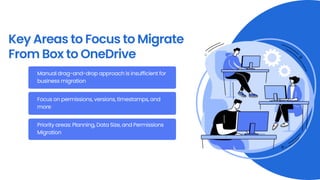
Key Areas to Focus to Migrate
From Box to OneDrive
Manual drag-and-drop approach is insufficient for
business migration
Focus on permissions, versions, timestamps, and
more
Priority areas: Planning, Data Size, and Permissions
Migration
Move Files
from Box to
OneDrive with
CloudFuze
Step 1: Log into the CloudFuze Web App
Access the CloudFuze web app and select
supported cloud services
Step 2: Add Your Source Cloud, Box or Box Business
Click on the Box icon. and enter Box admin login
credentials to authorize the account securely
Step 3: Add Your Destination Cloud, OneDrive
for Business
Authorize your OneDrive account with Microsoft 365
admin credentials
Step 4: Map Box to OneDrive for Business
Choose Box as the source and OneDrive for Business
as the destination
Step 5: Map and Select Users
Select specific users from Box to migrate to
OneDrive
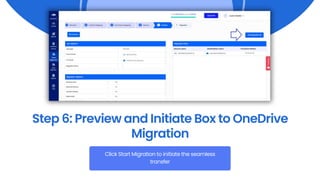
Step 6: Preview and Initiate Box to OneDrive
Migration
Click Start Migration to initiate the seamless
transfer
Step 7: Migration Has Been Completed
Start migration, track status (In-Queue, In-Progress,
Processed, Completed), and view detailed reports
VISIT OUR
WEBSITE!
support@cloudfuze.com
www.cloudfuze.com

Box to OneDrive Migration Guide for IT Admins

  • 1.
  • 2.
    Introduction Comprehensive information onBox to OneDrive migration Inclusive of strategizing, execution, and overcoming challenges Focus on understanding user role changes and efficient planning
  • 3.
    Box vs OneDrive Coredifferences favoring OneDrive migration OneDrive syncs with SharePoint Online, unlike Box OneDrive allows versatile content sharing through permissions and Microsoft Teams Industry-standard Microsoft Office apps vs. exclusive Box Notes on Box
  • 4.
    Box to OneDriveMigration Challenges Third-party tool reliance, like CloudFuze, due to manual limitations Challenges include user accounts, large data, special characters, and metadata migration Ensuring data security and monitoring project progress are vital
  • 5.
    CloudFuze’s Box to OneDriveMigration Tool Quick, secure, and convenient file transfer solution Especially useful for enterprises, universities, and large organizations Microsoft’s Gold Partner with a successful track record
  • 6.
    CloudFuze’s Box toOneDrive Migration Features Powerful functionalities for businesses of all sizes Covers one-time and delta migration, permissions, file version history, and custom feature development Enterprise-grade infrastructure, RESTful API, and robust admin controls
  • 7.
    How CloudFuze Migrates PermissionsFrom Box to OneDrive Accurate transfer of various user roles from Box to OneDrive Table illustrating the mapping of permissions between Box and OneDrive
  • 8.
    Key Areas toFocus to Migrate From Box to OneDrive Manual drag-and-drop approach is insufficient for business migration Focus on permissions, versions, timestamps, and more Priority areas: Planning, Data Size, and Permissions Migration
  • 9.
    Move Files from Boxto OneDrive with CloudFuze
  • 10.
    Step 1: Loginto the CloudFuze Web App Access the CloudFuze web app and select supported cloud services
  • 11.
    Step 2: AddYour Source Cloud, Box or Box Business Click on the Box icon. and enter Box admin login credentials to authorize the account securely
  • 12.
    Step 3: AddYour Destination Cloud, OneDrive for Business Authorize your OneDrive account with Microsoft 365 admin credentials
  • 13.
    Step 4: MapBox to OneDrive for Business Choose Box as the source and OneDrive for Business as the destination
  • 14.
    Step 5: Mapand Select Users Select specific users from Box to migrate to OneDrive
  • 15.
    Step 6: Previewand Initiate Box to OneDrive Migration Click Start Migration to initiate the seamless transfer
  • 16.
    Step 7: MigrationHas Been Completed Start migration, track status (In-Queue, In-Progress, Processed, Completed), and view detailed reports
  • 17.