www.cloudfuze.com
Box to Google
Drive Migration
Guide for IT
Admins
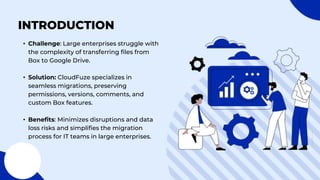
INTRODUCTION
• Challenge: Large enterprises struggle with
the complexity of transferring files from
Box to Google Drive.
• Solution: CloudFuze specializes in
seamless migrations, preserving
permissions, versions, comments, and
custom Box features.
• Benefits: Minimizes disruptions and data
loss risks and simplifies the migration
process for IT teams in large enterprises.
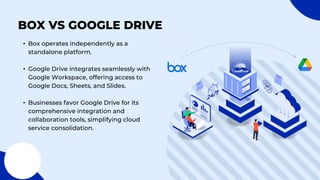
BOX VS GOOGLE DRIVE
• Box operates independently as a
standalone platform.
• Google Drive integrates seamlessly with
Google Workspace, offering access to
Google Docs, Sheets, and Slides.
• Businesses favor Google Drive for its
comprehensive integration and
collaboration tools, simplifying cloud
service consolidation.
WHY MIGRATE TO GOOGLE
DRIVE FROM BOX
• Enhanced Productivity: Streamlined
access to productivity tools improves
collaboration.
• Cost Efficiency: Consolidation saves on
licensing, support, and infrastructure costs
.
• Operational Streamlining: Integration
with Google Workspace enhances
workflow efficiency.
KEY CONSIDERATIONS
FOR MIGRATION
• Cost and Time: Evaluate resource needs
based on data volume and user scale.
• Permissions Migration: Ensure accurate
transfer of access permissions for data
security and user rights.
• Data Organization: Align data structures
between Box and Google Drive for
seamless integration.
CLOUDFUZE VS.
COMPETITOR FEATURES
COMPARISON
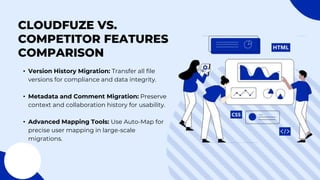
• Version History Migration: Transfer all file
versions for compliance and data integrity.
• Metadata and Comment Migration: Preserve
context and collaboration history for usability.
• Advanced Mapping Tools: Use Auto-Map for
precise user mapping in large-scale
migrations.
STEPS TO
TRANSFER FILES
USING
CLOUDFUZE
STEP 1: ACCESS
CLOUDFUZE
Sign in to CloudFuze to
commence the migration
process.
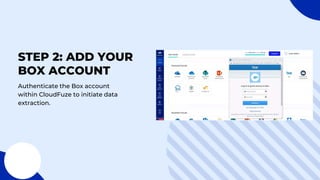
STEP 2: ADD YOUR
BOX ACCOUNT
Authenticate the Box account
within CloudFuze to initiate data
extraction.
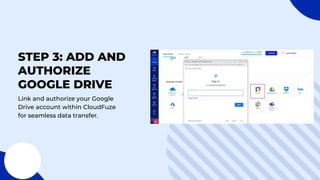
STEP 3: ADD AND
AUTHORIZE
GOOGLE DRIVE
Link and authorize your Google
Drive account within CloudFuze
for seamless data transfer.
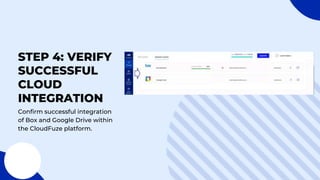
STEP 4: VERIFY
SUCCESSFUL
CLOUD
INTEGRATION
Confirm successful integration
of Box and Google Drive within
the CloudFuze platform.
STEP 5: INITIATE
TEAM MIGRATION
Begin the migration process,
specifying Box as the source and
Google Drive as the destination.
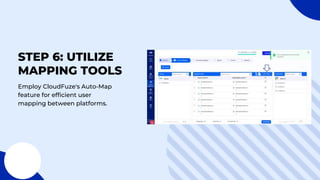
STEP 6: UTILIZE
MAPPING TOOLS
Employ CloudFuze's Auto-Map
feature for efficient user
mapping between platforms.
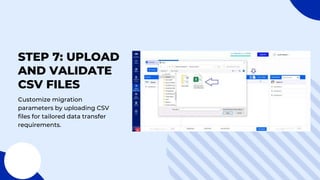
STEP 7: UPLOAD
AND VALIDATE
CSV FILES
Customize migration
parameters by uploading CSV
files for tailored data transfer
requirements.
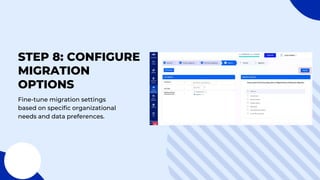
STEP 8: CONFIGURE
MIGRATION
OPTIONS
Fine-tune migration settings
based on specific organizational
needs and data preferences.
STEP 9: PREVIEW
AND INITIATE
MIGRATION
Review and initiate the
migration process from Box to
Google Drive within CloudFuze.
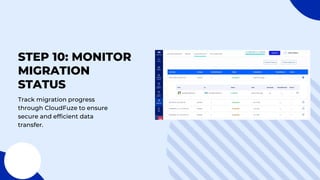
STEP 10: MONITOR
MIGRATION
STATUS
Track migration progress
through CloudFuze to ensure
secure and efficient data
transfer.
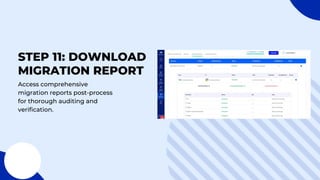
STEP 11: DOWNLOAD
MIGRATION REPORT
Access comprehensive
migration reports post-process
for thorough auditing and
verification.
THANK
YOU
+1 252-558-9019
support@cloudfuze.com
www.cloudfuze.com

Box to Google Drive Migration Guide for IT Admins

  • 1.
    www.cloudfuze.com Box to Google DriveMigration Guide for IT Admins
  • 2.
    INTRODUCTION • Challenge: Largeenterprises struggle with the complexity of transferring files from Box to Google Drive. • Solution: CloudFuze specializes in seamless migrations, preserving permissions, versions, comments, and custom Box features. • Benefits: Minimizes disruptions and data loss risks and simplifies the migration process for IT teams in large enterprises.
  • 3.
    BOX VS GOOGLEDRIVE • Box operates independently as a standalone platform. • Google Drive integrates seamlessly with Google Workspace, offering access to Google Docs, Sheets, and Slides. • Businesses favor Google Drive for its comprehensive integration and collaboration tools, simplifying cloud service consolidation.
  • 4.
    WHY MIGRATE TOGOOGLE DRIVE FROM BOX • Enhanced Productivity: Streamlined access to productivity tools improves collaboration. • Cost Efficiency: Consolidation saves on licensing, support, and infrastructure costs . • Operational Streamlining: Integration with Google Workspace enhances workflow efficiency.
  • 5.
    KEY CONSIDERATIONS FOR MIGRATION •Cost and Time: Evaluate resource needs based on data volume and user scale. • Permissions Migration: Ensure accurate transfer of access permissions for data security and user rights. • Data Organization: Align data structures between Box and Google Drive for seamless integration.
  • 6.
    CLOUDFUZE VS. COMPETITOR FEATURES COMPARISON •Version History Migration: Transfer all file versions for compliance and data integrity. • Metadata and Comment Migration: Preserve context and collaboration history for usability. • Advanced Mapping Tools: Use Auto-Map for precise user mapping in large-scale migrations.
  • 7.
  • 8.
    STEP 1: ACCESS CLOUDFUZE Signin to CloudFuze to commence the migration process.
  • 9.
    STEP 2: ADDYOUR BOX ACCOUNT Authenticate the Box account within CloudFuze to initiate data extraction.
  • 10.
    STEP 3: ADDAND AUTHORIZE GOOGLE DRIVE Link and authorize your Google Drive account within CloudFuze for seamless data transfer.
  • 11.
    STEP 4: VERIFY SUCCESSFUL CLOUD INTEGRATION Confirmsuccessful integration of Box and Google Drive within the CloudFuze platform.
  • 12.
    STEP 5: INITIATE TEAMMIGRATION Begin the migration process, specifying Box as the source and Google Drive as the destination.
  • 13.
    STEP 6: UTILIZE MAPPINGTOOLS Employ CloudFuze's Auto-Map feature for efficient user mapping between platforms.
  • 14.
    STEP 7: UPLOAD ANDVALIDATE CSV FILES Customize migration parameters by uploading CSV files for tailored data transfer requirements.
  • 15.
    STEP 8: CONFIGURE MIGRATION OPTIONS Fine-tunemigration settings based on specific organizational needs and data preferences.
  • 16.
    STEP 9: PREVIEW ANDINITIATE MIGRATION Review and initiate the migration process from Box to Google Drive within CloudFuze.
  • 17.
    STEP 10: MONITOR MIGRATION STATUS Trackmigration progress through CloudFuze to ensure secure and efficient data transfer.
  • 18.
    STEP 11: DOWNLOAD MIGRATIONREPORT Access comprehensive migration reports post-process for thorough auditing and verification.
  • 19.