Slack to
Team s
Migration
Guide for IT
Admins
Introductio
nCloudFuze’s Slack to Teams migration
automates chat processes, saving time and
money
Migrates Slack channels, DMs, conversations,
Workspaces, users, files, and more
Comprehensive solution for Slack to
Teams migration
Comprehensive solution for Slack to
Teams migration
Slack to Microsoft
Team s Migration
Trends
Transition to Teams as the primary communication
platform
Cloud productivity tools witness increased usage,
driven by pandemic-induced work changes
Many companies are making Microsoft Teams
their primary platform due to cost-
effectiveness and integration
Slack Vs
Microsoft Teams
Teams offers call recording, a built-in calendar,
and seamless integration with Microsoft Office
apps
Teams enhances user productivity for businesses
switching from Slack
Major
Migration
Challenges
Importing large Slack data, no support for
direct message import in Microsoft Teams, and
manual limitations in transferring conversations
CloudFuze addresses challenges, ensuring a secure
and swift migration
CloudFuze’s Slack to
Team s Migration Tool
Cloud data migration engine supporting
chat migration
A Microsoft Migration Partner facilitating effortless
Slack to Teams migration
Dedicated experts handle end-to-end migration
projects without disrupting business operations
Securit
y CloudFuze’s migration platform is highly secure and
trusted by major enterprises and U.S. government
agencies
Slack content, including Workspaces, channels, users,
and DMs, is migrated securely via API calls
Benefits for Com panies
and IT Adm ins
CloudFuze enables the migration of almost
everything from Slack to Teams, saving costs and
time
Accelerates Microsoft Teams adoption for
improved collaboration
Allows IT teams to focus on priorities rather
than migration tasks
CloudFuze vs.
Com petitor Migration
Tools
CloudFuze excels with comprehensive migration
features, including DMs, emojis, files, and more
A detailed feature-by-feature
comparison showcasing CloudFuze’s
strengths
How to
Migrate from
Slack to
Microsoft
Teams
Step 1: Log into the CloudFuze Web
App Visit webapp.cloudfuze.com for a 30-day trial.
Contact our migration team for a live demo
or quote
Step 2: Add Your Slack Account to
Cloudfuze
Spot the Slack logo on CloudFuze's business
clouds list and enter your account details in the
popup
Step 3: Enter Slack Login
Credentials
Input your company’s Slack login details and click
the Sign-in button
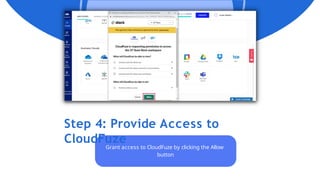
Step 4: Provide Access to
CloudFuze
Grant access to CloudFuze by clicking the Allow
button
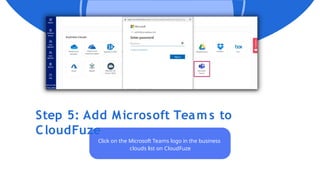
Step 5: Add Microsoft Team s to
CloudFuze
Click on the Microsoft Teams logo in the business
clouds list on CloudFuze
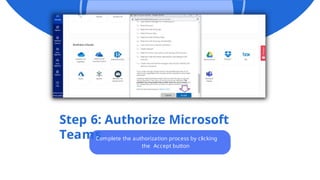
Step 6: Authorize Microsoft
Teams
Complete the authorization process by clicking
the Accept button
Step 7: Verify Whether Slacks and Teams
Are Added
Check the Clouds tab and go to Manage Clouds;
both Slack and Microsoft Teams should be displayed
Step 8: Click on the Slack Migration
Tab
Navigate to the Slack migration tab in the
left navigational menu
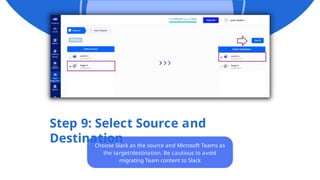
Step 9: Select Source and
Destination
Choose Slack as the source and Microsoft Teams as
the target/destination. Be cautious to avoid
migrating Team content to Slack
Step 10: Select Users to
Migrate
Automated user mapping by CloudFuze;
manual selection available as needed
Step 10: Select Users to
Migrate
Automated user mapping by CloudFuze;
manual selection available as needed
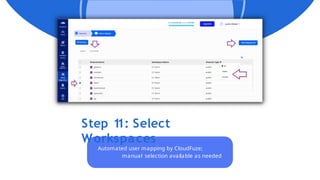
Step 1
1: Select
Workspaces
Automated user mapping by CloudFuze;
manual selection available as needed
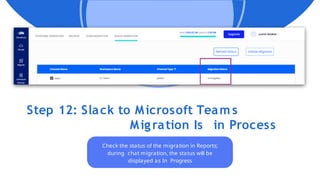
Step 12: Slack to Microsoft Team s
Migration Is in Process
Check the status of the migration in Reports;
during chat migration, the status will be
displayed as In Progress
Step 13: Migration Has Been
Com pleted Successfully
Once completed, the status changes from
In Progress to Processed
Step 14: Select Direct
Messages
Click on Direct Messages for Slack to Teams
to migrate direct messages
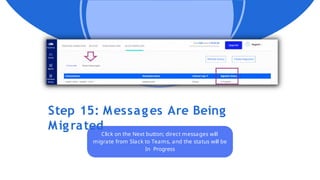
Step 15: Messages Are Being
Migrated
Click on the Next button; direct messages will
migrate from Slack to Teams, and the status will be
In Progress
Step 16: All the Direct Messages Have
Been Migrated
When all direct messages are migrated, CloudFuze
displays the status as Processed
VISIT
OUR
WEBSITE!
support@cloudfuze.com
www.cloudfuze.com

Slack to Teams Migration Guide for IT Admins

  • 1.
  • 2.
    Introductio nCloudFuze’s Slack toTeams migration automates chat processes, saving time and money Migrates Slack channels, DMs, conversations, Workspaces, users, files, and more Comprehensive solution for Slack to Teams migration Comprehensive solution for Slack to Teams migration
  • 3.
    Slack to Microsoft Teams Migration Trends Transition to Teams as the primary communication platform Cloud productivity tools witness increased usage, driven by pandemic-induced work changes Many companies are making Microsoft Teams their primary platform due to cost- effectiveness and integration
  • 4.
    Slack Vs Microsoft Teams Teamsoffers call recording, a built-in calendar, and seamless integration with Microsoft Office apps Teams enhances user productivity for businesses switching from Slack
  • 5.
    Major Migration Challenges Importing large Slackdata, no support for direct message import in Microsoft Teams, and manual limitations in transferring conversations CloudFuze addresses challenges, ensuring a secure and swift migration
  • 6.
    CloudFuze’s Slack to Teams Migration Tool Cloud data migration engine supporting chat migration A Microsoft Migration Partner facilitating effortless Slack to Teams migration Dedicated experts handle end-to-end migration projects without disrupting business operations
  • 7.
    Securit y CloudFuze’s migrationplatform is highly secure and trusted by major enterprises and U.S. government agencies Slack content, including Workspaces, channels, users, and DMs, is migrated securely via API calls
  • 8.
    Benefits for Companies and IT Adm ins CloudFuze enables the migration of almost everything from Slack to Teams, saving costs and time Accelerates Microsoft Teams adoption for improved collaboration Allows IT teams to focus on priorities rather than migration tasks
  • 9.
    CloudFuze vs. Com petitorMigration Tools CloudFuze excels with comprehensive migration features, including DMs, emojis, files, and more A detailed feature-by-feature comparison showcasing CloudFuze’s strengths
  • 10.
    How to Migrate from Slackto Microsoft Teams
  • 11.
    Step 1: Loginto the CloudFuze Web App Visit webapp.cloudfuze.com for a 30-day trial. Contact our migration team for a live demo or quote
  • 12.
    Step 2: AddYour Slack Account to Cloudfuze Spot the Slack logo on CloudFuze's business clouds list and enter your account details in the popup
  • 13.
    Step 3: EnterSlack Login Credentials Input your company’s Slack login details and click the Sign-in button
  • 14.
    Step 4: ProvideAccess to CloudFuze Grant access to CloudFuze by clicking the Allow button
  • 15.
    Step 5: AddMicrosoft Team s to CloudFuze Click on the Microsoft Teams logo in the business clouds list on CloudFuze
  • 16.
    Step 6: AuthorizeMicrosoft Teams Complete the authorization process by clicking the Accept button
  • 17.
    Step 7: VerifyWhether Slacks and Teams Are Added Check the Clouds tab and go to Manage Clouds; both Slack and Microsoft Teams should be displayed
  • 18.
    Step 8: Clickon the Slack Migration Tab Navigate to the Slack migration tab in the left navigational menu
  • 19.
    Step 9: SelectSource and Destination Choose Slack as the source and Microsoft Teams as the target/destination. Be cautious to avoid migrating Team content to Slack
  • 20.
    Step 10: SelectUsers to Migrate Automated user mapping by CloudFuze; manual selection available as needed
  • 21.
    Step 10: SelectUsers to Migrate Automated user mapping by CloudFuze; manual selection available as needed
  • 22.
    Step 1 1: Select Workspaces Automateduser mapping by CloudFuze; manual selection available as needed
  • 23.
    Step 12: Slackto Microsoft Team s Migration Is in Process Check the status of the migration in Reports; during chat migration, the status will be displayed as In Progress
  • 24.
    Step 13: MigrationHas Been Com pleted Successfully Once completed, the status changes from In Progress to Processed
  • 25.
    Step 14: SelectDirect Messages Click on Direct Messages for Slack to Teams to migrate direct messages
  • 26.
    Step 15: MessagesAre Being Migrated Click on the Next button; direct messages will migrate from Slack to Teams, and the status will be In Progress
  • 27.
    Step 16: Allthe Direct Messages Have Been Migrated When all direct messages are migrated, CloudFuze displays the status as Processed
  • 28.