Presenting by
A. F. M. Nazmus Sakib Dip
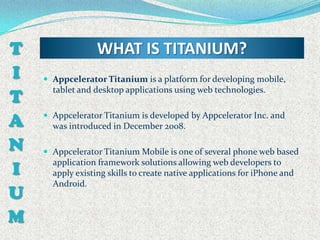
T                 WHAT IS TITANIUM?
I    Appcelerator Titanium is a platform for developing mobile,

T
      tablet and desktop applications using web technologies.


A    Appcelerator Titanium is developed by Appcelerator Inc. and
      was introduced in December 2008.

N    Appcelerator Titanium Mobile is one of several phone web based

I
      application framework solutions allowing web developers to
      apply existing skills to create native applications for iPhone and
      Android.
U
M
T           Titanium’s Inner Workflow
I    Using the familiar JavaScript syntax, developers will also have to
      learn the Titanium API, which is quite different from familiar
T     web frameworks such as jQuery.

A    All application source code gets deployed to the mobile device
      where it is interpreted /cross-compiler. This means that some
N     errors in the source code will not be caught before the program
      runs. Program loading takes longer than it does for programs
I     developed with the native SDKs.


U    As the last step, interpreting the source code on the device,
      needs to be done before the application starts.
M
T              FACILITIES :: TITANIUM
I    Cross-platform mobile development support.

T    Create iOS, Android, and mobile web apps from a single code
A     base.


N    Develop using a JavaScript-based platform with an integrated
      Eclipse-based IDE.
I    Maximize your flexibility with open standards.
U
     Get to market faster than developing in Objective-C or Java.
M
T                What Should I Need?
I    Basically you need only Javascript knowledge. Some OOP coding

T     routine would be great.


A    To develop for Android you will need Android SDK( Linux / OsX
      / Windows )

N    To develop for iPhone you will need a Mac.

I
U
M
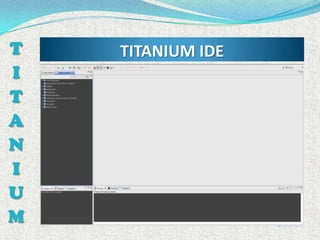
T   TITANIUM IDE
I
T
A
N
I
U
M
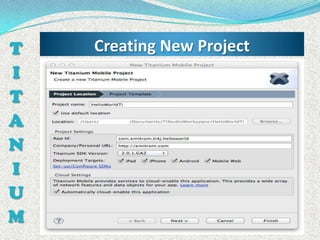
T   Creating New Project
I
T
A
N
I
U
M
T           Basic of Interface::Window
     Window is an empty drawing surface or container.
I    A window is a top-level container which can contain other views.
     Windows can be opened and closed. Opening a window causes the
T     window and its child views to be added to the application's render
      stack, on top of any previously opened windows. Closing a window
A     removes the window and its children from the render stack.
     Windows contain other views, but in general they are

N     not contained inside other views. There are a few specialized top-
      level views that manage windows, including:

I
       ①         NavigationGroup
       ②         SplitWindow
       ③         TabGroup.
U    By default, windows occupy the entire screen except for the
      navigation bar, status bar, and in the case of windows contained in
M     tab groups, the tab bar.
T                  Create A Window
     Use the Titanium.UI.createWindow method to create a
I     window.


T     var testWindow= Titanium.UI.createWindow({
                      title: “Test Window”,
A                     backgroundColor: “red”,
                      borderWidth:8,
N                     borderColor: “black”,
                      height:400,
I                     width:300,
                      borderRadius:10
U      });
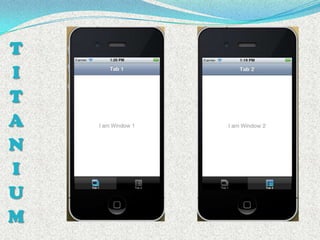
     Use window.open(); Or window.close(); to open or close a

M     window.
T           Basic of Interface::TabGroup
I    A tabbed group of windows.
     Use the Titanium.UI.createTabGroup method to create a tab

T   
        group.
        A tab group can contain one or more Tab objects, each of which
A   
        has an associated tab control that is used to bring it into focus.
        You can add tabs to the group using addTab, and

N   
        programmatically switch to a specific tab using setActiveTab.
        The main navigational elements (and common to all platforms)

I       is the TabGroup and the Tabs. TabGroup will hold one or more
        Tabs. Each Tab will control (open) a window.

U      If you decide that you application will have a TabGroup this will
        be the “root” of the application. Means that, any window opened
        by the Tabs in TabGroup will be controlled by this and the
M       TabGroup has one instance only.
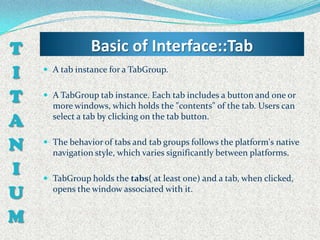
T               Basic of Interface::Tab
I    A tab instance for a TabGroup.


T    A TabGroup tab instance. Each tab includes a button and one or
      more windows, which holds the "contents" of the tab. Users can
A     select a tab by clicking on the tab button.


N    The behavior of tabs and tab groups follows the platform's native
      navigation style, which varies significantly between platforms.

I    TabGroup holds the tabs( at least one) and a tab, when clicked,

U     opens the window associated with it.


M
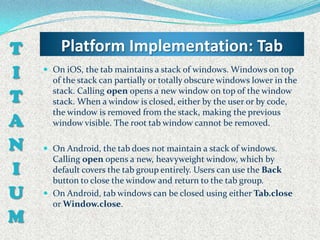
T       Platform Implementation: Tab
I    On iOS, the tab maintains a stack of windows. Windows on top
      of the stack can partially or totally obscure windows lower in the

T     stack. Calling open opens a new window on top of the window
      stack. When a window is closed, either by the user or by code,
      the window is removed from the stack, making the previous
A     window visible. The root tab window cannot be removed.

N    On Android, the tab does not maintain a stack of windows.
      Calling open opens a new, heavyweight window, which by
I     default covers the tab group entirely. Users can use the Back
      button to close the window and return to the tab group.
U    On Android, tab windows can be closed using either Tab.close
      or Window.close.
M
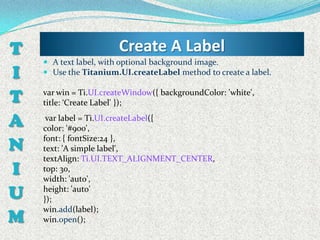
T                       Create A Label
     A text label, with optional background image.
I    Use the Titanium.UI.createLabel method to create a label.


T   var win = Ti.UI.createWindow({ backgroundColor: 'white',
    title: ‘Create Label' });

A    var label = Ti.UI.createLabel({
    color: '#900',

N
    font: { fontSize:24 },
    text: 'A simple label',
    textAlign: Ti.UI.TEXT_ALIGNMENT_CENTER,
I   top: 30,
    width: 'auto',

U   height: 'auto'
    });

M
    win.add(label);
    win.open();
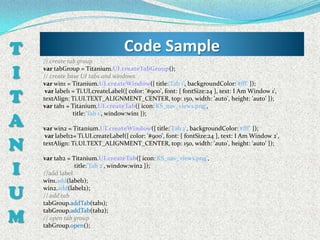
T   // create tab group
                                    Code Sample
I   var tabGroup = Titanium.UI.createTabGroup();
    // create base UI tabs and windows
    var win1 = Titanium.UI.createWindow({ title:'Tab 1', backgroundColor:'#fff' });

T
     var label1 = Ti.UI.createLabel({ color: '#900', font: { fontSize:24 }, text: I Am Window 1',
    textAlign: Ti.UI.TEXT_ALIGNMENT_CENTER, top: 150, width: 'auto', height: 'auto' });
    var tab1 = Titanium.UI.createTab({ icon:'KS_nav_views.png',

A
                title:'Tab 1', window:win1 });

    var win2 = Titanium.UI.createWindow({ title:'Tab 2', backgroundColor:'#fff’ });
     var label12= Ti.UI.createLabel({ color: '#900', font: { fontSize:24 }, text: I Am Window 2',

N   textAlign: Ti.UI.TEXT_ALIGNMENT_CENTER, top: 150, width: 'auto', height: 'auto' });

    var tab2 = Titanium.UI.createTab({ icon:'KS_nav_views.png',

I   //add label
                title:'Tab 2', window:win2 });

    win1.add(label1);

U   win2.add(label2);
    // add tab
    tabGroup.addTab(tab1);

M
    tabGroup.addTab(tab2);
    // open tab group
    tabGroup.open();
T
I
T
A
N
I
U
M
T              Basic of Interface::View
I    Another basic element it’s a View. An empty drawing surface or
      container created by the method Titanium.UI.createView.

T    The View can be the analog of a div tag in HTML so basically it’s

A     just a rectangle that can hold other elements for an easy and
      convenient control of the application’s layout.

N    A View cannot exists by itself it will have to be a child of a

I     Window or other element that accepts Views as child (a
      TableRowView or another View for example).

U
M
T                     Create A View
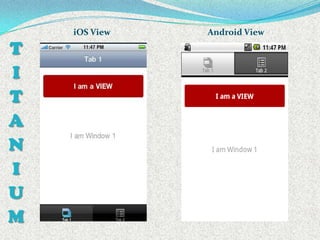
I    Use the Titanium.UI.createView method to create a View.
      var testView= Titanium.UI.createView({

T                   backgroundColor: “red”,
                    borderWidth: 5,

A                   borderColor: “black”,
                    height: 400,

N                   width: 300,
                    left: 25,

I
                    top: 15,
                    borderRadius: 5

U
       });
     Titanium views are positioned using the left, right, top,
      bottom and center properties, and sized using the width and
M     height properties.
iOS View   Android View

T
I
T
A
N
I
U
M
T                Basic of Interface::Table
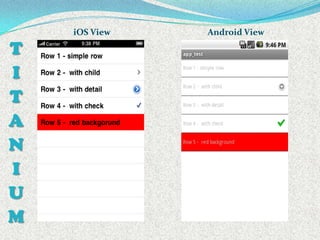
     The table element is created using
I     Titanium.UI.createTableView function. This function accepts
      an object as argument like we are used to – with the different
T     settings we might want to give to the table. Besides the usual
      properties ( like top, left, etc) we have a very important one
A     named data.
     The data property will hold the rows of the table as an array. The

N     below code will show an example:
    var win1 = Titanium.UI.createWindow({ backgroundColor:"#fff" });

I
    var table1 = Titanium.UI.createTableView({
      data:[ {title:"Row 1 - simple row"},
             {title:"Row 2 - with child", hasChild:true},
U            {title:"Row 3 - with detail", hasDetail:true},
             {title:"Row 4 - with check", hasCheck:true},

M            {title:"Row 5 - red background", backgroundColor:"#f00"} ]
    win1.add(table1);
                                                                          });

    win1.open();
iOS View   Android View

T
I
T
A
N
I
U
M
T                  Table :: Group Table
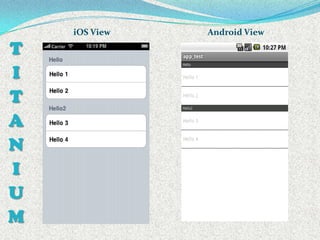
    var table1 = Titanium.UI.createTableView({
I     style:Titanium.UI.iPhone.TableViewStyle.GROUPED });
    var section1 = Titanium.UI.createTableViewSection();
      section1.headerTitle = "Hello";
T   var row1 = Titanium.UI.createTableViewRow({title:"Hello 1"});
    var row2 = Titanium.UI.createTableViewRow({title:"Hello 2"});
A   var section2 = Titanium.UI.createTableViewSection();
      section2.headerTitle = "Hello2";
N   var row3 = Titanium.UI.createTableViewRow({title:"Hello 3"});
    var row4 = Titanium.UI.createTableViewRow({title:"Hello 4"});
I   section1.add(row1);

U   section1.add(row2);
    section2.add(row3);
    section2.add(row4);
M   table1.setData([section1,section2]);
iOS View   Android View

T
I
T
A
N
I
U
M
T                             Picker View
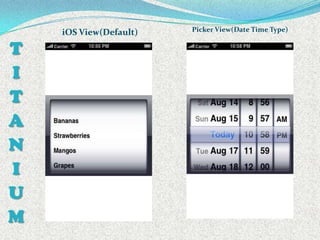
     The pickers are the equivalent of the select tag in html. The
I     only difference is that you can create a multicolumn picker.
     The function that creates a picker is
T     Titanium.UI.createPicker.
     The type property of the picker lets you chose the predefined

A     types but you always can create your own multicolumn picker.
      Titanium.UI.PICKER_TYPE_PLAIN (default),
      Titanium.UI.PICKER_TYPE_DATE_AND_TIME,
N     Titanium.UI.PICKER_TYPE_DATE,
      Titanium.UI.PICKER_TYPE_TIME or
      Titanium.UI.PICKER_TYPE_COUNT_DOWN_TIMER.
I    A simple picker code example:
    var picker = Titanium.UI.createPicker();
U   var data = []; data.push(Titanium.UI.createPickerRow({title:'Bananas'}));
       data.push(Titanium.UI.createPickerRow({title:'Strawberries'}));

M
       data.push(Titanium.UI.createPickerRow({title:'Mangos'}));
       data.push(Titanium.UI.createPickerRow({title:'Grapes'}));
    picker.add(data);
T            Platform Implementation
I    For Android, picker.useSpinner propertyis need to set true or
      flase. By default, when you create a picker you will get Android's

T     native picker control, which looks more like the classic
      "dropdown" widget. If you'd prefer to use something that looks
      more like iOS's picker -- which looks like one or more spinning
A     wheels --, you can set useSpinner: true.

N    Titanium's Android picker control (both the native and the
      useSpinner variety) does not support/display views that are
I     added to picker rows. Only the title of the row will be displayed
      within the control. Titanium for Android does not support the
U     DateTime or Count Down Timer picker type.


M
iOS View(Default)   Picker View(Date Time Type)


T
I
T
A
N
I
U
M
T                           ImageView
     A view to display a single image or series of animated images.
I    Use the Titanium.UI.createImageView method to create an
      ImageView.
T    Specifying either a width or height property for this view will
      scale its image(s) with the aspect ratio maintained, up to a
A     maximum size that does not exceed its parent view.
     Example of a simple image view:
N   Ti.UI.backgroundColor = 'white';
    var win = Ti.UI.createWindow();
I   var image = Ti.UI.createImageView({ image:'/images/myimage.png' ,
      height: 150,
U     width: 220});
    win.add(image);
M   win.open();
T                               Button
     A button widget that has four states: normal, disabled, focused
I     and selected.

T    A button displays its selected state while it is being pressed. The
      focused state is only used on Android devices that have
A     navigation keys or a keyboard, to indicate which button has
      input focus.
N
     You can specify background images for each state, as well as
I     button text and a button icon. On iOS, there are button styles
      which define appearance for each state, even if no button
U     images are set.


M    Use the Titanium.UI.createButton method to create a button.
T    Platform Implementation: Button
I    Android and Mobile Web use default button images for the normal,
      focused, selected and disabled states. If you use a custom button

T
      image, you should specify versions for the focused and selected
      states (and the disabled state, if the button is ever disabled).
     Android and Mobile Web also support setting the background color
A     for each of the states. These are not supported on iOS.


N    iOS buttons have two special properties, style and systemButton.
     The style property specifies the type of button decoration, and can
I     be set to one of the values described in
      Titanium.UI.iPhone.SystemButtonStyle.

U    Unlike Android and Mobile Web, iOS doesn't supply any default
      background images for buttons-- system button styles serve this

M     purpose.
T    Platform Implementation: Button
I    To use a custom button style, for example using a background
      gradient, you may need to explicitly set style to PLAIN, to

T     prevent the button style from overriding any background color or
      gradient.

A
     The systemButton property lets you create a predefined system-
      defined button, such as the Camera or Add buttons, for use in
      toolbars and nav bars.
N    Use the constants in Titanium.UI.iPhone.SystemButton to
      specify a button type. The size, style and decoration of system
I     buttons is set automatically, so you can create a button by setting
      only the systemButton property.
U    For example:
      cancelButton = Ti.UI.createButton({ systemButton:
M     Ti.UI.iPhone.SystemButton.CANCEL });
T                        Simple Example
I    Simple Button Example
    var button = Titanium.UI.createButton({
        title: 'Hello', top: 10, width: 100, height: 50 });
T   button.addEventListener('click',function(e) { Titanium.API.info("You clicked
       the button"); });
     Example with Background Image
A   var win = Ti.UI.createWindow({ backgroundColor: 'white',

N   title: 'Click button to test' });
    var button = Ti.UI.createButton({
        backgroundImage: '/images/myImage.png',
I   backgroundSelectedImage: '/images/mySelImage.png',
    title: 'Click me!', top: 10, width: 300, height: 200 });

U    button.addEventListener('click',function(e){
    Ti.API.info("You clicked the button"); });
    win.add(button);
M   win.open();
T                           Scroll View
I    A view that contains a horizontally and/or vertically-scrollable
      region of content.

T    Use the Titanium.UI.createScrollView method to create a

A
      scroll view.

     Views added to the scroll view will be scrolled based on the size
N     of the scrollable region of content. If a scrollable region fits
      within the size of its scroll view, the view will not scroll.
I    On Android, a scroll view can only scroll in one direction, either
U     vertical or horizontal, and not both at the same time. Hence, the
      scrollType property may be used to set the scroll direction

M     explicitly.
T        Simple Example :: Scroll View
I    Simple Scroll View
     Create a scroll view with content.

T   var win = Ti.UI.createWindow({ backgroundColor: 'white',
       exitOnClose: true, fullscreen: false, title: 'ScrollView Demo' });
A   var scrollView = Ti.UI.createScrollView({ contentWidth: 'auto',
       contentHeight: 'auto', showVerticalScrollIndicator: true,

N      showHorizontalScrollIndicator: true, height: '80%', width: '80%'
       });

I   var view = Ti.UI.createView({ backgroundColor:'#336699',
       borderRadius: 10, top: 10, height: 2000, width: 1000 });

U   scrollView.add(view);
    win.add(scrollView);

M   win.open();
T                          Text Field
I    A single line text field.
     Use the Titanium.UI.createTextField method to create a text

T
      field.
     Examples
     Basic Text Field with rounded border
A    Create a simple text field with a round border style.
    var win = Ti.UI.createWindow({ backgroundColor: 'white' });
N   var textField = Ti.UI.createTextField({
      borderStyle: Ti.UI.INPUT_BORDERSTYLE_ROUNDED,
I     color: '#336699',
      top: 10, left: 10,
U     width: 250, height: 60 });
    win.add(textField);
M   win.open();
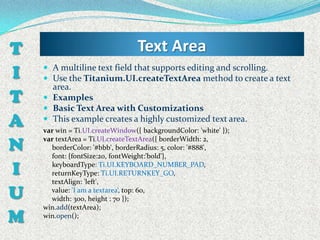
T                                Text Area
I    A multiline text field that supports editing and scrolling.
     Use the Titanium.UI.createTextArea method to create a text
      area.
T    Examples
     Basic Text Area with Customizations
A    This example creates a highly customized text area.
    var win = Ti.UI.createWindow({ backgroundColor: 'white' });

N
    var textArea = Ti.UI.createTextArea({ borderWidth: 2,
      borderColor: '#bbb', borderRadius: 5, color: '#888',
      font: {fontSize:20, fontWeight:'bold'},

I     keyboardType: Ti.UI.KEYBOARD_NUMBER_PAD,
      returnKeyType: Ti.UI.RETURNKEY_GO,
      textAlign: 'left',

U     value: 'I am a textarea‘, top: 60,
      width: 300, height : 70 });
    win.add(textArea);
M   win.open();
T             Titanium.App.Properties
     The App Properties module is used for storing application-
I      related data in property/value pairs that persist beyond
       application sessions and device power cycles.
T    Examples: Store a string property
    Ti.App.Properties.setString(‘presenterName', ‘Dip');
A   var name = Ti.App.Properties.getString('presenterName ');
    Ti.API.info('The value of the givenName property is: ' + name);
N    Output all saved properties to the console

I   var props = Ti.App.Properties.listProperties();
    for (var i=0, ilen=props.length; i<ilen; i++){
U      var value = Ti.App.Properties.getString(props[i]);
       Ti.API.info(props[i] + ' = ' + value); }
M
T
I
T
A   THANK
N
I
     YOU
U
M

Basic of tianium

  • 1.
    Presenting by A. F.M. Nazmus Sakib Dip
  • 2.
    T WHAT IS TITANIUM? I  Appcelerator Titanium is a platform for developing mobile, T tablet and desktop applications using web technologies. A  Appcelerator Titanium is developed by Appcelerator Inc. and was introduced in December 2008. N  Appcelerator Titanium Mobile is one of several phone web based I application framework solutions allowing web developers to apply existing skills to create native applications for iPhone and Android. U M
  • 3.
    T Titanium’s Inner Workflow I  Using the familiar JavaScript syntax, developers will also have to learn the Titanium API, which is quite different from familiar T web frameworks such as jQuery. A  All application source code gets deployed to the mobile device where it is interpreted /cross-compiler. This means that some N errors in the source code will not be caught before the program runs. Program loading takes longer than it does for programs I developed with the native SDKs. U  As the last step, interpreting the source code on the device, needs to be done before the application starts. M
  • 4.
    T FACILITIES :: TITANIUM I  Cross-platform mobile development support. T  Create iOS, Android, and mobile web apps from a single code A base. N  Develop using a JavaScript-based platform with an integrated Eclipse-based IDE. I  Maximize your flexibility with open standards. U  Get to market faster than developing in Objective-C or Java. M
  • 5.
    T What Should I Need? I  Basically you need only Javascript knowledge. Some OOP coding T routine would be great. A  To develop for Android you will need Android SDK( Linux / OsX / Windows ) N  To develop for iPhone you will need a Mac. I U M
  • 6.
    T TITANIUM IDE I T A N I U M
  • 7.
    T Creating New Project I T A N I U M
  • 8.
    T Basic of Interface::Window  Window is an empty drawing surface or container. I  A window is a top-level container which can contain other views.  Windows can be opened and closed. Opening a window causes the T window and its child views to be added to the application's render stack, on top of any previously opened windows. Closing a window A removes the window and its children from the render stack.  Windows contain other views, but in general they are N not contained inside other views. There are a few specialized top- level views that manage windows, including: I ① NavigationGroup ② SplitWindow ③ TabGroup. U  By default, windows occupy the entire screen except for the navigation bar, status bar, and in the case of windows contained in M tab groups, the tab bar.
  • 9.
    T Create A Window  Use the Titanium.UI.createWindow method to create a I window. T var testWindow= Titanium.UI.createWindow({ title: “Test Window”, A backgroundColor: “red”, borderWidth:8, N borderColor: “black”, height:400, I width:300, borderRadius:10 U });  Use window.open(); Or window.close(); to open or close a M window.
  • 10.
    T Basic of Interface::TabGroup I  A tabbed group of windows.  Use the Titanium.UI.createTabGroup method to create a tab T  group. A tab group can contain one or more Tab objects, each of which A  has an associated tab control that is used to bring it into focus. You can add tabs to the group using addTab, and N  programmatically switch to a specific tab using setActiveTab. The main navigational elements (and common to all platforms) I is the TabGroup and the Tabs. TabGroup will hold one or more Tabs. Each Tab will control (open) a window. U  If you decide that you application will have a TabGroup this will be the “root” of the application. Means that, any window opened by the Tabs in TabGroup will be controlled by this and the M TabGroup has one instance only.
  • 11.
    T Basic of Interface::Tab I  A tab instance for a TabGroup. T  A TabGroup tab instance. Each tab includes a button and one or more windows, which holds the "contents" of the tab. Users can A select a tab by clicking on the tab button. N  The behavior of tabs and tab groups follows the platform's native navigation style, which varies significantly between platforms. I  TabGroup holds the tabs( at least one) and a tab, when clicked, U opens the window associated with it. M
  • 12.
    T Platform Implementation: Tab I  On iOS, the tab maintains a stack of windows. Windows on top of the stack can partially or totally obscure windows lower in the T stack. Calling open opens a new window on top of the window stack. When a window is closed, either by the user or by code, the window is removed from the stack, making the previous A window visible. The root tab window cannot be removed. N  On Android, the tab does not maintain a stack of windows. Calling open opens a new, heavyweight window, which by I default covers the tab group entirely. Users can use the Back button to close the window and return to the tab group. U  On Android, tab windows can be closed using either Tab.close or Window.close. M
  • 13.
    T Create A Label  A text label, with optional background image. I  Use the Titanium.UI.createLabel method to create a label. T var win = Ti.UI.createWindow({ backgroundColor: 'white', title: ‘Create Label' }); A var label = Ti.UI.createLabel({ color: '#900', N font: { fontSize:24 }, text: 'A simple label', textAlign: Ti.UI.TEXT_ALIGNMENT_CENTER, I top: 30, width: 'auto', U height: 'auto' }); M win.add(label); win.open();
  • 14.
    T // create tab group Code Sample I var tabGroup = Titanium.UI.createTabGroup(); // create base UI tabs and windows var win1 = Titanium.UI.createWindow({ title:'Tab 1', backgroundColor:'#fff' }); T var label1 = Ti.UI.createLabel({ color: '#900', font: { fontSize:24 }, text: I Am Window 1', textAlign: Ti.UI.TEXT_ALIGNMENT_CENTER, top: 150, width: 'auto', height: 'auto' }); var tab1 = Titanium.UI.createTab({ icon:'KS_nav_views.png', A title:'Tab 1', window:win1 }); var win2 = Titanium.UI.createWindow({ title:'Tab 2', backgroundColor:'#fff’ }); var label12= Ti.UI.createLabel({ color: '#900', font: { fontSize:24 }, text: I Am Window 2', N textAlign: Ti.UI.TEXT_ALIGNMENT_CENTER, top: 150, width: 'auto', height: 'auto' }); var tab2 = Titanium.UI.createTab({ icon:'KS_nav_views.png', I //add label title:'Tab 2', window:win2 }); win1.add(label1); U win2.add(label2); // add tab tabGroup.addTab(tab1); M tabGroup.addTab(tab2); // open tab group tabGroup.open();
  • 15.
  • 16.
    T Basic of Interface::View I  Another basic element it’s a View. An empty drawing surface or container created by the method Titanium.UI.createView. T  The View can be the analog of a div tag in HTML so basically it’s A just a rectangle that can hold other elements for an easy and convenient control of the application’s layout. N  A View cannot exists by itself it will have to be a child of a I Window or other element that accepts Views as child (a TableRowView or another View for example). U M
  • 17.
    T Create A View I  Use the Titanium.UI.createView method to create a View. var testView= Titanium.UI.createView({ T backgroundColor: “red”, borderWidth: 5, A borderColor: “black”, height: 400, N width: 300, left: 25, I top: 15, borderRadius: 5 U });  Titanium views are positioned using the left, right, top, bottom and center properties, and sized using the width and M height properties.
  • 18.
    iOS View Android View T I T A N I U M
  • 19.
    T Basic of Interface::Table  The table element is created using I Titanium.UI.createTableView function. This function accepts an object as argument like we are used to – with the different T settings we might want to give to the table. Besides the usual properties ( like top, left, etc) we have a very important one A named data.  The data property will hold the rows of the table as an array. The N below code will show an example: var win1 = Titanium.UI.createWindow({ backgroundColor:"#fff" }); I var table1 = Titanium.UI.createTableView({ data:[ {title:"Row 1 - simple row"}, {title:"Row 2 - with child", hasChild:true}, U {title:"Row 3 - with detail", hasDetail:true}, {title:"Row 4 - with check", hasCheck:true}, M {title:"Row 5 - red background", backgroundColor:"#f00"} ] win1.add(table1); }); win1.open();
  • 20.
    iOS View Android View T I T A N I U M
  • 21.
    T Table :: Group Table var table1 = Titanium.UI.createTableView({ I style:Titanium.UI.iPhone.TableViewStyle.GROUPED }); var section1 = Titanium.UI.createTableViewSection(); section1.headerTitle = "Hello"; T var row1 = Titanium.UI.createTableViewRow({title:"Hello 1"}); var row2 = Titanium.UI.createTableViewRow({title:"Hello 2"}); A var section2 = Titanium.UI.createTableViewSection(); section2.headerTitle = "Hello2"; N var row3 = Titanium.UI.createTableViewRow({title:"Hello 3"}); var row4 = Titanium.UI.createTableViewRow({title:"Hello 4"}); I section1.add(row1); U section1.add(row2); section2.add(row3); section2.add(row4); M table1.setData([section1,section2]);
  • 22.
    iOS View Android View T I T A N I U M
  • 23.
    T Picker View  The pickers are the equivalent of the select tag in html. The I only difference is that you can create a multicolumn picker.  The function that creates a picker is T Titanium.UI.createPicker.  The type property of the picker lets you chose the predefined A types but you always can create your own multicolumn picker. Titanium.UI.PICKER_TYPE_PLAIN (default), Titanium.UI.PICKER_TYPE_DATE_AND_TIME, N Titanium.UI.PICKER_TYPE_DATE, Titanium.UI.PICKER_TYPE_TIME or Titanium.UI.PICKER_TYPE_COUNT_DOWN_TIMER. I  A simple picker code example: var picker = Titanium.UI.createPicker(); U var data = []; data.push(Titanium.UI.createPickerRow({title:'Bananas'})); data.push(Titanium.UI.createPickerRow({title:'Strawberries'})); M data.push(Titanium.UI.createPickerRow({title:'Mangos'})); data.push(Titanium.UI.createPickerRow({title:'Grapes'})); picker.add(data);
  • 24.
    T Platform Implementation I  For Android, picker.useSpinner propertyis need to set true or flase. By default, when you create a picker you will get Android's T native picker control, which looks more like the classic "dropdown" widget. If you'd prefer to use something that looks more like iOS's picker -- which looks like one or more spinning A wheels --, you can set useSpinner: true. N  Titanium's Android picker control (both the native and the useSpinner variety) does not support/display views that are I added to picker rows. Only the title of the row will be displayed within the control. Titanium for Android does not support the U DateTime or Count Down Timer picker type. M
  • 25.
    iOS View(Default) Picker View(Date Time Type) T I T A N I U M
  • 26.
    T ImageView  A view to display a single image or series of animated images. I  Use the Titanium.UI.createImageView method to create an ImageView. T  Specifying either a width or height property for this view will scale its image(s) with the aspect ratio maintained, up to a A maximum size that does not exceed its parent view.  Example of a simple image view: N Ti.UI.backgroundColor = 'white'; var win = Ti.UI.createWindow(); I var image = Ti.UI.createImageView({ image:'/images/myimage.png' , height: 150, U width: 220}); win.add(image); M win.open();
  • 27.
    T Button  A button widget that has four states: normal, disabled, focused I and selected. T  A button displays its selected state while it is being pressed. The focused state is only used on Android devices that have A navigation keys or a keyboard, to indicate which button has input focus. N  You can specify background images for each state, as well as I button text and a button icon. On iOS, there are button styles which define appearance for each state, even if no button U images are set. M  Use the Titanium.UI.createButton method to create a button.
  • 28.
    T Platform Implementation: Button I  Android and Mobile Web use default button images for the normal, focused, selected and disabled states. If you use a custom button T image, you should specify versions for the focused and selected states (and the disabled state, if the button is ever disabled).  Android and Mobile Web also support setting the background color A for each of the states. These are not supported on iOS. N  iOS buttons have two special properties, style and systemButton.  The style property specifies the type of button decoration, and can I be set to one of the values described in Titanium.UI.iPhone.SystemButtonStyle. U  Unlike Android and Mobile Web, iOS doesn't supply any default background images for buttons-- system button styles serve this M purpose.
  • 29.
    T Platform Implementation: Button I  To use a custom button style, for example using a background gradient, you may need to explicitly set style to PLAIN, to T prevent the button style from overriding any background color or gradient. A  The systemButton property lets you create a predefined system- defined button, such as the Camera or Add buttons, for use in toolbars and nav bars. N  Use the constants in Titanium.UI.iPhone.SystemButton to specify a button type. The size, style and decoration of system I buttons is set automatically, so you can create a button by setting only the systemButton property. U  For example: cancelButton = Ti.UI.createButton({ systemButton: M Ti.UI.iPhone.SystemButton.CANCEL });
  • 30.
    T Simple Example I  Simple Button Example var button = Titanium.UI.createButton({ title: 'Hello', top: 10, width: 100, height: 50 }); T button.addEventListener('click',function(e) { Titanium.API.info("You clicked the button"); });  Example with Background Image A var win = Ti.UI.createWindow({ backgroundColor: 'white', N title: 'Click button to test' }); var button = Ti.UI.createButton({ backgroundImage: '/images/myImage.png', I backgroundSelectedImage: '/images/mySelImage.png', title: 'Click me!', top: 10, width: 300, height: 200 }); U button.addEventListener('click',function(e){ Ti.API.info("You clicked the button"); }); win.add(button); M win.open();
  • 31.
    T Scroll View I  A view that contains a horizontally and/or vertically-scrollable region of content. T  Use the Titanium.UI.createScrollView method to create a A scroll view.  Views added to the scroll view will be scrolled based on the size N of the scrollable region of content. If a scrollable region fits within the size of its scroll view, the view will not scroll. I  On Android, a scroll view can only scroll in one direction, either U vertical or horizontal, and not both at the same time. Hence, the scrollType property may be used to set the scroll direction M explicitly.
  • 32.
    T Simple Example :: Scroll View I  Simple Scroll View  Create a scroll view with content. T var win = Ti.UI.createWindow({ backgroundColor: 'white', exitOnClose: true, fullscreen: false, title: 'ScrollView Demo' }); A var scrollView = Ti.UI.createScrollView({ contentWidth: 'auto', contentHeight: 'auto', showVerticalScrollIndicator: true, N showHorizontalScrollIndicator: true, height: '80%', width: '80%' }); I var view = Ti.UI.createView({ backgroundColor:'#336699', borderRadius: 10, top: 10, height: 2000, width: 1000 }); U scrollView.add(view); win.add(scrollView); M win.open();
  • 33.
    T Text Field I  A single line text field.  Use the Titanium.UI.createTextField method to create a text T field.  Examples  Basic Text Field with rounded border A  Create a simple text field with a round border style. var win = Ti.UI.createWindow({ backgroundColor: 'white' }); N var textField = Ti.UI.createTextField({ borderStyle: Ti.UI.INPUT_BORDERSTYLE_ROUNDED, I color: '#336699', top: 10, left: 10, U width: 250, height: 60 }); win.add(textField); M win.open();
  • 34.
    T Text Area I  A multiline text field that supports editing and scrolling.  Use the Titanium.UI.createTextArea method to create a text area. T  Examples  Basic Text Area with Customizations A  This example creates a highly customized text area. var win = Ti.UI.createWindow({ backgroundColor: 'white' }); N var textArea = Ti.UI.createTextArea({ borderWidth: 2, borderColor: '#bbb', borderRadius: 5, color: '#888', font: {fontSize:20, fontWeight:'bold'}, I keyboardType: Ti.UI.KEYBOARD_NUMBER_PAD, returnKeyType: Ti.UI.RETURNKEY_GO, textAlign: 'left', U value: 'I am a textarea‘, top: 60, width: 300, height : 70 }); win.add(textArea); M win.open();
  • 35.
    T Titanium.App.Properties  The App Properties module is used for storing application- I related data in property/value pairs that persist beyond application sessions and device power cycles. T  Examples: Store a string property Ti.App.Properties.setString(‘presenterName', ‘Dip'); A var name = Ti.App.Properties.getString('presenterName '); Ti.API.info('The value of the givenName property is: ' + name); N  Output all saved properties to the console I var props = Ti.App.Properties.listProperties(); for (var i=0, ilen=props.length; i<ilen; i++){ U var value = Ti.App.Properties.getString(props[i]); Ti.API.info(props[i] + ' = ' + value); } M
  • 36.
    T I T A THANK N I YOU U M