Basic file operations chapter 10.pptx for beginners
1.
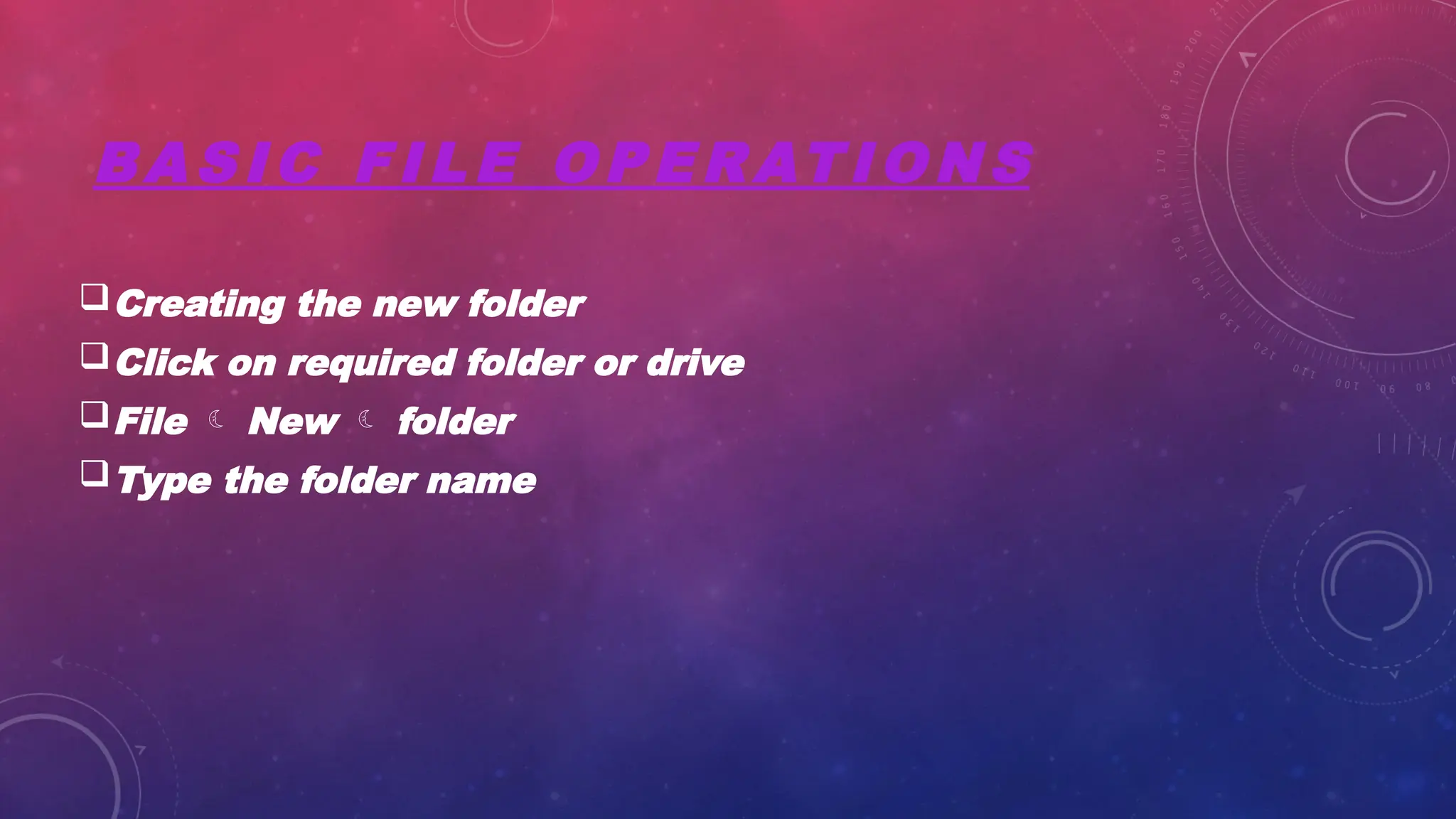
BA S IC F I L E O P E R AT I O N S
Creating the new folder
Click on required folder or drive
File New folder
Type the folder name
2.
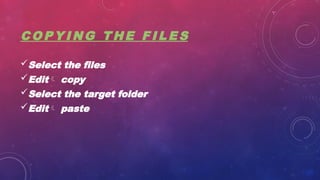
C O PY I N G T H E F I L E S
Select the files
Edit copy
Select the target folder
Edit paste
3.
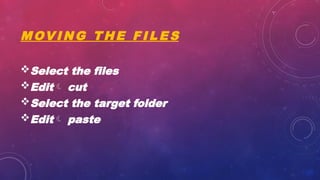
M OV IN G T H E F I L E S
Select the files
Edit cut
Select the target folder
Edit paste
4.
D E LE T I N G F I L E S
Select the file
File > rename
Type new file name
Press enter
5.
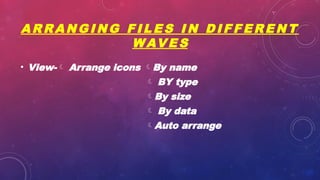
A R RA N G I N G F I L E S I N D I F F E R E N T
W AV E S
• View- Arrange icons By name
BY type
By size
By data
Auto arrange
6.
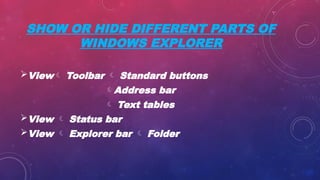
SHOW OR HIDEDIFFERENT PARTS OF
WINDOWS EXPLORER
View Toolbar Standard buttons
Address bar
Text tables
View Status bar
View Explorer bar Folder
7.
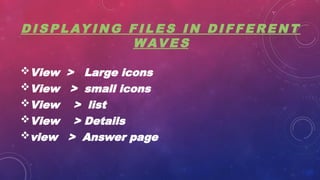
D I SP L AY I N G F I L E S I N D I F F E R E N T
W AV E S
View > Large icons
View > small icons
View > list
View > Details
view > Answer page
8.
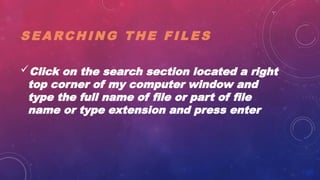
S E ARC H I N G T H E F I L E S
Click on the search section located a right
top corner of my computer window and
type the full name of file or part of file
name or type extension and press enter




![[Deck] What's New in Spark-Iceberg Integration via DSV2.pptx](https://cdn.slidesharecdn.com/ss_thumbnails/deckwhatsnewinspark-icebergintegrationviadsv2-260210005337-25955b12-thumbnail.jpg?width=640&height=640&fit=bounds)


