BAD FORM
@cliener
wufoo.com/html5/
<input type="email">
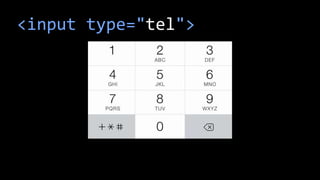
<input type="tel">
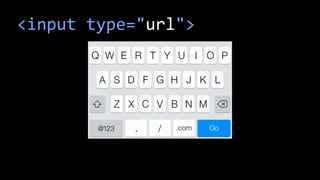
<input type="url">
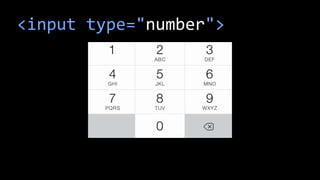
<input type="number">
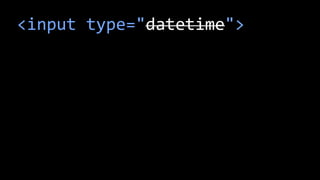
<input type="datetime">
<input required>
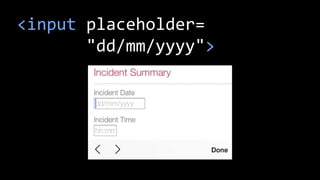
<input placeholder=
"dd/mm/yyyy">
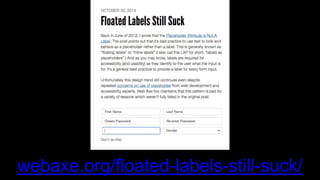
webaxe.org/floated-labels-still-suck/
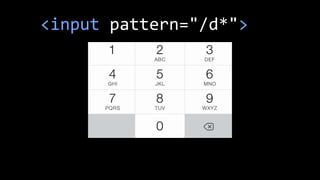
<input pattern="/d*">
<input autocorrect="off">
<input
autocapitalize="off">
<input autofocus>
<input
autocomplete="off">
<input type="password"
autocomplete="off">
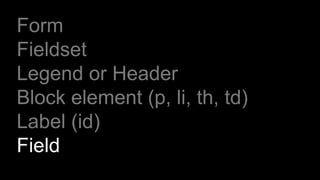
Form
Form
Fieldset
Form
Fieldset
Legend or Header
Form
Fieldset
Legend or Header
Block element (p, li, th, td)
Form
Fieldset
Legend or Header
Block element (p, li, th, td)
Label (id)
Form
Fieldset
Legend or Header
Block element (p, li, th, td)
Label (id)
Field
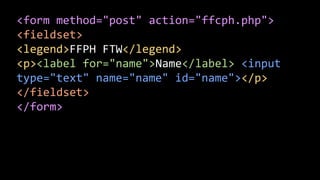
<form method="post" action="ffcph.php">
<fieldset>
<legend>FFPH FTW</legend>
<p><label for="name">Name</label> <input
type="text" name="name" id="name"></p>
</fieldset>
</form>
Vertical label/field
Horizontal (search)
Vertical label/field
Horizontal (search)
Clear path to completion
Vertical label/field
Horizontal (search)
Clear path to completion
Mark optional fields
Allow people to make mistakes
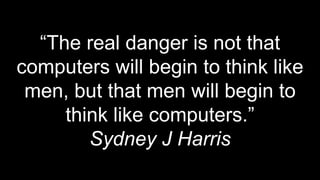
“The real danger is not that
computers will begin to think like
men, but that men will begin to
think like computers.”
Sydney J Harris
Allow people to make mistakes
Clearly mark invalid fields
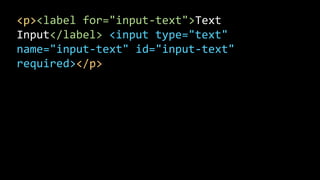
<p><label for="input-text">Text
Input</label> <input type="text"
name="input-text" id="input-text"
required></p>
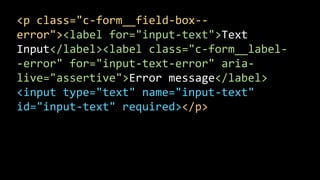
<p class="c-form__field-box--
error"><label for="input-text">Text
Input</label><label class="c-form__label-
-error" for="input-text-error" aria-
live="assertive">Error message</label>
<input type="text" name="input-text"
id="input-text" required></p>
Allow people to make mistakes
Clearly mark invalid fields
Enforce minimum not maximum
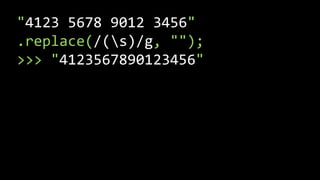
"4123 5678 9012 3456"
.replace(/(s)/g, "");
>>> "4123567890123456"
github.com/cliener/Quaid-JS
http://www.netmagazine.com/shop/magazines/april-
2013-239
creativebloq.com/javascript/build-better-web-forms-
javascript-10135045
“Unless someone like you cares
a whole awful lot nothing is going
to get better. It’s not.”
Dr Seuss
@cliener
slideshare.net/cliener

Bad Form @ Form, Function & Class 2016

Editor's Notes

  • #3 This is not me. I have not given up an acting career to follow the my dream of being a software developer.
  • #4 My wife thinks I might be him but, no, I haven’t renovated a series of old buildings for the Channel 4 in the UK.
  • #5 But I’m fairly sure I’m this guy.
  • #6 A few hundred years ago, Michelangelo got hungry and wrote a shopping list. To make sure he actually got what he wanted, he drew sketches of everything too.
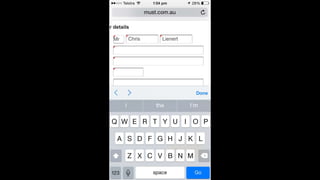
  • #7 You might think shopping with a list is easy enough but sometimes the labels aren’t quite right.
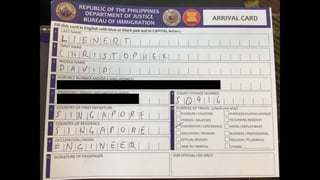
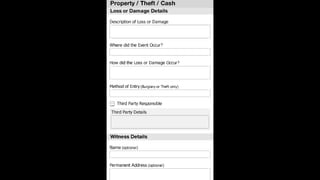
  • #8 Paper forms are sometimes viewed with a bizarre reverence but they go wrong often. There are 10 whole characters here for job description. Who has a job description 10 characters long?
  • #9 Fortunately the Internet came along and made everything perfect just like technology always does.
  • #10 Before we go too far, I’ll go through some of the important parts of forms that are easy to overlook. If you want to play along at home, have a look at Wufoo’s HTML Forms guide is a really good start.
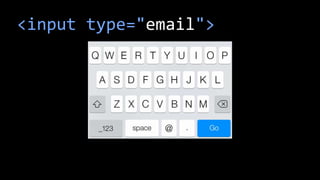
  • #11 Most of the new input types come with custom keyboards for iOS and some Android (amongst others). Some browser versions offer basic validation in but inconsistent implementations mean they can’t be relied upon. The key new inputs types are “email”,
  • #12 “tel”,
  • #13 “url” and
  • #14 “number”.
  • #15 There were several date and time related input types in the HTML5 draft spec however they’ve been reduced to “date” and “time”. Given the poor and inconsistent browser support, it’s a miracle that these two made it at all. There’s something of a chicken and egg situation when it comes to standards and browser support. Unfortunately for the HTML5 date and time inputs,
  • #16  the chicken looks something like this. Despite the dire predicament, date/time fields have been included in the HTML 5.1 draft spec so there is at least some intent to keep these input types alive.
  • #17 In summary, no date time for now.
  • #18 Important attributes to note are “required”,
  • #19 New attributes in HTML5 include the placeholder which is great for giving an indication of what to enter into a field. There are some indications that users get confused by placeholders as it can make it look like the field is already filled out so it might be and idea to limit their use for now.
  • #20 One thing we can be sure about is that placeholders are not labels and nor are floated labels a good thing. Remember this as something to never ever do.
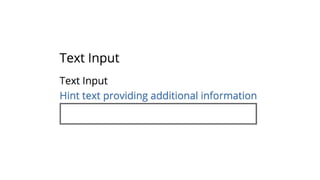
  • #21 When you need to provide additional information, use inline hint text. Clearer, happier, better.
  • #22 Patterns allow you to provide a regular expression string primarily for input validation. A numeric regular expression like the this one can trigger a numeric keyboard. You’ll often see the above pattern as “[0-9]*” because most people don’t know how to write regular expressions to save themselves.
  • #23 Autocomplete is shown here in it’s native habitat which is primarily to disable autocorrect for fields that really don’t need it i.e. user name. This property isn’t actually in the HTML5 spec but it’s very useful and actually exists in the wild.
  • #24 Autocapitalize also has one notable setting, “off”, which stops mobile operating systems from making the first character a capital. Perfect for annoyance reduction.
  • #25 Autofocus is useful for applying focus to the first input element of a page in which the form is the primary purpose of the page. Whatever you do, don’t ever polyfill autocomplete as the consequences are dire.
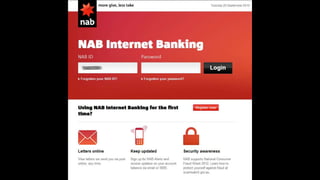
  • #26 Here’s a login form that my bank prepared earlier. Here I’ve typed my user name
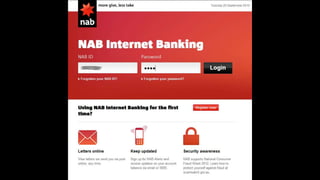
  • #27 and then tabbed across to the password field. Since I’m not that great at typing, I’m not looking at the keyboard at this point
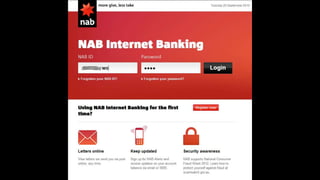
  • #28 so when the polyfilled autocomplete kicks in, focus returns to the user name field while I’m still typing my password. Even as a regular online banking user, I get burnt by this kind of thing all the time.

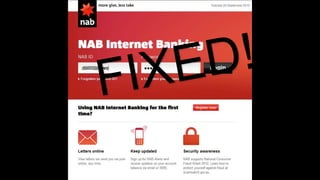
  • #29 Fortunately, NAB have fixed their site and made me eternally grateful.
  • #30 The autocomplete attribute has been around for a while and it has it’s uses.
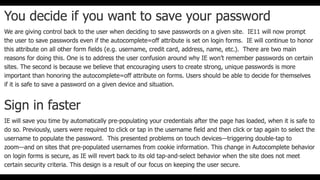
  • #31 There are unfortunate security recommendations that often recommend turning off autocomplete for passwords. It’s not a great idea and there’s been a race between browser vendors and developers to make it work properly.
  • #32 Microsoft led the way in IE11 and no longer respect autocomplete with password fields. The battle has since led to the native mobile field where bad security advice has blocked paste too. You now have ammunition to stop this in its tracks. Let passwords be free.
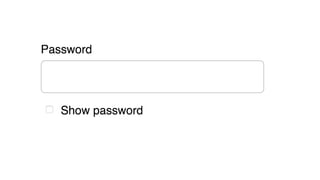
  • #33 You may have noticed that passwords are hard and the humble password input has evolved even further. Providing the option to show a password saves a lot of effort. Microsoft again have led the way in Edge with a native hide/show widget.
  • #34 The war on select boxes has increased lately.
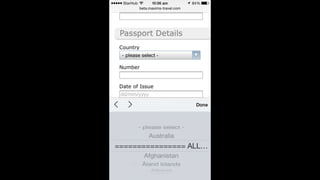
  • #35 You should also be very careful using Select elements since they got bad fast on mobile. The obvious problem here is users from Zambia will have to put their phones on charge before they reach their country. Less obvious is what happens with long Option values.
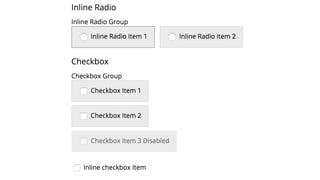
  • #36 Developers often avoid checkboxes and radios because the press targets are tiny and thus difficult to use. The solution is to turn them into big targets. Note the alternative pattern for less significant check boxes. If your HTML is correct, the text is still a press target albeit less obvious.
  • #37 Building a form is fairly simple. Start with your form,
  • #38 the add a fieldset. Fieldsets denote logical groups of form fields.
  • #39 When I have a simple form, the legend element fine. For more complex forms headers can be a helpful way of showing a hierarchy.
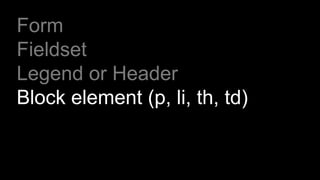
  • #40 Next add a block element of some description. In semantic terms, this isn’t strictly necessary however it helps provide an parent element when your JS kicks in.
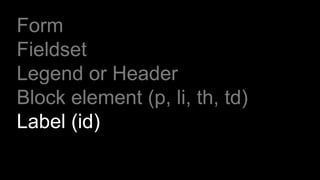
  • #41 Label elements aren’t worth much without a “for” attribute which points to the ID of the target element. By setting the “for” value, you also provide a larger tap/click target.
  • #42 Lastly, the field element itself.
  • #43 The result of all the above should look something like this.
  • #44 Design patterns! The first is setting a vertical label/field.
  • #45 In terms of completion rates, it doesn’t make much difference where you put your labels
  • #46 unless of course you’re on a mobile. You’re more than welcome to shift your labels around as client screen gets bigger but I’m lazy and prefer to leave them in the same location.
  • #47 If you’re building an admin (i.e. relatively controlled environment) search screen, horizontal labels seem to work better.
  • #48 The more compact form here provides more value that close field/label association.
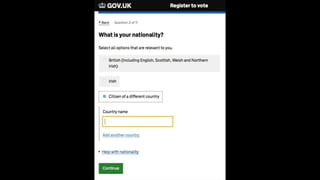
  • #49 One of the best ways to boost completion rates is to show a clear path to completion i.e. make it clear of what’s required and how to get there from the outset.


  • #50 The vertical label/field pattern helps with this as does the clear default button. Joe Lanman (et al) at gov.uk has done a stellar job in this regard. Clear focus and highlights make it really easy to see what’s required.
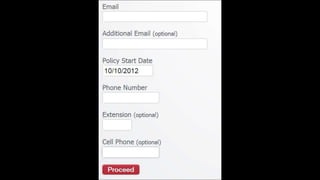
  • #51 Marking optional fields turns an inhuman robot form into something more friendly.
  • #52 The general rule with questions is that if it’s optional, don’t ask it. The natural extension to this is to not vandalise your form with asterisks.
  • #53 Having followed everything to now, you have a perfect web form. Awesome!
  • #54 No matter how well you design your form, people manage to get things wrong.
  • #55 Fortunately, validation is here to save the day.
  • #56 How do we validate? The first and most important rule is to allow people to make mistakes.
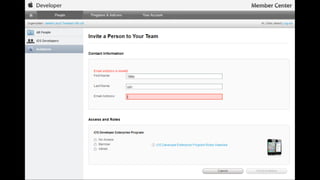
  • #57 Apple have kindly provided and example of how not to do this. Their email validation kicks in as you type so it’s impossible to fill this form out without encountering an error.
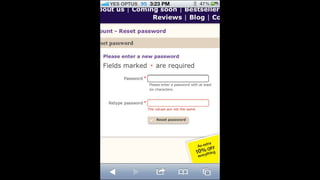
  • #58 In this example, tabbing from the password to the repeat field tells me the passwords don’t match. I haven’t actually entered anything yet but the validation script is too aggressive.
  • #59 The short version of this is to be more human. It’s critical to remember as we code that there will be a real human at the other end crying out in frustration.
  • #60 Allowing mistakes also invokes forgiveness. If I do make a mistake, don’t overly punish me while you’re at it.
  • #61 At the point when I’ve genuinely made a mistake, let me know and be nice about it.
  • #62 This is a prime example of lazy code. When you validate a series of fields, it’s easy to loop through the fields and then display all the errors at once. The problem is the user has no idea which error corresponds with which field.
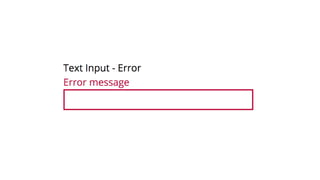
  • #63 The solution is to insert the error messages directly next to the field. Here is a valid field
  • #64 and here is the same with an error label and with the appropriate ARIA properties set.
  • #65 Put the error messages inline as close to the field as possible
  • #66 It’s really tempting to turn into robot when creating validation rules.
  • #67 Tell me you’re not a machine.
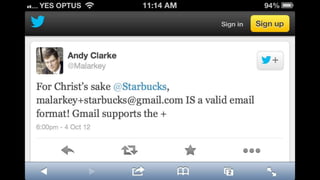
  • #68 Email address validation is frequently mangled. There are countless really bad email validation regular expressions out there. Beware lest you encounter the wrath of your users. Or, more realistically, they go somewhere else.
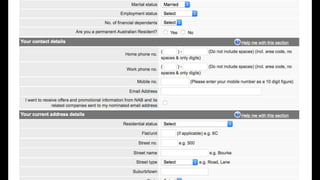
  • #69 Robots don’t like type conversion like strings to integers. Humans like to break up numbers. Who wins? Not the humans.
  • #70 I’ve heard regular expressions are a little scary…
  • #71 Here is everything you need to strip the spaces from number input. You no longer have any excuses.
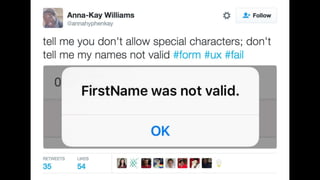
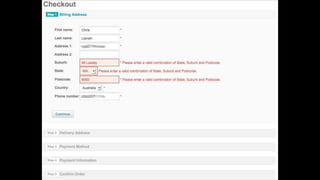
  • #72 Validating addresses from a database is great until it tells me I don’t know what my own address is. I’m fairly sure I know where I live.
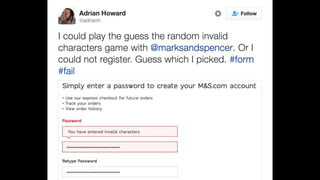
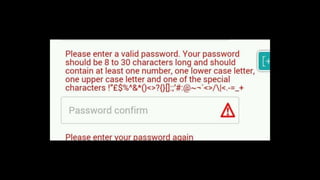
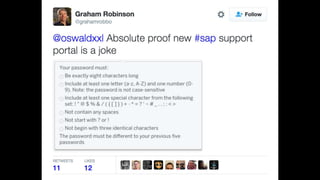
  • #73 Passwords again…
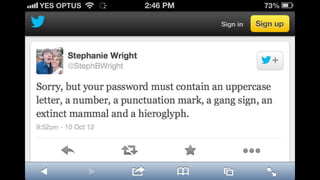
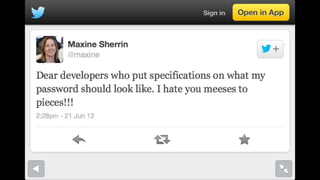
  • #74 This looks like copy/paste from the specification.
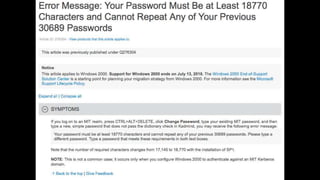
  • #76 I would have to have been on the receiving end on this one. Although the numbers are a little high, it doesn’t really make much difference in the end.
  • #77 Bizarrely, people don’t like this.
  • #78 Really not.
  • #79 Worth noting I have a semi-abandoned validation library on GitHub. Steal from it as you will.
  • #80 If you like print, you can find a Quaid-JS tutorial in Net Mag
  • #81 Otherwise, the same article is online.
  • #82 Let’s pause for a moment.
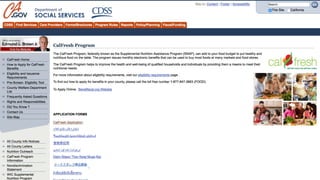
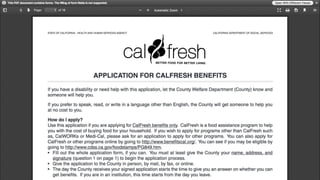
  • #83 If you’re a low-income Californian, chances are you’ve had something to do with the CalFresh the help keep food on the table. Most of the target audience of CalFresh are poorly educated and have limited language skills.
  • #84 Here’s their 18 page PDF application form. This form is so hard to fill out, people are literally going hungry because of the bad design. You may not work for CalFresh but your code and design choices make a difference.
  • #85 Final plea. Computers alone don't make things better, we have to work with them. You just have to care enough.