Assigning Shipping Template to SKUs
15
15
16
17
17
Assign ‘Selected Self Ship Template’ to SKUs
15. Navigate to ‘Manage Inventory’ page by moving mouse pointer to ‘Inventory’ menu
 Click on ‘Manage Inventory’ from the drop down
16. Select checkbox of ASINs for which you want to assign the ‘Migrated Template’
17. Click on ‘Action on __ selected’  Click on ‘Change Shipping Template’ from the
drop down and you’ll be redirected to a new page
• ‘Selected Self Ship
Template’ might not be
the default template
based on your choice while
enabling Selected Self Ship
option.
• If you have not selected
the ‘Selected Self Ship
Template’ to be your
default, you need to assign
the template manually to
each SKU.
20
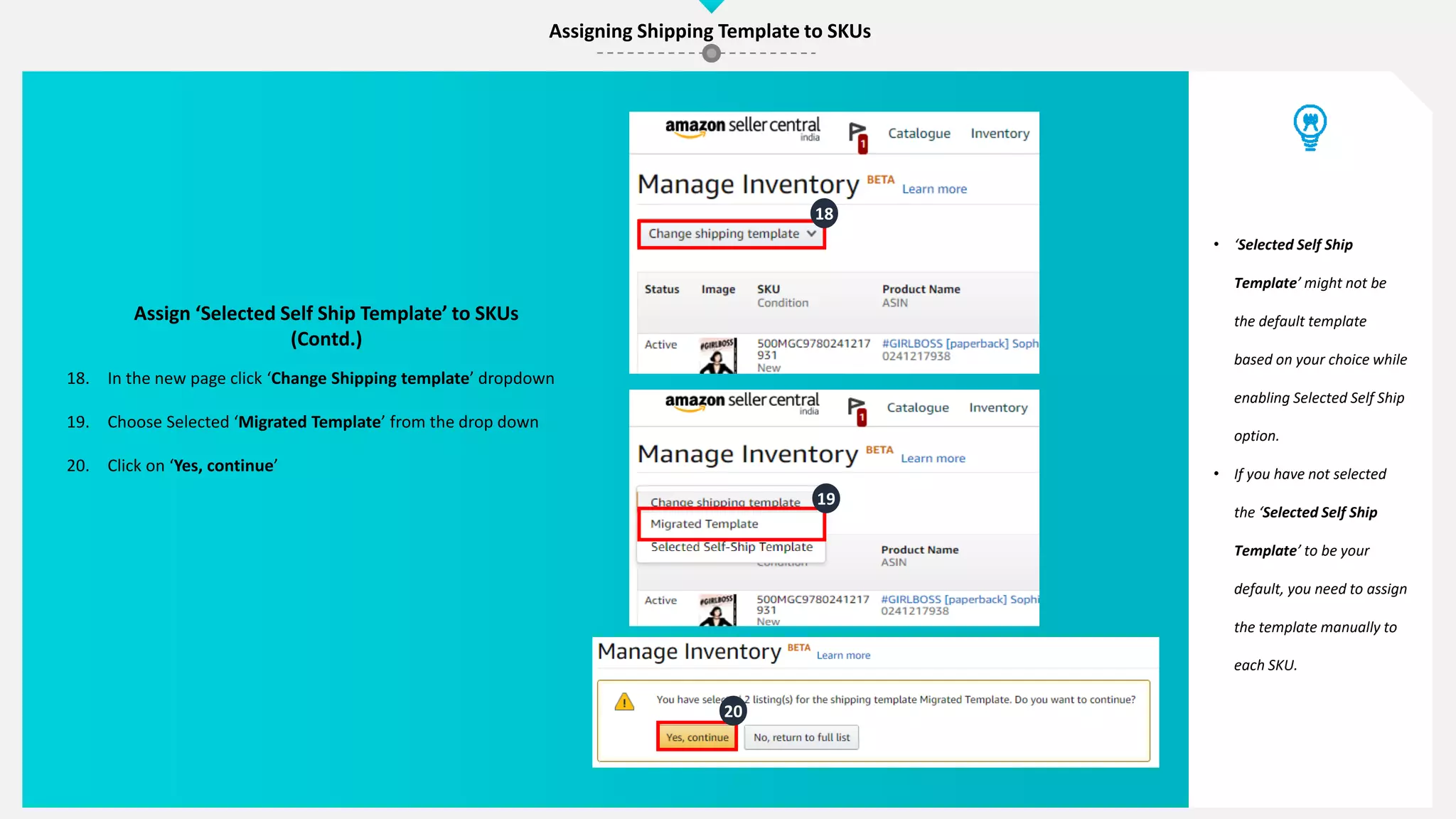
Assign ‘Selected Self Ship Template’ to SKUs
(Contd.)
18. In the new page click ‘Change Shipping template’ dropdown
19. Choose Selected ‘Migrated Template’ from the drop down
20. Click on ‘Yes, continue’
18
19
Assigning Shipping Template to SKUs
Click on ‘Assign Offers to Shipping Template’ button below to update coverage settings for your
selling account
This completes the section on updating Shipping Template for Local Shops.
Please continue to the next section on ‘Order Cut-off time & Operating Days’

Assign offers to shipping template_01

  • 1.
    Assigning Shipping Templateto SKUs 15 15 16 17 17 Assign ‘Selected Self Ship Template’ to SKUs 15. Navigate to ‘Manage Inventory’ page by moving mouse pointer to ‘Inventory’ menu  Click on ‘Manage Inventory’ from the drop down 16. Select checkbox of ASINs for which you want to assign the ‘Migrated Template’ 17. Click on ‘Action on __ selected’  Click on ‘Change Shipping Template’ from the drop down and you’ll be redirected to a new page
  • 2.
    • ‘Selected SelfShip Template’ might not be the default template based on your choice while enabling Selected Self Ship option. • If you have not selected the ‘Selected Self Ship Template’ to be your default, you need to assign the template manually to each SKU. 20 Assign ‘Selected Self Ship Template’ to SKUs (Contd.) 18. In the new page click ‘Change Shipping template’ dropdown 19. Choose Selected ‘Migrated Template’ from the drop down 20. Click on ‘Yes, continue’ 18 19 Assigning Shipping Template to SKUs
  • 3.
    Click on ‘AssignOffers to Shipping Template’ button below to update coverage settings for your selling account This completes the section on updating Shipping Template for Local Shops. Please continue to the next section on ‘Order Cut-off time & Operating Days’