2
2
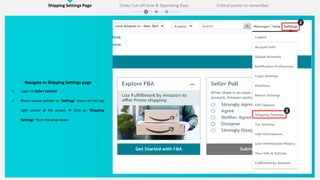
Navigate to Shipping Settings page
1. Login to Seller Central
2. Move mouse pointer to ‘Settings’ menu on the top
right corner of the screen  Click on ‘Shipping
Settings’ from the drop down
Shipping Settings Page Order Cut-off time & Operating Days Critical points to remember
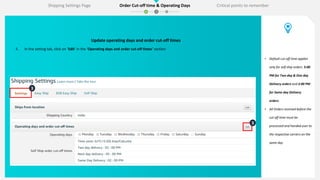
Update operating days and order cut-off times
3. In the setting tab, click on ‘Edit’ in the ‘Operating days and order cut-off times’ section
3
3
• Default cut-off time applies
only for self ship orders. 5:00
PM for Two day & One day
Delivery orders and 2:00 PM
for Same day Delivery
orders.
• All Orders received before the
cut off time must be
processed and handed over to
the respective carriers on the
same day
Shipping Settings Page Order Cut-off time & Operating Days Critical points to remember
4
5
5
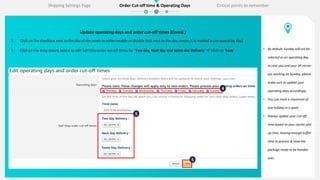
Update operating days and order cut-off times (Contd.)
4. Click on the checkbox next to the day of the week to either enable or disable (tick next to the day means it is marked as an operating day)
5. Click on the drop downs below to edit Self Ship order cut-off times for ‘Two day, Next day and Same day Delivery’  Click on ‘Save’ • By default, Sunday will not be
selected as an operating day.
In case you and your 3P carrier
are working on Sunday, please
make sure to update your
operating days accordingly.
• You can mark a maximum of
one holiday in a week
• Always update your Cut-off
time based on your carrier pick
up time, leaving enough buffer
time to process & keep the
package ready to be handed
over.
Shipping Settings Page Order Cut-off time & Operating Days Critical points to remember
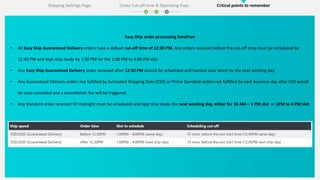
Easy Ship order processing timelines
• All Easy Ship Guaranteed Delivery orders have a default cut-off time of 12:30 PM. Any orders received before the cut-off time must be scheduled by
12:45 PM and kept ship ready by 1:00 PM for the 1:00 PM to 4:00 PM slot.
• Any Easy Ship Guaranteed Delivery order received after 12:30 PM should be scheduled and handed over latest by the next working day.
• Any Guaranteed Delivery orders not fulfilled by Estimated Shipping Date (ESD) or Prime Standard orders not fulfilled by next business day after ESD would
be auto-cancelled and a cancellation fee will be triggered
• Any standard order received till midnight must be scheduled and kept ship ready the next working day, either for 10 AM – 1 PM slot or 1PM to 4 PM slot
Shipping Settings Page Order Cut-off time & Operating Days Critical points to remember
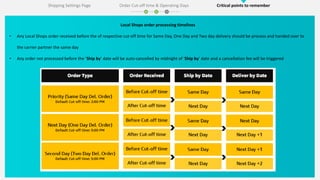
Local Shops order processing timelines
• Any Local Shops order received before the of respective cut-off time for Same Day, One Day and Two day delivery should be process and handed over to
the carrier partner the same day
• Any order not processed before the ‘Ship by’ date will be auto-cancelled by midnight of ‘Ship by’ date and a cancellation fee will be triggered
Shipping Settings Page Order Cut-off time & Operating Days Critical points to remember
Click on ‘Update cut-off time and Operating days’ button below to edit cut-off time and
operating days for your selling account
This completes the section on updating cut-off and operating days.
Please continue to the next module on ‘Amazon Delivery App’

Cut-off time and Operating days_32

  • 1.
    2 2 Navigate to ShippingSettings page 1. Login to Seller Central 2. Move mouse pointer to ‘Settings’ menu on the top right corner of the screen  Click on ‘Shipping Settings’ from the drop down Shipping Settings Page Order Cut-off time & Operating Days Critical points to remember
  • 2.
    Update operating daysand order cut-off times 3. In the setting tab, click on ‘Edit’ in the ‘Operating days and order cut-off times’ section 3 3 • Default cut-off time applies only for self ship orders. 5:00 PM for Two day & One day Delivery orders and 2:00 PM for Same day Delivery orders. • All Orders received before the cut off time must be processed and handed over to the respective carriers on the same day Shipping Settings Page Order Cut-off time & Operating Days Critical points to remember
  • 3.
    4 5 5 Update operating daysand order cut-off times (Contd.) 4. Click on the checkbox next to the day of the week to either enable or disable (tick next to the day means it is marked as an operating day) 5. Click on the drop downs below to edit Self Ship order cut-off times for ‘Two day, Next day and Same day Delivery’  Click on ‘Save’ • By default, Sunday will not be selected as an operating day. In case you and your 3P carrier are working on Sunday, please make sure to update your operating days accordingly. • You can mark a maximum of one holiday in a week • Always update your Cut-off time based on your carrier pick up time, leaving enough buffer time to process & keep the package ready to be handed over. Shipping Settings Page Order Cut-off time & Operating Days Critical points to remember
  • 4.
    Easy Ship orderprocessing timelines • All Easy Ship Guaranteed Delivery orders have a default cut-off time of 12:30 PM. Any orders received before the cut-off time must be scheduled by 12:45 PM and kept ship ready by 1:00 PM for the 1:00 PM to 4:00 PM slot. • Any Easy Ship Guaranteed Delivery order received after 12:30 PM should be scheduled and handed over latest by the next working day. • Any Guaranteed Delivery orders not fulfilled by Estimated Shipping Date (ESD) or Prime Standard orders not fulfilled by next business day after ESD would be auto-cancelled and a cancellation fee will be triggered • Any standard order received till midnight must be scheduled and kept ship ready the next working day, either for 10 AM – 1 PM slot or 1PM to 4 PM slot Shipping Settings Page Order Cut-off time & Operating Days Critical points to remember
  • 5.
    Local Shops orderprocessing timelines • Any Local Shops order received before the of respective cut-off time for Same Day, One Day and Two day delivery should be process and handed over to the carrier partner the same day • Any order not processed before the ‘Ship by’ date will be auto-cancelled by midnight of ‘Ship by’ date and a cancellation fee will be triggered Shipping Settings Page Order Cut-off time & Operating Days Critical points to remember
  • 6.
    Click on ‘Updatecut-off time and Operating days’ button below to edit cut-off time and operating days for your selling account This completes the section on updating cut-off and operating days. Please continue to the next module on ‘Amazon Delivery App’