2011
ARAS Tutorial


    Technical Solutions for
    Sustainability
    TSS
ARAS Tutorial

Contents
1.   Starting ARAS ........................................................................................................................................ 3
2.   Single RAS .............................................................................................................................................. 3
3.   Multiple RAS.......................................................................................................................................... 6
4.   Courses.................................................................................................................................................. 7
5.   Other services ....................................................................................................................................... 8


Technical Solutions for Sustainability tss.vraag@gmail.com                                                                                           Page 2
ARAS Tutorial

    1. Starting ARAS
Before starting ARAS, be sure that you have installed HEC-RAS version 4.0. Then, double click the install
icon and press install, and wait some seconds until the installation is finished.

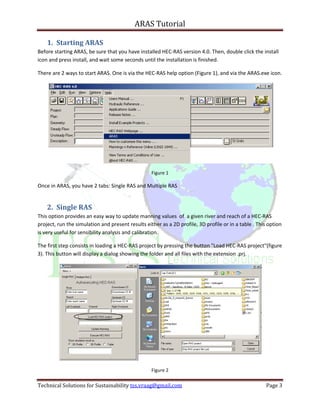
There are 2 ways to start ARAS. One is via the HEC-RAS help option (Figure 1), and via the ARAS.exe icon.


                                                   Figure 1

Once in ARAS, you have 2 tabs: Single RAS and Multiple RAS


    2. Single RAS
This option provides an easy way to update manning values of a given river and reach of a HEC-RAS
project, run the simulation and present results either as a 2D profile, 3D profile or in a table . This option
is very useful for sensibility analysis and calibration.

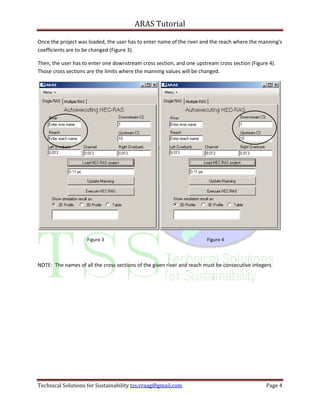
The first step consists in loading a HEC-RAS project by pressing the button "Load HEC-RAS project"(figure
3). This button will display a dialog showing the folder and all files with the extension .prj.


                                                   Figure 2

Technical Solutions for Sustainability tss.vraag@gmail.com                                             Page 3
ARAS Tutorial

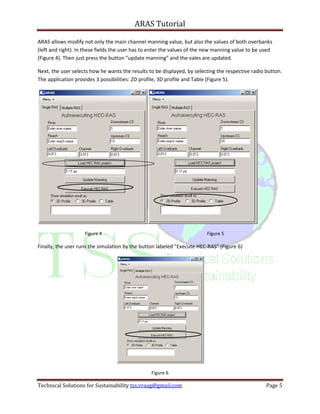
Once the project was loaded, the user has to enter name of the river and the reach where the manning's
coefficients are to be changed (Figure 3).

Then, the user has to enter one downstream cross section, and one upstream cross section (Figure 4).
Those cross sections are the limits where the manning values will be changed.


                     Figure 3                                           Figure 4


NOTE: The names of all the cross sections of the given river and reach must be consecutive integers.


Technical Solutions for Sustainability tss.vraag@gmail.com                                       Page 4
ARAS Tutorial

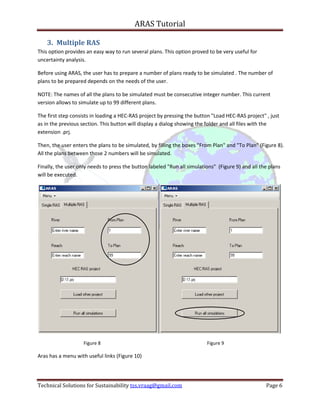
ARAS allows modify not only the main channel manning value, but also the values of both overbanks
(left and right). In these fields the user has to enter the values of the new manning value to be used
(Figure 4). Then just press the button "update manning" and the vales are updated.

Next, the user selects how he wants the results to be displayed, by selecting the respective radio button.
The application provides 3 possibilities: 2D profile, 3D profile and Table (Figure 5).


                    Figure 4                                             Figure 5

Finally, the user runs the simulation by the button labeled "Execute HEC-RAS" (Figure 6)


                                                 Figure 6

Technical Solutions for Sustainability tss.vraag@gmail.com                                         Page 5
ARAS Tutorial

    3. Multiple RAS
This option provides an easy way to run several plans. This option proved to be very useful for
uncertainty analysis.

Before using ARAS, the user has to prepare a number of plans ready to be simulated . The number of
plans to be prepared depends on the needs of the user.

NOTE: The names of all the plans to be simulated must be consecutive integer number. This current
version allows to simulate up to 99 different plans.

The first step consists in loading a HEC-RAS project by pressing the button "Load HEC-RAS project" , just
as in the previous section. This button will display a dialog showing the folder and all files with the
extension .prj.

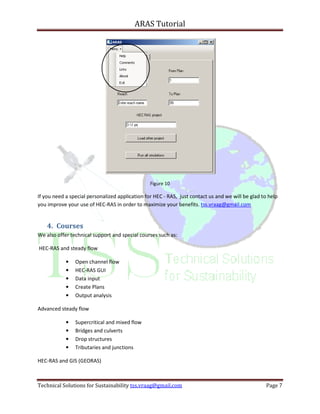
Then, the user enters the plans to be simulated, by filling the boxes "From Plan" and "To Plan" (Figure 8).
All the plans between those 2 numbers will be simulated.

Finally, the user only needs to press the button labeled "Run all simulations" (Figure 9) and all the plans
will be executed.


                    Figure 8                                              Figure 9

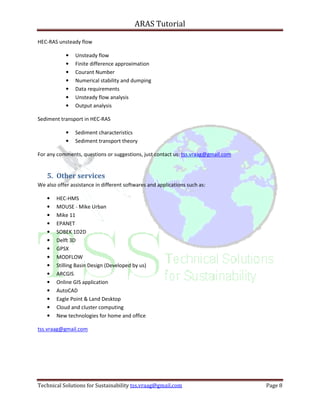
Aras has a menu with useful links (Figure 10)


Technical Solutions for Sustainability tss.vraag@gmail.com                                          Page 6
ARAS Tutorial


                                                 Figure 10

If you need a special personalized application for HEC - RAS, just contact us and we will be glad to help
you improve your use of HEC-RAS in order to maximize your benefits. tss.vraag@gmail.com


    4. Courses
We also offer technical support and special courses such as:

HEC-RAS and steady flow

            •   Open channel flow
            •   HEC-RAS GUI
            •   Data input
            •   Create Plans
            •   Output analysis

Advanced steady flow

            •   Supercritical and mixed flow
            •   Bridges and culverts
            •   Drop structures
            •   Tributaries and junctions

HEC-RAS and GIS (GEORAS)


Technical Solutions for Sustainability tss.vraag@gmail.com                                         Page 7
ARAS Tutorial

HEC-RAS unsteady flow

            •   Unsteady flow
            •   Finite difference approximation
            •   Courant Number
            •   Numerical stability and dumping
            •   Data requirements
            •   Unsteady flow analysis
            •   Output analysis

Sediment transport in HEC-RAS

            •   Sediment characteristics
            •   Sediment transport theory

For any comments, questions or suggestions, just contact us: tss.vraag@gmail.com


    5. Other services
We also offer assistance in different softwares and applications such as:

    •   HEC-HMS
    •   MOUSE - Mike Urban
    •   Mike 11
    •   EPANET
    •   SOBEK 1D2D
    •   Delft 3D
    •   GPSX
    •   MODFLOW
    •   Stilling Basin Design (Developed by us)
    •   ARCGIS
    •   Online GIS application
    •   AutoCAD
    •   Eagle Point & Land Desktop
    •   Cloud and cluster computing
    •   New technologies for home and office

tss.vraag@gmail.com


Technical Solutions for Sustainability tss.vraag@gmail.com                         Page 8

Aras tutorial

  • 1.
    2011 ARAS Tutorial Technical Solutions for Sustainability TSS
  • 2.
    ARAS Tutorial Contents 1. Starting ARAS ........................................................................................................................................ 3 2. Single RAS .............................................................................................................................................. 3 3. Multiple RAS.......................................................................................................................................... 6 4. Courses.................................................................................................................................................. 7 5. Other services ....................................................................................................................................... 8 Technical Solutions for Sustainability tss.vraag@gmail.com Page 2
  • 3.
    ARAS Tutorial 1. Starting ARAS Before starting ARAS, be sure that you have installed HEC-RAS version 4.0. Then, double click the install icon and press install, and wait some seconds until the installation is finished. There are 2 ways to start ARAS. One is via the HEC-RAS help option (Figure 1), and via the ARAS.exe icon. Figure 1 Once in ARAS, you have 2 tabs: Single RAS and Multiple RAS 2. Single RAS This option provides an easy way to update manning values of a given river and reach of a HEC-RAS project, run the simulation and present results either as a 2D profile, 3D profile or in a table . This option is very useful for sensibility analysis and calibration. The first step consists in loading a HEC-RAS project by pressing the button "Load HEC-RAS project"(figure 3). This button will display a dialog showing the folder and all files with the extension .prj. Figure 2 Technical Solutions for Sustainability tss.vraag@gmail.com Page 3
  • 4.
    ARAS Tutorial Once theproject was loaded, the user has to enter name of the river and the reach where the manning's coefficients are to be changed (Figure 3). Then, the user has to enter one downstream cross section, and one upstream cross section (Figure 4). Those cross sections are the limits where the manning values will be changed. Figure 3 Figure 4 NOTE: The names of all the cross sections of the given river and reach must be consecutive integers. Technical Solutions for Sustainability tss.vraag@gmail.com Page 4
  • 5.
    ARAS Tutorial ARAS allowsmodify not only the main channel manning value, but also the values of both overbanks (left and right). In these fields the user has to enter the values of the new manning value to be used (Figure 4). Then just press the button "update manning" and the vales are updated. Next, the user selects how he wants the results to be displayed, by selecting the respective radio button. The application provides 3 possibilities: 2D profile, 3D profile and Table (Figure 5). Figure 4 Figure 5 Finally, the user runs the simulation by the button labeled "Execute HEC-RAS" (Figure 6) Figure 6 Technical Solutions for Sustainability tss.vraag@gmail.com Page 5
  • 6.
    ARAS Tutorial 3. Multiple RAS This option provides an easy way to run several plans. This option proved to be very useful for uncertainty analysis. Before using ARAS, the user has to prepare a number of plans ready to be simulated . The number of plans to be prepared depends on the needs of the user. NOTE: The names of all the plans to be simulated must be consecutive integer number. This current version allows to simulate up to 99 different plans. The first step consists in loading a HEC-RAS project by pressing the button "Load HEC-RAS project" , just as in the previous section. This button will display a dialog showing the folder and all files with the extension .prj. Then, the user enters the plans to be simulated, by filling the boxes "From Plan" and "To Plan" (Figure 8). All the plans between those 2 numbers will be simulated. Finally, the user only needs to press the button labeled "Run all simulations" (Figure 9) and all the plans will be executed. Figure 8 Figure 9 Aras has a menu with useful links (Figure 10) Technical Solutions for Sustainability tss.vraag@gmail.com Page 6
  • 7.
    ARAS Tutorial Figure 10 If you need a special personalized application for HEC - RAS, just contact us and we will be glad to help you improve your use of HEC-RAS in order to maximize your benefits. tss.vraag@gmail.com 4. Courses We also offer technical support and special courses such as: HEC-RAS and steady flow • Open channel flow • HEC-RAS GUI • Data input • Create Plans • Output analysis Advanced steady flow • Supercritical and mixed flow • Bridges and culverts • Drop structures • Tributaries and junctions HEC-RAS and GIS (GEORAS) Technical Solutions for Sustainability tss.vraag@gmail.com Page 7
  • 8.
    ARAS Tutorial HEC-RAS unsteadyflow • Unsteady flow • Finite difference approximation • Courant Number • Numerical stability and dumping • Data requirements • Unsteady flow analysis • Output analysis Sediment transport in HEC-RAS • Sediment characteristics • Sediment transport theory For any comments, questions or suggestions, just contact us: tss.vraag@gmail.com 5. Other services We also offer assistance in different softwares and applications such as: • HEC-HMS • MOUSE - Mike Urban • Mike 11 • EPANET • SOBEK 1D2D • Delft 3D • GPSX • MODFLOW • Stilling Basin Design (Developed by us) • ARCGIS • Online GIS application • AutoCAD • Eagle Point & Land Desktop • Cloud and cluster computing • New technologies for home and office tss.vraag@gmail.com Technical Solutions for Sustainability tss.vraag@gmail.com Page 8