
1
— https://knox.apache.org/
2
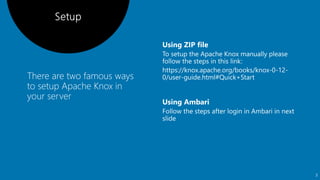
There are two famous ways
to setup Apache Knox in
your server
3
Ambari
Setup
4
Ambari
Setup
5
Ambari
Setup
6
Ambari
Setup
7
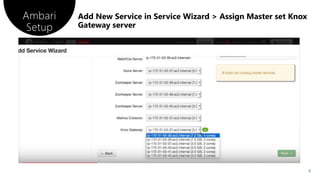
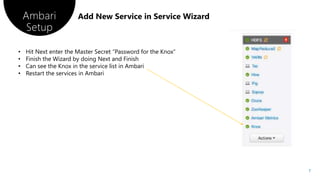
• Hit Next enter the Master Secret “Password for the Knox”
• Finish the Wizard by doing Next and Finish
• Can see the Knox in the service list in Ambari
• Restart the services in Ambari
Test HDFS using KNOX
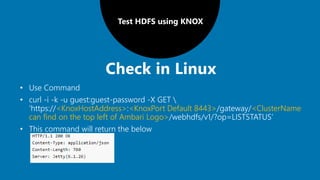
• Use Command
• curl -i -k -u guest:guest-password -X GET 
'https://<KnoxHostAddress>:<KnoxPort Default 8443>/gateway/<ClusterName
can find on the top left of Ambari Logo>/webhdfs/v1/?op=LISTSTATUS’
• This command will return the below
Test HDFS using KNOX
• Open in browser 'https://<KnoxHostAddress>:<KnoxPort Default
8443>/gateway/<ClusterName can find on the top left of Ambari
Logo>/webhdfs/v1/?op=LISTSTATUS
• User credentials “guest” , “guest-password”
• Output
{"FileStatuses":{"FileStatus":[]}}
Test Hive using KNOX
• Change the Hive config hive.server2.transport.mode to http from binary
Test Hive using KNOX
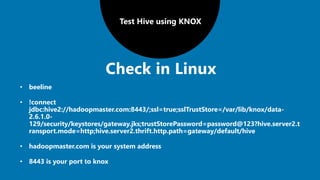
• beeline
• !connect
jdbc:hive2://hadoopmaster.com:8443/;ssl=true;sslTrustStore=/var/lib/knox/data-
2.6.1.0-
129/security/keystores/gateway.jks;trustStorePassword=password@123?hive.server2.t
ransport.mode=http;hive.server2.thrift.http.path=gateway/default/hive
• hadoopmaster.com is your system address
• 8443 is your port to knox
Test Hive using KNOX
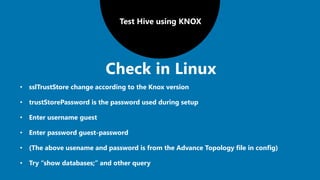
• sslTrustStore change according to the Knox version
• trustStorePassword is the password used during setup
• Enter username guest
• Enter password guest-password
• (The above usename and password is from the Advance Topology file in config)
• Try “show databases;” and other query
13

Apache Knox setup and hive and hdfs Access using KNOX

  • 1.
  • 2.
  • 3.
    There are twofamous ways to setup Apache Knox in your server 3
  • 4.
  • 5.
  • 6.
  • 7.
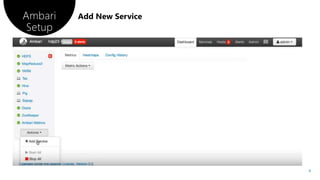
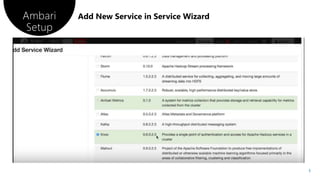
    Ambari Setup 7 • Hit Nextenter the Master Secret “Password for the Knox” • Finish the Wizard by doing Next and Finish • Can see the Knox in the service list in Ambari • Restart the services in Ambari
  • 8.
    Test HDFS usingKNOX • Use Command • curl -i -k -u guest:guest-password -X GET 'https://<KnoxHostAddress>:<KnoxPort Default 8443>/gateway/<ClusterName can find on the top left of Ambari Logo>/webhdfs/v1/?op=LISTSTATUS’ • This command will return the below
  • 9.
    Test HDFS usingKNOX • Open in browser 'https://<KnoxHostAddress>:<KnoxPort Default 8443>/gateway/<ClusterName can find on the top left of Ambari Logo>/webhdfs/v1/?op=LISTSTATUS • User credentials “guest” , “guest-password” • Output {"FileStatuses":{"FileStatus":[]}}
  • 10.
    Test Hive usingKNOX • Change the Hive config hive.server2.transport.mode to http from binary
  • 11.
    Test Hive usingKNOX • beeline • !connect jdbc:hive2://hadoopmaster.com:8443/;ssl=true;sslTrustStore=/var/lib/knox/data- 2.6.1.0- 129/security/keystores/gateway.jks;trustStorePassword=password@123?hive.server2.t ransport.mode=http;hive.server2.thrift.http.path=gateway/default/hive • hadoopmaster.com is your system address • 8443 is your port to knox
  • 12.
    Test Hive usingKNOX • sslTrustStore change according to the Knox version • trustStorePassword is the password used during setup • Enter username guest • Enter password guest-password • (The above usename and password is from the Advance Topology file in config) • Try “show databases;” and other query
  • 13.

Editor's Notes

  • #2 To use this title animation slide with a new image simply 1) move the top semi-transparent shape to the side, 2) delete placeholder image, 3) click on the picture icon to add a new picture, 4) Move semi-transparent shape back to original position, 5) Update text on slide.
  • #14 To use this title animation slide with a new image simply 1) move the top semi-transparent shape to the side, 2) delete placeholder image, 3) click on the picture icon to add a new picture, 4) Move semi-transparent shape back to original position, 5) Update text on slide.