CALABASH +
CUCUMBER
ANDROID TESTING IN-ACTION
+
M.Wildan Garviandi
https://github.com/WildanGarviandi
ALL YOU
NEED IS
HOW TO TEST ON LOCAL DEVICE?
https://github.com/calabash/calabash-android
CALABASH IS FOR
BEHAVIOUR-
DRIVEN
DEVELOPMENT
Someone on Some Website
M.Wildan Garviandi
https://github.com/WildanGarviandi
WHAT THE HELL IS CALABASH?
CALABASH
▸ In short, Calabash is a test automation framework that
enables mobile developers and pretty much anyone
without coding skills to create and execute automated
acceptance tests for Android and iOS apps. Calabash
works by enabling automatic UI interactions within an
application such as pressing buttons, inputting text,
validating responses, etc. While this is a great first step in
automated UI acceptance test automation, the real
benefits can be gained when Calabash tests are executed
on real mobile devices. This is very easy and Calabash
tests can be configured to run on hundreds of different
Android and iOS devices, providing real-time feedback
and validation across many different form factors, OS
versions, OEM customizations and hardware specs.
BDD ?
SHORT THINGS ABOUT BDD
▸ Behavior driven development (BDD) is a modern quality assurance technique which aims to reduce TTM and enhance quality for
mobile and non-mobile apps for iOS and Android. In the past we used the terms Test Driven Development (TDD) or Extreme
Programming (XP) which aimed toward the same goal of developing your module in parallel with testing it in a rapid way.
Behavior Driven Development follows outside-in development, in which the application code is written after its externalities have
been defined. It’s conceptually similar to Test Driven Development (and is in fact based on it), but takes it one step further; instead
of creating tests that describe the shape of APIs, application behaviors are specified. Recently, and especially in mobile where a
need to shift quality activities earlier in the development lifecycle to meet continuous integration goals, BDD has become a standard
method of agile software development. Cucumber and Calabash tools are using Ruby as their development language (also Java and
ObjectiveC are supported). Calabash is a mobile open source solution which is an extension of Cucumber. Typically the flow of
developing a Cucumber or a Calabash test case will consist of the below steps as shown in Figure 1. The advantage of such
technology is the ease of writing software readable specification together with the development of your tests for high quality. In a
simple statement developers iteratively translate use cases into test code during app development
SO BDD IS “THE WAY YOU TEST THE
FUNCTIONAL YOUR APP”
CUCUMBER SCRIPT
▸ Here’s the example for cucumber script
for create scenario testing in human
level (i mean it :) )
▸ If anyone had experience with ruby this
script already used by ruby on rails
testing method with R spec framework
▸ This cucumber will call and parsed on
real ruby files helper with regex method
CUCUMBER
+
BASH NEED BOTH
M.Wildan Garviandi
https://github.com/WildanGarviandi
▸ Rules cucumber script
▸ For advance use please check
CUCUMBER
CUCUMBER SCRIPT
Ex. Touch something
Then I touch “login” button
Then = Represent do this line after doing something for action in first time you can use “Given” with initial
condition ex. (Given I am on “login” page) while check if “login” page really present on screen
touch = Represent the action of this part of scenario it can be “fill”, “swipe”, “wait”, “scroll”, “rotate”, etc.
login = Represent the target for the action you can get this id from query all element in screen
button = Represent the element to test by the action
* Make sure create make sense action for test the scenario because you can use this for random purpose
https://github.com/calabash/calabash-ios/wiki/02-Predefined-steps
M.Wildan Garviandi
https://github.com/WildanGarviandi
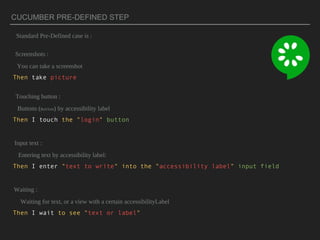
CUCUMBER PRE-DEFINED STEP
Standard Pre-Defined case is :
Screenshots :
You can take a screenshot
Then take picture
Touching button :
Buttons (Button) by accessibility label
Then I touch the "login" button
Input text :
Entering text by accessibility label:
Then I enter "text to write" into the "accessibility label" input field
Waiting :
Waiting for text, or a view with a certain accessibilityLabel
Then I wait to see "text or label"
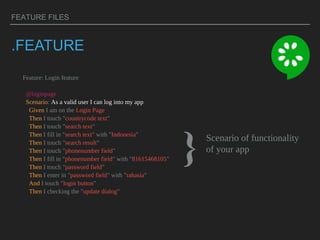
FEATURE FILES
.FEATURE
Feature: Login feature
@loginpage
Scenario: As a valid user I can log into my app
Given I am on the Login Page
Then I touch "countrycode text"
Then I touch "search text"
Then I fill in "search text" with "Indonesia"
Then I touch "search result"
Then I touch "phonenumber field"
Then I fill in "phonenumber field" with "81615468105"
Then I touch "password field"
Then I enter in "password field" with "rahasia"
And I touch "login button"
Then I checking the "update dialog"
} Scenario of functionality
of your app
CALABASH
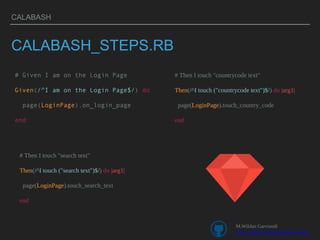
CALABASH_STEPS.RB
# Given I am on the Login Page
Given(/^I am on the Login Page$/) do
page(LoginPage).on_login_page
end
# Then I touch "countrycode text"
Then(/^I touch ("countrycode text")$/) do |arg1|
page(LoginPage).touch_country_code
end
# Then I touch "search text"
Then(/^I touch ("search text")$/) do |arg1|
page(LoginPage).touch_search_text
end
M.Wildan Garviandi
https://github.com/WildanGarviandi
ACCESSING THE ID OF VIEW PRESENT
CUCUMBER
Wildan-Garviandi:~/tmp/android$ calabash-android console login.apk
irb(main):001:0> reinstall_apps
=> nil
irb(main):002:0> start_test_server_in_background
=> nil
To get the id of view of present view you can do it via terminal
The result from query all views is :
irb(main):001:0> query("button")
[{"id"=>"login_button",
"enabled"=>true,
"contentDescription"=>nil,
"text"=>"Login",
"qualified_class"=>"android.widget.Button",
"frame"=>{"y"=>322, "height"=>73, "width"=>84, "x"=>135},
"description"=>"android.widget.Button@40584908",
"class"=>"Button"},
{"id"=>"login_button_slow",
"enabled"=>true,
"contentDescription"=>nil,
"text"=>"Login (slow)",
"qualified_class"=>"android.widget.Button",
"frame"=>{"y"=>322, "height"=>73, "width"=>143, "x"=>234},
"description"=>"android.widget.Button@40585390",
"class"=>"Button"}]
DEFINE THE CUCUMBER SCENARIO
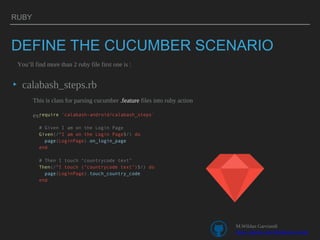
▸ calabash_steps.rb
RUBY
You’ll find more than 2 ruby file first one is :
This is class for parsing cucumber .feature files into ruby action
ex.require 'calabash-android/calabash_steps'
# Given I am on the Login Page
Given(/^I am on the Login Page$/) do
page(LoginPage).on_login_page
end
# Then I touch "countrycode text"
Then(/^I touch ("countrycode text")$/) do
page(LoginPage).touch_country_code
end
M.Wildan Garviandi
https://github.com/WildanGarviandi
DEFINE THE CUCUMBER SCENARIO
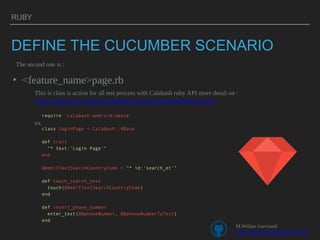
▸ <feature_name>page.rb
RUBY
The second one is :
This is class is action for all test process with Calabash ruby API more detail on :
ex.
require 'calabash-android/abase'
class LoginPage < Calabash::ABase
def trait
"* text:'Login Page'"
end
@@editTextSearchCountryCode = "* id:'search_et'"
def touch_search_text
touch(@@editTextSearchCountryCode)
end
def insert_phone_number
enter_text(@@phoneNumber, @@phoneNumberToTest)
end
https://github.com/calabash/calabash-ios/wiki/Calabash-iOS-Ruby-API
M.Wildan Garviandi
https://github.com/WildanGarviandi
DEFINE THE CUCUMBER SCENARIO
TEXT
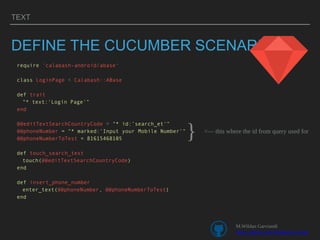
require 'calabash-android/abase'
class LoginPage < Calabash::ABase
def trait
"* text:'Login Page'"
end
@@editTextSearchCountryCode = "* id:’search_et'"
@@phoneNumber = "* marked:'Input your Mobile Number’"
@@phoneNumberToTest = 81615468105
def touch_search_text
touch(@@editTextSearchCountryCode)
end
def insert_phone_number
enter_text(@@phoneNumber, @@phoneNumberToTest)
end
<— this where the id from query used for
}
M.Wildan Garviandi
https://github.com/WildanGarviandi
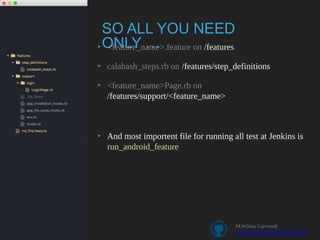
SO ALL YOU NEED
ONLY …▸ <feature_name>.feature on /features
▸ calabash_steps.rb on /features/step_definitions
▸ <feature_name>Page.rb on
/features/support/<feature_name>
▸ And most importent file for running all test at Jenkins is
run_android_feature
M.Wildan Garviandi
https://github.com/WildanGarviandi
DEMO
TIME
THANK YOU
GRACIAS
ありがとうございます
감사합니다
감사합니다
감사합니다
감사합니다
감사합니다
M.Wildan Garviandi
https://github.com/WildanGarviandi

Android testing calabash

  • 1.
    CALABASH + CUCUMBER ANDROID TESTINGIN-ACTION + M.Wildan Garviandi https://github.com/WildanGarviandi
  • 2.
    ALL YOU NEED IS HOWTO TEST ON LOCAL DEVICE? https://github.com/calabash/calabash-android
  • 3.
    CALABASH IS FOR BEHAVIOUR- DRIVEN DEVELOPMENT Someoneon Some Website M.Wildan Garviandi https://github.com/WildanGarviandi
  • 4.
    WHAT THE HELLIS CALABASH? CALABASH ▸ In short, Calabash is a test automation framework that enables mobile developers and pretty much anyone without coding skills to create and execute automated acceptance tests for Android and iOS apps. Calabash works by enabling automatic UI interactions within an application such as pressing buttons, inputting text, validating responses, etc. While this is a great first step in automated UI acceptance test automation, the real benefits can be gained when Calabash tests are executed on real mobile devices. This is very easy and Calabash tests can be configured to run on hundreds of different Android and iOS devices, providing real-time feedback and validation across many different form factors, OS versions, OEM customizations and hardware specs.
  • 5.
    BDD ? SHORT THINGSABOUT BDD ▸ Behavior driven development (BDD) is a modern quality assurance technique which aims to reduce TTM and enhance quality for mobile and non-mobile apps for iOS and Android. In the past we used the terms Test Driven Development (TDD) or Extreme Programming (XP) which aimed toward the same goal of developing your module in parallel with testing it in a rapid way. Behavior Driven Development follows outside-in development, in which the application code is written after its externalities have been defined. It’s conceptually similar to Test Driven Development (and is in fact based on it), but takes it one step further; instead of creating tests that describe the shape of APIs, application behaviors are specified. Recently, and especially in mobile where a need to shift quality activities earlier in the development lifecycle to meet continuous integration goals, BDD has become a standard method of agile software development. Cucumber and Calabash tools are using Ruby as their development language (also Java and ObjectiveC are supported). Calabash is a mobile open source solution which is an extension of Cucumber. Typically the flow of developing a Cucumber or a Calabash test case will consist of the below steps as shown in Figure 1. The advantage of such technology is the ease of writing software readable specification together with the development of your tests for high quality. In a simple statement developers iteratively translate use cases into test code during app development SO BDD IS “THE WAY YOU TEST THE FUNCTIONAL YOUR APP”
  • 6.
    CUCUMBER SCRIPT ▸ Here’sthe example for cucumber script for create scenario testing in human level (i mean it :) ) ▸ If anyone had experience with ruby this script already used by ruby on rails testing method with R spec framework ▸ This cucumber will call and parsed on real ruby files helper with regex method CUCUMBER
  • 7.
    + BASH NEED BOTH M.WildanGarviandi https://github.com/WildanGarviandi
  • 8.
    ▸ Rules cucumberscript ▸ For advance use please check CUCUMBER CUCUMBER SCRIPT Ex. Touch something Then I touch “login” button Then = Represent do this line after doing something for action in first time you can use “Given” with initial condition ex. (Given I am on “login” page) while check if “login” page really present on screen touch = Represent the action of this part of scenario it can be “fill”, “swipe”, “wait”, “scroll”, “rotate”, etc. login = Represent the target for the action you can get this id from query all element in screen button = Represent the element to test by the action * Make sure create make sense action for test the scenario because you can use this for random purpose https://github.com/calabash/calabash-ios/wiki/02-Predefined-steps M.Wildan Garviandi https://github.com/WildanGarviandi
  • 9.
    CUCUMBER PRE-DEFINED STEP StandardPre-Defined case is : Screenshots : You can take a screenshot Then take picture Touching button : Buttons (Button) by accessibility label Then I touch the "login" button Input text : Entering text by accessibility label: Then I enter "text to write" into the "accessibility label" input field Waiting : Waiting for text, or a view with a certain accessibilityLabel Then I wait to see "text or label"
  • 10.
    FEATURE FILES .FEATURE Feature: Loginfeature @loginpage Scenario: As a valid user I can log into my app Given I am on the Login Page Then I touch "countrycode text" Then I touch "search text" Then I fill in "search text" with "Indonesia" Then I touch "search result" Then I touch "phonenumber field" Then I fill in "phonenumber field" with "81615468105" Then I touch "password field" Then I enter in "password field" with "rahasia" And I touch "login button" Then I checking the "update dialog" } Scenario of functionality of your app
  • 11.
    CALABASH CALABASH_STEPS.RB # Given Iam on the Login Page Given(/^I am on the Login Page$/) do page(LoginPage).on_login_page end # Then I touch "countrycode text" Then(/^I touch ("countrycode text")$/) do |arg1| page(LoginPage).touch_country_code end # Then I touch "search text" Then(/^I touch ("search text")$/) do |arg1| page(LoginPage).touch_search_text end M.Wildan Garviandi https://github.com/WildanGarviandi
  • 12.
    ACCESSING THE IDOF VIEW PRESENT CUCUMBER Wildan-Garviandi:~/tmp/android$ calabash-android console login.apk irb(main):001:0> reinstall_apps => nil irb(main):002:0> start_test_server_in_background => nil To get the id of view of present view you can do it via terminal The result from query all views is : irb(main):001:0> query("button") [{"id"=>"login_button", "enabled"=>true, "contentDescription"=>nil, "text"=>"Login", "qualified_class"=>"android.widget.Button", "frame"=>{"y"=>322, "height"=>73, "width"=>84, "x"=>135}, "description"=>"android.widget.Button@40584908", "class"=>"Button"}, {"id"=>"login_button_slow", "enabled"=>true, "contentDescription"=>nil, "text"=>"Login (slow)", "qualified_class"=>"android.widget.Button", "frame"=>{"y"=>322, "height"=>73, "width"=>143, "x"=>234}, "description"=>"android.widget.Button@40585390", "class"=>"Button"}]
  • 13.
    DEFINE THE CUCUMBERSCENARIO ▸ calabash_steps.rb RUBY You’ll find more than 2 ruby file first one is : This is class for parsing cucumber .feature files into ruby action ex.require 'calabash-android/calabash_steps' # Given I am on the Login Page Given(/^I am on the Login Page$/) do page(LoginPage).on_login_page end # Then I touch "countrycode text" Then(/^I touch ("countrycode text")$/) do page(LoginPage).touch_country_code end M.Wildan Garviandi https://github.com/WildanGarviandi
  • 14.
    DEFINE THE CUCUMBERSCENARIO ▸ <feature_name>page.rb RUBY The second one is : This is class is action for all test process with Calabash ruby API more detail on : ex. require 'calabash-android/abase' class LoginPage < Calabash::ABase def trait "* text:'Login Page'" end @@editTextSearchCountryCode = "* id:'search_et'" def touch_search_text touch(@@editTextSearchCountryCode) end def insert_phone_number enter_text(@@phoneNumber, @@phoneNumberToTest) end https://github.com/calabash/calabash-ios/wiki/Calabash-iOS-Ruby-API M.Wildan Garviandi https://github.com/WildanGarviandi
  • 15.
    DEFINE THE CUCUMBERSCENARIO TEXT require 'calabash-android/abase' class LoginPage < Calabash::ABase def trait "* text:'Login Page'" end @@editTextSearchCountryCode = "* id:’search_et'" @@phoneNumber = "* marked:'Input your Mobile Number’" @@phoneNumberToTest = 81615468105 def touch_search_text touch(@@editTextSearchCountryCode) end def insert_phone_number enter_text(@@phoneNumber, @@phoneNumberToTest) end <— this where the id from query used for } M.Wildan Garviandi https://github.com/WildanGarviandi
  • 16.
    SO ALL YOUNEED ONLY …▸ <feature_name>.feature on /features ▸ calabash_steps.rb on /features/step_definitions ▸ <feature_name>Page.rb on /features/support/<feature_name> ▸ And most importent file for running all test at Jenkins is run_android_feature M.Wildan Garviandi https://github.com/WildanGarviandi
  • 17.
  • 18.