WebSphere MQ for Windows


Quick Beginnings
Version 6.0


                           GC34-6476-00
WebSphere MQ for Windows


Quick Beginnings
Version 6.0


                           GC34-6476-00
Note!:

Before using this information and the product it supports, be sure to read the general information under notices at the back of this
book.


First Edition (May 2005)
This edition of WebSphere MQ for Windows Quick Beginnings applies to the following:
v IBM WebSphere MQ for Windows, Version 6.0
and to any subsequent releases and modifications until otherwise indicated in new editions.
© Copyright International Business Machines Corporation 1996, 2005. All rights reserved.
US Government Users Restricted Rights – Use, duplication or disclosure restricted by GSA ADP Schedule Contract
with IBM Corp.
Contents
Figures . . . . . . . . . . . . . . . v                          Installing with Microsoft System Management
                                                                 Server . . . . . . . . . . . . . .                . 42
Tables . . . . . . . . . . . . . . . vii                      Modifying your installation . . . . . . . .          . 42
                                                                 Modifying the installation using WebSphere MQ
                                                                 Installation Launchpad . . . . . . . .            . 42
Welcome to WebSphere MQ . . . . . . ix                           Modifying the installation using Add/Remove
Road map . . . . . . . . . . . . . . . ix                        Programs . . . . . . . . . . . . .                . 43
Conventions used in this book . . . . . . . . x               Configuring a WebSphere MQ Server . . . . .          . 44
                                                                 Using WebSphere MQ via Terminal Services .        . 44
What’s new in WebSphere MQ for                                   Configuring WebSphere MQ with the Prepare
Windows, Version 6.0. . . . . . . . . xi                         WebSphere MQ wizard . . . . . . . .               .   45
                                                                 Final Installation tasks . . . . . . . . .        .   49
Release notes . . . . . . . . . . . xiii                         Configuring WebSphere MQ accounts . . .           .   50
                                                                 Using the Default Configuration wizard . . .      .   53
                                                                 Using WebSphere MQ Getting Started help . .       .   54
Chapter 1. Migrating to WebSphere MQ                             Using the Help Center . . . . . . . . .           .   55
Version 6.0 . . . . . . . . . . . . . 1                       Verifying a server installation . . . . . . .        .   56
Migration considerations . . . . . . .        .   .   .   1      Using the Postcard applications. . . . . .        .   56
  Upgrading your operating system . . .       .   .   .   1      Verifying a local installation . . . . . . .      .   62
  Migrating from Windows NT . . . . .         .   .   .   2      Verifying a server-to-server installation . . .   .   63
  .INI file configuration information . . .   .   .   .   2
Migrating from WebSphere MQ Version 5.3 .     .   .   .   2   Chapter 3. Installing the WebSphere
  Migrating SSL connections . . . . . .       .   .   .   2
                                                              MQ Client . . . . . . . . . . . . . 69
  Migrating WebSphere MQ Services . . .       .   .   .   3
                                                              Preparing for client installation . . . . . .   .    .   69
  Publish/Subscribe users . . . . . .         .   .   .   3
                                                                 Client hardware . . . . . . . . . .          .    .   70
  Saved views with WebSphere MQ Explorer      .   .   .   4
                                                                 Prerequisite client software . . . . . .     .    .   70
Migrating from MQSeries Version 5.2 . . .     .   .   .   4
                                                                 Optional client software . . . . . . .       .    .   71
  MQSC users . . . . . . . . . .              .   .   .   4
                                                                 WebSphere MQ client features . . . . .       .    .   72
  Microsoft Cluster Server (MSCS) users . .   .   .   .   4
                                                              Methods of Installing the WebSphere MQ client   .    .   72
  Java and JMS support for WebSphere MQ       .   .   .   4
                                                              Configuring a WebSphere MQ Client using the
Migrating from MQSeries Version 5.1 . . .     .   .   .   5
                                                              Prepare WebSphere MQ wizard. . . . . .          .    .   73
  Default configuration . . . . . . .         .   .   .   5
                                                              Verifying a WebSphere MQ Client . . . . .       .    .   75
Migrating from MQSeries Version 5.0 . . .     .   .   .   5
                                                                 Setting up the WebSphere MQ server . . .     .    .   75
  Migration of scmmqm . . . . . . .           .   .   .   5
                                                                 Setting up the WebSphere MQ client . . .     .    .   76
                                                                 Putting a message on the queue . . . .       .    .   77
Chapter 2. Installing the WebSphere MQ                           Getting a message from the queue . . . .     .    .   78
Server . . . . . . . . . . . . . . . 7                           Post verification tasks . . . . . . . .      .    .   78
Installing WebSphere MQ documentation . . . . . 8
General considerations . . . . . . . . . . . 8                Chapter 4. Applying maintenance . . . 79
Naming considerations . . . . . . . . . . . 8                 Querying the service level . . . . . . . .           . 79
Security considerations . . . . . . . . . . . 8               Applying the maintenance information . . . .         . 79
Creating a log file when you install WebSphere MQ 9             Installing updates from the WebSphere MQ Web
   Default logging . . . . . . . . . . . . 9                    site . . . . . . . . . . . . . . .                 . 79
Preparing for server installation . . . . . . . . 9             Silently installing maintenance updates . . .      . 80
   Server hardware . . . . . . . . . . . . 10                 Restoring the previous backup version . . . .        . 81
   Prerequisite server software . . . . . . . . 10
   Optional server software . . . . . . . . . 13
   Installing on Windows 2000 using Terminal
                                                              Chapter 5. Uninstalling WebSphere MQ 83
   Services . . . . . . . . . . . . . . 14                    Uninstalling WebSphere MQ Server . . . . . .             83
   WebSphere MQ features . . . . . . . . . 14                   Uninstalling WebSphere MQ Explorer . . . .             83
   Accessibility . . . . . . . . . . . . . 16                   Uninstalling WebSphere MQ using the
WebSphere MQ Server installation methods . . . 17               installation process . . . . . . . . . . .             84
   Installing using the launchpad . . . . . . . 17              Uninstalling WebSphere MQ using Add/Remove
   Installing from a LAN . . . . . . . . . . 22                 Programs . . . . . . . . . . . . . .                   85
   Unattended (silent) installation . . . . . . . 22            Uninstalling WebSphere MQ using the command
                                                                line . . . . . . . . . . . . . . . .                   85

© Copyright IBM Corp. 1996, 2005                                                                                       iii
Uninstalling WebSphere MQ Client    .   .   .   .   .   . 86   Notices . . . . . . . . . . . . . . 93

Chapter 6. WebSphere MQ                                        Index . . . . . . . . . . . . . . . 97
documentation . . . . . . . . . . . 87
Publications supplied with the product .    .   .   .   . 88   Sending your comments to IBM . . . 101
Hardcopy books . . . . . . . . .            .   .   .   . 89
Online information . . . . . . . .          .   .   .   . 90


iv   Quick Beginnings
Figures
1.   Launchpad Software Prerequisites   page               19   7.   Getting Started window with the Postcard
2.   Setup features panel . . . .       . .    .   .   .   21        options . . . . . . . . . . . . .          . 58
3.   Setup features panel . . . .       . .    .   .   .   43   8.   MQI Postcard - Sign On window with the
4.   Setup features panel . . . .       . .    .   .   .   44        Advanced options . . . . . . . . .         . 59
5.   Getting Started help window. .     . .    .   .   .   54   9.   JMS Postcard - Sign On window with the
6.   Help Center window . . . .         . .    .   .   .   56        Advanced options . . . . . . . . .         . 59


© Copyright IBM Corp. 1996, 2005                                                                                  v
vi   Quick Beginnings
Tables
 1.   Getting started road map . . . . . . . .            ix   11.   Valid values for the MQPLANGUAGE
 2.   Prerequisites and installation options for                     property . . . . . . . . . . . .                . 38
      WebSphere MQ features . . . . . . . .               16   12.   Properties in the Services stanza . . . .       . 38
 3.   Features installed with each type of installation   17   13.   Properties in the DefaultConfiguration stanza     39
 4.   Msiexec command line parameters . . . . .           25   14.   Properties in the SSLMigration stanza . . .     . 40
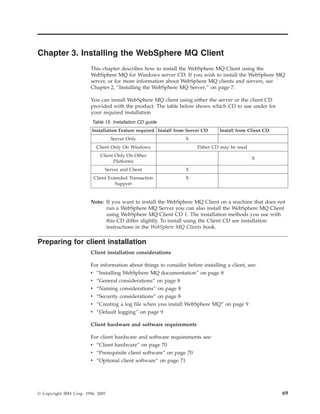
 5.   Msiexec PROPERTY= value parameters                  27   15.   Installation CD guide . . . . . . . .           . 69
 6.   Response file parameters . . . . . . . .            29   16.   Properties used to install a maintenance
 7.   Valid feature names . . . . . . . . . .             31         update . . . . . . . . . . . . .                . 80
 8.   Supplied transform files . . . . . . . .            33   17.   WebSphere MQ Quick Beginnings books               87
 9.   Startup Parameters for Prepare WebSphere MQ              18.   WebSphere MQ family books . . . . .             . 87
      Wizard . . . . . . . . . . . . . .                  33   19.   WebSphere MQ for Windows books . . .            . 88
10.   Properties used by MQParms in the MSI                    20.   Additional WebSphere MQ books for iSeries         88
      stanza . . . . . . . . . . . . . .                  37


© Copyright IBM Corp. 1996, 2005                                                                                     vii
viii   Quick Beginnings
Welcome to WebSphere MQ
                         This book introduces you to IBM® WebSphere® MQ for Windows®, Version 6.0.
                         The term WebSphere MQ for Windows means WebSphere MQ running on the
                         following Windows platforms:
                         v Windows 2000
                         v Windows 2003
                         v Windows XP

                         It contains information about both the server and client features of WebSphere MQ
                         for Windows and describes how to plan for, install, and begin to use the product.

                         For the operating systems supported by the IBM WebSphere MQ for Windows,
                         Version 6.0 server, see “Prerequisite server software” on page 10.

                         For the operating systems supported by the IBM WebSphere MQ for Windows,
                         Version 6.0 client, see “Prerequisite client software” on page 70.

Road map
                         This book describes WebSphere MQ for Windows and explains how to plan for the
                         product, install it, and verify that the installation has worked. Use the Table 1 to
                         find the information that you need to get started with WebSphere MQ for
                         Windows.
                         Table 1. Getting started road map
                         If you want to...                         Refer to...
                         Learn about migrating to WebSphere MQ for Chapter 1, “Migrating to WebSphere MQ
                         Windows, Version 6.0                      Version 6.0,” on page 1
                         Learn about system requirements for       “Preparing for server installation” on page 9
                         WebSphere MQ for Windows server
                         Learn about system requirements for       “Preparing for client installation” on page 69
                         WebSphere MQ for Windows client
                         Install the WebSphere MQ for Windows      Chapter 2, “Installing the WebSphere MQ
                         server                                    Server,” on page 7
                         Install the WebSphere MQ for Windows      Chapter 3, “Installing the WebSphere MQ
                         client                                    Client,” on page 69
                         Verify your server installation           “Verifying a server installation” on page 56
                         Verify your client installation           “Verifying a WebSphere MQ Client” on page
                                                                   75
                         Read more about WebSphere MQ              Chapter 6, “WebSphere MQ documentation,”
                                                                   on page 87
                         Apply maintenance to WebSphere MQ for     Chapter 4, “Applying maintenance,” on page
                         Windows                                   79
                         Uninstall a WebSphere MQ for Windows      Chapter 5, “Uninstalling WebSphere MQ,”
                         server or client                          on page 83


© Copyright IBM Corp. 1996, 2005                                                                                  ix
Conventions used in this book
                       Knowing the conventions used in this book will help you to use it more efficiently.
                       v The term WebSphere MQ is used to mean the IBM WebSphere MQ for Windows
                         product.
                       v The term Windows is used to mean the Microsoft® Windows 2000, Microsoft
                         Windows XP, and Microsoft Windows 2003 products.
                       v The terms click, double-click, and right-click are used to describe item selection
                         with the mouse. For keyboard alternatives, refer to the Windows help.
                       v The term enter means type the relevant text or command, then press the Enter
                         key.
                       v Boldface type indicates the name of an item you need to select or the name of a
                         command.
                       v Italics type indicates new terms, book titles, or variable information that must be
                         replaced by an actual value.
                       v Monospace type indicates an example (such as a fictitious path or file name) or
                         text that is displayed on the screen.


x   Quick Beginnings
What’s new in WebSphere MQ for Windows, Version 6.0
                         WebSphere MQ for Windows, Version 6.0 provides the following new and changed
                         functions:
                         v WebSphere MQ for Windows, Version 6.0 Explorer is now based on the Eclipse
                           platform. The WebSphere MQ Explorer is a graphical user interface and allows
                           you to administer and monitor WebSphere MQ objects on both Windows and
                           other platforms. The Explorer has integrated user help, to get to this press F1.
                           For further information about using the WebSphere MQ Explorer see the
                           WebSphere MQ System Administration Guide.
                         v WebSphere MQ for Windows, Version 6.0 introduces the ability for queue
                           managers to communicate using Internet Protocol version 6 (IPv6) in addition to
                           the existing, IPv4. If you are a migrating customer, see the WebSphere MQ
                           Migration Information for further information.
                         v A new form of license management is implemented for this release of the
                           product. WebSphere MQ for Windows, Version 6.0 supports IBM Tivoli® License
                           Manager.
                         v WebSphere MQ for Windows, Version 6.0 supports the WebSphere MQ File
                           Transfer Application, new to this product release. The File Transfer Application
                           allows you to send and receive ordinary files in the form of WebSphere MQ
                           messages and has both a graphical user interface and a command line interface.
                         v WebSphere MQ for Windows, Version 6.0 has improved support for Secure
                           Socket Layer (SSL). If you are already using SSL, see WebSphere MQ Migration
                           Information for more information.
                         v WebSphere MQ for Windows, Version 6.0 now writes trace files to the directory
                           data_directorytrace instead of data_directoryerrors, where data_directory is the
                           full path to WebSphere MQ data.
                         v WebSphere MQ for Windows, Version 6.0 now writes error logs to
                           data_directoryerrors. In earlier versions of WebSphere MQ for Windows these
                           were written to data_direcotryqmgrs@SYSTEMerrors. data_directory is the full
                           path to WebSphere MQ data.


© Copyright IBM Corp. 1996, 2005                                                                           xi
xii   Quick Beginnings
Release notes
                         Before starting to install WebSphere MQ, review the release notes file, which you
                         will find on the product CD-ROM in the Readmes folder for each national
                         language. This file contains any additional information about the WebSphere MQ
                         for Windows, Version 6.0 product and might update information in this book.

                         During installation, the release notes file is copied to the WebSphere MQ program
                         files folder (default c:Program FilesIBMWebSphere MQ).


© Copyright IBM Corp. 1996, 2005                                                                        xiii
xiv   Quick Beginnings
Chapter 1. Migrating to WebSphere MQ Version 6.0
                         This chapter describes how to migrate from previous versions of WebSphere MQ to
                         WebSphere MQ Version 6.0. For additional information about migrating to
                         WebSphere MQ Version 6.0, including information on migrating Secure Socket
                         Layer (SSL) connections and using Internet Protocol version 4 and Internet Protocol
                         version 6, see the WebSphere MQ Migration Information.

                         If you migrate from a previous level of this product, you cannot revert to your
                         previous level, so back up your system before you install WebSphere MQ Version
                         6.0. This will enable you to back off the upgrade if necessary. If you back off the
                         upgrade, however, you cannot recover any work performed by WebSphere MQ
                         Version 6.0.

                         With WebSphere MQ for Windows, the installation process detects whether this is
                         a new installation or an update from a previous level of this product. If you
                         migrate from an earlier level, all the objects that you previously created (for
                         example, your queue managers) can be maintained. The components that were
                         previously installed are preselected in the feature options when you install the new
                         level. If you leave these components selected, you can keep them or reinstall them.
                         However, if you deselect any of these components, the installation process will
                         uninstall them.

                         WebSphere MQ for Windows, Version 6.0 no longer supports the following
                         features, previously available in MQSeries® systems. If any of these features were
                         previously installed, when you migrate to the new level of WebSphere MQ, the
                         installation process will uninstall them.
                         v Lotus® Script Extension
                         v Web Administration Server
                         v Internet Gateway
                         v WebSphere MQ Documentation
                            WebSphere MQ Documentation is now supplied as a separate CD package
                            alongside the product. For more information see “Installing WebSphere MQ
                            documentation” on page 8.

Migration considerations
                         If an earlier version of WebSphere MQ (previously known as MQSeries) is installed
                         on the machine:
                         v Ensure that no queue managers are running and that the IBM WebSphere MQ
                            Service is stopped. (To stop the WebSphere MQ Service, right-click on the
                            WebSphere MQ icon in the task bar, then click Stop IBM WebSphere MQ).
                         v If an earlier version of WebSphere MQ is already installed on the machine, back
                            up your system before you install WebSphere MQ for Windows, Version 6.0.

              Upgrading your operating system
                         If you intend to migrate and run WebSphere MQ on an upgraded operating
                         system, for example moving from Windows 2000 to Windows 2003, you must do
                         the following:


© Copyright IBM Corp. 1996, 2005                                                                               1
1. Migrate from your existing version of WebSphere MQ to WebSphere MQ
                          Version 6.0 on your existing Windows platform. If your existing platform is
                          Windows NT®, see “Migrating from Windows NT.”
                       2. Migrate from your existing Windows operating system to your upgraded
                          operating system.

             Migrating from Windows NT
                       If you have an earlier version of WebSphere MQ installed on a Windows NT
                       machine, you will need to migrate the operating system to Windows 2000,
                       Windows XP, or Windows 2003. Be aware that your current access control lists
                       (ACLs) for your domain resources might become invalid.

                       On Windows NT, WebSphere MQ user account details are stored as security
                       identifiers (SIDs) in your ACLs. When you migrate to a new Windows platform
                       these SIDs are lost, invalidating the ACLs. This causes WebSphere MQ commands
                       to fail, and you lose registry permissions and the WebSphere MQ Administration
                       (mqm) security group.

                       You have the following options:
                       v To avoid losing WebSphere MQ user account access rights, remap the ACLs on
                         your domain resources.
                         Consult your operating system documentation on migration from Windows NT
                         for details about how to remap the ACLs on your domain resources. You do not
                         need to reinstall WebSphere MQ if you choose this option.
                       v If you do not want to remap your ACLs, and would like to start afresh, do the
                         following:
                         1. Uninstall WebSphere MQ from Windows NT.
                         2. Migrate from Windows NT to your new Windows platform.
                         3. Install WebSphere MQ on your new Windows platform.
                         You must redefine your operating system user accounts and security groups as
                         required, if you choose this option.

             .INI file configuration information
                       WebSphere MQ for Windows automatically migrates configuration information
                       from your existing configuration .INI files into the Windows registry. Configuration
                       information is then updated in the registry when you define or change details
                       through the WebSphere MQ Explorer.

Migrating from WebSphere MQ Version 5.3
                       If you are migrating from WebSphere MQ Version 5.3, you should also consider the
                       information given in the following sections:
                       v “Migrating SSL connections”
                       v “Migrating WebSphere MQ Services” on page 3
                       v “Publish/Subscribe users” on page 3
                       v “Saved views with WebSphere MQ Explorer” on page 4

             Migrating SSL connections
                       WebSphere MQ for Windows, Version 6.0 provides the Global Security Toolkit
                       (GSKit) for improved Secure Sockets Layer (SSL) support for queue manager and

2   Quick Beginnings
WebSphere MQ client channels. If you have WebSphere MQ Version 5.3 queue
      managers or clients set up to use SSL connections, or if you are unsure if your
      queue managers or clients have been set up in this way, refer to the WebSphere MQ
      Migration Information.

      Follow the guidance in the WebSphere MQ Migration Information to determine
      whether WebSphere MQ Version 5.3 queue managers or clients have been set up to
      use SSL connections, and to ensure these channels continue to work with
      WebSphere MQ for Windows, Version 6.0. The migration process causes a copy of
      the certificates stored in the WebSphere MQ Version 5.3 Certificate Stores used by
      WebSphere MQ Version 5.3 to be migrated to a GSKit Key database.

Migrating WebSphere MQ Services
      WebSphere MQ services define one or more commands to be run when a queue
      manager is started or stopped. Examples of a service include:
      v Listener
      v Channel initiator
      v Trigger monitor
      v Command server
      v Channel
      v Queue manager custom service

      When migrating from a previous version of WebSphere MQ, the WebSphere MQ
      services are automatically migrated into WebSphere MQ Objects. (For more
      information about WebSphere MQ Objects see the WebSphere MQ System
      Administration Guide.) These objects can then be administered in the WebSphere
      MQ Explorer.

      Examples of the migration of services to WebSphere MQ Objects are:
      v A listener is migrated to a WebSphere MQ listener object, equivalent to one
        defined by the DEFINE LISTENER ... MQSC command.
      v A trigger monitor is migrated to a WebSphere MQ service object with STARTCMD
        set to runmqtrm.
      v A channel is migrated to a WebSphere MQ service object with STARTCMD set to
        runmqchl.

      It is important to note that after migration all services will run after the queue
      manager with which they are associated starts. This is the case even if the service
      previously ran before the associated queue manager started.

      Only services that are associated with queue managers will be migrated. ROOT
      custom services, which are services that are not associated with a particular queue
      manager, are not migrated and they will remain as they were.

Publish/Subscribe users
      WebSphere MQ Version 6.0 contains components that provide Publish/Subscribe
      support that were previously shipped in SupportPac™ MA0C and included in Fix
      Pack 8 for WebSphere MQ Version 5.3. If you install WebSphere MQ Version 6.0,
      you no longer need the SupportPac and you should not install it. The files
      included with WebSphere MQ Version 6.0 supersede those in the SupportPac.


                                             Chapter 1. Migrating to WebSphere MQ Version 6.0   3
If you are using SupportPac MA0C with your previous version of WebSphere MQ,
                       uninstall before you install WebSphere MQ Version 6.0. Uninstall by selecting Start
                       → Settings → Control Panel → Add or Remove Programs → IBM MQSeries
                       Publish/Subscribe, and then selecting Remove.

             Saved views with WebSphere MQ Explorer
                       WebSphere MQ Version 5.3, MQSeries Version 5.2, and MQSeries Version 5.1 use
                       Microsoft Management Console (MMC) based snap-ins to provide the WebSphere
                       MQ Explorer. MMC allows you to save the current configuration or ’view’ as a
                       .msc file.

                       WebSphere MQ Version 6.0 no longer uses MMC. Therefore, any views that you
                       have previously saved will not work with the WebSphere MQ Explorer.

Migrating from MQSeries Version 5.2
                       If you are migrating from MQSeries Version 5.2, you should also consider the
                       information given in the following sections:
                       v “MQSC users”
                       v “Microsoft Cluster Server (MSCS) users”
                       v “Java and JMS support for WebSphere MQ”
                       v “Publish/Subscribe users” on page 3
                       v “Saved views with WebSphere MQ Explorer”

             MQSC users
                       MQSC now produces text saying WebSphere MQ where it used to say MQSeries. If
                       you parse the MQSC output, you might need to rework your parser to
                       accommodate this change.

             Microsoft Cluster Server (MSCS) users
                       WebSphere MQ Version 6.0 and WebSphere MQ Version 5.3 contain components
                       that provide MSCS support that were previously shipped in SupportPac MC74. If
                       you install WebSphere MQ Version 6.0, you no longer need the SupportPac and
                       you should not install it. The files included with WebSphere MQ Version 6.0
                       supersede those in the SupportPac.

                       If you are using SupportPac MC74 with your previous version of WebSphere MQ,
                       uninstall before you install WebSphere MQ Version 6.0. You can upgrade the
                       machines in your cluster without losing your configuration parameters by
                       upgrading to WebSphere MQ Version 6.0 using a rolling upgrade, that is, upgrade
                       each node in turn, waiting for one to complete before starting the next node.

                       If you want to install WebSphere MQ Version 6.0 into a different directory from
                       that used by WebSphere MQ, you cannot use a rolling upgrade.

             Java and JMS support for WebSphere MQ
                       WebSphere MQ classes for Java™ and WebSphere MQ classes for Java Message
                       Service (JMS) are built in to WebSphere MQ for Windows, Version 6.0. In V5.2 and
                       earlier, Java and JMS were available as a SupportPac (MA88).


4   Quick Beginnings
If Java and JMS are already installed from SupportPac MA88, the installation
              program in WebSphere MQ Version 6.0 displays a warning message, then removes
              the old WebSphere MQ Java and JMS files and replaces them with the new,
              updated support files.

Migrating from MQSeries Version 5.1
              If you are migrating from MQSeries Version 5.1, you should also consider the
              information given in the following sections:
              v   “MQSC users” on page 4
              v   “Microsoft Cluster Server (MSCS) users” on page 4
              v   “Default configuration”
              v   “Saved views with WebSphere MQ Explorer” on page 4

        Default configuration
              For MQSeries Version 5.1, if you migrate the default configuration of a machine
              hosting the repository queue manager for a cluster, the other machines in the
              cluster no longer have access to the repository and therefore encounter errors until
              they also migrate.

              Although the default configuration can be set up and used on machines with
              either DHCP or static IP addresses, it is recommended that the queue manager
              selected to host the repository for a cluster should be on a machine that has a static
              IP address.

Migrating from MQSeries Version 5.0
              If you are migrating from MQSeries Version 5.0, you should also consider the
              information given in the following sections:
              v “MQSC users” on page 4
              v “Microsoft Cluster Server (MSCS) users” on page 4
              v “Migration of scmmqm”

        Migration of scmmqm
              WebSphere MQ does not contain the scmmqm program (available in MQSeries
              Version 5.0). When migrating, the WebSphere MQ installation procedure processes
              the commands in any startup files that have been registered by using the scmmqm
              command. WebSphere MQ service objects are created for each command when the
              queue manager starts up as follows:
              runmqchi
                    A channel initiator processing the specified initiation queue is
                    automatically started when the queue manager starts.
              runmqchl
                    The specified channel is automatically started when the queue manager
                    starts.
              runmqlsr
                    A listener with the specified parameters is automatically started when the
                    queue manager starts.
              strmqcsv
                     This command is ignored. A command server is automatically started
                     when each queue manager starts.

                                                     Chapter 1. Migrating to WebSphere MQ Version 6.0   5
strmqm
                                The specified queue manager is automatically started when the WebSphere
                                MQ Service starts.
                       tpstart This command is ignored. After WebSphere MQ is installed, either set your
                               system to run tpstart automatically on system startup, or configure a
                               WebSphere MQ listener for the queue manager with the required TPNAME
                               property.


6   Quick Beginnings
Chapter 2. Installing the WebSphere MQ Server
                         This chapter describes how to install WebSphere MQ Version 6.0 directly from the
                         WebSphere MQ Server CD.

                         This information covers topics such as preparing for installation and verifying your
                         installation, as well as the installation process itself. If you already have an
                         installation of WebSphere MQ, and are migrating to WebSphere MQ Version 6.0 see
                         Chapter 1, “Migrating to WebSphere MQ Version 6.0,” on page 1 before carrying
                         out the installation process.

                         WebSphere MQ can be installed as a server or a client. A WebSphere MQ server is
                         an installation of a queue manager that provides queueing services to zero or more
                         clients and to zero or more queue managers. All the WebSphere MQ objects, for
                         example queues, exist only on the queue manager machine (the WebSphere MQ
                         server machine), and not the client. A WebSphere MQ server can also support local
                         WebSphere MQ applications.

                         A WebSphere MQ client is a component that allows an application running on one
                         system to communicate with a queue manager running on another system. The
                         output from the call is sent back to the client, which passes it back to the
                         application. A WebSphere MQ client can be installed on its own, on a separate
                         machine from the base product and server.

                         For an introduction to WebSphere MQ concepts and objects, see the WebSphere MQ
                         System Administration Guide.

                         For information about client support in general, see WebSphere MQ Clients.

                         You can use the WebSphere MQ Server CD to install the WebSphere MQ server or
                         the WebSphere MQ client. If you want to install the WebSphere MQ server and the
                         WebSphere MQ client on the same machine, you must use the WebSphere MQ
                         Server CD.

                         Note:
                                   v You can also install the WebSphere MQ client by using the WebSphere
                                     MQ Client CD. The installation methods you use with this CD differ
                                     slightly. See WebSphere MQ Clients for more information.
                                   v It is not possible to install WebSphere MQ Version 6.0 on a machine also
                                     running an earlier version of WebSphere MQ. This is because installing
                                     will upgrade any earlier version of WebSphere MQ found on the machine.

                         This chapter describes how to install the WebSphere MQ Server using the
                         WebSphere MQ for Windows CD. If you wish to install the WebSphere MQ Client
                         see Chapter 3, “Installing the WebSphere MQ Client,” on page 69.

                         This chapter is broken down into the following categories:
                         v “Installing WebSphere MQ documentation” on page 8
                         v “Preparing for server installation” on page 9
                         v “WebSphere MQ Server installation methods” on page 17
                         v “Configuring a WebSphere MQ Server” on page 44

© Copyright IBM Corp. 1996, 2005                                                                            7
Installing WebSphere MQ documentation
                       The WebSphere MQ documentation is supplied as a separate CD package
                       alongside the product. You can either view the documents directly from CD, or
                       you can install them on your computer (either before or after installing the
                       WebSphere MQ product). To install the documentation:
                       1. Insert the WebSphere MQ Documentation CD into the CD-ROM drive. If
                          autorun is enabled, the installation process starts. If it is not, double-click the
                          Setup icon in the root folder on the CD to start the process.
                       2. Follow the instructions and actions that are presented to you.

                       For prerequisites, or if you have any problems, see the readme file in the root
                       folder on the CD.

General considerations
                       v Ensure that you close all Windows programs (including all WebSphere MQ
                         windows).
                       v Ensure that you set up default logging for the installation process. See “Creating
                         a log file when you install WebSphere MQ” on page 9.

Naming considerations
                       v Ensure that the machine name does not contain any spaces. WebSphere MQ does
                         not support machine names that include spaces. If you install WebSphere MQ on
                         such a machine, you cannot create any queue managers.
                       v For WebSphere MQ authorizations, names of user IDs and groups must be no
                         longer than 20 characters (spaces are not allowed).

Security considerations
                       v Are you installing WebSphere MQ on a network where the domain controller is
                         on a Windows 2000 or Windows 2003 server? If so, you probably need to obtain
                         a special domain account from your domain administrator. For further
                         information, and the details that the domain administrator needs to set up this
                         special account, refer to “Configuring WebSphere MQ accounts” on page 50.
                       v You must have local administrator authority at the time then you are installing .
                         Define this authority through the Windows facilities.
                       v Your user ID must belong to the local mqm or Administrators group in order to
                         administer any queue manager on that system, or to run any of the WebSphere
                         MQ control commands. If the local mqm group does not already exist on the local
                         computer, it is created automatically when WebSphere MQ is installed. The user
                         ID can either belong to the local mqm group directly, or belong indirectly through
                         the inclusion of global groups in the local mqm group.
                       v If you intend to administer queue managers on a remote system, your user ID
                         must be authorized on the target system. The information on protecting
                         WebSphere MQ resources in the WebSphere MQ System Administration Guide
                         includes more information on this topic.
                       v A user account that is used to run the IBM WebSphere MQ Services COM server
                         is set up by default during the installation process, typically with the user ID
                         MUSR_MQADMIN. This account is reserved for use by WebSphere MQ. Refer to
                         “Configuring WebSphere MQ accounts” on page 50.


8   Quick Beginnings
For further information about WebSphere MQ user IDs on Windows systems and
               the WebSphere MQ Object Authority Manager (OAM), see the WebSphere MQ
               System Administration Guide.

Creating a log file when you install WebSphere MQ
               WebSphere MQ for Windows is installed using the Microsoft Installer (MSI). To
               generate a log file during installation, you need to set up default logging. This
               means that a log file is created each time that you install software that uses MSI. If
               you install WebSphere MQ using the Launchpad, a log file will automatically be
               generated. For more information see, “Final Installation tasks” on page 49.

        Default logging
               To set up logging, use the following steps:
               1. Launch the msiconfig snap-in to display the msiconfig window. If this is
                  already set up on your machine, click Start → Settings → Control Panel →
                  Administrative Tools → msiconfig.msc. Otherwise, use the following steps to
                  set it up:
                  a. From the Windows task bar, click Start → Run.
                  b. Type mmc, then click OK to display the Console window.
                  c. Click File → Add/Remove Snap-in to display the Add/Remove Snap-in
                      dialog.
                  d. Click Add to display the Add Standalone Snap-in dialog.
                  e. If you are running Windows 2000 or Windows XP, select Group policy from
                       the list, then click Add to display the Select Group Policy Object dialog.
                       If you are running Windows 2003, select Group Policy Object Editor from
                       the list, then click Add to display the Group Policy Object Editor dialog.
                  f. Apply the Group Policy appropriate to your domain configuration. For
                      example, if you are using a local computer, click Finish.
                  g. In the Add Standalone Snap-in dialog, click Close.
                  h. In the Add/Remove Snap-in dialog, click OK.
               2. From the tree in the left-hand panel of the window, expand the following:
                  Local Computer Policy → Computer Configuration → Administrative
                  Templates → Windows Components
               3. Click Windows Installer.
               4. In the Policy panel, right click Logging, then click Properties from the resulting
                  menu.
                  The Logging Properties dialog is displayed.
               5. Click the Enabled option.
               6. In the Logging field, enter:
                  microwaveup
                  Click OK.
               7. Save the new setting as msiconfig and close the msiconfig window.

Preparing for server installation
               Before you start to install WebSphere MQ review the release notes file, which is on
               the product CD in the Readmes folder for each national language. This file
               contains any additional information about the WebSphere MQ for Windows,
               Version 6.0 product and might update information in this book.
                                                          Chapter 2. Installing the WebSphere MQ Server   9
During installation, the release notes file is copied to the WebSphere MQ program
                        files folder (default c:Program FilesIBMWebSphere MQ).

                        For server hardware and software requirements see:
                        v “Server hardware”
                        v “Prerequisite server software”
                        v “Optional server software” on page 13

             Server hardware
                        This information applies to the server environment only. For details of the
                        WebSphere MQ for Windows client environment, see “Client hardware” on page
                        70.

                        Hardware requirements of WebSphere MQ server
                        v Any IBM PC machine (or compatible), that is certified as Windows 2000,
                          Windows XP, or Windows 2003 compatible (including a suitable monitor for the
                          operating system with a screen size of at least 800×600).
                        v Any communications hardware supporting SNA LU 6.2, TCP/IP, NetBIOS, or
                          SPX is required for communication with other machines .
                        v The following disk space (for a typical installation):
                          – 360 megabytes (MB) for product code and data (not including the Information
                            Center)
                          – 20 MB minimum working space
                          – 30 MB of temporary space for the installation process

                        Hardware requirements of WebSphere MQ Explorer

                        If   you want to use the WebSphere MQ Explorer, you will need a minimum of:
                        v    512 MB RAM
                        v    1 GHz processor
                        v    1.5 GB for WebSphere Eclipse Platform code and data
                        v    A suitable monitor for the operating system with a screen size of at least
                             1024x768

             Prerequisite server software
                        This information applies to the server environment only. For details of the
                        WebSphere MQ for Windows client environment, see “Prerequisite client software”
                        on page 70.

                        For details of the prerequisites for individual features of the product, see
                        “Prerequisites for WebSphere MQ features” on page 16.

                        For the most up to date information regarding prerequisite software, refer to the
                        readme file.

                        The following are the prerequisites for running WebSphere MQ for Windows;
                        minimum supported levels are shown. Later compatible levels, if any, are
                        supported, unless otherwise stated.


10   Quick Beginnings
Operating systems
WebSphere MQ requires one of the following:
v Microsoft Windows 2000 (32-bit version only) with Service Pack 4 or later. This
  can be any of the following products:
  – Microsoft Windows 2000 Professional
  – Microsoft Windows 2000 Server
  – Microsoft Windows 2000 Advanced Server
  If you want to use COM+, you must have COM+ Rollup Package 18.1 or later.
  COM+ Rollup Package 18.1 has a Microsoft Knowledge Base article number of
  Q313582 and is available from the Microsoft Web site at:
  http://www.microsoft.com
v Microsoft Windows XP Professional (32-bit version only).
v Microsoft Windows Server 2003 (32-bit version only). This can be either of the
  following products:
  – Microsoft Windows Server 2003 Standard Edition
  – Microsoft Windows Server 2003 Enterprise Edition

Connectivity
WebSphere MQ requires one of the following for SNA connectivity:
v Attachmate EXTRA! Personal Client, Version 6.7
v Attachmate myEXTRA! Enterprise 2000
v Attachmate Extra! Presentation Services, Version 7.11
v IBM Communications Server for Windows, Version 6.1.2
v   IBM Personal Communications Version 5.7
v   Microsoft SNA Server, Version 4.0
v   Microsoft Host Integrated Server 2004
v   Microsoft Host Integrated Server 2000
v   TCP/IP, NetBIOS, and SPX. These are part of the base operating system.

    Note: IPv6 support is only provided on Windows XP with service pack 1 or
          later, and on Windows Server 2003 or later.

Prerequisites for Windows 2000
Additional prerequisites for Windows 2000 are:
v Microsoft Installer (MSI) 2.0 or later
v Java Runtime Environment (JRE) Version 1.4.2 or later, (required only for Java
  Messaging).
v IBM 32-bit SDK for Windows, Java 2 Technology Edition, Version 1.4.2
v WebSphere Eclipse Platform Version 3.01.1 (This prerequisite is only required for
  certain features, see Table 2 on page 16 for information on which features these
  are.)

Prerequisites for Windows XP
Additional prerequisites for Windows XP are:
v Java Runtime Environment (JRE) Version 1.4.2 or later, (required only for Java
  Messaging).

                                         Chapter 2. Installing the WebSphere MQ Server   11
v IBM 32-bit SDK for Windows, Java 2 Technology Edition, Version 1.4.2
                        v WebSphere Eclipse Platform Version 3.01.1 (This prerequisite is only required for
                          certain features, see Table 2 on page 16 for information on which features these
                          are.)

                        Prerequisites for Windows 2003 Server
                        Additional prerequisites for Windows 2003 are:
                        v Java Runtime Environment (JRE) Version 1.4.2 or later, (required only for Java
                          Messaging). The latest list of available JREs is available in the readme file.
                        v WebSphere Eclipse Platform Version 3.01.01 (This prerequisite is only required
                          for certain features, see Table 2 on page 16 for information on which features
                          these are.)

                        Installing prerequisite software
                        To install the prerequisite software provided on the WebSphere MQ Server CD
                        (which does not include service packs or Web browsers), do one of the following:
                        v Use the WebSphere MQ installation procedure.
                          When you install using the WebSphere MQ Server CD, there is a Software
                          Prerequisites option in the WebSphere MQ Installation Launchpad window. You
                          can use this option to check which prerequisite software is already installed and
                          which is missing, and to install any missing software. See “Launchpad
                          instructions” on page 18.
                        v Use the Windows Explorer:
                          1. Use the Windows Explorer to select the Prereqs folder on the WebSphere MQ
                              Server CD.
                          2. Select the folder for the software item to be installed.
                          3. Select the folder for the required installation language. These are:
                             de_de German
                             en_us English
                             es_es Spanish
                             fr_fr    French
                             it_it    Italian
                             ja_jp Japanese
                             ko_kr Korean
                             pt_br Brazilian Portuguese
                             zh_cn Simplified Chinese
                             zh_tw Traditional Chinese
                          4. Start the installation program.

                        Installing WebSphere Eclipse Platform
                        The WebSphere Eclipse Platform can be installed from the WebSphere MQ
                        installation launchpad. To do this you must:
                        1. Insert the WebSphere MQ for Windows Server CD into the CD-ROM drive.
                        2. If autorun is enabled, the installation process starts.
                            Otherwise, double-click the Setup icon in the root folder of the CD to start the
                            installation process.
                            The WebSphere MQ Installation Launchpad window is displayed.
                        3. Click the Software Prerequisites option.


12   Quick Beginnings
The window lists the prerequisite software for a typical installation. To the right
         of each installation item there is a green circle and the word “OK” if the
         software is installed, or a red circle with the words “Not Installed” if the
         software is not installed.
         If there is a red circle with the words “Not Installed” next to WebSphere
         Eclipse Platform:
         a. Click the + symbol to the left of WebSphere Eclipse Platform to display
             installation links.
         b. Select the option for the installation source you want to use. Select from:
             v CD-ROM
             v Network
      4. The language selection panel is displayed. Select the language you want and
         click OK. The WebSphere Eclipse Platform setup wizard is displayed. Follow
         the instructions given in the wizard to install WebSphere Eclipse Platform.

      WebSphere Eclipse Platform can be uninstalled using Add/Remove Programs.
      1. From the Windows task bar, click Start → Settings → Control Panel.
      2. Click Add/Remove Programs.
      3. Click WebSphere Eclipse Platform.
      4. Click Remove. When a confirmation prompt is displayed, click Yes.

Optional server software
      The following are options, not prerequisites. Minimum supported levels are shown,
      later levels are supported unless otherwise stated.
      v External transaction processing monitors
         – WebSphere Application Server, Version 5.1 (except on Windows 2000
            Professional and Windows XP Professional)
         – BEA Tuxedo, Version 8.1
         – TX Series V5.1
         – WebLogic version 8.1
      v Databases
         – IBM DB2 Universal Database™, Version 8.2.
         – Informix® Dynamic Server (IDS) Version 9.40
         – Oracle 9i Release 2 Patch Set 4 (9.2.0.5)
         – Oracle 10g
         – Sybase Adaptive Server Enterprise (ASE) 12.5.1

      Compilers for WebSphere MQ applications
      The following software compilers are supported:
      v C and C++:
        – Microsoft Visual C++, Version 6.0.
        – Microsoft Visual C++ .NET 2003
      v .NET
        – Microsoft Visual C++ .NET 2003
        – Microsoft Visual C# .NET 2003
        – Microsoft Visual Basic .NET 2003


                                               Chapter 2. Installing the WebSphere MQ Server   13
v COBOL:
                          – Micro Focus Net Express Version 4.0
                        v Visual Basic:
                          – Microsoft Visual Basic, Version 6.0
                        v JDK:
                          – IBM Software Developer Kit, Java 2 Technology Edition for Windows, Version
                             1.4.2

                        For latest details, see the WebSphere MQ product family Web site at:

                        http://www.ibm.com/software/integration/mqfamily

             Installing on Windows 2000 using Terminal Services
                        It is possible to get errors when installing WebSphere MQ on this configuration.
                        Microsoft KB article 255582 explains:

                        ″When you are installing a Windows Installer-based setup program from a
                        Windows 2000 Server Terminal Services session, you may receive one of the
                        following error messages (where myapp.msi is the name of the .msi file that you
                        are running).

                        On a system running the base version of Windows 2000, you will receive error
                        2755: Internal Error 2755. 3 myapp.msi.

                        On a system running Windows 2000 Service Pack 1, you will receive error 1305:
                        Error reading from file: myapp.msi. Verify that the file exists and that you can
                        access it.

                        CAUSE:

                        These errors occur if you’re running from a Terminal Server session and the path
                        to the installation files is a mapped drive. The Windows Installer service is running
                        in a different session than the user and therefore has different drive mappings. The
                        errors occur because the .msi files that are needed cannot be found.

                        RESOLUTION:

                        To work around this problem, use the full universal naming convention (UNC)
                        path on the command line or run the installation from the Terminal Server
                        console.″

                        Note: On WebSphere MQ the .msi file name is either ″IBM WebSphere MQ.msi″ or
                              ″IBM WebSphere MQ Extended Transactional Client.msi″. The UNC is of the
                              form "<ServerName><ShareName>setup.exe" where <ServerName> and
                              <ShareName> are the appropriate values for your machine setup.

             WebSphere MQ features
                        You can select the features that you require when you install WebSphere MQ. The
                        features shown below are available when you install WebSphere MQ from the
                        Server CD; for information on the features that are available on the WebSphere MQ
                        Client CD, see “WebSphere MQ client features” on page 72.


14   Quick Beginnings
Server The server feature allows you to run queue managers on your computer
       and connect to other computers over a network.
Windows client
      The WebSphere MQ client is a small subset of WebSphere MQ, without a
      queue manager, that uses the queue manager and queues on other (server)
      computers. It can be used only when the computer it is on is connected to
      another computer that is running a full server version of WebSphere MQ.
      The client and the server can be on the same computer if required.
WebSphere MQ Explorer
      The Explorer allows you to administer and monitor resources in
      WebSphere MQ.
Java Messaging and SOAP Transport
       The files needed for messaging using Java (includes Java Message Service
       support) and WebSphere MQ transport for SOAP.
Development Toolkit
       This feature includes sample source files, and the bindings (files .H, .LIB,
       .DLL, and so on), that you need to develop applications to run on
       WebSphere MQ. Bindings and samples are provided for the following
       languages: C, C++, Visual Basic, ActiveX, Cobol, and .NET (including C#).
       Java and Java Message Service support is included and samples are
       provided for MTS (COM+), and MQSC.
WebSphere MQ Server File Transfer Application
      The Server File Transfer Application allows you to send and receive
      ordinary files in the form of WebSphere MQ messages. You can use the
      Server File Transfer Application to send and receive any type of file in any
      format, for example: ASCII Linux® format (with line feed characters),
      ASCII file Windows format (with carriage return/line feed characters),
      binary (for example, image files, wordprocessor files, spreadsheet files, or
      zip files), also reports, letters, memos and charts. The Server File Transfer
      Application has both a graphical user interface and a command line
      interface.
WebSphere MQ Client File Transfer Application
      The Client File Transfer Application allows you to send and receive
      ordinary files in the form of WebSphere MQ messages. You can use the
      Client File Transfer Application to send and receive any type of file in any
      format, for example: ASCII Linux format (with line feed characters), ASCII
      file Windows format (with carriage return/line feed characters), binary (for
      example, image files, wordprocessor files, spreadsheet files, or zip files),
      also reports, letters, memos and charts. The Client File Transfer Application
      only has a command line interface.
Client Extended Transaction Support
        A WebSphere MQ extended transactional client is a WebSphere MQ client
        with some additional function. This function allows a client application,
        within the same unit of work:
        v To put messages to, and get messages from, queues that are owned by
          the queue manager to which it is connected.
        v To update the resources of a resource manager other than a WebSphere
          MQ queue manager.
Java Extended Transaction Support
        Extended transaction support for Java Message Service.


                                         Chapter 2. Installing the WebSphere MQ Server   15
Prerequisites for WebSphere MQ features
                        The following table shows the prerequisite software for running each of the
                        WebSphere MQ features, and also the installation options used to install the
                        features:
                        Table 2. Prerequisites and installation options for WebSphere MQ features
                        WebSphere MQ feature      Interactive installation   Prerequisites
                                                  option
                        Server                    v Typical                  v None
                                                  v Compact
                                                  v Custom
                        Windows client            v Custom                   v None
                        WebSphere MQ Explorer v Typical                      v WebSphere Eclipse Platform
                                                  v Custom                     Version 3.0.1

                        Java Messaging and        v Typical                  v Supported Java Runtime
                        SOAP transport                                         Environment (JRE) Version 1.4.2 or
                                                  v Custom
                                                                               later
                        Development Toolkit       v Typical                  v None
                                                  v Custom
                        WebSphere MQ Server       v Custom                   v WebSphere Eclipse Platform
                        File Transfer Application                              Version 3.0.1
                        WebSphere MQ Client       v Custom                   v WebSphere Eclipse Platform
                        File Transfer Application                              Version 3.0.1
                        Client Extended           v Custom                   v None
                        Transaction Support
                        Java Extended             v Custom                   v None
                        Transaction Support


                        Note: The File Transfer Application can be installed from the Server CD for either
                              a Client or a Server.

             Accessibility
                        The WebSphere MQ user interfaces do not use any special keys, but instead follow
                        the Windows user interface guidelines for accelerator keys on items such as context
                        menus, dialogs, and dialog controls such as buttons. Access the accelerator keys in
                        the usual way. See the Windows help for more information (look in the Windows
                        help index for keyboard; for accessibility features look for Accessibility).

                        Special features for accessibility

                        Some of the user interfaces in WebSphere MQ are normally visual, but they behave
                        differently when accessibility features are activated, as follows:
                        v High Contrast Mode
                           In this mode Launchpad, Prepare WebSphere MQ Wizard, and Postcard, all hide
                           their background bitmaps and ensure that they use the system text colors so that
                           they are easily visible and readable.


16   Quick Beginnings
v Screen Reader Mode
               When a screen reader is active, Prepare WebSphere MQ Wizard, Default
               Configuration, Postcard, and API Exerciser, simplify their appearance by hiding
               background bitmaps, raised effects, shadow boxes, and other effects that can
               otherwise confuse the screen reader.
               Additionally, API Exerciser, when the result of doing an API call is added to the
               list in the window, pops up a message box, so that the screen reader reads it to
               the user.
             v Explorer Object Status
               The Explorer component of WebSphere MQ uses icons to indicate the status of
               objects, such as queue managers. Screen readers cannot interpret these icons, so
               there is an option to show a textual description of the icon. To select this option,
               from within the Explorer click Window → Preferences → WebSphere MQ
               Explorer and select Show status of objects after object name.

WebSphere MQ Server installation methods
             This section provides guidance on how to install WebSphere MQ for Windows. If
             you are migrating from an earlier version of WebSphere MQ, see Chapter 1,
             “Migrating to WebSphere MQ Version 6.0,” on page 1. To modify an existing
             installation, see “Modifying your installation” on page 42. If you are installing a
             WebSphere MQ client see Chapter 3, “Installing the WebSphere MQ Client,” on
             page 69

             WebSphere MQ is typically installed interactively using the WebSphere MQ
             Installation Launchpad graphical user interface. For instructions for interactive
             installation using the Launchpad see “Installing using the launchpad”

             WebSphere MQ can also be installed using the following methods:
             v From a LAN, see “Installing from a LAN” on page 22
             v Unattended (silently), see “Unattended (silent) installation” on page 22
             v Using Msiexec, see “Installing using Msiexec” on page 23
             v Using Microsoft System Management Server (SMS), see “Installing with
               Microsoft System Management Server” on page 42

       Installing using the launchpad
             Before you install, you must decide what type of installation you require. Table 3
             shows the installation types available, and the features that are installed with each
             option. For the prerequisites required for each feature, see “Prerequisites for
             WebSphere MQ features” on page 16.
              Table 3. Features installed with each type of installation
              Installation   Features installed                       Comments
              type
              Typical        v Server                                 The default option. Features are
                                                                      installed to default locations.
                             v WebSphere MQ Explorer
                             v Development Toolkit
                             v Java Messaging and SOAP
                               transport


                                                             Chapter 2. Installing the WebSphere MQ Server   17
Table 3. Features installed with each type of installation (continued)
                        Installation   Features installed                        Comments
                        type
                        Compact        v Server only                             The server is installed to the default
                                                                                 location.
                        Custom         By default, the following features are    This method must be used if you
                                       preselected:                              want to install the Windows client.All
                                       v Server                                  the available features are listed and
                                                                                 you can select which ones to install,
                                       v WebSphere MQ Explorer
                                                                                 and where to install them.
                                       v Development Toolkit
                                       v Java Messaging and SOAP
                                         transport
                                       A custom installation can also install:
                                       v Windows client
                                       v Server File Transfer Application
                                       v Client File Transfer Application
                                       v Client Extended Transaction
                                         Support
                                       v Java Extended Transaction Support


                        The installation types are:
                        v Typical installation
                        v Compact installation
                        v Custom Installation

                        For instructions on all these installation types see “Launchpad instructions.”

                        After installation, WebSphere MQ must be configured, see “Configuring
                        WebSphere MQ with the Prepare WebSphere MQ wizard” on page 45.

                        WebSphere MQ Installation Launchpad can also be used for modifying a current
                        WebSphere MQ installation, to modify an installation using:
                        v WebSphere MQ Installation Launchpad, see “Modifying the installation using
                          WebSphere MQ Installation Launchpad” on page 42.
                        v Add/Remove Programs, see “Modifying the installation using Add/Remove
                          Programs” on page 43.

                        Launchpad instructions
                        These instructions cover using the launchpad to make a compact, typical or custom
                        installation of the WebSphere MQ server. To view all the installation types and the
                        features that are installed with each option consult Table 3 on page 17.
                         1. Insert the WebSphere MQ for Windows Server CD into the CD-ROM drive.
                         2. If autorun is enabled, the installation process starts.
                             Otherwise, double-click the Setup icon in the root folder of the CD to start the
                             installation process.
                             The WebSphere MQ Installation Launchpad window is displayed.
                         3. Click the Software Prerequisites option.


18   Quick Beginnings
Figure 1. Launchpad Software Prerequisites page

     The window (shown in Figure 1) lists the prerequisite software for a typical
     installation. To the right of each installation item there is either the word
     “OK” if the software is installed, or the words “Not Installed” if the software
     is not installed.
     If the words “Not Installed” are displayed:
     a. Click the + symbol to the left of the item to display installation links. For
         specific information on how to install WebSphere Eclipse Platform see
         “Installing WebSphere Eclipse Platform” on page 12.
     b. Select the option for the installation source you want to use. Select from:
         v CD-ROM
         v Network

        Note: Some software prerequisites are not available from all sources.
    c. When installation is complete, click the - symbol to the left of the item.
 4. Click the Network Prerequisites option. This panel describes the conditions
    under which WebSphere MQ needs a special domain account.
    v If the conditions described in the window apply, select Yes. If you do not
      have details of the required special domain account, follow the More
      Information link or ask your domain administrator. Further information is
      also available in “Configuring WebSphere MQ accounts” on page 50. You
      cannot continue to install WebSphere MQ until you have details of the
      special domain account.
    v If the conditions described do not apply, click No.
    v If you do not know, click the Don’t know option, or contact your domain
      administrator.
 5. When you have clicked Yes (and have details of the special domain account),
    or if you clicked No, click the Migrating SSL certificates option. This window
    describes the conditions under which you need to check the SSL certificate
    chain for your queue managers or clients. If there is not a previous version of
    WebSphere MQ installed these options will not be available, go to step 6 on
    page 20.

                                           Chapter 2. Installing the WebSphere MQ Server   19
v If the conditions described in the window apply, click Yes. You must now
                              ensure that the SSL certificates used to authenticate queue managers or
                              clients on this computer have full certificate chains in the WebSphere MQ
                              certificate store. WebSphere MQ can check your stores for you. To do this,
                              run the Check WebSphere MQ Certificate Stores Wizard.
                            v If the conditions described do not apply, click No.
                            v If you do not know, click the Don’t know option, or follow the More
                              Information link.
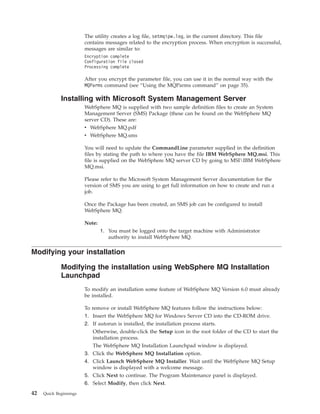
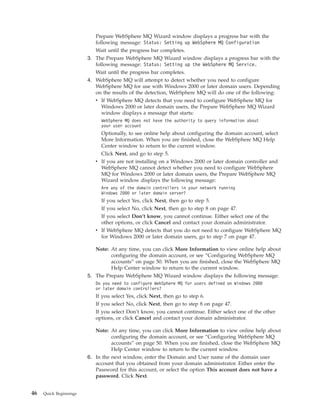
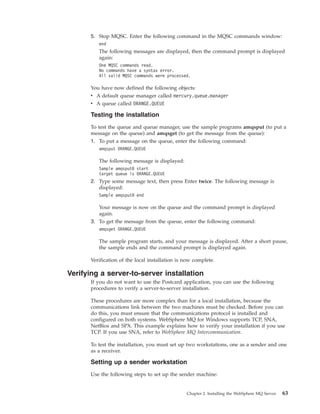
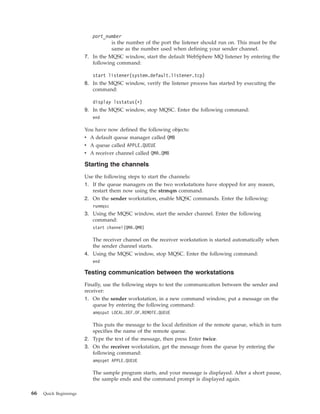
                         6. When you have clicked Yes (and have ensured you have full certificate
                            chains), or if you clicked No, click the WebSphere MQ Installation option.
                            The WebSphere MQ Installation panel is displayed with a summary of the
                            pre-installation status.
                         7. To continue, click Launch IBM WebSphere MQ Installer, and wait until the
                            WebSphere MQ Setup window is displayed with a welcome message.
                         8. If the current version of WebSphere MQ is already installed, the Program
                            Maintenance panel is displayed with two options: Modify and Remove.
                            v If you select Modify, click Next, then see “Modifying the installation using
                               WebSphere MQ Installation Launchpad” on page 42 from step 7 on page 43
                               onwards.
                            v If you select Remove, click Next, then see “Uninstalling WebSphere MQ
                               using the installation process” on page 84 from step 7 on page 85 onwards.
                            If the current version of WebSphere MQ is not installed, the License
                            Agreement panel is displayed.
                         9. Read the information and license terms on the panel.
                            To change the language that the license agreement is displayed in, click
                            Change Language, then select the language you require from the list
                            provided.
                            Select the option to accept the license terms, then click Next.
                        10. If there is a previous version of this product installed on the machine, go to
                            step 18 on page 21.
                            If there is no previous version of this product installed the Setup Type panel is
                            displayed. At this panel you can chose to perform a compact, typical, or
                            custom installation. For more information about the features installed by each
                            of these types of installation see Table 3 on page 17.
                            v For a compact installation, select Compact on the Setup Type window, then
                               click Next. Go to step 18 on page 21.
                            v For a typical installation, select Typical on the Setup Type window, click
                               Next. Go to step 18 on page 21.
                            v For a custom installation, Select Custom on the Setup Type window, click
                               Next. Go to step 11.
                        11. The Destination Folder panel for program files is displayed.
                            v To accept the default folder for the program files, click Next.
                            v To change the folder for the program files, click Change, select the required
                              folder from the dialog box, click OK, then click Next.
                        12. Next the Destination Folder panel for data files is displayed.
                            v To accept the default folder for the data files, click Next.
                            v To change the folder for the data files, click Change, select the required
                              folder from the dialog box, click OK, then click Next.
                        13. Next the Destination Folder panel for the Global Security Kit is displayed. If
                            the Global Security Kit is already installed this panel will not be displayed.

20   Quick Beginnings
v To accept the default folder for the Global Security Kit, click Next.
    v To change the folder for the Global Security Kit, click Change, select the
      required folder from the dialog box, click OK, then click Next.
14. Next the Destination Folder panel for log files is displayed.
    v To accept the default folder for the log files, click Next.
    v To change the folder for the log files, click Change, select the required
      folder from the dialog box, click OK, then click Next.
15. The Features panel is displayed (see Figure 2). This is where you choose
    which features you wish to install (including the Client feature).


Figure 2. Setup features panel

      To change the installation of a feature:
      a. Click the symbol to the left of the feature name to display a drop-down
         menu.
      b. Select the required option from:
         v Install this feature
         v Install this feature and all its subfeatures (if any)
         v Do not install this feature (remove if already installed)
      c. The symbol to the left of the feature name changes to show the current
         installation option. For more information, click Help to display the Custom
         Setup Tips page, which explains the icons used in the feature list.
16.   Optional: To check that there is enough disk space, click Space. The Disk
      Space Requirements panel is displayed. This shows the disk space available
      and the amount of disk space that your current selections will take. It
      highlights any volumes that do not have enough disk space.
      To close the panel and return to the Features panel, click OK.
17.   When your selections are complete, click Next.
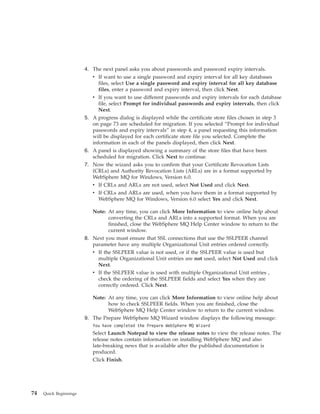
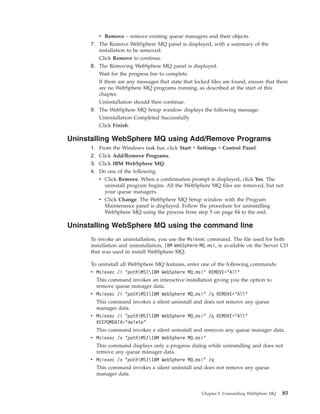
18.   The WebSphere MQ Setup window displays the following message:
      Ready to Install WebSphere MQ
      The window also displays a summary of the installation that you selected.
      To continue, click Install.
19.   Wait until the progress bar is complete. This might take several minutes.
      When WebSphere MQ is successfully installed, the WebSphere MQ Setup
      window displays the following message:


                                         Chapter 2. Installing the WebSphere MQ Server   21
Installation Wizard Completed Successfully
                        20. Click Finish to launch the Prepare WebSphere MQ wizard.
                        21. Follow the procedure described in “Configuring WebSphere MQ with the
                            Prepare WebSphere MQ wizard” on page 45

                            Note: When installing using a Remote Desktop Connection, you will need to
                                  logoff, then re-logon to pick up the changes made to your environment
                                  by the installation process.

             Installing from a LAN
                        There are two ways to put WebSphere MQ installation files on a LAN server for
                        easier access:
                        v You can make the WebSphere MQ Server CD-ROM drive shareable
                        v You can copy the installation files from the CD to a server. To do this, use the
                          following steps:
                          1. Create a folder on the LAN server to store the installation files. For example:
                              md m:instmqs
                          2. Load the WebSphere MQ Server CD. If autorun is enabled, the WebSphere
                             MQ Installation Launchpad window is displayed. Select Cancel to close this
                             window.
                          3. Copy the entire CD to the installation folder. For example:
                              xcopy e:*.* m:instmqs /e
                          4. Give all licensed users access to the folder that now contains the CD image.
                             In this example, users need access to the m: drive.
                          5. From a remote machine:
                              a. Map the shared resource to a drive letter. You can use the net use
                                 command, or Windows Explorer.
                              b. Change to the installation folder.
                              c. Type setup, then press Enter.

                        The WebSphere MQ Launchpad is now launched.

                        Follow the installation instructions given in “Installing using the launchpad” on
                        page 17 to install WebSphere MQ using the Launchpad.

             Unattended (silent) installation
                        WebSphere MQ for Windows is installed using the Microsoft Installer (MSI). You
                        can invoke MSI directly, without using the WebSphere MQ Installation Launchpad.
                        This means that you can install WebSphere MQ on a machine without interaction.
                        This process is called unattended (or silent) installation, and is particularly useful
                        for installing WebSphere MQ over a network on a remote machine, because you
                        can install from a shared drive on a LAN server.

                        The machine on which you want to install must be able to share the WebSphere
                        MQ Server CD, or a copy of the files on it, and you must be able to execute a
                        command on that machine. The silent install methods assume that you have
                        already installed any prerequisites for the features you plan to install. For a list of
                        the prerequisites required for each feature see Table 2 on page 16. The prerequisites
                        can be installed in the setup panels of the Launchpad, see 1 on page 18 for more
                        information on how to do this.


22   Quick Beginnings
There are several ways to invoke MSI without using the WebSphere MQ
installation launchpad. These are:
v Using the Msiexec command with command line parameters. See “Using
  command line parameters with Msiexec” on page 24.
v Using the Msiexec command with a parameter that calls a response file. The
  response file contains the parameters that you normally specify during an
  interactive installation. See“Using a response file with Msiexec” on page 28.
v Use the MQParms command with command line parameters, a parameter file, or
  both. The parameter file can contain many more parameters than a response file.
  See “Using the MQParms command” on page 35.

Also, you can use Microsoft System Management Server to install WebSphere MQ.
See“Installing with Microsoft System Management Server” on page 42.

Installing using Msiexec
The Msiexec command uses parameters to give MSI some or all of the information
that would normally be specified as part of an interactive installation using
WebSphere MQ Installation Launchpad. This means a user can create a reusable
automated or semi-automated installation configuration. Parameters can be given
through the command line, a transform file, a response file, or a combination of the
three.

To install using Msiexec, follow the instructions below:

At the command line enter the Msiexec command in the following format:

Msiexec parameters USEINI="response-file" TRANSFORM="transform_file"

Where:
parameters
        are either command line parameters preceded by a / character, or
        property=value pairs (if using both forms of parameter always put the
        command line parameters first). For further information see “Using
        command line parameters with Msiexec” on page 24.

         Note: You must include the /i parameter and the file location of the
               WebSphere MQ installer package.
response-file
         is the full path and file name of the file that contains the [Response] stanza
         and the required property=value pairs, for example Response.ini. For
         further information see “Using a response file with Msiexec” on page 28.
transform_file
        is the full path and filename of a transform file. For further information see
        “Using transforms with Msiexec” on page 32.

Once the command has been entered, the command prompt will immediately
reappear. WebSphere MQ will be installing as a background process. If you have
entered parameters to produce a log, check this file to see how the install is
progressing. If the install completes successfully you will see the message
Installation operation completed successfully.

Note: If you install WebSphere MQ using Msiexec you must first end any
      applications that are using Java. This is because if a Java application is

                                          Chapter 2. Installing the WebSphere MQ Server   23
running, WebSphere MQ will be unable to update the class path. If
                              WebSphere MQ is unable to update the class path, your computer will
                              restart to allow the update to happen.

                        Using command line parameters with Msiexec
                        You can use the Msiexec command with command line parameters to invoke
                        installation or uninstallation. The Msiexec command uses parameters to give MSI
                        some or all of the information that would normally be specified as part of an
                        interactive installation using the WebSphere MQ Installation Launchpad. To do
                        this, at a command line, enter the following command, followed by the parameters
                        you require:
                        Msiexec [parameters]

                        The Msiexec command can accept two types of parameters on the command line,
                        these are:
                        v Standard command line parameters, preceded by a / character.
                          For an unattended (silent) installation you must include the /q or /qn parameter
                          in the command line, and set the AGREETOLICENSE parameter to ″yes″. For
                          information on what an unattended installation is, see “Unattended (silent)
                          installation” on page 22.
                          For a table of the Msiexec command line parameters, see Table 4 on page 25.
                        v property=value pair parameters on the command line. All the parameters
                          available for use in a response file can be used on the command line, for a list of
                          these see Table 6 on page 29. In addition there are some extra property=value
                          pair parameters that are only for use on the command line, for details of these
                          see Table 5 on page 27.
                          When using the property=value pair parameters note that:
                          – Property strings must be in upper case.
                          – Value strings are not case sensitive, except for feature names. They can be
                            enclosed in double quotation marks. If a value string includes a blank, it must
                            be enclosed in double quotation marks.
                          – For a property that can take more than one value, use the format:
                             ADDLOCAL="Server,Client"

                        When using property=value pair and command line parameters with the Msiexec
                        command, command line parameters must be entered first.

                        If a parameter is specified both on the command line and in a response file, the
                        setting on the command line takes precedence.

                        A typical example of an Msiexec command is:
                        Msiexec /i “pathMSIIBM WebSphere MQ.msi” /l*v c:install.log /m mif_file
                          TRANSFORMS=“:1033” AGREETOLICENSE=“yes” ADDLOCAL=“Server”

                        Where:
                        /i “pathMSIIBM WebSphere MQ.msi”
                                 Install the product using the .msi specified.
                        /l*v c:install.log
                                 Produce a log file called install.log, containing all information in verbose
                                 format.


24   Quick Beginnings
/m mif_file
        Generate a Microsoft System Management Server (SMS) status .mif file
        called mif_file.
TRANSFORMS=“:1033”
     Specifies that the installation is in U.S. English. For further information
     about installing in different national languages, see “Using transforms with
     Msiexec” on page 32.
AGREETOLICENSE=“yes”
     Accept the terms of the license.
ADDLOCAL=“Server”
     Install the server feature locally.

Parameters

The Msiexec command can take further parameters that are not supported or listed
here. If you need details of these, refer to the help file for the Windows Installer
that is supplied with the MSI software development kit. See the Microsoft Web site
at:

http://www.microsoft.com
Table 4. Msiexec command line parameters
Parameter     Options                            Description
/a            Package                            Installs a product on the network using
                                                 administrative installation, that is,
                                                 installs a source image of the application
                                                 onto the network that is similar to a
                                                 source image on a CD.
/i            Package|ProductCode                Installs or configures a product using the
                                                 specified .msi file.

                                                 The WebSphere MQ Windows Installer
                                                 package is IBM WebSphere MQ.msi.
/j                                               Advertises the product.
              [u|m]Package|
              [u|m]Package /t TransformList|     This option ignores any property values
              [u|m]Package /g LanguageID         entered on the command line.
                                                 u        Advertise to the current user
                                                 m        Advertise to all users of this
                                                          machine
                                                 g        Language ID
                                                 t        Applies transform to advertised
                                                          package


                                           Chapter 2. Installing the WebSphere MQ Server   25
Table 4. Msiexec command line parameters (continued)
                        Parameter    Options                           Description
                        /l                                             Specifies path to log file, with flags to
                                     [i|w|e|a|r|u|c|m|o|p              set which information to log.
                                     |v|+|!]Logfile                    i        Status messages
                                                                       w        Non-fatal warnings
                                                                       e        All error messages
                                                                       a        Start up of actions
                                                                       r        Action-specific records
                                                                       u        User requests
                                                                       c        Initial user interface parameters
                                                                       m        Out-of-memory or fatal exit
                                                                                information
                                                                       o        Out-of-disk-space messages
                                                                       p        Terminal properties
                                                                       v        Verbose output
                                                                       +        Append to existing file
                                                                       !        Flush each line to the log
                                                                       *        Log all information except for
                                                                                the v option. To log all
                                                                                information including the v
                                                                                option, specify ″/l*v″
                                                                       microwaveup″<path><Logfile.log>″
                                                                                Create a verbose log file in the
                                                                                directory specifeid by path with
                                                                                the name specified by Logfile.log
                        /m           filename                          Generates a Microsoft System
                                                                       Management Server (SMS) status .mif
                                                                       file.

                                                                       Must be used with either the install (/i),
                                                                       remove (/x), administrative installation
                                                                       (/a), or reinstall (/f) options. The
                                                                       ISMIF32.DLL is installed as part of SMS
                                                                       and must be on the path.

                                                                       The fields of the status .mif file are filled
                                                                       with the following information:
                                                                       v Manufacturer - Author
                                                                       v Product - Revision Number
                                                                       v Version - Subject
                                                                       v Locale - Template
                                                                       v Serial Number - not set
                                                                       v Installation - set by ISMIF32.DLL to
                                                                         DateTime
                                                                       v InstallStatus - Success or Failed
                                                                       v Description - Error messages in the
                                                                         following order:
                                                                         1. Error messages generated by
                                                                            installer.
                                                                         2. Resource from msi.dll if install
                                                                            could not commence or user exit
                                                                         3. System error message file.
                                                                         4. Formatted message: Installer
                                                                            error %i, where %i is the error
                                                                            returned from msi.dll.


26   Quick Beginnings
Table 4. Msiexec command line parameters (continued)
Parameter     Options                              Description
/q            n|b|r|f                              Sets the level of user interface displayed
                                                   during the install.
                                                   q, qn     No user interface. A silent
                                                             installation that displays no
                                                             user interface.
                                                   qb        Basic user interface. Displays
                                                             the built-in dialog boxes that
                                                             show progress messages
                                                   qr        Reduced user interface with a
                                                             modal dialog box displayed at
                                                             the end of the installation.
                                                   qf        Full user interface with a modal
                                                             dialog box displayed at the end.
                                                   qn+       No user interface except for a
                                                             modal dialog box displayed at
                                                             the end of installation.
                                                   qb+       Basic user interface with a
                                                             modal dialog box displayed at
                                                             the end. The modal box is not
                                                             displayed if the user cancels the
                                                             installation.
                                                   qb-       Basic user interface with no
                                                             modal dialog boxes. Note that
                                                             /qb+- is not a supported UI
                                                             level.
/x            Package|ProductCode                  Uninstalls the product.
Note:
1. Do not use the options /i, /x, /j[u|m], and /a together.
2. Use the options /t and /g only with /j.
3. Use the options /l and /q with /i, /x, /j[u|m], and /a.


Table 6 on page 29 and Table 5 show the parameters that you can enter as
property=value pairs on the Msiexec command line (defaults are shown in bold).
The parameters given in Table 5 can only be used on the command line, and not in
a response file.
Table 5. Msiexec PROPERTY= value parameters
Property                Values           Meaning
USEINI                  pathfile_name   Use the specified response file. See “Using a
                                         response file with Msiexec” on page 28.
SAVEINI                 pathfile_name   Generate a response file during installation. The
                                         file will contain those parameters selected for this
                                         installation that a user could make during an
                                         interactive installation.
ONLYINI                 1|yes|″″         1, yes or any value other than null. End the
                                         installation before updating the target system, but
                                         after generating a response file, if this is
                                         specified.

                                         ″″. Continue the installation and update the
                                         target machine (the default).


                                             Chapter 2. Installing the WebSphere MQ Server   27
Using a response file with Msiexec
                        You can use the Msiexec command with a parameter call that calls a response file.
                        The response file contains the parameters that you normally specify during an
                        interactive installation. You can combine the Msiexec command line parameters
                        described in “Using command line parameters with Msiexec” on page 24 with a
                        response file to invoke a complex installation or uninstallation. This could be silent
                        or interactive. For a silent installation, this must include the /q or /qn parameter.

                        A response file is an ASCII text file, with a format similar to a Windows .ini file,
                        that contains the stanza [Response]. The [Response] stanza contains some or all of
                        the parameters that would normally be specified as part of an interactive
                        installation using the WebSphere MQ Installation Launchpad. The parameters are
                        given in a property=value pair format. Any other stanzas in the response file are
                        ignored by Msiexec. An example response file, Response.ini, is supplied with
                        WebSphere MQ. It contains the default installation parameters.

                        Using the Msiexec command

                        To invoke the Msiexec command using a response file, enter the following
                        command at a command line:
                        Msiexec [parameters] USEINI=“reponse_file”

                        Where:
                        parameters
                                are any of the command line parameters listed in table Table 4 on page 25,
                                or property=value pairs listed in tables Table 5 on page 27 and Table 6 on
                                page 29 on the command line. Command line parameters should always be
                                entered before property=value pairs.
                        response_file
                                is the full path and file name of the file that contains the [Response] stanza
                                and the required property=value pairs, for example Response.ini.

                        If a parameter is specified both on the command line and in a response file, the
                        setting on the command line takes precedence.

                        In the response file, all text is in English, and comments begin with a ; character.

                        For information on creating a response file see “Creating a response file” on page
                        31.

                        Parameters

                        Table 6 on page 29 shows the parameters that you can enter in the response file
                        (defaults are shown in bold). Some properties or values are related to
                        uninstallation, rather than installation. Note that:
                        v Property strings must be in upper case.
                        v Value strings are not case sensitive, except for feature names. They can be
                          enclosed in double quotation marks. If a value string includes a blank or a
                          comma, it must be enclosed in double quotation marks.
                        v For a property that can take more than one value, use the format:
                          ADDLOCAL="Server,Client"


28   Quick Beginnings
Table 6. Response file parameters
Property              Values          Meaning
PGMFOLDER             path            Folder for the WebSphere MQ program files. For
                                      example, c:mqm.
DATFOLDER             path            Folder for the WebSphere MQ data files. For
                                      example, c:mqmdata.
LOGFOLDER             path            Folder for the WebSphere MQ queue manager
                                      log files. For example, c:mqmlog.
GSKFOLDER             path            Folder for the Global Security Kit files.
                                      WebSphere MQ will append IBMgsk7 to the path
                                      given for this parameter. For example, if you set
                                      GSKFOLDER=“c:Program Files”, the Global
                                      Security Kit files will be stored in c:Program
                                      FilesIBMgsk7.
USERCHOICE            0|no            If the command line or response file specifies
                                      parameters to install features, a dialog can be
                                      displayed to prompt the user to accept the
                                      preselected options, or review and possibly
                                      change them.

                                      0 or no. Suppresses display of the dialog.

                                      Anything else. Dialog is displayed.

                                      Not used for a silent installation.
AGREETOLICENSE        yes             Accept the terms of the license. For a silent
                                      installation, this must be set to yes.

                                      If the installation is not silent, this parameter is
                                      ignored.
KEEPQMDATA            keep |delete    If the Server feature is to be uninstalled, whether
                                      to delete any existing queue managers.

                                      delete removes any existing queue managers.

                                      keep, or any other value, keeps them.
KEEPWEBDATA           keep|delete     If the WebAdmin feature is already installed from
                                      a previous version of WebSphere MQ, it will be
                                      uninstalled. This property gives you the option to
                                      delete the existing Web Administration scripts.

                                      delete removes any existing Web Administration
                                      scripts.

                                      keep, or any other value, keeps them.
LAUNCHWIZ             0|1|yes|no|″″   0 or no. Do not launch the Prepare WebSphere
                                      MQ wizard after WebSphere MQ is installed.

                                      1 or yes. Launch the Prepare WebSphere MQ
                                      wizard if the Server feature is installed.

                                      ″″. Launch the Prepare WebSphere MQ wizard if
                                      this installation will install the Server (the
                                      default).

                                      If this option will launch the Prepare WebSphere
                                      MQ wizard, you can specify the WIZPARMFILE,
                                      either in this file, or on the command line.


                                         Chapter 2. Installing the WebSphere MQ Server       29
Table 6. Response file parameters (continued)
                        Property               Values              Meaning
                        WIZPARMFILE            pathfile_name      When specified, the file that contains the
                                                                   parameters to pass to the Prepare WebSphere MQ
                                                                   wizard when it is launched. These are in the
                                                                   [Services], [DefaultConfiguration] and
                                                                   [SSLMigration] stanzas. See Table 9 on page 33.
                        ADDLOCAL               feature, feature,   A comma-separated list of features to install
                                               |All|″″             locally. For a list of valid feature names, see
                                                                   Table 7 on page 31.

                                                                   All installs all features

                                                                   ″″ installs the typical features. If you do not want
                                                                   a feature use REMOVE=″feature″
                        REMOVE                 feature, feature,   A comma-separated list of features to remove.
                                               |All|″″             For a list of valid feature names, see Table 7 on
                                                                   page 31.

                                                                   All uninstalls all features

                                                                   ″″ uninstalls no features (the default).
                        REMOVEFEATURES         1|yes               Must be set to 1 or yes for a silent installation if
                                                                   Internet Gateway, Web Administration Server, or
                                                                   SupportPac MA88 are installed, or the installation
                                                                   fails.
                        STARTSERVICE           0|no|″″             0 or no. Do not start the WebSphere MQ Service
                                                                   at the end of installation.

                                                                   ″″. (The default) Start the WebSphere MQ Service
                                                                   at the end of installation if it was running at the
                                                                   start, or if this is a new installation.

                                                                   Anything else. Start the Service at the end of the
                                                                   installation.

                                                                   Ignored if the server feature is not installed.
                        STARTTASKBAR           0|no|″″             0 or no. Do not start the WebSphere MQ taskbar
                                                                   application at the end of installation.

                                                                   ″″. (The default) Start the WebSphere MQ taskbar
                                                                   application at the end of installation if it was
                                                                   running at the start, or if this is a new
                                                                   installation.

                                                                   Anything else. Start the taskbar application at the
                                                                   end of the installation.

                                                                   Ignored if the server feature is not installed.
                        HIGHCONTRAST           0|no|″″             0 or no. Do not set high-contrast mode for the
                                                                   installation.

                                                                   ″″ (The default). Set high-contrast mode for the
                                                                   installation if Windows 2000, Windows 2003, or
                                                                   Windows XP high-contrast mode is set or if
                                                                   WebSphere MQ high-contrast mode is set.

                                                                   Anything else. Set high-contrast mode for the
                                                                   installation.


30   Quick Beginnings
Table 7 shows the features that can be values for the ADDLOCAL and REMOVE
properties.
Table 7. Valid feature names
Feature Name         Description
Server               The WebSphere MQ for Windows server. This will install the files
                     needed to create and run queue managers.
FTA_Server           The file transfer application for the server. This is a graphical
                     application used to send and receive files.
Explorer             The WebSphere MQ Explorer.

                     This feature is installed automatically if the server feature is
                     installed. You can select to remove it.
Client               The WebSphere MQ for Windows client.
XA_Client            Extended transaction support for the Windows client.
FTA_Client           The file transfer application for the client. This is a graphical
                     application used to send and receive files.
JavaMsg              The files needed for messaging using Java (includes Java Message
                     Service and SOAP transport support).
XA_Java              Extended transaction support for Java Message Service.
Toolkit              Sample WebSphere MQ program source, sample executable code,
                     headers, and bindings.


An example of a typical response file:
[Response]
PGMFOLDER="c:mqm"
DATFOLDER="c:mqmdata"
LOGFOLDER="c:mqmlog"
GSKFOLDER="c:mqm"
AGREETOLICENSE="yes"
LAUNCHWIZ=""
WIZPARMFILE="d:MQParms.ini"
ADDLOCAL="Server,Client"
REMOVE="Toolkit"

Creating a response file:

A response file is used with the Msiexec command, for further information see
“Using a response file with Msiexec” on page 28.

There are three ways to create a response file for installation:
v Copy and edit the file Response.ini that is supplied on the WebSphere MQ
  Server CD, using an ASCII file editor.
v Create your own response file using an ASCII file editor.
v Use Msiexec with the SAVEINI (and optionally, the ONLYINI) command line
  parameters to generate a response file that contains the same installation
  options. See Table 5 on page 27.

A typical example of using Msiexec with the SAVEINI parameter is here:
Msiexec /i "pathMSI WebSphere MQ.msi" /q SAVEINI="response_file"
TRANSFORMS=:1033 AGREETOLICENSE="yes"


                                             Chapter 2. Installing the WebSphere MQ Server   31
Installing silently using Msiexec with a response file
                        For an unattended (silent) installation you must include the /q or /qn parameter
                        when entering Msiexec at the command line. You must also set the
                        AGREETOLICENSE parameter to ″yes″ for a silent install. To install silently using
                        Msiexec, do the following:

                        At the command line enter the Msiexec command in the following format:
                        Msiexec /i "pathMSI WebSphere MQ.msi" /q USEINI="response_file" TRANSFORMS=:1033

                        Where:
                        /q       Specifies a silent installation.
                        response_file
                                Is the full path name of the file that contains the [Response] stanza and the
                                required property=value pairs, for example Response.ini.
                        TRANSFORMS=:1033
                               Specifies that the installation is in U.S. English. For further information
                               about installing in different national languages, see “Using transforms with
                               Msiexec.”

                        You can also specify property=value pairs on the command line (the property must
                        be in upper case), for example:
                        Msiexec /i "pathMSI WebSphere MQ.msi" /q USEINI="response_file" TRANSFORMS=:1033
                        AGREETOLICENSE="yes"

                        If a parameter is specified both on the command line and in the response file, the
                        setting on the command line takes precedence.

                        Using transforms with Msiexec
                        MSI can use transforms to modify an installation. During WebSphere MQ
                        installation, transforms can be used to support different national languages.
                        WebSphere MQ is supplied with transform files in the MSI folder of the Server
                        CD. These files are also embedded in the WebSphere MQ Windows installer
                        package, IBM WebSphere MQ.msi.

                        On the Msiexec command line, you can specify the required language by using the
                        TRANSFORMS property in a property=value pair, for example:
                        TRANSFORMS=:1033

                        The : character means use the embedded transform. Otherwise, you must specify
                        the full path and file name of the transform file, for example:
                        TRANSFORMS="D:Msi1033.mst"

                        Table Table 8 on page 33 shows the transform files, the resulting language, and the
                        numerical value to use in the Msiexec command line.

                        Note: When using property=value pair and command line parameters with the
                              Msiexec command, command line parameters must be entered first.

                        You can also specify the required language by using the MQLANGUAGE property
                        with the MQParms command. See Table 10 on page 37.


32   Quick Beginnings
Parameters
Table 8. Supplied transform files. This table shows the supplied transform files, the resulting
language, and the numerical value to use in the Msiexec command line.
Language                         Transform File name                Value
U.S. English                     1033.mst                           1033
German                           1031.mst                           1031
French                           1036.mst                           1036
Spanish                          1034.mst                           1034
Italian                          1040.mst                           1040
Brazilian Portuguese             1046.mst                           1046
Japanese                         1041.mst                           1041
Korean                           1042.mst                           1042
Simplified Chinese               2052.mst                           2052
Traditional Chinese              1028.mst                           1028


Startup parameters for Prepare WebSphere MQ wizard
The Prepare WebSphere MQ wizard (AMQMJPSE.EXE) accepts the following
optional parameters:
Table 9. Startup Parameters for Prepare WebSphere MQ Wizard
                                                                     Default action if parameter
Parameter Name                   Description                         not supplied
–l <file>      Create log file   The Prepare WebSphere MQ            Append to log file
                                 wizard appends to a log file        AMQMJPSE.LOG in
                                 with the program actions and        WebSphere MQ Data
                                 results.                            directory.

                                 This parameter specifies the
                                 filename to use for this log. If
                                 the path is not provided, the
                                 WebSphere MQ Data directory
                                 is assumed. If the filename is
                                 not provided,
                                 AMQMJPSE.LOG is assumed.


                                               Chapter 2. Installing the WebSphere MQ Server   33
Table 9. Startup Parameters for Prepare WebSphere MQ Wizard (continued)
                                                                                       Default action if parameter
                        Parameter Name               Description                       not supplied
                        –r          Reset           When the Prepare WebSphere User account not reset.
                                    MQSeriesService MQ wizard is first run it
                                    user account    creates a local user account
                                                    MUSR_MQADMIN, with
                                                    specific settings and
                                                    permissions. The
                                                    MQSeriesService component is
                                                    configured to run under this
                                                    account. Depending on the
                                                    LAN configuration, the wizard
                                                    might reconfigure the
                                                    MQSeriesService component to
                                                    run under a domain user
                                                    account instead.

                                                     When this parameter is
                                                     specified, the local user
                                                     account MUSR_MQADMIN is
                                                     re-created with all the default
                                                     settings and permissions. The
                                                     MQSeriesService component is
                                                     configured to run under this
                                                     account.
                        –s          silent install   Process silently. Nothing is      Not silent mode.
                                    mode             displayed and there is no user
                                                     input.
                        –p <file>   User parameters Load and use parameters from       When in silent mode, the
                                    from file       the parameter file. If the path    parameter file
                                                    is not provided, the WebSphere     AMQJPSE.INI is loaded
                                                    MQ Data directory is assumed.      from WebSphere MQ Data
                                                    If the filename is not provided,   directory.
                                                    AMQMJPSE.INI is assumed.
                                                                                       When not in silent mode, a
                                                     For more information about        parameter file is not used.
                                                     the format of this file see
                                                     “Parameter file” on page 36.
                                                     The following stanzas are
                                                     loaded:

                                                     [Services]
                                                     [DefaultConfiguration]
                                                     [SSLMigration]


34   Quick Beginnings
Table 9. Startup Parameters for Prepare WebSphere MQ Wizard (continued)
                                                                   Default action if parameter
Parameter Name                  Description                        not supplied
–m <file>   Generate a          When the Prepare WebSphere .MIF file not created.
            Microsoft           MQ wizard closes, generate a
            System              status .MIF file with the
            Management          specified name. If the path is
            Server (SMS)        not provided, the WebSphere
            status .MIF file.   MQ Data directory is assumed.
                                If the filename is not provided,
                                AMQMJPSE.MIF is assumed.

                                The file ISMIF32.DLL (installed
                                as part of SMS) must be in the
                                path.

                                The InstallStatus field in the
                                file will contain either Success
                                or Failed.


Using the MQParms command
You can use the MQParms command to invoke installation or uninstallation. This
command can use parameters on a command line, or those specified in a
parameter file. The parameter file is an ASCII text file that contains the parameter
values that you want to set for the installation. The MQParms command takes the
specified parameters and generates the corresponding Msiexec command line.

This means that you can save all the parameters that you want to use with the
Msiexec command in a single file.

For a silent installation, this must include the /q or /qn parameter, either on the
command line, or in the [MSI] stanza of the parameter file. You must also set the
AGREETOLICENSE parameter to ″yes″.

You can specify many more parameters in the parameter file that you use with the
MQParms command than you can in the response file that you use directly with the
Msiexec command. Also, as well as parameters that the WebSphere MQ installation
uses, you can specify parameters that can be used by the Prepare WebSphere MQ
wizard.

An example of the file MQParms.ini is supplied with WebSphere MQ. This file
contains default installation parameters.

There are two ways to create a parameter file for installation:
v Copy and edit the file MQParms.ini that is supplied in the root folder of the
  WebSphere MQ Server CD, using an ASCII file editor.
v Create your own parameter file using an ASCII file editor.

To invoke installation using the MQParms command:
1. From a command line, change to the root folder of the WebSphere MQ Server
    CD (that is, the location of the file MQParms.exe).
2. Enter the following command:
   MQParms [parameter_file] [parameters]
   where:

                                              Chapter 2. Installing the WebSphere MQ Server   35
parameter_file
                                   is the file that contains the required parameter values. If this file is not
                                   in the same folder as MQParms.exe, specify the full path and file name.
                                   If you do not specify a parameter file, the default is MQParms.ini. For
                                   further details, see “Parameter file.”
                           parameters
                                   are one or more command line parameters, as listed in Table 4 on page
                                   25.

                        A typical example of an MQParms command is:
                        MQParms MyParams.ini /l*v c:install.log

                        If you specify a parameter both on the command line and in the parameter file, the
                        setting on the command line takes precedence.

                        If you specify a parameter file, you might want to run the encryption utility before
                        you use the MQParms command (see “Encrypting a parameter file” on page 41).

                        If you do not specify /i, /x, /a, or /j, MQParms defaults to standard installation
                        using the WebSphere MQ Windows Installer package, IBM WebSphere MQ.msi.
                        That is, it generates the following part of the command line:
                        /i "current_folderMSIIBM WebSphere MQ.msi"

                        If you do not specify a WIZPARMFILE parameter, MQParms defaults to the
                        current parameter file. That is, it generates the following part of the command:
                        WIZPARMFILE="current_foldercurrent_parameter_file"

                        Parameter file: A parameter file is an ASCII text file that contains sections
                        (stanzas) with parameters that can be used by the MQParms command. Typically,
                        this is an initialization file such as MQParms.ini.

                        The MQParms command takes parameters from the following stanzas in the file:
                        [MSI] Contains general properties related to how the MQParms command runs and
                              to the installation of WebSphere MQ.
                                The properties that you can set in this stanza are listed in Table 4 on page
                                25, Table 5 on page 27,Table 6 on page 29, and Table 10 on page 37.
                        [Services]
                                Contains properties related to WebSphere MQ account configuration, in
                                particular, the user account required for WebSphere MQ Services. If you
                                are installing WebSphere MQ on a network where the domain controller is
                                on a Windows 2000 or Windows 2003 server, you probably need details of
                                a special domain account. For further information, see “Configuring
                                WebSphere MQ accounts” on page 50 and “Configuring WebSphere MQ
                                with the Prepare WebSphere MQ wizard” on page 45.
                                The properties that you can set in this stanza are listed in Table 12 on page
                                38.
                        [Default Configuration]
                               Contains properties related to the default configuration, that is, adding or
                               configuring a default queue manager. For further information, see “Using
                               the Default Configuration wizard” on page 53.
                                The properties that you can set in this stanza are listed in Table 13 on page
                                39.

36   Quick Beginnings
[SSLMigration]
      Contains properties relating to the scheduling of SSL resource migration.
        The properties that you can set in this stanza are listed in Table 14 on page
        40.

MQParms ignores any other stanzas in the file.

In the [MSI] stanza, the properties can be in command line format (for example,
/q) or property=value format.

In all other stanzas, the parameters are in the form property=value, where property
is always interpreted as upper case, but value is case sensitive. If a value string
includes a blank, it must be enclosed in double quotation marks. Most other values
can be enclosed in double quotation marks. Some properties can take more than
one value, for example:
ADDLOCAL="Server,Client"

To clear a property, set its value to an empty string, for example:
REINSTALL=""

The following tables show the properties that you can set. The default is shown in
bold.

For the [MSI] stanza, you can enter parameters in command line format (for
example, /q) and parameters in property=value format (for example,
ADDLOCAL="Server"). Refer to Table 6 on page 29, Table 4 on page 25, and Table 5 on
page 27 for the properties used to install WebSphere MQ. Table 10 shows
additional properties in the stanza that affect how the MQParms command runs, but
that do not affect the installation.
Table 10. Properties used by MQParms in the MSI stanza
Property                Values                   Description
MQPLOG                  path|file_name           MQParms generates a text log file with
                                                 the specified name and location.
MQPLANGUAGE                                      The installation language.
                        system|user|
                        transform_value          system. Install using the language of
                                                 the default system locale (the default).

                                                 user. Install using the language of the
                                                 default locale of the user.

                                                 transform_value. Install using the
                                                 language specified by this value. See
                                                 Table 11 on page 38.
MQPSMS                  0|no                     0 or no. MQParms does not wait for the
                                                 Msiexec command to end (the default).

                                                 Any other value. MQParms waits for
                                                 the Msiexec command to end.
MQPINUSE                0|1                      If MQPINUSE is set to 1, MQParams
                                                 continues installing even if WebSphere
                                                 MQ files are in use. If this option is
                                                 used a reboot will be required to
                                                 complete the installation.


                                          Chapter 2. Installing the WebSphere MQ Server     37
Table 10. Properties used by MQParms in the MSI stanza (continued)
                        Property                 Values                  Description
                        MQPNOREBOOT              0|1                     If MQPNOREBOOT is set to 1, the
                                                                         reboot that is required if installation
                                                                         takes place while WebSphere MQ files
                                                                         are still in use will be suppressed.


                        Table 11. Valid values for the MQPLANGUAGE property
                        Language                 Valid values
                        U.S. English             English                en_us                 1033
                        German                   German                 de_de                 1031
                        French                   French                 fr_fr                 1036
                        Spanish                  Spanish                es_es                 1034
                        Italian                  Italian                it_it                 1040
                        Brazilian Portuguese     Brazilian Portuguese   pt_br                 1046
                        Japanese                 Japanese               ja_jp                 1041
                        Korean                   Korean                 ko_kr                 1042
                        Simplified Chinese       Simplified Chinese     zh_cn                 2052
                        Traditional Chinese      Traditional Chinese    zh_tw                 1028


                        For the [Services] stanza, you can enter parameters in property=value format. You
                        might want to encrypt the values in this stanza. See “Encrypting a parameter file”
                        on page 41.
                        Table 12. Properties in the Services stanza
                        Property                 Values                  Description
                        USERTYPE                 local | domain |        The type of user account to use:
                                                 onlydomain
                                                                         local    Creates a local user account.
                                                                         domain
                                                                                  Creates a local user account. If
                                                                                  this does not have the required
                                                                                  security authorities, it uses the
                                                                                  domain user account specified
                                                                                  by DOMAINNAME,
                                                                                  USERNAME, and PASSWORD.
                                                                         onlydomain
                                                                                Does not create a local user
                                                                                account, but immediately uses
                                                                                the domain user account
                                                                                specified by DOMAINNAME,
                                                                                USERNAME and PASSWORD.
                                                                                If any of these three properties
                                                                                are missing, a USERTYPE of
                                                                                local is assumed.

                                                                         The properties DOMAINNAME,
                                                                         USERNAME, and PASSWORD are
                                                                         required if USERTYPE is set to
                                                                         onlydomain.


38   Quick Beginnings
Table 12. Properties in the Services stanza (continued)
Property                  Values                        Description
                                             1
DOMAINNAME                domain_name                   The domain for the domain user
                                                        account.

                                                        Required if USERTYPE is set to domain.
                                         1
USERNAME                  user_name                     The user name for the domain user
                                                        account.

                                                        Required if USERTYPE is set to domain.
                                     1
PASSWORD                  password                      The password for the domain user
                                                        account.

                                                        Required if USERTYPE is set to domain.
1. Do not enclose this value in double quotation marks.


For the [DefaultConfiguration] stanza, you can enter parameters in property=value
format.
Table 13. Properties in the DefaultConfiguration stanza
Property                    Values                   Description
CREATE                      yes|no                   Whether to create the default
                                                     configuration.

                                                     If this is set to yes and a default
                                                     configuration already exists, there is no
                                                     action.

                                                     If this is set to yes and the default
                                                     configuration cannot be created because
                                                     other queue managers already exist, an
                                                     error is raised.
MIGRATE                     yes|no                   Whether to migrate an existing default
                                                     configuration from a previous version of
                                                     WebSphere MQ.

                                                     If this is set to yes and a default
                                                     configuration does not already exist, there
                                                     is no action.
ALLOWREMOTEADMIN yes|no                              Whether to enable remote administration
                                                     of the queue manager that is created as
                                                     part of the default configuration.
JOINDEFAULTCLUSTER          yes|no                   Whether the default queue manager joins
                                                     the default cluster.
REPOSITORY                                           The location of the default configuration
                            local|                   cluster repository.
                            computer_name|
                            ip_address               Use computer_name or ip_address if the
                                                     repository is not on the local machine.

                                                     If it is not possible to ping the remote
                                                     machine, the default configuration is not
                                                     joined to the cluster, and an error is raised.


                                                 Chapter 2. Installing the WebSphere MQ Server   39
For the [SSLMigration] stanza, you can enter parameters in property=value format.
                        Table 14. Properties in the SSLMigration stanza
                        Property                 Values                      Description
                        SCHEDULE                 yes|no                      This property specifies whether SSL
                                                                             migration is to be scheduled. If this
                                                                             property is omitted or set to no, all
                                                                             other properties in this stanza are
                                                                             ignored and no error is raised.
                        QMGRS                    qmgr_name, qmgr_name,       A comma separated list of queue
                                                 ...                         managers for which certificate transfer
                                                                             to GSKit key database files is
                                                                             scheduled.
                        QMGRPASSWORD             password|password,          Passwords to use for the GSKit key
                                                 password, ...               database files. This property is required
                                                                             if QMGRS is present. If this contains
                                                                             only one password that password will
                                                                             be used for all the queue managers. If it
                                                                             contains more than one password there
                                                                             must be the same number of passwords
                                                                             as there are queue managers specified
                                                                             in QMGRS.
                        QMGREXPIRY               interval|interval, interval, Expiry intervals to set for the
                                                 ...                          passwords used. If nothing is specified,
                                                                              the default value of 60 days is used. If
                                                                              this contains only one value, that value
                                                                              will be used for all queue managers. If
                                                                              it contains more than one value, there
                                                                              must be the same number of expiry
                                                                              intervals as there are queue managers
                                                                              specified in QMGRS..
                        CLIENTSTORES             file_name, file_name, ...   A comma separated list of the client
                                                                             SSL certificate stores to schedule for
                                                                             transfer to GSKit key database files.
                        CLIENTPASSWORD           password|password,          Passwords to use for GSKit key
                                                 password, ...               database files. This property is
                                                                             rerquired if CLIENTSTORES is present.
                                                                             If this contains only one password, the
                                                                             password will be used for all client
                                                                             stores. If it contains more than one
                                                                             password, there must be the same
                                                                             number of passwords as files given in
                                                                             CLIENTSTORES.
                        CLIENTEXPIRY             interval|interval, interval, Expiry intervals to set for the
                                                 ...                          passwords used. If nothing is specified,
                                                                              the default value of 60 days is used. If
                                                                              this contains only one value, that value
                                                                              will be used for all queue managers. If
                                                                              it contains more than one value, there
                                                                              must be the same number of expiry
                                                                              intervals as there are queue managers
                                                                              specified in CLIENTSTORES.
                        IGNOREERRORS             yes|no                      Whether to continue processing if an
                                                                             error is detected when scheduling the
                                                                             transfer of certificate stores to GSKit
                                                                             key database files.


40   Quick Beginnings
A typical example of a parameter file is:
[MSI]
MQPLANGUAGE=1033
MQPLOG=%temp%MQParms.log
MQPSMS=no
ADDLOCAL=Server
/m miffile
REMOVE=""
/l*v c:install.log

[Services]
USERTYPE=domain
DOMAINNAME=mqm*df349edfcab12
USERNAME=mqm*a087ed4b9e9c
PASSWORD=mqm*d7eba3463bd0a3

[DefaultConfiguration]
CREATE=yes
MIGRATE=""
ALLOWREMOTEADMIN=yes
JONDEFAULTCLUSTER=yes
REPOSITORY=machine1.server.company.com

[SSLMigration]
SCHEDULE=yes
QMGRS="qmgr1,qmgr2"
QMGRPASSWORD="password1,password2"

Encrypting a parameter file:

Use the setmqipw utility to encrypt the DOMAINNAME, USERNAME, and
PASSWORD values in the [Services] stanza of a parameter file, if they are not
already encrypted. (These values might be encrypted if you have run the utility
before.) setmqipw will also encrypt the QMGRPASSWORD and
CLIENTPASSWORD values in the [SSLMigration] stanza of a parameter file.

This encryption means that, if you need a special domain account to configure
WebSphere MQ (see “Configuring WebSphere MQ accounts” on page 50), or you
need to keep key database passwords secret, details are kept secure. Otherwise,
these values, including the domain account password, flow across the network as
clear text. You do not have to use this utility, but it is useful if security in your
network is an issue.

To run the script:
1. From a command line, change to the folder that contains your parameter file.
2. Enter the following command:
   CD_drive:setmqipw

   Note: You can run the command from a different folder, by entering the
         following command, where parameter_file is the full path and file name of
         the parameter file:
          CD_drive:setmqipw parameter_file

If you view the resulting parameter file, the encrypted values start with the string
mqm*. Do not use this prefix for any other values; passwords or names that begin
with this prefix are not supported.


                                            Chapter 2. Installing the WebSphere MQ Server   41
The utility creates a log file, setmqipw.log, in the current directory. This file
                        contains messages related to the encryption process. When encryption is successful,
                        messages are similar to:
                        Encryption complete
                        Configuration file closed
                        Processing complete

                        After you encrypt the parameter file, you can use it in the normal way with the
                        MQParms command (see “Using the MQParms command” on page 35).

             Installing with Microsoft System Management Server
                        WebSphere MQ is supplied with two sample definition files to create an System
                        Management Server (SMS) Package (these can be found on the WebSphere MQ
                        server CD). These are:
                        v WebSphere MQ.pdf
                        v WebSphere MQ.sms

                        You will need to update the CommandLine parameter supplied in the definition
                        files by stating the path to where you have the file IBM WebSphere MQ.msi. This
                        file is supplied on the WebSphere MQ server CD by going to MSIIBM WebSphere
                        MQ.msi.

                        Please refer to the Microsoft System Management Server documentation for the
                        version of SMS you are using to get full information on how to create and run a
                        job.

                        Once the Package has been created, an SMS job can be configured to install
                        WebSphere MQ.

                        Note:
                                1. You must be logged onto the target machine with Administrator
                                   authority to install WebSphere MQ.

Modifying your installation

             Modifying the installation using WebSphere MQ Installation
             Launchpad
                        To modify an installation some feature of WebSphere MQ Version 6.0 must already
                        be installed.

                        To remove or install WebSphere MQ features follow the instructions below:
                        1. Insert the WebSphere MQ for Windows Server CD into the CD-ROM drive.
                        2. If autorun is installed, the installation process starts.
                           Otherwise, double-click the Setup icon in the root folder of the CD to start the
                           installation process.
                           The WebSphere MQ Installation Launchpad window is displayed.
                        3. Click the WebSphere MQ Installation option.
                        4. Click Launch WebSphere MQ Installer. Wait until the WebSphere MQ Setup
                           window is displayed with a welcome message.
                        5. Click Next to continue. The Program Maintenance panel is displayed.
                        6. Select Modify, then click Next.
42   Quick Beginnings
The Features panel is displayed (see Figure 3).


      Figure 3. Setup features panel

      7. Click the + symbol to the left of a feature to show any dependent features
         (subfeatures).
      8. To change the installation of a feature:
         a. Click the symbol to the left of the feature name to display a drop-down
             menu.
         b. Select the required option from:
             v Install this feature
             v Install this feature and all its subfeatures (if any)
             v Do not install this feature (remove if already installed)
            The symbol to the left of the feature name changes to show the current
            installation option.
      9. When your selections are complete, click Next. WebSphere MQ installation
         begins.

Modifying the installation using Add/Remove Programs
      To modify an installation some feature of WebSphere MQ Version 6.0 must already
      be installed.

      To remove or install WebSphere MQ features follow the instructions below:
      1. From the Windows task bar, click Start → Settings → Control Panel
      2. Click Add/Remove Programs.
      3. Click IBM WebSphere MQ.
      4. Click Change
         The WebSphere MQ Setup window with the Program Maintenance panel is
         displayed.
      5. Select Modify, then click Next.
         The Features panel is displayed (see Figure 4 on page 44).


                                                Chapter 2. Installing the WebSphere MQ Server   43
Figure 4. Setup features panel

                        6. Click the + symbol to the left of a feature to show any dependent features
                           (subfeatures).
                        7. To change the installation of a feature:
                           a. Click the symbol to the left of the feature name to display a drop-down
                               menu.
                           b. Select the required option from:
                               v Install this feature
                               v Install this feature and all its subfeatures (if any)
                               v Do not install this feature (remove if already installed)
                              The symbol to the left of the feature name changes to show the current
                              installation option.
                        8. When your selections are complete, click Next. WebSphere MQ installation
                           begins.

Configuring a WebSphere MQ Server
                        After installing WebSphere MQ, it is necessary to configure it. The configuration
                        described in this chapter is for an environment that uses TCP/IP. The configuration
                        procedure is the same for environments that use other communications protocols
                        (for example, SNA, SPX, or NetBIOS). However, not all of the functions and
                        facilities of WebSphere MQ for Windows are available in these environments. The
                        items that are not available are:
                        v WebSphere MQ MQI Postcard
                        v WebSphere MQ JMS Postcard
                        v WebSphere MQ Explorer

                        If you are setting up WebSphere MQ for use with the Microsoft Cluster Service
                        (MSCS), see WebSphere MQ System Administration Guide for more information.

             Using WebSphere MQ via Terminal Services
                        If you are connecting using Terminal Services to a machine running one of:
                            Windows 2000 with service pack 4 or later
                           Windows XP with service pack 2 or later
                           Windows 2003

44   Quick Beginnings
and you have problems creating or starting a queue manager this might be because
     of the introduction of a new user right, “Create global objects”, in these operating
     systems.

     The “Create global objects” user right limits the users authorized to create objects
     in the global namespace. In order for an application to create a global object, it
     must either be running in the global namespace, or the user under which the
     application is running must have the “Create global objects” user right applied to
     it.

     When you connect via Terminal Services, applications run in their own local
     namespace. If you attempt to create a queue manager using WebSphere MQ
     Explorer or the crtmqm command, or to start a queue manager using the strmqm
     command, it will result in an authorization failure. This will create a WebSphere
     MQ FDC with Probe ID XY132002.

     Starting a queue manager using the WebSphere MQ Explorer, or using the
     amqmdain qmgr start command will work correctly because these commands do
     not directly start the queue manager. Instead the commands send the request to
     start the queue manager to a separate process running in the global namespace.

     If you need to create or start a queue manager when connected via Terminal
     Services you must have the “Create global objects” user right. To get this right
     your administrator must do the following:
     1. Go to the local security settings on the target machine. Do this by selecting
         Start → Settings → Control Panel → Administrative Tools → Local Security
         Policy.
     2. Click on the cross to the left of Local Policies.
     3. Click on the cross to the left of User Rights Assignment.
     4. Add the new user or group to the Create global objects policy.

     Administrators have the “Create global objects” user right applied by default, so if
     you are an administrator you will be able to create and start queue managers when
     connected via Terminal Services without altering your user rights.

Configuring WebSphere MQ with the Prepare WebSphere MQ
wizard
     The Prepare WebSphere MQ wizard helps you to configure WebSphere MQ files
     and a user account for your network, migrate any queue managers and data from
     a previous installation, and migrate WebSphere MQ clients and queue managers
     that have been set up to use Secure Sockets Layer (SSL).

     The Prepare WebSphere MQ wizard window will be displayed when WebSphere
     MQ installation completes. Follow the instructions given by the wizard to
     configure WebSphere MQ. At any time while the wizard is running you can click
     the More Information button in the wizard to view online help about the task you
     are doing.
      1. When WebSphere MQ installation completes, the Prepare WebSphere MQ
          Wizard window is displayed with a welcome message. To continue, click
          Next.
      2. If you have run the Prepare WebSphere MQ wizard before, this step is
          skipped. If you have not run the Prepare WebSphere MQ wizard before, the


                                              Chapter 2. Installing the WebSphere MQ Server   45
Prepare WebSphere MQ Wizard window displays a progress bar with the
                           following message: Status: Setting up WebSphere MQ Configuration
                           Wait until the progress bar completes.
                        3. The Prepare WebSphere MQ Wizard window displays a progress bar with the
                           following message: Status: Setting up the WebSphere MQ Service.
                           Wait until the progress bar completes.
                        4. WebSphere MQ will attempt to detect whether you need to configure
                           WebSphere MQ for use with Windows 2000 or later domain users. Depending
                           on the results of the detection, WebSphere MQ will do one of the following:
                           v If WebSphere MQ detects that you need to configure WebSphere MQ for
                              Windows 2000 or later domain users, the Prepare WebSphere MQ Wizard
                              window displays a message that starts:
                             WebSphere MQ does not have the authority to query information about
                             your user account
                             Optionally, to see online help about configuring the domain account, select
                             More Information. When you are finished, close the WebSphere MQ Help
                             Center window to return to the current window.
                             Click Next, and go to step 5.
                           v If you are not installing on a Windows 2000 or later domain controller and
                             WebSphere MQ cannot detect whether you need to configure WebSphere
                             MQ for Windows 2000 or later domain users, the Prepare WebSphere MQ
                             Wizard window displays the following message:
                             Are any of the domain controllers in your network running
                             Windows 2000 or later domain server?
                             If you select Yes, click Next, then go to step 5.
                             If you select No, click Next, then go to step 8 on page 47.
                             If you select Don’t know, you cannot continue. Either select one of the
                             other options, or click Cancel and contact your domain administrator.
                           v If WebSphere MQ detects that you do not need to configure WebSphere MQ
                             for Windows 2000 or later domain users, go to step 7 on page 47.

                           Note: At any time, you can click More Information to view online help about
                                 configuring the domain account, or see “Configuring WebSphere MQ
                                 accounts” on page 50. When you are finished, close the WebSphere MQ
                                 Help Center window to return to the current window.
                        5. The Prepare WebSphere MQ Wizard window displays the following message:
                           Do you need to configure WebSphere MQ for users defined on Windows 2000
                           or later domain controllers?
                           If you select Yes, click Next, then go to step 6.
                           If you select No, click Next, then go to step 8 on page 47.
                           If you select Don’t know, you cannot continue. Either select one of the other
                           options, or click Cancel and contact your domain administrator.

                           Note: At any time, you can click More Information to view online help about
                                  configuring the domain account, or see “Configuring WebSphere MQ
                                  accounts” on page 50. When you are finished, close the WebSphere MQ
                                  Help Center window to return to the current window.
                        6. In the next window, enter the Domain and User name of the domain user
                           account that you obtained from your domain administrator. Either enter the
                           Password for this account, or select the option This account does not have a
                           password. Click Next.


46   Quick Beginnings
7. The Prepare WebSphere MQ Wizard window displays a progress bar with the
    following message:
      Status: Configuring WebSphere MQ with the special domain user account

    Wait until the progress bar completes.
    If there are any problems with the domain user account, a further window is
    displayed. Follow the advice on this window before you continue with this
    procedure.
 8. If you do not have any queue managers or WebSphere MQ clients on this
    computer that have been set up to use Secure Sockets Layer (SSL) connections,
    this step is missed, go to step 15 on page 48.
    If you have queue managers or WebSphere MQ clients on this computer that
    have been set up to use SSL connections, the Migration of SSL connections
    window is displayed. The queue managers and clients with SSL connections
    were identified when you used the Check WebSphere MQ Certificate Stores
    wizard in the installation launchpad. Read the information then click Next.

      Note: At any time, you can click More Information to view online help about
              identifying if migration is required. When you are finished, close the
              WebSphere MQ Help Center window to return to the current window.
 9.   A list of the certificate store files, which were validated earlier in the install
      process, is displayed. Select the certificate stores you want to schedule for
      migration and click Next. If you did not validate any certificate stores, or if
      you have not selected any, click Next then go to step 13.
10.   The next panel asks you about passwords and password expiry intervals.
      v If want to use a single password and expiry interval for all key databases
         files, select Use a single password and expiry interval for all key database
         files, enter a password and expiry interval, then click Next.
      v If you want to use different passwords and expiry intervals for each
         database file, select Prompt for individual passwords and expiry intervals,
         then click Next.
11.   A progress dialog is displayed while the certificate store files chosen in step 9
      are scheduled for migration. If you selected “Prompt for individual passwords
      and expiry intervals” in step 10, a panel requesting this information will be
      displayed for each certificate store file you selected. Complete the information
      in each of the panels displayed, then click Next.
12.   A panel is displayed showing a summary of the store files that have been
      scheduled for migration. Click Next to continue.
13.   Now the wizard asks you to confirm that your Certificate Revocation Lists
      (CRLs) and Authority Revocation Lists (ARLs) are in a format supported by
      WebSphere MQ for Windows, Version 6.0.
      v If CRLs and ARLs are not used, select Not Used and click Next.
      v If CRLs and ARLs are used, when you have them in a format supported by
         WebSphere MQ for Windows, Version 6.0 select Yes and click Next.

    Note: At any time, you can click More Information to view online help about
          converting the CRLs and ARLs into a supported format. When you are
          finished, close the WebSphere MQ Help Center window to return to the
          current window.
14. Next you must ensure that SSL connections that use the SSLPEER channel
    parameter have any multiple Organizational Unit entries ordered correctly.


                                           Chapter 2. Installing the WebSphere MQ Server   47
v If the SSLPEER value is not used, or if the SSLPEER value is used but
                              multiple Organizational Unit entries are not used, select Not Used and click
                              Next.
                            v If the SSLPEER value is used with multiple Organizational Unit entries ,
                              check the ordering of the SSLPEER fields and select Yes when they are
                              correctly ordered. Click Next.

                            Note: At any time, you can click More Information to view online help about
                                  how to check SSLPEER fields. When you are finished, close the
                                  WebSphere MQ Help Center window to return to the current window.
                        15. The Prepare WebSphere MQ Wizard window displays a progress bar with the
                            following message:
                            Status: Starting WebSphere MQ services

                            Wait until the progress bar completes.
                        16. If there are further tasks to complete, the Prepare WebSphere MQ Wizard
                            window displays the following message:
                            It is recommended that the following tasks are completed now
                            It displays one or more of the following options, which depend on whether a
                            default configuration or queue managers already exist from a previous
                            installation. If the previous installation is such that none of these tasks apply,
                            this window is not displayed. Go to step 17.
                            v Setup the Default Configuration. This option is displayed only if there are
                               no queue managers and there is no Default Configuration already on the
                               system. This action launches the Default Configuration wizard (see “Using
                               the Default Configuration wizard” on page 53).
                               In this situation, to verify the installation by using the Postcard application
                               (described in “Using the Postcard applications” on page 56), select this
                               option and use the Default Configuration wizard to create the default queue
                               manager for the Postcard application to use.
                            v Migrate the existing Default Configuration. This option is displayed if a
                               Default Configuration already exists from MQSeries V5.1. This action
                               launches the Default Configuration wizard (see “Using the Default
                               Configuration wizard” on page 53).

                              Note: If a Default Configuration already exists from a version of
                                     WebSphere MQ later than V5.1 you can use this without any
                                     migration.
                            To launch a wizard to complete a task, select the required option. When all
                            required tasks are complete and you return to this window, click Next.
                            To continue without completing any of these tasks, click Next. You can
                            complete these tasks later:
                            v To set up the Default Configuration, or migrate an existing Default
                              Configuration, select Start → Programs → IBM WebSphere MQ → Default
                              Configuration (see “Using WebSphere MQ Getting Started help” on page
                              54).
                        17. Next you need to select the options that you require. The Prepare WebSphere
                            MQ Wizard window displays the following message:
                            You have completed the Prepare WebSphere MQ Wizard
                            Select the options that you require, then click Finish. Select one or more from:
                            v Remove the shortcut to this wizard from the desktop


48   Quick Beginnings
This option is available only if you have previously attempted installation,
             but you cancelled the procedure from the Prepare WebSphere MQ wizard
             and you created a desktop shortcut to this wizard. Select this option to
             remove the shortcut. You do not need it now that you have completed the
             Prepare WebSphere MQ wizard.
           v Launch WebSphere MQ Getting Started Help
             The Help gives you quick access to all task-oriented help information, the
             Web-based online books and home pages, and if you have installed
             WebSphere MQ from the WebSphere MQ Documentation CD, the
             Information Center.
           v Launch WebSphere MQ Explorer
             The WebSphere MQ Explorer allows you to view and administer your
             WebSphere MQ network.
           v Launch Notepad to view the release notes
             The release notes contain information on installing WebSphere MQ and also
             late-breaking news that is available after the published documentation is
             produced.
       18. Follow the procedure described in “Final Installation tasks.”

Final Installation tasks
       1. Check for messages in the following files:
          a. msi nnnnn.log. This file is in your user Temp folder. It is an application log
             that contains English messages written during installation. The log includes
             a message indicating whether the installation was successful and complete.
             This file is created if you have set up default logging. See “Creating a log
             file when you install WebSphere MQ” on page 9.
          b. If you used the lauchpad to install WebSphere MQ, check
             MQv6_Install_YYYY-MM-DDTHH-MM-SS.log in your user Temp folder,
             where:
              YYYY This is the year that you installed WebSphere MQ Version 6.0
              MM      This is the month that you installed WebSphere MQ, for example
                      this would be 09 if you installed in September
              DD      This is the day that you installed WebSphere MQ
              HH-MM-SS
                     This is the time at which WebSphere MQ was installed
              You can get to your user Temp directory by entering the following
              command at the command prompt:
              cd %TEMP%
          c. amqmjpse.txt. This file is in the WebSphere MQ data files folder (default
              c:Program FilesIBMWebSphere MQ). It is an application log that
              contains English messages written during installation by the Prepare
              WebSphere MQ wizard.
          d. amqmsccw.txt. This file is in the WebSphere MQ data files folder (default
              c:Program FilesIBMWebSphere MQ). It is an application log that
              contains English messages written by the Check WebSphere MQ Certificate
              Stores wizard.
       2. Following installation, some of the WebSphere MQ icons might not appear in
          the Start menu until after the machine is restarted. To use these icons without
          restarting your machine, access them from the appropriate folder. By default


                                                Chapter 2. Installing the WebSphere MQ Server   49
the icons are in the folders c:Program FilesIBMWebSphere MQ and
                           c:Program FilesIBMWebSphere MQbin.
                        3. You can now verify your installation using the Postcard application, as
                           described in “Using the Postcard applications” on page 56.

             Configuring WebSphere MQ accounts
                        WebSphere MQ checks that only authorized users can access queue managers or
                        queues. Whenever a user attempts such access, WebSphere MQ uses its own local
                        account to query information about the user. However, if a domain controller runs
                        on Windows 2000 or Windows 2003, it can be set up so that local accounts cannot
                        be used to make these queries. In this situation, you must provide WebSphere MQ
                        with a special account to use. This is necessary when both of the following
                        conditions apply:
                        v Any domain controller on your network is running on Windows 2000 or
                          Windows 2003
                        v Local user accounts are not authorized to query the group membership of the
                          Windows 2000 or Windows 2003 domain user accounts

                        If these conditions apply (or if you are not sure), give the information described in
                        the following section to your domain administrator, and ask for one of the special
                        accounts it describes. When you install the product, towards the end of the
                        installation procedure, in the Prepare WebSphere MQ wizard, you are asked to
                        enter details of this account (domain, user name, and password).

                        If these conditions apply and you install WebSphere MQ without a special account
                        (or without entering its details), many or all parts of WebSphere MQ will not work,
                        depending upon the particular user accounts involved. In particular, if you are
                        currently logged on with a Windows 2000 or Windows 2003 domain user account,
                        you cannot complete the Default Configuration, and the Postcard and API
                        Exerciser applications will not work. Also, WebSphere MQ connections to queue
                        managers that run under Windows 2000 or Windows 2003 domain accounts on
                        other computers might fail.

                        For information about the user rights required to take advantage of the Kerberos
                        authentication support, see WebSphere MQ Security.

                        For information about the user rights required to take advantage of the Active
                        Directory support, see WebSphere MQ Intercommunication.

                        For information about user accounts and access permissions, see WebSphere MQ
                        System Administration Guide.

                        Information for domain administrators
                        WebSphere MQ has a component, running as a Windows DCOM process, that
                        checks that any user account attempting to access WebSphere MQ is authorized. As
                        part of the check, the component must confirm that the account belongs to a group
                        that is a member of the local mqm group, such as DOMAINdomain mqm. The
                        component itself by default runs under a local user account (MUSR_MQADMIN)
                        that WebSphere MQ creates at installation.

                        If any domain controller on your network is running on Windows 2000 or
                        Windows 2003, that domain can be set up so that local user accounts do not have
                        authority to query the group membership of its domain user accounts. Such a
                        setup prevents WebSphere MQ from completing its check, and access fails. To

50   Quick Beginnings
resolve this, each installation of WebSphere MQ on the network must be
configured to run its service under a domain user account that has the required
authority. See “Creating and setting up Windows 2000 and Windows 2003 domain
accounts for WebSphere MQ” for instructions on creating a suitable domain
account.

Note: If an installer carries on anyway and configures WebSphere MQ without a
      special account, many or all parts of WebSphere MQ will not work,
      depending upon the particular user accounts involved, as follows:
      v An installer currently logged on with a Windows 2000 or Windows 2003
         domain user account will not be able to complete the Default
         Configuration, and the Postcard and API Exerciser will not work.
      v WebSphere MQ connections to queue managers running under Windows
         2000 or Windows 2003 domain accounts on other computers may fail.
      v Typical errors include “AMQ8066: Local mqm group not found” and
         “AMQ8079: Access was denied when attempting to retrieve group
         membership information for user ’abc@xyz’”.

Creating and setting up Windows 2000 and Windows 2003
domain accounts for WebSphere MQ
The following information is aimed at Domain Administrators. Repeat Steps 1 and
2 on page 52 below for each domain that has user names that will install
WebSphere MQ, to create an account for WebSphere MQ on each domain:
1. Create a domain group with a special name that is known to WebSphere MQ
   and give members of this group the authority to query the group membership
   of any account:
   On Windows 2000 Server:
   a. Log on to the domain controller as an account with domain administrator
       authority.
   b. From the Start menu, open Active Directory Users and Computers.
   c. Find the domain name in the navigation pane on the left, right-click it and
       select New Group.
   d. Type domain mqm, or the name of a group that is a member of the local
       “mqm” group. (If you are using domain mqm, this exact string should be
       used because it is understood and used by WebSphere MQ).
   e. In Group scope select either Global or Universal.
   f. In Group type select Security, and click OK.
   g. Find the domain name in the navigation pane on the left, right-click it and
       select Delegate Control..., then click Next.
   h. At Selected Groups and Users, press Add, select domain mqm (or a group
       that is a member of the local “mqm” group) then click Add. Click OK.
   i. Select domain mqm (or a group that is a member of the local “mqm” group)
      and click Next.
   j. Select Create a custom task to delegate and click Next.
   k. Select Only the following objects in the folder, and then check User
       Objects in the alphabetical list. Click Next.
   l. Check Property-specific, then select from the list the following options:
      v Read Group Membership
      v Read Group MembershipSAM
   m. Click OK to close each window.

                                       Chapter 2. Installing the WebSphere MQ Server   51
On Windows 2003 Server:
                           a. Log on to the domain controller as an account with domain administrator
                              authority.
                           b. From the Start menu, open Active Directory Users and Computers.
                           c. Find the domain name in the navigation pane on the left, right-click it and
                               select New Group.
                           d. Type domain mqm, or the name of a group that is a member of the local
                               “mqm” group. (If you are using domain mqm, this exact string should be
                               used because it is understood and used by WebSphere MQ).
                           e. In Group scope select either Global or Universal.
                           f. In Group type select Security, and click OK.
                           g. View Active Directory Users and Computers in Advanced Features mode.
                           h. Find the domain name in the left panel, right-click the domain name, then
                               click Properties.
                           i. Click the Security tab.
                           j. Click Advanced.
                           k. Click Add, then type domain mqm (or a group that is a member of the local
                               “mqm” group) and click OK. A new dialog is displayed.
                           l. Click the Properties tab.
                           m. In the Apply onto box, change the view to User objects.
                           n. Select the allow check box for the following options:
                               v Read Group Membership
                               v Read Group MembershipSAM
                           o. Click OK to close each window.
                        2. Create one or more accounts, and add them to the group:
                           a. In Active Directory Users and Computers, create a user account with a
                               name of your choosing and add it to group “domain mqm” (or a group that
                               is a member of the local “mqm” group).
                           b. Repeat for all the accounts you want to create.
                        3. Repeat Steps 1 on page 51 and 2 for each domain that has user names that will
                           install WebSphere MQ, to create an account for WebSphere MQ on each
                           domain.
                        4. Use the accounts to configure each installation of WebSphere MQ:
                           a. Either use the same domain user account (as created in Step 1 on page 51)
                               for each installation of WebSphere MQ, or create a separate account for each
                               one, adding each to the “domain mqm” group (or a group that is a member
                               of the local “mqm” group).
                           b. When you have created the account or accounts, give one to each person
                               configuring an installation of WebSphere MQ. They should enter the
                               account details (domain name, user name and password) into the Prepare
                               WebSphere MQ Wizard. Give them the account that exists on the same
                               domain as their installing userid.
                           c. When you install WebSphere MQ on any computer on the domain, the
                               WebSphere MQ install program detects the existence of the “domain mqm”
                               group on the LAN, and automatically adds it to the local “mqm” group.
                               (The local “mqm” group is created during installation; all user accounts in it
                               have authority to manage WebSphere MQ). Thus all members of the
                               “domain mqm” group will have authority to manage WebSphere MQ on
                               this computer.


52   Quick Beginnings
d. However, you do still need to provide a domain user account (as created in
             Step 1 on page 51) for each installation, and configure WebSphere MQ to
             use it when making its queries. The account details should be entered into
             the Prepare WebSphere MQ Wizard that runs automatically at the end of
             installation (the wizard can also be run at any time from the start menu).
      5. Set the password expiry periods:
         v If you use just one account for all users of WebSphere MQ, consider making
            the password of the account never expire, otherwise all instances of
            WebSphere MQ will stop working at the same time when the password
            expires.
         v If you give each user of WebSphere MQ their own user account you will
            have more user accounts to create and manage, but only one instance of
            WebSphere MQ will stop working at a time when the password expires.
         If you set the password to expire, warn the users that they will see a message
         from WebSphere MQ each time it expires - the message warns that the
         password has expired, and describes how to reset it.

      For more information, see the WebSphere MQ System Administration Guide.

Using the Default Configuration wizard
      You can use the Default Configuration wizard to add the first configured queue
      manager to this computer. This enables you to connect easily with other queue
      managers in the same WebSphere MQ cluster. You can use the Default
      Configuration wizard to create, view, or alter your default configuration. You can
      also use this wizard to alter or display details of an existing queue manager that
      was created by the default configuration.

      For a new installation of WebSphere MQ, creating a default configuration enables
      you to explore features of WebSphere MQ using the Postcard application, the API
      Exerciser, and the WebSphere MQ Explorer.

      The Postcard application provides a fast and simple way to verify that your
      WebSphere MQ installation completed successfully. It uses the default queue
      manager that is created during the default configuration. If you want to use the
      Postcard application for verification, and you do not have any existing queue
      managers, run the Default Configuration wizard first.

      If you have migrated existing queue managers, or created any queue managers
      since installing WebSphere MQ, you might not want to run the Default
      Configuration wizard. This is because you cannot create the default configuration
      if other queue managers already exist. If you have previously created any other
      queue managers on this computer and you still want to set up a default
      configuration, you must delete them before you run the Default Configuration
      wizard.

      Start the Default Configuration wizard by selecting the option Setup the Default
      Configuration when the Prepare WebSphere MQ wizard completes during
      WebSphere MQ installation. The Prepare WebSphere MQ wizard can be run at any
      time after installation by selecting Start → Programs → IBM WebSphere MQ →
      Prepare WebSphere MQ wizard.


                                               Chapter 2. Installing the WebSphere MQ Server   53
Using WebSphere MQ Getting Started help


                        Figure 5. Getting Started help window

                        You can use the items in the WebSphere MQ Getting Started help window (see
                        Figure 5 to explore the facilities in WebSphere MQ. The Getting Started information
                        can be launched at the end of the Prepare WebSphere MQ wizard. Also, the
                        Getting Started help information is contained in the WebSphere MQ Help Center
                        and can be accessed from the WebSphere MQ Explorer by selecting Help → Help
                        Contents and then clicking the Getting Started with WebSphere MQ link. There
                        are links to the following subjects from the Getting Started help window:

                        Quick Tour

                        Gives a brief overview of WebSphere MQ and helps you to learn more about the
                        concepts, functions, and interfaces that WebSphere MQ uses. The Quick Tour can
                        also be run from the Installation Launchpad. A text-only version of the Quick Tour
                        can also be opened from here.

                        Default Configuration

                        Allows you to add a configured queue manager to this computer for connecting
                        easily with other queue managers in the same WebSphere MQ cluster. You can also
                        use it to alter or display details of an existing queue manager created by the
                        default configuration. This feature is available only using TCP/IP.

                        Note: If you migrated existing queue managers, or if you have created any queue
                              managers after you installed WebSphere MQ, you might not want to use
                              this facility. This is because you can only set up a default configuration if
                              there are no queue managers already, and you might not want to delete
                              your existing queue managers.


54   Quick Beginnings
Postcard

      Allows you to try out WebSphere MQ messaging quickly and easily. You can send
      a message either to your own machine or to another named user’s machine. It is
      described in detail in “Using the Postcard applications” on page 56.

      API Exerciser

      Allows you to experiment with the API calls that are provided in the WebSphere
      MQ programming interface.

      To use the API Exerciser:
      1. Select the tab for the page with the button for the API call that you want to try.
      2. Set the options that are relevant to that page.
      3. Optionally, set the parameters or attributes that you want to use with the API
         call.
      4. Select the required API button.
         The results of the call are displayed in the Status area of the window.

      For further information about the API Exerciser, refer to the Information Center
      online help. To display this help, select the Help button on the WebSphere MQ API
      Exerciser window.

      For further information about the API calls, refer to the WebSphere MQ Application
      Programming Guide and the WebSphere MQ Application Programming Reference
      manual. You can access these manuals from the Reference section of the
      Information Center.

      Tutorials

      The tutorials show you how to perform basic tasks in WebSphere MQ. Using the
      tutorials, you can perform the following tasks:
      v Create a queue manager
      v Create a queue
      v Create a channel
      v Put a message on a queue
      v Get a message from a queue

      Each tutorial builds upon WebSphere MQ objects that have been set up during
      previous tutorials and so increase in complexity.

Using the Help Center
      The Help Center gives you access to all task-oriented help, books on the IBM Web
      site, and a link to the WebSphere MQ Information Center if you have installed it
      from the WebSphere MQ Documentation CD.

      The WebSphere MQ Information Center can be accessed from the WebSphere MQ
      Explorer by selecting Help → Help Contents. See Figure 6 on page 56 for an
      example of the help center.


                                               Chapter 2. Installing the WebSphere MQ Server   55
Figure 6. Help Center window


Verifying a server installation
                        Before you can use WebSphere MQ for Windows, you need to verify that the
                        product has correctly installed. You can verify a WebSphere MQ server installation
                        at different levels:
                        v A local (stand-alone) installation that has no communication links with other
                           WebSphere MQ installations.
                           If both queue managers are in the same cluster, see “Using the Postcard
                           applications to verify a local installation” on page 57.
                           If both queue managers are not in the same cluster, see “Verifying a local
                           installation” on page 62.
                        v A server-to-server installation that includes communication links to other
                           WebSphere MQ installations.
                           If both queue managers are in the same cluster, or channels are configured to
                           communicate between the two machines, see “Using the Postcard applications to
                           verify a server-to-server installation” on page 60.
                           If both queue managers are not in the same cluster, and channels are not
                           configured to communicate between the two machines, see “Verifying a
                           server-to-server installation” on page 63.

                        For a client-to-server installation that includes communication links between a
                        server machine and a WebSphere MQ client, see “Verifying a WebSphere MQ
                        Client” on page 75.

             Using the Postcard applications
                        You can verify a local installation (which does not have any communication links
                        with other WebSphere MQ installations) by using the Postcard applications that are
                        supplied with WebSphere MQ.


56   Quick Beginnings
You can also use the Postcard applications to verify communication between your
machine and the machine of another named user, where that machine is running
WebSphere MQ and using TCP/IP. Therefore, you can use the Postcard to verify
that you can communicate with another server. To use the Postcard applications for
this type of verification, either both machines must be in the same cluster or you
must configure channels to communicate between the two machines. You can use
the Postcard applications with existing queue managers, as long as both queue
managers belong to the same cluster.

To ensure that both machines are part of the same cluster, you can do either of the
following:
v Run the Default Configuration wizard on both machines to create or alter the
   default queue managers and link them to the default cluster (see “Using the
   Default Configuration wizard” on page 53).
v Create your own queue managers on both machines, create a cluster, and ensure
   that the queue managers that you create on each machine belong to the same
   cluster.

There are two Postcard applications. The MQI Postcard uses MQI (Message Queue
Interface) to send and receive messages and the JMS Postcard uses JMS (Java
Message Service) to send and receive messages. The Postcard applications look
very similar and work in a similar way. They are used to verify different aspects of
the WebSphere MQ installation.
v Use the MQI Postcard to verify that WebSphere MQ is successfully installed and
  the associated communication links are working properly.
v Use the JMS Postcard to verify that WebSphere MQ Java Messaging support is
  successfully installed.

Note:
        1. To use the JMS Postcard you must have a working JRE (Java Runtime
           Environment).
        2. If you want the JMS Postcard to use font and color settings different
           from the Java Virtual Machine defaults, you need to change the
           postcard.ini file. For more information see WebSphere MQ Using Java..

To use the Postcard applications to verify a local installation, see “Using the
Postcard applications to verify a local installation.”

To use the Postcard applications to verify a server-to-server installation, see “Using
the Postcard applications to verify a server-to-server installation” on page 60.

Using the Postcard applications to verify a local installation
To verify that the local installation is working, you can use the Postcard
applications. These applications allow you to create two postcards on the same
machine and send messages between them, verifying that WebSphere MQ
messaging is working correctly on the machine.

Use the MQI Postcard as shown below to verify that WebSphere MQ is
successfully installed and the associated communication links are working
properly. To use the Java Messaging feature of WebSphere MQ carry out the
following instructions again, using the JMS Postcard.

TCP/IP must be already installed on the machine, and a queue manager that can
be used as a mailbox must be already set up. This queue manager can be either the

                                          Chapter 2. Installing the WebSphere MQ Server   57
default queue manager, which is set up automatically during default configuration,
                        or another queue manager that you have set up yourself.
                         1. Go to the WebSphere MQ Getting Started help page, shown in Figure 7.
                             v If at the end of the installation, if you clicked Launch WebSphere MQ
                               Getting Started help from the Completing the Prepare WebSphere MQ
                               Wizard window, this window is already open.
                             v Alternatively, select Start → Programs → IBM WebSphere MQ → Getting
                               Started.
                         2. Launch your choice of Postcard application:
                             v To launch the MQI Postcard, click Start an instance of MQI Postcard.
                             v To launch the JMS Postcard, click Start an instance of JMS Postcard.


                        Figure 7. Getting Started window with the Postcard options

                         3. The WebSphere MQ Postcard - Sign On window is displayed.
                            Type in a nickname to use to send messages within the postcard application
                            (for example, user1).
                            v If the only queue manager on your machine is the default queue manager
                               that you created by running the Default Configuration wizard, this queue
                               manager is used as your mailbox for postcards. Click OK to display your
                               first postcard, then go to step 5 on page 59.
                            v If you do not have a default queue manager, or if you want to use a queue
                               manager you have created yourself, then go to step 4.
                         4. Optional: To select the queue manager to use as the mailbox, click the
                            Advanced checkbox. See Figure 8 on page 59 for the MQI postcard and
                            Figure 9 on page 59 for the JMS postcard. Then do one of the following:
                            v If you have created one or more of your own queue managers, but you
                               have not run the Default Configuration wizard, select the appropriate queue
                               manager from the list displayed.


58   Quick Beginnings
v If you have run the Default Configuration wizard and you want to use the
      default queue manager, but there is more than one queue manager on your
      machine, select Use Default Configuration as mailbox.
    v If you have run the Default Configuration wizard and also created one or
      more of your own queue managers, and you do not want to use the default
      queue manager, select Choose queue manager as mailbox, then select the
      appropriate queue manager from the list displayed.
    When your selection is complete, click OK if you are using an MQI postcard,
    or Next if you are using a JMS postcard to display your first postcard.


Figure 8. MQI Postcard - Sign On window with the Advanced options


Figure 9. JMS Postcard - Sign On window with the Advanced options

 5. From the Getting started help page, launch the same Postcard application as
    you did earlier in step 2 on page 58, either:
    v Start an instance of MQI Postcard
    v Start an instance of JMS Postcard
 6. The WebSphere MQ Postcard - Sign On panel is displayed again.
    Type in a second nickname to use to send messages within the Postcard
    application (for example, user2).
 7. Repeat the selection of the queue manager that you want to use as the
    mailbox (as described earlier in step 4 on page 58).
    The queue manager you select for this second postcard must be in the same
    cluster as the queue manager for the first postcard.


                                          Chapter 2. Installing the WebSphere MQ Server   59
You now have two postcards, one with the nickname user1 and one with the
                            nickname user2.
                         8. In one of the postcards (for example, user1), type some message text in the
                            Message: field and the nickname of the other postcard (for example, user2) in
                            the To: field.

                            Note: Because the sender and receiver are on the same machine, you do not
                                  need to type anything in the On: field. If the receiver is on a different
                                  machine and is using the default queue manager as the mailbox, type
                                  the recipient’s machine in the On: field. An example machine name is
                                  machine2.server.company.com.

                                   If the receiver is on a different machine and is not using the default
                                   queue manager as the mailbox, type the recipient’s queue manager in
                                   the On: field.
                         9. Click Send.
                        10. The Postcards sent and received area of the postcard shows details of the
                            message. In the sending postcard, the message is displayed as sent. In the
                            receiving postcard, the message is displayed as received.
                        11. From the receiving postcard, double-click on the message in the Postcards sent
                            and received area to view it.

                        If you complete this procedure successfully, it verifies that WebSphere MQ is
                        correctly installed.

                        Depending on your situation, you might want to do the following:
                        v Install WebSphere MQ on other machines. Follow the same installation
                          procedure that you used for the first machine. Ensure that you use the Join
                          Default Cluster window to add the other machines to your first machine’s
                          cluster.
                        v Install the WebSphere MQ client on other machines. See Chapter 3, “Installing
                          the WebSphere MQ Client,” on page 69 or, if you are using the client CD see
                          WebSphere MQ Clients .
                        v Continue with further administration tasks. See the WebSphere MQ System
                          Administration Guide.

                        Using the Postcard applications to verify a server-to-server
                        installation
                        You can use the Postcard applications to verify communication between your
                        machine and the machine of another named user, where that machine uses TCP/IP.
                        Therefore, you can use the Postcard applications to verify that you can
                        communicate with another server. Before you start:
                        v Make sure that TCP/IP and WebSphere MQ are installed on both machines.
                        v Check that one of the following applies:
                          – Both machines are in the same cluster (this is the simplest method).
                          – You have configured channels to communicate between the two machines.

                        If the machines are not in the same cluster, and you do not have channels
                        configured to communicate between the two machines, follow the verification
                        procedure given in “Verifying a server-to-server installation” on page 63. This will
                        verify the communications between your machine and another machine without
                        using the Postcard applications. During this verification you will configure


60   Quick Beginnings
channels to communicate between the two machines. Therefore, you will be able to
use the Postcard applications after running this verification if you wish to.

To verify that the communication between two machines, the sender of the message
and the receiver, are working correctly you can use the Postcard applications.

Use the MQI Postcard as explained below to verify that WebSphere MQ is
successfully installed and the associated communication links are working
properly. To use the Java Messaging support feature of WebSphere MQ, carry out
the following instructions again, using the JMS Postcard.

On the sender machine:
1. Go to the WebSphere MQ Getting Started help page.
   At the end of the installation, if you click Launch WebSphere MQ Getting
   Started help from the Completing the Prepare WebSphere MQ Wizard window,
   this window is already open.
   Alternatively, select Start → Programs → IBM WebSphere MQ → Getting
   Started.
2. Click Postcard.
3. Launch your choice of Postcard application:
   v To launch the MQI Postcard, click Start an instance of MQI Postcard.
   v To launch the JMS Postcard, click Start an instance of JMS Postcard.
4. The WebSphere MQ Postcard - Sign On window is displayed.
   Type in a nickname to use to send messages within the postcard application
   (for example, user1).
   If the only queue manager on your machine is the default queue manager that
   you created by running the Default Configuration wizard, this queue manager
   is used as your mailbox for postcards.
   Click OK to display your postcard, then go to step 6.
5. To select the queue manager to use as the mailbox, click the Advanced
   checkbox, then do one of the following:
   v If you have created one or more of your own queue managers, but you have
     not run the Default Configuration wizard, select the appropriate queue
     manager from the list displayed.
   v If you have run the Default Configuration wizard and you want to use the
     default queue manager, but there is more than one queue manager on your
     machine, select Use Default Configuration as mailbox.
   v If you have run the Default Configuration wizard and also created one or
     more of your own queue managers, and you do not want to use the default
     queue manager, select Choose queue manager as mailbox, then select the
     appropriate queue manager from the list displayed.
   When your selection is complete, click OK if you are using an MQI postcard,
   or Next if you are using a JMS postcard to display your postcard.
6. Type in the following:
   v Some message text in the Message: field.
   v The nickname of the recipient in the To: field.
   v Type the name of the queue manager that the recipient is using in the On:
     field.
7. Click Send.


                                       Chapter 2. Installing the WebSphere MQ Server   61
On the receiver machine:
                        1. From the Getting started help page, launch the same Postcard application as
                           you did earlier in step 3 on page 61, either:
                           v Start an instance of MQI Postcard
                           v Start an instance of JMS Postcard
                        2. Type in the nickname of the recipient, then click OK to display the WebSphere
                           MQ Postcard window.
                        3. In the Postcards sent and received area of the postcard, details of the new
                           message are displayed. The message is displayed as received.
                           When this message arrives, this verifies that WebSphere MQ is correctly
                           installed and that your communication link between the two machines is
                           working correctly.

                        When all installation and verification is complete, you are ready to start using
                        WebSphere MQ (see the WebSphere MQ System Administration Guide).

             Verifying a local installation
                        If you do not want to use the Postcard application, you can verify a local
                        installation with a simple configuration of one queue manager and one queue. You
                        use sample applications to put a message onto the queue and to read the message
                        from the queue.

                        Setting up the installation
                        Use the following steps to install a queue manager and a queue:
                        1. Create a default queue manager called mercury.queue.manager. At the
                           command prompt in the window, enter the following command:
                           crtmqm -q mercury.queue.manager
                           The -q option specifies that this queue manager is the default queue manager.
                           Messages tell you that the queue manager is created, and that the default
                           WebSphere MQ objects are created.
                        2. Start the default queue manager. Enter the following command:
                           strmqm

                           A message tells you when the queue manager starts.
                        3. Enable MQSC commands by entering the following command:
                           runmqsc

                           The message Starting MQSC for queue manager mercury.queue.manager is
                           displayed when the MQSC session starts. MQSC has no command prompt.
                        4. Define a local queue called ORANGE.QUEUE. Enter the following command in the
                           MQSC commands window:
                           define qlocal(orange.queue)
                           Any text entered in MQSC in lowercase is converted automatically to
                           uppercase unless you enclose it in single quotation marks. This means that, if
                           you create a queue with the name orange.queue, you must remember to refer
                           to it in any commands outside MQSC as ORANGE.QUEUE.
                           The message WebSphere MQ queue created is displayed when the queue is
                           created.


62   Quick Beginnings
5. Stop MQSC. Enter the following command in the MQSC commands window:
          end
          The following messages are displayed, then the command prompt is displayed
          again:
          One MQSC commands read.
          No commands have a syntax error.
          All valid MQSC commands were processed.

       You have now defined the following objects:
       v A default queue manager called mercury.queue.manager
       v A queue called ORANGE.QUEUE

       Testing the installation
       To test the queue and queue manager, use the sample programs amqsput (to put a
       message on the queue) and amqsget (to get the message from the queue):
       1. To put a message on the queue, enter the following command:
          amqsput ORANGE.QUEUE

          The following message is displayed:
          Sample amqsput0 start
          target queue is ORANGE.QUEUE
       2. Type some message text, then press Enter twice. The following message is
          displayed:
          Sample amqsput0 end

          Your message is now on the queue and the command prompt is displayed
          again.
       3. To get the message from the queue, enter the following command:
          amqsget ORANGE.QUEUE

          The sample program starts, and your message is displayed. After a short pause,
          the sample ends and the command prompt is displayed again.

       Verification of the local installation is now complete.

Verifying a server-to-server installation
       If you do not want to use the Postcard application, you can use the following
       procedures to verify a server-to-server installation.

       These procedures are more complex than for a local installation, because the
       communications link between the two machines must be checked. Before you can
       do this, you must ensure that the communications protocol is installed and
       configured on both systems. WebSphere MQ for Windows supports TCP, SNA,
       NetBios and SPX. This example explains how to verify your installation if you use
       TCP. If you use SNA, refer to WebSphere MQ Intercommunication.

       To test the installation, you must set up two workstations, one as a sender and one
       as a receiver.

       Setting up a sender workstation
       Use the following steps to set up the sender machine:


                                                 Chapter 2. Installing the WebSphere MQ Server   63
1. Create a default queue manager called QMA. At a command prompt in a
                           window, enter the following command:
                           crtmqm -q QMA
                           The -q option specifies that this queue manager is the default queue
                           manager.Messages tell you that the queue manager is created, and that the
                           default WebSphere MQ objects are created.
                        2. Start the default queue manager. Enter the following command:
                           strmqm

                           A message tells you when the queue manager starts.
                        3. Enable MQSC commands. Enter the following command:
                           runmqsc

                           The message Starting WebSphere MQ Commands is displayed when MQSC has
                           started. MQSC has no command prompt.
                        4. In the MQSC command window, define a local queue to use as a transmission
                           queue called QMA. Enter the following command:
                           define qlocal(QMA) usage(xmitq)

                           The message WebSphere MQ queue created is displayed when the queue is
                           created.
                        5. In the MQSC command window, create a local definition of the remote queue.
                           Enter the following command:
                           define qremote(local.def.of.remote.queue) rname(apple.queue)
                           rqmname(’QMB’) xmitq(QMA)

                           The rname parameter specifies the name of the queue on the remote machine to
                           which the message will be sent. Therefore, the name that the rname parameter
                           specifies must be the name of the queue to which you want to send the
                           message (that is, APPLE.QUEUE on the receiver workstation).
                        6. On the receiver workstation, open a new command window and check which
                           ports are free. Enter the following command:
                           netstat -an

                           This will show you a list of running processes. Check the port number of each
                           of the processes to see if port 1414 is in use, this can be found by looking in the
                           Local Address column. The information is given in the form
                           ip_address:port_being _used.
                           If port 1414 is not in use, use 1414 as the port number in step 7 and as the port
                           for your listener later in the verification. If it is in use, select an alternative port
                           that is not in use, for example 1415 if this is not being used by another process.
                        7. On the sender workstation, in the MQSC command window, define a sender
                           channel. Enter the following command:
                           define channel(QMA.QMB) chltype(sdr) conname(“con-name(port)”)
                           xmitq(QMA) trptype(tcp)

                           Where:
                           con-name
                                  is the TCP/IP address of the receiver workstation.
                           port      is the port on which the listener will be running on the receiver
                                     machine, the default value is 1414.


64   Quick Beginnings
8. In the MQSC command window, stop MQSC. Stop MQSC. Enter the following
   command:
   end

You have now defined the following objects:
v A default queue manager called QMA
v A transmission queue called QMA
v A remote queue called LOCAL.DEF.OF.REMOTE.QUEUE
v A sender channel called QMA.QMB

Setting up a receiver workstation
Use the following steps to set up the receiver:
1. Create a default queue manager called QMB. At the command prompt, enter the
   following command:
   crtmqm -q QMB

   Messages tell you that the queue manager is created, and that the default
   WebSphere MQ objects are created.
2. Start the queue manager. Enter the following command:
   strmqm

   A message tells you when the queue manager starts.
3. Open a new command prompt window and enable MQSC commands. Enter
   the following command:
   runmqsc

   The message Starting WebSphere MQ Commands is displayed when MQSC starts.
   MQSC has no command prompt.
4. In the MQSC window, define a local queue called APPLE.QUEUE. Enter the
   following command:
   define qlocal(apple.queue)

   The message WebSphere MQ queue created is displayed when the queue is
   created.
5. In the MQSC window, create a receiver channel. Enter the following command:
   define channel(QMA.QMB) chltype(rcvr) trptype(tcp)
6. Verification requires you to start the default WebSphere MQ listener on the port
   number that you specified when setting up the sender workstation in step 7 on
   page 64. By default the listener will listen on port 1414. If you did not change
   the default port whilst defining the sender channel on the sender workstation,
   no action is required, proceed to the next step. If you specified a port other
   than 1414 whilst setting up the sender workstation, alter the definition of the
   SYSTEM.DEFAULT.LISTENER.TCP. For example, to use port 1415, enter the
   following command in the MQSC window:

   alter listener(system.default.listener.tcp) trptype(tcp)
   port(port_number)

   Where:


                                        Chapter 2. Installing the WebSphere MQ Server   65
port_number
                                   is the number of the port the listener should run on. This must be the
                                   same as the number used when defining your sender channel.
                        7. In the MQSC window, start the default WebSphere MQ listener by entering the
                           following command:

                           start listener(system.default.listener.tcp)
                        8. In the MQSC window, verify the listener process has started by executing the
                           command:

                           display lsstatus(*)
                        9. In the MQSC window, stop MQSC. Enter the following command:
                           end

                        You have now defined the following objects:
                        v A default queue manager called QMB
                        v A queue called APPLE.QUEUE
                        v A receiver channel called QMA.QMB

                        Starting the channels
                        Use the following steps to start the channels:
                        1. If the queue managers on the two workstations have stopped for any reason,
                           restart them now using the strmqm command.
                        2. On the sender workstation, enable MQSC commands. Enter the following:
                           runmqsc
                        3. Using the MQSC window, start the sender channel. Enter the following
                           command:
                           start channel(QMA.QMB)

                           The receiver channel on the receiver workstation is started automatically when
                           the sender channel starts.
                        4. Using the MQSC window, stop MQSC. Enter the following command:
                           end

                        Testing communication between the workstations
                        Finally, use the following steps to test the communication between the sender and
                        receiver:
                        1. On the sender workstation, in a new command window, put a message on the
                            queue by entering the following command:
                           amqsput LOCAL.DEF.OF.REMOTE.QUEUE

                           This puts the message to the local definition of the remote queue, which in turn
                           specifies the name of the remote queue.
                        2. Type the text of the message, then press Enter twice.
                        3. On the receiver workstation, get the message from the queue by entering the
                           following command:
                           amqsget APPLE.QUEUE

                           The sample program starts, and your message is displayed. After a short pause,
                           the sample ends and the command prompt is displayed again.

66   Quick Beginnings
The verification of the server-to-server installation is now complete. You are ready
to start using WebSphere MQ (see the WebSphere MQ System Administration Guide).


                                         Chapter 2. Installing the WebSphere MQ Server   67
68   Quick Beginnings
Chapter 3. Installing the WebSphere MQ Client
                         This chapter describes how to install the WebSphere MQ Client using the
                         WebSphere MQ for Windows server CD. If you wish to install the WebSphere MQ
                         server, or for more information about WebSphere MQ clients and servers, see
                         Chapter 2, “Installing the WebSphere MQ Server,” on page 7.

                         You can install WebSphere MQ client using either the server or the client CD
                         provided with the product. The table below shows which CD to use under for
                         your required installation
                         Table 15. Installation CD guide
                         Installation Feature required Install from Server CD    Install from Client CD
                                   Server Only                     X
                           Client Only On Windows                       Either CD may be used
                             Client Only On Other
                                                                                                X
                                   Platforms
                               Server and Client                   X
                          Client Extended Transaction              X
                                    Support


                         Note: If you want to install the WebSphere MQ Client on a machine that does not
                               run a WebSphere MQ Server you can also install the WebSphere MQ Client
                               using WebSphere MQ Client CD 1. The installation methods you use with
                               this CD differ slightly. To install using the Client CD see installation
                               instructions in the WebSphere MQ Clients book.

Preparing for client installation
                         Client installation considerations

                         For information about things to consider before installing a client, see:
                         v “Installing WebSphere MQ documentation” on page 8
                         v “General considerations” on page 8
                         v “Naming considerations” on page 8
                         v “Security considerations” on page 8
                         v “Creating a log file when you install WebSphere MQ” on page 9
                         v “Default logging” on page 9

                         Client hardware and software requirements

                         For client hardware and software requirements see:
                         v “Client hardware” on page 70
                         v “Prerequisite client software” on page 70
                         v “Optional client software” on page 71


© Copyright IBM Corp. 1996, 2005                                                                          69
Client hardware
                        This section outlines the hardware requirements for a WebSphere MQ for Windows
                        client only. However, the hardware requirements for the WebSphere MQ for
                        Windows server environment are similar. For details, see “Server hardware” on
                        page 10.

                        A WebSphere MQ client can run on Windows 2000, Windows 2003 or Windows XP.
                        The client can run on any IBM PC machine or equivalent that is certified as
                        Windows compatible (including a suitable monitor for the operating system). There
                        must be enough random access memory (RAM) and disk storage for the
                        programming prerequisites (below), the WebSphere MQ client, the access methods,
                        and the application programs.

             Prerequisite client software
                        This information applies to the client environment only. The software requirements
                        for the WebSphere MQ for Windows server environment are in “Prerequisite server
                        software” on page 10.

                        For the most-up-to date information regarding prerequisite software, refer to the
                        readme file.

                        The following are the prerequisites for running WebSphere MQ for Windows;
                        minimum supported levels are shown. Later compatible levels, if any, are
                        supported, unless otherwise stated.

                        Operating system
                        WebSphere MQ client requires one of the following:
                        v Microsoft Windows 2000 (32-bit version only) with Service Pack 4 or later. This
                          can be any of the following products:
                          – Microsoft Windows 2000 Professional.
                          – Microsoft Windows 2000 Server
                          – Microsoft Windows 2000 Advanced Server
                        v Microsoft Windows XP Professional (32-bit version only).
                        v Microsoft Windows Server 2003 (32-bit version only). This can be any of the
                          following products:
                          – Microsoft Windows Server 2003 Standard Edition
                          – Microsoft Windows Server 2003 Enterprise Edition

                        Connectivity
                        WebSphere MQ client requires one of the following for SNA connectivity:
                        v Attachmate Extra! Personal Client, Version 6.7
                        v Attachmate Extra! Enterprise 2000
                        v Microsoft SNA Server, Version 4.0
                        v Microsoft Host Integrated Server 2004
                        v Microsoft Host Integrated Server 2000
                        v TCP/IP, NetBIOS, and SPX. These are part of the base operating system.


70   Quick Beginnings
Prerequisites for Windows 2000
      Additional prerequisites for Windows 2000 are:
      v Microsoft Installer (MSI) 2.0 or later
      v Java Runtime Environment (JRE) Version 1.4.2 or later, (required only for Java
        Messaging). The latest list of available JREs is available in the readme file.
      v WebSphere Eclipse Platform Version 3.01.1 (This prerequisite is only required for
        certain features, see Table 2 on page 16 for information on which features these
        are.)

      Prerequisites for Windows XP
      Additional prerequisites for Windows XP are:
      v Java Runtime Environment (JRE) Version 1.4.2 or later, (required only for Java
        Messaging). The latest list of available JREs is available in the readme file.
      v WebSphere Eclipse Platform Version 3.01.1 (This prerequisite is only required for
        certain features, see Table 2 on page 16 for information on which features these
        are.)

      Prerequisites for Windows 2003 Server
      Additional prerequisites for Windows 2003 are:
      v Java Runtime Environment (JRE) Version 1.4.2 or later, (required only for Java
        Messaging). The latest list of available JREs is available in the readme file.
      v WebSphere Eclipse Platform Version 3.01.01 (This prerequisite is only required
        for certain features, see Table 2 on page 16 for information on which features
        these are.)

Optional client software
      The following are options, not prerequisites.
      v Microsoft Windows Terminal Server feature

      Compilers for WebSphere MQ applications (clients)
      The following software compilers are supported:
      v C and C++:
        – Microsoft Visual C++, Version 6.0.
        – Microsoft Visual C++ .NET 2003
      v .NET
        – Microsoft Visual C++ .NET 2003
        – Microsoft Visual C# .NET 2003
        – Microsoft Visual Basic .NET 2003
      v COBOL:
        – IBM VisualAge® COBOL Enterprise, Version 2.2
        – Micro Focus Net Express Version 3.0 and Version 3.1
      v Visual Basic:
        – Microsoft Visual Basic, Version 6.0
      v JDK:
        – IBM Developer Kit for Java - Version 1.4.2 or later


                                               Chapter 3. Installing the WebSphere MQ Client   71
For latest details, see the WebSphere MQ product family Web site at:

                        http://www.ibm.com/software/integration/mqfamily

             WebSphere MQ client features
                        The following features for the WebSphere MQ for Windows client environment can
                        be installed from the WebSphere MQ Server CD or the WebSphere MQ Client CD:
                        Windows client
                              The WebSphere MQ client is a small subset of WebSphere MQ, without a
                              queue manager, that uses the queue manager and queues on other (server)
                              computers. It can be used only when the computer it is on is connected to
                              another computer that is running a full server version of WebSphere MQ.
                              The client and server can be on the same computer if required.
                        Java Messaging and SOAP Transport
                               The files needed for messaging using Java (includes Java Message Service
                               support) and WebSphere MQ transport for SOAP.
                        Development Toolkit
                               This feature includes sample source files, and the bindings (files .H, .LIB,
                               .DLL, and so on), that you need to develop applications to run on
                               WebSphere MQ. Bindings and samples are provided for the following
                               languages: C, C++, Visual Basic, ActiveX, Cobol, and .NET (including C#).
                               Java and Java Message Service support is included and samples are
                               provided for MTS (COM+), and MQSC.
                        WebSphere MQ Client File Transfer Application
                              The Client File Transfer Application allows you to send and receive
                              ordinary files in the form of WebSphere MQ messages. You can use the
                              Client File Transfer Application to send and receive any type of file in any
                              format, for example: ASCII Linux format (with line feed characters), ASCII
                              file Windows format (with carriage return/line feed characters), binary (for
                              example, image files, wordprocessor files, spreadsheet files, or zip files),
                              also reports, letters, memos and charts. The Client File Transfer Application
                              only has a command line interface.
                        Client Extended Transaction Support
                                A WebSphere MQ extended transactional client is a WebSphere MQ client
                                with some additional function. This function allows a client application,
                                within the same unit of work:
                                v To put messages to, and get messages from, queues that are owned by
                                  the queue manager to which it is connected.
                                v To update the resources of a resource manager other than a WebSphere
                                  MQ queue manager.
                        Java Extended Transaction Support
                                Extended transaction support for Java Message Service.

                        For information on WebSphere MQ feature prerequisites, see “Prerequisites for
                        WebSphere MQ features” on page 16.

Methods of Installing the WebSphere MQ client
                        There are two different versions of the WebSphere MQ for Windows client
                        installation code, one on the WebSphere MQ Server CD, and one on the
                        WebSphere MQ Client CD. Both versions install the same files.

72   Quick Beginnings
You can use the WebSphere MQ Server CD to install the WebSphere MQ client on
             any client machine.

             You can use the WebSphere MQ Client CD to install the WebSphere MQ client on
             any client machine that does not have the WebSphere MQ server installed.

             You might use the WebSphere MQ Client CD to install the WebSphere MQ client,
             then subsequently decide to use that machine for the WebSphere MQ server. In this
             situation, use the WebSphere MQ Server CD to install the WebSphere MQ server
             and to reinstall the WebSphere MQ client.

             To install the WebSphere MQ client, the following installation methods are
             available:
             v All methods that use the WebSphere MQ Server CD. See “WebSphere MQ Server
               installation methods” on page 17
               For the interactive installation, select the Custom installation type (“Launchpad
               instructions” on page 18), and select the Windows client feature. No other
               interactive method will install the client.
             v Methods that use the WebSphere MQ Client CD:
               – See the WebSphere MQ Clients book.

Configuring a WebSphere MQ Client using the Prepare WebSphere MQ
wizard
             The Prepare WebSphere MQ wizard helps you to migrate any Secure Socket Layer
             connections from a previous installation.

             The Prepare WebSphere MQ wizard window will be displayed when WebSphere
             MQ installation completes. Follow the instructions given by the wizard to
             configure WebSphere MQ. At any time while the wizard is running you can click
             the More Information button in the wizard to view online help about the task you
             are doing.
             1. When WebSphere MQ installation completes, the Prepare WebSphere MQ
                 Wizard window is displayed with a welcome message. To continue, click Next.
             2. If you do not have any WebSphere MQ clients on this computer that have been
                 set up to use Secure Sockets Layer (SSL) connections, this step is missed, go to
                 step 9 on page 74.
                 If you have WebSphere MQ clients on this computer that have been set up to
                 use SSL connections, the Migration of SSL connections window is displayed.
                 The clients with SSL connections were identified when you used the Check
                 WebSphere MQ Certificate Stores wizard in the installation launchpad. Read
                 the information then click Next.

                Note: At any time, you can click More Information to view online help about
                       identifying if migration is required. When you are finished, close the
                       WebSphere MQ Help Center window to return to the current window.
             3. A list of the certificate store files, which were validated earlier in the install
                process, is displayed. Select the certificate stores you want to schedule for
                migration and click Next. If you did not validate any certificate stores, or if you
                have not selected any, click Next then go to step 7 on page 74.


                                                       Chapter 3. Installing the WebSphere MQ Client   73
4. The next panel asks you about passwords and password expiry intervals.
                           v If want to use a single password and expiry interval for all key databases
                              files, select Use a single password and expiry interval for all key database
                              files, enter a password and expiry interval, then click Next.
                           v If you want to use different passwords and expiry intervals for each database
                              file, select Prompt for individual passwords and expiry intervals, then click
                              Next.
                        5. A progress dialog is displayed while the certificate store files chosen in step 3
                           on page 73 are scheduled for migration. If you selected “Prompt for individual
                           passwords and expiry intervals” in step 4, a panel requesting this information
                           will be displayed for each certificate store file you selected. Complete the
                           information in each of the panels displayed, then click Next.
                        6. A panel is displayed showing a summary of the store files that have been
                           scheduled for migration. Click Next to continue.
                        7. Now the wizard asks you to confirm that your Certificate Revocation Lists
                           (CRLs) and Authority Revocation Lists (ARLs) are in a format supported by
                           WebSphere MQ for Windows, Version 6.0.
                           v If CRLs and ARLs are not used, select Not Used and click Next.
                           v If CRLs and ARLs are used, when you have them in a format supported by
                              WebSphere MQ for Windows, Version 6.0 select Yes and click Next.

                           Note: At any time, you can click More Information to view online help about
                                  converting the CRLs and ARLs into a supported format. When you are
                                  finished, close the WebSphere MQ Help Center window to return to the
                                  current window.
                        8. Next you must ensure that SSL connections that use the SSLPEER channel
                           parameter have any multiple Organizational Unit entries ordered correctly.
                           v If the SSLPEER value is not used, or if the SSLPEER value is used but
                             multiple Organizational Unit entries are not used, select Not Used and click
                             Next.
                           v If the SSLPEER value is used with multiple Organizational Unit entries ,
                             check the ordering of the SSLPEER fields and select Yes when they are
                             correctly ordered. Click Next.

                           Note: At any time, you can click More Information to view online help about
                                 how to check SSLPEER fields. When you are finished, close the
                                 WebSphere MQ Help Center window to return to the current window.
                        9. The Prepare WebSphere MQ Wizard window displays the following message:
                           You have completed the Prepare WebSphere MQ Wizard
                           Select Launch Notepad to view the release notes to view the release notes. The
                           release notes contain information on installing WebSphere MQ and also
                           late-breaking news that is available after the published documentation is
                           produced.
                           Click Finish.


74   Quick Beginnings
Verifying a WebSphere MQ Client
              You can verify your WebSphere MQ client and server installation using the
              supplied sample put and get programs. These verify that your installation has been
              completed successfully and that the client and server can communicate.

              This section explains how to use the supplied sample put and get programs to
              verify that a WebSphere MQ client has been installed correctly, by guiding you
              though the following tasks:
              1. ″Setting up the WebSphere MQ server″
              2. ″Setting up the WebSphere MQ client″
              3. ″Putting a message on the queue″
              4. ″Getting a message from the queue″
              5. ″Post verification tasks″

              These instructions assume that the WebSphere MQ Server feature is installed on a
              server machine, and that the WebSphere MQ client feature in installed on a client
              machine.

              The transmission protocol used in the example is TCP/IP. It is assumed that you
              have TCP/IP configured on the server and the WebSphere MQ client machines,
              and that it is initialized on both the machines.

              If you are not using TCP/IP, refer to the information about configuring
              communication links in WebSphere MQ Clients.

              Compiled sample amqsputc and amqsgetc are included in the WebSphere MQ
              client directories that you installed.

              The following sections provide step-by-step instructions for creating a queue
              manager called queue.manager.1, a local queue called QUEUE1, and a
              server-connection channel called CHANNEL1 on the server. They show how to
              create the client-sever channel on the WebSphere MQ client workstation, and how
              to use the sample programs to put a message onto a queue, and then get the
              message from the queue.

              Note: WebSphere MQ object definitions are case-sensitive. You must type the
                    examples exactly as shown.

       Setting up the WebSphere MQ server
              Before you can verify the client installation, you need to:
              1. Create a default queue manager (called queue.manager.1) by entering the
                 following command at the command prompt:
                 crtmqm -q queue.manager.1
                 The -q option specifies that this queue manager is the default queue manager.
              2. Start the queue manager by entering the following command:
                 strmqm
              3. Start MQSC commands by entering the following command:
                 runmqsc


                                                      Chapter 3. Installing the WebSphere MQ Client   75
MQSC does not provide a prompt, but responds with the message Starting
                           MQSC for queue manager queue.manager.1.
                        4. In the MQSC window, create a local queue called QUEUE1 by entering the
                           following command:
                           define qlocal(QUEUE1)
                        5. In the MQSC window, create a server-connection channel by entering the
                           following command:
                           define channel(channel1) chltype(svrconn) trptype(tcp) mcauser(’ ’)
                        6. Verification requires you to start the default WebSphere MQ listener on the port
                           number that you specify when setting up the client-connection channel.
                           By default the listener will listen on port 1414. If you are not going to change
                           the default port when setting up the client workstation, no action is required,
                           proceed to the next step. If you are going to use a different port when setting
                           up the client workstation, alter the definition of the system.default.listener. For
                           example, to use port 2001, enter the command in the MQSC window:
                           alter listener(system.default.listener.tcp) trptype(tcp) port(2001)

                           Note: To check which ports are free enter the following command:
                                  netstat -an

                                  This will show you a list of running processes. Check the port number of
                                  each of the processes to see if the port you plan to use is already in use.
                                  The port number is in the Local Address column. The information is
                                  given in the form computer_name:port_being _used
                        7. In the MQSC window, start the default WebSphere MQ listener by entering the
                           following command:
                           start listener(system.default.listener.tcp)
                        8. In the MQSC window, verify the listener process has started by executing the
                           command:
                           display lsstatus(*)
                        9. Stop MQSC by typing in the MQSC window:
                           end

                           and then pressing Enter.

                        The following objects are now defined:
                        v A default queue manager called queue.manager.1
                        v A local queue called QUEUE1
                        v A server-connection channel called CHANNEL1

             Setting up the WebSphere MQ client
                        When a WebSphere MQ application is run on the WebSphere MQ client, the
                        binding information that it requires to connect to a specific queue manager is
                        defined in a client-connection channel. This information is the name of the MQI
                        channel, the communication type, and the address of the server to be used. You
                        provide this by defining a client-connection channel. The name used must be same
                        as the name used for the server-connection channel defined on the server.

                        A client-connection channel can be defined in one of the following three ways:
                        v Define the environment MQSERVER variable on the client. See “Defining a
                          client-connection channel using MQSERVER” on page 77.

76   Quick Beginnings
v Give the client access to the generated client channel definition table (that is, the
        amqclchl.tab file). See the chapter about running applications on WebSphere MQ
        clients in WebSphere MQ Clients.
      v If Active Directory support is enabled, the client discovers the client-connection
        information dynamically from the Active Directory. See WebSphere MQ
        Intercommunication.

      In this example, the MQSERVER environment variable is used to define the
      client-connection channel. This is the simplest method.

      Before starting, confirm that your WebSphere MQ client and server TCP/IP
      sessions are initialized. To do this, type the following command:
      ping server_address

      server_address is the TCP/IP hostname, or the network address (in the format
      n.n.n.n), of the server.

      If the ping command fails, check that your TCP/IP software is correctly configured
      and has been started.

      Defining a client-connection channel using MQSERVER
      This section applies only if you are not using Active Directory Services support. If
      you are using Active Directory Services support, you can omit the step in this
      section.

      Create a client-connection channel by setting the MQSERVER environment
      variable.

      Use the following command:
      SET MQSERVER=CHANNEL1/TCP/server_address(port)

      where:
      server_address
              is the TCP/IP hostname of the server.
      (port) is optional, and is the TCP/IP port number on which the server is
             listening. This is the port number specified in step 6 on page 76 of “Setting
             up the WebSphere MQ server” on page 75.
               If you do not give a port number, WebSphere MQ uses the one specified in
               the queue manager configuration information. If no value is specified in
               the queue manager configuration information, WebSphere MQ uses the
               port number identified in the TCP/IP services file for the service name
               MQSeries. If this entry in the services file does not exist, a default value of
               1414 is used.
               It is important that the client and the server listener program both use the
               same port number.

Putting a message on the queue
      1. Enter the following command on the client machine:
         amqsputc QUEUE1 queue.manager.1

         The following message is displayed:


                                                 Chapter 3. Installing the WebSphere MQ Client   77
Sample AMQSPUT0 start
                           target queue is QUEUE1
                        2. Type some message text, then press Enter twice. The following message is
                           displayed:
                           Sample AMQSPUT0 end

                        The message is now on the queue on the server queue manager.

             Getting a message from the queue
                        On the WebSphere MQ client workstation, get a message from the queue using the
                        amqsgetc sample program:

                        Enter the following command:
                        amqsgetc QUEUE1 queue.manager.1

                        The sample program starts, and your message is displayed. After a short pause,
                        the sample ends and the command prompt is displayed again.

             Post verification tasks
                        The verification process is now complete.

                        If you want to stop the queue manager on the server, type the following command
                        on the server machine:
                        endmqm queue.manager.1

                        If you want to delete the queue manager on the server, type:
                        dltmqm queue.manager.1

                        Now that verification is complete, see the WebSphere MQ System Administration
                        Guide.


78   Quick Beginnings
Chapter 4. Applying maintenance
                         This chapter explains how to maintain your installation of WebSphere MQ Version
                         6.0. Maintenance packages can be downloaded from:

                         http://www.ibm.com/software/integration/mqfamily/support/summary/

                         Attention
                         v There should be no queue managers running when you install maintenance on
                           WebSphere MQ. End each queue manager that is running by issuing the
                           command:
                             endmqm -i QMgrName
                           and check that the queue manager has stopped running before you try to install
                           the maintenance package.
                         v There should be no channel listeners running when you install maintenance on
                           WebSphere MQ. To end all running listener processes for a queue manager:
                           1. Check that the queue manager is stopped.
                           2. End all listener processes by issuing the command:
                                   endmqlsr -m QMgrName
                         v You must stop the WebSphere MQ service. To do this, right-click the WebSphere
                           MQ icon in the task bar, then click Stop WebSphere MQ.

Querying the service level
                         After an update to the initial installation, the version indicates the service level to
                         which the product has been updated. Prior to applying any service the version is
                         6.0.0.0. As service is applied the last two digits will be updated, for example to
                         6.0.0.1 or 6.0.2.1. To view the version, do one of the following:
                         v Use the dspmqver command. At a command prompt, enter the following
                            command: dspmqver. The resulting messages include the WebSphere MQ version
                            number, which shows the service level.
                         v Locate the file Readme in the appropriate language subfolder of the WebSphere
                            MQ program files folder (default c:Program FilesIBMWebSphere MQPTF),
                            then open it using a suitable text editor. The file contains the service level and
                            details of the maintenance applied.

Applying the maintenance information
                         To apply maintenance packages to your WebSphere MQ product, you must ensure
                         that you are logged on with Administrator authority. You can install the updates
                         from the WebSphere MQ Web site (see “Installing updates from the WebSphere
                         MQ Web site”).

              Installing updates from the WebSphere MQ Web site
                         To install maintenance packages from the WebSphere MQ Web site:
                         1. Select a destination folder for the supplied executable file.


© Copyright IBM Corp. 1996, 2005                                                                              79
2. When the file has been downloaded, change to the destination folder and either
                           run the executable file or see “Silently installing maintenance updates” for
                           information on silently installing a maintenance pack.
                        3. Running this file presents you with a dialog screen on which you can choose to
                           temporarily unpack or save the executable file. Select the appropriate option
                           (and if saving select the default folder, or change it if required) and Click
                           Install
                        4. Click Finish when the file has been unpacked into the temporary folder to end
                           the dialog.

                        The installation program AMQICSDN.EXE file now runs and presents you with a
                        dialog screen on which you can choose a folder in which to back up any files that
                        are to be changed by the maintenance process.

                        Note: Use the default folder for the backup operation.

             Silently installing maintenance updates
                        To apply maintenance updates to WebSphere MQ:
                        1. Ensure that all WebSphere MQ function is stopped. You must:
                           a. Stop execution of all queue managers
                           b. Stop execution of all channels
                           c. Stop execution of all listeners
                           d. Ensure the WebSphere MQ service has stopped
                        2. Exit all Windows programs before applying maintenance to WebSphere MQ.
                        3. Change to the directory into which you downloaded the refresh pack or fix
                           pack file.
                        4. In Windows Explorer, right-click the fix pack file and select Open.
                           Alternatively, enter the following command at a command prompt:
                           MaintenanceLauncher [-s] -a install_arguments
                           where:
                           MaintenanceLauncher
                              is the full path to the fix pack or refresh pack executable file, for example
                              WebSphereMQMU6.0.1.0EnUs.exe.
                           -s   is optional and means that the maintenance launcher extracts silently. If
                                you omit this, a progress of extraction panel is displayed.
                           -a means ’read in the following install arguments’
                           install_arguments
                                are the arguments that determine how the installer runs. These are
                                specified in PROPERTY=value pairs. Table 16 shows the properties that can
                                be used as install_arguments.
                        Table 16. Properties used to install a maintenance update
                        Property              Values            Description
                        MQPLOG                pathfile_name    Specifies the log to be used during
                                                                install/uninstall, for example
                                                                MQPLOG="C:TEMPUPDATEINSTALL.LOG"
                        MQPBACKUPPATH path                      Specifies the directory to backup into during
                                                                install, for example MQPBACKUPPATH="C:BACKUP"


80   Quick Beginnings
Table 16. Properties used to install a maintenance update (continued)
              Property              Values            Description
              MQPREBOOT             0|1               Specifies what to do when a reboot is required, for
                                                      example MQPREBOOT=1.
                                                         If no value is supplied, you will be prompted
                                                         for what to do.
                                                         If MQPREBOOT is set to 0, a reboot will be
                                                         supressed
                                                         If MQPREBOOT is set to 1, the reboots will go
                                                         ahead without prompting.
              MQPSILENT             0|1               Specifies whether to do a silent install or not, for
                                                      example MQPSILENT=1.
                                                         If no value is supplied, or if MQPSILENT is set
                                                         to 0, the install is interactive.
                                                         If MQPSILENT is set to 1, the install is silent.
              MQPINUSEOK            0|1               Specifies whether to continue even if a file is
                                                      found to be currently locked by another
                                                      application. If you choose to continue even if a file
                                                      is currently locked by another application, then
                                                      you will need to reboot to complete fixpack
                                                      installation.
                                                         If no value is supplied, or if MQPINUSEOK is
                                                         set to 0, the installation will fail if files are
                                                         found to be in use by other applications.
                                                         If MQPINUSEOK is set to 1, the installation
                                                         will be deferred until you reboot.
              MQPUNINST             0|1               Specifies the removal of the last fixpack.
                                                         If no value is supplied, or if MQPUNINST is
                                                         set to 0, the fixpack will be installed.
                                                         If MQPUNINST is set to 1, the latest fixpack
                                                         will be uninstalled.

                 An example of a command to install a maintenance update silently is:
                 WebSphereMQMU6.0.1.0EnUs.exe -s -a MQPLOG="C:TEMPUPDATEINSTALL.LOG"
                 MQPBACKUPPATH="C:BACKUP" MQPSILENT=1

              After successful extraction the installer runs automatically according to the chosen
              arguments.

              Follow the instructions on the install panels. When you have completed the
              installation, review the memo supplied in the readme directory, and complete any
              manual post-installation tasks required.

Restoring the previous backup version
              If you need to restore WebSphere MQ to a previous level of maintenance:
              1. Ensure that you are logged on as an Administrator.
              2. Ensure that all queue managers are stopped.
              3. Ensure that all channel listeners are stopped.
              4. Ensure that the IBM WebSphere MQ Service has stopped.


                                                                       Chapter 4. Applying maintenance       81
5. Click either
                           v Start → Programs → IBM WebSphere MQ → Remove Refresh Pack
                           v Start → Programs → IBM WebSphere MQ → Remove Fix Pack
                        6. Click Remove to start the process. This returns the installation to the state it
                           was in before the maintenance package was applied.


82   Quick Beginnings
Chapter 5. Uninstalling WebSphere MQ
                         This chapter describes how to uninstall (remove) WebSphere MQ if you installed it
                         by using the WebSphere MQ Server CD.

                         If you installed the WebSphere MQ client using the WebSphere MQ Client CD, use
                         one of the methods described in WebSphere MQ Clients.

                         You can uninstall (remove) WebSphere MQ in attended mode or unattended
                         (silent) mode.

                         If you are uninstalling the WebSphere MQ server, see “Uninstalling WebSphere
                         MQ Server.”

                         If you are uninstalling the WebSphere MQ client, see “Uninstalling WebSphere MQ
                         Client” on page 86.

Uninstalling WebSphere MQ Server
                         If you are going to uninstall the WebSphere MQ Explorer, see “Uninstalling
                         WebSphere MQ Explorer” before uninstalling WebSphere MQ.

                         Before you uninstall WebSphere MQ, ensure that there are no WebSphere MQ
                         programs or processes running. To do this:
                         1. Stop WebSphere MQ. To do this right click the WebSphere MQ icon in the task
                            bar, then select Stop WebSphere MQ.
                         2. Close all WebSphere MQ windows.
                         3. Stop any monitoring service.

                         There are three ways to uninstall WebSphere MQ from your machine:
                         v Start the installation process, then select the appropriate option.
                         v Use the Add/Remove Programs facility in the Windows Control Panel.
                         v Perform a removal from the command line.

                         You can use these methods to uninstall the WebSphere MQ server or the
                         WebSphere MQ client, as long as the original installation used the WebSphere MQ
                         Server CD (that is, not the WebSphere MQ Client CD).

                         You can also uninstall WebSphere MQ by using the appropriate parameters with
                         Msiexec or MQParms, or by using Microsoft System Management Server (SMS).
                         See “Uninstalling WebSphere MQ using the command line” on page 85 for more
                         information about Msiexec.

              Uninstalling WebSphere MQ Explorer
                         If you uninstall the WebSphere MQ Version 6.0 Explorer and intend to install a
                         later release of WebSphere MQ, or if you install a different release of WebSphere
                         Eclipse Platform, you must first remove some configuration files. For each of the
                         users you have:


© Copyright IBM Corp. 1996, 2005                                                                             83
1. Optional: Save a copy of any WebSphere MQ Explorer settings you want to
                           keep (such as column schemes, remote queue manager definitions, and user
                           preferences). To do this:
                           a. Right-click IBM WebSphere MQ in the WebSphere MQ Explorer navigator
                              pane.
                           b. Select Export MQ Explorer settings.
                           c. Select the types of settings you want to export from the list.
                           d. Select a file to save your exported settings in.
                           e. Click OK.
                           f. Close the WebSphere MQ Explorer.
                        2. Optional: Save a copy of any data that user-defined plug-ins are saving in
                           C:Documents and SettingsusernameApplication DataIBMMQ
                           Explorer.metadata.pluginscom.ibm.mq.explorer.ui, where username is your
                           user name.
                        3. Delete the following directory:
                           C:Documents and SettingsusernameApplication DataIBMMQ Explorer.metadata

                           where username is your user name.
                        4. Delete the following directory:
                           C:Documents and Settingsusername.eclipse

                           where username is your user name.
                        5. In the following directory, delete any subdirectories. Do not delete the file
                           config.ini:
                           patheclipseconfiguration

                           where path is the full path to the directory where you installed WebSphere
                           Eclipse Platform. By default this is C:Program FilesIBMEclipse SDK30.
                        6. Repeat steps 1 to 4 for each of the users you have.

             Uninstalling WebSphere MQ using the installation process
                        This procedure uninstalls WebSphere MQ from your machine in attended mode. It
                        removes all the currently installed features, although you have the option to keep
                        existing queue managers and their objects.
                        1. Insert the WebSphere MQ for Windows Server CD into the CD-ROM drive.
                        2. If autorun is enabled, the installation process starts.
                            Otherwise, double-click the Setup icon in the root folder of the CD to start the
                            installation process.
                            The WebSphere MQ Installation Launchpad window is displayed.
                        3. Click the WebSphere MQ Installation.
                        4. Click Launch IBM WebSphere MQ Installer. Wait until the WebSphere MQ
                            Program Maintenance panel is displayed with a welcome message.
                            If this panel is not displayed, WebSphere MQ for Windows, Version 6.0 is not
                            installed on this machine.
                        5. Select Remove, then click Next.
                        6. If there are any existing queue managers, the Removing Server feature panel is
                            displayed.
                            Click one of the following options, then click Next:
                           v Keep – keep existing queue managers and their objects.

84   Quick Beginnings
v Remove – remove existing queue managers and their objects.
      7. The Remove WebSphere MQ panel is displayed, with a summary of the
         installation to be removed.
         Click Remove to continue.
      8. The Removing WebSphere MQ panel is displayed.
         Wait for the progress bar to complete.
         If there are any messages that state that locked files are found, ensure that there
         are no WebSphere MQ programs running, as described at the start of this
         chapter.
         Uninstallation should then continue.
      9. The WebSphere MQ Setup window displays the following message:
         Uninstallation Completed Successfully
         Click Finish.

Uninstalling WebSphere MQ using Add/Remove Programs
      1.   From the Windows task bar, click Start → Settings → Control Panel.
      2.   Click Add/Remove Programs.
      3.   Click IBM WebSphere MQ.
      4.   Do one of the following:
           v Click Remove. When a confirmation prompt is displayed, click Yes. The
             uninstall program begins. All the WebSphere MQ files are removed, but not
             your queue managers.
           v Click Change. The WebSphere MQ Setup window with the Program
             Maintenance panel is displayed. Follow the procedure for uninstalling
             WebSphere MQ using the process from step 5 on page 84 to the end.

Uninstalling WebSphere MQ using the command line
      To invoke an uninstallation, you use the Msiexec command. The file used for both
      installation and uninstallation, IBM WebSphere MQ.msi, is available on the Server CD
      that was used in install WebSphere MQ.

      To uninstall all WebSphere MQ features, enter one of the following commands:
      v Msiexec /i "pathMSIIBM WebSphere MQ.msi" REMOVE="All"
        This command invokes an interactive installation giving you the option to
        remove queue manager data.
      v Msiexec /i "pathMSIIBM WebSphere MQ.msi" /q REMOVE="All"
        This command invokes a silent uninstall and does not remove any queue
        manager data.
      v Msiexec /i "pathMSIIBM WebSphere MQ.msi" /q REMOVE="All"
        KEEPQMDATA="delete"
        This command invokes a silent uninstall and removes any queue manager data.
      v Msiexec /x "pathMSIIBM WebSphere MQ.msi"
        This command displays only a progress dialog while uninstalling and does not
        remove any queue manager data.
      v Msiexec /x "pathMSIIBM WebSphere MQ.msi" /q
        This command invokes a silent uninstall and does not remove any queue
        manager data.


                                                      Chapter 5. Uninstalling WebSphere MQ   85
Note: path refers to the path to the file IBM WebSphere MQ.msi. This file can be
                              found on the Server CD.

                        Alternatively, you can use the Msiexec command with a parameter that calls a
                        response file. A response file is an ASCII text file that contains the parameter
                        values that you want to set for the uninstallation. The response file has a format
                        similar to a Windows .ini file, and contains the stanza [Response]. This stanza
                        contains parameters that the Msiexec command can use, in the form of
                        property=value pairs. The Msiexec command ignores any other stanzas in the file.

                        You can set which features to uninstall, and set whether to keep existing queue
                        managers.

                        Note: The response file you use to uninstall WebSphere MQ for Windows, Version
                              6.0 when it was installed using the WebSphere MQ Server CD is not the
                              same as the one used with earlier non-MSI versions of MQSeries. For details
                              about the response file you use with the WebSphere MQ Client CD, see
                              WebSphere MQ Clients.

                        To silently uninstall WebSphere MQ using a response file, enter the following
                        command:
                        Msiexec /i "pathMSIIBM WebSphere MQ.msi" /q USEINI="response_file"

                        where response_file is the file that contains the [Response] stanza and the required
                        property=value pairs. For details about how to create a response file, see
                        “Unattended (silent) installation” on page 22. For details of the parameters you can
                        specify in a response file, see Table 6 on page 29.

                        An example of a typical uninstallation response file is:
                        [Response]
                        KEEPQMDATA="delete"
                        REMOVE="Server,Client"


Uninstalling WebSphere MQ Client
                        This section describes how to uninstall (remove) WebSphere MQ client. There are
                        two cases for this:
                        v If you installed it using the WebSphere MQ Client CD, use one of the methods
                          described in the WebSphere MQ Clients book.
                        v If you installed the WebSphere MQ client using the WebSphere MQ Server CD,
                          use one of the methods described in “Uninstalling WebSphere MQ Server” on
                          page 83.


86   Quick Beginnings
Chapter 6. WebSphere MQ documentation
                         This chapter describes the documentation for WebSphere MQ for Windows. It
                         starts with a list of the publications, including their PDF filenames, and then
                         discusses:
                         v “Publications supplied with the product” on page 88
                         v “Hardcopy books” on page 89
                         v “Online information” on page 90

                         If there is similar information in this book and any of the books in the following
                         list, the information in this book should take precedence.

                         WebSphere MQ is described in the following books:
                         Table 17. WebSphere MQ Quick Beginnings books
                         PDF file       Order Number           Title
                         name
                         AMQAAC07       GC34-6478              WebSphere MQ For AIX® Quick Beginnings
                         AMQCAC06       GC34-6479              WebSphere MQ For HP-UX Quick Beginnings
                         AMQWAC03       GC34-6481              WebSphere MQ For iSeries™ Quick Beginnings
                         AMQ1AC04       GC34-6480              WebSphere MQ For Linux Quick Beginnings
                         AMQTAC05       GC34-6476              WebSphere MQ For Windows Quick Beginnings
                         AMQDAC07       GC34-6477              WebSphere MQ For Solaris Quick Beginnings


                         Table 18. WebSphere MQ family books
                         PDF file       Order Number           Title
                         name
                         CSQZAL10       SC34-6595              WebSphere MQ Application Programming Guide
                         CSQZAK10       SC34-6596              WebSphere MQ Application Programming Reference
                         CSQZAY03       SC34-6603              WebSphere MQ Bibliography and Glossary
                         CSQZAF08       GC34-6590              WebSphere MQ Clients
                         CSQZAQ00       SC34-6607              WebSphere MQ Constants
                         CSQZAE10       SC34-6587              WebSphere MQ Intercommunication
                         AMQZAO05       GC34-6601              WebSphere MQ Messages
                         CSQZAO00       GC34-6604              WebSphere MQ Migration Guide
                         CSQZAX05       SC34-6593              Monitoring WebSphere MQ
                         CSQZAC04       SC34-6598              WebSphere MQ Programmable Command Formats and
                                                               Administration Interface
                         AMQNAR10       SC34-6606              WebSphere MQ Publish/Subscribe User’s Guide
                         CSQZAH07       SC34-6589              WebSphere MQ Queue Manager Clusters
                         CSQZAS02       SC34-6588              WebSphere MQ Security
                         CSQZAJ10       SC34-6597              WebSphere MQ Script (MQSC) Command Reference
                         AMQZAG06       SC34-6584              WebSphere MQ System Administration Guide
                         AMQZAN09       SC34-6592              WebSphere MQ Using C++


© Copyright IBM Corp. 1996, 2005                                                                                87
Table 18. WebSphere MQ family books (continued)
                        PDF file       Order Number           Title
                        name
                        CSQZAW13       SC34-6591              WebSphere MQ Using Java
                        CSQSAT03       GC34-6582              WebSphere MQ for z/OS® Concepts and Planning
                                                              Guide
                        CSQSAV04       SC34-6583              WebSphere MQ for z/OS System Setup Guide
                        CSQSAW03       SC34-6585              WebSphere MQ for z/OS System Administration
                        CSQSAQ03       GC34-6600              WebSphere MQ for z/OS Problem Determination Guide
                        CSQSAO04       GC34-6602              WebSphere MQ for z/OS Messages and Codes
                        CSQSAD03       GI10-2584              Program Directory for WebSphere MQ for z/OS


                        Table 19. WebSphere MQ for Windows books
                        PDF file       Order Number           Title
                        name
                        AMQTAN03       SC34-6594              WebSphere MQ Using the Component Model Interface
                        AMQZAV04       GC34-6605-00           WebSphere MQ Using .Net


                        Table 20. Additional WebSphere MQ books for iSeries
                        PDF file       Order Number           Title
                        name
                        AMQWAK02       SC34-6599              WebSphere MQ for iSeries Application Programming
                                                              Reference (ILE RPG)
                        AMQWAG02       SC34-6586              WebSphere MQ for iSeries System Administration
                                                              Guide


Publications supplied with the product
                        The WebSphere MQ documentation is supplied separately on a CD alongside the
                        product. You can either view the documents directly from CD, or you can install
                        them on your computer (either before or after installing the WebSphere MQ
                        product).

                        The WebSphere MQ online documentation is delivered as a help center integrated
                        with WebSphere MQ, and PDF formats on CD.

                        Help Center

                        You can view the WebSphere MQ help center by selecting Help → Help Contents →
                        WebSphere MQ Help Center from the WebSphere MQ Explorer. All books are
                        available in U.S. English. Some of the books are also available in some of the
                        following national languages:
                        v French
                        v German
                        v   Italian
                        v   Japanese
                        v   Korean
                        v   Spanish

88   Quick Beginnings
v Brazilian Portuguese
            v Simplified Chinese
            v Traditional Chinese

            When you read the books in the help center, you can follow hypertext links from
            one book to another. If you are reading translated books and link to a book that is
            not available in your national language, the U.S. English version of the book is
            opened instead.

            PDF

            A PDF (Portable Document Format), corresponding to each hardcopy book, is
            available on the documentation CD. You can read PDFs using Adobe Acrobat
            Reader. Also, you can download them to your own file system, or you can print
            them on a PostScript printer.

            The PDFs are available in U.S. English in the en_US directory, and also in some or
            all of the following national languages. To find out which ones are available in
            your language, look for the appropriate directory on the CD. The PDFs are in a
            subdirectory called ll_LL, where ll_LL is one of the following:
            v de_DE (German)
            v    es_ES (Spanish)
            v    fr_FR (French)
            v    it_IT (Italian)
            v    ja_JP (Japanese)
            v    ko_KR (Korean)
            v    pt_BR (Brazilian Portuguese)
            v    zh_CN (Simplified Chinese)
            v zh_TW (Traditional Chinese)

            Within these directories, you can find the complete set of PDFs that are available.
            Table 18 on page 87 shows the file names used for the PDF files.

Hardcopy books
            This book, and all the books listed in Table 18 on page 87 and Table 19 on page 88,
            are available for you to order or print.

            You can order publications from the IBMLink™ Web site at:

            https://www.ibm.com/ibmlink/link2/logon/logonPage.jsp

            In the United States, you can also order publications by dialing 1-800-879-2755.

            In Canada, you can order publications by dialing 1-800-IBM-4YOU
            (1-800-426-4968).

            For further information about ordering publications, contact your IBM authorized
            dealer or marketing representative.

            For information about printing books, see “Publications supplied with the product”
            on page 88.


                                                         Chapter 6. WebSphere MQ documentation   89
Online information
                        This section describes the sources of information available online about WebSphere
                        MQ Version 6.0:

                        PDF books on the World Wide Web

                        The WebSphere MQ books are available on the World Wide Web as well as on the
                        product CD. They are available in PDF format. The WebSphere MQ product family
                        Web site is at:

                        http://www.ibm.com/software/integration/mqfamily

                        By following links from this Web site you can:
                        v Obtain latest information about the WebSphere MQ product family.
                        v Access the WebSphere MQ books in PDF format.

                        You can access the Web versions of the books directly from the WebSphere MQ
                        Information Center.

                        Online help

                        To view the online help for a specific topic when using the WebSphere MQ
                        Explorer, press F1, click on the Help button, or use the Help menu.

                        WebSphere MQ Support

                        Information about the support available for WebSphere MQ can be found from the
                        following Web site:

                        http://www.ibm.com/software/integration/mqfamily/support/

                        SupportPacs

                        SupportPacs contain material that complements the WebSphere MQ family
                        products, for example, there are a number of SupportPacs to help you with
                        performance and capacity planning. Many SupportPacs are freely available for
                        download, others can be purchased as a fee-based service. SupportPacs can be
                        obtained from the following Web site:

                        http://www.ibm.com/software/integration/support/supportpacs

                        WebSphere MQ newsgroups

                        WebSphere MQ support provides a number of newsgroups where members share
                        their knowledge and experience with others. A list of the newsgroups can be found
                        on the following Web page by following the link to discussion groups:

                        http://www.ibm.com/software/integration/mqfamily/support/


90   Quick Beginnings
Whitepapers and migration documents

IBM produces a number whitepapers that contain other useful information about
WebSphere MQ. These can be found at:

http://www.ibm.com/software/integration/websphere/library/whitepapers

Service support summary (Maintenance readmes)

The service support summary gives a summary of the support information and
end of service dates for in-service WebSphere MQ products. This can be found at:

http://www.ibm.com/software/integration/mqfamily/support/summary/


                                           Chapter 6. WebSphere MQ documentation   91
92   Quick Beginnings
Notices
                         This information was developed for products and services offered in the United
                         States. IBM may not offer the products, services, or features discussed in this
                         information in other countries. Consult your local IBM representative for
                         information on the products and services currently available in your area. Any
                         reference to an IBM product, program, or service is not intended to state or imply
                         that only that IBM product, program, or service may be used. Any functionally
                         equivalent product, program, or service that does not infringe any IBM intellectual
                         property right may be used instead. However, it is the user’s responsibility to
                         evaluate and verify the operation of any non-IBM product, program, or service.

                         IBM may have patents or pending patent applications covering subject matter
                         described in this information. The furnishing of this information does not give you
                         any license to these patents. You can send license inquiries, in writing, to:

                         IBM Director of Licensing,
                         IBM Corporation,
                         North Castle Drive,
                         Armonk, NY 10504-1785,
                         U.S.A.

                         For license inquiries regarding double-byte (DBCS) information, contact the IBM
                         Intellectual Property Department in your country or send inquiries, in writing, to:

                         IBM World Trade Asia Corporation,
                         Licensing,
                         2-31 Roppongi 3-chome, Minato-k,u
                         Tokyo 106, Japan

                         The following paragraph does not apply to the United Kingdom or any other
                         country where such provisions are inconsistent with local law:
                         INTERNATIONAL BUSINESS MACHINES CORPORATION PROVIDES THIS
                         PUBLICATION “AS IS” WITHOUT WARRANTY OF ANY KIND, EITHER
                         EXPRESS OR IMPLIED, INCLUDING, BUT NOT LIMITED TO, THE IMPLIED
                         WARRANTIES OF NON-INFRINGEMENT, MERCHANTABILITY, OR FITNESS
                         FOR A PARTICULAR PURPOSE. Some states do not allow disclaimer of express or
                         implied warranties in certain transactions, therefore this statement may not apply
                         to you.

                         This information could include technical inaccuracies or typographical errors.
                         Changes are periodically made to the information herein; these changes will be
                         incorporated in new editions of the information. IBM may make improvements
                         and/or changes in the product(s) and/or the program(s) described in this
                         information at any time without notice.

                         Any references in this information to non-IBM Web sites are provided for
                         convenience only and do not in any manner serve as an endorsement of those Web
                         sites. The materials at those Web sites are not part of the materials for this IBM
                         product and use of those Web sites is at your own risk.

                         IBM may use or distribute any of the information you supply in any way it
                         believes appropriate without incurring any obligation to you.

© Copyright IBM Corp. 1996, 2005                                                                           93
Licensees of this program who wish to have information about it for the purpose
                        of enabling: (i) the exchange of information between independently created
                        programs and other programs (including this one) and (ii) the mutual use of the
                        information which has been exchanged, should contact:

                        IBM United Kingdom Laboratories,
                        Mail Point 151,
                        Hursley Park,
                        Winchester,
                        Hampshire,
                        England
                        SO21 2JN.

                        Such information may be available, subject to appropriate terms and conditions,
                        including in some cases, payment of a fee.

                        The licensed program described in this information and all licensed material
                        available for it are provided by IBM under terms of the IBM Customer Agreement,
                        IBM International Programming License Agreement, or any equivalent agreement
                        between us.

                        Information concerning non-IBM products was obtained from the suppliers of
                        those products, their published announcements or other publicly available sources.
                        IBM has not tested those products and cannot confirm the accuracy of
                        performance, compatibility or any other claims related to non-IBM products.
                        Questions on the capabilities of non-IBM products should be addressed to the
                        suppliers of those products.

                        COPYRIGHT LICENSE:

                        This information contains sample application programs in source language, which
                        illustrate programming techniques on various operating platforms. You may copy,
                        modify, and distribute these sample programs in any form without payment to
                        IBM, for the purposes of developing, using, marketing or distributing application
                        programs conforming to the application programming interface for the operating
                        platform for which the sample programs are written. These examples have not
                        been thoroughly tested under all conditions. IBM, therefore, cannot guarantee or
                        imply reliability, serviceability, or function of these programs. You may copy,
                        modify, and distribute these sample programs in any form without payment to
                        IBM for the purposes of developing, using, marketing, or distributing application
                        programs conforming to IBM’s application programming interfaces.

                        The following are trademarks of International Business Machines Corporation in
                        the United States, or other countries, or both:

                        AIX                         DB2®                        DB2 Universal Database
                        IBM                         IBMLink                     Informix
                        iSeries                     Lotus                       MQSeries
                        SupportPac                  Tivoli                      VisualAge
                        WebSphere                   z/OS


                        Lotus and Lotus Notes® are registered trademarks of Lotus Development
                        Corporation in the United States, or other countries, or both.


94   Quick Beginnings
Java and all Java-based trademarks are trademarks of Sun Microsystems, Inc. in the
United States, other countries, or both.

Microsoft, Windows, Windows NT, and the Windows logo are trademarks of
Microsoft Corporation in the United States, other countries, or both.

Linux is a trademark of Linus Torvalds in the United States, other countries, or
both.

Other company, product, or service names may be trademarks or service marks of
others.


                                                                         Notices   95
96   Quick Beginnings
Index
A                                    compilers
                                         client 71
                                                                            F
accessibility 16                         server 13                          features
   Explorer object status 17         configuring a WebSphere MQ client 73       adding
   high contrast mode 16             configuring WebSphere MQ 45                    using Add/Remove Programs 43
   screen reader mode 17             configuring WebSphere MQ accounts 50           using Installation Launchpad 42
adding features                      connectivity                               Client Extended Transaction
   using Add/Remove Programs 43          client 70                                Support 15, 72
   using Installation Launchpad 42       server 11                              Client File Transfer Application 15,
administrator authority 8            conventions x                                72
administrators group 8               creating Windows 2000 domain               development toolkit 15, 72
amqclchl.tab 76                        accounts 51                              for a server installation 17
amqsget 63, 66                       creating Windows 2003 domain               Java Extended Transaction
amqsgetc sample program 78             accounts 51                                Support 15, 72
amqsput 63, 66                                                                  Java messaging and SOAP
amqsputc sample program 77                                                        Transport 15, 72
API Exerciser 55                                                                removing
applying maintenance 79              D                                              using Add/Remove Programs 43
authorization                        database products supported 13                 using Installation Launchpad 42
   users 50                          default configuration                      server 15
   Windows 2000 accounts 50, 51         Getting Started 54                      Server File Transfer Application 15
   Windows 2003 accounts 50, 51         migrating 5                             WebSphere MQ explorer 15
                                     default logging                            Windows client 15
                                        installation 9, 49
B                                    delete queue manager 78

backup version
                                     DHCP (Dynamic Host Configuration
                                      Protocol) 5
                                                                            G
   restoring 81                      disk space required 10                 getting a message from a queue
bibliography 87                      dltmqm 78                                 example 78
books                                documentation 8, 87                    Getting Started
   hardcopy 89                       domain account 8, 46                      tutorials 55
   ordering 89                          configuring 50                         window 58
   printing 89                       Dynamic Host Configuration Protocol    Getting Started help 54
                                      (DHCP) 5                              groups
                                                                               creating 8
C
client                               E                                      H
    features 72                      encryption
    hardware prerequisites 70           parameter file 41                   hardcopy books 89
    installation 18, 69              endmqm 78                              hardware prerequisites
    installation methods 72          example                                   client 70
    prerequisites                       client setup 76                        server 10
        Windows 2000 71                 client-connection channel           Help Center 55, 88
        Windows XP 71                       defining 77                     high contrast mode 16
    setup                               MQSC
        example 76                          starting 76
    software prerequisites 70
    unattended uninstall 85
                                            stopping 76                     I
                                        queue manager                       information
    uninstalling 86                         creating 75                         ordering publications 89
    uninstalling using Add/Remove           starting 75                     INI files 2
      Programs 85                       server-connection channel           installable features 14
client channel                              creating 76                     installation 17
    definition table 76                 setting up the server 75                client 18, 69, 72
client installation                     verification                            compact 18
    preparing for 69                        ending 78                           custom 18
    using Client CD 69               Explorer object status 17                  disk space required 10
client-connection channel            external transaction processing            documentation 8
    defining 76                        monitors 13                              log file 9, 49
    example 77
                                                                                modifying
cluster, DHCP 5
                                                                                    using Add/Remove Programs 43
Comments 99
                                                                                    using Installation Launchpad 42
compact installation 18

© Copyright IBM Corp. 1996, 2005                                                                                 97
installation (continued)                     migrating                                  postcard (continued)
    MQParms command 35                          scmmqm 5                                   verify server-to-server installation   60
    of maintenance packages 79                  WebSphere MQ Services 3                 prefix services 3
    preparation 9                            migration                                  Prepare WebSphere MQ wizard
    preparing for client 69                     documents 91                               client 73
    server 7, 17, 69                            from Windows NT 2                          configuring a WebSphere MQ
        compact 18                              MQSC users 4                                 client 73
        custom 18                               MSCS users 4                               configuring WebSphere MQ 45
        LAN 22                                  Publish/Subscribe users 3                  log file 49
        typical 18                           modifying the installation                    server 45
        unattended (silent) 22                  using Add/Remove Programs 43            preparing for client installation 69
        using Msiexec 23                        using Installation Launchpad 42         prerequisites
        using SMS 42                         MQI Postcard 56                               client hardware 70
    server and client 69                     mqm group 8                                   client software 70
    server or client 7                       MQParms command 35                            for WebSphere MQ features 16
    server types 17                          MQParms.ini 35                                server hardware 10
    typical 18                               MQSC                                          server software 10
    using sever CD 7                            migration 4                                Windows 2003 12, 71
    WebSphere MQ documentation 8                starting 76                             printing books 89
Installation Launchpad window 19                stopping 76                             product status 79
installation verification                    MQSERVER environment variable 77           programming languages
    communication between                    MSI 23, 32                                    client 71
      workstations 66                        msiconfig snap-in 9                           server 13
    local installation 57, 62                Msiexec command 23, 32                     publications
    server-to-server 60, 63                     example 24                                 list 87
    starting channels 66                        using a response file 28, 31               ordering 89
    using Postcard applications 57, 60          using a transform 32                    putting a message on the queue
installing                                      using command line parameters 24           example 77
    a later release 83                       MUSR_MQADMIN user ID 8, 50
    WebSphere Eclipse SDK 12
installing fix packs                                                                    Q
    silently 80
installing maintenance updates
                                             N                                          querying the service level 79
                                             national language                          queue manager
    silently 80
                                                Msiexec installation 32                    definition 75
installing refresh packs
                                                prerequisite software installation 12      delete 78
    silently 80
                                             national language installation                starting 75
                                                MQParms command 38                         stop 78
                                             NetBIOS communication, limitations 44      queue manager custom services      3
J                                            New features xi                            Quick Tour 54
Java and JMS support for WebSphere           newsgroups 90
  MQ 4
JMS Postcard 56                                                                         R
                                             O                                          readme file xiii
                                             online books 90                            receiver workstation, verification 65
L                                            online help 90                             reinstalling
LAN                                          optional software                              using Add/Remove Programs 43
   Installing 22                                client 71                                   using Installation Launchpad 42
language                                        server 13                               release notes xiii, 9
   Msiexec installation 32                   ordering publications   89                 removal response file format
   prerequisite software installation   12                                                  server or client 86
language installation                                                                   removing
   MQParms command 38
log file
                                             P                                              client 86
                                                                                            using Add/Remove Programs
                                             parameter file
   installation 9, 49                                                                           server or client 85
                                                contents 36
                                                                                            WebSphere MQ 83
                                                creating 35
                                                                                        removing features
                                                encrypting 41
M                                               example 41
                                                                                            using Add/Remove Programs 43
                                                                                            using Installation Launchpad 42
MA0C 3                                       parameters
                                                                                        response file 28
maintenance 79                                  MQParms command 37
                                                                                            example 31
  installing from the Web 79                    response file 25, 29
                                                                                            parameters 25, 29
  restoring a previous version    81         PDF (Portable Document Format)    89
                                                                                            server or client
maintenance updates                          Portable Document Format (PDF)    89
                                                                                                removal 86
  silently installing 80                     postcard 55
                                                                                        restoring previous backup version 81
manuals                                         JMS 56
                                                                                        ROOT custom services 3
  ordering 89                                   MQI 56
                                                verify local installation 57

98    Quick Beginnings
S                                     T                                          WebSphere MQ Explorer users
                                                                                 WebSphere MQ for Windows
                                                                                                               4

scmmqm                                Terminal Services                            documentation 87
    migrating 5                          Using WebSphere MQ 44                     publications 87
screen reader mode 17                 transforms 32                              WebSphere MQ Services 3
sender workstation, verification 63      MQParms command 38                      What’s new xi
server                                tutorials 55                               whitepapers 91
    features 14                       types of server installation 17            Windows 2000
    hardware 10                       typical installation 18                      Terminal Services 14
    installation 7, 17                                                           Windows 2000 accounts 50
        compact 18                                                               Windows 2003 accounts 50
        custom 18
        typical 18
                                      U
                                      unattended installation 22
        using Msiexec 32
                                      unattended removal
    prerequisites
                                         server or client 85
        Windows 2000 11
                                      uninstallation response file format
        Windows XP 11
                                         server or client 86
    setting up
                                      uninstalling 83, 84
        example 75
                                         client 86
    software 10
                                         using Add/Remove Programs
    supported operating systems 11
                                             server or client 85
    unattended uninstall 85
                                         WebSphere Eclipse SDK 13
    uninstalling using Add/Remove
                                         WebSphere MQ Explorer 83
      Programs 85
                                      uninstalling WebSphere MQ 83
Server
                                      updating WebSphere MQ 79
    installation
                                         from the Web 79
        LAN 22
                                      upgrading
        unattended (silent) 22
                                         operating system 1
        using Msiexec 23
                                      user ID
        using SMS 42
                                         maximum length 8
server-connection channel
                                         MUSR_MQADMIN 8, 50
    example 76
                                      Using WebSphere MQ via Terminal
service level
                                       Services 44
    querying 79
service support summary 91
setmqipw command 41
setting up                            V
    server 75                         verification
silent installation 22                   communication between
    using Msiexec 32                        workstations 66
silent uninstall                         local installation 57, 62
    server or client 85                  receiver workstation 65
silently installing maintenance          sender workstation 63
  updates 80                             server-to-server 60, 63
SNA communication, limitations 44        starting channels 66
snap-ins                                 using Postcard applications    57, 60
    msiconfig 9
softcopy information 90
software
    optional, client 71
                                      W
                                      Web site
    optional, server 13
                                        WebSphere MQ 14
    prerequisites, client 70
                                      WebSphere Eclipse Platform
    prerequisites, server 10
                                        installing 12
    supported compilers 13, 71
                                      WebSphere Eclipse SDK
    supported products, client 71
                                        uninstalling 13
    supported products, server 13
                                      WebSphere MQ
SPX communication, limitations 44
                                        API Exerciser 55
SSL connection migration 45, 47, 73
                                        classes for Java and for Java Message
stop
                                          Service 4
    MQSeries 1
                                        documentation 8
    queue manager 78
                                        Getting Started
    WebSphere MQ 1
                                            window 58
storage requirements 10
                                        Getting Started help 54
suffix services 3
                                        Help Center 55
Support pack MA0C 3
                                        Launchpad window 19
supported software 10
                                        Web site 14
SupportPacs 90
                                      WebSphere MQ documentation 87
System Management Server (SMS) 42

                                                                                                           Index   99
100   Quick Beginnings
Sending your comments to IBM
                         If you especially like or dislike anything about this book, please use one of the
                         methods listed below to send your comments to IBM.

                         Feel free to comment on what you regard as specific errors or omissions, and on
                         the accuracy, organization, subject matter, or completeness of this book.

                         Please limit your comments to the information in this book and the way in which
                         the information is presented.

                         To make comments about the functions of IBM products or systems, talk to your
                         IBM representative or to your IBM authorized remarketer.

                         When you send comments to IBM, you grant IBM a nonexclusive right to use or
                         distribute your comments in any way it believes appropriate, without incurring
                         any obligation to you.

                         You can send your comments to IBM in any of the following ways:
                         v By mail, to this address:

                           User Technologies Department (MP095)
                           IBM United Kingdom Laboratories
                           Hursley Park
                           WINCHESTER,
                           Hampshire
                           SO21 2JN
                           United Kingdom
                         v By fax:
                           – From outside the U.K., after your international access code use
                              44–1962–816151
                           – From within the U.K., use 01962–816151
                         v Electronically, use the appropriate network ID:
                           – IBM Mail Exchange: GBIBM2Q9 at IBMMAIL
                           – IBMLink: HURSLEY(IDRCF)
                           – Internet: idrcf@hursley.ibm.com

                         Whichever method you use, ensure that you include:
                         v The publication title and order number
                         v The topic to which your comment applies
                         v Your name and address/telephone number/fax number/network ID.


© Copyright IBM Corp. 1996, 2005                                                                             101
102   Quick Beginnings
Amqtac05

Amqtac05

  • 1.
    WebSphere MQ forWindows Quick Beginnings Version 6.0 GC34-6476-00
  • 3.
    WebSphere MQ forWindows Quick Beginnings Version 6.0 GC34-6476-00
  • 4.
    Note!: Before using thisinformation and the product it supports, be sure to read the general information under notices at the back of this book. First Edition (May 2005) This edition of WebSphere MQ for Windows Quick Beginnings applies to the following: v IBM WebSphere MQ for Windows, Version 6.0 and to any subsequent releases and modifications until otherwise indicated in new editions. © Copyright International Business Machines Corporation 1996, 2005. All rights reserved. US Government Users Restricted Rights – Use, duplication or disclosure restricted by GSA ADP Schedule Contract with IBM Corp.
  • 5.
    Contents Figures . .. . . . . . . . . . . . . v Installing with Microsoft System Management Server . . . . . . . . . . . . . . . 42 Tables . . . . . . . . . . . . . . . vii Modifying your installation . . . . . . . . . 42 Modifying the installation using WebSphere MQ Installation Launchpad . . . . . . . . . 42 Welcome to WebSphere MQ . . . . . . ix Modifying the installation using Add/Remove Road map . . . . . . . . . . . . . . . ix Programs . . . . . . . . . . . . . . 43 Conventions used in this book . . . . . . . . x Configuring a WebSphere MQ Server . . . . . . 44 Using WebSphere MQ via Terminal Services . . 44 What’s new in WebSphere MQ for Configuring WebSphere MQ with the Prepare Windows, Version 6.0. . . . . . . . . xi WebSphere MQ wizard . . . . . . . . . 45 Final Installation tasks . . . . . . . . . . 49 Release notes . . . . . . . . . . . xiii Configuring WebSphere MQ accounts . . . . 50 Using the Default Configuration wizard . . . . 53 Using WebSphere MQ Getting Started help . . . 54 Chapter 1. Migrating to WebSphere MQ Using the Help Center . . . . . . . . . . 55 Version 6.0 . . . . . . . . . . . . . 1 Verifying a server installation . . . . . . . . 56 Migration considerations . . . . . . . . . . 1 Using the Postcard applications. . . . . . . 56 Upgrading your operating system . . . . . . 1 Verifying a local installation . . . . . . . . 62 Migrating from Windows NT . . . . . . . . 2 Verifying a server-to-server installation . . . . 63 .INI file configuration information . . . . . . 2 Migrating from WebSphere MQ Version 5.3 . . . . 2 Chapter 3. Installing the WebSphere Migrating SSL connections . . . . . . . . . 2 MQ Client . . . . . . . . . . . . . 69 Migrating WebSphere MQ Services . . . . . . 3 Preparing for client installation . . . . . . . . 69 Publish/Subscribe users . . . . . . . . . 3 Client hardware . . . . . . . . . . . . 70 Saved views with WebSphere MQ Explorer . . . 4 Prerequisite client software . . . . . . . . 70 Migrating from MQSeries Version 5.2 . . . . . . 4 Optional client software . . . . . . . . . 71 MQSC users . . . . . . . . . . . . . 4 WebSphere MQ client features . . . . . . . 72 Microsoft Cluster Server (MSCS) users . . . . . 4 Methods of Installing the WebSphere MQ client . . 72 Java and JMS support for WebSphere MQ . . . 4 Configuring a WebSphere MQ Client using the Migrating from MQSeries Version 5.1 . . . . . . 5 Prepare WebSphere MQ wizard. . . . . . . . 73 Default configuration . . . . . . . . . . 5 Verifying a WebSphere MQ Client . . . . . . . 75 Migrating from MQSeries Version 5.0 . . . . . . 5 Setting up the WebSphere MQ server . . . . . 75 Migration of scmmqm . . . . . . . . . . 5 Setting up the WebSphere MQ client . . . . . 76 Putting a message on the queue . . . . . . 77 Chapter 2. Installing the WebSphere MQ Getting a message from the queue . . . . . . 78 Server . . . . . . . . . . . . . . . 7 Post verification tasks . . . . . . . . . . 78 Installing WebSphere MQ documentation . . . . . 8 General considerations . . . . . . . . . . . 8 Chapter 4. Applying maintenance . . . 79 Naming considerations . . . . . . . . . . . 8 Querying the service level . . . . . . . . . 79 Security considerations . . . . . . . . . . . 8 Applying the maintenance information . . . . . 79 Creating a log file when you install WebSphere MQ 9 Installing updates from the WebSphere MQ Web Default logging . . . . . . . . . . . . 9 site . . . . . . . . . . . . . . . . 79 Preparing for server installation . . . . . . . . 9 Silently installing maintenance updates . . . . 80 Server hardware . . . . . . . . . . . . 10 Restoring the previous backup version . . . . . 81 Prerequisite server software . . . . . . . . 10 Optional server software . . . . . . . . . 13 Installing on Windows 2000 using Terminal Chapter 5. Uninstalling WebSphere MQ 83 Services . . . . . . . . . . . . . . 14 Uninstalling WebSphere MQ Server . . . . . . 83 WebSphere MQ features . . . . . . . . . 14 Uninstalling WebSphere MQ Explorer . . . . 83 Accessibility . . . . . . . . . . . . . 16 Uninstalling WebSphere MQ using the WebSphere MQ Server installation methods . . . 17 installation process . . . . . . . . . . . 84 Installing using the launchpad . . . . . . . 17 Uninstalling WebSphere MQ using Add/Remove Installing from a LAN . . . . . . . . . . 22 Programs . . . . . . . . . . . . . . 85 Unattended (silent) installation . . . . . . . 22 Uninstalling WebSphere MQ using the command line . . . . . . . . . . . . . . . . 85 © Copyright IBM Corp. 1996, 2005 iii
  • 6.
    Uninstalling WebSphere MQClient . . . . . . 86 Notices . . . . . . . . . . . . . . 93 Chapter 6. WebSphere MQ Index . . . . . . . . . . . . . . . 97 documentation . . . . . . . . . . . 87 Publications supplied with the product . . . . . 88 Sending your comments to IBM . . . 101 Hardcopy books . . . . . . . . . . . . . 89 Online information . . . . . . . . . . . . 90 iv Quick Beginnings
  • 7.
    Figures 1. Launchpad Software Prerequisites page 19 7. Getting Started window with the Postcard 2. Setup features panel . . . . . . . . . 21 options . . . . . . . . . . . . . . 58 3. Setup features panel . . . . . . . . . 43 8. MQI Postcard - Sign On window with the 4. Setup features panel . . . . . . . . . 44 Advanced options . . . . . . . . . . 59 5. Getting Started help window. . . . . . . 54 9. JMS Postcard - Sign On window with the 6. Help Center window . . . . . . . . . 56 Advanced options . . . . . . . . . . 59 © Copyright IBM Corp. 1996, 2005 v
  • 8.
    vi Quick Beginnings
  • 9.
    Tables 1. Getting started road map . . . . . . . . ix 11. Valid values for the MQPLANGUAGE 2. Prerequisites and installation options for property . . . . . . . . . . . . . 38 WebSphere MQ features . . . . . . . . 16 12. Properties in the Services stanza . . . . . 38 3. Features installed with each type of installation 17 13. Properties in the DefaultConfiguration stanza 39 4. Msiexec command line parameters . . . . . 25 14. Properties in the SSLMigration stanza . . . . 40 5. Msiexec PROPERTY= value parameters 27 15. Installation CD guide . . . . . . . . . 69 6. Response file parameters . . . . . . . . 29 16. Properties used to install a maintenance 7. Valid feature names . . . . . . . . . . 31 update . . . . . . . . . . . . . . 80 8. Supplied transform files . . . . . . . . 33 17. WebSphere MQ Quick Beginnings books 87 9. Startup Parameters for Prepare WebSphere MQ 18. WebSphere MQ family books . . . . . . 87 Wizard . . . . . . . . . . . . . . 33 19. WebSphere MQ for Windows books . . . . 88 10. Properties used by MQParms in the MSI 20. Additional WebSphere MQ books for iSeries 88 stanza . . . . . . . . . . . . . . 37 © Copyright IBM Corp. 1996, 2005 vii
  • 10.
    viii Quick Beginnings
  • 11.
    Welcome to WebSphereMQ This book introduces you to IBM® WebSphere® MQ for Windows®, Version 6.0. The term WebSphere MQ for Windows means WebSphere MQ running on the following Windows platforms: v Windows 2000 v Windows 2003 v Windows XP It contains information about both the server and client features of WebSphere MQ for Windows and describes how to plan for, install, and begin to use the product. For the operating systems supported by the IBM WebSphere MQ for Windows, Version 6.0 server, see “Prerequisite server software” on page 10. For the operating systems supported by the IBM WebSphere MQ for Windows, Version 6.0 client, see “Prerequisite client software” on page 70. Road map This book describes WebSphere MQ for Windows and explains how to plan for the product, install it, and verify that the installation has worked. Use the Table 1 to find the information that you need to get started with WebSphere MQ for Windows. Table 1. Getting started road map If you want to... Refer to... Learn about migrating to WebSphere MQ for Chapter 1, “Migrating to WebSphere MQ Windows, Version 6.0 Version 6.0,” on page 1 Learn about system requirements for “Preparing for server installation” on page 9 WebSphere MQ for Windows server Learn about system requirements for “Preparing for client installation” on page 69 WebSphere MQ for Windows client Install the WebSphere MQ for Windows Chapter 2, “Installing the WebSphere MQ server Server,” on page 7 Install the WebSphere MQ for Windows Chapter 3, “Installing the WebSphere MQ client Client,” on page 69 Verify your server installation “Verifying a server installation” on page 56 Verify your client installation “Verifying a WebSphere MQ Client” on page 75 Read more about WebSphere MQ Chapter 6, “WebSphere MQ documentation,” on page 87 Apply maintenance to WebSphere MQ for Chapter 4, “Applying maintenance,” on page Windows 79 Uninstall a WebSphere MQ for Windows Chapter 5, “Uninstalling WebSphere MQ,” server or client on page 83 © Copyright IBM Corp. 1996, 2005 ix
  • 12.
    Conventions used inthis book Knowing the conventions used in this book will help you to use it more efficiently. v The term WebSphere MQ is used to mean the IBM WebSphere MQ for Windows product. v The term Windows is used to mean the Microsoft® Windows 2000, Microsoft Windows XP, and Microsoft Windows 2003 products. v The terms click, double-click, and right-click are used to describe item selection with the mouse. For keyboard alternatives, refer to the Windows help. v The term enter means type the relevant text or command, then press the Enter key. v Boldface type indicates the name of an item you need to select or the name of a command. v Italics type indicates new terms, book titles, or variable information that must be replaced by an actual value. v Monospace type indicates an example (such as a fictitious path or file name) or text that is displayed on the screen. x Quick Beginnings
  • 13.
    What’s new inWebSphere MQ for Windows, Version 6.0 WebSphere MQ for Windows, Version 6.0 provides the following new and changed functions: v WebSphere MQ for Windows, Version 6.0 Explorer is now based on the Eclipse platform. The WebSphere MQ Explorer is a graphical user interface and allows you to administer and monitor WebSphere MQ objects on both Windows and other platforms. The Explorer has integrated user help, to get to this press F1. For further information about using the WebSphere MQ Explorer see the WebSphere MQ System Administration Guide. v WebSphere MQ for Windows, Version 6.0 introduces the ability for queue managers to communicate using Internet Protocol version 6 (IPv6) in addition to the existing, IPv4. If you are a migrating customer, see the WebSphere MQ Migration Information for further information. v A new form of license management is implemented for this release of the product. WebSphere MQ for Windows, Version 6.0 supports IBM Tivoli® License Manager. v WebSphere MQ for Windows, Version 6.0 supports the WebSphere MQ File Transfer Application, new to this product release. The File Transfer Application allows you to send and receive ordinary files in the form of WebSphere MQ messages and has both a graphical user interface and a command line interface. v WebSphere MQ for Windows, Version 6.0 has improved support for Secure Socket Layer (SSL). If you are already using SSL, see WebSphere MQ Migration Information for more information. v WebSphere MQ for Windows, Version 6.0 now writes trace files to the directory data_directorytrace instead of data_directoryerrors, where data_directory is the full path to WebSphere MQ data. v WebSphere MQ for Windows, Version 6.0 now writes error logs to data_directoryerrors. In earlier versions of WebSphere MQ for Windows these were written to data_direcotryqmgrs@SYSTEMerrors. data_directory is the full path to WebSphere MQ data. © Copyright IBM Corp. 1996, 2005 xi
  • 14.
    xii Quick Beginnings
  • 15.
    Release notes Before starting to install WebSphere MQ, review the release notes file, which you will find on the product CD-ROM in the Readmes folder for each national language. This file contains any additional information about the WebSphere MQ for Windows, Version 6.0 product and might update information in this book. During installation, the release notes file is copied to the WebSphere MQ program files folder (default c:Program FilesIBMWebSphere MQ). © Copyright IBM Corp. 1996, 2005 xiii
  • 16.
    xiv Quick Beginnings
  • 17.
    Chapter 1. Migratingto WebSphere MQ Version 6.0 This chapter describes how to migrate from previous versions of WebSphere MQ to WebSphere MQ Version 6.0. For additional information about migrating to WebSphere MQ Version 6.0, including information on migrating Secure Socket Layer (SSL) connections and using Internet Protocol version 4 and Internet Protocol version 6, see the WebSphere MQ Migration Information. If you migrate from a previous level of this product, you cannot revert to your previous level, so back up your system before you install WebSphere MQ Version 6.0. This will enable you to back off the upgrade if necessary. If you back off the upgrade, however, you cannot recover any work performed by WebSphere MQ Version 6.0. With WebSphere MQ for Windows, the installation process detects whether this is a new installation or an update from a previous level of this product. If you migrate from an earlier level, all the objects that you previously created (for example, your queue managers) can be maintained. The components that were previously installed are preselected in the feature options when you install the new level. If you leave these components selected, you can keep them or reinstall them. However, if you deselect any of these components, the installation process will uninstall them. WebSphere MQ for Windows, Version 6.0 no longer supports the following features, previously available in MQSeries® systems. If any of these features were previously installed, when you migrate to the new level of WebSphere MQ, the installation process will uninstall them. v Lotus® Script Extension v Web Administration Server v Internet Gateway v WebSphere MQ Documentation WebSphere MQ Documentation is now supplied as a separate CD package alongside the product. For more information see “Installing WebSphere MQ documentation” on page 8. Migration considerations If an earlier version of WebSphere MQ (previously known as MQSeries) is installed on the machine: v Ensure that no queue managers are running and that the IBM WebSphere MQ Service is stopped. (To stop the WebSphere MQ Service, right-click on the WebSphere MQ icon in the task bar, then click Stop IBM WebSphere MQ). v If an earlier version of WebSphere MQ is already installed on the machine, back up your system before you install WebSphere MQ for Windows, Version 6.0. Upgrading your operating system If you intend to migrate and run WebSphere MQ on an upgraded operating system, for example moving from Windows 2000 to Windows 2003, you must do the following: © Copyright IBM Corp. 1996, 2005 1
  • 18.
    1. Migrate fromyour existing version of WebSphere MQ to WebSphere MQ Version 6.0 on your existing Windows platform. If your existing platform is Windows NT®, see “Migrating from Windows NT.” 2. Migrate from your existing Windows operating system to your upgraded operating system. Migrating from Windows NT If you have an earlier version of WebSphere MQ installed on a Windows NT machine, you will need to migrate the operating system to Windows 2000, Windows XP, or Windows 2003. Be aware that your current access control lists (ACLs) for your domain resources might become invalid. On Windows NT, WebSphere MQ user account details are stored as security identifiers (SIDs) in your ACLs. When you migrate to a new Windows platform these SIDs are lost, invalidating the ACLs. This causes WebSphere MQ commands to fail, and you lose registry permissions and the WebSphere MQ Administration (mqm) security group. You have the following options: v To avoid losing WebSphere MQ user account access rights, remap the ACLs on your domain resources. Consult your operating system documentation on migration from Windows NT for details about how to remap the ACLs on your domain resources. You do not need to reinstall WebSphere MQ if you choose this option. v If you do not want to remap your ACLs, and would like to start afresh, do the following: 1. Uninstall WebSphere MQ from Windows NT. 2. Migrate from Windows NT to your new Windows platform. 3. Install WebSphere MQ on your new Windows platform. You must redefine your operating system user accounts and security groups as required, if you choose this option. .INI file configuration information WebSphere MQ for Windows automatically migrates configuration information from your existing configuration .INI files into the Windows registry. Configuration information is then updated in the registry when you define or change details through the WebSphere MQ Explorer. Migrating from WebSphere MQ Version 5.3 If you are migrating from WebSphere MQ Version 5.3, you should also consider the information given in the following sections: v “Migrating SSL connections” v “Migrating WebSphere MQ Services” on page 3 v “Publish/Subscribe users” on page 3 v “Saved views with WebSphere MQ Explorer” on page 4 Migrating SSL connections WebSphere MQ for Windows, Version 6.0 provides the Global Security Toolkit (GSKit) for improved Secure Sockets Layer (SSL) support for queue manager and 2 Quick Beginnings
  • 19.
    WebSphere MQ clientchannels. If you have WebSphere MQ Version 5.3 queue managers or clients set up to use SSL connections, or if you are unsure if your queue managers or clients have been set up in this way, refer to the WebSphere MQ Migration Information. Follow the guidance in the WebSphere MQ Migration Information to determine whether WebSphere MQ Version 5.3 queue managers or clients have been set up to use SSL connections, and to ensure these channels continue to work with WebSphere MQ for Windows, Version 6.0. The migration process causes a copy of the certificates stored in the WebSphere MQ Version 5.3 Certificate Stores used by WebSphere MQ Version 5.3 to be migrated to a GSKit Key database. Migrating WebSphere MQ Services WebSphere MQ services define one or more commands to be run when a queue manager is started or stopped. Examples of a service include: v Listener v Channel initiator v Trigger monitor v Command server v Channel v Queue manager custom service When migrating from a previous version of WebSphere MQ, the WebSphere MQ services are automatically migrated into WebSphere MQ Objects. (For more information about WebSphere MQ Objects see the WebSphere MQ System Administration Guide.) These objects can then be administered in the WebSphere MQ Explorer. Examples of the migration of services to WebSphere MQ Objects are: v A listener is migrated to a WebSphere MQ listener object, equivalent to one defined by the DEFINE LISTENER ... MQSC command. v A trigger monitor is migrated to a WebSphere MQ service object with STARTCMD set to runmqtrm. v A channel is migrated to a WebSphere MQ service object with STARTCMD set to runmqchl. It is important to note that after migration all services will run after the queue manager with which they are associated starts. This is the case even if the service previously ran before the associated queue manager started. Only services that are associated with queue managers will be migrated. ROOT custom services, which are services that are not associated with a particular queue manager, are not migrated and they will remain as they were. Publish/Subscribe users WebSphere MQ Version 6.0 contains components that provide Publish/Subscribe support that were previously shipped in SupportPac™ MA0C and included in Fix Pack 8 for WebSphere MQ Version 5.3. If you install WebSphere MQ Version 6.0, you no longer need the SupportPac and you should not install it. The files included with WebSphere MQ Version 6.0 supersede those in the SupportPac. Chapter 1. Migrating to WebSphere MQ Version 6.0 3
  • 20.
    If you areusing SupportPac MA0C with your previous version of WebSphere MQ, uninstall before you install WebSphere MQ Version 6.0. Uninstall by selecting Start → Settings → Control Panel → Add or Remove Programs → IBM MQSeries Publish/Subscribe, and then selecting Remove. Saved views with WebSphere MQ Explorer WebSphere MQ Version 5.3, MQSeries Version 5.2, and MQSeries Version 5.1 use Microsoft Management Console (MMC) based snap-ins to provide the WebSphere MQ Explorer. MMC allows you to save the current configuration or ’view’ as a .msc file. WebSphere MQ Version 6.0 no longer uses MMC. Therefore, any views that you have previously saved will not work with the WebSphere MQ Explorer. Migrating from MQSeries Version 5.2 If you are migrating from MQSeries Version 5.2, you should also consider the information given in the following sections: v “MQSC users” v “Microsoft Cluster Server (MSCS) users” v “Java and JMS support for WebSphere MQ” v “Publish/Subscribe users” on page 3 v “Saved views with WebSphere MQ Explorer” MQSC users MQSC now produces text saying WebSphere MQ where it used to say MQSeries. If you parse the MQSC output, you might need to rework your parser to accommodate this change. Microsoft Cluster Server (MSCS) users WebSphere MQ Version 6.0 and WebSphere MQ Version 5.3 contain components that provide MSCS support that were previously shipped in SupportPac MC74. If you install WebSphere MQ Version 6.0, you no longer need the SupportPac and you should not install it. The files included with WebSphere MQ Version 6.0 supersede those in the SupportPac. If you are using SupportPac MC74 with your previous version of WebSphere MQ, uninstall before you install WebSphere MQ Version 6.0. You can upgrade the machines in your cluster without losing your configuration parameters by upgrading to WebSphere MQ Version 6.0 using a rolling upgrade, that is, upgrade each node in turn, waiting for one to complete before starting the next node. If you want to install WebSphere MQ Version 6.0 into a different directory from that used by WebSphere MQ, you cannot use a rolling upgrade. Java and JMS support for WebSphere MQ WebSphere MQ classes for Java™ and WebSphere MQ classes for Java Message Service (JMS) are built in to WebSphere MQ for Windows, Version 6.0. In V5.2 and earlier, Java and JMS were available as a SupportPac (MA88). 4 Quick Beginnings
  • 21.
    If Java andJMS are already installed from SupportPac MA88, the installation program in WebSphere MQ Version 6.0 displays a warning message, then removes the old WebSphere MQ Java and JMS files and replaces them with the new, updated support files. Migrating from MQSeries Version 5.1 If you are migrating from MQSeries Version 5.1, you should also consider the information given in the following sections: v “MQSC users” on page 4 v “Microsoft Cluster Server (MSCS) users” on page 4 v “Default configuration” v “Saved views with WebSphere MQ Explorer” on page 4 Default configuration For MQSeries Version 5.1, if you migrate the default configuration of a machine hosting the repository queue manager for a cluster, the other machines in the cluster no longer have access to the repository and therefore encounter errors until they also migrate. Although the default configuration can be set up and used on machines with either DHCP or static IP addresses, it is recommended that the queue manager selected to host the repository for a cluster should be on a machine that has a static IP address. Migrating from MQSeries Version 5.0 If you are migrating from MQSeries Version 5.0, you should also consider the information given in the following sections: v “MQSC users” on page 4 v “Microsoft Cluster Server (MSCS) users” on page 4 v “Migration of scmmqm” Migration of scmmqm WebSphere MQ does not contain the scmmqm program (available in MQSeries Version 5.0). When migrating, the WebSphere MQ installation procedure processes the commands in any startup files that have been registered by using the scmmqm command. WebSphere MQ service objects are created for each command when the queue manager starts up as follows: runmqchi A channel initiator processing the specified initiation queue is automatically started when the queue manager starts. runmqchl The specified channel is automatically started when the queue manager starts. runmqlsr A listener with the specified parameters is automatically started when the queue manager starts. strmqcsv This command is ignored. A command server is automatically started when each queue manager starts. Chapter 1. Migrating to WebSphere MQ Version 6.0 5
  • 22.
    strmqm The specified queue manager is automatically started when the WebSphere MQ Service starts. tpstart This command is ignored. After WebSphere MQ is installed, either set your system to run tpstart automatically on system startup, or configure a WebSphere MQ listener for the queue manager with the required TPNAME property. 6 Quick Beginnings
  • 23.
    Chapter 2. Installingthe WebSphere MQ Server This chapter describes how to install WebSphere MQ Version 6.0 directly from the WebSphere MQ Server CD. This information covers topics such as preparing for installation and verifying your installation, as well as the installation process itself. If you already have an installation of WebSphere MQ, and are migrating to WebSphere MQ Version 6.0 see Chapter 1, “Migrating to WebSphere MQ Version 6.0,” on page 1 before carrying out the installation process. WebSphere MQ can be installed as a server or a client. A WebSphere MQ server is an installation of a queue manager that provides queueing services to zero or more clients and to zero or more queue managers. All the WebSphere MQ objects, for example queues, exist only on the queue manager machine (the WebSphere MQ server machine), and not the client. A WebSphere MQ server can also support local WebSphere MQ applications. A WebSphere MQ client is a component that allows an application running on one system to communicate with a queue manager running on another system. The output from the call is sent back to the client, which passes it back to the application. A WebSphere MQ client can be installed on its own, on a separate machine from the base product and server. For an introduction to WebSphere MQ concepts and objects, see the WebSphere MQ System Administration Guide. For information about client support in general, see WebSphere MQ Clients. You can use the WebSphere MQ Server CD to install the WebSphere MQ server or the WebSphere MQ client. If you want to install the WebSphere MQ server and the WebSphere MQ client on the same machine, you must use the WebSphere MQ Server CD. Note: v You can also install the WebSphere MQ client by using the WebSphere MQ Client CD. The installation methods you use with this CD differ slightly. See WebSphere MQ Clients for more information. v It is not possible to install WebSphere MQ Version 6.0 on a machine also running an earlier version of WebSphere MQ. This is because installing will upgrade any earlier version of WebSphere MQ found on the machine. This chapter describes how to install the WebSphere MQ Server using the WebSphere MQ for Windows CD. If you wish to install the WebSphere MQ Client see Chapter 3, “Installing the WebSphere MQ Client,” on page 69. This chapter is broken down into the following categories: v “Installing WebSphere MQ documentation” on page 8 v “Preparing for server installation” on page 9 v “WebSphere MQ Server installation methods” on page 17 v “Configuring a WebSphere MQ Server” on page 44 © Copyright IBM Corp. 1996, 2005 7
  • 24.
    Installing WebSphere MQdocumentation The WebSphere MQ documentation is supplied as a separate CD package alongside the product. You can either view the documents directly from CD, or you can install them on your computer (either before or after installing the WebSphere MQ product). To install the documentation: 1. Insert the WebSphere MQ Documentation CD into the CD-ROM drive. If autorun is enabled, the installation process starts. If it is not, double-click the Setup icon in the root folder on the CD to start the process. 2. Follow the instructions and actions that are presented to you. For prerequisites, or if you have any problems, see the readme file in the root folder on the CD. General considerations v Ensure that you close all Windows programs (including all WebSphere MQ windows). v Ensure that you set up default logging for the installation process. See “Creating a log file when you install WebSphere MQ” on page 9. Naming considerations v Ensure that the machine name does not contain any spaces. WebSphere MQ does not support machine names that include spaces. If you install WebSphere MQ on such a machine, you cannot create any queue managers. v For WebSphere MQ authorizations, names of user IDs and groups must be no longer than 20 characters (spaces are not allowed). Security considerations v Are you installing WebSphere MQ on a network where the domain controller is on a Windows 2000 or Windows 2003 server? If so, you probably need to obtain a special domain account from your domain administrator. For further information, and the details that the domain administrator needs to set up this special account, refer to “Configuring WebSphere MQ accounts” on page 50. v You must have local administrator authority at the time then you are installing . Define this authority through the Windows facilities. v Your user ID must belong to the local mqm or Administrators group in order to administer any queue manager on that system, or to run any of the WebSphere MQ control commands. If the local mqm group does not already exist on the local computer, it is created automatically when WebSphere MQ is installed. The user ID can either belong to the local mqm group directly, or belong indirectly through the inclusion of global groups in the local mqm group. v If you intend to administer queue managers on a remote system, your user ID must be authorized on the target system. The information on protecting WebSphere MQ resources in the WebSphere MQ System Administration Guide includes more information on this topic. v A user account that is used to run the IBM WebSphere MQ Services COM server is set up by default during the installation process, typically with the user ID MUSR_MQADMIN. This account is reserved for use by WebSphere MQ. Refer to “Configuring WebSphere MQ accounts” on page 50. 8 Quick Beginnings
  • 25.
    For further informationabout WebSphere MQ user IDs on Windows systems and the WebSphere MQ Object Authority Manager (OAM), see the WebSphere MQ System Administration Guide. Creating a log file when you install WebSphere MQ WebSphere MQ for Windows is installed using the Microsoft Installer (MSI). To generate a log file during installation, you need to set up default logging. This means that a log file is created each time that you install software that uses MSI. If you install WebSphere MQ using the Launchpad, a log file will automatically be generated. For more information see, “Final Installation tasks” on page 49. Default logging To set up logging, use the following steps: 1. Launch the msiconfig snap-in to display the msiconfig window. If this is already set up on your machine, click Start → Settings → Control Panel → Administrative Tools → msiconfig.msc. Otherwise, use the following steps to set it up: a. From the Windows task bar, click Start → Run. b. Type mmc, then click OK to display the Console window. c. Click File → Add/Remove Snap-in to display the Add/Remove Snap-in dialog. d. Click Add to display the Add Standalone Snap-in dialog. e. If you are running Windows 2000 or Windows XP, select Group policy from the list, then click Add to display the Select Group Policy Object dialog. If you are running Windows 2003, select Group Policy Object Editor from the list, then click Add to display the Group Policy Object Editor dialog. f. Apply the Group Policy appropriate to your domain configuration. For example, if you are using a local computer, click Finish. g. In the Add Standalone Snap-in dialog, click Close. h. In the Add/Remove Snap-in dialog, click OK. 2. From the tree in the left-hand panel of the window, expand the following: Local Computer Policy → Computer Configuration → Administrative Templates → Windows Components 3. Click Windows Installer. 4. In the Policy panel, right click Logging, then click Properties from the resulting menu. The Logging Properties dialog is displayed. 5. Click the Enabled option. 6. In the Logging field, enter: microwaveup Click OK. 7. Save the new setting as msiconfig and close the msiconfig window. Preparing for server installation Before you start to install WebSphere MQ review the release notes file, which is on the product CD in the Readmes folder for each national language. This file contains any additional information about the WebSphere MQ for Windows, Version 6.0 product and might update information in this book. Chapter 2. Installing the WebSphere MQ Server 9
  • 26.
    During installation, therelease notes file is copied to the WebSphere MQ program files folder (default c:Program FilesIBMWebSphere MQ). For server hardware and software requirements see: v “Server hardware” v “Prerequisite server software” v “Optional server software” on page 13 Server hardware This information applies to the server environment only. For details of the WebSphere MQ for Windows client environment, see “Client hardware” on page 70. Hardware requirements of WebSphere MQ server v Any IBM PC machine (or compatible), that is certified as Windows 2000, Windows XP, or Windows 2003 compatible (including a suitable monitor for the operating system with a screen size of at least 800×600). v Any communications hardware supporting SNA LU 6.2, TCP/IP, NetBIOS, or SPX is required for communication with other machines . v The following disk space (for a typical installation): – 360 megabytes (MB) for product code and data (not including the Information Center) – 20 MB minimum working space – 30 MB of temporary space for the installation process Hardware requirements of WebSphere MQ Explorer If you want to use the WebSphere MQ Explorer, you will need a minimum of: v 512 MB RAM v 1 GHz processor v 1.5 GB for WebSphere Eclipse Platform code and data v A suitable monitor for the operating system with a screen size of at least 1024x768 Prerequisite server software This information applies to the server environment only. For details of the WebSphere MQ for Windows client environment, see “Prerequisite client software” on page 70. For details of the prerequisites for individual features of the product, see “Prerequisites for WebSphere MQ features” on page 16. For the most up to date information regarding prerequisite software, refer to the readme file. The following are the prerequisites for running WebSphere MQ for Windows; minimum supported levels are shown. Later compatible levels, if any, are supported, unless otherwise stated. 10 Quick Beginnings
  • 27.
    Operating systems WebSphere MQrequires one of the following: v Microsoft Windows 2000 (32-bit version only) with Service Pack 4 or later. This can be any of the following products: – Microsoft Windows 2000 Professional – Microsoft Windows 2000 Server – Microsoft Windows 2000 Advanced Server If you want to use COM+, you must have COM+ Rollup Package 18.1 or later. COM+ Rollup Package 18.1 has a Microsoft Knowledge Base article number of Q313582 and is available from the Microsoft Web site at: http://www.microsoft.com v Microsoft Windows XP Professional (32-bit version only). v Microsoft Windows Server 2003 (32-bit version only). This can be either of the following products: – Microsoft Windows Server 2003 Standard Edition – Microsoft Windows Server 2003 Enterprise Edition Connectivity WebSphere MQ requires one of the following for SNA connectivity: v Attachmate EXTRA! Personal Client, Version 6.7 v Attachmate myEXTRA! Enterprise 2000 v Attachmate Extra! Presentation Services, Version 7.11 v IBM Communications Server for Windows, Version 6.1.2 v IBM Personal Communications Version 5.7 v Microsoft SNA Server, Version 4.0 v Microsoft Host Integrated Server 2004 v Microsoft Host Integrated Server 2000 v TCP/IP, NetBIOS, and SPX. These are part of the base operating system. Note: IPv6 support is only provided on Windows XP with service pack 1 or later, and on Windows Server 2003 or later. Prerequisites for Windows 2000 Additional prerequisites for Windows 2000 are: v Microsoft Installer (MSI) 2.0 or later v Java Runtime Environment (JRE) Version 1.4.2 or later, (required only for Java Messaging). v IBM 32-bit SDK for Windows, Java 2 Technology Edition, Version 1.4.2 v WebSphere Eclipse Platform Version 3.01.1 (This prerequisite is only required for certain features, see Table 2 on page 16 for information on which features these are.) Prerequisites for Windows XP Additional prerequisites for Windows XP are: v Java Runtime Environment (JRE) Version 1.4.2 or later, (required only for Java Messaging). Chapter 2. Installing the WebSphere MQ Server 11
  • 28.
    v IBM 32-bitSDK for Windows, Java 2 Technology Edition, Version 1.4.2 v WebSphere Eclipse Platform Version 3.01.1 (This prerequisite is only required for certain features, see Table 2 on page 16 for information on which features these are.) Prerequisites for Windows 2003 Server Additional prerequisites for Windows 2003 are: v Java Runtime Environment (JRE) Version 1.4.2 or later, (required only for Java Messaging). The latest list of available JREs is available in the readme file. v WebSphere Eclipse Platform Version 3.01.01 (This prerequisite is only required for certain features, see Table 2 on page 16 for information on which features these are.) Installing prerequisite software To install the prerequisite software provided on the WebSphere MQ Server CD (which does not include service packs or Web browsers), do one of the following: v Use the WebSphere MQ installation procedure. When you install using the WebSphere MQ Server CD, there is a Software Prerequisites option in the WebSphere MQ Installation Launchpad window. You can use this option to check which prerequisite software is already installed and which is missing, and to install any missing software. See “Launchpad instructions” on page 18. v Use the Windows Explorer: 1. Use the Windows Explorer to select the Prereqs folder on the WebSphere MQ Server CD. 2. Select the folder for the software item to be installed. 3. Select the folder for the required installation language. These are: de_de German en_us English es_es Spanish fr_fr French it_it Italian ja_jp Japanese ko_kr Korean pt_br Brazilian Portuguese zh_cn Simplified Chinese zh_tw Traditional Chinese 4. Start the installation program. Installing WebSphere Eclipse Platform The WebSphere Eclipse Platform can be installed from the WebSphere MQ installation launchpad. To do this you must: 1. Insert the WebSphere MQ for Windows Server CD into the CD-ROM drive. 2. If autorun is enabled, the installation process starts. Otherwise, double-click the Setup icon in the root folder of the CD to start the installation process. The WebSphere MQ Installation Launchpad window is displayed. 3. Click the Software Prerequisites option. 12 Quick Beginnings
  • 29.
    The window liststhe prerequisite software for a typical installation. To the right of each installation item there is a green circle and the word “OK” if the software is installed, or a red circle with the words “Not Installed” if the software is not installed. If there is a red circle with the words “Not Installed” next to WebSphere Eclipse Platform: a. Click the + symbol to the left of WebSphere Eclipse Platform to display installation links. b. Select the option for the installation source you want to use. Select from: v CD-ROM v Network 4. The language selection panel is displayed. Select the language you want and click OK. The WebSphere Eclipse Platform setup wizard is displayed. Follow the instructions given in the wizard to install WebSphere Eclipse Platform. WebSphere Eclipse Platform can be uninstalled using Add/Remove Programs. 1. From the Windows task bar, click Start → Settings → Control Panel. 2. Click Add/Remove Programs. 3. Click WebSphere Eclipse Platform. 4. Click Remove. When a confirmation prompt is displayed, click Yes. Optional server software The following are options, not prerequisites. Minimum supported levels are shown, later levels are supported unless otherwise stated. v External transaction processing monitors – WebSphere Application Server, Version 5.1 (except on Windows 2000 Professional and Windows XP Professional) – BEA Tuxedo, Version 8.1 – TX Series V5.1 – WebLogic version 8.1 v Databases – IBM DB2 Universal Database™, Version 8.2. – Informix® Dynamic Server (IDS) Version 9.40 – Oracle 9i Release 2 Patch Set 4 (9.2.0.5) – Oracle 10g – Sybase Adaptive Server Enterprise (ASE) 12.5.1 Compilers for WebSphere MQ applications The following software compilers are supported: v C and C++: – Microsoft Visual C++, Version 6.0. – Microsoft Visual C++ .NET 2003 v .NET – Microsoft Visual C++ .NET 2003 – Microsoft Visual C# .NET 2003 – Microsoft Visual Basic .NET 2003 Chapter 2. Installing the WebSphere MQ Server 13
  • 30.
    v COBOL: – Micro Focus Net Express Version 4.0 v Visual Basic: – Microsoft Visual Basic, Version 6.0 v JDK: – IBM Software Developer Kit, Java 2 Technology Edition for Windows, Version 1.4.2 For latest details, see the WebSphere MQ product family Web site at: http://www.ibm.com/software/integration/mqfamily Installing on Windows 2000 using Terminal Services It is possible to get errors when installing WebSphere MQ on this configuration. Microsoft KB article 255582 explains: ″When you are installing a Windows Installer-based setup program from a Windows 2000 Server Terminal Services session, you may receive one of the following error messages (where myapp.msi is the name of the .msi file that you are running). On a system running the base version of Windows 2000, you will receive error 2755: Internal Error 2755. 3 myapp.msi. On a system running Windows 2000 Service Pack 1, you will receive error 1305: Error reading from file: myapp.msi. Verify that the file exists and that you can access it. CAUSE: These errors occur if you’re running from a Terminal Server session and the path to the installation files is a mapped drive. The Windows Installer service is running in a different session than the user and therefore has different drive mappings. The errors occur because the .msi files that are needed cannot be found. RESOLUTION: To work around this problem, use the full universal naming convention (UNC) path on the command line or run the installation from the Terminal Server console.″ Note: On WebSphere MQ the .msi file name is either ″IBM WebSphere MQ.msi″ or ″IBM WebSphere MQ Extended Transactional Client.msi″. The UNC is of the form "<ServerName><ShareName>setup.exe" where <ServerName> and <ShareName> are the appropriate values for your machine setup. WebSphere MQ features You can select the features that you require when you install WebSphere MQ. The features shown below are available when you install WebSphere MQ from the Server CD; for information on the features that are available on the WebSphere MQ Client CD, see “WebSphere MQ client features” on page 72. 14 Quick Beginnings
  • 31.
    Server The serverfeature allows you to run queue managers on your computer and connect to other computers over a network. Windows client The WebSphere MQ client is a small subset of WebSphere MQ, without a queue manager, that uses the queue manager and queues on other (server) computers. It can be used only when the computer it is on is connected to another computer that is running a full server version of WebSphere MQ. The client and the server can be on the same computer if required. WebSphere MQ Explorer The Explorer allows you to administer and monitor resources in WebSphere MQ. Java Messaging and SOAP Transport The files needed for messaging using Java (includes Java Message Service support) and WebSphere MQ transport for SOAP. Development Toolkit This feature includes sample source files, and the bindings (files .H, .LIB, .DLL, and so on), that you need to develop applications to run on WebSphere MQ. Bindings and samples are provided for the following languages: C, C++, Visual Basic, ActiveX, Cobol, and .NET (including C#). Java and Java Message Service support is included and samples are provided for MTS (COM+), and MQSC. WebSphere MQ Server File Transfer Application The Server File Transfer Application allows you to send and receive ordinary files in the form of WebSphere MQ messages. You can use the Server File Transfer Application to send and receive any type of file in any format, for example: ASCII Linux® format (with line feed characters), ASCII file Windows format (with carriage return/line feed characters), binary (for example, image files, wordprocessor files, spreadsheet files, or zip files), also reports, letters, memos and charts. The Server File Transfer Application has both a graphical user interface and a command line interface. WebSphere MQ Client File Transfer Application The Client File Transfer Application allows you to send and receive ordinary files in the form of WebSphere MQ messages. You can use the Client File Transfer Application to send and receive any type of file in any format, for example: ASCII Linux format (with line feed characters), ASCII file Windows format (with carriage return/line feed characters), binary (for example, image files, wordprocessor files, spreadsheet files, or zip files), also reports, letters, memos and charts. The Client File Transfer Application only has a command line interface. Client Extended Transaction Support A WebSphere MQ extended transactional client is a WebSphere MQ client with some additional function. This function allows a client application, within the same unit of work: v To put messages to, and get messages from, queues that are owned by the queue manager to which it is connected. v To update the resources of a resource manager other than a WebSphere MQ queue manager. Java Extended Transaction Support Extended transaction support for Java Message Service. Chapter 2. Installing the WebSphere MQ Server 15
  • 32.
    Prerequisites for WebSphereMQ features The following table shows the prerequisite software for running each of the WebSphere MQ features, and also the installation options used to install the features: Table 2. Prerequisites and installation options for WebSphere MQ features WebSphere MQ feature Interactive installation Prerequisites option Server v Typical v None v Compact v Custom Windows client v Custom v None WebSphere MQ Explorer v Typical v WebSphere Eclipse Platform v Custom Version 3.0.1 Java Messaging and v Typical v Supported Java Runtime SOAP transport Environment (JRE) Version 1.4.2 or v Custom later Development Toolkit v Typical v None v Custom WebSphere MQ Server v Custom v WebSphere Eclipse Platform File Transfer Application Version 3.0.1 WebSphere MQ Client v Custom v WebSphere Eclipse Platform File Transfer Application Version 3.0.1 Client Extended v Custom v None Transaction Support Java Extended v Custom v None Transaction Support Note: The File Transfer Application can be installed from the Server CD for either a Client or a Server. Accessibility The WebSphere MQ user interfaces do not use any special keys, but instead follow the Windows user interface guidelines for accelerator keys on items such as context menus, dialogs, and dialog controls such as buttons. Access the accelerator keys in the usual way. See the Windows help for more information (look in the Windows help index for keyboard; for accessibility features look for Accessibility). Special features for accessibility Some of the user interfaces in WebSphere MQ are normally visual, but they behave differently when accessibility features are activated, as follows: v High Contrast Mode In this mode Launchpad, Prepare WebSphere MQ Wizard, and Postcard, all hide their background bitmaps and ensure that they use the system text colors so that they are easily visible and readable. 16 Quick Beginnings
  • 33.
    v Screen ReaderMode When a screen reader is active, Prepare WebSphere MQ Wizard, Default Configuration, Postcard, and API Exerciser, simplify their appearance by hiding background bitmaps, raised effects, shadow boxes, and other effects that can otherwise confuse the screen reader. Additionally, API Exerciser, when the result of doing an API call is added to the list in the window, pops up a message box, so that the screen reader reads it to the user. v Explorer Object Status The Explorer component of WebSphere MQ uses icons to indicate the status of objects, such as queue managers. Screen readers cannot interpret these icons, so there is an option to show a textual description of the icon. To select this option, from within the Explorer click Window → Preferences → WebSphere MQ Explorer and select Show status of objects after object name. WebSphere MQ Server installation methods This section provides guidance on how to install WebSphere MQ for Windows. If you are migrating from an earlier version of WebSphere MQ, see Chapter 1, “Migrating to WebSphere MQ Version 6.0,” on page 1. To modify an existing installation, see “Modifying your installation” on page 42. If you are installing a WebSphere MQ client see Chapter 3, “Installing the WebSphere MQ Client,” on page 69 WebSphere MQ is typically installed interactively using the WebSphere MQ Installation Launchpad graphical user interface. For instructions for interactive installation using the Launchpad see “Installing using the launchpad” WebSphere MQ can also be installed using the following methods: v From a LAN, see “Installing from a LAN” on page 22 v Unattended (silently), see “Unattended (silent) installation” on page 22 v Using Msiexec, see “Installing using Msiexec” on page 23 v Using Microsoft System Management Server (SMS), see “Installing with Microsoft System Management Server” on page 42 Installing using the launchpad Before you install, you must decide what type of installation you require. Table 3 shows the installation types available, and the features that are installed with each option. For the prerequisites required for each feature, see “Prerequisites for WebSphere MQ features” on page 16. Table 3. Features installed with each type of installation Installation Features installed Comments type Typical v Server The default option. Features are installed to default locations. v WebSphere MQ Explorer v Development Toolkit v Java Messaging and SOAP transport Chapter 2. Installing the WebSphere MQ Server 17
  • 34.
    Table 3. Featuresinstalled with each type of installation (continued) Installation Features installed Comments type Compact v Server only The server is installed to the default location. Custom By default, the following features are This method must be used if you preselected: want to install the Windows client.All v Server the available features are listed and you can select which ones to install, v WebSphere MQ Explorer and where to install them. v Development Toolkit v Java Messaging and SOAP transport A custom installation can also install: v Windows client v Server File Transfer Application v Client File Transfer Application v Client Extended Transaction Support v Java Extended Transaction Support The installation types are: v Typical installation v Compact installation v Custom Installation For instructions on all these installation types see “Launchpad instructions.” After installation, WebSphere MQ must be configured, see “Configuring WebSphere MQ with the Prepare WebSphere MQ wizard” on page 45. WebSphere MQ Installation Launchpad can also be used for modifying a current WebSphere MQ installation, to modify an installation using: v WebSphere MQ Installation Launchpad, see “Modifying the installation using WebSphere MQ Installation Launchpad” on page 42. v Add/Remove Programs, see “Modifying the installation using Add/Remove Programs” on page 43. Launchpad instructions These instructions cover using the launchpad to make a compact, typical or custom installation of the WebSphere MQ server. To view all the installation types and the features that are installed with each option consult Table 3 on page 17. 1. Insert the WebSphere MQ for Windows Server CD into the CD-ROM drive. 2. If autorun is enabled, the installation process starts. Otherwise, double-click the Setup icon in the root folder of the CD to start the installation process. The WebSphere MQ Installation Launchpad window is displayed. 3. Click the Software Prerequisites option. 18 Quick Beginnings
  • 35.
    Figure 1. LaunchpadSoftware Prerequisites page The window (shown in Figure 1) lists the prerequisite software for a typical installation. To the right of each installation item there is either the word “OK” if the software is installed, or the words “Not Installed” if the software is not installed. If the words “Not Installed” are displayed: a. Click the + symbol to the left of the item to display installation links. For specific information on how to install WebSphere Eclipse Platform see “Installing WebSphere Eclipse Platform” on page 12. b. Select the option for the installation source you want to use. Select from: v CD-ROM v Network Note: Some software prerequisites are not available from all sources. c. When installation is complete, click the - symbol to the left of the item. 4. Click the Network Prerequisites option. This panel describes the conditions under which WebSphere MQ needs a special domain account. v If the conditions described in the window apply, select Yes. If you do not have details of the required special domain account, follow the More Information link or ask your domain administrator. Further information is also available in “Configuring WebSphere MQ accounts” on page 50. You cannot continue to install WebSphere MQ until you have details of the special domain account. v If the conditions described do not apply, click No. v If you do not know, click the Don’t know option, or contact your domain administrator. 5. When you have clicked Yes (and have details of the special domain account), or if you clicked No, click the Migrating SSL certificates option. This window describes the conditions under which you need to check the SSL certificate chain for your queue managers or clients. If there is not a previous version of WebSphere MQ installed these options will not be available, go to step 6 on page 20. Chapter 2. Installing the WebSphere MQ Server 19
  • 36.
    v If theconditions described in the window apply, click Yes. You must now ensure that the SSL certificates used to authenticate queue managers or clients on this computer have full certificate chains in the WebSphere MQ certificate store. WebSphere MQ can check your stores for you. To do this, run the Check WebSphere MQ Certificate Stores Wizard. v If the conditions described do not apply, click No. v If you do not know, click the Don’t know option, or follow the More Information link. 6. When you have clicked Yes (and have ensured you have full certificate chains), or if you clicked No, click the WebSphere MQ Installation option. The WebSphere MQ Installation panel is displayed with a summary of the pre-installation status. 7. To continue, click Launch IBM WebSphere MQ Installer, and wait until the WebSphere MQ Setup window is displayed with a welcome message. 8. If the current version of WebSphere MQ is already installed, the Program Maintenance panel is displayed with two options: Modify and Remove. v If you select Modify, click Next, then see “Modifying the installation using WebSphere MQ Installation Launchpad” on page 42 from step 7 on page 43 onwards. v If you select Remove, click Next, then see “Uninstalling WebSphere MQ using the installation process” on page 84 from step 7 on page 85 onwards. If the current version of WebSphere MQ is not installed, the License Agreement panel is displayed. 9. Read the information and license terms on the panel. To change the language that the license agreement is displayed in, click Change Language, then select the language you require from the list provided. Select the option to accept the license terms, then click Next. 10. If there is a previous version of this product installed on the machine, go to step 18 on page 21. If there is no previous version of this product installed the Setup Type panel is displayed. At this panel you can chose to perform a compact, typical, or custom installation. For more information about the features installed by each of these types of installation see Table 3 on page 17. v For a compact installation, select Compact on the Setup Type window, then click Next. Go to step 18 on page 21. v For a typical installation, select Typical on the Setup Type window, click Next. Go to step 18 on page 21. v For a custom installation, Select Custom on the Setup Type window, click Next. Go to step 11. 11. The Destination Folder panel for program files is displayed. v To accept the default folder for the program files, click Next. v To change the folder for the program files, click Change, select the required folder from the dialog box, click OK, then click Next. 12. Next the Destination Folder panel for data files is displayed. v To accept the default folder for the data files, click Next. v To change the folder for the data files, click Change, select the required folder from the dialog box, click OK, then click Next. 13. Next the Destination Folder panel for the Global Security Kit is displayed. If the Global Security Kit is already installed this panel will not be displayed. 20 Quick Beginnings
  • 37.
    v To acceptthe default folder for the Global Security Kit, click Next. v To change the folder for the Global Security Kit, click Change, select the required folder from the dialog box, click OK, then click Next. 14. Next the Destination Folder panel for log files is displayed. v To accept the default folder for the log files, click Next. v To change the folder for the log files, click Change, select the required folder from the dialog box, click OK, then click Next. 15. The Features panel is displayed (see Figure 2). This is where you choose which features you wish to install (including the Client feature). Figure 2. Setup features panel To change the installation of a feature: a. Click the symbol to the left of the feature name to display a drop-down menu. b. Select the required option from: v Install this feature v Install this feature and all its subfeatures (if any) v Do not install this feature (remove if already installed) c. The symbol to the left of the feature name changes to show the current installation option. For more information, click Help to display the Custom Setup Tips page, which explains the icons used in the feature list. 16. Optional: To check that there is enough disk space, click Space. The Disk Space Requirements panel is displayed. This shows the disk space available and the amount of disk space that your current selections will take. It highlights any volumes that do not have enough disk space. To close the panel and return to the Features panel, click OK. 17. When your selections are complete, click Next. 18. The WebSphere MQ Setup window displays the following message: Ready to Install WebSphere MQ The window also displays a summary of the installation that you selected. To continue, click Install. 19. Wait until the progress bar is complete. This might take several minutes. When WebSphere MQ is successfully installed, the WebSphere MQ Setup window displays the following message: Chapter 2. Installing the WebSphere MQ Server 21
  • 38.
    Installation Wizard CompletedSuccessfully 20. Click Finish to launch the Prepare WebSphere MQ wizard. 21. Follow the procedure described in “Configuring WebSphere MQ with the Prepare WebSphere MQ wizard” on page 45 Note: When installing using a Remote Desktop Connection, you will need to logoff, then re-logon to pick up the changes made to your environment by the installation process. Installing from a LAN There are two ways to put WebSphere MQ installation files on a LAN server for easier access: v You can make the WebSphere MQ Server CD-ROM drive shareable v You can copy the installation files from the CD to a server. To do this, use the following steps: 1. Create a folder on the LAN server to store the installation files. For example: md m:instmqs 2. Load the WebSphere MQ Server CD. If autorun is enabled, the WebSphere MQ Installation Launchpad window is displayed. Select Cancel to close this window. 3. Copy the entire CD to the installation folder. For example: xcopy e:*.* m:instmqs /e 4. Give all licensed users access to the folder that now contains the CD image. In this example, users need access to the m: drive. 5. From a remote machine: a. Map the shared resource to a drive letter. You can use the net use command, or Windows Explorer. b. Change to the installation folder. c. Type setup, then press Enter. The WebSphere MQ Launchpad is now launched. Follow the installation instructions given in “Installing using the launchpad” on page 17 to install WebSphere MQ using the Launchpad. Unattended (silent) installation WebSphere MQ for Windows is installed using the Microsoft Installer (MSI). You can invoke MSI directly, without using the WebSphere MQ Installation Launchpad. This means that you can install WebSphere MQ on a machine without interaction. This process is called unattended (or silent) installation, and is particularly useful for installing WebSphere MQ over a network on a remote machine, because you can install from a shared drive on a LAN server. The machine on which you want to install must be able to share the WebSphere MQ Server CD, or a copy of the files on it, and you must be able to execute a command on that machine. The silent install methods assume that you have already installed any prerequisites for the features you plan to install. For a list of the prerequisites required for each feature see Table 2 on page 16. The prerequisites can be installed in the setup panels of the Launchpad, see 1 on page 18 for more information on how to do this. 22 Quick Beginnings
  • 39.
    There are severalways to invoke MSI without using the WebSphere MQ installation launchpad. These are: v Using the Msiexec command with command line parameters. See “Using command line parameters with Msiexec” on page 24. v Using the Msiexec command with a parameter that calls a response file. The response file contains the parameters that you normally specify during an interactive installation. See“Using a response file with Msiexec” on page 28. v Use the MQParms command with command line parameters, a parameter file, or both. The parameter file can contain many more parameters than a response file. See “Using the MQParms command” on page 35. Also, you can use Microsoft System Management Server to install WebSphere MQ. See“Installing with Microsoft System Management Server” on page 42. Installing using Msiexec The Msiexec command uses parameters to give MSI some or all of the information that would normally be specified as part of an interactive installation using WebSphere MQ Installation Launchpad. This means a user can create a reusable automated or semi-automated installation configuration. Parameters can be given through the command line, a transform file, a response file, or a combination of the three. To install using Msiexec, follow the instructions below: At the command line enter the Msiexec command in the following format: Msiexec parameters USEINI="response-file" TRANSFORM="transform_file" Where: parameters are either command line parameters preceded by a / character, or property=value pairs (if using both forms of parameter always put the command line parameters first). For further information see “Using command line parameters with Msiexec” on page 24. Note: You must include the /i parameter and the file location of the WebSphere MQ installer package. response-file is the full path and file name of the file that contains the [Response] stanza and the required property=value pairs, for example Response.ini. For further information see “Using a response file with Msiexec” on page 28. transform_file is the full path and filename of a transform file. For further information see “Using transforms with Msiexec” on page 32. Once the command has been entered, the command prompt will immediately reappear. WebSphere MQ will be installing as a background process. If you have entered parameters to produce a log, check this file to see how the install is progressing. If the install completes successfully you will see the message Installation operation completed successfully. Note: If you install WebSphere MQ using Msiexec you must first end any applications that are using Java. This is because if a Java application is Chapter 2. Installing the WebSphere MQ Server 23
  • 40.
    running, WebSphere MQwill be unable to update the class path. If WebSphere MQ is unable to update the class path, your computer will restart to allow the update to happen. Using command line parameters with Msiexec You can use the Msiexec command with command line parameters to invoke installation or uninstallation. The Msiexec command uses parameters to give MSI some or all of the information that would normally be specified as part of an interactive installation using the WebSphere MQ Installation Launchpad. To do this, at a command line, enter the following command, followed by the parameters you require: Msiexec [parameters] The Msiexec command can accept two types of parameters on the command line, these are: v Standard command line parameters, preceded by a / character. For an unattended (silent) installation you must include the /q or /qn parameter in the command line, and set the AGREETOLICENSE parameter to ″yes″. For information on what an unattended installation is, see “Unattended (silent) installation” on page 22. For a table of the Msiexec command line parameters, see Table 4 on page 25. v property=value pair parameters on the command line. All the parameters available for use in a response file can be used on the command line, for a list of these see Table 6 on page 29. In addition there are some extra property=value pair parameters that are only for use on the command line, for details of these see Table 5 on page 27. When using the property=value pair parameters note that: – Property strings must be in upper case. – Value strings are not case sensitive, except for feature names. They can be enclosed in double quotation marks. If a value string includes a blank, it must be enclosed in double quotation marks. – For a property that can take more than one value, use the format: ADDLOCAL="Server,Client" When using property=value pair and command line parameters with the Msiexec command, command line parameters must be entered first. If a parameter is specified both on the command line and in a response file, the setting on the command line takes precedence. A typical example of an Msiexec command is: Msiexec /i “pathMSIIBM WebSphere MQ.msi” /l*v c:install.log /m mif_file TRANSFORMS=“:1033” AGREETOLICENSE=“yes” ADDLOCAL=“Server” Where: /i “pathMSIIBM WebSphere MQ.msi” Install the product using the .msi specified. /l*v c:install.log Produce a log file called install.log, containing all information in verbose format. 24 Quick Beginnings
  • 41.
    /m mif_file Generate a Microsoft System Management Server (SMS) status .mif file called mif_file. TRANSFORMS=“:1033” Specifies that the installation is in U.S. English. For further information about installing in different national languages, see “Using transforms with Msiexec” on page 32. AGREETOLICENSE=“yes” Accept the terms of the license. ADDLOCAL=“Server” Install the server feature locally. Parameters The Msiexec command can take further parameters that are not supported or listed here. If you need details of these, refer to the help file for the Windows Installer that is supplied with the MSI software development kit. See the Microsoft Web site at: http://www.microsoft.com Table 4. Msiexec command line parameters Parameter Options Description /a Package Installs a product on the network using administrative installation, that is, installs a source image of the application onto the network that is similar to a source image on a CD. /i Package|ProductCode Installs or configures a product using the specified .msi file. The WebSphere MQ Windows Installer package is IBM WebSphere MQ.msi. /j Advertises the product. [u|m]Package| [u|m]Package /t TransformList| This option ignores any property values [u|m]Package /g LanguageID entered on the command line. u Advertise to the current user m Advertise to all users of this machine g Language ID t Applies transform to advertised package Chapter 2. Installing the WebSphere MQ Server 25
  • 42.
    Table 4. Msiexeccommand line parameters (continued) Parameter Options Description /l Specifies path to log file, with flags to [i|w|e|a|r|u|c|m|o|p set which information to log. |v|+|!]Logfile i Status messages w Non-fatal warnings e All error messages a Start up of actions r Action-specific records u User requests c Initial user interface parameters m Out-of-memory or fatal exit information o Out-of-disk-space messages p Terminal properties v Verbose output + Append to existing file ! Flush each line to the log * Log all information except for the v option. To log all information including the v option, specify ″/l*v″ microwaveup″<path><Logfile.log>″ Create a verbose log file in the directory specifeid by path with the name specified by Logfile.log /m filename Generates a Microsoft System Management Server (SMS) status .mif file. Must be used with either the install (/i), remove (/x), administrative installation (/a), or reinstall (/f) options. The ISMIF32.DLL is installed as part of SMS and must be on the path. The fields of the status .mif file are filled with the following information: v Manufacturer - Author v Product - Revision Number v Version - Subject v Locale - Template v Serial Number - not set v Installation - set by ISMIF32.DLL to DateTime v InstallStatus - Success or Failed v Description - Error messages in the following order: 1. Error messages generated by installer. 2. Resource from msi.dll if install could not commence or user exit 3. System error message file. 4. Formatted message: Installer error %i, where %i is the error returned from msi.dll. 26 Quick Beginnings
  • 43.
    Table 4. Msiexeccommand line parameters (continued) Parameter Options Description /q n|b|r|f Sets the level of user interface displayed during the install. q, qn No user interface. A silent installation that displays no user interface. qb Basic user interface. Displays the built-in dialog boxes that show progress messages qr Reduced user interface with a modal dialog box displayed at the end of the installation. qf Full user interface with a modal dialog box displayed at the end. qn+ No user interface except for a modal dialog box displayed at the end of installation. qb+ Basic user interface with a modal dialog box displayed at the end. The modal box is not displayed if the user cancels the installation. qb- Basic user interface with no modal dialog boxes. Note that /qb+- is not a supported UI level. /x Package|ProductCode Uninstalls the product. Note: 1. Do not use the options /i, /x, /j[u|m], and /a together. 2. Use the options /t and /g only with /j. 3. Use the options /l and /q with /i, /x, /j[u|m], and /a. Table 6 on page 29 and Table 5 show the parameters that you can enter as property=value pairs on the Msiexec command line (defaults are shown in bold). The parameters given in Table 5 can only be used on the command line, and not in a response file. Table 5. Msiexec PROPERTY= value parameters Property Values Meaning USEINI pathfile_name Use the specified response file. See “Using a response file with Msiexec” on page 28. SAVEINI pathfile_name Generate a response file during installation. The file will contain those parameters selected for this installation that a user could make during an interactive installation. ONLYINI 1|yes|″″ 1, yes or any value other than null. End the installation before updating the target system, but after generating a response file, if this is specified. ″″. Continue the installation and update the target machine (the default). Chapter 2. Installing the WebSphere MQ Server 27
  • 44.
    Using a responsefile with Msiexec You can use the Msiexec command with a parameter call that calls a response file. The response file contains the parameters that you normally specify during an interactive installation. You can combine the Msiexec command line parameters described in “Using command line parameters with Msiexec” on page 24 with a response file to invoke a complex installation or uninstallation. This could be silent or interactive. For a silent installation, this must include the /q or /qn parameter. A response file is an ASCII text file, with a format similar to a Windows .ini file, that contains the stanza [Response]. The [Response] stanza contains some or all of the parameters that would normally be specified as part of an interactive installation using the WebSphere MQ Installation Launchpad. The parameters are given in a property=value pair format. Any other stanzas in the response file are ignored by Msiexec. An example response file, Response.ini, is supplied with WebSphere MQ. It contains the default installation parameters. Using the Msiexec command To invoke the Msiexec command using a response file, enter the following command at a command line: Msiexec [parameters] USEINI=“reponse_file” Where: parameters are any of the command line parameters listed in table Table 4 on page 25, or property=value pairs listed in tables Table 5 on page 27 and Table 6 on page 29 on the command line. Command line parameters should always be entered before property=value pairs. response_file is the full path and file name of the file that contains the [Response] stanza and the required property=value pairs, for example Response.ini. If a parameter is specified both on the command line and in a response file, the setting on the command line takes precedence. In the response file, all text is in English, and comments begin with a ; character. For information on creating a response file see “Creating a response file” on page 31. Parameters Table 6 on page 29 shows the parameters that you can enter in the response file (defaults are shown in bold). Some properties or values are related to uninstallation, rather than installation. Note that: v Property strings must be in upper case. v Value strings are not case sensitive, except for feature names. They can be enclosed in double quotation marks. If a value string includes a blank or a comma, it must be enclosed in double quotation marks. v For a property that can take more than one value, use the format: ADDLOCAL="Server,Client" 28 Quick Beginnings
  • 45.
    Table 6. Responsefile parameters Property Values Meaning PGMFOLDER path Folder for the WebSphere MQ program files. For example, c:mqm. DATFOLDER path Folder for the WebSphere MQ data files. For example, c:mqmdata. LOGFOLDER path Folder for the WebSphere MQ queue manager log files. For example, c:mqmlog. GSKFOLDER path Folder for the Global Security Kit files. WebSphere MQ will append IBMgsk7 to the path given for this parameter. For example, if you set GSKFOLDER=“c:Program Files”, the Global Security Kit files will be stored in c:Program FilesIBMgsk7. USERCHOICE 0|no If the command line or response file specifies parameters to install features, a dialog can be displayed to prompt the user to accept the preselected options, or review and possibly change them. 0 or no. Suppresses display of the dialog. Anything else. Dialog is displayed. Not used for a silent installation. AGREETOLICENSE yes Accept the terms of the license. For a silent installation, this must be set to yes. If the installation is not silent, this parameter is ignored. KEEPQMDATA keep |delete If the Server feature is to be uninstalled, whether to delete any existing queue managers. delete removes any existing queue managers. keep, or any other value, keeps them. KEEPWEBDATA keep|delete If the WebAdmin feature is already installed from a previous version of WebSphere MQ, it will be uninstalled. This property gives you the option to delete the existing Web Administration scripts. delete removes any existing Web Administration scripts. keep, or any other value, keeps them. LAUNCHWIZ 0|1|yes|no|″″ 0 or no. Do not launch the Prepare WebSphere MQ wizard after WebSphere MQ is installed. 1 or yes. Launch the Prepare WebSphere MQ wizard if the Server feature is installed. ″″. Launch the Prepare WebSphere MQ wizard if this installation will install the Server (the default). If this option will launch the Prepare WebSphere MQ wizard, you can specify the WIZPARMFILE, either in this file, or on the command line. Chapter 2. Installing the WebSphere MQ Server 29
  • 46.
    Table 6. Responsefile parameters (continued) Property Values Meaning WIZPARMFILE pathfile_name When specified, the file that contains the parameters to pass to the Prepare WebSphere MQ wizard when it is launched. These are in the [Services], [DefaultConfiguration] and [SSLMigration] stanzas. See Table 9 on page 33. ADDLOCAL feature, feature, A comma-separated list of features to install |All|″″ locally. For a list of valid feature names, see Table 7 on page 31. All installs all features ″″ installs the typical features. If you do not want a feature use REMOVE=″feature″ REMOVE feature, feature, A comma-separated list of features to remove. |All|″″ For a list of valid feature names, see Table 7 on page 31. All uninstalls all features ″″ uninstalls no features (the default). REMOVEFEATURES 1|yes Must be set to 1 or yes for a silent installation if Internet Gateway, Web Administration Server, or SupportPac MA88 are installed, or the installation fails. STARTSERVICE 0|no|″″ 0 or no. Do not start the WebSphere MQ Service at the end of installation. ″″. (The default) Start the WebSphere MQ Service at the end of installation if it was running at the start, or if this is a new installation. Anything else. Start the Service at the end of the installation. Ignored if the server feature is not installed. STARTTASKBAR 0|no|″″ 0 or no. Do not start the WebSphere MQ taskbar application at the end of installation. ″″. (The default) Start the WebSphere MQ taskbar application at the end of installation if it was running at the start, or if this is a new installation. Anything else. Start the taskbar application at the end of the installation. Ignored if the server feature is not installed. HIGHCONTRAST 0|no|″″ 0 or no. Do not set high-contrast mode for the installation. ″″ (The default). Set high-contrast mode for the installation if Windows 2000, Windows 2003, or Windows XP high-contrast mode is set or if WebSphere MQ high-contrast mode is set. Anything else. Set high-contrast mode for the installation. 30 Quick Beginnings
  • 47.
    Table 7 showsthe features that can be values for the ADDLOCAL and REMOVE properties. Table 7. Valid feature names Feature Name Description Server The WebSphere MQ for Windows server. This will install the files needed to create and run queue managers. FTA_Server The file transfer application for the server. This is a graphical application used to send and receive files. Explorer The WebSphere MQ Explorer. This feature is installed automatically if the server feature is installed. You can select to remove it. Client The WebSphere MQ for Windows client. XA_Client Extended transaction support for the Windows client. FTA_Client The file transfer application for the client. This is a graphical application used to send and receive files. JavaMsg The files needed for messaging using Java (includes Java Message Service and SOAP transport support). XA_Java Extended transaction support for Java Message Service. Toolkit Sample WebSphere MQ program source, sample executable code, headers, and bindings. An example of a typical response file: [Response] PGMFOLDER="c:mqm" DATFOLDER="c:mqmdata" LOGFOLDER="c:mqmlog" GSKFOLDER="c:mqm" AGREETOLICENSE="yes" LAUNCHWIZ="" WIZPARMFILE="d:MQParms.ini" ADDLOCAL="Server,Client" REMOVE="Toolkit" Creating a response file: A response file is used with the Msiexec command, for further information see “Using a response file with Msiexec” on page 28. There are three ways to create a response file for installation: v Copy and edit the file Response.ini that is supplied on the WebSphere MQ Server CD, using an ASCII file editor. v Create your own response file using an ASCII file editor. v Use Msiexec with the SAVEINI (and optionally, the ONLYINI) command line parameters to generate a response file that contains the same installation options. See Table 5 on page 27. A typical example of using Msiexec with the SAVEINI parameter is here: Msiexec /i "pathMSI WebSphere MQ.msi" /q SAVEINI="response_file" TRANSFORMS=:1033 AGREETOLICENSE="yes" Chapter 2. Installing the WebSphere MQ Server 31
  • 48.
    Installing silently usingMsiexec with a response file For an unattended (silent) installation you must include the /q or /qn parameter when entering Msiexec at the command line. You must also set the AGREETOLICENSE parameter to ″yes″ for a silent install. To install silently using Msiexec, do the following: At the command line enter the Msiexec command in the following format: Msiexec /i "pathMSI WebSphere MQ.msi" /q USEINI="response_file" TRANSFORMS=:1033 Where: /q Specifies a silent installation. response_file Is the full path name of the file that contains the [Response] stanza and the required property=value pairs, for example Response.ini. TRANSFORMS=:1033 Specifies that the installation is in U.S. English. For further information about installing in different national languages, see “Using transforms with Msiexec.” You can also specify property=value pairs on the command line (the property must be in upper case), for example: Msiexec /i "pathMSI WebSphere MQ.msi" /q USEINI="response_file" TRANSFORMS=:1033 AGREETOLICENSE="yes" If a parameter is specified both on the command line and in the response file, the setting on the command line takes precedence. Using transforms with Msiexec MSI can use transforms to modify an installation. During WebSphere MQ installation, transforms can be used to support different national languages. WebSphere MQ is supplied with transform files in the MSI folder of the Server CD. These files are also embedded in the WebSphere MQ Windows installer package, IBM WebSphere MQ.msi. On the Msiexec command line, you can specify the required language by using the TRANSFORMS property in a property=value pair, for example: TRANSFORMS=:1033 The : character means use the embedded transform. Otherwise, you must specify the full path and file name of the transform file, for example: TRANSFORMS="D:Msi1033.mst" Table Table 8 on page 33 shows the transform files, the resulting language, and the numerical value to use in the Msiexec command line. Note: When using property=value pair and command line parameters with the Msiexec command, command line parameters must be entered first. You can also specify the required language by using the MQLANGUAGE property with the MQParms command. See Table 10 on page 37. 32 Quick Beginnings
  • 49.
    Parameters Table 8. Suppliedtransform files. This table shows the supplied transform files, the resulting language, and the numerical value to use in the Msiexec command line. Language Transform File name Value U.S. English 1033.mst 1033 German 1031.mst 1031 French 1036.mst 1036 Spanish 1034.mst 1034 Italian 1040.mst 1040 Brazilian Portuguese 1046.mst 1046 Japanese 1041.mst 1041 Korean 1042.mst 1042 Simplified Chinese 2052.mst 2052 Traditional Chinese 1028.mst 1028 Startup parameters for Prepare WebSphere MQ wizard The Prepare WebSphere MQ wizard (AMQMJPSE.EXE) accepts the following optional parameters: Table 9. Startup Parameters for Prepare WebSphere MQ Wizard Default action if parameter Parameter Name Description not supplied –l <file> Create log file The Prepare WebSphere MQ Append to log file wizard appends to a log file AMQMJPSE.LOG in with the program actions and WebSphere MQ Data results. directory. This parameter specifies the filename to use for this log. If the path is not provided, the WebSphere MQ Data directory is assumed. If the filename is not provided, AMQMJPSE.LOG is assumed. Chapter 2. Installing the WebSphere MQ Server 33
  • 50.
    Table 9. StartupParameters for Prepare WebSphere MQ Wizard (continued) Default action if parameter Parameter Name Description not supplied –r Reset When the Prepare WebSphere User account not reset. MQSeriesService MQ wizard is first run it user account creates a local user account MUSR_MQADMIN, with specific settings and permissions. The MQSeriesService component is configured to run under this account. Depending on the LAN configuration, the wizard might reconfigure the MQSeriesService component to run under a domain user account instead. When this parameter is specified, the local user account MUSR_MQADMIN is re-created with all the default settings and permissions. The MQSeriesService component is configured to run under this account. –s silent install Process silently. Nothing is Not silent mode. mode displayed and there is no user input. –p <file> User parameters Load and use parameters from When in silent mode, the from file the parameter file. If the path parameter file is not provided, the WebSphere AMQJPSE.INI is loaded MQ Data directory is assumed. from WebSphere MQ Data If the filename is not provided, directory. AMQMJPSE.INI is assumed. When not in silent mode, a For more information about parameter file is not used. the format of this file see “Parameter file” on page 36. The following stanzas are loaded: [Services] [DefaultConfiguration] [SSLMigration] 34 Quick Beginnings
  • 51.
    Table 9. StartupParameters for Prepare WebSphere MQ Wizard (continued) Default action if parameter Parameter Name Description not supplied –m <file> Generate a When the Prepare WebSphere .MIF file not created. Microsoft MQ wizard closes, generate a System status .MIF file with the Management specified name. If the path is Server (SMS) not provided, the WebSphere status .MIF file. MQ Data directory is assumed. If the filename is not provided, AMQMJPSE.MIF is assumed. The file ISMIF32.DLL (installed as part of SMS) must be in the path. The InstallStatus field in the file will contain either Success or Failed. Using the MQParms command You can use the MQParms command to invoke installation or uninstallation. This command can use parameters on a command line, or those specified in a parameter file. The parameter file is an ASCII text file that contains the parameter values that you want to set for the installation. The MQParms command takes the specified parameters and generates the corresponding Msiexec command line. This means that you can save all the parameters that you want to use with the Msiexec command in a single file. For a silent installation, this must include the /q or /qn parameter, either on the command line, or in the [MSI] stanza of the parameter file. You must also set the AGREETOLICENSE parameter to ″yes″. You can specify many more parameters in the parameter file that you use with the MQParms command than you can in the response file that you use directly with the Msiexec command. Also, as well as parameters that the WebSphere MQ installation uses, you can specify parameters that can be used by the Prepare WebSphere MQ wizard. An example of the file MQParms.ini is supplied with WebSphere MQ. This file contains default installation parameters. There are two ways to create a parameter file for installation: v Copy and edit the file MQParms.ini that is supplied in the root folder of the WebSphere MQ Server CD, using an ASCII file editor. v Create your own parameter file using an ASCII file editor. To invoke installation using the MQParms command: 1. From a command line, change to the root folder of the WebSphere MQ Server CD (that is, the location of the file MQParms.exe). 2. Enter the following command: MQParms [parameter_file] [parameters] where: Chapter 2. Installing the WebSphere MQ Server 35
  • 52.
    parameter_file is the file that contains the required parameter values. If this file is not in the same folder as MQParms.exe, specify the full path and file name. If you do not specify a parameter file, the default is MQParms.ini. For further details, see “Parameter file.” parameters are one or more command line parameters, as listed in Table 4 on page 25. A typical example of an MQParms command is: MQParms MyParams.ini /l*v c:install.log If you specify a parameter both on the command line and in the parameter file, the setting on the command line takes precedence. If you specify a parameter file, you might want to run the encryption utility before you use the MQParms command (see “Encrypting a parameter file” on page 41). If you do not specify /i, /x, /a, or /j, MQParms defaults to standard installation using the WebSphere MQ Windows Installer package, IBM WebSphere MQ.msi. That is, it generates the following part of the command line: /i "current_folderMSIIBM WebSphere MQ.msi" If you do not specify a WIZPARMFILE parameter, MQParms defaults to the current parameter file. That is, it generates the following part of the command: WIZPARMFILE="current_foldercurrent_parameter_file" Parameter file: A parameter file is an ASCII text file that contains sections (stanzas) with parameters that can be used by the MQParms command. Typically, this is an initialization file such as MQParms.ini. The MQParms command takes parameters from the following stanzas in the file: [MSI] Contains general properties related to how the MQParms command runs and to the installation of WebSphere MQ. The properties that you can set in this stanza are listed in Table 4 on page 25, Table 5 on page 27,Table 6 on page 29, and Table 10 on page 37. [Services] Contains properties related to WebSphere MQ account configuration, in particular, the user account required for WebSphere MQ Services. If you are installing WebSphere MQ on a network where the domain controller is on a Windows 2000 or Windows 2003 server, you probably need details of a special domain account. For further information, see “Configuring WebSphere MQ accounts” on page 50 and “Configuring WebSphere MQ with the Prepare WebSphere MQ wizard” on page 45. The properties that you can set in this stanza are listed in Table 12 on page 38. [Default Configuration] Contains properties related to the default configuration, that is, adding or configuring a default queue manager. For further information, see “Using the Default Configuration wizard” on page 53. The properties that you can set in this stanza are listed in Table 13 on page 39. 36 Quick Beginnings
  • 53.
    [SSLMigration] Contains properties relating to the scheduling of SSL resource migration. The properties that you can set in this stanza are listed in Table 14 on page 40. MQParms ignores any other stanzas in the file. In the [MSI] stanza, the properties can be in command line format (for example, /q) or property=value format. In all other stanzas, the parameters are in the form property=value, where property is always interpreted as upper case, but value is case sensitive. If a value string includes a blank, it must be enclosed in double quotation marks. Most other values can be enclosed in double quotation marks. Some properties can take more than one value, for example: ADDLOCAL="Server,Client" To clear a property, set its value to an empty string, for example: REINSTALL="" The following tables show the properties that you can set. The default is shown in bold. For the [MSI] stanza, you can enter parameters in command line format (for example, /q) and parameters in property=value format (for example, ADDLOCAL="Server"). Refer to Table 6 on page 29, Table 4 on page 25, and Table 5 on page 27 for the properties used to install WebSphere MQ. Table 10 shows additional properties in the stanza that affect how the MQParms command runs, but that do not affect the installation. Table 10. Properties used by MQParms in the MSI stanza Property Values Description MQPLOG path|file_name MQParms generates a text log file with the specified name and location. MQPLANGUAGE The installation language. system|user| transform_value system. Install using the language of the default system locale (the default). user. Install using the language of the default locale of the user. transform_value. Install using the language specified by this value. See Table 11 on page 38. MQPSMS 0|no 0 or no. MQParms does not wait for the Msiexec command to end (the default). Any other value. MQParms waits for the Msiexec command to end. MQPINUSE 0|1 If MQPINUSE is set to 1, MQParams continues installing even if WebSphere MQ files are in use. If this option is used a reboot will be required to complete the installation. Chapter 2. Installing the WebSphere MQ Server 37
  • 54.
    Table 10. Propertiesused by MQParms in the MSI stanza (continued) Property Values Description MQPNOREBOOT 0|1 If MQPNOREBOOT is set to 1, the reboot that is required if installation takes place while WebSphere MQ files are still in use will be suppressed. Table 11. Valid values for the MQPLANGUAGE property Language Valid values U.S. English English en_us 1033 German German de_de 1031 French French fr_fr 1036 Spanish Spanish es_es 1034 Italian Italian it_it 1040 Brazilian Portuguese Brazilian Portuguese pt_br 1046 Japanese Japanese ja_jp 1041 Korean Korean ko_kr 1042 Simplified Chinese Simplified Chinese zh_cn 2052 Traditional Chinese Traditional Chinese zh_tw 1028 For the [Services] stanza, you can enter parameters in property=value format. You might want to encrypt the values in this stanza. See “Encrypting a parameter file” on page 41. Table 12. Properties in the Services stanza Property Values Description USERTYPE local | domain | The type of user account to use: onlydomain local Creates a local user account. domain Creates a local user account. If this does not have the required security authorities, it uses the domain user account specified by DOMAINNAME, USERNAME, and PASSWORD. onlydomain Does not create a local user account, but immediately uses the domain user account specified by DOMAINNAME, USERNAME and PASSWORD. If any of these three properties are missing, a USERTYPE of local is assumed. The properties DOMAINNAME, USERNAME, and PASSWORD are required if USERTYPE is set to onlydomain. 38 Quick Beginnings
  • 55.
    Table 12. Propertiesin the Services stanza (continued) Property Values Description 1 DOMAINNAME domain_name The domain for the domain user account. Required if USERTYPE is set to domain. 1 USERNAME user_name The user name for the domain user account. Required if USERTYPE is set to domain. 1 PASSWORD password The password for the domain user account. Required if USERTYPE is set to domain. 1. Do not enclose this value in double quotation marks. For the [DefaultConfiguration] stanza, you can enter parameters in property=value format. Table 13. Properties in the DefaultConfiguration stanza Property Values Description CREATE yes|no Whether to create the default configuration. If this is set to yes and a default configuration already exists, there is no action. If this is set to yes and the default configuration cannot be created because other queue managers already exist, an error is raised. MIGRATE yes|no Whether to migrate an existing default configuration from a previous version of WebSphere MQ. If this is set to yes and a default configuration does not already exist, there is no action. ALLOWREMOTEADMIN yes|no Whether to enable remote administration of the queue manager that is created as part of the default configuration. JOINDEFAULTCLUSTER yes|no Whether the default queue manager joins the default cluster. REPOSITORY The location of the default configuration local| cluster repository. computer_name| ip_address Use computer_name or ip_address if the repository is not on the local machine. If it is not possible to ping the remote machine, the default configuration is not joined to the cluster, and an error is raised. Chapter 2. Installing the WebSphere MQ Server 39
  • 56.
    For the [SSLMigration]stanza, you can enter parameters in property=value format. Table 14. Properties in the SSLMigration stanza Property Values Description SCHEDULE yes|no This property specifies whether SSL migration is to be scheduled. If this property is omitted or set to no, all other properties in this stanza are ignored and no error is raised. QMGRS qmgr_name, qmgr_name, A comma separated list of queue ... managers for which certificate transfer to GSKit key database files is scheduled. QMGRPASSWORD password|password, Passwords to use for the GSKit key password, ... database files. This property is required if QMGRS is present. If this contains only one password that password will be used for all the queue managers. If it contains more than one password there must be the same number of passwords as there are queue managers specified in QMGRS. QMGREXPIRY interval|interval, interval, Expiry intervals to set for the ... passwords used. If nothing is specified, the default value of 60 days is used. If this contains only one value, that value will be used for all queue managers. If it contains more than one value, there must be the same number of expiry intervals as there are queue managers specified in QMGRS.. CLIENTSTORES file_name, file_name, ... A comma separated list of the client SSL certificate stores to schedule for transfer to GSKit key database files. CLIENTPASSWORD password|password, Passwords to use for GSKit key password, ... database files. This property is rerquired if CLIENTSTORES is present. If this contains only one password, the password will be used for all client stores. If it contains more than one password, there must be the same number of passwords as files given in CLIENTSTORES. CLIENTEXPIRY interval|interval, interval, Expiry intervals to set for the ... passwords used. If nothing is specified, the default value of 60 days is used. If this contains only one value, that value will be used for all queue managers. If it contains more than one value, there must be the same number of expiry intervals as there are queue managers specified in CLIENTSTORES. IGNOREERRORS yes|no Whether to continue processing if an error is detected when scheduling the transfer of certificate stores to GSKit key database files. 40 Quick Beginnings
  • 57.
    A typical exampleof a parameter file is: [MSI] MQPLANGUAGE=1033 MQPLOG=%temp%MQParms.log MQPSMS=no ADDLOCAL=Server /m miffile REMOVE="" /l*v c:install.log [Services] USERTYPE=domain DOMAINNAME=mqm*df349edfcab12 USERNAME=mqm*a087ed4b9e9c PASSWORD=mqm*d7eba3463bd0a3 [DefaultConfiguration] CREATE=yes MIGRATE="" ALLOWREMOTEADMIN=yes JONDEFAULTCLUSTER=yes REPOSITORY=machine1.server.company.com [SSLMigration] SCHEDULE=yes QMGRS="qmgr1,qmgr2" QMGRPASSWORD="password1,password2" Encrypting a parameter file: Use the setmqipw utility to encrypt the DOMAINNAME, USERNAME, and PASSWORD values in the [Services] stanza of a parameter file, if they are not already encrypted. (These values might be encrypted if you have run the utility before.) setmqipw will also encrypt the QMGRPASSWORD and CLIENTPASSWORD values in the [SSLMigration] stanza of a parameter file. This encryption means that, if you need a special domain account to configure WebSphere MQ (see “Configuring WebSphere MQ accounts” on page 50), or you need to keep key database passwords secret, details are kept secure. Otherwise, these values, including the domain account password, flow across the network as clear text. You do not have to use this utility, but it is useful if security in your network is an issue. To run the script: 1. From a command line, change to the folder that contains your parameter file. 2. Enter the following command: CD_drive:setmqipw Note: You can run the command from a different folder, by entering the following command, where parameter_file is the full path and file name of the parameter file: CD_drive:setmqipw parameter_file If you view the resulting parameter file, the encrypted values start with the string mqm*. Do not use this prefix for any other values; passwords or names that begin with this prefix are not supported. Chapter 2. Installing the WebSphere MQ Server 41
  • 58.
    The utility createsa log file, setmqipw.log, in the current directory. This file contains messages related to the encryption process. When encryption is successful, messages are similar to: Encryption complete Configuration file closed Processing complete After you encrypt the parameter file, you can use it in the normal way with the MQParms command (see “Using the MQParms command” on page 35). Installing with Microsoft System Management Server WebSphere MQ is supplied with two sample definition files to create an System Management Server (SMS) Package (these can be found on the WebSphere MQ server CD). These are: v WebSphere MQ.pdf v WebSphere MQ.sms You will need to update the CommandLine parameter supplied in the definition files by stating the path to where you have the file IBM WebSphere MQ.msi. This file is supplied on the WebSphere MQ server CD by going to MSIIBM WebSphere MQ.msi. Please refer to the Microsoft System Management Server documentation for the version of SMS you are using to get full information on how to create and run a job. Once the Package has been created, an SMS job can be configured to install WebSphere MQ. Note: 1. You must be logged onto the target machine with Administrator authority to install WebSphere MQ. Modifying your installation Modifying the installation using WebSphere MQ Installation Launchpad To modify an installation some feature of WebSphere MQ Version 6.0 must already be installed. To remove or install WebSphere MQ features follow the instructions below: 1. Insert the WebSphere MQ for Windows Server CD into the CD-ROM drive. 2. If autorun is installed, the installation process starts. Otherwise, double-click the Setup icon in the root folder of the CD to start the installation process. The WebSphere MQ Installation Launchpad window is displayed. 3. Click the WebSphere MQ Installation option. 4. Click Launch WebSphere MQ Installer. Wait until the WebSphere MQ Setup window is displayed with a welcome message. 5. Click Next to continue. The Program Maintenance panel is displayed. 6. Select Modify, then click Next. 42 Quick Beginnings
  • 59.
    The Features panelis displayed (see Figure 3). Figure 3. Setup features panel 7. Click the + symbol to the left of a feature to show any dependent features (subfeatures). 8. To change the installation of a feature: a. Click the symbol to the left of the feature name to display a drop-down menu. b. Select the required option from: v Install this feature v Install this feature and all its subfeatures (if any) v Do not install this feature (remove if already installed) The symbol to the left of the feature name changes to show the current installation option. 9. When your selections are complete, click Next. WebSphere MQ installation begins. Modifying the installation using Add/Remove Programs To modify an installation some feature of WebSphere MQ Version 6.0 must already be installed. To remove or install WebSphere MQ features follow the instructions below: 1. From the Windows task bar, click Start → Settings → Control Panel 2. Click Add/Remove Programs. 3. Click IBM WebSphere MQ. 4. Click Change The WebSphere MQ Setup window with the Program Maintenance panel is displayed. 5. Select Modify, then click Next. The Features panel is displayed (see Figure 4 on page 44). Chapter 2. Installing the WebSphere MQ Server 43
  • 60.
    Figure 4. Setupfeatures panel 6. Click the + symbol to the left of a feature to show any dependent features (subfeatures). 7. To change the installation of a feature: a. Click the symbol to the left of the feature name to display a drop-down menu. b. Select the required option from: v Install this feature v Install this feature and all its subfeatures (if any) v Do not install this feature (remove if already installed) The symbol to the left of the feature name changes to show the current installation option. 8. When your selections are complete, click Next. WebSphere MQ installation begins. Configuring a WebSphere MQ Server After installing WebSphere MQ, it is necessary to configure it. The configuration described in this chapter is for an environment that uses TCP/IP. The configuration procedure is the same for environments that use other communications protocols (for example, SNA, SPX, or NetBIOS). However, not all of the functions and facilities of WebSphere MQ for Windows are available in these environments. The items that are not available are: v WebSphere MQ MQI Postcard v WebSphere MQ JMS Postcard v WebSphere MQ Explorer If you are setting up WebSphere MQ for use with the Microsoft Cluster Service (MSCS), see WebSphere MQ System Administration Guide for more information. Using WebSphere MQ via Terminal Services If you are connecting using Terminal Services to a machine running one of: Windows 2000 with service pack 4 or later Windows XP with service pack 2 or later Windows 2003 44 Quick Beginnings
  • 61.
    and you haveproblems creating or starting a queue manager this might be because of the introduction of a new user right, “Create global objects”, in these operating systems. The “Create global objects” user right limits the users authorized to create objects in the global namespace. In order for an application to create a global object, it must either be running in the global namespace, or the user under which the application is running must have the “Create global objects” user right applied to it. When you connect via Terminal Services, applications run in their own local namespace. If you attempt to create a queue manager using WebSphere MQ Explorer or the crtmqm command, or to start a queue manager using the strmqm command, it will result in an authorization failure. This will create a WebSphere MQ FDC with Probe ID XY132002. Starting a queue manager using the WebSphere MQ Explorer, or using the amqmdain qmgr start command will work correctly because these commands do not directly start the queue manager. Instead the commands send the request to start the queue manager to a separate process running in the global namespace. If you need to create or start a queue manager when connected via Terminal Services you must have the “Create global objects” user right. To get this right your administrator must do the following: 1. Go to the local security settings on the target machine. Do this by selecting Start → Settings → Control Panel → Administrative Tools → Local Security Policy. 2. Click on the cross to the left of Local Policies. 3. Click on the cross to the left of User Rights Assignment. 4. Add the new user or group to the Create global objects policy. Administrators have the “Create global objects” user right applied by default, so if you are an administrator you will be able to create and start queue managers when connected via Terminal Services without altering your user rights. Configuring WebSphere MQ with the Prepare WebSphere MQ wizard The Prepare WebSphere MQ wizard helps you to configure WebSphere MQ files and a user account for your network, migrate any queue managers and data from a previous installation, and migrate WebSphere MQ clients and queue managers that have been set up to use Secure Sockets Layer (SSL). The Prepare WebSphere MQ wizard window will be displayed when WebSphere MQ installation completes. Follow the instructions given by the wizard to configure WebSphere MQ. At any time while the wizard is running you can click the More Information button in the wizard to view online help about the task you are doing. 1. When WebSphere MQ installation completes, the Prepare WebSphere MQ Wizard window is displayed with a welcome message. To continue, click Next. 2. If you have run the Prepare WebSphere MQ wizard before, this step is skipped. If you have not run the Prepare WebSphere MQ wizard before, the Chapter 2. Installing the WebSphere MQ Server 45
  • 62.
    Prepare WebSphere MQWizard window displays a progress bar with the following message: Status: Setting up WebSphere MQ Configuration Wait until the progress bar completes. 3. The Prepare WebSphere MQ Wizard window displays a progress bar with the following message: Status: Setting up the WebSphere MQ Service. Wait until the progress bar completes. 4. WebSphere MQ will attempt to detect whether you need to configure WebSphere MQ for use with Windows 2000 or later domain users. Depending on the results of the detection, WebSphere MQ will do one of the following: v If WebSphere MQ detects that you need to configure WebSphere MQ for Windows 2000 or later domain users, the Prepare WebSphere MQ Wizard window displays a message that starts: WebSphere MQ does not have the authority to query information about your user account Optionally, to see online help about configuring the domain account, select More Information. When you are finished, close the WebSphere MQ Help Center window to return to the current window. Click Next, and go to step 5. v If you are not installing on a Windows 2000 or later domain controller and WebSphere MQ cannot detect whether you need to configure WebSphere MQ for Windows 2000 or later domain users, the Prepare WebSphere MQ Wizard window displays the following message: Are any of the domain controllers in your network running Windows 2000 or later domain server? If you select Yes, click Next, then go to step 5. If you select No, click Next, then go to step 8 on page 47. If you select Don’t know, you cannot continue. Either select one of the other options, or click Cancel and contact your domain administrator. v If WebSphere MQ detects that you do not need to configure WebSphere MQ for Windows 2000 or later domain users, go to step 7 on page 47. Note: At any time, you can click More Information to view online help about configuring the domain account, or see “Configuring WebSphere MQ accounts” on page 50. When you are finished, close the WebSphere MQ Help Center window to return to the current window. 5. The Prepare WebSphere MQ Wizard window displays the following message: Do you need to configure WebSphere MQ for users defined on Windows 2000 or later domain controllers? If you select Yes, click Next, then go to step 6. If you select No, click Next, then go to step 8 on page 47. If you select Don’t know, you cannot continue. Either select one of the other options, or click Cancel and contact your domain administrator. Note: At any time, you can click More Information to view online help about configuring the domain account, or see “Configuring WebSphere MQ accounts” on page 50. When you are finished, close the WebSphere MQ Help Center window to return to the current window. 6. In the next window, enter the Domain and User name of the domain user account that you obtained from your domain administrator. Either enter the Password for this account, or select the option This account does not have a password. Click Next. 46 Quick Beginnings
  • 63.
    7. The PrepareWebSphere MQ Wizard window displays a progress bar with the following message: Status: Configuring WebSphere MQ with the special domain user account Wait until the progress bar completes. If there are any problems with the domain user account, a further window is displayed. Follow the advice on this window before you continue with this procedure. 8. If you do not have any queue managers or WebSphere MQ clients on this computer that have been set up to use Secure Sockets Layer (SSL) connections, this step is missed, go to step 15 on page 48. If you have queue managers or WebSphere MQ clients on this computer that have been set up to use SSL connections, the Migration of SSL connections window is displayed. The queue managers and clients with SSL connections were identified when you used the Check WebSphere MQ Certificate Stores wizard in the installation launchpad. Read the information then click Next. Note: At any time, you can click More Information to view online help about identifying if migration is required. When you are finished, close the WebSphere MQ Help Center window to return to the current window. 9. A list of the certificate store files, which were validated earlier in the install process, is displayed. Select the certificate stores you want to schedule for migration and click Next. If you did not validate any certificate stores, or if you have not selected any, click Next then go to step 13. 10. The next panel asks you about passwords and password expiry intervals. v If want to use a single password and expiry interval for all key databases files, select Use a single password and expiry interval for all key database files, enter a password and expiry interval, then click Next. v If you want to use different passwords and expiry intervals for each database file, select Prompt for individual passwords and expiry intervals, then click Next. 11. A progress dialog is displayed while the certificate store files chosen in step 9 are scheduled for migration. If you selected “Prompt for individual passwords and expiry intervals” in step 10, a panel requesting this information will be displayed for each certificate store file you selected. Complete the information in each of the panels displayed, then click Next. 12. A panel is displayed showing a summary of the store files that have been scheduled for migration. Click Next to continue. 13. Now the wizard asks you to confirm that your Certificate Revocation Lists (CRLs) and Authority Revocation Lists (ARLs) are in a format supported by WebSphere MQ for Windows, Version 6.0. v If CRLs and ARLs are not used, select Not Used and click Next. v If CRLs and ARLs are used, when you have them in a format supported by WebSphere MQ for Windows, Version 6.0 select Yes and click Next. Note: At any time, you can click More Information to view online help about converting the CRLs and ARLs into a supported format. When you are finished, close the WebSphere MQ Help Center window to return to the current window. 14. Next you must ensure that SSL connections that use the SSLPEER channel parameter have any multiple Organizational Unit entries ordered correctly. Chapter 2. Installing the WebSphere MQ Server 47
  • 64.
    v If theSSLPEER value is not used, or if the SSLPEER value is used but multiple Organizational Unit entries are not used, select Not Used and click Next. v If the SSLPEER value is used with multiple Organizational Unit entries , check the ordering of the SSLPEER fields and select Yes when they are correctly ordered. Click Next. Note: At any time, you can click More Information to view online help about how to check SSLPEER fields. When you are finished, close the WebSphere MQ Help Center window to return to the current window. 15. The Prepare WebSphere MQ Wizard window displays a progress bar with the following message: Status: Starting WebSphere MQ services Wait until the progress bar completes. 16. If there are further tasks to complete, the Prepare WebSphere MQ Wizard window displays the following message: It is recommended that the following tasks are completed now It displays one or more of the following options, which depend on whether a default configuration or queue managers already exist from a previous installation. If the previous installation is such that none of these tasks apply, this window is not displayed. Go to step 17. v Setup the Default Configuration. This option is displayed only if there are no queue managers and there is no Default Configuration already on the system. This action launches the Default Configuration wizard (see “Using the Default Configuration wizard” on page 53). In this situation, to verify the installation by using the Postcard application (described in “Using the Postcard applications” on page 56), select this option and use the Default Configuration wizard to create the default queue manager for the Postcard application to use. v Migrate the existing Default Configuration. This option is displayed if a Default Configuration already exists from MQSeries V5.1. This action launches the Default Configuration wizard (see “Using the Default Configuration wizard” on page 53). Note: If a Default Configuration already exists from a version of WebSphere MQ later than V5.1 you can use this without any migration. To launch a wizard to complete a task, select the required option. When all required tasks are complete and you return to this window, click Next. To continue without completing any of these tasks, click Next. You can complete these tasks later: v To set up the Default Configuration, or migrate an existing Default Configuration, select Start → Programs → IBM WebSphere MQ → Default Configuration (see “Using WebSphere MQ Getting Started help” on page 54). 17. Next you need to select the options that you require. The Prepare WebSphere MQ Wizard window displays the following message: You have completed the Prepare WebSphere MQ Wizard Select the options that you require, then click Finish. Select one or more from: v Remove the shortcut to this wizard from the desktop 48 Quick Beginnings
  • 65.
    This option isavailable only if you have previously attempted installation, but you cancelled the procedure from the Prepare WebSphere MQ wizard and you created a desktop shortcut to this wizard. Select this option to remove the shortcut. You do not need it now that you have completed the Prepare WebSphere MQ wizard. v Launch WebSphere MQ Getting Started Help The Help gives you quick access to all task-oriented help information, the Web-based online books and home pages, and if you have installed WebSphere MQ from the WebSphere MQ Documentation CD, the Information Center. v Launch WebSphere MQ Explorer The WebSphere MQ Explorer allows you to view and administer your WebSphere MQ network. v Launch Notepad to view the release notes The release notes contain information on installing WebSphere MQ and also late-breaking news that is available after the published documentation is produced. 18. Follow the procedure described in “Final Installation tasks.” Final Installation tasks 1. Check for messages in the following files: a. msi nnnnn.log. This file is in your user Temp folder. It is an application log that contains English messages written during installation. The log includes a message indicating whether the installation was successful and complete. This file is created if you have set up default logging. See “Creating a log file when you install WebSphere MQ” on page 9. b. If you used the lauchpad to install WebSphere MQ, check MQv6_Install_YYYY-MM-DDTHH-MM-SS.log in your user Temp folder, where: YYYY This is the year that you installed WebSphere MQ Version 6.0 MM This is the month that you installed WebSphere MQ, for example this would be 09 if you installed in September DD This is the day that you installed WebSphere MQ HH-MM-SS This is the time at which WebSphere MQ was installed You can get to your user Temp directory by entering the following command at the command prompt: cd %TEMP% c. amqmjpse.txt. This file is in the WebSphere MQ data files folder (default c:Program FilesIBMWebSphere MQ). It is an application log that contains English messages written during installation by the Prepare WebSphere MQ wizard. d. amqmsccw.txt. This file is in the WebSphere MQ data files folder (default c:Program FilesIBMWebSphere MQ). It is an application log that contains English messages written by the Check WebSphere MQ Certificate Stores wizard. 2. Following installation, some of the WebSphere MQ icons might not appear in the Start menu until after the machine is restarted. To use these icons without restarting your machine, access them from the appropriate folder. By default Chapter 2. Installing the WebSphere MQ Server 49
  • 66.
    the icons arein the folders c:Program FilesIBMWebSphere MQ and c:Program FilesIBMWebSphere MQbin. 3. You can now verify your installation using the Postcard application, as described in “Using the Postcard applications” on page 56. Configuring WebSphere MQ accounts WebSphere MQ checks that only authorized users can access queue managers or queues. Whenever a user attempts such access, WebSphere MQ uses its own local account to query information about the user. However, if a domain controller runs on Windows 2000 or Windows 2003, it can be set up so that local accounts cannot be used to make these queries. In this situation, you must provide WebSphere MQ with a special account to use. This is necessary when both of the following conditions apply: v Any domain controller on your network is running on Windows 2000 or Windows 2003 v Local user accounts are not authorized to query the group membership of the Windows 2000 or Windows 2003 domain user accounts If these conditions apply (or if you are not sure), give the information described in the following section to your domain administrator, and ask for one of the special accounts it describes. When you install the product, towards the end of the installation procedure, in the Prepare WebSphere MQ wizard, you are asked to enter details of this account (domain, user name, and password). If these conditions apply and you install WebSphere MQ without a special account (or without entering its details), many or all parts of WebSphere MQ will not work, depending upon the particular user accounts involved. In particular, if you are currently logged on with a Windows 2000 or Windows 2003 domain user account, you cannot complete the Default Configuration, and the Postcard and API Exerciser applications will not work. Also, WebSphere MQ connections to queue managers that run under Windows 2000 or Windows 2003 domain accounts on other computers might fail. For information about the user rights required to take advantage of the Kerberos authentication support, see WebSphere MQ Security. For information about the user rights required to take advantage of the Active Directory support, see WebSphere MQ Intercommunication. For information about user accounts and access permissions, see WebSphere MQ System Administration Guide. Information for domain administrators WebSphere MQ has a component, running as a Windows DCOM process, that checks that any user account attempting to access WebSphere MQ is authorized. As part of the check, the component must confirm that the account belongs to a group that is a member of the local mqm group, such as DOMAINdomain mqm. The component itself by default runs under a local user account (MUSR_MQADMIN) that WebSphere MQ creates at installation. If any domain controller on your network is running on Windows 2000 or Windows 2003, that domain can be set up so that local user accounts do not have authority to query the group membership of its domain user accounts. Such a setup prevents WebSphere MQ from completing its check, and access fails. To 50 Quick Beginnings
  • 67.
    resolve this, eachinstallation of WebSphere MQ on the network must be configured to run its service under a domain user account that has the required authority. See “Creating and setting up Windows 2000 and Windows 2003 domain accounts for WebSphere MQ” for instructions on creating a suitable domain account. Note: If an installer carries on anyway and configures WebSphere MQ without a special account, many or all parts of WebSphere MQ will not work, depending upon the particular user accounts involved, as follows: v An installer currently logged on with a Windows 2000 or Windows 2003 domain user account will not be able to complete the Default Configuration, and the Postcard and API Exerciser will not work. v WebSphere MQ connections to queue managers running under Windows 2000 or Windows 2003 domain accounts on other computers may fail. v Typical errors include “AMQ8066: Local mqm group not found” and “AMQ8079: Access was denied when attempting to retrieve group membership information for user ’abc@xyz’”. Creating and setting up Windows 2000 and Windows 2003 domain accounts for WebSphere MQ The following information is aimed at Domain Administrators. Repeat Steps 1 and 2 on page 52 below for each domain that has user names that will install WebSphere MQ, to create an account for WebSphere MQ on each domain: 1. Create a domain group with a special name that is known to WebSphere MQ and give members of this group the authority to query the group membership of any account: On Windows 2000 Server: a. Log on to the domain controller as an account with domain administrator authority. b. From the Start menu, open Active Directory Users and Computers. c. Find the domain name in the navigation pane on the left, right-click it and select New Group. d. Type domain mqm, or the name of a group that is a member of the local “mqm” group. (If you are using domain mqm, this exact string should be used because it is understood and used by WebSphere MQ). e. In Group scope select either Global or Universal. f. In Group type select Security, and click OK. g. Find the domain name in the navigation pane on the left, right-click it and select Delegate Control..., then click Next. h. At Selected Groups and Users, press Add, select domain mqm (or a group that is a member of the local “mqm” group) then click Add. Click OK. i. Select domain mqm (or a group that is a member of the local “mqm” group) and click Next. j. Select Create a custom task to delegate and click Next. k. Select Only the following objects in the folder, and then check User Objects in the alphabetical list. Click Next. l. Check Property-specific, then select from the list the following options: v Read Group Membership v Read Group MembershipSAM m. Click OK to close each window. Chapter 2. Installing the WebSphere MQ Server 51
  • 68.
    On Windows 2003Server: a. Log on to the domain controller as an account with domain administrator authority. b. From the Start menu, open Active Directory Users and Computers. c. Find the domain name in the navigation pane on the left, right-click it and select New Group. d. Type domain mqm, or the name of a group that is a member of the local “mqm” group. (If you are using domain mqm, this exact string should be used because it is understood and used by WebSphere MQ). e. In Group scope select either Global or Universal. f. In Group type select Security, and click OK. g. View Active Directory Users and Computers in Advanced Features mode. h. Find the domain name in the left panel, right-click the domain name, then click Properties. i. Click the Security tab. j. Click Advanced. k. Click Add, then type domain mqm (or a group that is a member of the local “mqm” group) and click OK. A new dialog is displayed. l. Click the Properties tab. m. In the Apply onto box, change the view to User objects. n. Select the allow check box for the following options: v Read Group Membership v Read Group MembershipSAM o. Click OK to close each window. 2. Create one or more accounts, and add them to the group: a. In Active Directory Users and Computers, create a user account with a name of your choosing and add it to group “domain mqm” (or a group that is a member of the local “mqm” group). b. Repeat for all the accounts you want to create. 3. Repeat Steps 1 on page 51 and 2 for each domain that has user names that will install WebSphere MQ, to create an account for WebSphere MQ on each domain. 4. Use the accounts to configure each installation of WebSphere MQ: a. Either use the same domain user account (as created in Step 1 on page 51) for each installation of WebSphere MQ, or create a separate account for each one, adding each to the “domain mqm” group (or a group that is a member of the local “mqm” group). b. When you have created the account or accounts, give one to each person configuring an installation of WebSphere MQ. They should enter the account details (domain name, user name and password) into the Prepare WebSphere MQ Wizard. Give them the account that exists on the same domain as their installing userid. c. When you install WebSphere MQ on any computer on the domain, the WebSphere MQ install program detects the existence of the “domain mqm” group on the LAN, and automatically adds it to the local “mqm” group. (The local “mqm” group is created during installation; all user accounts in it have authority to manage WebSphere MQ). Thus all members of the “domain mqm” group will have authority to manage WebSphere MQ on this computer. 52 Quick Beginnings
  • 69.
    d. However, youdo still need to provide a domain user account (as created in Step 1 on page 51) for each installation, and configure WebSphere MQ to use it when making its queries. The account details should be entered into the Prepare WebSphere MQ Wizard that runs automatically at the end of installation (the wizard can also be run at any time from the start menu). 5. Set the password expiry periods: v If you use just one account for all users of WebSphere MQ, consider making the password of the account never expire, otherwise all instances of WebSphere MQ will stop working at the same time when the password expires. v If you give each user of WebSphere MQ their own user account you will have more user accounts to create and manage, but only one instance of WebSphere MQ will stop working at a time when the password expires. If you set the password to expire, warn the users that they will see a message from WebSphere MQ each time it expires - the message warns that the password has expired, and describes how to reset it. For more information, see the WebSphere MQ System Administration Guide. Using the Default Configuration wizard You can use the Default Configuration wizard to add the first configured queue manager to this computer. This enables you to connect easily with other queue managers in the same WebSphere MQ cluster. You can use the Default Configuration wizard to create, view, or alter your default configuration. You can also use this wizard to alter or display details of an existing queue manager that was created by the default configuration. For a new installation of WebSphere MQ, creating a default configuration enables you to explore features of WebSphere MQ using the Postcard application, the API Exerciser, and the WebSphere MQ Explorer. The Postcard application provides a fast and simple way to verify that your WebSphere MQ installation completed successfully. It uses the default queue manager that is created during the default configuration. If you want to use the Postcard application for verification, and you do not have any existing queue managers, run the Default Configuration wizard first. If you have migrated existing queue managers, or created any queue managers since installing WebSphere MQ, you might not want to run the Default Configuration wizard. This is because you cannot create the default configuration if other queue managers already exist. If you have previously created any other queue managers on this computer and you still want to set up a default configuration, you must delete them before you run the Default Configuration wizard. Start the Default Configuration wizard by selecting the option Setup the Default Configuration when the Prepare WebSphere MQ wizard completes during WebSphere MQ installation. The Prepare WebSphere MQ wizard can be run at any time after installation by selecting Start → Programs → IBM WebSphere MQ → Prepare WebSphere MQ wizard. Chapter 2. Installing the WebSphere MQ Server 53
  • 70.
    Using WebSphere MQGetting Started help Figure 5. Getting Started help window You can use the items in the WebSphere MQ Getting Started help window (see Figure 5 to explore the facilities in WebSphere MQ. The Getting Started information can be launched at the end of the Prepare WebSphere MQ wizard. Also, the Getting Started help information is contained in the WebSphere MQ Help Center and can be accessed from the WebSphere MQ Explorer by selecting Help → Help Contents and then clicking the Getting Started with WebSphere MQ link. There are links to the following subjects from the Getting Started help window: Quick Tour Gives a brief overview of WebSphere MQ and helps you to learn more about the concepts, functions, and interfaces that WebSphere MQ uses. The Quick Tour can also be run from the Installation Launchpad. A text-only version of the Quick Tour can also be opened from here. Default Configuration Allows you to add a configured queue manager to this computer for connecting easily with other queue managers in the same WebSphere MQ cluster. You can also use it to alter or display details of an existing queue manager created by the default configuration. This feature is available only using TCP/IP. Note: If you migrated existing queue managers, or if you have created any queue managers after you installed WebSphere MQ, you might not want to use this facility. This is because you can only set up a default configuration if there are no queue managers already, and you might not want to delete your existing queue managers. 54 Quick Beginnings
  • 71.
    Postcard Allows you to try out WebSphere MQ messaging quickly and easily. You can send a message either to your own machine or to another named user’s machine. It is described in detail in “Using the Postcard applications” on page 56. API Exerciser Allows you to experiment with the API calls that are provided in the WebSphere MQ programming interface. To use the API Exerciser: 1. Select the tab for the page with the button for the API call that you want to try. 2. Set the options that are relevant to that page. 3. Optionally, set the parameters or attributes that you want to use with the API call. 4. Select the required API button. The results of the call are displayed in the Status area of the window. For further information about the API Exerciser, refer to the Information Center online help. To display this help, select the Help button on the WebSphere MQ API Exerciser window. For further information about the API calls, refer to the WebSphere MQ Application Programming Guide and the WebSphere MQ Application Programming Reference manual. You can access these manuals from the Reference section of the Information Center. Tutorials The tutorials show you how to perform basic tasks in WebSphere MQ. Using the tutorials, you can perform the following tasks: v Create a queue manager v Create a queue v Create a channel v Put a message on a queue v Get a message from a queue Each tutorial builds upon WebSphere MQ objects that have been set up during previous tutorials and so increase in complexity. Using the Help Center The Help Center gives you access to all task-oriented help, books on the IBM Web site, and a link to the WebSphere MQ Information Center if you have installed it from the WebSphere MQ Documentation CD. The WebSphere MQ Information Center can be accessed from the WebSphere MQ Explorer by selecting Help → Help Contents. See Figure 6 on page 56 for an example of the help center. Chapter 2. Installing the WebSphere MQ Server 55
  • 72.
    Figure 6. HelpCenter window Verifying a server installation Before you can use WebSphere MQ for Windows, you need to verify that the product has correctly installed. You can verify a WebSphere MQ server installation at different levels: v A local (stand-alone) installation that has no communication links with other WebSphere MQ installations. If both queue managers are in the same cluster, see “Using the Postcard applications to verify a local installation” on page 57. If both queue managers are not in the same cluster, see “Verifying a local installation” on page 62. v A server-to-server installation that includes communication links to other WebSphere MQ installations. If both queue managers are in the same cluster, or channels are configured to communicate between the two machines, see “Using the Postcard applications to verify a server-to-server installation” on page 60. If both queue managers are not in the same cluster, and channels are not configured to communicate between the two machines, see “Verifying a server-to-server installation” on page 63. For a client-to-server installation that includes communication links between a server machine and a WebSphere MQ client, see “Verifying a WebSphere MQ Client” on page 75. Using the Postcard applications You can verify a local installation (which does not have any communication links with other WebSphere MQ installations) by using the Postcard applications that are supplied with WebSphere MQ. 56 Quick Beginnings
  • 73.
    You can alsouse the Postcard applications to verify communication between your machine and the machine of another named user, where that machine is running WebSphere MQ and using TCP/IP. Therefore, you can use the Postcard to verify that you can communicate with another server. To use the Postcard applications for this type of verification, either both machines must be in the same cluster or you must configure channels to communicate between the two machines. You can use the Postcard applications with existing queue managers, as long as both queue managers belong to the same cluster. To ensure that both machines are part of the same cluster, you can do either of the following: v Run the Default Configuration wizard on both machines to create or alter the default queue managers and link them to the default cluster (see “Using the Default Configuration wizard” on page 53). v Create your own queue managers on both machines, create a cluster, and ensure that the queue managers that you create on each machine belong to the same cluster. There are two Postcard applications. The MQI Postcard uses MQI (Message Queue Interface) to send and receive messages and the JMS Postcard uses JMS (Java Message Service) to send and receive messages. The Postcard applications look very similar and work in a similar way. They are used to verify different aspects of the WebSphere MQ installation. v Use the MQI Postcard to verify that WebSphere MQ is successfully installed and the associated communication links are working properly. v Use the JMS Postcard to verify that WebSphere MQ Java Messaging support is successfully installed. Note: 1. To use the JMS Postcard you must have a working JRE (Java Runtime Environment). 2. If you want the JMS Postcard to use font and color settings different from the Java Virtual Machine defaults, you need to change the postcard.ini file. For more information see WebSphere MQ Using Java.. To use the Postcard applications to verify a local installation, see “Using the Postcard applications to verify a local installation.” To use the Postcard applications to verify a server-to-server installation, see “Using the Postcard applications to verify a server-to-server installation” on page 60. Using the Postcard applications to verify a local installation To verify that the local installation is working, you can use the Postcard applications. These applications allow you to create two postcards on the same machine and send messages between them, verifying that WebSphere MQ messaging is working correctly on the machine. Use the MQI Postcard as shown below to verify that WebSphere MQ is successfully installed and the associated communication links are working properly. To use the Java Messaging feature of WebSphere MQ carry out the following instructions again, using the JMS Postcard. TCP/IP must be already installed on the machine, and a queue manager that can be used as a mailbox must be already set up. This queue manager can be either the Chapter 2. Installing the WebSphere MQ Server 57
  • 74.
    default queue manager,which is set up automatically during default configuration, or another queue manager that you have set up yourself. 1. Go to the WebSphere MQ Getting Started help page, shown in Figure 7. v If at the end of the installation, if you clicked Launch WebSphere MQ Getting Started help from the Completing the Prepare WebSphere MQ Wizard window, this window is already open. v Alternatively, select Start → Programs → IBM WebSphere MQ → Getting Started. 2. Launch your choice of Postcard application: v To launch the MQI Postcard, click Start an instance of MQI Postcard. v To launch the JMS Postcard, click Start an instance of JMS Postcard. Figure 7. Getting Started window with the Postcard options 3. The WebSphere MQ Postcard - Sign On window is displayed. Type in a nickname to use to send messages within the postcard application (for example, user1). v If the only queue manager on your machine is the default queue manager that you created by running the Default Configuration wizard, this queue manager is used as your mailbox for postcards. Click OK to display your first postcard, then go to step 5 on page 59. v If you do not have a default queue manager, or if you want to use a queue manager you have created yourself, then go to step 4. 4. Optional: To select the queue manager to use as the mailbox, click the Advanced checkbox. See Figure 8 on page 59 for the MQI postcard and Figure 9 on page 59 for the JMS postcard. Then do one of the following: v If you have created one or more of your own queue managers, but you have not run the Default Configuration wizard, select the appropriate queue manager from the list displayed. 58 Quick Beginnings
  • 75.
    v If youhave run the Default Configuration wizard and you want to use the default queue manager, but there is more than one queue manager on your machine, select Use Default Configuration as mailbox. v If you have run the Default Configuration wizard and also created one or more of your own queue managers, and you do not want to use the default queue manager, select Choose queue manager as mailbox, then select the appropriate queue manager from the list displayed. When your selection is complete, click OK if you are using an MQI postcard, or Next if you are using a JMS postcard to display your first postcard. Figure 8. MQI Postcard - Sign On window with the Advanced options Figure 9. JMS Postcard - Sign On window with the Advanced options 5. From the Getting started help page, launch the same Postcard application as you did earlier in step 2 on page 58, either: v Start an instance of MQI Postcard v Start an instance of JMS Postcard 6. The WebSphere MQ Postcard - Sign On panel is displayed again. Type in a second nickname to use to send messages within the Postcard application (for example, user2). 7. Repeat the selection of the queue manager that you want to use as the mailbox (as described earlier in step 4 on page 58). The queue manager you select for this second postcard must be in the same cluster as the queue manager for the first postcard. Chapter 2. Installing the WebSphere MQ Server 59
  • 76.
    You now havetwo postcards, one with the nickname user1 and one with the nickname user2. 8. In one of the postcards (for example, user1), type some message text in the Message: field and the nickname of the other postcard (for example, user2) in the To: field. Note: Because the sender and receiver are on the same machine, you do not need to type anything in the On: field. If the receiver is on a different machine and is using the default queue manager as the mailbox, type the recipient’s machine in the On: field. An example machine name is machine2.server.company.com. If the receiver is on a different machine and is not using the default queue manager as the mailbox, type the recipient’s queue manager in the On: field. 9. Click Send. 10. The Postcards sent and received area of the postcard shows details of the message. In the sending postcard, the message is displayed as sent. In the receiving postcard, the message is displayed as received. 11. From the receiving postcard, double-click on the message in the Postcards sent and received area to view it. If you complete this procedure successfully, it verifies that WebSphere MQ is correctly installed. Depending on your situation, you might want to do the following: v Install WebSphere MQ on other machines. Follow the same installation procedure that you used for the first machine. Ensure that you use the Join Default Cluster window to add the other machines to your first machine’s cluster. v Install the WebSphere MQ client on other machines. See Chapter 3, “Installing the WebSphere MQ Client,” on page 69 or, if you are using the client CD see WebSphere MQ Clients . v Continue with further administration tasks. See the WebSphere MQ System Administration Guide. Using the Postcard applications to verify a server-to-server installation You can use the Postcard applications to verify communication between your machine and the machine of another named user, where that machine uses TCP/IP. Therefore, you can use the Postcard applications to verify that you can communicate with another server. Before you start: v Make sure that TCP/IP and WebSphere MQ are installed on both machines. v Check that one of the following applies: – Both machines are in the same cluster (this is the simplest method). – You have configured channels to communicate between the two machines. If the machines are not in the same cluster, and you do not have channels configured to communicate between the two machines, follow the verification procedure given in “Verifying a server-to-server installation” on page 63. This will verify the communications between your machine and another machine without using the Postcard applications. During this verification you will configure 60 Quick Beginnings
  • 77.
    channels to communicatebetween the two machines. Therefore, you will be able to use the Postcard applications after running this verification if you wish to. To verify that the communication between two machines, the sender of the message and the receiver, are working correctly you can use the Postcard applications. Use the MQI Postcard as explained below to verify that WebSphere MQ is successfully installed and the associated communication links are working properly. To use the Java Messaging support feature of WebSphere MQ, carry out the following instructions again, using the JMS Postcard. On the sender machine: 1. Go to the WebSphere MQ Getting Started help page. At the end of the installation, if you click Launch WebSphere MQ Getting Started help from the Completing the Prepare WebSphere MQ Wizard window, this window is already open. Alternatively, select Start → Programs → IBM WebSphere MQ → Getting Started. 2. Click Postcard. 3. Launch your choice of Postcard application: v To launch the MQI Postcard, click Start an instance of MQI Postcard. v To launch the JMS Postcard, click Start an instance of JMS Postcard. 4. The WebSphere MQ Postcard - Sign On window is displayed. Type in a nickname to use to send messages within the postcard application (for example, user1). If the only queue manager on your machine is the default queue manager that you created by running the Default Configuration wizard, this queue manager is used as your mailbox for postcards. Click OK to display your postcard, then go to step 6. 5. To select the queue manager to use as the mailbox, click the Advanced checkbox, then do one of the following: v If you have created one or more of your own queue managers, but you have not run the Default Configuration wizard, select the appropriate queue manager from the list displayed. v If you have run the Default Configuration wizard and you want to use the default queue manager, but there is more than one queue manager on your machine, select Use Default Configuration as mailbox. v If you have run the Default Configuration wizard and also created one or more of your own queue managers, and you do not want to use the default queue manager, select Choose queue manager as mailbox, then select the appropriate queue manager from the list displayed. When your selection is complete, click OK if you are using an MQI postcard, or Next if you are using a JMS postcard to display your postcard. 6. Type in the following: v Some message text in the Message: field. v The nickname of the recipient in the To: field. v Type the name of the queue manager that the recipient is using in the On: field. 7. Click Send. Chapter 2. Installing the WebSphere MQ Server 61
  • 78.
    On the receivermachine: 1. From the Getting started help page, launch the same Postcard application as you did earlier in step 3 on page 61, either: v Start an instance of MQI Postcard v Start an instance of JMS Postcard 2. Type in the nickname of the recipient, then click OK to display the WebSphere MQ Postcard window. 3. In the Postcards sent and received area of the postcard, details of the new message are displayed. The message is displayed as received. When this message arrives, this verifies that WebSphere MQ is correctly installed and that your communication link between the two machines is working correctly. When all installation and verification is complete, you are ready to start using WebSphere MQ (see the WebSphere MQ System Administration Guide). Verifying a local installation If you do not want to use the Postcard application, you can verify a local installation with a simple configuration of one queue manager and one queue. You use sample applications to put a message onto the queue and to read the message from the queue. Setting up the installation Use the following steps to install a queue manager and a queue: 1. Create a default queue manager called mercury.queue.manager. At the command prompt in the window, enter the following command: crtmqm -q mercury.queue.manager The -q option specifies that this queue manager is the default queue manager. Messages tell you that the queue manager is created, and that the default WebSphere MQ objects are created. 2. Start the default queue manager. Enter the following command: strmqm A message tells you when the queue manager starts. 3. Enable MQSC commands by entering the following command: runmqsc The message Starting MQSC for queue manager mercury.queue.manager is displayed when the MQSC session starts. MQSC has no command prompt. 4. Define a local queue called ORANGE.QUEUE. Enter the following command in the MQSC commands window: define qlocal(orange.queue) Any text entered in MQSC in lowercase is converted automatically to uppercase unless you enclose it in single quotation marks. This means that, if you create a queue with the name orange.queue, you must remember to refer to it in any commands outside MQSC as ORANGE.QUEUE. The message WebSphere MQ queue created is displayed when the queue is created. 62 Quick Beginnings
  • 79.
    5. Stop MQSC.Enter the following command in the MQSC commands window: end The following messages are displayed, then the command prompt is displayed again: One MQSC commands read. No commands have a syntax error. All valid MQSC commands were processed. You have now defined the following objects: v A default queue manager called mercury.queue.manager v A queue called ORANGE.QUEUE Testing the installation To test the queue and queue manager, use the sample programs amqsput (to put a message on the queue) and amqsget (to get the message from the queue): 1. To put a message on the queue, enter the following command: amqsput ORANGE.QUEUE The following message is displayed: Sample amqsput0 start target queue is ORANGE.QUEUE 2. Type some message text, then press Enter twice. The following message is displayed: Sample amqsput0 end Your message is now on the queue and the command prompt is displayed again. 3. To get the message from the queue, enter the following command: amqsget ORANGE.QUEUE The sample program starts, and your message is displayed. After a short pause, the sample ends and the command prompt is displayed again. Verification of the local installation is now complete. Verifying a server-to-server installation If you do not want to use the Postcard application, you can use the following procedures to verify a server-to-server installation. These procedures are more complex than for a local installation, because the communications link between the two machines must be checked. Before you can do this, you must ensure that the communications protocol is installed and configured on both systems. WebSphere MQ for Windows supports TCP, SNA, NetBios and SPX. This example explains how to verify your installation if you use TCP. If you use SNA, refer to WebSphere MQ Intercommunication. To test the installation, you must set up two workstations, one as a sender and one as a receiver. Setting up a sender workstation Use the following steps to set up the sender machine: Chapter 2. Installing the WebSphere MQ Server 63
  • 80.
    1. Create adefault queue manager called QMA. At a command prompt in a window, enter the following command: crtmqm -q QMA The -q option specifies that this queue manager is the default queue manager.Messages tell you that the queue manager is created, and that the default WebSphere MQ objects are created. 2. Start the default queue manager. Enter the following command: strmqm A message tells you when the queue manager starts. 3. Enable MQSC commands. Enter the following command: runmqsc The message Starting WebSphere MQ Commands is displayed when MQSC has started. MQSC has no command prompt. 4. In the MQSC command window, define a local queue to use as a transmission queue called QMA. Enter the following command: define qlocal(QMA) usage(xmitq) The message WebSphere MQ queue created is displayed when the queue is created. 5. In the MQSC command window, create a local definition of the remote queue. Enter the following command: define qremote(local.def.of.remote.queue) rname(apple.queue) rqmname(’QMB’) xmitq(QMA) The rname parameter specifies the name of the queue on the remote machine to which the message will be sent. Therefore, the name that the rname parameter specifies must be the name of the queue to which you want to send the message (that is, APPLE.QUEUE on the receiver workstation). 6. On the receiver workstation, open a new command window and check which ports are free. Enter the following command: netstat -an This will show you a list of running processes. Check the port number of each of the processes to see if port 1414 is in use, this can be found by looking in the Local Address column. The information is given in the form ip_address:port_being _used. If port 1414 is not in use, use 1414 as the port number in step 7 and as the port for your listener later in the verification. If it is in use, select an alternative port that is not in use, for example 1415 if this is not being used by another process. 7. On the sender workstation, in the MQSC command window, define a sender channel. Enter the following command: define channel(QMA.QMB) chltype(sdr) conname(“con-name(port)”) xmitq(QMA) trptype(tcp) Where: con-name is the TCP/IP address of the receiver workstation. port is the port on which the listener will be running on the receiver machine, the default value is 1414. 64 Quick Beginnings
  • 81.
    8. In theMQSC command window, stop MQSC. Stop MQSC. Enter the following command: end You have now defined the following objects: v A default queue manager called QMA v A transmission queue called QMA v A remote queue called LOCAL.DEF.OF.REMOTE.QUEUE v A sender channel called QMA.QMB Setting up a receiver workstation Use the following steps to set up the receiver: 1. Create a default queue manager called QMB. At the command prompt, enter the following command: crtmqm -q QMB Messages tell you that the queue manager is created, and that the default WebSphere MQ objects are created. 2. Start the queue manager. Enter the following command: strmqm A message tells you when the queue manager starts. 3. Open a new command prompt window and enable MQSC commands. Enter the following command: runmqsc The message Starting WebSphere MQ Commands is displayed when MQSC starts. MQSC has no command prompt. 4. In the MQSC window, define a local queue called APPLE.QUEUE. Enter the following command: define qlocal(apple.queue) The message WebSphere MQ queue created is displayed when the queue is created. 5. In the MQSC window, create a receiver channel. Enter the following command: define channel(QMA.QMB) chltype(rcvr) trptype(tcp) 6. Verification requires you to start the default WebSphere MQ listener on the port number that you specified when setting up the sender workstation in step 7 on page 64. By default the listener will listen on port 1414. If you did not change the default port whilst defining the sender channel on the sender workstation, no action is required, proceed to the next step. If you specified a port other than 1414 whilst setting up the sender workstation, alter the definition of the SYSTEM.DEFAULT.LISTENER.TCP. For example, to use port 1415, enter the following command in the MQSC window: alter listener(system.default.listener.tcp) trptype(tcp) port(port_number) Where: Chapter 2. Installing the WebSphere MQ Server 65
  • 82.
    port_number is the number of the port the listener should run on. This must be the same as the number used when defining your sender channel. 7. In the MQSC window, start the default WebSphere MQ listener by entering the following command: start listener(system.default.listener.tcp) 8. In the MQSC window, verify the listener process has started by executing the command: display lsstatus(*) 9. In the MQSC window, stop MQSC. Enter the following command: end You have now defined the following objects: v A default queue manager called QMB v A queue called APPLE.QUEUE v A receiver channel called QMA.QMB Starting the channels Use the following steps to start the channels: 1. If the queue managers on the two workstations have stopped for any reason, restart them now using the strmqm command. 2. On the sender workstation, enable MQSC commands. Enter the following: runmqsc 3. Using the MQSC window, start the sender channel. Enter the following command: start channel(QMA.QMB) The receiver channel on the receiver workstation is started automatically when the sender channel starts. 4. Using the MQSC window, stop MQSC. Enter the following command: end Testing communication between the workstations Finally, use the following steps to test the communication between the sender and receiver: 1. On the sender workstation, in a new command window, put a message on the queue by entering the following command: amqsput LOCAL.DEF.OF.REMOTE.QUEUE This puts the message to the local definition of the remote queue, which in turn specifies the name of the remote queue. 2. Type the text of the message, then press Enter twice. 3. On the receiver workstation, get the message from the queue by entering the following command: amqsget APPLE.QUEUE The sample program starts, and your message is displayed. After a short pause, the sample ends and the command prompt is displayed again. 66 Quick Beginnings
  • 83.
    The verification ofthe server-to-server installation is now complete. You are ready to start using WebSphere MQ (see the WebSphere MQ System Administration Guide). Chapter 2. Installing the WebSphere MQ Server 67
  • 84.
    68 Quick Beginnings
  • 85.
    Chapter 3. Installingthe WebSphere MQ Client This chapter describes how to install the WebSphere MQ Client using the WebSphere MQ for Windows server CD. If you wish to install the WebSphere MQ server, or for more information about WebSphere MQ clients and servers, see Chapter 2, “Installing the WebSphere MQ Server,” on page 7. You can install WebSphere MQ client using either the server or the client CD provided with the product. The table below shows which CD to use under for your required installation Table 15. Installation CD guide Installation Feature required Install from Server CD Install from Client CD Server Only X Client Only On Windows Either CD may be used Client Only On Other X Platforms Server and Client X Client Extended Transaction X Support Note: If you want to install the WebSphere MQ Client on a machine that does not run a WebSphere MQ Server you can also install the WebSphere MQ Client using WebSphere MQ Client CD 1. The installation methods you use with this CD differ slightly. To install using the Client CD see installation instructions in the WebSphere MQ Clients book. Preparing for client installation Client installation considerations For information about things to consider before installing a client, see: v “Installing WebSphere MQ documentation” on page 8 v “General considerations” on page 8 v “Naming considerations” on page 8 v “Security considerations” on page 8 v “Creating a log file when you install WebSphere MQ” on page 9 v “Default logging” on page 9 Client hardware and software requirements For client hardware and software requirements see: v “Client hardware” on page 70 v “Prerequisite client software” on page 70 v “Optional client software” on page 71 © Copyright IBM Corp. 1996, 2005 69
  • 86.
    Client hardware This section outlines the hardware requirements for a WebSphere MQ for Windows client only. However, the hardware requirements for the WebSphere MQ for Windows server environment are similar. For details, see “Server hardware” on page 10. A WebSphere MQ client can run on Windows 2000, Windows 2003 or Windows XP. The client can run on any IBM PC machine or equivalent that is certified as Windows compatible (including a suitable monitor for the operating system). There must be enough random access memory (RAM) and disk storage for the programming prerequisites (below), the WebSphere MQ client, the access methods, and the application programs. Prerequisite client software This information applies to the client environment only. The software requirements for the WebSphere MQ for Windows server environment are in “Prerequisite server software” on page 10. For the most-up-to date information regarding prerequisite software, refer to the readme file. The following are the prerequisites for running WebSphere MQ for Windows; minimum supported levels are shown. Later compatible levels, if any, are supported, unless otherwise stated. Operating system WebSphere MQ client requires one of the following: v Microsoft Windows 2000 (32-bit version only) with Service Pack 4 or later. This can be any of the following products: – Microsoft Windows 2000 Professional. – Microsoft Windows 2000 Server – Microsoft Windows 2000 Advanced Server v Microsoft Windows XP Professional (32-bit version only). v Microsoft Windows Server 2003 (32-bit version only). This can be any of the following products: – Microsoft Windows Server 2003 Standard Edition – Microsoft Windows Server 2003 Enterprise Edition Connectivity WebSphere MQ client requires one of the following for SNA connectivity: v Attachmate Extra! Personal Client, Version 6.7 v Attachmate Extra! Enterprise 2000 v Microsoft SNA Server, Version 4.0 v Microsoft Host Integrated Server 2004 v Microsoft Host Integrated Server 2000 v TCP/IP, NetBIOS, and SPX. These are part of the base operating system. 70 Quick Beginnings
  • 87.
    Prerequisites for Windows2000 Additional prerequisites for Windows 2000 are: v Microsoft Installer (MSI) 2.0 or later v Java Runtime Environment (JRE) Version 1.4.2 or later, (required only for Java Messaging). The latest list of available JREs is available in the readme file. v WebSphere Eclipse Platform Version 3.01.1 (This prerequisite is only required for certain features, see Table 2 on page 16 for information on which features these are.) Prerequisites for Windows XP Additional prerequisites for Windows XP are: v Java Runtime Environment (JRE) Version 1.4.2 or later, (required only for Java Messaging). The latest list of available JREs is available in the readme file. v WebSphere Eclipse Platform Version 3.01.1 (This prerequisite is only required for certain features, see Table 2 on page 16 for information on which features these are.) Prerequisites for Windows 2003 Server Additional prerequisites for Windows 2003 are: v Java Runtime Environment (JRE) Version 1.4.2 or later, (required only for Java Messaging). The latest list of available JREs is available in the readme file. v WebSphere Eclipse Platform Version 3.01.01 (This prerequisite is only required for certain features, see Table 2 on page 16 for information on which features these are.) Optional client software The following are options, not prerequisites. v Microsoft Windows Terminal Server feature Compilers for WebSphere MQ applications (clients) The following software compilers are supported: v C and C++: – Microsoft Visual C++, Version 6.0. – Microsoft Visual C++ .NET 2003 v .NET – Microsoft Visual C++ .NET 2003 – Microsoft Visual C# .NET 2003 – Microsoft Visual Basic .NET 2003 v COBOL: – IBM VisualAge® COBOL Enterprise, Version 2.2 – Micro Focus Net Express Version 3.0 and Version 3.1 v Visual Basic: – Microsoft Visual Basic, Version 6.0 v JDK: – IBM Developer Kit for Java - Version 1.4.2 or later Chapter 3. Installing the WebSphere MQ Client 71
  • 88.
    For latest details,see the WebSphere MQ product family Web site at: http://www.ibm.com/software/integration/mqfamily WebSphere MQ client features The following features for the WebSphere MQ for Windows client environment can be installed from the WebSphere MQ Server CD or the WebSphere MQ Client CD: Windows client The WebSphere MQ client is a small subset of WebSphere MQ, without a queue manager, that uses the queue manager and queues on other (server) computers. It can be used only when the computer it is on is connected to another computer that is running a full server version of WebSphere MQ. The client and server can be on the same computer if required. Java Messaging and SOAP Transport The files needed for messaging using Java (includes Java Message Service support) and WebSphere MQ transport for SOAP. Development Toolkit This feature includes sample source files, and the bindings (files .H, .LIB, .DLL, and so on), that you need to develop applications to run on WebSphere MQ. Bindings and samples are provided for the following languages: C, C++, Visual Basic, ActiveX, Cobol, and .NET (including C#). Java and Java Message Service support is included and samples are provided for MTS (COM+), and MQSC. WebSphere MQ Client File Transfer Application The Client File Transfer Application allows you to send and receive ordinary files in the form of WebSphere MQ messages. You can use the Client File Transfer Application to send and receive any type of file in any format, for example: ASCII Linux format (with line feed characters), ASCII file Windows format (with carriage return/line feed characters), binary (for example, image files, wordprocessor files, spreadsheet files, or zip files), also reports, letters, memos and charts. The Client File Transfer Application only has a command line interface. Client Extended Transaction Support A WebSphere MQ extended transactional client is a WebSphere MQ client with some additional function. This function allows a client application, within the same unit of work: v To put messages to, and get messages from, queues that are owned by the queue manager to which it is connected. v To update the resources of a resource manager other than a WebSphere MQ queue manager. Java Extended Transaction Support Extended transaction support for Java Message Service. For information on WebSphere MQ feature prerequisites, see “Prerequisites for WebSphere MQ features” on page 16. Methods of Installing the WebSphere MQ client There are two different versions of the WebSphere MQ for Windows client installation code, one on the WebSphere MQ Server CD, and one on the WebSphere MQ Client CD. Both versions install the same files. 72 Quick Beginnings
  • 89.
    You can usethe WebSphere MQ Server CD to install the WebSphere MQ client on any client machine. You can use the WebSphere MQ Client CD to install the WebSphere MQ client on any client machine that does not have the WebSphere MQ server installed. You might use the WebSphere MQ Client CD to install the WebSphere MQ client, then subsequently decide to use that machine for the WebSphere MQ server. In this situation, use the WebSphere MQ Server CD to install the WebSphere MQ server and to reinstall the WebSphere MQ client. To install the WebSphere MQ client, the following installation methods are available: v All methods that use the WebSphere MQ Server CD. See “WebSphere MQ Server installation methods” on page 17 For the interactive installation, select the Custom installation type (“Launchpad instructions” on page 18), and select the Windows client feature. No other interactive method will install the client. v Methods that use the WebSphere MQ Client CD: – See the WebSphere MQ Clients book. Configuring a WebSphere MQ Client using the Prepare WebSphere MQ wizard The Prepare WebSphere MQ wizard helps you to migrate any Secure Socket Layer connections from a previous installation. The Prepare WebSphere MQ wizard window will be displayed when WebSphere MQ installation completes. Follow the instructions given by the wizard to configure WebSphere MQ. At any time while the wizard is running you can click the More Information button in the wizard to view online help about the task you are doing. 1. When WebSphere MQ installation completes, the Prepare WebSphere MQ Wizard window is displayed with a welcome message. To continue, click Next. 2. If you do not have any WebSphere MQ clients on this computer that have been set up to use Secure Sockets Layer (SSL) connections, this step is missed, go to step 9 on page 74. If you have WebSphere MQ clients on this computer that have been set up to use SSL connections, the Migration of SSL connections window is displayed. The clients with SSL connections were identified when you used the Check WebSphere MQ Certificate Stores wizard in the installation launchpad. Read the information then click Next. Note: At any time, you can click More Information to view online help about identifying if migration is required. When you are finished, close the WebSphere MQ Help Center window to return to the current window. 3. A list of the certificate store files, which were validated earlier in the install process, is displayed. Select the certificate stores you want to schedule for migration and click Next. If you did not validate any certificate stores, or if you have not selected any, click Next then go to step 7 on page 74. Chapter 3. Installing the WebSphere MQ Client 73
  • 90.
    4. The nextpanel asks you about passwords and password expiry intervals. v If want to use a single password and expiry interval for all key databases files, select Use a single password and expiry interval for all key database files, enter a password and expiry interval, then click Next. v If you want to use different passwords and expiry intervals for each database file, select Prompt for individual passwords and expiry intervals, then click Next. 5. A progress dialog is displayed while the certificate store files chosen in step 3 on page 73 are scheduled for migration. If you selected “Prompt for individual passwords and expiry intervals” in step 4, a panel requesting this information will be displayed for each certificate store file you selected. Complete the information in each of the panels displayed, then click Next. 6. A panel is displayed showing a summary of the store files that have been scheduled for migration. Click Next to continue. 7. Now the wizard asks you to confirm that your Certificate Revocation Lists (CRLs) and Authority Revocation Lists (ARLs) are in a format supported by WebSphere MQ for Windows, Version 6.0. v If CRLs and ARLs are not used, select Not Used and click Next. v If CRLs and ARLs are used, when you have them in a format supported by WebSphere MQ for Windows, Version 6.0 select Yes and click Next. Note: At any time, you can click More Information to view online help about converting the CRLs and ARLs into a supported format. When you are finished, close the WebSphere MQ Help Center window to return to the current window. 8. Next you must ensure that SSL connections that use the SSLPEER channel parameter have any multiple Organizational Unit entries ordered correctly. v If the SSLPEER value is not used, or if the SSLPEER value is used but multiple Organizational Unit entries are not used, select Not Used and click Next. v If the SSLPEER value is used with multiple Organizational Unit entries , check the ordering of the SSLPEER fields and select Yes when they are correctly ordered. Click Next. Note: At any time, you can click More Information to view online help about how to check SSLPEER fields. When you are finished, close the WebSphere MQ Help Center window to return to the current window. 9. The Prepare WebSphere MQ Wizard window displays the following message: You have completed the Prepare WebSphere MQ Wizard Select Launch Notepad to view the release notes to view the release notes. The release notes contain information on installing WebSphere MQ and also late-breaking news that is available after the published documentation is produced. Click Finish. 74 Quick Beginnings
  • 91.
    Verifying a WebSphereMQ Client You can verify your WebSphere MQ client and server installation using the supplied sample put and get programs. These verify that your installation has been completed successfully and that the client and server can communicate. This section explains how to use the supplied sample put and get programs to verify that a WebSphere MQ client has been installed correctly, by guiding you though the following tasks: 1. ″Setting up the WebSphere MQ server″ 2. ″Setting up the WebSphere MQ client″ 3. ″Putting a message on the queue″ 4. ″Getting a message from the queue″ 5. ″Post verification tasks″ These instructions assume that the WebSphere MQ Server feature is installed on a server machine, and that the WebSphere MQ client feature in installed on a client machine. The transmission protocol used in the example is TCP/IP. It is assumed that you have TCP/IP configured on the server and the WebSphere MQ client machines, and that it is initialized on both the machines. If you are not using TCP/IP, refer to the information about configuring communication links in WebSphere MQ Clients. Compiled sample amqsputc and amqsgetc are included in the WebSphere MQ client directories that you installed. The following sections provide step-by-step instructions for creating a queue manager called queue.manager.1, a local queue called QUEUE1, and a server-connection channel called CHANNEL1 on the server. They show how to create the client-sever channel on the WebSphere MQ client workstation, and how to use the sample programs to put a message onto a queue, and then get the message from the queue. Note: WebSphere MQ object definitions are case-sensitive. You must type the examples exactly as shown. Setting up the WebSphere MQ server Before you can verify the client installation, you need to: 1. Create a default queue manager (called queue.manager.1) by entering the following command at the command prompt: crtmqm -q queue.manager.1 The -q option specifies that this queue manager is the default queue manager. 2. Start the queue manager by entering the following command: strmqm 3. Start MQSC commands by entering the following command: runmqsc Chapter 3. Installing the WebSphere MQ Client 75
  • 92.
    MQSC does notprovide a prompt, but responds with the message Starting MQSC for queue manager queue.manager.1. 4. In the MQSC window, create a local queue called QUEUE1 by entering the following command: define qlocal(QUEUE1) 5. In the MQSC window, create a server-connection channel by entering the following command: define channel(channel1) chltype(svrconn) trptype(tcp) mcauser(’ ’) 6. Verification requires you to start the default WebSphere MQ listener on the port number that you specify when setting up the client-connection channel. By default the listener will listen on port 1414. If you are not going to change the default port when setting up the client workstation, no action is required, proceed to the next step. If you are going to use a different port when setting up the client workstation, alter the definition of the system.default.listener. For example, to use port 2001, enter the command in the MQSC window: alter listener(system.default.listener.tcp) trptype(tcp) port(2001) Note: To check which ports are free enter the following command: netstat -an This will show you a list of running processes. Check the port number of each of the processes to see if the port you plan to use is already in use. The port number is in the Local Address column. The information is given in the form computer_name:port_being _used 7. In the MQSC window, start the default WebSphere MQ listener by entering the following command: start listener(system.default.listener.tcp) 8. In the MQSC window, verify the listener process has started by executing the command: display lsstatus(*) 9. Stop MQSC by typing in the MQSC window: end and then pressing Enter. The following objects are now defined: v A default queue manager called queue.manager.1 v A local queue called QUEUE1 v A server-connection channel called CHANNEL1 Setting up the WebSphere MQ client When a WebSphere MQ application is run on the WebSphere MQ client, the binding information that it requires to connect to a specific queue manager is defined in a client-connection channel. This information is the name of the MQI channel, the communication type, and the address of the server to be used. You provide this by defining a client-connection channel. The name used must be same as the name used for the server-connection channel defined on the server. A client-connection channel can be defined in one of the following three ways: v Define the environment MQSERVER variable on the client. See “Defining a client-connection channel using MQSERVER” on page 77. 76 Quick Beginnings
  • 93.
    v Give theclient access to the generated client channel definition table (that is, the amqclchl.tab file). See the chapter about running applications on WebSphere MQ clients in WebSphere MQ Clients. v If Active Directory support is enabled, the client discovers the client-connection information dynamically from the Active Directory. See WebSphere MQ Intercommunication. In this example, the MQSERVER environment variable is used to define the client-connection channel. This is the simplest method. Before starting, confirm that your WebSphere MQ client and server TCP/IP sessions are initialized. To do this, type the following command: ping server_address server_address is the TCP/IP hostname, or the network address (in the format n.n.n.n), of the server. If the ping command fails, check that your TCP/IP software is correctly configured and has been started. Defining a client-connection channel using MQSERVER This section applies only if you are not using Active Directory Services support. If you are using Active Directory Services support, you can omit the step in this section. Create a client-connection channel by setting the MQSERVER environment variable. Use the following command: SET MQSERVER=CHANNEL1/TCP/server_address(port) where: server_address is the TCP/IP hostname of the server. (port) is optional, and is the TCP/IP port number on which the server is listening. This is the port number specified in step 6 on page 76 of “Setting up the WebSphere MQ server” on page 75. If you do not give a port number, WebSphere MQ uses the one specified in the queue manager configuration information. If no value is specified in the queue manager configuration information, WebSphere MQ uses the port number identified in the TCP/IP services file for the service name MQSeries. If this entry in the services file does not exist, a default value of 1414 is used. It is important that the client and the server listener program both use the same port number. Putting a message on the queue 1. Enter the following command on the client machine: amqsputc QUEUE1 queue.manager.1 The following message is displayed: Chapter 3. Installing the WebSphere MQ Client 77
  • 94.
    Sample AMQSPUT0 start target queue is QUEUE1 2. Type some message text, then press Enter twice. The following message is displayed: Sample AMQSPUT0 end The message is now on the queue on the server queue manager. Getting a message from the queue On the WebSphere MQ client workstation, get a message from the queue using the amqsgetc sample program: Enter the following command: amqsgetc QUEUE1 queue.manager.1 The sample program starts, and your message is displayed. After a short pause, the sample ends and the command prompt is displayed again. Post verification tasks The verification process is now complete. If you want to stop the queue manager on the server, type the following command on the server machine: endmqm queue.manager.1 If you want to delete the queue manager on the server, type: dltmqm queue.manager.1 Now that verification is complete, see the WebSphere MQ System Administration Guide. 78 Quick Beginnings
  • 95.
    Chapter 4. Applyingmaintenance This chapter explains how to maintain your installation of WebSphere MQ Version 6.0. Maintenance packages can be downloaded from: http://www.ibm.com/software/integration/mqfamily/support/summary/ Attention v There should be no queue managers running when you install maintenance on WebSphere MQ. End each queue manager that is running by issuing the command: endmqm -i QMgrName and check that the queue manager has stopped running before you try to install the maintenance package. v There should be no channel listeners running when you install maintenance on WebSphere MQ. To end all running listener processes for a queue manager: 1. Check that the queue manager is stopped. 2. End all listener processes by issuing the command: endmqlsr -m QMgrName v You must stop the WebSphere MQ service. To do this, right-click the WebSphere MQ icon in the task bar, then click Stop WebSphere MQ. Querying the service level After an update to the initial installation, the version indicates the service level to which the product has been updated. Prior to applying any service the version is 6.0.0.0. As service is applied the last two digits will be updated, for example to 6.0.0.1 or 6.0.2.1. To view the version, do one of the following: v Use the dspmqver command. At a command prompt, enter the following command: dspmqver. The resulting messages include the WebSphere MQ version number, which shows the service level. v Locate the file Readme in the appropriate language subfolder of the WebSphere MQ program files folder (default c:Program FilesIBMWebSphere MQPTF), then open it using a suitable text editor. The file contains the service level and details of the maintenance applied. Applying the maintenance information To apply maintenance packages to your WebSphere MQ product, you must ensure that you are logged on with Administrator authority. You can install the updates from the WebSphere MQ Web site (see “Installing updates from the WebSphere MQ Web site”). Installing updates from the WebSphere MQ Web site To install maintenance packages from the WebSphere MQ Web site: 1. Select a destination folder for the supplied executable file. © Copyright IBM Corp. 1996, 2005 79
  • 96.
    2. When thefile has been downloaded, change to the destination folder and either run the executable file or see “Silently installing maintenance updates” for information on silently installing a maintenance pack. 3. Running this file presents you with a dialog screen on which you can choose to temporarily unpack or save the executable file. Select the appropriate option (and if saving select the default folder, or change it if required) and Click Install 4. Click Finish when the file has been unpacked into the temporary folder to end the dialog. The installation program AMQICSDN.EXE file now runs and presents you with a dialog screen on which you can choose a folder in which to back up any files that are to be changed by the maintenance process. Note: Use the default folder for the backup operation. Silently installing maintenance updates To apply maintenance updates to WebSphere MQ: 1. Ensure that all WebSphere MQ function is stopped. You must: a. Stop execution of all queue managers b. Stop execution of all channels c. Stop execution of all listeners d. Ensure the WebSphere MQ service has stopped 2. Exit all Windows programs before applying maintenance to WebSphere MQ. 3. Change to the directory into which you downloaded the refresh pack or fix pack file. 4. In Windows Explorer, right-click the fix pack file and select Open. Alternatively, enter the following command at a command prompt: MaintenanceLauncher [-s] -a install_arguments where: MaintenanceLauncher is the full path to the fix pack or refresh pack executable file, for example WebSphereMQMU6.0.1.0EnUs.exe. -s is optional and means that the maintenance launcher extracts silently. If you omit this, a progress of extraction panel is displayed. -a means ’read in the following install arguments’ install_arguments are the arguments that determine how the installer runs. These are specified in PROPERTY=value pairs. Table 16 shows the properties that can be used as install_arguments. Table 16. Properties used to install a maintenance update Property Values Description MQPLOG pathfile_name Specifies the log to be used during install/uninstall, for example MQPLOG="C:TEMPUPDATEINSTALL.LOG" MQPBACKUPPATH path Specifies the directory to backup into during install, for example MQPBACKUPPATH="C:BACKUP" 80 Quick Beginnings
  • 97.
    Table 16. Propertiesused to install a maintenance update (continued) Property Values Description MQPREBOOT 0|1 Specifies what to do when a reboot is required, for example MQPREBOOT=1. If no value is supplied, you will be prompted for what to do. If MQPREBOOT is set to 0, a reboot will be supressed If MQPREBOOT is set to 1, the reboots will go ahead without prompting. MQPSILENT 0|1 Specifies whether to do a silent install or not, for example MQPSILENT=1. If no value is supplied, or if MQPSILENT is set to 0, the install is interactive. If MQPSILENT is set to 1, the install is silent. MQPINUSEOK 0|1 Specifies whether to continue even if a file is found to be currently locked by another application. If you choose to continue even if a file is currently locked by another application, then you will need to reboot to complete fixpack installation. If no value is supplied, or if MQPINUSEOK is set to 0, the installation will fail if files are found to be in use by other applications. If MQPINUSEOK is set to 1, the installation will be deferred until you reboot. MQPUNINST 0|1 Specifies the removal of the last fixpack. If no value is supplied, or if MQPUNINST is set to 0, the fixpack will be installed. If MQPUNINST is set to 1, the latest fixpack will be uninstalled. An example of a command to install a maintenance update silently is: WebSphereMQMU6.0.1.0EnUs.exe -s -a MQPLOG="C:TEMPUPDATEINSTALL.LOG" MQPBACKUPPATH="C:BACKUP" MQPSILENT=1 After successful extraction the installer runs automatically according to the chosen arguments. Follow the instructions on the install panels. When you have completed the installation, review the memo supplied in the readme directory, and complete any manual post-installation tasks required. Restoring the previous backup version If you need to restore WebSphere MQ to a previous level of maintenance: 1. Ensure that you are logged on as an Administrator. 2. Ensure that all queue managers are stopped. 3. Ensure that all channel listeners are stopped. 4. Ensure that the IBM WebSphere MQ Service has stopped. Chapter 4. Applying maintenance 81
  • 98.
    5. Click either v Start → Programs → IBM WebSphere MQ → Remove Refresh Pack v Start → Programs → IBM WebSphere MQ → Remove Fix Pack 6. Click Remove to start the process. This returns the installation to the state it was in before the maintenance package was applied. 82 Quick Beginnings
  • 99.
    Chapter 5. UninstallingWebSphere MQ This chapter describes how to uninstall (remove) WebSphere MQ if you installed it by using the WebSphere MQ Server CD. If you installed the WebSphere MQ client using the WebSphere MQ Client CD, use one of the methods described in WebSphere MQ Clients. You can uninstall (remove) WebSphere MQ in attended mode or unattended (silent) mode. If you are uninstalling the WebSphere MQ server, see “Uninstalling WebSphere MQ Server.” If you are uninstalling the WebSphere MQ client, see “Uninstalling WebSphere MQ Client” on page 86. Uninstalling WebSphere MQ Server If you are going to uninstall the WebSphere MQ Explorer, see “Uninstalling WebSphere MQ Explorer” before uninstalling WebSphere MQ. Before you uninstall WebSphere MQ, ensure that there are no WebSphere MQ programs or processes running. To do this: 1. Stop WebSphere MQ. To do this right click the WebSphere MQ icon in the task bar, then select Stop WebSphere MQ. 2. Close all WebSphere MQ windows. 3. Stop any monitoring service. There are three ways to uninstall WebSphere MQ from your machine: v Start the installation process, then select the appropriate option. v Use the Add/Remove Programs facility in the Windows Control Panel. v Perform a removal from the command line. You can use these methods to uninstall the WebSphere MQ server or the WebSphere MQ client, as long as the original installation used the WebSphere MQ Server CD (that is, not the WebSphere MQ Client CD). You can also uninstall WebSphere MQ by using the appropriate parameters with Msiexec or MQParms, or by using Microsoft System Management Server (SMS). See “Uninstalling WebSphere MQ using the command line” on page 85 for more information about Msiexec. Uninstalling WebSphere MQ Explorer If you uninstall the WebSphere MQ Version 6.0 Explorer and intend to install a later release of WebSphere MQ, or if you install a different release of WebSphere Eclipse Platform, you must first remove some configuration files. For each of the users you have: © Copyright IBM Corp. 1996, 2005 83
  • 100.
    1. Optional: Savea copy of any WebSphere MQ Explorer settings you want to keep (such as column schemes, remote queue manager definitions, and user preferences). To do this: a. Right-click IBM WebSphere MQ in the WebSphere MQ Explorer navigator pane. b. Select Export MQ Explorer settings. c. Select the types of settings you want to export from the list. d. Select a file to save your exported settings in. e. Click OK. f. Close the WebSphere MQ Explorer. 2. Optional: Save a copy of any data that user-defined plug-ins are saving in C:Documents and SettingsusernameApplication DataIBMMQ Explorer.metadata.pluginscom.ibm.mq.explorer.ui, where username is your user name. 3. Delete the following directory: C:Documents and SettingsusernameApplication DataIBMMQ Explorer.metadata where username is your user name. 4. Delete the following directory: C:Documents and Settingsusername.eclipse where username is your user name. 5. In the following directory, delete any subdirectories. Do not delete the file config.ini: patheclipseconfiguration where path is the full path to the directory where you installed WebSphere Eclipse Platform. By default this is C:Program FilesIBMEclipse SDK30. 6. Repeat steps 1 to 4 for each of the users you have. Uninstalling WebSphere MQ using the installation process This procedure uninstalls WebSphere MQ from your machine in attended mode. It removes all the currently installed features, although you have the option to keep existing queue managers and their objects. 1. Insert the WebSphere MQ for Windows Server CD into the CD-ROM drive. 2. If autorun is enabled, the installation process starts. Otherwise, double-click the Setup icon in the root folder of the CD to start the installation process. The WebSphere MQ Installation Launchpad window is displayed. 3. Click the WebSphere MQ Installation. 4. Click Launch IBM WebSphere MQ Installer. Wait until the WebSphere MQ Program Maintenance panel is displayed with a welcome message. If this panel is not displayed, WebSphere MQ for Windows, Version 6.0 is not installed on this machine. 5. Select Remove, then click Next. 6. If there are any existing queue managers, the Removing Server feature panel is displayed. Click one of the following options, then click Next: v Keep – keep existing queue managers and their objects. 84 Quick Beginnings
  • 101.
    v Remove –remove existing queue managers and their objects. 7. The Remove WebSphere MQ panel is displayed, with a summary of the installation to be removed. Click Remove to continue. 8. The Removing WebSphere MQ panel is displayed. Wait for the progress bar to complete. If there are any messages that state that locked files are found, ensure that there are no WebSphere MQ programs running, as described at the start of this chapter. Uninstallation should then continue. 9. The WebSphere MQ Setup window displays the following message: Uninstallation Completed Successfully Click Finish. Uninstalling WebSphere MQ using Add/Remove Programs 1. From the Windows task bar, click Start → Settings → Control Panel. 2. Click Add/Remove Programs. 3. Click IBM WebSphere MQ. 4. Do one of the following: v Click Remove. When a confirmation prompt is displayed, click Yes. The uninstall program begins. All the WebSphere MQ files are removed, but not your queue managers. v Click Change. The WebSphere MQ Setup window with the Program Maintenance panel is displayed. Follow the procedure for uninstalling WebSphere MQ using the process from step 5 on page 84 to the end. Uninstalling WebSphere MQ using the command line To invoke an uninstallation, you use the Msiexec command. The file used for both installation and uninstallation, IBM WebSphere MQ.msi, is available on the Server CD that was used in install WebSphere MQ. To uninstall all WebSphere MQ features, enter one of the following commands: v Msiexec /i "pathMSIIBM WebSphere MQ.msi" REMOVE="All" This command invokes an interactive installation giving you the option to remove queue manager data. v Msiexec /i "pathMSIIBM WebSphere MQ.msi" /q REMOVE="All" This command invokes a silent uninstall and does not remove any queue manager data. v Msiexec /i "pathMSIIBM WebSphere MQ.msi" /q REMOVE="All" KEEPQMDATA="delete" This command invokes a silent uninstall and removes any queue manager data. v Msiexec /x "pathMSIIBM WebSphere MQ.msi" This command displays only a progress dialog while uninstalling and does not remove any queue manager data. v Msiexec /x "pathMSIIBM WebSphere MQ.msi" /q This command invokes a silent uninstall and does not remove any queue manager data. Chapter 5. Uninstalling WebSphere MQ 85
  • 102.
    Note: path refersto the path to the file IBM WebSphere MQ.msi. This file can be found on the Server CD. Alternatively, you can use the Msiexec command with a parameter that calls a response file. A response file is an ASCII text file that contains the parameter values that you want to set for the uninstallation. The response file has a format similar to a Windows .ini file, and contains the stanza [Response]. This stanza contains parameters that the Msiexec command can use, in the form of property=value pairs. The Msiexec command ignores any other stanzas in the file. You can set which features to uninstall, and set whether to keep existing queue managers. Note: The response file you use to uninstall WebSphere MQ for Windows, Version 6.0 when it was installed using the WebSphere MQ Server CD is not the same as the one used with earlier non-MSI versions of MQSeries. For details about the response file you use with the WebSphere MQ Client CD, see WebSphere MQ Clients. To silently uninstall WebSphere MQ using a response file, enter the following command: Msiexec /i "pathMSIIBM WebSphere MQ.msi" /q USEINI="response_file" where response_file is the file that contains the [Response] stanza and the required property=value pairs. For details about how to create a response file, see “Unattended (silent) installation” on page 22. For details of the parameters you can specify in a response file, see Table 6 on page 29. An example of a typical uninstallation response file is: [Response] KEEPQMDATA="delete" REMOVE="Server,Client" Uninstalling WebSphere MQ Client This section describes how to uninstall (remove) WebSphere MQ client. There are two cases for this: v If you installed it using the WebSphere MQ Client CD, use one of the methods described in the WebSphere MQ Clients book. v If you installed the WebSphere MQ client using the WebSphere MQ Server CD, use one of the methods described in “Uninstalling WebSphere MQ Server” on page 83. 86 Quick Beginnings
  • 103.
    Chapter 6. WebSphereMQ documentation This chapter describes the documentation for WebSphere MQ for Windows. It starts with a list of the publications, including their PDF filenames, and then discusses: v “Publications supplied with the product” on page 88 v “Hardcopy books” on page 89 v “Online information” on page 90 If there is similar information in this book and any of the books in the following list, the information in this book should take precedence. WebSphere MQ is described in the following books: Table 17. WebSphere MQ Quick Beginnings books PDF file Order Number Title name AMQAAC07 GC34-6478 WebSphere MQ For AIX® Quick Beginnings AMQCAC06 GC34-6479 WebSphere MQ For HP-UX Quick Beginnings AMQWAC03 GC34-6481 WebSphere MQ For iSeries™ Quick Beginnings AMQ1AC04 GC34-6480 WebSphere MQ For Linux Quick Beginnings AMQTAC05 GC34-6476 WebSphere MQ For Windows Quick Beginnings AMQDAC07 GC34-6477 WebSphere MQ For Solaris Quick Beginnings Table 18. WebSphere MQ family books PDF file Order Number Title name CSQZAL10 SC34-6595 WebSphere MQ Application Programming Guide CSQZAK10 SC34-6596 WebSphere MQ Application Programming Reference CSQZAY03 SC34-6603 WebSphere MQ Bibliography and Glossary CSQZAF08 GC34-6590 WebSphere MQ Clients CSQZAQ00 SC34-6607 WebSphere MQ Constants CSQZAE10 SC34-6587 WebSphere MQ Intercommunication AMQZAO05 GC34-6601 WebSphere MQ Messages CSQZAO00 GC34-6604 WebSphere MQ Migration Guide CSQZAX05 SC34-6593 Monitoring WebSphere MQ CSQZAC04 SC34-6598 WebSphere MQ Programmable Command Formats and Administration Interface AMQNAR10 SC34-6606 WebSphere MQ Publish/Subscribe User’s Guide CSQZAH07 SC34-6589 WebSphere MQ Queue Manager Clusters CSQZAS02 SC34-6588 WebSphere MQ Security CSQZAJ10 SC34-6597 WebSphere MQ Script (MQSC) Command Reference AMQZAG06 SC34-6584 WebSphere MQ System Administration Guide AMQZAN09 SC34-6592 WebSphere MQ Using C++ © Copyright IBM Corp. 1996, 2005 87
  • 104.
    Table 18. WebSphereMQ family books (continued) PDF file Order Number Title name CSQZAW13 SC34-6591 WebSphere MQ Using Java CSQSAT03 GC34-6582 WebSphere MQ for z/OS® Concepts and Planning Guide CSQSAV04 SC34-6583 WebSphere MQ for z/OS System Setup Guide CSQSAW03 SC34-6585 WebSphere MQ for z/OS System Administration CSQSAQ03 GC34-6600 WebSphere MQ for z/OS Problem Determination Guide CSQSAO04 GC34-6602 WebSphere MQ for z/OS Messages and Codes CSQSAD03 GI10-2584 Program Directory for WebSphere MQ for z/OS Table 19. WebSphere MQ for Windows books PDF file Order Number Title name AMQTAN03 SC34-6594 WebSphere MQ Using the Component Model Interface AMQZAV04 GC34-6605-00 WebSphere MQ Using .Net Table 20. Additional WebSphere MQ books for iSeries PDF file Order Number Title name AMQWAK02 SC34-6599 WebSphere MQ for iSeries Application Programming Reference (ILE RPG) AMQWAG02 SC34-6586 WebSphere MQ for iSeries System Administration Guide Publications supplied with the product The WebSphere MQ documentation is supplied separately on a CD alongside the product. You can either view the documents directly from CD, or you can install them on your computer (either before or after installing the WebSphere MQ product). The WebSphere MQ online documentation is delivered as a help center integrated with WebSphere MQ, and PDF formats on CD. Help Center You can view the WebSphere MQ help center by selecting Help → Help Contents → WebSphere MQ Help Center from the WebSphere MQ Explorer. All books are available in U.S. English. Some of the books are also available in some of the following national languages: v French v German v Italian v Japanese v Korean v Spanish 88 Quick Beginnings
  • 105.
    v Brazilian Portuguese v Simplified Chinese v Traditional Chinese When you read the books in the help center, you can follow hypertext links from one book to another. If you are reading translated books and link to a book that is not available in your national language, the U.S. English version of the book is opened instead. PDF A PDF (Portable Document Format), corresponding to each hardcopy book, is available on the documentation CD. You can read PDFs using Adobe Acrobat Reader. Also, you can download them to your own file system, or you can print them on a PostScript printer. The PDFs are available in U.S. English in the en_US directory, and also in some or all of the following national languages. To find out which ones are available in your language, look for the appropriate directory on the CD. The PDFs are in a subdirectory called ll_LL, where ll_LL is one of the following: v de_DE (German) v es_ES (Spanish) v fr_FR (French) v it_IT (Italian) v ja_JP (Japanese) v ko_KR (Korean) v pt_BR (Brazilian Portuguese) v zh_CN (Simplified Chinese) v zh_TW (Traditional Chinese) Within these directories, you can find the complete set of PDFs that are available. Table 18 on page 87 shows the file names used for the PDF files. Hardcopy books This book, and all the books listed in Table 18 on page 87 and Table 19 on page 88, are available for you to order or print. You can order publications from the IBMLink™ Web site at: https://www.ibm.com/ibmlink/link2/logon/logonPage.jsp In the United States, you can also order publications by dialing 1-800-879-2755. In Canada, you can order publications by dialing 1-800-IBM-4YOU (1-800-426-4968). For further information about ordering publications, contact your IBM authorized dealer or marketing representative. For information about printing books, see “Publications supplied with the product” on page 88. Chapter 6. WebSphere MQ documentation 89
  • 106.
    Online information This section describes the sources of information available online about WebSphere MQ Version 6.0: PDF books on the World Wide Web The WebSphere MQ books are available on the World Wide Web as well as on the product CD. They are available in PDF format. The WebSphere MQ product family Web site is at: http://www.ibm.com/software/integration/mqfamily By following links from this Web site you can: v Obtain latest information about the WebSphere MQ product family. v Access the WebSphere MQ books in PDF format. You can access the Web versions of the books directly from the WebSphere MQ Information Center. Online help To view the online help for a specific topic when using the WebSphere MQ Explorer, press F1, click on the Help button, or use the Help menu. WebSphere MQ Support Information about the support available for WebSphere MQ can be found from the following Web site: http://www.ibm.com/software/integration/mqfamily/support/ SupportPacs SupportPacs contain material that complements the WebSphere MQ family products, for example, there are a number of SupportPacs to help you with performance and capacity planning. Many SupportPacs are freely available for download, others can be purchased as a fee-based service. SupportPacs can be obtained from the following Web site: http://www.ibm.com/software/integration/support/supportpacs WebSphere MQ newsgroups WebSphere MQ support provides a number of newsgroups where members share their knowledge and experience with others. A list of the newsgroups can be found on the following Web page by following the link to discussion groups: http://www.ibm.com/software/integration/mqfamily/support/ 90 Quick Beginnings
  • 107.
    Whitepapers and migrationdocuments IBM produces a number whitepapers that contain other useful information about WebSphere MQ. These can be found at: http://www.ibm.com/software/integration/websphere/library/whitepapers Service support summary (Maintenance readmes) The service support summary gives a summary of the support information and end of service dates for in-service WebSphere MQ products. This can be found at: http://www.ibm.com/software/integration/mqfamily/support/summary/ Chapter 6. WebSphere MQ documentation 91
  • 108.
    92 Quick Beginnings
  • 109.
    Notices This information was developed for products and services offered in the United States. IBM may not offer the products, services, or features discussed in this information in other countries. Consult your local IBM representative for information on the products and services currently available in your area. Any reference to an IBM product, program, or service is not intended to state or imply that only that IBM product, program, or service may be used. Any functionally equivalent product, program, or service that does not infringe any IBM intellectual property right may be used instead. However, it is the user’s responsibility to evaluate and verify the operation of any non-IBM product, program, or service. IBM may have patents or pending patent applications covering subject matter described in this information. The furnishing of this information does not give you any license to these patents. You can send license inquiries, in writing, to: IBM Director of Licensing, IBM Corporation, North Castle Drive, Armonk, NY 10504-1785, U.S.A. For license inquiries regarding double-byte (DBCS) information, contact the IBM Intellectual Property Department in your country or send inquiries, in writing, to: IBM World Trade Asia Corporation, Licensing, 2-31 Roppongi 3-chome, Minato-k,u Tokyo 106, Japan The following paragraph does not apply to the United Kingdom or any other country where such provisions are inconsistent with local law: INTERNATIONAL BUSINESS MACHINES CORPORATION PROVIDES THIS PUBLICATION “AS IS” WITHOUT WARRANTY OF ANY KIND, EITHER EXPRESS OR IMPLIED, INCLUDING, BUT NOT LIMITED TO, THE IMPLIED WARRANTIES OF NON-INFRINGEMENT, MERCHANTABILITY, OR FITNESS FOR A PARTICULAR PURPOSE. Some states do not allow disclaimer of express or implied warranties in certain transactions, therefore this statement may not apply to you. This information could include technical inaccuracies or typographical errors. Changes are periodically made to the information herein; these changes will be incorporated in new editions of the information. IBM may make improvements and/or changes in the product(s) and/or the program(s) described in this information at any time without notice. Any references in this information to non-IBM Web sites are provided for convenience only and do not in any manner serve as an endorsement of those Web sites. The materials at those Web sites are not part of the materials for this IBM product and use of those Web sites is at your own risk. IBM may use or distribute any of the information you supply in any way it believes appropriate without incurring any obligation to you. © Copyright IBM Corp. 1996, 2005 93
  • 110.
    Licensees of thisprogram who wish to have information about it for the purpose of enabling: (i) the exchange of information between independently created programs and other programs (including this one) and (ii) the mutual use of the information which has been exchanged, should contact: IBM United Kingdom Laboratories, Mail Point 151, Hursley Park, Winchester, Hampshire, England SO21 2JN. Such information may be available, subject to appropriate terms and conditions, including in some cases, payment of a fee. The licensed program described in this information and all licensed material available for it are provided by IBM under terms of the IBM Customer Agreement, IBM International Programming License Agreement, or any equivalent agreement between us. Information concerning non-IBM products was obtained from the suppliers of those products, their published announcements or other publicly available sources. IBM has not tested those products and cannot confirm the accuracy of performance, compatibility or any other claims related to non-IBM products. Questions on the capabilities of non-IBM products should be addressed to the suppliers of those products. COPYRIGHT LICENSE: This information contains sample application programs in source language, which illustrate programming techniques on various operating platforms. You may copy, modify, and distribute these sample programs in any form without payment to IBM, for the purposes of developing, using, marketing or distributing application programs conforming to the application programming interface for the operating platform for which the sample programs are written. These examples have not been thoroughly tested under all conditions. IBM, therefore, cannot guarantee or imply reliability, serviceability, or function of these programs. You may copy, modify, and distribute these sample programs in any form without payment to IBM for the purposes of developing, using, marketing, or distributing application programs conforming to IBM’s application programming interfaces. The following are trademarks of International Business Machines Corporation in the United States, or other countries, or both: AIX DB2® DB2 Universal Database IBM IBMLink Informix iSeries Lotus MQSeries SupportPac Tivoli VisualAge WebSphere z/OS Lotus and Lotus Notes® are registered trademarks of Lotus Development Corporation in the United States, or other countries, or both. 94 Quick Beginnings
  • 111.
    Java and allJava-based trademarks are trademarks of Sun Microsystems, Inc. in the United States, other countries, or both. Microsoft, Windows, Windows NT, and the Windows logo are trademarks of Microsoft Corporation in the United States, other countries, or both. Linux is a trademark of Linus Torvalds in the United States, other countries, or both. Other company, product, or service names may be trademarks or service marks of others. Notices 95
  • 112.
    96 Quick Beginnings
  • 113.
    Index A compilers client 71 F accessibility 16 server 13 features Explorer object status 17 configuring a WebSphere MQ client 73 adding high contrast mode 16 configuring WebSphere MQ 45 using Add/Remove Programs 43 screen reader mode 17 configuring WebSphere MQ accounts 50 using Installation Launchpad 42 adding features connectivity Client Extended Transaction using Add/Remove Programs 43 client 70 Support 15, 72 using Installation Launchpad 42 server 11 Client File Transfer Application 15, administrator authority 8 conventions x 72 administrators group 8 creating Windows 2000 domain development toolkit 15, 72 amqclchl.tab 76 accounts 51 for a server installation 17 amqsget 63, 66 creating Windows 2003 domain Java Extended Transaction amqsgetc sample program 78 accounts 51 Support 15, 72 amqsput 63, 66 Java messaging and SOAP amqsputc sample program 77 Transport 15, 72 API Exerciser 55 removing applying maintenance 79 D using Add/Remove Programs 43 authorization database products supported 13 using Installation Launchpad 42 users 50 default configuration server 15 Windows 2000 accounts 50, 51 Getting Started 54 Server File Transfer Application 15 Windows 2003 accounts 50, 51 migrating 5 WebSphere MQ explorer 15 default logging Windows client 15 installation 9, 49 B delete queue manager 78 backup version DHCP (Dynamic Host Configuration Protocol) 5 G restoring 81 disk space required 10 getting a message from a queue bibliography 87 dltmqm 78 example 78 books documentation 8, 87 Getting Started hardcopy 89 domain account 8, 46 tutorials 55 ordering 89 configuring 50 window 58 printing 89 Dynamic Host Configuration Protocol Getting Started help 54 (DHCP) 5 groups creating 8 C client E H features 72 encryption hardware prerequisites 70 parameter file 41 hardcopy books 89 installation 18, 69 endmqm 78 hardware prerequisites installation methods 72 example client 70 prerequisites client setup 76 server 10 Windows 2000 71 client-connection channel Help Center 55, 88 Windows XP 71 defining 77 high contrast mode 16 setup MQSC example 76 starting 76 software prerequisites 70 unattended uninstall 85 stopping 76 I queue manager information uninstalling 86 creating 75 ordering publications 89 uninstalling using Add/Remove starting 75 INI files 2 Programs 85 server-connection channel installable features 14 client channel creating 76 installation 17 definition table 76 setting up the server 75 client 18, 69, 72 client installation verification compact 18 preparing for 69 ending 78 custom 18 using Client CD 69 Explorer object status 17 disk space required 10 client-connection channel external transaction processing documentation 8 defining 76 monitors 13 log file 9, 49 example 77 modifying cluster, DHCP 5 using Add/Remove Programs 43 Comments 99 using Installation Launchpad 42 compact installation 18 © Copyright IBM Corp. 1996, 2005 97
  • 114.
    installation (continued) migrating postcard (continued) MQParms command 35 scmmqm 5 verify server-to-server installation 60 of maintenance packages 79 WebSphere MQ Services 3 prefix services 3 preparation 9 migration Prepare WebSphere MQ wizard preparing for client 69 documents 91 client 73 server 7, 17, 69 from Windows NT 2 configuring a WebSphere MQ compact 18 MQSC users 4 client 73 custom 18 MSCS users 4 configuring WebSphere MQ 45 LAN 22 Publish/Subscribe users 3 log file 49 typical 18 modifying the installation server 45 unattended (silent) 22 using Add/Remove Programs 43 preparing for client installation 69 using Msiexec 23 using Installation Launchpad 42 prerequisites using SMS 42 MQI Postcard 56 client hardware 70 server and client 69 mqm group 8 client software 70 server or client 7 MQParms command 35 for WebSphere MQ features 16 server types 17 MQParms.ini 35 server hardware 10 typical 18 MQSC server software 10 using sever CD 7 migration 4 Windows 2003 12, 71 WebSphere MQ documentation 8 starting 76 printing books 89 Installation Launchpad window 19 stopping 76 product status 79 installation verification MQSERVER environment variable 77 programming languages communication between MSI 23, 32 client 71 workstations 66 msiconfig snap-in 9 server 13 local installation 57, 62 Msiexec command 23, 32 publications server-to-server 60, 63 example 24 list 87 starting channels 66 using a response file 28, 31 ordering 89 using Postcard applications 57, 60 using a transform 32 putting a message on the queue installing using command line parameters 24 example 77 a later release 83 MUSR_MQADMIN user ID 8, 50 WebSphere Eclipse SDK 12 installing fix packs Q silently 80 installing maintenance updates N querying the service level 79 national language queue manager silently 80 Msiexec installation 32 definition 75 installing refresh packs prerequisite software installation 12 delete 78 silently 80 national language installation starting 75 MQParms command 38 stop 78 NetBIOS communication, limitations 44 queue manager custom services 3 J New features xi Quick Tour 54 Java and JMS support for WebSphere newsgroups 90 MQ 4 JMS Postcard 56 R O readme file xiii online books 90 receiver workstation, verification 65 L online help 90 reinstalling LAN optional software using Add/Remove Programs 43 Installing 22 client 71 using Installation Launchpad 42 language server 13 release notes xiii, 9 Msiexec installation 32 ordering publications 89 removal response file format prerequisite software installation 12 server or client 86 language installation removing MQParms command 38 log file P client 86 using Add/Remove Programs parameter file installation 9, 49 server or client 85 contents 36 WebSphere MQ 83 creating 35 removing features encrypting 41 M example 41 using Add/Remove Programs 43 using Installation Launchpad 42 MA0C 3 parameters response file 28 maintenance 79 MQParms command 37 example 31 installing from the Web 79 response file 25, 29 parameters 25, 29 restoring a previous version 81 PDF (Portable Document Format) 89 server or client maintenance updates Portable Document Format (PDF) 89 removal 86 silently installing 80 postcard 55 restoring previous backup version 81 manuals JMS 56 ROOT custom services 3 ordering 89 MQI 56 verify local installation 57 98 Quick Beginnings
  • 115.
    S T WebSphere MQ Explorer users WebSphere MQ for Windows 4 scmmqm Terminal Services documentation 87 migrating 5 Using WebSphere MQ 44 publications 87 screen reader mode 17 transforms 32 WebSphere MQ Services 3 sender workstation, verification 63 MQParms command 38 What’s new xi server tutorials 55 whitepapers 91 features 14 types of server installation 17 Windows 2000 hardware 10 typical installation 18 Terminal Services 14 installation 7, 17 Windows 2000 accounts 50 compact 18 Windows 2003 accounts 50 custom 18 typical 18 U unattended installation 22 using Msiexec 32 unattended removal prerequisites server or client 85 Windows 2000 11 uninstallation response file format Windows XP 11 server or client 86 setting up uninstalling 83, 84 example 75 client 86 software 10 using Add/Remove Programs supported operating systems 11 server or client 85 unattended uninstall 85 WebSphere Eclipse SDK 13 uninstalling using Add/Remove WebSphere MQ Explorer 83 Programs 85 uninstalling WebSphere MQ 83 Server updating WebSphere MQ 79 installation from the Web 79 LAN 22 upgrading unattended (silent) 22 operating system 1 using Msiexec 23 user ID using SMS 42 maximum length 8 server-connection channel MUSR_MQADMIN 8, 50 example 76 Using WebSphere MQ via Terminal service level Services 44 querying 79 service support summary 91 setmqipw command 41 setting up V server 75 verification silent installation 22 communication between using Msiexec 32 workstations 66 silent uninstall local installation 57, 62 server or client 85 receiver workstation 65 silently installing maintenance sender workstation 63 updates 80 server-to-server 60, 63 SNA communication, limitations 44 starting channels 66 snap-ins using Postcard applications 57, 60 msiconfig 9 softcopy information 90 software optional, client 71 W Web site optional, server 13 WebSphere MQ 14 prerequisites, client 70 WebSphere Eclipse Platform prerequisites, server 10 installing 12 supported compilers 13, 71 WebSphere Eclipse SDK supported products, client 71 uninstalling 13 supported products, server 13 WebSphere MQ SPX communication, limitations 44 API Exerciser 55 SSL connection migration 45, 47, 73 classes for Java and for Java Message stop Service 4 MQSeries 1 documentation 8 queue manager 78 Getting Started WebSphere MQ 1 window 58 storage requirements 10 Getting Started help 54 suffix services 3 Help Center 55 Support pack MA0C 3 Launchpad window 19 supported software 10 Web site 14 SupportPacs 90 WebSphere MQ documentation 87 System Management Server (SMS) 42 Index 99
  • 116.
    100 Quick Beginnings
  • 117.
    Sending your commentsto IBM If you especially like or dislike anything about this book, please use one of the methods listed below to send your comments to IBM. Feel free to comment on what you regard as specific errors or omissions, and on the accuracy, organization, subject matter, or completeness of this book. Please limit your comments to the information in this book and the way in which the information is presented. To make comments about the functions of IBM products or systems, talk to your IBM representative or to your IBM authorized remarketer. When you send comments to IBM, you grant IBM a nonexclusive right to use or distribute your comments in any way it believes appropriate, without incurring any obligation to you. You can send your comments to IBM in any of the following ways: v By mail, to this address: User Technologies Department (MP095) IBM United Kingdom Laboratories Hursley Park WINCHESTER, Hampshire SO21 2JN United Kingdom v By fax: – From outside the U.K., after your international access code use 44–1962–816151 – From within the U.K., use 01962–816151 v Electronically, use the appropriate network ID: – IBM Mail Exchange: GBIBM2Q9 at IBMMAIL – IBMLink: HURSLEY(IDRCF) – Internet: idrcf@hursley.ibm.com Whichever method you use, ensure that you include: v The publication title and order number v The topic to which your comment applies v Your name and address/telephone number/fax number/network ID. © Copyright IBM Corp. 1996, 2005 101
  • 118.
    102 Quick Beginnings