Introduction
Amazon
Online Arbitrage
Overview
What is Arbitrage? – Basics
Online Arbitrage
Retail Arbitrage
Scope of Online Arbitrage
How Online Arbitrage is different from Wholesale & Drop Shipping?
What are gated or ungated products?
Tools & Extensions
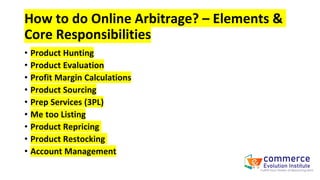
Elements & Core Responsibilities
How to do Online Arbitrage?
Overview
• What is Arbitrage? – Basics
• Online Arbitrage & Retail Arbitrage
• Scope of Online Arbitrage
• How Online Arbitrage is different from
Wholesale & Drop Shipping?
• What are gated or ungated products?
• Tools & Extensions
• Elements & Core Responsibilities
• How to do Online Arbitrage?
• Product Hunting Through Tool (Source
Mogul)
• Product Hunting Through Websites
• Product Hunting Through (Keepa &
Helium 10)
• Product Evaluation (Keepa)
• Product Profit Calculation & ROI
• Product Sourcing
• Product Sourcing Through Google
Shopping (Reverse Sourcing)
• How to Make & Maintain an Excel Sheet
for Product Details
• How to do me too a Brand listing?
• What are Prep Services? Significance
• How to Add to Cart Products & Order
Inventory?
• Shipment Creation
• Repricing
• Restocking
What is Arbitrage? – Basics
• Arbitrage means “selling bought products.”
• In Arbitrage, we buy products from other retail stores like Walmart or Target
available in “coupons/deals” and sell them on Amazon.
• Why would someone buy a product expensive on Amazon?
• Because people trust Amazon.
• Note: Brand, product, and packaging should be the same and live on Amazon.
• Why would the same brand sell the same product cheaper on another website
than Amazon?
• The deal would likely be put by the website to get customer and sales velocity
than Amazon.
• Because Amazon has competitors in each market to compete and provides
products at lower prices to grab customers with deals and coupons.
• But indirectly, competition favors the buyers and resellers like us.
• There are two types of Arbitrage business models;
1. Retail Arbitrage
2. Online Arbitrage
• Retail Arbitrage: Retail Arbitrage is the physical form of the Arbitrage
business model. When you visit any e-commerce platform’s physical
stores, look for deal products (i.e., 50% off), and scan it with the
Amazon app camera to check (the product’s availability, ungated me
too listing, average monthly sales share & profit margins). If
everything is qualified, buy the product in bulk, assign FNSKU
(fulfillment network stock keeping unit barcode) and send it to the
Amazon warehouse.
• Online Arbitrage: Online Arbitrage is the online form of the Arbitrage
business model. We find deals or coupon products on other e-
commerce platforms and check that products are either being sold on
Amazon or not. If the same product is sold, compare (prices, ungated
me-too listings, profit margins, average monthly sales share). Then
we order the eligible number of units from that website, send it to
Prep Services to paste the label (FNSKU), and deliver them to the
Amazon warehouse.
Scope of Online Arbitrage
• Online Arbitrage is buying deals and selling at full price on Amazon.
• All we need to do is to find out healthy profit-generating products
and start selling them on Amazon.
• We don’t need LLC or Reseller Certificate to start OA.
• Online Arbitrage is the safer model, and it can be converted into
Wholesale.
• Online Arbitrage is the less investment-based business model.
• You can start OA at 2000 USD.
How Online Arbitrage is different from
Wholesale & Drop Shipping?
• There are 2 types of listing scenarios:
1. Private Label: Listing made for personal/brand product launch. You
must write content like; Title, Bullet Points, Images, Description, Backend
Search Terms, Listing Video, and A+ Content.
2. Me too Listing: Brand’s private label listing that avails the other
sellers to me too (sticking with listing to sell similar brand products
for your margins) listing. During the me too listing, if Amazon says,
“apply for approval,” you must have the same brand-authorized
document to me too, but if Amazon says, “ sell this,” then you can me
too, which means this PL listing is open for all.
Let’s discuss a bit about these models to differentiate easily.
1. Wholesale: In wholesale, we buy products in bulk from the brand or their
distributor to sell on the brand’s listing simply by me too. In wholesale, the
me too listing requires a brand approval letter. However, the wholesale
model is Fulfilled By Amazon (FBA)
2. Drop shipping: In drop shipping, we find those listings open for all (me
too) and Fulfilled By Merchant (FBM) dominates. We do me too, with such
listings, and when someone orders, you receive an order with customer
information. Then, you place an order on another e-commerce platform
with that customer’s detail for shipping directly. In other words, you don’t
need to have an inventory of the products. You now order from other
websites for that customer of yours.
How Online Arbitrage is different from
Wholesale & Drop Shipping?
Online Arbitrage resembles other previously described models.
Online Arbitrage has similar functionality as ordering inventory, doing FBA like
Wholesale.
Online Arbitrage has similar me-too criteria as drop shipping. In OA, we find
those products on Amazon that are open to list for you.
We find and list those products which do not require brand approval to list
and be fulfilled by Amazon dominating.
What are gated or ungated products?
• Amazon categorized products in gated or ungated depending upon
the listing limitation of account, account health, and brand
approvals.
• Gated Products or Categories: Those products or categories which
require special certification, approval letters, and account sales
experience to list on Amazon are called gated products or categories.
• Ungated Products or Categories: Those products or categories open
to listing without any circumstances are called ungated products or
categories.
Tools & Extensions
1. Source Mogul (quick product research)
2. Tactical Arbitrage (quick product research)
3. Helium 10 Dashboard & Extension (manual product research)
4. Keepa Dashboard & Extension (manual product research, evaluation)
5. Seller Assistant Extension (quick product check)
6. Seller Sprite Extension (quick listing data)
7. IP Alert Extension (avoid IP complaints of brands)
8. The Funnel Guru Extension (check ungated or gated products to list)
9. VPN – Browsec or any free VPN (access specified country shopping option on google)
10. Paypal Honey Extension (find coupons of listings)
11. Seller Amp (Product & Store Evaluation)
12. Rakuten (Cashback Website)
How to do Online Arbitrage? – Elements &
Core Responsibilities
• Product Hunting
• Product Evaluation
• Profit Margin Calculations
• Product Sourcing
• Prep Services (3PL)
• Me too Listing
• Product Repricing
• Product Restocking
• Account Management
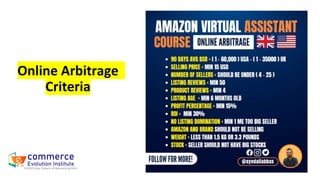
Online Arbitrage
Criteria
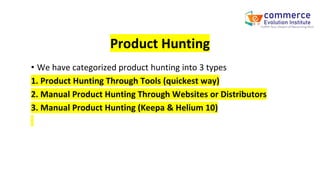
Product Hunting
• We have categorized product hunting into 3 types
1. Product Hunting Through Tools (quickest way)
2. Manual Product Hunting Through Websites or Distributors
3. Manual Product Hunting (Keepa & Helium 10)
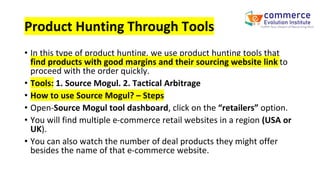
Product Hunting Through Tools
• In this type of product hunting, we use product hunting tools that
find products with good margins and their sourcing website link to
proceed with the order quickly.
• Tools: 1. Source Mogul. 2. Tactical Arbitrage
• How to use Source Mogul? – Steps
• Open-Source Mogul tool dashboard, click on the “retailers” option.
• You will find multiple e-commerce retail websites in a region (USA or
UK).
• You can also watch the number of deal products they might offer
besides the name of that e-commerce website.
• Click on any e-commerce website (i.e., Walmart) and search.
• It will take a specified amount of time to explore deals and products
on that website.
• When finished searching, you can open that list of products to check
the product’s ROI, margins, and sourcing link with retail amazon
listing link to look.
• You can also apply filters that are present in the left-hand box.
• Filters: ROI= 15 %, BSR= <60,000, no of sellers= 3 min, unqualified
buy box= no
• Then open each product on the sourcing website and amazon for
product evaluation.
• How to use Tactical Arbitrage? – Steps
• Open the Tactical Arbitrage dashboard; you’ll find different filters to
find products based on your demands.
• Use those filters like prices, BSR, and website and search for
products.
• Then it’ll take some time to search products on that given website
(i.e., Acme Tools)
• When finished searching, you can open that list of products to check
the product’s ROI, margins, and sourcing link with retail amazon
listing link to look.
• Filters: ROI= 15 %, BSR= <60,000, no of sellers= 3 min
• Then open each product on the sourcing website and amazon for
product evaluation.
Product Hunting Through Websites
• In this type of manual hunting, you can find products in deals or rollback
sections of any retailer or distributor websites.
• Then, you can determine whether that deal provides a reasonable sale
price for the product.
• If differences in prices are considered, then open that listing and copy the
title of the product.
• Open the Amazon website and paste the title of that product in the search
bar of Amazon and search.
• If you find the same branded product with the same packaging,
dimensions, sizes, and weight with a reasonable price difference to that
sourcing website, then open the Amazon listing.
• Check whether that brand enforces IP complaints or not with an “IP Alert”
extension. If IP Alert does not ping in, you proceed; otherwise, leave that
product.
• Then you will check whether you can me too or not with this listing with
the help of “The Funnel Guru” extension.
• Funnel Guru works when your seller central is logged in.
• If Funnel Guru shows green color, then you are good to me too. If it is red,
you either need brand approval to list it, or your account sales history is
not developed to list in this product or category.
• If red color, then leave this product. Otherwise, you can proceed with
Product Evaluation.
• Websites (USA): Walmart, Acme Tools, Target, Macy’s, Best Buy, Costco,
Home Depot, Sams Club, Chewy, etc.
• Deal Websites (USA): Brick Seek, Slick Deals, Overstock, Ben’s Bargain, etc.
• Websites (UK): Asos, Argos, Home Bargains, Costco, Tools Today, Lego,
etc.
Product Hunting Through (Keepa)
• Basics About Keepa: Keepa is the product hunting & evaluation tool. It can
be used to hunt products based on your criteria and determine the
product’s stats; product monthly sales, BSR, stocks, buy box rotation, etc.
• Keepa Hunting – Steps
• Open the Keepa dashboard, click on “Data,” and then find an option in the
“Premium Data Access” tab.
• In the premium products option, you will find filters where you can put
your criteria-based queries to specify results.
• When applying a filter, you’ll notice in the below-right corner that the
results would be squeezing according to criteria.
• Then, click on “find products,” and you will get results based on the
criteria.
• Then, you can evaluate products with a previous history.
• However, you can export the product sheet in XLSX.
Product Hunting Through (Helium 10)
• Basics of Helium 10: Helium 10 is a product hunting tool that is not only
used for Private Label hunting but also Wholesale, Online Arbitrage &
Dropshipping.
• Helium 10 Hunting – Steps
• Open the Helium 10 dashboard, and you will find its feature called “Black
Box.” Then click on “Product.”
• Then you will find filter boxes where you can put filters according to your
requirements, and Helium 10 will show you products of Amazon based on
your entries.
• Then open those product listings and verify stats like monthly revenue,
BSR, the total number of sales, reviews, ratings, etc., using the X-ray
extension of Helium 10.
• However, you can export the Black Box product sheet in XLSX.
Product Evaluation (Keepa)
• In product evaluation, we find the core information about the specific ASIN
or listing.
• We determine the data like BSR, stocks, buy box rotations, seller reviews,
and more.
• You can access the backend of the Product either by using Dashboard or
Extension features.
• In the dashboard, you enter the ASIN into the search bar and Keepa will
accumulate all the data into one tab.
• However, the same data can be analyzed through the Keepa extension as
well.
• Keepa extension feature can be determined below the product image in
the product listing.
Evaluation for Online Arbitrage:
• When you have checked that product is ungated, you are good to sell
it.
• Next step is to check its worth and stats.
• You locate the Keepa extension feature and evaluate the graph of the
buy box (Pink) & sales rank (Green).
• Under the “Amazon Price History” option, you can watch the graphs.
If the sales rank is between 1 – 60,000 average in 90 days, then you
check the pink curves of the buy box to understand the price changes
in the past 90 days plus; you can also see the competitive prices due
to pink curve fluctuations.
• Then, Under the “Data” option, you will find the “product details” option
where you can study the basic information like title, brand, weight ratings,
sales ranks, prices & Amazon stock, etc.
• However, we check that Amazon should be 100% out of stock in the last 90
days.
• Then, you can click on “offers“ to analyze the number of me-too sellers
with their available stock, overall sales, last month’s sales, price, positive
ratings, and more.
• Here, you will calculate the average sales each person can grab by dividing
the 30 days’ total sales by several sellers.
• Also, you can see whether either me too sellers are new or old depending
on their ratings and reviews.
• Thumb rule, if there are sellers with thousands of reviews then leave that
product.
• In the “buy box statistics” option, you can determine the buy box share
percentage. If buy box rotation is equal aur considerable then proceed.
Product Profit Calculation & ROI
• After Product Evaluation, the next step is Profit Calculations.
• When you find an ungated product with a good number of monthly estimated
shares.
• Then, you can calculate profit margins and ROI (return on investment).
• How?
• We copy the ASIN of the product from Amazon and paste it into the “FBA
Revenue Calculator.” Then, you can find out all the fees of Amazon (FBA,
referral & category).
• Then, add the overall sourcing price (product price, state tax & prep fees) in the
“cost of the product” box.
• Then, you will see the profits in dollars and percentages down the box.
• Then, you can calculate the ROI of the product.
• Formula: ROI = Profit in USD/Cost of the product
Product Sourcing
• Product sourcing is the element dedicated to negotiating, finalizing,
and ordering inventory.
• There are 2 types of OA sourcing:
1. Directly with Tools
2. Reverse Sourcing
1. Directly with Tools: Using tools like “source mogul or tactical
arbitrage.” These tools directly provide sourcing links to the products
without any hustle.
Product Sourcing Through Google Shopping
(Reverse Sourcing)
• Reverse sourcing is the process in which we manually find the
products on google or websites that have been evaluated on Amazon
just to order inventory.
• Why?
• Because tools like “Keepa & Helium 10” provide the products
according to our input criteria but those products are of Amazon.
• So, for healthy profit margin sourcing, you must look for cheap
sourcing, and here comes the google reverse sourcing.
Product Sourcing Through Google Shopping
(Reverse Sourcing)
• Pre-requisites of Google Reverse Sourcing:
• Google search settings should be according to the region of your
required market.
• VPN connection according to the region of your required market.
• Google Reverse Sourcing
• There are 2 methods:
• Search By Title
• Search By Image
• Search By Title:
• In this method, you copy the product listing title and search for it on
the google search bar.
• You will find multiple relevant products with the title keywords.
• Then, click on the “shopping” option to look for multiple prices and
design ranges of similar products.
• Then search for a similar product you want to me too on Amazon
with a similar brand, packaging, size, and weight.
• But its price must be lower than the Amazon similar product.
• Then, go into the sourcing website and proceed with profit
calculation and ordering inventory to the Prep.
• Search By Image:
• In this method, you open the product listing of your hunted product.
• Then, you click on the product’s image and then right-click on the
image.
• Drop down will open, then click on the “ view image with google
lens.”
• Then, a box will appear and search for products on Google to the
product’s image to find similar products.
• Then search for a similar product you want to me too on Amazon
with a similar brand, packaging, size, and weight.
• But its price must be lower than the Amazon similar product.
• Then, go into the sourcing website and proceed with profit
calculation and ordering inventory to the Prep.
How to Make & Maintain an Excel Sheet for
Product Details
• Search “Google Sheet” in the google search bar.
• Click on the link, and you will be directed to the google sheets.
• Then, click on the big plus icon and create a new sheet.
• Name sheet-like “Arbitrage Product Leads.”
• Create the columns; Amazon Product Link/ASIN, Sourcing Link,
Sourcing Price, State Tax, Selling Price, Prep Cost, Profit, ROI.
• Input all the relevant data into this sheet to make product data
collection. You can also share such sheets through emails.
• However, Google sheets are automatically saved but require
internet.
How to do me too a Brand listing?
• Me too listing is like sticking with the brand product listing and taking the
juice out of it whenever you get a buy box opportunity to sell.
• Me too is the type of Amazon listing in which you get approval to sell on a
brand’s listing.
• We add any existing brand “ASIN” in “Add Product” on Amazon then it
redirects to another page.
• Where you find 2 types of options before me too:
• “Sell this” or “Apply for Approval.”
• If there is a “sell this” option, you can list without permission of a
particular brand. But if you find the “Apply for Approval” option, you need
to submit an approval letter from the brand to list on Amazon.
• For Online Arbitrage, you only look for those products that do not
require any approval to list.
What are Prep Services? Significance
• Prep service or 3PL (3rd party logistic) companies provide Label Pasting
(FNSKU barcode) services, Re-bundling of products, Package
Replacements, and more.
• Even a few 3PLs provide 3rd party warehouses to store and FBM delivery
of the products to your customers.
• You can find 3PL companies around the region with the help of Google.
• You can ask for quotations based on your required services.
• They can directly ship your inventory to Amazon after successful prep
services.
• Note: We locate Prep companies in tax-free states of the US.
• You can paste FNSKU if you are a resident of that country while shipping
inventory at your place.
How to Add to Cart Products & Order
Inventory?
• When you confirm the profits and ROIs of the product, the next step
is to order inventory to ship it to Prep for the FNSKU label to be
pasted on your product and box label on the master carton.
• Add products to the cart and proceed with payments.
• You will put the address of your Prep services.
Shipment Creation & Process
• When we order inventory, we need to provide the address of our
Amazon warehouse and tell amazon about our upcoming inventory.
• We create shipment plans, in which we tell amazon about the
number of units to be shipped and dates of shipment, download
FNSKUs, download box labels, get warehouse addresses, provide
tracking details, and more.
• When we submit this plan against our product listing, Amazon will
store our boxes based on barcodes (FNSKU) when receiving
inventory
• Shipment Plan Creation – Steps:
• Login to your seller central account, then click on the “Manage Inventory”
option.
• Then, select the listing whose inventory is incoming.
• Click on the “action” button and then click on the “send/replenish
inventory” option in the drop-down.
• Then provide information on the number of pieces and boxes shipped to
Amazon and download FNSKUs equal to the number of products. This
barcode pdf file will be sent to the Prep company.
• Provide the number of cartons, dimensions, and gross weight.
• You will also provide the address of the Prep or the supplier from where
your inventory is incoming.
• Then, click on submit.
• You will be directed to the “Pack Individual Units or Multi-box” section.
• Here, you will be asked whether your inventory is in a single carton or
units are arranged in multiple boxes.
• When you select any choices, you will be asked to add the dimensions of
the master carton and gross weight.
• Then, you will click on submit.
• You will be directed to the “Confirm Shipping” section.
• Here, you will be asked to put the “Ship Date” of your inventory.
• Then, you can see the Amazon warehouse address where you need to ship
your inventory from the supplier or Prep.
• Hand over that address to your Prep or Supplier.
• Also, select “SPD” for small dimensions-based products or “LTL” for
multiple heavy cartons.
• You must also tell Amazon which freight you will hire to send the
inventory. Either UPS (Amazon services) or any third party.
• Then, click on submit.
• You will be directed to the “Print Box Label” section.
• Here, you will be asked about how many boxes and download box
labels would be sent to the Prep or supplier so that he print and
paste those labels outside the master carton.
• Then submit.
• You will be directed to the next “Tracking Detail” section.
• Where you will provide tracking details if using third-party freights.
• Then, submit and done!
Repricing & Restocking
• Repricing is the term that defines “change of price of the listing
product”.
• Why do need to do it?
• We won’t be the only ones who is me too listed, our competitor
might lower the price more than us and win the buy box.
• For success buy box, our price should be less than other competitors.
• Restocking is refilling the inventory.
THANK YOU SO MUCH!
Any Questions

Amazon Online Arbirage.pptx

  • 1.
  • 2.
    Overview What is Arbitrage?– Basics Online Arbitrage Retail Arbitrage Scope of Online Arbitrage How Online Arbitrage is different from Wholesale & Drop Shipping? What are gated or ungated products? Tools & Extensions Elements & Core Responsibilities How to do Online Arbitrage?
  • 3.
    Overview • What isArbitrage? – Basics • Online Arbitrage & Retail Arbitrage • Scope of Online Arbitrage • How Online Arbitrage is different from Wholesale & Drop Shipping? • What are gated or ungated products? • Tools & Extensions • Elements & Core Responsibilities • How to do Online Arbitrage? • Product Hunting Through Tool (Source Mogul) • Product Hunting Through Websites • Product Hunting Through (Keepa & Helium 10) • Product Evaluation (Keepa) • Product Profit Calculation & ROI • Product Sourcing • Product Sourcing Through Google Shopping (Reverse Sourcing) • How to Make & Maintain an Excel Sheet for Product Details • How to do me too a Brand listing? • What are Prep Services? Significance • How to Add to Cart Products & Order Inventory? • Shipment Creation • Repricing • Restocking
  • 4.
    What is Arbitrage?– Basics • Arbitrage means “selling bought products.” • In Arbitrage, we buy products from other retail stores like Walmart or Target available in “coupons/deals” and sell them on Amazon. • Why would someone buy a product expensive on Amazon? • Because people trust Amazon. • Note: Brand, product, and packaging should be the same and live on Amazon. • Why would the same brand sell the same product cheaper on another website than Amazon? • The deal would likely be put by the website to get customer and sales velocity than Amazon. • Because Amazon has competitors in each market to compete and provides products at lower prices to grab customers with deals and coupons. • But indirectly, competition favors the buyers and resellers like us.
  • 5.
    • There aretwo types of Arbitrage business models; 1. Retail Arbitrage 2. Online Arbitrage • Retail Arbitrage: Retail Arbitrage is the physical form of the Arbitrage business model. When you visit any e-commerce platform’s physical stores, look for deal products (i.e., 50% off), and scan it with the Amazon app camera to check (the product’s availability, ungated me too listing, average monthly sales share & profit margins). If everything is qualified, buy the product in bulk, assign FNSKU (fulfillment network stock keeping unit barcode) and send it to the Amazon warehouse.
  • 6.
    • Online Arbitrage:Online Arbitrage is the online form of the Arbitrage business model. We find deals or coupon products on other e- commerce platforms and check that products are either being sold on Amazon or not. If the same product is sold, compare (prices, ungated me-too listings, profit margins, average monthly sales share). Then we order the eligible number of units from that website, send it to Prep Services to paste the label (FNSKU), and deliver them to the Amazon warehouse.
  • 7.
    Scope of OnlineArbitrage • Online Arbitrage is buying deals and selling at full price on Amazon. • All we need to do is to find out healthy profit-generating products and start selling them on Amazon. • We don’t need LLC or Reseller Certificate to start OA. • Online Arbitrage is the safer model, and it can be converted into Wholesale. • Online Arbitrage is the less investment-based business model. • You can start OA at 2000 USD.
  • 8.
    How Online Arbitrageis different from Wholesale & Drop Shipping? • There are 2 types of listing scenarios: 1. Private Label: Listing made for personal/brand product launch. You must write content like; Title, Bullet Points, Images, Description, Backend Search Terms, Listing Video, and A+ Content. 2. Me too Listing: Brand’s private label listing that avails the other sellers to me too (sticking with listing to sell similar brand products for your margins) listing. During the me too listing, if Amazon says, “apply for approval,” you must have the same brand-authorized document to me too, but if Amazon says, “ sell this,” then you can me too, which means this PL listing is open for all.
  • 9.
    Let’s discuss abit about these models to differentiate easily. 1. Wholesale: In wholesale, we buy products in bulk from the brand or their distributor to sell on the brand’s listing simply by me too. In wholesale, the me too listing requires a brand approval letter. However, the wholesale model is Fulfilled By Amazon (FBA) 2. Drop shipping: In drop shipping, we find those listings open for all (me too) and Fulfilled By Merchant (FBM) dominates. We do me too, with such listings, and when someone orders, you receive an order with customer information. Then, you place an order on another e-commerce platform with that customer’s detail for shipping directly. In other words, you don’t need to have an inventory of the products. You now order from other websites for that customer of yours. How Online Arbitrage is different from Wholesale & Drop Shipping?
  • 10.
    Online Arbitrage resemblesother previously described models. Online Arbitrage has similar functionality as ordering inventory, doing FBA like Wholesale. Online Arbitrage has similar me-too criteria as drop shipping. In OA, we find those products on Amazon that are open to list for you. We find and list those products which do not require brand approval to list and be fulfilled by Amazon dominating.
  • 11.
    What are gatedor ungated products? • Amazon categorized products in gated or ungated depending upon the listing limitation of account, account health, and brand approvals. • Gated Products or Categories: Those products or categories which require special certification, approval letters, and account sales experience to list on Amazon are called gated products or categories. • Ungated Products or Categories: Those products or categories open to listing without any circumstances are called ungated products or categories.
  • 12.
    Tools & Extensions 1.Source Mogul (quick product research) 2. Tactical Arbitrage (quick product research) 3. Helium 10 Dashboard & Extension (manual product research) 4. Keepa Dashboard & Extension (manual product research, evaluation) 5. Seller Assistant Extension (quick product check) 6. Seller Sprite Extension (quick listing data) 7. IP Alert Extension (avoid IP complaints of brands) 8. The Funnel Guru Extension (check ungated or gated products to list) 9. VPN – Browsec or any free VPN (access specified country shopping option on google) 10. Paypal Honey Extension (find coupons of listings) 11. Seller Amp (Product & Store Evaluation) 12. Rakuten (Cashback Website)
  • 13.
    How to doOnline Arbitrage? – Elements & Core Responsibilities • Product Hunting • Product Evaluation • Profit Margin Calculations • Product Sourcing • Prep Services (3PL) • Me too Listing • Product Repricing • Product Restocking • Account Management
  • 14.
  • 15.
    Product Hunting • Wehave categorized product hunting into 3 types 1. Product Hunting Through Tools (quickest way) 2. Manual Product Hunting Through Websites or Distributors 3. Manual Product Hunting (Keepa & Helium 10)
  • 16.
    Product Hunting ThroughTools • In this type of product hunting, we use product hunting tools that find products with good margins and their sourcing website link to proceed with the order quickly. • Tools: 1. Source Mogul. 2. Tactical Arbitrage • How to use Source Mogul? – Steps • Open-Source Mogul tool dashboard, click on the “retailers” option. • You will find multiple e-commerce retail websites in a region (USA or UK). • You can also watch the number of deal products they might offer besides the name of that e-commerce website.
  • 17.
    • Click onany e-commerce website (i.e., Walmart) and search. • It will take a specified amount of time to explore deals and products on that website. • When finished searching, you can open that list of products to check the product’s ROI, margins, and sourcing link with retail amazon listing link to look. • You can also apply filters that are present in the left-hand box. • Filters: ROI= 15 %, BSR= <60,000, no of sellers= 3 min, unqualified buy box= no • Then open each product on the sourcing website and amazon for product evaluation.
  • 18.
    • How touse Tactical Arbitrage? – Steps • Open the Tactical Arbitrage dashboard; you’ll find different filters to find products based on your demands. • Use those filters like prices, BSR, and website and search for products. • Then it’ll take some time to search products on that given website (i.e., Acme Tools) • When finished searching, you can open that list of products to check the product’s ROI, margins, and sourcing link with retail amazon listing link to look. • Filters: ROI= 15 %, BSR= <60,000, no of sellers= 3 min • Then open each product on the sourcing website and amazon for product evaluation.
  • 19.
    Product Hunting ThroughWebsites • In this type of manual hunting, you can find products in deals or rollback sections of any retailer or distributor websites. • Then, you can determine whether that deal provides a reasonable sale price for the product. • If differences in prices are considered, then open that listing and copy the title of the product. • Open the Amazon website and paste the title of that product in the search bar of Amazon and search. • If you find the same branded product with the same packaging, dimensions, sizes, and weight with a reasonable price difference to that sourcing website, then open the Amazon listing.
  • 20.
    • Check whetherthat brand enforces IP complaints or not with an “IP Alert” extension. If IP Alert does not ping in, you proceed; otherwise, leave that product. • Then you will check whether you can me too or not with this listing with the help of “The Funnel Guru” extension. • Funnel Guru works when your seller central is logged in. • If Funnel Guru shows green color, then you are good to me too. If it is red, you either need brand approval to list it, or your account sales history is not developed to list in this product or category. • If red color, then leave this product. Otherwise, you can proceed with Product Evaluation. • Websites (USA): Walmart, Acme Tools, Target, Macy’s, Best Buy, Costco, Home Depot, Sams Club, Chewy, etc. • Deal Websites (USA): Brick Seek, Slick Deals, Overstock, Ben’s Bargain, etc. • Websites (UK): Asos, Argos, Home Bargains, Costco, Tools Today, Lego, etc.
  • 21.
    Product Hunting Through(Keepa) • Basics About Keepa: Keepa is the product hunting & evaluation tool. It can be used to hunt products based on your criteria and determine the product’s stats; product monthly sales, BSR, stocks, buy box rotation, etc. • Keepa Hunting – Steps • Open the Keepa dashboard, click on “Data,” and then find an option in the “Premium Data Access” tab. • In the premium products option, you will find filters where you can put your criteria-based queries to specify results. • When applying a filter, you’ll notice in the below-right corner that the results would be squeezing according to criteria. • Then, click on “find products,” and you will get results based on the criteria. • Then, you can evaluate products with a previous history. • However, you can export the product sheet in XLSX.
  • 22.
    Product Hunting Through(Helium 10) • Basics of Helium 10: Helium 10 is a product hunting tool that is not only used for Private Label hunting but also Wholesale, Online Arbitrage & Dropshipping. • Helium 10 Hunting – Steps • Open the Helium 10 dashboard, and you will find its feature called “Black Box.” Then click on “Product.” • Then you will find filter boxes where you can put filters according to your requirements, and Helium 10 will show you products of Amazon based on your entries. • Then open those product listings and verify stats like monthly revenue, BSR, the total number of sales, reviews, ratings, etc., using the X-ray extension of Helium 10. • However, you can export the Black Box product sheet in XLSX.
  • 23.
    Product Evaluation (Keepa) •In product evaluation, we find the core information about the specific ASIN or listing. • We determine the data like BSR, stocks, buy box rotations, seller reviews, and more. • You can access the backend of the Product either by using Dashboard or Extension features. • In the dashboard, you enter the ASIN into the search bar and Keepa will accumulate all the data into one tab. • However, the same data can be analyzed through the Keepa extension as well. • Keepa extension feature can be determined below the product image in the product listing.
  • 24.
    Evaluation for OnlineArbitrage: • When you have checked that product is ungated, you are good to sell it. • Next step is to check its worth and stats. • You locate the Keepa extension feature and evaluate the graph of the buy box (Pink) & sales rank (Green). • Under the “Amazon Price History” option, you can watch the graphs. If the sales rank is between 1 – 60,000 average in 90 days, then you check the pink curves of the buy box to understand the price changes in the past 90 days plus; you can also see the competitive prices due to pink curve fluctuations.
  • 25.
    • Then, Underthe “Data” option, you will find the “product details” option where you can study the basic information like title, brand, weight ratings, sales ranks, prices & Amazon stock, etc. • However, we check that Amazon should be 100% out of stock in the last 90 days. • Then, you can click on “offers“ to analyze the number of me-too sellers with their available stock, overall sales, last month’s sales, price, positive ratings, and more. • Here, you will calculate the average sales each person can grab by dividing the 30 days’ total sales by several sellers. • Also, you can see whether either me too sellers are new or old depending on their ratings and reviews. • Thumb rule, if there are sellers with thousands of reviews then leave that product. • In the “buy box statistics” option, you can determine the buy box share percentage. If buy box rotation is equal aur considerable then proceed.
  • 26.
    Product Profit Calculation& ROI • After Product Evaluation, the next step is Profit Calculations. • When you find an ungated product with a good number of monthly estimated shares. • Then, you can calculate profit margins and ROI (return on investment). • How? • We copy the ASIN of the product from Amazon and paste it into the “FBA Revenue Calculator.” Then, you can find out all the fees of Amazon (FBA, referral & category). • Then, add the overall sourcing price (product price, state tax & prep fees) in the “cost of the product” box. • Then, you will see the profits in dollars and percentages down the box. • Then, you can calculate the ROI of the product. • Formula: ROI = Profit in USD/Cost of the product
  • 27.
    Product Sourcing • Productsourcing is the element dedicated to negotiating, finalizing, and ordering inventory. • There are 2 types of OA sourcing: 1. Directly with Tools 2. Reverse Sourcing 1. Directly with Tools: Using tools like “source mogul or tactical arbitrage.” These tools directly provide sourcing links to the products without any hustle.
  • 28.
    Product Sourcing ThroughGoogle Shopping (Reverse Sourcing) • Reverse sourcing is the process in which we manually find the products on google or websites that have been evaluated on Amazon just to order inventory. • Why? • Because tools like “Keepa & Helium 10” provide the products according to our input criteria but those products are of Amazon. • So, for healthy profit margin sourcing, you must look for cheap sourcing, and here comes the google reverse sourcing.
  • 29.
    Product Sourcing ThroughGoogle Shopping (Reverse Sourcing) • Pre-requisites of Google Reverse Sourcing: • Google search settings should be according to the region of your required market. • VPN connection according to the region of your required market. • Google Reverse Sourcing • There are 2 methods: • Search By Title • Search By Image
  • 30.
    • Search ByTitle: • In this method, you copy the product listing title and search for it on the google search bar. • You will find multiple relevant products with the title keywords. • Then, click on the “shopping” option to look for multiple prices and design ranges of similar products. • Then search for a similar product you want to me too on Amazon with a similar brand, packaging, size, and weight. • But its price must be lower than the Amazon similar product. • Then, go into the sourcing website and proceed with profit calculation and ordering inventory to the Prep.
  • 31.
    • Search ByImage: • In this method, you open the product listing of your hunted product. • Then, you click on the product’s image and then right-click on the image. • Drop down will open, then click on the “ view image with google lens.” • Then, a box will appear and search for products on Google to the product’s image to find similar products. • Then search for a similar product you want to me too on Amazon with a similar brand, packaging, size, and weight. • But its price must be lower than the Amazon similar product. • Then, go into the sourcing website and proceed with profit calculation and ordering inventory to the Prep.
  • 32.
    How to Make& Maintain an Excel Sheet for Product Details • Search “Google Sheet” in the google search bar. • Click on the link, and you will be directed to the google sheets. • Then, click on the big plus icon and create a new sheet. • Name sheet-like “Arbitrage Product Leads.” • Create the columns; Amazon Product Link/ASIN, Sourcing Link, Sourcing Price, State Tax, Selling Price, Prep Cost, Profit, ROI. • Input all the relevant data into this sheet to make product data collection. You can also share such sheets through emails. • However, Google sheets are automatically saved but require internet.
  • 33.
    How to dome too a Brand listing? • Me too listing is like sticking with the brand product listing and taking the juice out of it whenever you get a buy box opportunity to sell. • Me too is the type of Amazon listing in which you get approval to sell on a brand’s listing. • We add any existing brand “ASIN” in “Add Product” on Amazon then it redirects to another page. • Where you find 2 types of options before me too: • “Sell this” or “Apply for Approval.” • If there is a “sell this” option, you can list without permission of a particular brand. But if you find the “Apply for Approval” option, you need to submit an approval letter from the brand to list on Amazon. • For Online Arbitrage, you only look for those products that do not require any approval to list.
  • 34.
    What are PrepServices? Significance • Prep service or 3PL (3rd party logistic) companies provide Label Pasting (FNSKU barcode) services, Re-bundling of products, Package Replacements, and more. • Even a few 3PLs provide 3rd party warehouses to store and FBM delivery of the products to your customers. • You can find 3PL companies around the region with the help of Google. • You can ask for quotations based on your required services. • They can directly ship your inventory to Amazon after successful prep services. • Note: We locate Prep companies in tax-free states of the US. • You can paste FNSKU if you are a resident of that country while shipping inventory at your place.
  • 35.
    How to Addto Cart Products & Order Inventory? • When you confirm the profits and ROIs of the product, the next step is to order inventory to ship it to Prep for the FNSKU label to be pasted on your product and box label on the master carton. • Add products to the cart and proceed with payments. • You will put the address of your Prep services.
  • 36.
    Shipment Creation &Process • When we order inventory, we need to provide the address of our Amazon warehouse and tell amazon about our upcoming inventory. • We create shipment plans, in which we tell amazon about the number of units to be shipped and dates of shipment, download FNSKUs, download box labels, get warehouse addresses, provide tracking details, and more. • When we submit this plan against our product listing, Amazon will store our boxes based on barcodes (FNSKU) when receiving inventory
  • 37.
    • Shipment PlanCreation – Steps: • Login to your seller central account, then click on the “Manage Inventory” option. • Then, select the listing whose inventory is incoming. • Click on the “action” button and then click on the “send/replenish inventory” option in the drop-down. • Then provide information on the number of pieces and boxes shipped to Amazon and download FNSKUs equal to the number of products. This barcode pdf file will be sent to the Prep company. • Provide the number of cartons, dimensions, and gross weight. • You will also provide the address of the Prep or the supplier from where your inventory is incoming. • Then, click on submit. • You will be directed to the “Pack Individual Units or Multi-box” section.
  • 38.
    • Here, youwill be asked whether your inventory is in a single carton or units are arranged in multiple boxes. • When you select any choices, you will be asked to add the dimensions of the master carton and gross weight. • Then, you will click on submit. • You will be directed to the “Confirm Shipping” section. • Here, you will be asked to put the “Ship Date” of your inventory. • Then, you can see the Amazon warehouse address where you need to ship your inventory from the supplier or Prep. • Hand over that address to your Prep or Supplier. • Also, select “SPD” for small dimensions-based products or “LTL” for multiple heavy cartons. • You must also tell Amazon which freight you will hire to send the inventory. Either UPS (Amazon services) or any third party. • Then, click on submit.
  • 39.
    • You willbe directed to the “Print Box Label” section. • Here, you will be asked about how many boxes and download box labels would be sent to the Prep or supplier so that he print and paste those labels outside the master carton. • Then submit. • You will be directed to the next “Tracking Detail” section. • Where you will provide tracking details if using third-party freights. • Then, submit and done!
  • 40.
    Repricing & Restocking •Repricing is the term that defines “change of price of the listing product”. • Why do need to do it? • We won’t be the only ones who is me too listed, our competitor might lower the price more than us and win the buy box. • For success buy box, our price should be less than other competitors. • Restocking is refilling the inventory.
  • 41.
    THANK YOU SOMUCH! Any Questions