
Alarm Handler User's Guide
ALH 1.2.33
May 2013
Janet Anderson
Copyright (c) 2007 UChicago Argonne, LLC
as Operator of Argonne National Laboratory.
Copyright (c) 2002 Deutches Elektronen−Synchrotron
in der Helmholtz−Gemelnschaft (DESY).
Copyright (c) 2002 Berliner Speicherring−Gesellschaft
fuer Synchrotron−Strahlung mbH (BESSY).
Table of Contents
Chapter 1: Preface..............................................................................................................................................1
Purpose of Document...............................................................................................................................1
Audience..................................................................................................................................................1
Background/Environment........................................................................................................................1
EPICS Control System Perspective.........................................................................................................1
Alarm Fields............................................................................................................................................1
Document Organization...........................................................................................................................2
Chapter 2: Introduction....................................................................................................................................3
What is the Alarm Handler?....................................................................................................................3
Definition...........................................................................................................................................3
Availability........................................................................................................................................3
Purpose of the Alarm Handler.................................................................................................................3
System Requirements..............................................................................................................................3
Alarm Handler Terminology....................................................................................................................3
Alarm.................................................................................................................................................3
Alarm Severity..................................................................................................................................4
Alarm Status......................................................................................................................................4
Alarm Channels.................................................................................................................................4
Alarm Groups....................................................................................................................................4
Error State..........................................................................................................................................4
Local / Global Mode..........................................................................................................................4
Passive / Active State........................................................................................................................4
Alarm Acknowledgment...................................................................................................................5
Alarm Handler Windows.........................................................................................................................5
Runtime Window..............................................................................................................................5
Main Window....................................................................................................................................5
Alarm Handler Files.................................................................................................................................5
Alarm Configuration File..................................................................................................................6
Alarm Log File..................................................................................................................................6
Operation Modification Log File......................................................................................................6
Chapter 3: Starting ALH...................................................................................................................................7
Path Requirements...................................................................................................................................7
Environment Variables............................................................................................................................7
ALARMHANDLER.........................................................................................................................7
ALHMAINFONT..............................................................................................................................7
Command Line Syntax............................................................................................................................7
Default Settings........................................................................................................................................8
Command Line Option Descriptions.......................................................................................................9
Alarm Configuration File..................................................................................................................9
Alarm Log File..................................................................................................................................9
Log alarms into CMLOG system......................................................................................................9
Message Broadcast System...............................................................................................................9
Write Configuration File ACKT Settings on Startup........................................................................9
Disable Writing.................................................................................................................................9
Debug output.....................................................................................................................................9
Description field................................................................................................................................9
Alarm Handler User's Guide
i
Table of Contents
Chapter 3: Starting ALH
Directory for All Files.....................................................................................................................10
Set Alarm Display Filter..................................................................................................................10
Global Mode....................................................................................................................................10
Help.................................................................................................................................................10
Locking System...............................................................................................................................10
Locking File....................................................................................................................................10
Directory for Log Files....................................................................................................................10
Maximum Alarm Log Records........................................................................................................10
Start with Main Window.................................................................................................................11
Colored Masks.................................................................................................................................11
Do not use Popup Boxes for Displaying Errors..............................................................................11
Database..........................................................................................................................................11
OpMod Log File..............................................................................................................................11
Log Operator Modifications into CMLOG system.........................................................................11
TCP Printing....................................................................................................................................11
Wave File Sound.............................................................................................................................11
Silent Mode.....................................................................................................................................11
Passive Mode...................................................................................................................................12
AlarmLogDated...............................................................................................................................12
Print Version....................................................................................................................................12
XML−ish Log Files.........................................................................................................................12
Xoptions..........................................................................................................................................12
Configuration File Selection Window...................................................................................................12
Runtime Window...................................................................................................................................13
Exiting the Alarm Handler..............................................................................................................14
Displaying the Main Window.........................................................................................................14
Chapter 4: Main Window................................................................................................................................17
Main Window Description.....................................................................................................................17
Menu Bar.........................................................................................................................................17
Alarm Configuration Tree Structure Display..................................................................................17
Alarm Group Contents Display.......................................................................................................18
Message Area..................................................................................................................................18
Group Summary Line............................................................................................................................19
Acknowledgment Button.................................................................................................................19
Single Character Severity Code......................................................................................................19
Group Name Selection Button........................................................................................................19
Current Mask Summary..................................................................................................................20
Alarm Severity Summary Counts....................................................................................................20
Alarm Channel Status Line....................................................................................................................20
Acknowledgment Button.................................................................................................................20
Severity Code..................................................................................................................................21
Channel Name Button.....................................................................................................................21
Current Mask...................................................................................................................................21
Alarm Status and Severity...............................................................................................................21
Alarm Handler User's Guide
ii
Table of Contents
Chapter 5: Menu Functions.............................................................................................................................23
Main Window Menu Bar.......................................................................................................................23
File Menu Commands............................................................................................................................23
Open................................................................................................................................................23
Save As............................................................................................................................................24
Close................................................................................................................................................24
Action Menu Commands.......................................................................................................................24
Acknowledge Alarm........................................................................................................................25
Display Guidance............................................................................................................................25
Start Related Process.......................................................................................................................26
Force Process Variable....................................................................................................................26
Force Mask......................................................................................................................................26
Modify Mask Settings.....................................................................................................................27
Beep Severity..................................................................................................................................28
NoAck for One Hour.......................................................................................................................28
Message Broadcasting.....................................................................................................................28
View Menu Commands.........................................................................................................................29
Expand One Level...........................................................................................................................29
Expand Branch................................................................................................................................30
Expand All.......................................................................................................................................30
Collapse Branch..............................................................................................................................30
Current Alarm History Window......................................................................................................30
Configuration File...........................................................................................................................30
Start CMLOG Log Browser............................................................................................................31
Alarm Log File Window.................................................................................................................31
Browser for Alarm Log...................................................................................................................32
Operation Log File Window............................................................................................................32
Browser for Operation Log.............................................................................................................33
Group/Channel Properties Window................................................................................................33
Setup Menu............................................................................................................................................34
Display Filter...................................................................................................................................35
ALH Beep Severity.........................................................................................................................35
Silence Time Interval......................................................................................................................35
Silence Forever................................................................................................................................36
New Alarm Log File........................................................................................................................36
New Operation Modification Log File............................................................................................36
Help Menu.............................................................................................................................................36
Chapter 6: Alarm Configuration File............................................................................................................37
Configuration File Description..............................................................................................................37
File Name...............................................................................................................................................37
Input Format..........................................................................................................................................37
Heartbeat Process Variable.............................................................................................................38
Group or Channel............................................................................................................................38
Include File......................................................................................................................................38
Acknowledge Process Variable.......................................................................................................38
Force Process Variable....................................................................................................................39
Severity Process Variable................................................................................................................39
Alarm Handler User's Guide
iii
Table of Contents
Chapter 6: Alarm Configuration File
Guidance..........................................................................................................................................40
Alias.................................................................................................................................................40
Related Commands..........................................................................................................................40
Severity Command..........................................................................................................................41
Status Command..............................................................................................................................41
Alarm Count Filter..........................................................................................................................41
Beep Severity..................................................................................................................................41
Sample Configuration File.....................................................................................................................42
Alarm Channel Mask.............................................................................................................................43
Add/Cancel Alarm...........................................................................................................................43
Enable/Disable Alarm.....................................................................................................................43
Ack/NoAck......................................................................................................................................43
Ack/NoAck Transient Alarms.........................................................................................................43
Log/No Log Alarms........................................................................................................................43
Alarm Handler User's Guide
iv
Chapter 1: Preface
Purpose of Document
This document presents a description of the functions provided by the Alarm Handler (ALH) and describes its
graphical user interface. The purpose of this guide is to explain how to use and configure the Alarm Handler.
Audience
This guide is written for individuals who wish to use and understand the Alarm Handler, namely accelerator
operators and accelerator physicists.
Background/Environment
The Alarm Handler is part of the Experimental Physics and Industrial Control System EPICS) co−developed
by Los Alamos National Laboratory and Argonne National Laboratory. EPICS consists of a set of software
components and tools with which application developers and designers can create an extremely flexible
control system that minimizes the need for custom coding and helps ensure uniform operator interfaces. The
Alarm Handler is one of the EPICS control system tools.
EPICS Control System Perspective
The Alarm Handler provides an interface between an operator and the EPICS control system database. The
database is the interface between instrumentation hardware and all the EPICS control system software tools.
This database is distributed throughout a network on I/O Controllers and contains records that are used to
transfer information to and from the attached instrumentation to the Alarm Handler and other EPICS software
tools.
Database records are made up of fields of various types. Scan fields specify under what circumstances a
record will be processed. Convert fields determine how to convert a raw signal to/from engineering units.
Device fields are used to specify the software interface to the device. Operator display fields specify how to
display the record value. Processing fields are used by the run−time code for processing the record. There are
also alarm fields that are used to specify conditions for alarm and to determine if the record is in an alarm
state. Most fields are accessible throughout the network by means of the channel access interface software
layer by specifying the record name and the field name. All monitoring and control operations are performed
through the database.
Alarm Fields
Each record in the database includes fields for specifying the record's current alarm condition. There are two
parts to this alarm condition: the alarm status and the severity of that alarm status. Alarm status and severity
values are set and checked whenever a record is processed. When a new condition is detected, a routine is
called to send a message to each process monitoring this record. The Alarm Handler is one of these processes.
Each database record also includes two fields for specifying the record's current alarm acknowledgment state.
The unacknowledged severity field is the highest severity value of unacknowledged alarms, and the
acknowledge transients field specifies whether transient alarms need to be acknowledged. A transient alarm is
when the record enters alarm state and then returns to normal before the alarm is acknowledged. When any
Chapter 1: Preface 1
change to these fields is detected, a routine is called to send a message to each process monitoring this record.
The Alarm Handler filters alarm messages and displays alarms to the operator hierarchically. The alarm
configuration structure defined in the alarm configuration file is used to determine this hierarchical display.
The Alarm Handler brings alarms to the operator's attention, logs the alarms, allows the operator to
acknowledge alarms, and gives the operator guidance on handling of specific alarms.
Document Organization
Chapter 1 is this Preface describing the users guide. Chapter 2 is an Introduction to the Alarm Handler and
describes the scope of the tool and explains some Alarm Handler terminology. Chapter 3 explains how to
invoke the Alarm Handler and describes the command line options. The Main Window is explained in
Chapter 4 and Chapter 5 contains a description all Main Window menu functions. The content of an alarm
configuration file is described in Chapter 6. An index of terms is available at the end of the document. Using
the alarm configuration mode will be explained in Chapter 7 of a future version of this document.
Alarm Handler User's Guide
2 Chapter 1: Preface
Chapter 2: Introduction
What is the Alarm Handler?
Definition
The Alarm Handler is an interactive graphical application used primarily by accelerator operators and
physicists to display and monitor EPICS database alarm states. It serves as an interface between an operator
and the EPICS database and it communicates with the database using channel access function calls. The user
interface for the Alarm Handler contains a hierarchical display of an alarm configuration structure allowing
both high level and detailed views of the alarm configuration structure in one window.
Availability
The alarm handler is a Motif and X11 Window based application written in C language, and it runs on Unix,
Linux, and Windows 98/XP/.../8 hosts. The Alarm Handler source code is available via WWW as an EPICS
extension.
Purpose of the Alarm Handler
The Alarm Handler monitors alarm conditions of EPICS database records. The primary responsibilities of the
Alarm Handler (ALH) are to:
Bring alarms to the operator's attention.•
Provide the operator guidance for handling of specific alarms•
Allow the operator to globally acknowledge alarms.•
Provide a graphical view of current database alarms•
Provide for logging alarms and display of the logged alarm history•
System Requirements
The Alarm Handler currently requires either an IBM personal computer with Windows 98/XP/.../8 and
Hummingbird's Exceed software or a workstation running a Unix type operating system with X Windows and
Motif Version 1.2 or above. The Alarm Handler also requires the global alarm acknowledgment in EPICS
base Version 3.11 or above.
Alarm Handler Terminology
Alarm
An unexpected change of state for an EPICS database record. Examples of alarm conditions are:
Deviations from tolerance band•
Software or Hardware errors•
Loss of communication to hardware or linked records•
There are two parts to an alarm: the alarm status and the severity of that alarm status. Alarm status and
severity are set and checked whenever a record is processed. When a change is detected, a routine is called
Chapter 2: Introduction 3
which sends a message to each process monitoring this record. The Alarm Handler may be one of these
processes.
Alarm Severity
The SEVR alarm field in an EPICS database record specifies the severity of an alarm state. Currently the
alarm severity can take one of the following four values:
NO_ALARM, MINOR, MAJOR, INVALID
Alarm Status
Each EPICS database record has a STAT alarm field that specifies the alarm state of the database record.
Currently the status field can take one of more than 20 values, some of which are:
READ, WRITE, HIHI, HIGH, LOW, LOLO, STATE, COS, COMM, ...
Alarm Channels
The Alarm Handler displays alarms for an arbitrary set of channels. Each Alarm Channel refers to a specific
EPICS database record.
Alarm Groups
The Alarm Handler provides a grouping mechanism so that related channels can be grouped together. An
Alarm Group consists of a named set of lower level groups and/or database channels.
Error State
An Alarm Channel will be considered in an error state if there is a loss of communication between the Alarm
Handler and the channel or if a channel access exception or other error occurs on the channel.
Local / Global Mode
The alarm handler can execute in either a local or global mode. Global mode means that unacknowledged
severity and acknowledge transients states will be determined by the current value of the fields in an EPICS
database record. Local mode means that the unacknowledged severity and acknowledge transients states are
local alh settings. Command line options determine the execution mode with local mode being the default
setting. There is no way to change between local and global mode during execution.
Passive / Active State
The alarm handler can execute in either a passive (monitor) or active (modify) state. Passive state means that
the alarm handler does not allow alarm acknowledgment and does not allow changes to acknowledge
transients settings. There will be no channel access puts when executing in a passive state. The passive/active
execution state is determined by a command line option with active state being the default and there is no way
to change the current state during execution.
Alarm Handler User's Guide
4 Chapter 2: Introduction
Alarm Acknowledgment
In Global Mode the Alarm Handler reads all ACKT and ACKS fields of the configured Alarm Channels: the
Alarm Handler starts with the complete memory of still unacknowledged alarms. These alarms will have to be
acknowledged, even if some may not be active anymore. (If a channel's ACKT field is set, any transient alarm
will be latched and has to be acknowledged later on.) Global Mode also makes the Alarm Handler write alarm
acknowledgements into the channels using Channel Access, i.e. all other Alarm Handlers in Global Mode will
receive an alarm acknowledgment. Usually, all Alarm Handlers in the Control Room will run in Global Mode,
so that any alarm has to be acknowledged only on one of the Alarm Handlers.
In Local Mode, the Alarm Handler starts without reading open acknowledgements from the channels, all
alarm acknowledgements made will be valid only for this instance of the Alarm Handler. Usually, Alarm
Handlers outside of the Control Room will run in Local Mode.
Alarm Handler Windows
The Alarm Handler display consists of two types of windows, a runtime window and a Main Window. While
the Alarm Handler is executing, the runtime window is always displayed.
Runtime Window
The runtime window is a small icon like window that contains a single button containing the name of the
alarm configuration main Alarm Group. The color of this button is used to show the highest alarm severity of
any outstanding alarms. Beeping and blinking of the button is used to show the presence of unacknowledged
alarms. Pressing the runtime window button will open the Alarm Handler Main Window or, if already open,
bring the Main Window to the top of the window stack. The Close or Quit item on the window manager menu
allows the user to exit the Alarm Handler.
Main Window
The Alarm Handler Main Window is divided into three parts: a menu bar, an alarm configuration display area,
and a message area.
On the menu bar, there are selections for pull−down menu items that perform all the functions of the Alarm
Handler.
The alarm configuration display area is divided into two major parts: an alarm configuration tree structure
display and an Alarm Group contents display. The current alarm configuration tree structure appears in the
first area, and a list of the contents of the currently selected Alarm Group from the alarm configuration tree
structure appears in the second area. Color is used to show alarm severity. A single character severity code is
also provided for an operator with a monochrome display.
The message area displays the name of the current configuration file and has indicators to show definitions of
the summary alarms fields for the currently open alarm configuration file.
Alarm Handler Files
There are three files used by the alarm handler while it is executing. They are the alarm configuration file, the
alarm log file, and the operation modification log file.
Alarm Handler User's Guide
Chapter 2: Introduction 5
Alarm Configuration File
The alarm configuration file is the only file used as input to the Alarm Handler. This file defines the Alarm
Group structure and takes data in a flexible input format. The alarm configuration file specifies the Alarm
Groups, Alarm Channels, channel masks, hierarchy of Alarm Groups, and other configuration information.
The format and contents of the alarm configuration file are described in Chapter 6.
The user can specify the desired alarm configuration file using a file selection window at Alarm Handler
start−up, or on the command line.
The user can change to a new alarm configuration file while the Alarm Handler is running by using the
File/Open item on the main window menu bar.
Alarm Log File
The Alarm Log output file contains a log of alarm state changes. For each change of alarm state, channel
access connection state, and read/write access state, the date, time, channel name and current state values are
recorded. The alarm log file is an ASCII file that can be displayed on any terminal or sent to a printer.
Operation Modification Log File
The Operation Modification Log output file contains a log of alarm acknowledgments and changes the user
has made to the current alarm handler configuration. For each operator modification the date, time and
description of the operator's modification are recorded.
Alarm Handler User's Guide
6 Chapter 2: Introduction
Chapter 3: Starting ALH
Path Requirements
Before invoking the Alarm Handler for the first time, the path to the executable and configuration files must
be established. Contact your EPICS administrator to find the locations of the Alarm Handler executable, alh,
and your site's Alarm Handler configuration input files.
Environment Variables
ALARMHANDLER
The optional environment variable ALARMHANDLER can be used to point the Alarm Handler to a desired
working directory. If ALARMHANDLER is not set, the current working directory is assumed. If the alarm
configuration file resides in a different directory (e.g. /home/cs/appl/ah/dev) from the current working
directory, under UNIX ALARMHANDLER can be set to point to the desired path by issuing the UNIX c shell
command:
setenv ALARMHANDLER /home/cs/appl/ah/dev
The user must have read and write privileges in this directory.
ALHMAINFONT
The environment variable ALHMAINFONT may be used to set the Runtime Window button font e.g.
export ALHMAINFONT='−*−utopia−bold−r−normal−−0−720−75−75−p−0−*−*'
Command Line Syntax
Once the path is properly set, invoke the Alarm Handler by executing the command:
alh
This command displays a file selection box in which to specify an alarm configuration file name. The default
path for files is the directory defined by the ALARMHANDLER environment variable or the current directory
and the default alarm handler output file names are ALH−default.alhAlarm and ALH−default.alhOpmod . If
there is an alarm configuration file in the current directory with the name ALH−default.alhConfig, it will be
used as the input configuration file.
The Alarm Handler command has several options and a usage message similar to the table below will be
displayed if you enter: "alh −help".
alh [OPTIONS] [Xoptions] [configfile]
The alarm handler options are:
−a alarmlogfile Alarm log filename [ALH−default.alhAlarm
Chapter 3: Starting ALH 7
−aCM Alarm log using CMLOG (if built using CMLOG)
−B Message Broadcast System
−caputackt Caput the config file ackt settings to channels (if global and active)
−D Disable alarm and opMod log output
−debug Debug output will be sent to stdout
−desc_field Put DESC field text on alarm log lines
−f filedir Directory for alarm configuration files [.]
−filter f−opt
Set alarm display filter with f−opt being one of [nau]
n[0]: no filter
a[ctive]: show only active alarms
u[nack]: show only unacknowledged alarms
−global Global mode (channel ACKS and ACKT fields)
−help Print usage text to stdout
−L Use Locking System
−Lfile lockfile Basename for .LOCK lock file
−l logdir Directory for log files [.]
−m maxrecords Alarm log file maximum records [2000]
−mainwindow Start with Main Window
−maskcolor
Print mask colored when channel/group contains silencing flag
(makes it easier to find all canceled/disabled/noAck channels)
−noerrorpopup Do not display error popup window (errors are logged)
−O key Log to database (Oracle)
−o opmodlogfile Opmod log filename [ALH−default.alhOpmod]
−oCM OpMod log using CMLOG
−P key Print to TCP printer
−p file Use wave file for sound instead of alarm beep (OS dependent)
−S Passive state (no ca_puts to ACKS and ACKT fields and severity PV)
−s Silent execution (no alarm beeping)
−T Alarm Log Dated output files
−v, −version Print version number
−xml Use XML−ish format for log files
Default Settings
The default settings for ALH (Alarm Handler) are as follows:
Local mode•
Active state•
Alarm log file maximum records 2000•
Directory for files: ALARMHANDLER if defined else current directory•
Alarm Configuration File: ALH−default.alhConfig•
Alarm Log File: ALH−default.alhAlarm•
Operator Modification Log File: ALH−default.opmod•
Save New Configuration File: ALH−new.alhConfig•
Beeping Status: On•
Severity for Beeping: Minor (i.e. any non−zero severity)•
Alarm Handler User's Guide
8 Chapter 3: Starting ALH
Command Line Option Descriptions
Alarm Configuration File
The ' configfile ' option specifies which alarm configuration input file is to be used. The default is no
configuration file and a file selection window is displayed.
Alarm Log File
The '−a alarmlogfile ' option specifies the name of the alarm log file. The default name is
ALH−default.alhAlarm.
Log alarms into CMLOG system
The '−aCM' option enables alarm logging into a CMLOG system. The default is not to use CMLOG. (Note:
This option is only available if the Alarm Handler is compiled with CMLOG support.)
Message Broadcast System
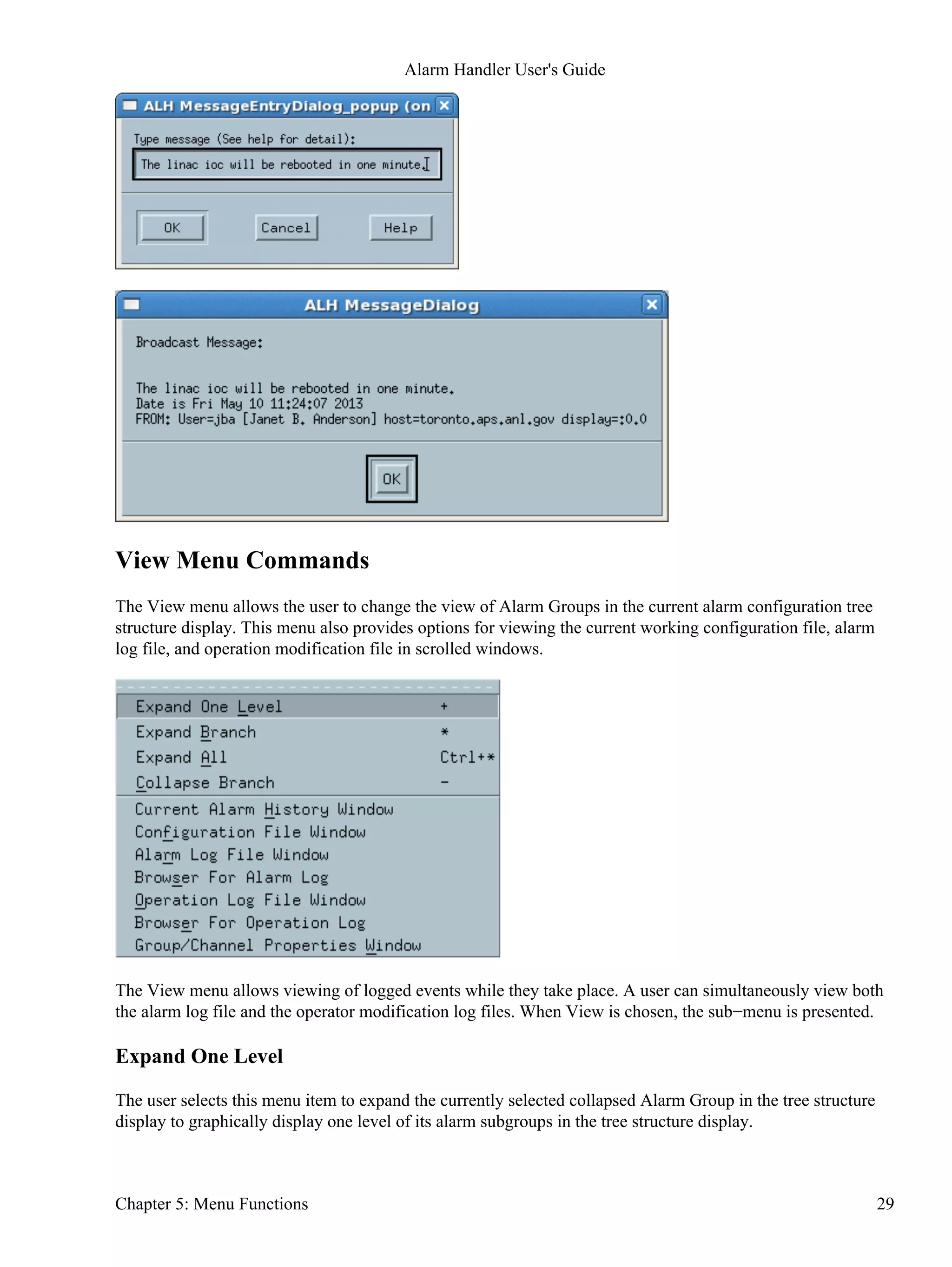
The '−B' option enables an operator to send messages using message broadcasting. The default is no message
broadcasting. When this option is specified a send message menu item appears on the Main Window menu,
and a message input dialog popup appears when the menu item is selected. The operator can then type in a
message that will be sent to other alh processes when OK is pressed. A popup dialog box containing a sent
message will appear when an Alarm Handler process receives a message.
Write Configuration File ACKT Settings on Startup
The ' −caputackt ' option specifies that the Alarm Handler should write the alarm configuration file ACKT
values using channel access puts to the EPICS database records when the Alarm Handler reads the
configuration file. The default is not to write the alarm configuration file ACKT values.
Disable Writing
The ' −D ' option allows running the Alarm Handler without creating and/or modifying the alarm log and
alarm opmod files. This is useful if one alh process runs without this option, creating and modifying some
fixed named alarm log files and all other alh process specifying the same file names run with the −D option
which does not allow them to overwrite the alarm log files.
Debug output
The '−debug' option specifies that debugging output should be printed to stdout. The default is not to print
debug output.
Description field
The '−desc_field' option specifies that .DESC field text should be printed on alarmLog output lines. The
default is not to print .DESC field text.
Alarm Handler User's Guide
Chapter 3: Starting ALH 9
Directory for All Files
The '−f filedir ' option specifies the directory for the Alarm Handler input and output files. The default
location is the current working directory.
Set Alarm Display Filter
The '−filter f−opt' option sets the initial alarm display filter for the Alarm Handler (see −>>Menu
Functions−>Setup Menu−>Display Filter). `f−opt' may be one of `n[o]' (for no filter), `a[ct]' (show active
alarms) or `u[nack]' (show only unacknowledged alarms). Default is `no', i.e. all Alarm Groups and channels
in the current configuration will be displayed. This option is particularly useful in combination with
`−mainwindow' to start Alarm Handlers from operator panels.
Global Mode
The '−global' options specifies that the alarm handler should run in a global mode. In global mode an Alarm
Channel's unacknowledged severity and it's acknowledge transients state will be determined by the current
value of the EPICS database record's ACKS and ACKT field settings. In local mode, the default mode, the
unacknowledged severity and acknowledge transients settings are local to the alarm handler.
Help
The '−help' option will print alh command usage text to stdout.
Locking System
The '−L' option activates a file locking system (based on lockf(), i.e. NFS−safe) making sure that only one of
multiple Alarm Handlers with enabled log writing has access to the log. If the `master' (i.e. actively logging)
process dies, another Alarm Handler will seamlessly take over logging. Default is not to use this locking
mechanism.
Locking File
The '−L lockfile' option specifies a lock file directory with file name prefix. A ".LOCK" suffix will be
appended. The default is the configure filename with directory from the −f option or the current working
directory.
Directory for Log Files
The '−l logdir' option specifies the location of the alarm log file and the operation modification log file. The
default location is the current working directory.
Maximum Alarm Log Records
The '−m maxrecords' option allows the user to specify the maximum number of records that the alarm handler
will allow in the alarm log file. If this number of records is reached, new records will overwrite old alarm
records. The default number of records is 2000. Specifying zero means the file can have an unlimited number
of records.
Alarm Handler User's Guide
10 Chapter 3: Starting ALH
Start with Main Window
The `−mainwindow' option makes the Alarm Handler start with the Main Window instead of the Runtime
Window. This is useful in conjunction with the `−filter f−opt' option to start Alarm Handlers from operator
panels. The default is to start with the Runtime Window.
Colored Masks
The `−maskcolor' option makes the Alarm display colored masks when the channel/group contains a silencing
flag. This makes it easier to find all the canceled/disabled/noAck channels.
Do not use Popup Boxes for Displaying Errors
The `−noerrorpopup' option tells the Alarm Handler not to use popup boxes for displaying errors. This is
useful for Alarm Handlers running as overhead displays (and no mouse attached to handle popups). The
default is to use popups.
Database
The '−O key' means that the alarm handler should send log messages to a database (Oracle).
OpMod Log File
The −'o opmodlogfile' option specifies the location of the operation modification log file. The default location
is the current working directory.
Log Operator Modifications into CMLOG system
The '−oCM' option enables opmod logging into a CMLOG system. The default is not to use CMLOG. (Note:
This option is only available if the Alarm Handler is compiled with CMLOG support.)
TCP Printing
The '−P' option allows simultaneously printing of new alarms to the log file and to a TCP printer (socket
connection). The user must specify all three printer values: 'Name:port:colorModel ' (where colorModel is
mono,hp_color,...). Currently the printing is done asynchronously by adding an additional task "alh_printer".
(This option is still under construction and will use pipes in the future)
Wave File Sound
The '−p file' option specifies that alh should play the specified wave sound file instead of alarm beeping. This
option is available for Linux systems only.
Silent Mode
The '−s' option specifies that alh should start executing in a silent mode with no beeping when alarms are
present. Setup menu items can be used to change the startup silence status.
Alarm Handler User's Guide
Chapter 3: Starting ALH 11
Passive Mode
Specifying this '−S' option means that the alh will execute in a passive (monitor) mode. This means that alh
can not send channel access acknowledgment of alarms and can not do channel access puts to the
acknowledge transients fields and cannot write to the severity process variable. It is useful for a non−operator
alh user.
AlarmLogDated
With the '−T' option, alarmLog file names will have "date" extensions like YYYY−MM−DD, and log files are
automatically switched at midnight. For this option, there is a Main Window menu browser that is displayed
after pressing View−"Alarm Log File Window". This browser allows searches in the AlarmLogFile and find
all alarms inside of [t1,t2]−diapason containing some <String>.
Print Version
The '−v' or '−version' option specifies that the Alarm Handler version number should be printed to stdout.
XML−ish Log Files
The '−xml' option specifies that the Alarm Handler log files should be written in Extensible Markup Language
(XML).
Xoptions
When executing on Unix, the 'alh' command line accepts all X options such as '−bg color_name' and '−fg
color_name' and '−geometry geom_spec'
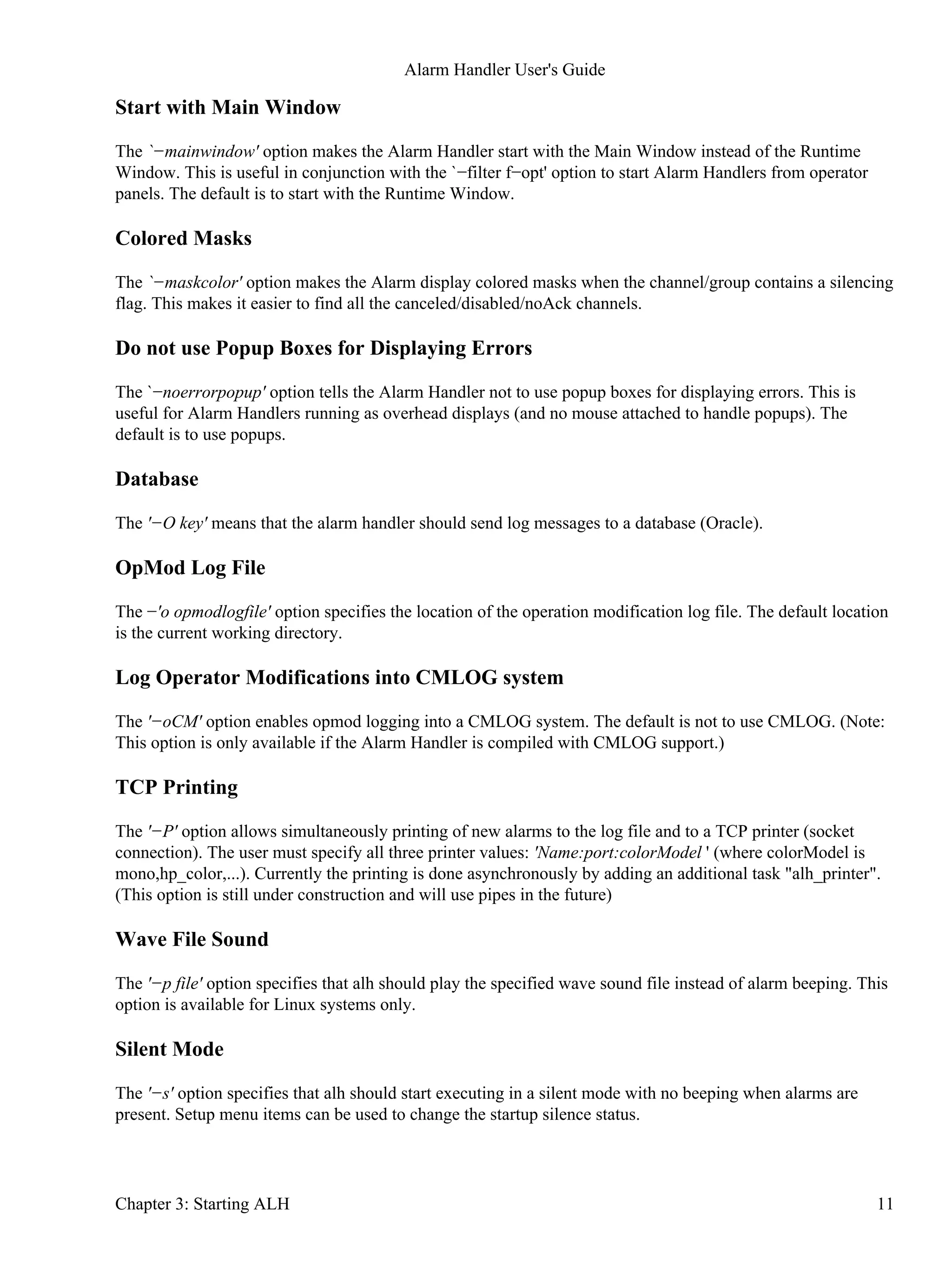
Configuration File Selection Window
If the Alarm Configuration file is not specified on the command line, a file selection window is presented so
the user can select the desired Alarm Configuration file
Alarm Handler User's Guide
12 Chapter 3: Starting ALH
There are several ways to select the directory using this window:
Double−click on the appropriate Directories entry.•
Type the directory name in the Filter window and click on Filter .•
Type the directory name in the Selection window and click on OK .•
Once in the appropriate directory, there are several ways to select the desired file:
Double−click on the appropriate Files entry.•
Click on the appropriate Files entry and click on OK .•
Type the file name in the Selection window and click on OK .•
Cancel ends the Alarm Handler session.
Help has not been implemented in this release.
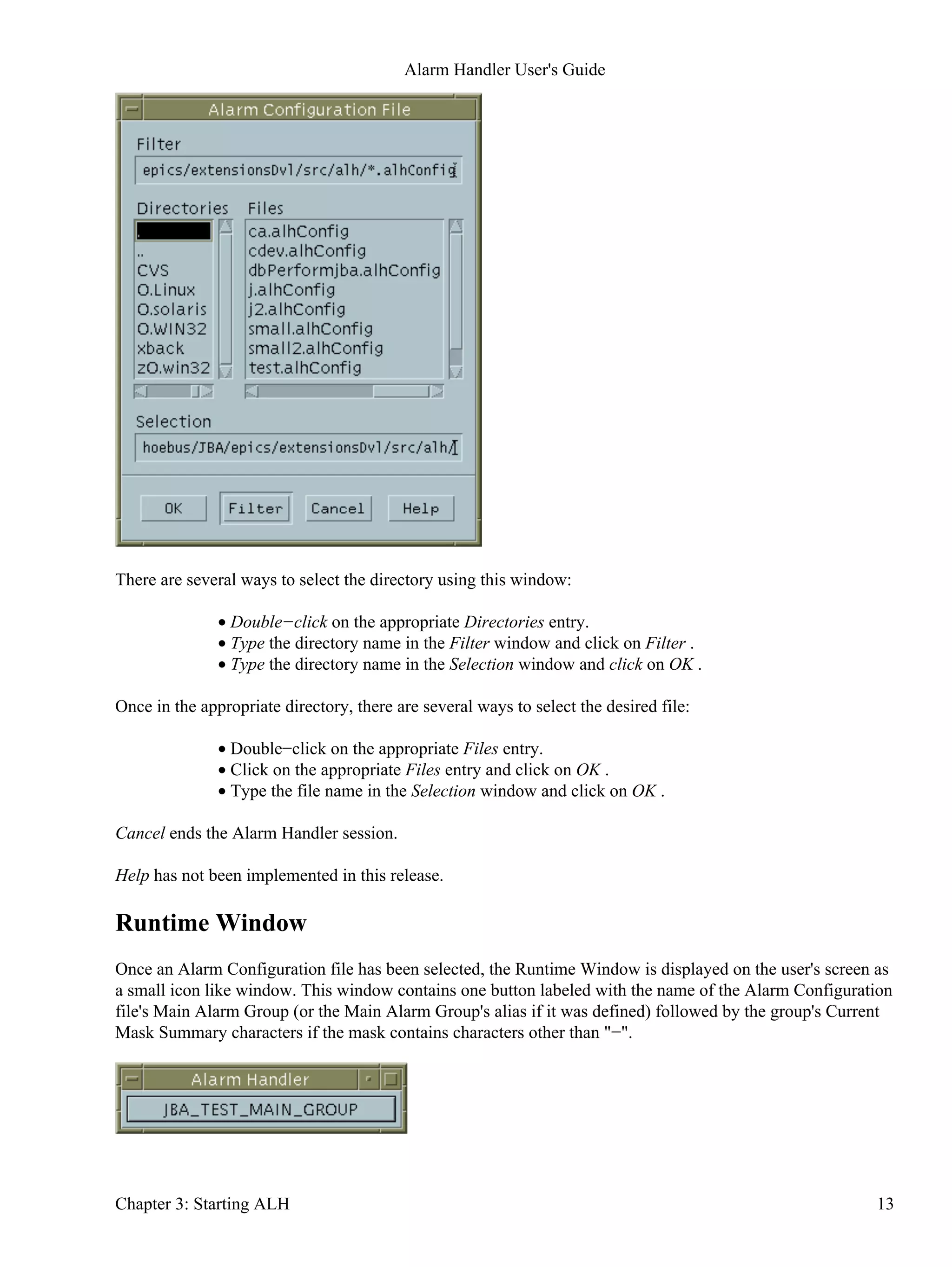
Runtime Window
Once an Alarm Configuration file has been selected, the Runtime Window is displayed on the user's screen as
a small icon like window. This window contains one button labeled with the name of the Alarm Configuration
file's Main Alarm Group (or the Main Alarm Group's alias if it was defined) followed by the group's Current
Mask Summary characters if the mask contains characters other than "−".
Alarm Handler User's Guide
Chapter 3: Starting ALH 13
The color of the button indicates the highest outstanding alarm severity level in the active alarm
configuration.:
White: Invalid Alarm•
Red: Major Alarm•
Yellow: Minor Alarm•
Background color: NO Alarm•
There will be beeping and the button will blink to indicate the presence of unacknowledged alarms.
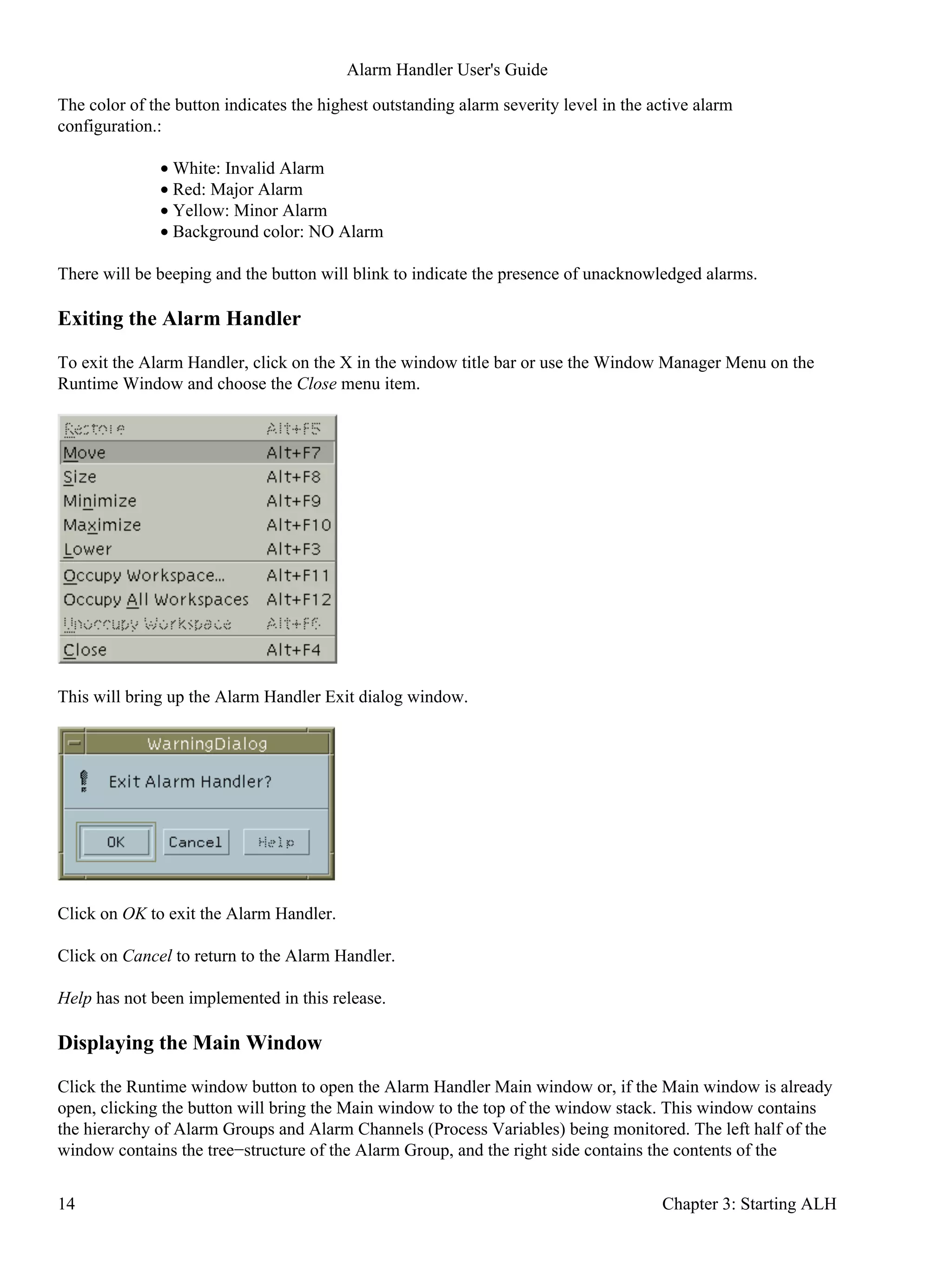
Exiting the Alarm Handler
To exit the Alarm Handler, click on the X in the window title bar or use the Window Manager Menu on the
Runtime Window and choose the Close menu item.
This will bring up the Alarm Handler Exit dialog window.
Click on OK to exit the Alarm Handler.
Click on Cancel to return to the Alarm Handler.
Help has not been implemented in this release.
Displaying the Main Window
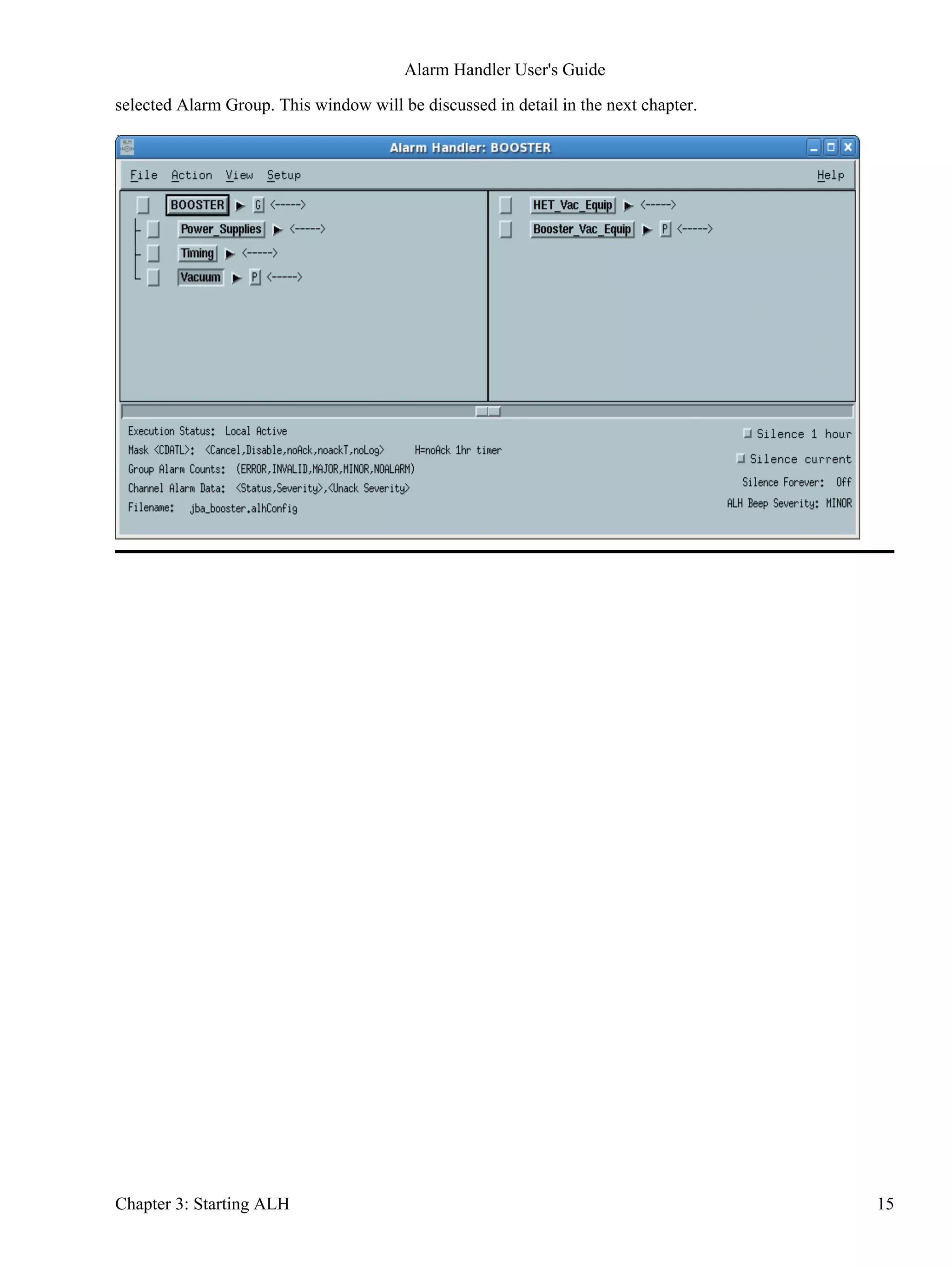
Click the Runtime window button to open the Alarm Handler Main window or, if the Main window is already
open, clicking the button will bring the Main window to the top of the window stack. This window contains
the hierarchy of Alarm Groups and Alarm Channels (Process Variables) being monitored. The left half of the
window contains the tree−structure of the Alarm Group, and the right side contains the contents of the
Alarm Handler User's Guide
14 Chapter 3: Starting ALH
selected Alarm Group. This window will be discussed in detail in the next chapter.
Alarm Handler User's Guide
Chapter 3: Starting ALH 15
Alarm Handler User's Guide
16 Chapter 3: Starting ALH
Chapter 4: Main Window
Main Window Description
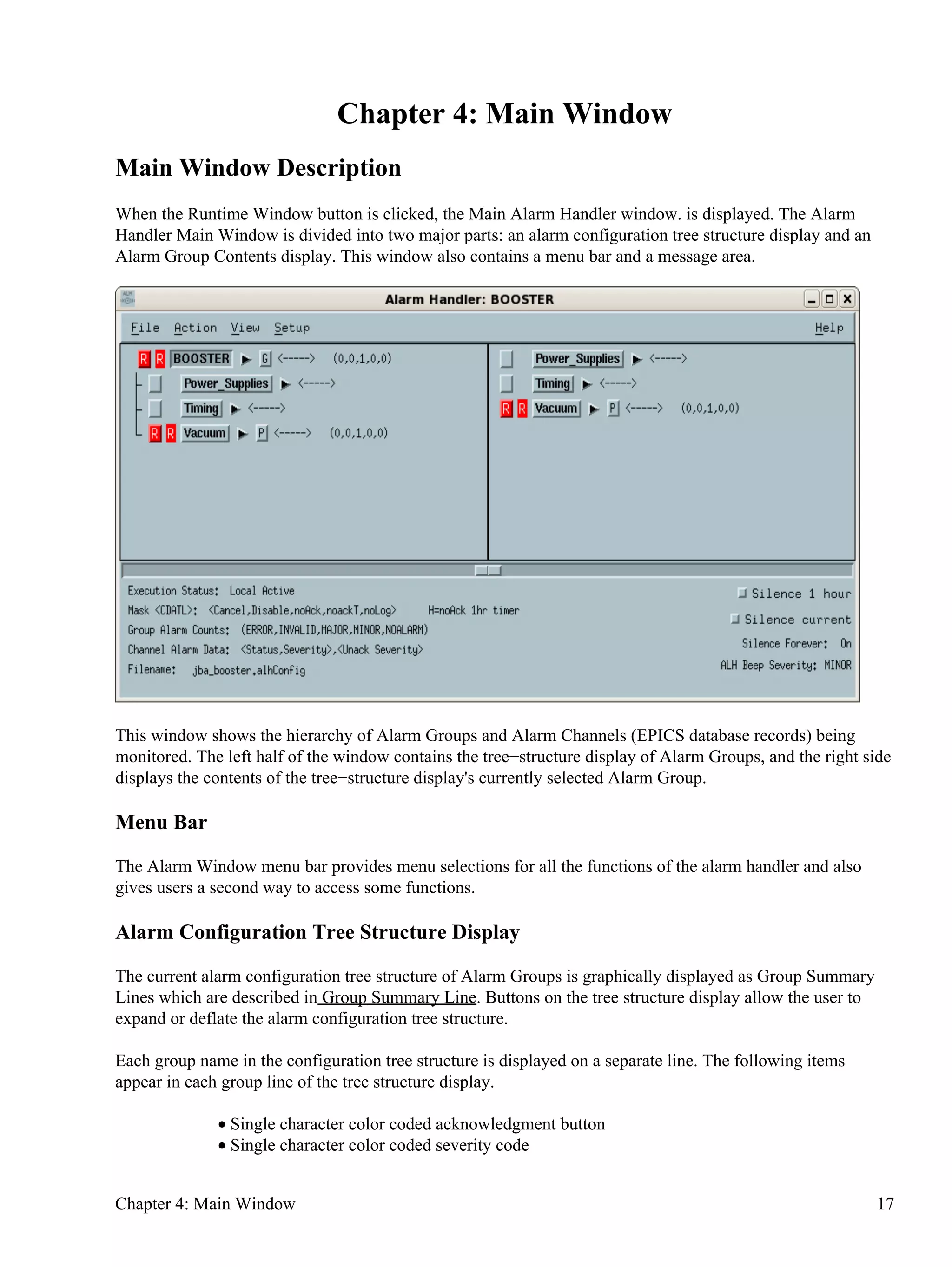
When the Runtime Window button is clicked, the Main Alarm Handler window. is displayed. The Alarm
Handler Main Window is divided into two major parts: an alarm configuration tree structure display and an
Alarm Group Contents display. This window also contains a menu bar and a message area.
This window shows the hierarchy of Alarm Groups and Alarm Channels (EPICS database records) being
monitored. The left half of the window contains the tree−structure display of Alarm Groups, and the right side
displays the contents of the tree−structure display's currently selected Alarm Group.
Menu Bar
The Alarm Window menu bar provides menu selections for all the functions of the alarm handler and also
gives users a second way to access some functions.
Alarm Configuration Tree Structure Display
The current alarm configuration tree structure of Alarm Groups is graphically displayed as Group Summary
Lines which are described in Group Summary Line. Buttons on the tree structure display allow the user to
expand or deflate the alarm configuration tree structure.
Each group name in the configuration tree structure is displayed on a separate line. The following items
appear in each group line of the tree structure display.
Single character color coded acknowledgment button•
Single character color coded severity code•
Chapter 4: Main Window 17
Group name selection button•
Optional subgroups arrow button•
Optional guidance button•
Optional related process button•
Current mask summary•
Optional Group Beep Severity character•
Alarm severity summary•
The configuration tree structure display has a scrolling/paging facility and a display resize facility. This allows
users to view an alarm configuration tree structure too large to display on one screen.
Alarm Group Contents Display
The user will be able to choose any Alarm Group for display by pressing the Alarm Group name button from
the configuration tree structure display. Selecting an Alarm Group will cause the Alarm Group contents
display to show one level of the alarm subgroups and the Alarm Channels associated with the selected group.
The Alarm Group contents display for the currently selected Alarm Group contains group summary lines for
each alarm subgroup followed by channel status lines for each Alarm Channel in the selected Alarm Group.
Each subgroup or channel name in the summary line is displayed with a color identifier indicating whether the
name is an Alarm Group name or a channel name.
The Alarm Group display has a scrolling/paging facility to allow users to view an Alarm Group too large to
display in one screen.
Each channel status line contains:
Single character color coded acknowledgment button•
Single character color coded severity code•
Channel name selection button•
Optional guidance button•
Optional related process button•
Current mask•
Optional Channel Beep Severity character•
Current status and severity•
Highest unacknowledged severity•
Message Area
The message area shows the current execution mode (local or global), the current execution state (passive or
active), the name of the current configuration file. It also contains buttons to silence alarms, and explanatory
descriptions of the mask abbreviation codes and status data which appear in the group summary and channel
status lines.
There are two Silence buttons which toggle beeping on or off. The Silence Current button turns off current
alarm beeping until a new alarm occurs. The Silence Interval button toggles beeping of current and future
alarms off for a specified interval. When pushed in, beeping is turned off, when out, beeping is toggled on.
Beeping occurs only when there are unacknowledged alarms. The main window background color is changed
when beeping is turned off. Setup menu items can be used to change the specified time interval.
Alarm Handler User's Guide
18 Chapter 4: Main Window
Group Summary Line
This display line summarizes the status of all alarms for the group named in this line and all lower level
groups. The group summary display consists of the following items:
Acknowledgment Button
A one−character acknowledgment button is activated only if an unacknowledged alarm is present for the
group and the alarm handler is executing in active (modify) state. This button is color−coded representing the
highest severity unacknowledged alarm as follows:
White: V − Invalid Alarm•
Red: R − Major Alarm•
Yellow: Y − Minor Alarm•
Background color − No Alarm•
This button describes the highest severity of unacknowledged alarms for this group and all associated
subgroups.
Clicking on this button while alh is executing in active state will send channel access alarm acknowledgments
to all Alarm Channels associated with the group. It has the same effect as individually acknowledging each
channel in an unacknowledged alarm state.
Single Character Severity Code
A one−character severity display code. It is present only if at least one channel associated with the group is in
alarm or in an error state. It is color−coded and represents the highest severity outstanding alarm as follows:
White: E − Error state•
White: V − Invalid Alarm•
Red: R − Major Alarm•
Yellow: Y − Minor Alarm•
The code shows the highest severity unacknowledged alarm for this group and all it's subgroups.
Group Name Selection Button
ALH allows the operator to choose any Alarm Group by selecting the Group Name button on the group
summary line. The result is to display one level of the contents associated with the selected group. This group
also becomes the currently selected group.
ALH allows drag and drop of the alarm group name text associated with the Group Name Selection Button.
This may be used to view the alarm group name when an alias is displayed. The user should hold down the
middle (second) mouse button when the mouse cursor is positioned over a Group Name Button. A text box
containing the alarm group name will appear. When the user moves the mouse with the mouse button still
depressed, the box will follow the mouse around until the user finally releases the button. The alarm group
name text will then be dropped into the release location which must be a valid drop location.
Alarm Handler User's Guide
Chapter 4: Main Window 19
Current Mask Summary
The Current Mask Summary Display is a five character mask display. Each character is a"−" or one of the
following:
C: Cancel Alarm•
D: Disable Alarm•
A: NoAck Alarm or H: NoAck 1hr Timer Active•
T: NoAck Transient Alarm•
L: NoLog Alarm•
Mask values are described in Alarm Channel Mask. If the current mask for any channel connected with this
group or any subgroup has the above mask condition set, the corresponding character is displayed, otherwise
the character "−" is displayed. For example the string "−−A−−" means that at least one channel has the NoAck
mask set and that no channels have any other masks set.
Alarm Severity Summary Counts
The alarm summary count display shows the total number of channels in alarm and in an error state for this
group and all its subgroups. This summary consists of a set of five fields:
(ERROR, INVALID, MAJOR, MINOR, NOALARM)
Each field value indicates the total number of channel alarms with the specified severity in the associated
group and all it's subgroups.
Alarm Channel Status Line
The channel status display is a line appearing on an Alarm Group Contents Window containing the following
items:
Acknowledgment Button
A one character acknowledgment button. It is activated only if an unacknowledged alarm is present for the
channel and the alarm handler is executing in active (modify) state. It is color coded, and represents the
highest severity unacknowledged alarm as follows:
White E − Error state•
White: V − Invalid Alarm•
Red: R − Major Alarm•
Yellow: Y − Minor Alarm•
Background color − No Alarm•
Clicking on this button while alh is executing in active state will send a channel access alarm
acknowledgments to the Alarm Channel. A warning popup dialog with the message that alarm
acknowledgment is not allowed in passive state will appear if the alarm handler is executing in passive
(monitor) state.
Alarm Handler User's Guide
20 Chapter 4: Main Window
Severity Code
The severity code character is present only if the channel is in alarm or in an error state. In this case, it is a
color coded letter which represents the severity of the alarm as follows:
White: E − Error state•
White: V − Invalid Alarm•
Red: R − Major Alarm•
Yellow: Y − Minor Alarm•
Background color − No Alarm•
Channel Name Button
This button contains the database record name associated with the channel or the alias text if an alias is
defined for this channel. The button is color coded in gray so that an operator can easily distinguish channels
from groups. Selecting this button makes the channel the currently selected item.
ALH allows drag and drop of the record name text associated with the Channel Name Selection Button. This
may be used to view the database record name when an alias is displayed. The user should hold down the
middle (second) mouse button when the mouse cursor is positioned over a Channel Name Button. A text box
containing the record name will appear. When the user moves the mouse with the mouse button still
depressed, the box will follow the mouse around until the user finally releases the button. The alarm channel
name text will then be dropped into the release location which must be a valid drop location.
Current Mask
The mask field contains a five−character display showing the settings of the channel's current mask. Each
character is either a "−" or one of the following:
C: Cancel•
D: Disable Alarm•
A: NoAck Alarm•
T: NoAck Transient Alarm•
L: NoLog Alarm•
Masks are described in Alarm Channel Mask
Alarm Status and Severity
Following the current mask characters are the channel's current alarm status and severity and the highest
unacknowledged alarm severity. Current status and severity is present only if the channel is in an alarm state.
Highest unacknowledged alarm severity is present only if an unacknowledged alarm is present.
Alarm Handler User's Guide
Chapter 4: Main Window 21
Alarm Handler User's Guide
22 Chapter 4: Main Window
Chapter 5: Menu Functions
Main Window Menu Bar
The Main Window menu bar contains five pull−down menu items: File, Action, View, Setup, and Help.
File Menu Commands
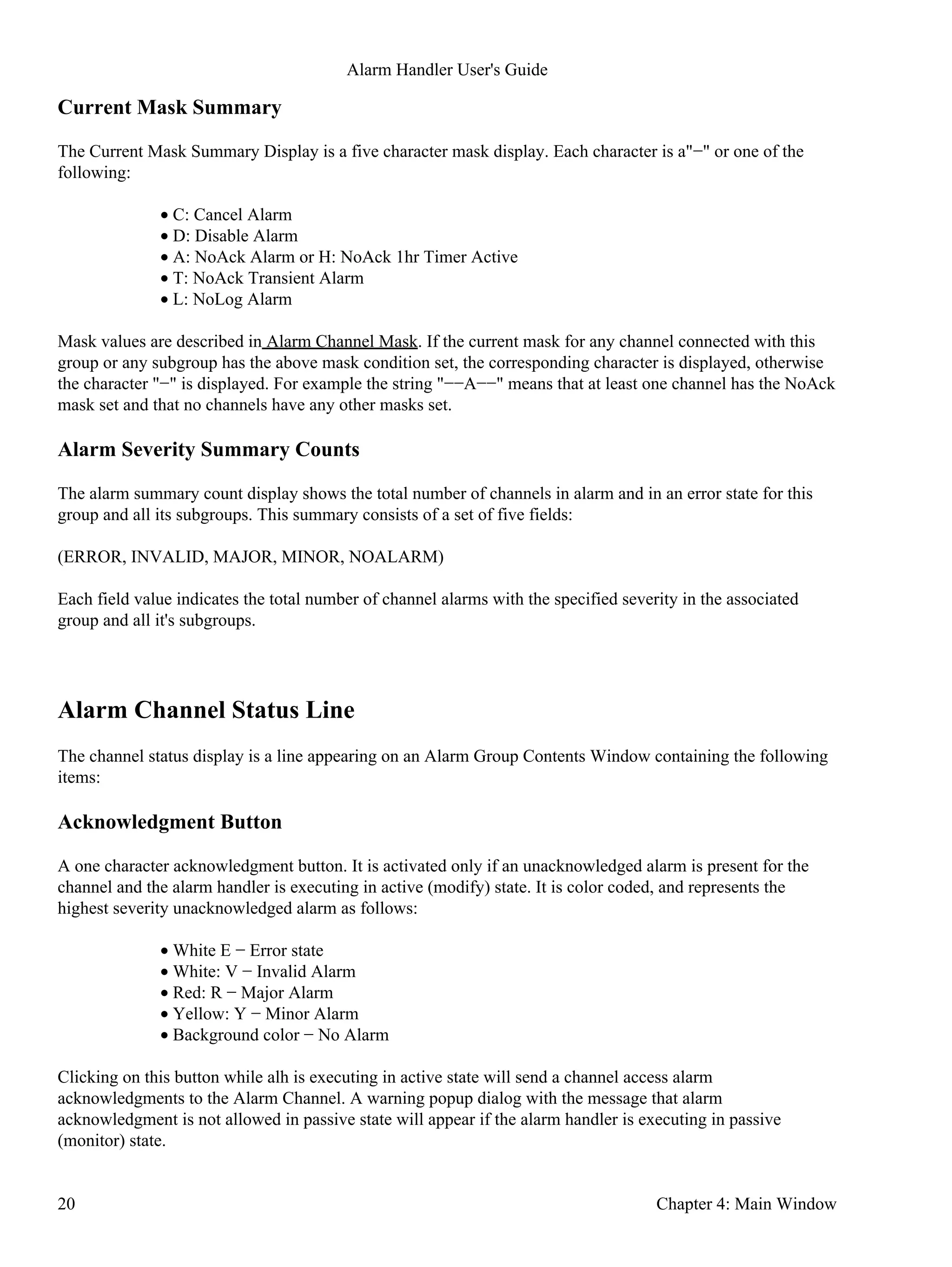
The File menu has three command items: Open, Save As, and Close.
Open
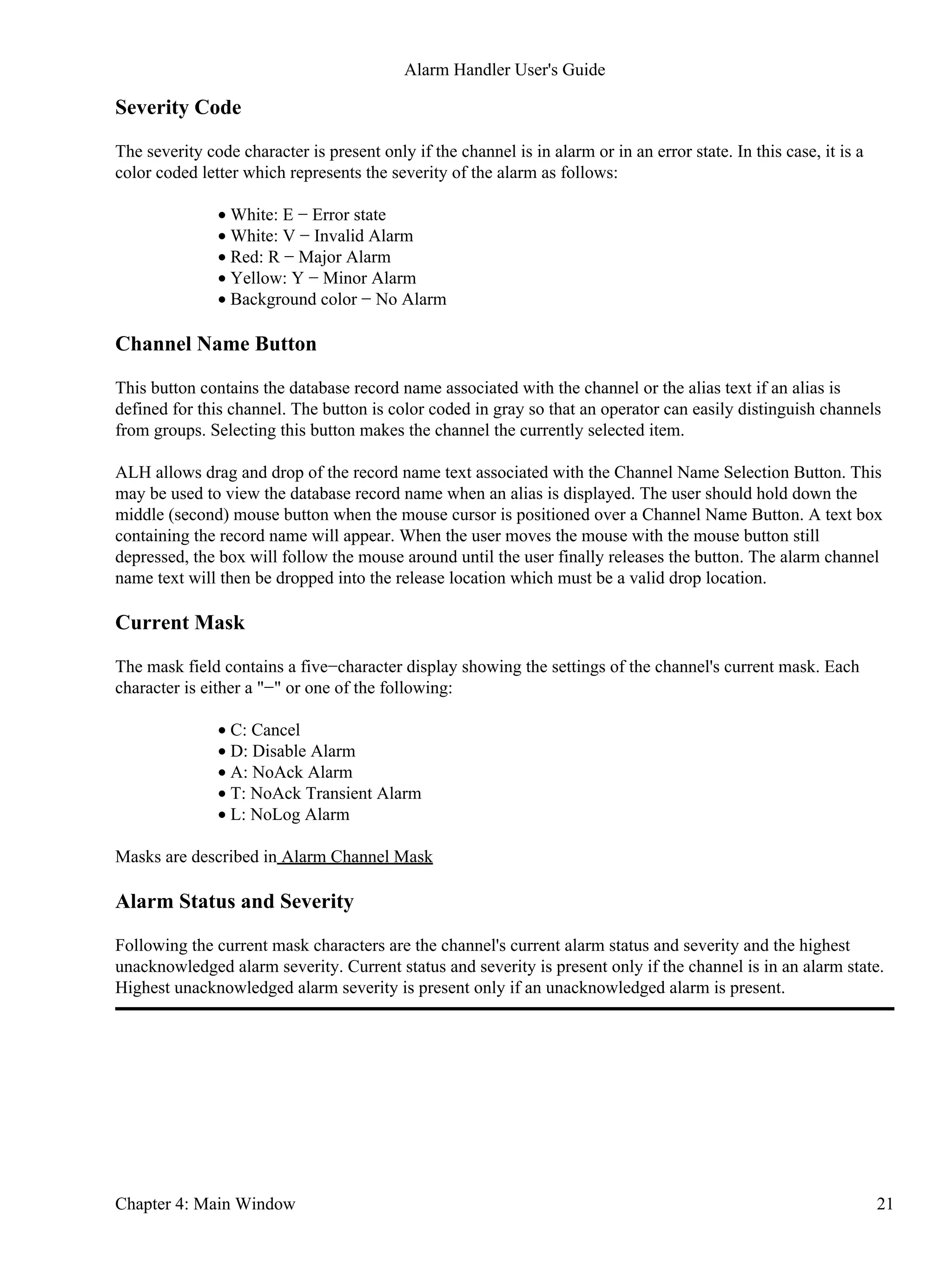
To open an existing alh configuration file, use the "File Open" menu item.
This brings up a standard file selection dialog, which allows the user to move around an existing directory
structure to find the file to open.
To aid the user, the file selection box initially displays all files in the directory which end in ".alhConfig".
Chapter 5: Menu Functions 23
Save As
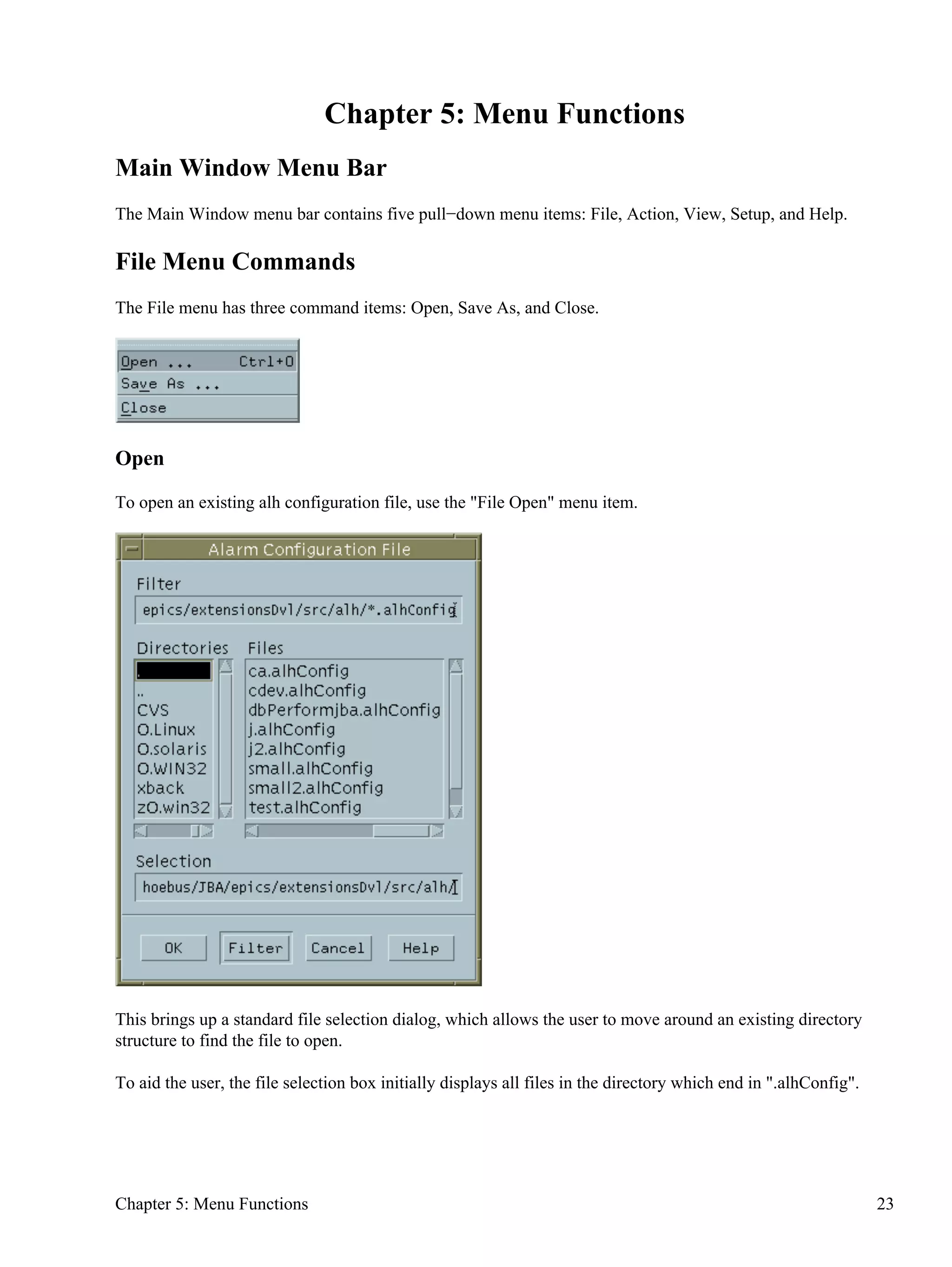
The " Save As" menu item, allows the user to save the current alarm configuration structure and current alarm
configuration settings to a new or existing file. A dialog appears which prompts the user to supply the name of
a file to write to. If the user gives the name of an existing file, another popup dialog will give a warning and
ask the user if the existing file can be overwritten.
Close
Selecting the Close item on the File menu can close the alh Main Window. This Main Window can be
redisplayed again with a mouse click on the runtime window button.
Action Menu Commands
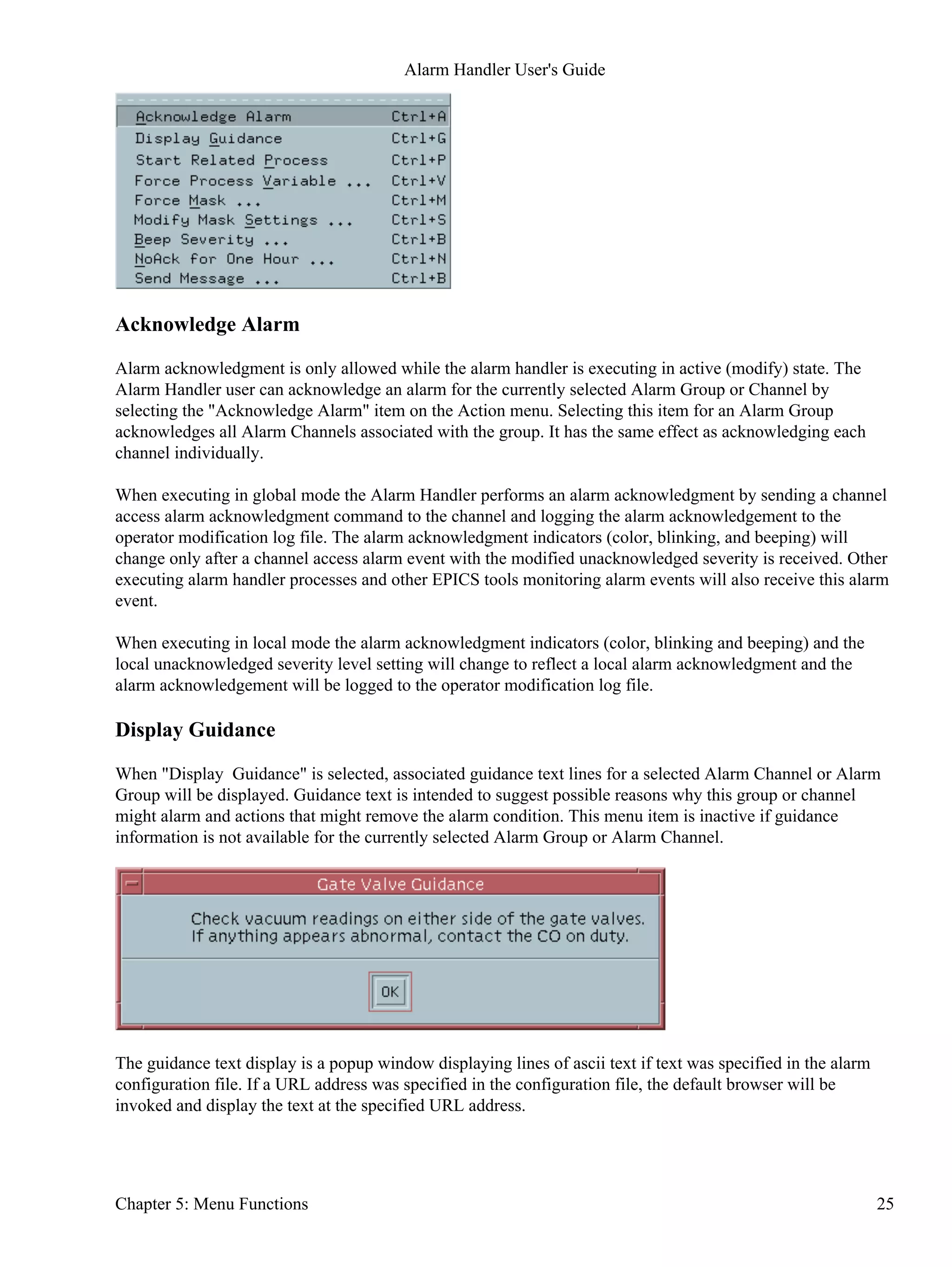
The Action Menu provides selections which affect the currently selected Alarm Group or Channel. The action
selections "Acknowledge Alarm", "Display Guidance", and "Start Related Process" can also be accomplished
by clicking buttons on the tree structure or group contents display. The "Send Message" item is present only
when the Message Broadcasting option, "−B", is present on the command line.
Alarm Handler User's Guide
24 Chapter 5: Menu Functions
Acknowledge Alarm
Alarm acknowledgment is only allowed while the alarm handler is executing in active (modify) state. The
Alarm Handler user can acknowledge an alarm for the currently selected Alarm Group or Channel by
selecting the "Acknowledge Alarm" item on the Action menu. Selecting this item for an Alarm Group
acknowledges all Alarm Channels associated with the group. It has the same effect as acknowledging each
channel individually.
When executing in global mode the Alarm Handler performs an alarm acknowledgment by sending a channel
access alarm acknowledgment command to the channel and logging the alarm acknowledgement to the
operator modification log file. The alarm acknowledgment indicators (color, blinking, and beeping) will
change only after a channel access alarm event with the modified unacknowledged severity is received. Other
executing alarm handler processes and other EPICS tools monitoring alarm events will also receive this alarm
event.
When executing in local mode the alarm acknowledgment indicators (color, blinking and beeping) and the
local unacknowledged severity level setting will change to reflect a local alarm acknowledgment and the
alarm acknowledgement will be logged to the operator modification log file.
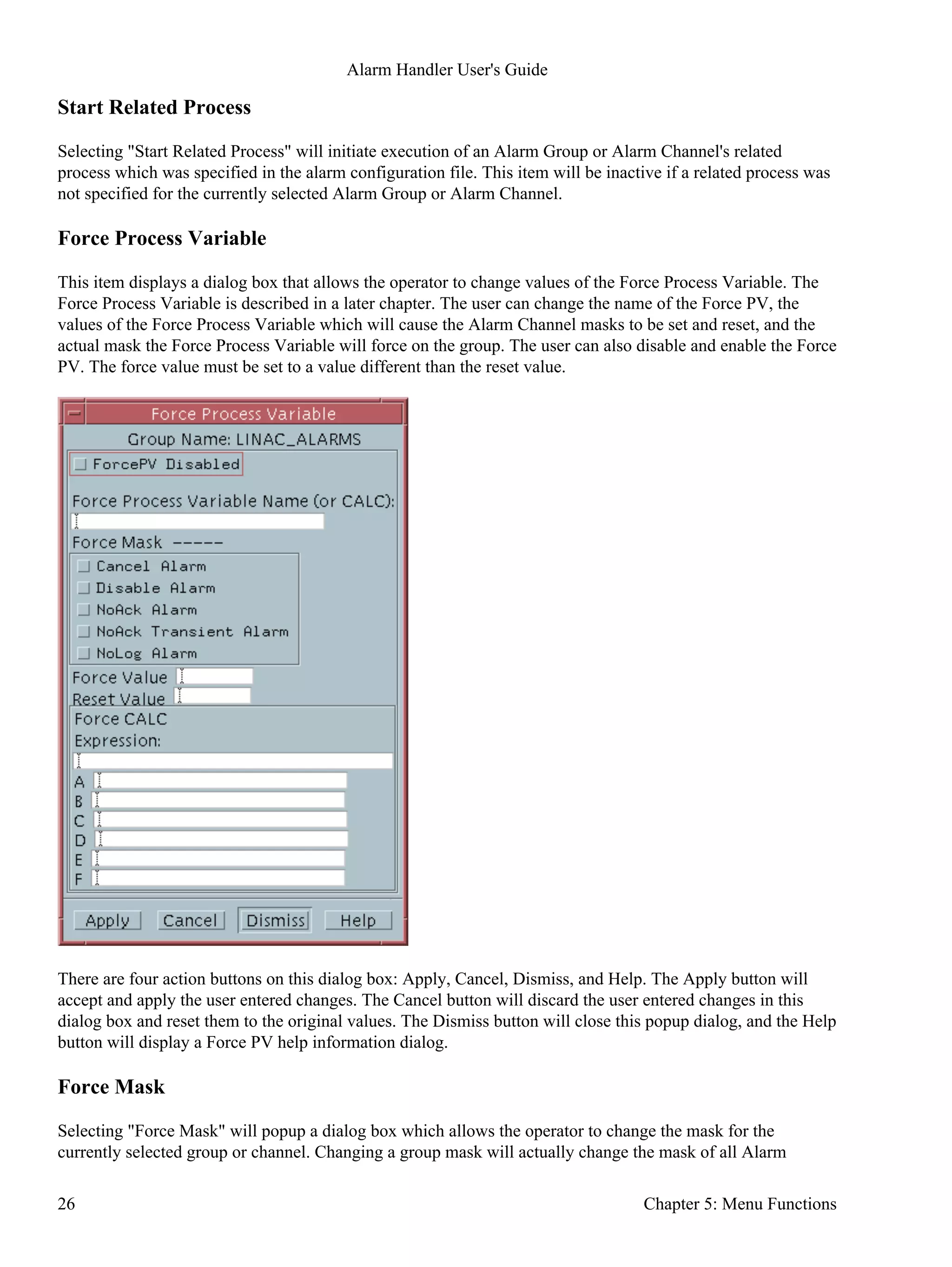
Display Guidance
When "Display Guidance" is selected, associated guidance text lines for a selected Alarm Channel or Alarm
Group will be displayed. Guidance text is intended to suggest possible reasons why this group or channel
might alarm and actions that might remove the alarm condition. This menu item is inactive if guidance
information is not available for the currently selected Alarm Group or Alarm Channel.
The guidance text display is a popup window displaying lines of ascii text if text was specified in the alarm
configuration file. If a URL address was specified in the configuration file, the default browser will be
invoked and display the text at the specified URL address.
Alarm Handler User's Guide
Chapter 5: Menu Functions 25
Start Related Process
Selecting "Start Related Process" will initiate execution of an Alarm Group or Alarm Channel's related
process which was specified in the alarm configuration file. This item will be inactive if a related process was
not specified for the currently selected Alarm Group or Alarm Channel.
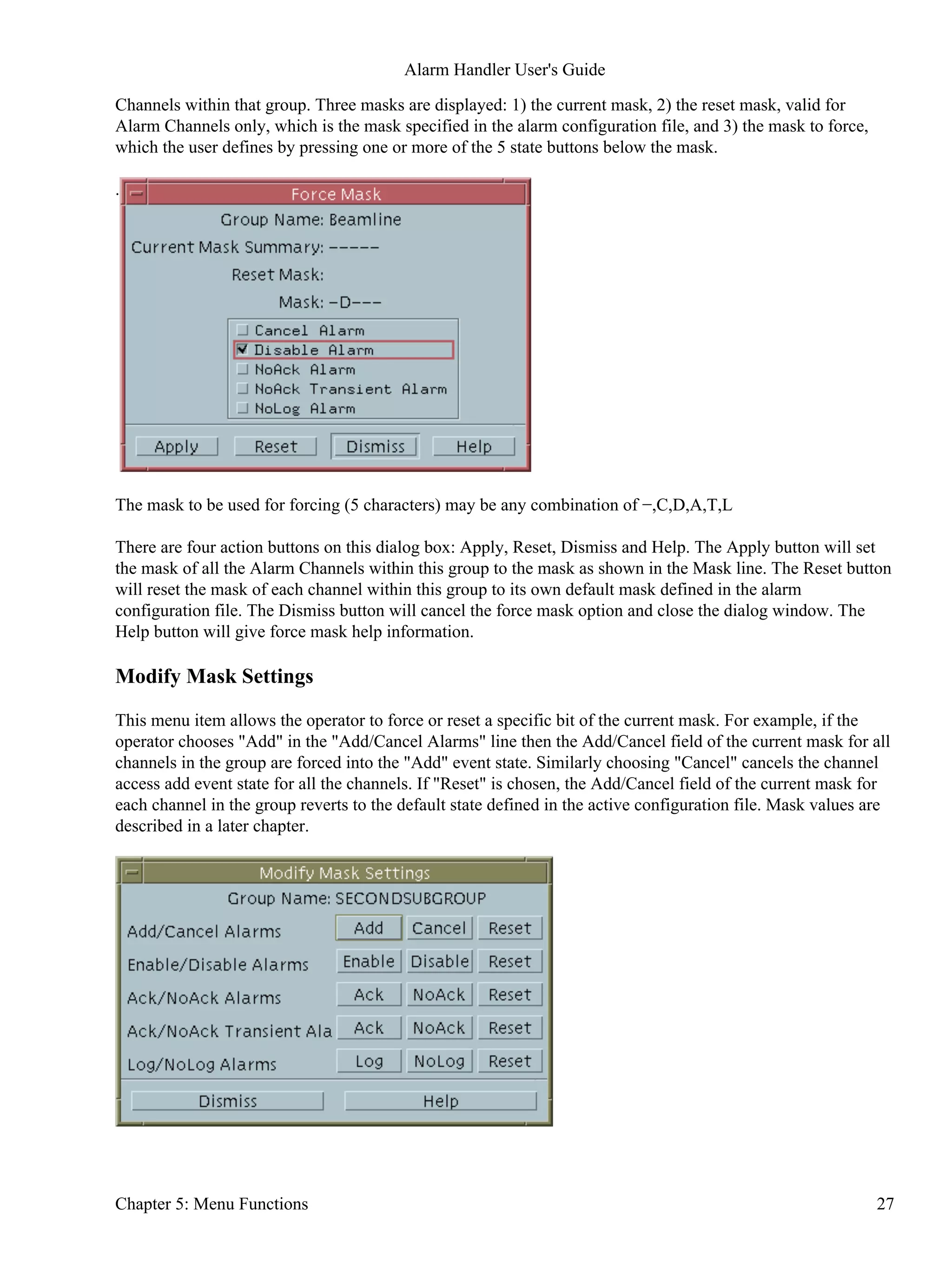
Force Process Variable
This item displays a dialog box that allows the operator to change values of the Force Process Variable. The
Force Process Variable is described in a later chapter. The user can change the name of the Force PV, the
values of the Force Process Variable which will cause the Alarm Channel masks to be set and reset, and the
actual mask the Force Process Variable will force on the group. The user can also disable and enable the Force
PV. The force value must be set to a value different than the reset value.
There are four action buttons on this dialog box: Apply, Cancel, Dismiss, and Help. The Apply button will
accept and apply the user entered changes. The Cancel button will discard the user entered changes in this
dialog box and reset them to the original values. The Dismiss button will close this popup dialog, and the Help
button will display a Force PV help information dialog.
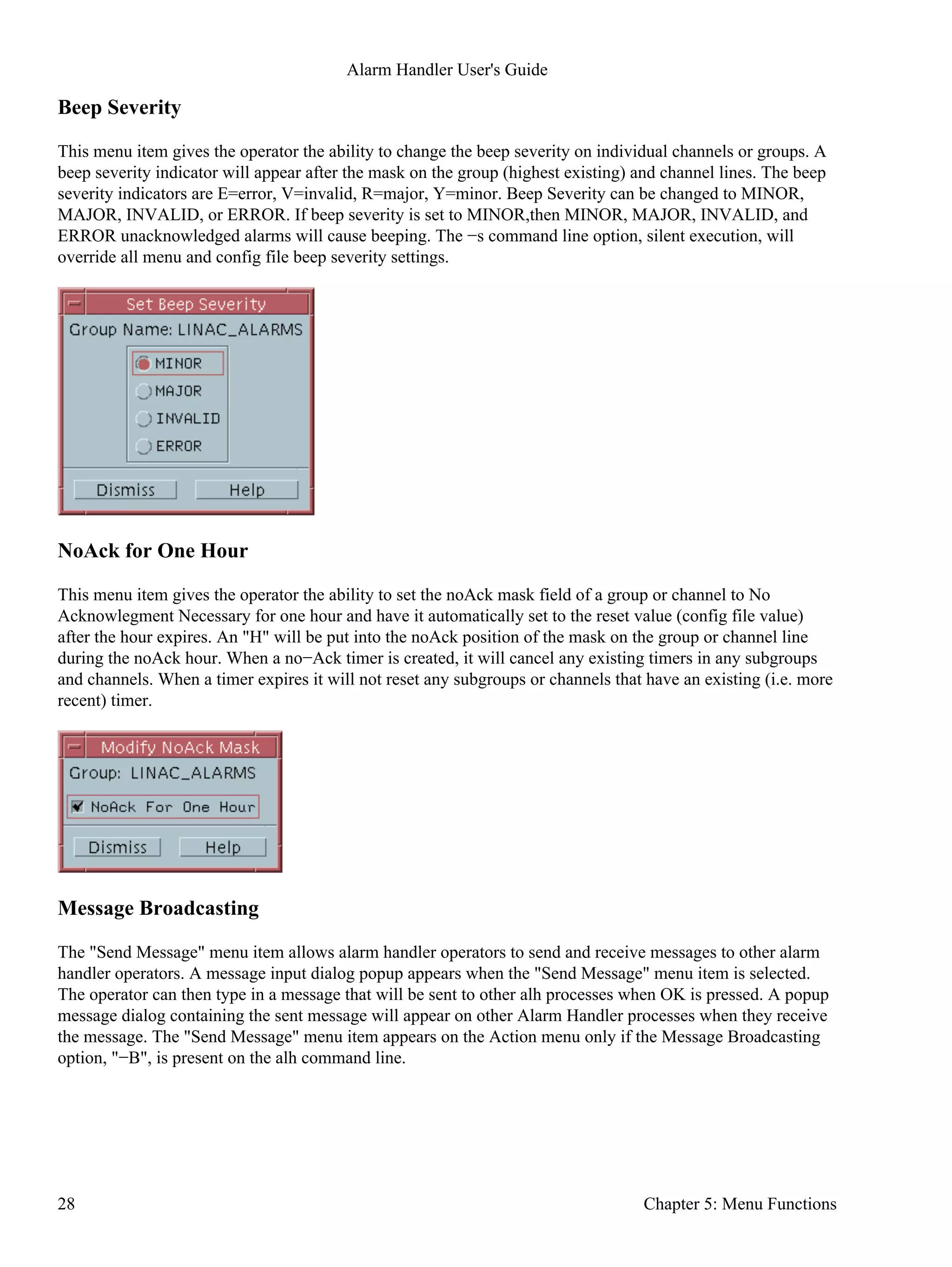
Force Mask
Selecting "Force Mask" will popup a dialog box which allows the operator to change the mask for the
currently selected group or channel. Changing a group mask will actually change the mask of all Alarm
Alarm Handler User's Guide
26 Chapter 5: Menu Functions
Channels within that group. Three masks are displayed: 1) the current mask, 2) the reset mask, valid for
Alarm Channels only, which is the mask specified in the alarm configuration file, and 3) the mask to force,
which the user defines by pressing one or more of the 5 state buttons below the mask.
.
The mask to be used for forcing (5 characters) may be any combination of −,C,D,A,T,L
There are four action buttons on this dialog box: Apply, Reset, Dismiss and Help. The Apply button will set
the mask of all the Alarm Channels within this group to the mask as shown in the Mask line. The Reset button
will reset the mask of each channel within this group to its own default mask defined in the alarm
configuration file. The Dismiss button will cancel the force mask option and close the dialog window. The
Help button will give force mask help information.
Modify Mask Settings
This menu item allows the operator to force or reset a specific bit of the current mask. For example, if the
operator chooses "Add" in the "Add/Cancel Alarms" line then the Add/Cancel field of the current mask for all
channels in the group are forced into the "Add" event state. Similarly choosing "Cancel" cancels the channel
access add event state for all the channels. If "Reset" is chosen, the Add/Cancel field of the current mask for
each channel in the group reverts to the default state defined in the active configuration file. Mask values are
described in a later chapter.
Alarm Handler User's Guide
Chapter 5: Menu Functions 27
Beep Severity
This menu item gives the operator the ability to change the beep severity on individual channels or groups. A
beep severity indicator will appear after the mask on the group (highest existing) and channel lines. The beep
severity indicators are E=error, V=invalid, R=major, Y=minor. Beep Severity can be changed to MINOR,
MAJOR, INVALID, or ERROR. If beep severity is set to MINOR,then MINOR, MAJOR, INVALID, and
ERROR unacknowledged alarms will cause beeping. The −s command line option, silent execution, will
override all menu and config file beep severity settings.
NoAck for One Hour
This menu item gives the operator the ability to set the noAck mask field of a group or channel to No
Acknowlegment Necessary for one hour and have it automatically set to the reset value (config file value)
after the hour expires. An "H" will be put into the noAck position of the mask on the group or channel line
during the noAck hour. When a no−Ack timer is created, it will cancel any existing timers in any subgroups
and channels. When a timer expires it will not reset any subgroups or channels that have an existing (i.e. more
recent) timer.
Message Broadcasting
The "Send Message" menu item allows alarm handler operators to send and receive messages to other alarm
handler operators. A message input dialog popup appears when the "Send Message" menu item is selected.
The operator can then type in a message that will be sent to other alh processes when OK is pressed. A popup
message dialog containing the sent message will appear on other Alarm Handler processes when they receive
the message. The "Send Message" menu item appears on the Action menu only if the Message Broadcasting
option, "−B", is present on the alh command line.
Alarm Handler User's Guide
28 Chapter 5: Menu Functions
View Menu Commands
The View menu allows the user to change the view of Alarm Groups in the current alarm configuration tree
structure display. This menu also provides options for viewing the current working configuration file, alarm
log file, and operation modification file in scrolled windows.
The View menu allows viewing of logged events while they take place. A user can simultaneously view both
the alarm log file and the operator modification log files. When View is chosen, the sub−menu is presented.
Expand One Level
The user selects this menu item to expand the currently selected collapsed Alarm Group in the tree structure
display to graphically display one level of its alarm subgroups in the tree structure display.
Alarm Handler User's Guide
Chapter 5: Menu Functions 29
Expand Branch
The user can choose this item to expand the currently selected Alarm Group in the alarm configuration tree
display to graphically show all levels of its subgroups on the tree structure display.
Expand All
The user uses this menu item to expand or collapse all groups in the alarm configuration tree structure display
to graphically show all the groups and subgroups on the current alarm configuration tree structure display.
Collapse Branch
The operator selects this item to collapse the currently selected expanded group in the alarm configuration tree
to remove all its groups and subgroups from the graphical tree display.
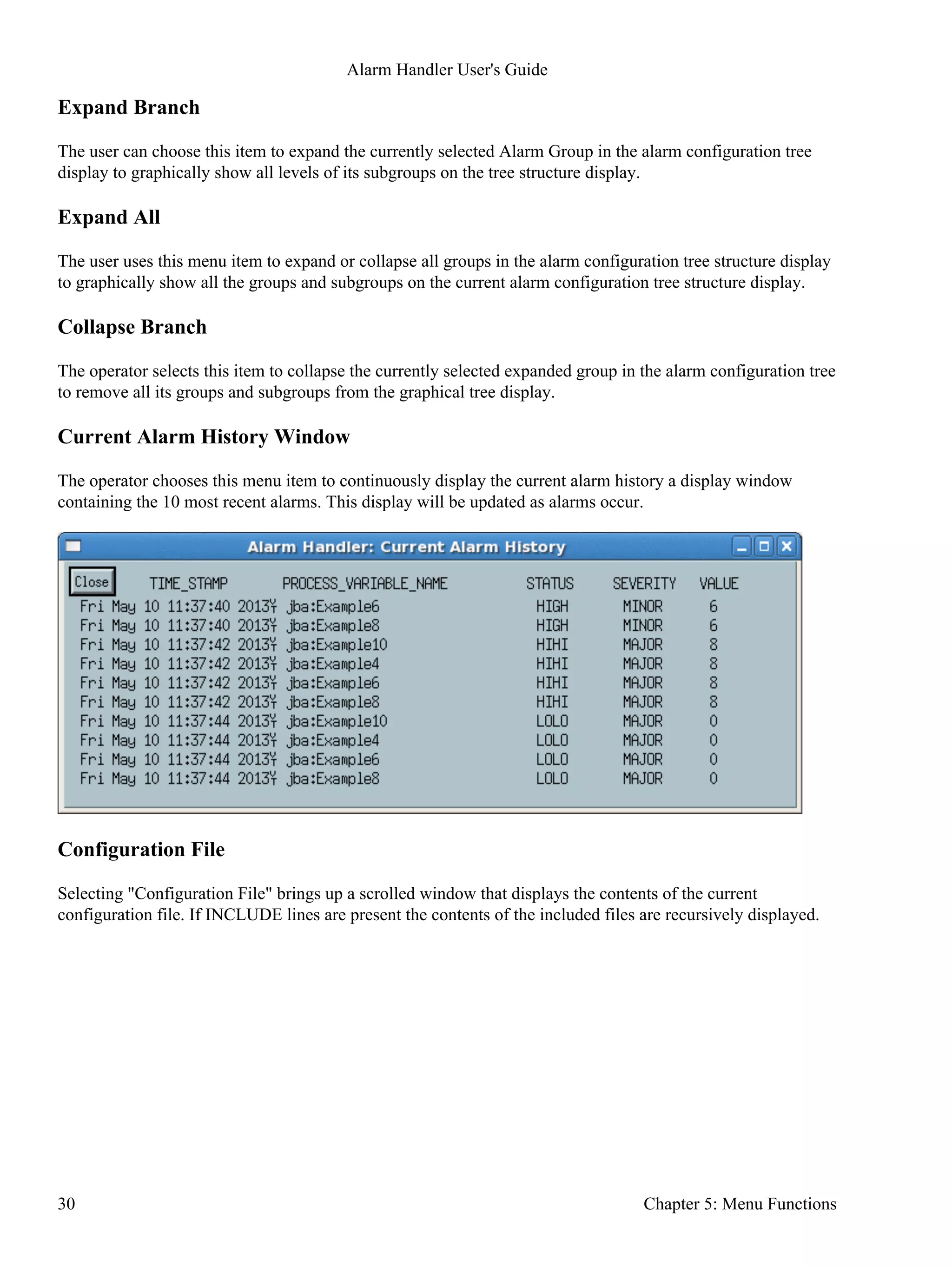
Current Alarm History Window
The operator chooses this menu item to continuously display the current alarm history a display window
containing the 10 most recent alarms. This display will be updated as alarms occur.
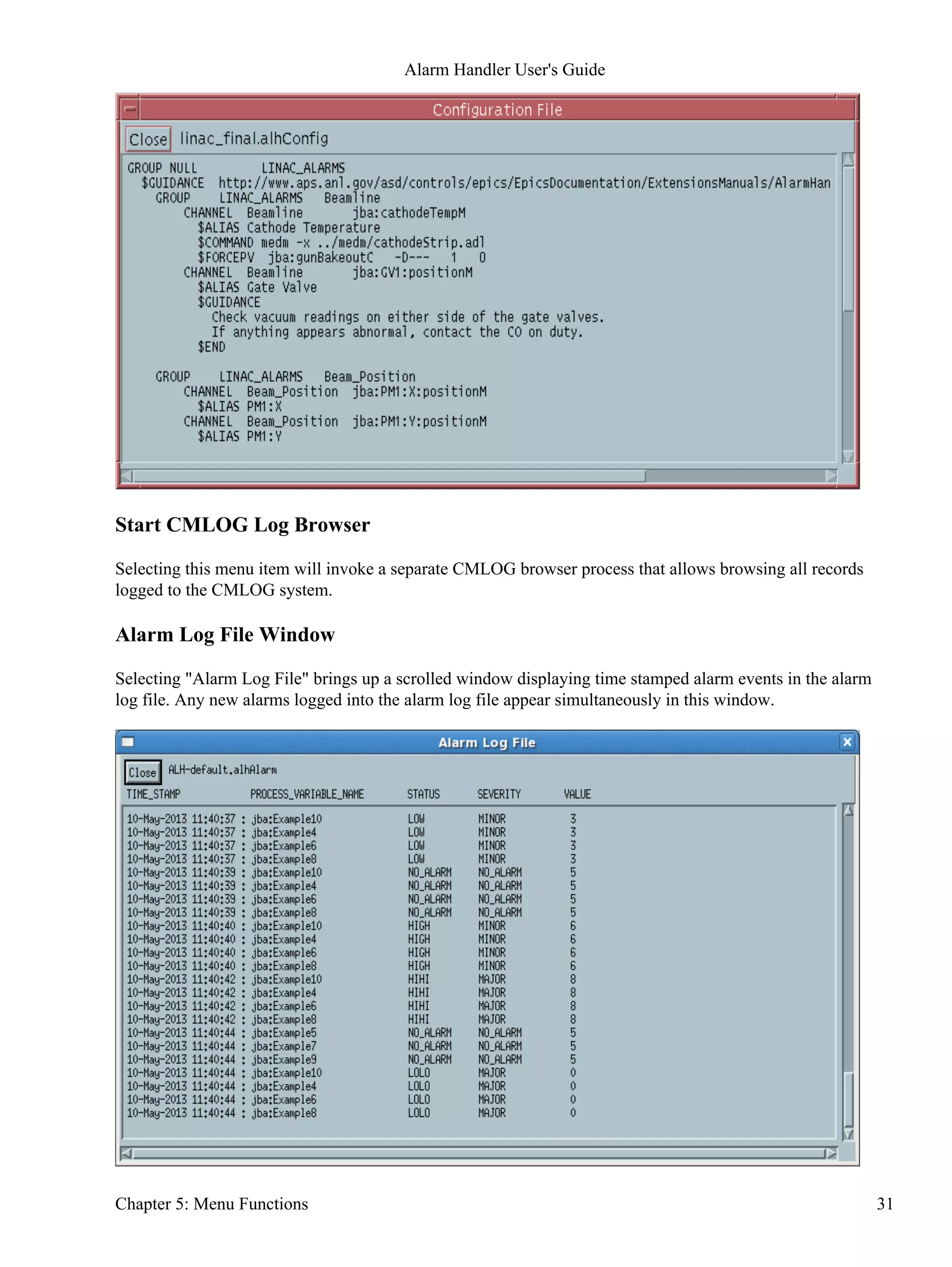
Configuration File
Selecting "Configuration File" brings up a scrolled window that displays the contents of the current
configuration file. If INCLUDE lines are present the contents of the included files are recursively displayed.
Alarm Handler User's Guide
30 Chapter 5: Menu Functions
Start CMLOG Log Browser
Selecting this menu item will invoke a separate CMLOG browser process that allows browsing all records
logged to the CMLOG system.
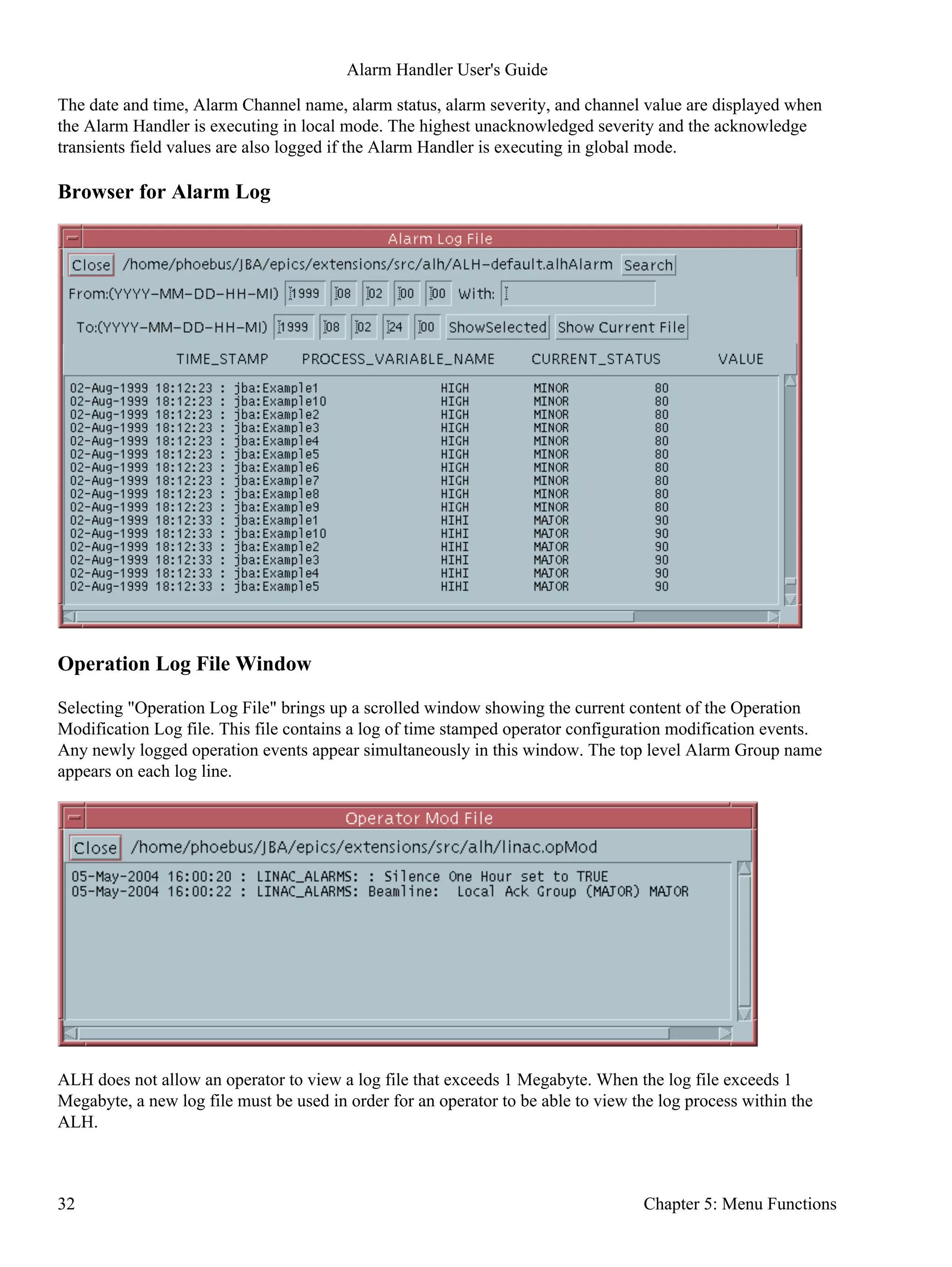
Alarm Log File Window
Selecting "Alarm Log File" brings up a scrolled window displaying time stamped alarm events in the alarm
log file. Any new alarms logged into the alarm log file appear simultaneously in this window.
Alarm Handler User's Guide
Chapter 5: Menu Functions 31
The date and time, Alarm Channel name, alarm status, alarm severity, and channel value are displayed when
the Alarm Handler is executing in local mode. The highest unacknowledged severity and the acknowledge
transients field values are also logged if the Alarm Handler is executing in global mode.
Browser for Alarm Log
Operation Log File Window
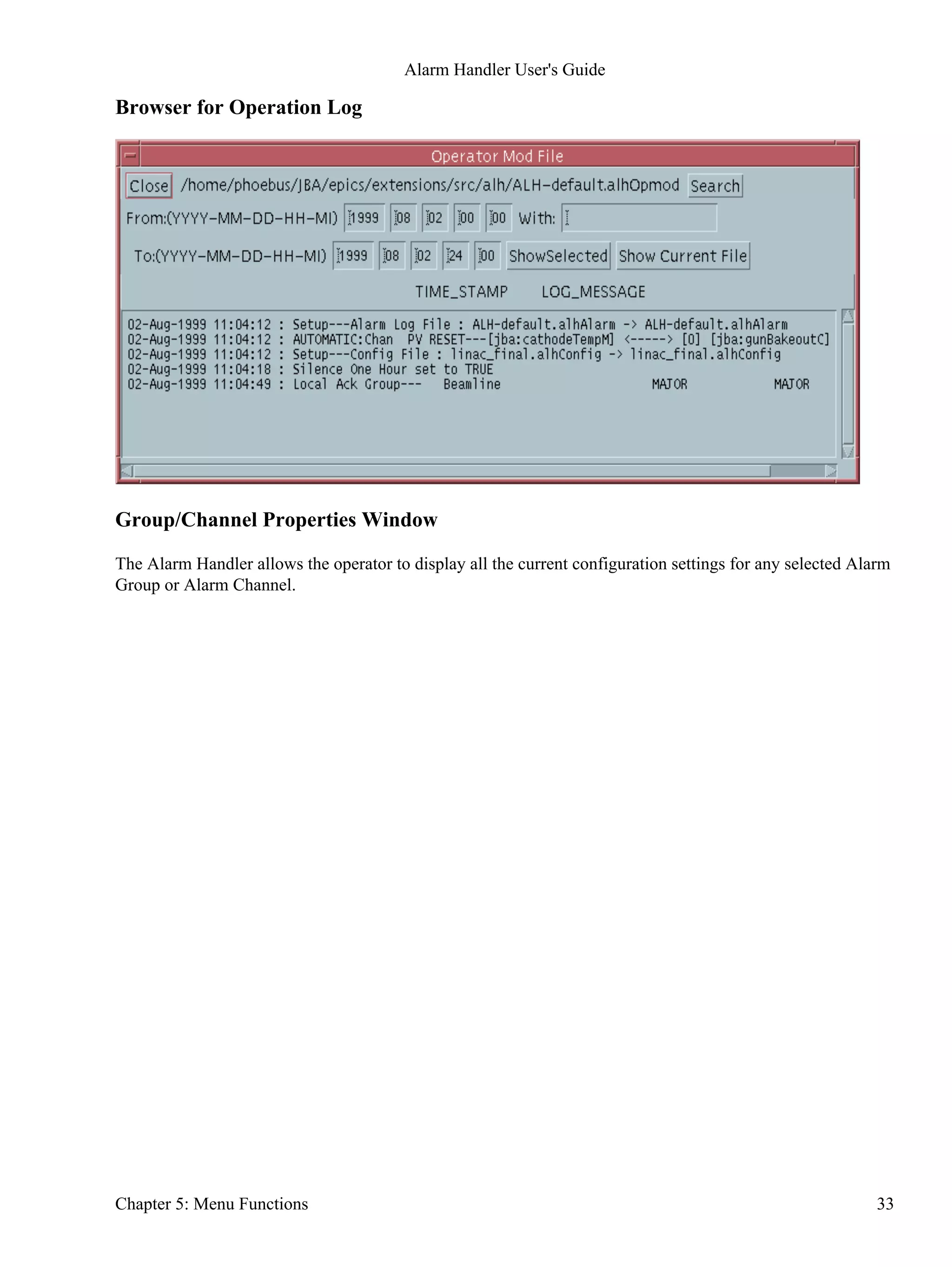
Selecting "Operation Log File" brings up a scrolled window showing the current content of the Operation
Modification Log file. This file contains a log of time stamped operator configuration modification events.
Any newly logged operation events appear simultaneously in this window. The top level Alarm Group name
appears on each log line.
ALH does not allow an operator to view a log file that exceeds 1 Megabyte. When the log file exceeds 1
Megabyte, a new log file must be used in order for an operator to be able to view the log process within the
ALH.
Alarm Handler User's Guide
32 Chapter 5: Menu Functions
Browser for Operation Log
Group/Channel Properties Window
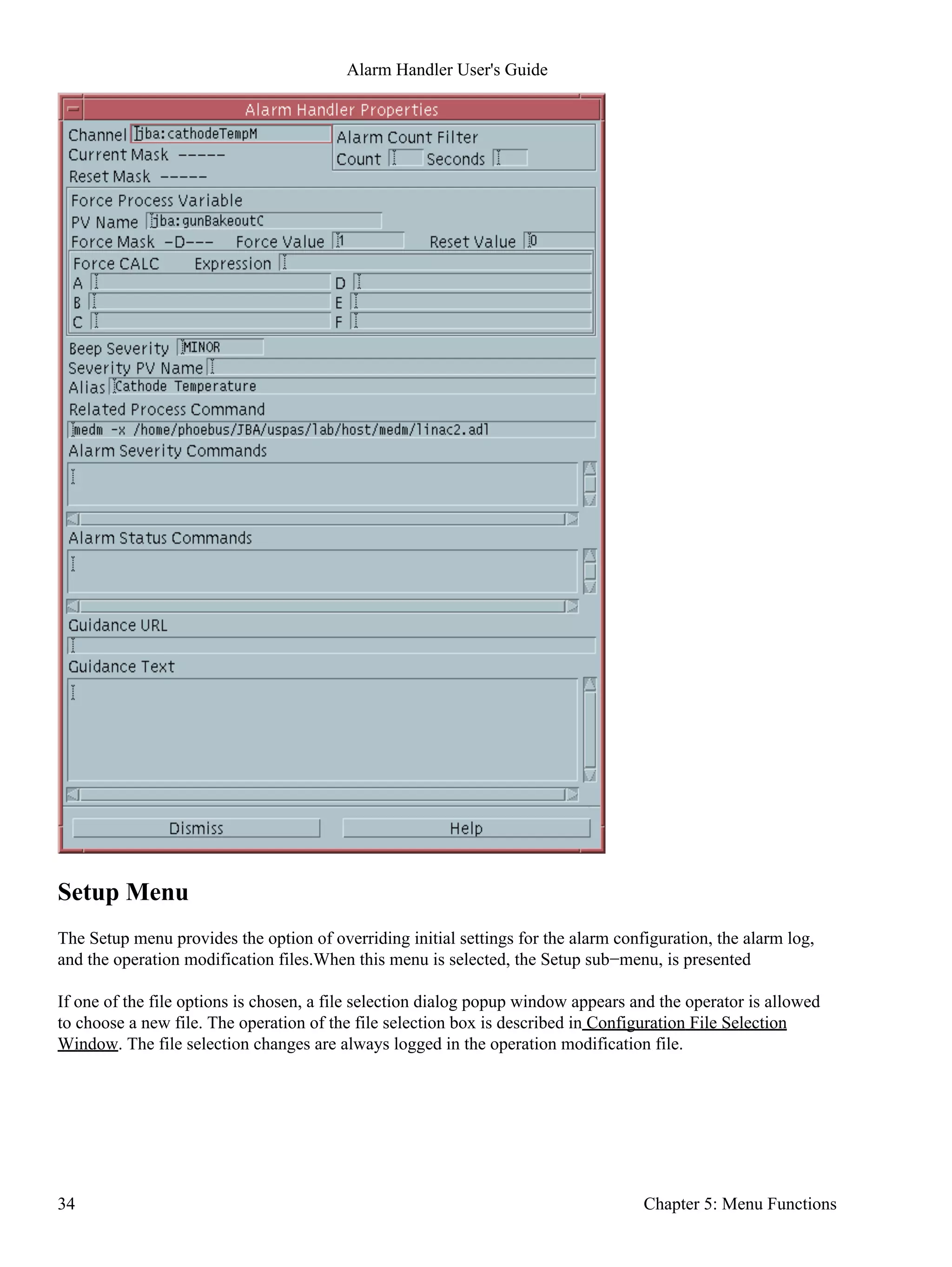
The Alarm Handler allows the operator to display all the current configuration settings for any selected Alarm
Group or Alarm Channel.
Alarm Handler User's Guide
Chapter 5: Menu Functions 33
Setup Menu
The Setup menu provides the option of overriding initial settings for the alarm configuration, the alarm log,
and the operation modification files.When this menu is selected, the Setup sub−menu, is presented
If one of the file options is chosen, a file selection dialog popup window appears and the operator is allowed
to choose a new file. The operation of the file selection box is described in Configuration File Selection
Window. The file selection changes are always logged in the operation modification file.
Alarm Handler User's Guide
34 Chapter 5: Menu Functions
Display Filter
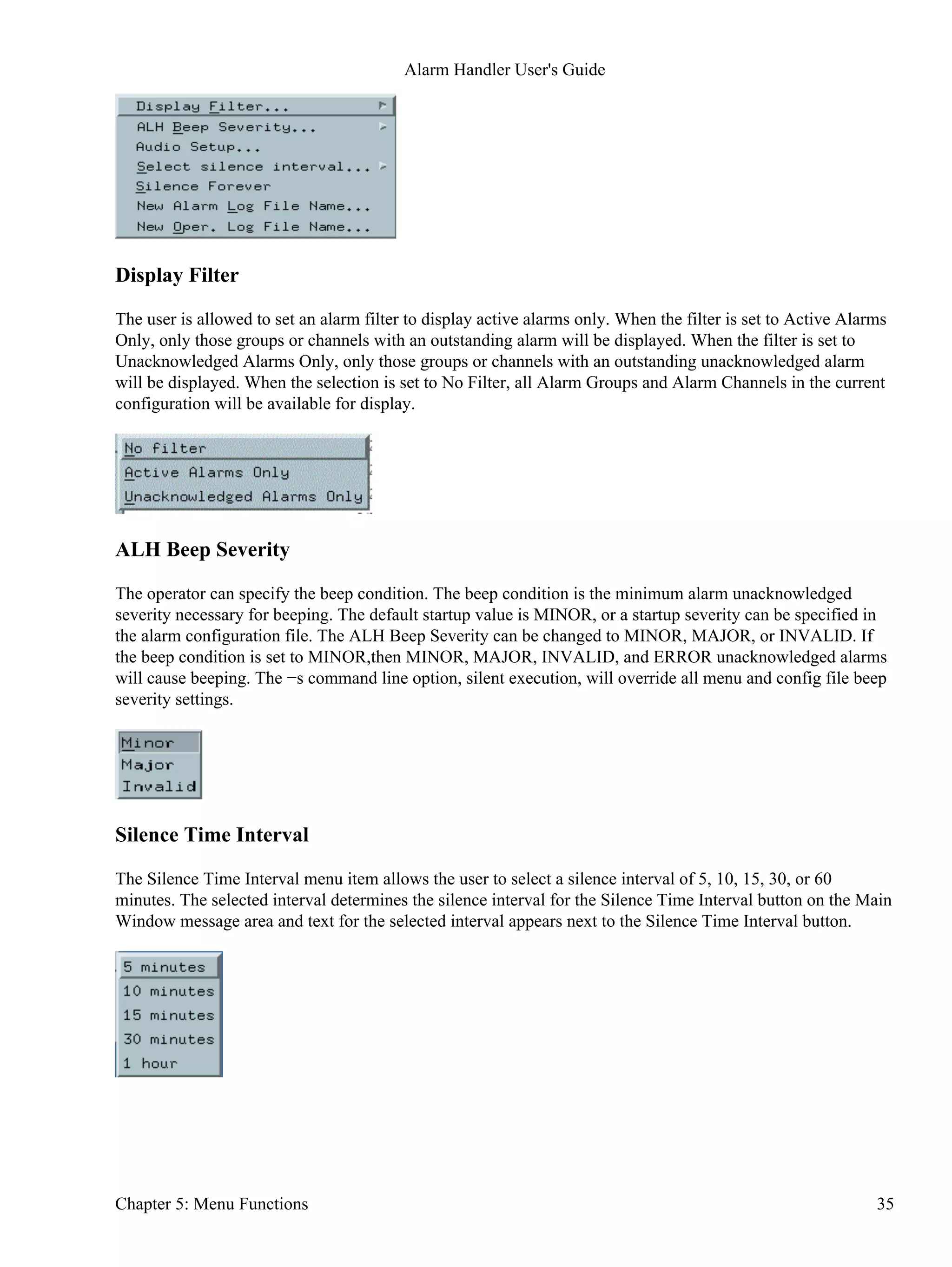
The user is allowed to set an alarm filter to display active alarms only. When the filter is set to Active Alarms
Only, only those groups or channels with an outstanding alarm will be displayed. When the filter is set to
Unacknowledged Alarms Only, only those groups or channels with an outstanding unacknowledged alarm
will be displayed. When the selection is set to No Filter, all Alarm Groups and Alarm Channels in the current
configuration will be available for display.
ALH Beep Severity
The operator can specify the beep condition. The beep condition is the minimum alarm unacknowledged
severity necessary for beeping. The default startup value is MINOR, or a startup severity can be specified in
the alarm configuration file. The ALH Beep Severity can be changed to MINOR, MAJOR, or INVALID. If
the beep condition is set to MINOR,then MINOR, MAJOR, INVALID, and ERROR unacknowledged alarms
will cause beeping. The −s command line option, silent execution, will override all menu and config file beep
severity settings.
Silence Time Interval
The Silence Time Interval menu item allows the user to select a silence interval of 5, 10, 15, 30, or 60
minutes. The selected interval determines the silence interval for the Silence Time Interval button on the Main
Window message area and text for the selected interval appears next to the Silence Time Interval button.
Alarm Handler User's Guide
Chapter 5: Menu Functions 35
Silence Forever
The Silence Forever button toggles On/Off the beeping of all current and future unacknowledged alarms.
Beeping normally occurs when there are unacknowledged alarms.
New Alarm Log File
The alarm log file contains the log of alarm changes of states. The Alarm Handler allows the operator to
specify an alarm log file name that differs from the current setting. If it does not exist, it will be automatically
created. All new alarm state changes will be logged to this file. A file selection dialog window is used to set a
new Alarm Log File name.
New Operation Modification Log File
The Alarm Handler allows the operator to specify an operation modification log file that differs from the
current setting. If it does not exist, it will be automatically created by ALH. All subsequent operation changes
will be logged to this new operation modification file. A file selection dialog window is used to set a new
Operation Modification Log File name.
Help Menu
The Help menu item will display this "Alarm Handler User Guide" when selected.
When the About menu item is chosen, information about the current version of the alarm handler is displayed.
Alarm Handler User's Guide
36 Chapter 5: Menu Functions
Chapter 6: Alarm Configuration File
Configuration File Description
The alarm configuration file is the file used as input to the Alarm Handler. This file defines the Alarm Group
structure and takes data in a flexible input format. The alarm configuration file, which can be prepared via any
text editor, defines a complete Alarm Group structure composed of subgroups and channels. The arrangement
of channels and subgroups follow the standard tree structure. The subgroups always terminate at channels.
The only input format constraint is that the definitions must be in hierarchical order. That is, after a group is
defined in the configuration file as belonging to a parent group, all its subgroups and channels must be defined
in the configuration file before a new group belonging to the same parent group can be defined. There can be
only one top−level group (main group) and this group must have NULL as the parent group name. For each
group or channel, a set of input specifications is used to define special events to be taken care of at start−up
time.
File Name
When opening a new configuration file, ".alhConfig" will be used as the default suffix. The default file name
for the alarm configuration file is ALH−default.alhConfig.
Input Format
The configuration file statements for a given group or channel takes flexible input format which can consist of
the following items:
GROUP parentName GroupName
$HEARTBEATPV heartbeatPVName <value> <seconds>
CHANNEL parentName ChannelName <mask>
INCLUDE parentName fileName
$ACKPV ackPVName ackValue
$FORCEPV forcePVName forceMask <forceValue> <resetValue>
$FORCEPV CALC forceMask <forceValue> <resetValue>
$FORCEPV_CALC <expression>
$FORCEPV_CALC_A <PVNameA>
...
$FORCEPV_CALC_F <PVNameF>
$SEVRPV sevrPVName
$GUIDANCE
$END
$GUIDANCE urlAddress
$ALIAS anyValidTextString
$COMMAND anyValidCommand
$SEVRCOMMAND severityChangeValue anyValidCommand
$STATCOMMAND alarmStatusStringValue anyValidCommand
$ALARMCOUNTFILTER inputCount inputSeconds
$BEEPSEVERITY ALHbeepSeverity
$BEEPSEVR GroupOrChannelBeepSeverity
Input syntax notes:
Chapter 6: Alarm Configuration File 37
The fields enclosed in <> are optional.•
Blanks can be used to separate the fields for improved readability.•
The GROUP or CHANNEL line must be first line in a set.•
Lines starting with "#" are comments.•
Lines starting with "$" are optional.•
The [$GUIDANCE ... $END] must be entered as a set if text guidance is present.•
Heartbeat Process Variable
The line starting with $HEARTBEATPV is optional. It is required only when a user wants a monitored pv to
show whether or not ALH is running. If the $HEARTBEATPV line is present, ALH will do CA puts of the
specified value to the specified pv at the specified rate (in seconds). The heartbeatPVName must be an
existing PV in the EPICS database and can be specified as <channel_name>.<field_name>.
Group or Channel
A set of group or channel lines must appear in the alarm configuration file. These lines define the Alarm
Group structure. The first line is the top level Alarm Group definition. There can be only one top−level Alarm
Group and this Alarm Group must have NULL as the parent group name. Group or Channel lines must start
with the keyword GROUP or CHANNEL. The GroupName is the name of a user specified Alarm Group. The
ChannelName must be the name of a specific record defined in an EPICS database. The parentName is the
name of the parent Alarm Group. There is no restriction on the number of group definitions.
GROUP parentName GroupName
The channel <mask> is optional and defaults to no mask (i.e. −−−−−). It is required only for a channel with a
non default mask setting. The detailed description of mask settings is given in Alarm Channel Mask in this
Chapter.
CHANNEL parentName ChannelName <mask>
Include File
The line starting with INCLUDE allows a user to designate, within his alarm configuration file, the name of
another alarm configuration file to be read by the Alarm Handler at runtime. The main Alarm Group of the
designated file will become a child group of the parentName group specified on the INCLUDE line.
INCLUDE parentName fileName
Acknowledge Process Variable
The line starting with $ACKPV is optional. It is required only when a user wants to write a user specified
value (ackValue) to an acknowledge process variable (ackPVName) when a channel's alarm is acknowledged.
The acknowledge Process variable must be defined in the IOC database and is specified as
<record_name>.<field_name>. Whenever the channel's alarm is acknowledged, the acknowledge value
(ackValue) is written to the acknowledge process variable via a channel access put (ca_put) request. Writes to
an acknowledge process variable are done only when the alarm handler is in global active mode.
$ACKPV ackPVName ackValue
Alarm Handler User's Guide
38 Chapter 6: Alarm Configuration File
Force Process Variable
The lines starting with $FORCEPV are optional. They are required only when a user wants to let ALH
automate changing an alarm group or channel's mask values by monitoring an EPICS database process
variable or by monitoring the value of a calulated expression based on PV values.
The first method is to monitor a single EPICS database process variable. Only only one input line is required.
This line defines the forcePVName (process variable to be monitored), forceMask, forceValue, and
resetValue. The forcePVName must be an existing PV in the EPICS database and can be specified as
<channel_name>.<field_name>. Whenever the value of the force process variable changes to be the same as
the forceValue, the Alarm Group or Channel mask will be set to the forceMask. For an Alarm Group, this
means that masks of all the channels in the group and its subgroups are set to the forceMask. Whenever the
value of the force process variable changes to be the same as the resetValue, these channel masks are set to
their default values. The forceValue must be different from the resetValue. The default setting is forceValue =
1, and resetValue = 0. A "NE" can be used in the resetValue field to reset the masks when the value of the
force process variable no longer equals the force value. Alarm Handler menu items exist which allow the user
to enable/disable the Force PV, change the name of the Force PV, and change the Force Process Variable
values. The force PV test uses type double for forceValue, resetValue and pv value.
$FORCEPV forcePVName forceMask <forceValue> <resetValue>
The second method is to monitor the value of a calculated expression. This requires multiple Force PV CALC
input lines to define the expression. This CALC facility allows algebraic, relational, and logical operations on
up to 6 pv values. The result of the expression is compared to the forcePV forceValue and resetValue to
determine whether or not to set group/channel masks.
To specify a forcpePV calculation expression in the alhConfig file you create the $FORCEPV record as
before but you specify "CALC" instead of a PV name. Then you add a new $FORCEPV_CALC line in which
you specify the calculation expression in a manner similar to the calc record expression. In fact alh uses the
same code as the calc record to evaluate the expression. You specify the expression using A, B, ... instead of
the pvnames. Then you add $FORCEPV_CALC_A through $FORCEPV_CALC_F lines to specify the pv
names. (You can also specify constant values on these lines.) The Alarm Handler ForcePV dialog window
allows users to specify or change the ForcePV CALC data.
An example of the alhConfig file lines for a calculation forcePV is
$FORCEPV CALC −−−TL 18.321 NE
$FORCEPV_CALC A+B+C
$FORCEPV_CALC_A jba:alh5
$FORCEPV_CALC_B jba:alh6
$FORCEPV_CALC_C 5.321
The expression is evaluated using type "double" for all pv values and constants.
Severity Process Variable
The line starting with $SEVRPV is optional. It is required only when a user wants to write the severity value
of a group or channel to a process variable. The sevrPVName must be defined in the IOC database and is
specified as <channel_name>.<field_name>. Whenever the group or channel severity changes, the new
severity value is written to the severity process variable via a channel access put (ca_put) request. Writes to a
Alarm Handler User's Guide
Chapter 6: Alarm Configuration File 39
severity process variable are done only when the alarm handler is in global active mode. The value −1 is
written to the servrity PV when the group or channel is disabled.
$SEVRPV sevrPVName
Guidance
The lines starting with $GUIDANCE are optional. They are required only when a user wants to display alarm
guidance information for a group or channel. The $GUIDANCE line may be followed by a set of ascii
guidance text lines with an $END line to terminate the guidance text, or alternatively, the $GUIDANCE line
may contain a url address.
$GUIDANCE
<text lines>
$END
or
$GUIDANCE urlAddress
Alias
The line starting with $ALIAS is optional. It is required when it is desired that the alarm handler display the
specified alias text string in places where it would normally display the Alarm Group or Alarm Channel name.
$ALIAS anyValidTextString
Related Commands
The line starting with $COMMAND is optional. It is required only when a user wants to provide the feature of
starting a related process for this group or channel. When the alh operator clicks on a Process Button for an
alarm group or channel in the alarm handler Main Window display one of two things occurs. If there was a
single related process specified on the $COMMAND line for the group or channel, that process is invoked. If
multiple processes were specified on the $COMMAND line, a popup menu of the related process names
appears and the related process selected by the user is invoked.
A single command is specified as follows:
$COMMAND anyValidCommandSyntax
Multiple commands are specified with command names and command strings separated by exclamation
points, "!", using the following syntax
$COMMAND cmd_1_name!cmd_1_string!cmd_2_name!cmd_2_string!...cmd_n_name!cmd_n_string
Alarm Handler User's Guide
40 Chapter 6: Alarm Configuration File
Severity Command
The line starting with $SEVRCOMMAND is optional. It is required if a process should be invoked when the
alarm severity value for a group or channel changes. A single group or channel may have multiple
$SEVRCOMMAND lines. This line defines the change in the severity necessary to start the process and
defines the process to be started.
Valid severity change values are −
UP_INVALID, UP_MAJOR, UP_MINOR, UP_ANY, DOWN_MAJOR, DOWN_MINOR,
DOWN_NO_ALARM, DOWN_ANY, UP_ALARM
Status Command
The line starting with $STATCOMMAND is optional and valid only for an Alarm Channel. It is required only
when the alarm handler should start a process when the channel alarm status becomes a specified value. A
single channel may have multiple $STATCOMMAND lines. This line defines the status value necessary to
start the process and defines the process to be started. Valid alarm status string values can be found in the
EPICS base alarmString.h header file.
Example alarm status string values are −
NO_ALARM, READ, WRITE, HIHI, HIGH, READ_ACCESS, LOLO, LOW, STATE, COS, COMM,
WRITE_ACCESS, TIMEOUT, HWLIMIT, CALC, SCAN, LINK, SOFT, BAD_SUB, UDF, DISABLE,
SIMM
Alarm Count Filter
The line starting with $ALARMCOUNTFILTER is optional. It is required only when the alarm handler
should filter the registration of alarms for a channel. This line defines the alarm count and seconds required
for alarm registration. To register as an alarm, a channel must remain in an alarm state for more than
inputSeconds seconds or the channel must enter into an alarm state from a no−alarm state more than
inputCount times within inputSeconds seconds.
If inputCounts is zero, inputCounts is not used in determining alarm/no−alarm states, only inputSeconds is
used to filter a channel going in and out of alarm state. If inputCounts is −1, inputSeconds only is used for
filtering a channel going from no−alarm to alarm state, and a change in channel from alarm state to no−alarm
state is not filtered.
$ALARMCOUNTFILTER inputCount inputSeconds
Beep Severity
The line starting with $BEEPSEVERITY is optional. It is required only when the alarm handler should filter
the beeping if alarms are present. This line defines the minimum severity level required for beeping. Beeping
will not occur when the highest outstanding severity is less than the specified severity. Valid severity values
are MINOR, MAJOR, INVALID, and ERROR.
$BEEPSEVERITY severity
Alarm Handler User's Guide
Chapter 6: Alarm Configuration File 41
Sample Configuration File
The following listing shows a simple example of an alarm configuration file.
GROUP NULL MAIN
$COMMAND medm /home/phoebos/USER/appl/example.adl
$GUIDANCE
Line 1 of guidance information about main group
Line 2 guidance.
Line 3 guidance.
$END
GROUP MAIN AAA
$COMMAND medm /home/phoebos/USER/appl/example2.adl
$SERVPV SEVR:AI
$FORCEPV FORCE:AI −D−−−
CHANNEL AAA rai_2000
CHANNEL AAA rai_2001
GROUP MAIN BBB
CHANNEL BBB rbi_000
CHANNEL BBB rbi_2000
GROUP MAIN CCC
CHANNEL CCC rbo_000
CHANNEL MAIN rbo_001
In this example, the first group is named MAIN. The MAIN group contains three subgroups ( AAA, BBB, and
CCC) and one channel (rbo−001). The AAA subgroup contains two channels: rai_2000 and rai_2001. The
BBB subgroup contains the two channels: rbi_000 and rbi_2000. The CCC subgroup contains only one
channel: rbo_000.
In this example the default mask "−−−−−" is used for every channel. That is, no masks are specified on the
group and channel lines.
In above example, $COMMAND and $GUIDANCE options are specified for the MAIN group. The
$GUIDANCE option allows the user to display guidance text in a popup window when the MAIN group
guidance button is pressed. The $COMMAND line option allows a user to start the display manager, medm,
by pressing the MAIN group's related proccess button.
In above example, the $COMMAND, $FORCEPV, and $SEVRPV options are specified for the AAA group.
This $COMMAND option allows a user to open an xterm window from the start related process button on the
AAA group line. The $FORCEPV option tells alh to add an automatic force mask event for group AAA. If the
value of process variable FORCE:AI becomes 1, then the mask of all the channels in this group will be set to
the forceMask, "−D−−−". If the value of process variable FORCE:AI becomes 0, then the mask of all the
channels in this group will be reset to their default mask values. The $SEVRPV option tells alh to record the
alarm severity of group AAA to the process variable SEVR:AI.
Alarm Handler User's Guide
42 Chapter 6: Alarm Configuration File
Alarm Channel Mask
Associated with each Alarm Channel are two five bit masks (default and current). The current mask can be
changed by force commands or by force process variables. The default mask is defined in the alarm
configuration file. A reset command forces all associated masks to return to the default values.
The definition for each bit in the mask value follows:
Add/Cancel Alarm
This mask bit determines if a channel access add event is active. Add/Cancel means that a ca_add_event
is/isn't active. If ca_add_event is not active for a channel, the IOC will not send alarm events to the alarm
handler for that channel.
" C" means cancel and "−" denotes add.
Enable/Disable Alarm
Alarms aren't/are ignored by the alarm handler. Disabling an alarm has the effect of no display and NoAck. If
an alarm is disabled the alarm status and severity are not displayed. Thus, even though a ca_add_event is in
effect, the channel always appears to the operator to be in the NO_ALARM state. Alarm change of states will,
however, still be logged unless NoLog is in effect.
When a pv is enabled after it has been disabled for a while and the pv is not in alarm state but there are
unacknowledged transient alarms and the alarm handler is running in global mode, an automatic
acknowledgement is sent when the pv is enabled and the auto acknowledgement is logged in the opMod file if
the alarm handler is running in global mode.
" D" means alarm disabled.
Ack/NoAck
The operator is/isn't required to acknowledge alarms.
" A" means alarm acknowledgment is not required.
Ack/NoAck Transient Alarms
The operator is/isn't required to acknowledge transient alarms. A transient alarm is one that enters alarm state
and then returns to normal before the operator can acknowledge the alarm.
" T" means acknowledgment of transient alarms is not required.
Log/No Log Alarms
Alarms will/won't be logged.
" L" means no alarm logging .
Alarm Handler User's Guide
Chapter 6: Alarm Configuration File 43
Alarm Handler User's Guide
44 Chapter 6: Alarm Configuration File

ALH user guide 1.2.33 (May 2013)

  • 1.
    Alarm Handler User'sGuide ALH 1.2.33 May 2013 Janet Anderson Copyright (c) 2007 UChicago Argonne, LLC as Operator of Argonne National Laboratory. Copyright (c) 2002 Deutches Elektronen−Synchrotron in der Helmholtz−Gemelnschaft (DESY). Copyright (c) 2002 Berliner Speicherring−Gesellschaft fuer Synchrotron−Strahlung mbH (BESSY).
  • 3.
    Table of Contents Chapter1: Preface..............................................................................................................................................1 Purpose of Document...............................................................................................................................1 Audience..................................................................................................................................................1 Background/Environment........................................................................................................................1 EPICS Control System Perspective.........................................................................................................1 Alarm Fields............................................................................................................................................1 Document Organization...........................................................................................................................2 Chapter 2: Introduction....................................................................................................................................3 What is the Alarm Handler?....................................................................................................................3 Definition...........................................................................................................................................3 Availability........................................................................................................................................3 Purpose of the Alarm Handler.................................................................................................................3 System Requirements..............................................................................................................................3 Alarm Handler Terminology....................................................................................................................3 Alarm.................................................................................................................................................3 Alarm Severity..................................................................................................................................4 Alarm Status......................................................................................................................................4 Alarm Channels.................................................................................................................................4 Alarm Groups....................................................................................................................................4 Error State..........................................................................................................................................4 Local / Global Mode..........................................................................................................................4 Passive / Active State........................................................................................................................4 Alarm Acknowledgment...................................................................................................................5 Alarm Handler Windows.........................................................................................................................5 Runtime Window..............................................................................................................................5 Main Window....................................................................................................................................5 Alarm Handler Files.................................................................................................................................5 Alarm Configuration File..................................................................................................................6 Alarm Log File..................................................................................................................................6 Operation Modification Log File......................................................................................................6 Chapter 3: Starting ALH...................................................................................................................................7 Path Requirements...................................................................................................................................7 Environment Variables............................................................................................................................7 ALARMHANDLER.........................................................................................................................7 ALHMAINFONT..............................................................................................................................7 Command Line Syntax............................................................................................................................7 Default Settings........................................................................................................................................8 Command Line Option Descriptions.......................................................................................................9 Alarm Configuration File..................................................................................................................9 Alarm Log File..................................................................................................................................9 Log alarms into CMLOG system......................................................................................................9 Message Broadcast System...............................................................................................................9 Write Configuration File ACKT Settings on Startup........................................................................9 Disable Writing.................................................................................................................................9 Debug output.....................................................................................................................................9 Description field................................................................................................................................9 Alarm Handler User's Guide i
  • 4.
    Table of Contents Chapter3: Starting ALH Directory for All Files.....................................................................................................................10 Set Alarm Display Filter..................................................................................................................10 Global Mode....................................................................................................................................10 Help.................................................................................................................................................10 Locking System...............................................................................................................................10 Locking File....................................................................................................................................10 Directory for Log Files....................................................................................................................10 Maximum Alarm Log Records........................................................................................................10 Start with Main Window.................................................................................................................11 Colored Masks.................................................................................................................................11 Do not use Popup Boxes for Displaying Errors..............................................................................11 Database..........................................................................................................................................11 OpMod Log File..............................................................................................................................11 Log Operator Modifications into CMLOG system.........................................................................11 TCP Printing....................................................................................................................................11 Wave File Sound.............................................................................................................................11 Silent Mode.....................................................................................................................................11 Passive Mode...................................................................................................................................12 AlarmLogDated...............................................................................................................................12 Print Version....................................................................................................................................12 XML−ish Log Files.........................................................................................................................12 Xoptions..........................................................................................................................................12 Configuration File Selection Window...................................................................................................12 Runtime Window...................................................................................................................................13 Exiting the Alarm Handler..............................................................................................................14 Displaying the Main Window.........................................................................................................14 Chapter 4: Main Window................................................................................................................................17 Main Window Description.....................................................................................................................17 Menu Bar.........................................................................................................................................17 Alarm Configuration Tree Structure Display..................................................................................17 Alarm Group Contents Display.......................................................................................................18 Message Area..................................................................................................................................18 Group Summary Line............................................................................................................................19 Acknowledgment Button.................................................................................................................19 Single Character Severity Code......................................................................................................19 Group Name Selection Button........................................................................................................19 Current Mask Summary..................................................................................................................20 Alarm Severity Summary Counts....................................................................................................20 Alarm Channel Status Line....................................................................................................................20 Acknowledgment Button.................................................................................................................20 Severity Code..................................................................................................................................21 Channel Name Button.....................................................................................................................21 Current Mask...................................................................................................................................21 Alarm Status and Severity...............................................................................................................21 Alarm Handler User's Guide ii
  • 5.
    Table of Contents Chapter5: Menu Functions.............................................................................................................................23 Main Window Menu Bar.......................................................................................................................23 File Menu Commands............................................................................................................................23 Open................................................................................................................................................23 Save As............................................................................................................................................24 Close................................................................................................................................................24 Action Menu Commands.......................................................................................................................24 Acknowledge Alarm........................................................................................................................25 Display Guidance............................................................................................................................25 Start Related Process.......................................................................................................................26 Force Process Variable....................................................................................................................26 Force Mask......................................................................................................................................26 Modify Mask Settings.....................................................................................................................27 Beep Severity..................................................................................................................................28 NoAck for One Hour.......................................................................................................................28 Message Broadcasting.....................................................................................................................28 View Menu Commands.........................................................................................................................29 Expand One Level...........................................................................................................................29 Expand Branch................................................................................................................................30 Expand All.......................................................................................................................................30 Collapse Branch..............................................................................................................................30 Current Alarm History Window......................................................................................................30 Configuration File...........................................................................................................................30 Start CMLOG Log Browser............................................................................................................31 Alarm Log File Window.................................................................................................................31 Browser for Alarm Log...................................................................................................................32 Operation Log File Window............................................................................................................32 Browser for Operation Log.............................................................................................................33 Group/Channel Properties Window................................................................................................33 Setup Menu............................................................................................................................................34 Display Filter...................................................................................................................................35 ALH Beep Severity.........................................................................................................................35 Silence Time Interval......................................................................................................................35 Silence Forever................................................................................................................................36 New Alarm Log File........................................................................................................................36 New Operation Modification Log File............................................................................................36 Help Menu.............................................................................................................................................36 Chapter 6: Alarm Configuration File............................................................................................................37 Configuration File Description..............................................................................................................37 File Name...............................................................................................................................................37 Input Format..........................................................................................................................................37 Heartbeat Process Variable.............................................................................................................38 Group or Channel............................................................................................................................38 Include File......................................................................................................................................38 Acknowledge Process Variable.......................................................................................................38 Force Process Variable....................................................................................................................39 Severity Process Variable................................................................................................................39 Alarm Handler User's Guide iii
  • 6.
    Table of Contents Chapter6: Alarm Configuration File Guidance..........................................................................................................................................40 Alias.................................................................................................................................................40 Related Commands..........................................................................................................................40 Severity Command..........................................................................................................................41 Status Command..............................................................................................................................41 Alarm Count Filter..........................................................................................................................41 Beep Severity..................................................................................................................................41 Sample Configuration File.....................................................................................................................42 Alarm Channel Mask.............................................................................................................................43 Add/Cancel Alarm...........................................................................................................................43 Enable/Disable Alarm.....................................................................................................................43 Ack/NoAck......................................................................................................................................43 Ack/NoAck Transient Alarms.........................................................................................................43 Log/No Log Alarms........................................................................................................................43 Alarm Handler User's Guide iv
  • 7.
    Chapter 1: Preface Purposeof Document This document presents a description of the functions provided by the Alarm Handler (ALH) and describes its graphical user interface. The purpose of this guide is to explain how to use and configure the Alarm Handler. Audience This guide is written for individuals who wish to use and understand the Alarm Handler, namely accelerator operators and accelerator physicists. Background/Environment The Alarm Handler is part of the Experimental Physics and Industrial Control System EPICS) co−developed by Los Alamos National Laboratory and Argonne National Laboratory. EPICS consists of a set of software components and tools with which application developers and designers can create an extremely flexible control system that minimizes the need for custom coding and helps ensure uniform operator interfaces. The Alarm Handler is one of the EPICS control system tools. EPICS Control System Perspective The Alarm Handler provides an interface between an operator and the EPICS control system database. The database is the interface between instrumentation hardware and all the EPICS control system software tools. This database is distributed throughout a network on I/O Controllers and contains records that are used to transfer information to and from the attached instrumentation to the Alarm Handler and other EPICS software tools. Database records are made up of fields of various types. Scan fields specify under what circumstances a record will be processed. Convert fields determine how to convert a raw signal to/from engineering units. Device fields are used to specify the software interface to the device. Operator display fields specify how to display the record value. Processing fields are used by the run−time code for processing the record. There are also alarm fields that are used to specify conditions for alarm and to determine if the record is in an alarm state. Most fields are accessible throughout the network by means of the channel access interface software layer by specifying the record name and the field name. All monitoring and control operations are performed through the database. Alarm Fields Each record in the database includes fields for specifying the record's current alarm condition. There are two parts to this alarm condition: the alarm status and the severity of that alarm status. Alarm status and severity values are set and checked whenever a record is processed. When a new condition is detected, a routine is called to send a message to each process monitoring this record. The Alarm Handler is one of these processes. Each database record also includes two fields for specifying the record's current alarm acknowledgment state. The unacknowledged severity field is the highest severity value of unacknowledged alarms, and the acknowledge transients field specifies whether transient alarms need to be acknowledged. A transient alarm is when the record enters alarm state and then returns to normal before the alarm is acknowledged. When any Chapter 1: Preface 1
  • 8.
    change to thesefields is detected, a routine is called to send a message to each process monitoring this record. The Alarm Handler filters alarm messages and displays alarms to the operator hierarchically. The alarm configuration structure defined in the alarm configuration file is used to determine this hierarchical display. The Alarm Handler brings alarms to the operator's attention, logs the alarms, allows the operator to acknowledge alarms, and gives the operator guidance on handling of specific alarms. Document Organization Chapter 1 is this Preface describing the users guide. Chapter 2 is an Introduction to the Alarm Handler and describes the scope of the tool and explains some Alarm Handler terminology. Chapter 3 explains how to invoke the Alarm Handler and describes the command line options. The Main Window is explained in Chapter 4 and Chapter 5 contains a description all Main Window menu functions. The content of an alarm configuration file is described in Chapter 6. An index of terms is available at the end of the document. Using the alarm configuration mode will be explained in Chapter 7 of a future version of this document. Alarm Handler User's Guide 2 Chapter 1: Preface
  • 9.
    Chapter 2: Introduction Whatis the Alarm Handler? Definition The Alarm Handler is an interactive graphical application used primarily by accelerator operators and physicists to display and monitor EPICS database alarm states. It serves as an interface between an operator and the EPICS database and it communicates with the database using channel access function calls. The user interface for the Alarm Handler contains a hierarchical display of an alarm configuration structure allowing both high level and detailed views of the alarm configuration structure in one window. Availability The alarm handler is a Motif and X11 Window based application written in C language, and it runs on Unix, Linux, and Windows 98/XP/.../8 hosts. The Alarm Handler source code is available via WWW as an EPICS extension. Purpose of the Alarm Handler The Alarm Handler monitors alarm conditions of EPICS database records. The primary responsibilities of the Alarm Handler (ALH) are to: Bring alarms to the operator's attention.• Provide the operator guidance for handling of specific alarms• Allow the operator to globally acknowledge alarms.• Provide a graphical view of current database alarms• Provide for logging alarms and display of the logged alarm history• System Requirements The Alarm Handler currently requires either an IBM personal computer with Windows 98/XP/.../8 and Hummingbird's Exceed software or a workstation running a Unix type operating system with X Windows and Motif Version 1.2 or above. The Alarm Handler also requires the global alarm acknowledgment in EPICS base Version 3.11 or above. Alarm Handler Terminology Alarm An unexpected change of state for an EPICS database record. Examples of alarm conditions are: Deviations from tolerance band• Software or Hardware errors• Loss of communication to hardware or linked records• There are two parts to an alarm: the alarm status and the severity of that alarm status. Alarm status and severity are set and checked whenever a record is processed. When a change is detected, a routine is called Chapter 2: Introduction 3
  • 10.
    which sends amessage to each process monitoring this record. The Alarm Handler may be one of these processes. Alarm Severity The SEVR alarm field in an EPICS database record specifies the severity of an alarm state. Currently the alarm severity can take one of the following four values: NO_ALARM, MINOR, MAJOR, INVALID Alarm Status Each EPICS database record has a STAT alarm field that specifies the alarm state of the database record. Currently the status field can take one of more than 20 values, some of which are: READ, WRITE, HIHI, HIGH, LOW, LOLO, STATE, COS, COMM, ... Alarm Channels The Alarm Handler displays alarms for an arbitrary set of channels. Each Alarm Channel refers to a specific EPICS database record. Alarm Groups The Alarm Handler provides a grouping mechanism so that related channels can be grouped together. An Alarm Group consists of a named set of lower level groups and/or database channels. Error State An Alarm Channel will be considered in an error state if there is a loss of communication between the Alarm Handler and the channel or if a channel access exception or other error occurs on the channel. Local / Global Mode The alarm handler can execute in either a local or global mode. Global mode means that unacknowledged severity and acknowledge transients states will be determined by the current value of the fields in an EPICS database record. Local mode means that the unacknowledged severity and acknowledge transients states are local alh settings. Command line options determine the execution mode with local mode being the default setting. There is no way to change between local and global mode during execution. Passive / Active State The alarm handler can execute in either a passive (monitor) or active (modify) state. Passive state means that the alarm handler does not allow alarm acknowledgment and does not allow changes to acknowledge transients settings. There will be no channel access puts when executing in a passive state. The passive/active execution state is determined by a command line option with active state being the default and there is no way to change the current state during execution. Alarm Handler User's Guide 4 Chapter 2: Introduction
  • 11.
    Alarm Acknowledgment In GlobalMode the Alarm Handler reads all ACKT and ACKS fields of the configured Alarm Channels: the Alarm Handler starts with the complete memory of still unacknowledged alarms. These alarms will have to be acknowledged, even if some may not be active anymore. (If a channel's ACKT field is set, any transient alarm will be latched and has to be acknowledged later on.) Global Mode also makes the Alarm Handler write alarm acknowledgements into the channels using Channel Access, i.e. all other Alarm Handlers in Global Mode will receive an alarm acknowledgment. Usually, all Alarm Handlers in the Control Room will run in Global Mode, so that any alarm has to be acknowledged only on one of the Alarm Handlers. In Local Mode, the Alarm Handler starts without reading open acknowledgements from the channels, all alarm acknowledgements made will be valid only for this instance of the Alarm Handler. Usually, Alarm Handlers outside of the Control Room will run in Local Mode. Alarm Handler Windows The Alarm Handler display consists of two types of windows, a runtime window and a Main Window. While the Alarm Handler is executing, the runtime window is always displayed. Runtime Window The runtime window is a small icon like window that contains a single button containing the name of the alarm configuration main Alarm Group. The color of this button is used to show the highest alarm severity of any outstanding alarms. Beeping and blinking of the button is used to show the presence of unacknowledged alarms. Pressing the runtime window button will open the Alarm Handler Main Window or, if already open, bring the Main Window to the top of the window stack. The Close or Quit item on the window manager menu allows the user to exit the Alarm Handler. Main Window The Alarm Handler Main Window is divided into three parts: a menu bar, an alarm configuration display area, and a message area. On the menu bar, there are selections for pull−down menu items that perform all the functions of the Alarm Handler. The alarm configuration display area is divided into two major parts: an alarm configuration tree structure display and an Alarm Group contents display. The current alarm configuration tree structure appears in the first area, and a list of the contents of the currently selected Alarm Group from the alarm configuration tree structure appears in the second area. Color is used to show alarm severity. A single character severity code is also provided for an operator with a monochrome display. The message area displays the name of the current configuration file and has indicators to show definitions of the summary alarms fields for the currently open alarm configuration file. Alarm Handler Files There are three files used by the alarm handler while it is executing. They are the alarm configuration file, the alarm log file, and the operation modification log file. Alarm Handler User's Guide Chapter 2: Introduction 5
  • 12.
    Alarm Configuration File Thealarm configuration file is the only file used as input to the Alarm Handler. This file defines the Alarm Group structure and takes data in a flexible input format. The alarm configuration file specifies the Alarm Groups, Alarm Channels, channel masks, hierarchy of Alarm Groups, and other configuration information. The format and contents of the alarm configuration file are described in Chapter 6. The user can specify the desired alarm configuration file using a file selection window at Alarm Handler start−up, or on the command line. The user can change to a new alarm configuration file while the Alarm Handler is running by using the File/Open item on the main window menu bar. Alarm Log File The Alarm Log output file contains a log of alarm state changes. For each change of alarm state, channel access connection state, and read/write access state, the date, time, channel name and current state values are recorded. The alarm log file is an ASCII file that can be displayed on any terminal or sent to a printer. Operation Modification Log File The Operation Modification Log output file contains a log of alarm acknowledgments and changes the user has made to the current alarm handler configuration. For each operator modification the date, time and description of the operator's modification are recorded. Alarm Handler User's Guide 6 Chapter 2: Introduction
  • 13.
    Chapter 3: StartingALH Path Requirements Before invoking the Alarm Handler for the first time, the path to the executable and configuration files must be established. Contact your EPICS administrator to find the locations of the Alarm Handler executable, alh, and your site's Alarm Handler configuration input files. Environment Variables ALARMHANDLER The optional environment variable ALARMHANDLER can be used to point the Alarm Handler to a desired working directory. If ALARMHANDLER is not set, the current working directory is assumed. If the alarm configuration file resides in a different directory (e.g. /home/cs/appl/ah/dev) from the current working directory, under UNIX ALARMHANDLER can be set to point to the desired path by issuing the UNIX c shell command: setenv ALARMHANDLER /home/cs/appl/ah/dev The user must have read and write privileges in this directory. ALHMAINFONT The environment variable ALHMAINFONT may be used to set the Runtime Window button font e.g. export ALHMAINFONT='−*−utopia−bold−r−normal−−0−720−75−75−p−0−*−*' Command Line Syntax Once the path is properly set, invoke the Alarm Handler by executing the command: alh This command displays a file selection box in which to specify an alarm configuration file name. The default path for files is the directory defined by the ALARMHANDLER environment variable or the current directory and the default alarm handler output file names are ALH−default.alhAlarm and ALH−default.alhOpmod . If there is an alarm configuration file in the current directory with the name ALH−default.alhConfig, it will be used as the input configuration file. The Alarm Handler command has several options and a usage message similar to the table below will be displayed if you enter: "alh −help". alh [OPTIONS] [Xoptions] [configfile] The alarm handler options are: −a alarmlogfile Alarm log filename [ALH−default.alhAlarm Chapter 3: Starting ALH 7
  • 14.
    −aCM Alarm logusing CMLOG (if built using CMLOG) −B Message Broadcast System −caputackt Caput the config file ackt settings to channels (if global and active) −D Disable alarm and opMod log output −debug Debug output will be sent to stdout −desc_field Put DESC field text on alarm log lines −f filedir Directory for alarm configuration files [.] −filter f−opt Set alarm display filter with f−opt being one of [nau] n[0]: no filter a[ctive]: show only active alarms u[nack]: show only unacknowledged alarms −global Global mode (channel ACKS and ACKT fields) −help Print usage text to stdout −L Use Locking System −Lfile lockfile Basename for .LOCK lock file −l logdir Directory for log files [.] −m maxrecords Alarm log file maximum records [2000] −mainwindow Start with Main Window −maskcolor Print mask colored when channel/group contains silencing flag (makes it easier to find all canceled/disabled/noAck channels) −noerrorpopup Do not display error popup window (errors are logged) −O key Log to database (Oracle) −o opmodlogfile Opmod log filename [ALH−default.alhOpmod] −oCM OpMod log using CMLOG −P key Print to TCP printer −p file Use wave file for sound instead of alarm beep (OS dependent) −S Passive state (no ca_puts to ACKS and ACKT fields and severity PV) −s Silent execution (no alarm beeping) −T Alarm Log Dated output files −v, −version Print version number −xml Use XML−ish format for log files Default Settings The default settings for ALH (Alarm Handler) are as follows: Local mode• Active state• Alarm log file maximum records 2000• Directory for files: ALARMHANDLER if defined else current directory• Alarm Configuration File: ALH−default.alhConfig• Alarm Log File: ALH−default.alhAlarm• Operator Modification Log File: ALH−default.opmod• Save New Configuration File: ALH−new.alhConfig• Beeping Status: On• Severity for Beeping: Minor (i.e. any non−zero severity)• Alarm Handler User's Guide 8 Chapter 3: Starting ALH
  • 15.
    Command Line OptionDescriptions Alarm Configuration File The ' configfile ' option specifies which alarm configuration input file is to be used. The default is no configuration file and a file selection window is displayed. Alarm Log File The '−a alarmlogfile ' option specifies the name of the alarm log file. The default name is ALH−default.alhAlarm. Log alarms into CMLOG system The '−aCM' option enables alarm logging into a CMLOG system. The default is not to use CMLOG. (Note: This option is only available if the Alarm Handler is compiled with CMLOG support.) Message Broadcast System The '−B' option enables an operator to send messages using message broadcasting. The default is no message broadcasting. When this option is specified a send message menu item appears on the Main Window menu, and a message input dialog popup appears when the menu item is selected. The operator can then type in a message that will be sent to other alh processes when OK is pressed. A popup dialog box containing a sent message will appear when an Alarm Handler process receives a message. Write Configuration File ACKT Settings on Startup The ' −caputackt ' option specifies that the Alarm Handler should write the alarm configuration file ACKT values using channel access puts to the EPICS database records when the Alarm Handler reads the configuration file. The default is not to write the alarm configuration file ACKT values. Disable Writing The ' −D ' option allows running the Alarm Handler without creating and/or modifying the alarm log and alarm opmod files. This is useful if one alh process runs without this option, creating and modifying some fixed named alarm log files and all other alh process specifying the same file names run with the −D option which does not allow them to overwrite the alarm log files. Debug output The '−debug' option specifies that debugging output should be printed to stdout. The default is not to print debug output. Description field The '−desc_field' option specifies that .DESC field text should be printed on alarmLog output lines. The default is not to print .DESC field text. Alarm Handler User's Guide Chapter 3: Starting ALH 9
  • 16.
    Directory for AllFiles The '−f filedir ' option specifies the directory for the Alarm Handler input and output files. The default location is the current working directory. Set Alarm Display Filter The '−filter f−opt' option sets the initial alarm display filter for the Alarm Handler (see −>>Menu Functions−>Setup Menu−>Display Filter). `f−opt' may be one of `n[o]' (for no filter), `a[ct]' (show active alarms) or `u[nack]' (show only unacknowledged alarms). Default is `no', i.e. all Alarm Groups and channels in the current configuration will be displayed. This option is particularly useful in combination with `−mainwindow' to start Alarm Handlers from operator panels. Global Mode The '−global' options specifies that the alarm handler should run in a global mode. In global mode an Alarm Channel's unacknowledged severity and it's acknowledge transients state will be determined by the current value of the EPICS database record's ACKS and ACKT field settings. In local mode, the default mode, the unacknowledged severity and acknowledge transients settings are local to the alarm handler. Help The '−help' option will print alh command usage text to stdout. Locking System The '−L' option activates a file locking system (based on lockf(), i.e. NFS−safe) making sure that only one of multiple Alarm Handlers with enabled log writing has access to the log. If the `master' (i.e. actively logging) process dies, another Alarm Handler will seamlessly take over logging. Default is not to use this locking mechanism. Locking File The '−L lockfile' option specifies a lock file directory with file name prefix. A ".LOCK" suffix will be appended. The default is the configure filename with directory from the −f option or the current working directory. Directory for Log Files The '−l logdir' option specifies the location of the alarm log file and the operation modification log file. The default location is the current working directory. Maximum Alarm Log Records The '−m maxrecords' option allows the user to specify the maximum number of records that the alarm handler will allow in the alarm log file. If this number of records is reached, new records will overwrite old alarm records. The default number of records is 2000. Specifying zero means the file can have an unlimited number of records. Alarm Handler User's Guide 10 Chapter 3: Starting ALH
  • 17.
    Start with MainWindow The `−mainwindow' option makes the Alarm Handler start with the Main Window instead of the Runtime Window. This is useful in conjunction with the `−filter f−opt' option to start Alarm Handlers from operator panels. The default is to start with the Runtime Window. Colored Masks The `−maskcolor' option makes the Alarm display colored masks when the channel/group contains a silencing flag. This makes it easier to find all the canceled/disabled/noAck channels. Do not use Popup Boxes for Displaying Errors The `−noerrorpopup' option tells the Alarm Handler not to use popup boxes for displaying errors. This is useful for Alarm Handlers running as overhead displays (and no mouse attached to handle popups). The default is to use popups. Database The '−O key' means that the alarm handler should send log messages to a database (Oracle). OpMod Log File The −'o opmodlogfile' option specifies the location of the operation modification log file. The default location is the current working directory. Log Operator Modifications into CMLOG system The '−oCM' option enables opmod logging into a CMLOG system. The default is not to use CMLOG. (Note: This option is only available if the Alarm Handler is compiled with CMLOG support.) TCP Printing The '−P' option allows simultaneously printing of new alarms to the log file and to a TCP printer (socket connection). The user must specify all three printer values: 'Name:port:colorModel ' (where colorModel is mono,hp_color,...). Currently the printing is done asynchronously by adding an additional task "alh_printer". (This option is still under construction and will use pipes in the future) Wave File Sound The '−p file' option specifies that alh should play the specified wave sound file instead of alarm beeping. This option is available for Linux systems only. Silent Mode The '−s' option specifies that alh should start executing in a silent mode with no beeping when alarms are present. Setup menu items can be used to change the startup silence status. Alarm Handler User's Guide Chapter 3: Starting ALH 11
  • 18.
    Passive Mode Specifying this'−S' option means that the alh will execute in a passive (monitor) mode. This means that alh can not send channel access acknowledgment of alarms and can not do channel access puts to the acknowledge transients fields and cannot write to the severity process variable. It is useful for a non−operator alh user. AlarmLogDated With the '−T' option, alarmLog file names will have "date" extensions like YYYY−MM−DD, and log files are automatically switched at midnight. For this option, there is a Main Window menu browser that is displayed after pressing View−"Alarm Log File Window". This browser allows searches in the AlarmLogFile and find all alarms inside of [t1,t2]−diapason containing some <String>. Print Version The '−v' or '−version' option specifies that the Alarm Handler version number should be printed to stdout. XML−ish Log Files The '−xml' option specifies that the Alarm Handler log files should be written in Extensible Markup Language (XML). Xoptions When executing on Unix, the 'alh' command line accepts all X options such as '−bg color_name' and '−fg color_name' and '−geometry geom_spec' Configuration File Selection Window If the Alarm Configuration file is not specified on the command line, a file selection window is presented so the user can select the desired Alarm Configuration file Alarm Handler User's Guide 12 Chapter 3: Starting ALH
  • 19.
    There are severalways to select the directory using this window: Double−click on the appropriate Directories entry.• Type the directory name in the Filter window and click on Filter .• Type the directory name in the Selection window and click on OK .• Once in the appropriate directory, there are several ways to select the desired file: Double−click on the appropriate Files entry.• Click on the appropriate Files entry and click on OK .• Type the file name in the Selection window and click on OK .• Cancel ends the Alarm Handler session. Help has not been implemented in this release. Runtime Window Once an Alarm Configuration file has been selected, the Runtime Window is displayed on the user's screen as a small icon like window. This window contains one button labeled with the name of the Alarm Configuration file's Main Alarm Group (or the Main Alarm Group's alias if it was defined) followed by the group's Current Mask Summary characters if the mask contains characters other than "−". Alarm Handler User's Guide Chapter 3: Starting ALH 13
  • 20.
    The color ofthe button indicates the highest outstanding alarm severity level in the active alarm configuration.: White: Invalid Alarm• Red: Major Alarm• Yellow: Minor Alarm• Background color: NO Alarm• There will be beeping and the button will blink to indicate the presence of unacknowledged alarms. Exiting the Alarm Handler To exit the Alarm Handler, click on the X in the window title bar or use the Window Manager Menu on the Runtime Window and choose the Close menu item. This will bring up the Alarm Handler Exit dialog window. Click on OK to exit the Alarm Handler. Click on Cancel to return to the Alarm Handler. Help has not been implemented in this release. Displaying the Main Window Click the Runtime window button to open the Alarm Handler Main window or, if the Main window is already open, clicking the button will bring the Main window to the top of the window stack. This window contains the hierarchy of Alarm Groups and Alarm Channels (Process Variables) being monitored. The left half of the window contains the tree−structure of the Alarm Group, and the right side contains the contents of the Alarm Handler User's Guide 14 Chapter 3: Starting ALH
  • 21.
    selected Alarm Group.This window will be discussed in detail in the next chapter. Alarm Handler User's Guide Chapter 3: Starting ALH 15
  • 22.
    Alarm Handler User'sGuide 16 Chapter 3: Starting ALH
  • 23.
    Chapter 4: MainWindow Main Window Description When the Runtime Window button is clicked, the Main Alarm Handler window. is displayed. The Alarm Handler Main Window is divided into two major parts: an alarm configuration tree structure display and an Alarm Group Contents display. This window also contains a menu bar and a message area. This window shows the hierarchy of Alarm Groups and Alarm Channels (EPICS database records) being monitored. The left half of the window contains the tree−structure display of Alarm Groups, and the right side displays the contents of the tree−structure display's currently selected Alarm Group. Menu Bar The Alarm Window menu bar provides menu selections for all the functions of the alarm handler and also gives users a second way to access some functions. Alarm Configuration Tree Structure Display The current alarm configuration tree structure of Alarm Groups is graphically displayed as Group Summary Lines which are described in Group Summary Line. Buttons on the tree structure display allow the user to expand or deflate the alarm configuration tree structure. Each group name in the configuration tree structure is displayed on a separate line. The following items appear in each group line of the tree structure display. Single character color coded acknowledgment button• Single character color coded severity code• Chapter 4: Main Window 17
  • 24.
    Group name selectionbutton• Optional subgroups arrow button• Optional guidance button• Optional related process button• Current mask summary• Optional Group Beep Severity character• Alarm severity summary• The configuration tree structure display has a scrolling/paging facility and a display resize facility. This allows users to view an alarm configuration tree structure too large to display on one screen. Alarm Group Contents Display The user will be able to choose any Alarm Group for display by pressing the Alarm Group name button from the configuration tree structure display. Selecting an Alarm Group will cause the Alarm Group contents display to show one level of the alarm subgroups and the Alarm Channels associated with the selected group. The Alarm Group contents display for the currently selected Alarm Group contains group summary lines for each alarm subgroup followed by channel status lines for each Alarm Channel in the selected Alarm Group. Each subgroup or channel name in the summary line is displayed with a color identifier indicating whether the name is an Alarm Group name or a channel name. The Alarm Group display has a scrolling/paging facility to allow users to view an Alarm Group too large to display in one screen. Each channel status line contains: Single character color coded acknowledgment button• Single character color coded severity code• Channel name selection button• Optional guidance button• Optional related process button• Current mask• Optional Channel Beep Severity character• Current status and severity• Highest unacknowledged severity• Message Area The message area shows the current execution mode (local or global), the current execution state (passive or active), the name of the current configuration file. It also contains buttons to silence alarms, and explanatory descriptions of the mask abbreviation codes and status data which appear in the group summary and channel status lines. There are two Silence buttons which toggle beeping on or off. The Silence Current button turns off current alarm beeping until a new alarm occurs. The Silence Interval button toggles beeping of current and future alarms off for a specified interval. When pushed in, beeping is turned off, when out, beeping is toggled on. Beeping occurs only when there are unacknowledged alarms. The main window background color is changed when beeping is turned off. Setup menu items can be used to change the specified time interval. Alarm Handler User's Guide 18 Chapter 4: Main Window
  • 25.
    Group Summary Line Thisdisplay line summarizes the status of all alarms for the group named in this line and all lower level groups. The group summary display consists of the following items: Acknowledgment Button A one−character acknowledgment button is activated only if an unacknowledged alarm is present for the group and the alarm handler is executing in active (modify) state. This button is color−coded representing the highest severity unacknowledged alarm as follows: White: V − Invalid Alarm• Red: R − Major Alarm• Yellow: Y − Minor Alarm• Background color − No Alarm• This button describes the highest severity of unacknowledged alarms for this group and all associated subgroups. Clicking on this button while alh is executing in active state will send channel access alarm acknowledgments to all Alarm Channels associated with the group. It has the same effect as individually acknowledging each channel in an unacknowledged alarm state. Single Character Severity Code A one−character severity display code. It is present only if at least one channel associated with the group is in alarm or in an error state. It is color−coded and represents the highest severity outstanding alarm as follows: White: E − Error state• White: V − Invalid Alarm• Red: R − Major Alarm• Yellow: Y − Minor Alarm• The code shows the highest severity unacknowledged alarm for this group and all it's subgroups. Group Name Selection Button ALH allows the operator to choose any Alarm Group by selecting the Group Name button on the group summary line. The result is to display one level of the contents associated with the selected group. This group also becomes the currently selected group. ALH allows drag and drop of the alarm group name text associated with the Group Name Selection Button. This may be used to view the alarm group name when an alias is displayed. The user should hold down the middle (second) mouse button when the mouse cursor is positioned over a Group Name Button. A text box containing the alarm group name will appear. When the user moves the mouse with the mouse button still depressed, the box will follow the mouse around until the user finally releases the button. The alarm group name text will then be dropped into the release location which must be a valid drop location. Alarm Handler User's Guide Chapter 4: Main Window 19
  • 26.
    Current Mask Summary TheCurrent Mask Summary Display is a five character mask display. Each character is a"−" or one of the following: C: Cancel Alarm• D: Disable Alarm• A: NoAck Alarm or H: NoAck 1hr Timer Active• T: NoAck Transient Alarm• L: NoLog Alarm• Mask values are described in Alarm Channel Mask. If the current mask for any channel connected with this group or any subgroup has the above mask condition set, the corresponding character is displayed, otherwise the character "−" is displayed. For example the string "−−A−−" means that at least one channel has the NoAck mask set and that no channels have any other masks set. Alarm Severity Summary Counts The alarm summary count display shows the total number of channels in alarm and in an error state for this group and all its subgroups. This summary consists of a set of five fields: (ERROR, INVALID, MAJOR, MINOR, NOALARM) Each field value indicates the total number of channel alarms with the specified severity in the associated group and all it's subgroups. Alarm Channel Status Line The channel status display is a line appearing on an Alarm Group Contents Window containing the following items: Acknowledgment Button A one character acknowledgment button. It is activated only if an unacknowledged alarm is present for the channel and the alarm handler is executing in active (modify) state. It is color coded, and represents the highest severity unacknowledged alarm as follows: White E − Error state• White: V − Invalid Alarm• Red: R − Major Alarm• Yellow: Y − Minor Alarm• Background color − No Alarm• Clicking on this button while alh is executing in active state will send a channel access alarm acknowledgments to the Alarm Channel. A warning popup dialog with the message that alarm acknowledgment is not allowed in passive state will appear if the alarm handler is executing in passive (monitor) state. Alarm Handler User's Guide 20 Chapter 4: Main Window
  • 27.
    Severity Code The severitycode character is present only if the channel is in alarm or in an error state. In this case, it is a color coded letter which represents the severity of the alarm as follows: White: E − Error state• White: V − Invalid Alarm• Red: R − Major Alarm• Yellow: Y − Minor Alarm• Background color − No Alarm• Channel Name Button This button contains the database record name associated with the channel or the alias text if an alias is defined for this channel. The button is color coded in gray so that an operator can easily distinguish channels from groups. Selecting this button makes the channel the currently selected item. ALH allows drag and drop of the record name text associated with the Channel Name Selection Button. This may be used to view the database record name when an alias is displayed. The user should hold down the middle (second) mouse button when the mouse cursor is positioned over a Channel Name Button. A text box containing the record name will appear. When the user moves the mouse with the mouse button still depressed, the box will follow the mouse around until the user finally releases the button. The alarm channel name text will then be dropped into the release location which must be a valid drop location. Current Mask The mask field contains a five−character display showing the settings of the channel's current mask. Each character is either a "−" or one of the following: C: Cancel• D: Disable Alarm• A: NoAck Alarm• T: NoAck Transient Alarm• L: NoLog Alarm• Masks are described in Alarm Channel Mask Alarm Status and Severity Following the current mask characters are the channel's current alarm status and severity and the highest unacknowledged alarm severity. Current status and severity is present only if the channel is in an alarm state. Highest unacknowledged alarm severity is present only if an unacknowledged alarm is present. Alarm Handler User's Guide Chapter 4: Main Window 21
  • 28.
    Alarm Handler User'sGuide 22 Chapter 4: Main Window
  • 29.
    Chapter 5: MenuFunctions Main Window Menu Bar The Main Window menu bar contains five pull−down menu items: File, Action, View, Setup, and Help. File Menu Commands The File menu has three command items: Open, Save As, and Close. Open To open an existing alh configuration file, use the "File Open" menu item. This brings up a standard file selection dialog, which allows the user to move around an existing directory structure to find the file to open. To aid the user, the file selection box initially displays all files in the directory which end in ".alhConfig". Chapter 5: Menu Functions 23
  • 30.
    Save As The "Save As" menu item, allows the user to save the current alarm configuration structure and current alarm configuration settings to a new or existing file. A dialog appears which prompts the user to supply the name of a file to write to. If the user gives the name of an existing file, another popup dialog will give a warning and ask the user if the existing file can be overwritten. Close Selecting the Close item on the File menu can close the alh Main Window. This Main Window can be redisplayed again with a mouse click on the runtime window button. Action Menu Commands The Action Menu provides selections which affect the currently selected Alarm Group or Channel. The action selections "Acknowledge Alarm", "Display Guidance", and "Start Related Process" can also be accomplished by clicking buttons on the tree structure or group contents display. The "Send Message" item is present only when the Message Broadcasting option, "−B", is present on the command line. Alarm Handler User's Guide 24 Chapter 5: Menu Functions
  • 31.
    Acknowledge Alarm Alarm acknowledgmentis only allowed while the alarm handler is executing in active (modify) state. The Alarm Handler user can acknowledge an alarm for the currently selected Alarm Group or Channel by selecting the "Acknowledge Alarm" item on the Action menu. Selecting this item for an Alarm Group acknowledges all Alarm Channels associated with the group. It has the same effect as acknowledging each channel individually. When executing in global mode the Alarm Handler performs an alarm acknowledgment by sending a channel access alarm acknowledgment command to the channel and logging the alarm acknowledgement to the operator modification log file. The alarm acknowledgment indicators (color, blinking, and beeping) will change only after a channel access alarm event with the modified unacknowledged severity is received. Other executing alarm handler processes and other EPICS tools monitoring alarm events will also receive this alarm event. When executing in local mode the alarm acknowledgment indicators (color, blinking and beeping) and the local unacknowledged severity level setting will change to reflect a local alarm acknowledgment and the alarm acknowledgement will be logged to the operator modification log file. Display Guidance When "Display Guidance" is selected, associated guidance text lines for a selected Alarm Channel or Alarm Group will be displayed. Guidance text is intended to suggest possible reasons why this group or channel might alarm and actions that might remove the alarm condition. This menu item is inactive if guidance information is not available for the currently selected Alarm Group or Alarm Channel. The guidance text display is a popup window displaying lines of ascii text if text was specified in the alarm configuration file. If a URL address was specified in the configuration file, the default browser will be invoked and display the text at the specified URL address. Alarm Handler User's Guide Chapter 5: Menu Functions 25
  • 32.
    Start Related Process Selecting"Start Related Process" will initiate execution of an Alarm Group or Alarm Channel's related process which was specified in the alarm configuration file. This item will be inactive if a related process was not specified for the currently selected Alarm Group or Alarm Channel. Force Process Variable This item displays a dialog box that allows the operator to change values of the Force Process Variable. The Force Process Variable is described in a later chapter. The user can change the name of the Force PV, the values of the Force Process Variable which will cause the Alarm Channel masks to be set and reset, and the actual mask the Force Process Variable will force on the group. The user can also disable and enable the Force PV. The force value must be set to a value different than the reset value. There are four action buttons on this dialog box: Apply, Cancel, Dismiss, and Help. The Apply button will accept and apply the user entered changes. The Cancel button will discard the user entered changes in this dialog box and reset them to the original values. The Dismiss button will close this popup dialog, and the Help button will display a Force PV help information dialog. Force Mask Selecting "Force Mask" will popup a dialog box which allows the operator to change the mask for the currently selected group or channel. Changing a group mask will actually change the mask of all Alarm Alarm Handler User's Guide 26 Chapter 5: Menu Functions
  • 33.
    Channels within thatgroup. Three masks are displayed: 1) the current mask, 2) the reset mask, valid for Alarm Channels only, which is the mask specified in the alarm configuration file, and 3) the mask to force, which the user defines by pressing one or more of the 5 state buttons below the mask. . The mask to be used for forcing (5 characters) may be any combination of −,C,D,A,T,L There are four action buttons on this dialog box: Apply, Reset, Dismiss and Help. The Apply button will set the mask of all the Alarm Channels within this group to the mask as shown in the Mask line. The Reset button will reset the mask of each channel within this group to its own default mask defined in the alarm configuration file. The Dismiss button will cancel the force mask option and close the dialog window. The Help button will give force mask help information. Modify Mask Settings This menu item allows the operator to force or reset a specific bit of the current mask. For example, if the operator chooses "Add" in the "Add/Cancel Alarms" line then the Add/Cancel field of the current mask for all channels in the group are forced into the "Add" event state. Similarly choosing "Cancel" cancels the channel access add event state for all the channels. If "Reset" is chosen, the Add/Cancel field of the current mask for each channel in the group reverts to the default state defined in the active configuration file. Mask values are described in a later chapter. Alarm Handler User's Guide Chapter 5: Menu Functions 27
  • 34.
    Beep Severity This menuitem gives the operator the ability to change the beep severity on individual channels or groups. A beep severity indicator will appear after the mask on the group (highest existing) and channel lines. The beep severity indicators are E=error, V=invalid, R=major, Y=minor. Beep Severity can be changed to MINOR, MAJOR, INVALID, or ERROR. If beep severity is set to MINOR,then MINOR, MAJOR, INVALID, and ERROR unacknowledged alarms will cause beeping. The −s command line option, silent execution, will override all menu and config file beep severity settings. NoAck for One Hour This menu item gives the operator the ability to set the noAck mask field of a group or channel to No Acknowlegment Necessary for one hour and have it automatically set to the reset value (config file value) after the hour expires. An "H" will be put into the noAck position of the mask on the group or channel line during the noAck hour. When a no−Ack timer is created, it will cancel any existing timers in any subgroups and channels. When a timer expires it will not reset any subgroups or channels that have an existing (i.e. more recent) timer. Message Broadcasting The "Send Message" menu item allows alarm handler operators to send and receive messages to other alarm handler operators. A message input dialog popup appears when the "Send Message" menu item is selected. The operator can then type in a message that will be sent to other alh processes when OK is pressed. A popup message dialog containing the sent message will appear on other Alarm Handler processes when they receive the message. The "Send Message" menu item appears on the Action menu only if the Message Broadcasting option, "−B", is present on the alh command line. Alarm Handler User's Guide 28 Chapter 5: Menu Functions
  • 35.
    View Menu Commands TheView menu allows the user to change the view of Alarm Groups in the current alarm configuration tree structure display. This menu also provides options for viewing the current working configuration file, alarm log file, and operation modification file in scrolled windows. The View menu allows viewing of logged events while they take place. A user can simultaneously view both the alarm log file and the operator modification log files. When View is chosen, the sub−menu is presented. Expand One Level The user selects this menu item to expand the currently selected collapsed Alarm Group in the tree structure display to graphically display one level of its alarm subgroups in the tree structure display. Alarm Handler User's Guide Chapter 5: Menu Functions 29
  • 36.
    Expand Branch The usercan choose this item to expand the currently selected Alarm Group in the alarm configuration tree display to graphically show all levels of its subgroups on the tree structure display. Expand All The user uses this menu item to expand or collapse all groups in the alarm configuration tree structure display to graphically show all the groups and subgroups on the current alarm configuration tree structure display. Collapse Branch The operator selects this item to collapse the currently selected expanded group in the alarm configuration tree to remove all its groups and subgroups from the graphical tree display. Current Alarm History Window The operator chooses this menu item to continuously display the current alarm history a display window containing the 10 most recent alarms. This display will be updated as alarms occur. Configuration File Selecting "Configuration File" brings up a scrolled window that displays the contents of the current configuration file. If INCLUDE lines are present the contents of the included files are recursively displayed. Alarm Handler User's Guide 30 Chapter 5: Menu Functions
  • 37.
    Start CMLOG LogBrowser Selecting this menu item will invoke a separate CMLOG browser process that allows browsing all records logged to the CMLOG system. Alarm Log File Window Selecting "Alarm Log File" brings up a scrolled window displaying time stamped alarm events in the alarm log file. Any new alarms logged into the alarm log file appear simultaneously in this window. Alarm Handler User's Guide Chapter 5: Menu Functions 31
  • 38.
    The date andtime, Alarm Channel name, alarm status, alarm severity, and channel value are displayed when the Alarm Handler is executing in local mode. The highest unacknowledged severity and the acknowledge transients field values are also logged if the Alarm Handler is executing in global mode. Browser for Alarm Log Operation Log File Window Selecting "Operation Log File" brings up a scrolled window showing the current content of the Operation Modification Log file. This file contains a log of time stamped operator configuration modification events. Any newly logged operation events appear simultaneously in this window. The top level Alarm Group name appears on each log line. ALH does not allow an operator to view a log file that exceeds 1 Megabyte. When the log file exceeds 1 Megabyte, a new log file must be used in order for an operator to be able to view the log process within the ALH. Alarm Handler User's Guide 32 Chapter 5: Menu Functions
  • 39.
    Browser for OperationLog Group/Channel Properties Window The Alarm Handler allows the operator to display all the current configuration settings for any selected Alarm Group or Alarm Channel. Alarm Handler User's Guide Chapter 5: Menu Functions 33
  • 40.
    Setup Menu The Setupmenu provides the option of overriding initial settings for the alarm configuration, the alarm log, and the operation modification files.When this menu is selected, the Setup sub−menu, is presented If one of the file options is chosen, a file selection dialog popup window appears and the operator is allowed to choose a new file. The operation of the file selection box is described in Configuration File Selection Window. The file selection changes are always logged in the operation modification file. Alarm Handler User's Guide 34 Chapter 5: Menu Functions
  • 41.
    Display Filter The useris allowed to set an alarm filter to display active alarms only. When the filter is set to Active Alarms Only, only those groups or channels with an outstanding alarm will be displayed. When the filter is set to Unacknowledged Alarms Only, only those groups or channels with an outstanding unacknowledged alarm will be displayed. When the selection is set to No Filter, all Alarm Groups and Alarm Channels in the current configuration will be available for display. ALH Beep Severity The operator can specify the beep condition. The beep condition is the minimum alarm unacknowledged severity necessary for beeping. The default startup value is MINOR, or a startup severity can be specified in the alarm configuration file. The ALH Beep Severity can be changed to MINOR, MAJOR, or INVALID. If the beep condition is set to MINOR,then MINOR, MAJOR, INVALID, and ERROR unacknowledged alarms will cause beeping. The −s command line option, silent execution, will override all menu and config file beep severity settings. Silence Time Interval The Silence Time Interval menu item allows the user to select a silence interval of 5, 10, 15, 30, or 60 minutes. The selected interval determines the silence interval for the Silence Time Interval button on the Main Window message area and text for the selected interval appears next to the Silence Time Interval button. Alarm Handler User's Guide Chapter 5: Menu Functions 35
  • 42.
    Silence Forever The SilenceForever button toggles On/Off the beeping of all current and future unacknowledged alarms. Beeping normally occurs when there are unacknowledged alarms. New Alarm Log File The alarm log file contains the log of alarm changes of states. The Alarm Handler allows the operator to specify an alarm log file name that differs from the current setting. If it does not exist, it will be automatically created. All new alarm state changes will be logged to this file. A file selection dialog window is used to set a new Alarm Log File name. New Operation Modification Log File The Alarm Handler allows the operator to specify an operation modification log file that differs from the current setting. If it does not exist, it will be automatically created by ALH. All subsequent operation changes will be logged to this new operation modification file. A file selection dialog window is used to set a new Operation Modification Log File name. Help Menu The Help menu item will display this "Alarm Handler User Guide" when selected. When the About menu item is chosen, information about the current version of the alarm handler is displayed. Alarm Handler User's Guide 36 Chapter 5: Menu Functions
  • 43.
    Chapter 6: AlarmConfiguration File Configuration File Description The alarm configuration file is the file used as input to the Alarm Handler. This file defines the Alarm Group structure and takes data in a flexible input format. The alarm configuration file, which can be prepared via any text editor, defines a complete Alarm Group structure composed of subgroups and channels. The arrangement of channels and subgroups follow the standard tree structure. The subgroups always terminate at channels. The only input format constraint is that the definitions must be in hierarchical order. That is, after a group is defined in the configuration file as belonging to a parent group, all its subgroups and channels must be defined in the configuration file before a new group belonging to the same parent group can be defined. There can be only one top−level group (main group) and this group must have NULL as the parent group name. For each group or channel, a set of input specifications is used to define special events to be taken care of at start−up time. File Name When opening a new configuration file, ".alhConfig" will be used as the default suffix. The default file name for the alarm configuration file is ALH−default.alhConfig. Input Format The configuration file statements for a given group or channel takes flexible input format which can consist of the following items: GROUP parentName GroupName $HEARTBEATPV heartbeatPVName <value> <seconds> CHANNEL parentName ChannelName <mask> INCLUDE parentName fileName $ACKPV ackPVName ackValue $FORCEPV forcePVName forceMask <forceValue> <resetValue> $FORCEPV CALC forceMask <forceValue> <resetValue> $FORCEPV_CALC <expression> $FORCEPV_CALC_A <PVNameA> ... $FORCEPV_CALC_F <PVNameF> $SEVRPV sevrPVName $GUIDANCE $END $GUIDANCE urlAddress $ALIAS anyValidTextString $COMMAND anyValidCommand $SEVRCOMMAND severityChangeValue anyValidCommand $STATCOMMAND alarmStatusStringValue anyValidCommand $ALARMCOUNTFILTER inputCount inputSeconds $BEEPSEVERITY ALHbeepSeverity $BEEPSEVR GroupOrChannelBeepSeverity Input syntax notes: Chapter 6: Alarm Configuration File 37
  • 44.
    The fields enclosedin <> are optional.• Blanks can be used to separate the fields for improved readability.• The GROUP or CHANNEL line must be first line in a set.• Lines starting with "#" are comments.• Lines starting with "$" are optional.• The [$GUIDANCE ... $END] must be entered as a set if text guidance is present.• Heartbeat Process Variable The line starting with $HEARTBEATPV is optional. It is required only when a user wants a monitored pv to show whether or not ALH is running. If the $HEARTBEATPV line is present, ALH will do CA puts of the specified value to the specified pv at the specified rate (in seconds). The heartbeatPVName must be an existing PV in the EPICS database and can be specified as <channel_name>.<field_name>. Group or Channel A set of group or channel lines must appear in the alarm configuration file. These lines define the Alarm Group structure. The first line is the top level Alarm Group definition. There can be only one top−level Alarm Group and this Alarm Group must have NULL as the parent group name. Group or Channel lines must start with the keyword GROUP or CHANNEL. The GroupName is the name of a user specified Alarm Group. The ChannelName must be the name of a specific record defined in an EPICS database. The parentName is the name of the parent Alarm Group. There is no restriction on the number of group definitions. GROUP parentName GroupName The channel <mask> is optional and defaults to no mask (i.e. −−−−−). It is required only for a channel with a non default mask setting. The detailed description of mask settings is given in Alarm Channel Mask in this Chapter. CHANNEL parentName ChannelName <mask> Include File The line starting with INCLUDE allows a user to designate, within his alarm configuration file, the name of another alarm configuration file to be read by the Alarm Handler at runtime. The main Alarm Group of the designated file will become a child group of the parentName group specified on the INCLUDE line. INCLUDE parentName fileName Acknowledge Process Variable The line starting with $ACKPV is optional. It is required only when a user wants to write a user specified value (ackValue) to an acknowledge process variable (ackPVName) when a channel's alarm is acknowledged. The acknowledge Process variable must be defined in the IOC database and is specified as <record_name>.<field_name>. Whenever the channel's alarm is acknowledged, the acknowledge value (ackValue) is written to the acknowledge process variable via a channel access put (ca_put) request. Writes to an acknowledge process variable are done only when the alarm handler is in global active mode. $ACKPV ackPVName ackValue Alarm Handler User's Guide 38 Chapter 6: Alarm Configuration File
  • 45.
    Force Process Variable Thelines starting with $FORCEPV are optional. They are required only when a user wants to let ALH automate changing an alarm group or channel's mask values by monitoring an EPICS database process variable or by monitoring the value of a calulated expression based on PV values. The first method is to monitor a single EPICS database process variable. Only only one input line is required. This line defines the forcePVName (process variable to be monitored), forceMask, forceValue, and resetValue. The forcePVName must be an existing PV in the EPICS database and can be specified as <channel_name>.<field_name>. Whenever the value of the force process variable changes to be the same as the forceValue, the Alarm Group or Channel mask will be set to the forceMask. For an Alarm Group, this means that masks of all the channels in the group and its subgroups are set to the forceMask. Whenever the value of the force process variable changes to be the same as the resetValue, these channel masks are set to their default values. The forceValue must be different from the resetValue. The default setting is forceValue = 1, and resetValue = 0. A "NE" can be used in the resetValue field to reset the masks when the value of the force process variable no longer equals the force value. Alarm Handler menu items exist which allow the user to enable/disable the Force PV, change the name of the Force PV, and change the Force Process Variable values. The force PV test uses type double for forceValue, resetValue and pv value. $FORCEPV forcePVName forceMask <forceValue> <resetValue> The second method is to monitor the value of a calculated expression. This requires multiple Force PV CALC input lines to define the expression. This CALC facility allows algebraic, relational, and logical operations on up to 6 pv values. The result of the expression is compared to the forcePV forceValue and resetValue to determine whether or not to set group/channel masks. To specify a forcpePV calculation expression in the alhConfig file you create the $FORCEPV record as before but you specify "CALC" instead of a PV name. Then you add a new $FORCEPV_CALC line in which you specify the calculation expression in a manner similar to the calc record expression. In fact alh uses the same code as the calc record to evaluate the expression. You specify the expression using A, B, ... instead of the pvnames. Then you add $FORCEPV_CALC_A through $FORCEPV_CALC_F lines to specify the pv names. (You can also specify constant values on these lines.) The Alarm Handler ForcePV dialog window allows users to specify or change the ForcePV CALC data. An example of the alhConfig file lines for a calculation forcePV is $FORCEPV CALC −−−TL 18.321 NE $FORCEPV_CALC A+B+C $FORCEPV_CALC_A jba:alh5 $FORCEPV_CALC_B jba:alh6 $FORCEPV_CALC_C 5.321 The expression is evaluated using type "double" for all pv values and constants. Severity Process Variable The line starting with $SEVRPV is optional. It is required only when a user wants to write the severity value of a group or channel to a process variable. The sevrPVName must be defined in the IOC database and is specified as <channel_name>.<field_name>. Whenever the group or channel severity changes, the new severity value is written to the severity process variable via a channel access put (ca_put) request. Writes to a Alarm Handler User's Guide Chapter 6: Alarm Configuration File 39
  • 46.
    severity process variableare done only when the alarm handler is in global active mode. The value −1 is written to the servrity PV when the group or channel is disabled. $SEVRPV sevrPVName Guidance The lines starting with $GUIDANCE are optional. They are required only when a user wants to display alarm guidance information for a group or channel. The $GUIDANCE line may be followed by a set of ascii guidance text lines with an $END line to terminate the guidance text, or alternatively, the $GUIDANCE line may contain a url address. $GUIDANCE <text lines> $END or $GUIDANCE urlAddress Alias The line starting with $ALIAS is optional. It is required when it is desired that the alarm handler display the specified alias text string in places where it would normally display the Alarm Group or Alarm Channel name. $ALIAS anyValidTextString Related Commands The line starting with $COMMAND is optional. It is required only when a user wants to provide the feature of starting a related process for this group or channel. When the alh operator clicks on a Process Button for an alarm group or channel in the alarm handler Main Window display one of two things occurs. If there was a single related process specified on the $COMMAND line for the group or channel, that process is invoked. If multiple processes were specified on the $COMMAND line, a popup menu of the related process names appears and the related process selected by the user is invoked. A single command is specified as follows: $COMMAND anyValidCommandSyntax Multiple commands are specified with command names and command strings separated by exclamation points, "!", using the following syntax $COMMAND cmd_1_name!cmd_1_string!cmd_2_name!cmd_2_string!...cmd_n_name!cmd_n_string Alarm Handler User's Guide 40 Chapter 6: Alarm Configuration File
  • 47.
    Severity Command The linestarting with $SEVRCOMMAND is optional. It is required if a process should be invoked when the alarm severity value for a group or channel changes. A single group or channel may have multiple $SEVRCOMMAND lines. This line defines the change in the severity necessary to start the process and defines the process to be started. Valid severity change values are − UP_INVALID, UP_MAJOR, UP_MINOR, UP_ANY, DOWN_MAJOR, DOWN_MINOR, DOWN_NO_ALARM, DOWN_ANY, UP_ALARM Status Command The line starting with $STATCOMMAND is optional and valid only for an Alarm Channel. It is required only when the alarm handler should start a process when the channel alarm status becomes a specified value. A single channel may have multiple $STATCOMMAND lines. This line defines the status value necessary to start the process and defines the process to be started. Valid alarm status string values can be found in the EPICS base alarmString.h header file. Example alarm status string values are − NO_ALARM, READ, WRITE, HIHI, HIGH, READ_ACCESS, LOLO, LOW, STATE, COS, COMM, WRITE_ACCESS, TIMEOUT, HWLIMIT, CALC, SCAN, LINK, SOFT, BAD_SUB, UDF, DISABLE, SIMM Alarm Count Filter The line starting with $ALARMCOUNTFILTER is optional. It is required only when the alarm handler should filter the registration of alarms for a channel. This line defines the alarm count and seconds required for alarm registration. To register as an alarm, a channel must remain in an alarm state for more than inputSeconds seconds or the channel must enter into an alarm state from a no−alarm state more than inputCount times within inputSeconds seconds. If inputCounts is zero, inputCounts is not used in determining alarm/no−alarm states, only inputSeconds is used to filter a channel going in and out of alarm state. If inputCounts is −1, inputSeconds only is used for filtering a channel going from no−alarm to alarm state, and a change in channel from alarm state to no−alarm state is not filtered. $ALARMCOUNTFILTER inputCount inputSeconds Beep Severity The line starting with $BEEPSEVERITY is optional. It is required only when the alarm handler should filter the beeping if alarms are present. This line defines the minimum severity level required for beeping. Beeping will not occur when the highest outstanding severity is less than the specified severity. Valid severity values are MINOR, MAJOR, INVALID, and ERROR. $BEEPSEVERITY severity Alarm Handler User's Guide Chapter 6: Alarm Configuration File 41
  • 48.
    Sample Configuration File Thefollowing listing shows a simple example of an alarm configuration file. GROUP NULL MAIN $COMMAND medm /home/phoebos/USER/appl/example.adl $GUIDANCE Line 1 of guidance information about main group Line 2 guidance. Line 3 guidance. $END GROUP MAIN AAA $COMMAND medm /home/phoebos/USER/appl/example2.adl $SERVPV SEVR:AI $FORCEPV FORCE:AI −D−−− CHANNEL AAA rai_2000 CHANNEL AAA rai_2001 GROUP MAIN BBB CHANNEL BBB rbi_000 CHANNEL BBB rbi_2000 GROUP MAIN CCC CHANNEL CCC rbo_000 CHANNEL MAIN rbo_001 In this example, the first group is named MAIN. The MAIN group contains three subgroups ( AAA, BBB, and CCC) and one channel (rbo−001). The AAA subgroup contains two channels: rai_2000 and rai_2001. The BBB subgroup contains the two channels: rbi_000 and rbi_2000. The CCC subgroup contains only one channel: rbo_000. In this example the default mask "−−−−−" is used for every channel. That is, no masks are specified on the group and channel lines. In above example, $COMMAND and $GUIDANCE options are specified for the MAIN group. The $GUIDANCE option allows the user to display guidance text in a popup window when the MAIN group guidance button is pressed. The $COMMAND line option allows a user to start the display manager, medm, by pressing the MAIN group's related proccess button. In above example, the $COMMAND, $FORCEPV, and $SEVRPV options are specified for the AAA group. This $COMMAND option allows a user to open an xterm window from the start related process button on the AAA group line. The $FORCEPV option tells alh to add an automatic force mask event for group AAA. If the value of process variable FORCE:AI becomes 1, then the mask of all the channels in this group will be set to the forceMask, "−D−−−". If the value of process variable FORCE:AI becomes 0, then the mask of all the channels in this group will be reset to their default mask values. The $SEVRPV option tells alh to record the alarm severity of group AAA to the process variable SEVR:AI. Alarm Handler User's Guide 42 Chapter 6: Alarm Configuration File
  • 49.
    Alarm Channel Mask Associatedwith each Alarm Channel are two five bit masks (default and current). The current mask can be changed by force commands or by force process variables. The default mask is defined in the alarm configuration file. A reset command forces all associated masks to return to the default values. The definition for each bit in the mask value follows: Add/Cancel Alarm This mask bit determines if a channel access add event is active. Add/Cancel means that a ca_add_event is/isn't active. If ca_add_event is not active for a channel, the IOC will not send alarm events to the alarm handler for that channel. " C" means cancel and "−" denotes add. Enable/Disable Alarm Alarms aren't/are ignored by the alarm handler. Disabling an alarm has the effect of no display and NoAck. If an alarm is disabled the alarm status and severity are not displayed. Thus, even though a ca_add_event is in effect, the channel always appears to the operator to be in the NO_ALARM state. Alarm change of states will, however, still be logged unless NoLog is in effect. When a pv is enabled after it has been disabled for a while and the pv is not in alarm state but there are unacknowledged transient alarms and the alarm handler is running in global mode, an automatic acknowledgement is sent when the pv is enabled and the auto acknowledgement is logged in the opMod file if the alarm handler is running in global mode. " D" means alarm disabled. Ack/NoAck The operator is/isn't required to acknowledge alarms. " A" means alarm acknowledgment is not required. Ack/NoAck Transient Alarms The operator is/isn't required to acknowledge transient alarms. A transient alarm is one that enters alarm state and then returns to normal before the operator can acknowledge the alarm. " T" means acknowledgment of transient alarms is not required. Log/No Log Alarms Alarms will/won't be logged. " L" means no alarm logging . Alarm Handler User's Guide Chapter 6: Alarm Configuration File 43
  • 50.
    Alarm Handler User'sGuide 44 Chapter 6: Alarm Configuration File