How to Do HP Printer Wi-Fi Setup?
• Setting up the HP printer is not as easy as it looks. During the connection, you need to consider several
factors, such as network connection, suitable method, and device compatibility, to name a few. Plus,
many problems can appear during the setup if you are a new printer user or don’t know the right
connection steps. As a result, before starting the printer setup, gaining a deep understanding of the
multiple connection method could be wise. Here, you will learn about the best 3 comprehensive and
well-tailored ways to perform the setup effortlessly.
Solution 1: Via Wireless Setup Wizard
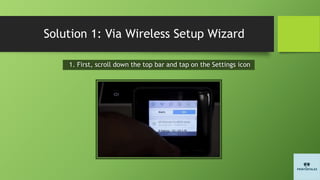
1. First, scroll down the top bar and tap on the Settings icon
Solution 1: Via Wireless Setup Wizard
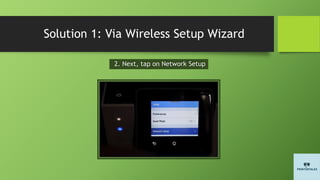
2. Next, tap on Network Setup
Solution 1: Via Wireless Setup Wizard
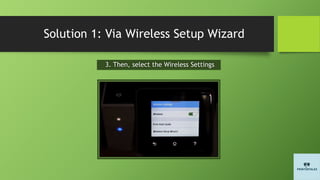
3. Then, select the Wireless Settings
Solution 1: Via Wireless Setup Wizard
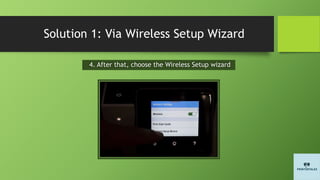
4. After that, choose the Wireless Setup wizard
Solution 1: Via Wireless Setup Wizard
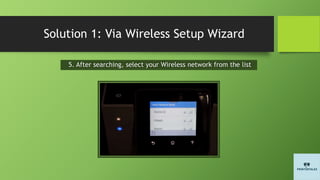
5. After searching, select your Wireless network from the list
Solution 1: Via Wireless Setup Wizard
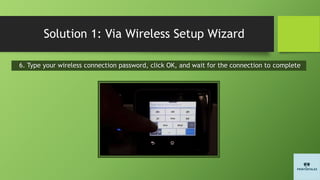
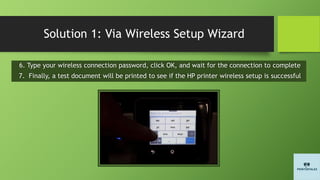
6. Type your wireless connection password, click OK, and wait for the connection to complete
Solution 1: Via Wireless Setup Wizard
6. Type your wireless connection password, click OK, and wait for the connection to complete
7. Finally, a test document will be printed to see if the HP printer wireless setup is successful
Solution 2: Via Wi-Fi Direct
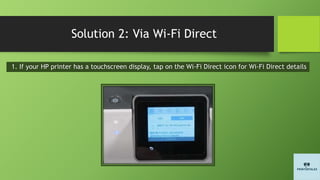
1. If your HP printer has a touchscreen display, tap on the Wi-Fi Direct icon for Wi-Fi Direct details
Solution 2: Via Wi-Fi Direct
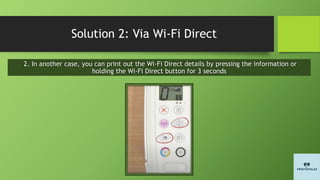
2. In another case, you can print out the Wi-Fi Direct details by pressing the information or
holding the Wi-Fi Direct button for 3 seconds
Solution 2: Via Wi-Fi Direct
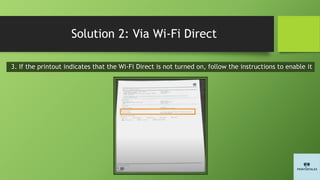
3. If the printout indicates that the Wi-Fi Direct is not turned on, follow the instructions to enable it
Solution 2: Via Wi-Fi Direct
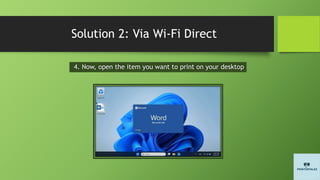
4. Now, open the item you want to print on your desktop
Solution 2: Via Wi-Fi Direct
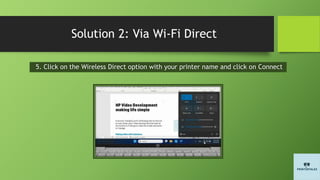
5. Click on the Wireless Direct option with your printer name and click on Connect
Solution 2: Via Wi-Fi Direct
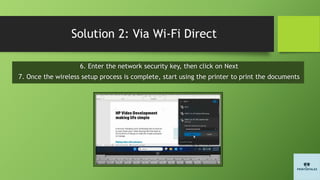
6. Enter the network security key, then click on Next
7. Once the wireless setup process is complete, start using the printer to print the documents
Wrap Up
You can follow any of the instructions mentioned here to complete your HP printer and start
wireless printing, scanning, and copying work. You can face some errors during the process, so
make sure you are following the correct procedure and repeat the method if necessary. In
addition, getting additional information and resources could also be helpful in setting up the
device without much struggle.
Contact Us
https://printertales.com
info@printertales.com
+1-857-557-6884

How to Do HP Printer Wi-Fi Setup (Wireless Setup/Wizard WPS/Wi-Fi Direct)?

  • 2.
    How to DoHP Printer Wi-Fi Setup? • Setting up the HP printer is not as easy as it looks. During the connection, you need to consider several factors, such as network connection, suitable method, and device compatibility, to name a few. Plus, many problems can appear during the setup if you are a new printer user or don’t know the right connection steps. As a result, before starting the printer setup, gaining a deep understanding of the multiple connection method could be wise. Here, you will learn about the best 3 comprehensive and well-tailored ways to perform the setup effortlessly.
  • 3.
    Solution 1: ViaWireless Setup Wizard 1. First, scroll down the top bar and tap on the Settings icon
  • 4.
    Solution 1: ViaWireless Setup Wizard 2. Next, tap on Network Setup
  • 5.
    Solution 1: ViaWireless Setup Wizard 3. Then, select the Wireless Settings
  • 6.
    Solution 1: ViaWireless Setup Wizard 4. After that, choose the Wireless Setup wizard
  • 7.
    Solution 1: ViaWireless Setup Wizard 5. After searching, select your Wireless network from the list
  • 8.
    Solution 1: ViaWireless Setup Wizard 6. Type your wireless connection password, click OK, and wait for the connection to complete
  • 9.
    Solution 1: ViaWireless Setup Wizard 6. Type your wireless connection password, click OK, and wait for the connection to complete 7. Finally, a test document will be printed to see if the HP printer wireless setup is successful
  • 10.
    Solution 2: ViaWi-Fi Direct 1. If your HP printer has a touchscreen display, tap on the Wi-Fi Direct icon for Wi-Fi Direct details
  • 11.
    Solution 2: ViaWi-Fi Direct 2. In another case, you can print out the Wi-Fi Direct details by pressing the information or holding the Wi-Fi Direct button for 3 seconds
  • 12.
    Solution 2: ViaWi-Fi Direct 3. If the printout indicates that the Wi-Fi Direct is not turned on, follow the instructions to enable it
  • 13.
    Solution 2: ViaWi-Fi Direct 4. Now, open the item you want to print on your desktop
  • 14.
    Solution 2: ViaWi-Fi Direct 5. Click on the Wireless Direct option with your printer name and click on Connect
  • 15.
    Solution 2: ViaWi-Fi Direct 6. Enter the network security key, then click on Next 7. Once the wireless setup process is complete, start using the printer to print the documents
  • 16.
    Wrap Up You canfollow any of the instructions mentioned here to complete your HP printer and start wireless printing, scanning, and copying work. You can face some errors during the process, so make sure you are following the correct procedure and repeat the method if necessary. In addition, getting additional information and resources could also be helpful in setting up the device without much struggle.
  • 17.