In this tutorial learn how to
set up your MailChimp
Account for Free, Use Thrive
Leads to Customize your
Opt-in forms and utilize
Thrive Leads powerful A/B
Testing Feature.
melvinreceno.com_themagnificentpm
Tutorial Flow Chart
Sign UP for a free
MailChimp
Account
Create your first
MailChimp List
Generate a
MailChimp API
Key
Make your Opt-in
Form
Connect your
Thrive Leads Opt in
form to MailChimp
Test if it works Set Up A/B testing Pick a Winner!
melvinreceno.com_themagnificentpm
Type MailChimp on your search
box and press Enter.
melvinreceno.com_themagnificentpm
Select MailChimp Email
Marketing Platform
melvinreceno.com_themagnificentpm
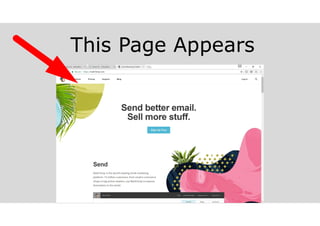
This Page Appears
melvinreceno.com_themagnificentpm
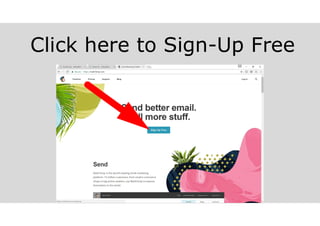
Click here to Sign-Up Free
melvinreceno.com_themagnificentpm
The Free Account should
be enough to get you
going on your start-up.
Up to 2,000 subscribers.
melvinreceno.com_themagnificentpm
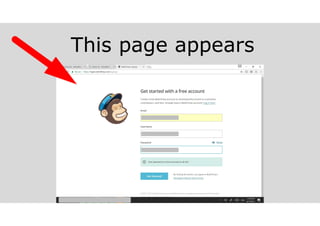
This page appears
melvinreceno.com_themagnificentpm
Fill Up the required information
melvinreceno.com_themagnificentpm
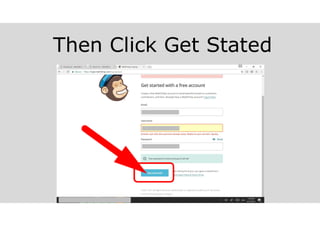
Then Click Get Stated
melvinreceno.com_themagnificentpm
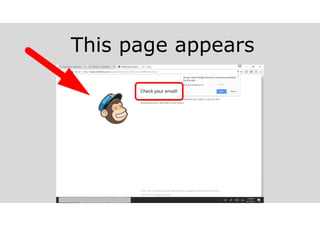
This page appears
melvinreceno.com_themagnificentpm
Please go ahead and
check your mail.
melvinreceno.com_themagnificentpm
You should find an email like
this one
melvinreceno.com_themagnificentpm
Click on Activate Account
melvinreceno.com_themagnificentpm
This page appears
melvinreceno.com_themagnificentpm
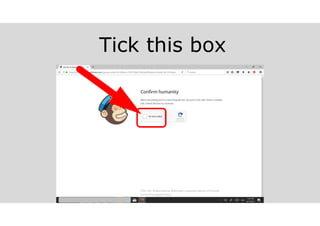
Tick this box
melvinreceno.com_themagnificentpm
This screen appears
melvinreceno.com_themagnificentpm
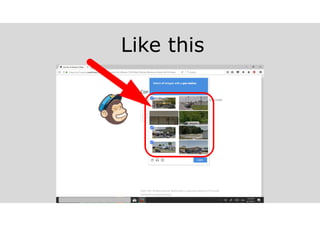
Select all the matching images
melvinreceno.com_themagnificentpm
Like this
melvinreceno.com_themagnificentpm
When done click Verify
melvinreceno.com_themagnificentpm
This page appears
melvinreceno.com_themagnificentpm
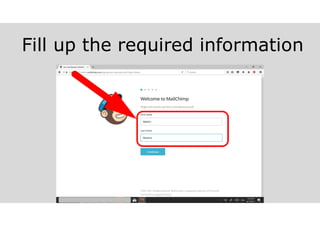
Fill up the required information
melvinreceno.com_themagnificentpm
Then click Continue
melvinreceno.com_themagnificentpm
This page appears
melvinreceno.com_themagnificentpm
Fill up the required information
melvinreceno.com_themagnificentpm
And then click continue
melvinreceno.com_themagnificentpm
This page appears
melvinreceno.com_themagnificentpm
Fill up the required information
melvinreceno.com_themagnificentpm
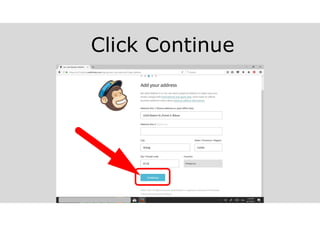
Click Continue
melvinreceno.com_themagnificentpm
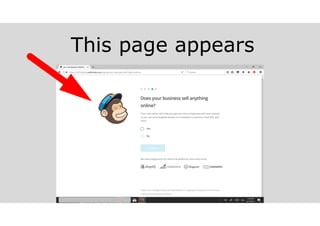
This page appears
melvinreceno.com_themagnificentpm
Click Yes if you’re selling online
melvinreceno.com_themagnificentpm
Click Continue
melvinreceno.com_themagnificentpm
Click + to connect to your
social media account
melvinreceno.com_themagnificentpm
This screen appears
melvinreceno.com_themagnificentpm
And then click Continue
melvinreceno.com_themagnificentpm
MailChimp will receive
information about you
melvinreceno.com_themagnificentpm
And manage your pages
melvinreceno.com_themagnificentpm
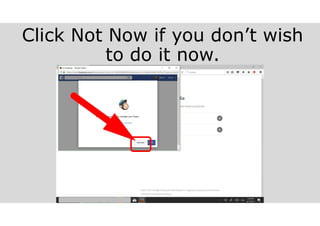
Click Not Now if you don’t wish
to do it now.
melvinreceno.com_themagnificentpm
MailChimp confirms connection
melvinreceno.com_themagnificentpm
Click Continue
melvinreceno.com_themagnificentpm
Done!
melvinreceno.com_themagnificentpm
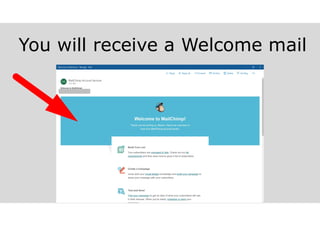
You will receive a Welcome mail
melvinreceno.com_themagnificentpm
Now let us make some
basic settings in your
“new” MailChimp account.
melvinreceno.com_themagnificentpm
Let’s Go!
melvinreceno.com_themagnificentpm
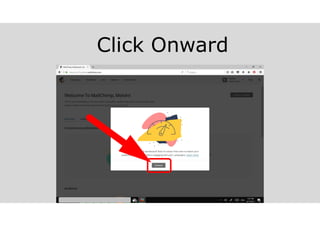
This screen appears
melvinreceno.com_themagnificentpm
Click Onward
melvinreceno.com_themagnificentpm
And you are taken to your
Overview page
melvinreceno.com_themagnificentpm
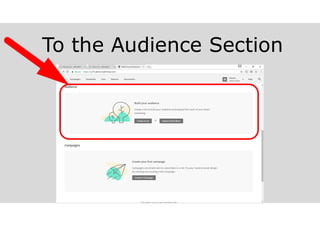
Scroll Down
melvinreceno.com_themagnificentpm
To the Audience Section
melvinreceno.com_themagnificentpm
Click Create A List
(if you don’t have subscribers )
melvinreceno.com_themagnificentpm
This page appears
melvinreceno.com_themagnificentpm
Fill up the required information
melvinreceno.com_themagnificentpm
Scroll down for some more
information
melvinreceno.com_themagnificentpm
Scroll down and select the
notifications setting
melvinreceno.com_themagnificentpm
Try Daily Summary
melvinreceno.com_themagnificentpm
Then click Save
melvinreceno.com_themagnificentpm
You are taken to the Manage
Contacts Page
melvinreceno.com_themagnificentpm
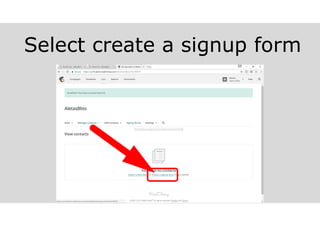
Select create a signup form
melvinreceno.com_themagnificentpm
As we have no contacts
yet we create a Sign Up
form to receive the email
information of our
customers.
melvinreceno.com_themagnificentpm
This page appears
melvinreceno.com_themagnificentpm
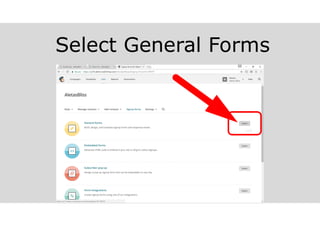
Select General Forms
melvinreceno.com_themagnificentpm
This page appears
melvinreceno.com_themagnificentpm
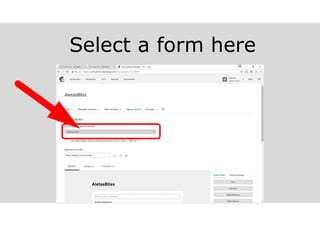
Select a form here
melvinreceno.com_themagnificentpm
In this case I select Opt-In
confirmation email
melvinreceno.com_themagnificentpm
This page appears
melvinreceno.com_themagnificentpm
These information were
pre-filled
melvinreceno.com_themagnificentpm
Scroll Down
melvinreceno.com_themagnificentpm
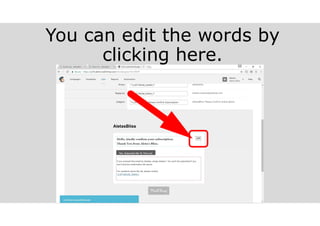
And you can see the “auto”
reply message
melvinreceno.com_themagnificentpm
You can edit the words by
clicking here.
melvinreceno.com_themagnificentpm
Place your text here
melvinreceno.com_themagnificentpm
And then click Save & Close
melvinreceno.com_themagnificentpm
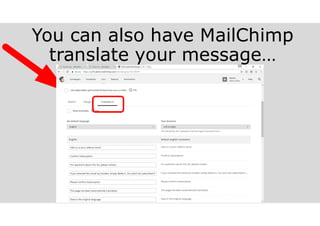
You can also have MailChimp
translate your message…
melvinreceno.com_themagnificentpm
By clicking here
melvinreceno.com_themagnificentpm
The supported languages are
shown
melvinreceno.com_themagnificentpm
You can also change the design
here…
melvinreceno.com_themagnificentpm
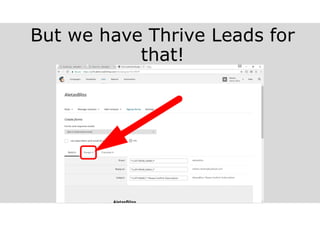
But we have Thrive Leads for
that!
melvinreceno.com_themagnificentpm
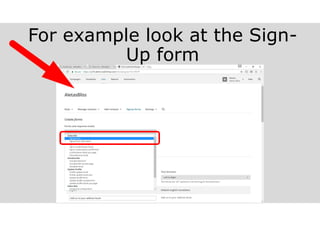
For example look at the Sign-
Up form
melvinreceno.com_themagnificentpm
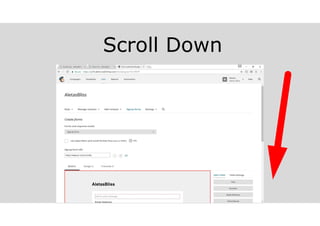
Scroll Down
melvinreceno.com_themagnificentpm
Here is what a standard
sign-up form looks like
melvinreceno.com_themagnificentpm
I will show you how to make a
signup form using Thrive Leads
melvinreceno.com_themagnificentpm
Yes, we will use Thrive
Leads to make a more
“eye-catching”
Sign-Up form.
melvinreceno.com_themagnificentpm
Now we take a little turn
to set up our API Keys.
melvinreceno.com_themagnificentpm
We will need the API key
so that we can connect
our Thrive Leads to
MailChimp.
melvinreceno.com_themagnificentpm
Click Here
melvinreceno.com_themagnificentpm
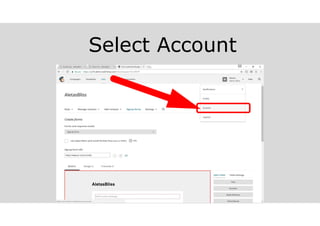
Select Account
melvinreceno.com_themagnificentpm
This page appears
melvinreceno.com_themagnificentpm
Select Extras
melvinreceno.com_themagnificentpm
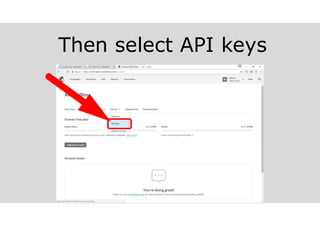
Then select API keys
melvinreceno.com_themagnificentpm
This page appears
melvinreceno.com_themagnificentpm
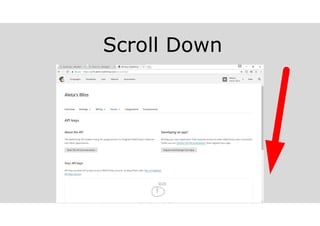
Scroll Down
melvinreceno.com_themagnificentpm
To this section
melvinreceno.com_themagnificentpm
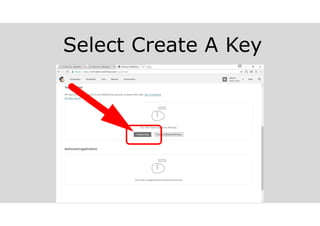
Select Create A Key
melvinreceno.com_themagnificentpm
This page appears
melvinreceno.com_themagnificentpm
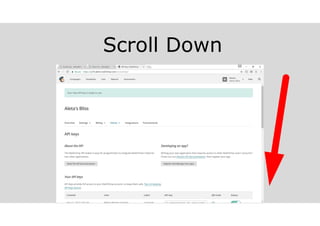
Scroll Down
melvinreceno.com_themagnificentpm
To this section
melvinreceno.com_themagnificentpm
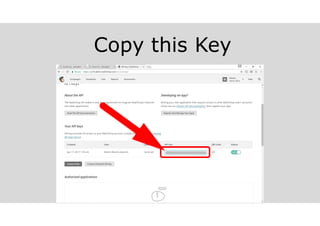
Copy this Key
melvinreceno.com_themagnificentpm
Now that we have our
MailChimp API key, it’s
time to go to our
WordPress website
dashboard.
melvinreceno.com_themagnificentpm
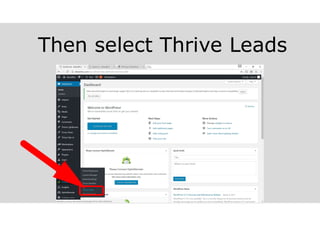
Select Thrive Dashboard
melvinreceno.com_themagnificentpm
Then select Thrive Leads
melvinreceno.com_themagnificentpm
This page appears
melvinreceno.com_themagnificentpm
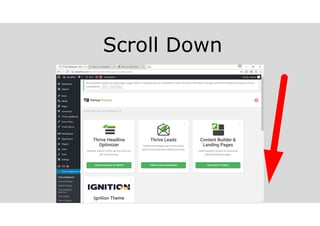
Scroll Down
melvinreceno.com_themagnificentpm
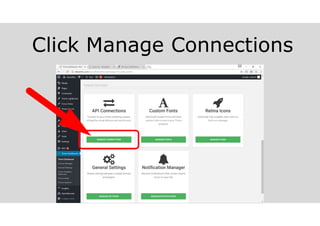
To API Connections
melvinreceno.com_themagnificentpm
Click Manage Connections
melvinreceno.com_themagnificentpm
This page appears
melvinreceno.com_themagnificentpm
Click Add new Connection
melvinreceno.com_themagnificentpm
This screen appears
melvinreceno.com_themagnificentpm
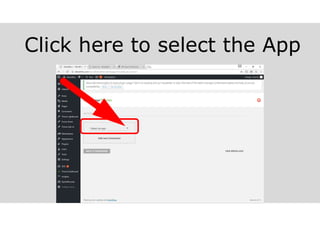
Click here to select the App
melvinreceno.com_themagnificentpm
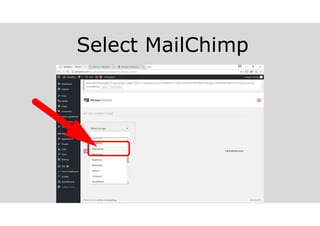
Select MailChimp
melvinreceno.com_themagnificentpm
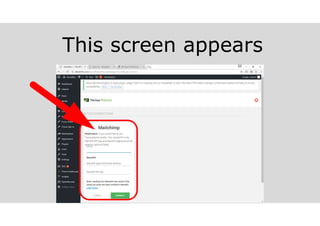
This screen appears
melvinreceno.com_themagnificentpm
Now go to MailChimp
Accounts…
melvinreceno.com_themagnificentpm
And copy the API Key
melvinreceno.com_themagnificentpm
Paste it here
melvinreceno.com_themagnificentpm
Then click Connect
melvinreceno.com_themagnificentpm
Connection Ready!
melvinreceno.com_themagnificentpm
Let us go back to Thrive Leads
melvinreceno.com_themagnificentpm
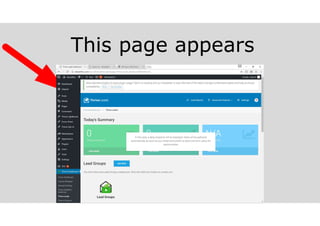
This page appears
melvinreceno.com_themagnificentpm
Scrolling Down gives you…
melvinreceno.com_themagnificentpm
Different types of leads
melvinreceno.com_themagnificentpm
For our purpose choose
Lead Groups
melvinreceno.com_themagnificentpm
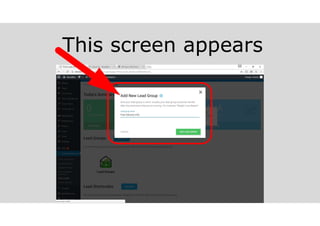
This screen appears
melvinreceno.com_themagnificentpm
Type a Lead group name
melvinreceno.com_themagnificentpm
And click on Add Lead Group
melvinreceno.com_themagnificentpm
Your add group is added
melvinreceno.com_themagnificentpm
Click on Add New Type of
Opt-in Form
melvinreceno.com_themagnificentpm
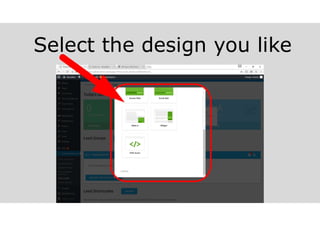
This screen appears
melvinreceno.com_themagnificentpm
Select the design you like
melvinreceno.com_themagnificentpm
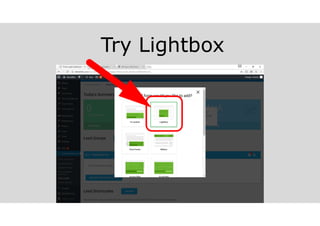
Try Lightbox
melvinreceno.com_themagnificentpm
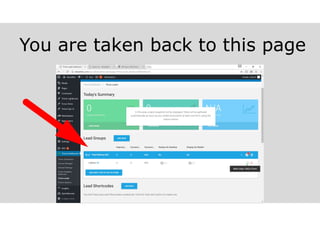
You are taken back to this page
melvinreceno.com_themagnificentpm
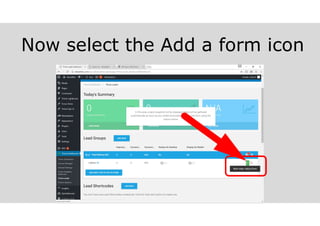
Now select the Add a form icon
melvinreceno.com_themagnificentpm
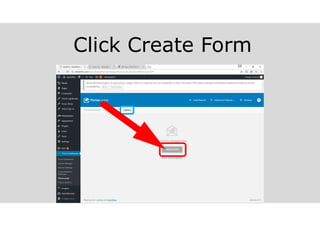
This page appears
melvinreceno.com_themagnificentpm
Click Create Form
melvinreceno.com_themagnificentpm
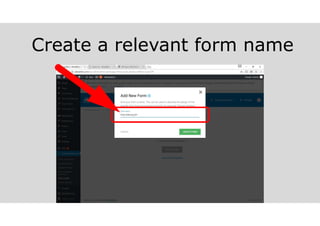
This screen appears
melvinreceno.com_themagnificentpm
Create a relevant form name
melvinreceno.com_themagnificentpm
Then click create form
melvinreceno.com_themagnificentpm
Click here to define the Trigger
melvinreceno.com_themagnificentpm
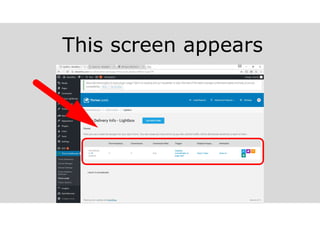
This screen appears
melvinreceno.com_themagnificentpm
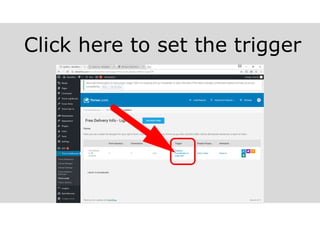
Click here to set the trigger
melvinreceno.com_themagnificentpm
This screen appears
melvinreceno.com_themagnificentpm
Click here to show selection
melvinreceno.com_themagnificentpm
Select your preference
melvinreceno.com_themagnificentpm
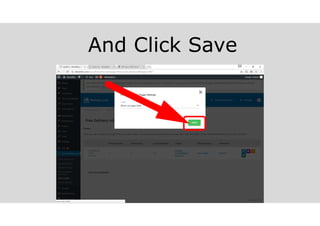
And Click Save
melvinreceno.com_themagnificentpm
Click here to set Display
Frequency
melvinreceno.com_themagnificentpm
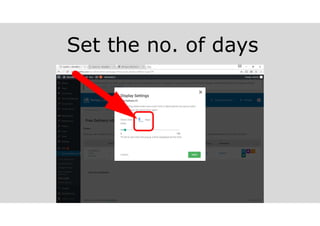
Set the no. of days
melvinreceno.com_themagnificentpm
Click Save
melvinreceno.com_themagnificentpm
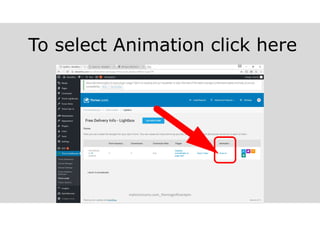
To select Animation click here
melvinreceno.com_themagnificentpm
Click here to select options
melvinreceno.com_themagnificentpm
A preview Animation is shown
here
melvinreceno.com_themagnificentpm
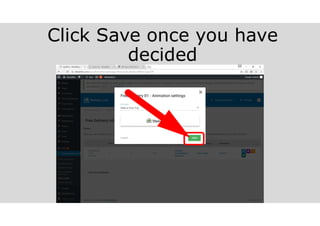
Click Save once you have
decided
melvinreceno.com_themagnificentpm
All basics set!
melvinreceno.com_themagnificentpm
Click on Edit Design Icon
melvinreceno.com_themagnificentpm
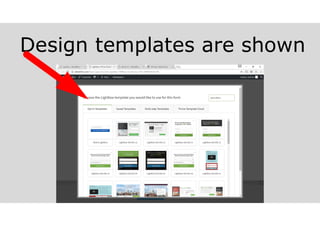
Design templates are shown
melvinreceno.com_themagnificentpm
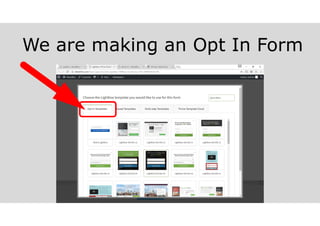
We are making an Opt In Form
melvinreceno.com_themagnificentpm
Try Lightbox Set 001 v1
melvinreceno.com_themagnificentpm
This edit page appears
melvinreceno.com_themagnificentpm
If you are familiar with the
Thrive Content Builder this
should be fairly easy.
melvinreceno.com_themagnificentpm
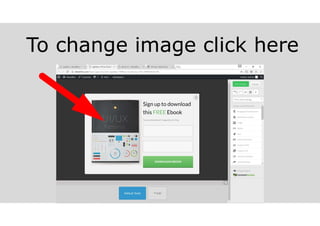
To change image click here
melvinreceno.com_themagnificentpm
A pop up menu should
show, select Change
Image.
melvinreceno.com_themagnificentpm
This screen is shown
melvinreceno.com_themagnificentpm
You can select from your media
library…
melvinreceno.com_themagnificentpm
Or upload a file
melvinreceno.com_themagnificentpm
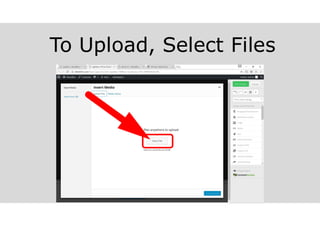
To Upload, Select Files
melvinreceno.com_themagnificentpm
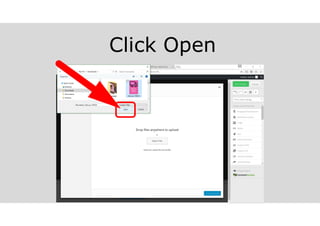
Choose a file
melvinreceno.com_themagnificentpm
Click Open
melvinreceno.com_themagnificentpm
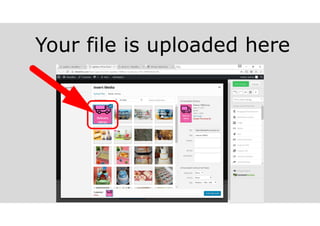
Your file is uploaded here
melvinreceno.com_themagnificentpm
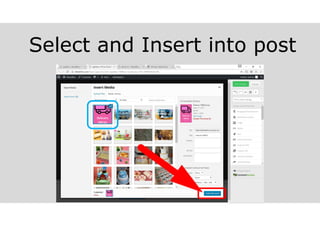
Select and Insert into post
melvinreceno.com_themagnificentpm
Your Image is now shown!
melvinreceno.com_themagnificentpm
Edit your message here
melvinreceno.com_themagnificentpm
Align your message
melvinreceno.com_themagnificentpm
Do the same for the other
items
melvinreceno.com_themagnificentpm
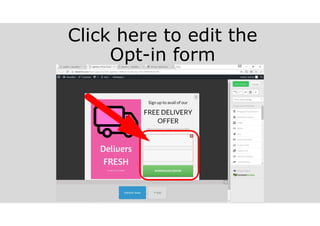
Click here to edit the
Opt-in form
melvinreceno.com_themagnificentpm
We are now connecting
this Opt in form to your
MailChimp Account
melvinreceno.com_themagnificentpm
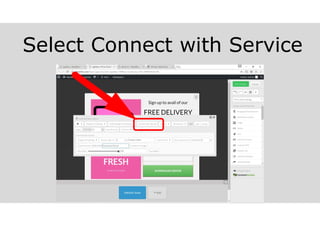
Select Connect with Service
melvinreceno.com_themagnificentpm
This screen appears
melvinreceno.com_themagnificentpm
Click Create a new Connection
melvinreceno.com_themagnificentpm
Choose the connection type
melvinreceno.com_themagnificentpm
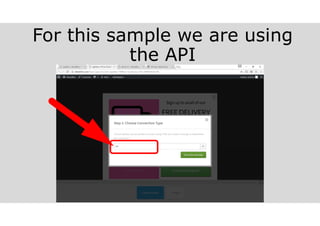
For this sample we are using
the API
melvinreceno.com_themagnificentpm
Click Go to the next step
melvinreceno.com_themagnificentpm
This screen appears
melvinreceno.com_themagnificentpm
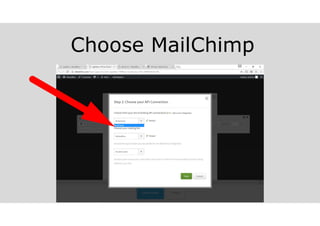
Choose MailChimp
melvinreceno.com_themagnificentpm
Choose Single Opt in
melvinreceno.com_themagnificentpm
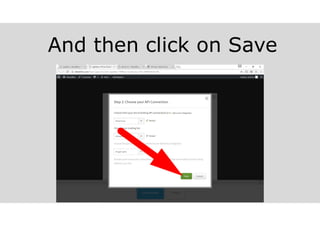
And then click on Save
melvinreceno.com_themagnificentpm
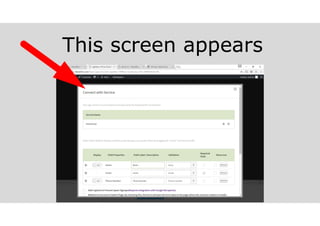
This screen appears
melvinreceno.com_themagnificentpm
Slide Yes to require the name
of the subscriber
melvinreceno.com_themagnificentpm
Tick the Required Field box
melvinreceno.com_themagnificentpm
Email of course is Added
Automatically
melvinreceno.com_themagnificentpm
Define the Action After Sign Up
below
melvinreceno.com_themagnificentpm
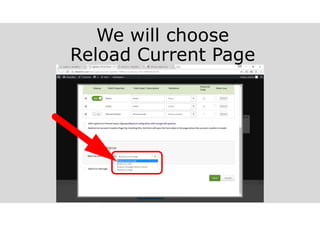
We will choose
Reload Current Page
melvinreceno.com_themagnificentpm
And then click Save
melvinreceno.com_themagnificentpm
Now Name and Email are
indicated in the form
melvinreceno.com_themagnificentpm
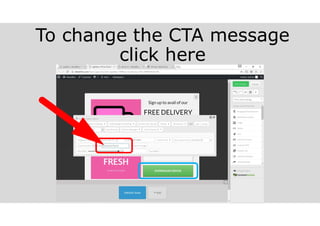
To change the CTA message
click here
melvinreceno.com_themagnificentpm
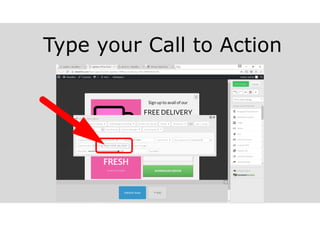
Type your Call to Action
melvinreceno.com_themagnificentpm
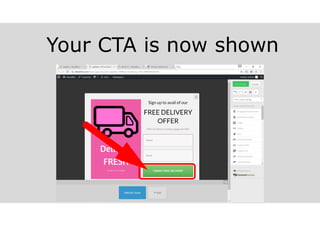
Your CTA is now shown
melvinreceno.com_themagnificentpm
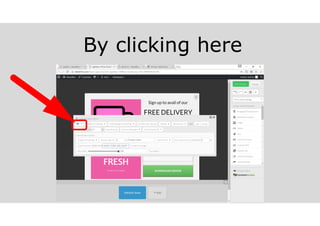
You can also change the
background color…
melvinreceno.com_themagnificentpm
By clicking here
melvinreceno.com_themagnificentpm
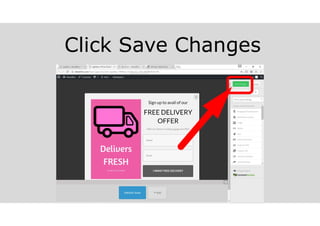
Click Save Changes
melvinreceno.com_themagnificentpm
And then click Preview
melvinreceno.com_themagnificentpm
This page is shown
melvinreceno.com_themagnificentpm
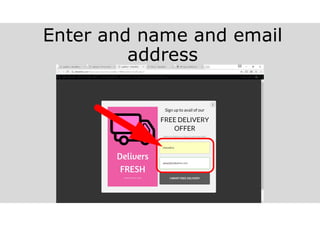
Enter and name and email
address
melvinreceno.com_themagnificentpm
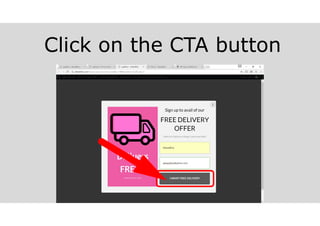
Click on the CTA button
melvinreceno.com_themagnificentpm
To see if the Thrive Leads
Opt in form works, let us
go back our MailChimp
account
melvinreceno.com_themagnificentpm
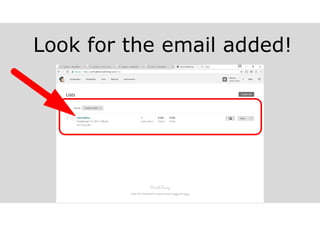
Go to Lists
melvinreceno.com_themagnificentpm
Look for the email added!
melvinreceno.com_themagnificentpm
Now let us set up how and
where the Opt In form will
be shown in your website.
melvinreceno.com_themagnificentpm
Go to Thrive Leads
melvinreceno.com_themagnificentpm
This page is shown
melvinreceno.com_themagnificentpm
Select the settings icon
melvinreceno.com_themagnificentpm
This screen appears
melvinreceno.com_themagnificentpm
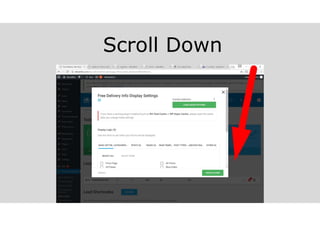
Scroll Down
melvinreceno.com_themagnificentpm
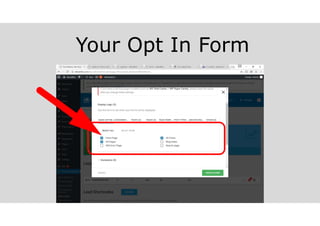
Under basic settings select
where you want to show…
melvinreceno.com_themagnificentpm
Your Opt In Form
melvinreceno.com_themagnificentpm
And then click Save & Close
melvinreceno.com_themagnificentpm
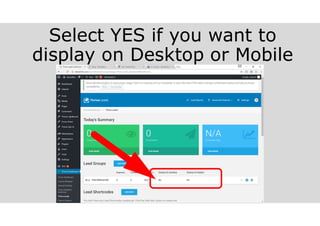
Select YES if you want to
display on Desktop or Mobile
melvinreceno.com_themagnificentpm
You’ve really done it! Time
to do some A/B testing.
melvinreceno.com_themagnificentpm
A/B testing allows you to
monitor which Opt In
design generates the
“Clicks”
(Subscription)
melvinreceno.com_themagnificentpm
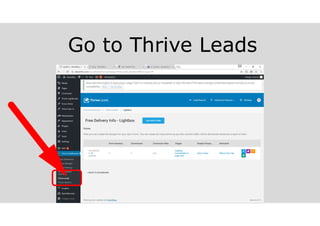
Go to Thrive Leads
melvinreceno.com_themagnificentpm
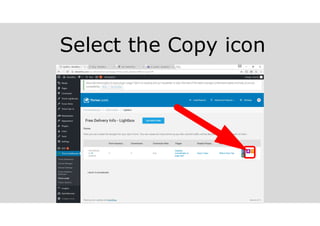
Select the Copy icon
melvinreceno.com_themagnificentpm
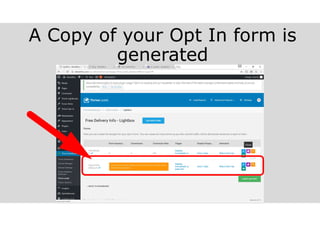
A Copy of your Opt In form is
generated
melvinreceno.com_themagnificentpm
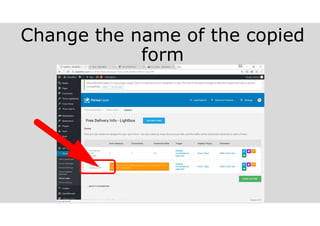
Change the name of the copied
form
melvinreceno.com_themagnificentpm
Select the Edit Icon
melvinreceno.com_themagnificentpm
The editing process is of
course the same as the
first one, make some
distinct changes.
melvinreceno.com_themagnificentpm
Here I select a different image
melvinreceno.com_themagnificentpm
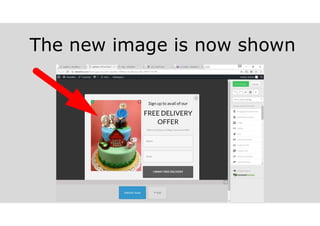
The new image is now shown
melvinreceno.com_themagnificentpm
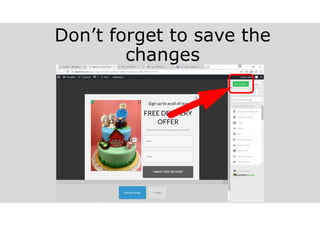
Don’t forget to save the
changes
melvinreceno.com_themagnificentpm
Now click on start A/B Test
melvinreceno.com_themagnificentpm
This screen appears
melvinreceno.com_themagnificentpm
Create a name for this test
melvinreceno.com_themagnificentpm
Then click on Automatic Winner
Settings
melvinreceno.com_themagnificentpm
Tick on Enabled
melvinreceno.com_themagnificentpm
Define the parameters
melvinreceno.com_themagnificentpm
Scroll Down
melvinreceno.com_themagnificentpm
When done click on Start Test
melvinreceno.com_themagnificentpm
This page is shown
melvinreceno.com_themagnificentpm
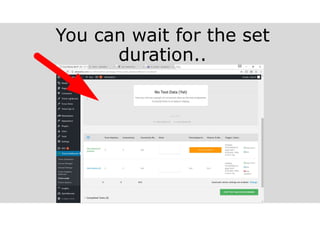
The daily result will be shown
here
melvinreceno.com_themagnificentpm
You can wait for the set
duration..
melvinreceno.com_themagnificentpm
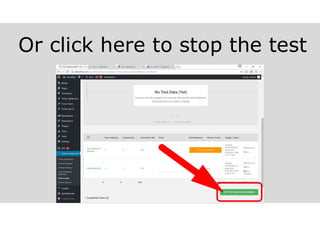
Or click here to stop the test
melvinreceno.com_themagnificentpm
This screen is shown
melvinreceno.com_themagnificentpm
Choose your winner here
melvinreceno.com_themagnificentpm
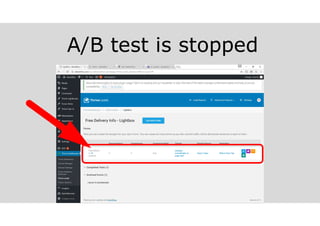
A/B test is stopped
melvinreceno.com_themagnificentpm
It is my hope that this
tutorial has helped you set-
up your email automation
and start to grow your
subscribers through
MailChimp and Thrive Leads.
melvinreceno.com_themagnificentpm
Go Ahead and Try it.
melvinreceno.com_themagnificentpm
This concludes our tutorial
on MailChimp and Thrive
Leads integration to grow
your subscriber list
Thank you so much for your Time.
Melvin Receno
melvinreceno.com_themagnificentpm

A tutorial on_using_mailchimp_and_thrive_leads_integration_to_grow_your_subscriber_list_2017_melvinreceno_themagnificentpm