OWNER'S MANUAL
     LED TV
                                 Welcome to Toshiba
                                 • Thank you for purchasing this Toshiba LED TV. This
                                   manual will help you use the exciting features of
                                   your new TV.
                                 • Instructions in this manual are based on using the
                                   remote control.
                                 • You also can use the controls on the TV if they have
                                   the same name as those referred to on the remote
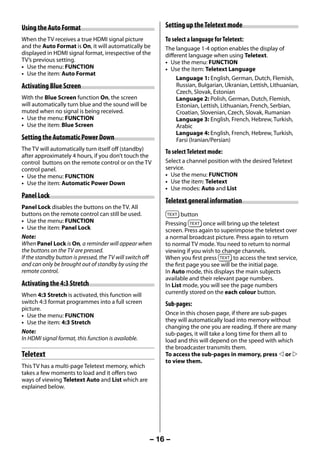
                                   control.
                                 • Please read all safety and operating instructions
                                   in this manual carefully, and keep this manual for
                                   future reference.
                                 • “LED TV” means LCD Panel with LED Backlight.


     23PB200 Series
     29PB200 Series                     Owner's Record

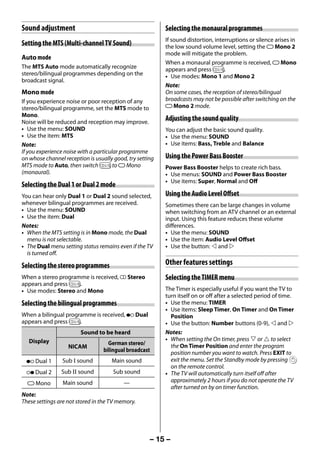
     32PB200 Series                     You will find the model number and serial number on
                                        the back of the TV. Record these numbers in the spaces


     40PB200 Series
                                        provided below. Refer to them whenever you call upon
                                        your TOSHIBA dealer regarding this product.


     29PB202 Series
                                        Model number:
                                        Serial number:


     ©2012 TOSHIBA CORPORATION
     All Rights Reserved                                            TD/J       VX1A00260900


23293240PB200Series_En.indd 1                                                   2012/10/04 14:55:46
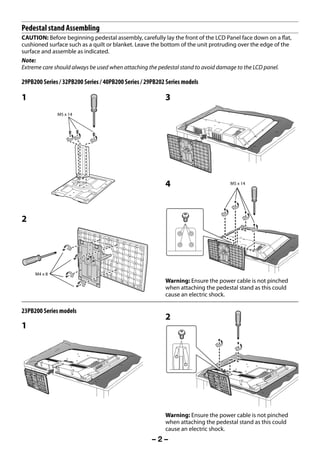
Pedestal stand Assembling
     CAUTION: Before beginning pedestal assembly, carefully lay the front of the LCD Panel face down on a flat,
     cushioned surface such as a quilt or blanket. Leave the bottom of the unit protruding over the edge of the
     surface and assemble as indicated.
     Note:
     Extreme care should always be used when attaching the pedestal stand to avoid damage to the LCD panel.

     29PB200 Series / 32PB200 Series / 40PB200 Series / 29PB202 Series models

     1                                                         3
                    M5 x 14


                                                               4                       M5 x 14


     2


           M4 x 8
                                                               Warning: Ensure the power cable is not pinched
                                                               when attaching the pedestal stand as this could
                                                               cause an electric shock.

     23PB200 Series models
                                                               2
     1


                                                               Warning: Ensure the power cable is not pinched
                                                               when attaching the pedestal stand as this could
                                                               cause an electric shock.
                                                          –2–


23293240PB200Series_En.indd 2                                                                          2012/10/04 14:55:46
Contents                                                                             2) Never place the TV in an unstabilized location
                                                                                             such as on a shaky table, incline or location
        Connecting an aerial ............................................6                   subject to vibration.
        Exploring your new TV .........................................6                     • Only use cabinets or stands recommended by
        TV panel controls ...................................................6                  the TV manufacturer.
                                                                                             • Only use furniture that can safely support the
        Learning about the remote control ................7
                                                                                                TV.
        TV back panel connections ................................7                          • Ensure that the TV is not hanging over the
        Connecting HDMI or DVI devices.....................8                                    edge of the supporting furniture.
        Connecting a computer ......................................8                        • Never place the TV on tall furniture (for
        Turning the TV on ..................................................9                   example, cupboards or bookcases) without
                                                                                                anchoring both the furniture and the TV to a
        Tuning the TV for the first time .........................9                             suitable support.
        Using the Quick menu ...................................... 11                       • Never stand the TV on cloth or other material
        Learning about the menu system................. 11                                      placed between the TV and supporting
        Watching TV programmes ............................... 12                               furniture.
                                                                                             The TV may drop or fall off, which may cause an
        Selecting the video input
                                                                                             injury or damage.
          source to view ................................................. 12
                                                                                          3) Never stand or climb on the TV.
        Channel List .......................................................... 12           • Educate children about the dangers of
        Selecting the PC/HDMI 2 Audio mode........ 12                                           climbing on furniture to reach the TV or its
        Setting the HDMI 2 Audio mode ................... 13                                    controls.
        Picture adjustment ............................................. 13                  Be especially careful in households with children
                                                                                             to prevent them through climbing on top of
        Sound adjustment .............................................. 15
                                                                                             the TV. It may move, fall over, break, become
        Other features settings ..................................... 15                     damaged or cause an injury.
        Teletext ................................................................... 16   4) Always connect the power plug to an
        Using the PC settings ........................................ 18                    appropriate electrical outlet equipped with
        Using the Media Player ..................................... 18                      110-240 V AC, 50/60 Hz.
        Troubleshooting.................................................. 21                 Never use the TV outside the specified voltage
                                                                                             range. It may cause a fire or an electric shock.
        Broadcast system ................................................ 22
        Specifications ....................................................... 22            About the fuse (only for E models)
                                                                                             In a three pin earthing-type, the fuse fitted in
                                                                                             this plug is approved by ASTA or BSI to BS1362. It
                                                                                             should only be replaced by a correctly rated and
     Important Safety Instructions                                                           approved type and the
                                                                                             fuse cover must be refitted.
     Be sure to observe the following instructions and
     precautions to ensure safe use of this TV.                                              About the use
                                                                                             • Make sure to insert the plugs firmly, when
     Installation                                                                               plugging the AC power cord into the TV set
                                                                                                end and wall outlet end.
     1) WARNING: To prevent injury, this apparatus                                           • Make sure to hold the plug, when unplugging
        must be securely attached to the floor/wall in                                          the AC power cord.
        accordance with the installation instructions.                                       • Never use other cord except for supplied AC
        Install the TV in a horizontal, stable location.                                        power cord, and never use the supplied power
        Attach the TV to the stand with the mounting                                            cord for any other purpose.
        screw.
                                                                                          5) Never insert or remove the power plug with
        • If the TV is not installed securely, it may lean or
                                                                                             wet hands.
          fall over and cause an injury.
                                                                                             This may cause an electric shock.
        • To prevent injury, use the exclusive optional
          stand or wall-hanging bracket to install this                                   6) Never block or cover the slots and openings in
          TV on the floor or wall securely in accordance                                     the cabinet.
          with a qualified technician.                                                       • Never place the TV so that it is facing upward
                                                                                                or on its side.
                                                      Screw hole
                                                                                             • Never place the TV in a closet, bookcase or
                                                                                                other similar area where the ventilation is
                                                                                                poor.
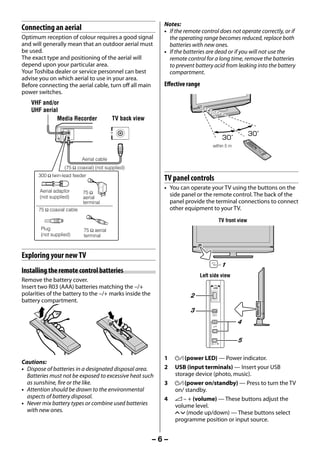
                                   Top view

                                                                                     –3–


23293240PB200Series_En.indd 3                                                                                                       2012/10/04 14:55:48
• Never drape a newspaper, tablecloth or             3) Never insert objects (metal or paper) or pour
             curtain on the TV.                                   water inside the TV through ventilation holes
         • When installing the TV against a wall, always          and other openings.
             keep the TV at least 10 cm away from the wall.       These items may cause a fire or an electric shock.
         • Never place the TV on a soft unstable surface,         If these objects are inserted inside the TV, turn
             such as a carpet, or a cushion.                      off the TV and remove the power plug from
         The inside of this TV will overheat if the               the outlet immediately and contact a service
         ventilation holes are covered, blocked or sealed,        technician. Be especially careful that children do
         which may result in a fire.                              not insert objects in the TV.
     7) Never place the TV near a heater or in direct         4) When the TV will not be used for a long period
         sunlight.                                                of time, such as during vacation or travel,
         The surface of the cabinet or power cord may             remove the power plug from the wall outlet
         melt and result in a fire or an electric shock.          for safety.
     8) Never place the TV in an area exposed to high             • The TV is not completely disconnected from
         humidity levels, such as in a bathroom or                    the power supply line, as minute current is
         close to a humidifier.                                       consumed even when the ! Power switch is
         This may cause a fire or an electric shock.                  turned off.
                                                                  • The mains plug or an appliance coupler is
     9) Never place the TV next to a stove where it                   used as the disconnect device, therefore
         will be exposed to oil, smoke, or steam, or in               the disconnect device shall remain readily
         a location where there is a large quantity of                operable.
         dust.
         This may cause a fire or an electric shock.          5) Never pull on the power cord when removing
                                                                  the plug from the wall outlet.
     10) Precautions for moving the TV                            Always hold the plug firmly when removing it. If
         • When moving the TV, be sure to remove the              the power cord is yanked, the cord may become
             plug from the wall outlet and disconnect             damaged and a fire or an electric shock may
             the aerial cable and audio/video cables, any         occur.
             steady ties and mounting screw. A fire or an
             electric shock may result if the power cord is   6) Never cut, break, modify, twist, bunch up
             damaged.                                             or bent the cord or apply excessive force or
         • When carrying the TV, at least two people are          tension to it.
             needed. Be sure to carry it upright.                 Never place heavy objects on the cord or allow
         • Never carry the TV with the screen facing up           it to overheat as this may cause damage, a fire or
             or down.                                             an electric shock. Contact a service technician if
                                                                  the power cord is damaged.
     11) Precautions for installing on outdoor aerial
         An outside aerial system should not be located       7) If there is thunder or lightning, never touch
         in the vicinity of overhead power lines, or other        the aerial cable or other connected cables.
         electric light or power circuits.                        You may suffer an electric shock.
         If the aerial falls down or drops, it may cause an
         injury or an electric shock.
                                                              Service
     Use                                                      1) Never repair, modify or disassemble the TV by
                                                                 yourself.
     1) Never place hot objects or open flame sources,           It may cause a fire or an electric shock.
        such as lighted candles or nightlights, on or            Consult a service technician for inspection and
        close to the TV.                                         repairs.
        High temperatures can melt plastic and lead to        2) When a malfunction occurs, or if smoke or
        fires.                                                   an unusual odor comes from the TV, turn off
     2) The apparatus shall not be exposed to                    the TV and remove the power plug from the
        dripping or splashing and that no objects                outlet immediately.
        filled with liquids, such as vases, shall be             Make sure that the smoke or smell has stopped,
        placed on the apparatus.                                 then contact a service technician. If the TV is still
        When liquids are spilled or small items are              used in this condition, it may cause a fire or an
        dropped inside the TV, this may cause a fire or an       electric shock.
        electric shock.
        If small objects drop inside the TV, turn off the
        TV and remove the power plug from the outlet
        immediately and contact a service technician.


                                                          –4–


23293240PB200Series_En.indd 4                                                                              2012/10/04 14:55:48
3) If the TV is dropped or the cabinet is broken,            3) Some pixels of the screen do not light up
         turn off the TV and remove the power plug                    The LCD display panel is manufactured using an
         from the outlet immediately.                                 extremely high level of precision technology,
         If the TV has power in this condition, it may cause          however sometimes some pixels of the screen
         a fire or an electric shock. If the cabinet is broken,       may be missing picture elements or have
         be careful when handling the TV to prevent an                luminous spots. This is not sign of malfunction.
         injury.                                                  4) About Interference
         Contact a service technician for inspection and              The LCD display may cause interference in image,
         repair.                                                      sound, etc. of other electronic equipment that
     4) When the TV reaches the end of its useful life,               receives electromagnetic waves (e.g. AM radios
         ask a qualified service technician to properly               and video equipment).
         dispose of the TV.                                       5) About using under the low temperature places
                                                                      If you use the TV in the room of 0°C or less,
     Cleaning                                                         the picture brightness may vary until the
     CAUTION: Avoid using chemicals (such as air                      LCD monitor warms up. This is not a sign of
     refreshers, cleaning agents, etc.) on or near                    malfunction.
     the TV pedestal. Studies indicate that plastics              6) About afterimage
     may weaken and crack over time from the                          If a still picture is displayed, an afterimage may
     combination effects of chemical agents and                       remain on the screen, however it will disappear.
     mechanical stress (such as weight of TV). Failure                This is not a sign of malfunction.
     to follow these instructions could result in
     serious injury and/or permanent damage to TV                 Exemptions
     and TV pedestal.                                             • Toshiba is not liable for any damage caused by
     1) Remove the power plug before cleaning.                      fires, natural disaster (such as thunder, earthquake,
        Never use solvents such as benzine or thinner               etc.), acts by third parties, accidents, owner’s
        to clean the TV.                                            misuse, or uses in other improper conditions.
        • These solvents may distort the cabinet or               • Toshiba is not liable for incidental damages
            damage its finish.                                      (such as profit loss or interruption in business,
        • If rubber or vinyl products remain in contact             modification or erasure of record data, etc.) caused
            with the TV for a long time, a stain may result.        by use or inability to use of product.
        If the cabinet becomes dirty, clean it with a soft,       • Toshiba is not liable for any damage caused
        dry cloth.                                                  by neglect of the instructions described in the
        When cleaning the surface of the LCD display,               owner’s manual.
        wipe the panel surface gently with a soft, dry            • Toshiba is not liable for any damage caused by
        cloth.                                                      misuse or malfunction through simultaneous use
                                                                    of this product and the connected equipment.
     2) Periodically disconnect the power plug from
        the outlet and check it.                                  Trademark Information
        If dust has collected on the power plug                   • HDMI, the HDMI logo, and High-Definition
        connectors, clean off the dust with a dry cloth.            Multimedia Interface are trademarks or registered
        This dust may cause a fire due to reduced                   trademarks of HDMI Licensing LLC in the United
        insulation on the plug.                                     States and other countries.
                                                                  • MPEG Layer-3 audio coding technology licensed
     Important information                                          from Fraunhofer LLS and Thomson.
     1) About LCD screen
        • If you have the LCD screen facing to the sun,
           the LCD screen will be damaged. Be aware of
           locating the TV close to a window or outdoors.
        • Never press the LCD screen strongly or scratch
           it, and never put anything on it. These actions
           will damage the LCD screen.
     2) About cabinet and LCD screen
        Never spray volatile compounds such as
        insecticide on the cabinet and LCD screen.
        This may cause a discolouration or damage the
        cabinet and LCD screen.


                                                             –5–


23293240PB200Series_En.indd 5                                                                                 2012/10/04 14:55:48
Notes:
     Connecting an aerial                                        • If the remote control does not operate correctly, or if
     Optimum reception of colour requires a good signal            the operating range becomes reduced, replace both
     and will generally mean that an outdoor aerial must           batteries with new ones.
     be used.                                                    • If the batteries are dead or if you will not use the
     The exact type and positioning of the aerial will             remote control for a long time, remove the batteries
     depend upon your particular area.                             to prevent battery acid from leaking into the battery
     Your Toshiba dealer or service personnel can best             compartment.
     advise you on which aerial to use in your area.
     Before connecting the aerial cable, turn off all main       Effective range
     power switches.
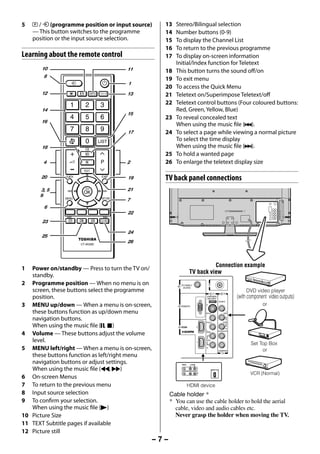
         VHF and/or
         UHF aerial
                   Media Recorder               TV back view
                         IN


                         OUT


                                                                                      within 5 m


                                 Aerial cable
                        (75 7 coaxial) (not supplied)
            300 7 twin-lead feeder
                                                                 TV panel controls
            Aerial adaptor
                                                                 • You can operate your TV using the buttons on the
                                 75 7                              side panel or the remote control. The back of the
            (not supplied)       aerial
                                 terminal                          panel provide the terminal connections to connect
            75 7 coaxial cable                                     other equipment to your TV.
                                                                                         TV front view
             Plug                75 7 aerial
             (not supplied)      terminal


     Exploring your new TV
                                                                                          1
     Installing the remote control batteries
                                                                                Left side view
     Remove the battery cover.
     Insert two R03 (AAA) batteries matching the –/+
     polarities of the battery to the –/+ marks inside the                  2
     battery compartment.
                                                                            3
                                                                                                   4

                                                                                                   5

                                                                 1   ! (power LED) — Power indicator.
     Cautions:
     • Dispose of batteries in a designated disposal area.       2   USB (input terminals) — Insert your USB
       Batteries must not be exposed to excessive heat such          storage device (photo, music).
       as sunshine, fire or the like.                            3   ! (power on/standby) — Press to turn the TV
     • Attention should be drawn to the environmental                on/ standby.
       aspects of battery disposal.                              4   2 – + (volume) — These buttons adjust the
     • Never mix battery types or combine used batteries             volume level.
       with new ones.                                                U u (mode up/down) — These buttons select
                                                                     programme position or input source.


                                                               –6–


23293240PB200Series_En.indd 6                                                                                  2012/10/04 14:55:48
5   p / o (programme position or input source)     13    Stereo/Bilingual selection
         — This button switches to the programme        14    Number buttons (0-9)
         position or the input source selection.        15    To display the Channel List
                                                        16    To return to the previous programme
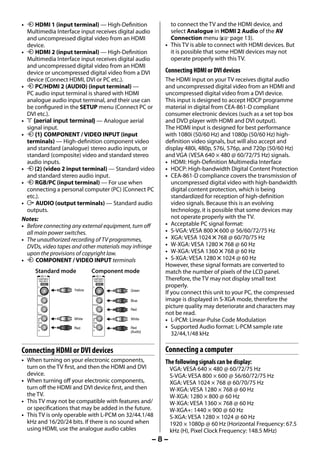
     Learning about the remote control                  17    To display on-screen information
                                                              Initial/Index function for Teletext
             10                           11            18    This button turns the sound off/on
              8
                                                        19    To exit menu
                                          1
                                                        20    To access the Quick Menu
             12                           13            21    Teletext on/Superimpose Teletext/off
                                                        22    Teletext control buttons (Four coloured buttons:
             14                                               Red, Green, Yellow, Blue)
                                          15
                                                        23    To reveal concealed text
             16
                                                              When using the music file (Z).
                                          17            24    To select a page while viewing a normal picture
                                                              To select the time display
             18                                               When using the music file (z).
                                                        25    To hold a wanted page
              4                           2             26    To enlarge the teletext display size

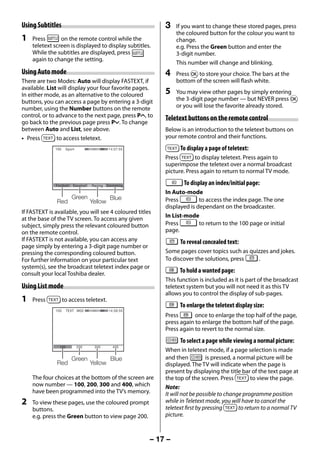
             20                           19            TV back panel connections
             3, 5                         21
             9
                                          7
              6
                                          22
             23

                                          24
             25
                                          26


                                                                                   Connection example
     1  Power on/standby — Press to turn the TV on/
                                                                         TV back view
        standby.
     2 Programme position — When no menu is on                   PC/HDMI 2
                                                                  (AUDIO)
        screen, these buttons select the programme                                                (1)             (2)
                                                                                                                                DVD video player
        position.                                                                        COMPONENT/
                                                                                         VIDEO INPUT
                                                                                                                            (with component video outputs)
                                                                                             VIDEO          VIDEO

     3 MENU up/down — When a menu is on-screen,                 RGB/PC
                                                                                         Y                                               or
        these buttons function as up/down menu                                           PB/CB
                                                                                                                     L/
                                                                                                                   MONO


        navigation buttons.                                                              PR/CR                    AUDIO

        When using the music file (W, v)                                           2
                                                                                                                        R
                                                                                         L/

     4 Volume — These buttons adjust the volume                                          MONO


        level.                                                                     1
                                                                                         AUDIO
                                                                                                                                   Set Top Box
     5 MENU left/right — When a menu is on-screen,                                       R
                                                                                                            AUDIO(FIXED)                or
        these buttons function as left/right menu
        navigation buttons or adjust settings.                   VIDEO
                                                                          L
                                                                           AUDIO
                                                                               R

        When using the music file (CC, cc)                                         IN
                                                                                                 HDMI OUT

                                                                                   OUT
                                                                                                                                   VCR (Normal)
     6 On-screen Menus
     7 To return to the previous menu                                    HDMI device
     8 Input source selection                               Cable holder *
     9 To confirm your selection.                           * You can use the cable holder to hold the aerial
        When using the music file (c)                         cable, video and audio cables etc.
     10 Picture Size                                          Never grasp the holder when moving the TV.
     11 TEXT Subtitle pages if available
     12 Picture still
                                                      –7–


23293240PB200Series_En.indd 7                                                                                                                 2012/10/04 14:55:48
• o HDMI 1 (input terminal) — High-Definition             to connect the TV and the HDMI device, and
       Multimedia Interface input receives digital audio       select Analogue in HDMI 2 Audio of the AV
       and uncompressed digital video from an HDMI             Connection menu (- page 13).
       device.                                               • This TV is able to connect with HDMI devices. But
     • o HDMI 2 (input terminal) — High-Definition             it is possible that some HDMI devices may not
       Multimedia Interface input receives digital audio       operate properly with this TV.
       and uncompressed digital video from an HDMI
       device or uncompressed digital video from a DVI       Connecting HDMI or DVI devices
       device (Connect HDMI, DVI or PC etc.).                The HDMI input on your TV receives digital audio
     • o PC/HDMI 2 (AUDIO) (input terminal) —                and uncompressed digital video from an HDMI and
       PC audio input terminal is shared with HDMI           uncompressed digital video from a DVI device.
       analogue audio input terminal, and their use can      This input is designed to accept HDCP programme
       be configured in the SETUP menu (Connect PC or        material in digital from CEA-861-D compliant
       DVI etc.).                                            consumer electronic devices (such as a set top box
     • A (aerial input terminal) — Analogue aerial           and DVD player with HDMI and DVI output).
       signal input.                                         The HDMI input is designed for best performance
     • o (1) COMPONENT / VIDEO INPUT (input                  with 1080i (50/60 Hz) and 1080p (50/60 Hz) high-
       terminals) — High-definition component video          definition video signals, but will also accept and
       and standard (analogue) stereo audio inputs, or       display 480i, 480p, 576i, 576p, and 720p (50/60 Hz)
       standard (composite) video and standard stereo        and VGA (VESA 640 × 480 @ 60/72/75 Hz) signals.
       audio inputs.                                         • HDMI: High-Definition Multimedia Interface
     • o (2) (video 2 input terminal) — Standard video       • HDCP: High-bandwidth Digital Content Protection
       and standard stereo audio input.                      • CEA-861-D compliance covers the transmission of
     • o RGB/PC (input terminal) — For use when                 uncompressed digital video with high-bandwidth
       connecting a personal computer (PC) (Connect PC          digital content protection, which is being
       etc.).                                                   standardized for reception of high-definition
     • O AUDIO (output terminals) — Standard audio              video signals. Because this is an evolving
       outputs.                                                 technology, it is possible that some devices may
     Notes:                                                     not operate properly with the TV.
     • Before connecting any external equipment, turn off    • Acceptable PC signal format:
       all main power switches.                              • S-VGA: VESA 800 5 600 @ 56/60/72/75 Hz
     • The unauthorized recording of TV programmes,          • XGA: VESA 1024 5 768 @ 60/70/75 Hz
       DVDs, video tapes and other materials may infringe    • W-XGA: VESA 1280 5 768 @ 60 Hz
       upon the provisions of copyright law.                 • W-XGA: VESA 1360 5 768 @ 60 Hz
     • o COMPONENT / VIDEO INPUT terminals                   • S-XGA: VESA 1280 5 1024 @ 60 Hz
                                                             However, these signal formats are converted to
           Standard mode           Component mode            match the number of pixels of the LCD panel.
                    (1)                    (1)
            COMPONENT/
            VIDEO INPUT
                                   COMPONENT/
                                   VIDEO INPUT
                                                             Therefore, the TV may not display small text
            Y
                VIDEO
                                   Y
                                       VIDEO
                                                             properly.
                          Yellow                 Green
            PB/CB                  PB/CB
                                                             If you connect this unit to your PC, the compressed
                                                 Blue        image is displayed in S-XGA mode, therefore the
            PR/CR                  PR/CR

                                                 Red
                                                             picture quality may deteriorate and characters may
            L/
            MONO
                                   L/
                                   MONO                      not be read.
            AUDIO
                          White
                                   AUDIO
                                                 White       • L-PCM: Linear-Pulse Code Modulation
            R
                          Red
                                   R
                                                 Red         • Supported Audio format: L-PCM sample rate
                                                 (Audio)
                                                                32/44,1/48 kHz

     Connecting HDMI or DVI devices                          Connecting a computer
     • When turning on your electronic components,           The following signals can be display:
       turn on the TV first, and then the HDMI and DVI           VGA: VESA 640 × 480 @ 60/72/75 Hz
       device.                                                   S-VGA: VESA 800 × 600 @ 56/60/72/75 Hz
     • When turning off your electronic components,              XGA: VESA 1024 × 768 @ 60/70/75 Hz
       turn off the HDMI and DVI device first, and then          W-XGA: VESA 1280 × 768 @ 60 Hz
       the TV.                                                   W-XGA: 1280 × 800 @ 60 Hz
     • This TV may not be compatible with features and/          W-XGA: VESA 1360 × 768 @ 60 Hz
       or specifications that may be added in the future.        W-XGA+: 1440 × 900 @ 60 Hz
     • This TV is only operable with L-PCM on 32/44.1/48         S-XGA: VESA 1280 × 1024 @ 60 Hz
       kHz and 16/20/24 bits. If there is no sound when          1920 × 1080p @ 60 Hz (Horizontal Frequency: 67.5
       using HDMI, use the analogue audio cables                 kHz (H), Pixel Clock Frequency: 148.5 MHz)
                                                           –8–


23293240PB200Series_En.indd 8                                                                          2012/10/04 14:55:48
Notes:                                                      appropriate Colour System (For the system of each
     • Some PC models cannot be connected to this TV.            country or region, refer to pages 10, 22).
     • If connecting a certain PC model that signal is
       particular, the PC signal may not be detected             Switching off the TV
       correctly.
     • There is no need to use an adapter for computers          1    Press       on the remote control or ! on the
       with DOS/V compatible mini D-sub 15 pin terminal.              TV left side panel to switch to the standby
     • A bar may appear in the upper, lower, right or left            mode.
       side of the screen, or parts of the picture may be        Notes:
       obscured depending on some signals. This is not the       • When the TV will not be used for a long period of
       malfunction.                                                time, such as during vacation or travel, remove the
     • If the edges of the picture are stretched, readjust the     power plug from the wall outlet.
       picture position adjustments in the PC Settings           • The TV will automatically turn itself off after
       menu.                                                       approximately 15 minutes if it is tuned to a vacant
     • Depending on the specification of the PC you are            channel or a station that completes its broadcast
       playing the DVD-Video on, and the DVD’s title, some         for the day. This function does not work in external
       scenes may be skipped, or you may not be able to            input or Blue screen Off mode.
       pause during multi-angle scenes.                            The TV will automatically turn itself off after
                                                                   approximately 2 hours if you do not operate the TV
     Signal names for mini D-sub 15 pin connector                  after turned on by on timer function.
                                                                 • If power is cut off while you are viewing the TV,
                Pin assignment for RGB/PC terminal
                                                                   the Last Mode Memory function turns on the TV
                                                                   automatically when power is applied again. If power
                                                                   is going to be off for a long time and you are going
                                                                   to be away from your TV, unplug the power cord to
                                                                   prevent the TV from turning on in your absence.
      Pin No.       Signal name    Pin No.    Signal name
      1             R              9          NC                 Tuning the TV for the first time
      2             G              10         Ground             Before switching on the TV, put your decoder and
      3             B              11         NC                 media recorder to standby, if they are connected,
                                                                 and ensure that the aerial is connected. To setup
      4             NC (not        12         DDC Data           the TV, use the buttons on the remote control as
                    connected)                                   detailed on page 7.
      5             NC             13         H-sync             1   Press the      button. The Quick Setup screen
                                                                     will appear. This screen will appear the first time
      6             Ground         14         V-sync
                                                                     that the TV is switched on.
      7             Ground         15         DDC Clock
                                                                         Quick Setup
      8             Ground                                               Language                                   English


     • Most of the picture/sound controls and functions
       are available. However features not available will        2   Press  or  to select the menu language
       be greyed out.                                                (English, Chinese (CS), Malay, Thai, Vietnamese,
                                                                     Russian, Arabic, Persian, French or Indonesia).
     Turning the TV on                                           3   Press Q, to display the Location menu.
                                                                     Press  or  to select Store or Home. For
     Switching on the TV                                             normal home use, select Home.
                                                                     You can select either Home or Store mode.
     Connect the power cord to a wall outlet, the                    Home is recommended for normal home use.
     ! power indicator lights in red (standby mode).                 Select Store when using a TV for displaying in
                                                                     a shop, etc.
     1    Press      on the remote control or ! on the TV
          left side panel, the ! power indicator lights in               Location
                                                                             To use the TV for displaying in
          green.                                                             a store showroom, please select [Store].
                                                                             [Home] mode is recommended
     Note:                                                                   for normal use.
     If you watch black and white programmes when the                                               Home
     Colour System mode is set to Auto, colour noise
     may appear on the screen. In this case select the

                                                             –9–


23293240PB200Series_En.indd 9                                                                                                 2012/10/04 14:55:48
4   Press Q to display the Auto Signal Booster                               D. Position skip selection
         menu, and then  or  to select Yes or No.                                  Press  or  to turn the position skip option
                                                                                     on “8” or off “(”. The position will then be
             Auto Signal Booster                                                     skipped when you select channels with PU
               Signal Booster boosts weak analogue broadcast signals.
               If you select [Yes], the TV will automatically set this               or Pu. The “8” mark will appear beside a
               feature to [On] or [Off] according to signal strength.
               Do you wish to enable automatic control?                              position number when you use the Number
                                                                                     button on the remote control.
                                       Yes
                                                                                  E. Channel search operation
                                                                                     Press  to search up the band or  to search
         Yes mode :                                                                  down the band.
         This function performs automatic distinction of                             Press  or  repeatedly until your desired
         On or Off.                                                                  channel is displayed.
     5   Press Q to display the Auto Tuning startup                                  When a station is found, it will be displayed.
         screen. Press Q to start the automatic search.                              NEVER PRESS ANY OTHER BUTTONS WHILE
                                                                                     THE SET IS TUNING.
              Auto Tuning
              Progress                                          Found             F. Manual Fine Tuning
                1%                                                0                  Press  or  until better picture and sound
                                                                                     are obtained.
                                                                                  G. Signal Booster
         When the automatic search is completed,                                     If the receiving signal is weak/strong and the
         the TV will automatically appear the Manual                                 picture is noisy, the picture may be improved
         Tuning menu.                                                                when using this function.
         Use the Manual Tuning operation if desired                                  Press the  or  to turn the Signal Booster
         channels cannot be preset with the Auto                                     On or Off.
         Tuning or if you would like to preset channels
         to specific position numbers one by one.                                 H. Label
                                                                                     Station labels appear on the right of the
              Manual Tuning                                                          programme position display each time you
                 Pos.        Label                                                   turn on the TV, select a channel, or press .
                 1                                                                   To change or create station labels:
                 2
                 3                                                                   1) Press  or  repeatedly to select a
                 4                                                                       character for the first space, then press 
                                                                                         or .
     6   Press  or  to select the programme position
         you want to arrange and press Q to display the
                                                                                                                     (blank space)
         breakdown menu.
         Press  or  to select an item, then press  or
                                                                                    2) Repeat step 1) to enter the rest of the
          to select the item as shown below.
                                                                                       characters. If you would like a blank space
              Manual Tuning                                                            in the label name, you must choose a
              Position
                                                                                       blank space from the list of characters.
               0 1 B/G A                     0     On
                                                                                 Press Q to store your settings.
                                                                             Notes:
               A             C         E            G                        • The Quick Setup, Location, Auto Tuning, Manual
                         B         D         F               H                 Tuning menu can also be display at any time from
                                                                               the SETUP menu.
                                                                             • When you preset the channel which sound of
         A. Position selection                                                 broadcast transmission system adopts “M” system
         B. System (Sound) (- page 22)                                         (- page 22), the sound system may not be tuned
         C. Colour System (- page 22)                                          correctly if the radio waves transmit badly. At that
                                                                               time, preset the channel by Manual Tuning.
            A : Automatic (factory set), P : PAL,
            S : SECAM, N4 : NTSC 4.43 (MHz),
            N3 : NTSC 3.58 (MHz)
            If the colour of a certain channel is abnormal,
            the automatic colour system selection (A)
            may have malfunctioned, or sound system
            selection is wrong. In such a case, select
            another colour and/or sound system (-
            page 22).
                                                                         – 10 –


23293240PB200Series_En.indd 10                                                                                           2012/10/04 14:55:49
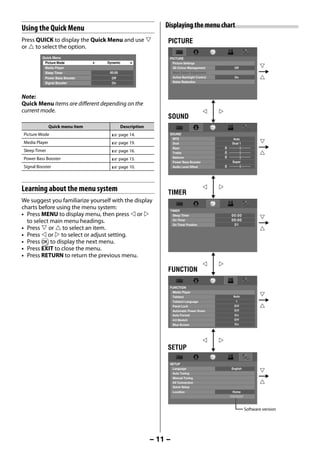
Using the Quick Menu                                         Displaying the menu chart
     Press QUICK to display the Quick Menu and use                PICTURE
     or  to select the option.
               Quick Menu                                          PICTURE
                Picture Mode           Dynamic                         Picture Settings
                Media Player                                           3D Colour Management             Off
                Sleep Timer             00:00                          Base Colour Adjustment
                Power Bass Booster       Off                           Active Backlight Control         On
                Signal Booster           On                            Noise Reduction


     Note:
     Quick Menu items are different depending on the
     current mode.
                                                                   SOUND
                     Quick menu item            Description
      Picture Mode                       - page 14.                SOUND
                                                                       MTS                              Auto
      Media Player                       - page 19.                    Dual                            Dual 1
                                                                       Bass                       0
      Sleep Timer                        - page 16.                    Treble                     0
                                                                       Balance                    0
      Power Bass Booster                 - page 15.
                                                                       Power Bass Booster              Super
      Signal Booster                     - page 10.                    Audio Level Offset         0


     Learning about the menu system                                TIMER
     We suggest you familiarize yourself with the display
     charts before using the menu system:                          TIMER
     • Press MENU to display menu, then press  or                    Sleep Timer                    00:00
       to select main menu headings.                                   On Timer                       00:00
                                                                       On Timer Position               01
     • Press  or  to select an item.
     • Press  or  to select or adjust setting.
     • Press Q to display the next menu.
     • Press EXIT to close the menu.
     • Press RETURN to return the previous menu.

                                                                   FUNCTION

                                                                   FUNCTION
                                                                       Media Player
                                                                       Teletext                         Auto
                                                                       Teletext Language                 1
                                                                       Panel Lock                       Off
                                                                       Automatic Power Down             Off
                                                                       Auto Format                      On
                                                                       4:3 Stretch                      Off
                                                                       Blue Screen                      On


                                                                   SETUP

                                                                   SETUP
                                                                       Language                       English
                                                                       Auto Tuning
                                                                       Manual Tuning
                                                                       AV Connection
                                                                       Quick Setup
                                                                       Location                         Home
                                                                                                      XXXXXXXX


                                                                                                                 Software version


                                                              – 11 –


23293240PB200Series_En.indd 11                                                                                                 2012/10/04 14:55:49
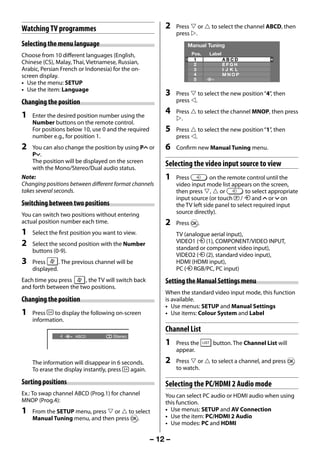
Watching TV programmes                                   2    Press  or  to select the channel ABCD, then
                                                                   press .
     Selecting the menu language                                       Manual Tuning
     Choose from 10 different languages (English,                        Pos.   Label
                                                                          1             ABCD
     Chinese (CS), Malay, Thai, Vietnamese, Russian,                      2             EFGH
     Arabic, Persian French or Indonesia) for the on-                     3             I JK L
     screen display.                                                      4             MNOP
                                                                          5
     • Use the menu: SETUP
     • Use the item: Language
                                                              3    Press  to select the new position “4”, then
     Changing the position                                         press .

     1   Enter the desired position number using the
                                                              4    Press  to select the channel MNOP, then press
                                                                   .
         Number buttons on the remote control.
         For positions below 10, use 0 and the required       5    Press  to select the new position “1”, then
         number e.g., for position 1.                              press .
     2   You can also change the position by using PU or      6    Confirm new Manual Tuning menu.
         Pu.
         The position will be displayed on the screen
         with the Mono/Stereo/Dual audio status.
                                                              Selecting the video input source to view
     Note:                                                    1    Press          on the remote control until the
     Changing positions between different format channels          video input mode list appears on the screen,
     takes several seconds.                                        then press ,  or           to select appropriate
                                                                   input source (or touch p / o and U or u on
     Switching between two positions                               the TV left side panel to select required input
     You can switch two positions without entering                 source directly).
     actual position number each time.                        2    Press Q.
     1   Select the first position you want to view.               TV (analogue aerial input),
     2   Select the second position with the Number                VIDEO1 (o (1), COMPONENT/VIDEO INPUT,
         buttons (0-9).                                            standard or component video input),
                                                                   VIDEO2 (o (2), standard video input),
     3   Press      . The previous channel will be                 HDMI (HDMI input),
         displayed.                                                PC (o RGB/PC, PC input)
     Each time you press     , the TV will switch back        Setting the Manual Settings menu
     and forth between the two positions.
                                                              When the standard video input mode, this function
     Changing the position                                    is available.
                                                              • Use menus: SETUP and Manual Settings
     1   Press   to display the following on-screen           • Use items: Colour System and Label
         information.
                                                              Channel List
                    4     ABCD            Stereo
                                                              1    Press the      button. The Channel List will
                                                                   appear.

         The information will disappear in 6 seconds.         2    Press  or  to select a channel, and press Q
         To erase the display instantly, press  again.             to watch.

     Sorting positions                                        Selecting the PC/HDMI 2 Audio mode
     Ex.: To swap channel ABCD (Prog.1) for channel           You can select PC audio or HDMI audio when using
     MNOP (Prog.4):                                           this function.
     1   From the SETUP menu, press  or  to select          • Use menus: SETUP and AV Connection
         Manual Tuning menu, and then press Q.                • Use the item: PC/HDMI 2 Audio
                                                              • Use modes: PC and HDMI

                                                          – 12 –


23293240PB200Series_En.indd 12                                                                            2012/10/04 14:55:49
PC Normal
     Setting the HDMI 2 Audio mode
                                                               Use this setting for PC connected via HDMI or RGB/
     You can select sound of an HDMI or DVI device             PC terminal when receiving PC signal format. This
     connected to the HDMI 2 input terminals from three        setting will display the image correctly without
     modes: Auto, Digital or Analogue.                         distortion or picture clipping.
     • Use menus: SETUP and AV Connection
     • Use the item: HDMI 2 Audio

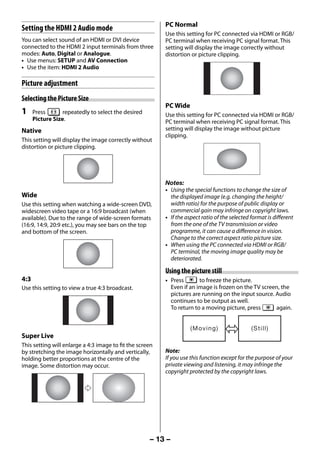
     Picture adjustment
     Selecting the Picture Size
                                                               PC Wide
     1     Press       repeatedly to select the desired        Use this setting for PC connected via HDMI or RGB/
           Picture Size.                                       PC terminal when receiving PC signal format. This
     Native                                                    setting will display the image without picture
                                                               clipping.
     This setting will display the image correctly without
     distortion or picture clipping.


                                                               Notes:
                                                               • Using the special functions to change the size of
     Wide                                                        the displayed image (e.g. changing the height/
     Use this setting when watching a wide-screen DVD,           width ratio) for the purpose of public display or
     widescreen video tape or a 16:9 broadcast (when             commercial gain may infringe on copyright laws.
     available). Due to the range of wide-screen formats       • If the aspect ratio of the selected format is different
     (16:9, 14:9, 20:9 etc.), you may see bars on the top        from the one of the TV transmission or video
     and bottom of the screen.                                   programme, it can cause a difference in vision.
                                                                 Change to the correct aspect ratio picture size.
                                                               • When using the PC connected via HDMI or RGB/
                                                                 PC terminal, the moving image quality may be
                                                                 deteriorated.

                                                               Using the picture still
     4:3                                                       • Press       to freeze the picture.
     Use this setting to view a true 4:3 broadcast.              Even if an image is frozen on the TV screen, the
                                                                 pictures are running on the input source. Audio
                                                                 continues to be output as well.
                                                                 To return to a moving picture, press      again.


                                                                          ( Mo v i n g )             ( St i l l )
     Super Live
     This setting will enlarge a 4:3 image to fit the screen
     by stretching the image horizontally and vertically,      Note:
     holding better proportions at the centre of the           If you use this function except for the purpose of your
     image. Some distortion may occur.                         private viewing and listening, it may infringe the
                                                               copyright protected by the copyright laws.


                                                          – 13 –


23293240PB200Series_En.indd 13                                                                                      2012/10/04 14:55:49
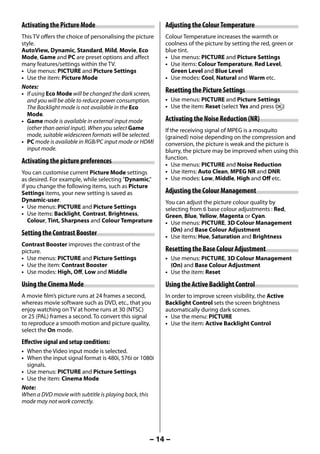
Activating the Picture Mode                              Adjusting the Colour Temperature
     This TV offers the choice of personalising the picture   Colour Temperature increases the warmth or
     style.                                                   coolness of the picture by setting the red, green or
     AutoView, Dynamic, Standard, Mild, Movie, Eco            blue tint.
     Mode, Game and PC are preset options and affect          • Use menus: PICTURE and Picture Settings
     many features/settings within the TV.                    • Use items: Colour Temperature, Red Level,
     • Use menus: PICTURE and Picture Settings                  Green Level and Blue Level
     • Use the item: Picture Mode                             • Use modes: Cool, Natural and Warm etc.
     Notes:
     • If using Eco Mode will be changed the dark screen,
                                                              Resetting the Picture Settings
       and you will be able to reduce power consumption.      • Use menus: PICTURE and Picture Settings
       The Backlight mode is not available in the Eco         • Use the item: Reset (select Yes and press Q)
       Mode.
     • Game mode is available in external input mode          Activating the Noise Reduction (NR)
       (other than aerial input). When you select Game        If the receiving signal of MPEG is a mosquito
       mode, suitable widescreen formats will be selected.    (grained) noise depending on the compression and
     • PC mode is available in RGB/PC input mode or HDMI      conversion, the picture is weak and the picture is
       input mode.                                            blurry, the picture may be improved when using this
                                                              function.
     Activating the picture preferences                       • Use menus: PICTURE and Noise Reduction
     You can customise current Picture Mode settings          • Use items: Auto Clean, MPEG NR and DNR
     as desired. For example, while selecting "Dynamic,"      • Use modes: Low, Middle, High and Off etc.
     if you change the following items, such as Picture
     Settings items, your new setting is saved as             Adjusting the Colour Management
     Dynamic-user.                                            You can adjust the picture colour quality by
     • Use menus: PICTURE and Picture Settings                selecting from 6 base colour adjustments : Red,
     • Use items: Backlight, Contrast, Brightness,            Green, Blue, Yellow, Magenta or Cyan.
        Colour, Tint, Sharpness and Colour Temprature         • Use menus: PICTURE, 3D Colour Management
                                                                (On) and Base Colour Adjustment
     Setting the Contrast Booster                             • Use items: Hue, Saturation and Brightness
     Contrast Booster improves the contrast of the
     picture.                                                 Resetting the Base Colour Adjustment
     • Use menus: PICTURE and Picture Settings                • Use menus: PICTURE, 3D Colour Management
     • Use the item: Contrast Booster                           (On) and Base Colour Adjustment
     • Use modes: High, Off, Low and Middle                   • Use the item: Reset

     Using the Cinema Mode                                    Using the Active Backlight Control
     A movie film’s picture runs at 24 frames a second,       In order to improve screen visibility, the Active
     whereas movie software such as DVD, etc., that you       Backlight Control sets the screen brightness
     enjoy watching on TV at home runs at 30 (NTSC)           automatically during dark scenes.
     or 25 (PAL) frames a second. To convert this signal      • Use the menu: PICTURE
     to reproduce a smooth motion and picture quality,        • Use the item: Active Backlight Control
     select the On mode.
     Effective signal and setup conditions:
     • When the Video input mode is selected.
     • When the input signal format is 480i, 576i or 1080i
       signals.
     • Use menus: PICTURE and Picture Settings
     • Use the item: Cinema Mode
     Note:
     When a DVD movie with subtitle is playing back, this
     mode may not work correctly.


                                                         – 14 –


23293240PB200Series_En.indd 14                                                                            2012/10/04 14:55:50
Sound adjustment                                          Selecting the monaural programmes
                                                               If sound distortion, interruptions or silence arises in
     Setting the MTS (Multi-channel TV Sound)                  the low sound volume level, setting the e Mono 2
                                                               mode will mitigate the problem.
     Auto mode
                                                               When a monaural programme is received, e Mono
     The MTS Auto mode automatically recognize                 appears and press g.
     stereo/bilingual programmes depending on the              • Use modes: Mono 1 and Mono 2
     broadcast signal.
                                                               Note:
     Mono mode                                                 On some cases, the reception of stereo/bilingual
     If you experience noise or poor reception of any          broadcasts may not be possible after switching on the
     stereo/bilingual programme, set the MTS mode to           e Mono 2 mode.
     Mono.
     Noise will be reduced and reception may improve.
                                                               Adjusting the sound quality
     • Use the menu: SOUND                                     You can adjust the basic sound quality.
     • Use the item: MTS                                       • Use the menu: SOUND
     Note:                                                     • Use items: Bass, Treble and Balance
     If you experience noise with a particular programme
     on whose channel reception is usually good, try setting   Using the Power Bass Booster
     MTS mode to Auto, then switch g to e Mono                 Power Bass Booster helps to create rich bass.
     (monaural).                                               • Use menus: SOUND and Power Bass Booster
                                                               • Use items: Super, Normal and Off
     Selecting the Dual 1 or Dual 2 mode
     You can hear only Dual 1 or Dual 2 sound selected,        Using the Audio Level Offset
     whenever bilingual programmes are received.               Sometimes there can be large changes in volume
     • Use the menu: SOUND                                     when switching from an ATV channel or an external
     • Use the item: Dual                                      input. Using this feature reduces these volume
     Notes:                                                    differences.
     • When the MTS setting is in Mono mode, the Dual          • Use the menu: SOUND
       menu is not selectable.                                 • Use the item: Audio Level Offset
     • The Dual menu setting status remains even if the TV     • Use the button:  and 
       is turned off.

     Selecting the stereo programmes                           Other features settings
     When a stereo programme is received, d Stereo             Selecting the TIMER menu
     appears and press g.
     • Use modes: Stereo and Mono                              The Timer is especially useful if you want the TV to
                                                               turn itself on or off after a selected period of time.
     Selecting the bilingual programmes                        • Use the menu: TIMER
                                                               • Use items: Sleep Timer, On Timer and On Timer
     When a bilingual programme is received, j Dual              Position
     appears and press g.                                      • Use the button: Number buttons (0-9),  and 
                             Sound to be heard                 Notes:
        Display                                                • When setting the On timer, press  or  to select
                                         German stereo/          the On Timer Position and enter the program
                        NICAM
                                       bilingual broadcast       position number you want to watch. Press EXIT to
       j Dual 1      Sub I sound          Main sound             exit the menu. Set the Standby mode by pressing
                                                                 on the remote control.
       J Dual 2      Sub II sound          Sub sound           • The TV will automatically turn itself off after
       e Mono         Main sound               —                 approximately 2 hours if you do not operate the TV
                                                                 after turned on by on timer function.
     Note:
     These settings are not stored in the TV memory.


                                                          – 15 –


23293240PB200Series_En.indd 15                                                                             2012/10/04 14:55:50
Using the Auto Format                                      Setting up the Teletext mode
     When the TV receives a true HDMI signal picture            To select a language for Teletext:
     and the Auto Format is On, it will automatically be        The language 1-4 option enables the display of
     displayed in HDMI signal format, irrespective of the       different language when using Teletext.
     TV’s previous setting.                                     • Use the menu: FUNCTION
     • Use the menu: FUNCTION                                   • Use the item: Teletext Language
     • Use the item: Auto Format
                                                                     Language 1: English, German, Dutch, Flemish,
     Activating Blue Screen                                          Russian, Bulgarian, Ukranian, Lettish, Lithuanian,
                                                                     Czech, Slovak, Estonian
     With the Blue Screen function On, the screen                    Language 2: Polish, German, Dutch, Flemish,
     will automatically turn blue and the sound will be              Estonian, Lettish, Lithuanian, French, Serbian,
     muted when no signal is being received.                         Croatian, Slovenian, Czech, Slovak, Rumanian
     • Use the menu: FUNCTION                                        Language 3: English, French, Hebrew, Turkish,
     • Use the item: Blue Screen                                     Arabic
                                                                     Language 4: English, French, Hebrew, Turkish,
     Setting the Automatic Power Down                                Farsi (Iranian/Persian)
     The TV will automatically turn itself off (standby)        To select Teletext mode:
     after approximately 4 hours, if you don’t touch the
     control buttons on the remote control or on the TV         Select a channel position with the desired Teletext
     control panel.                                             service.
     • Use the menu: FUNCTION                                   • Use the menu: FUNCTION
     • Use the item: Automatic Power Down                       • Use the item: Teletext
                                                                • Use modes: Auto and List
     Panel Lock
                                                                Teletext general information
     Panel Lock disables the buttons on the TV. All
     buttons on the remote control can still be used.                  button
     • Use the menu: FUNCTION                                   Pressing        once will bring up the teletext
     • Use the item: Panel Lock                                 screen. Press again to superimpose the teletext over
     Note:                                                      a normal broadcast picture. Press again to return
     When Panel Lock is On, a reminder will appear when         to normal TV mode. You need to return to normal
     the buttons on the TV are pressed.                         viewing if you wish to change channels.
     If the standby button is pressed, the TV will switch off   When you first press         to access the text service,
     and can only be brought out of standby by using the        the first page you see will be the initial page.
     remote control.                                            In Auto mode, this displays the main subjects
                                                                available and their relevant page numbers.
     Activating the 4:3 Stretch                                 In List mode, you will see the page numbers
     When 4:3 Stretch is activated, this function will          currently stored on the each colour button.
     switch 4:3 format programmes into a full screen            Sub-pages:
     picture.
     • Use the menu: FUNCTION                                   Once in this chosen page, if there are sub-pages
     • Use the item: 4:3 Stretch                                they will automatically load into memory without
                                                                changing the one you are reading. If there are many
     Note:                                                      sub-pages, it will take a long time for them all to
     In HDMI signal format, this function is available.         load and this will depend on the speed with which
                                                                the broadcaster transmits them.
     Teletext                                                   To access the sub-pages in memory, press  or 
                                                                to view them.
     This TV has a multi-page Teletext memory, which
     takes a few moments to load and it offers two
     ways of viewing Teletext Auto and List which are
     explained below.


                                                            – 16 –


23293240PB200Series_En.indd 16                                                                               2012/10/04 14:55:50
Using Subtitles                                               3    If you want to change these stored pages, press
                                                                        the coloured button for the colour you want to
     1   Press       on the remote control while the                    change.
         teletext screen is displayed to display subtitles.             e.g. Press the Green button and enter the
         While the subtitles are displayed, press                       3-digit number.
         again to change the setting.
                                                                        This number will change and blinking.
     Using Auto mode                                               4    Press Q to store your choice. The bars at the
     There are two Modes: Auto will display FASTEXT, if                 bottom of the screen will flash white.
     available. List will display your four favorite pages.
     In either mode, as an alternative to the coloured             5    You may view other pages by simply entering
     buttons, you can access a page by entering a 3-digit               the 3-digit page number — but NEVER press Q
     number, using the Number buttons on the remote                     or you will lose the favorite already stored.
     control, or to advance to the next page, press PU, to         Teletext buttons on the remote control
     go back to the previous page press Pu. To change
     between Auto and List, see above.                             Below is an introduction to the teletext buttons on
     • Press        to access teletext.                            your remote control and their functions.
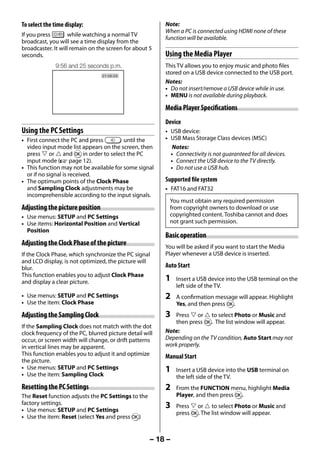
                   100     Sport                   14:57:55              To display a page of teletext:
                                                                   Press       to display teletext. Press again to
                                                                   superimpose the teletext over a normal broadcast
                                                                   picture. Press again to return to normal TV mode.

                   Football    Baseball   Racing   Swimming
                                                                           To display an index/initial page:
                                                                   In Auto-mode
                              Green                 Blue           Press         to access the index page. The one
                    Red                   Yellow
                                                                   displayed is dependant on the broadcaster.
     If FASTEXT is available, you will see 4 coloured titles
                                                                   In List-mode
     at the base of the TV screen. To access any given
     subject, simply press the relevant coloured button            Press         to return to the 100 page or initial
     on the remote control.                                        page.
     If FASTEXT is not available, you can access any                     To reveal concealed text:
     page simply by entering a 3-digit page number or
     pressing the corresponding coloured button.                   Some pages cover topics such as quizzes and jokes.
     For further information on your particular text               To discover the solutions, press   .
     system(s), see the broadcast teletext index page or
     consult your local Toshiba dealer.                                  To hold a wanted page:
                                                                   This function is included as it is part of the broadcast
     Using List mode                                               teletext system but you will not need it as this TV
                                                                   allows you to control the display of sub-pages.
     1   Press           to access teletext.
                                                                         To enlarge the teletext display size:
                   100     TEXT M00                 14:58:55
                                                                   Press       once to enlarge the top half of the page,
                                                                   press again to enlarge the bottom half of the page.
                                                                   Press again to revert to the normal size.
                                                                         To select a page while viewing a normal picture:
                     100           200     300        400
                                                                   When in teletext mode, if a page selection is made
                              Green                 Blue           and then           is pressed, a normal picture will be
                    Red                   Yellow                   displayed. The TV will indicate when the page is
                                                                   present by displaying the title bar of the text page at
         The four choices at the bottom of the screen are          the top of the screen. Press          to view the page.
         now number — 100, 200, 300 and 400, which                 Note:
         have been programmed into the TV’s memory.                It will not be possible to change programme position
     2   To view these pages, use the coloured prompt              while in Teletext mode, you will have to cancel the
         buttons.                                                  teletext first by pressing       to return to a normal TV
         e.g. press the Green button to view page 200.             picture.


                                                               – 17 –


23293240PB200Series_En.indd 17                                                                                   2012/10/04 14:55:50
To select the time display:                              Note:
                                                              When a PC is connected using HDMI none of these
     If you press        while watching a normal TV
                                                              function will be available.
     broadcast, you will see a time display from the
     broadcaster. It will remain on the screen for about 5
     seconds.                                                 Using the Media Player
                   9:56 and 25 seconds p.m.                   This TV allows you to enjoy music and photo files
                                      21:56:25
                                                              stored on a USB device connected to the USB port.
                                                              Notes:
                                                              • Do not insert/remove a USB device while in use.
                                                              • MENU is not available during playback.

                                                              Media Player Specifications
                                                              Device
     Using the PC Settings                                    • USB device:
     • First connect the PC and press         until the       • USB Mass Storage Class devices (MSC)
       video input mode list appears on the screen, then         Notes:
       press  or  and Q in order to select the PC             • Connectivity is not guaranteed for all devices.
       input mode (- page 12).                                  • Connect the USB device to the TV directly.
     • This function may not be available for some signal       • Do not use a USB hub.
       or if no signal is received.
     • The optimum points of the Clock Phase                  Supported file system
       and Sampling Clock adjustments may be                  • FAT16 and FAT32
       incomprehensible according to the input signals.
                                                               You must obtain any required permission
     Adjusting the picture position                            from copyright owners to download or use
     • Use menus: SETUP and PC Settings                        copyrighted content. Toshiba cannot and does
     • Use items: Horizontal Position and Vertical             not grant such permission.
       Position
                                                              Basic operation
     Adjusting the Clock Phase of the picture                 You will be asked if you want to start the Media
     If the Clock Phase, which synchronize the PC signal      Player whenever a USB device is inserted.
     and LCD display, is not optimized, the picture will
     blur.                                                    Auto Start
     This function enables you to adjust Clock Phase
     and display a clear picture.                             1   Insert a USB device into the USB terminal on the
                                                                  left side of the TV.
     • Use menus: SETUP and PC Settings                       2   A confirmation message will appear. Highlight
     • Use the item: Clock Phase                                  Yes, and then press Q.
     Adjusting the Sampling Clock                             3   Press  or  to select Photo or Music and
                                                                  then press Q. The list window will appear.
     If the Sampling Clock does not match with the dot
     clock frequency of the PC, blurred picture detail will   Note:
     occur, or screen width will change, or drift patterns    Depending on the TV condition, Auto Start may not
     in vertical lines may be apparent.                       work properly.
     This function enables you to adjust it and optimize      Manual Start
     the picture.
     • Use menus: SETUP and PC Settings                       1   Insert a USB device into the USB terminal on
     • Use the item: Sampling Clock                               the left side of the TV.
     Resetting the PC Settings                                2   From the FUNCTION menu, highlight Media
     The Reset function adjusts the PC Settings to the            Player, and then press Q.
     factory settings.                                        3   Press  or  to select Photo or Music and
     • Use menus: SETUP and PC Settings                           press Q. The list window will appear.
     • Use the item: Reset (select Yes and press Q)


                                                         – 18 –


23293240PB200Series_En.indd 18                                                                             2012/10/04 14:55:51
To display the device information                                             Note:
                                                                                   If the previous or next file is not compatible, it will
     1   From FUNCTION menu, highlight Media                                       be skipped automatically.
         Player, and press Q.
                                                                              3    Press Q to return to Single View mode.
     2   Press  or  to select Setup and press Q.
                                                                              To set the Slide Show mode settings
     3   Press  or  to select Device Information and
         press Q.                                                             1    From FUNCTION menu, highlight Media
                                                                                   Player, and press Q.
     To close the Media Player
     Press EXIT. The TV will return to the last-viewed                        2    Press  or  to select Setup and press Q.
     channel or video input.                                                  3    Press  or  to select Slide Show Effect or
                                                                                   Interval Time.
     Viewing Photo (JPEG) files
                                                                                    Item             Description
     To view in Single View mode                                                                     To set a Slide Show Effect
                                                                                    Slide Show
                                                                                                     (Bottom to Top or Top to
     1   When the list window appears after starting the                            Effect
                                                                                                     Bottom .etc).
         Media Player, press , ,  or  to select a file                          Interval         To set a interval to view photos
         or folder.                                                                 Time             (Slow, Normal or Fast).
               Photo
                                                                              4    Press  or  to adjust the setting.

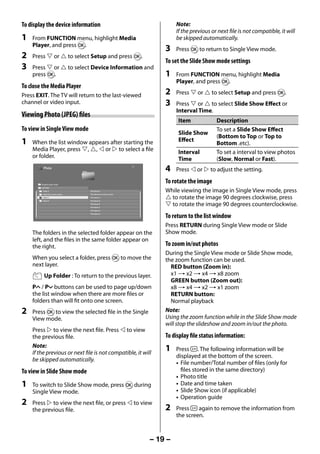
             /Folder/Current folder
                                                                              To rotate the image
             Up Folder
               Folder A                     File Name A                       While viewing the image in Single View mode, press
                                                                               to rotate the image 90 degrees clockwise, press
               Folder B xx xxxxxx xxxxxxx   File Name B xx xxxxxx xxxxx
               Folder C                     File Name C
               Folder D                     File Name D
                                            File Name E
                                            File Name F
                                                                               to rotate the image 90 degrees counterclockwise.
                                            File Name G


                                                                              To return to the list window
                                            File Name H


                                                                              Press RETURN during Single View mode or Slide
         The folders in the selected folder appear on the                     Show mode.
         left, and the files in the same folder appear on
         the right.                                                           To zoom in/out photos
                                                                              During the Single View mode or Slide Show mode,
         When you select a folder, press Q to move the                        the zoom function can be used.
         next layer.                                                            RED button (Zoom in):
                Up Folder : To return to the previous layer.                    x1 S x2 S x4 S x8 zoom
                                                                                GREEN button (Zoom out):
         PU / Pu buttons can be used to page up/down                            x8 S x4 S x2 S x1 zoom
         the list window when there are more files or                           RETURN button:
         folders than will fit onto one screen.                                 Normal playback
     2   Press Q to view the selected file in the Single                      Note:
         View mode.                                                           Using the zoom function while in the Slide Show mode
                                                                              will stop the slideshow and zoom in/out the photo.
         Press  to view the next file. Press  to view
         the previous file.                                                   To display file status information:
         Note:
         If the previous or next file is not compatible, it will
                                                                              1    Press . The following information will be
                                                                                   displayed at the bottom of the screen.
         be skipped automatically.
                                                                                   • File number/Total number of files (only for
     To view in Slide Show mode                                                      files stored in the same directory)
                                                                                   • Photo title
     1   To switch to Slide Show mode, press Q during                              • Date and time taken
         Single View mode.                                                         • Slide Show icon (if applicable)
                                                                                   • Operation guide
     2   Press  to view the next file, or press  to view
         the previous file.                                                   2    Press    again to remove the information from
                                                                                   the screen.


                                                                          – 19 –


23293240PB200Series_En.indd 19                                                                                                 2012/10/04 14:55:51
Note:                                                                     To set the Repeat mode settings
     If the previous or next file is not compatible, it will be
     skipped automatically.                                                    1    From FUNCTION menu, highlight Media
                                                                                    Player, and press Q.
     File Compatibility:
     Media Format: JPEG                                                        2    Press  or  to select Setup and press Q.
     File Extension: .jpg                                                      3    Press  or  to select Music Repeat.
     Data compatibility: JPEG Exif ver 2.2
     Maximum viewable resolution: 8192 x 8192 (Base-                                Item              Description
     line)                                                                                            To play files in the same
                                                                                    Music
     • Progressive JPEG is not support.                                                               directory repeatedly. (All, 1
                                                                                    Repeat
     Maximum file size: 9MB                                                                           or Off).
     Maximum number of files: 9999 / folder (Base on
     FAT 32)
                                                                               4    Press  or  to adjust the setting.
                                                                               To display file status information:
     Playing music files
     1   When the list window appears after starting the
                                                                               1    Press . The following information will be
                                                                                    displayed at the bottom of the screen.
         Media Player, press , ,  or  to select a file                          • File number/Total number of files (only for
         or folder.                                                                    files stored in the same directory)
                Music
                                                                                    • Playback pictgram
                                                                                    • Progress bar
                                                                                    • Progress time/Total Time
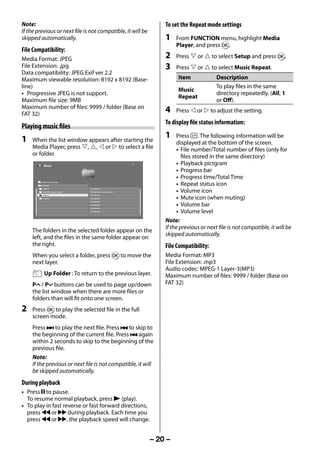
              /Folder/Current folder
              Up Folder                                                             • Repeat status icon
                Folder A                     File Name A
                Folder B xx xxxxxx xxxxxxx   File Name B xx xxxxxx xxxxx            • Volume icon
                Folder C                     File Name C
                Folder D                     File Name D
                                             File Name E
                                                                                    • Mute icon (when muting)
                                             File Name F
                                             File Name G
                                                                                    • Volume bar
                                             File Name H
                                                                                    • Volume level
                                                                               Note:
                                                                               If the previous or next file is not compatible, it will be
         The folders in the selected folder appear on the
                                                                               skipped automatically.
         left, and the files in the same folder appear on
         the right.                                                            File Compatibility:
         When you select a folder, press Q to move the                         Media Format: MP3
         next layer.                                                           File Extension: .mp3
                                                                               Audio codec: MPEG-1 Layer-3(MP3)
                 Up Folder : To return to the previous layer.                  Maximum number of files: 9999 / folder (Base on
         PU / Pu buttons can be used to page up/down                           FAT 32)
         the list window when there are more files or
         folders than will fit onto one screen.
     2   Press Q to play the selected file in the full
         screen mode.
         Press z to play the next file. Press Z to skip to
         the beginning of the current file. Press Z again
         within 2 seconds to skip to the beginning of the
         previous file.
         Note:
         If the previous or next file is not compatible, it will
         be skipped automatically.
     During playback
     • Press W to pause.
       To resume normal playback, press c (play).
     • To play in fast reverse or fast forward directions,
       press CC or cc during playback. Each time you
       press CC or cc, the playback speed will change.


                                                                           – 20 –


23293240PB200Series_En.indd 20                                                                                                  2012/10/04 14:55:51
Troubleshooting                                         The picture brightness varies when you
                                                             display switch the TV on.
     Before calling a service technician, please check the        • If you switch the TV on at 0°C and under, wait
     following table for a possible cause of the symptom            until the warms up.
     and some solutions.
                                                             Multiple images
     Symptom and solution                                         • The station may have broadcast difficulties.
                                                                    Try another channel.
     TV will not turn on                                          • Aerial reception may be poor. Use a high
        • Make sure the power cord is plugged in, and               directional outdoor aerial.
          then press 1.                                           • Check if the direction of the aerial has
        • The remote control batteries may be dead.                 changed.
          Replace the batteries.
                                                             Poor colour or no colour
     No picture, no sound                                         • The station may have broadcast difficulties.
        • Check the aerial connections.                             Try another channel.
                                                                  • Adjust the Tint and/or Colour in the PICTURE
     No sound, picture OK                                           menu.
        • The sound may be muted. Press 2 +, − or
          u.                                                 The remote control does not operate
        • The station may have broadcast difficulties.            • Remove all obstructions between the remote
          Try another channel.                                      control and the remote control sensor on the
                                                                    TV.
     Poor sound, picture OK                                       • The remote control batteries may be dead.
        • The station may have broadcast difficulties.
                                                                    Replace the batteries.
          Try another channel.
     Poor picture, sound OK
        • Check the aerial connections.
        • The station may have broadcast difficulties.
          Try another channel.
        • Adjust the PICTURE menu.
     Poor reception of broadcast channels
        • Check the aerial connections.
        • The station may have broadcast difficulties.
          Try another channel.
        • Make sure the Colour System is properly set.
     Teletext problems
        • Check the aerial connections.
          Good performance of text depends on a good
          strong broadcast signal.
     The brightness of the screen comes down,
     or flickers of the screen are caused, or some
     parts of the screen do not light up.
        • When you just buy and start to use this TV, a
          flickering may be caused in the screen. In this
          case, switch off the TV, then switch on it again
          to cure the condition.
     Some pixels of the screen do not light up
        • The LCD display panel is manufactured
          using an extremely high level of precision
          technology, however, sometimes some pixels
          of the screen may be missing picture elements
          or have luminous spots. This is not a sign of a
          malfunction.


                                                         – 21 –


23293240PB200Series_En.indd 21                                                                          2012/10/04 14:55:51
Broadcast system                                         Specifications
     Broadcast transmission systems of each country           LED TV
     or region                                                Model
                                                                  23PB200 Series, 29PB200 Series, 32PB200 Series,
     Asia M.E.                                                    40PB200 Series, 29PB202 Series
      Country or region                 Colour   Sound        Power source
                                                                  110-240 V AC, 50/60 Hz
      Bahrain, Kuwait, Israel, Oman, PAL         B/G
      Qatar,                                                  Power consumption
      United Arab Emirates, Yemen,                                23" : 40 W, 0.3 W
      etc.                                                        29" : 56 W, 0.3 W
      Indonesia, Malaysia,                                        32" : 56 W, 0.3 W
      Singapore, Thailand, etc.                                   40" : 84 W, 0.4 W
      China, Vietnam                    PAL      D/K          Dimensions
                                                                  23" : 548 (W) 423 (H) 135 (D) mm
      China Hong Kong                   PAL      I                29" : 665 (W) 507 (H) 145 (D) mm
      Iraq, Islamic Republic of Iran,   SECAM    B/G              32" : 734 (W) 546 (H) 145 (D) mm
      Lebanon, Saudi Arabia, etc.                                 40" : 922 (W) 652 (H) 191 (D) mm
      Russian Federation, etc.          SECAM    D/K          Mass (Weight)
                                                                  23" : 4.4 kg
      Myanmar, Republic of the          NTSC     M                29" : 4.5 kg
      Philippines, etc.                                           32" : 5.0 kg
     Africa                                                       40" : 8.0 kg
                                                              TV system (Aerial input)
      Country or region                 Colour   Sound            Channel coverage:
      Republic of South Africa, etc.    PAL      I                PAL      B/G   (CCIR)    VHF    2 - 12
                                                                                           UHF    21 - 69
     Note:                                                                                 CATV   X - Z+2, S1 - S41
     PAL, SECAM and NTSC 3.58 (MHz) are different colour          PAL      I     (UK)      VHF    -
     signal broadcast transmission systems applicable to                                   UHF    21 - 69
     different countries or region. NTSC 4.43 (MHz) is used                                CATV   -
     in special VCRs to playback NTSC recorded video tapes        PAL      D/K   (CHINA)   VHF    1 - 12
     through PAL TV equipment.                                                             UHF    13 - 57
                                                                                           CATV   Z1 - Z38
                                                                  SECAM    B/G   (CCIR)    VHF    2 - 12
                                                                                           UHF    21 - 69
                                                                                           CATV   X - Z+2, S1 - S41
                                                                  SECAM    D/K   (OIRT)    VHF    1 - 12
                                                                                           UHF    21 - 69
                                                                                           CATV   X1 - X19
                                                                  NTSC     M     (US)      VHF    2 - 13
                                                                                           UHF    14 - 69
                                                                                                  A6 - A1, A - W, AA -
                                                                                           CATV
                                                                                                  ZZ, AAA, BBB
                                                                  NTSC     M     (JAPAN)   VHF    1 - 12
                                                                                           UHF    13 - 62
                                                                                           CATV   M1 - M10, S1 - S41
                                                                  Special RF signal:
                                                                  NTSC 4.43 colour system
                                                                  5.5/6.0/6.5 MHz sound system
                                                                  PAL 60 Hz colour system
                                                                  5.5/6.0/6.5 MHz sound system


                                                         – 22 –


23293240PB200Series_En.indd 22                                                                            2012/10/04 14:55:51
COMPONENT VIDEO INPUT terminals (the signal                    Supplied accessories
     format)                                                           23PB200 Series:
         480i, 480p, 576i, 576p, 720p (50/60 Hz), 1080i                Owner’s manual (1), Remote control (1),
         (50/60 Hz)                                                    Batteries (2), Screw (1) (- page 3), Pedestal
         (These signal formats are converted to match                  stand (1), Screw (M5 x 14: 4 (only two screws are
         the number of pixels of the LCD panel.)                       used)) (stand type) (- page 2)
     Colour System                                                         29PB200 Series / 32PB200 Series / 40PB200
         PAL, SECAM, NTSC 3.58/4.43                                        Series / 29PB202 Series:
     Aspect ratio                                                          Owner’s manual (1), Remote control (1),
         16 : 9                                                            Batteries (2), Screw (1) (- page 3), Pedestal
     Visible size (diagonal)                                               stand (1), Screw (M5 x 14: 7, M4 x 8: 4) (stand
         23" : 58.4 cm                                                     type) (- page 2)
         29" : 72.3 cm
         32" : 80.8 cm                                              • Design and specifications are subject to change
         40" : 102.4 cm                                               without notice.
                                                                    • Never service or remodel the TV by yourself. It
     Number of pixels                                                 may expose you to a fire hazard or dangerous
         23" : 1920 (H) dots × 1080 (V) dots                          voltages.
         29" : 1366 (H) dots × 768 (V) dots
         32" : 1366 (H) dots × 768 (V) dots
         40" : 1920 (H) dots × 1080 (V) dots
     Audio power
         10 W + 10 W                                                     Following information is only for India:
     Speakers                                                            The use of this symbol indicates that
         23" : Main 42 5 70 mm 2pcs.                                     this product may not be treated as
         29", 32", 40" : Main 40 5 120 mm 2pcs.                          household waste.
                                                                         By ensuring this product is disposed of
     Input / Output terminals                                            correctly, you will help prevent
         o (1)          Input                                            potential negative consequences for
         COMPONENT/     Standard video or       V                        the environment and human health,
         VIDEO INPUT    Component video         Y, PB/CB, PR/CR          which could otherwise be caused by
                        A/V                     Audio L / Mono, R        inappropriate waste handling of this
         o (2)          Input                                            product.
                        Phono jacks             A/V                      For more detailed information about
         O AUDIO        Output                  Audio L / Mono, R        recycling of this product,
           (FIXED)      Phono jacks                                      please visit our website(http://www.
         o RGB/PC       Input                                            toshiba-india.com) or contact call
                        Mini D-sub 15 pin Analogue RGB                   center (1800-200-8674).
         o PC/HDMI 2    Input
           (AUDIO)      3.5 mm (Diameter) stereo
         o HDMI 1-2     Input (type A)
                        19 pin                  A/V Digital
                        HDMI (Lip Sync)
         USB port       Media Player Interface version:
                        USB 2.0
                        USB class: Mass Storage
                        Support file system: FAT16 and FAT32

     Operating condition
        Temperature 0°C - 35°C
        Humidity        20% - 80% (No moisture
                        condensation)


                                                                – 23 –


23293240PB200Series_En.indd 23                                                                                      2012/10/04 14:55:51
License Information on the software used in the            "Loss" here includes normal, special, incidental and
     TOSHIBA TV                                                 indirect loss (including, but not limited to, the loss
     The software pre-installed in the TOSHIBA                  of data or its accuracy; loss incurred by the user or
     Televisions consists of multiple, independent              any third party; and interface incompatibility with
     software components. Each software component is            other software). Please read each EULA for details on
     copyrighted by TOSHIBA or a third party.                   the use conditions and items that must be observed
                                                                regarding these software components.
     The TOSHIBA Televisions uses software components
     that are distributed as freeware under a third-party       The table below lists the software components
     end-user license agreement or copyright notice             pre-installed in the TOSHIBA Televisions, which
     (hereinafter referred to as a "EULA"). Some EULAs          are subject to EULAs. The user should read the
     require that the source code of the applicable             applicable EULAs carefully before using these
     component be disclosed as the condition for                software components. The EULAs are exhibited in
     distributing the software component in executable          their original text (English) as exactly written by the
     format.                                                    respective parties other than TOSHIBA.
     You can check EULA related information on the              For at least three (3) years from the date of
     following Home Page:                                       distribution of this product, Toshiba will give
                                                                to anyone who contacts <linux@toshiba-dme.
     URL : http://www.regza-asia.com/support/oss                co.jp>, for a charge of no more than our cost of
     In addition, some of the software components               physically performing source code distribution, a
     which are used in Toshiba Televisions include the          complete machine-readable copy of the complete
     software that are made or developed originally             corresponding GPL and LGPL source code for
     by TOSHIBA. These software and accompanied                 the version of the GPL and LGPL code that we
     documents are copyrighted by TOSHIBA, and                  distributed to you in this product.
     protected by Copyright Act, an international
     treaty's articles and other governing laws. The            Exhibit (A)
     software components which are made or developed            GNU GENERAL PUBLIC LICENSE
     originally by TOSHIBA and not subject to EULAs are         Version 2, June 1991
     not a target of source code offering.
                                                                Copyright (C) 1989, 1991 Free Software Foundation,
     The Toshiba warranty provided in respect of the            Inc.,
     TV is the only warranty provided and no additional
     warranties are provided in respect of the software         51 Franklin Street, Fifth Floor, Boston, MA 02110-
     components subject to EULAs.                               1301 USA
     Some of the software components distributed                Everyone is permitted to copy and distribute
     under EULAs are made available for use by the user         verbatim copies of this license document, but
     on the premise that they are not copyrighted or            changing it is not allowed.
     warranted by TOSHIBA or any third party. These             Preamble
     software components are licensed to the user
     free of charge and therefore not covered by any            The licenses for most software are designed to
     warranty within the scope of the applicable laws.          take away your freedom to share and change it. By
     These software components are provided in "as is"          contrast, the GNU General Public License is intended
     condition without any warranty, whether express or         to guarantee your freedom to share and change free
     implied. "Warranty" here includes, but not limited         software--to make sure the software is free for all its
     to, an implied warranty for marketability or fitness       users. This General Public License applies to most
     for specific uses. All risks associated with the quality   of the Free Software Foundation's software and to
     or performance of these software components are            any other program whose authors commit to using
     assumed by the user. TOSHIBA shall not be liable           it. (Some other Free Software Foundation software
     whatsoever for any cost of repair or correction or         is covered by the GNU Lesser General Public License
     other incidental expense incurred in connection            instead.) You can apply it to your programs, too.
     with a defect found in any of these software               When we speak of free software, we are referring
     components. Unless specified under the applicable          to freedom, not price. Our General Public Licenses
     laws or in a written agreement, a party who changes        are designed to make sure that you have the
     or redistributes the software with consent from the        freedom to distribute copies of free software (and
     copyright holders or based on the aforementioned           charge for this service if you wish), that you receive
     licenses shall not be held liable whatsoever for           source code or can get it if you want it, that you
     any loss arising from the use of or inability to use       can change the software or use pieces of it in new
     such software components. The same applies even            free programs; and that you know you can do these
     when the copyright holders or relevant third parties       things.
     have been informed of the possibility of such loss.        To protect your rights, we need to make restrictions

                                                           – 24 –


23293240PB200Series_En.indd 24                                                                              2012/10/04 14:55:51
that forbid anyone to deny you these rights or to         1. You may copy and distribute verbatim copies of
     ask you to surrender the rights. These restrictions          the Program's source code as you receive it, in
     translate to certain responsibilities for you if you         any medium, provided that you conspicuously
     distribute copies of the software, or if you modify it.      and appropriately publish on each copy an
     For example, if you distribute copies of such a              appropriate copyright notice and disclaimer of
     program, whether gratis or for a fee, you must give          warranty; keep intact all the notices that refer to
     the recipients all the rights that you have. You must        this License and to the absence of any warranty;
     make sure that they, too, receive or can get the             and give any other recipients of the Program a
     source code. And you must show them these terms              copy of this License along with the Program.
     so they know their rights.                                   You may charge a fee for the physical act of
     We protect your rights with two steps: (1) copyright         transferring a copy, and you may at your option
     the software, and (2) offer you this license which           offer warranty protection in exchange for a fee.
     gives you legal permission to copy, distribute and/or     2. You may modify your copy or copies of the
     modify the software.                                         Program or any portion of it, thus forming a work
     Also, for each author's protection and ours, we              based on the Program, and copy and distribute
     want to make certain that everyone understands               such modifications or work under the terms of
     that there is no warranty for this free software. If         Section 1 above, provided that you also meet all
     the software is modified by someone else and                 of these conditions:
     passed on, we want its recipients to know that what          a) You must cause the modified files to carry
     they have is not the original, so that any problems             prominent notices stating that you changed
     introduced by others will not reflect on the original           the files and the date of any change.
     authors' reputations.                                        b) You must cause any work that you distribute
     Finally, any free program is threatened constantly              or publish, that in whole or in part contains
     by software patents. We wish to avoid the danger                or is derived from the Program or any part
     that redistributors of a free program will individually         thereof, to be licensed as a whole at no charge
     obtain patent licenses, in effect making the program            to all third parties under the terms of this
     proprietary. To prevent this, we have made it clear             License.
     that any patent must be licensed for everyone's free         c) If the modified program normally reads
     use or not licensed at all.                                     commands interactively when run, you
     The precise terms and conditions for copying,                   must cause it, when started running for
     distribution and modification follow.                           such interactive use in the most ordinary
                                                                     way, to print or display an announcement
     GNU GENERAL PUBLIC LICENSE                                      including an appropriate copyright notice
     TERMS AND CONDITIONS FOR COPYING,                               and a notice that there is no warranty (or else,
     DISTRIBUTION AND MODIFICATION                                   saying that you provide a warranty) and that
     0. This License applies to any program or other                 users may redistribute the program under
        work which contains a notice placed by the                   these conditions, and telling the user how
        copyright holder saying it may be distributed                to view a copy of this License. (Exception: if
        under the terms of this General Public License.              the Program itself is interactive but does not
        The "Program", below, refers to any such program             normally print such an announcement, your
        or work, and a "work based on the Program"                   work based on the Program is not required to
        means either the Program or any derivative                   print an announcement.)
        work under copyright law: that is to say, a work             These requirements apply to the modified
        containing the Program or a portion of it, either            work as a whole. If identifiable sections of that
        verbatim or with modifications and/or translated             work are not derived from the Program, and
        into another language. (Hereinafter, translation             can be reasonably considered independent
        is included without limitation in the term                   and separate works in themselves, then this
        "modification".) Each licensee is addressed as               License, and its terms, do not apply to those
        "you".                                                       sections when you distribute them as separate
        Activities other than copying, distribution and              works. But when you distribute the same
        modification are not covered by this License;                sections as part of a whole which is a work
        they are outside its scope. The act of running               based on the Program, the distribution of the
        the Program is not restricted, and the output                whole must be on the terms of this License,
        from the Program is covered only if its contents             whose permissions for other licensees extend
        constitute a work based on the Program                       to the entire whole, and thus to each and
        (independent of having been made by running                  every part regardless of who wrote it.
        the Program). Whether that is true depends on                Thus, it is not the intent of this section to
        what the Program does.                                       claim rights or contest your rights to work
                                                          – 25 –


23293240PB200Series_En.indd 25                                                                             2012/10/04 14:55:51
written entirely by you; rather, the intent is to   4. You may not copy, modify, sublicense, or
           exercise the right to control the distribution         distribute the Program except as expressly
           of derivative or collective works based on the         provided under this License. Any attempt
           Program.                                               otherwise to copy, modify, sublicense or
           In addition, mere aggregation of another work          distribute the Program is void, and will
           not based on the Program with the Program              automatically terminate your rights under this
           (or with a work based on the Program) on a             License. However, parties who have received
           volume of a storage or distribution medium             copies, or rights, from you under this License
           does not bring the other work under the                will not have their licenses terminated so long as
           scope of this License.                                 such parties remain in full compliance.
     3. You may copy and distribute the Program (or a          5. You are not required to accept this License, since
        work based on it, under Section 2) in object code         you have not signed it. However, nothing else
        or executable form under the terms of Sections            grants you permission to modify or distribute
        1 and 2 above provided that you also do one of            the Program or its derivative works. These
        the following:                                            actions are prohibited by law if you do not
                                                                  accept this License. Therefore, by modifying or
        a) Accompany it with the complete                         distributing the Program (or any work based
           corresponding machine-readable source                  on the Program), you indicate your acceptance
           code, which must be distributed under the              of this License to do so, and all its terms and
           terms of Sections 1 and 2 above on a medium            conditions for copying, distributing or modifying
           customarily used for software interchange; or,         the Program or works based on it.
        b) Accompany it with a written offer, valid for at     6. Each time you redistribute the Program (or
           least three years, to give any third party, for a      any work based on the Program), the recipient
           charge no more than your cost of physically            automatically receives a license from the original
           performing source distribution, a complete             licensor to copy, distribute or modify the
           machine-readable copy of the corresponding             Program subject to these terms and conditions.
           source code, to be distributed under the               You may not impose any further restrictions on
           terms of Sections 1 and 2 above on a medium            the recipients' exercise of the rights granted
           customarily used for software interchange; or,         herein. You are not responsible for enforcing
        c) Accompany it with the information you                  compliance by third parties to this License.
           received as to the offer to distribute              7. If, as a consequence of a court judgment or
           corresponding source code. (This alternative           allegation of patent infringement or for any
           is allowed only for noncommercial distribution         other reason (not limited to patent issues),
           and only if you received the program in object         conditions are imposed on you (whether by
           code or executable form with such an offer, in         court order, agreement or otherwise) that
           accord with Subsection b above.)                       contradict the conditions of this License,
           The source code for a work means the                   they do not excuse you from the conditions
           preferred form of the work for making                  of this License. If you cannot distribute so
           modifications to it. For an executable work,           as to satisfy simultaneously your obligations
           complete source code means all the source              under this License and any other pertinent
           code for all modules it contains, plus any             obligations, then as a consequence you may
           associated interface definition files, plus            not distribute the Program at all. For example,
           the scripts used to control compilation and            if a patent license would not permit royalty-free
           installation of the executable. However, as a          redistribution of the Program by all those who
           special exception, the source code distributed         receive copies directly or indirectly through you,
           need not include anything that is normally             then the only way you could satisfy both it and
           distributed (in either source or binary form)          this License would be to refrain entirely from
           with the major components (compiler, kernel,           distribution of the Program.
           and so on) of the operating system on which            If any portion of this section is held invalid
           the executable runs, unless that component             or unenforceable under any particular
           itself accompanies the executable.                     circumstance, the balance of the section is
           If distribution of executable or object code           intended to apply and the section as a whole is
           is made by offering access to copy from a              intended to apply in other circumstances.
           designated place, then offering equivalent             It is not the purpose of this section to induce you
           access to copy the source code from the same           to infringe any patents or other property right
           place counts as distribution of the source             claims or to contest validity of any such claims;
           code, even though third parties are not                this section has the sole purpose of protecting
           compelled to copy the source along with the            the integrity of the free software distribution
           object code.
                                                          – 26 –


23293240PB200Series_En.indd 26                                                                            2012/10/04 14:55:51
system, which is implemented by public license             BUT NOT LIMITED TO, THE IMPLIED WARRANTIES
         practices. Many people have made generous                  OF MERCHANTABILITY AND FITNESS FOR A
         contributions to the wide range of software                PARTICULAR PURPOSE. THE ENTIRE RISK AS
         distributed through that system in reliance on             TO THE QUALITY AND PERFORMANCE OF THE
         consistent application of that system; it is up to         PROGRAM IS WITH YOU. SHOULD THE PROGRAM
         the author/donor to decide if he or she is willing         PROVE DEFECTIVE, YOU ASSUME THE COST
         to distribute software through any other system            OF ALL NECESSARY SERVICING, REPAIR OR
         and a licensee cannot impose that choice.                  CORRECTION.
         This section is intended to make thoroughly            12. IN NO EVENT UNLESS REQUIRED BY APPLICABLE
         clear what is believed to be a consequence of              LAW OR AGREED TO IN WRITING WILL ANY
         the rest of this License.                                  COPYRIGHT HOLDER, OR ANY OTHER PARTY
     8. If the distribution and/or use of the Program is            WHO MAY MODIFY AND/OR REDISTRIBUTE THE
         restricted in certain countries either by patents          PROGRAM AS PERMITTED ABOVE, BE LIABLE TO
         or by copyrighted interfaces, the original                 YOU FOR DAMAGES, INCLUDING ANY GENERAL,
         copyright holder who places the Program under              SPECIAL, INCIDENTAL OR CONSEQUENTIAL
         this License may add an explicit geographical              DAMAGES ARISING OUT OF THE USE OR
         distribution limitation excluding those countries,         INABILITY TO USE THE PROGRAM (INCLUDING
         so that distribution is permitted only in or               BUT NOT LIMITED TO LOSS OF DATA OR DATA
         among countries not thus excluded. In such                 BEING RENDERED INACCURATE OR LOSSES
         case, this License incorporates the limitation as if       SUSTAINED BY YOU OR THIRD PARTIES OR A
         written in the body of this License.                       FAILURE OF THE PROGRAM TO OPERATE WITH
                                                                    ANY OTHER PROGRAMS), EVEN IF SUCH HOLDER
     9. The Free Software Foundation may publish                    OR OTHER PARTY HAS BEEN ADVISED OF THE
         revised and/or new versions of the General                 POSSIBILITY OF SUCH DAMAGES.
         Public License from time to time. Such new
         versions will be similar in spirit to the present      END OF TERMS AND CONDITIONS
         version, but may differ in detail to address new       How to Apply These Terms to Your New Programs
         problems or concerns.
                                                                If you develop a new program, and you want it to be
         Each version is given a distinguishing version         of the greatest possible use to the public, the best
         number. If the Program specifies a version             way to achieve this is to make it free software which
         number of this License which applies to it             everyone can redistribute and change under these
         and "any later version", you have the option of        terms.
         following the terms and conditions either of that
         version or of any later version published by the       To do so, attach the following notices to the
         Free Software Foundation. If the Program does          program. It is safest to attach them to the start
         not specify a version number of this License, you      of each source file to most effectively convey the
         may choose any version ever published by the           exclusion of warranty; and each file should have at
         Free Software Foundation.                              least the "copyright" line and a pointer to where the
                                                                full notice is found.
     10. If you wish to incorporate parts of the Program        <one line to give the program's name and a brief
         into other free programs whose distribution            idea of what it does.>
         conditions are different, write to the author          Copyright © <year> <name of author>
         to ask for permission. For software which is
         copyrighted by the Free Software Foundation,           This program is free software; you can redistribute
         write to the Free Software Foundation; we              it and/or modify it under the terms of the GNU
         sometimes make exceptions for this. Our                General Public License as published by the Free
         decision will be guided by the two goals of            Software Foundation; either version 2 of the License,
         preserving the free status of all derivatives of our   or (at your option) any later version.
         free software and of promoting the sharing and         This program is distributed in the hope that it will
         reuse of software generally.                           be useful, but WITHOUT ANY WARRANTY; without
                                                                even the implied warranty of MERCHANTABILITY or
     NO WARRANTY                                                FITNESS FOR A PARTICULAR PURPOSE. See the GNU
     11. BECAUSE THE PROGRAM IS LICENSED FREE OF                General Public License for more details.
         CHARGE, THERE IS NO WARRANTY FOR THE                   You should have received a copy of the GNU General
         PROGRAM, TO THE EXTENT PERMITTED BY                    Public License along with this program; if not, write
         APPLICABLE LAW. EXCEPT WHEN OTHERWISE                  to the Free Software Foundation, Inc., 51 Franklin
         STATED IN WRITING THE COPYRIGHT HOLDERS                Street, Fifth Floor, Boston, MA 02110-1301 USA.
         AND/OR OTHER PARTIES PROVIDE THE PROGRAM
         "AS IS" WITHOUT WARRANTY OF ANY KIND,                  Also add information on how to contact you by
         EITHER EXPRESSED OR IMPLIED, INCLUDING,                electronic and paper mail.

                                                           – 27 –


23293240PB200Series_En.indd 27                                                                            2012/10/04 14:55:51
If the program is interactive, make it output a short
     notice like this when it starts in an interactive mode:
     Gnomovision version 69, Copyright (C) year name
     of author Gnomovision comes with ABSOLUTELY
     NO WARRANTY; for details type `show w'. This is free
     software, and you are welcome to redistribute it
     under certain conditions; type `show c' for details.
     The hypothetical commands `show w' and `show c'
     should show the appropriate parts of the General
     Public License. Of course, the commands you use
     may be called something other than `show w' and
     `show c'; they could even be mouse-clicks or menu
     items--whatever suits your program.
     You should also get your employer (if you work
     as a programmer) or your school, if any, to sign a
     "copyright disclaimer" for the program, if necessary.
     Here is a sample; alter the names:
     Yoyodyne, Inc., hereby disclaims all copyright
     interest in the program `Gnomovision' (which makes
     passes at compilers) written by James Hacker.
     <signature of Ty Coon>, 1 April 1989
     Ty Coon, President of Vice
     This General Public License does not permit
     incorporating your program into proprietary
     programs. If your program is a subroutine library,
     you may consider it more useful to permit linking
     proprietary applications with the library. If this is
     what you want to do, use the GNU Lesser General
     Public License instead of this License.


                                                          – 28 –


23293240PB200Series_En.indd 28                                     2012/10/04 14:55:52
23293240PB200Series_En.indd 32   2012/10/04 14:55:52

32 40 pb200series-en

  • 1.
    OWNER'S MANUAL LED TV Welcome to Toshiba • Thank you for purchasing this Toshiba LED TV. This manual will help you use the exciting features of your new TV. • Instructions in this manual are based on using the remote control. • You also can use the controls on the TV if they have the same name as those referred to on the remote control. • Please read all safety and operating instructions in this manual carefully, and keep this manual for future reference. • “LED TV” means LCD Panel with LED Backlight. 23PB200 Series 29PB200 Series Owner's Record 32PB200 Series You will find the model number and serial number on the back of the TV. Record these numbers in the spaces 40PB200 Series provided below. Refer to them whenever you call upon your TOSHIBA dealer regarding this product. 29PB202 Series Model number: Serial number: ©2012 TOSHIBA CORPORATION All Rights Reserved TD/J VX1A00260900 23293240PB200Series_En.indd 1 2012/10/04 14:55:46
  • 2.
    Pedestal stand Assembling CAUTION: Before beginning pedestal assembly, carefully lay the front of the LCD Panel face down on a flat, cushioned surface such as a quilt or blanket. Leave the bottom of the unit protruding over the edge of the surface and assemble as indicated. Note: Extreme care should always be used when attaching the pedestal stand to avoid damage to the LCD panel. 29PB200 Series / 32PB200 Series / 40PB200 Series / 29PB202 Series models 1 3 M5 x 14 4 M5 x 14 2 M4 x 8 Warning: Ensure the power cable is not pinched when attaching the pedestal stand as this could cause an electric shock. 23PB200 Series models 2 1 Warning: Ensure the power cable is not pinched when attaching the pedestal stand as this could cause an electric shock. –2– 23293240PB200Series_En.indd 2 2012/10/04 14:55:46
  • 3.
    Contents 2) Never place the TV in an unstabilized location such as on a shaky table, incline or location Connecting an aerial ............................................6 subject to vibration. Exploring your new TV .........................................6 • Only use cabinets or stands recommended by TV panel controls ...................................................6 the TV manufacturer. • Only use furniture that can safely support the Learning about the remote control ................7 TV. TV back panel connections ................................7 • Ensure that the TV is not hanging over the Connecting HDMI or DVI devices.....................8 edge of the supporting furniture. Connecting a computer ......................................8 • Never place the TV on tall furniture (for Turning the TV on ..................................................9 example, cupboards or bookcases) without anchoring both the furniture and the TV to a Tuning the TV for the first time .........................9 suitable support. Using the Quick menu ...................................... 11 • Never stand the TV on cloth or other material Learning about the menu system................. 11 placed between the TV and supporting Watching TV programmes ............................... 12 furniture. The TV may drop or fall off, which may cause an Selecting the video input injury or damage. source to view ................................................. 12 3) Never stand or climb on the TV. Channel List .......................................................... 12 • Educate children about the dangers of Selecting the PC/HDMI 2 Audio mode........ 12 climbing on furniture to reach the TV or its Setting the HDMI 2 Audio mode ................... 13 controls. Picture adjustment ............................................. 13 Be especially careful in households with children to prevent them through climbing on top of Sound adjustment .............................................. 15 the TV. It may move, fall over, break, become Other features settings ..................................... 15 damaged or cause an injury. Teletext ................................................................... 16 4) Always connect the power plug to an Using the PC settings ........................................ 18 appropriate electrical outlet equipped with Using the Media Player ..................................... 18 110-240 V AC, 50/60 Hz. Troubleshooting.................................................. 21 Never use the TV outside the specified voltage range. It may cause a fire or an electric shock. Broadcast system ................................................ 22 Specifications ....................................................... 22 About the fuse (only for E models) In a three pin earthing-type, the fuse fitted in this plug is approved by ASTA or BSI to BS1362. It should only be replaced by a correctly rated and Important Safety Instructions approved type and the fuse cover must be refitted. Be sure to observe the following instructions and precautions to ensure safe use of this TV. About the use • Make sure to insert the plugs firmly, when Installation plugging the AC power cord into the TV set end and wall outlet end. 1) WARNING: To prevent injury, this apparatus • Make sure to hold the plug, when unplugging must be securely attached to the floor/wall in the AC power cord. accordance with the installation instructions. • Never use other cord except for supplied AC Install the TV in a horizontal, stable location. power cord, and never use the supplied power Attach the TV to the stand with the mounting cord for any other purpose. screw. 5) Never insert or remove the power plug with • If the TV is not installed securely, it may lean or wet hands. fall over and cause an injury. This may cause an electric shock. • To prevent injury, use the exclusive optional stand or wall-hanging bracket to install this 6) Never block or cover the slots and openings in TV on the floor or wall securely in accordance the cabinet. with a qualified technician. • Never place the TV so that it is facing upward or on its side. Screw hole • Never place the TV in a closet, bookcase or other similar area where the ventilation is poor. Top view –3– 23293240PB200Series_En.indd 3 2012/10/04 14:55:48
  • 4.
    • Never drapea newspaper, tablecloth or 3) Never insert objects (metal or paper) or pour curtain on the TV. water inside the TV through ventilation holes • When installing the TV against a wall, always and other openings. keep the TV at least 10 cm away from the wall. These items may cause a fire or an electric shock. • Never place the TV on a soft unstable surface, If these objects are inserted inside the TV, turn such as a carpet, or a cushion. off the TV and remove the power plug from The inside of this TV will overheat if the the outlet immediately and contact a service ventilation holes are covered, blocked or sealed, technician. Be especially careful that children do which may result in a fire. not insert objects in the TV. 7) Never place the TV near a heater or in direct 4) When the TV will not be used for a long period sunlight. of time, such as during vacation or travel, The surface of the cabinet or power cord may remove the power plug from the wall outlet melt and result in a fire or an electric shock. for safety. 8) Never place the TV in an area exposed to high • The TV is not completely disconnected from humidity levels, such as in a bathroom or the power supply line, as minute current is close to a humidifier. consumed even when the ! Power switch is This may cause a fire or an electric shock. turned off. • The mains plug or an appliance coupler is 9) Never place the TV next to a stove where it used as the disconnect device, therefore will be exposed to oil, smoke, or steam, or in the disconnect device shall remain readily a location where there is a large quantity of operable. dust. This may cause a fire or an electric shock. 5) Never pull on the power cord when removing the plug from the wall outlet. 10) Precautions for moving the TV Always hold the plug firmly when removing it. If • When moving the TV, be sure to remove the the power cord is yanked, the cord may become plug from the wall outlet and disconnect damaged and a fire or an electric shock may the aerial cable and audio/video cables, any occur. steady ties and mounting screw. A fire or an electric shock may result if the power cord is 6) Never cut, break, modify, twist, bunch up damaged. or bent the cord or apply excessive force or • When carrying the TV, at least two people are tension to it. needed. Be sure to carry it upright. Never place heavy objects on the cord or allow • Never carry the TV with the screen facing up it to overheat as this may cause damage, a fire or or down. an electric shock. Contact a service technician if the power cord is damaged. 11) Precautions for installing on outdoor aerial An outside aerial system should not be located 7) If there is thunder or lightning, never touch in the vicinity of overhead power lines, or other the aerial cable or other connected cables. electric light or power circuits. You may suffer an electric shock. If the aerial falls down or drops, it may cause an injury or an electric shock. Service Use 1) Never repair, modify or disassemble the TV by yourself. 1) Never place hot objects or open flame sources, It may cause a fire or an electric shock. such as lighted candles or nightlights, on or Consult a service technician for inspection and close to the TV. repairs. High temperatures can melt plastic and lead to 2) When a malfunction occurs, or if smoke or fires. an unusual odor comes from the TV, turn off 2) The apparatus shall not be exposed to the TV and remove the power plug from the dripping or splashing and that no objects outlet immediately. filled with liquids, such as vases, shall be Make sure that the smoke or smell has stopped, placed on the apparatus. then contact a service technician. If the TV is still When liquids are spilled or small items are used in this condition, it may cause a fire or an dropped inside the TV, this may cause a fire or an electric shock. electric shock. If small objects drop inside the TV, turn off the TV and remove the power plug from the outlet immediately and contact a service technician. –4– 23293240PB200Series_En.indd 4 2012/10/04 14:55:48
  • 5.
    3) If theTV is dropped or the cabinet is broken, 3) Some pixels of the screen do not light up turn off the TV and remove the power plug The LCD display panel is manufactured using an from the outlet immediately. extremely high level of precision technology, If the TV has power in this condition, it may cause however sometimes some pixels of the screen a fire or an electric shock. If the cabinet is broken, may be missing picture elements or have be careful when handling the TV to prevent an luminous spots. This is not sign of malfunction. injury. 4) About Interference Contact a service technician for inspection and The LCD display may cause interference in image, repair. sound, etc. of other electronic equipment that 4) When the TV reaches the end of its useful life, receives electromagnetic waves (e.g. AM radios ask a qualified service technician to properly and video equipment). dispose of the TV. 5) About using under the low temperature places If you use the TV in the room of 0°C or less, Cleaning the picture brightness may vary until the CAUTION: Avoid using chemicals (such as air LCD monitor warms up. This is not a sign of refreshers, cleaning agents, etc.) on or near malfunction. the TV pedestal. Studies indicate that plastics 6) About afterimage may weaken and crack over time from the If a still picture is displayed, an afterimage may combination effects of chemical agents and remain on the screen, however it will disappear. mechanical stress (such as weight of TV). Failure This is not a sign of malfunction. to follow these instructions could result in serious injury and/or permanent damage to TV Exemptions and TV pedestal. • Toshiba is not liable for any damage caused by 1) Remove the power plug before cleaning. fires, natural disaster (such as thunder, earthquake, Never use solvents such as benzine or thinner etc.), acts by third parties, accidents, owner’s to clean the TV. misuse, or uses in other improper conditions. • These solvents may distort the cabinet or • Toshiba is not liable for incidental damages damage its finish. (such as profit loss or interruption in business, • If rubber or vinyl products remain in contact modification or erasure of record data, etc.) caused with the TV for a long time, a stain may result. by use or inability to use of product. If the cabinet becomes dirty, clean it with a soft, • Toshiba is not liable for any damage caused dry cloth. by neglect of the instructions described in the When cleaning the surface of the LCD display, owner’s manual. wipe the panel surface gently with a soft, dry • Toshiba is not liable for any damage caused by cloth. misuse or malfunction through simultaneous use of this product and the connected equipment. 2) Periodically disconnect the power plug from the outlet and check it. Trademark Information If dust has collected on the power plug • HDMI, the HDMI logo, and High-Definition connectors, clean off the dust with a dry cloth. Multimedia Interface are trademarks or registered This dust may cause a fire due to reduced trademarks of HDMI Licensing LLC in the United insulation on the plug. States and other countries. • MPEG Layer-3 audio coding technology licensed Important information from Fraunhofer LLS and Thomson. 1) About LCD screen • If you have the LCD screen facing to the sun, the LCD screen will be damaged. Be aware of locating the TV close to a window or outdoors. • Never press the LCD screen strongly or scratch it, and never put anything on it. These actions will damage the LCD screen. 2) About cabinet and LCD screen Never spray volatile compounds such as insecticide on the cabinet and LCD screen. This may cause a discolouration or damage the cabinet and LCD screen. –5– 23293240PB200Series_En.indd 5 2012/10/04 14:55:48
  • 6.
    Notes: Connecting an aerial • If the remote control does not operate correctly, or if Optimum reception of colour requires a good signal the operating range becomes reduced, replace both and will generally mean that an outdoor aerial must batteries with new ones. be used. • If the batteries are dead or if you will not use the The exact type and positioning of the aerial will remote control for a long time, remove the batteries depend upon your particular area. to prevent battery acid from leaking into the battery Your Toshiba dealer or service personnel can best compartment. advise you on which aerial to use in your area. Before connecting the aerial cable, turn off all main Effective range power switches. VHF and/or UHF aerial Media Recorder TV back view IN OUT within 5 m Aerial cable (75 7 coaxial) (not supplied) 300 7 twin-lead feeder TV panel controls Aerial adaptor • You can operate your TV using the buttons on the 75 7 side panel or the remote control. The back of the (not supplied) aerial terminal panel provide the terminal connections to connect 75 7 coaxial cable other equipment to your TV. TV front view Plug 75 7 aerial (not supplied) terminal Exploring your new TV 1 Installing the remote control batteries Left side view Remove the battery cover. Insert two R03 (AAA) batteries matching the –/+ polarities of the battery to the –/+ marks inside the 2 battery compartment. 3 4 5 1 ! (power LED) — Power indicator. Cautions: • Dispose of batteries in a designated disposal area. 2 USB (input terminals) — Insert your USB Batteries must not be exposed to excessive heat such storage device (photo, music). as sunshine, fire or the like. 3 ! (power on/standby) — Press to turn the TV • Attention should be drawn to the environmental on/ standby. aspects of battery disposal. 4 2 – + (volume) — These buttons adjust the • Never mix battery types or combine used batteries volume level. with new ones. U u (mode up/down) — These buttons select programme position or input source. –6– 23293240PB200Series_En.indd 6 2012/10/04 14:55:48
  • 7.
    5 p / o (programme position or input source) 13 Stereo/Bilingual selection — This button switches to the programme 14 Number buttons (0-9) position or the input source selection. 15 To display the Channel List 16 To return to the previous programme Learning about the remote control 17 To display on-screen information Initial/Index function for Teletext 10 11 18 This button turns the sound off/on 8 19 To exit menu 1 20 To access the Quick Menu 12 13 21 Teletext on/Superimpose Teletext/off 22 Teletext control buttons (Four coloured buttons: 14 Red, Green, Yellow, Blue) 15 23 To reveal concealed text 16 When using the music file (Z). 17 24 To select a page while viewing a normal picture To select the time display 18 When using the music file (z). 25 To hold a wanted page 4 2 26 To enlarge the teletext display size 20 19 TV back panel connections 3, 5 21 9 7 6 22 23 24 25 26 Connection example 1 Power on/standby — Press to turn the TV on/ TV back view standby. 2 Programme position — When no menu is on PC/HDMI 2 (AUDIO) screen, these buttons select the programme (1) (2) DVD video player position. COMPONENT/ VIDEO INPUT (with component video outputs) VIDEO VIDEO 3 MENU up/down — When a menu is on-screen, RGB/PC Y or these buttons function as up/down menu PB/CB L/ MONO navigation buttons. PR/CR AUDIO When using the music file (W, v) 2 R L/ 4 Volume — These buttons adjust the volume MONO level. 1 AUDIO Set Top Box 5 MENU left/right — When a menu is on-screen, R AUDIO(FIXED) or these buttons function as left/right menu navigation buttons or adjust settings. VIDEO L AUDIO R When using the music file (CC, cc) IN HDMI OUT OUT VCR (Normal) 6 On-screen Menus 7 To return to the previous menu HDMI device 8 Input source selection Cable holder * 9 To confirm your selection. * You can use the cable holder to hold the aerial When using the music file (c) cable, video and audio cables etc. 10 Picture Size Never grasp the holder when moving the TV. 11 TEXT Subtitle pages if available 12 Picture still –7– 23293240PB200Series_En.indd 7 2012/10/04 14:55:48
  • 8.
    • o HDMI1 (input terminal) — High-Definition to connect the TV and the HDMI device, and Multimedia Interface input receives digital audio select Analogue in HDMI 2 Audio of the AV and uncompressed digital video from an HDMI Connection menu (- page 13). device. • This TV is able to connect with HDMI devices. But • o HDMI 2 (input terminal) — High-Definition it is possible that some HDMI devices may not Multimedia Interface input receives digital audio operate properly with this TV. and uncompressed digital video from an HDMI device or uncompressed digital video from a DVI Connecting HDMI or DVI devices device (Connect HDMI, DVI or PC etc.). The HDMI input on your TV receives digital audio • o PC/HDMI 2 (AUDIO) (input terminal) — and uncompressed digital video from an HDMI and PC audio input terminal is shared with HDMI uncompressed digital video from a DVI device. analogue audio input terminal, and their use can This input is designed to accept HDCP programme be configured in the SETUP menu (Connect PC or material in digital from CEA-861-D compliant DVI etc.). consumer electronic devices (such as a set top box • A (aerial input terminal) — Analogue aerial and DVD player with HDMI and DVI output). signal input. The HDMI input is designed for best performance • o (1) COMPONENT / VIDEO INPUT (input with 1080i (50/60 Hz) and 1080p (50/60 Hz) high- terminals) — High-definition component video definition video signals, but will also accept and and standard (analogue) stereo audio inputs, or display 480i, 480p, 576i, 576p, and 720p (50/60 Hz) standard (composite) video and standard stereo and VGA (VESA 640 × 480 @ 60/72/75 Hz) signals. audio inputs. • HDMI: High-Definition Multimedia Interface • o (2) (video 2 input terminal) — Standard video • HDCP: High-bandwidth Digital Content Protection and standard stereo audio input. • CEA-861-D compliance covers the transmission of • o RGB/PC (input terminal) — For use when uncompressed digital video with high-bandwidth connecting a personal computer (PC) (Connect PC digital content protection, which is being etc.). standardized for reception of high-definition • O AUDIO (output terminals) — Standard audio video signals. Because this is an evolving outputs. technology, it is possible that some devices may Notes: not operate properly with the TV. • Before connecting any external equipment, turn off • Acceptable PC signal format: all main power switches. • S-VGA: VESA 800 5 600 @ 56/60/72/75 Hz • The unauthorized recording of TV programmes, • XGA: VESA 1024 5 768 @ 60/70/75 Hz DVDs, video tapes and other materials may infringe • W-XGA: VESA 1280 5 768 @ 60 Hz upon the provisions of copyright law. • W-XGA: VESA 1360 5 768 @ 60 Hz • o COMPONENT / VIDEO INPUT terminals • S-XGA: VESA 1280 5 1024 @ 60 Hz However, these signal formats are converted to Standard mode Component mode match the number of pixels of the LCD panel. (1) (1) COMPONENT/ VIDEO INPUT COMPONENT/ VIDEO INPUT Therefore, the TV may not display small text Y VIDEO Y VIDEO properly. Yellow Green PB/CB PB/CB If you connect this unit to your PC, the compressed Blue image is displayed in S-XGA mode, therefore the PR/CR PR/CR Red picture quality may deteriorate and characters may L/ MONO L/ MONO not be read. AUDIO White AUDIO White • L-PCM: Linear-Pulse Code Modulation R Red R Red • Supported Audio format: L-PCM sample rate (Audio) 32/44,1/48 kHz Connecting HDMI or DVI devices Connecting a computer • When turning on your electronic components, The following signals can be display: turn on the TV first, and then the HDMI and DVI VGA: VESA 640 × 480 @ 60/72/75 Hz device. S-VGA: VESA 800 × 600 @ 56/60/72/75 Hz • When turning off your electronic components, XGA: VESA 1024 × 768 @ 60/70/75 Hz turn off the HDMI and DVI device first, and then W-XGA: VESA 1280 × 768 @ 60 Hz the TV. W-XGA: 1280 × 800 @ 60 Hz • This TV may not be compatible with features and/ W-XGA: VESA 1360 × 768 @ 60 Hz or specifications that may be added in the future. W-XGA+: 1440 × 900 @ 60 Hz • This TV is only operable with L-PCM on 32/44.1/48 S-XGA: VESA 1280 × 1024 @ 60 Hz kHz and 16/20/24 bits. If there is no sound when 1920 × 1080p @ 60 Hz (Horizontal Frequency: 67.5 using HDMI, use the analogue audio cables kHz (H), Pixel Clock Frequency: 148.5 MHz) –8– 23293240PB200Series_En.indd 8 2012/10/04 14:55:48
  • 9.
    Notes: appropriate Colour System (For the system of each • Some PC models cannot be connected to this TV. country or region, refer to pages 10, 22). • If connecting a certain PC model that signal is particular, the PC signal may not be detected Switching off the TV correctly. • There is no need to use an adapter for computers 1 Press on the remote control or ! on the with DOS/V compatible mini D-sub 15 pin terminal. TV left side panel to switch to the standby • A bar may appear in the upper, lower, right or left mode. side of the screen, or parts of the picture may be Notes: obscured depending on some signals. This is not the • When the TV will not be used for a long period of malfunction. time, such as during vacation or travel, remove the • If the edges of the picture are stretched, readjust the power plug from the wall outlet. picture position adjustments in the PC Settings • The TV will automatically turn itself off after menu. approximately 15 minutes if it is tuned to a vacant • Depending on the specification of the PC you are channel or a station that completes its broadcast playing the DVD-Video on, and the DVD’s title, some for the day. This function does not work in external scenes may be skipped, or you may not be able to input or Blue screen Off mode. pause during multi-angle scenes. The TV will automatically turn itself off after approximately 2 hours if you do not operate the TV Signal names for mini D-sub 15 pin connector after turned on by on timer function. • If power is cut off while you are viewing the TV, Pin assignment for RGB/PC terminal the Last Mode Memory function turns on the TV automatically when power is applied again. If power is going to be off for a long time and you are going to be away from your TV, unplug the power cord to prevent the TV from turning on in your absence. Pin No. Signal name Pin No. Signal name 1 R 9 NC Tuning the TV for the first time 2 G 10 Ground Before switching on the TV, put your decoder and 3 B 11 NC media recorder to standby, if they are connected, and ensure that the aerial is connected. To setup 4 NC (not 12 DDC Data the TV, use the buttons on the remote control as connected) detailed on page 7. 5 NC 13 H-sync 1 Press the button. The Quick Setup screen will appear. This screen will appear the first time 6 Ground 14 V-sync that the TV is switched on. 7 Ground 15 DDC Clock Quick Setup 8 Ground Language English • Most of the picture/sound controls and functions are available. However features not available will 2 Press  or  to select the menu language be greyed out. (English, Chinese (CS), Malay, Thai, Vietnamese, Russian, Arabic, Persian, French or Indonesia). Turning the TV on 3 Press Q, to display the Location menu. Press  or  to select Store or Home. For Switching on the TV normal home use, select Home. You can select either Home or Store mode. Connect the power cord to a wall outlet, the Home is recommended for normal home use. ! power indicator lights in red (standby mode). Select Store when using a TV for displaying in a shop, etc. 1 Press on the remote control or ! on the TV left side panel, the ! power indicator lights in Location To use the TV for displaying in green. a store showroom, please select [Store]. [Home] mode is recommended Note: for normal use. If you watch black and white programmes when the Home Colour System mode is set to Auto, colour noise may appear on the screen. In this case select the –9– 23293240PB200Series_En.indd 9 2012/10/04 14:55:48
  • 10.
    4 Press Q to display the Auto Signal Booster D. Position skip selection menu, and then  or  to select Yes or No. Press  or  to turn the position skip option on “8” or off “(”. The position will then be Auto Signal Booster skipped when you select channels with PU Signal Booster boosts weak analogue broadcast signals. If you select [Yes], the TV will automatically set this or Pu. The “8” mark will appear beside a feature to [On] or [Off] according to signal strength. Do you wish to enable automatic control? position number when you use the Number button on the remote control. Yes E. Channel search operation Press  to search up the band or  to search Yes mode : down the band. This function performs automatic distinction of Press  or  repeatedly until your desired On or Off. channel is displayed. 5 Press Q to display the Auto Tuning startup When a station is found, it will be displayed. screen. Press Q to start the automatic search. NEVER PRESS ANY OTHER BUTTONS WHILE THE SET IS TUNING. Auto Tuning Progress Found F. Manual Fine Tuning 1% 0 Press  or  until better picture and sound are obtained. G. Signal Booster When the automatic search is completed, If the receiving signal is weak/strong and the the TV will automatically appear the Manual picture is noisy, the picture may be improved Tuning menu. when using this function. Use the Manual Tuning operation if desired Press the  or  to turn the Signal Booster channels cannot be preset with the Auto On or Off. Tuning or if you would like to preset channels to specific position numbers one by one. H. Label Station labels appear on the right of the Manual Tuning programme position display each time you Pos. Label turn on the TV, select a channel, or press . 1 To change or create station labels: 2 3 1) Press  or  repeatedly to select a 4 character for the first space, then press  or . 6 Press  or  to select the programme position you want to arrange and press Q to display the (blank space) breakdown menu. Press  or  to select an item, then press  or 2) Repeat step 1) to enter the rest of the  to select the item as shown below. characters. If you would like a blank space Manual Tuning in the label name, you must choose a Position blank space from the list of characters. 0 1 B/G A 0 On Press Q to store your settings. Notes: A C E G • The Quick Setup, Location, Auto Tuning, Manual B D F H Tuning menu can also be display at any time from the SETUP menu. • When you preset the channel which sound of A. Position selection broadcast transmission system adopts “M” system B. System (Sound) (- page 22) (- page 22), the sound system may not be tuned C. Colour System (- page 22) correctly if the radio waves transmit badly. At that time, preset the channel by Manual Tuning. A : Automatic (factory set), P : PAL, S : SECAM, N4 : NTSC 4.43 (MHz), N3 : NTSC 3.58 (MHz) If the colour of a certain channel is abnormal, the automatic colour system selection (A) may have malfunctioned, or sound system selection is wrong. In such a case, select another colour and/or sound system (- page 22). – 10 – 23293240PB200Series_En.indd 10 2012/10/04 14:55:49
  • 11.
    Using the QuickMenu Displaying the menu chart Press QUICK to display the Quick Menu and use  PICTURE or  to select the option. Quick Menu PICTURE Picture Mode Dynamic Picture Settings Media Player 3D Colour Management Off Sleep Timer 00:00 Base Colour Adjustment Power Bass Booster Off Active Backlight Control On Signal Booster On Noise Reduction Note: Quick Menu items are different depending on the current mode. SOUND Quick menu item Description Picture Mode - page 14. SOUND MTS Auto Media Player - page 19. Dual Dual 1 Bass 0 Sleep Timer - page 16. Treble 0 Balance 0 Power Bass Booster - page 15. Power Bass Booster Super Signal Booster - page 10. Audio Level Offset 0 Learning about the menu system TIMER We suggest you familiarize yourself with the display charts before using the menu system: TIMER • Press MENU to display menu, then press  or  Sleep Timer 00:00 to select main menu headings. On Timer 00:00 On Timer Position 01 • Press  or  to select an item. • Press  or  to select or adjust setting. • Press Q to display the next menu. • Press EXIT to close the menu. • Press RETURN to return the previous menu. FUNCTION FUNCTION Media Player Teletext Auto Teletext Language 1 Panel Lock Off Automatic Power Down Off Auto Format On 4:3 Stretch Off Blue Screen On SETUP SETUP Language English Auto Tuning Manual Tuning AV Connection Quick Setup Location Home XXXXXXXX Software version – 11 – 23293240PB200Series_En.indd 11 2012/10/04 14:55:49
  • 12.
    Watching TV programmes 2 Press  or  to select the channel ABCD, then press . Selecting the menu language Manual Tuning Choose from 10 different languages (English, Pos. Label 1 ABCD Chinese (CS), Malay, Thai, Vietnamese, Russian, 2 EFGH Arabic, Persian French or Indonesia) for the on- 3 I JK L screen display. 4 MNOP 5 • Use the menu: SETUP • Use the item: Language 3 Press  to select the new position “4”, then Changing the position press . 1 Enter the desired position number using the 4 Press  to select the channel MNOP, then press . Number buttons on the remote control. For positions below 10, use 0 and the required 5 Press  to select the new position “1”, then number e.g., for position 1. press . 2 You can also change the position by using PU or 6 Confirm new Manual Tuning menu. Pu. The position will be displayed on the screen with the Mono/Stereo/Dual audio status. Selecting the video input source to view Note: 1 Press on the remote control until the Changing positions between different format channels video input mode list appears on the screen, takes several seconds. then press ,  or to select appropriate input source (or touch p / o and U or u on Switching between two positions the TV left side panel to select required input You can switch two positions without entering source directly). actual position number each time. 2 Press Q. 1 Select the first position you want to view. TV (analogue aerial input), 2 Select the second position with the Number VIDEO1 (o (1), COMPONENT/VIDEO INPUT, buttons (0-9). standard or component video input), VIDEO2 (o (2), standard video input), 3 Press . The previous channel will be HDMI (HDMI input), displayed. PC (o RGB/PC, PC input) Each time you press , the TV will switch back Setting the Manual Settings menu and forth between the two positions. When the standard video input mode, this function Changing the position is available. • Use menus: SETUP and Manual Settings 1 Press to display the following on-screen • Use items: Colour System and Label information. Channel List 4 ABCD Stereo 1 Press the button. The Channel List will appear. The information will disappear in 6 seconds. 2 Press  or  to select a channel, and press Q To erase the display instantly, press again. to watch. Sorting positions Selecting the PC/HDMI 2 Audio mode Ex.: To swap channel ABCD (Prog.1) for channel You can select PC audio or HDMI audio when using MNOP (Prog.4): this function. 1 From the SETUP menu, press  or  to select • Use menus: SETUP and AV Connection Manual Tuning menu, and then press Q. • Use the item: PC/HDMI 2 Audio • Use modes: PC and HDMI – 12 – 23293240PB200Series_En.indd 12 2012/10/04 14:55:49
  • 13.
    PC Normal Setting the HDMI 2 Audio mode Use this setting for PC connected via HDMI or RGB/ You can select sound of an HDMI or DVI device PC terminal when receiving PC signal format. This connected to the HDMI 2 input terminals from three setting will display the image correctly without modes: Auto, Digital or Analogue. distortion or picture clipping. • Use menus: SETUP and AV Connection • Use the item: HDMI 2 Audio Picture adjustment Selecting the Picture Size PC Wide 1 Press repeatedly to select the desired Use this setting for PC connected via HDMI or RGB/ Picture Size. PC terminal when receiving PC signal format. This Native setting will display the image without picture clipping. This setting will display the image correctly without distortion or picture clipping. Notes: • Using the special functions to change the size of Wide the displayed image (e.g. changing the height/ Use this setting when watching a wide-screen DVD, width ratio) for the purpose of public display or widescreen video tape or a 16:9 broadcast (when commercial gain may infringe on copyright laws. available). Due to the range of wide-screen formats • If the aspect ratio of the selected format is different (16:9, 14:9, 20:9 etc.), you may see bars on the top from the one of the TV transmission or video and bottom of the screen. programme, it can cause a difference in vision. Change to the correct aspect ratio picture size. • When using the PC connected via HDMI or RGB/ PC terminal, the moving image quality may be deteriorated. Using the picture still 4:3 • Press to freeze the picture. Use this setting to view a true 4:3 broadcast. Even if an image is frozen on the TV screen, the pictures are running on the input source. Audio continues to be output as well. To return to a moving picture, press again. ( Mo v i n g ) ( St i l l ) Super Live This setting will enlarge a 4:3 image to fit the screen by stretching the image horizontally and vertically, Note: holding better proportions at the centre of the If you use this function except for the purpose of your image. Some distortion may occur. private viewing and listening, it may infringe the copyright protected by the copyright laws. – 13 – 23293240PB200Series_En.indd 13 2012/10/04 14:55:49
  • 14.
    Activating the PictureMode Adjusting the Colour Temperature This TV offers the choice of personalising the picture Colour Temperature increases the warmth or style. coolness of the picture by setting the red, green or AutoView, Dynamic, Standard, Mild, Movie, Eco blue tint. Mode, Game and PC are preset options and affect • Use menus: PICTURE and Picture Settings many features/settings within the TV. • Use items: Colour Temperature, Red Level, • Use menus: PICTURE and Picture Settings Green Level and Blue Level • Use the item: Picture Mode • Use modes: Cool, Natural and Warm etc. Notes: • If using Eco Mode will be changed the dark screen, Resetting the Picture Settings and you will be able to reduce power consumption. • Use menus: PICTURE and Picture Settings The Backlight mode is not available in the Eco • Use the item: Reset (select Yes and press Q) Mode. • Game mode is available in external input mode Activating the Noise Reduction (NR) (other than aerial input). When you select Game If the receiving signal of MPEG is a mosquito mode, suitable widescreen formats will be selected. (grained) noise depending on the compression and • PC mode is available in RGB/PC input mode or HDMI conversion, the picture is weak and the picture is input mode. blurry, the picture may be improved when using this function. Activating the picture preferences • Use menus: PICTURE and Noise Reduction You can customise current Picture Mode settings • Use items: Auto Clean, MPEG NR and DNR as desired. For example, while selecting "Dynamic," • Use modes: Low, Middle, High and Off etc. if you change the following items, such as Picture Settings items, your new setting is saved as Adjusting the Colour Management Dynamic-user. You can adjust the picture colour quality by • Use menus: PICTURE and Picture Settings selecting from 6 base colour adjustments : Red, • Use items: Backlight, Contrast, Brightness, Green, Blue, Yellow, Magenta or Cyan. Colour, Tint, Sharpness and Colour Temprature • Use menus: PICTURE, 3D Colour Management (On) and Base Colour Adjustment Setting the Contrast Booster • Use items: Hue, Saturation and Brightness Contrast Booster improves the contrast of the picture. Resetting the Base Colour Adjustment • Use menus: PICTURE and Picture Settings • Use menus: PICTURE, 3D Colour Management • Use the item: Contrast Booster (On) and Base Colour Adjustment • Use modes: High, Off, Low and Middle • Use the item: Reset Using the Cinema Mode Using the Active Backlight Control A movie film’s picture runs at 24 frames a second, In order to improve screen visibility, the Active whereas movie software such as DVD, etc., that you Backlight Control sets the screen brightness enjoy watching on TV at home runs at 30 (NTSC) automatically during dark scenes. or 25 (PAL) frames a second. To convert this signal • Use the menu: PICTURE to reproduce a smooth motion and picture quality, • Use the item: Active Backlight Control select the On mode. Effective signal and setup conditions: • When the Video input mode is selected. • When the input signal format is 480i, 576i or 1080i signals. • Use menus: PICTURE and Picture Settings • Use the item: Cinema Mode Note: When a DVD movie with subtitle is playing back, this mode may not work correctly. – 14 – 23293240PB200Series_En.indd 14 2012/10/04 14:55:50
  • 15.
    Sound adjustment Selecting the monaural programmes If sound distortion, interruptions or silence arises in Setting the MTS (Multi-channel TV Sound) the low sound volume level, setting the e Mono 2 mode will mitigate the problem. Auto mode When a monaural programme is received, e Mono The MTS Auto mode automatically recognize appears and press g. stereo/bilingual programmes depending on the • Use modes: Mono 1 and Mono 2 broadcast signal. Note: Mono mode On some cases, the reception of stereo/bilingual If you experience noise or poor reception of any broadcasts may not be possible after switching on the stereo/bilingual programme, set the MTS mode to e Mono 2 mode. Mono. Noise will be reduced and reception may improve. Adjusting the sound quality • Use the menu: SOUND You can adjust the basic sound quality. • Use the item: MTS • Use the menu: SOUND Note: • Use items: Bass, Treble and Balance If you experience noise with a particular programme on whose channel reception is usually good, try setting Using the Power Bass Booster MTS mode to Auto, then switch g to e Mono Power Bass Booster helps to create rich bass. (monaural). • Use menus: SOUND and Power Bass Booster • Use items: Super, Normal and Off Selecting the Dual 1 or Dual 2 mode You can hear only Dual 1 or Dual 2 sound selected, Using the Audio Level Offset whenever bilingual programmes are received. Sometimes there can be large changes in volume • Use the menu: SOUND when switching from an ATV channel or an external • Use the item: Dual input. Using this feature reduces these volume Notes: differences. • When the MTS setting is in Mono mode, the Dual • Use the menu: SOUND menu is not selectable. • Use the item: Audio Level Offset • The Dual menu setting status remains even if the TV • Use the button:  and  is turned off. Selecting the stereo programmes Other features settings When a stereo programme is received, d Stereo Selecting the TIMER menu appears and press g. • Use modes: Stereo and Mono The Timer is especially useful if you want the TV to turn itself on or off after a selected period of time. Selecting the bilingual programmes • Use the menu: TIMER • Use items: Sleep Timer, On Timer and On Timer When a bilingual programme is received, j Dual Position appears and press g. • Use the button: Number buttons (0-9),  and  Sound to be heard Notes: Display • When setting the On timer, press  or  to select German stereo/ the On Timer Position and enter the program NICAM bilingual broadcast position number you want to watch. Press EXIT to j Dual 1 Sub I sound Main sound exit the menu. Set the Standby mode by pressing on the remote control. J Dual 2 Sub II sound Sub sound • The TV will automatically turn itself off after e Mono Main sound — approximately 2 hours if you do not operate the TV after turned on by on timer function. Note: These settings are not stored in the TV memory. – 15 – 23293240PB200Series_En.indd 15 2012/10/04 14:55:50
  • 16.
    Using the AutoFormat Setting up the Teletext mode When the TV receives a true HDMI signal picture To select a language for Teletext: and the Auto Format is On, it will automatically be The language 1-4 option enables the display of displayed in HDMI signal format, irrespective of the different language when using Teletext. TV’s previous setting. • Use the menu: FUNCTION • Use the menu: FUNCTION • Use the item: Teletext Language • Use the item: Auto Format Language 1: English, German, Dutch, Flemish, Activating Blue Screen Russian, Bulgarian, Ukranian, Lettish, Lithuanian, Czech, Slovak, Estonian With the Blue Screen function On, the screen Language 2: Polish, German, Dutch, Flemish, will automatically turn blue and the sound will be Estonian, Lettish, Lithuanian, French, Serbian, muted when no signal is being received. Croatian, Slovenian, Czech, Slovak, Rumanian • Use the menu: FUNCTION Language 3: English, French, Hebrew, Turkish, • Use the item: Blue Screen Arabic Language 4: English, French, Hebrew, Turkish, Setting the Automatic Power Down Farsi (Iranian/Persian) The TV will automatically turn itself off (standby) To select Teletext mode: after approximately 4 hours, if you don’t touch the control buttons on the remote control or on the TV Select a channel position with the desired Teletext control panel. service. • Use the menu: FUNCTION • Use the menu: FUNCTION • Use the item: Automatic Power Down • Use the item: Teletext • Use modes: Auto and List Panel Lock Teletext general information Panel Lock disables the buttons on the TV. All buttons on the remote control can still be used. button • Use the menu: FUNCTION Pressing once will bring up the teletext • Use the item: Panel Lock screen. Press again to superimpose the teletext over Note: a normal broadcast picture. Press again to return When Panel Lock is On, a reminder will appear when to normal TV mode. You need to return to normal the buttons on the TV are pressed. viewing if you wish to change channels. If the standby button is pressed, the TV will switch off When you first press to access the text service, and can only be brought out of standby by using the the first page you see will be the initial page. remote control. In Auto mode, this displays the main subjects available and their relevant page numbers. Activating the 4:3 Stretch In List mode, you will see the page numbers When 4:3 Stretch is activated, this function will currently stored on the each colour button. switch 4:3 format programmes into a full screen Sub-pages: picture. • Use the menu: FUNCTION Once in this chosen page, if there are sub-pages • Use the item: 4:3 Stretch they will automatically load into memory without changing the one you are reading. If there are many Note: sub-pages, it will take a long time for them all to In HDMI signal format, this function is available. load and this will depend on the speed with which the broadcaster transmits them. Teletext To access the sub-pages in memory, press  or  to view them. This TV has a multi-page Teletext memory, which takes a few moments to load and it offers two ways of viewing Teletext Auto and List which are explained below. – 16 – 23293240PB200Series_En.indd 16 2012/10/04 14:55:50
  • 17.
    Using Subtitles 3 If you want to change these stored pages, press the coloured button for the colour you want to 1 Press on the remote control while the change. teletext screen is displayed to display subtitles. e.g. Press the Green button and enter the While the subtitles are displayed, press 3-digit number. again to change the setting. This number will change and blinking. Using Auto mode 4 Press Q to store your choice. The bars at the There are two Modes: Auto will display FASTEXT, if bottom of the screen will flash white. available. List will display your four favorite pages. In either mode, as an alternative to the coloured 5 You may view other pages by simply entering buttons, you can access a page by entering a 3-digit the 3-digit page number — but NEVER press Q number, using the Number buttons on the remote or you will lose the favorite already stored. control, or to advance to the next page, press PU, to Teletext buttons on the remote control go back to the previous page press Pu. To change between Auto and List, see above. Below is an introduction to the teletext buttons on • Press to access teletext. your remote control and their functions. 100 Sport 14:57:55 To display a page of teletext: Press to display teletext. Press again to superimpose the teletext over a normal broadcast picture. Press again to return to normal TV mode. Football Baseball Racing Swimming To display an index/initial page: In Auto-mode Green Blue Press to access the index page. The one Red Yellow displayed is dependant on the broadcaster. If FASTEXT is available, you will see 4 coloured titles In List-mode at the base of the TV screen. To access any given subject, simply press the relevant coloured button Press to return to the 100 page or initial on the remote control. page. If FASTEXT is not available, you can access any To reveal concealed text: page simply by entering a 3-digit page number or pressing the corresponding coloured button. Some pages cover topics such as quizzes and jokes. For further information on your particular text To discover the solutions, press . system(s), see the broadcast teletext index page or consult your local Toshiba dealer. To hold a wanted page: This function is included as it is part of the broadcast Using List mode teletext system but you will not need it as this TV allows you to control the display of sub-pages. 1 Press to access teletext. To enlarge the teletext display size: 100 TEXT M00 14:58:55 Press once to enlarge the top half of the page, press again to enlarge the bottom half of the page. Press again to revert to the normal size. To select a page while viewing a normal picture: 100 200 300 400 When in teletext mode, if a page selection is made Green Blue and then is pressed, a normal picture will be Red Yellow displayed. The TV will indicate when the page is present by displaying the title bar of the text page at The four choices at the bottom of the screen are the top of the screen. Press to view the page. now number — 100, 200, 300 and 400, which Note: have been programmed into the TV’s memory. It will not be possible to change programme position 2 To view these pages, use the coloured prompt while in Teletext mode, you will have to cancel the buttons. teletext first by pressing to return to a normal TV e.g. press the Green button to view page 200. picture. – 17 – 23293240PB200Series_En.indd 17 2012/10/04 14:55:50
  • 18.
    To select thetime display: Note: When a PC is connected using HDMI none of these If you press while watching a normal TV function will be available. broadcast, you will see a time display from the broadcaster. It will remain on the screen for about 5 seconds. Using the Media Player 9:56 and 25 seconds p.m. This TV allows you to enjoy music and photo files 21:56:25 stored on a USB device connected to the USB port. Notes: • Do not insert/remove a USB device while in use. • MENU is not available during playback. Media Player Specifications Device Using the PC Settings • USB device: • First connect the PC and press until the • USB Mass Storage Class devices (MSC) video input mode list appears on the screen, then Notes: press  or  and Q in order to select the PC • Connectivity is not guaranteed for all devices. input mode (- page 12). • Connect the USB device to the TV directly. • This function may not be available for some signal • Do not use a USB hub. or if no signal is received. • The optimum points of the Clock Phase Supported file system and Sampling Clock adjustments may be • FAT16 and FAT32 incomprehensible according to the input signals. You must obtain any required permission Adjusting the picture position from copyright owners to download or use • Use menus: SETUP and PC Settings copyrighted content. Toshiba cannot and does • Use items: Horizontal Position and Vertical not grant such permission. Position Basic operation Adjusting the Clock Phase of the picture You will be asked if you want to start the Media If the Clock Phase, which synchronize the PC signal Player whenever a USB device is inserted. and LCD display, is not optimized, the picture will blur. Auto Start This function enables you to adjust Clock Phase and display a clear picture. 1 Insert a USB device into the USB terminal on the left side of the TV. • Use menus: SETUP and PC Settings 2 A confirmation message will appear. Highlight • Use the item: Clock Phase Yes, and then press Q. Adjusting the Sampling Clock 3 Press  or  to select Photo or Music and then press Q. The list window will appear. If the Sampling Clock does not match with the dot clock frequency of the PC, blurred picture detail will Note: occur, or screen width will change, or drift patterns Depending on the TV condition, Auto Start may not in vertical lines may be apparent. work properly. This function enables you to adjust it and optimize Manual Start the picture. • Use menus: SETUP and PC Settings 1 Insert a USB device into the USB terminal on • Use the item: Sampling Clock the left side of the TV. Resetting the PC Settings 2 From the FUNCTION menu, highlight Media The Reset function adjusts the PC Settings to the Player, and then press Q. factory settings. 3 Press  or  to select Photo or Music and • Use menus: SETUP and PC Settings press Q. The list window will appear. • Use the item: Reset (select Yes and press Q) – 18 – 23293240PB200Series_En.indd 18 2012/10/04 14:55:51
  • 19.
    To display thedevice information Note: If the previous or next file is not compatible, it will 1 From FUNCTION menu, highlight Media be skipped automatically. Player, and press Q. 3 Press Q to return to Single View mode. 2 Press  or  to select Setup and press Q. To set the Slide Show mode settings 3 Press  or  to select Device Information and press Q. 1 From FUNCTION menu, highlight Media Player, and press Q. To close the Media Player Press EXIT. The TV will return to the last-viewed 2 Press  or  to select Setup and press Q. channel or video input. 3 Press  or  to select Slide Show Effect or Interval Time. Viewing Photo (JPEG) files Item Description To view in Single View mode To set a Slide Show Effect Slide Show (Bottom to Top or Top to 1 When the list window appears after starting the Effect Bottom .etc). Media Player, press , ,  or  to select a file Interval To set a interval to view photos or folder. Time (Slow, Normal or Fast). Photo 4 Press  or  to adjust the setting. /Folder/Current folder To rotate the image Up Folder Folder A File Name A While viewing the image in Single View mode, press  to rotate the image 90 degrees clockwise, press Folder B xx xxxxxx xxxxxxx File Name B xx xxxxxx xxxxx Folder C File Name C Folder D File Name D File Name E File Name F  to rotate the image 90 degrees counterclockwise. File Name G To return to the list window File Name H Press RETURN during Single View mode or Slide The folders in the selected folder appear on the Show mode. left, and the files in the same folder appear on the right. To zoom in/out photos During the Single View mode or Slide Show mode, When you select a folder, press Q to move the the zoom function can be used. next layer. RED button (Zoom in): Up Folder : To return to the previous layer. x1 S x2 S x4 S x8 zoom GREEN button (Zoom out): PU / Pu buttons can be used to page up/down x8 S x4 S x2 S x1 zoom the list window when there are more files or RETURN button: folders than will fit onto one screen. Normal playback 2 Press Q to view the selected file in the Single Note: View mode. Using the zoom function while in the Slide Show mode will stop the slideshow and zoom in/out the photo. Press  to view the next file. Press  to view the previous file. To display file status information: Note: If the previous or next file is not compatible, it will 1 Press . The following information will be displayed at the bottom of the screen. be skipped automatically. • File number/Total number of files (only for To view in Slide Show mode files stored in the same directory) • Photo title 1 To switch to Slide Show mode, press Q during • Date and time taken Single View mode. • Slide Show icon (if applicable) • Operation guide 2 Press  to view the next file, or press  to view the previous file. 2 Press again to remove the information from the screen. – 19 – 23293240PB200Series_En.indd 19 2012/10/04 14:55:51
  • 20.
    Note: To set the Repeat mode settings If the previous or next file is not compatible, it will be skipped automatically. 1 From FUNCTION menu, highlight Media Player, and press Q. File Compatibility: Media Format: JPEG 2 Press  or  to select Setup and press Q. File Extension: .jpg 3 Press  or  to select Music Repeat. Data compatibility: JPEG Exif ver 2.2 Maximum viewable resolution: 8192 x 8192 (Base- Item Description line) To play files in the same Music • Progressive JPEG is not support. directory repeatedly. (All, 1 Repeat Maximum file size: 9MB or Off). Maximum number of files: 9999 / folder (Base on FAT 32) 4 Press  or  to adjust the setting. To display file status information: Playing music files 1 When the list window appears after starting the 1 Press . The following information will be displayed at the bottom of the screen. Media Player, press , ,  or  to select a file • File number/Total number of files (only for or folder. files stored in the same directory) Music • Playback pictgram • Progress bar • Progress time/Total Time /Folder/Current folder Up Folder • Repeat status icon Folder A File Name A Folder B xx xxxxxx xxxxxxx File Name B xx xxxxxx xxxxx • Volume icon Folder C File Name C Folder D File Name D File Name E • Mute icon (when muting) File Name F File Name G • Volume bar File Name H • Volume level Note: If the previous or next file is not compatible, it will be The folders in the selected folder appear on the skipped automatically. left, and the files in the same folder appear on the right. File Compatibility: When you select a folder, press Q to move the Media Format: MP3 next layer. File Extension: .mp3 Audio codec: MPEG-1 Layer-3(MP3) Up Folder : To return to the previous layer. Maximum number of files: 9999 / folder (Base on PU / Pu buttons can be used to page up/down FAT 32) the list window when there are more files or folders than will fit onto one screen. 2 Press Q to play the selected file in the full screen mode. Press z to play the next file. Press Z to skip to the beginning of the current file. Press Z again within 2 seconds to skip to the beginning of the previous file. Note: If the previous or next file is not compatible, it will be skipped automatically. During playback • Press W to pause. To resume normal playback, press c (play). • To play in fast reverse or fast forward directions, press CC or cc during playback. Each time you press CC or cc, the playback speed will change. – 20 – 23293240PB200Series_En.indd 20 2012/10/04 14:55:51
  • 21.
    Troubleshooting The picture brightness varies when you display switch the TV on. Before calling a service technician, please check the • If you switch the TV on at 0°C and under, wait following table for a possible cause of the symptom until the warms up. and some solutions. Multiple images Symptom and solution • The station may have broadcast difficulties. Try another channel. TV will not turn on • Aerial reception may be poor. Use a high • Make sure the power cord is plugged in, and directional outdoor aerial. then press 1. • Check if the direction of the aerial has • The remote control batteries may be dead. changed. Replace the batteries. Poor colour or no colour No picture, no sound • The station may have broadcast difficulties. • Check the aerial connections. Try another channel. • Adjust the Tint and/or Colour in the PICTURE No sound, picture OK menu. • The sound may be muted. Press 2 +, − or u. The remote control does not operate • The station may have broadcast difficulties. • Remove all obstructions between the remote Try another channel. control and the remote control sensor on the TV. Poor sound, picture OK • The remote control batteries may be dead. • The station may have broadcast difficulties. Replace the batteries. Try another channel. Poor picture, sound OK • Check the aerial connections. • The station may have broadcast difficulties. Try another channel. • Adjust the PICTURE menu. Poor reception of broadcast channels • Check the aerial connections. • The station may have broadcast difficulties. Try another channel. • Make sure the Colour System is properly set. Teletext problems • Check the aerial connections. Good performance of text depends on a good strong broadcast signal. The brightness of the screen comes down, or flickers of the screen are caused, or some parts of the screen do not light up. • When you just buy and start to use this TV, a flickering may be caused in the screen. In this case, switch off the TV, then switch on it again to cure the condition. Some pixels of the screen do not light up • The LCD display panel is manufactured using an extremely high level of precision technology, however, sometimes some pixels of the screen may be missing picture elements or have luminous spots. This is not a sign of a malfunction. – 21 – 23293240PB200Series_En.indd 21 2012/10/04 14:55:51
  • 22.
    Broadcast system Specifications Broadcast transmission systems of each country LED TV or region Model 23PB200 Series, 29PB200 Series, 32PB200 Series, Asia M.E. 40PB200 Series, 29PB202 Series Country or region Colour Sound Power source 110-240 V AC, 50/60 Hz Bahrain, Kuwait, Israel, Oman, PAL B/G Qatar, Power consumption United Arab Emirates, Yemen, 23" : 40 W, 0.3 W etc. 29" : 56 W, 0.3 W Indonesia, Malaysia, 32" : 56 W, 0.3 W Singapore, Thailand, etc. 40" : 84 W, 0.4 W China, Vietnam PAL D/K Dimensions 23" : 548 (W) 423 (H) 135 (D) mm China Hong Kong PAL I 29" : 665 (W) 507 (H) 145 (D) mm Iraq, Islamic Republic of Iran, SECAM B/G 32" : 734 (W) 546 (H) 145 (D) mm Lebanon, Saudi Arabia, etc. 40" : 922 (W) 652 (H) 191 (D) mm Russian Federation, etc. SECAM D/K Mass (Weight) 23" : 4.4 kg Myanmar, Republic of the NTSC M 29" : 4.5 kg Philippines, etc. 32" : 5.0 kg Africa 40" : 8.0 kg TV system (Aerial input) Country or region Colour Sound Channel coverage: Republic of South Africa, etc. PAL I PAL B/G (CCIR) VHF 2 - 12 UHF 21 - 69 Note: CATV X - Z+2, S1 - S41 PAL, SECAM and NTSC 3.58 (MHz) are different colour PAL I (UK) VHF - signal broadcast transmission systems applicable to UHF 21 - 69 different countries or region. NTSC 4.43 (MHz) is used CATV - in special VCRs to playback NTSC recorded video tapes PAL D/K (CHINA) VHF 1 - 12 through PAL TV equipment. UHF 13 - 57 CATV Z1 - Z38 SECAM B/G (CCIR) VHF 2 - 12 UHF 21 - 69 CATV X - Z+2, S1 - S41 SECAM D/K (OIRT) VHF 1 - 12 UHF 21 - 69 CATV X1 - X19 NTSC M (US) VHF 2 - 13 UHF 14 - 69 A6 - A1, A - W, AA - CATV ZZ, AAA, BBB NTSC M (JAPAN) VHF 1 - 12 UHF 13 - 62 CATV M1 - M10, S1 - S41 Special RF signal: NTSC 4.43 colour system 5.5/6.0/6.5 MHz sound system PAL 60 Hz colour system 5.5/6.0/6.5 MHz sound system – 22 – 23293240PB200Series_En.indd 22 2012/10/04 14:55:51
  • 23.
    COMPONENT VIDEO INPUTterminals (the signal Supplied accessories format) 23PB200 Series: 480i, 480p, 576i, 576p, 720p (50/60 Hz), 1080i Owner’s manual (1), Remote control (1), (50/60 Hz) Batteries (2), Screw (1) (- page 3), Pedestal (These signal formats are converted to match stand (1), Screw (M5 x 14: 4 (only two screws are the number of pixels of the LCD panel.) used)) (stand type) (- page 2) Colour System 29PB200 Series / 32PB200 Series / 40PB200 PAL, SECAM, NTSC 3.58/4.43 Series / 29PB202 Series: Aspect ratio Owner’s manual (1), Remote control (1), 16 : 9 Batteries (2), Screw (1) (- page 3), Pedestal Visible size (diagonal) stand (1), Screw (M5 x 14: 7, M4 x 8: 4) (stand 23" : 58.4 cm type) (- page 2) 29" : 72.3 cm 32" : 80.8 cm • Design and specifications are subject to change 40" : 102.4 cm without notice. • Never service or remodel the TV by yourself. It Number of pixels may expose you to a fire hazard or dangerous 23" : 1920 (H) dots × 1080 (V) dots voltages. 29" : 1366 (H) dots × 768 (V) dots 32" : 1366 (H) dots × 768 (V) dots 40" : 1920 (H) dots × 1080 (V) dots Audio power 10 W + 10 W Following information is only for India: Speakers The use of this symbol indicates that 23" : Main 42 5 70 mm 2pcs. this product may not be treated as 29", 32", 40" : Main 40 5 120 mm 2pcs. household waste. By ensuring this product is disposed of Input / Output terminals correctly, you will help prevent o (1) Input potential negative consequences for COMPONENT/ Standard video or V the environment and human health, VIDEO INPUT Component video Y, PB/CB, PR/CR which could otherwise be caused by A/V Audio L / Mono, R inappropriate waste handling of this o (2) Input product. Phono jacks A/V For more detailed information about O AUDIO Output Audio L / Mono, R recycling of this product, (FIXED) Phono jacks please visit our website(http://www. o RGB/PC Input toshiba-india.com) or contact call Mini D-sub 15 pin Analogue RGB center (1800-200-8674). o PC/HDMI 2 Input (AUDIO) 3.5 mm (Diameter) stereo o HDMI 1-2 Input (type A) 19 pin A/V Digital HDMI (Lip Sync) USB port Media Player Interface version: USB 2.0 USB class: Mass Storage Support file system: FAT16 and FAT32 Operating condition Temperature 0°C - 35°C Humidity 20% - 80% (No moisture condensation) – 23 – 23293240PB200Series_En.indd 23 2012/10/04 14:55:51
  • 24.
    License Information onthe software used in the "Loss" here includes normal, special, incidental and TOSHIBA TV indirect loss (including, but not limited to, the loss The software pre-installed in the TOSHIBA of data or its accuracy; loss incurred by the user or Televisions consists of multiple, independent any third party; and interface incompatibility with software components. Each software component is other software). Please read each EULA for details on copyrighted by TOSHIBA or a third party. the use conditions and items that must be observed regarding these software components. The TOSHIBA Televisions uses software components that are distributed as freeware under a third-party The table below lists the software components end-user license agreement or copyright notice pre-installed in the TOSHIBA Televisions, which (hereinafter referred to as a "EULA"). Some EULAs are subject to EULAs. The user should read the require that the source code of the applicable applicable EULAs carefully before using these component be disclosed as the condition for software components. The EULAs are exhibited in distributing the software component in executable their original text (English) as exactly written by the format. respective parties other than TOSHIBA. You can check EULA related information on the For at least three (3) years from the date of following Home Page: distribution of this product, Toshiba will give to anyone who contacts <linux@toshiba-dme. URL : http://www.regza-asia.com/support/oss co.jp>, for a charge of no more than our cost of In addition, some of the software components physically performing source code distribution, a which are used in Toshiba Televisions include the complete machine-readable copy of the complete software that are made or developed originally corresponding GPL and LGPL source code for by TOSHIBA. These software and accompanied the version of the GPL and LGPL code that we documents are copyrighted by TOSHIBA, and distributed to you in this product. protected by Copyright Act, an international treaty's articles and other governing laws. The Exhibit (A) software components which are made or developed GNU GENERAL PUBLIC LICENSE originally by TOSHIBA and not subject to EULAs are Version 2, June 1991 not a target of source code offering. Copyright (C) 1989, 1991 Free Software Foundation, The Toshiba warranty provided in respect of the Inc., TV is the only warranty provided and no additional warranties are provided in respect of the software 51 Franklin Street, Fifth Floor, Boston, MA 02110- components subject to EULAs. 1301 USA Some of the software components distributed Everyone is permitted to copy and distribute under EULAs are made available for use by the user verbatim copies of this license document, but on the premise that they are not copyrighted or changing it is not allowed. warranted by TOSHIBA or any third party. These Preamble software components are licensed to the user free of charge and therefore not covered by any The licenses for most software are designed to warranty within the scope of the applicable laws. take away your freedom to share and change it. By These software components are provided in "as is" contrast, the GNU General Public License is intended condition without any warranty, whether express or to guarantee your freedom to share and change free implied. "Warranty" here includes, but not limited software--to make sure the software is free for all its to, an implied warranty for marketability or fitness users. This General Public License applies to most for specific uses. All risks associated with the quality of the Free Software Foundation's software and to or performance of these software components are any other program whose authors commit to using assumed by the user. TOSHIBA shall not be liable it. (Some other Free Software Foundation software whatsoever for any cost of repair or correction or is covered by the GNU Lesser General Public License other incidental expense incurred in connection instead.) You can apply it to your programs, too. with a defect found in any of these software When we speak of free software, we are referring components. Unless specified under the applicable to freedom, not price. Our General Public Licenses laws or in a written agreement, a party who changes are designed to make sure that you have the or redistributes the software with consent from the freedom to distribute copies of free software (and copyright holders or based on the aforementioned charge for this service if you wish), that you receive licenses shall not be held liable whatsoever for source code or can get it if you want it, that you any loss arising from the use of or inability to use can change the software or use pieces of it in new such software components. The same applies even free programs; and that you know you can do these when the copyright holders or relevant third parties things. have been informed of the possibility of such loss. To protect your rights, we need to make restrictions – 24 – 23293240PB200Series_En.indd 24 2012/10/04 14:55:51
  • 25.
    that forbid anyoneto deny you these rights or to 1. You may copy and distribute verbatim copies of ask you to surrender the rights. These restrictions the Program's source code as you receive it, in translate to certain responsibilities for you if you any medium, provided that you conspicuously distribute copies of the software, or if you modify it. and appropriately publish on each copy an For example, if you distribute copies of such a appropriate copyright notice and disclaimer of program, whether gratis or for a fee, you must give warranty; keep intact all the notices that refer to the recipients all the rights that you have. You must this License and to the absence of any warranty; make sure that they, too, receive or can get the and give any other recipients of the Program a source code. And you must show them these terms copy of this License along with the Program. so they know their rights. You may charge a fee for the physical act of We protect your rights with two steps: (1) copyright transferring a copy, and you may at your option the software, and (2) offer you this license which offer warranty protection in exchange for a fee. gives you legal permission to copy, distribute and/or 2. You may modify your copy or copies of the modify the software. Program or any portion of it, thus forming a work Also, for each author's protection and ours, we based on the Program, and copy and distribute want to make certain that everyone understands such modifications or work under the terms of that there is no warranty for this free software. If Section 1 above, provided that you also meet all the software is modified by someone else and of these conditions: passed on, we want its recipients to know that what a) You must cause the modified files to carry they have is not the original, so that any problems prominent notices stating that you changed introduced by others will not reflect on the original the files and the date of any change. authors' reputations. b) You must cause any work that you distribute Finally, any free program is threatened constantly or publish, that in whole or in part contains by software patents. We wish to avoid the danger or is derived from the Program or any part that redistributors of a free program will individually thereof, to be licensed as a whole at no charge obtain patent licenses, in effect making the program to all third parties under the terms of this proprietary. To prevent this, we have made it clear License. that any patent must be licensed for everyone's free c) If the modified program normally reads use or not licensed at all. commands interactively when run, you The precise terms and conditions for copying, must cause it, when started running for distribution and modification follow. such interactive use in the most ordinary way, to print or display an announcement GNU GENERAL PUBLIC LICENSE including an appropriate copyright notice TERMS AND CONDITIONS FOR COPYING, and a notice that there is no warranty (or else, DISTRIBUTION AND MODIFICATION saying that you provide a warranty) and that 0. This License applies to any program or other users may redistribute the program under work which contains a notice placed by the these conditions, and telling the user how copyright holder saying it may be distributed to view a copy of this License. (Exception: if under the terms of this General Public License. the Program itself is interactive but does not The "Program", below, refers to any such program normally print such an announcement, your or work, and a "work based on the Program" work based on the Program is not required to means either the Program or any derivative print an announcement.) work under copyright law: that is to say, a work These requirements apply to the modified containing the Program or a portion of it, either work as a whole. If identifiable sections of that verbatim or with modifications and/or translated work are not derived from the Program, and into another language. (Hereinafter, translation can be reasonably considered independent is included without limitation in the term and separate works in themselves, then this "modification".) Each licensee is addressed as License, and its terms, do not apply to those "you". sections when you distribute them as separate Activities other than copying, distribution and works. But when you distribute the same modification are not covered by this License; sections as part of a whole which is a work they are outside its scope. The act of running based on the Program, the distribution of the the Program is not restricted, and the output whole must be on the terms of this License, from the Program is covered only if its contents whose permissions for other licensees extend constitute a work based on the Program to the entire whole, and thus to each and (independent of having been made by running every part regardless of who wrote it. the Program). Whether that is true depends on Thus, it is not the intent of this section to what the Program does. claim rights or contest your rights to work – 25 – 23293240PB200Series_En.indd 25 2012/10/04 14:55:51
  • 26.
    written entirely byyou; rather, the intent is to 4. You may not copy, modify, sublicense, or exercise the right to control the distribution distribute the Program except as expressly of derivative or collective works based on the provided under this License. Any attempt Program. otherwise to copy, modify, sublicense or In addition, mere aggregation of another work distribute the Program is void, and will not based on the Program with the Program automatically terminate your rights under this (or with a work based on the Program) on a License. However, parties who have received volume of a storage or distribution medium copies, or rights, from you under this License does not bring the other work under the will not have their licenses terminated so long as scope of this License. such parties remain in full compliance. 3. You may copy and distribute the Program (or a 5. You are not required to accept this License, since work based on it, under Section 2) in object code you have not signed it. However, nothing else or executable form under the terms of Sections grants you permission to modify or distribute 1 and 2 above provided that you also do one of the Program or its derivative works. These the following: actions are prohibited by law if you do not accept this License. Therefore, by modifying or a) Accompany it with the complete distributing the Program (or any work based corresponding machine-readable source on the Program), you indicate your acceptance code, which must be distributed under the of this License to do so, and all its terms and terms of Sections 1 and 2 above on a medium conditions for copying, distributing or modifying customarily used for software interchange; or, the Program or works based on it. b) Accompany it with a written offer, valid for at 6. Each time you redistribute the Program (or least three years, to give any third party, for a any work based on the Program), the recipient charge no more than your cost of physically automatically receives a license from the original performing source distribution, a complete licensor to copy, distribute or modify the machine-readable copy of the corresponding Program subject to these terms and conditions. source code, to be distributed under the You may not impose any further restrictions on terms of Sections 1 and 2 above on a medium the recipients' exercise of the rights granted customarily used for software interchange; or, herein. You are not responsible for enforcing c) Accompany it with the information you compliance by third parties to this License. received as to the offer to distribute 7. If, as a consequence of a court judgment or corresponding source code. (This alternative allegation of patent infringement or for any is allowed only for noncommercial distribution other reason (not limited to patent issues), and only if you received the program in object conditions are imposed on you (whether by code or executable form with such an offer, in court order, agreement or otherwise) that accord with Subsection b above.) contradict the conditions of this License, The source code for a work means the they do not excuse you from the conditions preferred form of the work for making of this License. If you cannot distribute so modifications to it. For an executable work, as to satisfy simultaneously your obligations complete source code means all the source under this License and any other pertinent code for all modules it contains, plus any obligations, then as a consequence you may associated interface definition files, plus not distribute the Program at all. For example, the scripts used to control compilation and if a patent license would not permit royalty-free installation of the executable. However, as a redistribution of the Program by all those who special exception, the source code distributed receive copies directly or indirectly through you, need not include anything that is normally then the only way you could satisfy both it and distributed (in either source or binary form) this License would be to refrain entirely from with the major components (compiler, kernel, distribution of the Program. and so on) of the operating system on which If any portion of this section is held invalid the executable runs, unless that component or unenforceable under any particular itself accompanies the executable. circumstance, the balance of the section is If distribution of executable or object code intended to apply and the section as a whole is is made by offering access to copy from a intended to apply in other circumstances. designated place, then offering equivalent It is not the purpose of this section to induce you access to copy the source code from the same to infringe any patents or other property right place counts as distribution of the source claims or to contest validity of any such claims; code, even though third parties are not this section has the sole purpose of protecting compelled to copy the source along with the the integrity of the free software distribution object code. – 26 – 23293240PB200Series_En.indd 26 2012/10/04 14:55:51
  • 27.
    system, which isimplemented by public license BUT NOT LIMITED TO, THE IMPLIED WARRANTIES practices. Many people have made generous OF MERCHANTABILITY AND FITNESS FOR A contributions to the wide range of software PARTICULAR PURPOSE. THE ENTIRE RISK AS distributed through that system in reliance on TO THE QUALITY AND PERFORMANCE OF THE consistent application of that system; it is up to PROGRAM IS WITH YOU. SHOULD THE PROGRAM the author/donor to decide if he or she is willing PROVE DEFECTIVE, YOU ASSUME THE COST to distribute software through any other system OF ALL NECESSARY SERVICING, REPAIR OR and a licensee cannot impose that choice. CORRECTION. This section is intended to make thoroughly 12. IN NO EVENT UNLESS REQUIRED BY APPLICABLE clear what is believed to be a consequence of LAW OR AGREED TO IN WRITING WILL ANY the rest of this License. COPYRIGHT HOLDER, OR ANY OTHER PARTY 8. If the distribution and/or use of the Program is WHO MAY MODIFY AND/OR REDISTRIBUTE THE restricted in certain countries either by patents PROGRAM AS PERMITTED ABOVE, BE LIABLE TO or by copyrighted interfaces, the original YOU FOR DAMAGES, INCLUDING ANY GENERAL, copyright holder who places the Program under SPECIAL, INCIDENTAL OR CONSEQUENTIAL this License may add an explicit geographical DAMAGES ARISING OUT OF THE USE OR distribution limitation excluding those countries, INABILITY TO USE THE PROGRAM (INCLUDING so that distribution is permitted only in or BUT NOT LIMITED TO LOSS OF DATA OR DATA among countries not thus excluded. In such BEING RENDERED INACCURATE OR LOSSES case, this License incorporates the limitation as if SUSTAINED BY YOU OR THIRD PARTIES OR A written in the body of this License. FAILURE OF THE PROGRAM TO OPERATE WITH ANY OTHER PROGRAMS), EVEN IF SUCH HOLDER 9. The Free Software Foundation may publish OR OTHER PARTY HAS BEEN ADVISED OF THE revised and/or new versions of the General POSSIBILITY OF SUCH DAMAGES. Public License from time to time. Such new versions will be similar in spirit to the present END OF TERMS AND CONDITIONS version, but may differ in detail to address new How to Apply These Terms to Your New Programs problems or concerns. If you develop a new program, and you want it to be Each version is given a distinguishing version of the greatest possible use to the public, the best number. If the Program specifies a version way to achieve this is to make it free software which number of this License which applies to it everyone can redistribute and change under these and "any later version", you have the option of terms. following the terms and conditions either of that version or of any later version published by the To do so, attach the following notices to the Free Software Foundation. If the Program does program. It is safest to attach them to the start not specify a version number of this License, you of each source file to most effectively convey the may choose any version ever published by the exclusion of warranty; and each file should have at Free Software Foundation. least the "copyright" line and a pointer to where the full notice is found. 10. If you wish to incorporate parts of the Program <one line to give the program's name and a brief into other free programs whose distribution idea of what it does.> conditions are different, write to the author Copyright © <year> <name of author> to ask for permission. For software which is copyrighted by the Free Software Foundation, This program is free software; you can redistribute write to the Free Software Foundation; we it and/or modify it under the terms of the GNU sometimes make exceptions for this. Our General Public License as published by the Free decision will be guided by the two goals of Software Foundation; either version 2 of the License, preserving the free status of all derivatives of our or (at your option) any later version. free software and of promoting the sharing and This program is distributed in the hope that it will reuse of software generally. be useful, but WITHOUT ANY WARRANTY; without even the implied warranty of MERCHANTABILITY or NO WARRANTY FITNESS FOR A PARTICULAR PURPOSE. See the GNU 11. BECAUSE THE PROGRAM IS LICENSED FREE OF General Public License for more details. CHARGE, THERE IS NO WARRANTY FOR THE You should have received a copy of the GNU General PROGRAM, TO THE EXTENT PERMITTED BY Public License along with this program; if not, write APPLICABLE LAW. EXCEPT WHEN OTHERWISE to the Free Software Foundation, Inc., 51 Franklin STATED IN WRITING THE COPYRIGHT HOLDERS Street, Fifth Floor, Boston, MA 02110-1301 USA. AND/OR OTHER PARTIES PROVIDE THE PROGRAM "AS IS" WITHOUT WARRANTY OF ANY KIND, Also add information on how to contact you by EITHER EXPRESSED OR IMPLIED, INCLUDING, electronic and paper mail. – 27 – 23293240PB200Series_En.indd 27 2012/10/04 14:55:51
  • 28.
    If the programis interactive, make it output a short notice like this when it starts in an interactive mode: Gnomovision version 69, Copyright (C) year name of author Gnomovision comes with ABSOLUTELY NO WARRANTY; for details type `show w'. This is free software, and you are welcome to redistribute it under certain conditions; type `show c' for details. The hypothetical commands `show w' and `show c' should show the appropriate parts of the General Public License. Of course, the commands you use may be called something other than `show w' and `show c'; they could even be mouse-clicks or menu items--whatever suits your program. You should also get your employer (if you work as a programmer) or your school, if any, to sign a "copyright disclaimer" for the program, if necessary. Here is a sample; alter the names: Yoyodyne, Inc., hereby disclaims all copyright interest in the program `Gnomovision' (which makes passes at compilers) written by James Hacker. <signature of Ty Coon>, 1 April 1989 Ty Coon, President of Vice This General Public License does not permit incorporating your program into proprietary programs. If your program is a subroutine library, you may consider it more useful to permit linking proprietary applications with the library. If this is what you want to do, use the GNU Lesser General Public License instead of this License. – 28 – 23293240PB200Series_En.indd 28 2012/10/04 14:55:52
  • 29.