LED TV 
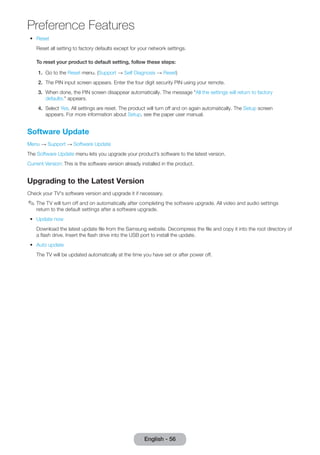
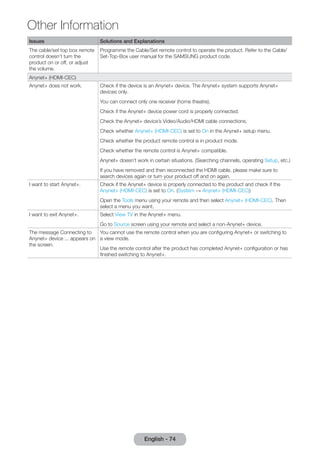
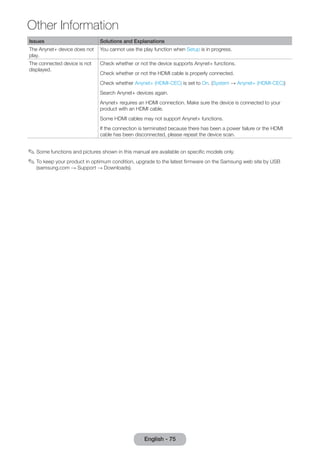
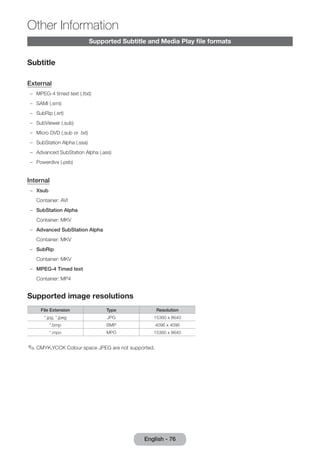
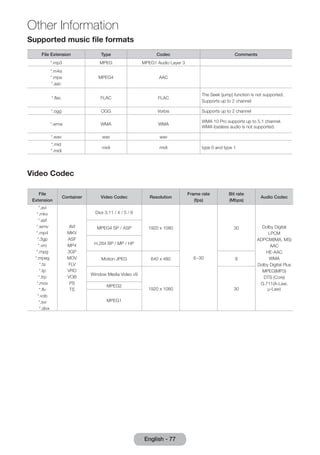
user manual 
Thank you for purchasing this Samsung product. 
To receive more complete service, please register 
your product at 
www.samsung.com/register 
Model _____________ Serial No. _____________ 
T24D390EX 
T27D390EX 
T24D391EX 
T24D590EX 
T27D590EX
Figures and illustrations in this User Manual are provided for reference only and may differ from actual product appearances. Product 
design and specifications may be changed without notice. 
Digital TV notice 
1. Functionalities related to Digital TV (DVB) are only available in countries/areas where DVB-T (MPEG2 and MPEG4 
AVC) digital terrestrial signals are broadcasted or where you are able to access to a compatible DVB-C (MPEG2 and 
MPEG4 AAC) cable-TV service. Please check with your local dealer the possibility to receive DVB-T or DVB-C signal. 
2. DVB-T is the DVB European consortium standard for the broadcast transmission of digital terrestrial television and 
DVB-C is that for the broadcast transmission of digital TV over cable. However, some differentiated features like 
EPG (Electric Programme Guide), VOD (Video On Demand) and so on, are not included in this specification. So, they 
cannot be workable at this moment. 
3. Although this TV set meets the latest DVB-T and DVB-C standards, as of [August, 2008], the compatibility with 
future DVB-T digital terrestrial and DVB-C digital cable broadcasts cannot be guaranteed. 
4. Depending on the countries/areas where this TV set is used some cable-TV providers may charge an additional fee 
for such a service and you may be required to agree to terms and conditions of their business. 
5. Some Digital TV functions might be unavailable in some countries or regions and DVB-C might not work correctly 
with some cable service providers. 
6. For more information, please contact your local Samsung customer care centre. 
✎✎The reception quality of TV may be affected due to differences in broadcasting method between the 
countries. Please check the TV performance in the local SAMSUNG Authorized Dealer, or the Samsung Call 
Centre whether it can be improved by reconfiguring TV setting or not. 
Still image warning 
Avoid displaying still images (like jpeg picture files) or still image element (like TV programme logo, panorama or 
4:3 image format, stock or news bar at screen bottom etc.) on the screen. Constant displaying of still picture can 
cause ghosting of LED screen, which will affect image quality. To reduce risk of this effect, please follow below 
recommendations: 
•• Avoid displaying the same TV channel for long periods. 
•• Always try do display any image on full screen, use TV set picture format menu for best possible match. 
•• Reduce brightness and contrast values to minimum required to achieve desired picture quality, exceeded values 
may speed up the burnout process. 
•• Frequently use all TV features designed to reduce image retention and screen burnout, refer to e-Manual for details. 
English - 2
Contents 
Getting Started 
yy Safety Precautions..................................................... 4 
yy Providing Proper Ventilation for Your Product........... 11 
yy Accessories and Cables........................................... 12 
yy Using the Control Panel........................................... 13 
yy The Standard Remote Control Buttons.................... 14 
yy How to Navigate Menus........................................... 16 
yy Connecting the Power Cord and the Aerial or Cable 
Connection.............................................................. 17 
yy Setup....................................................................... 17 
Check the Symbol! 
Note Step by Step Guide 
Indicates additional information. Check here for instructions on how to open the relevant submenu 
within the OSD (on screen display). 
English - 3 
Connections 
yy Connecting to AV Devices (Blu-ray Players, DVD 
Players, etc.)............................................................ 18 
yy Connecting to Audio Devices................................... 21 
yy Connecting to a PC................................................. 22 
yy Connecting to a COMMON INTERFACE slot (Your 
product viewing Card Slot)....................................... 23 
yy Changing the Input Source...................................... 25 
Basic Features 
yy Correct posture to use the product.......................... 26 
yy Changing the Preset Picture Mode........................... 27 
yy Adjusting Picture Settings........................................ 28 
yy Changing the Picture Size........................................ 29 
yy Calibrating the Screen Display.................................. 31 
yy Picture In Picture (PIP).............................................. 32 
yy Changing the Picture Options.................................. 33 
yy Changing the Preset Sound Mode........................... 35 
yy Adjusting Sound Settings......................................... 36 
yy Memorizing Channels.............................................. 38 
yy Using the INFO button (Now & Next guide).............. 40 
yy Using the Channel Menu.......................................... 40 
yy Other Features......................................................... 46 
Preference Features 
yy Setting the Time...................................................... 49 
yy Economical Solutions............................................... 51 
yy Blocking Programmes.............................................. 52 
yy Other Features......................................................... 53 
yy Support Menu.......................................................... 55 
Advanced Features 
yy Application............................................................... 58 
yy Video Playback........................................................ 60 
yy Photo Playback........................................................ 62 
yy Music playback........................................................ 64 
yy Anynet+ (HDMI-CEC)............................................... 65 
Other Information 
yy Troubleshooting....................................................... 68 
yy Supported Subtitle and Media Play file formats........ 76 
yy Analogue Channel Teletext Feature.......................... 79 
yy Attaching a Wall Mount/Desktop Stand.................... 80 
yy Installing the Wall Mount.......................................... 82 
yy Anti-theft Kensington Lock....................................... 83 
yy Storage and Maintenance........................................ 84 
yy Licence.................................................................... 85 
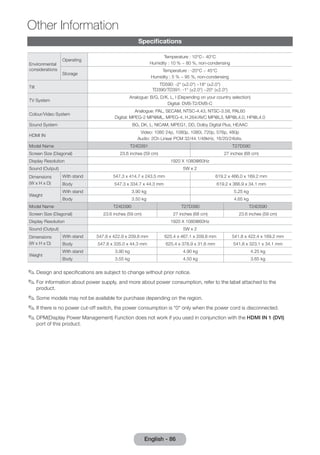
yy Specifications.......................................................... 86 
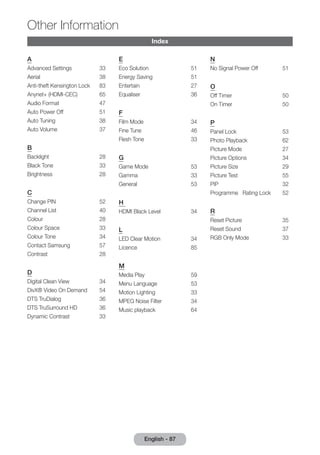
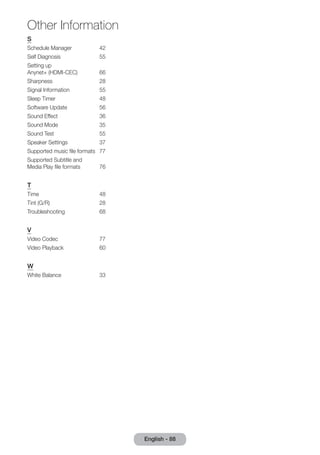
yy Index....................................................................... 87
Getting Started 
Safety Precautions 
English - 4 Icons used for safety precautions 
WARNING Failing to follow the precautions marked with this sign may result in a serious injury or 
even a fatality. 
CAUTION Failing to follow the precautions marked with this sign may result in a personal injury 
or property damage. 
Do not perform. 
Must be followed. 
CAUTION 
RISK OF ELECTRIC SHOCK DO NOT OPEN 
CAUTION: TO REDUCE THE RISK OF ELECTRIC SHOCK, DO 
NOT REMOVE COVER (OR BACK). THERE ARE NO USER 
SERVICEABLE PARTS INSIDE. REFER ALL SERVICING TO 
QUALIFIED PERSONNEL. 
This symbol indicates that high voltage is present 
inside. It is dangerous to make any kind of contact 
with any internal part of this product. 
This symbol alerts you that important literature 
concerning operation and maintenance has been 
included with this product. 
Power Related 
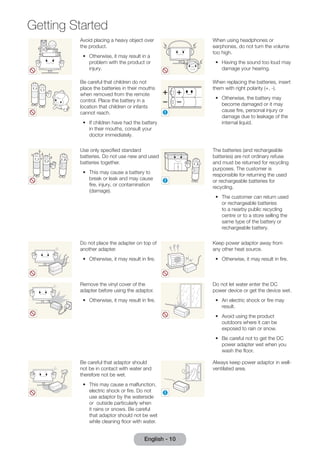
✎✎The following images are for your reference and may differ depending on models and countries. 
Warning 
Avoid using a damaged power cord 
or plug or a loose power outlet. 
•• Otherwise, it may result in 
electric shock or fire. 
Avoid connecting multiple electric 
appliances to a single wall outlet. 
•• Otherwise, it may result in fire 
due to overheating of the wall 
outlet. 
Avoid plugging in or unplugging the 
power supply with wet hands. 
•• Otherwise, it may result in 
electric shock. 
! 
Plug the power plug in firmly. 
•• Otherwise, it may result in fire. 
! 
Make sure to connect the power 
cord to a grounded wall outlet (for 
insulation class 1 equipment only). 
•• Otherwise, it may result in 
electric shock or injury. 
Avoid bending or twisting the 
power cord excessively and avoid 
placing heavy objects on the cord. 
•• Otherwise, it may result in 
electric shock or fire due to a 
damaged power cord. 
Keep the power cord and the 
product away from a heater. 
•• Otherwise, it may result in 
electric shock or fire. 
! 
If the pins of the power plug or 
the wall outlet are covered in dust, 
clean it using a dry cloth. 
•• Otherwise, it may result in fire.
Getting Started 
English - 5 
Caution 
Avoid unplugging the power plug 
while the product is operating. 
•• Otherwise, it may damage the 
product due to electric shock. 
! 
Make sure to use only the power 
cord supplied by our company. 
In addition, do not use the power 
cord of another electric appliance. 
•• Otherwise, it may result in 
electric shock or fire. 
! 
When unplugging the power plug 
from the wall outlet, make sure to 
hold it by the plug and not by the 
cord. 
•• Otherwise, it may result in 
electric shock or fire. 
! 
Connect the power plug to a wall 
outlet that can be easily reached. 
•• When a problem occurs 
with the product, you must 
unplug the power plug to cut 
the power off completely. 
You cannot cut the power 
off completely using only the 
power button on the product. 
Installation Related 
Warning 
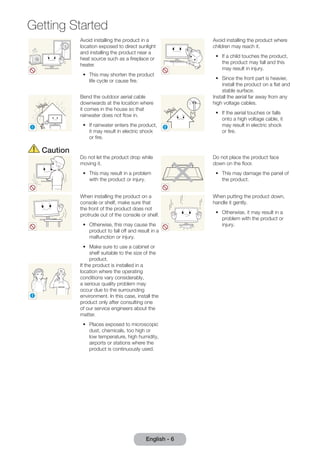
Avoid placing burning candles, 
mosquito coil, cigarettes on the 
product. 
•• Otherwise, it may result in fire. 
! 
Ask an installation engineer or 
relevant company to install the 
product onto the wall. 
•• Otherwise, it may result in 
injury. 
•• Make sure to use the specified 
wall mount. 
Avoid installing the product in a 
badly-ventilated location such as 
inside a bookshelf or closet. 
•• Otherwise, it may result in fire 
due to internal over-heating. 
Keep the plastic bags used to pack 
the product away from children. 
•• If children place the plastic 
bags over their heads, they 
may suffocate. 
Avoid installing the product in a 
location that is unstable or exposed 
to excessive vibration such as on 
an unstable or slanted shelf. 
•• The product may fall and this 
may result in damage to the 
product or injury. 
•• If you use the product in a 
location exposed to excessive 
vibrations, it may result in a 
problem with the product or 
fire. 
Avoid installing the product in a 
location exposed to dust, moisture 
(sauna), oil, smoke or water (rain 
drops) and installing it within a 
vehicle. 
•• This may result in electric 
shock or fire.
Getting Started 
Avoid installing the product in a 
location exposed to direct sunlight 
and installing the product near a 
heat source such as a fireplace or 
heater. 
•• This may shorten the product 
life cycle or cause fire. 
English - 6 Avoid installing the product where 
children may reach it. 
•• If a child touches the product, 
the product may fall and this 
may result in injury. 
•• Since the front part is heavier, 
install the product on a flat and 
stable surface. 
! 
Bend the outdoor aerial cable 
downwards at the location where 
it comes in the house so that 
rainwater does not flow in. 
•• If rainwater enters the product, 
it may result in electric shock 
or fire. 
! 
Install the aerial far away from any 
high voltage cables. 
•• If the aerial touches or falls 
onto a high voltage cable, it 
may result in electric shock 
or fire. 
Caution 
Do not let the product drop while 
moving it. 
•• This may result in a problem 
with the product or injury. 
Do not place the product face 
down on the floor. 
•• This may damage the panel of 
the product. 
When installing the product on a 
console or shelf, make sure that 
the front of the product does not 
protrude out of the console or shelf. 
•• Otherwise, this may cause the 
product to fall off and result in a 
malfunction or injury. 
•• Make sure to use a cabinet or 
shelf suitable to the size of the 
product. 
When putting the product down, 
handle it gently. 
•• Otherwise, it may result in a 
problem with the product or 
injury. 
SAMSUNG 
! 
If the product is installed in a 
location where the operating 
conditions vary considerably, 
a serious quality problem may 
occur due to the surrounding 
environment. In this case, install the 
product only after consulting one 
of our service engineers about the 
matter. 
•• Places exposed to microscopic 
dust, chemicals, too high or 
low temperature, high humidity, 
airports or stations where the 
product is continuously used.
Getting Started 
English - 7 
Cleaning Related 
Warning 
! 
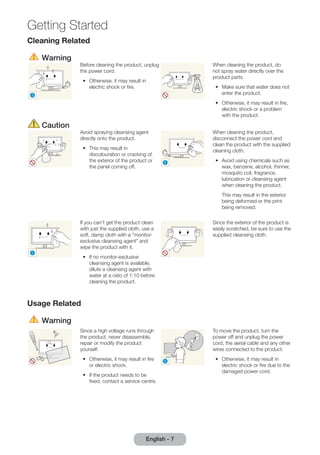
Before cleaning the product, unplug 
the power cord. 
•• Otherwise, it may result in 
electric shock or fire. 
When cleaning the product, do 
not spray water directly over the 
product parts. 
•• Make sure that water does not 
enter the product. 
•• Otherwise, it may result in fire, 
electric shock or a problem 
with the product. 
Caution 
Avoid spraying cleansing agent 
directly onto the product. 
•• This may result in 
discolouration or cracking of 
the exterior of the product or 
the panel coming off. 
! 
When cleaning the product, 
disconnect the power cord and 
clean the product with the supplied 
cleaning cloth. 
•• Avoid using chemicals such as 
wax, benzene, alcohol, thinner, 
mosquito coil, fragrance, 
lubrication or cleansing agent 
when cleaning the product. 
This may result in the exterior 
being deformed or the print 
being removed. 
! 
If you can't get the product clean 
with just the supplied cloth, use a 
soft, damp cloth with a "monitor-exclusive 
cleansing agent" and 
wipe the product with it. 
•• If no monitor-exclusive 
cleansing agent is available, 
dilute a cleansing agent with 
water at a ratio of 1:10 before 
cleaning the product. 
Since the exterior of the product is 
easily scratched, be sure to use the 
supplied cleansing cloth. 
Usage Related 
Warning 
Since a high voltage runs through 
the product, never disassemble, 
repair or modify the product 
yourself. 
•• Otherwise, it may result in fire 
or electric shock. 
•• If the product needs to be 
fixed, contact a service centre. 
! 
To move the product, turn the 
power off and unplug the power 
cord, the aerial cable and any other 
wires connected to the product. 
•• Otherwise, it may result in 
electric shock or fire due to the 
damaged power cord.
Getting Started 
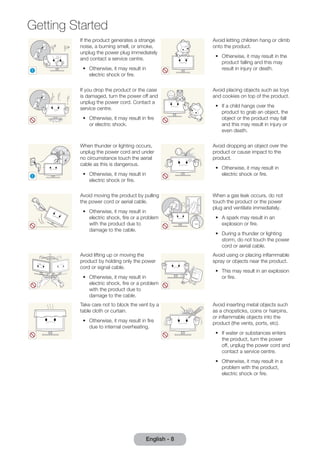
If the product generates a strange 
noise, a burning smell, or smoke, 
unplug the power plug immediately 
and contact a service centre. 
•• Otherwise, it may result in 
! 
electric shock or fire. 
English - 8 Avoid letting children hang or climb 
onto the product. 
•• Otherwise, it may result in the 
product falling and this may 
result in injury or death. 
If you drop the product or the case 
is damaged, turn the power off and 
unplug the power cord. Contact a 
service centre. 
•• Otherwise, it may result in fire 
or electric shock. 
Avoid placing objects such as toys 
and cookies on top of the product. 
•• If a child hangs over the 
product to grab an object, the 
object or the product may fall 
and this may result in injury or 
even death. 
! 
When thunder or lighting occurs, 
unplug the power cord and under 
no circumstance touch the aerial 
cable as this is dangerous. 
•• Otherwise, it may result in 
electric shock or fire. 
Avoid dropping an object over the 
product or cause impact to the 
product. 
•• Otherwise, it may result in 
electric shock or fire. 
Avoid moving the product by pulling 
the power cord or aerial cable. 
•• Otherwise, it may result in 
electric shock, fire or a problem 
with the product due to 
damage to the cable. 
GAS 
When a gas leak occurs, do not 
touch the product or the power 
plug and ventilate immediately. 
•• A spark may result in an 
explosion or fire. 
•• During a thunder or lighting 
storm, do not touch the power 
cord or aerial cable. 
Avoid lifting up or moving the 
product by holding only the power 
cord or signal cable. 
•• Otherwise, it may result in 
electric shock, fire or a problem 
with the product due to 
damage to the cable. 
Avoid using or placing inflammable 
spray or objects near the product. 
•• This may result in an explosion 
or fire. 
Take care not to block the vent by a 
table cloth or curtain. 
•• Otherwise, it may result in fire 
due to internal overheating. 
100 
Avoid inserting metal objects such 
as a chopsticks, coins or hairpins, 
or inflammable objects into the 
product (the vents, ports, etc). 
•• If water or substances enters 
the product, turn the power 
off, unplug the power cord and 
contact a service centre. 
•• Otherwise, it may result in a 
problem with the product, 
electric shock or fire.
Getting Started 
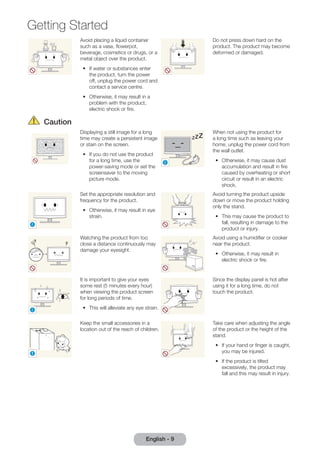
Avoid placing a liquid container 
such as a vase, flowerpot, 
beverage, cosmetics or drugs, or a 
metal object over the product. 
•• If water or substances enter 
the product, turn the power 
off, unplug the power cord and 
contact a service centre. 
•• Otherwise, it may result in a 
problem with the product, 
electric shock or fire. 
English - 9 
Do not press down hard on the 
product. The product may become 
deformed or damaged. 
Caution 
Displaying a still image for a long 
time may create a persistent image 
or stain on the screen. 
•• If you do not use the product 
for a long time, use the 
power-saving mode or set the 
screensaver to the moving 
picture mode. 
! 
-_- 
When not using the product for 
a long time such as leaving your 
home, unplug the power cord from 
the wall outlet. 
•• Otherwise, it may cause dust 
accumulation and result in fire 
caused by overheating or short 
circuit or result in an electric 
shock. 
! 
Set the appropriate resolution and 
frequency for the product. 
•• Otherwise, it may result in eye 
strain. 
Avoid turning the product upside 
down or move the product holding 
only the stand. 
•• This may cause the product to 
fall, resulting in damage to the 
product or injury. 
Watching the product from too 
close a distance continuously may 
damage your eyesight. 
Avoid using a humidifier or cooker 
near the product. 
•• Otherwise, it may result in 
electric shock or fire. 
! 
It is important to give your eyes 
some rest (5 minutes every hour) 
when viewing the product screen 
for long periods of time. 
•• This will alleviate any eye strain. 
Since the display panel is hot after 
using it for a long time, do not 
touch the product. 
! 
Keep the small accessories in a 
location out of the reach of children. 
Take care when adjusting the angle 
of the product or the height of the 
stand. 
•• If your hand or finger is caught, 
you may be injured. 
•• If the product is tilted 
excessively, the product may 
fall and this may result in injury.
Getting Started 
Avoid placing a heavy object over 
the product. 
•• Otherwise, it may result in a 
problem with the product or 
injury. 
English - 10 When using headphones or 
earphones, do not turn the volume 
too high. 
•• Having the sound too loud may 
damage your hearing. 
Be careful that children do not 
place the batteries in their mouths 
when removed from the remote 
control. Place the battery in a 
location that children or infants 
cannot reach. 
•• If children have had the battery 
in their mouths, consult your 
doctor immediately. 
! 
When replacing the batteries, insert 
them with right polarity (+, -). 
•• Otherwise, the battery may 
become damaged or it may 
cause fire, personal injury or 
damage due to leakage of the 
internal liquid. 
Use only specified standard 
batteries. Do not use new and used 
batteries together. 
•• This may cause a battery to 
break or leak and may cause 
fire, injury, or contamination 
(damage). 
! 
The batteries (and rechargeable 
batteries) are not ordinary refuse 
and must be returned for recycling 
purposes. The customer is 
responsible for returning the used 
or rechargeable batteries for 
recycling. 
•• The customer can return used 
or rechargeable batteries 
to a nearby public recycling 
centre or to a store selling the 
same type of the battery or 
rechargeable battery. 
Do not place the adapter on top of 
another adapter. 
•• Otherwise, it may result in fire. 
Keep power adaptor away from 
any other heat source. 
•• Otherwise, it may result in fire. 
Remove the vinyl cover of the 
adapter before using the adaptor. 
•• Otherwise, it may result in fire. 
Do not let water enter the DC 
power device or get the device wet. 
•• An electric shock or fire may 
result. 
•• Avoid using the product 
outdoors where it can be 
exposed to rain or snow. 
•• Be careful not to get the DC 
power adapter wet when you 
wash the floor. 
Be careful that adaptor should 
not be in contact with water and 
therefore not be wet. 
•• This may cause a malfunction, 
electric shock or fire. Do not 
use adaptor by the waterside 
or outside particularly when 
it rains or snows. Be careful 
that adaptor should not be wet 
while cleaning floor with water. 
! 
Always keep power adaptor in well-ventilated 
area.
Getting Started 
Providing Proper Ventilation for Your Product 
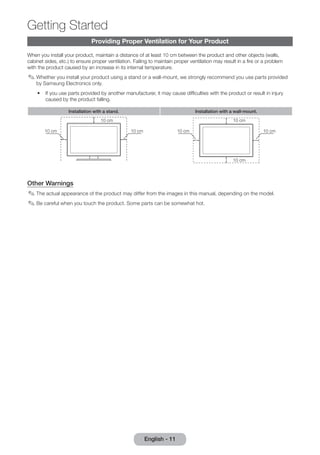
When you install your product, maintain a distance of at least 10 cm between the product and other objects (walls, 
cabinet sides, etc.) to ensure proper ventilation. Failing to maintain proper ventilation may result in a fire or a problem 
with the product caused by an increase in its internal temperature. 
✎✎Whether you install your product using a stand or a wall-mount, we strongly recommend you use parts provided 
by Samsung Electronics only. 
•• If you use parts provided by another manufacturer, it may cause difficulties with the product or result in injury 
caused by the product falling. 
Installation with a stand. Installation with a wall-mount. 
10 cm 
10 cm 10 cm 
10 cm 
10 cm 10 cm 
10 cm 
Other Warnings 
✎✎The actual appearance of the product may differ from the images in this manual, depending on the model. 
✎✎Be careful when you touch the product. Some parts can be somewhat hot. 
English - 11
Accessories and Cables 
✎✎Please make sure the following items are included with your product. If any items are missing, contact your dealer. 
✎✎The items’ colours and shapes may vary depending on the model. 
✎✎Make sure that there are no accessories hidden behind or under packing materials after you open the box. 
[[[CAUTION] INSERT SECURELY LEST SHOULD BE DETACHED IN SET 
•• Remote Control & Batteries (AAA x 2) 
•• Warranty Card / Safety Guide / Quick Setup Guide 
(Depending on the model) 
•• Power Cord 
•• S/W Driver CD 
HDMI Cable Adapter 
TD390 TD391 TD590 
Stand Base 
TD390/TD391 TD590 
Stand Base 
Input Cables (Sold Separately) 
You will need one or more of these cables to connect your product to your antenna or cable outlet and your peripheral 
devices (Blu-ray players, DVD players, etc.) 
Component Composite (AV) Coaxial (RF) 
HDMI-DVI Stereo Cable 
For the best cable connections to this product, use cables no thicker than the cable illustrated below: 
•• Maximum thickness - 0.55 inches (14mm) 
Getting Started 
English - 12
Using the Control Panel 
Getting Started 
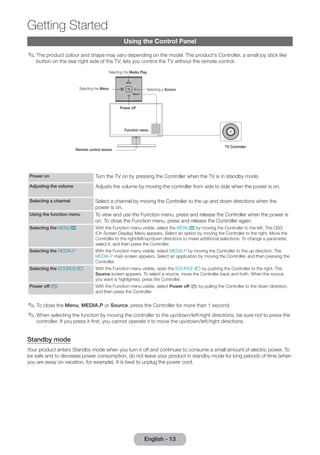
✎✎The product colour and shape may vary depending on the model. The product’s Controller, a small joy stick like 
button on the rear right side of the TV, lets you control the TV without the remote control. 
Selecting the Media Play 
m R 
P 
TV Controller 
Selecting the Menu Selecting a Source 
Return 
Power off 
Function menu 
Remote control sensor 
Power on Turn the TV on by pressing the Controller when the TV is in standby mode. 
Adjusting the volume Adjusts the volume by moving the controller from side to side when the power is on. 
Selecting a channel Select a channel by moving the Controller to the up and down directions when the 
power is on. 
Using the function menu To view and use the Function menu, press and release the Controller when the power is 
on. To close the Function menu, press and release the Controller again. 
Selecting the MENUm With the Function menu visible, select the MENUm by moving the Controller to the left. The OSD 
(On Screen Display) Menu appears. Select an option by moving the Controller to the right. Move the 
Controller to the right/left/up/down directions to make additional selections. To change a parameter, 
select it, and then press the Controller. 
Selecting the MEDIA.P With the Function menu visible, select MEDIA.P by moving the Controller to the up direction. The 
MEDIA.P main screen appears. Select an application by moving the Controller, and then pressing the 
Controller. 
Selecting the SOURCEs With the Function menu visible, open the SOURCEs by pushing the Controller to the right. The 
Source screen appears. To select a source, move the Controller back and forth. When the source 
you want is highlighted, press the Controller. 
Power off (P) With the Function menu visible, select Power off (P) by pulling the Controller to the down direction, 
and then press the Controller. 
✎✎To close the Menu, MEDIA.P or Source, press the Controller for more than 1 second. 
✎✎When selecting the function by moving the controller to the up/down/left/right directions, be sure not to press the 
controller. If you press it first, you cannot operate it to move the up/down/left/right directions. 
Standby mode 
Your product enters Standby mode when you turn it off and continues to consume a small amount of electric power. To 
be safe and to decrease power consumption, do not leave your product in standby mode for long periods of time (when 
you are away on vacation, for example). It is best to unplug the power cord. 
English - 13
Getting Started 
The Standard Remote Control Buttons 
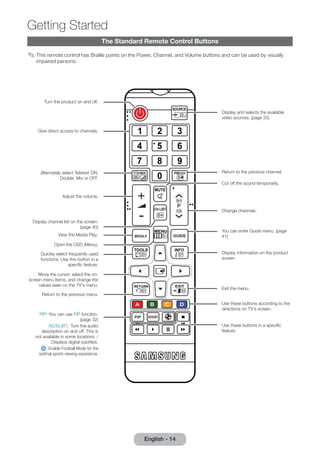
✎✎This remote control has Braille points on the Power, Channel, and Volume buttons and can be used by visually 
impaired persons. 
Turn the product on and off. 
Display and selects the available 
video sources. (page 25) 
Return to the previous channel. 
Cut off the sound temporarily. 
Change channels. 
You can enter Guide menu. (page 
41) 
Display information on the product 
screen. 
Exit the menu. 
Use these buttons in a specific 
feature. 
Give direct access to channels. 
Alternately select Teletext ON, 
Double, Mix or OFF. 
Adjust the volume. 
Display channel list on the screen. 
(page 40) 
View the Media Play. 
Open the OSD (Menu). 
Quickly select frequently used 
functions. Use this button in a 
specific feature. 
Move the cursor, select the on-screen 
menu items, and change the 
values seen on the TV's menu. 
Return to the previous menu. 
Use these buttons according to the 
directions on TV's screen. 
PIP: You can use PIP function. 
(page 32) 
AD/SUBT.: Turn the audio 
description on and off. This is 
not available in some locations. / 
Displays digital subtitles. 
¥: Enable Football Mode for the 
optimal sports viewing experience. 
English - 14
Getting Started 
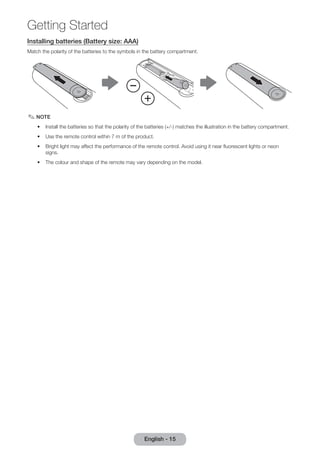
Installing batteries (Battery size: AAA) 
Match the polarity of the batteries to the symbols in the battery compartment. 
✎✎NOTE 
•• Install the batteries so that the polarity of the batteries (+/-) matches the illustration in the battery compartment. 
•• Use the remote control within 7 m of the product. 
•• Bright light may affect the performance of the remote control. Avoid using it near fluorescent lights or neon 
signs. 
•• The colour and shape of the remote may vary depending on the model. 
English - 15
How to Navigate Menus 
Getting Started 
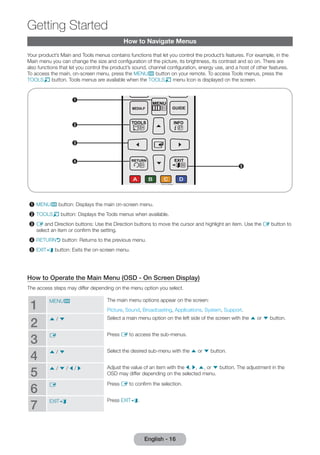
Your product’s Main and Tools menus contains functions that let you control the product’s features. For example, in the 
Main menu you can change the size and configuration of the picture, its brightness, its contrast and so on. There are 
also functions that let you control the product’s sound, channel configuration, energy use, and a host of other features. 
To access the main, on-screen menu, press the MENUm button on your remote. To access Tools menus, press the 
TOOLST button. Tools menus are available when the TOOLST menu Icon is displayed on the screen. 
2 
5 
1 
3 
4 
1 MENUm button: Displays the main on-screen menu. 
2 TOOLST button: Displays the Tools menus when available. 
3 E and Direction buttons: Use the Direction buttons to move the cursor and highlight an item. Use the E button to 
select an item or confirm the setting. 
4 RETURNR button: Returns to the previous menu. 
5 EXITe button: Exits the on-screen menu. 
How to Operate the Main Menu (OSD - On Screen Display) 
The access steps may differ depending on the menu option you select. 
1 MENUm The main menu options appear on the screen: 
Picture, Sound, Broadcasting, Applications, System, Support. 
2 u / d Select a main menu option on the left side of the screen with the u or d button. 
3 E Press E to access the sub-menus. 
4 u / d Select the desired sub-menu with the u or d button. 
5 u / d / l / r Adjust the value of an item with the l, r, u, or d button. The adjustment in the 
OSD may differ depending on the selected menu. 
6 E Press E to confirm the selection. 
7 EXITe Press EXITe. 
English - 16
Getting Started 
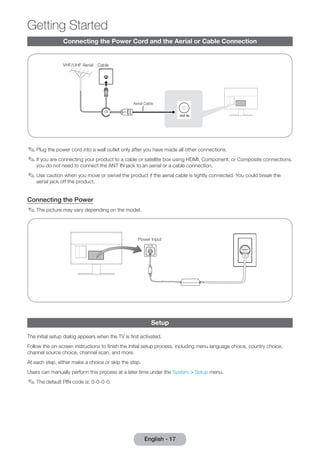
Connecting the Power Cord and the Aerial or Cable Connection 
or 
Aerial Cable 
VHF/UHF Aerial Cable 
✎✎Plug the power cord into a wall outlet only after you have made all other connections. 
✎✎If you are connecting your product to a cable or satellite box using HDMI, Component, or Composite connections, 
you do not need to connect the ANT IN jack to an aerial or a cable connection. 
✎✎Use caution when you move or swivel the product if the aerial cable is tightly connected. You could break the 
aerial jack off the product. 
Connecting the Power 
✎✎The picture may vary depending on the model. 
Power Input 
Setup 
The initial setup dialog appears when the TV is first activated. 
Follow the on-screen instructions to finish the initial setup process, including menu language choice, country choice, 
channel source choice, channel scan, and more. 
At each step, either make a choice or skip the step. 
Users can manually perform this process at a later time under the System > Setup menu. 
✎✎The default PIN code is: 0-0-0-0. 
English - 17
English - 18 Connections 
Connecting to AV Devices (Blu-ray Players, DVD Players, etc.) 
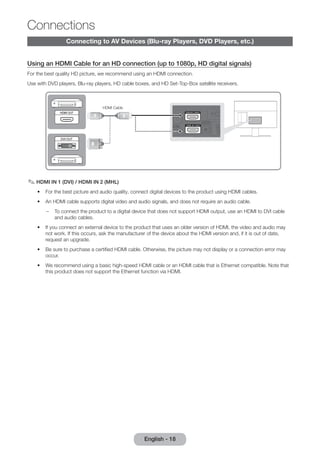
Using an HDMI Cable for an HD connection (up to 1080p, HD digital signals) 
For the best quality HD picture, we recommend using an HDMI connection. 
Use with DVD players, Blu-ray players, HD cable boxes, and HD Set-Top-Box satellite receivers. 
HDMI Cable 
✎✎HDMI IN 1 (DVI) / HDMI IN 2 (MHL) 
•• For the best picture and audio quality, connect digital devices to the product using HDMI cables. 
•• An HDMI cable supports digital video and audio signals, and does not require an audio cable. 
–– To connect the product to a digital device that does not support HDMI output, use an HDMI to DVI cable 
and audio cables. 
•• If you connect an external device to the product that uses an older version of HDMI, the video and audio may 
not work. If this occurs, ask the manufacturer of the device about the HDMI version and, if it is out of date, 
request an upgrade. 
•• Be sure to purchase a certified HDMI cable. Otherwise, the picture may not display or a connection error may 
occur. 
•• We recommend using a basic high-speed HDMI cable or an HDMI cable that is Ethernet compatible. Note that 
this product does not support the Ethernet function via HDMI.
Sharing Mobile Device Screens On the Displayer 
This displayer is capable of displaying mobile device screens. You can use the following features to enjoy video, photo, 
and music files from mobile devices directly on your displayer. 
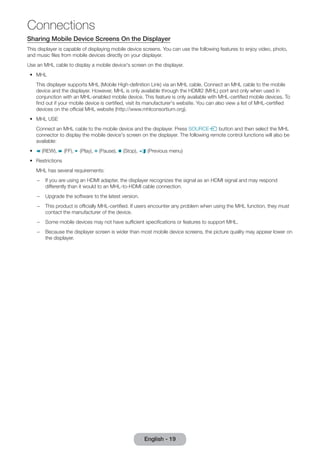
Use an MHL cable to display a mobile device's screen on the displayer. 
•• MHL 
This displayer supports MHL (Mobile High-definition Link) via an MHL cable. Connect an MHL cable to the mobile 
device and the displayer. However, MHL is only available through the HDMI2 (MHL) port and only when used in 
conjunction with an MHL-enabled mobile device. This feature is only available with MHL-certified mobile devices. To 
find out if your mobile device is certified, visit its manufacturer's website. You can also view a list of MHL-certified 
devices on the official MHL website (http://www.mhlconsortium.org). 
•• MHL USE 
Connect an MHL cable to the mobile device and the displayer. Press SOURCEs button and then select the MHL 
connector to display the mobile device's screen on the displayer. The following remote control functions will also be 
available: 
•• † (REW), … (FF), ∂ (Play), Σ (Pause), ∫ (Stop), e (Previous menu) 
•• Restrictions 
MHL has several requirements: 
–– If you are using an HDMI adapter, the displayer recognizes the signal as an HDMI signal and may respond 
differently than it would to an MHL-to-HDMI cable connection. 
–– Upgrade the software to the latest version. 
–– This product is officially MHL-certified. If users encounter any problem when using the MHL function, they must 
contact the manufacturer of the device. 
–– Some mobile devices may not have sufficient specifications or features to support MHL. 
–– Because the displayer screen is wider than most mobile device screens, the picture quality may appear lower on 
the displayer. 
English - 19 
Connections
English - 20 Connections 
Using a Component Cable (up to 1080p HD signals) or an Audio/Video Cable (480i 
analogue signals only) 
Use with DVD players, Blu-ray players, cable boxes, STB satellite receivers, VCRs. 
R W 
R B G 
Y R W 
R W R B G 
R W R B G 
R W Y 
Device AUDIO OUT COMPONENT OUT 
Device 
PR PB 
R-AUDIO-L 
AUDIO OUT 
R-AUDIO-L 
VIDEO OUT 
PG 
Audio Cable 
(Not Supplied) 
Component Cable 
(Not Supplied) 
Red 
Red 
Blue 
White 
Green 
Video Cable Audio Cable 
✎✎For better picture quality, we recommend the Component connection over the A/V connection. 
✎✎When you connect a Video cable to COMPONENT / AV IN, the colour of the COMPONENT / AV IN [VIDEO] jack 
(green) will not match the video cable (yellow). 
Using a Scart Cable 
Available devices: DVD, VCR 
EXT 
✎✎In Ext. mode, DTV Out supports MPEG SD Video and Audio only.
Connecting to Audio Devices 
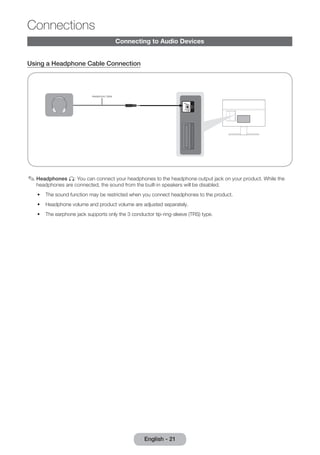
Using a Headphone Cable Connection 
Headphone Cable 
✎✎Headphones H: You can connect your headphones to the headphone output jack on your product. While the 
headphones are connected, the sound from the built-in speakers will be disabled. 
•• The sound function may be restricted when you connect headphones to the product. 
•• Headphone volume and product volume are adjusted separately. 
•• The earphone jack supports only the 3 conductor tip-ring-sleeve (TRS) type. 
English - 21 
Connections
English - 22 Connections 
Connecting to a PC 
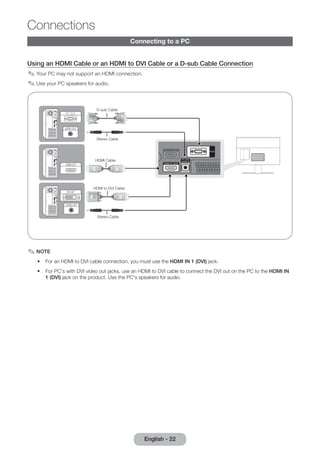
Using an HDMI Cable or an HDMI to DVI Cable or a D-sub Cable Connection 
✎✎Your PC may not support an HDMI connection. 
✎✎Use your PC speakers for audio. 
D-sub Cable 
Stereo Cable 
HDMI Cable 
HDMI to DVI Cable 
Stereo Cable 
✎✎NOTE 
•• For an HDMI to DVI cable connection, you must use the HDMI IN 1 (DVI) jack. 
•• For PC's with DVI video out jacks, use an HDMI to DVI cable to connect the DVI out on the PC to the HDMI IN 
1 (DVI) jack on the product. Use the PC's speakers for audio.
Connecting to a COMMON INTERFACE slot (Your product viewing Card Slot) 
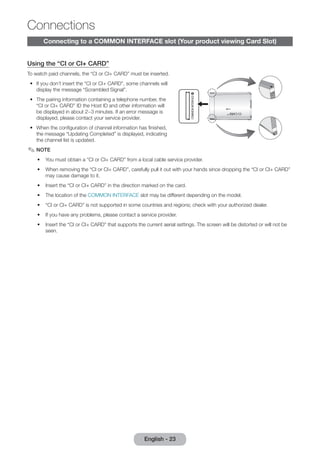
Using the “CI or CI+ CARD” 
To watch paid channels, the “CI or CI+ CARD” must be inserted. 
•• If you don’t insert the “CI or CI+ CARD”, some channels will 
display the message “Scrambled Signal”. 
•• The pairing information containing a telephone number, the 
“CI or CI+ CARD” ID the Host ID and other information will 
be displayed in about 2~3 minutes. If an error message is 
displayed, please contact your service provider. 
•• When the configuration of channel information has finished, 
the message “Updating Completed” is displayed, indicating 
the channel list is updated. 
✎✎NOTE 
•• You must obtain a “CI or CI+ CARD” from a local cable service provider. 
•• When removing the “CI or CI+ CARD”, carefully pull it out with your hands since dropping the “CI or CI+ CARD” 
may cause damage to it. 
•• Insert the “CI or CI+ CARD” in the direction marked on the card. 
•• The location of the COMMON INTERFACE slot may be different depending on the model. 
•• “CI or CI+ CARD” is not supported in some countries and regions; check with your authorized dealer. 
•• If you have any problems, please contact a service provider. 
•• Insert the “CI or CI+ CARD” that supports the current aerial settings. The screen will be distorted or will not be 
seen. 
English - 23 
Connections
English - 24 Connections 
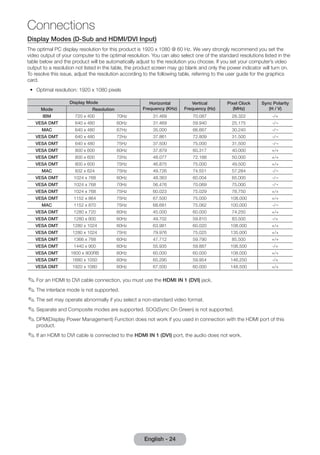
Display Modes (D-Sub and HDMI/DVI Input) 
The optimal PC display resolution for this product is 1920 x 1080 @ 60 Hz. We very strongly recommend you set the 
video output of your computer to the optimal resolution. You can also select one of the standard resolutions listed in the 
table below and the product will be automatically adjust to the resolution you choose. If you set your computer’s video 
output to a resolution not listed in the table, the product screen may go blank and only the power indicator will turn on. 
To resolve this issue, adjust the resolution according to the following table, referring to the user guide for the graphics 
card. 
•• Optimal resolution: 1920 x 1080 pixels 
Display Mode Horizontal 
Frequency (KHz) 
Vertical 
Frequency (Hz) 
Pixel Clock 
(MHz) 
Sync Polarity 
Mode Resolution (H / V) 
IBM 720 x 400 70Hz 31.469 70.087 28.322 -/+ 
VESA DMT 640 x 480 60Hz 31.469 59.940 25.175 -/¬ 
MAC 640 x 480 67Hz 35.000 66.667 30.240 -/¬ 
VESA DMT 640 x 480 72Hz 37.861 72.809 31.500 -/¬ 
VESA DMT 640 x 480 75Hz 37.500 75.000 31.500 -/¬ 
VESA DMT 800 x 600 60Hz 37.879 60.317 40.000 +/+ 
VESA DMT 800 x 600 72Hz 48.077 72.188 50.000 +/+ 
VESA DMT 800 x 600 75Hz 46.875 75.000 49.500 +/+ 
MAC 832 x 624 75Hz 49.726 74.551 57.284 -/¬ 
VESA DMT 1024 x 768 60Hz 48.363 60.004 65.000 -/¬ 
VESA DMT 1024 x 768 70Hz 56.476 70.069 75.000 -/¬ 
VESA DMT 1024 x 768 75Hz 60.023 75.029 78.750 +/+ 
VESA DMT 1152 x 864 75Hz 67.500 75.000 108.000 +/+ 
MAC 1152 x 870 75Hz 68.681 75.062 100.000 -/¬ 
VESA DMT 1280 x 720 60Hz 45.000 60.000 74.250 +/+ 
VESA DMT 1280 x 800 60Hz 49.702 59.810 83.500 -/+ 
VESA DMT 1280 x 1024 60Hz 63.981 60.020 108.000 +/+ 
VESA DMT 1280 x 1024 75Hz 79.976 75.025 135.000 +/+ 
VESA DMT 1366 x 768 60Hz 47.712 59.790 85.500 +/+ 
VESA DMT 1440 x 900 60Hz 55.935 59.887 106.500 -/+ 
VESA DMT 1600 x 900RB 60Hz 60.000 60.000 108.000 +/+ 
VESA DMT 1680 x 1050 60Hz 65.290 59.954 146.250 -/+ 
VESA DMT 1920 x 1080 60Hz 67.500 60.000 148.500 +/+ 
✎✎For an HDMI to DVI cable connection, you must use the HDMI IN 1 (DVI) jack. 
✎✎The interlace mode is not supported. 
✎✎The set may operate abnormally if you select a non-standard video format. 
✎✎Separate and Composite modes are supported. SOG(Sync On Green) is not supported. 
✎✎DPM(Display Power Management) Function does not work if you used in connection with the HDMI port of this 
product. 
✎✎If an HDMI to DVI cable is connected to the HDMI IN 1 (DVI) port, the audio does not work.
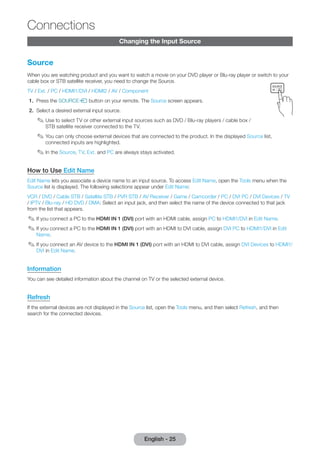
Changing the Input Source 
Source 
When you are watching product and you want to watch a movie on your DVD player or Blu-ray player or switch to your 
cable box or STB satellite receiver, you need to change the Source. 
TV / Ext. / PC / HDMI1/DVI / HDMI2 / AV / Component 
1. Press the SOURCEs button on your remote. The Source screen appears. 
2. Select a desired external input source. 
✎✎Use to select TV or other external input sources such as DVD / Blu-ray players / cable box / 
STB satellite receiver connected to the TV. 
✎✎You can only choose external devices that are connected to the product. In the displayed Source list, 
connected inputs are highlighted. 
✎✎In the Source, TV, Ext. and PC are always stays activated. 
How to Use Edit Name 
Edit Name lets you associate a device name to an input source. To access Edit Name, open the Tools menu when the 
Source list is displayed. The following selections appear under Edit Name: 
VCR / DVD / Cable STB / Satellite STB / PVR STB / AV Receiver / Game / Camcorder / PC / DVI PC / DVI Devices / TV 
/ IPTV / Blu-ray / HD DVD / DMA: Select an input jack, and then select the name of the device connected to that jack 
from the list that appears. 
✎✎If you connect a PC to the HDMI IN 1 (DVI) port with an HDMI cable, assign PC to HDMI1/DVI in Edit Name. 
✎✎If you connect a PC to the HDMI IN 1 (DVI) port with an HDMI to DVI cable, assign DVI PC to HDMI1/DVI in Edit 
Name. 
✎✎If you connect an AV device to the HDMI IN 1 (DVI) port with an HDMI to DVI cable, assign DVI Devices to HDMI1/ 
DVI in Edit Name. 
Information 
You can see detailed information about the channel on TV or the selected external device. 
Refresh 
If the external devices are not displayed in the Source list, open the Tools menu, and then select Refresh, and then 
search for the connected devices. 
English - 25 
Connections
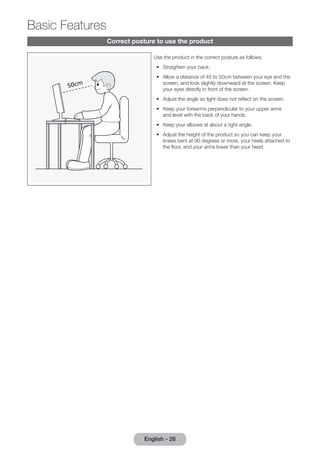
English - 26 Basic Correct posture to use the product 
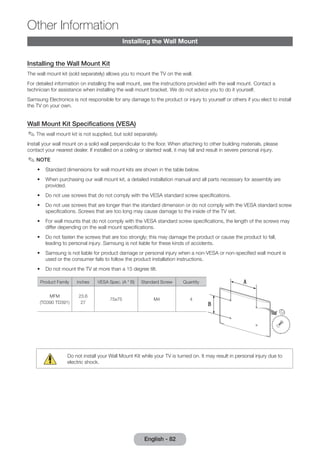
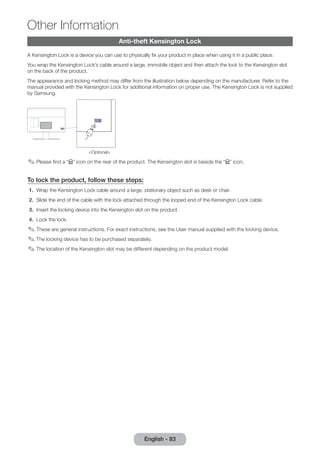
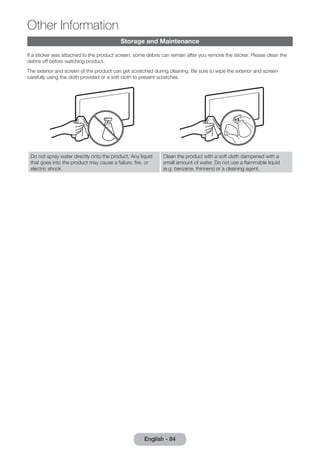
Use the product in the correct posture as follows. 
•• Straighten your back. 
•• Allow a distance of 45 to 50cm between your eye and the 
screen, and look slightly downward at the screen. Keep 
your eyes directly in front of the screen. 
•• Adjust the angle so light does not reflect on the screen. 
•• Keep your forearms perpendicular to your upper arms 
and level with the back of your hands. 
•• Keep your elbows at about a right angle. 
•• Adjust the height of the product so you can keep your 
knees bent at 90 degrees or more, your heels attached to 
the floor, and your arms lower than your heart. 
Features
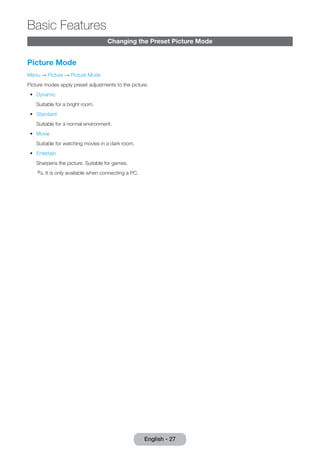
Changing the Preset Picture Mode 
Picture Mode 
Menu → Picture → Picture Mode 
Picture modes apply preset adjustments to the picture. 
•• Dynamic 
Suitable for a bright room. 
•• Standard 
Suitable for a normal environment. 
•• Movie 
Suitable for watching movies in a dark room. 
•• Entertain 
Sharpens the picture. Suitable for games. 
✎✎It is only available when connecting a PC. 
English - 27 
Basic Features
English - 28 Basic Adjusting Picture Settings 
Features 
Backlight 
Menu → Picture → Backlight 
Adjusts the brightness of the screen by adjusting the brightness of the individual pixels. 
Contrast 
Menu → Picture → Contrast 
Increases or decreases the contrast between dark and light areas of the picture. 
Brightness 
Menu → Picture → Brightness 
Adjusts the brightness of the screen. Not as effective as Backlight. 
Sharpness 
Menu → Picture → Sharpness 
Sharpens or dulls the edges of objects. 
Colour 
Menu → Picture → Colour 
Adjust colour saturation levels. 
Tint (G/R) 
Menu → Picture → Tint (G/R) 
Adjust tint levels for green and red. 
To adjust picture quality, follow these steps: 
1. Select an option you want to adjust. When you select an option, a slider screen appears. 
2. Adjust the option value using your remote. 
✎✎When you make change to option value, the OSD will be adjusted accordingly. 
✎✎You can adjust and store Settings for each external device connected to the product. 
✎✎Lowering picture brightness reduces power consumption. 
Response Time (Normal / Faster / Fastest) 
Accelerate the panel response rate to make video appear more vivid and nature.
Changing the Picture Size 
Picture Size 
Menu → Picture → Picture Size 
Using this function, you can make change to various picture size and aspect ratio options. 
•• Picture Size 
If you have a cable box or satellite receiver, it may have its own set of screen sizes as well. However, we highly 
recommend you use your products 16:9 mode most of the time. 
Auto Wide: Automatically adjusts the picture size to the 16:9 aspect ratio. 
16:9: Sets the picture to the 16:9 wide screen format. 
Wide Zoom: Magnifies the picture size more than 4:3. 
✎✎ Adjusts the Position by using u / d buttons. 
Zoom : Magnifies the 16:9 wide pictures vertically to fit the screen size. 
✎✎ Adjusts the Zoom or Position by using u / d button. 
4:3: Sets the picture to basic (4:3) mode. 
✎✎Do not set your product to 4:3 format for a long time. The borders displayed on the left and right, or top and 
bottom of the screen may cause image retention (screen burn) which is not covered by the warranty. 
Screen Fit: Displays the full image without any cut-off when HDMI (720p / 1080i / 1080p) or Component (1080i / 
1080p) signals are inputted. 
✎✎Adjusts the Position by using u / d / l / r button. 
NOTE 
•• Depending on the input source, the picture size options may vary. 
•• The available items may differ depending on the selected mode. 
•• When connecting a PC, only 16:9 and 4:3 modes can be adjusted. 
•• Settings can be adjusted and stored for each external device connected to an input on the product. 
•• If you use the Screen Fit function with HDMI 720p input, 1 line will be cut at the top, bottom, left and right as in 
the overscan function. 
Zoom/Position:You can adjust picture size and position by u / d / l / r button. 
✎✎It's only available when picture size is set as Zoom, Wide Zoom, and Screen Fit. 
✎✎In Wide Zoom mode, you can only use Position adjustment. 
✎✎Reset: Reset the Zoom and Position to the default settings. 
English - 29 
Basic Features
Basic Features 
English - 30 To use the Position function after selecting Wide Zoom, Zoom or Screen Fit, follow these steps: 
1. Select the Position. 
2. On the Position screen, select Position, and then move the picture to position you want using your remote. 
3. When done, select Position again, and then select Close. 
4. To reset the picture position, select Reset. 
Picture Sizes available by Input Source: 
–– ATV, EXT, AV: Auto Wide, 16:9, Wide Zoom, Zoom, 4:3 
–– DTV (576i/p, 720p): Auto Wide, 16:9, Wide Zoom, Zoom, 4:3 
–– DTV (1080i, 1080p): Auto Wide, 16:9, Wide Zoom, Zoom, 4:3, Screen Fit 
–– Component (480i/p, 576i/p, 720p): 16:9, Wide Zoom, Zoom, 4:3 
–– Component (1080i, 1080p): 16:9, Wide Zoom, Zoom, 4:3, Screen Fit 
–– HDMI (480i/p, 576i/p): 16:9, Wide Zoom, Zoom, 4:3 
–– HDMI (720p, 1080i, 1080p): 16:9, Wide Zoom, Zoom, 4:3, Screen Fit 
✎✎Depending on the input source, the picture size options may vary. 
✎✎The available items may differ depending on the selected mode. 
✎✎HD (High Definition): 16:9 - 1080i/1080p (1920x1080), 720p (1280x720) 
✎✎You can adjust and store settings for each external device you have connected to an input on the product. 
•• 4:3 Screen Size (16:9 / Wide Zoom / Zoom / 4:3): Available only when picture size is set to Auto Wide. You can 
determine the desired picture size at the 4:3 WSS (Wide Screen Service) size or the original size. Each European 
country requires different picture size. 
✎✎Not available in HDMI, Component, and HDMI/DVI mode.
Calibrating the Screen Display 
Auto Adjustment 
Menu → Picture → Auto Adjustment 
Automatically adjusts the picture's frequency, position, and fine tune settings in the PC mode. 
✎✎Available only when you connect your PC to the product with a D-Sub cable. 
PC Screen Adjustment 
Menu → Picture → PC Screen Adjustment 
✎✎Available in PC mode only. 
•• Coarse / Fine: Removes or reduces picture noise. If the noise is not removed by Fine-tuning alone, use the Coarse 
function to adjust the frequency as best as possible (Coarse) and Fine-tune again. After the noise has been reduced, 
re-adjust the picture so that it is aligned with the centre of screen. 
•• Position: Adjust the PC’s screen position using your remote if it is not centre or does not fit the product screen. 
•• Image Reset: Resets the image to the default settings. 
Using Your Product as a Computer (PC) Display 
Entering the Video Settings (Based on Windows 7, 8) 
For your product to work properly as a computer display, you must enter the correct video settings. 
✎✎Depending on your version of Windows and your video card, the procedure on your PC will probably differ slightly 
from the procedure presented here. 
✎✎However, the same basic information will apply in most cases. (If not, contact your computer manufacturer or 
Samsung Dealer.) 
1. Click “Control Panel” on the Windows start menu. 
2. Click “Appearance and Themes” in the “Control Panel” window. A display dialog box appears. 
3. Click “Display”. Another display dialog box appears. 
4. Click the “Settings” tab on the display dialog box. 
–– On the Settings tab, set the correct resolution (screen size). The optimal resolution for this product is 1920 x 
1080. 
–– If a vertical-frequency option exists on your display settings dialog box, select “60” or “60 Hz”. Otherwise, just 
click “OK” and exit the dialog box. 
English - 31 
Basic Features
English - 32 Basic Picture In Picture (PIP) 
Features 
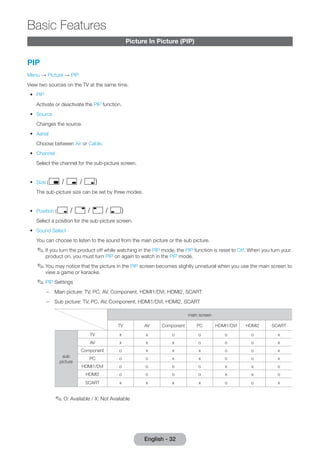
PIP 
Menu → Picture → PIP 
View two sources on the TV at the same time. 
•• PIP 
Activate or deactivate the PIP function. 
•• Source 
Changes the source. 
•• Aerial 
Choose between Air or Cable. 
•• Channel 
Select the channel for the sub-picture screen. 
•• Size (õ / ä / ã) 
The sub-picture size can be set by three modes. 
•• Position (ã / – / — / oe) 
Select a position for the sub-picture screen. 
•• Sound Select 
You can choose to listen to the sound from the main picture or the sub picture. 
✎✎If you turn the product off while watching in the PIP mode, the PIP function is reset to Off. When you turn your 
product on, you must turn PIP on again to watch in the PIP mode. 
✎✎You may notice that the picture in the PIP screen becomes slightly unnatural when you use the main screen to 
view a game or karaoke. 
✎✎PIP Settings 
–– Main picture: TV, PC, AV, Component, HDMI1/DVI, HDMI2, SCART 
–– Sub picture: TV, PC, AV, Component, HDMI1/DVI, HDMI2, SCART 
main screen 
TV AV Component PC HDMI1/DVI HDMI2 SCART 
sub 
picture 
TV x x o o o o x 
AV x x x o o o x 
Component o x x x o o x 
PC o o x x o o x 
HDMI1/DVI o o o o x x o 
HDMI2 o o o o x x o 
SCART x x x x o o x 
✎✎O: Available / X: Not Available
Changing the Picture Options 
Advanced Settings 
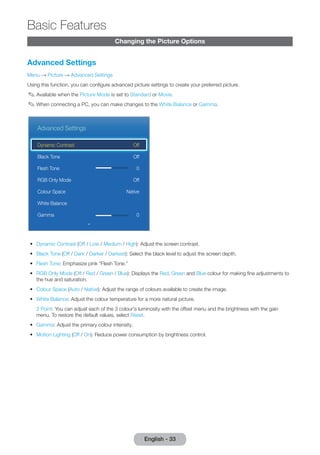
Menu → Picture → Advanced Settings 
Using this function, you can confi gure advanced picture settings to create your preferred picture. 
✎ Available when the Picture Mode is set to Standard or Movie. 
✎ When connecting a PC, you can make changes to the White Balance or Gamma. 
Advanced Settings 
Dynamic Contrast Off 
Black Tone Off 
Flesh Tone 0 
RGB Only Mode Off 
Colour Space Native 
White Balance 
Gamma 0 
• Dynamic Contrast (Off / Low / Medium / High): Adjust the screen contrast. 
• Black Tone (Off / Dark / Darker / Darkest): Select the black level to adjust the screen depth. 
• Flesh Tone: Emphasize pink “Flesh Tone.” 
• RGB Only Mode (Off / Red / Green / Blue): Displays the Red, Green and Blue colour for making fi ne adjustments to 
the hue and saturation. 
• Colour Space (Auto / Native): Adjust the range of colours available to create the image. 
• White Balance: Adjust the colour temperature for a more natural picture. 
2 Point: You can adjust each of the 3 colour's luminosity with the offset menu and the brightness with the gain 
menu. To restore the default values, select Reset. 
• Gamma: Adjust the primary colour intensity. 
• Motion Lighting (Off / On): Reduce power consumption by brightness control. 
English - 33 
Basic Features
Basic Features 
English - 34 Picture Options 
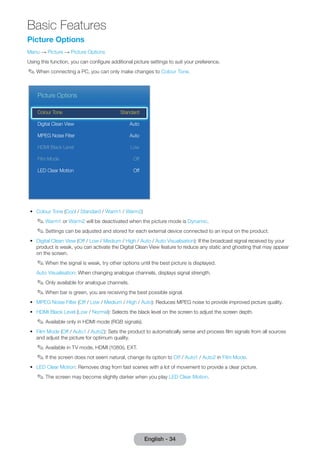
Menu → Picture → Picture Options 
Using this function, you can confi gure additional picture settings to suit your preference. 
✎ When connecting a PC, you can only make changes to Colour Tone. 
Picture Options 
Colour Tone Standard 
Digital Clean View Auto 
MPEG Noise Filter Auto 
HDMI Black Level Low 
Film Mode Off 
LED Clear Motion Off 
• Colour Tone (Cool / Standard / Warm1 / Warm2) 
✎ Warm1 or Warm2 will be deactivated when the picture mode is Dynamic. 
✎ Settings can be adjusted and stored for each external device connected to an input on the product. 
• Digital Clean View (Off / Low / Medium / High / Auto / Auto Visualisation): If the broadcast signal received by your 
product is weak, you can activate the Digital Clean View feature to reduce any static and ghosting that may appear 
on the screen. 
✎ When the signal is weak, try other options until the best picture is displayed. 
Auto Visualisation: When changing analogue channels, displays signal strength. 
✎ Only available for analogue channels. 
✎ When bar is green, you are receiving the best possible signal. 
• MPEG Noise Filter (Off / Low / Medium / High / Auto): Reduces MPEG noise to provide improved picture quality. 
• HDMI Black Level (Low / Normal): Selects the black level on the screen to adjust the screen depth. 
✎ Available only in HDMI mode (RGB signals). 
• Film Mode (Off / Auto1 / Auto2): Sets the product to automatically sense and process fi lm signals from all sources 
and adjust the picture for optimum quality. 
✎ Available in TV mode, HDMI (1080i), EXT. 
✎ I f the screen does not seem natural, change its option to Off / Auto1 / Auto2 in Film Mode. 
• LED Clear Motion: Removes drag from fast scenes with a lot of movement to provide a clear picture. 
✎ The screen may become slightly darker when you play LED Clear Motion.
Picture Off 
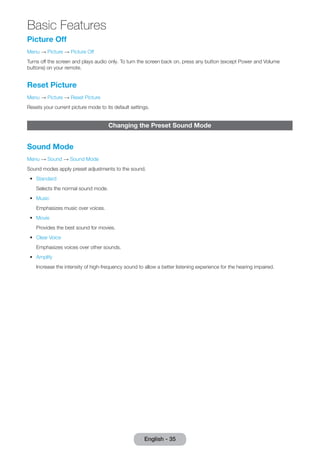
Menu → Picture → Picture Off 
Turns off the screen and plays audio only. To turn the screen back on, press any button (except Power and Volume 
buttons) on your remote. 
Reset Picture 
Menu → Picture → Reset Picture 
Resets your current picture mode to its default settings. 
Changing the Preset Sound Mode 
Sound Mode 
Menu → Sound → Sound Mode 
Sound modes apply preset adjustments to the sound. 
•• Standard 
Selects the normal sound mode. 
•• Music 
Emphasizes music over voices. 
•• Movie 
Provides the best sound for movies. 
•• Clear Voice 
Emphasizes voices over other sounds. 
•• Amplify 
Increase the intensity of high-frequency sound to allow a better listening experience for the hearing impaired. 
English - 35 
Basic Features
English - 36 Basic Adjusting Sound Settings 
Features 
Sound Effect 
Menu → Sound → Sound Effect 
✎✎Available only when the Sound Mode is set to Standard. 
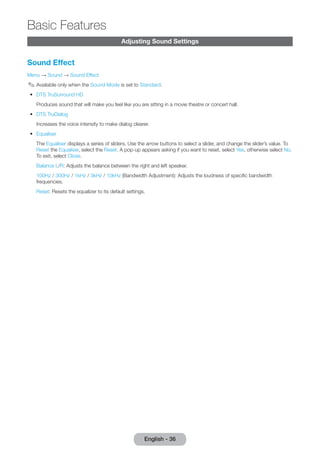
•• DTS TruSurround HD 
Produces sound that will make you feel like you are sitting in a movie theatre or concert hall. 
•• DTS TruDialog 
Increases the voice intensity to make dialog clearer. 
•• Equaliser 
The Equaliser displays a series of sliders. Use the arrow buttons to select a slider, and change the slider’s value. To 
Reset the Equaliser, select the Reset. A pop-up appears asking if you want to reset, select Yes, otherwise select No. 
To exit, select Close. 
Balance L/R: Adjusts the balance between the right and left speaker. 
100Hz / 300Hz / 1kHz / 3kHz / 10kHz (Bandwidth Adjustment): Adjusts the loudness of specific bandwidth 
frequencies. 
Reset: Resets the equalizer to its default settings.
Speaker Settings 
Menu → Sound → Speaker Settings 
•• Auto Volume 
Because each station has its own broadcasting conditions, the volume may fluctuate each time you change 
the channel. This feature automatically adjusts the volume of a channel by lowering the sound output when the 
modulation signal is high or by raising the sound output when the modulation signal is low. 
✎✎To use the volume control of a connected source device, set Auto Volume to Off. A change to the volume 
control of the connected source device may not be applied if Auto Volume is set to Normal or Night. 
Additional Settings 
(digital channels only) 
•• DTV Audio Level (MPEG / HE-AAC): This function allows you to reduce the disparity of a voice signal (which is one of 
the signals received during a digital TV broadcast) to a desired level. 
✎✎According to the type of broadcast signal, MPEG / HE-AAC can be adjusted between -10dB and 0dB. 
✎✎To increase or decrease the volume, adjust between the range 0 and -10 respectively. 
•• Dolby Digital Comp (Line / RF): This function minimizes signal disparity between a dolby digital signal and a voice 
signal (i.e. MPEG Audio, HE-AAC, ATV Sound). 
✎✎ Select Line to obtain dynamic sound, and RF to reduce the difference between loud and soft sounds at night 
time. 
Line: Set the output level for signals greater or less than -31dB (reference) to either -20dB or -31dB. 
RF: Set the output level for signals greater or less than -20dB (reference) to either -10dB or -20dB. 
Reset Sound 
Menu → Sound → Reset Sound 
Reset all sound settings to the factory defaults. 
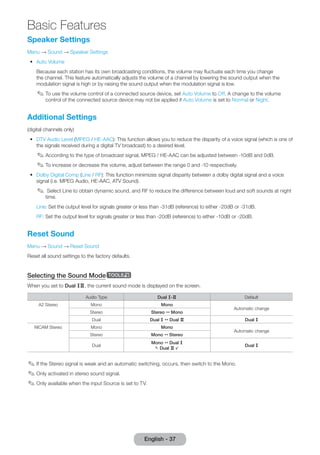
Selecting the Sound Modet 
When you set to Dual fg, the current sound mode is displayed on the screen. 
Audio Type Dual f-g Default 
A2 Stereo Mono Mono 
Automatic change 
Stereo Stereo  Mono 
Dual Dual f  Dual g Dual f 
NICAM Stereo Mono Mono 
Automatic change 
Stereo Mono  Stereo 
Dual Mono  Dual f 
 Dual g  
Dual f 
✎✎If the Stereo signal is weak and an automatic switching, occurs, then switch to the Mono. 
✎✎Only activated in stereo sound signal. 
✎✎Only available when the input Source is set to TV. 
English - 37 
Basic Features
English - 38 Basic Memorizing Channels 
Features 
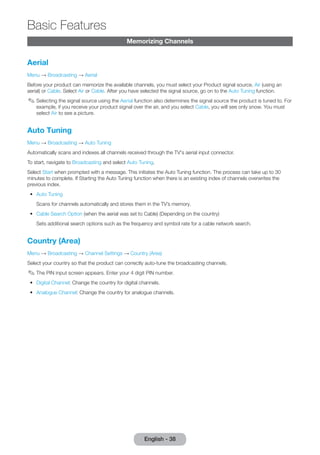
Aerial 
Menu → Broadcasting → Aerial 
Before your product can memorize the available channels, you must select your Product signal source, Air (using an 
aerial) or Cable. Select Air or Cable. After you have selected the signal source, go on to the Auto Tuning function. 
✎✎Selecting the signal source using the Aerial function also determines the signal source the product is tuned to. For 
example, if you receive your product signal over the air, and you select Cable, you will see only snow. You must 
select Air to see a picture. 
Auto Tuning 
Menu → Broadcasting → Auto Tuning 
Automatically scans and indexes all channels received through the TV's aerial input connector. 
To start, navigate to Broadcasting and select Auto Tuning. 
Select Start when prompted with a message. This initiates the Auto Tuning function. The process can take up to 30 
minutes to complete. If Starting the Auto Tuning function when there is an existing index of channels overwrites the 
previous index. 
•• Auto Tuning 
Scans for channels automatically and stores them in the TV’s memory. 
•• Cable Search Option (when the aerial was set to Cable) (Depending on the country) 
Sets additional search options such as the frequency and symbol rate for a cable network search. 
Country (Area) 
Menu → Broadcasting → Channel Settings → Country (Area) 
Select your country so that the product can correctly auto-tune the broadcasting channels. 
✎✎The PIN input screen appears. Enter your 4 digit PIN number. 
•• Digital Channel: Change the country for digital channels. 
•• Analogue Channel: Change the country for analogue channels.
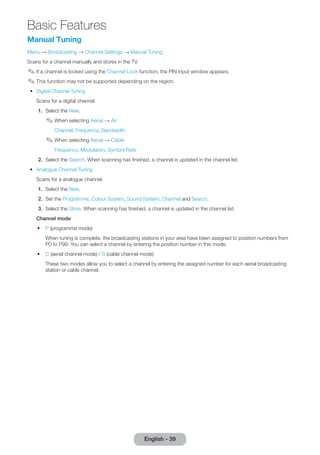
Manual Tuning 
Menu → Broadcasting → Channel Settings → Manual Tuning 
Scans for a channel manually and stores in the TV. 
✎✎If a channel is locked using the Channel Lock function, the PIN input window appears. 
✎✎This function may not be supported depending on the region. 
•• Digital Channel Tuning 
Scans for a digital channel. 
1. Select the New. 
✎✎When selecting Aerial → Air 
Channel, Frequency, Bandwidth 
✎✎When selecting Aerial → Cable 
Frequency, Modulation, Symbol Rate 
2. Select the Search. When scanning has finished, a channel is updated in the channel list. 
•• Analogue Channel Tuning 
Scans for a analogue channel. 
1. Select the New. 
2. Set the Programme, Colour System, Sound System, Channel and Search. 
3. Select the Store. When scanning has finished, a channel is updated in the channel list. 
Channel mode 
•• P (programme mode) 
When tuning is complete, the broadcasting stations in your area have been assigned to position numbers from 
P0 to P99. You can select a channel by entering the position number in this mode. 
•• C (aerial channel mode) / S (cable channel mode) 
These two modes allow you to select a channel by entering the assigned number for each aerial broadcasting 
station or cable channel. 
English - 39 
Basic Features
Basic Features 
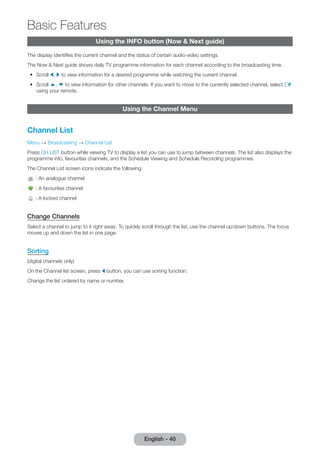
English - 40 Using the INFO button (Now & Next guide) 
The display identifi es the current channel and the status of certain audio-video settings. 
The Now & Next guide shows daily TV programme information for each channel according to the broadcasting time. 
• Scroll l, r to view information for a desired programme while watching the current channel. 
• Scroll u, d to view information for other channels. If you want to move to the currently selected channel, select E 
using your remote. 
Using the Channel Menu 
Channel List 
Menu → Broadcasting → Channel List 
Press CH LIST button while viewing TV to display a list you can use to jump between channels. The list also displays the 
programme info, favourites channels, and the Schedule Viewing and Schedule Recording programmes. 
The Channel List screen icons indicate the following: 
: An analogue channel 
: A favourites channel 
: A locked channel 
Change Channels 
Select a channel to jump to it right away. To quickly scroll through the list, use the channel up/down buttons. The focus 
moves up and down the list in one page. 
Sorting 
(digital channels only) 
On the Channel list screen, press l button, you can use sorting function. 
Change the list ordered by name or number.
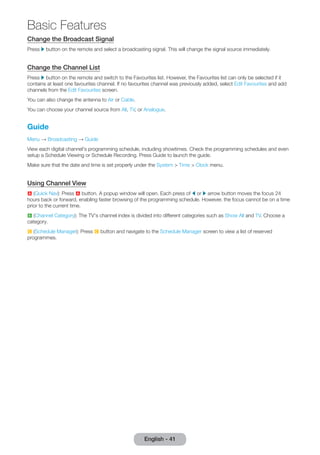
Change the Broadcast Signal 
Press r button on the remote and select a broadcasting signal. This will change the signal source immediately. 
Change the Channel List 
Press r button on the remote and switch to the Favourites list. However, the Favourites list can only be selected if it 
contains at least one favourites channel. If no favourites channel was previously added, select Edit Favourites and add 
channels from the Edit Favourites screen. 
You can also change the antenna to Air or Cable. 
You can choose your channel source from All, TV, or Analogue. 
Guide 
Menu → Broadcasting → Guide 
View each digital channel's programming schedule, including showtimes. Check the programming schedules and even 
setup a Schedule Viewing or Schedule Recording. Press Guide to launch the guide. 
Make sure that the date and time is set properly under the System > Time > Clock menu. 
Using Channel View 
a (Quick Nav): Press a button. A popup window will open. Each press of l or r arrow button moves the focus 24 
hours back or forward, enabling faster browsing of the programming schedule. However, the focus cannot be on a time 
prior to the current time. 
b (Channel Category): The TV's channel index is divided into different categories such as Show All and TV. Choose a 
category. 
{ (Schedule Manager): Press { button and navigate to the Schedule Manager screen to view a list of reserved 
programmes. 
English - 41 
Basic Features
Basic Features 
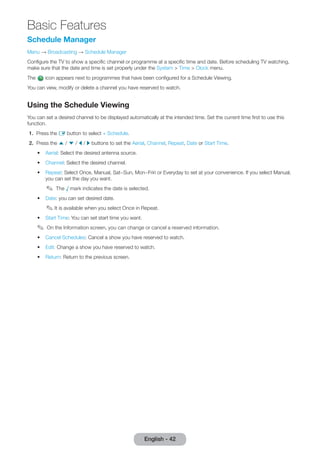
English - 42 Schedule Manager 
Menu → Broadcasting → Schedule Manager 
Confi gure the TV to show a specifi c channel or programme at a specifi c time and date. Before scheduling TV watching, 
make sure that the date and time is set properly under the System > Time > Clock menu. 
The icon appears next to programmes that have been confi gured for a Schedule Viewing. 
You can view, modify or delete a channel you have reserved to watch. 
Using the Schedule Viewing 
You can set a desired channel to be displayed automatically at the intended time. Set the current time fi rst to use this 
function. 
1. Press the E button to select + Schedule. 
2. Press the u / d / l / r buttons to set the Aerial, Channel, Repeat, Date or Start Time. 
• Aerial: Select the desired antenna source. 
• Channel: Select the desired channel. 
• Repeat: Select Once, Manual, Sat~Sun, Mon~Friri or Everyday to set at your convenience. If you select Manual, 
you can set the day you want. 
✎ The √ mark indicates the date is selected. 
• Date: you can set desired date. 
✎ I t is available when you select Once in Repeat. 
• Start Time: You can set start time you want. 
✎ On the Information screen, you can change or cancel a reserved information. 
• Cancel Schedules: Cancel a show you have reserved to watch. 
• Edit: Change a show you have reserved to watch. 
• Return: Return to the previous screen.
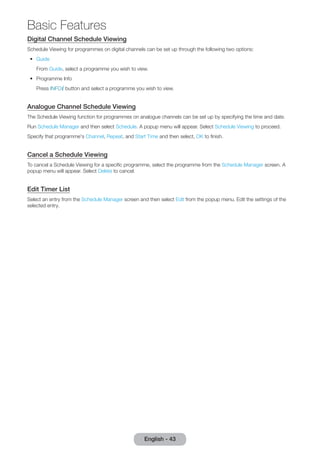
Digital Channel Schedule Viewing 
Schedule Viewing for programmes on digital channels can be set up through the following two options: 
•• Guide 
From Guide, select a programme you wish to view. 
•• Programme Info 
Press INFO` button and select a programme you wish to view. 
Analogue Channel Schedule Viewing 
The Schedule Viewing function for programmes on analogue channels can be set up by specifying the time and date. 
Run Schedule Manager and then select Schedule. A popup menu will appear. Select Schedule Viewing to proceed. 
Specify that programme's Channel, Repeat, and Start Time and then select, OK to finish. 
Cancel a Schedule Viewing 
To cancel a Schedule Viewing for a specific programme, select the programme from the Schedule Manager screen. A 
popup menu will appear. Select Delete to cancel. 
Edit Timer List 
Select an entry from the Schedule Manager screen and then select Edit from the popup menu. Edit the settings of the 
selected entry. 
English - 43 
Basic Features
Basic Features 
English - 44 Edit Channel 
Menu → Broadcasting → Edit Channel 
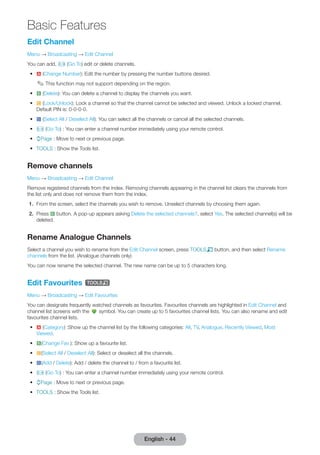
You can add, Ÿ (Go To) edit or delete channels. 
• a (Change Number): Edit the number by pressing the number buttons desired. 
✎ This function may not support depending on the region. 
• b (Delete): You can delete a channel to display the channels you want. 
• { (Lock/Unlock): Lock a channel so that the channel cannot be selected and viewed. Unlock a locked channel. 
Default PIN is: 0-0-0-0. 
• } (Select All / Deselect All): You can select all the channels or cancel all the selected channels. 
• Ÿ (Go To) : You can enter a channel number immediately using your remote control. 
• kPage : Move to next or previous page. 
• TOOLS : Show the Tools list. 
Remove channels 
Menu → Broadcasting → Edit Channel 
Remove registered channels from the index. Removing channels appearing in the channel list clears the channels from 
the list only and does not remove them from the index. 
1. From the screen, select the channels you wish to remove. Unselect channels by choosing them again. 
2. Press b button. A pop-up appears asking Delete the selected channels?, select Yes. The selected channel(s) will be 
deleted. 
Rename Analogue Channels 
Select a channel you wish to rename from the Edit Channel screen, press TOOLST button, and then select Rename 
channels from the list. (Analogue channels only) 
You can now rename the selected channel. The new name can be up to 5 characters long. 
Edit Favourites t 
Menu → Broadcasting → Edit Favourites 
Edit Channel and 
You can designate frequently watched channels as favourites. Favourites channels are highlighted in 
channel list screens with the 
symbol. You can create up to 5 favourites channel lists. You can also rename and edit 
favourites channel lists. 
• a (Category) :Show up the channel list by the following categories: All, TV, Analogue, Recently Viewed, Most 
Viewed. 
• b(Change Fav.): Show up a favourite list. 
• {(Select All / Deselect All): Select or deselect all the channels. 
• }(Add / Delete): Add / delete the channel to / from a favourite list. 
• Ÿ (Go To) : You can enter a channel number immediately using your remote control. 
• kPage : Move to next or previous page. 
• TOOLS : Show the Tools list.
Add Channels 
Add a channel to a favourites channels list. 
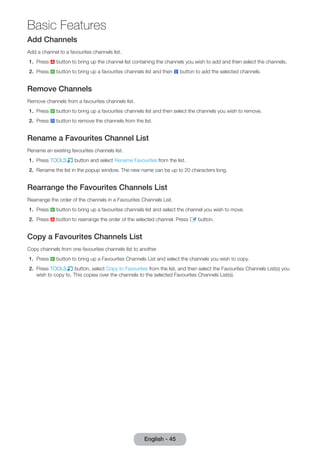
1. Press a button to bring up the channel list containing the channels you wish to add and then select the channels. 
2. Press b button to bring up a favourites channels list and then } button to add the selected channels. 
Remove Channels 
Remove channels from a favourites channels list. 
1. Press b button to bring up a favourites channels list and then select the channels you wish to remove. 
2. Press } button to remove the channels from the list. 
Rename a Favourites Channel List 
Rename an existing favourites channels list. 
1. Press TOOLST button and select Rename Favourites from the list. 
2. Rename the list in the popup window. The new name can be up to 20 characters long. 
Rearrange the Favourites Channels List 
Rearrange the order of the channels in a Favourites Channels List. 
1. Press b button to bring up a favourites channels list and select the channel you wish to move. 
2. Press a button to rearrange the order of the selected channel. Press E button. 
Copy a Favourites Channels List 
Copy channels from one favourites channels list to another. 
1. Press b button to bring up a Favourites Channels List and select the channels you wish to copy. 
2. Press TOOLST button, select Copy to Favourites from the list, and then select the Favourites Channels List(s) you 
wish to copy to. This copies over the channels to the selected Favourites Channels List(s). 
English - 45 
Basic Features
English - 46 Basic Other Features 
Features 
Fine Tune 
Menu → Broadcasting → Channel Settings → Fine Tune 
(analogue channels only) 
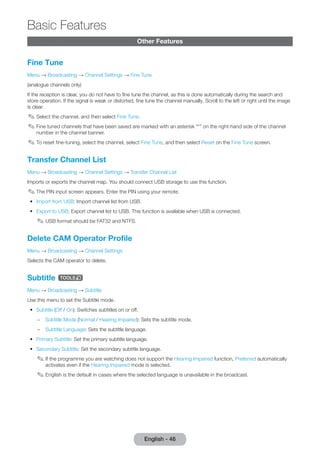
If the reception is clear, you do not have to fine tune the channel, as this is done automatically during the search and 
store operation. If the signal is weak or distorted, fine tune the channel manually. Scroll to the left or right until the image 
is clear. 
✎✎Select the channel, and then select Fine Tune. 
✎✎Fine tuned channels that have been saved are marked with an asterisk “*” on the right-hand side of the channel 
number in the channel banner. 
✎✎To reset fine-tuning, select the channel, select Fine Tune, and then select Reset on the Fine Tune screen. 
Transfer Channel List 
Menu → Broadcasting → Channel Settings → Transfer Channel List 
Imports or exports the channel map. You should connect USB storage to use this function. 
✎✎The PIN input screen appears. Enter the PIN using your remote. 
•• Import from USB: Import channel list from USB. 
•• Export to USB: Export channel list to USB. This function is available when USB is connected. 
✎✎USB format should be FAT32 and NTFS. 
Delete CAM Operator Profile 
Menu → Broadcasting → Channel Settings 
Selects the CAM operator to delete. 
Subtitle t 
Menu → Broadcasting → Subtitle 
Use this menu to set the Subtitle mode. 
•• Subtitle (Off / On): Switches subtitles on or off. 
–– Subtitle Mode (Normal / Hearing Impaired): Sets the subtitle mode. 
–– Subtitle Language: Sets the subtitle language. 
•• Primary Subtitle: Set the primary subtitle language. 
•• Secondary Subtitle: Set the secondary subtitle language. 
✎✎If the programme you are watching does not support the Hearing Impaired function, Preferred automatically 
activates even if the Hearing Impaired mode is selected. 
✎✎English is the default in cases where the selected language is unavailable in the broadcast.
Audio Options 
Menu → Broadcasting → Audio Options 
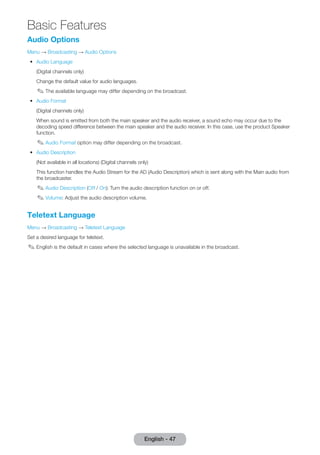
•• Audio Language 
(Digital channels only) 
Change the default value for audio languages. 
✎✎The available language may differ depending on the broadcast. 
•• Audio Format 
(Digital channels only) 
When sound is emitted from both the main speaker and the audio receiver, a sound echo may occur due to the 
decoding speed difference between the main speaker and the audio receiver. In this case, use the product Speaker 
function. 
✎✎Audio Format option may differ depending on the broadcast. 
•• Audio Description 
(Not available in all locations) (Digital channels only) 
This function handles the Audio Stream for the AD (Audio Description) which is sent along with the Main audio from 
the broadcaster. 
✎✎Audio Description (Off / On): Turn the audio description function on or off. 
✎✎Volume: Adjust the audio description volume. 
Teletext Language 
Menu → Broadcasting → Teletext Language 
Set a desired language for teletext. 
✎✎English is the default in cases where the selected language is unavailable in the broadcast. 
English - 47 
Basic Features
Basic Features 
English - 48 Common Interface 
Menu → Broadcasting → Common Interface 
•• CI Menu: This enables the user to select from the CAM-provided menu. Select the CI Menu based on the menu PC 
Card. 
•• CAM video transcoding: You can configure the setting to transcode the video codec from the CAM automatically. 
Turn it Off if you do not want to use it. 
✎✎You must use a CAM that supports transcoding the video codec. 
•• Application Info: View information on the CAM inserted into the CI slot and on the “CI or CI+ CARD” which is 
inserted into the CAM. You can install the CAM anytime whether the TV is on or off. 
1. Purchase a CI CAM module at your nearest dealer or by phone. 
2. Firmly insert the “CI or CI+ CARD” into the CAM in the direction of the arrow. 
3. Insert the CAM with the “CI or CI+ CARD” into the common interface slot, in the direction of the arrow so that it 
aligns parallel with the slot. 
4. Check if you can see a picture on a scrambled signal channel.
Setting the Time 
Time 
Menu → System → Time 
✎✎The time you set will appear when you press the INFO` button. 
•• Clock 
Set the clock to use the various timer features of the product. 
✎✎If you disconnect the power cord, you have to set the clock again. 
Clock Mode: Set the current time manually or automatically. 
–– Auto: The product sets the current time automatically using the time from a digital channel. 
✎✎You must have the cable or an aerial connected to the product to set the time automatically. 
✎✎Depending on the broadcast station and signal, the auto time set up may not be correct. In this case, set 
the time manually. 
–– Manual: Set the current time manually. 
Clock Set: Set the Date and Time manually. You can set the current date and time using your remote. 
✎✎Available only when the Clock Mode is set to Manual. 
Time Zone: Select your time zone. 
✎✎This function is only available when the Clock Mode is set to Auto. 
GMT: Selects your time zone. 
✎✎When Country is set to Others, you can use this function. 
DST: Switches the DST (Daylight Saving Time) function on or off. 
✎✎This function is only available when the Clock Mode is set to Auto. 
•• Sleep Timer 
Automatically shuts off the product after a preset period of time. (30, 60, 90, 120, 150, or 180 minutes). 
✎✎Select a period of time using your remote. To cancel the Sleep Timer, select Off. 
English - 49 
Preference Features
Preference Features 
•• On Timer 
English - 50 Set On Timer so that your product turns on automatically at a time and on a day of your choosing. You can set up 
three separate On Timer configurations. (On Timer 1, On Timer 2, On Timer 3) and select the source of the content 
the product plays when it turns on: an air or cable channel, a USB device, or a set-top box connected to one of the 
product's inputs (HDMI1, AV, etc.). 
✎✎You must set the clock before you can use the On Timer function. 
Setup: Select Off, Once, Everyday, Mon~Fri, Mon~Sat, Sat~Sun or Manual. If you select Manual, you can choose 
the days you want On Timer to turn on your product. 
✎✎The c mark indicates days you’ve selected. 
Time: Set the time that the product turns on automatically. 
Volume: Set the desired volume level. Change the volume level using your remote. 
Source: To select what will be turned on when the timer setting is activated. You can set the product to turn on a 
specific channel or play back contents such as Photos,Videos or Music files located in an external device connected 
to the product. 
✎✎The USB device must be connected to your product before you can select USB. 
Aerial (when the Source is set to TV): Select ATV or DTV. 
Channel (when the Source is set to TV): Select the desired channel. 
Music / Photo (when the Source is set to USB): Select a folder in the USB device containing music or photo files you 
want played when the product turns on automatically. 
✎✎If there is no music file on the USB device or you don’t select a folder containing a music file, the Timer 
function does not operate correctly. 
✎✎If there is only one photo file in the USB, the slide show will not play. 
✎✎If a folder name is too long, the folder cannot be selected. 
✎✎Each USB you use is assigned its own folder. When using more than one of the same types of USB, make 
sure the folders assigned to each USB have different names. 
✎✎We recommend that you use a USB memory stick and a multi card reader when using the On Timer. The On 
Timer function may not work with USB devices that have a built-in battery, MP3 players, or PMPs made by 
some manufacturers because the product can take too long to recognize these devices. 
✎✎If you set the On Timer to play a file saved on a USB devices, it may take up to 40 seconds or more to play the 
file after the product is turned on. 
•• Off Timer 
Set Off Timer so that your product turns off automatically at a time and on a day of your choosing. You can set up 
three separate Off Timer configurations. (Off Timer 1, Off Timer 2, Off Timer 3) 
✎✎You must set the clock before you can use the Off Timer. 
Setup: Select Off, Once, Everyday, Mon~Fri, Mon~Sat, Sat~Sun or Manual. If you select Manual, you can choose 
the days you want Off Timer to turn off your product. 
✎✎The c mark indicates days you’ve selected. 
Time: Set the time that the product turns off automatically.
Economical Solutions 
Eco Solution 
Menu → System → Eco Solution 
•• Energy Saving 
Lets you adjusts the brightness of the product in order to reduce power consumption. 
•• No Signal Power Off 
To avoid unnecessary energy consumption, you can set how long you want the product to remain on if it’s not 
receiving a signal. 
•• Auto Power Off 
The product will automatically turn off if you don’t press a button on your remote or product controller within 4 hours 
to prevent overheating. 
Auto Protection Time 
Menu → System → Auto Protection Time 
If the screen displays a still image for a certain period of time you define, the product activates the screen saver to 
prevent the formation of burnt in ghost images on the screen. 
English - 51 
Preference Features
Preference Features 
English - 52 Blocking Programmes 
Programme Rating Lock 
Menu → Broadcasting → Programme Rating Lock 
(Depending on the country) 
When turned on, the Programme Rating Lock feature can automatically block programmes that you deem inappropriate 
for your children. You must enter a PIN (personal identification number) before you can set or change any of the 
Programme Rating Lock restrictions. 
✎✎The items of Programme Rating Lock differs depending on the country. 
How to watch a restricted programme or movie 
If the product is tuned to a restricted programme or movie, the Programme Rating Lock will block it. The screen will go 
blank and the popup message appears. Enter the PIN to unblock the programme or movie using your remote. 
Change PIN 
Menu → System → Change PIN 
The Change PIN screen will appear. Choose any 4 digits for your PIN and enter them in the Enter New PIN. Reenter the 
same 4 digits in the Confirm New PIN. When the Confirm screen disappears, select Close. The product has memorised 
your new PIN. 
Channel Lock 
Menu → Broadcasting → Channel Lock 
The PIN input screen appears. Enter your 4-digit PIN, the default of which is "0-0-0-0". 
Lock channels in Channel menu, to prevent unauthorized users, such as children, from watching unsuitable programme. 
✎✎Available only when the Source is set to TV.
Other Features 
Menu Language 
Menu → System → Menu Language 
Set the menu language. 
General 
Menu → System → General 
•• Max. Power Saving 
When the product is attached to a PC, conserves power by turning the product off when the PC is not used for 
period of time you specify. 
✎✎Available only when the Source is set to PC. 
•• Game Mode 
When you have connected a game console such as a PlayStation™ or Xbox™ to the product, you can enjoy a more 
realistic gaming experience if you set the Game Mode on. 
Precautions and limitations for Game Mode 
–– Before disconnecting a game console and connecting another external device, set Game Mode to Off. 
–– If you display the product menu in Game Mode, the screen shakes slightly. 
✎✎Game Mode is not available when the input source is set to TV or PC source. 
✎✎Set Game Mode to On only after connecting a game console. If you turn Game Mode on before you have 
attached the game console, you may notice reduced picture quality. 
✎✎If the Game Mode is set to On, Picture Mode is set to Standard and Sound Mode is set to Movie 
automatically. 
•• Panel Lock 
Lock or unlock all the keys on the product Controller at once. When Panel Lock is on, the product Controller does 
not operate. 
•• Boot Logo 
Displays the Samsung logo when the product is turned on. 
English - 53 
Preference Features
Preference Features 
English - 54 Anynet+ (HDMI-CEC) 
Menu → System → Anynet+ (HDMI-CEC) 
Allows you to control all connected Samsung devices that support anynet+ with your Samsung product’s remote. For 
details on set up options, refer to the “Anynet+ (HDMI-CEC)” instructions. (page 65) 
DivX® Video On Demand 
Menu → System → DivX® Video On Demand 
Shows the registration code authorized for the product. If you connect to the DivX web site and register with 10-digit 
registration code, you can download the VOD activation file. Once you play it using Media Play, the registration is 
completed. 
✎✎For more information on DivX(R) VOD, visit http://vod.divx.com.
Support Menu 
Self Diagnosis 
Menu → Support → Self Diagnosis 
•• Picture Test 
Use to check for picture problems. Picture Test displays a high definition picture that you can examine for flaws or 
faults. 
Yes: Select Yes if the test picture does not appear or there is noise or distortion in the test picture. There may be a 
problem with the product. Contact Samsung’s Call Centre for assistance. 
No: Select No if the test picture displays properly. There may be a problem with your external equipment. Please 
check your connections. If the problem persists, refer to the external device’s user manual. 
•• Sound Test 
Use the built-in melody to check for sound problems. 
Yes: Select Yes if you can hear sound from only one speaker or from neither speaker during the sound test. There 
may be a problem with the product. Contact Samsung’s Call Centre for assistance. 
No: Select No if you can hear sound from the speakers. There may be a problem with your external equipment. 
Please check your connections. If the problem persists, refer to the external device’s user manual. 
•• Signal Information 
(Digital channels only) 
The reception quality of over-the-air HD channels is either perfect or the channels are unavailable. Signal Information 
displays HD channel signal strength so you can adjust your aerial to increase signal strength and receive HD 
channels. 
English - 55 
Preference Features
Preference Features 
•• Reset 
English - 56 Reset all setting to factory defaults except for your network settings. 
To reset your product to default setting, follow these steps: 
1. Go to the Reset menu. (Support → Self Diagnosis → Reset) 
2. The PIN input screen appears. Enter the four digit security PIN using your remote. 
3. When done, the PIN screen disappear automatically. The message "All the settings will return to factory 
defaults." appears. 
4. Select Yes. All settings are reset. The product will turn off and on again automatically. The Setup screen 
appears. For more information about Setup, see the paper user manual. 
Software Update 
Menu → Support → Software Update 
The Software Update menu lets you upgrade your product’s software to the latest version. 
Current Version: This is the software version already installed in the product. 
Upgrading to the Latest Version 
Check your TV's software version and upgrade it if necessary. 
✎✎The TV will turn off and on automatically after completing the software upgrade. All video and audio settings 
return to the default settings after a software upgrade. 
•• Update now 
Download the latest update file from the Samsung website. Decompress the file and copy it into the root directory of 
a flash drive. Insert the flash drive into the USB port to install the update. 
•• Auto update 
The TV will be updated automatically at the time you have set or after power off.
Use Mode 
Menu → Support → Use Mode 
Select the Use Mode suitable for your place. We strongly recommend you select Home Use. 
•• Home Use: Home Use is the default setting. 
•• Store Demo: Store Demo is for retail environments only. If you select Store Demo, some functions will not work, and 
the picture settings will be reset every 5 minutes. 
Contact Samsung 
Menu → Support → Contact Samsung 
View this information when your product does not work properly or when you want to upgrade the software. You can 
find information regarding our call centres and how to download products and software. 
English - 57 
Preference Features
English - 58 Advanced Application 
Features 
Application Menu 
MENU → Applications 
Source List 
MENU → Applications → Source List 
✎✎When you press the SOURCEs button, Source screen will be displayed at once. 
✎✎You can only choose external devices that are connected to the TV. In Source, connected inputs are highlighted. 
✎✎For the detailed information, refer to “Changing the Input Source” in User Manual. 
Connecting a USB Device 
1. Turn on your TV. 
2. Connect a USB device containing photo, music and movie files to the USB port behind the TV. 
3. When USB is connected to the TV, popup window appears. You can select the Photos, Videos or Music directly. 
✎✎It might not work properly with unlicensed multimedia files. 
✎✎Need-to-Know List before using Media Contents. 
•• MTP (Media Transfer Protocol) is not supported. 
•• The file system supports NTFS (Read Only), FAT16 and FAT32. 
•• Certain types of USB Digital camera and audio devices may not be compatible with this TV. 
•• Media Contents only supports sequential jpeg format. 
•• Media Contents only supports USB Mass Storage Class (MSC) devices. MSC is a Mass Storage Class Bulk-Only 
Transport device. Examples of MSC are Thumb drives, Flash Card Readers (USB HUB are not supported). Devices 
should be connected directly to the TV’s USB port. 
•• Before connecting your device to the TV, please back up your files to prevent them from damage or loss of data. 
SAMSUNG is not responsible for any data file damage or data loss. 
•• The HDD (Hard Disk Drive) connected to USB is not supported. 
•• Do not disconnect the USB device while it is loading. 
•• The higher the resolution of the image, the longer it takes to display on the screen. 
•• The maximum supported JPEG resolution is 15360 x 8640 pixels. 
•• For unsupported or corrupted files, the “Not Supported File Format” message is displayed. 
•• The scene search and thumbnail functions are not supported in the Videos. 
•• MP3 files with DRM that have been downloaded from a non-free site cannot be played. Digital Rights Management 
(DRM) is a technology that supports the creation, distribution and management of the content in an integrated and 
comprehensive way, including the protection of the rights and interests of the content providers, the prevention of 
the illegal copying of contents, as well as managing billings and settlements. 
•• A USB device that requires high power (more than 500mA or 5V) may not be supported. 
•• If the TV has been no input during time set in Auto Protection Time, the screen saver will run. 
•• If a USB extension cable is used, the USB device may not be recognized or the files on the device may not be read. 
•• If a USB device connected to the TV is not recognized, the list of files on the device is corrupted or a file in the list is 
not played, connect the USB device to the PC, format the device and check the connection.
•• If a file deleted from the PC is still found when Media Contents is run, use the “Empty the Recycle Bin” function on 
the PC to permanently delete the file. 
•• If the number of files and folders saved on a USB storage device is approximately over 4000, the files and folders 
may not appear and some folders may not be opened. 
Disconnecting a USB Device 
1. Press the SOURCEs button. 
2. Select a desired USB device, and then press the TOOLST button. The Tools menu appears. 
3. Select Disconnect USB Device, and then wait until the selected USB device is disconnected. You can remove a 
USB device from the TV. 
✎✎To remove a USB device from the TV, we recommend use Disconnect USB Device function. 
Media Play 
MENU → Applications → Media Play 
Enjoy photos, music and movie files saved on a USB Mass Storage Class (MSC) device. 
1. Press the MEDIA.P button. 
2. Press l/r button to select desired menu, then press the E button. 
3. Press l/r button to select desired device, then press the E button again. 
4. Press the u/d/l/r button to select the desired file in the list, then press the E button or ∂ (Play) button. 
Playing the selected files 
1. Press the u button to select Options at the top of each main screen and select Play Selected. 
2. Select the desired files. 
✎✎The check box appears to the left of the selected files. 
✎✎Press E button again to deselect the file. 
3. Press the u button to select Play. 
✎✎You can select or deselect all files pressing the Select All / Deselect All. 
English - 59 
Advanced Features
English - 60 Advanced Video Playback 
Features 
MEDIA.P → Videos 
You can play video files saved on USB device and/or your PC. 
✎✎For more information about the subtitle formats and codec formats, refer to "Supported Subtitle and Media Play 
file formats" in the Other Information section. 
Video Playback 
Select the video file from the list or press ∂ to play video. Use the remote control or the on-screen buttons to control the 
video playback. Press E or TOOLST to bring up the on-screen buttons and RETURNR to hide them. To stop playing 
the file, press ∫ or RETURNR. 
Playlist Creation 
From the Options list located at the top of the screen, select Play Selected, specify all the video files you wish to play, 
and then select Play. This creates a playlist. If the list is displayed in Folder view mode, only the files contained in the 
current folder can be selected. To select files from other folders, change the view mode. 
Opening a Different File 
•• Select the €/‚ on-screen button. 
•• Select the Search on-screen button and then select Search Titles. 
Video Scanning 
•• Press l / r. This scans through the file in 10-second increments. 
•• Press † / …. This changes the playback speed by up to 300%. To restore normal playback speed, press ∂. 
Alternatively, pause the video and then press … to reduce the playback speed (1/8 normal, 1/4 normal, 1/2 normal). 
Slow playback doesn't support audio and is available in the forward direction only. 
•• Press Σ to pause the screen and then Σ to scan through the paused video in 1-frame increments. Audio is not 
supported while the video is paused. 
•• Select the Search on-screen button and then select Search Titles. This will take you to a scene in the video. 
•• Select the Search on-screen button and then select Search Time Bar. This will take you to a time frame in the video. 
•• Select the € on-screen button. This plays the video from the beginning. 
Show Subtitles 
If the external storage device contains a subtitle file with the same name as the video file being played, you can choose 
to display subtitles on the screen. Select the Settings on-screen button and then select Subtitle Settings to show 
subtitles. 
If the letters appear corrupted, try changing the encoding setting. If the subtitles do not match the video, adjust the 
sync. If the subtitles are too small, increase the font size.
Additional Video Playback Settings 
•• Repeat 
Select the Repeat Mode on-screen button. This changes the repeat mode. Repeat One repeats the current file only, 
whereas Repeat All repeats all files contained in the folder. 
•• Picture Size 
Select the Picture Size button and then select the picture size. 
•• Picture Mode 
Select the Settings on-screen button and then select Picture Mode. Select a picture mode. 
•• Sound Mode 
Select the Settings on-screen button and then select Sound Mode. Select a sound mode. 
•• Information 
Select the Settings on-screen button and then select Information to view detailed information about the current 
video. 
English - 61 
Advanced Features
English - 62 Advanced Photo Playback 
Features 
MEDIA.P → Photos 
Select a photo from the list to display it on the screen. Press E or TOOLST to bring up the on-screen buttons and 
RETURNR to hide them. To stop playing the file, press ∫ or RETURNR. 
Slide Show 
•• From the Options list located at the top of the screen, select Slide Show. You can view all photos in the list as a 
slideshow. 
•• Press ∂ from the list. 
•• Press ∂ or select the Start Slide Show on-screen button to begin the slideshow. 
Slideshow Settings 
•• Slide Show Speed: Press † / … or select the Slide Show Settings on-screen button and then select Speed. 
•• Slide Show Effect: Select the Slide Show Settings on-screen button and then select Effects. 
Playlist Creation 
From the Options list located at the top of the screen, select Play Selected, specify all the photos you want to play, and 
then select Play. This creates a playlist. If the list is displayed in Folder view mode, only the files contained in the current 
folder can be selected. To select files from other folders, change the view mode. 
Opening a Different File 
•• Press l / r. 
•• Select the Previous/Next on-screen button. 
Background Music 
Enable music to play in the background during a slideshow. However, all music files must be located on the same 
storage device. 
Select the Background Music on-screen button while a photo is displayed on the screen or a slideshow is in progress. 
Select the music files you want to listen to and then Play. To play the files in a random order, select Shuffle.
Mini Player 
When viewing photos with background music, you can control the music. Select Background Music from among the on-screen 
control buttons and select Mini Player. You can pause playback or skip to the previous or next song. 
Additional Photo Playback Settings 
•• Zoom: Select the Zoom on-screen button. Zoom in by up to a factor of 4. 
•• Rotate: Select the Rotate on-screen button. This rotates the photo. 
•• Picture Mode: Select the Settings on-screen button and then select Picture Mode. Select a picture mode. 
•• Sound Mode: Select the Settings on-screen button and then select Sound Mode. Select a sound mode. 
•• Information: Select the Settings on-screen button and then select Information to view detailed information about the 
current video. 
English - 63 
Advanced Features
English - 64 Advanced Music playback 
Features 
MEDIA.P → Music 
Select the music file from the list or press ∂ to play music. Use the remote control or the on-screen buttons to control 
the video playback. To stop playing the file, press ∫ or RETURNR. 
Playlist Creation 
From the Options list located at the top of the screen, select Play Selected, specify all the music files you want to play, 
and then select Play. This creates a playlist. If the list is displayed in Folder view mode, only the files contained in the 
current folder can be selected. To select files from other folders, change the view mode. 
Music Scanning 
•• Press † / …. This scans through the file in 10-second increments. 
•• Press Σ. This pauses the currently playing music file. 
Opening a Different File 
•• Select the €/‚ on-screen button. 
•• Select a file from the playlist. 
Additional Music Playback Settings 
•• Shuffle 
Select the On on-screen button. Choose between normal and random play. 
•• Repeat 
Select the Repeat on-screen button. This changes the repeat mode. One Song repeats the current file only, whereas 
All repeats all files contained in the playlist. 
•• Sound Mode 
Select the Sound Mode on-screen button. Select a sound mode. 
•• Information 
Press INFO` from the playlist to view detailed information for the selected file. 
Football Mode t 
MENU → Applications → Football Mode → ENTER 
This mode provides optimized condition for watching sports games. 
•• a (Zoom): Pause playback and divide the picture into 9 parts. Select a part to zoom it in. Press this button again to 
resume. 
✎✎When the football mode is on, the picture and sound modes are set to Stadium automatically. 
✎✎If you turn the TV off while watching Football Mode, the Football Mode will be disable. 
✎✎Zoom doesn't operate in the following modes: 
–– PIP On 
–– Media play videos 
–– Anynet+ (HDMI-CEC)
Anynet+ (HDMI-CEC) 
Menu → System → Anynet+ (HDMI-CEC) 
Anynet+ is a function that enables you to control all connected Samsung devices that support Anynet+ with your 
Samsung TV’s remote. The Anynet+ system can be used only with Samsung devices that have the Anynet+ feature. To 
be sure your Samsung device has this feature, check if there is an Anynet+ logo on it. 
✎✎You can only control Anynet+ devices using the TV’s remote control, not the buttons on the product. 
✎✎The product remote control may not work under certain conditions. If this occurs, reselect the Anynet+ device. 
✎✎The Anynet+ functions do not operate with other manufacturers’ products. 
✎✎For instructions explaining how to connect Anynet+ external devices, refer to the device’s user manual. You must 
connect an Anynet+ device using an HDMI cable. Some HDMI cables may not support Anynet+ functions. 
✎✎Anynet+ works when the AV device supporting Anynet+ is in the standby or on status. 
✎✎Anynet+ supports up to 12 AV devices in total. Note that you can connect up to 3 devices of the same type. 
English - 65 
Advanced Features
Advanced Features 
English - 66 Anynet+ (HDMI-CEC) Menu 
The Anynet+ menu changes depending on the type and status of the Anynet+ devices connected to the product. 
•• View TV 
Change from Anynet+ mode to product broadcast mode. 
•• (device_name) Menu 
Shows the menu of the connected device. E.g. if a DVD player is connected, the disc menu of the DVD player will 
appear. 
•• (device_name) Tools 
Shows the Tools menu of the connected device. E.g. if a DVD player is connected, the Tools menu of the DVD 
player will appear. 
✎✎Depending on the device, this menu may not be available. 
•• (device_name) Title Menu 
Shows the title menu of the disc in the connected device. E.g. If a DVD player is connected, the title menu of the 
movie in the DVD player will appear. 
✎✎Depending on the device, this menu may not be available. 
Setting up Anynet+ (HDMI-CEC) 
•• Anynet+ (HDMI-CEC) 
To use the Anynet+ Function, Anynet+ (HDMI-CEC) must be set to On. 
✎✎When the Anynet+ (HDMI-CEC) function is disabled, all the Anynet+ related operations are deactivated 
•• Auto Turn Off 
Set an Anynet+ Device to turn off automatically when the product is turned off. 
✎✎If Auto Turn Off is set to Yes, running external devices will turn off at the same time as the product powers off. 
✎✎May not be enabled depending on the device.
Switching between Anynet+ Devices 
1. Open the Tools menu using your remote, and then select Anynet+ (HDMI-CEC). 
2. Select a device, and then wait until the switch to the selected device is completed. 
✎✎The menu appears only when you set Anynet+ (HDMI-CEC) to On in the System menu. 
✎✎Switching to the selected device may take up to 2 minutes. You cannot cancel the switching operation while 
switching is in progress. 
✎✎If you have selected an Anynet+ device using the Source function , you cannot use the Anynet+ function. 
Make sure to switch to an Anynet+ device. 
English - 67 
Advanced Features
English - 68 Other Troubleshooting 
Information 
If the product seems to have a problem, first review this list of possible problems and solution. If none of the 
troubleshooting tips apply, visit www.samsung.com 
Issues Solutions and Explanations 
Flickering and Dimming If your Samsung Television is flickering or dimming sporadically, you may need to 
disable some of its energy efficient features such as the Energy Saving feature. Follow 
the steps below with your remote to turn these features off or on. 
•• Energy Saving: Menu → System → Eco Solution → Energy Saving 
Component Connections / 
Screen Colour 
If you find that the colour on your Samsung television’s screen is not correct or black 
and white, first run a Self Diagnosis on the product to make sure there are no device 
issues. 
•• Self Diagnosis: Menu → Support → Self Diagnosis → Picture Test 
If the problem does not appear in the Picture test, make sure: 
•• Your connections are all consistent. For example, if you’ve used the AV In jack on 
your product, make sure you have used the AV Out jack on your video source. 
•• You have connected to your devices to the correct jacks. For example, if you use 
the Component jacks, labeled Pb, Pr, and Y, to connect your product and video 
source, make sure you have connected the blue Pb jack on the video source to 
the blue Pb jack on the product, the red Pr jack on the source to the red Pr jack 
on the product. 
Screen Brightness If you find that the colours on your Samsung product are correct but just a little too 
dark or bright, try adjusting the following settings in the Picture option in the Main 
menu: 
•• Backlight, Contrast, Brightness, Sharpness, Colour, Tint (G/R) and so on. Go in to 
“Picture” on user Menu then try adjusting options mentioned above. 
Unwanted Powering Off If your Samsung product appears to turn off by itself, there may be an issue with either 
your Timer settings or your Eco friendly No Signal Power Off feature. 
First make sure Sleep Timer is not accidentally set. The Sleep Timer turns off the 
product automatically after a certain period of time has passed. 
•• Sleep Timer: Menu → System → Time → Sleep Timer 
If the Sleep Timer is not activated, you may have engaged the No Signal Power Off or 
Auto Power Off feature. 
•• No Signal Power Off: Menu → System → Eco Solution → No Signal Power Off 
•• Auto Power Off: Menu → System → Eco Solution → Auto Power Off
Issues Solutions and Explanations 
Trouble Powering On Before you turn the product on, find the blue light in the bottom of the right position 
product. Press the power on button on the product or remote and the light should 
blink about 5 times before the product turns on. 
If you find that you are having trouble powering on your Samsung television, there are 
a number of things to check before making a call to the service department. 
•• If you happen to be using the product as a monitor and the stand-by light only 
blinks for a few seconds when you press the power button, your PC is in sleep 
mode. To take your PC out of sleep mode, press a key on your keyboard or move 
the mouse. Then try turning your product on. 
If you’re sure your power cord, remote control, and PC are functioning properly, you 
may be having a cable issue. If you have a cable or satellite box, your product may 
appear to be off because the cable or satellite box is not outputting a signal. To test 
the signal output of your cable or satellite box, press the guide or info button on the 
cable or satellite box remote control. If the screen displays the guide or info data, the 
problem is caused by the box. 
Cannot Find a Channel Re-run Setup (Go to Menu → System → Setup) or run Auto Tuning. (Go to Menu → 
Broadcasting → Auto Tuning). 
English - 69 
Other Information
Other Information 
Issues Solutions and Explanations 
PC Connection 
A Mode Not Supported 
message appears. 
English - 70 Set your PC’s output resolution so it matches a resolution supported by the product. 
“PC” is always shown on the 
source list, even if a PC is not 
connected. 
This is normal. “PC” is always shown in the source list, regardless of whether a PC is 
connected. 
The video is OK but there is 
no audio. 
If you are using an HDMI connection, check the audio output setting on your PC. 
Picture First, perform the Picture Test and to see if your product is properly displaying the test 
image (go to Menu → Support → Self Diagnosis → Picture Test). 
If the test image is properly displayed, the poor picture may be caused by the source 
or signal. 
The product image does not 
look as good as it did in the 
store. 
Store displays are all tuned to digital, HD (high definition) channels. 
If you have an analogue cable/set top box, upgrade to a digital set top box. Use HDMI 
or Component cables to deliver HD (high definition) picture quality. 
✎✎Many HD channels are up scaled from SD (Standard Definition) contents. Look 
for a channel that is broadcasting true HD content. 
ŒŒ Cable/Satellite subscribers: Try HD channels from the channel line up. 
ŒŒ Air/Cable Aerial connection: Try HD channels after performing an Auto Tuning. 
Adjust the Cable/Sat box video output resolution to 1080i or 720p. 
The picture is distorted: macro 
block error, small block, dots, 
pixelization 
The compression of video contents may cause picture distortion especially in fast 
moving pictures such as sports and action movies. 
A weak or bad quality signal can cause picture distortion. This is not a product issue. 
Mobile phones used close to the product (within 3.3 ft) may cause noise in the picture 
on analogue and digital channels. 
Colour is wrong or missing. If you’re using a Component connection, make sure the component cables are 
connected to the correct jacks. Incorrect or loose connections may cause colour 
problems or a blank screen. 
The colour is poor or the 
picture is not bright enough. 
Adjust the Picture options in the product menu (go to Picture Mode / Colour / 
Brightness / Sharpness) 
Adjust the Energy Saving option in the product menu (go to Menu → System → Eco 
Solution → Energy Saving) 
Try resetting the picture to view the default picture settings (go to Menu → Picture → 
Reset Picture).
Issues Solutions and Explanations 
There is a dotted line on the 
edge of the screen. 
If the Picture Size is set to Screen Fit, change it to 16:9. 
Change the cable/satellite box resolution. 
The picture is black and white. If you are using an AV composite input, connect the video cable (yellow) to the Green 
jack of Component on the product 
When changing channels, the 
picture freezes or is distorted 
or delayed. 
If the product is connected to a cable box, try to reset the box. (Disconnect and then 
reconnect the AC cord and wait until the cable box reboots. It may take up to 20 
minutes.) 
Set the output resolution of the cable box to 1080i or 720p. 
Sound First, perform the Sound Test to determine if your product audio is operating properly. 
(Go to Menu → Support → Self Diagnosis → Sound Test). 
If the audio is OK, the sound problem may caused by the source or signal. 
There is no sound or the 
sound is too low at maximum 
volume. 
Please check the volume of the device (Cable/Sat Box, DVD, Blu-ray etc.) connected 
to your product. 
The picture is good but there 
is no sound. 
If you are using an external device, check the device’s audio output option. (Ex. You 
may need to change your cable box’s audio option to HDMI if you have the box 
connected to your product using an HDMI cable.) 
If you are using a DVI to HDMI cable, a separate audio cable is required. 
If your product has a headphone jack, make sure there is nothing plugged into it. 
Reboot the connected device by disconnecting, and then reconnecting device’s 
power cable. 
The speakers are making an 
inappropriate noise. 
Check cable connections. Make sure a video cable is not connected to an audio 
input. 
For aerial or cable connections, check the signal information. A low signal level may 
cause sound distortion. 
Perform the Sound Test feature. (Menu → Support → Self Diagnosis → Sound Test) 
RF (Cable / Aerial) Connection 
The product is not receiving all 
channels. 
Make sure the coaxial cable is connected securely. 
Please try Setup to add available channels to the channel list. Go to Menu → System 
→ Setup and wait for all available channels to be stored. 
Verify the aerial is positioned correctly. 
The picture is distorted: macro 
block error, small block, dots, 
pixelization. 
The compression of video contents may cause picture distortion, especially with fast 
moving pictures such as sports and action movies. 
A weak signal can cause picture distortion. This is not a product problem. 
Others 
Purple/green rolling horizontal 
bars and buzzing noise from 
the product speakers with a 
Component cable connection. 
Remove the left and right audio connections from the Set-Top box. If the buzzing 
stops, this indicates that the Set-Top box has a grounding issue. Replace the 
Component video cables with an HDMI connection. 
The picture won’t display in 
full screen. 
HD channels will have black bars on either side of the screen when displaying up 
scaled SD (4:3) contents. 
Black bars will appear on the top and bottom of the screen when you watch movies 
that have aspect ratios different from your product. 
Adjust the picture size options on your external device or the product to full screen. 
A Mode Not Supported 
message appears. 
Check the supported resolution of the product, and adjust the external device’s output 
resolution accordingly. Refer to the resolution settings of this manual. 
There is a plastic smell from 
the product. 
This smell is normal and will dissipate over time. 
English - 71 
Other Information
Other Information 
Issues Solutions and Explanations 
The product Signal 
Information is unavailable in 
the Self Diagnosis menu. 
English - 72 This function is only available for digital channels the product receives from an Aerial / 
RF /Coax connection. 
The product is tilted to the 
side. 
Remove the base stand from the product and reassemble it. 
The channel menu is grayed 
out (unavailable). 
The Channel menu is only available when you select the product source. 
Your settings are lost after 
5 minutes or every time the 
product is turned off. 
If the product is in the Store Demo mode, it will reset audio and picture settings every 
5 minutes. Change the settings from Store Demo mode to Home Use mode using 
the Setup procedure. Select TV in the Source using your remote, and go to Menu → 
System → Setup.
Issues Solutions and Explanations 
You have intermittent loss of 
audio or video. 
Check the cable connections and reconnect them. 
Loss of audio or video can be caused by using overly rigid or thick cables. Make sure 
the cables are flexible enough for long term use. If mounting the product to a wall, we 
recommend using cables with 90 degree connectors. 
You see small particles when 
you look closely at the edge of 
the frame of the product. 
This is part of the product’s design and is not a defect. 
The PIP menu is not available. PIP functionality is available when you are using a TV, PC, AV, Component, HDMI1/ 
DVI, EXT., or HDMI2 source. 
POP (product’s internal 
banner ad) appears on the 
screen. 
Select Home Use under Setup mode. For details, refer to the Setup Feature. 
✎✎Watch these troubleshooting on video at www.samsung.com 
✎✎Some functions and pictures shown in this manual are available on specific 
models only. 
✎✎To keep your product in optimum condition, upgrade to the latest firmware on 
the Samsung web site by USB (samsung.com → Support → Downloads). 
The product won’t turn on. Make sure the AC power cord is securely plugged in to the wall outlet and the 
product. 
Make sure the wall outlet is working. 
Try pressing the P button on the product to make sure the problem is not the remote. 
If the product turns on, refer to “Remote control does not work” below. 
There is no picture/video. Check the cable connections. Remove and reconnect all cables connected to the 
product and external devices. 
Set the video outputs of your external devices (Cable/Sat Box, DVD, Blu-ray etc) to 
match the product's input connections. For example, if an external device’s output is 
HDMI, it should be connected to an HDMI input on the product. 
Make sure your connected devices are powered on. 
Be sure to select the correct input source. 
Reboot the connected device by unplugging it, and then reconnecting the device’s 
power cable. 
The remote control does not 
work. 
Replace the remote control batteries. Make sure the batteries are installed with their 
poles (+/–) in the correct direction. 
Clean the sensor’s transmission window on the remote. 
Try pointing the remote directly at the product from 5~6 feet away. 
English - 73 
Other Information
Other Information 
Issues Solutions and Explanations 
The cable/set top box remote 
control doesn’t turn the 
product on or off, or adjust 
the volume. 
English - 74 Programme the Cable/Set remote control to operate the product. Refer to the Cable/ 
Set-Top-Box user manual for the SAMSUNG product code. 
Anynet+ (HDMI-CEC) 
Anynet+ does not work. Check if the device is an Anynet+ device. The Anynet+ system supports Anynet+ 
devices only. 
You can connect only one receiver (home theatre). 
Check if the Anynet+ device power cord is properly connected. 
Check the Anynet+ device’s Video/Audio/HDMI cable connections. 
Check whether Anynet+ (HDMI-CEC) is set to On in the Anynet+ setup menu. 
Check whether the product remote control is in product mode. 
Check whether the remote control is Anynet+ compatible. 
Anynet+ doesn’t work in certain situations. (Searching channels, operating Setup, etc.) 
If you have removed and then reconnected the HDMI cable, please make sure to 
search devices again or turn your product off and on again. 
I want to start Anynet+. Check if the Anynet+ device is properly connected to the product and check if the 
Anynet+ (HDMI-CEC) is set to On. (System → Anynet+ (HDMI-CEC)) 
Open the Tools menu using your remote and then select Anynet+ (HDMI-CEC). Then 
select a menu you want. 
I want to exit Anynet+. Select View TV in the Anynet+ menu. 
Go to Source screen using your remote and select a non-Anynet+ device. 
The message Connecting to 
Anynet+ device ... appears on 
the screen. 
You cannot use the remote control when you are configuring Anynet+ or switching to 
a view mode. 
Use the remote control after the product has completed Anynet+ configuration or has 
finished switching to Anynet+.
Issues Solutions and Explanations 
The Anynet+ device does not 
play. 
You cannot use the play function when Setup is in progress. 
The connected device is not 
displayed. 
Check whether or not the device supports Anynet+ functions. 
Check whether or not the HDMI cable is properly connected. 
Check whether Anynet+ (HDMI-CEC) is set to On. (System → Anynet+ (HDMI-CEC)) 
Search Anynet+ devices again. 
Anynet+ requires an HDMI connection. Make sure the device is connected to your 
product with an HDMI cable. 
Some HDMI cables may not support Anynet+ functions. 
If the connection is terminated because there has been a power failure or the HDMI 
cable has been disconnected, please repeat the device scan. 
✎✎Some functions and pictures shown in this manual are available on specific models only. 
✎✎To keep your product in optimum condition, upgrade to the latest firmware on the Samsung web site by USB 
(samsung.com → Support → Downloads). 
English - 75 
Other Information
Other Information 
English - 76 Supported Subtitle and Media Play file formats 
Subtitle 
External 
–– MPEG-4 timed text (.ttxt) 
–– SAMI (.smi) 
–– SubRip (.srt) 
–– SubViewer (.sub) 
–– Micro DVD (.sub or .txt) 
–– SubStation Alpha (.ssa) 
–– Advanced SubStation Alpha (.ass) 
–– Powerdivx (.psb) 
Internal 
–– Xsub 
Container: AVI 
–– SubStation Alpha 
Container: MKV 
–– Advanced SubStation Alpha 
Container: MKV 
–– SubRip 
Container: MKV 
–– MPEG-4 Timed text 
Container: MP4 
Supported image resolutions 
File Extension Type Resolution 
*.jpg, *.jpeg JPG 15360 x 8640 
*.bmp BMP 4096 x 4096 
*.mpo MPO 15360 x 8640 
✎✎CMYK,YCCK Colour space JPEG are not supported.
Supported music file formats 
File Extension Type Codec Comments 
*.mp3 MPEG MPEG1 Audio Layer 3 
*.m4a 
*.mpa 
MPEG4 AAC 
*.aac 
*.flac FLAC FLAC 
The Seek (jump) function is not supported. 
Supports up to 2 channel 
*.ogg OGG Vorbis Supports up to 2 channel 
*.wma WMA WMA 
WMA 10 Pro supports up to 5.1 channel. 
WMA lossless audio is not supported. 
*.wav wav wav 
*.mid 
*.midi 
midi midi type 0 and type 1 
Video Codec 
File 
Extension 
Container Video Codec Resolution 
Frame rate 
(fps) 
Bit rate 
(Mbps) 
Audio Codec 
*.avi 
*.mkv 
*.asf 
*.wmv 
*.mp4 
*.3gp 
*.vro 
*.mpg 
*.mpeg 
*.ts 
*.tp 
*.trp 
*.mov 
*.flv 
*.vob 
*.svi 
*.divx 
AVI 
MKV 
ASF 
MP4 
3GP 
MOV 
FLV 
VRO 
VOB 
PS 
TS 
Divx 3.11 / 4 / 5 / 6 
1920 x 1080 
6~30 
30 Dolby Digital 
LPCM 
ADPCM(IMA, MS) 
AAC 
HE-AAC 
WMA 
Dolby Digital Plus 
MPEG(MP3) 
DTS (Core) 
G.711(A-Law, 
μ-Law) 
MPEG4 SP / ASP 
H.264 BP / MP / HP 
Motion JPEG 640 x 480 8 
Window Media Video v9 
1920 x 1080 30 
MPEG2 
MPEG1 
English - 77 
Other Information
Other Information 
English - 78 Other Restriction 
✎✎Video content will not play, or not play correctly, if there is an error in the content or the container. 
✎✎Sound or video may not work if the contents have a standard bit rate/frame rate above the compatible Frame/sec 
listed in the table above. 
✎✎If the Index Table is in error, the Seek (Jump) function is not supported. 
✎✎The menu may take longer to appear if the video’s bit rate exceeds 10Mbps. 
✎✎Some USB/digital camera devices may not be compatible with the player. 
Video Decoders 
•• Supports up to H.264, Level 4.1 (does not support FMO/ASO/RS) 
•• VC1 AP L4 is not supported. 
•• GMC 2 is not supported. 
•• Frame speed: 
Below 1280x720: 60 frame max 
Above 1280x720: 30 frame max 
Audio Decoders 
•• WMA 10 Pro supports up to 5.1 channels. Supports up to M2 profile. 
•• WMA lossless audio is not supported. 
•• Vorbis is supported for up to 2 channels. 
•• Dolby Digital Plus is supported for up to 5.1 channels.
Analogue Channel Teletext Feature 
The index page of the Teletext service gives you information on how to use the service. For Teletext information to be 
displayed correctly, channel reception must be stable. Otherwise, information may be missing or some pages may not 
be displayed. 
✎✎You can change Teletext pages by pressing the numeric buttons on the remote control. 
1 / (Teletext on/mix/off): 
Activates the Teletext mode for the 
current channel. Press the button 
twice to overlap the Teletext mode 
with the current broadcasting 
screen. Press it one more time to 
exit teletext. 
2 8 (store): Stores the Teletext 
pages. 
3 6 (index): Displays the index 
(contents) page at any time while 
you are viewing Teletext. 
4 4 (size): Displays the teletext 
on the upper half of the screen in 
double-size. To move the text to 
the lower half of the screen, press 
it again. For normal display, press 
it once again. 
5 9 (hold): Holds the display at 
the current page, in the case that 
there are several secondary pages 
that follow automatically. To undo, 
press it again. 
6 Colour buttons (red, green, yellow, 
blue): If the FASTEXT system 
is used by the broadcasting 
company, the different topics on 
a Teletext page are colour-coded 
and can be selected by pressing 
the coloured buttons. Press the 
colour corresponding to the topic 
of your choice. A new colourcoded 
page is displayed. Items can be 
selected in the same way. To 
display the previous or next page, 
press the corresponding coloured 
button. 
7 0 (mode): Selects the Teletext 
mode (LIST/ FLOF). If pressed 
during LIST mode, switches 
the mode to List save mode. In 
List save mode, you can save a 
Teletext page into a list using the 
8(store) button. 
7 
8 
9 
0 
! 
@ 
1 
2 
3 
4 
5 
6 
8 1 (sub-page): Displays the 
available sub-page. 
9 2 (page up): Displays the next 
Teletext page. 
0 3 (page down): Displays the 
previous Teletext page. 
! 5 (reveal): Displays the hidden 
text (answers to quiz games, for 
example). To display the normal 
screen, press it again. 
@ 7 (cancel): Shrinks the Teletext 
display to overlap with the 
current broadcast. 
Typical Teletext page 
Part Contents 
A Selected page number. 
B Broadcasting channel identity. 
C Current page number or search 
indications. 
D Date and time. 
E Text. 
F Status information. FASTEXT 
information. 
English - 79 
Other Information
Other Information 
English - 80 Attaching a Wall Mount/Desktop Stand 
✎✎Not available in TD590 series. 
Preparing before installing Wall-Mount / Desktop Stand 
1. Turn the product off and unplug the power cord from the wall outlet. 
2. Place a soft cloth or cushion on a flat surface to protect the panel and place the product face down. 
3. Hold the main body of the product with your hand. Pull the stand in the direction of the arrow as shown in the figure 
to separate it. 
TD390 TD391 
Attaching a Wall Mount / Desktop Stand 
A Wall/Desktop Stand Mount 
B Wall mount kit/desktop stand (not supplied)
[[Caution 
Important 
For the installation of Wall-mount, please don’t use screws longer than 10 mm (L10) of longitude. 
4. Align wall mount/desktop stand to the product and firmly fix the wall mount/desktop stand by fastening the screw. 
5. Align the groove of the part of the product that is to be connected to the stand with the groove in the stand (desk-top 
stand, wall mount stand or another stand) and firmly fix the stand by fastening the screw. 
English - 81 
Other Information
English - 82 Other Installing the Wall Mount 
Information 
Installing the Wall Mount Kit 
The wall mount kit (sold separately) allows you to mount the TV on the wall. 
For detailed information on installing the wall mount, see the instructions provided with the wall mount. Contact a 
technician for assistance when installing the wall mount bracket. We do not advice you to do it yourself. 
Samsung Electronics is not responsible for any damage to the product or injury to yourself or others if you elect to install 
the TV on your own. 
Wall Mount Kit Specifications (VESA) 
✎✎The wall mount kit is not supplied, but sold separately. 
Install your wall mount on a solid wall perpendicular to the floor. When attaching to other building materials, please 
contact your nearest dealer. If installed on a ceiling or slanted wall, it may fall and result in severe personal injury. 
✎✎NOTE 
•• Standard dimensions for wall mount kits are shown in the table below. 
•• When purchasing our wall mount kit, a detailed installation manual and all parts necessary for assembly are 
provided. 
•• Do not use screws that do not comply with the VESA standard screw specifications. 
•• Do not use screws that are longer than the standard dimension or do not comply with the VESA standard screw 
specifications. Screws that are too long may cause damage to the inside of the TV set. 
•• For wall mounts that do not comply with the VESA standard screw specifications, the length of the screws may 
differ depending on the wall mount specifications. 
•• Do not fasten the screws that are too strongly; this may damage the product or cause the product to fall, 
leading to personal injury. Samsung is not liable for these kinds of accidents. 
•• Samsung is not liable for product damage or personal injury when a non-VESA or non-specified wall mount is 
used or the consumer fails to follow the product installation instructions. 
•• Do not mount the TV at more than a 15 degree tilt. 
Product Family inches VESA Spec. (A * B) Standard Screw Quantity 
MFM 
(TD390 TD391) 
23.6 
27 
75x75 M4 4 
Do not install your Wall Mount Kit while your TV is turned on. It may result in personal injury due to 
electric shock.
Anti-theft Kensington Lock 
A Kensington Lock is a device you can use to physically fix your product in place when using it in a public place. 
You wrap the Kensington Lock’s cable around a large, immobile object and then attach the lock to the Kensington slot 
on the back of the product. 
The appearance and locking method may differ from the illustration below depending on the manufacturer. Refer to the 
manual provided with the Kensington Lock for additional information on proper use. The Kensington Lock is not supplied 
by Samsung. 
<Optional> 
✎✎Please find a “K” icon on the rear of the product. The Kensington slot is beside the “K” icon. 
To lock the product, follow these steps: 
1. Wrap the Kensington Lock cable around a large, stationary object such as desk or chair. 
2. Slide the end of the cable with the lock attached through the looped end of the Kensington Lock cable. 
3. Insert the locking device into the Kensington slot on the product. 
4. Lock the lock. 
✎✎These are general instructions. For exact instructions, see the User manual supplied with the locking device. 
✎✎The locking device has to be purchased separately. 
✎✎The location of the Kensington slot may be different depending on the product model. 
English - 83 
Other Information
English - 84 Other Storage and Maintenance 
If a sticker was attached to the product screen, some debris can remain after you remove the sticker. Please clean the 
debris off before watching product. 
The exterior and screen of the product can get scratched during cleaning. Be sure to wipe the exterior and screen 
carefully using the cloth provided or a soft cloth to prevent scratches. 
Do not spray water directly onto the product. Any liquid 
that goes into the product may cause a failure, fire, or 
electric shock. 
Clean the product with a soft cloth dampened with a 
small amount of water. Do not use a flammable liquid 
(e.g. benzene, thinners) or a cleaning agent. 
Information
Licence 
Manufactured under licence from Dolby Laboratories. 
Dolby and the double-D symbol are trademarks of Dolby Laboratories. 
Manufactured under a license from U.S. Patent No’s: 5,956,674, 5,974,380, 5,978,762, 6,487,535, 
6,226,616, 7,212,872, 7,003,467, 7,272,567, 7,668,723, 7,392,195, 7,930,184, 7,333,929 and 
7,548,853. DTS, the Symbol, and DTS and the Symbol together are registered trademarks & DTS 
Premium Sound | 5.1 is a trademark of DTS, Inc. ©2012 DTS, Inc. All Rights Reserved. 
Manufactured under a license from U.S. Patent No’s: 6,285,767, 8,027,477, 5,319,713, 5,333,201, 
5,638,452, 5,771,295, 5,970,152, 5,912,976, 7,200,236, 7,492,907, 8,050,434, 7,720,240, 
7,031,474, 7,907,736 and 7,764,802. DTS, the Symbol, and DTS and the Symbol together are 
registered trademarks & DTS Studio Sound is a trademark of DTS, Inc. ©2012 DTS, Inc. All Rights 
Reserved. 
The terms HDMI and HDMI High-Definition Multimedia Interface, and the HDMI Logo are trademarks or 
registered trademarks of HDMI Licensing LLC in the United States and other countries. 
DivX Certified® to play DivX® video up to HD 1080p, including premium content. 
ABOUT DIVX VIDEO: DivX® is a digital video format created by DivX, LLC, a subsidiary of Rovi Corporation. This is an official DivX 
Certified® device that has passed rigorous testing to verify that it plays DivX video. Visit divx. com for more information and software tools 
to convert your files into DivX videos. 
ABOUT DIVX VIDEO-ON-DEMAND: This DivX Certified® device must be registered in order to play purchased DivX Video-on-Demand 
(VOD) movies. To obtain your registration code, locate the DivX VOD section in your device setup menu. Go to vod.divx.com for more 
information on how to complete your registration. 
DivX®, DivX Certified® and associated logos are trademarks of Rovi Corporation or its subsidiaries and are used under license. 
Covered by one or more of the following U.S. patents: 7,295,673; 7,460,668; 7,515,710; 7,519,274 
Open Source Licence Notice 
Open Source used in this product can be found on the following webpage. (http://opensource.samsung.com) 
Open Source Licence Notice is written only English. 
Correct Disposal of This Product (Waste Electrical & Electronic Equipment) 
(Applicable in the European Union and other European countries with separate collection systems) 
This marking on the product, accessories or literature indicates that the product and its electronic accessories (e.g. 
charger, headset, USB cable) should not be disposed of with other household waste at the end of their working life. 
To prevent possible harm to the environment or human health from uncontrolled waste disposal, please separate 
these items from other types of waste and recycle them responsibly to promote the sustainable reuse of material 
resources. Household users should contact either the retailer where they purchased this product, or their local 
government office, for details of where and how they can take these items for environmentally safe recycling. 
Business users should contact their supplier and check the terms and conditions of the purchase contract. This 
product and its electronic accessories should not be mixed with other commercial wastes for disposal. 
Correct disposal of batteries in this product 
(Applicable in the European Union and other European countries with separate battery return systems) 
This marking on the battery, manual or packaging indicates that the batteries in this product should not be disposed 
of with other household waste at the end of their working life. Where marked, the chemical symbols Hg, Cd or Pb 
indicate that the battery contains mercury, cadmium or lead above the reference levels in EC Directive 2006/66. If 
batteries are not properly disposed of, these substances can cause harm to human health or the environment. To 
protect natural resources and to promote material reuse, please separate batteries from other types of waste and 
recycle them through your local, free battery return system. 
English - 85 
Other Information
English - 86 Other Specifications 
Environmental 
considerations 
Information 
Operating 
Temperature : 10°C~ 40°C 
Humidity : 10 % ~ 80 %, non-condensing 
Storage 
Temperature : -20°C ~ 45°C 
Humidity : 5 % ~ 95 %, non-condensing 
Tilt 
TD590: -2° (±2.0°) ~18° (±2.0°) 
TD390/TD391: -1° (±2.0°) ~20° (±2.0°) 
TV System 
Analogue: B/G, D/K, L, I (Depending on your country selection) 
Digital: DVB-T2/DVB-C 
Colour/Video System 
Analogue: PAL, SECAM, NTSC-4.43, NTSC-3.58, PAL60 
Digital: MPEG-2 MP@ML, MPEG-4, H.264/AVC MP@L3, MP@L4.0, HP@L4.0 
Sound System BG, DK, L, NICAM, MPEG1, DD, Dolby Digital Plus, HEAAC 
HDMI IN 
Video: 1080 24p, 1080p, 1080i, 720p, 576p, 480p 
Audio: 2Ch Linear PCM 32/44.1/48kHz, 16/20/24bits. 
Model Name T24D391 T27D590 
Screen Size (Diagonal) 23.6 inches (59 cm) 27 inches (68 cm) 
Display Resolution 1920 X 1080@60Hz 
Sound (Output) 5W x 2 
Dimensions 
(W x H x D) 
With stand 547.3 x 414.7 x 243.5 mm 619.2 x 466.0 x 169.2 mm 
Body 547.3 x 334.7 x 44.3 mm 619.2 x 366.9 x 34.1 mm 
Weight 
With stand 3.90 kg 5.25 kg 
Body 3.50 kg 4.65 kg 
Model Name T24D390 T27D390 T24D590 
Screen Size (Diagonal) 23.6 inches (59 cm) 27 inches (68 cm) 23.6 inches (59 cm) 
Display Resolution 1920 X 1080@60Hz 
Sound (Output) 5W x 2 
Dimensions 
(W x H x D) 
With stand 547.8 x 422.9 x 209.8 mm 625.4 x 467.1 x 209.8 mm 541.8 x 422.4 x 169.2 mm 
Body 547.8 x 335.0 x 44.3 mm 625.4 x 378.9 x 31.6 mm 541.8 x 323.1 x 34.1 mm 
Weight 
With stand 3.90 kg 4.90 kg 4.25 kg 
Body 3.55 kg 4.50 kg 3.65 kg 
✎✎Design and specifications are subject to change without prior notice. 
✎✎For information about power supply, and more about power consumption, refer to the label attached to the 
product. 
✎✎Some models may not be available for purchase depending on the region. 
✎✎If there is no power cut-off switch, the power consumption is "0" only when the power cord is disconnected. 
✎✎DPM(Display Power Management) Function does not work if you used in conjunction with the HDMI IN 1 (DVI) 
port of this product.
Index 
A 
Advanced Settings 33 
Aerial 38 
Anti-theft Kensington Lock 83 
Anynet+ (HDMI-CEC) 65 
Audio Format 47 
Auto Power Off 51 
Auto Tuning 38 
Auto Volume 37 
B 
Backlight 28 
Black Tone 33 
Brightness 28 
C 
Change PIN 52 
Channel List 40 
Colour 28 
Colour Space 33 
Colour Tone 34 
Contact Samsung 57 
Contrast 28 
D 
Digital Clean View 34 
DivX® Video On Demand 54 
DTS TruDialog 36 
DTS TruSurround HD 36 
Dynamic Contrast 33 
E 
Eco Solution 51 
Energy Saving 51 
Entertain 27 
Equaliser 36 
F 
Film Mode 34 
Fine Tune 46 
Flesh Tone 33 
G 
Game Mode 53 
Gamma 33 
General 53 
H 
HDMI Black Level 34 
L 
LED Clear Motion 34 
Licence 85 
M 
Media Play 59 
Menu Language 53 
Motion Lighting 33 
MPEG Noise Filter 34 
Music playback 64 
N 
No Signal Power Off 51 
O 
Off Timer 50 
On Timer 50 
P 
Panel Lock 53 
Photo Playback 62 
Picture Mode 27 
Picture Options 34 
Picture Size 29 
Picture Test 55 
PIP 32 
Programme Rating Lock 52 
R 
Reset Picture 35 
Reset Sound 37 
RGB Only Mode 33 
English - 87 
Other Information
Other Information 
S 
Schedule Manager 42 
Self Diagnosis 55 
Setting up 
Anynet+ (HDMI-CEC) 66 
Sharpness 28 
Signal Information 55 
Sleep Timer 48 
Software Update 56 
Sound Effect 36 
Sound Mode 35 
Sound Test 55 
Speaker Settings 37 
Supported music file formats 77 
Supported Subtitle and 
Media Play file formats 76 
T 
Time 48 
Tint (G/R) 28 
Troubleshooting 68 
V 
Video Codec 77 
Video Playback 60 
W 
White Balance 33 
English - 88
Contact SAMSUNG WORLDWIDE 
If you have any questions or comments relating to Samsung products, please contact the SAMSUNG customer care centre. 
Country Customer Care Centre Web Site 
RUSSIA 8-800-555-55-55 www.samsung.com/ru/support 
GEORGIA 0-800-555-555 www.samsung.com/support 
ARMENIA 0-800-05-555 www.samsung.com/support 
AZERBAIJAN 0-88-555-55-55 www.samsung.com/support 
KAZAKHSTAN 8-10-800-500-55-500(GSM: 7799, VIP care 7700) www.samsung.com/support 
UZBEKISTAN 8-10-800-500-55-500 www.samsung.com/support 
KYRGYZSTAN 8-10-800-500-55-500 www.samsung.com/kz_ru/support 
TADJIKISTAN 8-10-800-500-55-500 www.samsung.com/support 
MONGOLIA 7-495-363-17-00 www.samsung.com/support 
UKRAINE 0-800-502-000 www.samsung.com/ua/support 
(Ukrainian) 
www.samsung.com/ua_ru/support 
(Russian) 
BELARUS 810-800-500-55-500 www.samsung.com/support 
MOLDOVA 0-800-614-40 www.samsung.com/support 
© 2014 Samsung Electronics Co., Ltd. All rights reserved. BN46-00405C-04

Samsung 1

  • 1.
    LED TV usermanual Thank you for purchasing this Samsung product. To receive more complete service, please register your product at www.samsung.com/register Model _____________ Serial No. _____________ T24D390EX T27D390EX T24D391EX T24D590EX T27D590EX
  • 2.
    Figures and illustrationsin this User Manual are provided for reference only and may differ from actual product appearances. Product design and specifications may be changed without notice. Digital TV notice 1. Functionalities related to Digital TV (DVB) are only available in countries/areas where DVB-T (MPEG2 and MPEG4 AVC) digital terrestrial signals are broadcasted or where you are able to access to a compatible DVB-C (MPEG2 and MPEG4 AAC) cable-TV service. Please check with your local dealer the possibility to receive DVB-T or DVB-C signal. 2. DVB-T is the DVB European consortium standard for the broadcast transmission of digital terrestrial television and DVB-C is that for the broadcast transmission of digital TV over cable. However, some differentiated features like EPG (Electric Programme Guide), VOD (Video On Demand) and so on, are not included in this specification. So, they cannot be workable at this moment. 3. Although this TV set meets the latest DVB-T and DVB-C standards, as of [August, 2008], the compatibility with future DVB-T digital terrestrial and DVB-C digital cable broadcasts cannot be guaranteed. 4. Depending on the countries/areas where this TV set is used some cable-TV providers may charge an additional fee for such a service and you may be required to agree to terms and conditions of their business. 5. Some Digital TV functions might be unavailable in some countries or regions and DVB-C might not work correctly with some cable service providers. 6. For more information, please contact your local Samsung customer care centre. ✎✎The reception quality of TV may be affected due to differences in broadcasting method between the countries. Please check the TV performance in the local SAMSUNG Authorized Dealer, or the Samsung Call Centre whether it can be improved by reconfiguring TV setting or not. Still image warning Avoid displaying still images (like jpeg picture files) or still image element (like TV programme logo, panorama or 4:3 image format, stock or news bar at screen bottom etc.) on the screen. Constant displaying of still picture can cause ghosting of LED screen, which will affect image quality. To reduce risk of this effect, please follow below recommendations: •• Avoid displaying the same TV channel for long periods. •• Always try do display any image on full screen, use TV set picture format menu for best possible match. •• Reduce brightness and contrast values to minimum required to achieve desired picture quality, exceeded values may speed up the burnout process. •• Frequently use all TV features designed to reduce image retention and screen burnout, refer to e-Manual for details. English - 2
  • 3.
    Contents Getting Started yy Safety Precautions..................................................... 4 yy Providing Proper Ventilation for Your Product........... 11 yy Accessories and Cables........................................... 12 yy Using the Control Panel........................................... 13 yy The Standard Remote Control Buttons.................... 14 yy How to Navigate Menus........................................... 16 yy Connecting the Power Cord and the Aerial or Cable Connection.............................................................. 17 yy Setup....................................................................... 17 Check the Symbol! Note Step by Step Guide Indicates additional information. Check here for instructions on how to open the relevant submenu within the OSD (on screen display). English - 3 Connections yy Connecting to AV Devices (Blu-ray Players, DVD Players, etc.)............................................................ 18 yy Connecting to Audio Devices................................... 21 yy Connecting to a PC................................................. 22 yy Connecting to a COMMON INTERFACE slot (Your product viewing Card Slot)....................................... 23 yy Changing the Input Source...................................... 25 Basic Features yy Correct posture to use the product.......................... 26 yy Changing the Preset Picture Mode........................... 27 yy Adjusting Picture Settings........................................ 28 yy Changing the Picture Size........................................ 29 yy Calibrating the Screen Display.................................. 31 yy Picture In Picture (PIP).............................................. 32 yy Changing the Picture Options.................................. 33 yy Changing the Preset Sound Mode........................... 35 yy Adjusting Sound Settings......................................... 36 yy Memorizing Channels.............................................. 38 yy Using the INFO button (Now & Next guide).............. 40 yy Using the Channel Menu.......................................... 40 yy Other Features......................................................... 46 Preference Features yy Setting the Time...................................................... 49 yy Economical Solutions............................................... 51 yy Blocking Programmes.............................................. 52 yy Other Features......................................................... 53 yy Support Menu.......................................................... 55 Advanced Features yy Application............................................................... 58 yy Video Playback........................................................ 60 yy Photo Playback........................................................ 62 yy Music playback........................................................ 64 yy Anynet+ (HDMI-CEC)............................................... 65 Other Information yy Troubleshooting....................................................... 68 yy Supported Subtitle and Media Play file formats........ 76 yy Analogue Channel Teletext Feature.......................... 79 yy Attaching a Wall Mount/Desktop Stand.................... 80 yy Installing the Wall Mount.......................................... 82 yy Anti-theft Kensington Lock....................................... 83 yy Storage and Maintenance........................................ 84 yy Licence.................................................................... 85 yy Specifications.......................................................... 86 yy Index....................................................................... 87
  • 4.
    Getting Started SafetyPrecautions English - 4 Icons used for safety precautions WARNING Failing to follow the precautions marked with this sign may result in a serious injury or even a fatality. CAUTION Failing to follow the precautions marked with this sign may result in a personal injury or property damage. Do not perform. Must be followed. CAUTION RISK OF ELECTRIC SHOCK DO NOT OPEN CAUTION: TO REDUCE THE RISK OF ELECTRIC SHOCK, DO NOT REMOVE COVER (OR BACK). THERE ARE NO USER SERVICEABLE PARTS INSIDE. REFER ALL SERVICING TO QUALIFIED PERSONNEL. This symbol indicates that high voltage is present inside. It is dangerous to make any kind of contact with any internal part of this product. This symbol alerts you that important literature concerning operation and maintenance has been included with this product. Power Related ✎✎The following images are for your reference and may differ depending on models and countries. Warning Avoid using a damaged power cord or plug or a loose power outlet. •• Otherwise, it may result in electric shock or fire. Avoid connecting multiple electric appliances to a single wall outlet. •• Otherwise, it may result in fire due to overheating of the wall outlet. Avoid plugging in or unplugging the power supply with wet hands. •• Otherwise, it may result in electric shock. ! Plug the power plug in firmly. •• Otherwise, it may result in fire. ! Make sure to connect the power cord to a grounded wall outlet (for insulation class 1 equipment only). •• Otherwise, it may result in electric shock or injury. Avoid bending or twisting the power cord excessively and avoid placing heavy objects on the cord. •• Otherwise, it may result in electric shock or fire due to a damaged power cord. Keep the power cord and the product away from a heater. •• Otherwise, it may result in electric shock or fire. ! If the pins of the power plug or the wall outlet are covered in dust, clean it using a dry cloth. •• Otherwise, it may result in fire.
  • 5.
    Getting Started English- 5 Caution Avoid unplugging the power plug while the product is operating. •• Otherwise, it may damage the product due to electric shock. ! Make sure to use only the power cord supplied by our company. In addition, do not use the power cord of another electric appliance. •• Otherwise, it may result in electric shock or fire. ! When unplugging the power plug from the wall outlet, make sure to hold it by the plug and not by the cord. •• Otherwise, it may result in electric shock or fire. ! Connect the power plug to a wall outlet that can be easily reached. •• When a problem occurs with the product, you must unplug the power plug to cut the power off completely. You cannot cut the power off completely using only the power button on the product. Installation Related Warning Avoid placing burning candles, mosquito coil, cigarettes on the product. •• Otherwise, it may result in fire. ! Ask an installation engineer or relevant company to install the product onto the wall. •• Otherwise, it may result in injury. •• Make sure to use the specified wall mount. Avoid installing the product in a badly-ventilated location such as inside a bookshelf or closet. •• Otherwise, it may result in fire due to internal over-heating. Keep the plastic bags used to pack the product away from children. •• If children place the plastic bags over their heads, they may suffocate. Avoid installing the product in a location that is unstable or exposed to excessive vibration such as on an unstable or slanted shelf. •• The product may fall and this may result in damage to the product or injury. •• If you use the product in a location exposed to excessive vibrations, it may result in a problem with the product or fire. Avoid installing the product in a location exposed to dust, moisture (sauna), oil, smoke or water (rain drops) and installing it within a vehicle. •• This may result in electric shock or fire.
  • 6.
    Getting Started Avoidinstalling the product in a location exposed to direct sunlight and installing the product near a heat source such as a fireplace or heater. •• This may shorten the product life cycle or cause fire. English - 6 Avoid installing the product where children may reach it. •• If a child touches the product, the product may fall and this may result in injury. •• Since the front part is heavier, install the product on a flat and stable surface. ! Bend the outdoor aerial cable downwards at the location where it comes in the house so that rainwater does not flow in. •• If rainwater enters the product, it may result in electric shock or fire. ! Install the aerial far away from any high voltage cables. •• If the aerial touches or falls onto a high voltage cable, it may result in electric shock or fire. Caution Do not let the product drop while moving it. •• This may result in a problem with the product or injury. Do not place the product face down on the floor. •• This may damage the panel of the product. When installing the product on a console or shelf, make sure that the front of the product does not protrude out of the console or shelf. •• Otherwise, this may cause the product to fall off and result in a malfunction or injury. •• Make sure to use a cabinet or shelf suitable to the size of the product. When putting the product down, handle it gently. •• Otherwise, it may result in a problem with the product or injury. SAMSUNG ! If the product is installed in a location where the operating conditions vary considerably, a serious quality problem may occur due to the surrounding environment. In this case, install the product only after consulting one of our service engineers about the matter. •• Places exposed to microscopic dust, chemicals, too high or low temperature, high humidity, airports or stations where the product is continuously used.
  • 7.
    Getting Started English- 7 Cleaning Related Warning ! Before cleaning the product, unplug the power cord. •• Otherwise, it may result in electric shock or fire. When cleaning the product, do not spray water directly over the product parts. •• Make sure that water does not enter the product. •• Otherwise, it may result in fire, electric shock or a problem with the product. Caution Avoid spraying cleansing agent directly onto the product. •• This may result in discolouration or cracking of the exterior of the product or the panel coming off. ! When cleaning the product, disconnect the power cord and clean the product with the supplied cleaning cloth. •• Avoid using chemicals such as wax, benzene, alcohol, thinner, mosquito coil, fragrance, lubrication or cleansing agent when cleaning the product. This may result in the exterior being deformed or the print being removed. ! If you can't get the product clean with just the supplied cloth, use a soft, damp cloth with a "monitor-exclusive cleansing agent" and wipe the product with it. •• If no monitor-exclusive cleansing agent is available, dilute a cleansing agent with water at a ratio of 1:10 before cleaning the product. Since the exterior of the product is easily scratched, be sure to use the supplied cleansing cloth. Usage Related Warning Since a high voltage runs through the product, never disassemble, repair or modify the product yourself. •• Otherwise, it may result in fire or electric shock. •• If the product needs to be fixed, contact a service centre. ! To move the product, turn the power off and unplug the power cord, the aerial cable and any other wires connected to the product. •• Otherwise, it may result in electric shock or fire due to the damaged power cord.
  • 8.
    Getting Started Ifthe product generates a strange noise, a burning smell, or smoke, unplug the power plug immediately and contact a service centre. •• Otherwise, it may result in ! electric shock or fire. English - 8 Avoid letting children hang or climb onto the product. •• Otherwise, it may result in the product falling and this may result in injury or death. If you drop the product or the case is damaged, turn the power off and unplug the power cord. Contact a service centre. •• Otherwise, it may result in fire or electric shock. Avoid placing objects such as toys and cookies on top of the product. •• If a child hangs over the product to grab an object, the object or the product may fall and this may result in injury or even death. ! When thunder or lighting occurs, unplug the power cord and under no circumstance touch the aerial cable as this is dangerous. •• Otherwise, it may result in electric shock or fire. Avoid dropping an object over the product or cause impact to the product. •• Otherwise, it may result in electric shock or fire. Avoid moving the product by pulling the power cord or aerial cable. •• Otherwise, it may result in electric shock, fire or a problem with the product due to damage to the cable. GAS When a gas leak occurs, do not touch the product or the power plug and ventilate immediately. •• A spark may result in an explosion or fire. •• During a thunder or lighting storm, do not touch the power cord or aerial cable. Avoid lifting up or moving the product by holding only the power cord or signal cable. •• Otherwise, it may result in electric shock, fire or a problem with the product due to damage to the cable. Avoid using or placing inflammable spray or objects near the product. •• This may result in an explosion or fire. Take care not to block the vent by a table cloth or curtain. •• Otherwise, it may result in fire due to internal overheating. 100 Avoid inserting metal objects such as a chopsticks, coins or hairpins, or inflammable objects into the product (the vents, ports, etc). •• If water or substances enters the product, turn the power off, unplug the power cord and contact a service centre. •• Otherwise, it may result in a problem with the product, electric shock or fire.
  • 9.
    Getting Started Avoidplacing a liquid container such as a vase, flowerpot, beverage, cosmetics or drugs, or a metal object over the product. •• If water or substances enter the product, turn the power off, unplug the power cord and contact a service centre. •• Otherwise, it may result in a problem with the product, electric shock or fire. English - 9 Do not press down hard on the product. The product may become deformed or damaged. Caution Displaying a still image for a long time may create a persistent image or stain on the screen. •• If you do not use the product for a long time, use the power-saving mode or set the screensaver to the moving picture mode. ! -_- When not using the product for a long time such as leaving your home, unplug the power cord from the wall outlet. •• Otherwise, it may cause dust accumulation and result in fire caused by overheating or short circuit or result in an electric shock. ! Set the appropriate resolution and frequency for the product. •• Otherwise, it may result in eye strain. Avoid turning the product upside down or move the product holding only the stand. •• This may cause the product to fall, resulting in damage to the product or injury. Watching the product from too close a distance continuously may damage your eyesight. Avoid using a humidifier or cooker near the product. •• Otherwise, it may result in electric shock or fire. ! It is important to give your eyes some rest (5 minutes every hour) when viewing the product screen for long periods of time. •• This will alleviate any eye strain. Since the display panel is hot after using it for a long time, do not touch the product. ! Keep the small accessories in a location out of the reach of children. Take care when adjusting the angle of the product or the height of the stand. •• If your hand or finger is caught, you may be injured. •• If the product is tilted excessively, the product may fall and this may result in injury.
  • 10.
    Getting Started Avoidplacing a heavy object over the product. •• Otherwise, it may result in a problem with the product or injury. English - 10 When using headphones or earphones, do not turn the volume too high. •• Having the sound too loud may damage your hearing. Be careful that children do not place the batteries in their mouths when removed from the remote control. Place the battery in a location that children or infants cannot reach. •• If children have had the battery in their mouths, consult your doctor immediately. ! When replacing the batteries, insert them with right polarity (+, -). •• Otherwise, the battery may become damaged or it may cause fire, personal injury or damage due to leakage of the internal liquid. Use only specified standard batteries. Do not use new and used batteries together. •• This may cause a battery to break or leak and may cause fire, injury, or contamination (damage). ! The batteries (and rechargeable batteries) are not ordinary refuse and must be returned for recycling purposes. The customer is responsible for returning the used or rechargeable batteries for recycling. •• The customer can return used or rechargeable batteries to a nearby public recycling centre or to a store selling the same type of the battery or rechargeable battery. Do not place the adapter on top of another adapter. •• Otherwise, it may result in fire. Keep power adaptor away from any other heat source. •• Otherwise, it may result in fire. Remove the vinyl cover of the adapter before using the adaptor. •• Otherwise, it may result in fire. Do not let water enter the DC power device or get the device wet. •• An electric shock or fire may result. •• Avoid using the product outdoors where it can be exposed to rain or snow. •• Be careful not to get the DC power adapter wet when you wash the floor. Be careful that adaptor should not be in contact with water and therefore not be wet. •• This may cause a malfunction, electric shock or fire. Do not use adaptor by the waterside or outside particularly when it rains or snows. Be careful that adaptor should not be wet while cleaning floor with water. ! Always keep power adaptor in well-ventilated area.
  • 11.
    Getting Started ProvidingProper Ventilation for Your Product When you install your product, maintain a distance of at least 10 cm between the product and other objects (walls, cabinet sides, etc.) to ensure proper ventilation. Failing to maintain proper ventilation may result in a fire or a problem with the product caused by an increase in its internal temperature. ✎✎Whether you install your product using a stand or a wall-mount, we strongly recommend you use parts provided by Samsung Electronics only. •• If you use parts provided by another manufacturer, it may cause difficulties with the product or result in injury caused by the product falling. Installation with a stand. Installation with a wall-mount. 10 cm 10 cm 10 cm 10 cm 10 cm 10 cm 10 cm Other Warnings ✎✎The actual appearance of the product may differ from the images in this manual, depending on the model. ✎✎Be careful when you touch the product. Some parts can be somewhat hot. English - 11
  • 12.
    Accessories and Cables ✎✎Please make sure the following items are included with your product. If any items are missing, contact your dealer. ✎✎The items’ colours and shapes may vary depending on the model. ✎✎Make sure that there are no accessories hidden behind or under packing materials after you open the box. [[[CAUTION] INSERT SECURELY LEST SHOULD BE DETACHED IN SET •• Remote Control & Batteries (AAA x 2) •• Warranty Card / Safety Guide / Quick Setup Guide (Depending on the model) •• Power Cord •• S/W Driver CD HDMI Cable Adapter TD390 TD391 TD590 Stand Base TD390/TD391 TD590 Stand Base Input Cables (Sold Separately) You will need one or more of these cables to connect your product to your antenna or cable outlet and your peripheral devices (Blu-ray players, DVD players, etc.) Component Composite (AV) Coaxial (RF) HDMI-DVI Stereo Cable For the best cable connections to this product, use cables no thicker than the cable illustrated below: •• Maximum thickness - 0.55 inches (14mm) Getting Started English - 12
  • 13.
    Using the ControlPanel Getting Started ✎✎The product colour and shape may vary depending on the model. The product’s Controller, a small joy stick like button on the rear right side of the TV, lets you control the TV without the remote control. Selecting the Media Play m R P TV Controller Selecting the Menu Selecting a Source Return Power off Function menu Remote control sensor Power on Turn the TV on by pressing the Controller when the TV is in standby mode. Adjusting the volume Adjusts the volume by moving the controller from side to side when the power is on. Selecting a channel Select a channel by moving the Controller to the up and down directions when the power is on. Using the function menu To view and use the Function menu, press and release the Controller when the power is on. To close the Function menu, press and release the Controller again. Selecting the MENUm With the Function menu visible, select the MENUm by moving the Controller to the left. The OSD (On Screen Display) Menu appears. Select an option by moving the Controller to the right. Move the Controller to the right/left/up/down directions to make additional selections. To change a parameter, select it, and then press the Controller. Selecting the MEDIA.P With the Function menu visible, select MEDIA.P by moving the Controller to the up direction. The MEDIA.P main screen appears. Select an application by moving the Controller, and then pressing the Controller. Selecting the SOURCEs With the Function menu visible, open the SOURCEs by pushing the Controller to the right. The Source screen appears. To select a source, move the Controller back and forth. When the source you want is highlighted, press the Controller. Power off (P) With the Function menu visible, select Power off (P) by pulling the Controller to the down direction, and then press the Controller. ✎✎To close the Menu, MEDIA.P or Source, press the Controller for more than 1 second. ✎✎When selecting the function by moving the controller to the up/down/left/right directions, be sure not to press the controller. If you press it first, you cannot operate it to move the up/down/left/right directions. Standby mode Your product enters Standby mode when you turn it off and continues to consume a small amount of electric power. To be safe and to decrease power consumption, do not leave your product in standby mode for long periods of time (when you are away on vacation, for example). It is best to unplug the power cord. English - 13
  • 14.
    Getting Started TheStandard Remote Control Buttons ✎✎This remote control has Braille points on the Power, Channel, and Volume buttons and can be used by visually impaired persons. Turn the product on and off. Display and selects the available video sources. (page 25) Return to the previous channel. Cut off the sound temporarily. Change channels. You can enter Guide menu. (page 41) Display information on the product screen. Exit the menu. Use these buttons in a specific feature. Give direct access to channels. Alternately select Teletext ON, Double, Mix or OFF. Adjust the volume. Display channel list on the screen. (page 40) View the Media Play. Open the OSD (Menu). Quickly select frequently used functions. Use this button in a specific feature. Move the cursor, select the on-screen menu items, and change the values seen on the TV's menu. Return to the previous menu. Use these buttons according to the directions on TV's screen. PIP: You can use PIP function. (page 32) AD/SUBT.: Turn the audio description on and off. This is not available in some locations. / Displays digital subtitles. ¥: Enable Football Mode for the optimal sports viewing experience. English - 14
  • 15.
    Getting Started Installingbatteries (Battery size: AAA) Match the polarity of the batteries to the symbols in the battery compartment. ✎✎NOTE •• Install the batteries so that the polarity of the batteries (+/-) matches the illustration in the battery compartment. •• Use the remote control within 7 m of the product. •• Bright light may affect the performance of the remote control. Avoid using it near fluorescent lights or neon signs. •• The colour and shape of the remote may vary depending on the model. English - 15
  • 16.
    How to NavigateMenus Getting Started Your product’s Main and Tools menus contains functions that let you control the product’s features. For example, in the Main menu you can change the size and configuration of the picture, its brightness, its contrast and so on. There are also functions that let you control the product’s sound, channel configuration, energy use, and a host of other features. To access the main, on-screen menu, press the MENUm button on your remote. To access Tools menus, press the TOOLST button. Tools menus are available when the TOOLST menu Icon is displayed on the screen. 2 5 1 3 4 1 MENUm button: Displays the main on-screen menu. 2 TOOLST button: Displays the Tools menus when available. 3 E and Direction buttons: Use the Direction buttons to move the cursor and highlight an item. Use the E button to select an item or confirm the setting. 4 RETURNR button: Returns to the previous menu. 5 EXITe button: Exits the on-screen menu. How to Operate the Main Menu (OSD - On Screen Display) The access steps may differ depending on the menu option you select. 1 MENUm The main menu options appear on the screen: Picture, Sound, Broadcasting, Applications, System, Support. 2 u / d Select a main menu option on the left side of the screen with the u or d button. 3 E Press E to access the sub-menus. 4 u / d Select the desired sub-menu with the u or d button. 5 u / d / l / r Adjust the value of an item with the l, r, u, or d button. The adjustment in the OSD may differ depending on the selected menu. 6 E Press E to confirm the selection. 7 EXITe Press EXITe. English - 16
  • 17.
    Getting Started Connectingthe Power Cord and the Aerial or Cable Connection or Aerial Cable VHF/UHF Aerial Cable ✎✎Plug the power cord into a wall outlet only after you have made all other connections. ✎✎If you are connecting your product to a cable or satellite box using HDMI, Component, or Composite connections, you do not need to connect the ANT IN jack to an aerial or a cable connection. ✎✎Use caution when you move or swivel the product if the aerial cable is tightly connected. You could break the aerial jack off the product. Connecting the Power ✎✎The picture may vary depending on the model. Power Input Setup The initial setup dialog appears when the TV is first activated. Follow the on-screen instructions to finish the initial setup process, including menu language choice, country choice, channel source choice, channel scan, and more. At each step, either make a choice or skip the step. Users can manually perform this process at a later time under the System > Setup menu. ✎✎The default PIN code is: 0-0-0-0. English - 17
  • 18.
    English - 18Connections Connecting to AV Devices (Blu-ray Players, DVD Players, etc.) Using an HDMI Cable for an HD connection (up to 1080p, HD digital signals) For the best quality HD picture, we recommend using an HDMI connection. Use with DVD players, Blu-ray players, HD cable boxes, and HD Set-Top-Box satellite receivers. HDMI Cable ✎✎HDMI IN 1 (DVI) / HDMI IN 2 (MHL) •• For the best picture and audio quality, connect digital devices to the product using HDMI cables. •• An HDMI cable supports digital video and audio signals, and does not require an audio cable. –– To connect the product to a digital device that does not support HDMI output, use an HDMI to DVI cable and audio cables. •• If you connect an external device to the product that uses an older version of HDMI, the video and audio may not work. If this occurs, ask the manufacturer of the device about the HDMI version and, if it is out of date, request an upgrade. •• Be sure to purchase a certified HDMI cable. Otherwise, the picture may not display or a connection error may occur. •• We recommend using a basic high-speed HDMI cable or an HDMI cable that is Ethernet compatible. Note that this product does not support the Ethernet function via HDMI.
  • 19.
    Sharing Mobile DeviceScreens On the Displayer This displayer is capable of displaying mobile device screens. You can use the following features to enjoy video, photo, and music files from mobile devices directly on your displayer. Use an MHL cable to display a mobile device's screen on the displayer. •• MHL This displayer supports MHL (Mobile High-definition Link) via an MHL cable. Connect an MHL cable to the mobile device and the displayer. However, MHL is only available through the HDMI2 (MHL) port and only when used in conjunction with an MHL-enabled mobile device. This feature is only available with MHL-certified mobile devices. To find out if your mobile device is certified, visit its manufacturer's website. You can also view a list of MHL-certified devices on the official MHL website (http://www.mhlconsortium.org). •• MHL USE Connect an MHL cable to the mobile device and the displayer. Press SOURCEs button and then select the MHL connector to display the mobile device's screen on the displayer. The following remote control functions will also be available: •• † (REW), … (FF), ∂ (Play), Σ (Pause), ∫ (Stop), e (Previous menu) •• Restrictions MHL has several requirements: –– If you are using an HDMI adapter, the displayer recognizes the signal as an HDMI signal and may respond differently than it would to an MHL-to-HDMI cable connection. –– Upgrade the software to the latest version. –– This product is officially MHL-certified. If users encounter any problem when using the MHL function, they must contact the manufacturer of the device. –– Some mobile devices may not have sufficient specifications or features to support MHL. –– Because the displayer screen is wider than most mobile device screens, the picture quality may appear lower on the displayer. English - 19 Connections
  • 20.
    English - 20Connections Using a Component Cable (up to 1080p HD signals) or an Audio/Video Cable (480i analogue signals only) Use with DVD players, Blu-ray players, cable boxes, STB satellite receivers, VCRs. R W R B G Y R W R W R B G R W R B G R W Y Device AUDIO OUT COMPONENT OUT Device PR PB R-AUDIO-L AUDIO OUT R-AUDIO-L VIDEO OUT PG Audio Cable (Not Supplied) Component Cable (Not Supplied) Red Red Blue White Green Video Cable Audio Cable ✎✎For better picture quality, we recommend the Component connection over the A/V connection. ✎✎When you connect a Video cable to COMPONENT / AV IN, the colour of the COMPONENT / AV IN [VIDEO] jack (green) will not match the video cable (yellow). Using a Scart Cable Available devices: DVD, VCR EXT ✎✎In Ext. mode, DTV Out supports MPEG SD Video and Audio only.
  • 21.
    Connecting to AudioDevices Using a Headphone Cable Connection Headphone Cable ✎✎Headphones H: You can connect your headphones to the headphone output jack on your product. While the headphones are connected, the sound from the built-in speakers will be disabled. •• The sound function may be restricted when you connect headphones to the product. •• Headphone volume and product volume are adjusted separately. •• The earphone jack supports only the 3 conductor tip-ring-sleeve (TRS) type. English - 21 Connections
  • 22.
    English - 22Connections Connecting to a PC Using an HDMI Cable or an HDMI to DVI Cable or a D-sub Cable Connection ✎✎Your PC may not support an HDMI connection. ✎✎Use your PC speakers for audio. D-sub Cable Stereo Cable HDMI Cable HDMI to DVI Cable Stereo Cable ✎✎NOTE •• For an HDMI to DVI cable connection, you must use the HDMI IN 1 (DVI) jack. •• For PC's with DVI video out jacks, use an HDMI to DVI cable to connect the DVI out on the PC to the HDMI IN 1 (DVI) jack on the product. Use the PC's speakers for audio.
  • 23.
    Connecting to aCOMMON INTERFACE slot (Your product viewing Card Slot) Using the “CI or CI+ CARD” To watch paid channels, the “CI or CI+ CARD” must be inserted. •• If you don’t insert the “CI or CI+ CARD”, some channels will display the message “Scrambled Signal”. •• The pairing information containing a telephone number, the “CI or CI+ CARD” ID the Host ID and other information will be displayed in about 2~3 minutes. If an error message is displayed, please contact your service provider. •• When the configuration of channel information has finished, the message “Updating Completed” is displayed, indicating the channel list is updated. ✎✎NOTE •• You must obtain a “CI or CI+ CARD” from a local cable service provider. •• When removing the “CI or CI+ CARD”, carefully pull it out with your hands since dropping the “CI or CI+ CARD” may cause damage to it. •• Insert the “CI or CI+ CARD” in the direction marked on the card. •• The location of the COMMON INTERFACE slot may be different depending on the model. •• “CI or CI+ CARD” is not supported in some countries and regions; check with your authorized dealer. •• If you have any problems, please contact a service provider. •• Insert the “CI or CI+ CARD” that supports the current aerial settings. The screen will be distorted or will not be seen. English - 23 Connections
  • 24.
    English - 24Connections Display Modes (D-Sub and HDMI/DVI Input) The optimal PC display resolution for this product is 1920 x 1080 @ 60 Hz. We very strongly recommend you set the video output of your computer to the optimal resolution. You can also select one of the standard resolutions listed in the table below and the product will be automatically adjust to the resolution you choose. If you set your computer’s video output to a resolution not listed in the table, the product screen may go blank and only the power indicator will turn on. To resolve this issue, adjust the resolution according to the following table, referring to the user guide for the graphics card. •• Optimal resolution: 1920 x 1080 pixels Display Mode Horizontal Frequency (KHz) Vertical Frequency (Hz) Pixel Clock (MHz) Sync Polarity Mode Resolution (H / V) IBM 720 x 400 70Hz 31.469 70.087 28.322 -/+ VESA DMT 640 x 480 60Hz 31.469 59.940 25.175 -/¬ MAC 640 x 480 67Hz 35.000 66.667 30.240 -/¬ VESA DMT 640 x 480 72Hz 37.861 72.809 31.500 -/¬ VESA DMT 640 x 480 75Hz 37.500 75.000 31.500 -/¬ VESA DMT 800 x 600 60Hz 37.879 60.317 40.000 +/+ VESA DMT 800 x 600 72Hz 48.077 72.188 50.000 +/+ VESA DMT 800 x 600 75Hz 46.875 75.000 49.500 +/+ MAC 832 x 624 75Hz 49.726 74.551 57.284 -/¬ VESA DMT 1024 x 768 60Hz 48.363 60.004 65.000 -/¬ VESA DMT 1024 x 768 70Hz 56.476 70.069 75.000 -/¬ VESA DMT 1024 x 768 75Hz 60.023 75.029 78.750 +/+ VESA DMT 1152 x 864 75Hz 67.500 75.000 108.000 +/+ MAC 1152 x 870 75Hz 68.681 75.062 100.000 -/¬ VESA DMT 1280 x 720 60Hz 45.000 60.000 74.250 +/+ VESA DMT 1280 x 800 60Hz 49.702 59.810 83.500 -/+ VESA DMT 1280 x 1024 60Hz 63.981 60.020 108.000 +/+ VESA DMT 1280 x 1024 75Hz 79.976 75.025 135.000 +/+ VESA DMT 1366 x 768 60Hz 47.712 59.790 85.500 +/+ VESA DMT 1440 x 900 60Hz 55.935 59.887 106.500 -/+ VESA DMT 1600 x 900RB 60Hz 60.000 60.000 108.000 +/+ VESA DMT 1680 x 1050 60Hz 65.290 59.954 146.250 -/+ VESA DMT 1920 x 1080 60Hz 67.500 60.000 148.500 +/+ ✎✎For an HDMI to DVI cable connection, you must use the HDMI IN 1 (DVI) jack. ✎✎The interlace mode is not supported. ✎✎The set may operate abnormally if you select a non-standard video format. ✎✎Separate and Composite modes are supported. SOG(Sync On Green) is not supported. ✎✎DPM(Display Power Management) Function does not work if you used in connection with the HDMI port of this product. ✎✎If an HDMI to DVI cable is connected to the HDMI IN 1 (DVI) port, the audio does not work.
  • 25.
    Changing the InputSource Source When you are watching product and you want to watch a movie on your DVD player or Blu-ray player or switch to your cable box or STB satellite receiver, you need to change the Source. TV / Ext. / PC / HDMI1/DVI / HDMI2 / AV / Component 1. Press the SOURCEs button on your remote. The Source screen appears. 2. Select a desired external input source. ✎✎Use to select TV or other external input sources such as DVD / Blu-ray players / cable box / STB satellite receiver connected to the TV. ✎✎You can only choose external devices that are connected to the product. In the displayed Source list, connected inputs are highlighted. ✎✎In the Source, TV, Ext. and PC are always stays activated. How to Use Edit Name Edit Name lets you associate a device name to an input source. To access Edit Name, open the Tools menu when the Source list is displayed. The following selections appear under Edit Name: VCR / DVD / Cable STB / Satellite STB / PVR STB / AV Receiver / Game / Camcorder / PC / DVI PC / DVI Devices / TV / IPTV / Blu-ray / HD DVD / DMA: Select an input jack, and then select the name of the device connected to that jack from the list that appears. ✎✎If you connect a PC to the HDMI IN 1 (DVI) port with an HDMI cable, assign PC to HDMI1/DVI in Edit Name. ✎✎If you connect a PC to the HDMI IN 1 (DVI) port with an HDMI to DVI cable, assign DVI PC to HDMI1/DVI in Edit Name. ✎✎If you connect an AV device to the HDMI IN 1 (DVI) port with an HDMI to DVI cable, assign DVI Devices to HDMI1/ DVI in Edit Name. Information You can see detailed information about the channel on TV or the selected external device. Refresh If the external devices are not displayed in the Source list, open the Tools menu, and then select Refresh, and then search for the connected devices. English - 25 Connections
  • 26.
    English - 26Basic Correct posture to use the product Use the product in the correct posture as follows. •• Straighten your back. •• Allow a distance of 45 to 50cm between your eye and the screen, and look slightly downward at the screen. Keep your eyes directly in front of the screen. •• Adjust the angle so light does not reflect on the screen. •• Keep your forearms perpendicular to your upper arms and level with the back of your hands. •• Keep your elbows at about a right angle. •• Adjust the height of the product so you can keep your knees bent at 90 degrees or more, your heels attached to the floor, and your arms lower than your heart. Features
  • 27.
    Changing the PresetPicture Mode Picture Mode Menu → Picture → Picture Mode Picture modes apply preset adjustments to the picture. •• Dynamic Suitable for a bright room. •• Standard Suitable for a normal environment. •• Movie Suitable for watching movies in a dark room. •• Entertain Sharpens the picture. Suitable for games. ✎✎It is only available when connecting a PC. English - 27 Basic Features
  • 28.
    English - 28Basic Adjusting Picture Settings Features Backlight Menu → Picture → Backlight Adjusts the brightness of the screen by adjusting the brightness of the individual pixels. Contrast Menu → Picture → Contrast Increases or decreases the contrast between dark and light areas of the picture. Brightness Menu → Picture → Brightness Adjusts the brightness of the screen. Not as effective as Backlight. Sharpness Menu → Picture → Sharpness Sharpens or dulls the edges of objects. Colour Menu → Picture → Colour Adjust colour saturation levels. Tint (G/R) Menu → Picture → Tint (G/R) Adjust tint levels for green and red. To adjust picture quality, follow these steps: 1. Select an option you want to adjust. When you select an option, a slider screen appears. 2. Adjust the option value using your remote. ✎✎When you make change to option value, the OSD will be adjusted accordingly. ✎✎You can adjust and store Settings for each external device connected to the product. ✎✎Lowering picture brightness reduces power consumption. Response Time (Normal / Faster / Fastest) Accelerate the panel response rate to make video appear more vivid and nature.
  • 29.
    Changing the PictureSize Picture Size Menu → Picture → Picture Size Using this function, you can make change to various picture size and aspect ratio options. •• Picture Size If you have a cable box or satellite receiver, it may have its own set of screen sizes as well. However, we highly recommend you use your products 16:9 mode most of the time. Auto Wide: Automatically adjusts the picture size to the 16:9 aspect ratio. 16:9: Sets the picture to the 16:9 wide screen format. Wide Zoom: Magnifies the picture size more than 4:3. ✎✎ Adjusts the Position by using u / d buttons. Zoom : Magnifies the 16:9 wide pictures vertically to fit the screen size. ✎✎ Adjusts the Zoom or Position by using u / d button. 4:3: Sets the picture to basic (4:3) mode. ✎✎Do not set your product to 4:3 format for a long time. The borders displayed on the left and right, or top and bottom of the screen may cause image retention (screen burn) which is not covered by the warranty. Screen Fit: Displays the full image without any cut-off when HDMI (720p / 1080i / 1080p) or Component (1080i / 1080p) signals are inputted. ✎✎Adjusts the Position by using u / d / l / r button. NOTE •• Depending on the input source, the picture size options may vary. •• The available items may differ depending on the selected mode. •• When connecting a PC, only 16:9 and 4:3 modes can be adjusted. •• Settings can be adjusted and stored for each external device connected to an input on the product. •• If you use the Screen Fit function with HDMI 720p input, 1 line will be cut at the top, bottom, left and right as in the overscan function. Zoom/Position:You can adjust picture size and position by u / d / l / r button. ✎✎It's only available when picture size is set as Zoom, Wide Zoom, and Screen Fit. ✎✎In Wide Zoom mode, you can only use Position adjustment. ✎✎Reset: Reset the Zoom and Position to the default settings. English - 29 Basic Features
  • 30.
    Basic Features English- 30 To use the Position function after selecting Wide Zoom, Zoom or Screen Fit, follow these steps: 1. Select the Position. 2. On the Position screen, select Position, and then move the picture to position you want using your remote. 3. When done, select Position again, and then select Close. 4. To reset the picture position, select Reset. Picture Sizes available by Input Source: –– ATV, EXT, AV: Auto Wide, 16:9, Wide Zoom, Zoom, 4:3 –– DTV (576i/p, 720p): Auto Wide, 16:9, Wide Zoom, Zoom, 4:3 –– DTV (1080i, 1080p): Auto Wide, 16:9, Wide Zoom, Zoom, 4:3, Screen Fit –– Component (480i/p, 576i/p, 720p): 16:9, Wide Zoom, Zoom, 4:3 –– Component (1080i, 1080p): 16:9, Wide Zoom, Zoom, 4:3, Screen Fit –– HDMI (480i/p, 576i/p): 16:9, Wide Zoom, Zoom, 4:3 –– HDMI (720p, 1080i, 1080p): 16:9, Wide Zoom, Zoom, 4:3, Screen Fit ✎✎Depending on the input source, the picture size options may vary. ✎✎The available items may differ depending on the selected mode. ✎✎HD (High Definition): 16:9 - 1080i/1080p (1920x1080), 720p (1280x720) ✎✎You can adjust and store settings for each external device you have connected to an input on the product. •• 4:3 Screen Size (16:9 / Wide Zoom / Zoom / 4:3): Available only when picture size is set to Auto Wide. You can determine the desired picture size at the 4:3 WSS (Wide Screen Service) size or the original size. Each European country requires different picture size. ✎✎Not available in HDMI, Component, and HDMI/DVI mode.
  • 31.
    Calibrating the ScreenDisplay Auto Adjustment Menu → Picture → Auto Adjustment Automatically adjusts the picture's frequency, position, and fine tune settings in the PC mode. ✎✎Available only when you connect your PC to the product with a D-Sub cable. PC Screen Adjustment Menu → Picture → PC Screen Adjustment ✎✎Available in PC mode only. •• Coarse / Fine: Removes or reduces picture noise. If the noise is not removed by Fine-tuning alone, use the Coarse function to adjust the frequency as best as possible (Coarse) and Fine-tune again. After the noise has been reduced, re-adjust the picture so that it is aligned with the centre of screen. •• Position: Adjust the PC’s screen position using your remote if it is not centre or does not fit the product screen. •• Image Reset: Resets the image to the default settings. Using Your Product as a Computer (PC) Display Entering the Video Settings (Based on Windows 7, 8) For your product to work properly as a computer display, you must enter the correct video settings. ✎✎Depending on your version of Windows and your video card, the procedure on your PC will probably differ slightly from the procedure presented here. ✎✎However, the same basic information will apply in most cases. (If not, contact your computer manufacturer or Samsung Dealer.) 1. Click “Control Panel” on the Windows start menu. 2. Click “Appearance and Themes” in the “Control Panel” window. A display dialog box appears. 3. Click “Display”. Another display dialog box appears. 4. Click the “Settings” tab on the display dialog box. –– On the Settings tab, set the correct resolution (screen size). The optimal resolution for this product is 1920 x 1080. –– If a vertical-frequency option exists on your display settings dialog box, select “60” or “60 Hz”. Otherwise, just click “OK” and exit the dialog box. English - 31 Basic Features
  • 32.
    English - 32Basic Picture In Picture (PIP) Features PIP Menu → Picture → PIP View two sources on the TV at the same time. •• PIP Activate or deactivate the PIP function. •• Source Changes the source. •• Aerial Choose between Air or Cable. •• Channel Select the channel for the sub-picture screen. •• Size (õ / ä / ã) The sub-picture size can be set by three modes. •• Position (ã / – / — / oe) Select a position for the sub-picture screen. •• Sound Select You can choose to listen to the sound from the main picture or the sub picture. ✎✎If you turn the product off while watching in the PIP mode, the PIP function is reset to Off. When you turn your product on, you must turn PIP on again to watch in the PIP mode. ✎✎You may notice that the picture in the PIP screen becomes slightly unnatural when you use the main screen to view a game or karaoke. ✎✎PIP Settings –– Main picture: TV, PC, AV, Component, HDMI1/DVI, HDMI2, SCART –– Sub picture: TV, PC, AV, Component, HDMI1/DVI, HDMI2, SCART main screen TV AV Component PC HDMI1/DVI HDMI2 SCART sub picture TV x x o o o o x AV x x x o o o x Component o x x x o o x PC o o x x o o x HDMI1/DVI o o o o x x o HDMI2 o o o o x x o SCART x x x x o o x ✎✎O: Available / X: Not Available
  • 33.
    Changing the PictureOptions Advanced Settings Menu → Picture → Advanced Settings Using this function, you can confi gure advanced picture settings to create your preferred picture. ✎ Available when the Picture Mode is set to Standard or Movie. ✎ When connecting a PC, you can make changes to the White Balance or Gamma. Advanced Settings Dynamic Contrast Off Black Tone Off Flesh Tone 0 RGB Only Mode Off Colour Space Native White Balance Gamma 0 • Dynamic Contrast (Off / Low / Medium / High): Adjust the screen contrast. • Black Tone (Off / Dark / Darker / Darkest): Select the black level to adjust the screen depth. • Flesh Tone: Emphasize pink “Flesh Tone.” • RGB Only Mode (Off / Red / Green / Blue): Displays the Red, Green and Blue colour for making fi ne adjustments to the hue and saturation. • Colour Space (Auto / Native): Adjust the range of colours available to create the image. • White Balance: Adjust the colour temperature for a more natural picture. 2 Point: You can adjust each of the 3 colour's luminosity with the offset menu and the brightness with the gain menu. To restore the default values, select Reset. • Gamma: Adjust the primary colour intensity. • Motion Lighting (Off / On): Reduce power consumption by brightness control. English - 33 Basic Features
  • 34.
    Basic Features English- 34 Picture Options Menu → Picture → Picture Options Using this function, you can confi gure additional picture settings to suit your preference. ✎ When connecting a PC, you can only make changes to Colour Tone. Picture Options Colour Tone Standard Digital Clean View Auto MPEG Noise Filter Auto HDMI Black Level Low Film Mode Off LED Clear Motion Off • Colour Tone (Cool / Standard / Warm1 / Warm2) ✎ Warm1 or Warm2 will be deactivated when the picture mode is Dynamic. ✎ Settings can be adjusted and stored for each external device connected to an input on the product. • Digital Clean View (Off / Low / Medium / High / Auto / Auto Visualisation): If the broadcast signal received by your product is weak, you can activate the Digital Clean View feature to reduce any static and ghosting that may appear on the screen. ✎ When the signal is weak, try other options until the best picture is displayed. Auto Visualisation: When changing analogue channels, displays signal strength. ✎ Only available for analogue channels. ✎ When bar is green, you are receiving the best possible signal. • MPEG Noise Filter (Off / Low / Medium / High / Auto): Reduces MPEG noise to provide improved picture quality. • HDMI Black Level (Low / Normal): Selects the black level on the screen to adjust the screen depth. ✎ Available only in HDMI mode (RGB signals). • Film Mode (Off / Auto1 / Auto2): Sets the product to automatically sense and process fi lm signals from all sources and adjust the picture for optimum quality. ✎ Available in TV mode, HDMI (1080i), EXT. ✎ I f the screen does not seem natural, change its option to Off / Auto1 / Auto2 in Film Mode. • LED Clear Motion: Removes drag from fast scenes with a lot of movement to provide a clear picture. ✎ The screen may become slightly darker when you play LED Clear Motion.
  • 35.
    Picture Off Menu→ Picture → Picture Off Turns off the screen and plays audio only. To turn the screen back on, press any button (except Power and Volume buttons) on your remote. Reset Picture Menu → Picture → Reset Picture Resets your current picture mode to its default settings. Changing the Preset Sound Mode Sound Mode Menu → Sound → Sound Mode Sound modes apply preset adjustments to the sound. •• Standard Selects the normal sound mode. •• Music Emphasizes music over voices. •• Movie Provides the best sound for movies. •• Clear Voice Emphasizes voices over other sounds. •• Amplify Increase the intensity of high-frequency sound to allow a better listening experience for the hearing impaired. English - 35 Basic Features
  • 36.
    English - 36Basic Adjusting Sound Settings Features Sound Effect Menu → Sound → Sound Effect ✎✎Available only when the Sound Mode is set to Standard. •• DTS TruSurround HD Produces sound that will make you feel like you are sitting in a movie theatre or concert hall. •• DTS TruDialog Increases the voice intensity to make dialog clearer. •• Equaliser The Equaliser displays a series of sliders. Use the arrow buttons to select a slider, and change the slider’s value. To Reset the Equaliser, select the Reset. A pop-up appears asking if you want to reset, select Yes, otherwise select No. To exit, select Close. Balance L/R: Adjusts the balance between the right and left speaker. 100Hz / 300Hz / 1kHz / 3kHz / 10kHz (Bandwidth Adjustment): Adjusts the loudness of specific bandwidth frequencies. Reset: Resets the equalizer to its default settings.
  • 37.
    Speaker Settings Menu→ Sound → Speaker Settings •• Auto Volume Because each station has its own broadcasting conditions, the volume may fluctuate each time you change the channel. This feature automatically adjusts the volume of a channel by lowering the sound output when the modulation signal is high or by raising the sound output when the modulation signal is low. ✎✎To use the volume control of a connected source device, set Auto Volume to Off. A change to the volume control of the connected source device may not be applied if Auto Volume is set to Normal or Night. Additional Settings (digital channels only) •• DTV Audio Level (MPEG / HE-AAC): This function allows you to reduce the disparity of a voice signal (which is one of the signals received during a digital TV broadcast) to a desired level. ✎✎According to the type of broadcast signal, MPEG / HE-AAC can be adjusted between -10dB and 0dB. ✎✎To increase or decrease the volume, adjust between the range 0 and -10 respectively. •• Dolby Digital Comp (Line / RF): This function minimizes signal disparity between a dolby digital signal and a voice signal (i.e. MPEG Audio, HE-AAC, ATV Sound). ✎✎ Select Line to obtain dynamic sound, and RF to reduce the difference between loud and soft sounds at night time. Line: Set the output level for signals greater or less than -31dB (reference) to either -20dB or -31dB. RF: Set the output level for signals greater or less than -20dB (reference) to either -10dB or -20dB. Reset Sound Menu → Sound → Reset Sound Reset all sound settings to the factory defaults. Selecting the Sound Modet When you set to Dual fg, the current sound mode is displayed on the screen. Audio Type Dual f-g Default A2 Stereo Mono Mono Automatic change Stereo Stereo  Mono Dual Dual f  Dual g Dual f NICAM Stereo Mono Mono Automatic change Stereo Mono  Stereo Dual Mono  Dual f  Dual g  Dual f ✎✎If the Stereo signal is weak and an automatic switching, occurs, then switch to the Mono. ✎✎Only activated in stereo sound signal. ✎✎Only available when the input Source is set to TV. English - 37 Basic Features
  • 38.
    English - 38Basic Memorizing Channels Features Aerial Menu → Broadcasting → Aerial Before your product can memorize the available channels, you must select your Product signal source, Air (using an aerial) or Cable. Select Air or Cable. After you have selected the signal source, go on to the Auto Tuning function. ✎✎Selecting the signal source using the Aerial function also determines the signal source the product is tuned to. For example, if you receive your product signal over the air, and you select Cable, you will see only snow. You must select Air to see a picture. Auto Tuning Menu → Broadcasting → Auto Tuning Automatically scans and indexes all channels received through the TV's aerial input connector. To start, navigate to Broadcasting and select Auto Tuning. Select Start when prompted with a message. This initiates the Auto Tuning function. The process can take up to 30 minutes to complete. If Starting the Auto Tuning function when there is an existing index of channels overwrites the previous index. •• Auto Tuning Scans for channels automatically and stores them in the TV’s memory. •• Cable Search Option (when the aerial was set to Cable) (Depending on the country) Sets additional search options such as the frequency and symbol rate for a cable network search. Country (Area) Menu → Broadcasting → Channel Settings → Country (Area) Select your country so that the product can correctly auto-tune the broadcasting channels. ✎✎The PIN input screen appears. Enter your 4 digit PIN number. •• Digital Channel: Change the country for digital channels. •• Analogue Channel: Change the country for analogue channels.
  • 39.
    Manual Tuning Menu→ Broadcasting → Channel Settings → Manual Tuning Scans for a channel manually and stores in the TV. ✎✎If a channel is locked using the Channel Lock function, the PIN input window appears. ✎✎This function may not be supported depending on the region. •• Digital Channel Tuning Scans for a digital channel. 1. Select the New. ✎✎When selecting Aerial → Air Channel, Frequency, Bandwidth ✎✎When selecting Aerial → Cable Frequency, Modulation, Symbol Rate 2. Select the Search. When scanning has finished, a channel is updated in the channel list. •• Analogue Channel Tuning Scans for a analogue channel. 1. Select the New. 2. Set the Programme, Colour System, Sound System, Channel and Search. 3. Select the Store. When scanning has finished, a channel is updated in the channel list. Channel mode •• P (programme mode) When tuning is complete, the broadcasting stations in your area have been assigned to position numbers from P0 to P99. You can select a channel by entering the position number in this mode. •• C (aerial channel mode) / S (cable channel mode) These two modes allow you to select a channel by entering the assigned number for each aerial broadcasting station or cable channel. English - 39 Basic Features
  • 40.
    Basic Features English- 40 Using the INFO button (Now & Next guide) The display identifi es the current channel and the status of certain audio-video settings. The Now & Next guide shows daily TV programme information for each channel according to the broadcasting time. • Scroll l, r to view information for a desired programme while watching the current channel. • Scroll u, d to view information for other channels. If you want to move to the currently selected channel, select E using your remote. Using the Channel Menu Channel List Menu → Broadcasting → Channel List Press CH LIST button while viewing TV to display a list you can use to jump between channels. The list also displays the programme info, favourites channels, and the Schedule Viewing and Schedule Recording programmes. The Channel List screen icons indicate the following: : An analogue channel : A favourites channel : A locked channel Change Channels Select a channel to jump to it right away. To quickly scroll through the list, use the channel up/down buttons. The focus moves up and down the list in one page. Sorting (digital channels only) On the Channel list screen, press l button, you can use sorting function. Change the list ordered by name or number.
  • 41.
    Change the BroadcastSignal Press r button on the remote and select a broadcasting signal. This will change the signal source immediately. Change the Channel List Press r button on the remote and switch to the Favourites list. However, the Favourites list can only be selected if it contains at least one favourites channel. If no favourites channel was previously added, select Edit Favourites and add channels from the Edit Favourites screen. You can also change the antenna to Air or Cable. You can choose your channel source from All, TV, or Analogue. Guide Menu → Broadcasting → Guide View each digital channel's programming schedule, including showtimes. Check the programming schedules and even setup a Schedule Viewing or Schedule Recording. Press Guide to launch the guide. Make sure that the date and time is set properly under the System > Time > Clock menu. Using Channel View a (Quick Nav): Press a button. A popup window will open. Each press of l or r arrow button moves the focus 24 hours back or forward, enabling faster browsing of the programming schedule. However, the focus cannot be on a time prior to the current time. b (Channel Category): The TV's channel index is divided into different categories such as Show All and TV. Choose a category. { (Schedule Manager): Press { button and navigate to the Schedule Manager screen to view a list of reserved programmes. English - 41 Basic Features
  • 42.
    Basic Features English- 42 Schedule Manager Menu → Broadcasting → Schedule Manager Confi gure the TV to show a specifi c channel or programme at a specifi c time and date. Before scheduling TV watching, make sure that the date and time is set properly under the System > Time > Clock menu. The icon appears next to programmes that have been confi gured for a Schedule Viewing. You can view, modify or delete a channel you have reserved to watch. Using the Schedule Viewing You can set a desired channel to be displayed automatically at the intended time. Set the current time fi rst to use this function. 1. Press the E button to select + Schedule. 2. Press the u / d / l / r buttons to set the Aerial, Channel, Repeat, Date or Start Time. • Aerial: Select the desired antenna source. • Channel: Select the desired channel. • Repeat: Select Once, Manual, Sat~Sun, Mon~Friri or Everyday to set at your convenience. If you select Manual, you can set the day you want. ✎ The √ mark indicates the date is selected. • Date: you can set desired date. ✎ I t is available when you select Once in Repeat. • Start Time: You can set start time you want. ✎ On the Information screen, you can change or cancel a reserved information. • Cancel Schedules: Cancel a show you have reserved to watch. • Edit: Change a show you have reserved to watch. • Return: Return to the previous screen.
  • 43.
    Digital Channel ScheduleViewing Schedule Viewing for programmes on digital channels can be set up through the following two options: •• Guide From Guide, select a programme you wish to view. •• Programme Info Press INFO` button and select a programme you wish to view. Analogue Channel Schedule Viewing The Schedule Viewing function for programmes on analogue channels can be set up by specifying the time and date. Run Schedule Manager and then select Schedule. A popup menu will appear. Select Schedule Viewing to proceed. Specify that programme's Channel, Repeat, and Start Time and then select, OK to finish. Cancel a Schedule Viewing To cancel a Schedule Viewing for a specific programme, select the programme from the Schedule Manager screen. A popup menu will appear. Select Delete to cancel. Edit Timer List Select an entry from the Schedule Manager screen and then select Edit from the popup menu. Edit the settings of the selected entry. English - 43 Basic Features
  • 44.
    Basic Features English- 44 Edit Channel Menu → Broadcasting → Edit Channel You can add, Ÿ (Go To) edit or delete channels. • a (Change Number): Edit the number by pressing the number buttons desired. ✎ This function may not support depending on the region. • b (Delete): You can delete a channel to display the channels you want. • { (Lock/Unlock): Lock a channel so that the channel cannot be selected and viewed. Unlock a locked channel. Default PIN is: 0-0-0-0. • } (Select All / Deselect All): You can select all the channels or cancel all the selected channels. • Ÿ (Go To) : You can enter a channel number immediately using your remote control. • kPage : Move to next or previous page. • TOOLS : Show the Tools list. Remove channels Menu → Broadcasting → Edit Channel Remove registered channels from the index. Removing channels appearing in the channel list clears the channels from the list only and does not remove them from the index. 1. From the screen, select the channels you wish to remove. Unselect channels by choosing them again. 2. Press b button. A pop-up appears asking Delete the selected channels?, select Yes. The selected channel(s) will be deleted. Rename Analogue Channels Select a channel you wish to rename from the Edit Channel screen, press TOOLST button, and then select Rename channels from the list. (Analogue channels only) You can now rename the selected channel. The new name can be up to 5 characters long. Edit Favourites t Menu → Broadcasting → Edit Favourites Edit Channel and You can designate frequently watched channels as favourites. Favourites channels are highlighted in channel list screens with the symbol. You can create up to 5 favourites channel lists. You can also rename and edit favourites channel lists. • a (Category) :Show up the channel list by the following categories: All, TV, Analogue, Recently Viewed, Most Viewed. • b(Change Fav.): Show up a favourite list. • {(Select All / Deselect All): Select or deselect all the channels. • }(Add / Delete): Add / delete the channel to / from a favourite list. • Ÿ (Go To) : You can enter a channel number immediately using your remote control. • kPage : Move to next or previous page. • TOOLS : Show the Tools list.
  • 45.
    Add Channels Adda channel to a favourites channels list. 1. Press a button to bring up the channel list containing the channels you wish to add and then select the channels. 2. Press b button to bring up a favourites channels list and then } button to add the selected channels. Remove Channels Remove channels from a favourites channels list. 1. Press b button to bring up a favourites channels list and then select the channels you wish to remove. 2. Press } button to remove the channels from the list. Rename a Favourites Channel List Rename an existing favourites channels list. 1. Press TOOLST button and select Rename Favourites from the list. 2. Rename the list in the popup window. The new name can be up to 20 characters long. Rearrange the Favourites Channels List Rearrange the order of the channels in a Favourites Channels List. 1. Press b button to bring up a favourites channels list and select the channel you wish to move. 2. Press a button to rearrange the order of the selected channel. Press E button. Copy a Favourites Channels List Copy channels from one favourites channels list to another. 1. Press b button to bring up a Favourites Channels List and select the channels you wish to copy. 2. Press TOOLST button, select Copy to Favourites from the list, and then select the Favourites Channels List(s) you wish to copy to. This copies over the channels to the selected Favourites Channels List(s). English - 45 Basic Features
  • 46.
    English - 46Basic Other Features Features Fine Tune Menu → Broadcasting → Channel Settings → Fine Tune (analogue channels only) If the reception is clear, you do not have to fine tune the channel, as this is done automatically during the search and store operation. If the signal is weak or distorted, fine tune the channel manually. Scroll to the left or right until the image is clear. ✎✎Select the channel, and then select Fine Tune. ✎✎Fine tuned channels that have been saved are marked with an asterisk “*” on the right-hand side of the channel number in the channel banner. ✎✎To reset fine-tuning, select the channel, select Fine Tune, and then select Reset on the Fine Tune screen. Transfer Channel List Menu → Broadcasting → Channel Settings → Transfer Channel List Imports or exports the channel map. You should connect USB storage to use this function. ✎✎The PIN input screen appears. Enter the PIN using your remote. •• Import from USB: Import channel list from USB. •• Export to USB: Export channel list to USB. This function is available when USB is connected. ✎✎USB format should be FAT32 and NTFS. Delete CAM Operator Profile Menu → Broadcasting → Channel Settings Selects the CAM operator to delete. Subtitle t Menu → Broadcasting → Subtitle Use this menu to set the Subtitle mode. •• Subtitle (Off / On): Switches subtitles on or off. –– Subtitle Mode (Normal / Hearing Impaired): Sets the subtitle mode. –– Subtitle Language: Sets the subtitle language. •• Primary Subtitle: Set the primary subtitle language. •• Secondary Subtitle: Set the secondary subtitle language. ✎✎If the programme you are watching does not support the Hearing Impaired function, Preferred automatically activates even if the Hearing Impaired mode is selected. ✎✎English is the default in cases where the selected language is unavailable in the broadcast.
  • 47.
    Audio Options Menu→ Broadcasting → Audio Options •• Audio Language (Digital channels only) Change the default value for audio languages. ✎✎The available language may differ depending on the broadcast. •• Audio Format (Digital channels only) When sound is emitted from both the main speaker and the audio receiver, a sound echo may occur due to the decoding speed difference between the main speaker and the audio receiver. In this case, use the product Speaker function. ✎✎Audio Format option may differ depending on the broadcast. •• Audio Description (Not available in all locations) (Digital channels only) This function handles the Audio Stream for the AD (Audio Description) which is sent along with the Main audio from the broadcaster. ✎✎Audio Description (Off / On): Turn the audio description function on or off. ✎✎Volume: Adjust the audio description volume. Teletext Language Menu → Broadcasting → Teletext Language Set a desired language for teletext. ✎✎English is the default in cases where the selected language is unavailable in the broadcast. English - 47 Basic Features
  • 48.
    Basic Features English- 48 Common Interface Menu → Broadcasting → Common Interface •• CI Menu: This enables the user to select from the CAM-provided menu. Select the CI Menu based on the menu PC Card. •• CAM video transcoding: You can configure the setting to transcode the video codec from the CAM automatically. Turn it Off if you do not want to use it. ✎✎You must use a CAM that supports transcoding the video codec. •• Application Info: View information on the CAM inserted into the CI slot and on the “CI or CI+ CARD” which is inserted into the CAM. You can install the CAM anytime whether the TV is on or off. 1. Purchase a CI CAM module at your nearest dealer or by phone. 2. Firmly insert the “CI or CI+ CARD” into the CAM in the direction of the arrow. 3. Insert the CAM with the “CI or CI+ CARD” into the common interface slot, in the direction of the arrow so that it aligns parallel with the slot. 4. Check if you can see a picture on a scrambled signal channel.
  • 49.
    Setting the Time Time Menu → System → Time ✎✎The time you set will appear when you press the INFO` button. •• Clock Set the clock to use the various timer features of the product. ✎✎If you disconnect the power cord, you have to set the clock again. Clock Mode: Set the current time manually or automatically. –– Auto: The product sets the current time automatically using the time from a digital channel. ✎✎You must have the cable or an aerial connected to the product to set the time automatically. ✎✎Depending on the broadcast station and signal, the auto time set up may not be correct. In this case, set the time manually. –– Manual: Set the current time manually. Clock Set: Set the Date and Time manually. You can set the current date and time using your remote. ✎✎Available only when the Clock Mode is set to Manual. Time Zone: Select your time zone. ✎✎This function is only available when the Clock Mode is set to Auto. GMT: Selects your time zone. ✎✎When Country is set to Others, you can use this function. DST: Switches the DST (Daylight Saving Time) function on or off. ✎✎This function is only available when the Clock Mode is set to Auto. •• Sleep Timer Automatically shuts off the product after a preset period of time. (30, 60, 90, 120, 150, or 180 minutes). ✎✎Select a period of time using your remote. To cancel the Sleep Timer, select Off. English - 49 Preference Features
  • 50.
    Preference Features ••On Timer English - 50 Set On Timer so that your product turns on automatically at a time and on a day of your choosing. You can set up three separate On Timer configurations. (On Timer 1, On Timer 2, On Timer 3) and select the source of the content the product plays when it turns on: an air or cable channel, a USB device, or a set-top box connected to one of the product's inputs (HDMI1, AV, etc.). ✎✎You must set the clock before you can use the On Timer function. Setup: Select Off, Once, Everyday, Mon~Fri, Mon~Sat, Sat~Sun or Manual. If you select Manual, you can choose the days you want On Timer to turn on your product. ✎✎The c mark indicates days you’ve selected. Time: Set the time that the product turns on automatically. Volume: Set the desired volume level. Change the volume level using your remote. Source: To select what will be turned on when the timer setting is activated. You can set the product to turn on a specific channel or play back contents such as Photos,Videos or Music files located in an external device connected to the product. ✎✎The USB device must be connected to your product before you can select USB. Aerial (when the Source is set to TV): Select ATV or DTV. Channel (when the Source is set to TV): Select the desired channel. Music / Photo (when the Source is set to USB): Select a folder in the USB device containing music or photo files you want played when the product turns on automatically. ✎✎If there is no music file on the USB device or you don’t select a folder containing a music file, the Timer function does not operate correctly. ✎✎If there is only one photo file in the USB, the slide show will not play. ✎✎If a folder name is too long, the folder cannot be selected. ✎✎Each USB you use is assigned its own folder. When using more than one of the same types of USB, make sure the folders assigned to each USB have different names. ✎✎We recommend that you use a USB memory stick and a multi card reader when using the On Timer. The On Timer function may not work with USB devices that have a built-in battery, MP3 players, or PMPs made by some manufacturers because the product can take too long to recognize these devices. ✎✎If you set the On Timer to play a file saved on a USB devices, it may take up to 40 seconds or more to play the file after the product is turned on. •• Off Timer Set Off Timer so that your product turns off automatically at a time and on a day of your choosing. You can set up three separate Off Timer configurations. (Off Timer 1, Off Timer 2, Off Timer 3) ✎✎You must set the clock before you can use the Off Timer. Setup: Select Off, Once, Everyday, Mon~Fri, Mon~Sat, Sat~Sun or Manual. If you select Manual, you can choose the days you want Off Timer to turn off your product. ✎✎The c mark indicates days you’ve selected. Time: Set the time that the product turns off automatically.
  • 51.
    Economical Solutions EcoSolution Menu → System → Eco Solution •• Energy Saving Lets you adjusts the brightness of the product in order to reduce power consumption. •• No Signal Power Off To avoid unnecessary energy consumption, you can set how long you want the product to remain on if it’s not receiving a signal. •• Auto Power Off The product will automatically turn off if you don’t press a button on your remote or product controller within 4 hours to prevent overheating. Auto Protection Time Menu → System → Auto Protection Time If the screen displays a still image for a certain period of time you define, the product activates the screen saver to prevent the formation of burnt in ghost images on the screen. English - 51 Preference Features
  • 52.
    Preference Features English- 52 Blocking Programmes Programme Rating Lock Menu → Broadcasting → Programme Rating Lock (Depending on the country) When turned on, the Programme Rating Lock feature can automatically block programmes that you deem inappropriate for your children. You must enter a PIN (personal identification number) before you can set or change any of the Programme Rating Lock restrictions. ✎✎The items of Programme Rating Lock differs depending on the country. How to watch a restricted programme or movie If the product is tuned to a restricted programme or movie, the Programme Rating Lock will block it. The screen will go blank and the popup message appears. Enter the PIN to unblock the programme or movie using your remote. Change PIN Menu → System → Change PIN The Change PIN screen will appear. Choose any 4 digits for your PIN and enter them in the Enter New PIN. Reenter the same 4 digits in the Confirm New PIN. When the Confirm screen disappears, select Close. The product has memorised your new PIN. Channel Lock Menu → Broadcasting → Channel Lock The PIN input screen appears. Enter your 4-digit PIN, the default of which is "0-0-0-0". Lock channels in Channel menu, to prevent unauthorized users, such as children, from watching unsuitable programme. ✎✎Available only when the Source is set to TV.
  • 53.
    Other Features MenuLanguage Menu → System → Menu Language Set the menu language. General Menu → System → General •• Max. Power Saving When the product is attached to a PC, conserves power by turning the product off when the PC is not used for period of time you specify. ✎✎Available only when the Source is set to PC. •• Game Mode When you have connected a game console such as a PlayStation™ or Xbox™ to the product, you can enjoy a more realistic gaming experience if you set the Game Mode on. Precautions and limitations for Game Mode –– Before disconnecting a game console and connecting another external device, set Game Mode to Off. –– If you display the product menu in Game Mode, the screen shakes slightly. ✎✎Game Mode is not available when the input source is set to TV or PC source. ✎✎Set Game Mode to On only after connecting a game console. If you turn Game Mode on before you have attached the game console, you may notice reduced picture quality. ✎✎If the Game Mode is set to On, Picture Mode is set to Standard and Sound Mode is set to Movie automatically. •• Panel Lock Lock or unlock all the keys on the product Controller at once. When Panel Lock is on, the product Controller does not operate. •• Boot Logo Displays the Samsung logo when the product is turned on. English - 53 Preference Features
  • 54.
    Preference Features English- 54 Anynet+ (HDMI-CEC) Menu → System → Anynet+ (HDMI-CEC) Allows you to control all connected Samsung devices that support anynet+ with your Samsung product’s remote. For details on set up options, refer to the “Anynet+ (HDMI-CEC)” instructions. (page 65) DivX® Video On Demand Menu → System → DivX® Video On Demand Shows the registration code authorized for the product. If you connect to the DivX web site and register with 10-digit registration code, you can download the VOD activation file. Once you play it using Media Play, the registration is completed. ✎✎For more information on DivX(R) VOD, visit http://vod.divx.com.
  • 55.
    Support Menu SelfDiagnosis Menu → Support → Self Diagnosis •• Picture Test Use to check for picture problems. Picture Test displays a high definition picture that you can examine for flaws or faults. Yes: Select Yes if the test picture does not appear or there is noise or distortion in the test picture. There may be a problem with the product. Contact Samsung’s Call Centre for assistance. No: Select No if the test picture displays properly. There may be a problem with your external equipment. Please check your connections. If the problem persists, refer to the external device’s user manual. •• Sound Test Use the built-in melody to check for sound problems. Yes: Select Yes if you can hear sound from only one speaker or from neither speaker during the sound test. There may be a problem with the product. Contact Samsung’s Call Centre for assistance. No: Select No if you can hear sound from the speakers. There may be a problem with your external equipment. Please check your connections. If the problem persists, refer to the external device’s user manual. •• Signal Information (Digital channels only) The reception quality of over-the-air HD channels is either perfect or the channels are unavailable. Signal Information displays HD channel signal strength so you can adjust your aerial to increase signal strength and receive HD channels. English - 55 Preference Features
  • 56.
    Preference Features ••Reset English - 56 Reset all setting to factory defaults except for your network settings. To reset your product to default setting, follow these steps: 1. Go to the Reset menu. (Support → Self Diagnosis → Reset) 2. The PIN input screen appears. Enter the four digit security PIN using your remote. 3. When done, the PIN screen disappear automatically. The message "All the settings will return to factory defaults." appears. 4. Select Yes. All settings are reset. The product will turn off and on again automatically. The Setup screen appears. For more information about Setup, see the paper user manual. Software Update Menu → Support → Software Update The Software Update menu lets you upgrade your product’s software to the latest version. Current Version: This is the software version already installed in the product. Upgrading to the Latest Version Check your TV's software version and upgrade it if necessary. ✎✎The TV will turn off and on automatically after completing the software upgrade. All video and audio settings return to the default settings after a software upgrade. •• Update now Download the latest update file from the Samsung website. Decompress the file and copy it into the root directory of a flash drive. Insert the flash drive into the USB port to install the update. •• Auto update The TV will be updated automatically at the time you have set or after power off.
  • 57.
    Use Mode Menu→ Support → Use Mode Select the Use Mode suitable for your place. We strongly recommend you select Home Use. •• Home Use: Home Use is the default setting. •• Store Demo: Store Demo is for retail environments only. If you select Store Demo, some functions will not work, and the picture settings will be reset every 5 minutes. Contact Samsung Menu → Support → Contact Samsung View this information when your product does not work properly or when you want to upgrade the software. You can find information regarding our call centres and how to download products and software. English - 57 Preference Features
  • 58.
    English - 58Advanced Application Features Application Menu MENU → Applications Source List MENU → Applications → Source List ✎✎When you press the SOURCEs button, Source screen will be displayed at once. ✎✎You can only choose external devices that are connected to the TV. In Source, connected inputs are highlighted. ✎✎For the detailed information, refer to “Changing the Input Source” in User Manual. Connecting a USB Device 1. Turn on your TV. 2. Connect a USB device containing photo, music and movie files to the USB port behind the TV. 3. When USB is connected to the TV, popup window appears. You can select the Photos, Videos or Music directly. ✎✎It might not work properly with unlicensed multimedia files. ✎✎Need-to-Know List before using Media Contents. •• MTP (Media Transfer Protocol) is not supported. •• The file system supports NTFS (Read Only), FAT16 and FAT32. •• Certain types of USB Digital camera and audio devices may not be compatible with this TV. •• Media Contents only supports sequential jpeg format. •• Media Contents only supports USB Mass Storage Class (MSC) devices. MSC is a Mass Storage Class Bulk-Only Transport device. Examples of MSC are Thumb drives, Flash Card Readers (USB HUB are not supported). Devices should be connected directly to the TV’s USB port. •• Before connecting your device to the TV, please back up your files to prevent them from damage or loss of data. SAMSUNG is not responsible for any data file damage or data loss. •• The HDD (Hard Disk Drive) connected to USB is not supported. •• Do not disconnect the USB device while it is loading. •• The higher the resolution of the image, the longer it takes to display on the screen. •• The maximum supported JPEG resolution is 15360 x 8640 pixels. •• For unsupported or corrupted files, the “Not Supported File Format” message is displayed. •• The scene search and thumbnail functions are not supported in the Videos. •• MP3 files with DRM that have been downloaded from a non-free site cannot be played. Digital Rights Management (DRM) is a technology that supports the creation, distribution and management of the content in an integrated and comprehensive way, including the protection of the rights and interests of the content providers, the prevention of the illegal copying of contents, as well as managing billings and settlements. •• A USB device that requires high power (more than 500mA or 5V) may not be supported. •• If the TV has been no input during time set in Auto Protection Time, the screen saver will run. •• If a USB extension cable is used, the USB device may not be recognized or the files on the device may not be read. •• If a USB device connected to the TV is not recognized, the list of files on the device is corrupted or a file in the list is not played, connect the USB device to the PC, format the device and check the connection.
  • 59.
    •• If afile deleted from the PC is still found when Media Contents is run, use the “Empty the Recycle Bin” function on the PC to permanently delete the file. •• If the number of files and folders saved on a USB storage device is approximately over 4000, the files and folders may not appear and some folders may not be opened. Disconnecting a USB Device 1. Press the SOURCEs button. 2. Select a desired USB device, and then press the TOOLST button. The Tools menu appears. 3. Select Disconnect USB Device, and then wait until the selected USB device is disconnected. You can remove a USB device from the TV. ✎✎To remove a USB device from the TV, we recommend use Disconnect USB Device function. Media Play MENU → Applications → Media Play Enjoy photos, music and movie files saved on a USB Mass Storage Class (MSC) device. 1. Press the MEDIA.P button. 2. Press l/r button to select desired menu, then press the E button. 3. Press l/r button to select desired device, then press the E button again. 4. Press the u/d/l/r button to select the desired file in the list, then press the E button or ∂ (Play) button. Playing the selected files 1. Press the u button to select Options at the top of each main screen and select Play Selected. 2. Select the desired files. ✎✎The check box appears to the left of the selected files. ✎✎Press E button again to deselect the file. 3. Press the u button to select Play. ✎✎You can select or deselect all files pressing the Select All / Deselect All. English - 59 Advanced Features
  • 60.
    English - 60Advanced Video Playback Features MEDIA.P → Videos You can play video files saved on USB device and/or your PC. ✎✎For more information about the subtitle formats and codec formats, refer to "Supported Subtitle and Media Play file formats" in the Other Information section. Video Playback Select the video file from the list or press ∂ to play video. Use the remote control or the on-screen buttons to control the video playback. Press E or TOOLST to bring up the on-screen buttons and RETURNR to hide them. To stop playing the file, press ∫ or RETURNR. Playlist Creation From the Options list located at the top of the screen, select Play Selected, specify all the video files you wish to play, and then select Play. This creates a playlist. If the list is displayed in Folder view mode, only the files contained in the current folder can be selected. To select files from other folders, change the view mode. Opening a Different File •• Select the €/‚ on-screen button. •• Select the Search on-screen button and then select Search Titles. Video Scanning •• Press l / r. This scans through the file in 10-second increments. •• Press † / …. This changes the playback speed by up to 300%. To restore normal playback speed, press ∂. Alternatively, pause the video and then press … to reduce the playback speed (1/8 normal, 1/4 normal, 1/2 normal). Slow playback doesn't support audio and is available in the forward direction only. •• Press Σ to pause the screen and then Σ to scan through the paused video in 1-frame increments. Audio is not supported while the video is paused. •• Select the Search on-screen button and then select Search Titles. This will take you to a scene in the video. •• Select the Search on-screen button and then select Search Time Bar. This will take you to a time frame in the video. •• Select the € on-screen button. This plays the video from the beginning. Show Subtitles If the external storage device contains a subtitle file with the same name as the video file being played, you can choose to display subtitles on the screen. Select the Settings on-screen button and then select Subtitle Settings to show subtitles. If the letters appear corrupted, try changing the encoding setting. If the subtitles do not match the video, adjust the sync. If the subtitles are too small, increase the font size.
  • 61.
    Additional Video PlaybackSettings •• Repeat Select the Repeat Mode on-screen button. This changes the repeat mode. Repeat One repeats the current file only, whereas Repeat All repeats all files contained in the folder. •• Picture Size Select the Picture Size button and then select the picture size. •• Picture Mode Select the Settings on-screen button and then select Picture Mode. Select a picture mode. •• Sound Mode Select the Settings on-screen button and then select Sound Mode. Select a sound mode. •• Information Select the Settings on-screen button and then select Information to view detailed information about the current video. English - 61 Advanced Features
  • 62.
    English - 62Advanced Photo Playback Features MEDIA.P → Photos Select a photo from the list to display it on the screen. Press E or TOOLST to bring up the on-screen buttons and RETURNR to hide them. To stop playing the file, press ∫ or RETURNR. Slide Show •• From the Options list located at the top of the screen, select Slide Show. You can view all photos in the list as a slideshow. •• Press ∂ from the list. •• Press ∂ or select the Start Slide Show on-screen button to begin the slideshow. Slideshow Settings •• Slide Show Speed: Press † / … or select the Slide Show Settings on-screen button and then select Speed. •• Slide Show Effect: Select the Slide Show Settings on-screen button and then select Effects. Playlist Creation From the Options list located at the top of the screen, select Play Selected, specify all the photos you want to play, and then select Play. This creates a playlist. If the list is displayed in Folder view mode, only the files contained in the current folder can be selected. To select files from other folders, change the view mode. Opening a Different File •• Press l / r. •• Select the Previous/Next on-screen button. Background Music Enable music to play in the background during a slideshow. However, all music files must be located on the same storage device. Select the Background Music on-screen button while a photo is displayed on the screen or a slideshow is in progress. Select the music files you want to listen to and then Play. To play the files in a random order, select Shuffle.
  • 63.
    Mini Player Whenviewing photos with background music, you can control the music. Select Background Music from among the on-screen control buttons and select Mini Player. You can pause playback or skip to the previous or next song. Additional Photo Playback Settings •• Zoom: Select the Zoom on-screen button. Zoom in by up to a factor of 4. •• Rotate: Select the Rotate on-screen button. This rotates the photo. •• Picture Mode: Select the Settings on-screen button and then select Picture Mode. Select a picture mode. •• Sound Mode: Select the Settings on-screen button and then select Sound Mode. Select a sound mode. •• Information: Select the Settings on-screen button and then select Information to view detailed information about the current video. English - 63 Advanced Features
  • 64.
    English - 64Advanced Music playback Features MEDIA.P → Music Select the music file from the list or press ∂ to play music. Use the remote control or the on-screen buttons to control the video playback. To stop playing the file, press ∫ or RETURNR. Playlist Creation From the Options list located at the top of the screen, select Play Selected, specify all the music files you want to play, and then select Play. This creates a playlist. If the list is displayed in Folder view mode, only the files contained in the current folder can be selected. To select files from other folders, change the view mode. Music Scanning •• Press † / …. This scans through the file in 10-second increments. •• Press Σ. This pauses the currently playing music file. Opening a Different File •• Select the €/‚ on-screen button. •• Select a file from the playlist. Additional Music Playback Settings •• Shuffle Select the On on-screen button. Choose between normal and random play. •• Repeat Select the Repeat on-screen button. This changes the repeat mode. One Song repeats the current file only, whereas All repeats all files contained in the playlist. •• Sound Mode Select the Sound Mode on-screen button. Select a sound mode. •• Information Press INFO` from the playlist to view detailed information for the selected file. Football Mode t MENU → Applications → Football Mode → ENTER This mode provides optimized condition for watching sports games. •• a (Zoom): Pause playback and divide the picture into 9 parts. Select a part to zoom it in. Press this button again to resume. ✎✎When the football mode is on, the picture and sound modes are set to Stadium automatically. ✎✎If you turn the TV off while watching Football Mode, the Football Mode will be disable. ✎✎Zoom doesn't operate in the following modes: –– PIP On –– Media play videos –– Anynet+ (HDMI-CEC)
  • 65.
    Anynet+ (HDMI-CEC) Menu→ System → Anynet+ (HDMI-CEC) Anynet+ is a function that enables you to control all connected Samsung devices that support Anynet+ with your Samsung TV’s remote. The Anynet+ system can be used only with Samsung devices that have the Anynet+ feature. To be sure your Samsung device has this feature, check if there is an Anynet+ logo on it. ✎✎You can only control Anynet+ devices using the TV’s remote control, not the buttons on the product. ✎✎The product remote control may not work under certain conditions. If this occurs, reselect the Anynet+ device. ✎✎The Anynet+ functions do not operate with other manufacturers’ products. ✎✎For instructions explaining how to connect Anynet+ external devices, refer to the device’s user manual. You must connect an Anynet+ device using an HDMI cable. Some HDMI cables may not support Anynet+ functions. ✎✎Anynet+ works when the AV device supporting Anynet+ is in the standby or on status. ✎✎Anynet+ supports up to 12 AV devices in total. Note that you can connect up to 3 devices of the same type. English - 65 Advanced Features
  • 66.
    Advanced Features English- 66 Anynet+ (HDMI-CEC) Menu The Anynet+ menu changes depending on the type and status of the Anynet+ devices connected to the product. •• View TV Change from Anynet+ mode to product broadcast mode. •• (device_name) Menu Shows the menu of the connected device. E.g. if a DVD player is connected, the disc menu of the DVD player will appear. •• (device_name) Tools Shows the Tools menu of the connected device. E.g. if a DVD player is connected, the Tools menu of the DVD player will appear. ✎✎Depending on the device, this menu may not be available. •• (device_name) Title Menu Shows the title menu of the disc in the connected device. E.g. If a DVD player is connected, the title menu of the movie in the DVD player will appear. ✎✎Depending on the device, this menu may not be available. Setting up Anynet+ (HDMI-CEC) •• Anynet+ (HDMI-CEC) To use the Anynet+ Function, Anynet+ (HDMI-CEC) must be set to On. ✎✎When the Anynet+ (HDMI-CEC) function is disabled, all the Anynet+ related operations are deactivated •• Auto Turn Off Set an Anynet+ Device to turn off automatically when the product is turned off. ✎✎If Auto Turn Off is set to Yes, running external devices will turn off at the same time as the product powers off. ✎✎May not be enabled depending on the device.
  • 67.
    Switching between Anynet+Devices 1. Open the Tools menu using your remote, and then select Anynet+ (HDMI-CEC). 2. Select a device, and then wait until the switch to the selected device is completed. ✎✎The menu appears only when you set Anynet+ (HDMI-CEC) to On in the System menu. ✎✎Switching to the selected device may take up to 2 minutes. You cannot cancel the switching operation while switching is in progress. ✎✎If you have selected an Anynet+ device using the Source function , you cannot use the Anynet+ function. Make sure to switch to an Anynet+ device. English - 67 Advanced Features
  • 68.
    English - 68Other Troubleshooting Information If the product seems to have a problem, first review this list of possible problems and solution. If none of the troubleshooting tips apply, visit www.samsung.com Issues Solutions and Explanations Flickering and Dimming If your Samsung Television is flickering or dimming sporadically, you may need to disable some of its energy efficient features such as the Energy Saving feature. Follow the steps below with your remote to turn these features off or on. •• Energy Saving: Menu → System → Eco Solution → Energy Saving Component Connections / Screen Colour If you find that the colour on your Samsung television’s screen is not correct or black and white, first run a Self Diagnosis on the product to make sure there are no device issues. •• Self Diagnosis: Menu → Support → Self Diagnosis → Picture Test If the problem does not appear in the Picture test, make sure: •• Your connections are all consistent. For example, if you’ve used the AV In jack on your product, make sure you have used the AV Out jack on your video source. •• You have connected to your devices to the correct jacks. For example, if you use the Component jacks, labeled Pb, Pr, and Y, to connect your product and video source, make sure you have connected the blue Pb jack on the video source to the blue Pb jack on the product, the red Pr jack on the source to the red Pr jack on the product. Screen Brightness If you find that the colours on your Samsung product are correct but just a little too dark or bright, try adjusting the following settings in the Picture option in the Main menu: •• Backlight, Contrast, Brightness, Sharpness, Colour, Tint (G/R) and so on. Go in to “Picture” on user Menu then try adjusting options mentioned above. Unwanted Powering Off If your Samsung product appears to turn off by itself, there may be an issue with either your Timer settings or your Eco friendly No Signal Power Off feature. First make sure Sleep Timer is not accidentally set. The Sleep Timer turns off the product automatically after a certain period of time has passed. •• Sleep Timer: Menu → System → Time → Sleep Timer If the Sleep Timer is not activated, you may have engaged the No Signal Power Off or Auto Power Off feature. •• No Signal Power Off: Menu → System → Eco Solution → No Signal Power Off •• Auto Power Off: Menu → System → Eco Solution → Auto Power Off
  • 69.
    Issues Solutions andExplanations Trouble Powering On Before you turn the product on, find the blue light in the bottom of the right position product. Press the power on button on the product or remote and the light should blink about 5 times before the product turns on. If you find that you are having trouble powering on your Samsung television, there are a number of things to check before making a call to the service department. •• If you happen to be using the product as a monitor and the stand-by light only blinks for a few seconds when you press the power button, your PC is in sleep mode. To take your PC out of sleep mode, press a key on your keyboard or move the mouse. Then try turning your product on. If you’re sure your power cord, remote control, and PC are functioning properly, you may be having a cable issue. If you have a cable or satellite box, your product may appear to be off because the cable or satellite box is not outputting a signal. To test the signal output of your cable or satellite box, press the guide or info button on the cable or satellite box remote control. If the screen displays the guide or info data, the problem is caused by the box. Cannot Find a Channel Re-run Setup (Go to Menu → System → Setup) or run Auto Tuning. (Go to Menu → Broadcasting → Auto Tuning). English - 69 Other Information
  • 70.
    Other Information IssuesSolutions and Explanations PC Connection A Mode Not Supported message appears. English - 70 Set your PC’s output resolution so it matches a resolution supported by the product. “PC” is always shown on the source list, even if a PC is not connected. This is normal. “PC” is always shown in the source list, regardless of whether a PC is connected. The video is OK but there is no audio. If you are using an HDMI connection, check the audio output setting on your PC. Picture First, perform the Picture Test and to see if your product is properly displaying the test image (go to Menu → Support → Self Diagnosis → Picture Test). If the test image is properly displayed, the poor picture may be caused by the source or signal. The product image does not look as good as it did in the store. Store displays are all tuned to digital, HD (high definition) channels. If you have an analogue cable/set top box, upgrade to a digital set top box. Use HDMI or Component cables to deliver HD (high definition) picture quality. ✎✎Many HD channels are up scaled from SD (Standard Definition) contents. Look for a channel that is broadcasting true HD content. ŒŒ Cable/Satellite subscribers: Try HD channels from the channel line up. ŒŒ Air/Cable Aerial connection: Try HD channels after performing an Auto Tuning. Adjust the Cable/Sat box video output resolution to 1080i or 720p. The picture is distorted: macro block error, small block, dots, pixelization The compression of video contents may cause picture distortion especially in fast moving pictures such as sports and action movies. A weak or bad quality signal can cause picture distortion. This is not a product issue. Mobile phones used close to the product (within 3.3 ft) may cause noise in the picture on analogue and digital channels. Colour is wrong or missing. If you’re using a Component connection, make sure the component cables are connected to the correct jacks. Incorrect or loose connections may cause colour problems or a blank screen. The colour is poor or the picture is not bright enough. Adjust the Picture options in the product menu (go to Picture Mode / Colour / Brightness / Sharpness) Adjust the Energy Saving option in the product menu (go to Menu → System → Eco Solution → Energy Saving) Try resetting the picture to view the default picture settings (go to Menu → Picture → Reset Picture).
  • 71.
    Issues Solutions andExplanations There is a dotted line on the edge of the screen. If the Picture Size is set to Screen Fit, change it to 16:9. Change the cable/satellite box resolution. The picture is black and white. If you are using an AV composite input, connect the video cable (yellow) to the Green jack of Component on the product When changing channels, the picture freezes or is distorted or delayed. If the product is connected to a cable box, try to reset the box. (Disconnect and then reconnect the AC cord and wait until the cable box reboots. It may take up to 20 minutes.) Set the output resolution of the cable box to 1080i or 720p. Sound First, perform the Sound Test to determine if your product audio is operating properly. (Go to Menu → Support → Self Diagnosis → Sound Test). If the audio is OK, the sound problem may caused by the source or signal. There is no sound or the sound is too low at maximum volume. Please check the volume of the device (Cable/Sat Box, DVD, Blu-ray etc.) connected to your product. The picture is good but there is no sound. If you are using an external device, check the device’s audio output option. (Ex. You may need to change your cable box’s audio option to HDMI if you have the box connected to your product using an HDMI cable.) If you are using a DVI to HDMI cable, a separate audio cable is required. If your product has a headphone jack, make sure there is nothing plugged into it. Reboot the connected device by disconnecting, and then reconnecting device’s power cable. The speakers are making an inappropriate noise. Check cable connections. Make sure a video cable is not connected to an audio input. For aerial or cable connections, check the signal information. A low signal level may cause sound distortion. Perform the Sound Test feature. (Menu → Support → Self Diagnosis → Sound Test) RF (Cable / Aerial) Connection The product is not receiving all channels. Make sure the coaxial cable is connected securely. Please try Setup to add available channels to the channel list. Go to Menu → System → Setup and wait for all available channels to be stored. Verify the aerial is positioned correctly. The picture is distorted: macro block error, small block, dots, pixelization. The compression of video contents may cause picture distortion, especially with fast moving pictures such as sports and action movies. A weak signal can cause picture distortion. This is not a product problem. Others Purple/green rolling horizontal bars and buzzing noise from the product speakers with a Component cable connection. Remove the left and right audio connections from the Set-Top box. If the buzzing stops, this indicates that the Set-Top box has a grounding issue. Replace the Component video cables with an HDMI connection. The picture won’t display in full screen. HD channels will have black bars on either side of the screen when displaying up scaled SD (4:3) contents. Black bars will appear on the top and bottom of the screen when you watch movies that have aspect ratios different from your product. Adjust the picture size options on your external device or the product to full screen. A Mode Not Supported message appears. Check the supported resolution of the product, and adjust the external device’s output resolution accordingly. Refer to the resolution settings of this manual. There is a plastic smell from the product. This smell is normal and will dissipate over time. English - 71 Other Information
  • 72.
    Other Information IssuesSolutions and Explanations The product Signal Information is unavailable in the Self Diagnosis menu. English - 72 This function is only available for digital channels the product receives from an Aerial / RF /Coax connection. The product is tilted to the side. Remove the base stand from the product and reassemble it. The channel menu is grayed out (unavailable). The Channel menu is only available when you select the product source. Your settings are lost after 5 minutes or every time the product is turned off. If the product is in the Store Demo mode, it will reset audio and picture settings every 5 minutes. Change the settings from Store Demo mode to Home Use mode using the Setup procedure. Select TV in the Source using your remote, and go to Menu → System → Setup.
  • 73.
    Issues Solutions andExplanations You have intermittent loss of audio or video. Check the cable connections and reconnect them. Loss of audio or video can be caused by using overly rigid or thick cables. Make sure the cables are flexible enough for long term use. If mounting the product to a wall, we recommend using cables with 90 degree connectors. You see small particles when you look closely at the edge of the frame of the product. This is part of the product’s design and is not a defect. The PIP menu is not available. PIP functionality is available when you are using a TV, PC, AV, Component, HDMI1/ DVI, EXT., or HDMI2 source. POP (product’s internal banner ad) appears on the screen. Select Home Use under Setup mode. For details, refer to the Setup Feature. ✎✎Watch these troubleshooting on video at www.samsung.com ✎✎Some functions and pictures shown in this manual are available on specific models only. ✎✎To keep your product in optimum condition, upgrade to the latest firmware on the Samsung web site by USB (samsung.com → Support → Downloads). The product won’t turn on. Make sure the AC power cord is securely plugged in to the wall outlet and the product. Make sure the wall outlet is working. Try pressing the P button on the product to make sure the problem is not the remote. If the product turns on, refer to “Remote control does not work” below. There is no picture/video. Check the cable connections. Remove and reconnect all cables connected to the product and external devices. Set the video outputs of your external devices (Cable/Sat Box, DVD, Blu-ray etc) to match the product's input connections. For example, if an external device’s output is HDMI, it should be connected to an HDMI input on the product. Make sure your connected devices are powered on. Be sure to select the correct input source. Reboot the connected device by unplugging it, and then reconnecting the device’s power cable. The remote control does not work. Replace the remote control batteries. Make sure the batteries are installed with their poles (+/–) in the correct direction. Clean the sensor’s transmission window on the remote. Try pointing the remote directly at the product from 5~6 feet away. English - 73 Other Information
  • 74.
    Other Information IssuesSolutions and Explanations The cable/set top box remote control doesn’t turn the product on or off, or adjust the volume. English - 74 Programme the Cable/Set remote control to operate the product. Refer to the Cable/ Set-Top-Box user manual for the SAMSUNG product code. Anynet+ (HDMI-CEC) Anynet+ does not work. Check if the device is an Anynet+ device. The Anynet+ system supports Anynet+ devices only. You can connect only one receiver (home theatre). Check if the Anynet+ device power cord is properly connected. Check the Anynet+ device’s Video/Audio/HDMI cable connections. Check whether Anynet+ (HDMI-CEC) is set to On in the Anynet+ setup menu. Check whether the product remote control is in product mode. Check whether the remote control is Anynet+ compatible. Anynet+ doesn’t work in certain situations. (Searching channels, operating Setup, etc.) If you have removed and then reconnected the HDMI cable, please make sure to search devices again or turn your product off and on again. I want to start Anynet+. Check if the Anynet+ device is properly connected to the product and check if the Anynet+ (HDMI-CEC) is set to On. (System → Anynet+ (HDMI-CEC)) Open the Tools menu using your remote and then select Anynet+ (HDMI-CEC). Then select a menu you want. I want to exit Anynet+. Select View TV in the Anynet+ menu. Go to Source screen using your remote and select a non-Anynet+ device. The message Connecting to Anynet+ device ... appears on the screen. You cannot use the remote control when you are configuring Anynet+ or switching to a view mode. Use the remote control after the product has completed Anynet+ configuration or has finished switching to Anynet+.
  • 75.
    Issues Solutions andExplanations The Anynet+ device does not play. You cannot use the play function when Setup is in progress. The connected device is not displayed. Check whether or not the device supports Anynet+ functions. Check whether or not the HDMI cable is properly connected. Check whether Anynet+ (HDMI-CEC) is set to On. (System → Anynet+ (HDMI-CEC)) Search Anynet+ devices again. Anynet+ requires an HDMI connection. Make sure the device is connected to your product with an HDMI cable. Some HDMI cables may not support Anynet+ functions. If the connection is terminated because there has been a power failure or the HDMI cable has been disconnected, please repeat the device scan. ✎✎Some functions and pictures shown in this manual are available on specific models only. ✎✎To keep your product in optimum condition, upgrade to the latest firmware on the Samsung web site by USB (samsung.com → Support → Downloads). English - 75 Other Information
  • 76.
    Other Information English- 76 Supported Subtitle and Media Play file formats Subtitle External –– MPEG-4 timed text (.ttxt) –– SAMI (.smi) –– SubRip (.srt) –– SubViewer (.sub) –– Micro DVD (.sub or .txt) –– SubStation Alpha (.ssa) –– Advanced SubStation Alpha (.ass) –– Powerdivx (.psb) Internal –– Xsub Container: AVI –– SubStation Alpha Container: MKV –– Advanced SubStation Alpha Container: MKV –– SubRip Container: MKV –– MPEG-4 Timed text Container: MP4 Supported image resolutions File Extension Type Resolution *.jpg, *.jpeg JPG 15360 x 8640 *.bmp BMP 4096 x 4096 *.mpo MPO 15360 x 8640 ✎✎CMYK,YCCK Colour space JPEG are not supported.
  • 77.
    Supported music fileformats File Extension Type Codec Comments *.mp3 MPEG MPEG1 Audio Layer 3 *.m4a *.mpa MPEG4 AAC *.aac *.flac FLAC FLAC The Seek (jump) function is not supported. Supports up to 2 channel *.ogg OGG Vorbis Supports up to 2 channel *.wma WMA WMA WMA 10 Pro supports up to 5.1 channel. WMA lossless audio is not supported. *.wav wav wav *.mid *.midi midi midi type 0 and type 1 Video Codec File Extension Container Video Codec Resolution Frame rate (fps) Bit rate (Mbps) Audio Codec *.avi *.mkv *.asf *.wmv *.mp4 *.3gp *.vro *.mpg *.mpeg *.ts *.tp *.trp *.mov *.flv *.vob *.svi *.divx AVI MKV ASF MP4 3GP MOV FLV VRO VOB PS TS Divx 3.11 / 4 / 5 / 6 1920 x 1080 6~30 30 Dolby Digital LPCM ADPCM(IMA, MS) AAC HE-AAC WMA Dolby Digital Plus MPEG(MP3) DTS (Core) G.711(A-Law, μ-Law) MPEG4 SP / ASP H.264 BP / MP / HP Motion JPEG 640 x 480 8 Window Media Video v9 1920 x 1080 30 MPEG2 MPEG1 English - 77 Other Information
  • 78.
    Other Information English- 78 Other Restriction ✎✎Video content will not play, or not play correctly, if there is an error in the content or the container. ✎✎Sound or video may not work if the contents have a standard bit rate/frame rate above the compatible Frame/sec listed in the table above. ✎✎If the Index Table is in error, the Seek (Jump) function is not supported. ✎✎The menu may take longer to appear if the video’s bit rate exceeds 10Mbps. ✎✎Some USB/digital camera devices may not be compatible with the player. Video Decoders •• Supports up to H.264, Level 4.1 (does not support FMO/ASO/RS) •• VC1 AP L4 is not supported. •• GMC 2 is not supported. •• Frame speed: Below 1280x720: 60 frame max Above 1280x720: 30 frame max Audio Decoders •• WMA 10 Pro supports up to 5.1 channels. Supports up to M2 profile. •• WMA lossless audio is not supported. •• Vorbis is supported for up to 2 channels. •• Dolby Digital Plus is supported for up to 5.1 channels.
  • 79.
    Analogue Channel TeletextFeature The index page of the Teletext service gives you information on how to use the service. For Teletext information to be displayed correctly, channel reception must be stable. Otherwise, information may be missing or some pages may not be displayed. ✎✎You can change Teletext pages by pressing the numeric buttons on the remote control. 1 / (Teletext on/mix/off): Activates the Teletext mode for the current channel. Press the button twice to overlap the Teletext mode with the current broadcasting screen. Press it one more time to exit teletext. 2 8 (store): Stores the Teletext pages. 3 6 (index): Displays the index (contents) page at any time while you are viewing Teletext. 4 4 (size): Displays the teletext on the upper half of the screen in double-size. To move the text to the lower half of the screen, press it again. For normal display, press it once again. 5 9 (hold): Holds the display at the current page, in the case that there are several secondary pages that follow automatically. To undo, press it again. 6 Colour buttons (red, green, yellow, blue): If the FASTEXT system is used by the broadcasting company, the different topics on a Teletext page are colour-coded and can be selected by pressing the coloured buttons. Press the colour corresponding to the topic of your choice. A new colourcoded page is displayed. Items can be selected in the same way. To display the previous or next page, press the corresponding coloured button. 7 0 (mode): Selects the Teletext mode (LIST/ FLOF). If pressed during LIST mode, switches the mode to List save mode. In List save mode, you can save a Teletext page into a list using the 8(store) button. 7 8 9 0 ! @ 1 2 3 4 5 6 8 1 (sub-page): Displays the available sub-page. 9 2 (page up): Displays the next Teletext page. 0 3 (page down): Displays the previous Teletext page. ! 5 (reveal): Displays the hidden text (answers to quiz games, for example). To display the normal screen, press it again. @ 7 (cancel): Shrinks the Teletext display to overlap with the current broadcast. Typical Teletext page Part Contents A Selected page number. B Broadcasting channel identity. C Current page number or search indications. D Date and time. E Text. F Status information. FASTEXT information. English - 79 Other Information
  • 80.
    Other Information English- 80 Attaching a Wall Mount/Desktop Stand ✎✎Not available in TD590 series. Preparing before installing Wall-Mount / Desktop Stand 1. Turn the product off and unplug the power cord from the wall outlet. 2. Place a soft cloth or cushion on a flat surface to protect the panel and place the product face down. 3. Hold the main body of the product with your hand. Pull the stand in the direction of the arrow as shown in the figure to separate it. TD390 TD391 Attaching a Wall Mount / Desktop Stand A Wall/Desktop Stand Mount B Wall mount kit/desktop stand (not supplied)
  • 81.
    [[Caution Important Forthe installation of Wall-mount, please don’t use screws longer than 10 mm (L10) of longitude. 4. Align wall mount/desktop stand to the product and firmly fix the wall mount/desktop stand by fastening the screw. 5. Align the groove of the part of the product that is to be connected to the stand with the groove in the stand (desk-top stand, wall mount stand or another stand) and firmly fix the stand by fastening the screw. English - 81 Other Information
  • 82.
    English - 82Other Installing the Wall Mount Information Installing the Wall Mount Kit The wall mount kit (sold separately) allows you to mount the TV on the wall. For detailed information on installing the wall mount, see the instructions provided with the wall mount. Contact a technician for assistance when installing the wall mount bracket. We do not advice you to do it yourself. Samsung Electronics is not responsible for any damage to the product or injury to yourself or others if you elect to install the TV on your own. Wall Mount Kit Specifications (VESA) ✎✎The wall mount kit is not supplied, but sold separately. Install your wall mount on a solid wall perpendicular to the floor. When attaching to other building materials, please contact your nearest dealer. If installed on a ceiling or slanted wall, it may fall and result in severe personal injury. ✎✎NOTE •• Standard dimensions for wall mount kits are shown in the table below. •• When purchasing our wall mount kit, a detailed installation manual and all parts necessary for assembly are provided. •• Do not use screws that do not comply with the VESA standard screw specifications. •• Do not use screws that are longer than the standard dimension or do not comply with the VESA standard screw specifications. Screws that are too long may cause damage to the inside of the TV set. •• For wall mounts that do not comply with the VESA standard screw specifications, the length of the screws may differ depending on the wall mount specifications. •• Do not fasten the screws that are too strongly; this may damage the product or cause the product to fall, leading to personal injury. Samsung is not liable for these kinds of accidents. •• Samsung is not liable for product damage or personal injury when a non-VESA or non-specified wall mount is used or the consumer fails to follow the product installation instructions. •• Do not mount the TV at more than a 15 degree tilt. Product Family inches VESA Spec. (A * B) Standard Screw Quantity MFM (TD390 TD391) 23.6 27 75x75 M4 4 Do not install your Wall Mount Kit while your TV is turned on. It may result in personal injury due to electric shock.
  • 83.
    Anti-theft Kensington Lock A Kensington Lock is a device you can use to physically fix your product in place when using it in a public place. You wrap the Kensington Lock’s cable around a large, immobile object and then attach the lock to the Kensington slot on the back of the product. The appearance and locking method may differ from the illustration below depending on the manufacturer. Refer to the manual provided with the Kensington Lock for additional information on proper use. The Kensington Lock is not supplied by Samsung. <Optional> ✎✎Please find a “K” icon on the rear of the product. The Kensington slot is beside the “K” icon. To lock the product, follow these steps: 1. Wrap the Kensington Lock cable around a large, stationary object such as desk or chair. 2. Slide the end of the cable with the lock attached through the looped end of the Kensington Lock cable. 3. Insert the locking device into the Kensington slot on the product. 4. Lock the lock. ✎✎These are general instructions. For exact instructions, see the User manual supplied with the locking device. ✎✎The locking device has to be purchased separately. ✎✎The location of the Kensington slot may be different depending on the product model. English - 83 Other Information
  • 84.
    English - 84Other Storage and Maintenance If a sticker was attached to the product screen, some debris can remain after you remove the sticker. Please clean the debris off before watching product. The exterior and screen of the product can get scratched during cleaning. Be sure to wipe the exterior and screen carefully using the cloth provided or a soft cloth to prevent scratches. Do not spray water directly onto the product. Any liquid that goes into the product may cause a failure, fire, or electric shock. Clean the product with a soft cloth dampened with a small amount of water. Do not use a flammable liquid (e.g. benzene, thinners) or a cleaning agent. Information
  • 85.
    Licence Manufactured underlicence from Dolby Laboratories. Dolby and the double-D symbol are trademarks of Dolby Laboratories. Manufactured under a license from U.S. Patent No’s: 5,956,674, 5,974,380, 5,978,762, 6,487,535, 6,226,616, 7,212,872, 7,003,467, 7,272,567, 7,668,723, 7,392,195, 7,930,184, 7,333,929 and 7,548,853. DTS, the Symbol, and DTS and the Symbol together are registered trademarks & DTS Premium Sound | 5.1 is a trademark of DTS, Inc. ©2012 DTS, Inc. All Rights Reserved. Manufactured under a license from U.S. Patent No’s: 6,285,767, 8,027,477, 5,319,713, 5,333,201, 5,638,452, 5,771,295, 5,970,152, 5,912,976, 7,200,236, 7,492,907, 8,050,434, 7,720,240, 7,031,474, 7,907,736 and 7,764,802. DTS, the Symbol, and DTS and the Symbol together are registered trademarks & DTS Studio Sound is a trademark of DTS, Inc. ©2012 DTS, Inc. All Rights Reserved. The terms HDMI and HDMI High-Definition Multimedia Interface, and the HDMI Logo are trademarks or registered trademarks of HDMI Licensing LLC in the United States and other countries. DivX Certified® to play DivX® video up to HD 1080p, including premium content. ABOUT DIVX VIDEO: DivX® is a digital video format created by DivX, LLC, a subsidiary of Rovi Corporation. This is an official DivX Certified® device that has passed rigorous testing to verify that it plays DivX video. Visit divx. com for more information and software tools to convert your files into DivX videos. ABOUT DIVX VIDEO-ON-DEMAND: This DivX Certified® device must be registered in order to play purchased DivX Video-on-Demand (VOD) movies. To obtain your registration code, locate the DivX VOD section in your device setup menu. Go to vod.divx.com for more information on how to complete your registration. DivX®, DivX Certified® and associated logos are trademarks of Rovi Corporation or its subsidiaries and are used under license. Covered by one or more of the following U.S. patents: 7,295,673; 7,460,668; 7,515,710; 7,519,274 Open Source Licence Notice Open Source used in this product can be found on the following webpage. (http://opensource.samsung.com) Open Source Licence Notice is written only English. Correct Disposal of This Product (Waste Electrical & Electronic Equipment) (Applicable in the European Union and other European countries with separate collection systems) This marking on the product, accessories or literature indicates that the product and its electronic accessories (e.g. charger, headset, USB cable) should not be disposed of with other household waste at the end of their working life. To prevent possible harm to the environment or human health from uncontrolled waste disposal, please separate these items from other types of waste and recycle them responsibly to promote the sustainable reuse of material resources. Household users should contact either the retailer where they purchased this product, or their local government office, for details of where and how they can take these items for environmentally safe recycling. Business users should contact their supplier and check the terms and conditions of the purchase contract. This product and its electronic accessories should not be mixed with other commercial wastes for disposal. Correct disposal of batteries in this product (Applicable in the European Union and other European countries with separate battery return systems) This marking on the battery, manual or packaging indicates that the batteries in this product should not be disposed of with other household waste at the end of their working life. Where marked, the chemical symbols Hg, Cd or Pb indicate that the battery contains mercury, cadmium or lead above the reference levels in EC Directive 2006/66. If batteries are not properly disposed of, these substances can cause harm to human health or the environment. To protect natural resources and to promote material reuse, please separate batteries from other types of waste and recycle them through your local, free battery return system. English - 85 Other Information
  • 86.
    English - 86Other Specifications Environmental considerations Information Operating Temperature : 10°C~ 40°C Humidity : 10 % ~ 80 %, non-condensing Storage Temperature : -20°C ~ 45°C Humidity : 5 % ~ 95 %, non-condensing Tilt TD590: -2° (±2.0°) ~18° (±2.0°) TD390/TD391: -1° (±2.0°) ~20° (±2.0°) TV System Analogue: B/G, D/K, L, I (Depending on your country selection) Digital: DVB-T2/DVB-C Colour/Video System Analogue: PAL, SECAM, NTSC-4.43, NTSC-3.58, PAL60 Digital: MPEG-2 MP@ML, MPEG-4, H.264/AVC MP@L3, MP@L4.0, HP@L4.0 Sound System BG, DK, L, NICAM, MPEG1, DD, Dolby Digital Plus, HEAAC HDMI IN Video: 1080 24p, 1080p, 1080i, 720p, 576p, 480p Audio: 2Ch Linear PCM 32/44.1/48kHz, 16/20/24bits. Model Name T24D391 T27D590 Screen Size (Diagonal) 23.6 inches (59 cm) 27 inches (68 cm) Display Resolution 1920 X 1080@60Hz Sound (Output) 5W x 2 Dimensions (W x H x D) With stand 547.3 x 414.7 x 243.5 mm 619.2 x 466.0 x 169.2 mm Body 547.3 x 334.7 x 44.3 mm 619.2 x 366.9 x 34.1 mm Weight With stand 3.90 kg 5.25 kg Body 3.50 kg 4.65 kg Model Name T24D390 T27D390 T24D590 Screen Size (Diagonal) 23.6 inches (59 cm) 27 inches (68 cm) 23.6 inches (59 cm) Display Resolution 1920 X 1080@60Hz Sound (Output) 5W x 2 Dimensions (W x H x D) With stand 547.8 x 422.9 x 209.8 mm 625.4 x 467.1 x 209.8 mm 541.8 x 422.4 x 169.2 mm Body 547.8 x 335.0 x 44.3 mm 625.4 x 378.9 x 31.6 mm 541.8 x 323.1 x 34.1 mm Weight With stand 3.90 kg 4.90 kg 4.25 kg Body 3.55 kg 4.50 kg 3.65 kg ✎✎Design and specifications are subject to change without prior notice. ✎✎For information about power supply, and more about power consumption, refer to the label attached to the product. ✎✎Some models may not be available for purchase depending on the region. ✎✎If there is no power cut-off switch, the power consumption is "0" only when the power cord is disconnected. ✎✎DPM(Display Power Management) Function does not work if you used in conjunction with the HDMI IN 1 (DVI) port of this product.
  • 87.
    Index A AdvancedSettings 33 Aerial 38 Anti-theft Kensington Lock 83 Anynet+ (HDMI-CEC) 65 Audio Format 47 Auto Power Off 51 Auto Tuning 38 Auto Volume 37 B Backlight 28 Black Tone 33 Brightness 28 C Change PIN 52 Channel List 40 Colour 28 Colour Space 33 Colour Tone 34 Contact Samsung 57 Contrast 28 D Digital Clean View 34 DivX® Video On Demand 54 DTS TruDialog 36 DTS TruSurround HD 36 Dynamic Contrast 33 E Eco Solution 51 Energy Saving 51 Entertain 27 Equaliser 36 F Film Mode 34 Fine Tune 46 Flesh Tone 33 G Game Mode 53 Gamma 33 General 53 H HDMI Black Level 34 L LED Clear Motion 34 Licence 85 M Media Play 59 Menu Language 53 Motion Lighting 33 MPEG Noise Filter 34 Music playback 64 N No Signal Power Off 51 O Off Timer 50 On Timer 50 P Panel Lock 53 Photo Playback 62 Picture Mode 27 Picture Options 34 Picture Size 29 Picture Test 55 PIP 32 Programme Rating Lock 52 R Reset Picture 35 Reset Sound 37 RGB Only Mode 33 English - 87 Other Information
  • 88.
    Other Information S Schedule Manager 42 Self Diagnosis 55 Setting up Anynet+ (HDMI-CEC) 66 Sharpness 28 Signal Information 55 Sleep Timer 48 Software Update 56 Sound Effect 36 Sound Mode 35 Sound Test 55 Speaker Settings 37 Supported music file formats 77 Supported Subtitle and Media Play file formats 76 T Time 48 Tint (G/R) 28 Troubleshooting 68 V Video Codec 77 Video Playback 60 W White Balance 33 English - 88
  • 89.
    Contact SAMSUNG WORLDWIDE If you have any questions or comments relating to Samsung products, please contact the SAMSUNG customer care centre. Country Customer Care Centre Web Site RUSSIA 8-800-555-55-55 www.samsung.com/ru/support GEORGIA 0-800-555-555 www.samsung.com/support ARMENIA 0-800-05-555 www.samsung.com/support AZERBAIJAN 0-88-555-55-55 www.samsung.com/support KAZAKHSTAN 8-10-800-500-55-500(GSM: 7799, VIP care 7700) www.samsung.com/support UZBEKISTAN 8-10-800-500-55-500 www.samsung.com/support KYRGYZSTAN 8-10-800-500-55-500 www.samsung.com/kz_ru/support TADJIKISTAN 8-10-800-500-55-500 www.samsung.com/support MONGOLIA 7-495-363-17-00 www.samsung.com/support UKRAINE 0-800-502-000 www.samsung.com/ua/support (Ukrainian) www.samsung.com/ua_ru/support (Russian) BELARUS 810-800-500-55-500 www.samsung.com/support MOLDOVA 0-800-614-40 www.samsung.com/support © 2014 Samsung Electronics Co., Ltd. All rights reserved. BN46-00405C-04