Version 3.01
User Manual
© 2012 by Anite Finland Ltd. All rights reserved.
This manual, as well as the software described in it, is furnished under license and may only be used
or copied in accordance with the terms of such license. The information in this manual is intended for
informational use only and is subject to change without notice. Anite Finland Ltd assumes no
responsibility or liability for any errors or inaccuracies that may appear in this user manual.
Except as permitted by such license, no part of this publication may be reproduced or transmitted in
any form or by any means, electronic, mechanical, recording, or otherwise, without the prior written
permission of Anite Finland Ltd.
Windows®, Windows® 7, and Internet Explorer are registered trademarks of the Microsoft®
Corporation in the United States and other countries. CDMA 2000® is a registered trademark of the
Telecommunications Industry Association (TIA -USA). The license management portion of this
Licensed Technology is based on SentinelLM* © 1989-2003 Rainbow Technologies, Inc. All rights
reserved.
Revision 3.01.00, Last edited December 2012
Nemo Scanner Guide 3
CONNECTING NEMO FSR1 SCANNER 4
CHANGING THE NEMO FSR1 IP ADDRESS 7
CONNECTING A GPS ANTENNA TO NEMO FSR1 12
CONNECTING NEMO FSR1 SCANNER TO NEMO INVEX
CHASSIS 14
STARTING NEMO FSR1 SCANNER 17
NEMO FSR1 FIRMWARE UPDATE 19
MEASURING WITH NEMO FSR1 SCANNER 20
FREQUENCY SCANNING 20
TOP-N PILOT SCANNING - UMTS 22
Data Processing Method – Peak vs Aggregate 25
TOP-N PILOT SCANNING - CDMA/EVDO 26
TOP-N PILOT SCANNING – LTE 27
SPECTRUM ANALYZER MEASUREMENTS 31
BAND SCAN 35
UPDATING NEMO FSR1 FIRMWARE 38
CONNECTING THE SCANNER 38
UPDATING FIRMWARE 41
UPDATING LICENSES 42
NEMO FSR1 SELF-TEST AND CALIBRATION 44
TROUBLESHOOTING 45
Nemo FSR1 4
CONNECTING NEMO FSR1 SCANNER
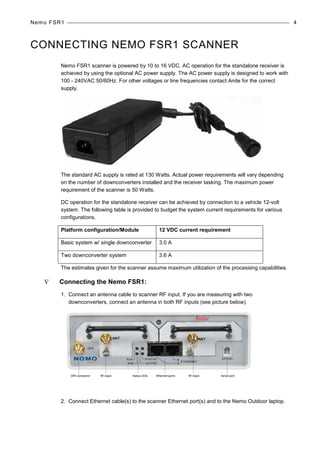
Nemo FSR1 scanner is powered by 10 to 16 VDC. AC operation for the standalone receiver is
achieved by using the optional AC power supply. The AC power supply is designed to work with
100 - 240VAC 50/60Hz. For other voltages or line frequencies contact Anite for the correct
supply.
The standard AC supply is rated at 130 Watts. Actual power requirements will vary depending
on the number of downconverters installed and the receiver tasking. The maximum power
requirement of the scanner is 50 Watts.
DC operation for the standalone receiver can be achieved by connection to a vehicle 12-volt
system. The following table is provided to budget the system current requirements for various
configurations.
Platform configuration/Module 12 VDC current requirement
Basic system w/ single downconverter 3.0 A
Two downconverter system 3.6 A
The estimates given for the scanner assume maximum utilization of the processing capabilities.
∇ Connecting the Nemo FSR1:
1. Connect an antenna cable to scanner RF input. If you are measuring with two
downconverters, connect an antenna in both RF inputs (see picture below).
2. Connect Ethernet cable(s) to the scanner Ethernet port(s) and to the Nemo Outdoor laptop.
Nemo FSR1 5
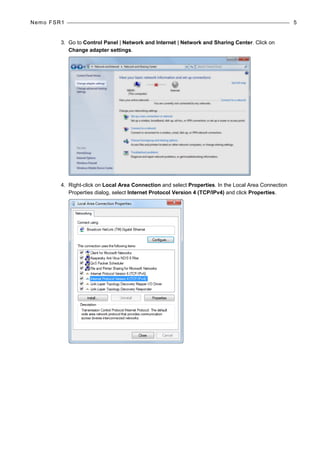
3. Go to Control Panel | Network and Internet | Network and Sharing Center. Click on
Change adapter settings.
4. Right-click on Local Area Connection and select Properties. In the Local Area Connection
Properties dialog, select Internet Protocol Version 4 (TCP/IPv4) and click Properties.
Nemo FSR1 6
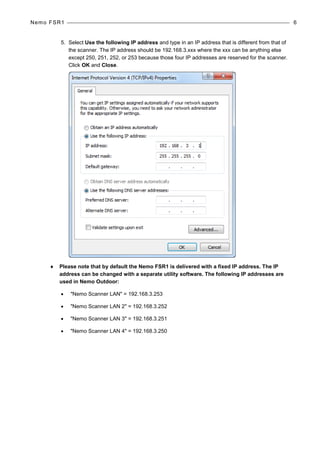
5. Select Use the following IP address and type in an IP address that is different from that of
the scanner. The IP address should be 192.168.3.xxx where the xxx can be anything else
except 250, 251, 252, or 253 because those four IP addresses are reserved for the scanner.
Click OK and Close.
♦ Please note that by default the Nemo FSR1 is delivered with a fixed IP address. The IP
address can be changed with a separate utility software. The following IP addresses are
used in Nemo Outdoor:
• "Nemo Scanner LAN" = 192.168.3.253
• "Nemo Scanner LAN 2" = 192.168.3.252
• "Nemo Scanner LAN 3" = 192.168.3.251
• "Nemo Scanner LAN 4" = 192.168.3.250
Nemo FSR1 7
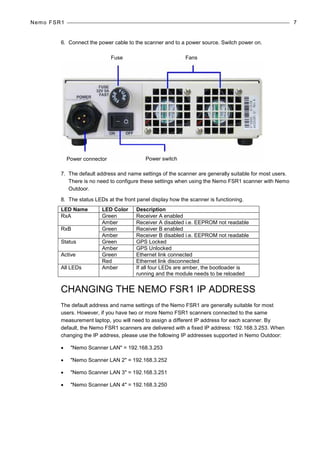
6. Connect the power cable to the scanner and to a power source. Switch power on.
7. The default address and name settings of the scanner are generally suitable for most users.
There is no need to configure these settings when using the Nemo FSR1 scanner with Nemo
Outdoor.
8. The status LEDs at the front panel display how the scanner is functioning.
LED Name LED Color Description
RxA Green Receiver A enabled
Amber Receiver A disabled i.e. EEPROM not readable
RxB Green Receiver B enabled
Amber Receiver B disabled i.e. EEPROM not readable
Status Green GPS Locked
Amber GPS Unlocked
Active Green Ethernet link connected
Red Ethernet link disconnected
All LEDs Amber If all four LEDs are amber, the bootloader is
running and the module needs to be reloaded
CHANGING THE NEMO FSR1 IP ADDRESS
The default address and name settings of the Nemo FSR1 are generally suitable for most
users. However, if you have two or more Nemo FSR1 scanners connected to the same
measurement laptop, you will need to assign a different IP address for each scanner. By
default, the Nemo FSR1 scanners are delivered with a fixed IP address: 192.168.3.253. When
changing the IP address, please use the following IP addresses supported in Nemo Outdoor:
• "Nemo Scanner LAN" = 192.168.3.253
• "Nemo Scanner LAN 2" = 192.168.3.252
• "Nemo Scanner LAN 3" = 192.168.3.251
• "Nemo Scanner LAN 4" = 192.168.3.250
Fuse
Power connector Power switch
Fans
Nemo FSR1 8
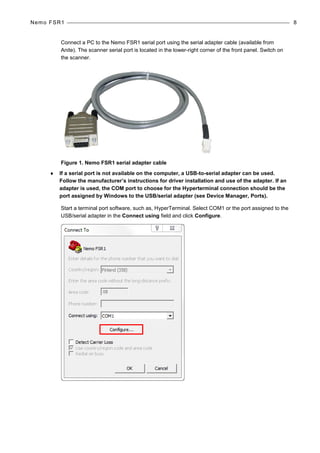
Connect a PC to the Nemo FSR1 serial port using the serial adapter cable (available from
Anite). The scanner serial port is located in the lower-right corner of the front panel. Switch on
the scanner.
Figure 1. Nemo FSR1 serial adapter cable
♦ If a serial port is not available on the computer, a USB-to-serial adapter can be used.
Follow the manufacturer’s instructions for driver installation and use of the adapter. If an
adapter is used, the COM port to choose for the Hyperterminal connection should be the
port assigned by Windows to the USB/serial adapter (see Device Manager, Ports).
Start a terminal port software, such as, HyperTerminal. Select COM1 or the port assigned to the
USB/serial adapter in the Connect using field and click Configure.
Nemo FSR1 9
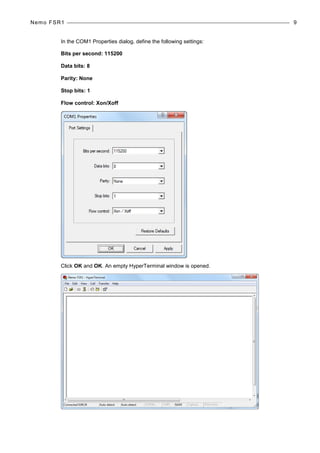
In the COM1 Properties dialog, define the following settings:
Bits per second: 115200
Data bits: 8
Parity: None
Stop bits: 1
Flow control: Xon/Xoff
Click OK and OK. An empty HyperTerminal window is opened.
Nemo FSR1 10
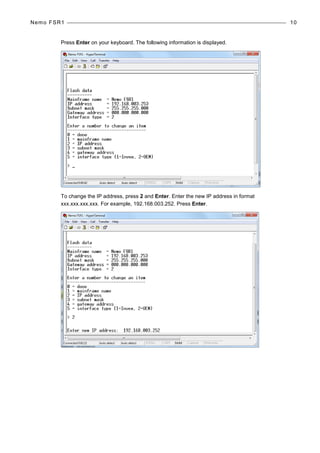
Press Enter on your keyboard. The following information is displayed.
To change the IP address, press 2 and Enter. Enter the new IP address in format
xxx.xxx.xxx.xxx. For example, 192.168.003.252. Press Enter.
Nemo FSR1 11
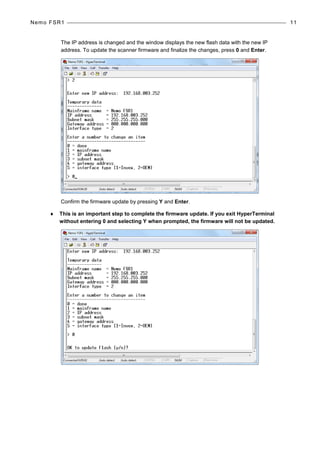
The IP address is changed and the window displays the new flash data with the new IP
address. To update the scanner firmware and finalize the changes, press 0 and Enter.
Confirm the firmware update by pressing Y and Enter.
♦ This is an important step to complete the firmware update. If you exit HyperTerminal
without entering 0 and selecting Y when prompted, the firmware will not be updated.
Nemo FSR1 12
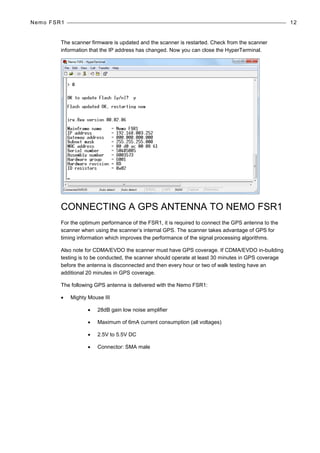
The scanner firmware is updated and the scanner is restarted. Check from the scanner
information that the IP address has changed. Now you can close the HyperTerminal.
CONNECTING A GPS ANTENNA TO NEMO FSR1
For the optimum performance of the FSR1, it is required to connect the GPS antenna to the
scanner when using the scanner’s internal GPS. The scanner takes advantage of GPS for
timing information which improves the performance of the signal processing algorithms.
Also note for CDMA/EVDO the scanner must have GPS coverage. If CDMA/EVDO in-building
testing is to be conducted, the scanner should operate at least 30 minutes in GPS coverage
before the antenna is disconnected and then every hour or two of walk testing have an
additional 20 minutes in GPS coverage.
The following GPS antenna is delivered with the Nemo FSR1:
• Mighty Mouse III
• 28dB gain low noise amplifier
• Maximum of 6mA current consumption (all voltages)
• 2.5V to 5.5V DC
• Connector: SMA male
Nemo FSR1 13
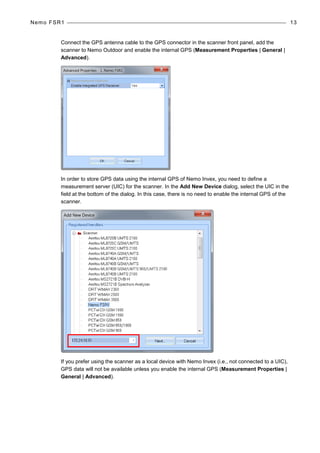
Connect the GPS antenna cable to the GPS connector in the scanner front panel, add the
scanner to Nemo Outdoor and enable the internal GPS (Measurement Properties | General |
Advanced).
In order to store GPS data using the internal GPS of Nemo Invex, you need to define a
measurement server (UIC) for the scanner. In the Add New Device dialog, select the UIC in the
field at the bottom of the dialog. In this case, there is no need to enable the internal GPS of the
scanner.
If you prefer using the scanner as a local device with Nemo Invex (i.e., not connected to a UIC),
GPS data will not be available unless you enable the internal GPS (Measurement Properties |
General | Advanced).
Nemo FSR1 14
CONNECTING NEMO FSR1 SCANNER TO
NEMO INVEX CHASSIS
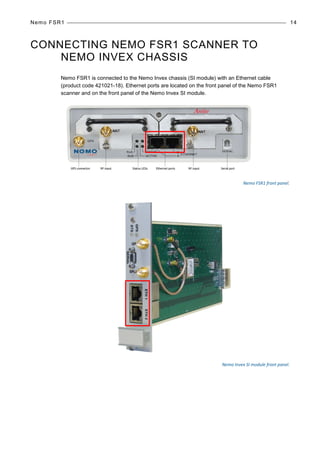
Nemo FSR1 is connected to the Nemo Invex chassis (SI module) with an Ethernet cable
(product code 421021-18). Ethernet ports are located on the front panel of the Nemo FSR1
scanner and on the front panel of the Nemo Invex SI module.
Nemo FSR1 front panel.
Nemo Invex SI module front panel.
Nemo FSR1 15
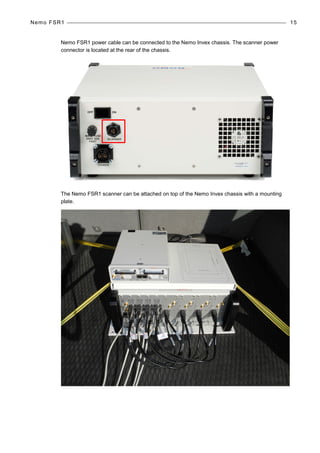
Nemo FSR1 power cable can be connected to the Nemo Invex chassis. The scanner power
connector is located at the rear of the chassis.
The Nemo FSR1 scanner can be attached on top of the Nemo Invex chassis with a mounting
plate.
Nemo FSR1 16
Clearance for air ventilation around the Nemo FSR1 is as follows:
• Back 10 cm
• Left side 3 cm
• Right side 3 cm (not applicable for Rev B scanner)
♦ Note that the air intake is on the left side and exhaust on the back.
Nemo FSR1 17
STARTING NEMO FSR1 SCANNER
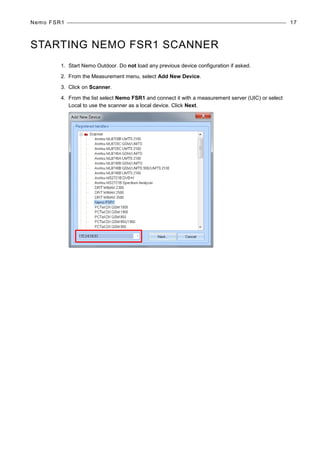
1. Start Nemo Outdoor. Do not load any previous device configuration if asked.
2. From the Measurement menu, select Add New Device.
3. Click on Scanner.
4. From the list select Nemo FSR1 and connect it with a measurement server (UIC) or select
Local to use the scanner as a local device. Click Next.
Nemo FSR1 18
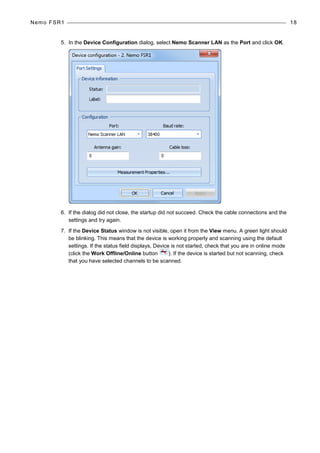
5. In the Device Configuration dialog, select Nemo Scanner LAN as the Port and click OK.
6. If the dialog did not close, the startup did not succeed. Check the cable connections and the
settings and try again.
7. If the Device Status window is not visible, open it from the View menu. A green light should
be blinking. This means that the device is working properly and scanning using the default
settings. If the status field displays, Device is not started, check that you are in online mode
(click the Work Offline/Online button ). If the device is started but not scanning, check
that you have selected channels to be scanned.
Nemo FSR1 19
NEMO FSR1 FIRMWARE UPDATE
Nemo FSR1 firmware can be updated using the Nemo FSR1 Firmware Update Utility or through
Nemo Outdoor. For detailed information on using the update utility, please refer to page 38.
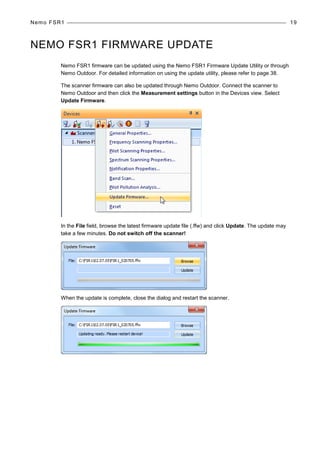
The scanner firmware can also be updated through Nemo Outdoor. Connect the scanner to
Nemo Outdoor and then click the Measurement settings button in the Devices view. Select
Update Firmware.
In the File field, browse the latest firmware update file (.ffw) and click Update. The update may
take a few minutes. Do not switch off the scanner!
When the update is complete, close the dialog and restart the scanner.
Nemo FSR1 20
MEASURING WITH NEMO FSR1 SCANNER
FREQUENCY SCANNING
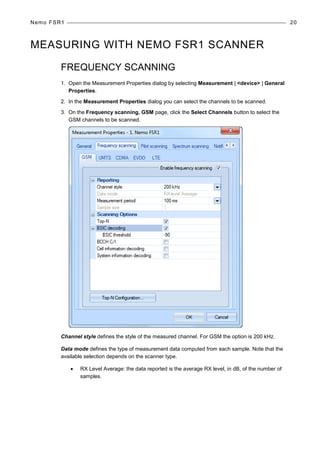
1. Open the Measurement Properties dialog by selecting Measurement | <device> | General
Properties.
2. In the Measurement Properties dialog you can select the channels to be scanned.
3. On the Frequency scanning, GSM page, click the Select Channels button to select the
GSM channels to be scanned.
Channel style defines the style of the measured channel. For GSM the option is 200 kHz.
Data mode defines the type of measurement data computed from each sample. Note that the
available selection depends on the scanner type.
• RX Level Average: the data reported is the average RX level, in dB, of the number of
samples.
Nemo FSR1 21
Measurement period defines the time in milliseconds for which the scanner measures and then
reports the result. Lengthening the measurement period does not change the time period over
which raw samples are averaged for a measurement result. If the report time is smaller than the
needed averaging time, the measurements will be reported as fast as they can be delivered, but
not more often than the averaging time. If the report time is longer than the needed averaging
time, pauses between measurements will be introduced so that measurements are reported at
the rate requested by the user.
Sample size defines the number of samples taken from each channel before a measurement
result is written to file.
Selecting the BSIC decoding option enables BSIC values and co-channel C/I measurements.
BSIC threshold defines the minimum BSIC level that the scanner reports.
Select the BCCH C/I option to activate BCCH decoding. Co-channel C/I is also enabled.
Cell information decoding. Mobile Network Code, Mobile Country Code and Cell ID
information can be decoded from BCCH messages. Note that this is only enabled in online
mode and if the option has been purchased with the scanner.
When the System information decoding option is selected, L3 messages are written in the log
file.
4. Click the Start Recording button to start recording the results in an output file.
Nemo FSR1 22
TOP-N PILOT SCANNING - UMTS
Unknown Pilot scanning can be used for scanning unknown pilots or the strongest pilots. The
Unknown Pilot Scan will from now on be referred to as TOP-N pilot mode/scanning.
∇ To set pilot scanning settings:
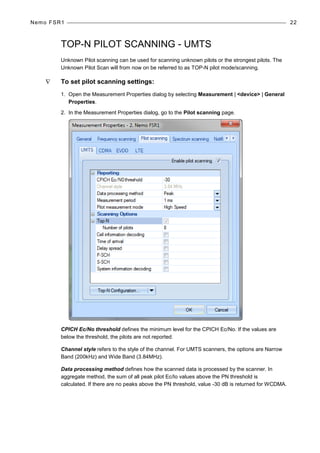
1. Open the Measurement Properties dialog by selecting Measurement | <device> | General
Properties.
2. In the Measurement Properties dialog, go to the Pilot scanning page.
CPICH Ec/No threshold defines the minimum level for the CPICH Ec/No. If the values are
below the threshold, the pilots are not reported.
Channel style refers to the style of the channel. For UMTS scanners, the options are Narrow
Band (200kHz) and Wide Band (3.84MHz).
Data processing method defines how the scanned data is processed by the scanner. In
aggregate method, the sum of all peak pilot Ec/Io values above the PN threshold is
calculated. If there are no peaks above the PN threshold, value -30 dB is returned for WCDMA.
Nemo FSR1 23
Measurement period defines the time in milliseconds for which the scanner measures and then
reports the result. Lengthening the measurement period does not change the time period over
which raw samples are averaged for a measurement result. If the report time is smaller than the
needed averaging time, the measurements will be reported as fast as they can be delivered, but
not more often than the averaging time. If the report time is longer than the needed averaging
time, pauses between measurements will be introduced so that measurements are reported at
the rate requested by the user.
Pilot measurement mode defines the measurement mode for pilot scanning.
• In High speed mode scanning speed is higher but sensitivity is lower. In high speed mode,
weak pilots may be undetected.
• In High dynamic range mode scanning speed is lower but sensitivity is higher.
Top-N option enables/disables Top-N scrambling code scanning. If enabled, scanner will report
results from N best scrambling codes. Number of pilots field defines how many pilots are
reported by scanner in Top-N mode. The maximum number is 32.
Cell information decoding. Mobile Network Code, Mobile Country Code and Cell ID
information can be decoded from BCCH messages. Note that this is only enabled in online
mode and if the option has been purchased with the scanner.
Delay spread defines if the selected scanner will also measure the delay spread value (in
chips) for each scanned scrambling code. Delay spread is determined as the difference
between the last and first component to break the threshold set in PN Threshold.
P-SCH defines if the selected scanner will measure the P-SCH Ec/N0 value for each scrambling
code.
S-SCH defines if the selected scanner will measure the S-SCH Ec/N0 value for each scrambling
code.
When the System information decoding option is selected, L3 messages are written in the log
file.
The Top-N Configuration button will open the Select Channels dialog where you can select
channels for pilot scanning.
Nemo FSR1 24
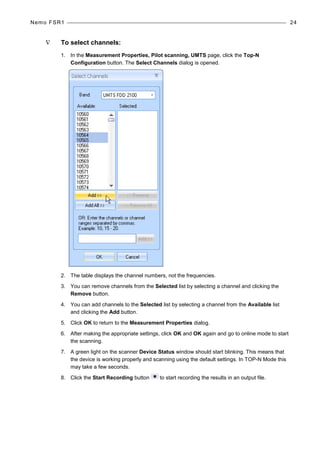
∇ To select channels:
1. In the Measurement Properties, Pilot scanning, UMTS page, click the Top-N
Configuration button. The Select Channels dialog is opened.
2. The table displays the channel numbers, not the frequencies.
3. You can remove channels from the Selected list by selecting a channel and clicking the
Remove button.
4. You can add channels to the Selected list by selecting a channel from the Available list
and clicking the Add button.
5. Click OK to return to the Measurement Properties dialog.
6. After making the appropriate settings, click OK and OK again and go to online mode to start
the scanning.
7. A green light on the scanner Device Status window should start blinking. This means that
the device is working properly and scanning using the default settings. In TOP-N Mode this
may take a few seconds.
8. Click the Start Recording button to start recording the results in an output file.
Nemo FSR1 25
Data Processing Method – Peak vs Aggregate
If the multipath components are significantly lower than the peak, their contribution will be
negligible and the aggregate will be the same as the peak. However, if one or more multipath
components are close to the peak component in power, its power combined with the peak
component’s power will be larger than either of them alone. In the case where a multipath
component is the same strength as the peak the aggregate will be twice the power, or 3dB
higher than the peak. Thus, the aggregate will always be the same as or larger than the peak.
As a practical matter, many multipath components are typically present in an urban
environment, where there are many surfaces (e.g., buildings) which can reflect the radio signal.
By contrast, there may be few or no multipath components in a rural environment.
The difference between Aggregate and Peak is variable. Probably the difference will lie in the
range of 0 to 4 dB. If the multipath components are small, they will have no contribution and
aggregate will be equal to peak (0 dB difference). In the case above where one multipath is
equal to the peak, the doubling of power gives +3dB to the aggregate. There might be cases
where two components are the same strength as the peak and this would result in an aggregate
+4.7dB relative to the peak. Naturally, if another component becomes higher than the “peak”, it
becomes the new peak.
Aggregation does not happen over time, but over multipath components that are all
simultaneously present.
Nemo FSR1 26
TOP-N PILOT SCANNING - CDMA/EVDO
♦ Note that the EVDO measurements can only be performed in a proper way when a
CDMA2000 channel is measured as well. In this way, the time relationship between the
different PN offsets is resolved.
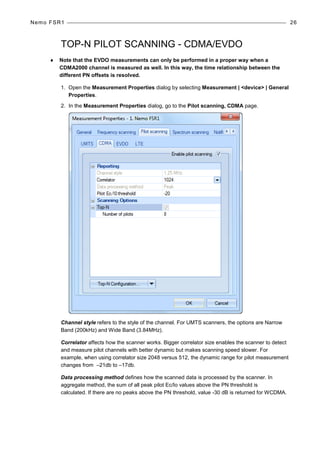
1. Open the Measurement Properties dialog by selecting Measurement | <device> | General
Properties.
2. In the Measurement Properties dialog, go to the Pilot scanning, CDMA page.
Channel style refers to the style of the channel. For UMTS scanners, the options are Narrow
Band (200kHz) and Wide Band (3.84MHz).
Correlator affects how the scanner works. Bigger correlator size enables the scanner to detect
and measure pilot channels with better dynamic but makes scanning speed slower. For
example, when using correlator size 2048 versus 512, the dynamic range for pilot measurement
changes from –21db to –17db.
Data processing method defines how the scanned data is processed by the scanner. In
aggregate method, the sum of all peak pilot Ec/Io values above the PN threshold is
calculated. If there are no peaks above the PN threshold, value -30 dB is returned for WCDMA.
Nemo FSR1 27
Pilot Ec/I0 threshold defines the threshold level for the pilot Ec/I0. If the values are below the
threshold, the pilots are not scanned.
Top-N mode option enables/disables TOP-N scrambling code scanning. Number of pilots field
defines how many pilots are reported by the scanner in TOP-N mode.
The Top-N Configuration button will open the Select Channels dialog where you can select
channels for pilot scanning.
♦ Note that the Nemo FSR1 scanner supports a max of 90 cell IDs.
3. After making the appropriate settings, click OK and OK again and go to online mode to start
the scanning.
4. A green light on the scanner Device Status window should start blinking. This means that the
device is working properly and scanning using the default settings. In TOP-N Mode this may
take a few seconds.
5. Click the Start Recording button to start recording the results in an output file.
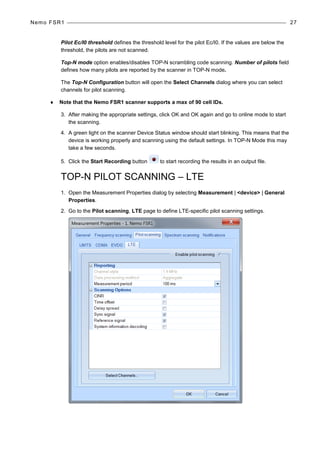
TOP-N PILOT SCANNING – LTE
1. Open the Measurement Properties dialog by selecting Measurement | <device> | General
Properties.
2. Go to the Pilot scanning, LTE page to define LTE-specific pilot scanning settings.
Nemo FSR1 28
Channel style refers to the style of the channel. For UMTS scanners, the options are Narrow
Band (200kHz) and Wide Band (3.84MHz).
Data processing method defines how the scanned data is processed by the scanner. In
aggregate method, the sum of all peak pilot Ec/Io values above the PN threshold is
calculated. If there are no peaks above the PN threshold, value -30 dB is returned for WCDMA.
Measurement period defines the time in milliseconds for which the scanner measures and then
reports the result. Lengthening the measurement period does not change the time period over
which raw samples are averaged for a measurement result. If the report time is smaller than the
needed averaging time, the measurements will be reported as fast as they can be delivered, but
not more often than the averaging time. If the report time is longer than the needed averaging
time, pauses between measurements will be introduced so that measurements are reported at
the rate requested by the user.
CINR refers to the Carrier to Interference and Noise ratio value, in dB *100 (e.g., -16.34). It is
based on the requested reuse factor.
Time offset refers to the number of samples between P-SCH Primary Synchronization Signal
arrival time with respect to receiver frequency reference that is derived from GPS reference
time.
Delay spread defines if the selected scanner will also measure the delay spread value (in
chips) for each scanned scrambling code. Delay spread is determined as the difference
between the last and first component to break the threshold set in PN Threshold.
Sync signal refers to the ratio between the synchronization channel, i.e., primary and
secondary signal received power and the interference and noise from the same synchronization
signal set.
Reference signal refers to the ratio between the reference signal received power (RSRP) and
the interference and noise from the same reference signal set.
When the System information decoding option is selected, L3 messages are written in the log
file.
The Select Channels button will open the Select Channels dialog where you can select
channels for pilot scanning.
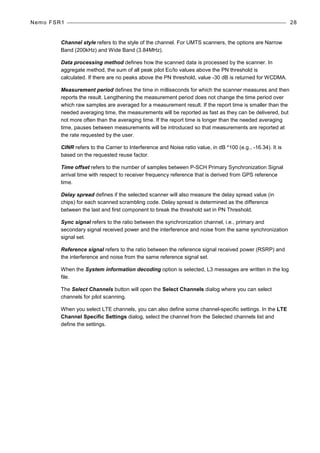
When you select LTE channels, you can also define some channel-specific settings. In the LTE
Channel Specific Settings dialog, select the channel from the Selected channels list and
define the settings.
Nemo FSR1 29
♦ Note that the available options are device specific.
Cyclic prefix defines the type of signal the scanner is set to measure. With Autodetect
selected, the scanner will automatically detect the appropriate signal type. If Cyclic Prefix is
known to be Normal (most common), setting the scanner to Normal will increase scanning
speed slightly.
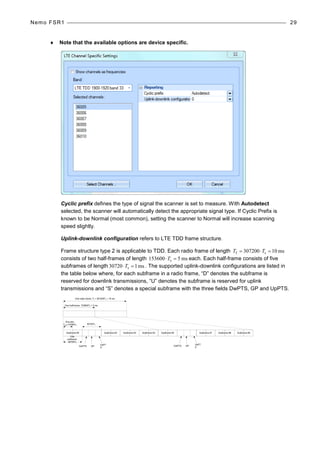
Uplink-downlink configuration refers to LTE TDD frame structure.
Frame structure type 2 is applicable to TDD. Each radio frame of length ms10307200 sf =⋅= TT
consists of two half-frames of length ms5153600 s =⋅T each. Each half-frame consists of five
subframes of length ms107203 s =⋅T . The supported uplink-downlink configurations are listed in
the table below where, for each subframe in a radio frame, “D” denotes the subframe is
reserved for downlink transmissions, “U” denotes the subframe is reserved for uplink
transmissions and “S” denotes a special subframe with the three fields DwPTS, GP and UpPTS.
One slot,
Tslot=15360Ts
GP
UpPT
S
DwPTS
One radio frame, Tf = 307200Ts = 10 ms
One half-frame, 153600Ts = 5 ms
30720Ts
One
subframe,
30720Ts
GP
UpPT
S
DwPTS
Subframe #2 Subframe #3 Subframe #4Subframe #0 Subframe #5 Subframe #7 Subframe #8 Subframe #9
Nemo FSR1 30
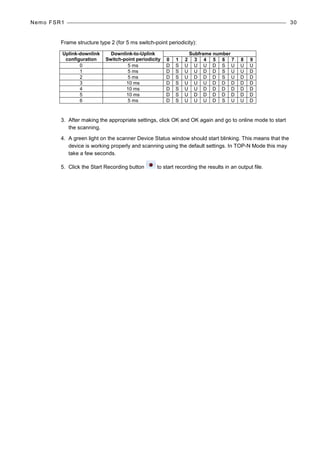
Frame structure type 2 (for 5 ms switch-point periodicity):
Uplink-downlink
configuration
Downlink-to-Uplink
Switch-point periodicity
Subframe number
0 1 2 3 4 5 6 7 8 9
0 5 ms D S U U U D S U U U
1 5 ms D S U U D D S U U D
2 5 ms D S U D D D S U D D
3 10 ms D S U U U D D D D D
4 10 ms D S U U D D D D D D
5 10 ms D S U D D D D D D D
6 5 ms D S U U U D S U U D
3. After making the appropriate settings, click OK and OK again and go to online mode to start
the scanning.
4. A green light on the scanner Device Status window should start blinking. This means that the
device is working properly and scanning using the default settings. In TOP-N Mode this may
take a few seconds.
5. Click the Start Recording button to start recording the results in an output file.
Nemo FSR1 31
SPECTRUM ANALYZER MEASUREMENTS
Spectrum analyzer measurements are supported with Nemo FSR1 scanners. Please note that
the scanning receiver must include the Spectrum Analyzer Option (315022-04) to be able to
support these measurements. Depending on the RF front ends (down converters), spectrum
analyzer measurements can be done for DL or for both DL and UL directions. The frequency
range available for spectrum analyzer measurements also depends on the physical RF front
ends.
Spectrum analyzer measurements can be done simultaneously either with frequency scanning,
pilot scanning or with all modes. Nemo FSR1 scanner does not use any priority orders between
different measurement modes. With Nemo FSR1 scanner up to 32 scanning frequency sets can
be selected simultaneously.
The user can set the start and stop frequencies or center frequency with bandwidth and sample
count via the Nemo Outdoor user interface. If the requested frequency range is not supported
by the device, Nemo Outdoor automatically adjusts the frequency range for the device, and only
frequency ranges supported by the scanning receiver are used to perform spectrum analyzer
measurements.
The number of samples is used only for the frequency range supported by the scanning
receiver. With the Nemo FSR1 scanner, the maximum number of samples (points) is 2000.
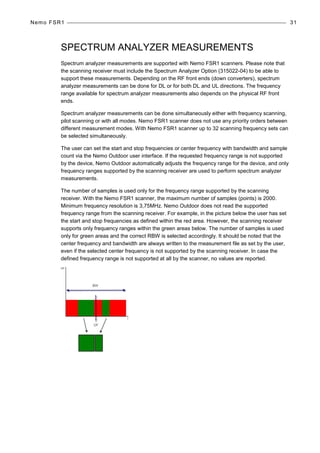
Minimum frequency resolution is 3,75MHz. Nemo Outdoor does not read the supported
frequency range from the scanning receiver. For example, in the picture below the user has set
the start and stop frequencies as defined within the red area. However, the scanning receiver
supports only frequency ranges within the green areas below. The number of samples is used
only for green areas and the correct RBW is selected accordingly. It should be noted that the
center frequency and bandwidth are always written to the measurement file as set by the user,
even if the selected center frequency is not supported by the scanning receiver. In case the
defined frequency range is not supported at all by the scanner, no values are reported.
Nemo FSR1 32
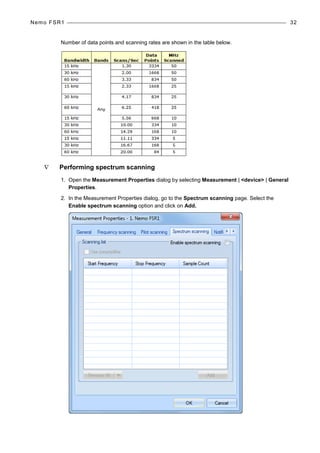
Number of data points and scanning rates are shown in the table below.
∇ Performing spectrum scanning
1. Open the Measurement Properties dialog by selecting Measurement | <device> | General
Properties.
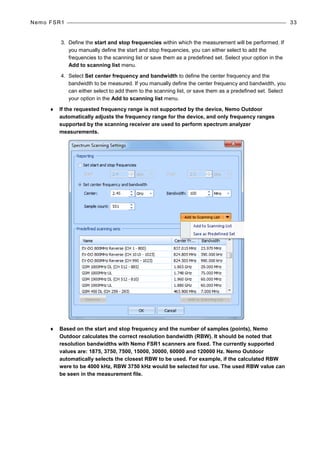
2. In the Measurement Properties dialog, go to the Spectrum scanning page. Select the
Enable spectrum scanning option and click on Add.
Nemo FSR1 33
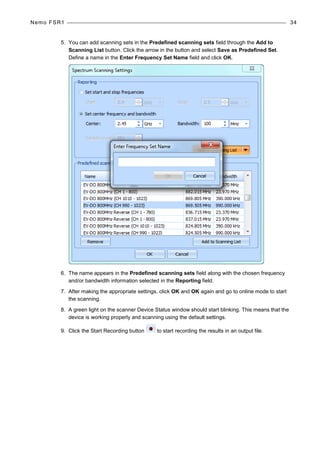
3. Define the start and stop frequencies within which the measurement will be performed. If
you manually define the start and stop frequencies, you can either select to add the
frequencies to the scanning list or save them as a predefined set. Select your option in the
Add to scanning list menu.
4. Select Set center frequency and bandwidth to define the center frequency and the
bandwidth to be measured. If you manually define the center frequency and bandwidth, you
can either select to add them to the scanning list, or save them as a predefined set. Select
your option in the Add to scanning list menu.
♦ If the requested frequency range is not supported by the device, Nemo Outdoor
automatically adjusts the frequency range for the device, and only frequency ranges
supported by the scanning receiver are used to perform spectrum analyzer
measurements.
♦ Based on the start and stop frequency and the number of samples (points), Nemo
Outdoor calculates the correct resolution bandwidth (RBW). It should be noted that
resolution bandwidths with Nemo FSR1 scanners are fixed. The currently supported
values are: 1875, 3750, 7500, 15000, 30000, 60000 and 120000 Hz. Nemo Outdoor
automatically selects the closest RBW to be used. For example, if the calculated RBW
were to be 4000 kHz, RBW 3750 kHz would be selected for use. The used RBW value can
be seen in the measurement file.
Nemo FSR1 34
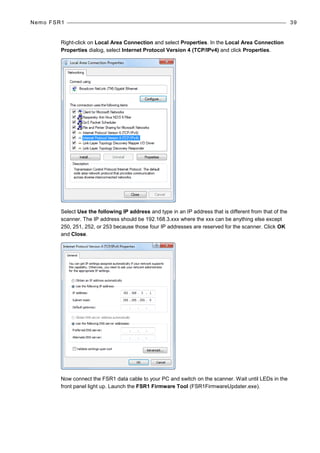
5. You can add scanning sets in the Predefined scanning sets field through the Add to
Scanning List button. Click the arrow in the button and select Save as Predefined Set.
Define a name in the Enter Frequency Set Name field and click OK.
6. The name appears in the Predefined scanning sets field along with the chosen frequency
and/or bandwidth information selected in the Reporting field.
7. After making the appropriate settings, click OK and OK again and go to online mode to start
the scanning.
8. A green light on the scanner Device Status window should start blinking. This means that the
device is working properly and scanning using the default settings.
9. Click the Start Recording button to start recording the results in an output file.
Nemo FSR1 35
BAND SCAN
With the Nemo FSR1 scanner you can perform band scanning. All specified channels are
scanned for the selected band and technology and the strongest measured identifiers (CDMA
PN, EVDO PN, WCDMA SC, LTE Cell ID) for every valid channel of that technology type are
reported. Signal strength and signal quality are reported for each identified channel. This feature
is useful in areas where broadcasted technologies and bands are unknown.
1. To start a band scan, right click the Nemo FSR1 item in the Devices view and select Band
Scan.
2. Available technologies and bands supported by the scanner are shown under Scan
settings. Please note that only licensed technologies (systems) are shown.
3. Select the technologies and bands that you want to be scanned and define the threshold
levels for the parameters available.
Nemo FSR1 36
4. Finally press the Start Scan button. With the default threshold values it takes approximately
two minutes and 30 seconds to scan GSM 900, 1800 and WCDMA 2100 bands. The
scanning rate can be increased by adjusting the threshold values.
Nemo FSR1 37
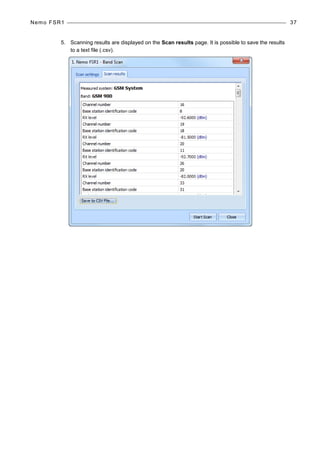
5. Scanning results are displayed on the Scan results page. It is possible to save the results
to a text file (.csv).
Nemo FSR1 38
UPDATING NEMO FSR1 FIRMWARE
This document describes the process of updating the Nemo FSR1 firmware and installing
licenses for the scanner.
The FSR1 Firmware Tool needs to be installed on your computer. The installation files are
available from Nemo Technical Support (nemo.helpdesk@anite.com).
Depending on the type of update you are performing (firmware update or license update), you
will need either of the following files:
• Firmware update file (.ffw) for firmware updates
• License file (.lic) for license updates
Please contact Nemo Technical Support (nemo.helpdesk@anite.com) and provide the following
information:
• Down converter model number (e.g. GWIRDC94182126)
• Down converted serial number (e.g. s/n 00021534)
• Scanner MAC ID (e.g. 123)
• Required options with product codes (e.g. 315022-03 LTE option)
You will receive the files needed for the update by email. Create a folder on your PC and save
the files in that folder.
CONNECTING THE SCANNER
First, configure the IP address on your PC to work with the IP of the FSR1 unit.
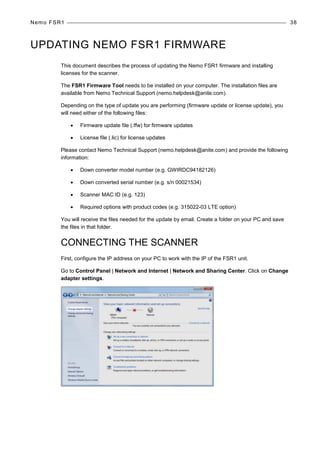
Go to Control Panel | Network and Internet | Network and Sharing Center. Click on Change
adapter settings.
Nemo FSR1 39
Right-click on Local Area Connection and select Properties. In the Local Area Connection
Properties dialog, select Internet Protocol Version 4 (TCP/IPv4) and click Properties.
Select Use the following IP address and type in an IP address that is different from that of the
scanner. The IP address should be 192.168.3.xxx where the xxx can be anything else except
250, 251, 252, or 253 because those four IP addresses are reserved for the scanner. Click OK
and Close.
Now connect the FSR1 data cable to your PC and switch on the scanner. Wait until LEDs in the
front panel light up. Launch the FSR1 Firmware Tool (FSR1FirmwareUpdater.exe).
Nemo FSR1 40
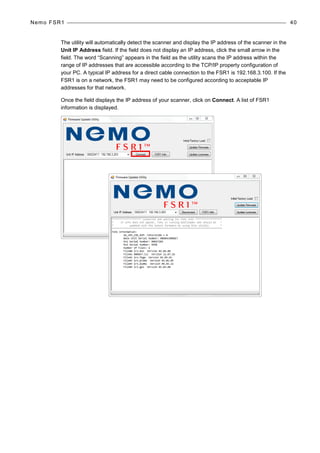
The utility will automatically detect the scanner and display the IP address of the scanner in the
Unit IP Address field. If the field does not display an IP address, click the small arrow in the
field. The word “Scanning” appears in the field as the utility scans the IP address within the
range of IP addresses that are accessible according to the TCP/IP property configuration of
your PC. A typical IP address for a direct cable connection to the FSR1 is 192.168.3.100. If the
FSR1 is on a network, the FSR1 may need to be configured according to acceptable IP
addresses for that network.
Once the field displays the IP address of your scanner, click on Connect. A list of FSR1
information is displayed.
Nemo FSR1 41
UPDATING FIRMWARE
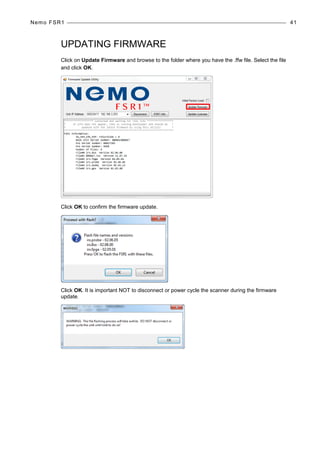
Click on Update Firmware and browse to the folder where you have the .ffw file. Select the file
and click OK.
Click OK to confirm the firmware update.
Click OK. It is important NOT to disconnect or power cycle the scanner during the firmware
update.
Nemo FSR1 42
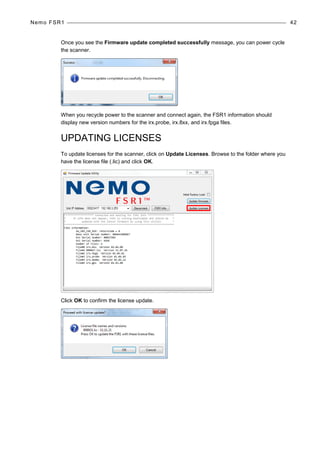
Once you see the Firmware update completed successfully message, you can power cycle
the scanner.
When you recycle power to the scanner and connect again, the FSR1 information should
display new version numbers for the irx.probe, irx.8xx, and irx.fpga files.
UPDATING LICENSES
To update licenses for the scanner, click on Update Licenses. Browse to the folder where you
have the license file (.lic) and click OK.
Click OK to confirm the license update.
Nemo FSR1 43
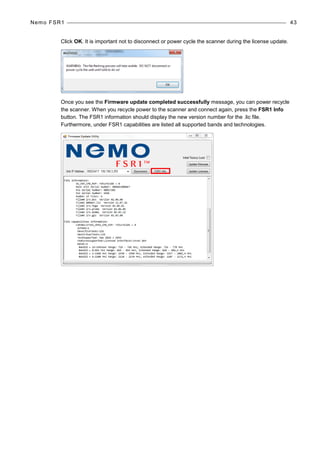
Click OK. It is important not to disconnect or power cycle the scanner during the license update.
Once you see the Firmware update completed successfully message, you can power recycle
the scanner. When you recycle power to the scanner and connect again, press the FSR1 Info
button. The FSR1 information should display the new version number for the .lic file.
Furthermore, under FSR1 capabilities are listed all supported bands and technologies.
Nemo FSR1 44
NEMO FSR1 SELF-TEST AND CALIBRATION
The self-test feature of the FSR1 scanner is a method of verifying end-to-end functionality of the
scanner. A small, known signal is self-generated and introduced into the scanner input. The
measured result must fall within prescribed limits or the self-test fails.
Self-test runs every time the handler is started and notifications are sent to the user interface
depending on the calibration results. Self-test results can be viewed in the Nemo Outdoor
Output window.
• Test passed
• No action required. Indicates that there are no known issues with receiver/down
converter module calibration.
• Calibration warning
• Measured noise level indicates that the down converter is functioning but may
be at or approaching calibration limits. Recommended that the down converter is
calibrated as soon as possible. Please contact Nemo helpdesk or local sales
representative to arrange re-calibration.
• Test failure
• Measured noise levels are significantly out of range and down converter is not
functioning correctly. Recommended that the down converter be returned
immediately for factory assessment, potential repair, and calibration. Please
contact Nemo helpdesk or local sales representative to arrange service for the
unit.
Because the self-test feature tests most functions of the scanner, a failure or warning from the
self-test can be caused by components of the front-end or the base unit. While in the field, the
following tests are recommended to help narrow down the search for the root cause:
1. Power-cycle the Nemo FSR1 scanner (turn it off for 5 seconds, then back on). See if the
problem remains.
2. Try the front-end in the other slot of the same scanner base. If the self-test passes with the
front-end in one slot of the scanner but fails in the other slot, the scanner base unit is the
possible cause of problems.
3. If possible, try the front-end in a different scanner base unit. If the self-test still fails, the
front-end is the most likely source of the failure. If the receiver passes in another scanner,
the first scanner base unit is likely the cause of the failure.
4. If the base unit is suspect, it should be tested with another front-end installed. If the self-test
still reports a failure, the base unit is most likely the source of failure.
If the return of the equipment is planned, both the scanner base and front-end should be
returned together for troubleshooting and repair. Log the MAC address and serial number of the
base unit and serial number of the front-end and obtain return authorization from Nemo
Helpdesk (nemo.helpdesk@anite.com).
Troubleshooting 45
TROUBLESHOOTING
If a Scanner synchronization failed error message appears in the Output window, the scanner
is working properly, but the scanner did not find strong enough a CPICH in a short time period.
Nevertheless, the measurement will go on normally.
If a Scanner GPS locking failed error message appears in the Output window, the scanner is
working properly, but the scanner GPS has no fix or is not connected. The measurement will go
on normally, but the scanner accuracy is not as good as it is when the scanner GPS has a fix.
If the Nemo FSR1 license information cannot be read by Nemo Outdoor, please check that the
down converter is attached properly. If this does not help, it is possible that the down converter
is damaged. Please contact Anite technical support for further advice.

159898575 nemo-fsr1-3-01-user-manual

  • 1.
  • 2.
    © 2012 byAnite Finland Ltd. All rights reserved. This manual, as well as the software described in it, is furnished under license and may only be used or copied in accordance with the terms of such license. The information in this manual is intended for informational use only and is subject to change without notice. Anite Finland Ltd assumes no responsibility or liability for any errors or inaccuracies that may appear in this user manual. Except as permitted by such license, no part of this publication may be reproduced or transmitted in any form or by any means, electronic, mechanical, recording, or otherwise, without the prior written permission of Anite Finland Ltd. Windows®, Windows® 7, and Internet Explorer are registered trademarks of the Microsoft® Corporation in the United States and other countries. CDMA 2000® is a registered trademark of the Telecommunications Industry Association (TIA -USA). The license management portion of this Licensed Technology is based on SentinelLM* © 1989-2003 Rainbow Technologies, Inc. All rights reserved. Revision 3.01.00, Last edited December 2012
  • 3.
    Nemo Scanner Guide3 CONNECTING NEMO FSR1 SCANNER 4 CHANGING THE NEMO FSR1 IP ADDRESS 7 CONNECTING A GPS ANTENNA TO NEMO FSR1 12 CONNECTING NEMO FSR1 SCANNER TO NEMO INVEX CHASSIS 14 STARTING NEMO FSR1 SCANNER 17 NEMO FSR1 FIRMWARE UPDATE 19 MEASURING WITH NEMO FSR1 SCANNER 20 FREQUENCY SCANNING 20 TOP-N PILOT SCANNING - UMTS 22 Data Processing Method – Peak vs Aggregate 25 TOP-N PILOT SCANNING - CDMA/EVDO 26 TOP-N PILOT SCANNING – LTE 27 SPECTRUM ANALYZER MEASUREMENTS 31 BAND SCAN 35 UPDATING NEMO FSR1 FIRMWARE 38 CONNECTING THE SCANNER 38 UPDATING FIRMWARE 41 UPDATING LICENSES 42 NEMO FSR1 SELF-TEST AND CALIBRATION 44 TROUBLESHOOTING 45
  • 4.
    Nemo FSR1 4 CONNECTINGNEMO FSR1 SCANNER Nemo FSR1 scanner is powered by 10 to 16 VDC. AC operation for the standalone receiver is achieved by using the optional AC power supply. The AC power supply is designed to work with 100 - 240VAC 50/60Hz. For other voltages or line frequencies contact Anite for the correct supply. The standard AC supply is rated at 130 Watts. Actual power requirements will vary depending on the number of downconverters installed and the receiver tasking. The maximum power requirement of the scanner is 50 Watts. DC operation for the standalone receiver can be achieved by connection to a vehicle 12-volt system. The following table is provided to budget the system current requirements for various configurations. Platform configuration/Module 12 VDC current requirement Basic system w/ single downconverter 3.0 A Two downconverter system 3.6 A The estimates given for the scanner assume maximum utilization of the processing capabilities. ∇ Connecting the Nemo FSR1: 1. Connect an antenna cable to scanner RF input. If you are measuring with two downconverters, connect an antenna in both RF inputs (see picture below). 2. Connect Ethernet cable(s) to the scanner Ethernet port(s) and to the Nemo Outdoor laptop.
  • 5.
    Nemo FSR1 5 3.Go to Control Panel | Network and Internet | Network and Sharing Center. Click on Change adapter settings. 4. Right-click on Local Area Connection and select Properties. In the Local Area Connection Properties dialog, select Internet Protocol Version 4 (TCP/IPv4) and click Properties.
  • 6.
    Nemo FSR1 6 5.Select Use the following IP address and type in an IP address that is different from that of the scanner. The IP address should be 192.168.3.xxx where the xxx can be anything else except 250, 251, 252, or 253 because those four IP addresses are reserved for the scanner. Click OK and Close. ♦ Please note that by default the Nemo FSR1 is delivered with a fixed IP address. The IP address can be changed with a separate utility software. The following IP addresses are used in Nemo Outdoor: • "Nemo Scanner LAN" = 192.168.3.253 • "Nemo Scanner LAN 2" = 192.168.3.252 • "Nemo Scanner LAN 3" = 192.168.3.251 • "Nemo Scanner LAN 4" = 192.168.3.250
  • 7.
    Nemo FSR1 7 6.Connect the power cable to the scanner and to a power source. Switch power on. 7. The default address and name settings of the scanner are generally suitable for most users. There is no need to configure these settings when using the Nemo FSR1 scanner with Nemo Outdoor. 8. The status LEDs at the front panel display how the scanner is functioning. LED Name LED Color Description RxA Green Receiver A enabled Amber Receiver A disabled i.e. EEPROM not readable RxB Green Receiver B enabled Amber Receiver B disabled i.e. EEPROM not readable Status Green GPS Locked Amber GPS Unlocked Active Green Ethernet link connected Red Ethernet link disconnected All LEDs Amber If all four LEDs are amber, the bootloader is running and the module needs to be reloaded CHANGING THE NEMO FSR1 IP ADDRESS The default address and name settings of the Nemo FSR1 are generally suitable for most users. However, if you have two or more Nemo FSR1 scanners connected to the same measurement laptop, you will need to assign a different IP address for each scanner. By default, the Nemo FSR1 scanners are delivered with a fixed IP address: 192.168.3.253. When changing the IP address, please use the following IP addresses supported in Nemo Outdoor: • "Nemo Scanner LAN" = 192.168.3.253 • "Nemo Scanner LAN 2" = 192.168.3.252 • "Nemo Scanner LAN 3" = 192.168.3.251 • "Nemo Scanner LAN 4" = 192.168.3.250 Fuse Power connector Power switch Fans
  • 8.
    Nemo FSR1 8 Connecta PC to the Nemo FSR1 serial port using the serial adapter cable (available from Anite). The scanner serial port is located in the lower-right corner of the front panel. Switch on the scanner. Figure 1. Nemo FSR1 serial adapter cable ♦ If a serial port is not available on the computer, a USB-to-serial adapter can be used. Follow the manufacturer’s instructions for driver installation and use of the adapter. If an adapter is used, the COM port to choose for the Hyperterminal connection should be the port assigned by Windows to the USB/serial adapter (see Device Manager, Ports). Start a terminal port software, such as, HyperTerminal. Select COM1 or the port assigned to the USB/serial adapter in the Connect using field and click Configure.
  • 9.
    Nemo FSR1 9 Inthe COM1 Properties dialog, define the following settings: Bits per second: 115200 Data bits: 8 Parity: None Stop bits: 1 Flow control: Xon/Xoff Click OK and OK. An empty HyperTerminal window is opened.
  • 10.
    Nemo FSR1 10 PressEnter on your keyboard. The following information is displayed. To change the IP address, press 2 and Enter. Enter the new IP address in format xxx.xxx.xxx.xxx. For example, 192.168.003.252. Press Enter.
  • 11.
    Nemo FSR1 11 TheIP address is changed and the window displays the new flash data with the new IP address. To update the scanner firmware and finalize the changes, press 0 and Enter. Confirm the firmware update by pressing Y and Enter. ♦ This is an important step to complete the firmware update. If you exit HyperTerminal without entering 0 and selecting Y when prompted, the firmware will not be updated.
  • 12.
    Nemo FSR1 12 Thescanner firmware is updated and the scanner is restarted. Check from the scanner information that the IP address has changed. Now you can close the HyperTerminal. CONNECTING A GPS ANTENNA TO NEMO FSR1 For the optimum performance of the FSR1, it is required to connect the GPS antenna to the scanner when using the scanner’s internal GPS. The scanner takes advantage of GPS for timing information which improves the performance of the signal processing algorithms. Also note for CDMA/EVDO the scanner must have GPS coverage. If CDMA/EVDO in-building testing is to be conducted, the scanner should operate at least 30 minutes in GPS coverage before the antenna is disconnected and then every hour or two of walk testing have an additional 20 minutes in GPS coverage. The following GPS antenna is delivered with the Nemo FSR1: • Mighty Mouse III • 28dB gain low noise amplifier • Maximum of 6mA current consumption (all voltages) • 2.5V to 5.5V DC • Connector: SMA male
  • 13.
    Nemo FSR1 13 Connectthe GPS antenna cable to the GPS connector in the scanner front panel, add the scanner to Nemo Outdoor and enable the internal GPS (Measurement Properties | General | Advanced). In order to store GPS data using the internal GPS of Nemo Invex, you need to define a measurement server (UIC) for the scanner. In the Add New Device dialog, select the UIC in the field at the bottom of the dialog. In this case, there is no need to enable the internal GPS of the scanner. If you prefer using the scanner as a local device with Nemo Invex (i.e., not connected to a UIC), GPS data will not be available unless you enable the internal GPS (Measurement Properties | General | Advanced).
  • 14.
    Nemo FSR1 14 CONNECTINGNEMO FSR1 SCANNER TO NEMO INVEX CHASSIS Nemo FSR1 is connected to the Nemo Invex chassis (SI module) with an Ethernet cable (product code 421021-18). Ethernet ports are located on the front panel of the Nemo FSR1 scanner and on the front panel of the Nemo Invex SI module. Nemo FSR1 front panel. Nemo Invex SI module front panel.
  • 15.
    Nemo FSR1 15 NemoFSR1 power cable can be connected to the Nemo Invex chassis. The scanner power connector is located at the rear of the chassis. The Nemo FSR1 scanner can be attached on top of the Nemo Invex chassis with a mounting plate.
  • 16.
    Nemo FSR1 16 Clearancefor air ventilation around the Nemo FSR1 is as follows: • Back 10 cm • Left side 3 cm • Right side 3 cm (not applicable for Rev B scanner) ♦ Note that the air intake is on the left side and exhaust on the back.
  • 17.
    Nemo FSR1 17 STARTINGNEMO FSR1 SCANNER 1. Start Nemo Outdoor. Do not load any previous device configuration if asked. 2. From the Measurement menu, select Add New Device. 3. Click on Scanner. 4. From the list select Nemo FSR1 and connect it with a measurement server (UIC) or select Local to use the scanner as a local device. Click Next.
  • 18.
    Nemo FSR1 18 5.In the Device Configuration dialog, select Nemo Scanner LAN as the Port and click OK. 6. If the dialog did not close, the startup did not succeed. Check the cable connections and the settings and try again. 7. If the Device Status window is not visible, open it from the View menu. A green light should be blinking. This means that the device is working properly and scanning using the default settings. If the status field displays, Device is not started, check that you are in online mode (click the Work Offline/Online button ). If the device is started but not scanning, check that you have selected channels to be scanned.
  • 19.
    Nemo FSR1 19 NEMOFSR1 FIRMWARE UPDATE Nemo FSR1 firmware can be updated using the Nemo FSR1 Firmware Update Utility or through Nemo Outdoor. For detailed information on using the update utility, please refer to page 38. The scanner firmware can also be updated through Nemo Outdoor. Connect the scanner to Nemo Outdoor and then click the Measurement settings button in the Devices view. Select Update Firmware. In the File field, browse the latest firmware update file (.ffw) and click Update. The update may take a few minutes. Do not switch off the scanner! When the update is complete, close the dialog and restart the scanner.
  • 20.
    Nemo FSR1 20 MEASURINGWITH NEMO FSR1 SCANNER FREQUENCY SCANNING 1. Open the Measurement Properties dialog by selecting Measurement | <device> | General Properties. 2. In the Measurement Properties dialog you can select the channels to be scanned. 3. On the Frequency scanning, GSM page, click the Select Channels button to select the GSM channels to be scanned. Channel style defines the style of the measured channel. For GSM the option is 200 kHz. Data mode defines the type of measurement data computed from each sample. Note that the available selection depends on the scanner type. • RX Level Average: the data reported is the average RX level, in dB, of the number of samples.
  • 21.
    Nemo FSR1 21 Measurementperiod defines the time in milliseconds for which the scanner measures and then reports the result. Lengthening the measurement period does not change the time period over which raw samples are averaged for a measurement result. If the report time is smaller than the needed averaging time, the measurements will be reported as fast as they can be delivered, but not more often than the averaging time. If the report time is longer than the needed averaging time, pauses between measurements will be introduced so that measurements are reported at the rate requested by the user. Sample size defines the number of samples taken from each channel before a measurement result is written to file. Selecting the BSIC decoding option enables BSIC values and co-channel C/I measurements. BSIC threshold defines the minimum BSIC level that the scanner reports. Select the BCCH C/I option to activate BCCH decoding. Co-channel C/I is also enabled. Cell information decoding. Mobile Network Code, Mobile Country Code and Cell ID information can be decoded from BCCH messages. Note that this is only enabled in online mode and if the option has been purchased with the scanner. When the System information decoding option is selected, L3 messages are written in the log file. 4. Click the Start Recording button to start recording the results in an output file.
  • 22.
    Nemo FSR1 22 TOP-NPILOT SCANNING - UMTS Unknown Pilot scanning can be used for scanning unknown pilots or the strongest pilots. The Unknown Pilot Scan will from now on be referred to as TOP-N pilot mode/scanning. ∇ To set pilot scanning settings: 1. Open the Measurement Properties dialog by selecting Measurement | <device> | General Properties. 2. In the Measurement Properties dialog, go to the Pilot scanning page. CPICH Ec/No threshold defines the minimum level for the CPICH Ec/No. If the values are below the threshold, the pilots are not reported. Channel style refers to the style of the channel. For UMTS scanners, the options are Narrow Band (200kHz) and Wide Band (3.84MHz). Data processing method defines how the scanned data is processed by the scanner. In aggregate method, the sum of all peak pilot Ec/Io values above the PN threshold is calculated. If there are no peaks above the PN threshold, value -30 dB is returned for WCDMA.
  • 23.
    Nemo FSR1 23 Measurementperiod defines the time in milliseconds for which the scanner measures and then reports the result. Lengthening the measurement period does not change the time period over which raw samples are averaged for a measurement result. If the report time is smaller than the needed averaging time, the measurements will be reported as fast as they can be delivered, but not more often than the averaging time. If the report time is longer than the needed averaging time, pauses between measurements will be introduced so that measurements are reported at the rate requested by the user. Pilot measurement mode defines the measurement mode for pilot scanning. • In High speed mode scanning speed is higher but sensitivity is lower. In high speed mode, weak pilots may be undetected. • In High dynamic range mode scanning speed is lower but sensitivity is higher. Top-N option enables/disables Top-N scrambling code scanning. If enabled, scanner will report results from N best scrambling codes. Number of pilots field defines how many pilots are reported by scanner in Top-N mode. The maximum number is 32. Cell information decoding. Mobile Network Code, Mobile Country Code and Cell ID information can be decoded from BCCH messages. Note that this is only enabled in online mode and if the option has been purchased with the scanner. Delay spread defines if the selected scanner will also measure the delay spread value (in chips) for each scanned scrambling code. Delay spread is determined as the difference between the last and first component to break the threshold set in PN Threshold. P-SCH defines if the selected scanner will measure the P-SCH Ec/N0 value for each scrambling code. S-SCH defines if the selected scanner will measure the S-SCH Ec/N0 value for each scrambling code. When the System information decoding option is selected, L3 messages are written in the log file. The Top-N Configuration button will open the Select Channels dialog where you can select channels for pilot scanning.
  • 24.
    Nemo FSR1 24 ∇To select channels: 1. In the Measurement Properties, Pilot scanning, UMTS page, click the Top-N Configuration button. The Select Channels dialog is opened. 2. The table displays the channel numbers, not the frequencies. 3. You can remove channels from the Selected list by selecting a channel and clicking the Remove button. 4. You can add channels to the Selected list by selecting a channel from the Available list and clicking the Add button. 5. Click OK to return to the Measurement Properties dialog. 6. After making the appropriate settings, click OK and OK again and go to online mode to start the scanning. 7. A green light on the scanner Device Status window should start blinking. This means that the device is working properly and scanning using the default settings. In TOP-N Mode this may take a few seconds. 8. Click the Start Recording button to start recording the results in an output file.
  • 25.
    Nemo FSR1 25 DataProcessing Method – Peak vs Aggregate If the multipath components are significantly lower than the peak, their contribution will be negligible and the aggregate will be the same as the peak. However, if one or more multipath components are close to the peak component in power, its power combined with the peak component’s power will be larger than either of them alone. In the case where a multipath component is the same strength as the peak the aggregate will be twice the power, or 3dB higher than the peak. Thus, the aggregate will always be the same as or larger than the peak. As a practical matter, many multipath components are typically present in an urban environment, where there are many surfaces (e.g., buildings) which can reflect the radio signal. By contrast, there may be few or no multipath components in a rural environment. The difference between Aggregate and Peak is variable. Probably the difference will lie in the range of 0 to 4 dB. If the multipath components are small, they will have no contribution and aggregate will be equal to peak (0 dB difference). In the case above where one multipath is equal to the peak, the doubling of power gives +3dB to the aggregate. There might be cases where two components are the same strength as the peak and this would result in an aggregate +4.7dB relative to the peak. Naturally, if another component becomes higher than the “peak”, it becomes the new peak. Aggregation does not happen over time, but over multipath components that are all simultaneously present.
  • 26.
    Nemo FSR1 26 TOP-NPILOT SCANNING - CDMA/EVDO ♦ Note that the EVDO measurements can only be performed in a proper way when a CDMA2000 channel is measured as well. In this way, the time relationship between the different PN offsets is resolved. 1. Open the Measurement Properties dialog by selecting Measurement | <device> | General Properties. 2. In the Measurement Properties dialog, go to the Pilot scanning, CDMA page. Channel style refers to the style of the channel. For UMTS scanners, the options are Narrow Band (200kHz) and Wide Band (3.84MHz). Correlator affects how the scanner works. Bigger correlator size enables the scanner to detect and measure pilot channels with better dynamic but makes scanning speed slower. For example, when using correlator size 2048 versus 512, the dynamic range for pilot measurement changes from –21db to –17db. Data processing method defines how the scanned data is processed by the scanner. In aggregate method, the sum of all peak pilot Ec/Io values above the PN threshold is calculated. If there are no peaks above the PN threshold, value -30 dB is returned for WCDMA.
  • 27.
    Nemo FSR1 27 PilotEc/I0 threshold defines the threshold level for the pilot Ec/I0. If the values are below the threshold, the pilots are not scanned. Top-N mode option enables/disables TOP-N scrambling code scanning. Number of pilots field defines how many pilots are reported by the scanner in TOP-N mode. The Top-N Configuration button will open the Select Channels dialog where you can select channels for pilot scanning. ♦ Note that the Nemo FSR1 scanner supports a max of 90 cell IDs. 3. After making the appropriate settings, click OK and OK again and go to online mode to start the scanning. 4. A green light on the scanner Device Status window should start blinking. This means that the device is working properly and scanning using the default settings. In TOP-N Mode this may take a few seconds. 5. Click the Start Recording button to start recording the results in an output file. TOP-N PILOT SCANNING – LTE 1. Open the Measurement Properties dialog by selecting Measurement | <device> | General Properties. 2. Go to the Pilot scanning, LTE page to define LTE-specific pilot scanning settings.
  • 28.
    Nemo FSR1 28 Channelstyle refers to the style of the channel. For UMTS scanners, the options are Narrow Band (200kHz) and Wide Band (3.84MHz). Data processing method defines how the scanned data is processed by the scanner. In aggregate method, the sum of all peak pilot Ec/Io values above the PN threshold is calculated. If there are no peaks above the PN threshold, value -30 dB is returned for WCDMA. Measurement period defines the time in milliseconds for which the scanner measures and then reports the result. Lengthening the measurement period does not change the time period over which raw samples are averaged for a measurement result. If the report time is smaller than the needed averaging time, the measurements will be reported as fast as they can be delivered, but not more often than the averaging time. If the report time is longer than the needed averaging time, pauses between measurements will be introduced so that measurements are reported at the rate requested by the user. CINR refers to the Carrier to Interference and Noise ratio value, in dB *100 (e.g., -16.34). It is based on the requested reuse factor. Time offset refers to the number of samples between P-SCH Primary Synchronization Signal arrival time with respect to receiver frequency reference that is derived from GPS reference time. Delay spread defines if the selected scanner will also measure the delay spread value (in chips) for each scanned scrambling code. Delay spread is determined as the difference between the last and first component to break the threshold set in PN Threshold. Sync signal refers to the ratio between the synchronization channel, i.e., primary and secondary signal received power and the interference and noise from the same synchronization signal set. Reference signal refers to the ratio between the reference signal received power (RSRP) and the interference and noise from the same reference signal set. When the System information decoding option is selected, L3 messages are written in the log file. The Select Channels button will open the Select Channels dialog where you can select channels for pilot scanning. When you select LTE channels, you can also define some channel-specific settings. In the LTE Channel Specific Settings dialog, select the channel from the Selected channels list and define the settings.
  • 29.
    Nemo FSR1 29 ♦Note that the available options are device specific. Cyclic prefix defines the type of signal the scanner is set to measure. With Autodetect selected, the scanner will automatically detect the appropriate signal type. If Cyclic Prefix is known to be Normal (most common), setting the scanner to Normal will increase scanning speed slightly. Uplink-downlink configuration refers to LTE TDD frame structure. Frame structure type 2 is applicable to TDD. Each radio frame of length ms10307200 sf =⋅= TT consists of two half-frames of length ms5153600 s =⋅T each. Each half-frame consists of five subframes of length ms107203 s =⋅T . The supported uplink-downlink configurations are listed in the table below where, for each subframe in a radio frame, “D” denotes the subframe is reserved for downlink transmissions, “U” denotes the subframe is reserved for uplink transmissions and “S” denotes a special subframe with the three fields DwPTS, GP and UpPTS. One slot, Tslot=15360Ts GP UpPT S DwPTS One radio frame, Tf = 307200Ts = 10 ms One half-frame, 153600Ts = 5 ms 30720Ts One subframe, 30720Ts GP UpPT S DwPTS Subframe #2 Subframe #3 Subframe #4Subframe #0 Subframe #5 Subframe #7 Subframe #8 Subframe #9
  • 30.
    Nemo FSR1 30 Framestructure type 2 (for 5 ms switch-point periodicity): Uplink-downlink configuration Downlink-to-Uplink Switch-point periodicity Subframe number 0 1 2 3 4 5 6 7 8 9 0 5 ms D S U U U D S U U U 1 5 ms D S U U D D S U U D 2 5 ms D S U D D D S U D D 3 10 ms D S U U U D D D D D 4 10 ms D S U U D D D D D D 5 10 ms D S U D D D D D D D 6 5 ms D S U U U D S U U D 3. After making the appropriate settings, click OK and OK again and go to online mode to start the scanning. 4. A green light on the scanner Device Status window should start blinking. This means that the device is working properly and scanning using the default settings. In TOP-N Mode this may take a few seconds. 5. Click the Start Recording button to start recording the results in an output file.
  • 31.
    Nemo FSR1 31 SPECTRUMANALYZER MEASUREMENTS Spectrum analyzer measurements are supported with Nemo FSR1 scanners. Please note that the scanning receiver must include the Spectrum Analyzer Option (315022-04) to be able to support these measurements. Depending on the RF front ends (down converters), spectrum analyzer measurements can be done for DL or for both DL and UL directions. The frequency range available for spectrum analyzer measurements also depends on the physical RF front ends. Spectrum analyzer measurements can be done simultaneously either with frequency scanning, pilot scanning or with all modes. Nemo FSR1 scanner does not use any priority orders between different measurement modes. With Nemo FSR1 scanner up to 32 scanning frequency sets can be selected simultaneously. The user can set the start and stop frequencies or center frequency with bandwidth and sample count via the Nemo Outdoor user interface. If the requested frequency range is not supported by the device, Nemo Outdoor automatically adjusts the frequency range for the device, and only frequency ranges supported by the scanning receiver are used to perform spectrum analyzer measurements. The number of samples is used only for the frequency range supported by the scanning receiver. With the Nemo FSR1 scanner, the maximum number of samples (points) is 2000. Minimum frequency resolution is 3,75MHz. Nemo Outdoor does not read the supported frequency range from the scanning receiver. For example, in the picture below the user has set the start and stop frequencies as defined within the red area. However, the scanning receiver supports only frequency ranges within the green areas below. The number of samples is used only for green areas and the correct RBW is selected accordingly. It should be noted that the center frequency and bandwidth are always written to the measurement file as set by the user, even if the selected center frequency is not supported by the scanning receiver. In case the defined frequency range is not supported at all by the scanner, no values are reported.
  • 32.
    Nemo FSR1 32 Numberof data points and scanning rates are shown in the table below. ∇ Performing spectrum scanning 1. Open the Measurement Properties dialog by selecting Measurement | <device> | General Properties. 2. In the Measurement Properties dialog, go to the Spectrum scanning page. Select the Enable spectrum scanning option and click on Add.
  • 33.
    Nemo FSR1 33 3.Define the start and stop frequencies within which the measurement will be performed. If you manually define the start and stop frequencies, you can either select to add the frequencies to the scanning list or save them as a predefined set. Select your option in the Add to scanning list menu. 4. Select Set center frequency and bandwidth to define the center frequency and the bandwidth to be measured. If you manually define the center frequency and bandwidth, you can either select to add them to the scanning list, or save them as a predefined set. Select your option in the Add to scanning list menu. ♦ If the requested frequency range is not supported by the device, Nemo Outdoor automatically adjusts the frequency range for the device, and only frequency ranges supported by the scanning receiver are used to perform spectrum analyzer measurements. ♦ Based on the start and stop frequency and the number of samples (points), Nemo Outdoor calculates the correct resolution bandwidth (RBW). It should be noted that resolution bandwidths with Nemo FSR1 scanners are fixed. The currently supported values are: 1875, 3750, 7500, 15000, 30000, 60000 and 120000 Hz. Nemo Outdoor automatically selects the closest RBW to be used. For example, if the calculated RBW were to be 4000 kHz, RBW 3750 kHz would be selected for use. The used RBW value can be seen in the measurement file.
  • 34.
    Nemo FSR1 34 5.You can add scanning sets in the Predefined scanning sets field through the Add to Scanning List button. Click the arrow in the button and select Save as Predefined Set. Define a name in the Enter Frequency Set Name field and click OK. 6. The name appears in the Predefined scanning sets field along with the chosen frequency and/or bandwidth information selected in the Reporting field. 7. After making the appropriate settings, click OK and OK again and go to online mode to start the scanning. 8. A green light on the scanner Device Status window should start blinking. This means that the device is working properly and scanning using the default settings. 9. Click the Start Recording button to start recording the results in an output file.
  • 35.
    Nemo FSR1 35 BANDSCAN With the Nemo FSR1 scanner you can perform band scanning. All specified channels are scanned for the selected band and technology and the strongest measured identifiers (CDMA PN, EVDO PN, WCDMA SC, LTE Cell ID) for every valid channel of that technology type are reported. Signal strength and signal quality are reported for each identified channel. This feature is useful in areas where broadcasted technologies and bands are unknown. 1. To start a band scan, right click the Nemo FSR1 item in the Devices view and select Band Scan. 2. Available technologies and bands supported by the scanner are shown under Scan settings. Please note that only licensed technologies (systems) are shown. 3. Select the technologies and bands that you want to be scanned and define the threshold levels for the parameters available.
  • 36.
    Nemo FSR1 36 4.Finally press the Start Scan button. With the default threshold values it takes approximately two minutes and 30 seconds to scan GSM 900, 1800 and WCDMA 2100 bands. The scanning rate can be increased by adjusting the threshold values.
  • 37.
    Nemo FSR1 37 5.Scanning results are displayed on the Scan results page. It is possible to save the results to a text file (.csv).
  • 38.
    Nemo FSR1 38 UPDATINGNEMO FSR1 FIRMWARE This document describes the process of updating the Nemo FSR1 firmware and installing licenses for the scanner. The FSR1 Firmware Tool needs to be installed on your computer. The installation files are available from Nemo Technical Support (nemo.helpdesk@anite.com). Depending on the type of update you are performing (firmware update or license update), you will need either of the following files: • Firmware update file (.ffw) for firmware updates • License file (.lic) for license updates Please contact Nemo Technical Support (nemo.helpdesk@anite.com) and provide the following information: • Down converter model number (e.g. GWIRDC94182126) • Down converted serial number (e.g. s/n 00021534) • Scanner MAC ID (e.g. 123) • Required options with product codes (e.g. 315022-03 LTE option) You will receive the files needed for the update by email. Create a folder on your PC and save the files in that folder. CONNECTING THE SCANNER First, configure the IP address on your PC to work with the IP of the FSR1 unit. Go to Control Panel | Network and Internet | Network and Sharing Center. Click on Change adapter settings.
  • 39.
    Nemo FSR1 39 Right-clickon Local Area Connection and select Properties. In the Local Area Connection Properties dialog, select Internet Protocol Version 4 (TCP/IPv4) and click Properties. Select Use the following IP address and type in an IP address that is different from that of the scanner. The IP address should be 192.168.3.xxx where the xxx can be anything else except 250, 251, 252, or 253 because those four IP addresses are reserved for the scanner. Click OK and Close. Now connect the FSR1 data cable to your PC and switch on the scanner. Wait until LEDs in the front panel light up. Launch the FSR1 Firmware Tool (FSR1FirmwareUpdater.exe).
  • 40.
    Nemo FSR1 40 Theutility will automatically detect the scanner and display the IP address of the scanner in the Unit IP Address field. If the field does not display an IP address, click the small arrow in the field. The word “Scanning” appears in the field as the utility scans the IP address within the range of IP addresses that are accessible according to the TCP/IP property configuration of your PC. A typical IP address for a direct cable connection to the FSR1 is 192.168.3.100. If the FSR1 is on a network, the FSR1 may need to be configured according to acceptable IP addresses for that network. Once the field displays the IP address of your scanner, click on Connect. A list of FSR1 information is displayed.
  • 41.
    Nemo FSR1 41 UPDATINGFIRMWARE Click on Update Firmware and browse to the folder where you have the .ffw file. Select the file and click OK. Click OK to confirm the firmware update. Click OK. It is important NOT to disconnect or power cycle the scanner during the firmware update.
  • 42.
    Nemo FSR1 42 Onceyou see the Firmware update completed successfully message, you can power cycle the scanner. When you recycle power to the scanner and connect again, the FSR1 information should display new version numbers for the irx.probe, irx.8xx, and irx.fpga files. UPDATING LICENSES To update licenses for the scanner, click on Update Licenses. Browse to the folder where you have the license file (.lic) and click OK. Click OK to confirm the license update.
  • 43.
    Nemo FSR1 43 ClickOK. It is important not to disconnect or power cycle the scanner during the license update. Once you see the Firmware update completed successfully message, you can power recycle the scanner. When you recycle power to the scanner and connect again, press the FSR1 Info button. The FSR1 information should display the new version number for the .lic file. Furthermore, under FSR1 capabilities are listed all supported bands and technologies.
  • 44.
    Nemo FSR1 44 NEMOFSR1 SELF-TEST AND CALIBRATION The self-test feature of the FSR1 scanner is a method of verifying end-to-end functionality of the scanner. A small, known signal is self-generated and introduced into the scanner input. The measured result must fall within prescribed limits or the self-test fails. Self-test runs every time the handler is started and notifications are sent to the user interface depending on the calibration results. Self-test results can be viewed in the Nemo Outdoor Output window. • Test passed • No action required. Indicates that there are no known issues with receiver/down converter module calibration. • Calibration warning • Measured noise level indicates that the down converter is functioning but may be at or approaching calibration limits. Recommended that the down converter is calibrated as soon as possible. Please contact Nemo helpdesk or local sales representative to arrange re-calibration. • Test failure • Measured noise levels are significantly out of range and down converter is not functioning correctly. Recommended that the down converter be returned immediately for factory assessment, potential repair, and calibration. Please contact Nemo helpdesk or local sales representative to arrange service for the unit. Because the self-test feature tests most functions of the scanner, a failure or warning from the self-test can be caused by components of the front-end or the base unit. While in the field, the following tests are recommended to help narrow down the search for the root cause: 1. Power-cycle the Nemo FSR1 scanner (turn it off for 5 seconds, then back on). See if the problem remains. 2. Try the front-end in the other slot of the same scanner base. If the self-test passes with the front-end in one slot of the scanner but fails in the other slot, the scanner base unit is the possible cause of problems. 3. If possible, try the front-end in a different scanner base unit. If the self-test still fails, the front-end is the most likely source of the failure. If the receiver passes in another scanner, the first scanner base unit is likely the cause of the failure. 4. If the base unit is suspect, it should be tested with another front-end installed. If the self-test still reports a failure, the base unit is most likely the source of failure. If the return of the equipment is planned, both the scanner base and front-end should be returned together for troubleshooting and repair. Log the MAC address and serial number of the base unit and serial number of the front-end and obtain return authorization from Nemo Helpdesk (nemo.helpdesk@anite.com).
  • 45.
    Troubleshooting 45 TROUBLESHOOTING If aScanner synchronization failed error message appears in the Output window, the scanner is working properly, but the scanner did not find strong enough a CPICH in a short time period. Nevertheless, the measurement will go on normally. If a Scanner GPS locking failed error message appears in the Output window, the scanner is working properly, but the scanner GPS has no fix or is not connected. The measurement will go on normally, but the scanner accuracy is not as good as it is when the scanner GPS has a fix. If the Nemo FSR1 license information cannot be read by Nemo Outdoor, please check that the down converter is attached properly. If this does not help, it is possible that the down converter is damaged. Please contact Anite technical support for further advice.