UNDERSTANDING ECOMMERCE 
TRACKING 
INTERNAL: Google Confidential and Proprietary
Understanding Ecommerce Tracking 
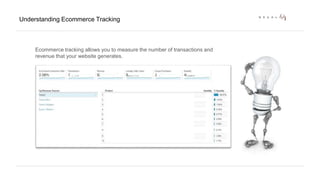
Ecommerce tracking allows you to measure the number of transactions and 
revenue that your website generates.
Understanding Ecommerce Tracking 
First step is enabling ecommerce tracking from within Google Analytics.
Understanding Ecommerce Tracking 
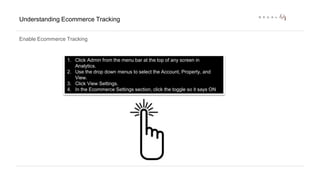
Enable Ecommerce Tracking 
1. Click Admin from the menu bar at the top of any screen in 
Analytics. 
2. Use the drop down menus to select the Account, Property, and 
View. 
3. Click View Settings. 
4. In the Ecommerce Settings section, click the toggle so it says ON
Understanding Ecommerce Tracking 
Enable Ecommerce Tracking 
Ecommerce 
Tracking 
Code!
Understanding Ecommerce Tracking 
Ecommerce Tracking Code: There are two types of ecommerce data you can send 
using analytics.js: transaction and item data.
Understanding Ecommerce Tracking 
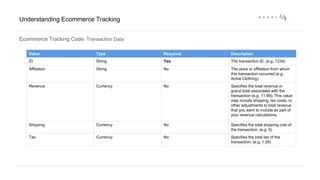
Ecommerce Tracking Code: Transaction Data 
Value Type Required Description 
ID String Yes The transaction ID. (e.g. 1234) 
Affiliation String No The store or affiliation from which 
this transaction occurred (e.g. 
Acme Clothing). 
Revenue Currency No Specifies the total revenue or 
grand total associated with the 
transaction (e.g. 11.99). This value 
may include shipping, tax costs, or 
other adjustments to total revenue 
that you want to include as part of 
your revenue calculations. 
Shipping Currency No Specifies the total shipping cost of 
the transaction. (e.g. 5) 
Tax Currency No Specifies the total tax of the 
transaction. (e.g. 1.29)
Understanding Ecommerce Tracking 
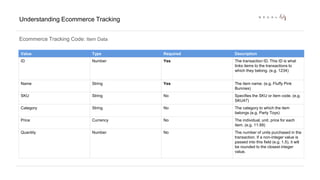
Ecommerce Tracking Code: Item Data 
Value Type Required Description 
ID Number Yes The transaction ID. This ID is what 
links items to the transactions to 
which they belong. (e.g. 1234) 
Name String Yes The item name. (e.g. Fluffy Pink 
Bunnies) 
SKU String No Specifies the SKU or item code. (e.g. 
SKU47) 
Category String No The category to which the item 
belongs (e.g. Party Toys) 
Price Currency No The individual, unit, price for each 
item. (e.g. 11.99) 
Quantity Number No The number of units purchased in the 
transaction. If a non-integer value is 
passed into this field (e.g. 1.5), it will 
be rounded to the closest integer 
value.
Understanding Ecommerce Tracking 
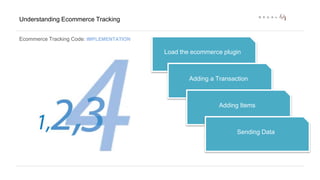
Ecommerce Tracking Code: IMPLEMENTATION 
Load the ecommerce plugin 
Adding a Transaction 
Adding Items 
Sending Data
Understanding Ecommerce Tracking 
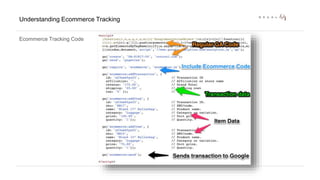
Ecommerce Tracking Code
Read More 
https://developers.google.com/analytics/devguides/collection/analyticsjs/ecommerce

13121313

  • 1.
    UNDERSTANDING ECOMMERCE TRACKING INTERNAL: Google Confidential and Proprietary
  • 2.
    Understanding Ecommerce Tracking Ecommerce tracking allows you to measure the number of transactions and revenue that your website generates.
  • 3.
    Understanding Ecommerce Tracking First step is enabling ecommerce tracking from within Google Analytics.
  • 4.
    Understanding Ecommerce Tracking Enable Ecommerce Tracking 1. Click Admin from the menu bar at the top of any screen in Analytics. 2. Use the drop down menus to select the Account, Property, and View. 3. Click View Settings. 4. In the Ecommerce Settings section, click the toggle so it says ON
  • 5.
    Understanding Ecommerce Tracking Enable Ecommerce Tracking Ecommerce Tracking Code!
  • 6.
    Understanding Ecommerce Tracking Ecommerce Tracking Code: There are two types of ecommerce data you can send using analytics.js: transaction and item data.
  • 7.
    Understanding Ecommerce Tracking Ecommerce Tracking Code: Transaction Data Value Type Required Description ID String Yes The transaction ID. (e.g. 1234) Affiliation String No The store or affiliation from which this transaction occurred (e.g. Acme Clothing). Revenue Currency No Specifies the total revenue or grand total associated with the transaction (e.g. 11.99). This value may include shipping, tax costs, or other adjustments to total revenue that you want to include as part of your revenue calculations. Shipping Currency No Specifies the total shipping cost of the transaction. (e.g. 5) Tax Currency No Specifies the total tax of the transaction. (e.g. 1.29)
  • 8.
    Understanding Ecommerce Tracking Ecommerce Tracking Code: Item Data Value Type Required Description ID Number Yes The transaction ID. This ID is what links items to the transactions to which they belong. (e.g. 1234) Name String Yes The item name. (e.g. Fluffy Pink Bunnies) SKU String No Specifies the SKU or item code. (e.g. SKU47) Category String No The category to which the item belongs (e.g. Party Toys) Price Currency No The individual, unit, price for each item. (e.g. 11.99) Quantity Number No The number of units purchased in the transaction. If a non-integer value is passed into this field (e.g. 1.5), it will be rounded to the closest integer value.
  • 9.
    Understanding Ecommerce Tracking Ecommerce Tracking Code: IMPLEMENTATION Load the ecommerce plugin Adding a Transaction Adding Items Sending Data
  • 10.
    Understanding Ecommerce Tracking Ecommerce Tracking Code
  • 11.