K0032
06 Laboratory Exercise 1 *Property of STI
Page 1 of 8
Laboratory Exercise
PHP Forms and Validation
Objectives:
At the end of the exercise, the students should be able to:
 create web forms using HTML, CSS, and PHP scripts.
Materials:
 Computer with the following installed software:
o WAMPSERVER 2.5
 Apache
 MySQL
 PHP
o Internet Explorer 7 or higher, Google Chrome, Mozilla Firefox
o Any Text Editor
 06 File to Use
o cakeform.css
 Flash drive
Procedures:
Exercise 1 Creating a Form
In this exercise, a PHP script will be created for a simple web form that will accept data from user
inputs. The form will include common fields like name, address, and phone number. And form
elements such as radio button, checkbox, textarea, and option button. Few HTML and CSS will also
be applied for the design.
1. Open Notepad Editor and type the following codes:
<!DOCTYPE html>
<html>
<head>
<title>Cake Form</title>
</head>
<body>
</body>
</html>
The <title> tag immediately named the title of the form.
2. Save the file as cakeform.php under the wamp > www folder in local drive.
3. To test the script, open any of the installed browser and type localhost/cakeform.php in the
address bar. If error occurs, check if the WampServer is in active mode. Otherwise, start the
WampServer and wait until the icon in the app tray becomes green. Test the script again.
4. Open the cakeform.php in Notepad and key in the following codes inside the <body> tag:
<body>
<h1>Make Your Own Cake! </h1>
<h4>Select Size for the Cake: </h4>
<input type="radio" name="SelectedCake" value = "Round6"> Round cake 6" - serves
8 people <br/>
<input type="radio" name="SelectedCake" value = "Round8"> Round cake 8" - serves
12 people <br/>
</body>
K0032
06 Laboratory Exercise 1 *Property of STI
Page 2 of 8
5. Save and test your script.
6. Add these to the options above:
 Round cake 10" - serves 16 people
 Round cake 12" - serves 30 people
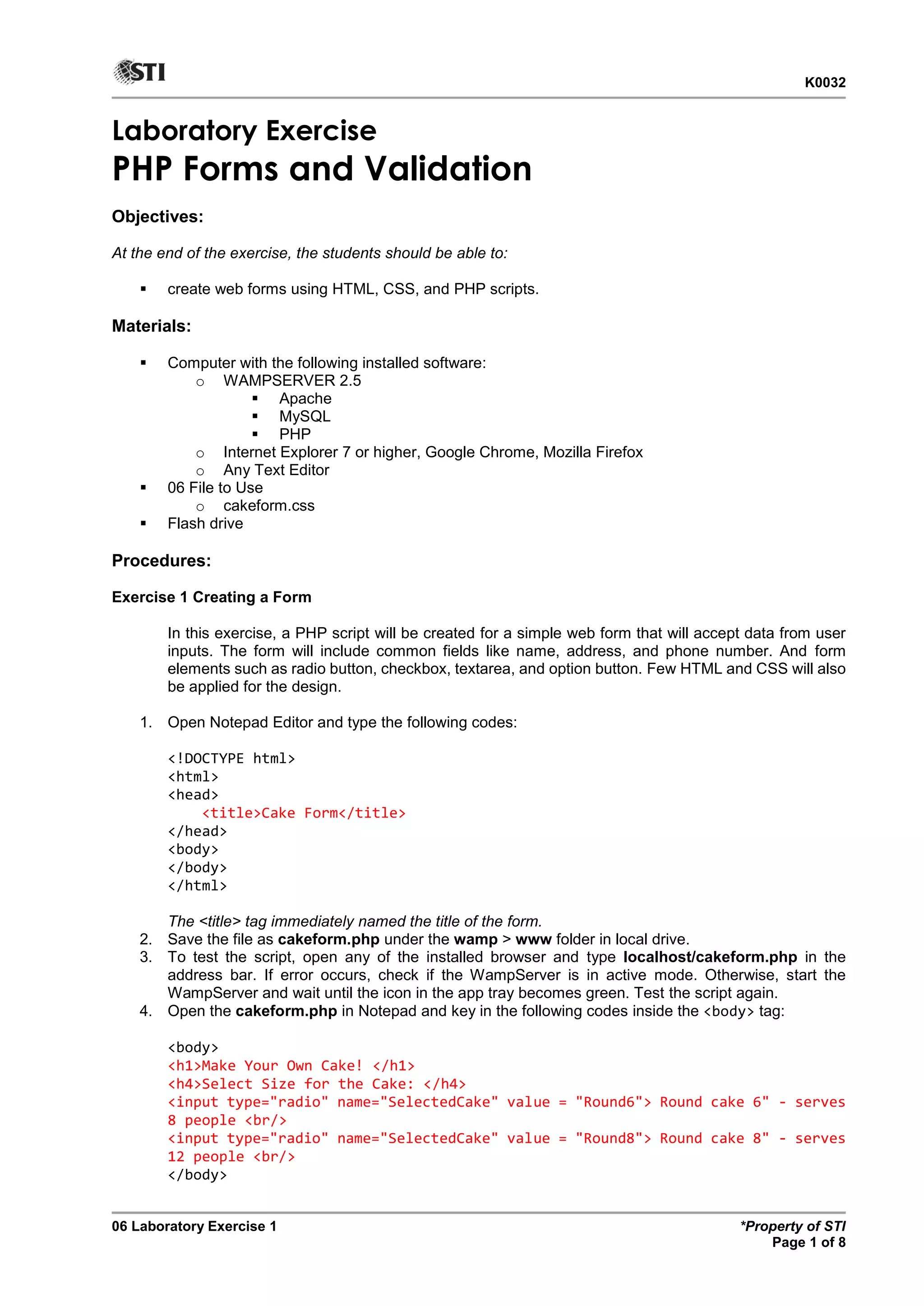
7. The page should look like in the figure below, after the script is finished.
Figure 1
8. Next, add a dropdown element for the cake’s flavor. Type the following codes below
<h4>Select a Cake Flavor: </h4>
<select name="Cake Flavor">
<option value="Flavor" selected="selected">Select Flavor</option>
<option value="Carrot">Carrot</option>
<option value="Chocolate">Chocolate</option>
<option value="Banana">Banana</option>
</select>
9. Continue the coding by adding the following cake’s flavor in the dropdown element:
 Red Velvet
 Strawberry
 Vanilla
 Combo
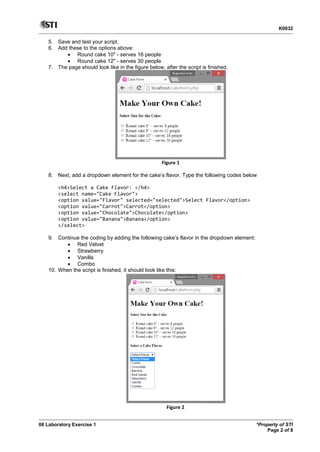
10. When the script is finished, it should look like this:
Figure 2
K0032
06 Laboratory Exercise 1 *Property of STI
Page 3 of 8
11. Add a checkbox element which will hold the fillings for the cake. Use the codes below.
<h4>Select Fillings:</h4>
<label><input type="checkbox" value="Cream" name='Filling[]' />Cream</label>
<label><input type="checkbox" value="Fudge" name='Filling[]' />Fudge</label>
<label><input type="checkbox" value="Ganache" name='Filling[]'
/>Ganache</label>
<label><input type="checkbox" value="Hazelnut" name='Filling[]'
/>Hazelnut</label>
<label><input type="checkbox" value="Mousse" name='Filling[]' />Mousse</label>
<label><input type="checkbox" value="Pudding" name='Filling[]'
/>Pudding</label>
12. Save and test your script.
13. Try to fix your script to achieve the result in Figure 3. The form should look like this:
Figure 3
14. Save your file.
15. Add the following contact details to complete the form.
a. Name
b. Address
c. Phone number
16. Use this code:
Name: <input type="text" name="name">
17. Then add a submit button to the form. Use the following code:
<input type='submit' name='submitted' id='submit' value='Submit' />
K0032
06 Laboratory Exercise 1 *Property of STI
Page 4 of 8
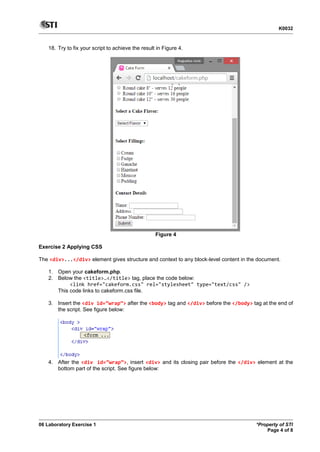
18. Try to fix your script to achieve the result in Figure 4.
Figure 4
Exercise 2 Applying CSS
The <div>...</div> element gives structure and context to any block-level content in the document.
1. Open your cakeform.php.
2. Below the <title>…</title> tag, place the code below:
<link href="cakeform.css" rel="stylesheet" type="text/css" />
This code links to cakeform.css file.
3. Insert the <div id=”wrap”> after the <body> tag and </div> before the </body> tag at the end of
the script. See figure below:
4. After the <div id=”wrap”>, insert <div> and its closing pair before the </div> element at the
bottom part of the script. See figure below:
K0032
06 Laboratory Exercise 1 *Property of STI
Page 5 of 8
5. Next, put another division to wrap the order of each container. Type the <div
class=”cont_order”> and its closing pair </div> after the <div>. See figure below for your
reference.
6. Save your file and try to test your script. Observe that there is always a closing tag pair for every
tag.
7. Now, separate each form element with the <div class='field_container'> and its closing pair
</div>. Refer to the figure below for your reference.
8. Change the <h4>…</h4> tag to <label>…</label> tag of the “Select Size for the cake:” header.
The result should look like this:
Figure 5
K0032
06 Laboratory Exercise 1 *Property of STI
Page 6 of 8
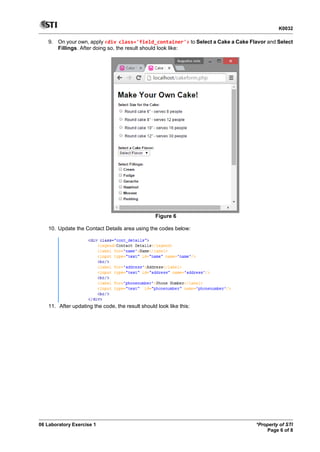
9. On your own, apply <div class='field_container'> to Select a Cake a Cake Flavor and Select
Fillings. After doing so, the result should look like:
Figure 6
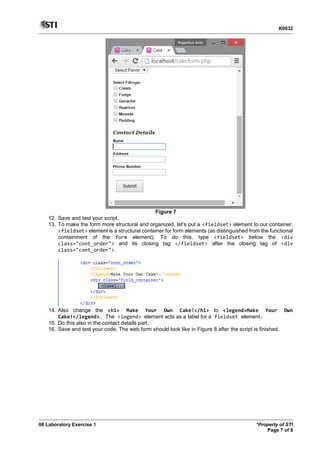
10. Update the Contact Details area using the codes below:
11. After updating the code, the result should look like this:
K0032
06 Laboratory Exercise 1 *Property of STI
Page 7 of 8
Figure 7
12. Save and test your script.
13. To make the form more structural and organized, let’s put a <fieldset> element to our container.
<fieldset> element is a structural container for form elements (as distinguished from the functional
containment of the form element). To do this, type <fieldset> below the <div
class="cont_order"> and its closing tag </fieldset> after the closing tag of <div
class="cont_order">.
14. Also change the <h1> Make Your Own Cake!</h1> to <legend>Make Your Own
Cake!</legend>. The <legend> element acts as a label for a fieldset element.
15. Do this also in the contact details part.
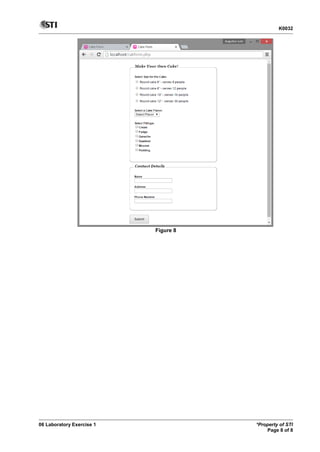
16. Save and test your code. The web form should look like in Figure 8 after the script is finished.
K0032
06 Laboratory Exercise 1 *Property of STI
Page 8 of 8
Figure 8

06 laboratory exercise 1

  • 1.
    K0032 06 Laboratory Exercise1 *Property of STI Page 1 of 8 Laboratory Exercise PHP Forms and Validation Objectives: At the end of the exercise, the students should be able to:  create web forms using HTML, CSS, and PHP scripts. Materials:  Computer with the following installed software: o WAMPSERVER 2.5  Apache  MySQL  PHP o Internet Explorer 7 or higher, Google Chrome, Mozilla Firefox o Any Text Editor  06 File to Use o cakeform.css  Flash drive Procedures: Exercise 1 Creating a Form In this exercise, a PHP script will be created for a simple web form that will accept data from user inputs. The form will include common fields like name, address, and phone number. And form elements such as radio button, checkbox, textarea, and option button. Few HTML and CSS will also be applied for the design. 1. Open Notepad Editor and type the following codes: <!DOCTYPE html> <html> <head> <title>Cake Form</title> </head> <body> </body> </html> The <title> tag immediately named the title of the form. 2. Save the file as cakeform.php under the wamp > www folder in local drive. 3. To test the script, open any of the installed browser and type localhost/cakeform.php in the address bar. If error occurs, check if the WampServer is in active mode. Otherwise, start the WampServer and wait until the icon in the app tray becomes green. Test the script again. 4. Open the cakeform.php in Notepad and key in the following codes inside the <body> tag: <body> <h1>Make Your Own Cake! </h1> <h4>Select Size for the Cake: </h4> <input type="radio" name="SelectedCake" value = "Round6"> Round cake 6" - serves 8 people <br/> <input type="radio" name="SelectedCake" value = "Round8"> Round cake 8" - serves 12 people <br/> </body>
  • 2.
    K0032 06 Laboratory Exercise1 *Property of STI Page 2 of 8 5. Save and test your script. 6. Add these to the options above:  Round cake 10" - serves 16 people  Round cake 12" - serves 30 people 7. The page should look like in the figure below, after the script is finished. Figure 1 8. Next, add a dropdown element for the cake’s flavor. Type the following codes below <h4>Select a Cake Flavor: </h4> <select name="Cake Flavor"> <option value="Flavor" selected="selected">Select Flavor</option> <option value="Carrot">Carrot</option> <option value="Chocolate">Chocolate</option> <option value="Banana">Banana</option> </select> 9. Continue the coding by adding the following cake’s flavor in the dropdown element:  Red Velvet  Strawberry  Vanilla  Combo 10. When the script is finished, it should look like this: Figure 2
  • 3.
    K0032 06 Laboratory Exercise1 *Property of STI Page 3 of 8 11. Add a checkbox element which will hold the fillings for the cake. Use the codes below. <h4>Select Fillings:</h4> <label><input type="checkbox" value="Cream" name='Filling[]' />Cream</label> <label><input type="checkbox" value="Fudge" name='Filling[]' />Fudge</label> <label><input type="checkbox" value="Ganache" name='Filling[]' />Ganache</label> <label><input type="checkbox" value="Hazelnut" name='Filling[]' />Hazelnut</label> <label><input type="checkbox" value="Mousse" name='Filling[]' />Mousse</label> <label><input type="checkbox" value="Pudding" name='Filling[]' />Pudding</label> 12. Save and test your script. 13. Try to fix your script to achieve the result in Figure 3. The form should look like this: Figure 3 14. Save your file. 15. Add the following contact details to complete the form. a. Name b. Address c. Phone number 16. Use this code: Name: <input type="text" name="name"> 17. Then add a submit button to the form. Use the following code: <input type='submit' name='submitted' id='submit' value='Submit' />
  • 4.
    K0032 06 Laboratory Exercise1 *Property of STI Page 4 of 8 18. Try to fix your script to achieve the result in Figure 4. Figure 4 Exercise 2 Applying CSS The <div>...</div> element gives structure and context to any block-level content in the document. 1. Open your cakeform.php. 2. Below the <title>…</title> tag, place the code below: <link href="cakeform.css" rel="stylesheet" type="text/css" /> This code links to cakeform.css file. 3. Insert the <div id=”wrap”> after the <body> tag and </div> before the </body> tag at the end of the script. See figure below: 4. After the <div id=”wrap”>, insert <div> and its closing pair before the </div> element at the bottom part of the script. See figure below:
  • 5.
    K0032 06 Laboratory Exercise1 *Property of STI Page 5 of 8 5. Next, put another division to wrap the order of each container. Type the <div class=”cont_order”> and its closing pair </div> after the <div>. See figure below for your reference. 6. Save your file and try to test your script. Observe that there is always a closing tag pair for every tag. 7. Now, separate each form element with the <div class='field_container'> and its closing pair </div>. Refer to the figure below for your reference. 8. Change the <h4>…</h4> tag to <label>…</label> tag of the “Select Size for the cake:” header. The result should look like this: Figure 5
  • 6.
    K0032 06 Laboratory Exercise1 *Property of STI Page 6 of 8 9. On your own, apply <div class='field_container'> to Select a Cake a Cake Flavor and Select Fillings. After doing so, the result should look like: Figure 6 10. Update the Contact Details area using the codes below: 11. After updating the code, the result should look like this:
  • 7.
    K0032 06 Laboratory Exercise1 *Property of STI Page 7 of 8 Figure 7 12. Save and test your script. 13. To make the form more structural and organized, let’s put a <fieldset> element to our container. <fieldset> element is a structural container for form elements (as distinguished from the functional containment of the form element). To do this, type <fieldset> below the <div class="cont_order"> and its closing tag </fieldset> after the closing tag of <div class="cont_order">. 14. Also change the <h1> Make Your Own Cake!</h1> to <legend>Make Your Own Cake!</legend>. The <legend> element acts as a label for a fieldset element. 15. Do this also in the contact details part. 16. Save and test your code. The web form should look like in Figure 8 after the script is finished.
  • 8.
    K0032 06 Laboratory Exercise1 *Property of STI Page 8 of 8 Figure 8