



Necto Training
Module 4: Necto
Basic Analytics
Objectives

  By the end of this lesson you will be able
  to perform basic analytics by:
    Adjusting the workboard display
    Selecting which data will be displayed
    Locating exceptional values
Agenda

  Working with grids
    Adjusting the layout
    Calculating totals
  Focusing on specific data
    Slicing
    Selecting specific members
  Finding exceptions and using automated insight
  Working with charts
Case Study
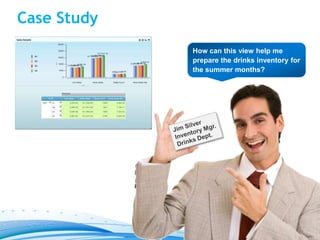
             How can this view help me
             prepare the drinks inventory for
             the summer months?
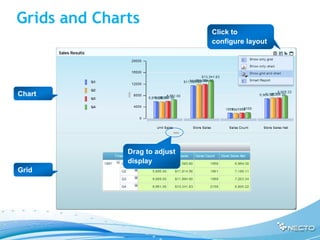
Grids and Charts
                               Click to
                               configure layout


Chart


              Drag to adjust
              display
Grid
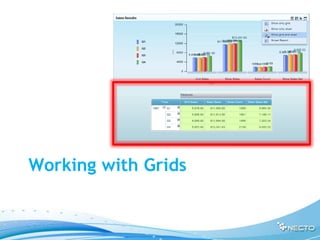
Working with Grids
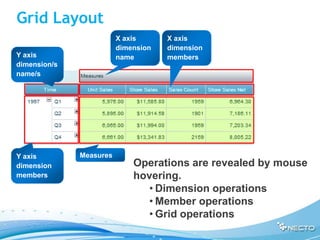
Grid Layout
                         X axis      X axis
                         dimension   dimension
Y axis                   name        members
dimension/s
name/s


Y axis        Measures
dimension                    Operations are revealed by mouse
members                      hovering.
                                • Dimension operations
                                • Member operations
                                • Grid operations
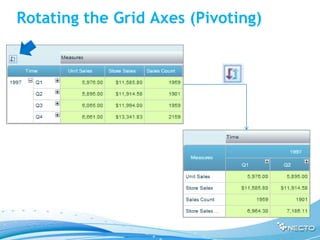
Rotating the Grid Axes (Pivoting)
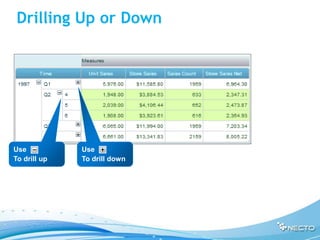
Drilling Up or Down


Use           Use
To drill up   To drill down
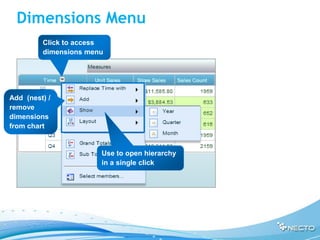
Dimensions Menu
         Click to access
         dimensions menu


Add (nest) /
remove
dimensions
from chart


                       Use to open hierarchy
                       in a single click
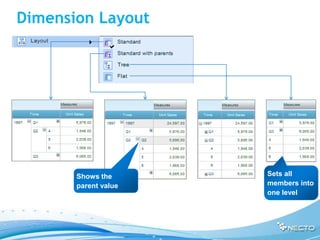
Dimension Layout


       Shows the      Sets all
       parent value   members into
                      one level
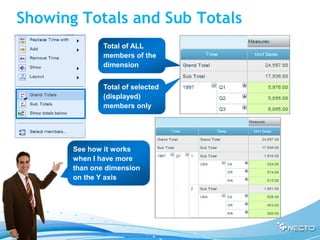
Showing Totals and Sub Totals
               Total of ALL
               members of the
               dimension


               Total of selected
               (displayed)
               members only


       See how it works
       when I have more
       than one dimension
       on the Y axis
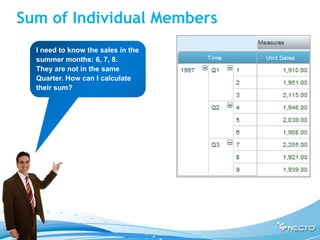
Sum of Individual Members
  I need to know the sales in the
  summer months: 6, 7, 8.
  They are not in the same
  Quarter. How can I calculate
  their sum?
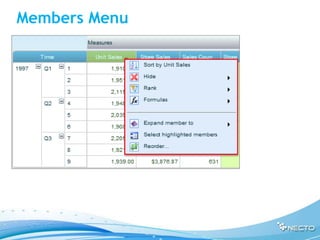
Members Menu
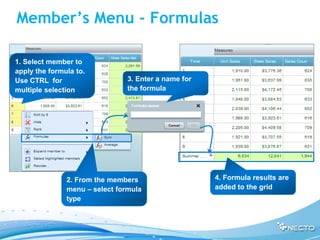
Member’s Menu - Formulas

1. Select member to
apply the formula to.
Use CTRL for                    3. Enter a name for
multiple selection              the formula


               2. From the members                    4. Formula results are
               menu – select formula                  added to the grid
               type
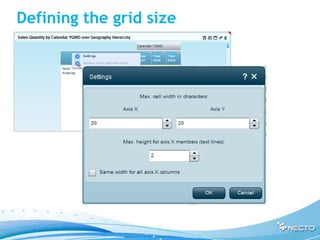
Defining the grid size
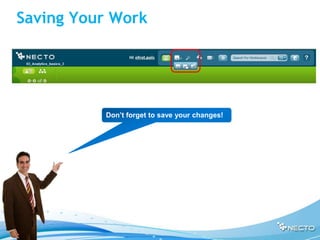
Saving Your Work


          Don’t forget to save your changes!
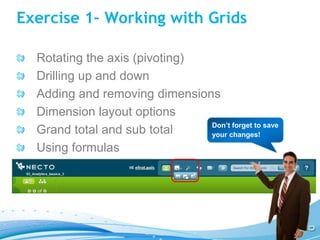
Exercise 1– Working with Grids

  Rotating the axis (pivoting)
  Drilling up and down
  Adding and removing dimensions
  Dimension layout options
                               Don’t forget to save
  Grand total and sub total    your changes!

  Using formulas
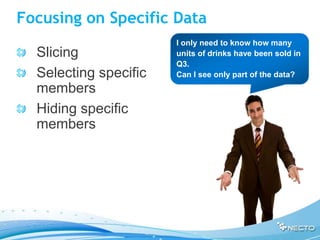
Focusing on Specific Data
                       I only need to know how many
  Slicing              units of drinks have been sold in
                       Q3.
  Selecting specific   Can I see only part of the data?
  members
  Hiding specific
  members
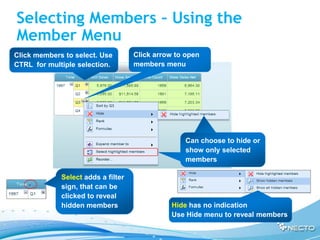
Selecting Members – Using the
Member Menu
Click members to select. Use        Click arrow to open
CTRL for multiple selection.        members menu


                                                  Can choose to hide or
                                                  show only selected
                                                  members

             Select adds a filter
             sign, that can be
             clicked to reveal
             hidden members                    Hide has no indication
                                               Use Hide menu to reveal members
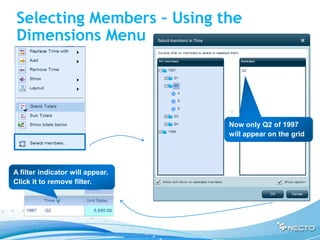
Selecting Members – Using the
 Dimensions Menu


                                  Now only Q2 of 1997
                                  will appear on the grid


A filter indicator will appear.
Click it to remove filter.
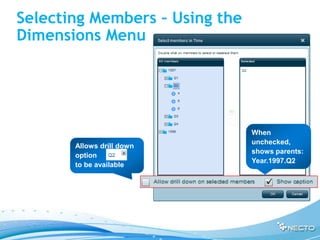
Selecting Members – Using the
Dimensions Menu


                                When
                                unchecked,
       Allows drill down
                                shows parents:
       option
                                Year.1997.Q2
       to be available
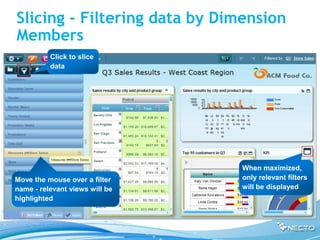
Slicing - Filtering data by Dimension
Members
          Click to slice
          data


                                When maximized,
Move the mouse over a filter    only relevant filters
name - relevant views will be   will be displayed
highlighted
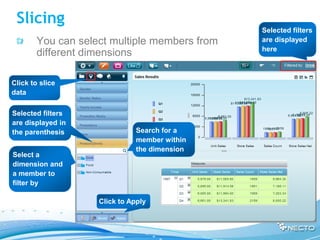
Slicing
                                               Selected filters
        You can select multiple members from   are displayed
                                               here
        different dimensions

Click to slice
data

Selected filters
are displayed in
the parenthesis                Search for a
                               member within
                               the dimension
Select a
dimension and
a member to
filter by

                    Click to Apply
Exercise 2 – Concentrating on Specific
Data

  Select Dimension members
  Select values
  Slice (filter) the data
Sorting and Ranking
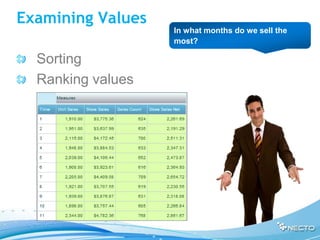
Examining Values
                   In what months do we sell the
                   most?

  Sorting
  Ranking values
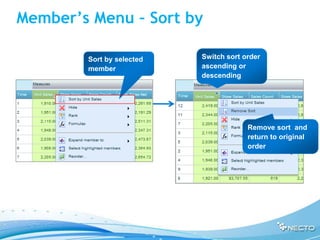
Member’s Menu – Sort by

        Sort by selected   Switch sort order
        member             ascending or
                           descending


                                        Remove sort and
                                        return to original
                                        order
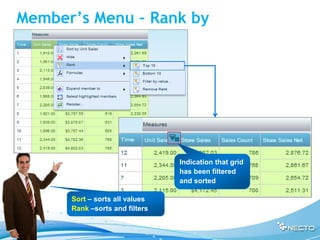
Member’s Menu – Rank by


                                Indication that grid
                                has been filtered
                                and sorted

      Sort – sorts all values
      Rank –sorts and filters
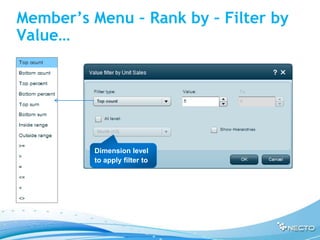
Member’s Menu – Rank by – Filter by
Value…


          Dimension level
          to apply filter to
Exercise 3 – Sorting, Ranking and
Using automated Insights

  Sort
  Rank
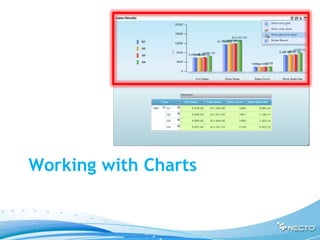
Working with Charts
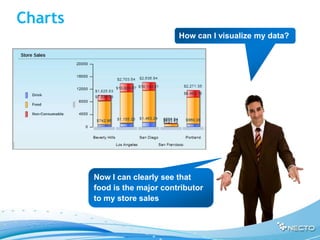
Charts
                               How can I visualize my data?


         Now I can clearly see that
         food is the major contributor
         to my store sales
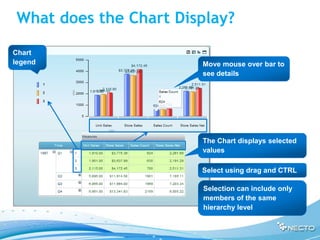
What does the Chart Display?
Chart
legend                 Move mouse over bar to
                       see details


                       The Chart displays selected
                       values

                       Select using drag and CTRL

                       Selection can include only
                       members of the same
                       hierarchy level
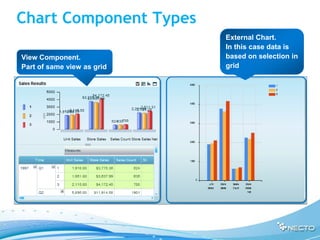
Chart Component Types
                            External Chart.
                            In this case data is
View Component.             based on selection in
Part of same view as grid   grid
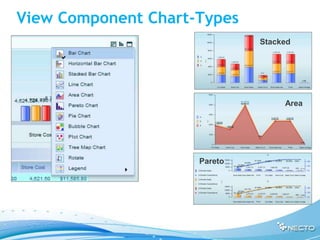
View Component Chart-Types
                              Stacked


                                   Area


                     Pareto
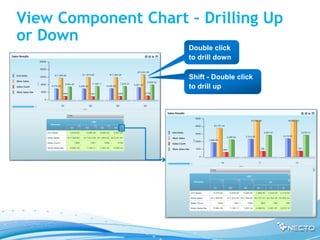
View Component Chart – Drilling Up
or Down
                     Double click
                     to drill down

                     Shift - Double click
                     to drill up
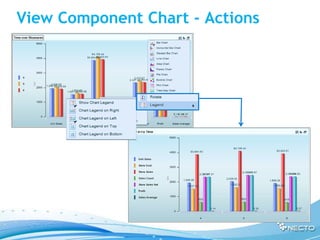
View Component Chart - Actions
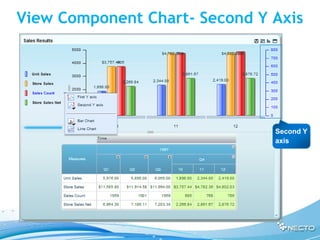
View Component Chart- Second Y Axis


                               Second Y
                               axis
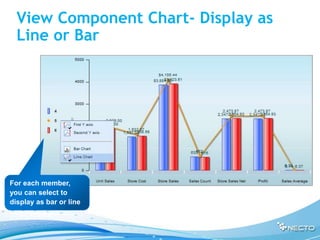
View Component Chart- Display as
  Line or Bar


For each member,
you can select to
display as bar or line
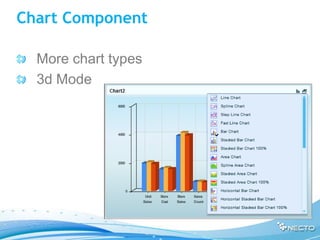
Chart Component

  More chart types
  3d Mode
Exercise 4 – Working with Charts


  Selecting Data to display in Chart
  Changing Chart Types
  Changing Chart Properties
  Drilling, Slicing, and Dicing a Chart
Additional Exercise

  Save Your Own Copy of the Workboard
  Find Out What Product Category is the
  Best Seller
  Use the Chart to Find the Product That is
  The Best Seller this Year
  Find Exceptions
Summary

  Working with grids
    Adjusting the layout
    Calculating totals of values
  Focusing on specific data
    Slicing
    Selecting specific members
  Working with charts
Thank you
Any Questions?

04 necto analytics_basics_ready

  • 1.
    Necto Training Module 4:Necto Basic Analytics
  • 2.
    Objectives Bythe end of this lesson you will be able to perform basic analytics by: Adjusting the workboard display Selecting which data will be displayed Locating exceptional values
  • 3.
    Agenda Workingwith grids Adjusting the layout Calculating totals Focusing on specific data Slicing Selecting specific members Finding exceptions and using automated insight Working with charts
  • 4.
    Case Study How can this view help me prepare the drinks inventory for the summer months?
  • 5.
    Grids and Charts Click to configure layout Chart Drag to adjust display Grid
  • 6.
  • 7.
    Grid Layout X axis X axis dimension dimension Y axis name members dimension/s name/s Y axis Measures dimension Operations are revealed by mouse members hovering. • Dimension operations • Member operations • Grid operations
  • 8.
    Rotating the GridAxes (Pivoting)
  • 9.
    Drilling Up orDown Use Use To drill up To drill down
  • 10.
    Dimensions Menu Click to access dimensions menu Add (nest) / remove dimensions from chart Use to open hierarchy in a single click
  • 11.
    Dimension Layout Shows the Sets all parent value members into one level
  • 12.
    Showing Totals andSub Totals Total of ALL members of the dimension Total of selected (displayed) members only See how it works when I have more than one dimension on the Y axis
  • 13.
    Sum of IndividualMembers I need to know the sales in the summer months: 6, 7, 8. They are not in the same Quarter. How can I calculate their sum?
  • 14.
  • 15.
    Member’s Menu -Formulas 1. Select member to apply the formula to. Use CTRL for 3. Enter a name for multiple selection the formula 2. From the members 4. Formula results are menu – select formula added to the grid type
  • 16.
  • 17.
    Saving Your Work Don’t forget to save your changes!
  • 18.
    Exercise 1– Workingwith Grids Rotating the axis (pivoting) Drilling up and down Adding and removing dimensions Dimension layout options Don’t forget to save Grand total and sub total your changes! Using formulas
  • 19.
  • 20.
    Focusing on SpecificData I only need to know how many Slicing units of drinks have been sold in Q3. Selecting specific Can I see only part of the data? members Hiding specific members
  • 21.
    Selecting Members –Using the Member Menu Click members to select. Use Click arrow to open CTRL for multiple selection. members menu Can choose to hide or show only selected members Select adds a filter sign, that can be clicked to reveal hidden members Hide has no indication Use Hide menu to reveal members
  • 22.
    Selecting Members –Using the Dimensions Menu Now only Q2 of 1997 will appear on the grid A filter indicator will appear. Click it to remove filter.
  • 23.
    Selecting Members –Using the Dimensions Menu When unchecked, Allows drill down shows parents: option Year.1997.Q2 to be available
  • 24.
    Slicing - Filteringdata by Dimension Members Click to slice data When maximized, Move the mouse over a filter only relevant filters name - relevant views will be will be displayed highlighted
  • 25.
    Slicing Selected filters You can select multiple members from are displayed here different dimensions Click to slice data Selected filters are displayed in the parenthesis Search for a member within the dimension Select a dimension and a member to filter by Click to Apply
  • 26.
    Exercise 2 –Concentrating on Specific Data Select Dimension members Select values Slice (filter) the data
  • 27.
  • 28.
    Examining Values In what months do we sell the most? Sorting Ranking values
  • 29.
    Member’s Menu –Sort by Sort by selected Switch sort order member ascending or descending Remove sort and return to original order
  • 30.
    Member’s Menu –Rank by Indication that grid has been filtered and sorted Sort – sorts all values Rank –sorts and filters
  • 31.
    Member’s Menu –Rank by – Filter by Value… Dimension level to apply filter to
  • 32.
    Exercise 3 –Sorting, Ranking and Using automated Insights Sort Rank
  • 33.
  • 34.
    Charts How can I visualize my data? Now I can clearly see that food is the major contributor to my store sales
  • 35.
    What does theChart Display? Chart legend Move mouse over bar to see details The Chart displays selected values Select using drag and CTRL Selection can include only members of the same hierarchy level
  • 36.
    Chart Component Types External Chart. In this case data is View Component. based on selection in Part of same view as grid grid
  • 37.
    View Component Chart-Types Stacked Area Pareto
  • 38.
    View Component Chart– Drilling Up or Down Double click to drill down Shift - Double click to drill up
  • 39.
  • 40.
    View Component Chart-Second Y Axis Second Y axis
  • 41.
    View Component Chart-Display as Line or Bar For each member, you can select to display as bar or line
  • 42.
    Chart Component More chart types 3d Mode
  • 43.
    Exercise 4 –Working with Charts Selecting Data to display in Chart Changing Chart Types Changing Chart Properties Drilling, Slicing, and Dicing a Chart
  • 44.
    Additional Exercise Save Your Own Copy of the Workboard Find Out What Product Category is the Best Seller Use the Chart to Find the Product That is The Best Seller this Year Find Exceptions
  • 45.
    Summary Workingwith grids Adjusting the layout Calculating totals of values Focusing on specific data Slicing Selecting specific members Working with charts
  • 46.