Creating Simple
Online Portfolios
Using Google Sites
Samantha J. Quell
Portfolio Background
• “Portfolios are used to plan, organize and document education, work
  samples and skills” – Wikipedia

• “Librarians need portfolios because our target audience is the same
  as artists and journalists: the public.” – Katie Dunneback*

• Portfolios provide concrete evidence of your abilities for future
  employers.

• Two types of portfolios :
  • Showcase: Stand alone evidence of program mastery.
  • Assessment: Demonstrates learning process through self-assessment
    (reflective essays).


  *Dunneback, K. (2004). Punch Up Your Portfolio. Retrieved from: http://www.liscareer.com/dunneback_portfolios.htm
Online Portfolios
• Benefits:
  • Demonstrates multiple literacies – electronic, print, audio visual.
  • Accessible from anywhere:
     • Include URL in your resume/CV for potential employers.
     • Ability to print any documents as needed.
     • Ability to customize hard copies for individual positions while
       maintaining an organized, electronic copy.


• Problems:
  • Opening your work up to the free web (There are security
    measures you can take).
  • Individual site issues.
What to Include
• Samples of your best work from the program
  (projects, papers, etc.) and anything significant from
  work/practicum experience (video tutorials, photographs of
  displays, etc.).

• Reflective blurbs*
  • Course title and number
  • Course/Project objectives
  • Reflection – can be positive/negative – the point is you LEARNED

• Your Personality! Don’t be afraid to be yourself, because that’s
  what employers really want to see.


  *Based on assessment criteria from LIS 565 (Battleson/White)
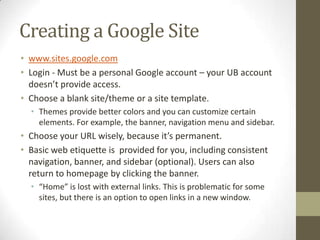
Creating a Google Site
• www.sites.google.com
• Login - Must be a personal Google account – your UB account
  doesn’t provide access.
• Choose a blank site/theme or a site template.
  • Themes provide better colors and you can customize certain
    elements. For example, the banner, navigation menu and sidebar.
• Choose your URL wisely, because it’s permanent.
• Basic web etiquette is provided for you, including consistent
  navigation, banner, and sidebar (optional). Users can also
  return to homepage by clicking the banner.
  • “Home” is lost with external links. This is problematic for some
    sites, but there is an option to open links in a new window.
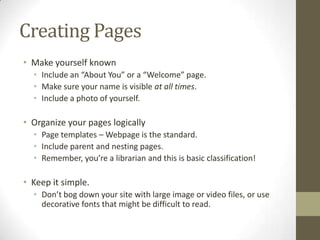
Creating Pages
• Make yourself known
  • Include an “About You” or a “Welcome” page.
  • Make sure your name is visible at all times.
  • Include a photo of yourself.

• Organize your pages logically
  • Page templates – Webpage is the standard.
  • Include parent and nesting pages.
  • Remember, you’re a librarian and this is basic classification!

• Keep it simple.
  • Don’t bog down your site with large image or video files, or use
    decorative fonts that might be difficult to read.
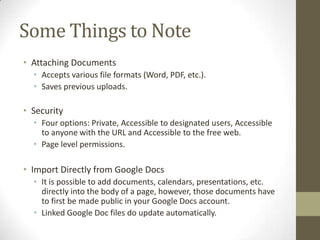
Some Things to Note
• Attaching Documents
  • Accepts various file formats (Word, PDF, etc.).
  • Saves previous uploads.

• Security
  • Four options: Private, Accessible to designated users, Accessible
    to anyone with the URL and Accessible to the free web.
  • Page level permissions.

• Import Directly from Google Docs
  • It is possible to add documents, calendars, presentations, etc.
    directly into the body of a page, however, those documents have
    to first be made public in your Google Docs account.
  • Linked Google Doc files do update automatically.
My Portfolio


     www.sites.google.com/site/samquellportfolio

Simple online portfolios using google sites

  • 1.
    Creating Simple Online Portfolios UsingGoogle Sites Samantha J. Quell
  • 2.
    Portfolio Background • “Portfoliosare used to plan, organize and document education, work samples and skills” – Wikipedia • “Librarians need portfolios because our target audience is the same as artists and journalists: the public.” – Katie Dunneback* • Portfolios provide concrete evidence of your abilities for future employers. • Two types of portfolios : • Showcase: Stand alone evidence of program mastery. • Assessment: Demonstrates learning process through self-assessment (reflective essays). *Dunneback, K. (2004). Punch Up Your Portfolio. Retrieved from: http://www.liscareer.com/dunneback_portfolios.htm
  • 3.
    Online Portfolios • Benefits: • Demonstrates multiple literacies – electronic, print, audio visual. • Accessible from anywhere: • Include URL in your resume/CV for potential employers. • Ability to print any documents as needed. • Ability to customize hard copies for individual positions while maintaining an organized, electronic copy. • Problems: • Opening your work up to the free web (There are security measures you can take). • Individual site issues.
  • 4.
    What to Include •Samples of your best work from the program (projects, papers, etc.) and anything significant from work/practicum experience (video tutorials, photographs of displays, etc.). • Reflective blurbs* • Course title and number • Course/Project objectives • Reflection – can be positive/negative – the point is you LEARNED • Your Personality! Don’t be afraid to be yourself, because that’s what employers really want to see. *Based on assessment criteria from LIS 565 (Battleson/White)
  • 5.
    Creating a GoogleSite • www.sites.google.com • Login - Must be a personal Google account – your UB account doesn’t provide access. • Choose a blank site/theme or a site template. • Themes provide better colors and you can customize certain elements. For example, the banner, navigation menu and sidebar. • Choose your URL wisely, because it’s permanent. • Basic web etiquette is provided for you, including consistent navigation, banner, and sidebar (optional). Users can also return to homepage by clicking the banner. • “Home” is lost with external links. This is problematic for some sites, but there is an option to open links in a new window.
  • 6.
    Creating Pages • Makeyourself known • Include an “About You” or a “Welcome” page. • Make sure your name is visible at all times. • Include a photo of yourself. • Organize your pages logically • Page templates – Webpage is the standard. • Include parent and nesting pages. • Remember, you’re a librarian and this is basic classification! • Keep it simple. • Don’t bog down your site with large image or video files, or use decorative fonts that might be difficult to read.
  • 7.
    Some Things toNote • Attaching Documents • Accepts various file formats (Word, PDF, etc.). • Saves previous uploads. • Security • Four options: Private, Accessible to designated users, Accessible to anyone with the URL and Accessible to the free web. • Page level permissions. • Import Directly from Google Docs • It is possible to add documents, calendars, presentations, etc. directly into the body of a page, however, those documents have to first be made public in your Google Docs account. • Linked Google Doc files do update automatically.
  • 8.
    My Portfolio www.sites.google.com/site/samquellportfolio