




































Basic Tutorial
SlideShare.net
3/8/2015 cherrylinramos@gmail.com 1
What is Slideshare?
3/8/2015 cherrylinramos@gmail.com 2
Slideshare is a free media website
which enables you to
3/8/2015 cherrylinramos@gmail.com 3
upload your professional videos and
slideshow presentations.
3/8/2015 cherrylinramos@gmail.com 4
Unlike YouTube, the emphasis is
more on presentations
3/8/2015 cherrylinramos@gmail.com 5
though professional video is
permitted and shared.
3/8/2015 cherrylinramos@gmail.com 6
Why use Slideshare?
3/8/2015 cherrylinramos@gmail.com 7
Slideshare is a respected network
known for its quality and
3/8/2015 cherrylinramos@gmail.com 8
emphasis on tutorials and
presentations.
3/8/2015 cherrylinramos@gmail.com 9
It even currently ranks #2 in Google
for the search term “presentation”!
3/8/2015 cherrylinramos@gmail.com 10
How to start using
Slideshare?
3/8/2015 cherrylinramos@gmail.com 11
Go to: http://www.slideshare.net/
3/8/2015 cherrylinramos@gmail.com 12
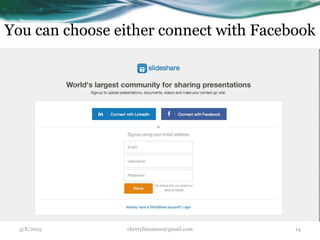
Click “Sign Up”
3/8/2015 cherrylinramos@gmail.com 13
You can choose either connect with Facebook
3/8/2015 cherrylinramos@gmail.com 14
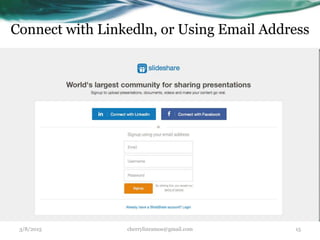
Connect with Linkedln, or Using Email Address
3/8/2015 cherrylinramos@gmail.com 15
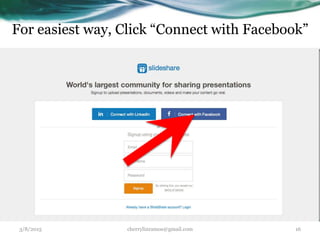
For easiest way, Click “Connect with Facebook”
3/8/2015 cherrylinramos@gmail.com 16
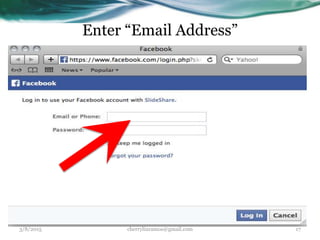
Enter “Email Address”
3/8/2015 cherrylinramos@gmail.com 17
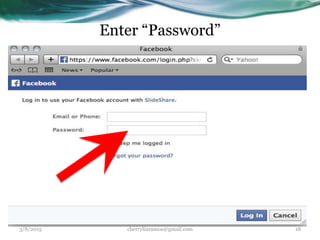
Enter “Password”
3/8/2015 cherrylinramos@gmail.com 18
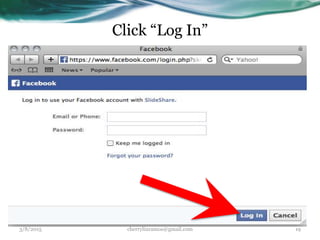
Click “Log In”
3/8/2015 cherrylinramos@gmail.com 19
3/8/2015 cherrylinramos@gmail.com 20
Congratulations!
You’ve successfully
created you Slideshare
account!
3/8/2015 cherrylinramos@gmail.com 21
How to Upload /
Publish Powerpoint
Presentation in
Slideshare?
3/8/2015 cherrylinramos@gmail.com 22
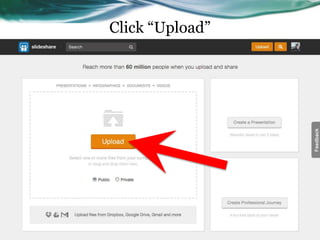
Click “Upload”
3/8/2015 cherrylinramos@gmail.com 23
Click “Upload”
3/8/2015 cherrylinramos@gmail.com 24
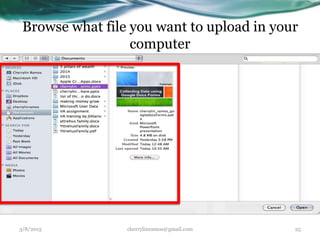
Browse what file you want to upload in your
computer
3/8/2015 cherrylinramos@gmail.com 25
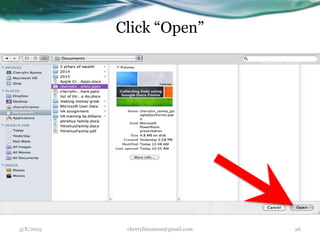
Click “Open”
3/8/2015 cherrylinramos@gmail.com 26
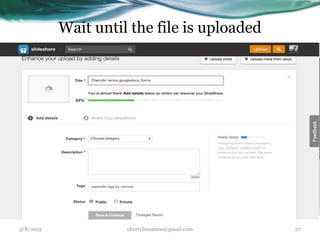
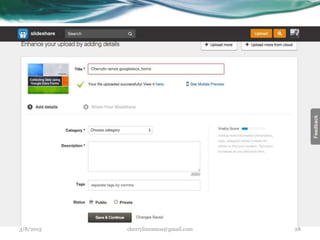
Wait until the file is uploaded
3/8/2015 cherrylinramos@gmail.com 27
3/8/2015 cherrylinramos@gmail.com 28
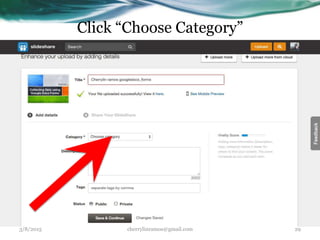
Click “Choose Category”
3/8/2015 cherrylinramos@gmail.com 29
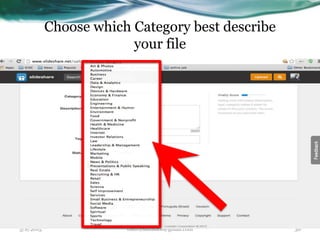
Choose which Category best describe
your file
3/8/2015 cherrylinramos@gmail.com 30
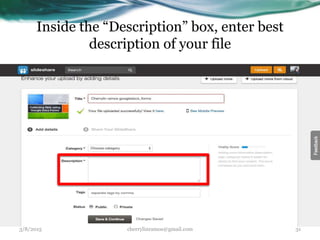
Inside the “Description” box, enter best
description of your file
3/8/2015 cherrylinramos@gmail.com 31
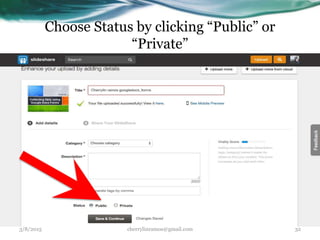
Choose Status by clicking “Public” or
“Private”
3/8/2015 cherrylinramos@gmail.com 32
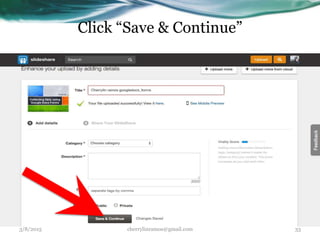
Click “Save & Continue”
3/8/2015 cherrylinramos@gmail.com 33
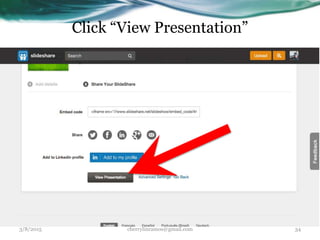
Click “View Presentation”
3/8/2015 cherrylinramos@gmail.com 34
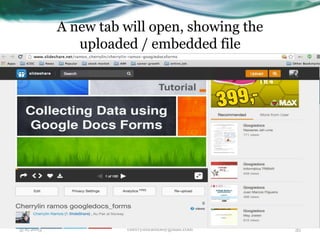
A new tab will open, showing the
uploaded / embedded file
3/8/2015 cherrylinramos@gmail.com 35
How to connect
Slideshare.net slides
to Wordpress.com?
3/8/2015 cherrylinramos@gmail.com 36
Log – in to your Slideshare Page
3/8/2015 cherrylinramos@gmail.com 37
Click “Continue”
3/8/2015 cherrylinramos@gmail.com 38
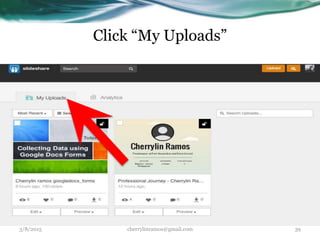
Click “My Uploads”
3/8/2015 cherrylinramos@gmail.com 39
to see the slideshare you want to embed
3/8/2015 cherrylinramos@gmail.com 40
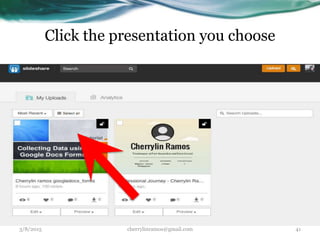
Click the presentation you choose
3/8/2015 cherrylinramos@gmail.com 41
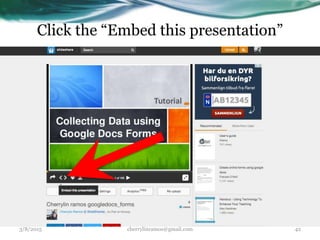
Click the “Embed this presentation”
3/8/2015 cherrylinramos@gmail.com 42
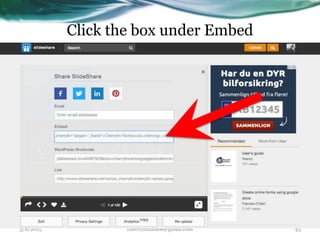
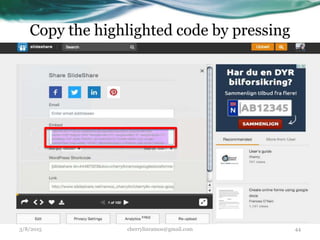
Click the box under Embed
3/8/2015 cherrylinramos@gmail.com 43
Copy the highlighted code by pressing
3/8/2015 cherrylinramos@gmail.com 44
Cmd + C for mac users
3/8/2015 cherrylinramos@gmail.com 45
ctrl+ C for Window users
3/8/2015 cherrylinramos@gmail.com 46
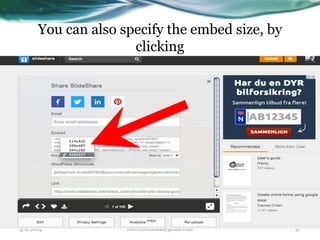
You can also specify the embed size, by
clicking
3/8/2015 cherrylinramos@gmail.com 47
Log-in into your Wordpress page to paste
the code
3/8/2015 cherrylinramos@gmail.com 48
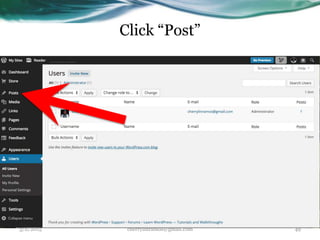
Click “Post”
3/8/2015 cherrylinramos@gmail.com 49
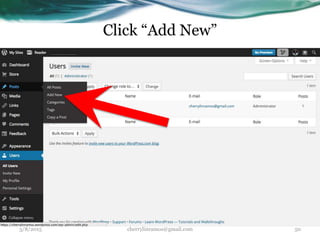
Click “Add New”
3/8/2015 cherrylinramos@gmail.com 50
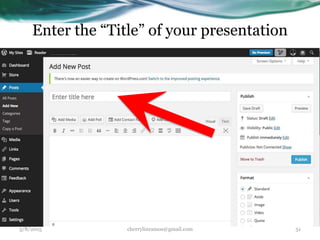
Enter the “Title” of your presentation
3/8/2015 cherrylinramos@gmail.com 51
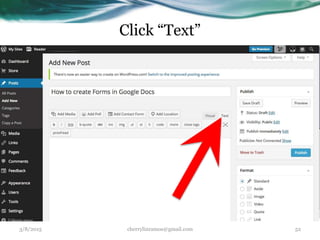
Click “Text”
3/8/2015 cherrylinramos@gmail.com 52
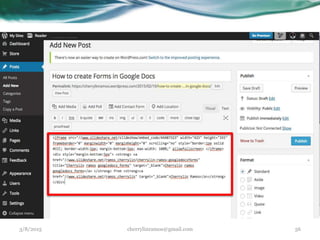
And paste the embed code by pressing
3/8/2015 cherrylinramos@gmail.com 53
Pressing Cmd + P for Mac Users
3/8/2015 cherrylinramos@gmail.com 54
and CTRL + C for Window Users
3/8/2015 cherrylinramos@gmail.com 55
3/8/2015 cherrylinramos@gmail.com 56
3/8/2015 cherrylinramos@gmail.com 57
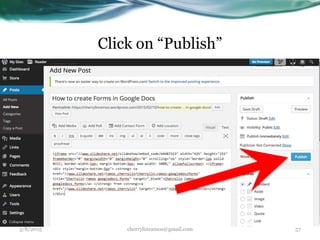
Click on “Publish”
Viola!
You’ve embedded your
presentation into
wordpress.com
3/8/2015 cherrylinramos@gmail.com 58
How to embed
Slideshare
presentation to
Google Blogger?
3/8/2015 cherrylinramos@gmail.com 59
Log – in to your Slideshare Page
3/8/2015 cherrylinramos@gmail.com 60
Click “Continue”
3/8/2015 cherrylinramos@gmail.com 61
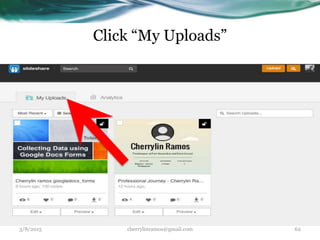
Click “My Uploads”
3/8/2015 cherrylinramos@gmail.com 62
to see the slideshare you want to embed
3/8/2015 cherrylinramos@gmail.com 63
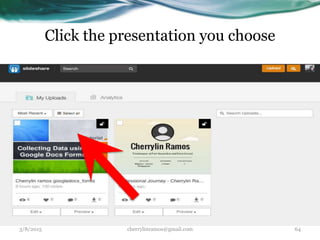
Click the presentation you choose
3/8/2015 cherrylinramos@gmail.com 64
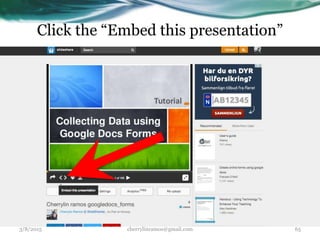
Click the “Embed this presentation”
3/8/2015 cherrylinramos@gmail.com 65
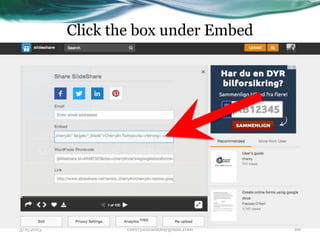
Click the box under Embed
3/8/2015 cherrylinramos@gmail.com 66
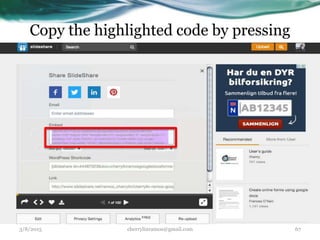
Copy the highlighted code by pressing
3/8/2015 cherrylinramos@gmail.com 67
Cmd + C for mac users
3/8/2015 cherrylinramos@gmail.com 68
ctrl+ C for Window users
3/8/2015 cherrylinramos@gmail.com 69
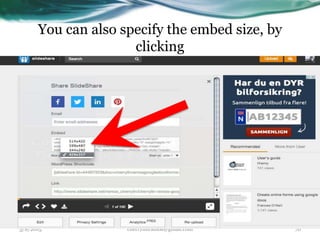
You can also specify the embed size, by
clicking
3/8/2015 cherrylinramos@gmail.com 70
3/8/2015 cherrylinramos@gmail.com 71
Log-in to your Google Blogger Page
3/8/2015 cherrylinramos@gmail.com 72
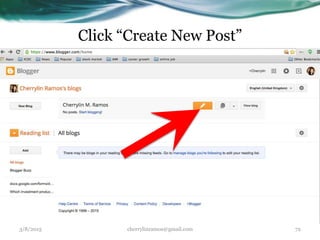
Click “Create New Post”
3/8/2015 cherrylinramos@gmail.com 73
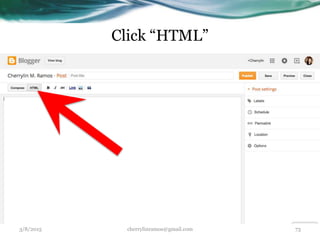
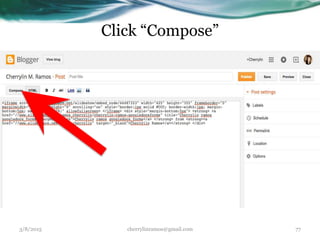
Click “HTML”
3/8/2015 cherrylinramos@gmail.com 74
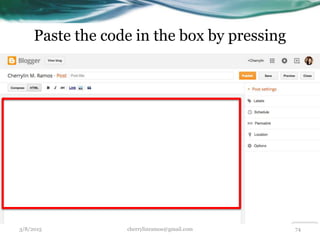
Paste the code in the box by pressing
Pressing Cmd + P for Mac Users
3/8/2015 cherrylinramos@gmail.com 75
and CTRL + C for Window Users
3/8/2015 cherrylinramos@gmail.com 76
3/8/2015 cherrylinramos@gmail.com 77
Click “Compose”
3/8/2015 cherrylinramos@gmail.com 78
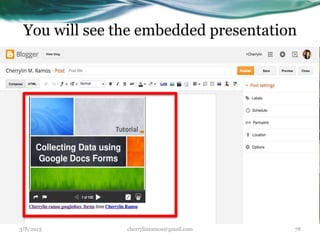
You will see the embedded presentation
3/8/2015 cherrylinramos@gmail.com 79
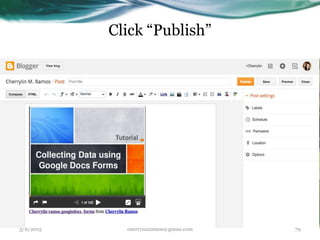
Click “Publish”
How to connect
Slidshare to Google+
Hangout?
3/8/2015 cherrylinramos@gmail.com 80
Click the “Profile” button or Picture
3/8/2015 cherrylinramos@gmail.com 81
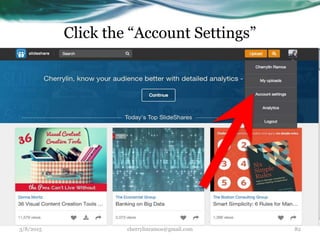
Click the “Account Settings”
3/8/2015 cherrylinramos@gmail.com 82
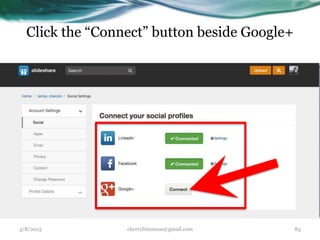
Click the “Connect” button beside Google+
3/8/2015 cherrylinramos@gmail.com 83
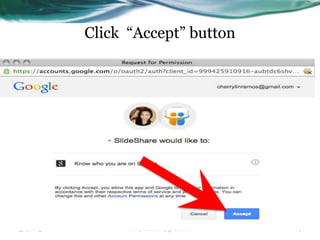
Click “Accept” button
3/8/2015 cherrylinramos@gmail.com 84
Go to your Google+ Hangout account,
3/8/2015 cherrylinramos@gmail.com 85
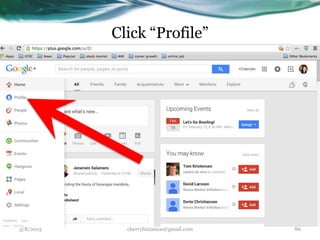
Click “Profile”
3/8/2015 cherrylinramos@gmail.com 86
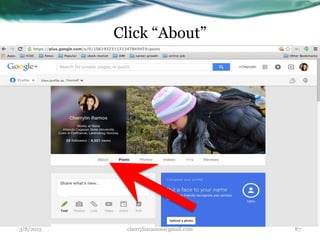
Click “About”
3/8/2015 cherrylinramos@gmail.com 87
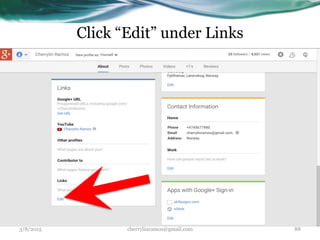
Click “Edit” under Links
3/8/2015 cherrylinramos@gmail.com 88
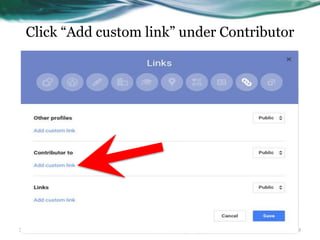
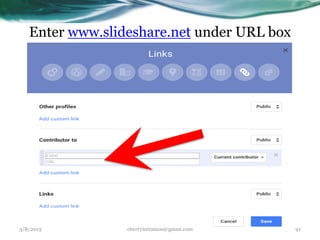
Click “Add custom link” under Contributor
3/8/2015 cherrylinramos@gmail.com 89
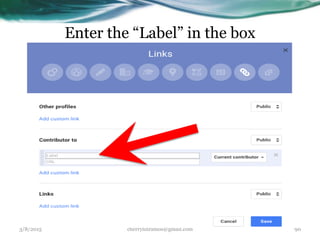
Enter the “Label” in the box
3/8/2015 cherrylinramos@gmail.com 90
Enter www.slideshare.net under URL box
3/8/2015 cherrylinramos@gmail.com 91
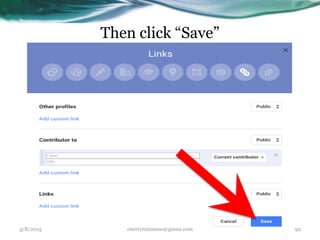
Then click “Save”
3/8/2015 cherrylinramos@gmail.com 92
Use of Analytics
in
Slideshare
3/8/2015 cherrylinramos@gmail.com 93
Click the “Profile” button or Picture
3/8/2015 cherrylinramos@gmail.com 94
Click the “Analytics”
3/8/2015 cherrylinramos@gmail.com 95
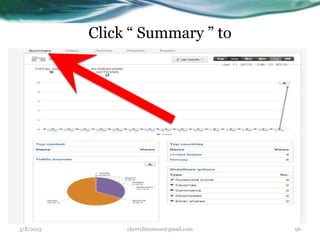
Click “ Summary ” to
3/8/2015 cherrylinramos@gmail.com 96
See overview of your content’s
performance.
3/8/2015 cherrylinramos@gmail.com 97
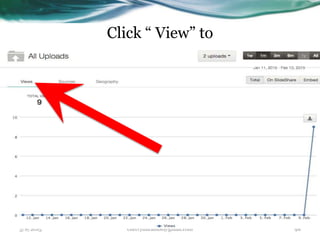
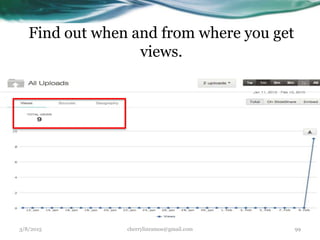
Click “ View” to
3/8/2015 cherrylinramos@gmail.com 98
Find out when and from where you get
views.
3/8/2015 cherrylinramos@gmail.com 99
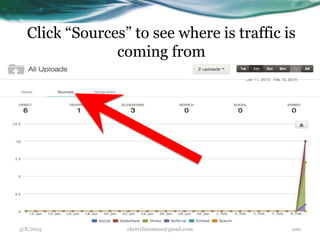
Click “Sources” to see where is traffic is
coming from
3/8/2015 cherrylinramos@gmail.com 100
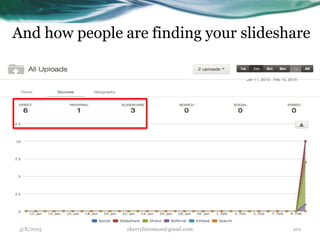
And how people are finding your slideshare
3/8/2015 cherrylinramos@gmail.com 101
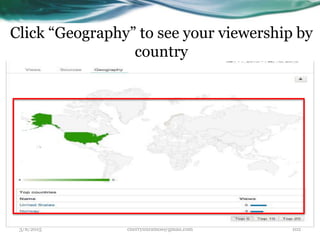
Click “Geography” to see your viewership by
country
3/8/2015 cherrylinramos@gmail.com 102
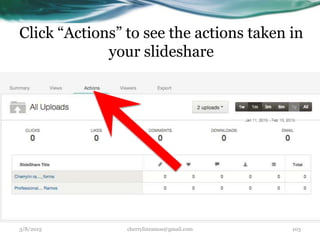
Click “Actions” to see the actions taken in
your slideshare
3/8/2015 cherrylinramos@gmail.com 103
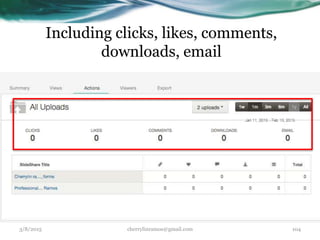
Including clicks, likes, comments,
downloads, email
3/8/2015 cherrylinramos@gmail.com 104
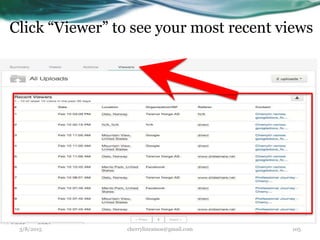
Click “Viewer” to see your most recent views
3/8/2015 cherrylinramos@gmail.com 105
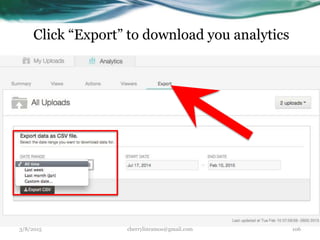
Click “Export” to download you analytics
” to see your most recent views
3/8/2015 cherrylinramos@gmail.com 106
3/8/2015 cherrylinramos@gmail.com 107
3/8/2015 cherrylinramos@gmail.com 108

Basic tutorial how to use slideshare

Editor's Notes

  • #2 This template can be used as a starter file to give updates for project milestones. Sections Sections can help to organize your slides or facilitate collaboration between multiple authors. On the Home tab, under Slides, click Section, and then click Add Section. Notes Use the Notes pane for delivery notes or to provide additional details for the audience. You can see these notes in Presenter View during your presentation. Keep in mind the font size (important for accessibility, visibility, videotaping, and online production) Coordinated colors Pay particular attention to the graphs, charts, and text boxes. Consider that attendees will print in black and white or grayscale. Run a test print to make sure your colors work when printed in pure black and white and grayscale. Graphics, tables, and graphs Keep it simple: If possible, use consistent, non-distracting styles and colors. Label all graphs and tables.
  • #3 What is the project about? Define the goal of this project Is it similar to projects in the past or is it a new effort? Define the scope of this project Is it an independent project or is it related to other projects? * Note that this slide is not necessary for weekly status meetings
  • #4 What is the project about? Define the goal of this project Is it similar to projects in the past or is it a new effort? Define the scope of this project Is it an independent project or is it related to other projects? * Note that this slide is not necessary for weekly status meetings
  • #5 What is the project about? Define the goal of this project Is it similar to projects in the past or is it a new effort? Define the scope of this project Is it an independent project or is it related to other projects? * Note that this slide is not necessary for weekly status meetings
  • #6 What is the project about? Define the goal of this project Is it similar to projects in the past or is it a new effort? Define the scope of this project Is it an independent project or is it related to other projects? * Note that this slide is not necessary for weekly status meetings
  • #7 What is the project about? Define the goal of this project Is it similar to projects in the past or is it a new effort? Define the scope of this project Is it an independent project or is it related to other projects? * Note that this slide is not necessary for weekly status meetings
  • #8 What is the project about? Define the goal of this project Is it similar to projects in the past or is it a new effort? Define the scope of this project Is it an independent project or is it related to other projects? * Note that this slide is not necessary for weekly status meetings
  • #9 What is the project about? Define the goal of this project Is it similar to projects in the past or is it a new effort? Define the scope of this project Is it an independent project or is it related to other projects? * Note that this slide is not necessary for weekly status meetings
  • #10 What is the project about? Define the goal of this project Is it similar to projects in the past or is it a new effort? Define the scope of this project Is it an independent project or is it related to other projects? * Note that this slide is not necessary for weekly status meetings
  • #11 What is the project about? Define the goal of this project Is it similar to projects in the past or is it a new effort? Define the scope of this project Is it an independent project or is it related to other projects? * Note that this slide is not necessary for weekly status meetings
  • #12 What is the project about? Define the goal of this project Is it similar to projects in the past or is it a new effort? Define the scope of this project Is it an independent project or is it related to other projects? * Note that this slide is not necessary for weekly status meetings
  • #23 What is the project about? Define the goal of this project Is it similar to projects in the past or is it a new effort? Define the scope of this project Is it an independent project or is it related to other projects? * Note that this slide is not necessary for weekly status meetings
  • #37 What is the project about? Define the goal of this project Is it similar to projects in the past or is it a new effort? Define the scope of this project Is it an independent project or is it related to other projects? * Note that this slide is not necessary for weekly status meetings
  • #60 What is the project about? Define the goal of this project Is it similar to projects in the past or is it a new effort? Define the scope of this project Is it an independent project or is it related to other projects? * Note that this slide is not necessary for weekly status meetings
  • #81 What is the project about? Define the goal of this project Is it similar to projects in the past or is it a new effort? Define the scope of this project Is it an independent project or is it related to other projects? * Note that this slide is not necessary for weekly status meetings
  • #94 What is the project about? Define the goal of this project Is it similar to projects in the past or is it a new effort? Define the scope of this project Is it an independent project or is it related to other projects? * Note that this slide is not necessary for weekly status meetings