Introduction to Ant www.scmGalaxy.com scmGalaxy Author: Rajesh Kumar [email_address]
What is ANT? Installation Sample build.xml Executing ant script Closer look at the structure of ANT file Advantages of using ANT Packaging – JAR, WAR, EAR Agenda
What is ANT? A nother  N eat  T ool Java-based build tool  Like  make , without  make ’s wrinkles   An open source Apache Jakarta project http://ant.apache.org/ Implemented in Java, implemented for Java
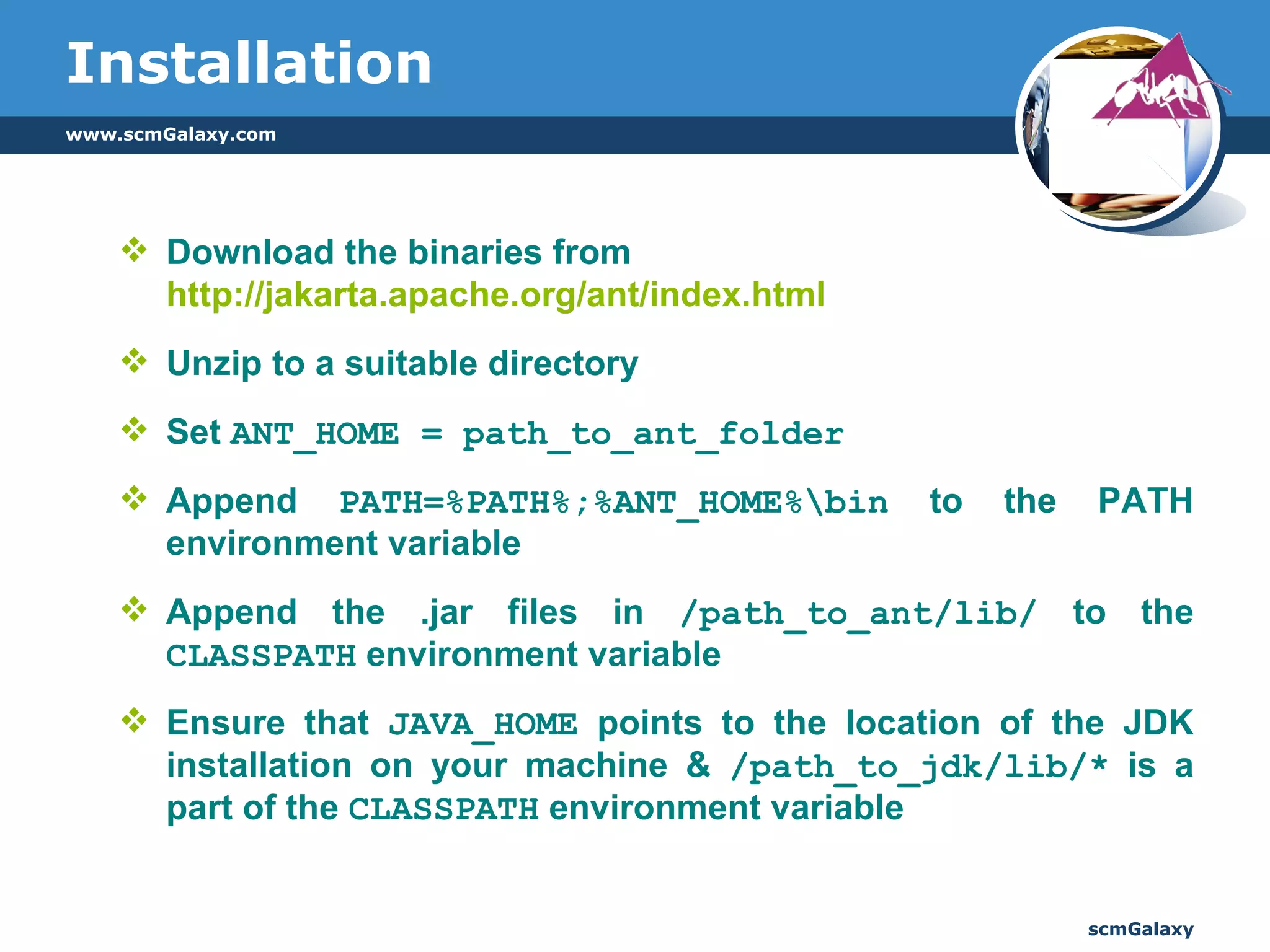
Installation Download the binaries from  http://jakarta.apache.org/ant/index.html Unzip to a suitable directory  Set  ANT_HOME = path_to_ant_folder Append  PATH=%PATH%;%ANT_HOME%\bin  to the PATH environment variable Append the .jar files in  /path_to_ant/lib/  to the  CLASSPATH  environment variable  Ensure that  JAVA_HOME  points to the location of the JDK installation on your machine &  /path_to_jdk/lib/*  is a part of the  CLASSPATH  environment variable
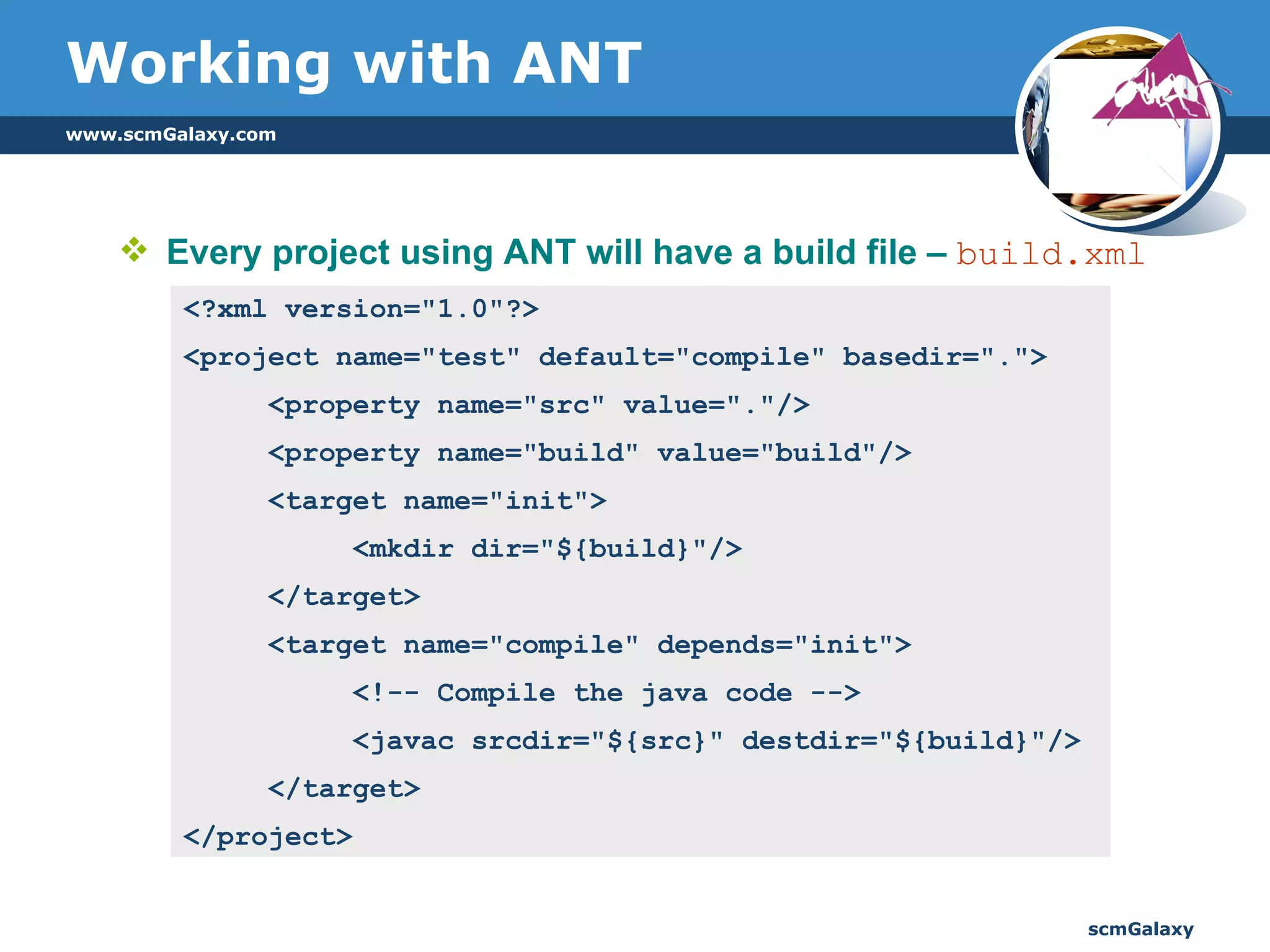
Working with ANT Every project using ANT will have a build file –  build.xml <?xml version=&quot;1.0&quot;?>  <project name=&quot;test&quot; default=&quot;compile&quot; basedir=&quot;.&quot;>  <property name=&quot;src&quot; value=&quot;.&quot;/>  <property name=&quot;build&quot; value=&quot;build&quot;/> <target name=&quot;init&quot;>  <mkdir dir=&quot;${build}&quot;/> </target> <target name=&quot;compile&quot; depends=&quot;init&quot;>  <!-- Compile the java code -->  <javac srcdir=&quot;${src}&quot; destdir=&quot;${build}&quot;/>  </target> </project>
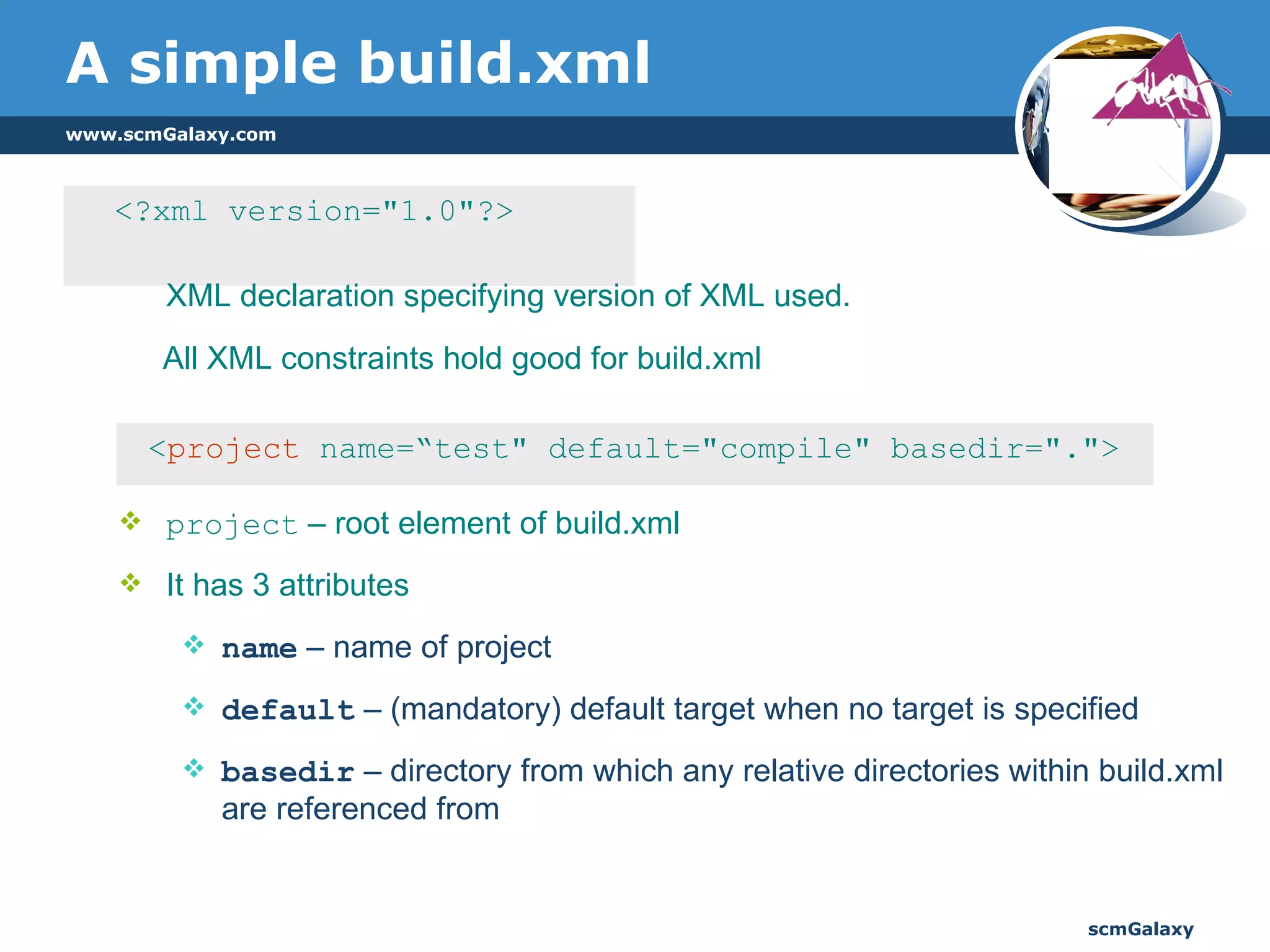
A simple build.xml <?xml version=&quot;1.0&quot;?>  XML declaration specifying version of XML used.  All XML constraints hold good for build.xml < project  name=“test&quot; default=&quot;compile&quot; basedir=&quot;.&quot;> project  – root element of build.xml It has 3 attributes name  – name of project default  – (mandatory) default target when no target is specified basedir  – directory from which any relative directories within build.xml are referenced from
A simple build.xml  [Contd.] < property  name=&quot;src&quot; value=&quot;.&quot;/>  <property name=&quot;build&quot; value=&quot;build&quot;/> Property declaration is like user-defined variables to use within the build file It has 2 attributes name  – name of property value  – desired value of the property To reference a property, ${property_name} -  ${src} Built in properties that ANT provides : basedir    ant.file ant.version   ant.project.name  ant.java.version
A simple build.xml  [Contd.] <target name=&quot;init&quot;> <mkdir dir=&quot;${build}&quot;/> </target> target element is a wrapper for a sequence of actions Has the following attributes name  – (mandatory) Name used to reference this target from within the file or from command line description  – short description of this target  if  –  to conditionally execute contents of target based on the value of a property unless –  converse of if
A simple build.xml  [Contd.] < target  name=&quot;compile&quot; depends=&quot;init&quot;>  <javac srcdir=&quot;${src}&quot; destdir=&quot;${build}&quot;/>  </target>  depends  – comma separated list of all the targets on which this target depends, i.e, targets that must be executed prior to the execution of this target javac  element is a  task  which is performed under the  target   compile By default, only those .java input files that have a more recent timestamp than their corresponding .class output files will be compiled
Executing ant script ant [options] [target [target2 [target3] ...]]  Options:  -help    print this message  -projecthelp  print project help information  -version  print the version information and exit  -diagnostics  print information that might be helpful to diagnose  or report problems.  -quiet, -q  be extra quiet  -verbose, -v  be extra verbose  -debug  print debugging information  -emacs  produce logging information without adornments  -logfile <file>  use given file for log    -l <file>  ''  -logger <classname>  the class which is to perform logging  -listener <classname>  add an instance of class as a project listener  -buildfile <file>  use given buildfile  -file <file>  ''    -f <file>  ''  -D<property>=<value>  use value for given property  -propertyfile  taking precedence  -inputhandler <class>  the class which will handle input requests  -find <file> <name>  load all properties from file with -D properties  search for buildfile towards the root of the  file system and use it
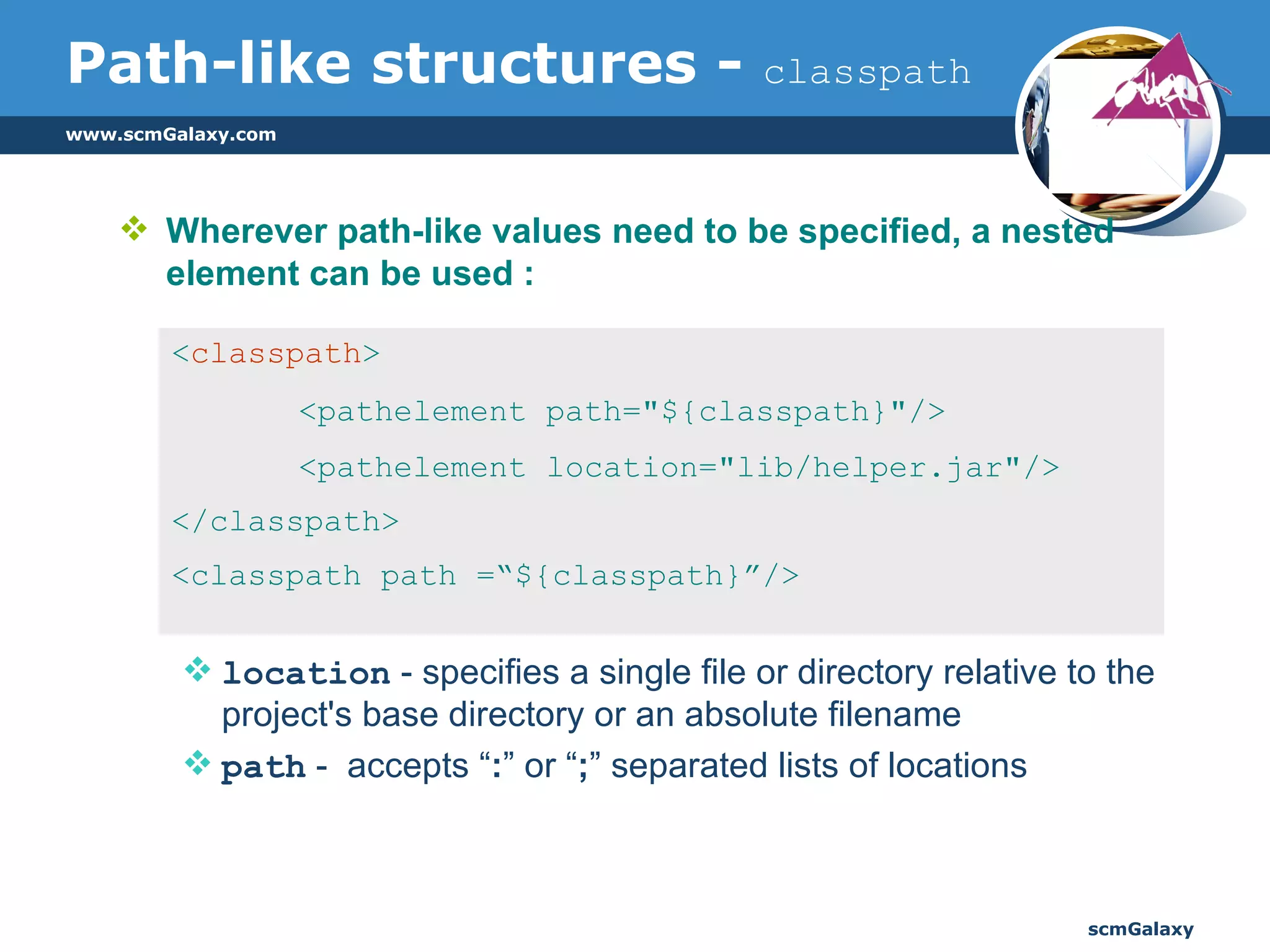
Path-like structures -  classpath Wherever path-like values need to be specified, a nested element can be used :  location  - specifies a single file or directory relative to the project's base directory or an absolute filename path  -  accepts “ : ” or “ ; ” separated lists of locations < classpath > <pathelement path=&quot;${classpath}&quot;/>  <pathelement location=&quot;lib/helper.jar&quot;/> </classpath> <classpath path =“${classpath}”/>
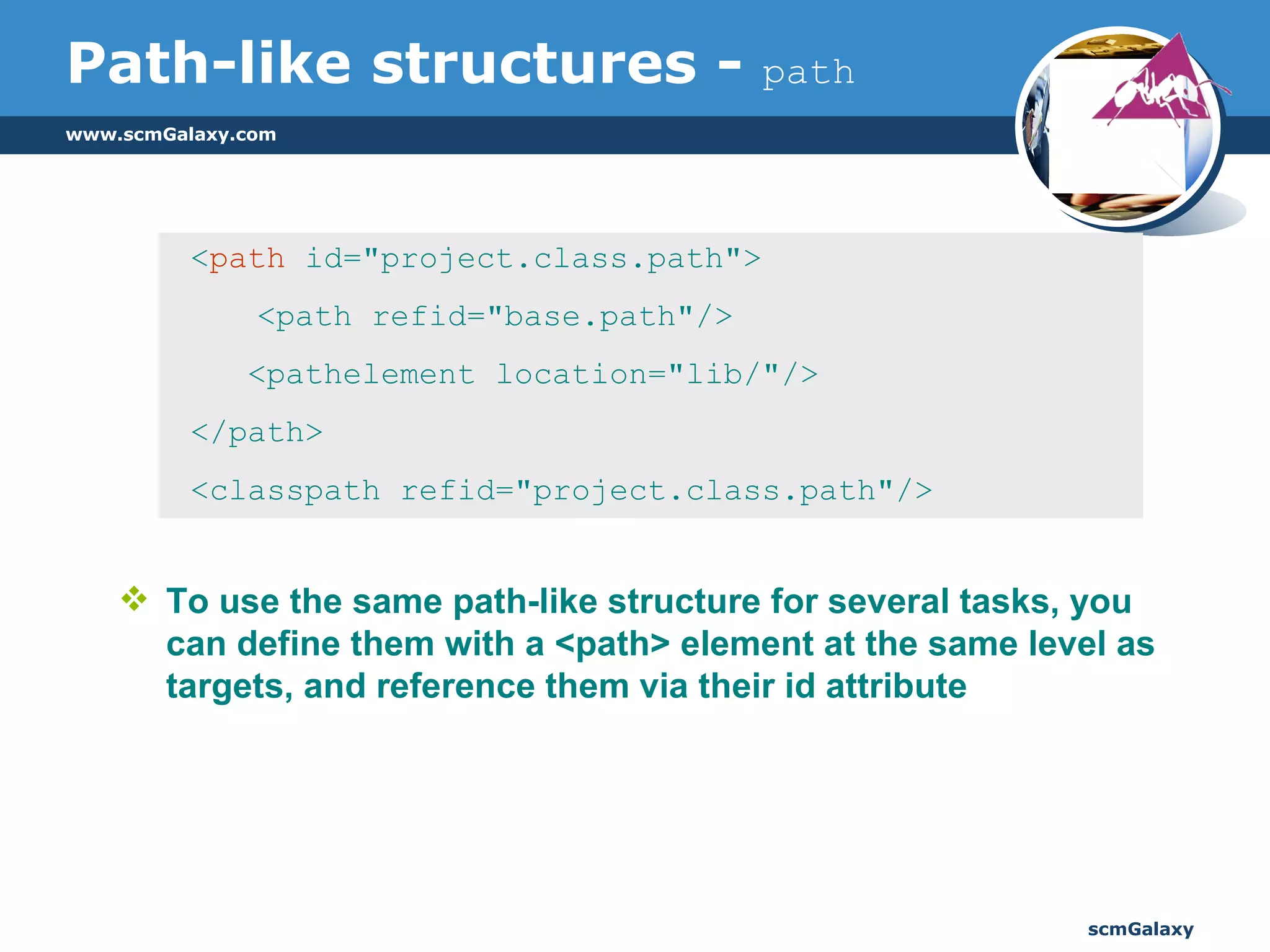
Path-like structures -  path To use the same path-like structure for several tasks, you can define them with a <path> element at the same level as targets, and reference them via their id attribute  < path  id=&quot;project.class.path&quot;>   <path refid=&quot;base.path&quot;/> <pathelement location=&quot;lib/&quot;/> </path> <classpath refid=&quot;project.class.path&quot;/>
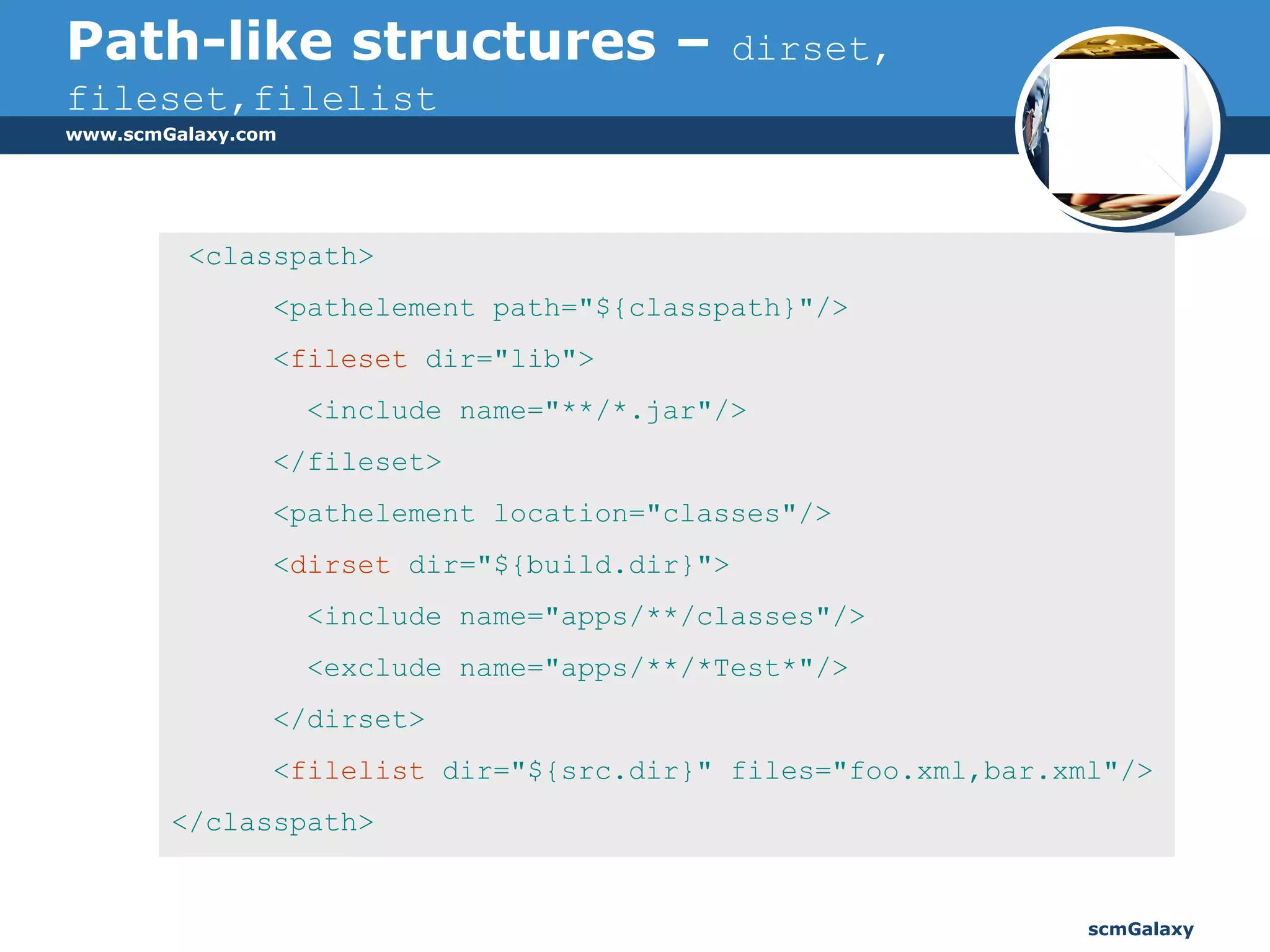
Path-like structures –   dirset, fileset,filelist <classpath> <pathelement path=&quot;${classpath}&quot;/> < fileset  dir=&quot;lib&quot;> <include name=&quot;**/*.jar&quot;/> </fileset> <pathelement location=&quot;classes&quot;/> < dirset  dir=&quot;${build.dir}&quot;> <include name=&quot;apps/**/classes&quot;/> <exclude name=&quot;apps/**/*Test*&quot;/> </dirset> < filelist  dir=&quot;${src.dir}&quot; files=&quot;foo.xml,bar.xml&quot;/> </classpath>
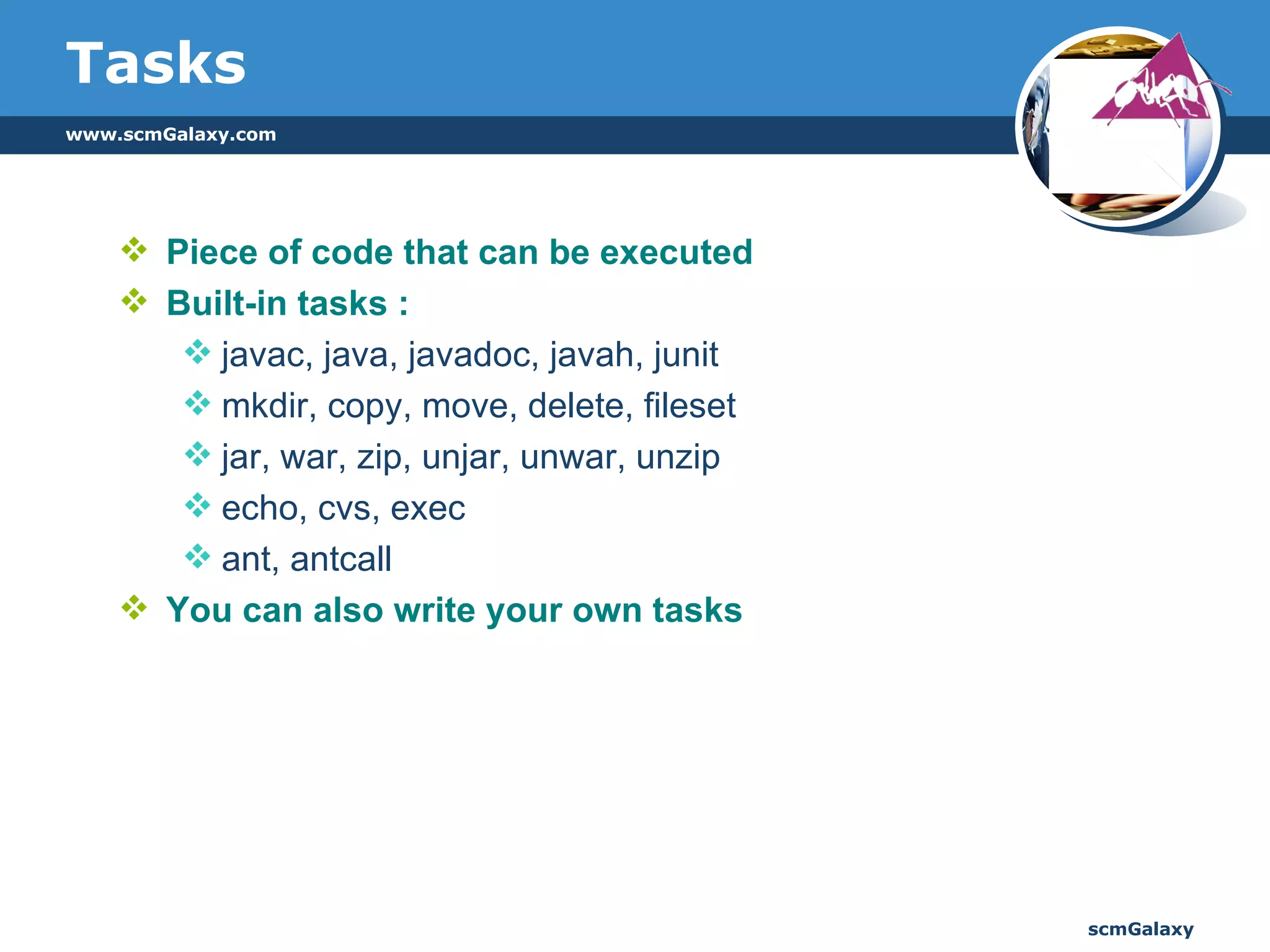
Tasks Piece of code that can be executed Built-in tasks : javac, java, javadoc, javah, junit mkdir, copy, move, delete, fileset jar, war, zip, unjar, unwar, unzip echo, cvs, exec ant, antcall You can also write your own tasks
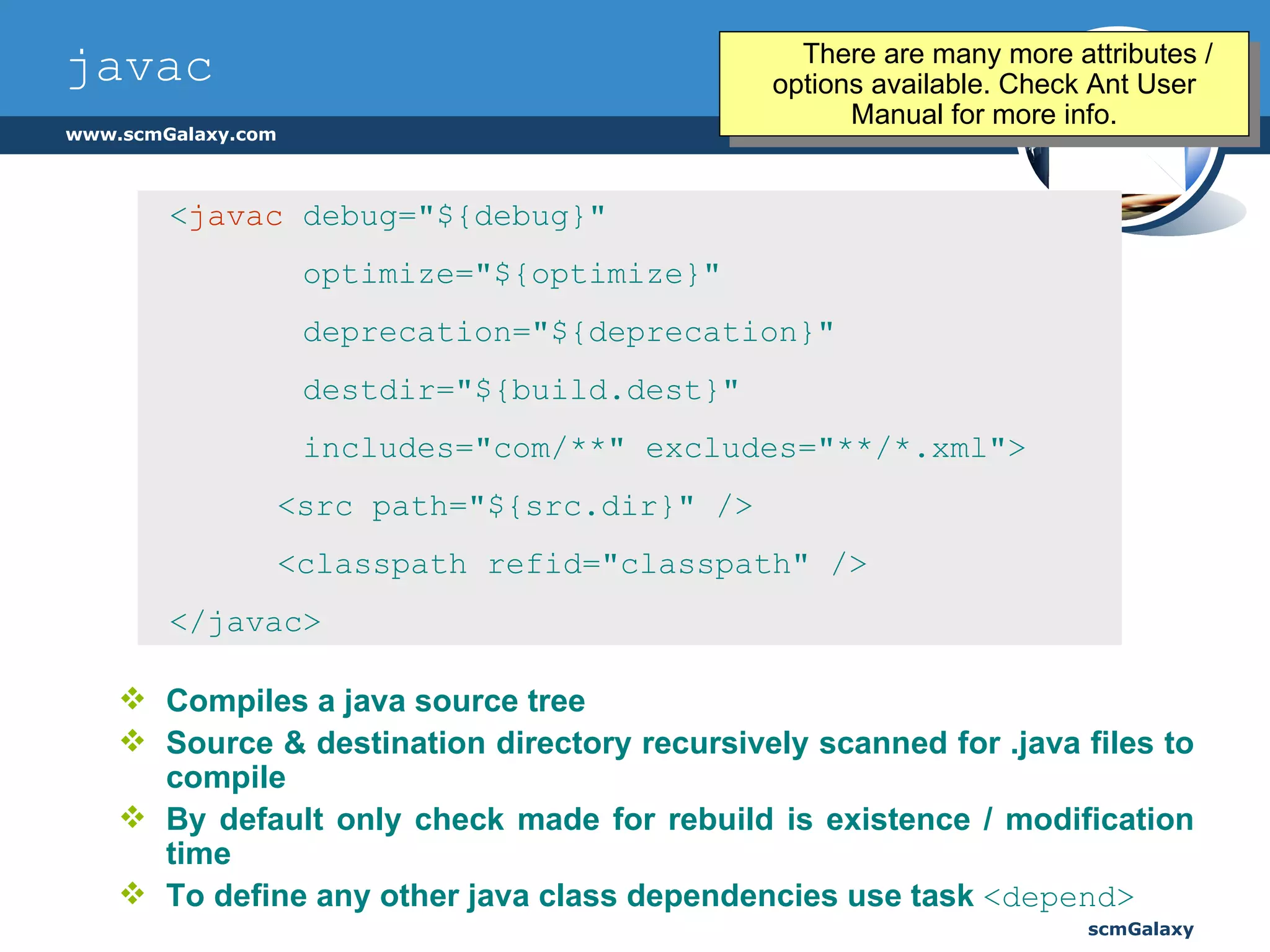
javac Compiles a java source tree Source & destination directory recursively scanned for .java files to compile By default only check made for rebuild is existence / modification time To define any other java class dependencies use task  <depend> < javac   debug=&quot;${debug}&quot;  optimize=&quot;${optimize}&quot;  deprecation=&quot;${deprecation}&quot;  destdir=&quot;${build.dest}&quot;  includes=&quot;com/**&quot; excludes=&quot;**/*.xml&quot;> <src path=&quot;${src.dir}&quot; />    <classpath refid=&quot;classpath&quot; />    </javac> There are many more attributes / options available. Check Ant User Manual for more info.
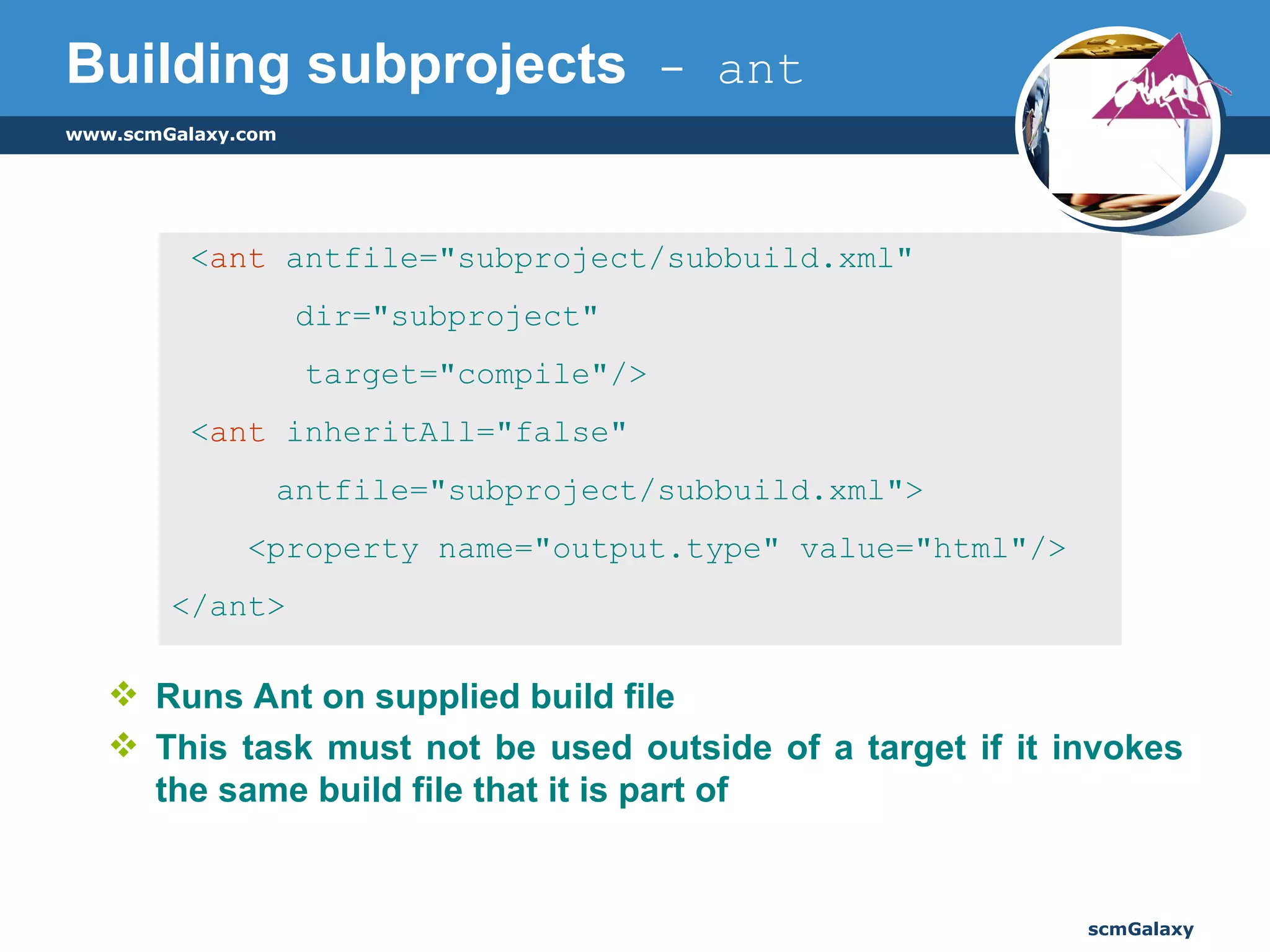
Building subprojects  - ant Runs Ant on supplied build file This task must not be used outside of a target if it invokes the same build file that it is part of < ant  antfile=&quot;subproject/subbuild.xml&quot;    dir=&quot;subproject&quot;  target=&quot;compile&quot;/> < ant  inheritAll=&quot;false&quot;    antfile=&quot;subproject/subbuild.xml&quot;> <property name=&quot;output.type&quot; value=&quot;html&quot;/> </ant>
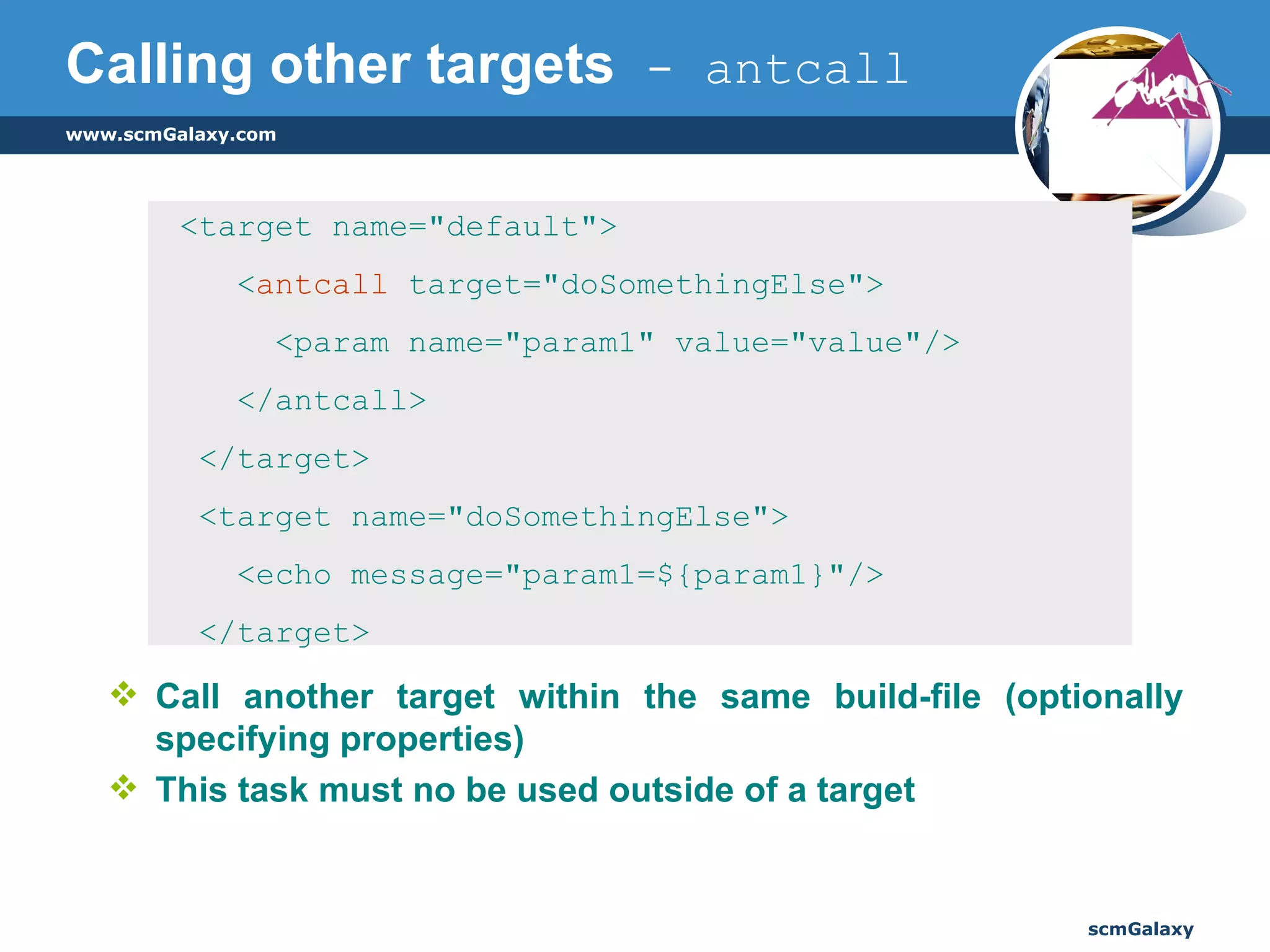
Calling other targets  - antcall Call another target within the same build-file (optionally specifying properties)  This task must no be used outside of a target <target name=&quot;default&quot;> < antcall  target=&quot;doSomethingElse&quot;> <param name=&quot;param1&quot; value=&quot;value&quot;/> </antcall> </target> <target name=&quot;doSomethingElse&quot;> <echo message=&quot;param1=${param1}&quot;/> </target>
Advantages Ease of use Configuration files are XML based Same config file (build.xml) can be used across platforms Platform independent Special support for Java   Easy to create JavaDocs, WAR & JAR files Built-in support for   JUnit FTP CVS
Advantages  [Contd.] Particularly good for automating complicated repetitive tasks which is what most build processes are all about! ANT can be integrated with most Java IDEs Eclipse Jbuilder IntelliJIdea
PACKAGING
ejb-jar file will contain : Beans’ class files Beans’ deployment descriptors META-INF/ejb-jar.xml Application server specific file  (e.g. META-INF/jboss.xml) Sample ejb-jar.xml Sample application specific descriptor file EJB Packaging –  ejb-jar
Has specific hierarchical directory structure Top-level directory is the document root of application WAR has the following folders (usually): jsp – JSP files  images – images used in the JSPs css – style sheet files scripts – javascript files WEB-INF WEB-INF folder contains Configuration files like  web.xml, struts-config.xml .tld files (if any) lib :  directory that contains jar archives of libraries  classes :  directory that contains the servlet classes and utility classes Web ARchive (WAR)
An EAR file can contain : Web components (war) Beans (ejb-jar) Libraries (jar) J2EE deployment descriptor (META-INF/application.xml) Sample application.xml  Enterprise ARchive (EAR)
References Ant home page http://ant.apache.org/ Ant manual http://ant.apache.org/manual/index.html   Another beginner’s tutorial  http://supportweb.cs.bham.ac.uk/documentation/tutorials/docsystem/build/tutorials/ant/ant.html
www.scmGalaxy.com Thank You ! Author: Rajesh Kumar [email_address]

Introduction To Ant

  • 1.
    Introduction to Antwww.scmGalaxy.com scmGalaxy Author: Rajesh Kumar [email_address]
  • 2.
    What is ANT?Installation Sample build.xml Executing ant script Closer look at the structure of ANT file Advantages of using ANT Packaging – JAR, WAR, EAR Agenda
  • 3.
    What is ANT?A nother N eat T ool Java-based build tool Like make , without make ’s wrinkles  An open source Apache Jakarta project http://ant.apache.org/ Implemented in Java, implemented for Java
  • 4.
    Installation Download thebinaries from http://jakarta.apache.org/ant/index.html Unzip to a suitable directory Set ANT_HOME = path_to_ant_folder Append PATH=%PATH%;%ANT_HOME%\bin to the PATH environment variable Append the .jar files in /path_to_ant/lib/ to the CLASSPATH environment variable Ensure that JAVA_HOME points to the location of the JDK installation on your machine & /path_to_jdk/lib/* is a part of the CLASSPATH environment variable
  • 5.
    Working with ANTEvery project using ANT will have a build file – build.xml <?xml version=&quot;1.0&quot;?> <project name=&quot;test&quot; default=&quot;compile&quot; basedir=&quot;.&quot;> <property name=&quot;src&quot; value=&quot;.&quot;/> <property name=&quot;build&quot; value=&quot;build&quot;/> <target name=&quot;init&quot;> <mkdir dir=&quot;${build}&quot;/> </target> <target name=&quot;compile&quot; depends=&quot;init&quot;> <!-- Compile the java code --> <javac srcdir=&quot;${src}&quot; destdir=&quot;${build}&quot;/> </target> </project>
  • 6.
    A simple build.xml<?xml version=&quot;1.0&quot;?> XML declaration specifying version of XML used. All XML constraints hold good for build.xml < project name=“test&quot; default=&quot;compile&quot; basedir=&quot;.&quot;> project – root element of build.xml It has 3 attributes name – name of project default – (mandatory) default target when no target is specified basedir – directory from which any relative directories within build.xml are referenced from
  • 7.
    A simple build.xml [Contd.] < property name=&quot;src&quot; value=&quot;.&quot;/> <property name=&quot;build&quot; value=&quot;build&quot;/> Property declaration is like user-defined variables to use within the build file It has 2 attributes name – name of property value – desired value of the property To reference a property, ${property_name} - ${src} Built in properties that ANT provides : basedir   ant.file ant.version  ant.project.name ant.java.version
  • 8.
    A simple build.xml [Contd.] <target name=&quot;init&quot;> <mkdir dir=&quot;${build}&quot;/> </target> target element is a wrapper for a sequence of actions Has the following attributes name – (mandatory) Name used to reference this target from within the file or from command line description – short description of this target if – to conditionally execute contents of target based on the value of a property unless – converse of if
  • 9.
    A simple build.xml [Contd.] < target name=&quot;compile&quot; depends=&quot;init&quot;> <javac srcdir=&quot;${src}&quot; destdir=&quot;${build}&quot;/> </target> depends – comma separated list of all the targets on which this target depends, i.e, targets that must be executed prior to the execution of this target javac element is a task which is performed under the target compile By default, only those .java input files that have a more recent timestamp than their corresponding .class output files will be compiled
  • 10.
    Executing ant scriptant [options] [target [target2 [target3] ...]] Options: -help print this message -projecthelp print project help information -version print the version information and exit -diagnostics print information that might be helpful to diagnose or report problems. -quiet, -q be extra quiet -verbose, -v be extra verbose -debug print debugging information -emacs produce logging information without adornments -logfile <file> use given file for log -l <file> '' -logger <classname> the class which is to perform logging -listener <classname> add an instance of class as a project listener -buildfile <file> use given buildfile -file <file> '' -f <file> '' -D<property>=<value> use value for given property -propertyfile taking precedence -inputhandler <class> the class which will handle input requests -find <file> <name> load all properties from file with -D properties search for buildfile towards the root of the file system and use it
  • 11.
    Path-like structures - classpath Wherever path-like values need to be specified, a nested element can be used : location - specifies a single file or directory relative to the project's base directory or an absolute filename path - accepts “ : ” or “ ; ” separated lists of locations < classpath > <pathelement path=&quot;${classpath}&quot;/> <pathelement location=&quot;lib/helper.jar&quot;/> </classpath> <classpath path =“${classpath}”/>
  • 12.
    Path-like structures - path To use the same path-like structure for several tasks, you can define them with a <path> element at the same level as targets, and reference them via their id attribute < path id=&quot;project.class.path&quot;> <path refid=&quot;base.path&quot;/> <pathelement location=&quot;lib/&quot;/> </path> <classpath refid=&quot;project.class.path&quot;/>
  • 13.
    Path-like structures – dirset, fileset,filelist <classpath> <pathelement path=&quot;${classpath}&quot;/> < fileset dir=&quot;lib&quot;> <include name=&quot;**/*.jar&quot;/> </fileset> <pathelement location=&quot;classes&quot;/> < dirset dir=&quot;${build.dir}&quot;> <include name=&quot;apps/**/classes&quot;/> <exclude name=&quot;apps/**/*Test*&quot;/> </dirset> < filelist dir=&quot;${src.dir}&quot; files=&quot;foo.xml,bar.xml&quot;/> </classpath>
  • 14.
    Tasks Piece ofcode that can be executed Built-in tasks : javac, java, javadoc, javah, junit mkdir, copy, move, delete, fileset jar, war, zip, unjar, unwar, unzip echo, cvs, exec ant, antcall You can also write your own tasks
  • 15.
    javac Compiles ajava source tree Source & destination directory recursively scanned for .java files to compile By default only check made for rebuild is existence / modification time To define any other java class dependencies use task <depend> < javac debug=&quot;${debug}&quot; optimize=&quot;${optimize}&quot; deprecation=&quot;${deprecation}&quot; destdir=&quot;${build.dest}&quot; includes=&quot;com/**&quot; excludes=&quot;**/*.xml&quot;> <src path=&quot;${src.dir}&quot; />   <classpath refid=&quot;classpath&quot; />   </javac> There are many more attributes / options available. Check Ant User Manual for more info.
  • 16.
    Building subprojects - ant Runs Ant on supplied build file This task must not be used outside of a target if it invokes the same build file that it is part of < ant antfile=&quot;subproject/subbuild.xml&quot; dir=&quot;subproject&quot; target=&quot;compile&quot;/> < ant inheritAll=&quot;false&quot; antfile=&quot;subproject/subbuild.xml&quot;> <property name=&quot;output.type&quot; value=&quot;html&quot;/> </ant>
  • 17.
    Calling other targets - antcall Call another target within the same build-file (optionally specifying properties) This task must no be used outside of a target <target name=&quot;default&quot;> < antcall target=&quot;doSomethingElse&quot;> <param name=&quot;param1&quot; value=&quot;value&quot;/> </antcall> </target> <target name=&quot;doSomethingElse&quot;> <echo message=&quot;param1=${param1}&quot;/> </target>
  • 18.
    Advantages Ease ofuse Configuration files are XML based Same config file (build.xml) can be used across platforms Platform independent Special support for Java Easy to create JavaDocs, WAR & JAR files Built-in support for JUnit FTP CVS
  • 19.
    Advantages [Contd.]Particularly good for automating complicated repetitive tasks which is what most build processes are all about! ANT can be integrated with most Java IDEs Eclipse Jbuilder IntelliJIdea
  • 20.
  • 21.
    ejb-jar file willcontain : Beans’ class files Beans’ deployment descriptors META-INF/ejb-jar.xml Application server specific file (e.g. META-INF/jboss.xml) Sample ejb-jar.xml Sample application specific descriptor file EJB Packaging – ejb-jar
  • 22.
    Has specific hierarchicaldirectory structure Top-level directory is the document root of application WAR has the following folders (usually): jsp – JSP files images – images used in the JSPs css – style sheet files scripts – javascript files WEB-INF WEB-INF folder contains Configuration files like web.xml, struts-config.xml .tld files (if any) lib : directory that contains jar archives of libraries classes : directory that contains the servlet classes and utility classes Web ARchive (WAR)
  • 23.
    An EAR filecan contain : Web components (war) Beans (ejb-jar) Libraries (jar) J2EE deployment descriptor (META-INF/application.xml) Sample application.xml Enterprise ARchive (EAR)
  • 24.
    References Ant homepage http://ant.apache.org/ Ant manual http://ant.apache.org/manual/index.html Another beginner’s tutorial http://supportweb.cs.bham.ac.uk/documentation/tutorials/docsystem/build/tutorials/ant/ant.html
  • 25.
    www.scmGalaxy.com Thank You! Author: Rajesh Kumar [email_address]