The NEW TwinSpace Christina Crawley and Santi Scimeca eTwinning Central Support Service European Schoolnet Annual eTwinning Conference - 6 February 2010 Seville, Spain
Today’s session: 1. Introducing the eTwinning TwinSpace 2. Going through the various tools 3. Giving you a chance to use the TwinSpace through a number of tasks
 
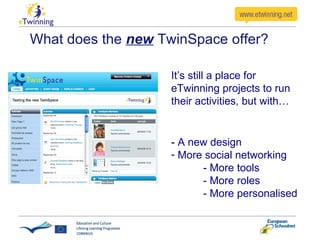
What does the  new  TwinSpace offer? -  A new design More social networking - More tools - More roles - More personalised It’s still a place for eTwinning projects to run their activities, but with…
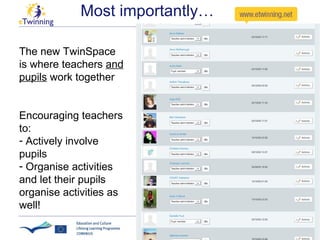
Most importantly… The new TwinSpace is where teachers  and pupils  work together Encouraging teachers to: Actively involve pupils Organise activities and let their pupils organise activities as well!
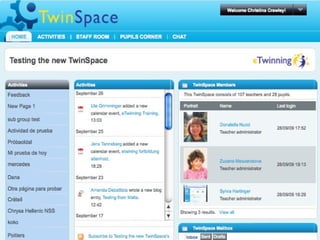
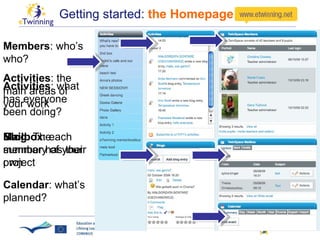
Getting started:  the Homepage Members : who’s who? Activities : what has everyone been doing? Mailbox : each member has their own Calendar : what’s planned? Activities : the main areas of your work Blog : The summary of your project
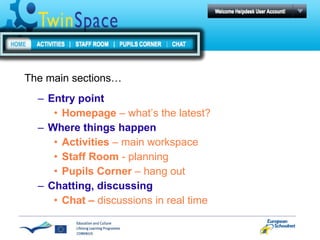
Entry point Homepage  – what’s the latest? Where things happen Activities  – main workspace Staff Room  - planning Pupils Corner  – hang out Chatting, discussing Chat –  discussions in real time The main sections…
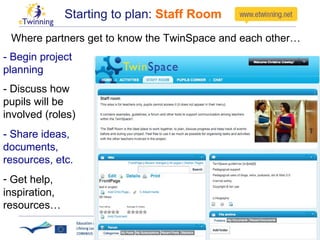
Starting to plan:  Staff Room Where partners get to know the TwinSpace and each other… - Begin project planning - Discuss how pupils will be involved (roles) - Share ideas, documents, resources, etc. Get help, inspiration, resources…
Who has  initial  access to the TwinSpace? Founding partners  (as teacher administrators) Additional partners – added via the Desktop  (as teacher members) . : no need to add twice (via Desktop and TwinSpace)
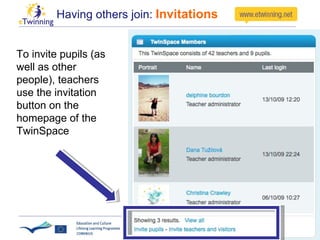
Having others join:  Invitations To invite pupils (as well as other people), teachers use the invitation button on the homepage of the TwinSpace
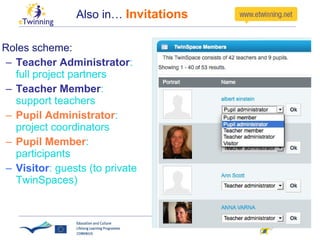
Also in…  Invitations Roles scheme:  Teacher Administrator : full project partners Teacher Member : support teachers Pupil Administrator : project coordinators  Pupil Member : participants Visitor : guests (to private TwinSpaces)
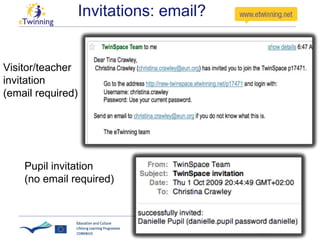
Invitations: email? Visitor/teacher invitation (email required) Pupil invitation (no email required)
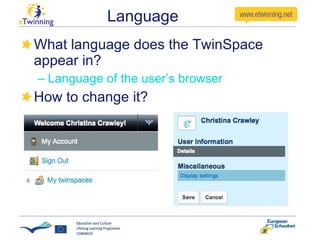
Language What language does the TwinSpace appear in? Language of the user’s browser  How to change it?
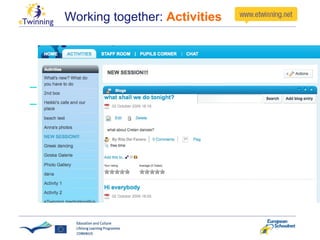
Working together:  Activities The bulk area for project work Administrators (teachers and pupils) can create as many activities pages as they wish (as one could with folders), and choose which tools are used
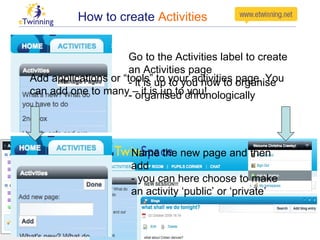
How to create  Activities Go to the Activities label to create an Activities page - it is up to you how to organise - organised chronologically Name the new page and then add - you can here choose to make an activity ‘public’ or ‘private’  Add applications or “tools” to your activities page. You can add one to many – it is up to you!
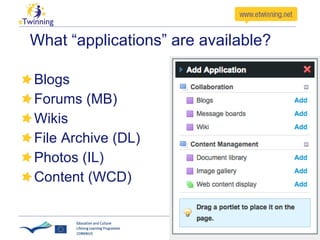
What “applications” are available? Blogs Forums (MB) Wikis File Archive (DL) Photos (IL) Content (WCD)
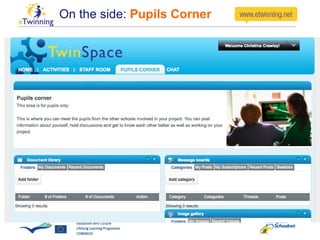
On the side:  Pupils Corner - To encourage pupils to get to know each other, on their own, in their own way. Teachers members  have viewing rights. Teacher admins  can delete.
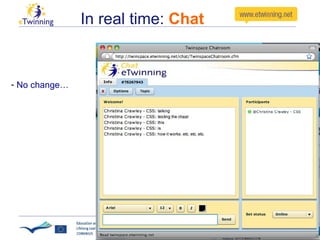
In real time:  Chat No change…
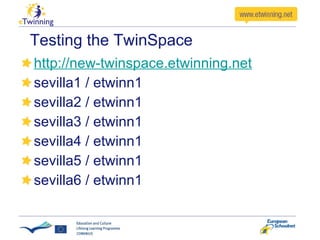
Testing the TwinSpace http://new-twinspace.etwinning.net sevilla1 / etwinn1 sevilla2 / etwinn1 sevilla3 / etwinn1 sevilla4 / etwinn1 sevilla5 / etwinn1 sevilla6 / etwinn1
Tasks Get access (login as pupil or get someone to invite you) Change the language of the TwinSpace Invite a teacher, create a pupil profile Create an activities page Add applications Create posts: forum, blog, wiki, etc. Web Content Display: write text, embed a YouTube video, add photos Create a calendar event Send an email Publish/unpublish Ask a question in the CHAT area.

The NEW eTwinning TwinSpace

  • 1.
    The NEW TwinSpaceChristina Crawley and Santi Scimeca eTwinning Central Support Service European Schoolnet Annual eTwinning Conference - 6 February 2010 Seville, Spain
  • 2.
    Today’s session: 1.Introducing the eTwinning TwinSpace 2. Going through the various tools 3. Giving you a chance to use the TwinSpace through a number of tasks
  • 3.
  • 4.
    What does the new TwinSpace offer? - A new design More social networking - More tools - More roles - More personalised It’s still a place for eTwinning projects to run their activities, but with…
  • 5.
    Most importantly… Thenew TwinSpace is where teachers and pupils work together Encouraging teachers to: Actively involve pupils Organise activities and let their pupils organise activities as well!
  • 6.
    Getting started: the Homepage Members : who’s who? Activities : what has everyone been doing? Mailbox : each member has their own Calendar : what’s planned? Activities : the main areas of your work Blog : The summary of your project
  • 7.
    Entry point Homepage – what’s the latest? Where things happen Activities – main workspace Staff Room - planning Pupils Corner – hang out Chatting, discussing Chat – discussions in real time The main sections…
  • 8.
    Starting to plan: Staff Room Where partners get to know the TwinSpace and each other… - Begin project planning - Discuss how pupils will be involved (roles) - Share ideas, documents, resources, etc. Get help, inspiration, resources…
  • 9.
    Who has initial access to the TwinSpace? Founding partners (as teacher administrators) Additional partners – added via the Desktop (as teacher members) . : no need to add twice (via Desktop and TwinSpace)
  • 10.
    Having others join: Invitations To invite pupils (as well as other people), teachers use the invitation button on the homepage of the TwinSpace
  • 11.
    Also in… Invitations Roles scheme: Teacher Administrator : full project partners Teacher Member : support teachers Pupil Administrator : project coordinators Pupil Member : participants Visitor : guests (to private TwinSpaces)
  • 12.
    Invitations: email? Visitor/teacherinvitation (email required) Pupil invitation (no email required)
  • 13.
    Language What languagedoes the TwinSpace appear in? Language of the user’s browser How to change it?
  • 14.
    Working together: Activities The bulk area for project work Administrators (teachers and pupils) can create as many activities pages as they wish (as one could with folders), and choose which tools are used
  • 15.
    How to create Activities Go to the Activities label to create an Activities page - it is up to you how to organise - organised chronologically Name the new page and then add - you can here choose to make an activity ‘public’ or ‘private’ Add applications or “tools” to your activities page. You can add one to many – it is up to you!
  • 16.
    What “applications” areavailable? Blogs Forums (MB) Wikis File Archive (DL) Photos (IL) Content (WCD)
  • 17.
    On the side: Pupils Corner - To encourage pupils to get to know each other, on their own, in their own way. Teachers members have viewing rights. Teacher admins can delete.
  • 18.
    In real time: Chat No change…
  • 19.
    Testing the TwinSpacehttp://new-twinspace.etwinning.net sevilla1 / etwinn1 sevilla2 / etwinn1 sevilla3 / etwinn1 sevilla4 / etwinn1 sevilla5 / etwinn1 sevilla6 / etwinn1
  • 20.
    Tasks Get access(login as pupil or get someone to invite you) Change the language of the TwinSpace Invite a teacher, create a pupil profile Create an activities page Add applications Create posts: forum, blog, wiki, etc. Web Content Display: write text, embed a YouTube video, add photos Create a calendar event Send an email Publish/unpublish Ask a question in the CHAT area.