PROLIANCE 
Proliance Pass-through            
Work Breakdown Small  (40 Hrs or less) Small Medium  (40 -120 Hrs) Medium  (120-480 Hrs) Large  (480 or more)
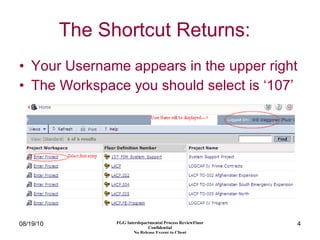
The Shortcut Returns:   Your Username appears in the upper right The Workspace you should select is ‘107’
Service Request High Level Overview KPI          Valerie Baronkin FGG Ops  Maximo IT Support Manager Designee(s) Maximo Support Group
Someone might ask… 1.  Where are my Service Requests? 2.  What is outstanding? 3.  How do I create a “New” SR? –  A1 -------------------------------------------------------------------------------------------------------------------- Select Applications>System Support >Find (enter search criteria and hit “Find”) T Q M
The SR “Canvas” Part A Title Example:  Transition Team Site (for other SR Types…Business Owner and Justification is required.) Description Example:  Functional Area – Test plans should include execution steps, anticipated results, error conditions, etc… Steps required to complete…See Next Slide for current Transition process…
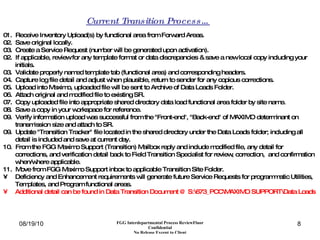
01.  Receive Inventory Upload(s) by functional area from Forward Areas. 02.  Save original locally. 03.  Create a Service Request (number will be generated upon activation). 02.  If applicable, review for any template format or data discrepancies & save a new local copy including your initials. 03.  Validate properly named template tab (functional area) and corresponding headers. 04.  Capture log file detail and adjust when plausible, return to sender for any copious corrections. 05.  Upload into Maximo, uploaded file will be sent to Archive of Data Loads Folder. 06.  Attach original and modified file to existing SR.  07.  Copy uploaded file into appropriate shared directory data load functional area folder by site name. 08.  Save a copy in your workspace for reference. 09.  Verify information upload was successful from the "Front-end", "Back-end" of MAXIMO determinant on transmission size and attach to SR. 09.  Update "Transition Tracker" file located in the shared directory under the Data Loads folder; including all detail is included and save at current day. 10.  From the FGG Maximo Support (Transition) Mailbox reply and include modified file, any detail for corrections, and verification detail back to Field Transition Specialist for review, correction,  and confirmation when/where applicable. 11.  Move from FGG Maximo Support inbox to applicable Transition Site Folder. Deficiency and Enhancement requirements will generate future Service Requests for programmatic Utilities, Templates, and Program functional areas. Additional detail can be found in Data Transition Document @ S:\673_PCC\MAXIMO SUPPORT\Data Loads Current Transition Process…
Place current status' and testing detail from 235  and 231.  The SR “Canvas” Part B
Example Values  Current State : Defaults to Draft upon creation and before activation. Current Owner : Selected from available Personnel.
Example Values Continued...
Application Example Values Continued...
Environment Example Values Continued...
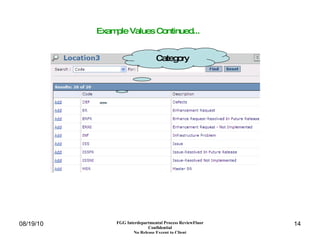
Category Example Values Continued...
CR Status Example Values Continued...
Initial Expectations Subject to Change for future releases/versions
These items are required for Service Requests:  Enhancements Enhancement Requests   Business Owner  Approval Resource(s)  Estimate Business Owner Justification and  Requirements
Medium and Large Projects   
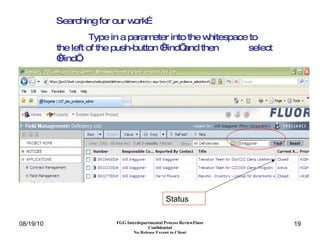
Status Searching for our work… Type in a parameter into the whitespace to  the left of the push-button ‘Find’ and then  select ‘Find’.
Inception to Closure    

 

 
  


 


Pro Flow V1

  • 1.
  • 2.
    Proliance Pass-through           
  • 3.
    Work Breakdown Small (40 Hrs or less) Small Medium (40 -120 Hrs) Medium (120-480 Hrs) Large (480 or more)
  • 4.
    The Shortcut Returns: Your Username appears in the upper right The Workspace you should select is ‘107’
  • 5.
    Service Request HighLevel Overview KPI          Valerie Baronkin FGG Ops Maximo IT Support Manager Designee(s) Maximo Support Group
  • 6.
    Someone might ask…1. Where are my Service Requests? 2. What is outstanding? 3. How do I create a “New” SR? – A1 -------------------------------------------------------------------------------------------------------------------- Select Applications>System Support >Find (enter search criteria and hit “Find”) T Q M
  • 7.
    The SR “Canvas”Part A Title Example: Transition Team Site (for other SR Types…Business Owner and Justification is required.) Description Example: Functional Area – Test plans should include execution steps, anticipated results, error conditions, etc… Steps required to complete…See Next Slide for current Transition process…
  • 8.
    01. ReceiveInventory Upload(s) by functional area from Forward Areas. 02. Save original locally. 03. Create a Service Request (number will be generated upon activation). 02. If applicable, review for any template format or data discrepancies & save a new local copy including your initials. 03. Validate properly named template tab (functional area) and corresponding headers. 04. Capture log file detail and adjust when plausible, return to sender for any copious corrections. 05. Upload into Maximo, uploaded file will be sent to Archive of Data Loads Folder. 06. Attach original and modified file to existing SR. 07. Copy uploaded file into appropriate shared directory data load functional area folder by site name. 08. Save a copy in your workspace for reference. 09. Verify information upload was successful from the "Front-end", "Back-end" of MAXIMO determinant on transmission size and attach to SR. 09. Update "Transition Tracker" file located in the shared directory under the Data Loads folder; including all detail is included and save at current day. 10. From the FGG Maximo Support (Transition) Mailbox reply and include modified file, any detail for corrections, and verification detail back to Field Transition Specialist for review, correction, and confirmation when/where applicable. 11. Move from FGG Maximo Support inbox to applicable Transition Site Folder. Deficiency and Enhancement requirements will generate future Service Requests for programmatic Utilities, Templates, and Program functional areas. Additional detail can be found in Data Transition Document @ S:\673_PCC\MAXIMO SUPPORT\Data Loads Current Transition Process…
  • 9.
    Place current status'and testing detail from 235 and 231.  The SR “Canvas” Part B
  • 10.
    Example Values Current State : Defaults to Draft upon creation and before activation. Current Owner : Selected from available Personnel.
  • 11.
  • 12.
  • 13.
  • 14.
  • 15.
    CR Status ExampleValues Continued...
  • 16.
    Initial Expectations Subjectto Change for future releases/versions
  • 17.
    These items arerequired for Service Requests: Enhancements Enhancement Requests Business Owner Approval Resource(s) Estimate Business Owner Justification and Requirements
  • 18.
    Medium and LargeProjects   
  • 19.
    Status Searching forour work… Type in a parameter into the whitespace to the left of the push-button ‘Find’ and then select ‘Find’.
  • 20.
    Inception to Closure   
  • 21.
  • 22.
  • 23.
  • 24.
  • 25.
  • 26.
  • 27.
  • 28.
  • 29.
  • 30.