Log in to your VIP page
      Complete
           your
          online
     application


                          1
www.nova.edu/viplogin


                        2
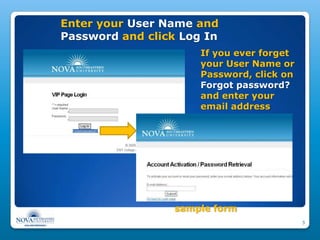
Enter your User Name and
Password and click Log In
                      If you ever forget
                      your User Name or
                      Password, click on
                      Forgot password?
                      and enter your
                      email address


                  sample form
                                           3
Other ways to log in to VIP

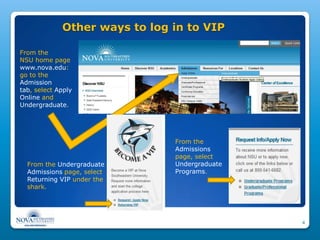
From the
NSU home page
www.nova.edu:
go to the
Admission
tab, select Apply
Online and
Undergraduate.


                               From the
                               Admissions
                               page, select
  From the Undergraduate       Undergraduate
  Admissions page, select      Programs.
  Returning VIP under the
  shark.


                                               4
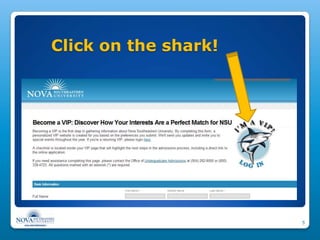
Click on the shark!


                      5
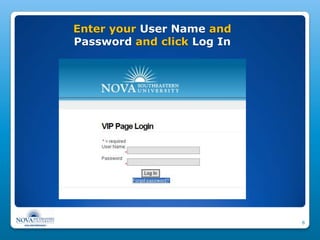
Enter your User Name and
Password and click Log In


                            6
Look
                  at your
Sample VIP page   Admissions
                  Checklist
                  and click on
                  Apply
                  Online to
                  get to your
                  application


                                 7
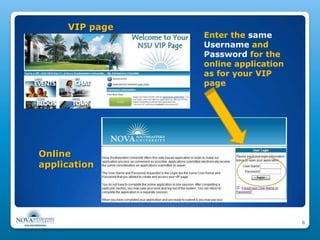
VIP page
                Enter the same
                Username and
                Password for the
                online application
                as for your VIP
                page


Online
application


                                     8
Fill out your
Online Application


                      9
Online Application
After logging in, click on
Application for Admission


Now, you’re in
your online application.

Begin by clicking on
Biographical Information in the
blue margin on the left.


                                  10
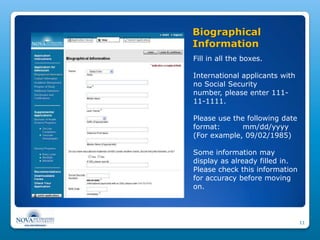
Biographical
Information
Fill in all the boxes.

International applicants with
no Social Security
number, please enter 111-
11-1111.

Please use the following date
format:       mm/dd/yyyy
(For example, 09/02/1985)

Some information may
display as already filled in.
Please check this information
for accuracy before moving
on.


                                11
Biographical
                                      Information (continued)
                                      Answer all the questions in this
                                      section, especially those with an *.


Click on the save & continue button
on the bottom.


                                                                         12
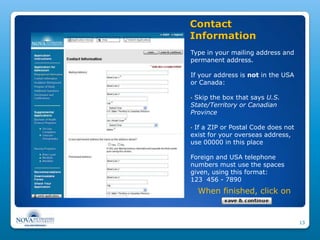
Contact
Information
Type in your mailing address and
permanent address.

If your address is not in the USA
or Canada:

•Skip the box that says U.S.
State/Territory or Canadian
Province

•If a ZIP or Postal Code does not
exist for your overseas address,
use 00000 in this place

Foreign and USA telephone
numbers must use the spaces
given, using this format:
123 456 - 7890
    When finished, click on


                                    13
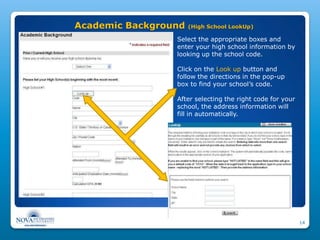
Academic Background   (High School LookUp)

                 Select the appropriate boxes and
                 enter your high school information by
                 looking up the school code.

                 Click on the Look up button and
                 follow the directions in the pop-up
                 box to find your school’s code.

                 After selecting the right code for your
                 school, the address information will
                 fill in automatically.


                                                           14
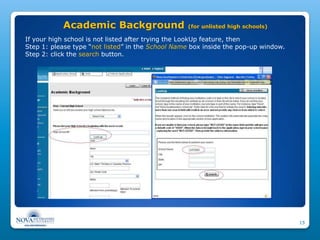
Academic Background                    (for unlisted high schools)

If your high school is not listed after trying the LookUp feature, then
Step 1: please type “not listed” in the School Name box inside the pop-up window.
Step 2: click the search button.


                                                                                    15
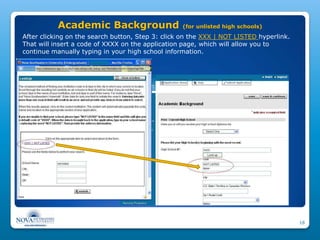
Academic Background                    (for unlisted high schools)
After clicking on the search button, Step 3: click on the XXX | NOT LISTED hyperlink.
That will insert a code of XXXX on the application page, which will allow you to
continue manually typing in your high school information.


                                                                                        16
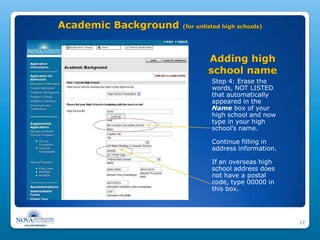
Academic Background   (for unlisted high schools)


                              Adding high
                              school name
                               Step 4: Erase the
                               words, NOT LISTED
                               that automatically
                               appeared in the
                               Name box of your
                               high school and now
                               type in your high
                               school’s name.

                               Continue filling in
                               address information.

                               If an overseas high
                               school address does
                               not have a postal
                               code, type 00000 in
                               this box.


                                                      17
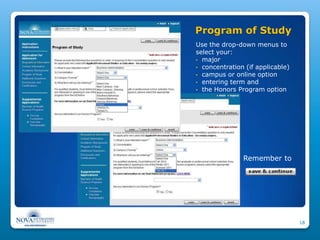
Program of Study
Use the drop-down menus to
select your:
• major
• concentration (if applicable)
• campus or online option
• entering term and
• the Honors Program option


               Remember to


                                  18
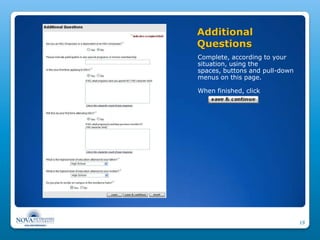
Additional
Questions
Complete, according to your
situation, using the
spaces, buttons and pull-down
menus on this page.

When finished, click


                                19
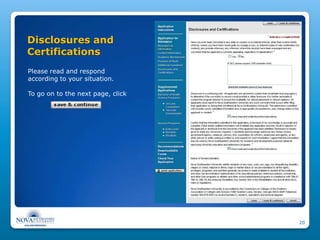
Disclosures and
Certifications
Please read and respond
according to your situation.

To go on to the next page, click


                                   20
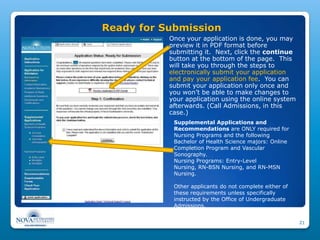
Ready for Submission
           Once your application is done, you may
           preview it in PDF format before
           submitting it. Next, click the continue
           button at the bottom of the page. This
           will take you through the steps to
           electronically submit your application
           and pay your application fee. You can
           submit your application only once and
           you won’t be able to make changes to
           your application using the online system
           afterwards. (Call Admissions, in this
           case.)
            Supplemental Applications and
            Recommendations are ONLY required for
            Nursing Programs and the following
            Bachelor of Health Science majors: Online
            Completion Program and Vascular
            Sonography.
            Nursing Programs: Entry-Level
            Nursing, RN-BSN Nursing, and RN-MSN
            Nursing.

            Other applicants do not complete either of
            these requirements unless specifically
            instructed by the Office of Undergraduate
            Admissions.


                                                         21

How to complete your NSU undergrad online application

  • 1.
    Log in toyour VIP page Complete your online application 1
  • 2.
  • 3.
    Enter your UserName and Password and click Log In If you ever forget your User Name or Password, click on Forgot password? and enter your email address sample form 3
  • 4.
    Other ways tolog in to VIP From the NSU home page www.nova.edu: go to the Admission tab, select Apply Online and Undergraduate. From the Admissions page, select From the Undergraduate Undergraduate Admissions page, select Programs. Returning VIP under the shark. 4
  • 5.
    Click on theshark! 5
  • 6.
    Enter your UserName and Password and click Log In 6
  • 7.
    Look at your Sample VIP page Admissions Checklist and click on Apply Online to get to your application 7
  • 8.
    VIP page Enter the same Username and Password for the online application as for your VIP page Online application 8
  • 9.
    Fill out your OnlineApplication 9
  • 10.
    Online Application After loggingin, click on Application for Admission Now, you’re in your online application. Begin by clicking on Biographical Information in the blue margin on the left. 10
  • 11.
    Biographical Information Fill in allthe boxes. International applicants with no Social Security number, please enter 111- 11-1111. Please use the following date format: mm/dd/yyyy (For example, 09/02/1985) Some information may display as already filled in. Please check this information for accuracy before moving on. 11
  • 12.
    Biographical Information (continued) Answer all the questions in this section, especially those with an *. Click on the save & continue button on the bottom. 12
  • 13.
    Contact Information Type in yourmailing address and permanent address. If your address is not in the USA or Canada: •Skip the box that says U.S. State/Territory or Canadian Province •If a ZIP or Postal Code does not exist for your overseas address, use 00000 in this place Foreign and USA telephone numbers must use the spaces given, using this format: 123 456 - 7890 When finished, click on 13
  • 14.
    Academic Background (High School LookUp) Select the appropriate boxes and enter your high school information by looking up the school code. Click on the Look up button and follow the directions in the pop-up box to find your school’s code. After selecting the right code for your school, the address information will fill in automatically. 14
  • 15.
    Academic Background (for unlisted high schools) If your high school is not listed after trying the LookUp feature, then Step 1: please type “not listed” in the School Name box inside the pop-up window. Step 2: click the search button. 15
  • 16.
    Academic Background (for unlisted high schools) After clicking on the search button, Step 3: click on the XXX | NOT LISTED hyperlink. That will insert a code of XXXX on the application page, which will allow you to continue manually typing in your high school information. 16
  • 17.
    Academic Background (for unlisted high schools) Adding high school name Step 4: Erase the words, NOT LISTED that automatically appeared in the Name box of your high school and now type in your high school’s name. Continue filling in address information. If an overseas high school address does not have a postal code, type 00000 in this box. 17
  • 18.
    Program of Study Usethe drop-down menus to select your: • major • concentration (if applicable) • campus or online option • entering term and • the Honors Program option Remember to 18
  • 19.
    Additional Questions Complete, according toyour situation, using the spaces, buttons and pull-down menus on this page. When finished, click 19
  • 20.
    Disclosures and Certifications Please readand respond according to your situation. To go on to the next page, click 20
  • 21.
    Ready for Submission Once your application is done, you may preview it in PDF format before submitting it. Next, click the continue button at the bottom of the page. This will take you through the steps to electronically submit your application and pay your application fee. You can submit your application only once and you won’t be able to make changes to your application using the online system afterwards. (Call Admissions, in this case.) Supplemental Applications and Recommendations are ONLY required for Nursing Programs and the following Bachelor of Health Science majors: Online Completion Program and Vascular Sonography. Nursing Programs: Entry-Level Nursing, RN-BSN Nursing, and RN-MSN Nursing. Other applicants do not complete either of these requirements unless specifically instructed by the Office of Undergraduate Admissions. 21

Editor's Notes

  • #2 This video is to help log in to your VIP page and either start or finish completing your online application to Nova Southeastern University.
  • #3 In your browser, type in www.nova.edu backslash vip log in
  • #4 Read the slide
  • #5 There are also other ways to reach the login page. Either from NSU’s home page, from the Undergraduate Admissions page or the Admissions page.
  • #6 If you already created a VIP account, then there’s no need to make another one. Click on the image of the shark to get to the log in page.
  • #7 Read slide
  • #8 Read slide
  • #9 Read slide
  • #10 Now that you’ve logged in to your VIP account and online application with Nova Southeastern University, you can either start or finish your application.
  • #11 Read slide
  • #12 Read slide
  • #13 Read slide
  • #14 Read slide
  • #15 Read slide
  • #16 Read slide
  • #17 Read slide
  • #18 Read slide
  • #19 Read slide
  • #20 Read slide
  • #21 Read slide
  • #22 Read slide