Where Is It?!
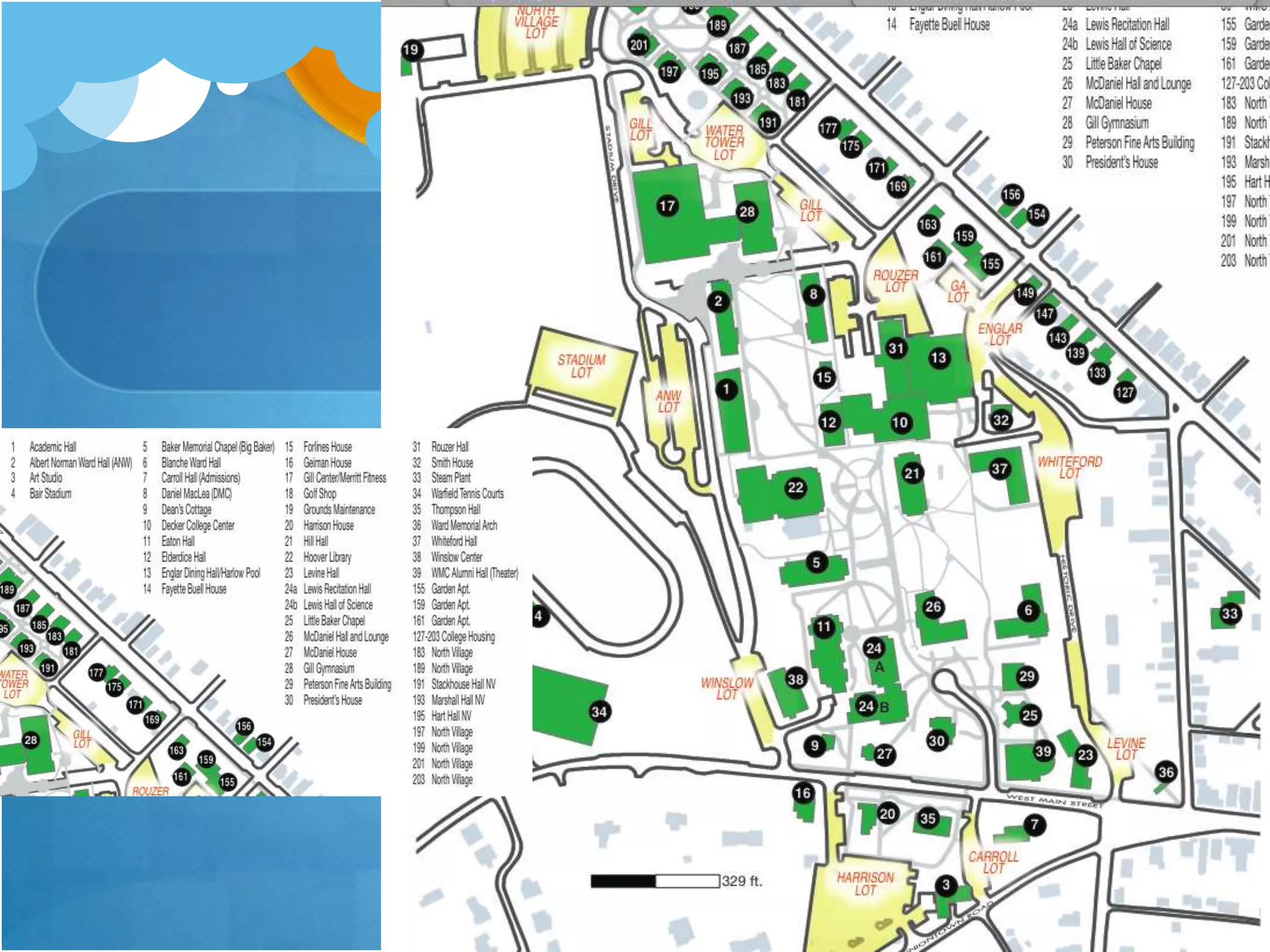
 The Pool: located in Decker College Center in the level under Glar!

 The Wellness Center: in Winslow Center, the building behind Eaton
 Hall!

 The OSE: across from Glar!

 CEO: In the basement of Rouzer, down the hall next to the OSE
 across from Glar!

 SASS: On the first level of Academic Hall, to the left!

 The Writing Center: on the first level of Hill Hall!
ALWAYS CHECK YOUR
EMAIL
Email is VERY important
 This is how clubs, professors, and everybody on
 campus gets in touch with you! Also, when
 professors post assignments, many will email you
 through BlackBoard and let you know that they
 posted something!
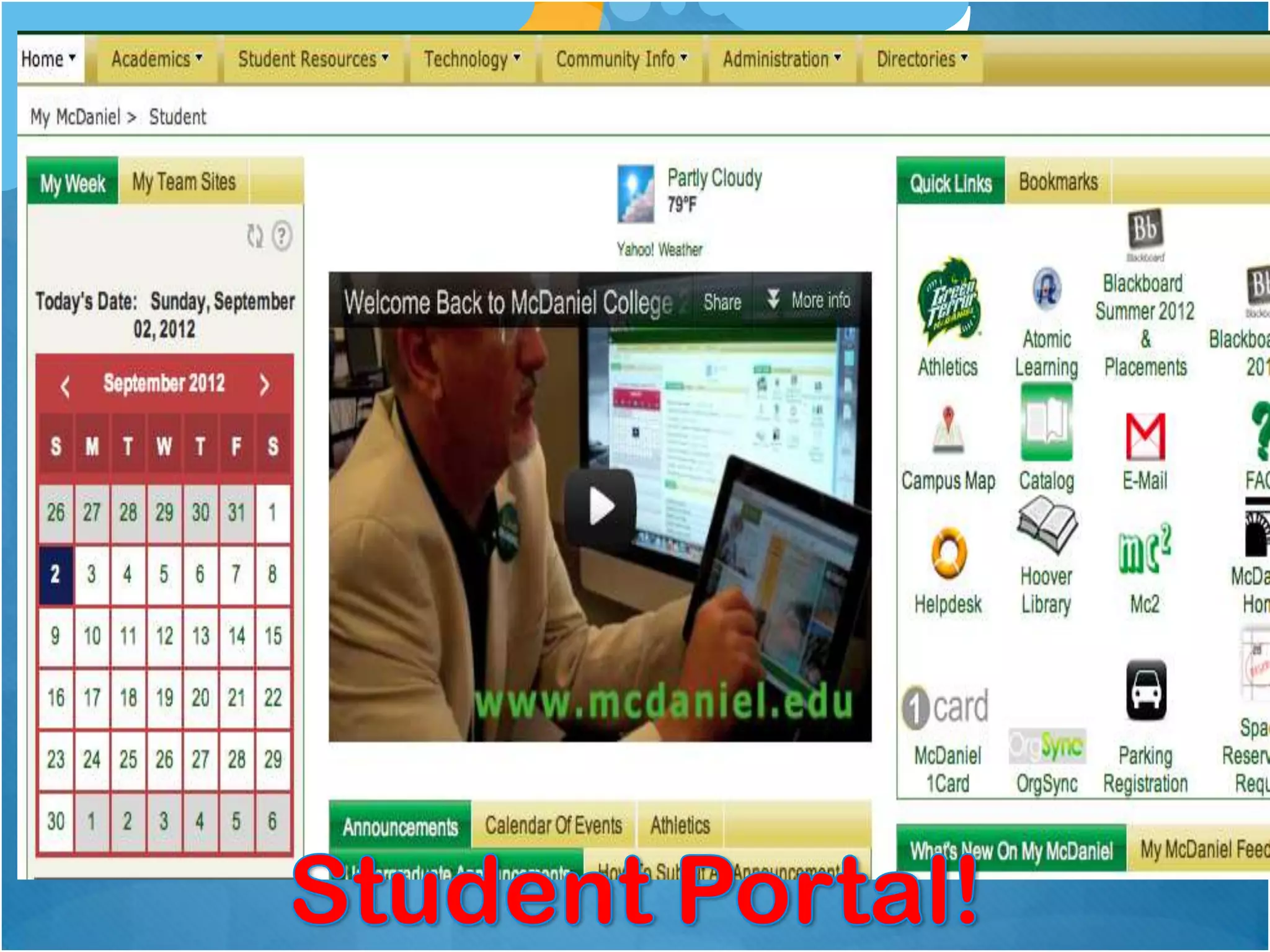
Student Portal
 Here, you can access your
 email, Blackboard, the McDaniel OneCard
 website, OrgSync, the library website, and any
 information you may need as a student!

 The website is my.mcdaniel.edu, and use your
 username and password (like what you would
 use to sign into Archway) to log in.
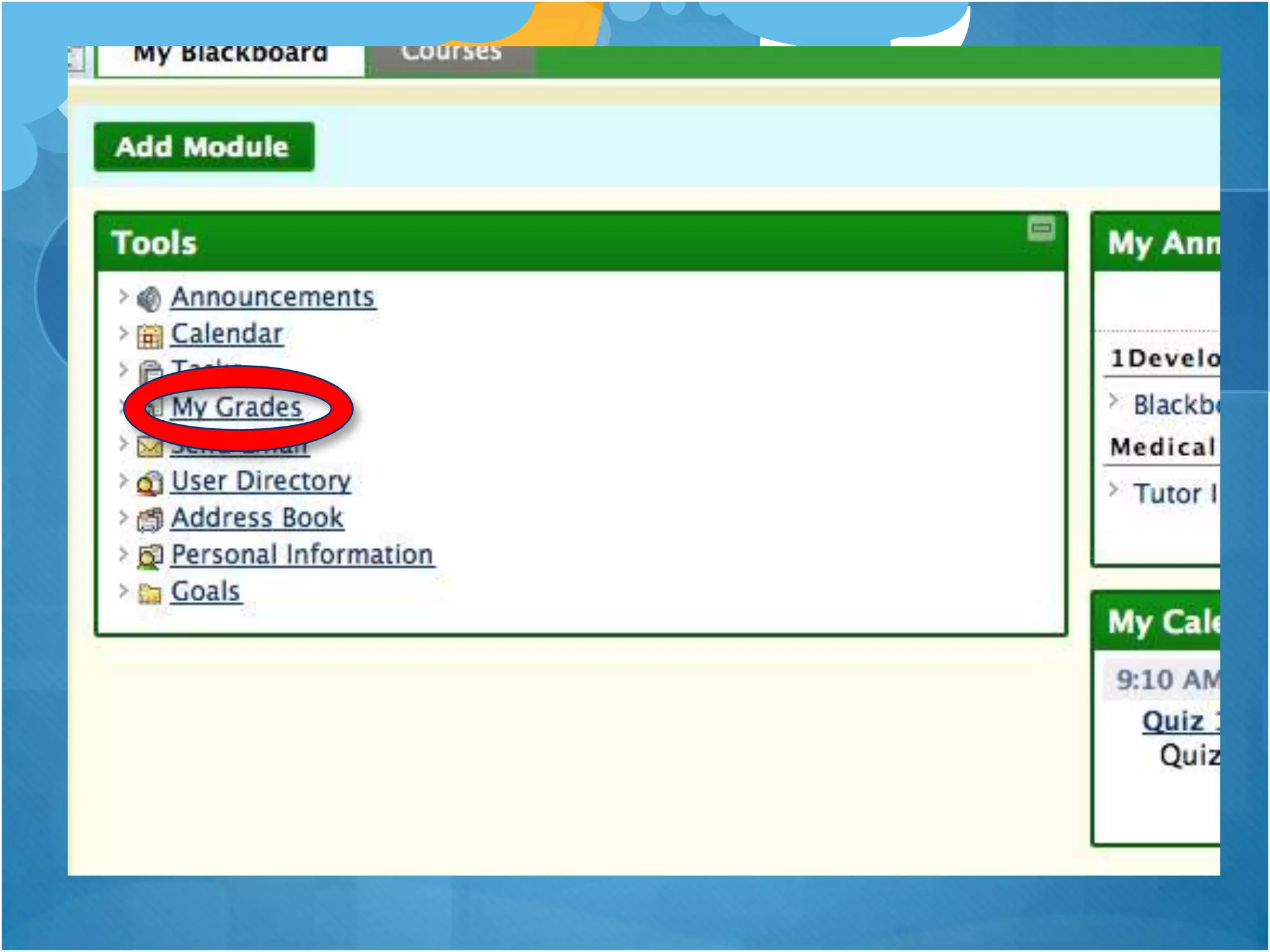
Blackboard: Grades
 Sign into Blackboard

 On the left side, click “My Grades”

 Select the class you are interested in!
Blackboard: Send Email
 Log into Blackboard
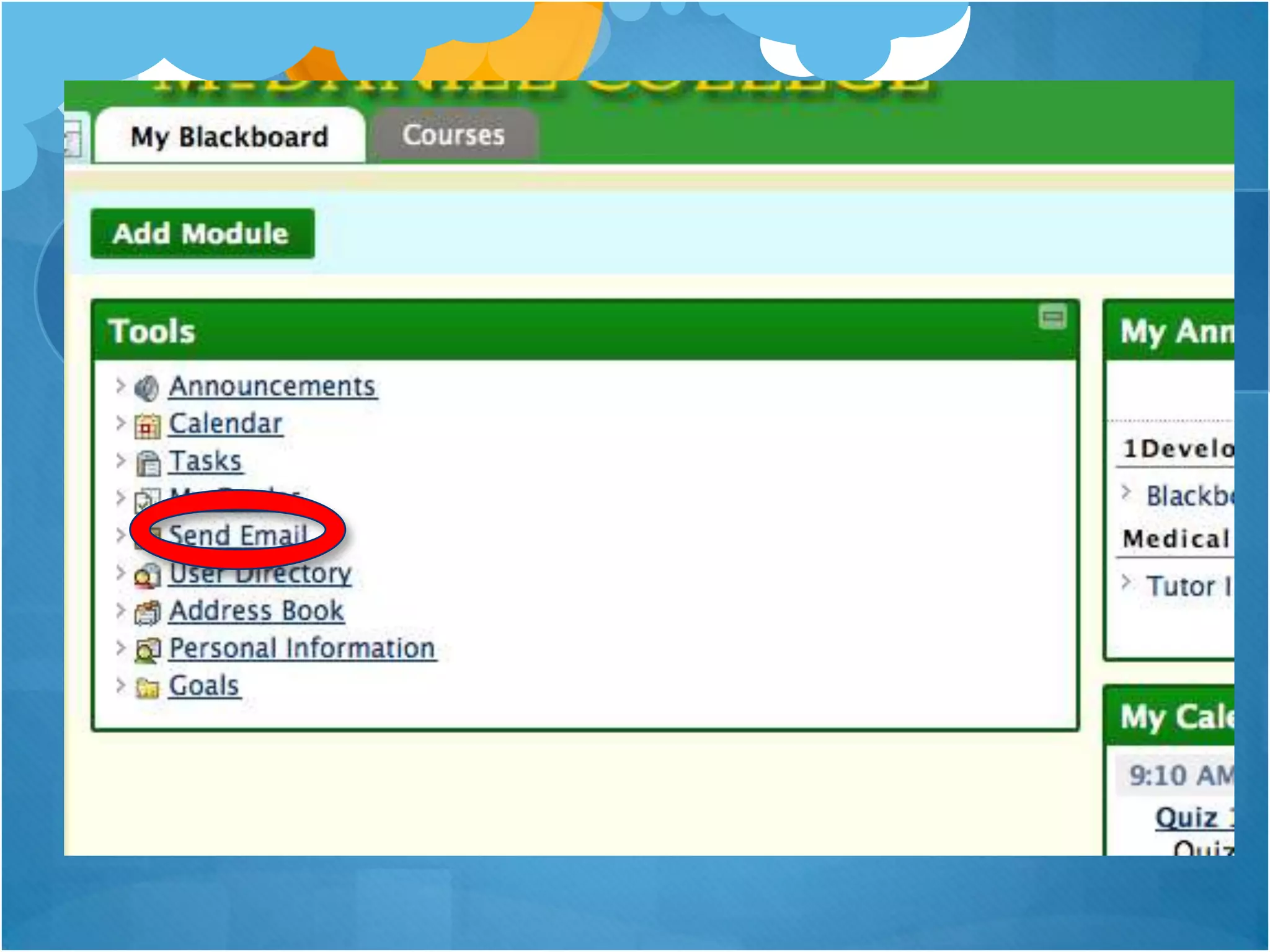
 On the left side, click “Send Email”
 Select the class you wish to send an email to
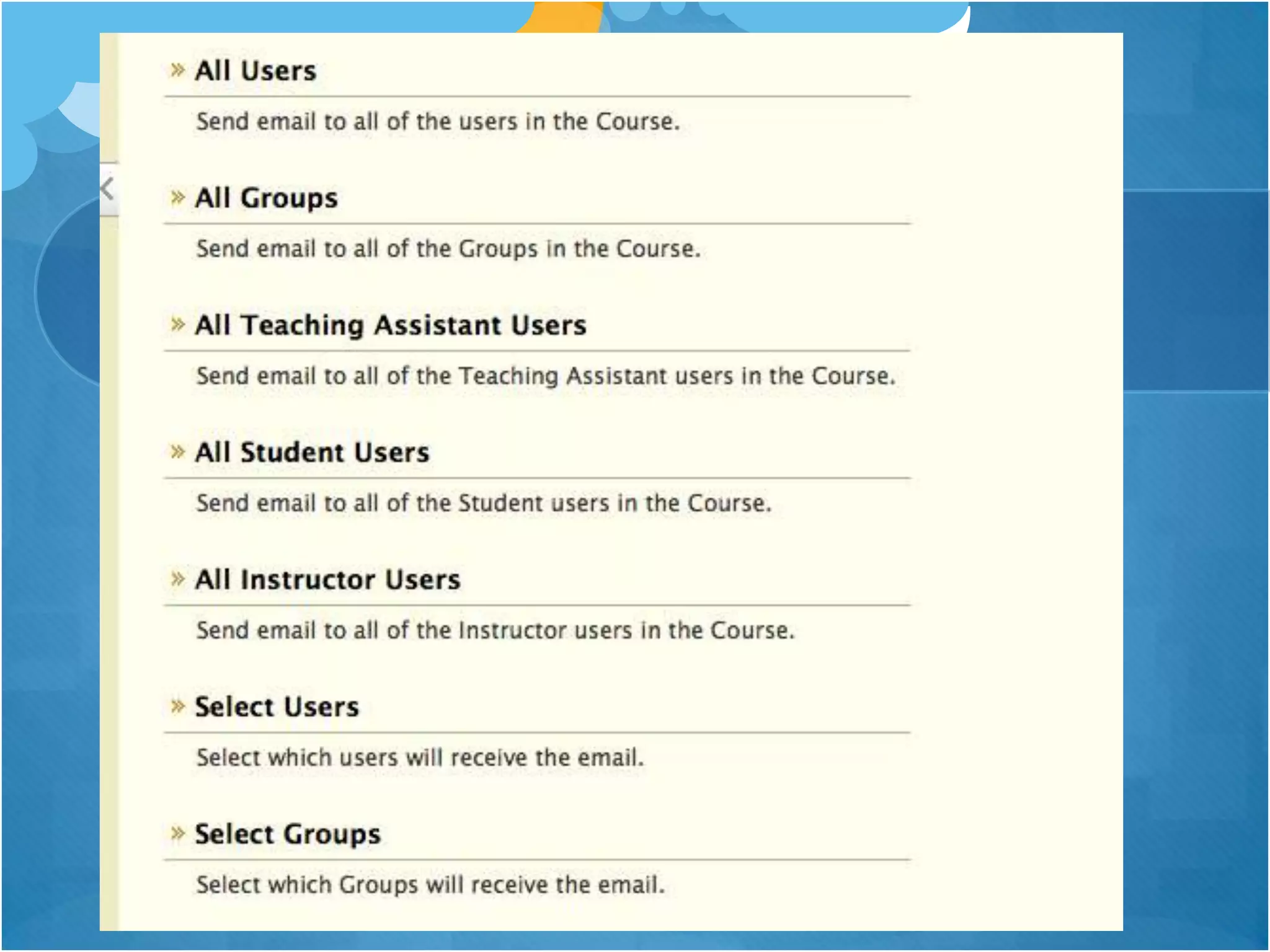
 Select the option that best applies to who you want to
 send an email to, whether it be all the people in your
 class, a select few, or just the instructor.
 Send your email!
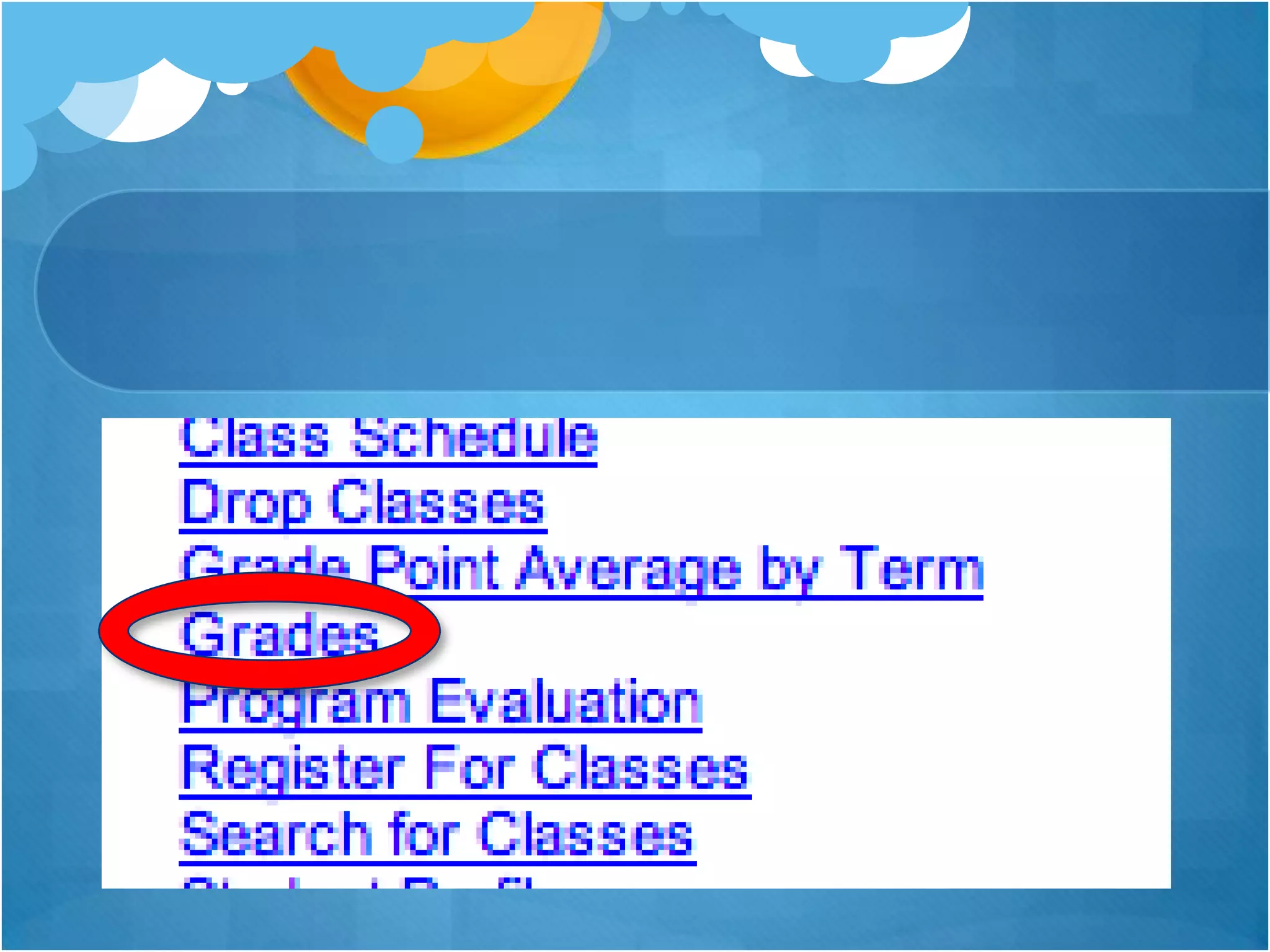
Archway: View Grades
 Log into Archway

 Click “Student Menu”

 Click “Grades” in the column on the right

 Select the semester that you inquiring about and
 click “Submit”
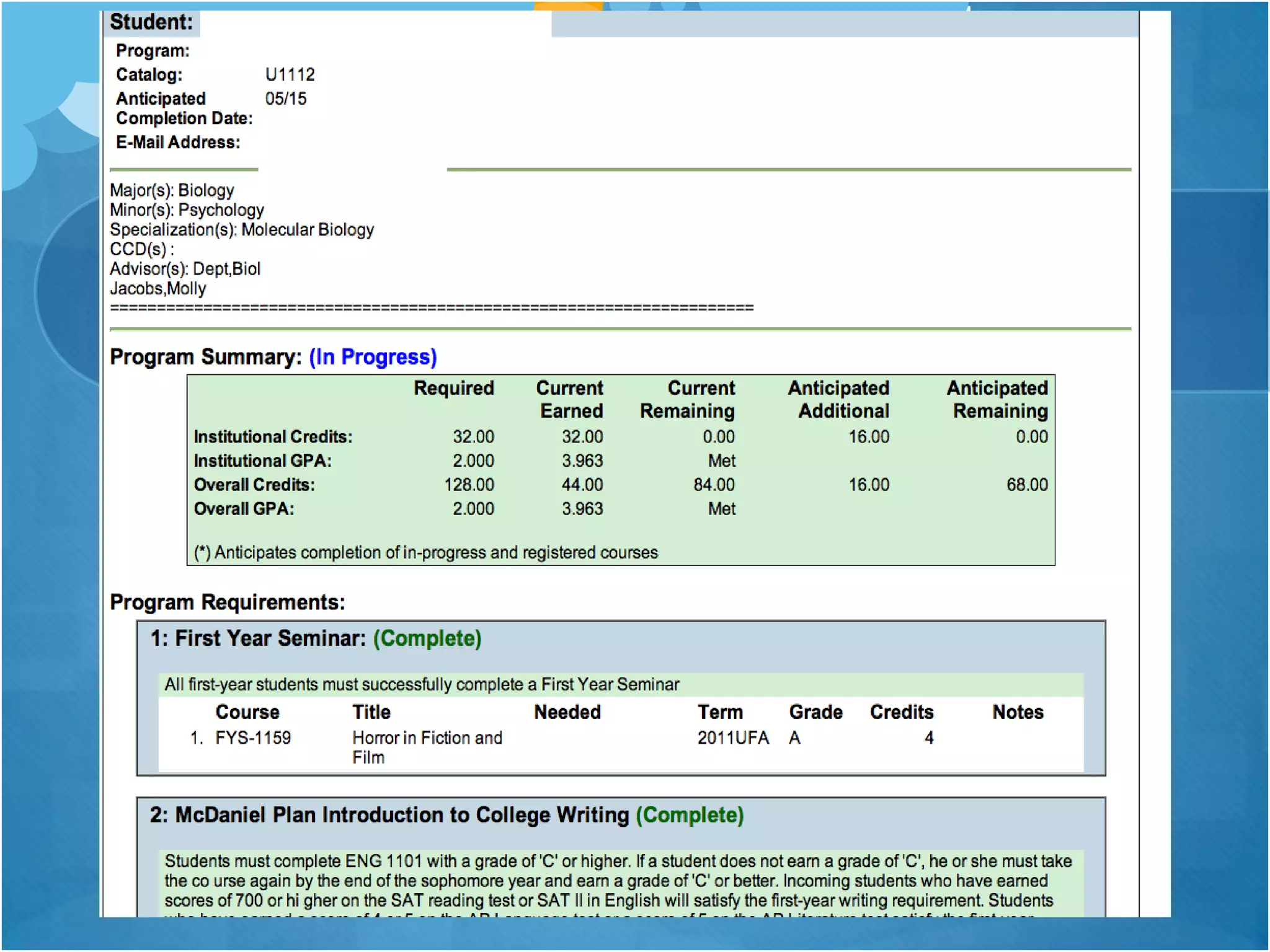
Archway: Program
Evaluation
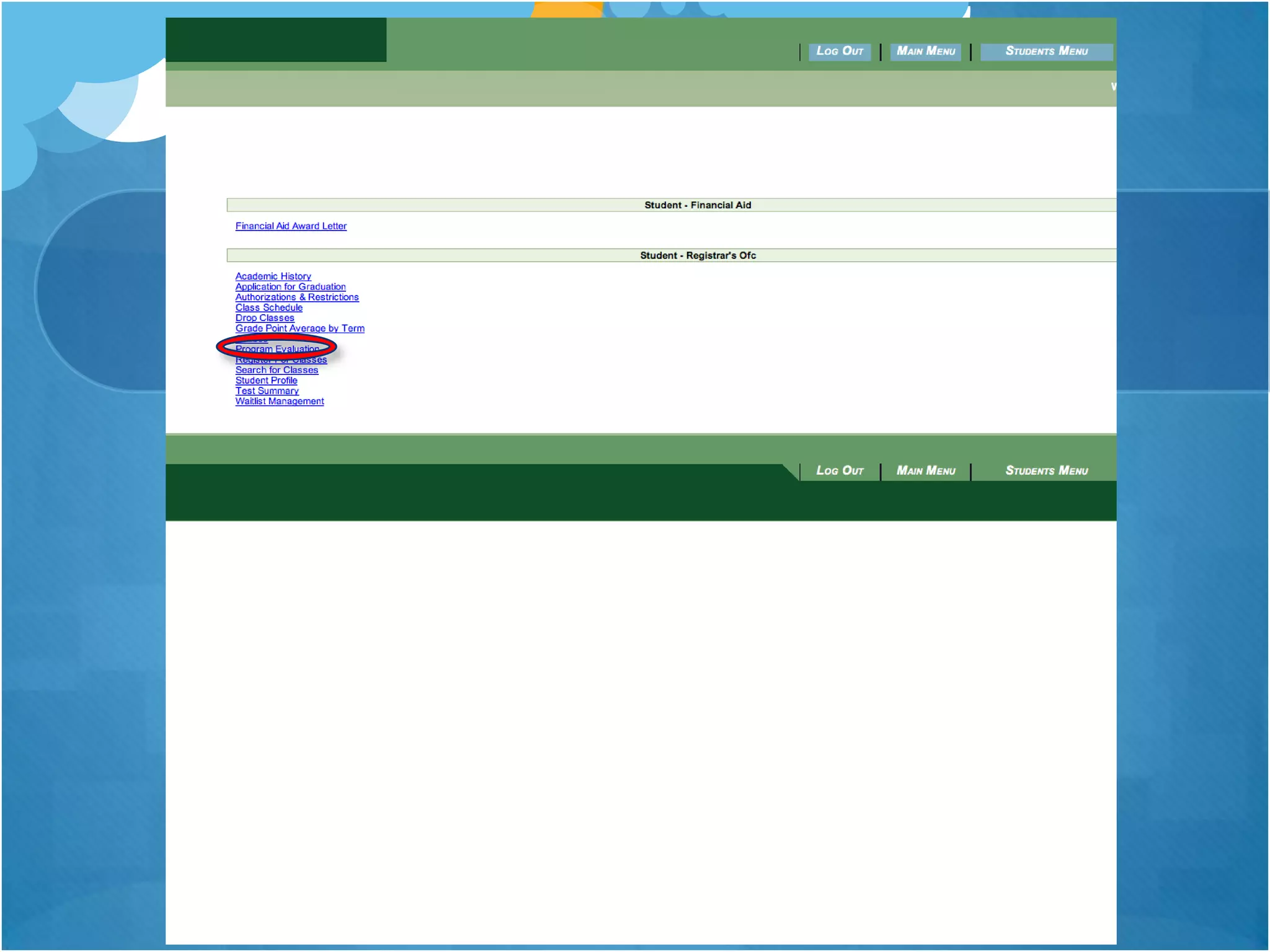
 Log into Archway
 Click “Student Menu”
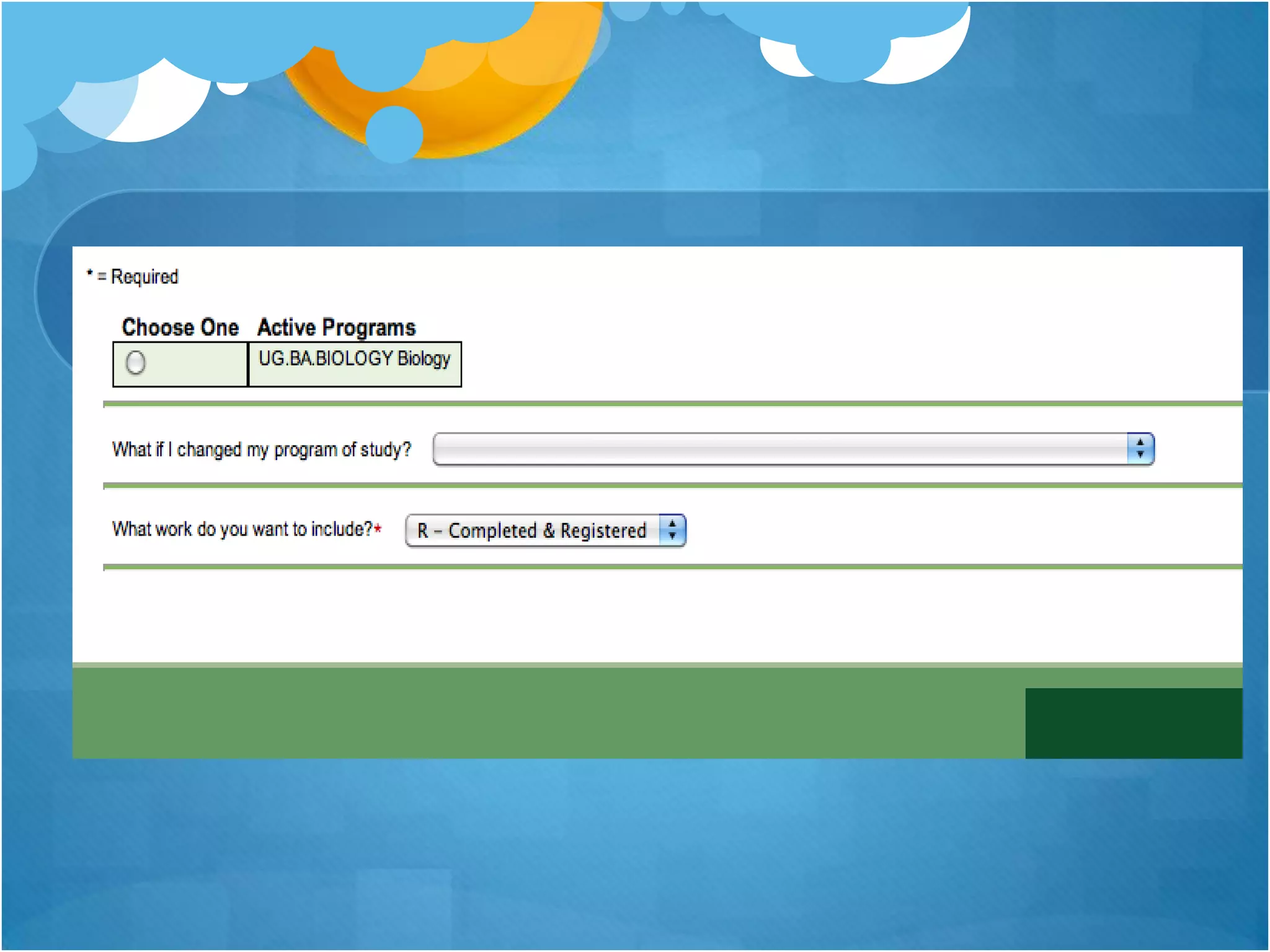
 In the right column, click “Program Evaluation”
 Select your major, or if you wish to see the
 program evaluation for another major, select the
 major you wish to see it for, and then click
 “Submit”
Archway: Waitlist
Management
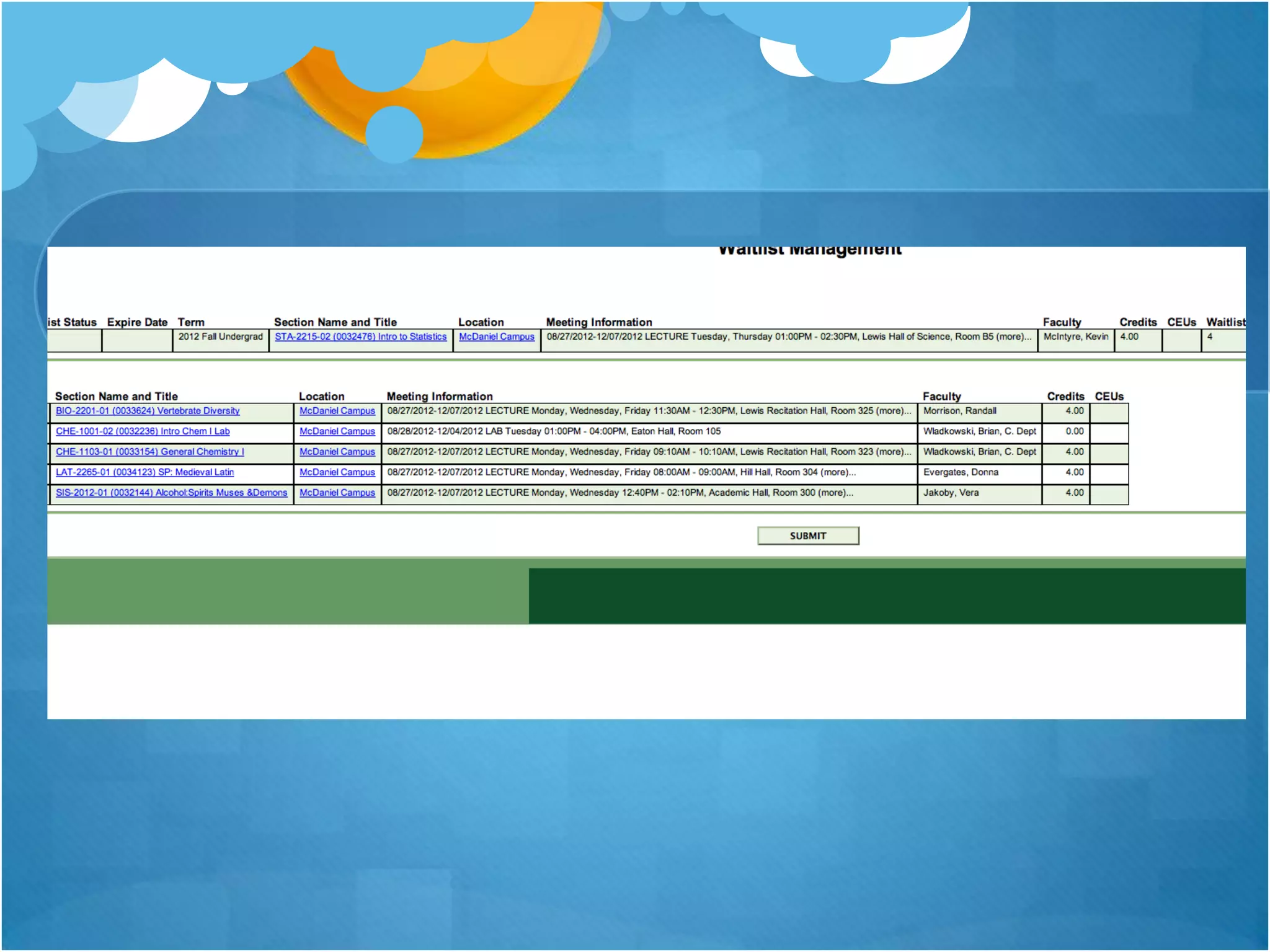
 If you are waitlisted for a course, this will show
 you the course and where you are on the waitlist

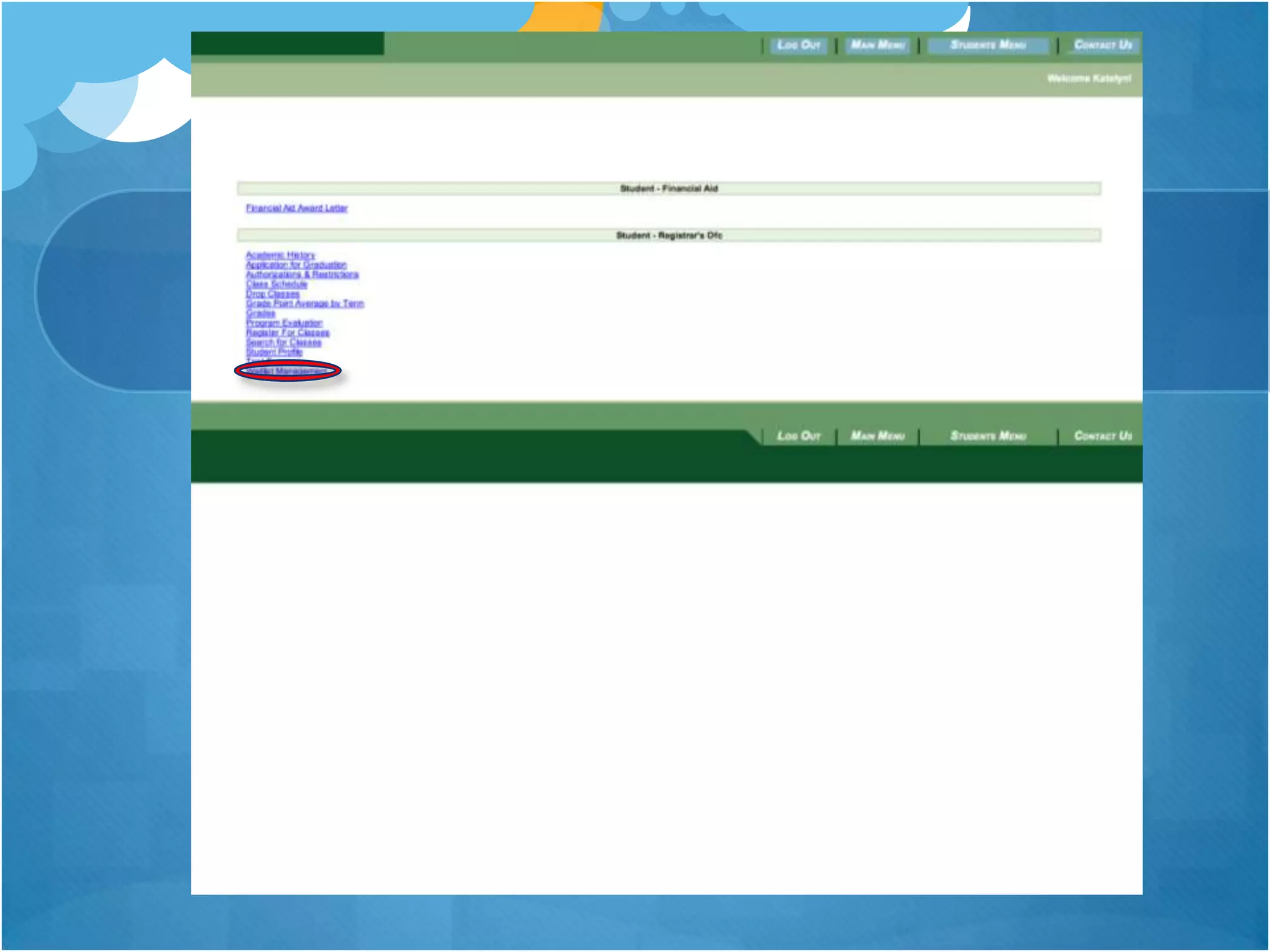
 Log into Archway

 Click “Student Menu”

 In the column on the right, click “Waitlist
 Management”
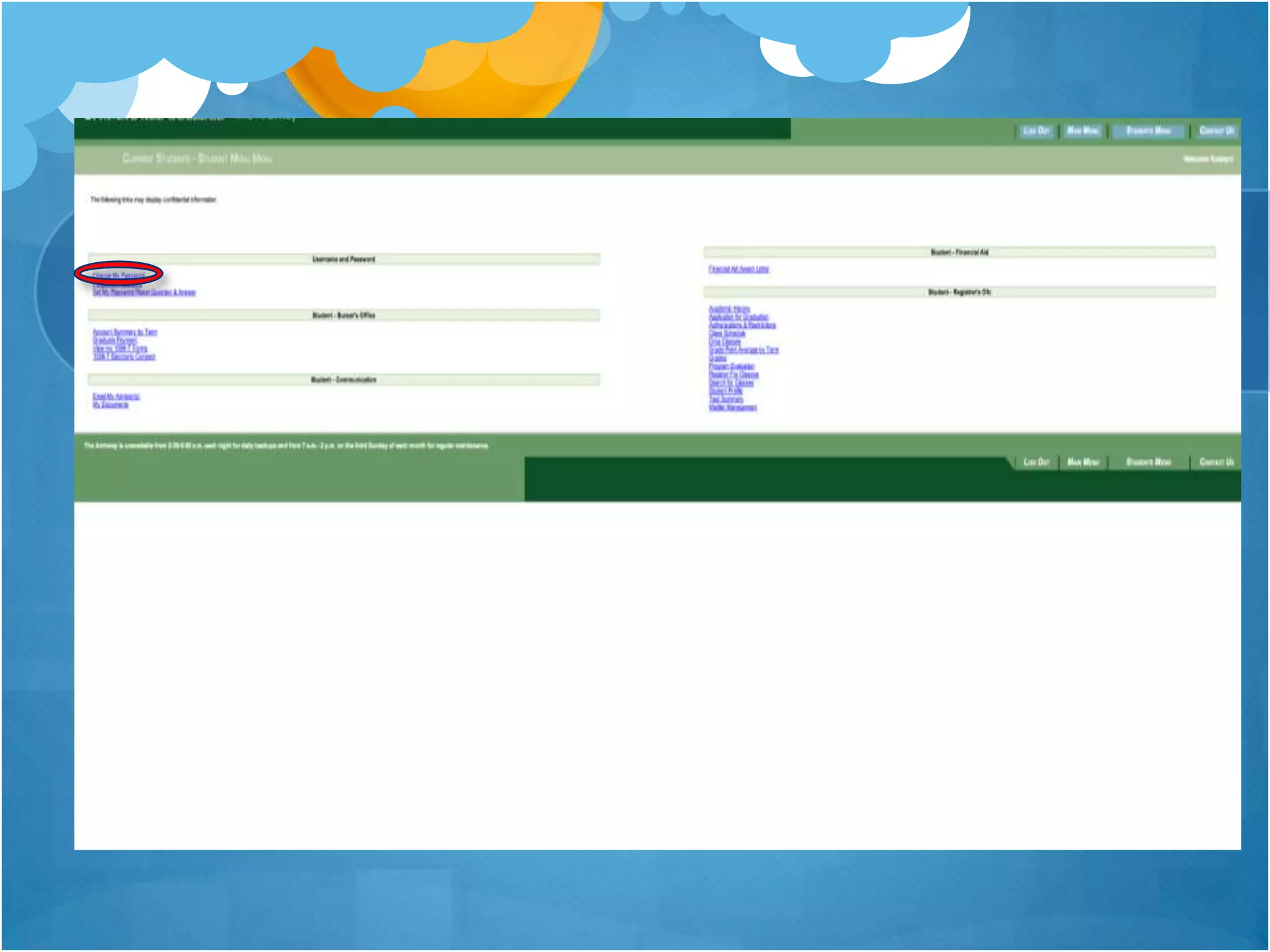
Archway: Change
Password
 If you need to change your password, this button
 changes the password for all of your accounts linked
 to McDaniel except for your email.
 Log into Archway and click on the student menu
 In the left column, click on “Change Password”
 This link will take you to a website where you can
 change your McDaniel passwords
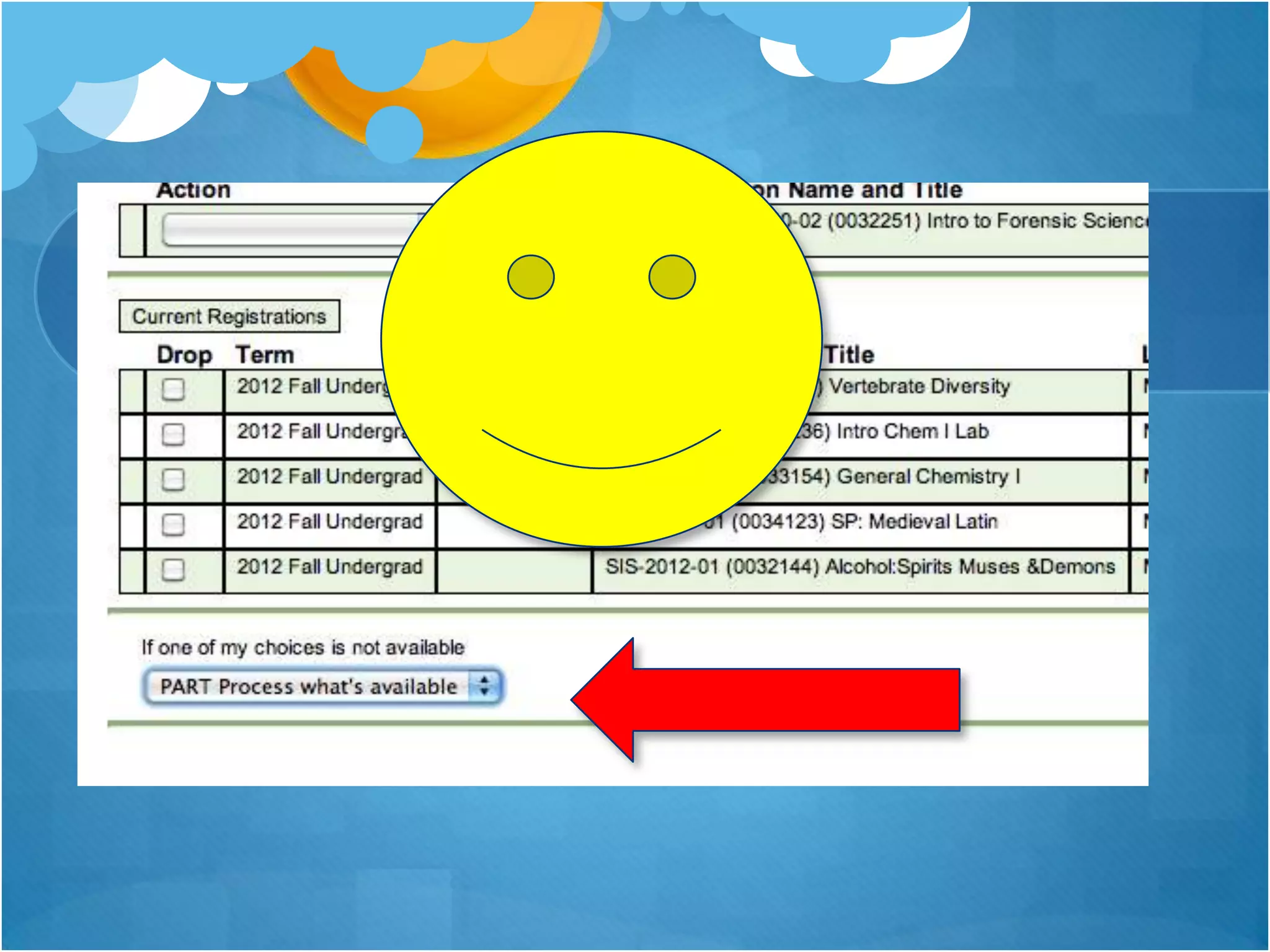
Archway: Partial Process!
 THIS IS IMPORTANT!
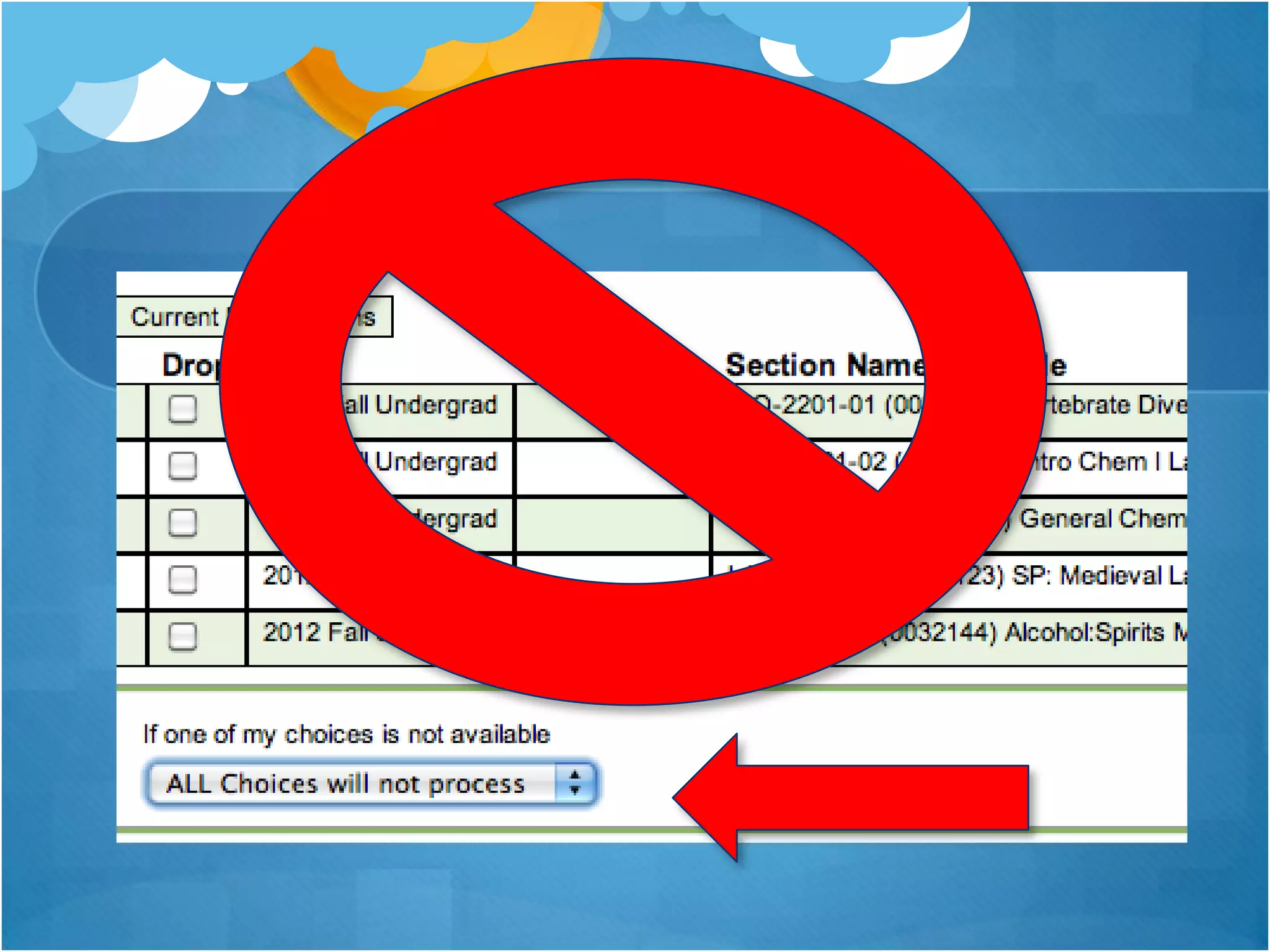
 If you are registering for a course, always select
 “Part Process what’s available!” at the bottom of the
 screen
 If one of your classes close at the last second at
 registration, this keeps your whole registration
 process from being rejected if one class is no longer
 available! This choice will automatically put you on
 the waitlist!
Archway: Test Summary
 This shows any AP tests you’ve taken before
 McDaniel and your scores, your SAT scores, and
 any scores on placement exams.

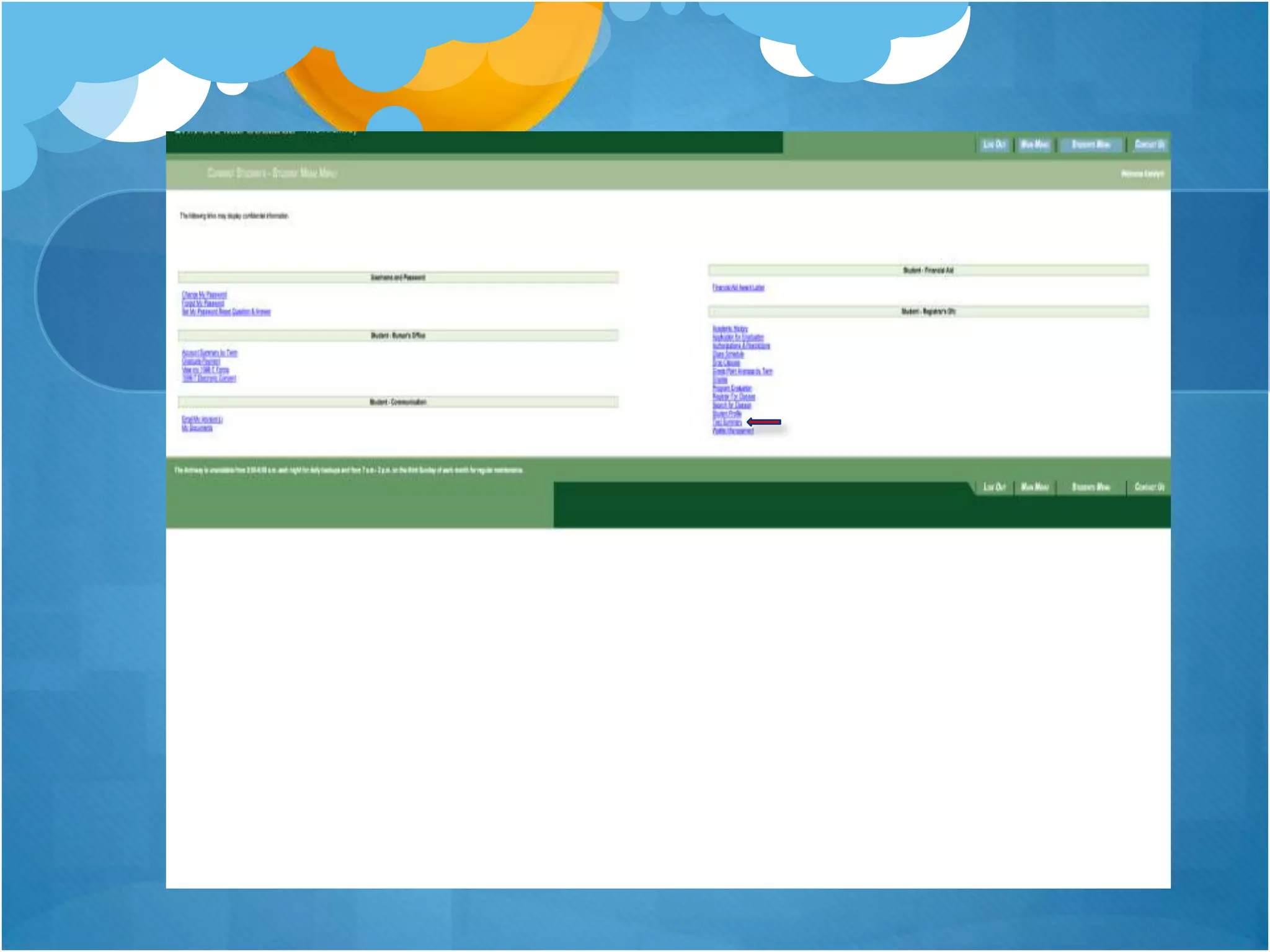
 Log into Archway and click on Student Menu

 In the column on the right, select “Test
 Summary”
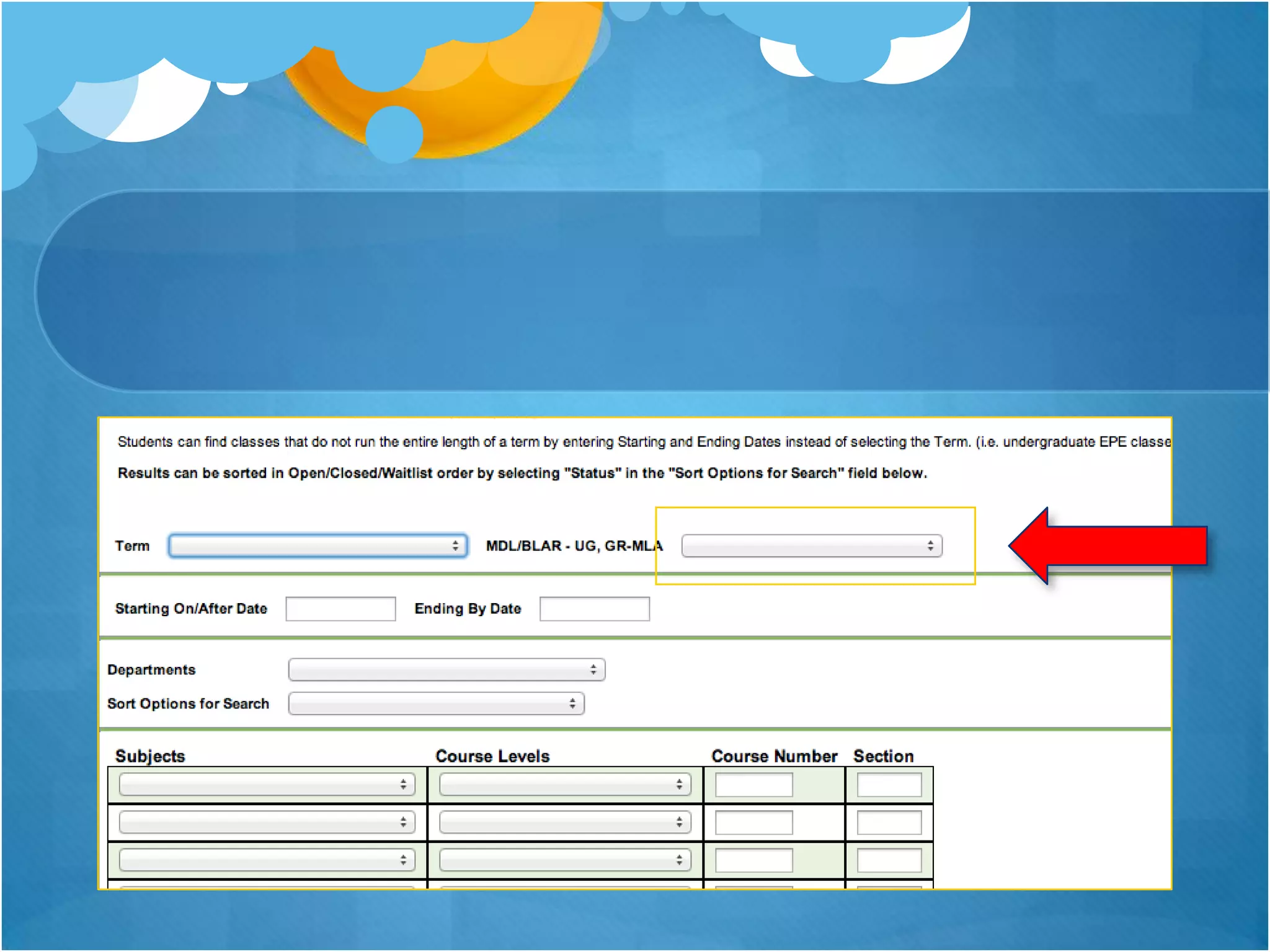
Archway: Search for McDaniel
Plan Requirements
 Log onto Archway and click “Student Menu”

 Click “Search for Classes”

 In the dropdown bar towards the top of these search section labeled
 “MDL/BLAR - UG, GR-MLA,” find the McDaniel plan requirement that
 satisfies what you’re looking for.

 For example, to find Creative Expression classes, click the CE option.

 Each requirement is labeled so it can be easily recognized.
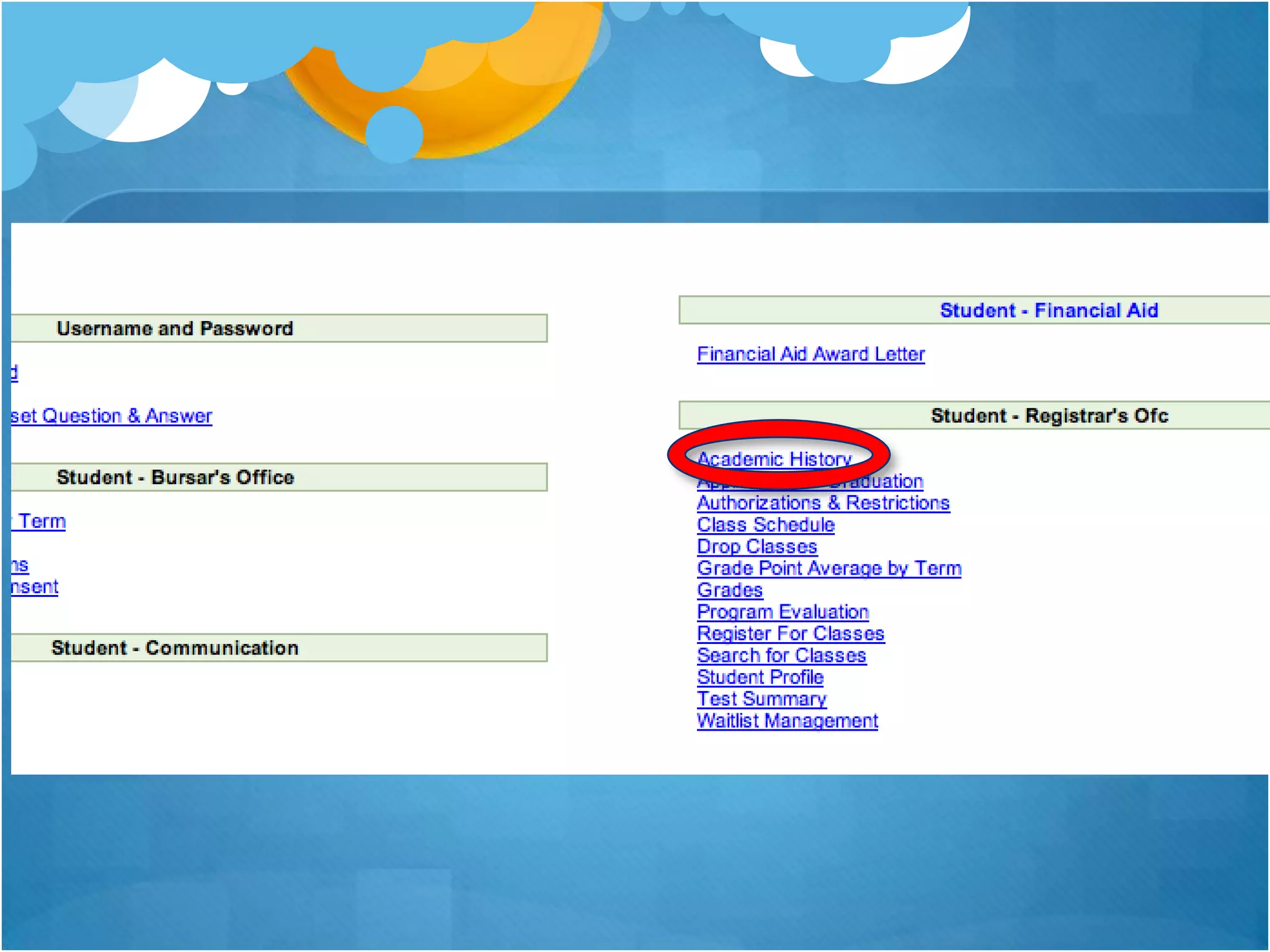
Archway: Academic History
 Log into Archway and click on “Student Menu”

 Select “Academic History” in the right hand
 column.

 This will show you all of the classes taken to
 date, the grade earned in the course, and what
 year the course was taken in. It also lists your
 total taken credits to date.
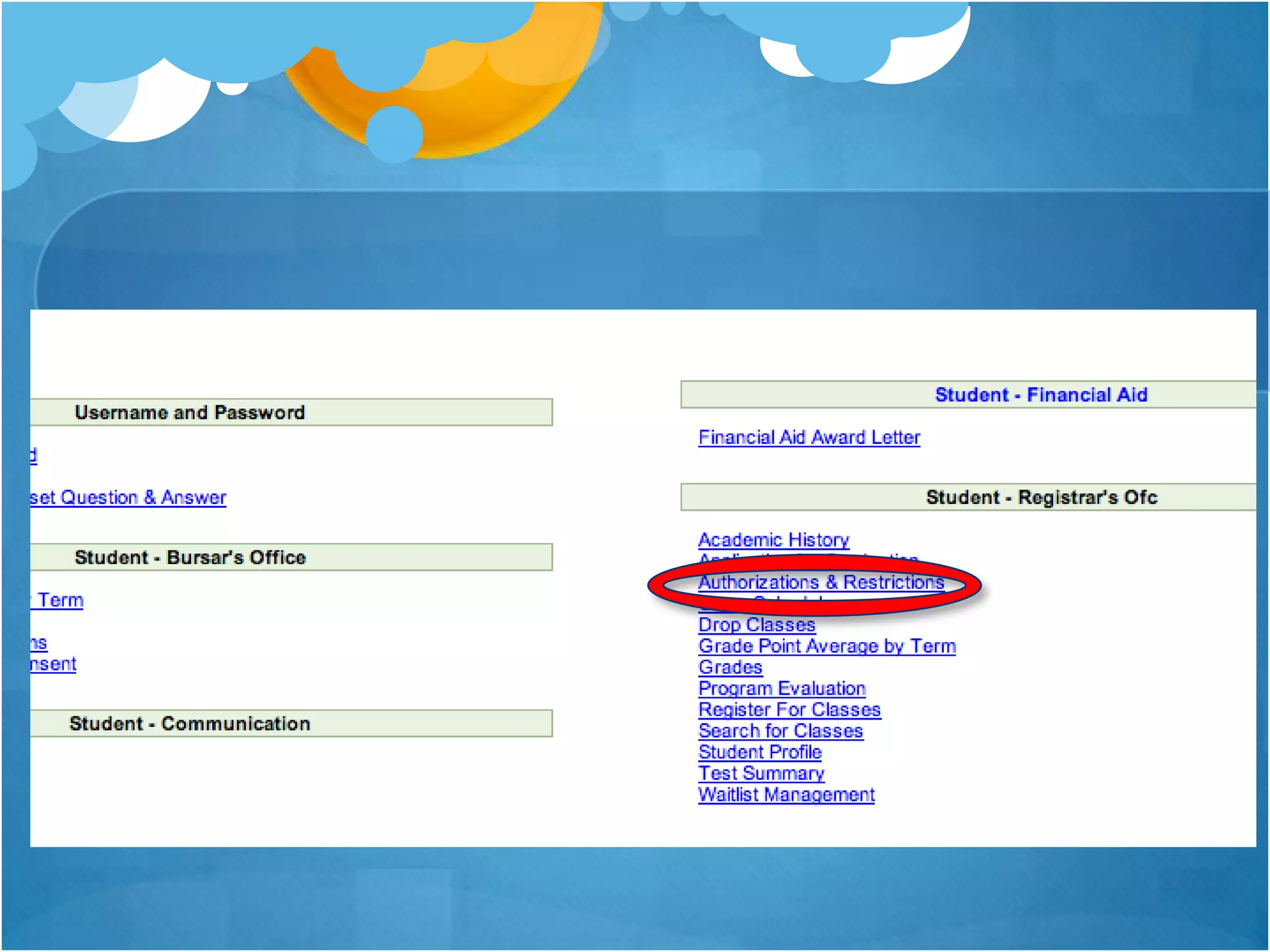
Archway: Authorizations
and Restrictions
 This will tell you if you have any restrictions on your student
 account. These restrictions could keep you from registering for
 classes!

 Also, if you are cleared to register for classes by your advisor, this
 section of archway will say that you are cleared and when you can
 register.

 Your student ID, advisor and their email, your major(s) and/or
 minor(s) as well as some other personal information (address, phone
 number, emergency contact info, etc.)

 On the right hand side of the student menu, select “Authorizations
 and Restrictions”
Archway: Preferred
Selections Basket
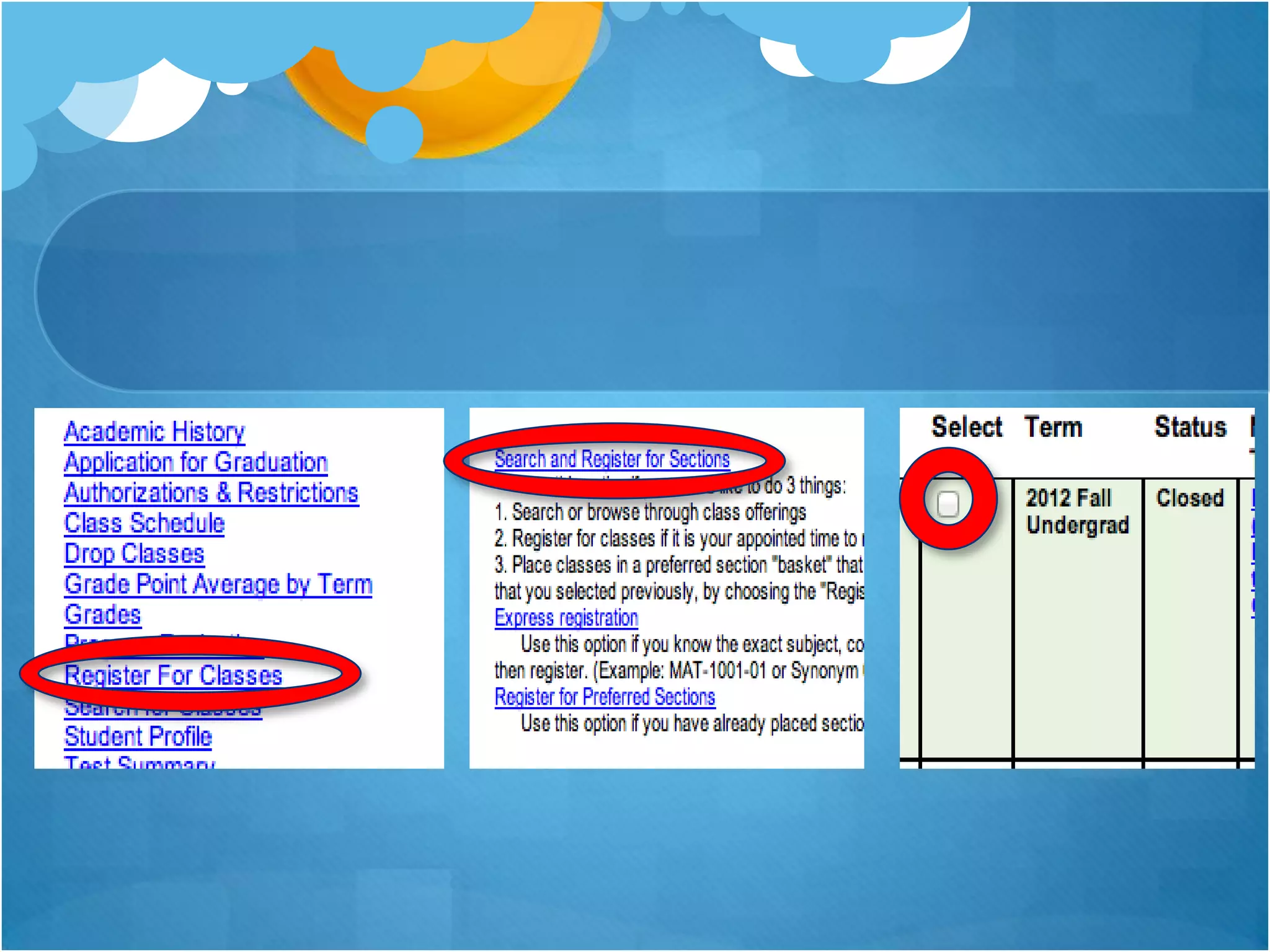
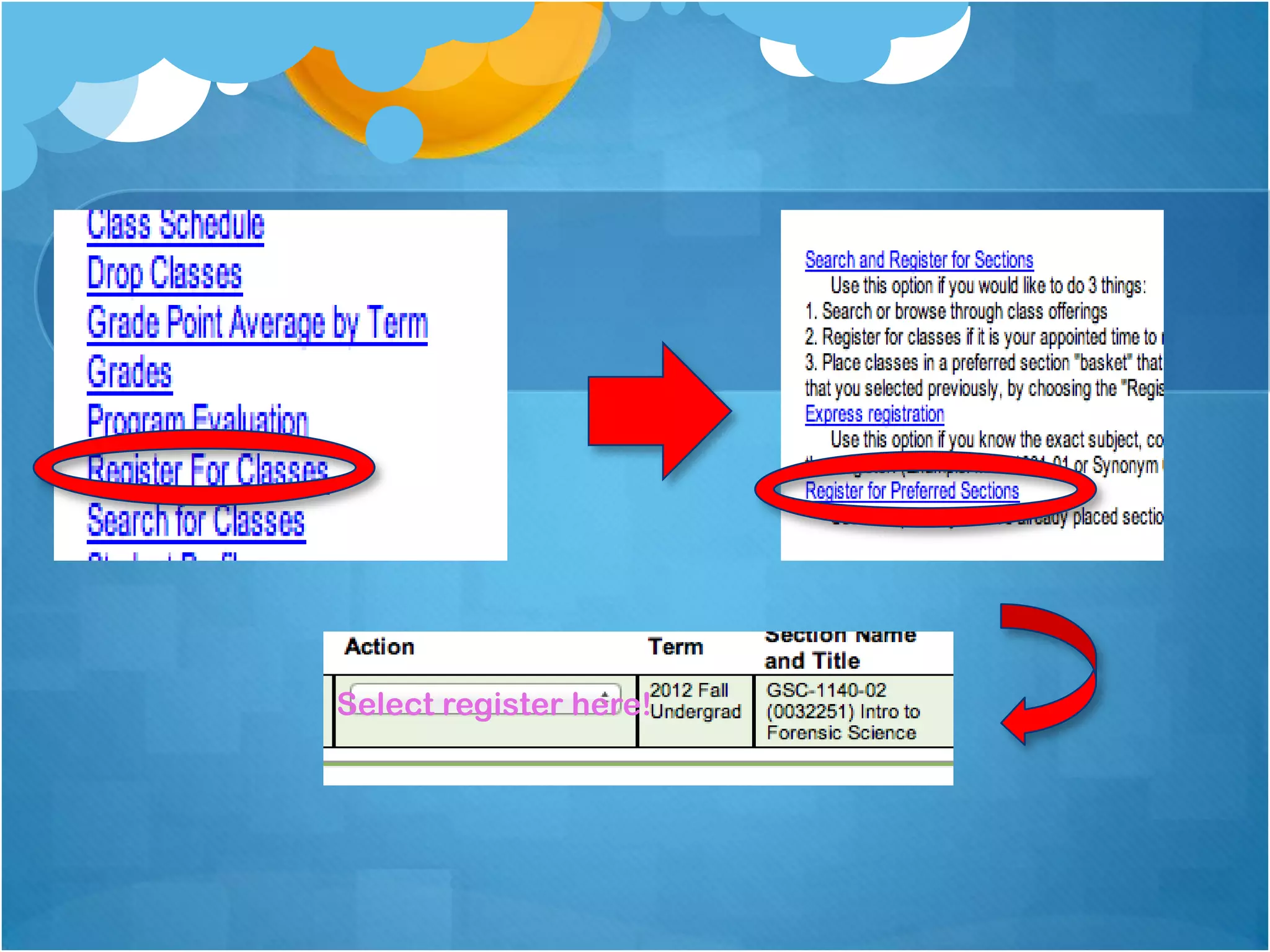
 As you know from registration, the preferred sections
 basket is very important!

 When registering for classes, search for classes
 under “Register for Classes” option on right hand
 side of column in the student menu and click “Search
 and Register for Sections”. Whatever class you
 search for, you can check off on the left and when
 you submit at the bottom of the page, it will
 automatically go to your preferred sections basket.
Archway: Preferred
Selections Basket
 At registration, click on “Register for Classes”
 again, but select “Register for Preferred
 Classes” and you can automatically register for
 the courses you selected earlier.
Select register here!
Archway: Grades
 In the student menu, select “grades” and the
 term that applies, and it will then show your
 grades for that semester.

 If you want to see a transcript, Academic
 History will be more helpful.

 If you need a copy of your transcript, call the
 Registrar’s office!
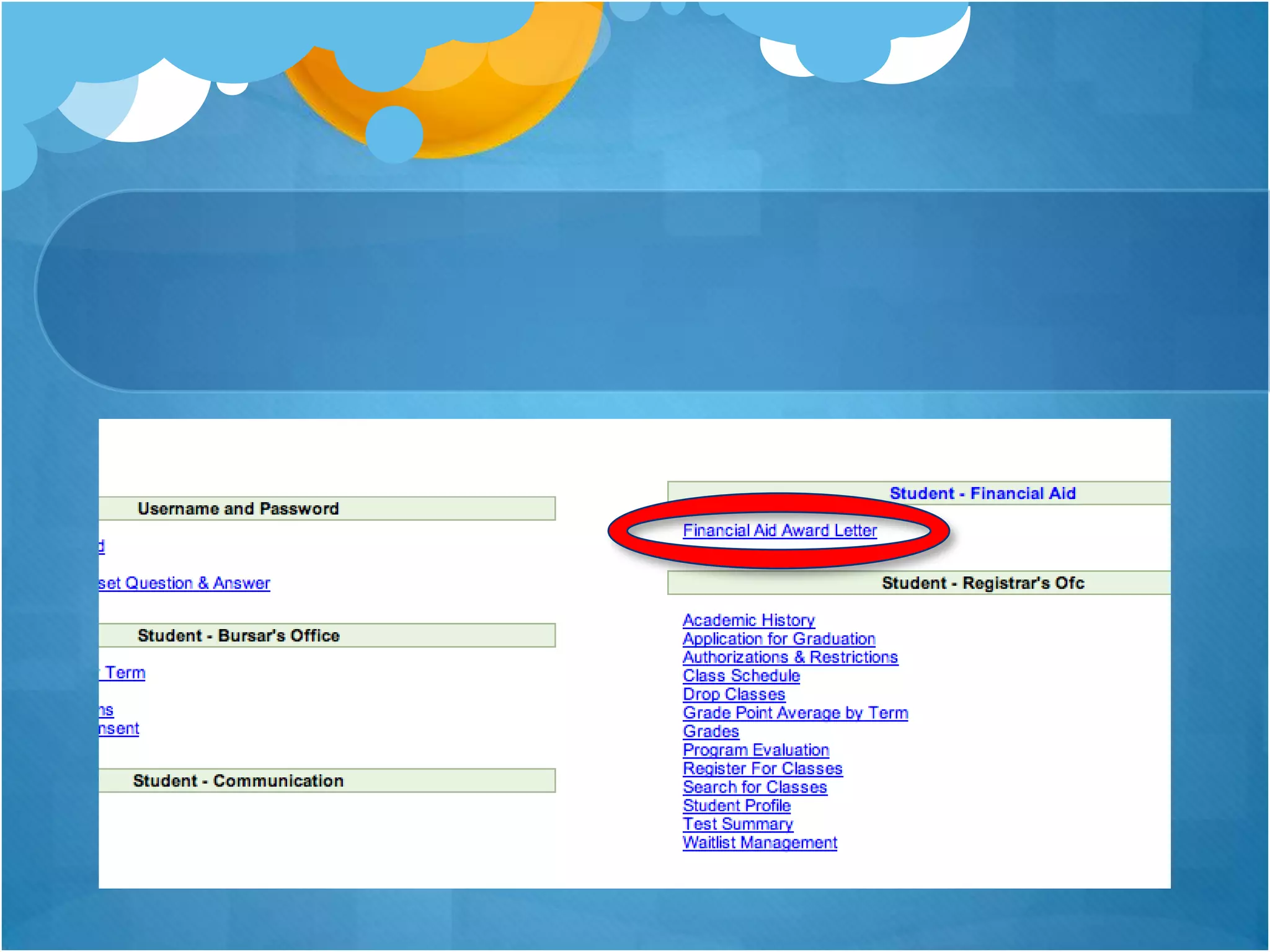
Archway: Financial Aid
Award Letter
 Here you can see your scholarships and loans
 planned out.

 If you want a more detailed layout, call the
 Bursar’s office!

 In the Student Menu, select Financial Aid Award
 Letter under the Financial Aid section on the
 right and select the year you’re inquiring about.
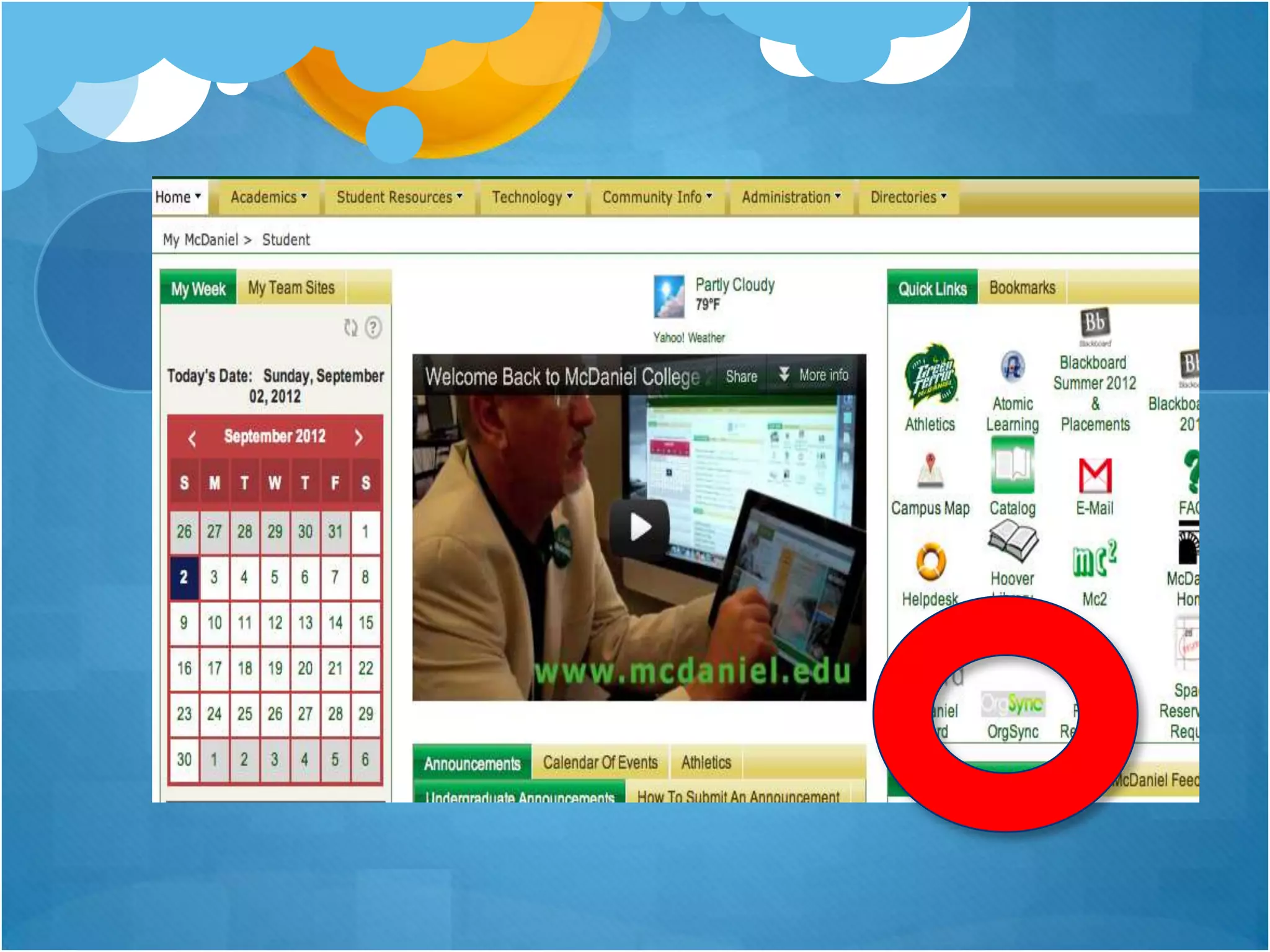
OrgSync
This can be found through the student portal.

On the right side, select the “OrgSync” option.

Login with your McDaniel username and password

Here you can find information about events on
campus, what certain clubs are doing, events hosted
by the OSE and all kinds of great campus info!
Writing Center Website
 The writing center is a great resource for paper
 editing and consultation!
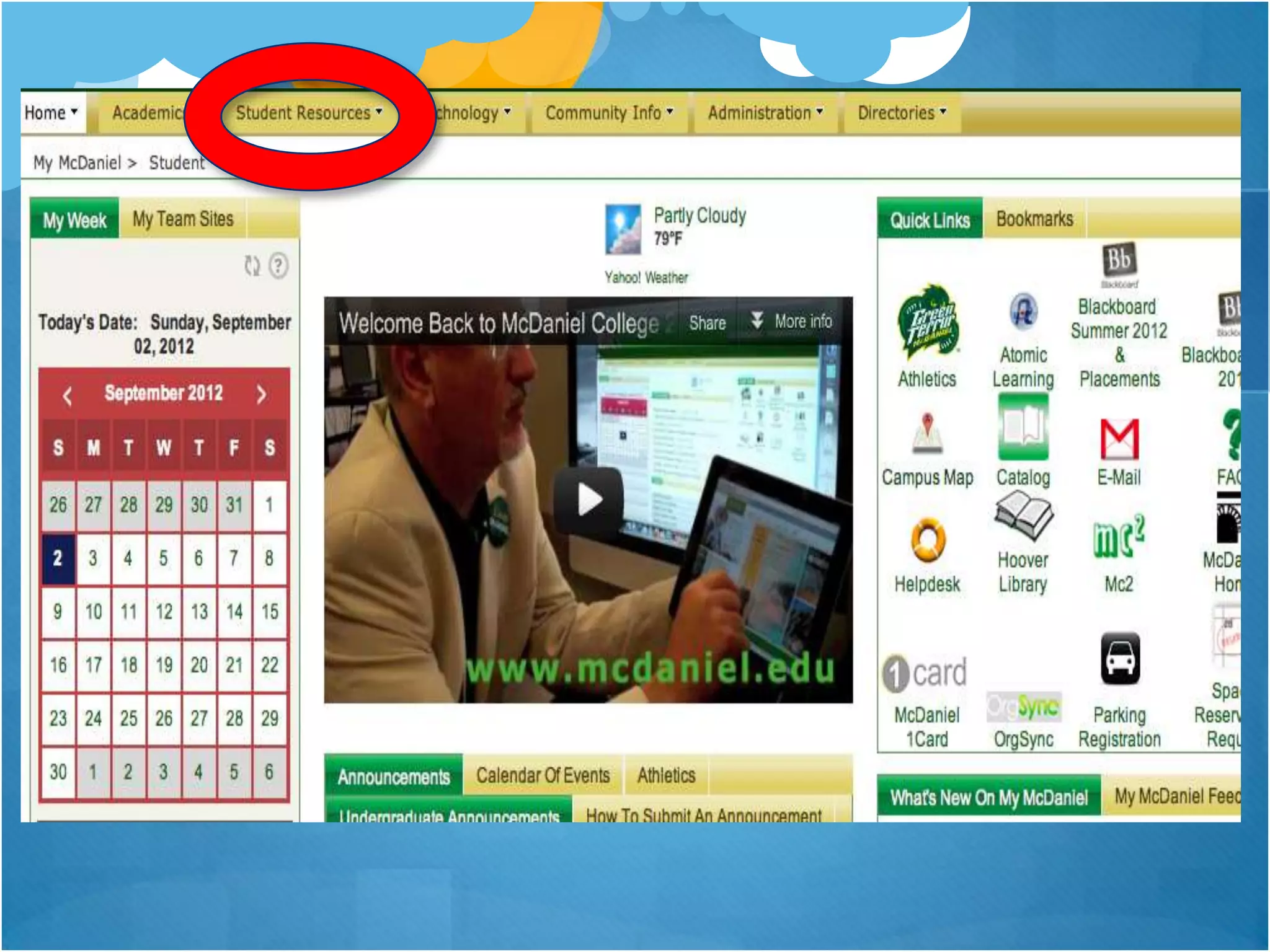
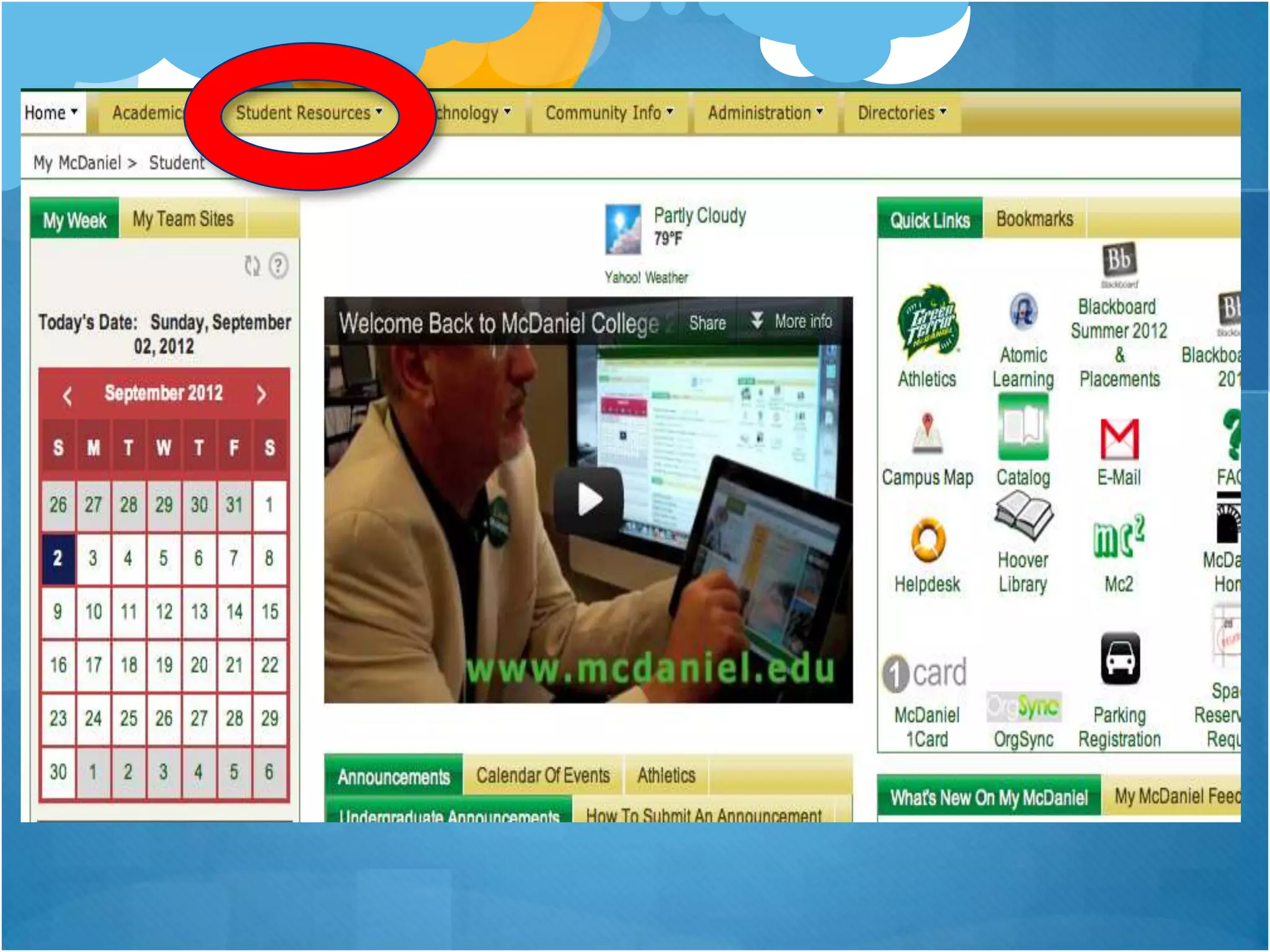
 Under Student Portal, go under the dropdown tab
 labeled “Student Resources” and go all the way to
 the “Writing Center” link.
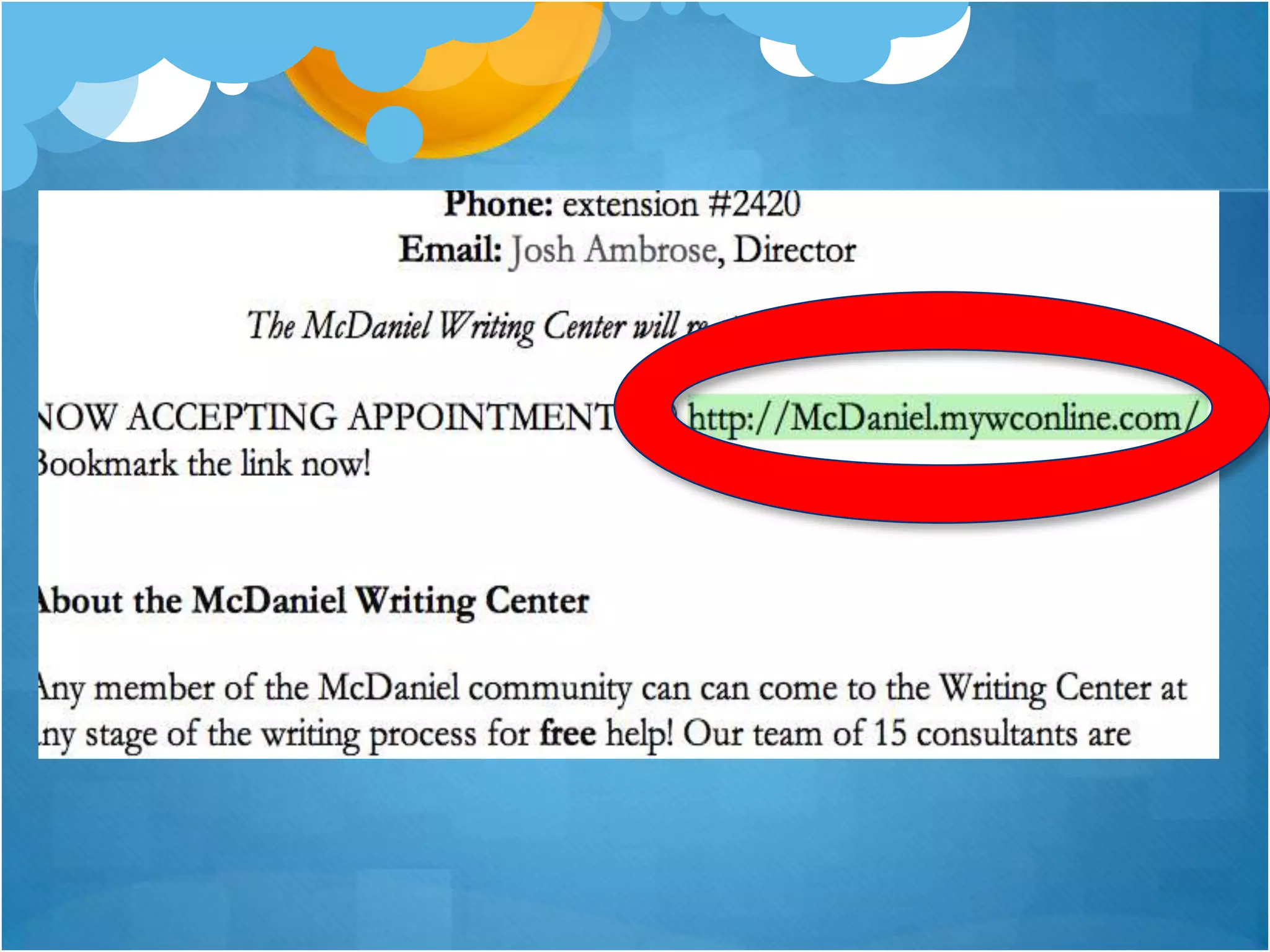
 This leads to the Writing Center website link.
 Click this website and set up an account to be able to
 schedule writing center appointments online!
New Pickle Services!
 In the Student Portal under Student
 Resources, select Transportation. Here, click on
 the picture of the Pickle, which will show the
 CATS (Carroll Area Transportation System)
 schedule as well as the new schedule for the
 Pickle and where it goes!
Any Questions?
 Ask your PM, your professor, your RA, or anyone
 on campus!

Peer Mentor Flex Session 2 - Things to do in Westminster

  • 3.
    Where Is It?! The Pool: located in Decker College Center in the level under Glar! The Wellness Center: in Winslow Center, the building behind Eaton Hall! The OSE: across from Glar! CEO: In the basement of Rouzer, down the hall next to the OSE across from Glar! SASS: On the first level of Academic Hall, to the left! The Writing Center: on the first level of Hill Hall!
  • 4.
    ALWAYS CHECK YOUR EMAIL Emailis VERY important This is how clubs, professors, and everybody on campus gets in touch with you! Also, when professors post assignments, many will email you through BlackBoard and let you know that they posted something!
  • 5.
    Student Portal Here,you can access your email, Blackboard, the McDaniel OneCard website, OrgSync, the library website, and any information you may need as a student! The website is my.mcdaniel.edu, and use your username and password (like what you would use to sign into Archway) to log in.
  • 7.
    Blackboard: Grades Signinto Blackboard On the left side, click “My Grades” Select the class you are interested in!
  • 9.
    Blackboard: Send Email Log into Blackboard On the left side, click “Send Email” Select the class you wish to send an email to Select the option that best applies to who you want to send an email to, whether it be all the people in your class, a select few, or just the instructor. Send your email!
  • 12.
    Archway: View Grades Log into Archway Click “Student Menu” Click “Grades” in the column on the right Select the semester that you inquiring about and click “Submit”
  • 14.
    Archway: Program Evaluation Loginto Archway Click “Student Menu” In the right column, click “Program Evaluation” Select your major, or if you wish to see the program evaluation for another major, select the major you wish to see it for, and then click “Submit”
  • 18.
    Archway: Waitlist Management Ifyou are waitlisted for a course, this will show you the course and where you are on the waitlist Log into Archway Click “Student Menu” In the column on the right, click “Waitlist Management”
  • 21.
    Archway: Change Password Ifyou need to change your password, this button changes the password for all of your accounts linked to McDaniel except for your email. Log into Archway and click on the student menu In the left column, click on “Change Password” This link will take you to a website where you can change your McDaniel passwords
  • 23.
    Archway: Partial Process! THIS IS IMPORTANT! If you are registering for a course, always select “Part Process what’s available!” at the bottom of the screen If one of your classes close at the last second at registration, this keeps your whole registration process from being rejected if one class is no longer available! This choice will automatically put you on the waitlist!
  • 26.
    Archway: Test Summary This shows any AP tests you’ve taken before McDaniel and your scores, your SAT scores, and any scores on placement exams. Log into Archway and click on Student Menu In the column on the right, select “Test Summary”
  • 28.
    Archway: Search forMcDaniel Plan Requirements Log onto Archway and click “Student Menu” Click “Search for Classes” In the dropdown bar towards the top of these search section labeled “MDL/BLAR - UG, GR-MLA,” find the McDaniel plan requirement that satisfies what you’re looking for. For example, to find Creative Expression classes, click the CE option. Each requirement is labeled so it can be easily recognized.
  • 30.
    Archway: Academic History Log into Archway and click on “Student Menu” Select “Academic History” in the right hand column. This will show you all of the classes taken to date, the grade earned in the course, and what year the course was taken in. It also lists your total taken credits to date.
  • 32.
    Archway: Authorizations and Restrictions This will tell you if you have any restrictions on your student account. These restrictions could keep you from registering for classes! Also, if you are cleared to register for classes by your advisor, this section of archway will say that you are cleared and when you can register. Your student ID, advisor and their email, your major(s) and/or minor(s) as well as some other personal information (address, phone number, emergency contact info, etc.) On the right hand side of the student menu, select “Authorizations and Restrictions”
  • 34.
    Archway: Preferred Selections Basket As you know from registration, the preferred sections basket is very important! When registering for classes, search for classes under “Register for Classes” option on right hand side of column in the student menu and click “Search and Register for Sections”. Whatever class you search for, you can check off on the left and when you submit at the bottom of the page, it will automatically go to your preferred sections basket.
  • 36.
    Archway: Preferred Selections Basket At registration, click on “Register for Classes” again, but select “Register for Preferred Classes” and you can automatically register for the courses you selected earlier.
  • 37.
  • 38.
    Archway: Grades Inthe student menu, select “grades” and the term that applies, and it will then show your grades for that semester. If you want to see a transcript, Academic History will be more helpful. If you need a copy of your transcript, call the Registrar’s office!
  • 40.
    Archway: Financial Aid AwardLetter Here you can see your scholarships and loans planned out. If you want a more detailed layout, call the Bursar’s office! In the Student Menu, select Financial Aid Award Letter under the Financial Aid section on the right and select the year you’re inquiring about.
  • 42.
    OrgSync This can befound through the student portal. On the right side, select the “OrgSync” option. Login with your McDaniel username and password Here you can find information about events on campus, what certain clubs are doing, events hosted by the OSE and all kinds of great campus info!
  • 44.
    Writing Center Website The writing center is a great resource for paper editing and consultation! Under Student Portal, go under the dropdown tab labeled “Student Resources” and go all the way to the “Writing Center” link. This leads to the Writing Center website link. Click this website and set up an account to be able to schedule writing center appointments online!
  • 47.
    New Pickle Services! In the Student Portal under Student Resources, select Transportation. Here, click on the picture of the Pickle, which will show the CATS (Carroll Area Transportation System) schedule as well as the new schedule for the Pickle and where it goes!
  • 49.
    Any Questions? Askyour PM, your professor, your RA, or anyone on campus!