Melissa A. Venable, PhD - Instructional Technology
Key Interests: Career decision-making process | Design and delivery of
online courses and programs | Identifying, selecting, and implementing new educational and career
services-related technologies
NCDA Board Secretary 2017-2020
Technology Committee Chair 2012-2017
Leadership Academy 2014-2015
Connect!
● linkedin.com/in/melissavenable/
● @Melissa_Venable
Find me here!
● @TechnologyTwins
● www.technologytwins.com
Objectives for Today
● Explore use of infographics to convey information in a
range of contexts.
● Compare the pros and cons of several web-based tools
● Critique infographics as a way to learn about basic
design principles
● Develop a list of ways to use infographics in career
counseling and coaching work settings
Agenda
1. What is an infographic?
2. A Few Free Tools
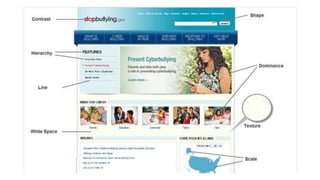
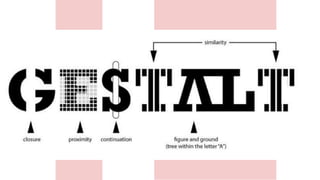
3. (Info)Graphic Design 101
4. Critique
5. How to Use Piktochart
6. Wrap Up
What is an infographic?
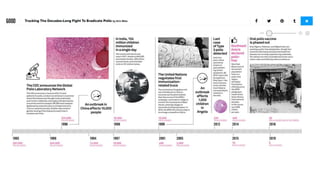
“[This] project isn’t the first
attempt to present data like this
to the public, but it stands out for
its custom graphics, which make
abstract, complex numbers
quickly comprehensible.” - NPR
Our nation, in numbers.
Federal, state, and local data
from over 70 government
sources.
usafacts.org
HOW DOES THE MONEY
FLOW IN AND OUT OF
GOVERNMENT?
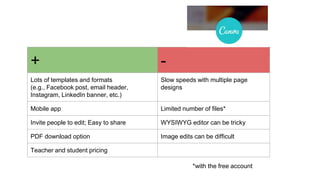
+ -
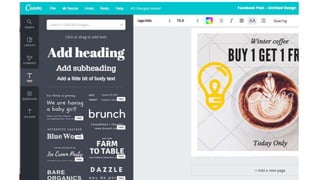
Lots of templates and formats
(e.g., Facebook post, email header,
Instagram, LinkedIn banner, etc.)
Slow speeds with multiple page
designs
Mobile app Limited number of files*
Invite people to edit; Easy to share WYSIWYG editor can be tricky
PDF download option Image edits can be difficult
Teacher and student pricing
*with the free account
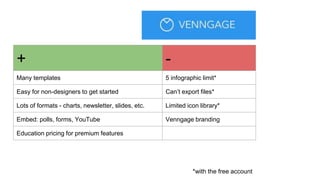
+ -
Many templates 5 infographic limit*
Easy for non-designers to get started Can’t export files*
Lots of formats - charts, newsletter, slides, etc. Limited icon library*
Embed: polls, forms, YouTube Venngage branding
Education pricing for premium features
*with the free account
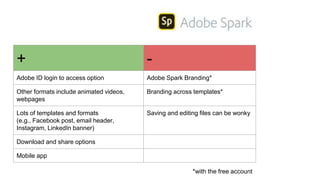
+ -
Adobe ID login to access option Adobe Spark Branding*
Other formats include animated videos,
webpages
Branding across templates*
Lots of templates and formats
(e.g., Facebook post, email header,
Instagram, LinkedIn banner)
Saving and editing files can be wonky
Download and share options
Mobile app
*with the free account
+ -
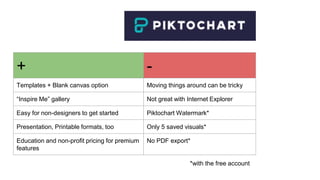
Templates + Blank canvas option Moving things around can be tricky
“Inspire Me” gallery Not great with Internet Explorer
Easy for non-designers to get started Piktochart Watermark*
Presentation, Printable formats, too Only 5 saved visuals*
Education and non-profit pricing for premium
features
No PDF export*
*with the free account
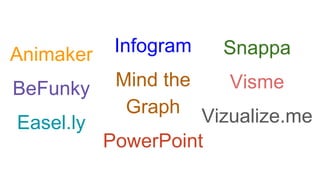
Animaker
BeFunky
Easel.ly
Infogram
Mind the
Graph
PowerPoint
Snappa
Visme
Vizualize.me
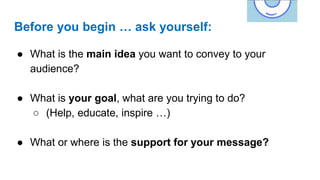
Before you begin … ask yourself:
● What is the main idea you want to convey to your
audience?
● What is your goal, what are you trying to do?
○ (Help, educate, inspire …)
● What or where is the support for your message?
7 S’s of a Successful Infographic
● Story - What are you trying to tell your audience? Establish flow.
● Style - Visually engaging, use of white space, color scheme
● Simplicity - Not too complex or confusing; easy to understand
● Size - How will you use it (website, poster, social media, PDF)?
● Stats - Numbers, data! Create bite-sized, chunks if digestible info.
● Shareability - Easy to add to a social post, link in an email, etc.
● Source(s) - Cite your sources!
https://blog.hubspot.com/marketing/knockout-infographic-components
What kinds of information would you include in
an infographic about helping students or clients
manage stress?
What kinds of information would you include in
an infographic about using social media to find a
job?
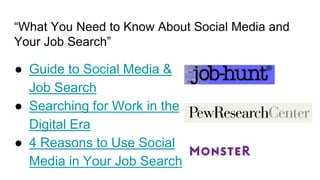
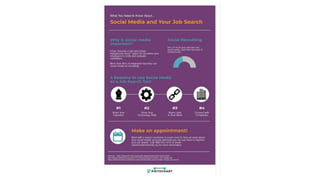
“What You Need to Know About Social Media and
Your Job Search”
● Guide to Social Media &
Job Search
● Searching for Work in the
Digital Era
● 4 Reasons to Use Social
Media in Your Job Search
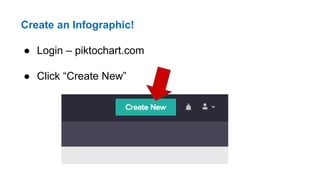
Create an Infographic!
● Login – piktochart.com
● Click “Create New”
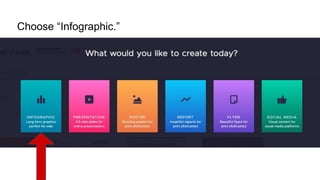
Choose “Infographic.”
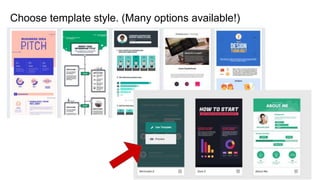
Choose template style. (Many options available!)
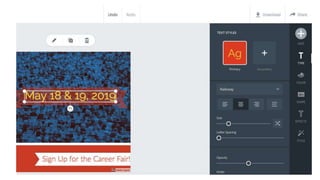
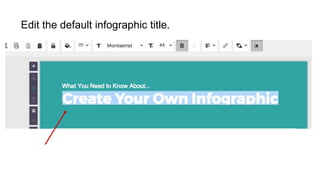
Edit the default infographic title.
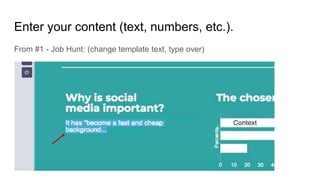
Enter your content (text, numbers, etc.).
From #1 - Job Hunt: (change template text, type over)
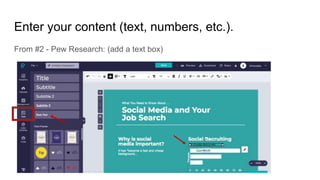
Enter your content (text, numbers, etc.).
From #2 - Pew Research: (add a text box)
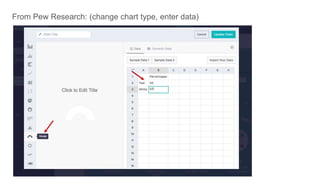
From Pew Research: (change chart type, enter data)
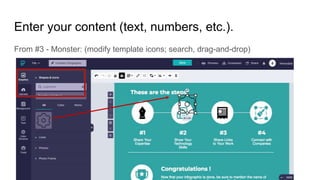
Enter your content (text, numbers, etc.).
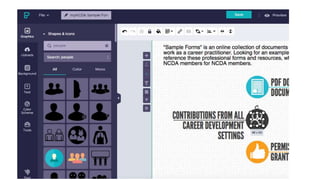
From #3 - Monster: (modify template icons; search, drag-and-drop)
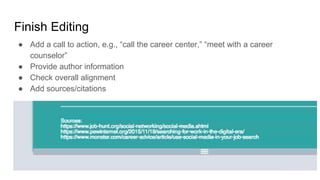
Finish Editing
● Add a call to action, e.g., “call the career center,” “meet with a career
counselor”
● Provide author information
● Check overall alignment
● Add sources/citations
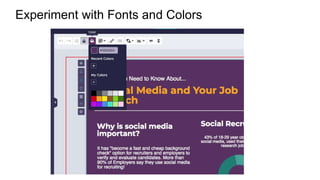
Experiment with Fonts and Colors
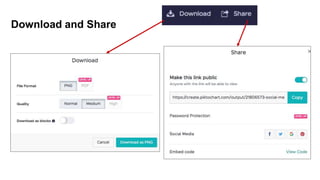
Download and Share
Think about the opportunities ...
How might you use these graphic design tools in your
current career work settings?
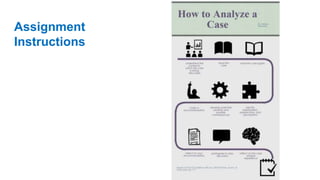
Assignment
Instructions
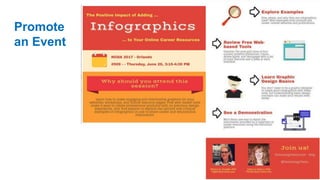
Promote
an Event
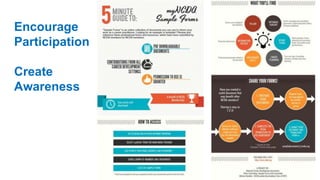
Encourage
Participation
Create
Awareness
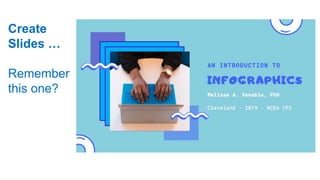
Create
Slides …
Remember
this one?
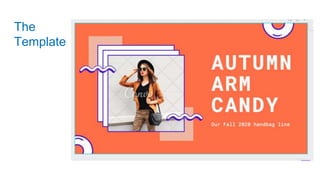
The
Template
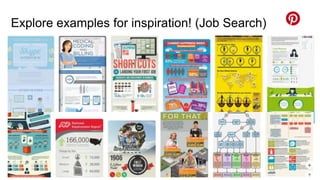
Explore examples for inspiration! (Job Search)
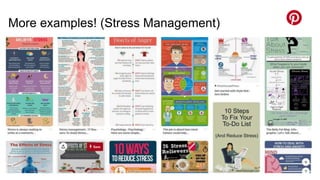
More examples! (Stress Management)
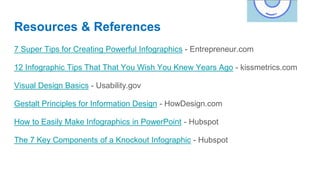
Resources & References
7 Super Tips for Creating Powerful Infographics - Entrepreneur.com
12 Infographic Tips That That You Wish You Knew Years Ago - kissmetrics.com
Visual Design Basics - Usability.gov
Gestalt Principles for Information Design - HowDesign.com
How to Easily Make Infographics in PowerPoint - Hubspot
The 7 Key Components of a Knockout Infographic - Hubspot
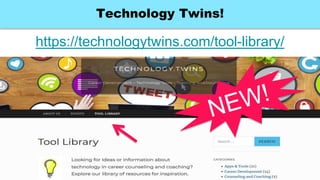
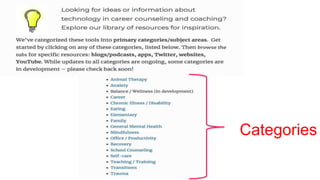
Technology Twins!
https://technologytwins.com/tool-library/
Categories
Thank you!
Connect!
● www.linkedin.com/in/melissavenable/
● @Melissa_Venable
Contact:
● melissa.a.venable@gmail.com

Infographics - NCDA CPI Cleveland 2019 & Charlotte 2020

  • 2.
    Melissa A. Venable,PhD - Instructional Technology Key Interests: Career decision-making process | Design and delivery of online courses and programs | Identifying, selecting, and implementing new educational and career services-related technologies NCDA Board Secretary 2017-2020 Technology Committee Chair 2012-2017 Leadership Academy 2014-2015 Connect! ● linkedin.com/in/melissavenable/ ● @Melissa_Venable Find me here! ● @TechnologyTwins ● www.technologytwins.com
  • 3.
    Objectives for Today ●Explore use of infographics to convey information in a range of contexts. ● Compare the pros and cons of several web-based tools ● Critique infographics as a way to learn about basic design principles ● Develop a list of ways to use infographics in career counseling and coaching work settings
  • 4.
    Agenda 1. What isan infographic? 2. A Few Free Tools 3. (Info)Graphic Design 101 4. Critique 5. How to Use Piktochart 6. Wrap Up
  • 5.
    What is aninfographic?
  • 8.
    “[This] project isn’tthe first attempt to present data like this to the public, but it stands out for its custom graphics, which make abstract, complex numbers quickly comprehensible.” - NPR Our nation, in numbers. Federal, state, and local data from over 70 government sources. usafacts.org HOW DOES THE MONEY FLOW IN AND OUT OF GOVERNMENT?
  • 10.
    + - Lots oftemplates and formats (e.g., Facebook post, email header, Instagram, LinkedIn banner, etc.) Slow speeds with multiple page designs Mobile app Limited number of files* Invite people to edit; Easy to share WYSIWYG editor can be tricky PDF download option Image edits can be difficult Teacher and student pricing *with the free account
  • 12.
    + - Many templates5 infographic limit* Easy for non-designers to get started Can’t export files* Lots of formats - charts, newsletter, slides, etc. Limited icon library* Embed: polls, forms, YouTube Venngage branding Education pricing for premium features *with the free account
  • 14.
    + - Adobe IDlogin to access option Adobe Spark Branding* Other formats include animated videos, webpages Branding across templates* Lots of templates and formats (e.g., Facebook post, email header, Instagram, LinkedIn banner) Saving and editing files can be wonky Download and share options Mobile app *with the free account
  • 16.
    + - Templates +Blank canvas option Moving things around can be tricky “Inspire Me” gallery Not great with Internet Explorer Easy for non-designers to get started Piktochart Watermark* Presentation, Printable formats, too Only 5 saved visuals* Education and non-profit pricing for premium features No PDF export* *with the free account
  • 18.
  • 22.
    Before you begin… ask yourself: ● What is the main idea you want to convey to your audience? ● What is your goal, what are you trying to do? ○ (Help, educate, inspire …) ● What or where is the support for your message?
  • 23.
    7 S’s ofa Successful Infographic ● Story - What are you trying to tell your audience? Establish flow. ● Style - Visually engaging, use of white space, color scheme ● Simplicity - Not too complex or confusing; easy to understand ● Size - How will you use it (website, poster, social media, PDF)? ● Stats - Numbers, data! Create bite-sized, chunks if digestible info. ● Shareability - Easy to add to a social post, link in an email, etc. ● Source(s) - Cite your sources! https://blog.hubspot.com/marketing/knockout-infographic-components
  • 32.
    What kinds ofinformation would you include in an infographic about helping students or clients manage stress?
  • 33.
    What kinds ofinformation would you include in an infographic about using social media to find a job?
  • 35.
    “What You Needto Know About Social Media and Your Job Search” ● Guide to Social Media & Job Search ● Searching for Work in the Digital Era ● 4 Reasons to Use Social Media in Your Job Search
  • 36.
    Create an Infographic! ●Login – piktochart.com ● Click “Create New”
  • 37.
  • 38.
    Choose template style.(Many options available!)
  • 39.
    Edit the defaultinfographic title.
  • 40.
    Enter your content(text, numbers, etc.). From #1 - Job Hunt: (change template text, type over)
  • 41.
    Enter your content(text, numbers, etc.). From #2 - Pew Research: (add a text box)
  • 42.
    From Pew Research:(change chart type, enter data)
  • 43.
    Enter your content(text, numbers, etc.). From #3 - Monster: (modify template icons; search, drag-and-drop)
  • 44.
    Finish Editing ● Adda call to action, e.g., “call the career center,” “meet with a career counselor” ● Provide author information ● Check overall alignment ● Add sources/citations
  • 45.
  • 47.
  • 48.
    Think about theopportunities ... How might you use these graphic design tools in your current career work settings?
  • 49.
  • 50.
  • 51.
  • 52.
  • 53.
  • 54.
    Explore examples forinspiration! (Job Search)
  • 55.
  • 56.
    Resources & References 7Super Tips for Creating Powerful Infographics - Entrepreneur.com 12 Infographic Tips That That You Wish You Knew Years Ago - kissmetrics.com Visual Design Basics - Usability.gov Gestalt Principles for Information Design - HowDesign.com How to Easily Make Infographics in PowerPoint - Hubspot The 7 Key Components of a Knockout Infographic - Hubspot
  • 57.
  • 58.
  • 59.
    Thank you! Connect! ● www.linkedin.com/in/melissavenable/ ●@Melissa_Venable Contact: ● melissa.a.venable@gmail.com